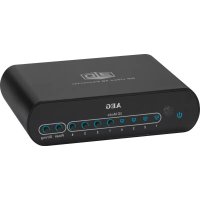
DVK 4628 - Media player AEG - Free user manual and instructions
Find the device manual for free DVK 4628 AEG in PDF.



| Product type | 2D/3D Converter (TV Box) |
| Brand | AEG |
| Model | DVK 4628 |
| Power supply | Power adapter: input AC 100-240 V, 50/60 Hz; output DC 5.5 V, 2000 mA |
| Power consumption | 5 W |
| Net weight | 0.18 kg |
| Maximum resolution | 1920 x 1080 (Full HD) |
| Connectivity | HDMI 1.3 (1 input, 1 output) |
| Main functions | 2D to 3D conversion (anaglyph); modes BY PASS, 2DTV/2D, 2DTV/3D, 3DTV/2D, 3DTV/3D; 3D intensity adjustment (Weak, Medium, Strong) |
| Remote control range | Up to 5 meters, maximum angle 30° |
| Remote control batteries | Lithium CR2025 |
| Included accessories | 2 pairs of 3D glasses, remote control, power adapter |
| Maintenance and cleaning | Clean with a soft, dry cloth. Do not use water or abrasive products. |
| Safety | Do not expose to water or moisture. Unplug during prolonged non-use. Do not open or repair yourself. |
| Spare parts and repairability | In case of malfunction, consult an authorized specialist. The power cord must be replaced with an identical model. |
| General information | Device tested according to EC directives (electromagnetic compatibility, low voltage). For indoor dry use only. |
Frequently Asked Questions - DVK 4628 AEG
User questions about DVK 4628 AEG
0 question about this device. Answer the ones you know or ask your own.
Ask a new question about this device
Download the instructions for your Media player in PDF format for free! Find your manual DVK 4628 - AEG and take your electronic device back in hand. On this page are published all the documents necessary for the use of your device. DVK 4628 by AEG.
USER MANUAL DVK 4628 AEG
Overview of the Components ....... Page 3
Instruction Manual...... Page 51
Technical Data Page 58
Disposal . Page 59
General Safety Instructions
Read the operating instructions carefully before putting the appliance into operation and keep the instructions including the warranty, the receipt and, if possible, the box with the internal packing. If you give this device to other people, please also pass on the operating instructions.
- To prevent the risk of fire or electric shock, the unit should not be exposed to rain or moisture. Do not operate the unit in the immediate vicinity of water (e.g. bathroom, swimming pool, damp cellar).
- The unit may only be used privately and for the intended purpose. This unit is not intended for commercial use.
- Make sure that the mains cable is not bent, trapped or in contact with sources of heat.
- Make sure that the mains cable does not present a trip hazard.
The power supply must only be used in dry areas. - Connect the power supply to a properly installed plug outlet. Check that the output voltage and the polarity of the power supply match the details on the connected unit!
- Do not touch the connected power supply with wet hands!
- Disconnect the power supply from the mains if the unit is not in use for long periods, for cleaning or if a fault occurs.
- The unit and the power lead must be inspected regularly for signs of damage. If damage is found, do not continue to use the unit.
- Do not repair the unit yourself but rather consult an authorized specialist. To avoid risks, a defective power lead must always be replaced with an identical cable by the manufacturer, our customer service or a similarly qualified person.
- Never use a mains adapter different to that which is supplied.
These symbols may be found on the unit and indicate the following:
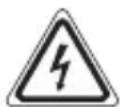
The lightning symbol refers the user to parts inside the unit which carry a dangerously high voltage.

The exclamation mark symbol refers the user to important operating or warning advice in the accompanying documents.
Symbols in these Instructions for Use
Important information for your safety is specially marked. It is essential to comply with these instructions in order to avoid accidents and prevent damage to the machine:
52 English
WARNING: This warns you of dangers to your health and indicates possible injury risks.
CAUTION: This refers to possible hazards to the machine or other objects.
NOTE: This highlights tips and information.
Children and Frail Individuals
- In order to ensure your children's safety, please keep all packaging (plastic bags, boxes, polystyrene etc.) out of their reach.
WARNING!
Caution! Do not allow small children to play with the foil as there is a danger of suffocation!
- This device is not intended to be used by individuals (including children) who have restricted physical, sensory or mental abilities and/or insufficient knowledge and/or experience, unless they are supervised by an individual who is responsible for their safety or have received instructions on how to use the device.
Children should be supervised at all times in order to ensure that they do not play with the device.
Special safety instructions for this unit
If use of the 3D TV Box leads to a physical reaction, do not continue to use the unit.
- Watching films in 3D can cause dizziness, headaches and nausea in the viewer. This can be traced back to increased strain on the eyes.
- Persons in a poor physical state, e.g. who need sleep or have consumed alcohol, should not operate this unit.
Overview of controls
Front (Fig. 1)
1 Power-on indicator
2 IR Sensor for the remote control
3 BY PASS indicator
4 2DTV/2D PROGRAM indicator
5 2DTV/3D PROGRAM indicator
6 3DTV/2D PROGRAM indicator
7 BY PASS button (no conversion)
8 2DTV/2D PROGRAM button
9 2DTV/3D PROGRAM button
10 3DTV/2D PROGRAM button
11 WEAK button (Weak 3D Effect)
12 STRONG button (Strong 3D Effect)
Back (Fig. 2)
13 DC connector for power supply
14 I/O power switch (On/Off)
15 HDMI OUT Connector (Output)
16 HDMI Connector (Input)
Remote control (Fig. 3)
1 BY PASS button (no conversion)
2 3DTV/2D PROGRAM button
3 3DTV/3D PROGRAM button
4 STRONG button (Strong 3D Effect)
5 MEDIUM button (Medium 3D Effect)
6 WEAK button (Weak 3D Effect)
7 2DTV/3D PROGRAM button
8 2DTV/2D PROGRAM button
9 POWER button (On/Standby)
Product description
This unit converts digital image content (Sat-TV, DVB-T, cable digital, DVD's, games etc.) into 3D format and plays them back on your HD ready- or Full HD TV.
Supplied parts
1x 3D TV Box
1x Power supply
1x Remote control
2x 3D glasses
54 English Commissioning
- Select a suitable location for the unit. A suitable location is a dry, level, non-slip surface on which you can best operate the unit.
If applicable, remove the protective plastic from the unit.
Power supply
- Connect the power supply plug to a properly installed 230 V, 50 Hz earthed socket. Connect the unit to the power supply by plugging the power supply jack into the DC connector (13) on the back of the unit.
- Make sure that the mains voltage matches the details on the information plate.
CAUTION:
- The supplied power supply plug may only be used with this unit. Do not use with other devices.
- Only use a power supply plug with 5.5V (e). A different power supply may damage the unit.
i NOTE:
If the unit is not in use for long periods, the power supply plug should be disconnected from the socket.
Insert/replace batteries in the remote control
NOTE:
Where necessary, the lithium battery in the battery compartment of the remote control has been protected for transport using plastic foil. This extends the battery life. Before initial use, remove this foil to prepare the remote control for use.
The battery used in the remote control is a long life lithium battery. Should the range of the remote control deteriorate over time, please proceed as follows:
- Open the battery compartment on the back of the remote control.
- Replace the cell with a battery of the same type (CR 2025). Make sure the polarity is correct.
- Close the battery compartment.
If the remote control is not in use for long periods, remove the battery to prevent the battery acid from leaking out.

WARNING:
- Do not expose batteries to extreme heat or direct sunlight. Never throw batteries into a fire. Risk of explosion!
- Keep batteries out of the reach of children. Batteries are not toys.
- Do not force open the batteries.
- Avoid contact with metallic objects (rings, nails, screws etc.). Risk of short circuit!
- Short circuits may cause the batteries to become very hot or even ignite. This may cause burns.
- For your own safety, the battery terminals should be covered with adhesive strips during transport.
- If a battery leaks, do not rub the liquid into your eyes or mucous membranes. If you come into contact with the liquid, wash your hands, rinse out your eyes with clean water, and seek medical advice if symptoms persist.

CAUTION:
Do not dispose of batteries with household waste. Please take used batteries to the designated collection point or to a dealer.
Remote control range
To use the remote control, point it at the remote control sensor on the front of the unit. Make sure that there are no obstacles between the remote control and the sensor. The distance from the remote control to the sensor should not exceed 5 meters. The angle of the remote control to the remote control sensor should not exceed 30^ to the right, left, top and bottom.
Connecting the unit

NOTE:
Trouble-free operation can only be guaranteed by use of audio/video cables of up to 1.5m .
Connect HDMI cable
Connect the unit to your TV and the signal source (e.g. DVD-Player). You will need two HDMI cables to do so.
- Connect the signal source with the 3D TV Box with a HDMI cable. To do so, plug one end of the cable into the HDMI IN connector (16) on the back of the 3D TV Box.
56
English
- Now plug the other end into a free HDMI connector on your signal source (e.g. DVD player).
- Now use the second HDMI cable to connect your TV set to the 3D TV Box. To do so, plug one end of the cable into the HDMI OUT connector (15) on the back of the 3D TV Box.
Now plug the other end into a free HDMI connector of your TV set.
Operation
Switch unit on/off
- Switch the unit on by switching the power switch on the back of the unit to "I".
To switch the unit off, switch the power switch to "O".
POWER button (9 on the remote control)
You can use the POWER button to switch the unit between standby and on mode. The
power-on indicator (1) is turned off when in standby mode.
BY PASS button (7/1)
The signal is forwarded to the connected TV without conversion. The indicator (3) comes on.
Select intensity of the 3D effect
If watching a 2D program, you can select the intensity of the 3D effect with the buttons WEAK, MEDIUM and STRONG.
Converting to 3D Effect
NOTE:
- The 3D conversion depends on the file format.
We recommend 2.5 times the screen size as the optimum viewing distance. - The viewing angle should be 75^ (right/left to the center of the screen) and your eyes should be level with the center of the screen.
- For best possible quality, we also recommend that you darken the room.
After you have connected everything:
- Switch on the source of the video signal to be converted.
-
Start playback of the source (e.g. DVD player).
-
Put on one of the supplied sets of glasses.
- Select the appropriate 3D conversion.
2DTV with 2D program button (8/8)
Press this button to display image content in 2D on a 2D TV. The indicator (4) comes on.
3DTV with 2D program button (10/2)
Press this button to display image content in 2D on a 3D TV. The indicator (6) comes on.
2DTV with 3D program button (9/7)
Press this button to display image content in 3D on a 2D TV. The indicator (5) comes on.
3DTV with 3D program button (3 on the remote control)
Press this button to display image content in 3D on a 3D TV. The indicator (specified above) remains lit.
Troubleshooting
| Symptoms Potential cause/solution | |
| There is no picture on the screen. • Make sure that the HDMI cables are plugged in correctly. • Check whether all devices are switched on. • Make sure that the correct input is set on your TV. | |
| Blurred ghost image Activate BY PASS mode by pressing the BY PASS button (7/1). You can use this to play back 2D image content in the normal way. | |
| The unit cannot be operated. Unit hangs and crashes. Disconnect the mains plug for around 5 seconds. Then switch the unit back on. | |
| No sound can be heard. • Make sure that the HDMI cables are plugged in correctly. • Make sure that the volume of signal source and your TV is set to low. |
English
| Symptoms Potential cause/solution | |
| The 3D TV Box remote control does not work. | ·Make sure that the battery is inserted correctly. ·The battery may already be empty. Replace as necessary with a new battery. ·Make sure that there are no obstacles between the remote control and the infrared receiver of the 3D TV box. |
Technical Data
Model: DVK 4628
3D conversion process: "Side by Side" (anaglyph technology)
Max display resolution: 1920 x 1080 (Full HD)
Connection: HDMI 1.3
Power consumption: 5 W
Net weight: 0.18 kg
Power supply
Protection class:
Input: AC 100-240 V, 50/60 Hz
Output: DC 5.5 V, 2000 mA
Polarity:
Subject to technical changes without prior notice!
This device has been tested according to all relevant current CE guidelines, such as electromagnetic compatibility and low voltage directives, and has been constructed in accordance with the latest safety regulations.
Disposal
Disposal of batteries
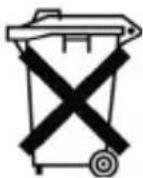
The remote control contains batteries. If these batteries are spent, proceed as follows:

CAUTION:
- Do not dispose of batteries/battery packs with normal household waste!
-
As the consumer, you are legally bound to return used batteries/rechargeable batteries.
-
The batteries must be removed from the remote control.
- You can return your used batteries/rechargeable batteries free of charge to any outlet in which the batteries/rechargeable batteries are sold.
- Your city or local municipality/authority can provide information on public collection points.
Protecting the environment
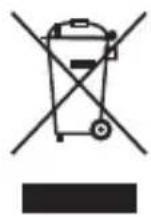
Do not dispose of the unit with normal household waste at the end of its service life. Take it to a public collection point for recycling. This will help protect the environment.
GARANTIE-KARTE
- General Safety Instructions
- Symbols in these Instructions for Use
- English
- Children and Frail Individuals
- WARNING!
- Special safety instructions for this unit
- Overview of controls
- Front (Fig. 1)
- Back (Fig. 2)
- Remote control (Fig. 3)
- Product description
- Supplied parts
- English Commissioning
- Power supply
- CAUTION:
- i NOTE:
- Insert/replace batteries in the remote control
- NOTE:
- WARNING:
- Remote control range
- Connecting the unit
- Connect HDMI cable
- 56
- English
- Operation
- Switch unit on/off
- POWER button (9 on the remote control)
- BY PASS button (7/1)
- Select intensity of the 3D effect
- Converting to 3D Effect
- 2DTV with 2D program button (8/8)
- 3DTV with 2D program button (10/2)
- 2DTV with 3D program button (9/7)
- 3DTV with 3D program button (3 on the remote control)
- Technical Data
- Disposal
- Disposal of batteries
- Protecting the environment
- GARANTIE-KARTE
Brand : AEG
Model : DVK 4628
Category : Media player