Digital Jockey 2 Interface Edition - Mixer Reloop - Free user manual and instructions
Find the device manual for free Digital Jockey 2 Interface Edition Reloop in PDF.



| Product type | Professional MIDI controller with built-in 4-channel sound card |
| Brand | Reloop |
| Model | Digital Jockey 2 Interface Edition |
| Category | Mixer |
| Power supply | 240 V, 50 Hz power supply unit |
| Switch | On/Off on rear panel |
| Connectivity | USB B, Master audio output (RCA), audio input (RCA), 6.35 mm microphone, 6.35 mm headphones, Kensington Lock |
| Integrated peripherals | 4-channel sound card, phono preamp (switchable Phono/Line) |
| Included software | Traktor LE (full Traktor PRO version available as paid upgrade) |
| Compatibility | Windows XP/Vista (32-bit), Mac OS X 10.4 (G4 1.5 GHz or Intel Core Duo) |
| ASIO driver | Included, installation via supplied CD-ROM |
| Main functions | Play/Pause, Cue, CUP, Scratching, Loops, Effects (Dry/Wet, Filter, Key), Sync, Pitch Bend, Key Lock, 3-band EQ with Kill, Pan, Gain, adjustable curve crossfader |
| Jog Wheel | Tactile, modes Search, Scratch, FX Dry/Wet, Pitch Bend (combined Search+Scratch) |
| Pitchfader | Tempo variation with center LED at 0% |
| Microphone equalizer | Separate adjustment for microphone |
| Headphone equalizer | Separate adjustment for headphones |
| Crossfader curve | Progressively adjustable from soft to sharp |
| Free MIDI switch | 1 freely assignable switch on rear panel |
| Maintenance and cleaning | Slightly damp cloth, no solvents or aerosol products |
| Safety | Do not open the case, avoid liquids, use safety outlets, unplug when not in use |
| Spare parts and repairability | No internal parts requiring maintenance; servicing exclusively by qualified personnel |
| Operating temperature | 5°C to 35°C, avoid heat and humidity |
| Support and updates | www.digital-jockey.dj and www.reloopdj.com/forum |
Frequently Asked Questions - Digital Jockey 2 Interface Edition Reloop
User questions about Digital Jockey 2 Interface Edition Reloop
0 question about this device. Answer the ones you know or ask your own.
Ask a new question about this device
Download the instructions for your Mixer in PDF format for free! Find your manual Digital Jockey 2 Interface Edition - Reloop and take your electronic device back in hand. On this page are published all the documents necessary for the use of your device. Digital Jockey 2 Interface Edition by Reloop.
USER MANUAL Digital Jockey 2 Interface Edition Reloop
To prevent fire or avoid an electric shock do not expose the device to water or fluids! Never open the housing!
ATTENTION!
Keep information for further reference!
For your own safety, please read this operation manual carefully before initial operation! All persons involved in the installation, setting-up, operation, maintenance and service of this device must be appropriately qualified and observe this operation manual in detail. This product complies with the requirements of the applicable European and national regulations. Conformity has been proven. The respective statements and documents are deposited at the
Mode d'emploi
ATTENTION!
text_image
B50 B51 B52 B53 B54 FELOOP FELOOPB50. FX Value Drehregler (Shift: Effect Select)
B51. Activate-Tasten
B52. Tempo-Fine-Drehregler (Shift: Effect Select)
B53. Tap-Taste
B54. Effect-On-Taste
1. Erste Schritte
Congratulations on purchasing the Digital Jockey 2. Thank you for placing your trust in our disc jockey technology. Before operating this equipment we ask you to carefully study and observe all instructions.
Please remove the Digital Jockey 2 from its packaging. Before initial operation please make sure that the device has not been visibly damaged during transport. If you detect any damage to the power cable or the casing, do not operate the device and contact your specialised dealer.
In order to protect the Digital Jockey 2 the device has been supplied with a protective foil. Please remove this foil before initial operation.
SAFETY INSTRUCTIONS
CAUTION!
Please exercise particular caution when handling 240 V power voltage. This voltage rating may lead to a critical electrical shock! Any damage caused by the non-observance of this operation manual excludes any warranty claims. The manufacturer is not liable for any damage to property or for personal injury caused by improper handling or non-observance of the safety instructions.
- This device has left the factory in perfect condition. To maintain this condition and to ensure a risk-free operation the user must observe the safety instructions and warnings contained in this operation manual.
- For reasons of safety and certification (CE) the unauthorised conversion and/or modification of the device is prohibited. Please note that in the event of damage caused by the manual modification to this device any warrantyclaims are excluded.
- The inside of the device does not contain any parts which require maintenance, with the exception of wear parts that can be exchanged from the outside. Only qualified staff must carry out maintenance, otherwise warranty does not apply!
- The Fuse must exclusively be exchanged against fuses of the same class, with the same trigger features and nominal current rating.
- Make sure that the power will only be supplied after the device has been fully set up. Always plug in the mains plug last. Ensure that the mains switch is in the "OFF" position when connecting the device to power.
- Only use cables that comply with regulations. Observe that all jacks and bushes are tightened and correctly hooked up. Refer to your dealer if you have any questions.
- Ensure that when setting up the product the mains cable is not squashed or damaged by sharp edges.
- Prevent the mains cable from coming into contact with other cables! Exercise great care when handling mains cables and connections. Never touch these parts with wet hands!
- Connect the power cable exclusively to appropriate shock-proof outlets. The only supply point to be used is a supply outlet in accordance with specifications of the public supply network.
- Disconnect the device from the supply outlet when not in use and before cleaning! Be sure to hold the mains plug by the body. Never pull the mains cord!
- Position the device on a horizontal and stable low-flame base.
- Avoid any concussions or violent impact when installing or operating the device.
- When selecting the location of installation make sure that the device is not exposed to excessive heat, humidity, and dust. Be sure that no cables lie around openly. You will endanger your own safety and that of others!
- Do not rest any containers filled with liquid that could easily spill onto the device or in its immediate vicinity. If, however, fluids should access the inside of the device, immediately disconnect the mains plug. Have the device
- checked by a qualified service technician before re-use. Damage caused by fluids inside the device is excluded from the warranty.
- Do not operate the device under extremely hot (in excess of 35^ ) or extremely cold (below 5^ ) conditions. Keep the device away from direct exposure to the sun and heat sources such as radiators, ovens, etc. (even
- during transport in a closed vehicle). Never cover the cooling fan or vents. Always ensure sufficient ventilation.
- The device must not be operated after being taken from a cold environment into a warm environment. The condensation caused hereby may destroy your device. Do not switch on or operate the device until it has reached
- ambient temperature!
- Controls and switches should never be treated with spray-on cleaning agents and lubricants. This device should only be cleaned with a damp cloth. Never use solvents or cleaning fluids with a petroleum base for cleaning.
- When relocating, the device should be transported in its original packaging.
- When starting operation, the faders and volume controls of your amplifier must be set to minimum level. Bring the loudspeaker switches into the "OFF" position. Wait between 8 to 10 seconds before increasing the volume to avoid shot noise created by transient effect, which could cause damage to loudspeakers and the diplexer.
- Devices supplied by voltage should not be left in the hands of children. Please exercise particular care when in the presence of children.
- At commercial facilities the regulations for the prevention of accidents as stipulated by the organization of professional associations must be observed.
- At schools, training facilities, hobby and self-help workshops the operation of the device must be monitored with responsibility by trained staff.
- Keep this operation manual in a safe place for later reference in the event of questions or problems.
APPLICATION IN ACCORDANCE WITH REGULATIONS
- This device is a professional DJ MIDI controller with integrated 4 channel soundcard that can control software. The device should be connected via USB cable to a computer.
- This product is authorised for connection to 240 V, 50 Hz AC and is designed exclusively for indoor application.
- If the device is used for any other purposes than those described in the operation manual, damage can be caused to the product, leading to exclusion of warranty rights. Moreover, any other application that does not comply with the specified purpose harbours risks such as short circuit, fire, electrical shock, etc.
- The serial number determined by the manufacturer must never be removed to uphold the warranty rights.
MAINTENANCE
- Check the technical safety of the device regularly for damage to the mains cord or the casing, as well as for wearout of wear parts such as rotary knobs and sliding faders.
- If it is to be assumed that a safe operation is no longer feasible then the device must be disconnected and secured against accidental use. Always disconnect the mains plug from the outlet!
-
It must be assumed that a safe operation is no longer feasible if the device bears visible defects, if the device no longer functions, following longer storage under unfavourable conditions or after major transport stress.
-
Designations
text_image
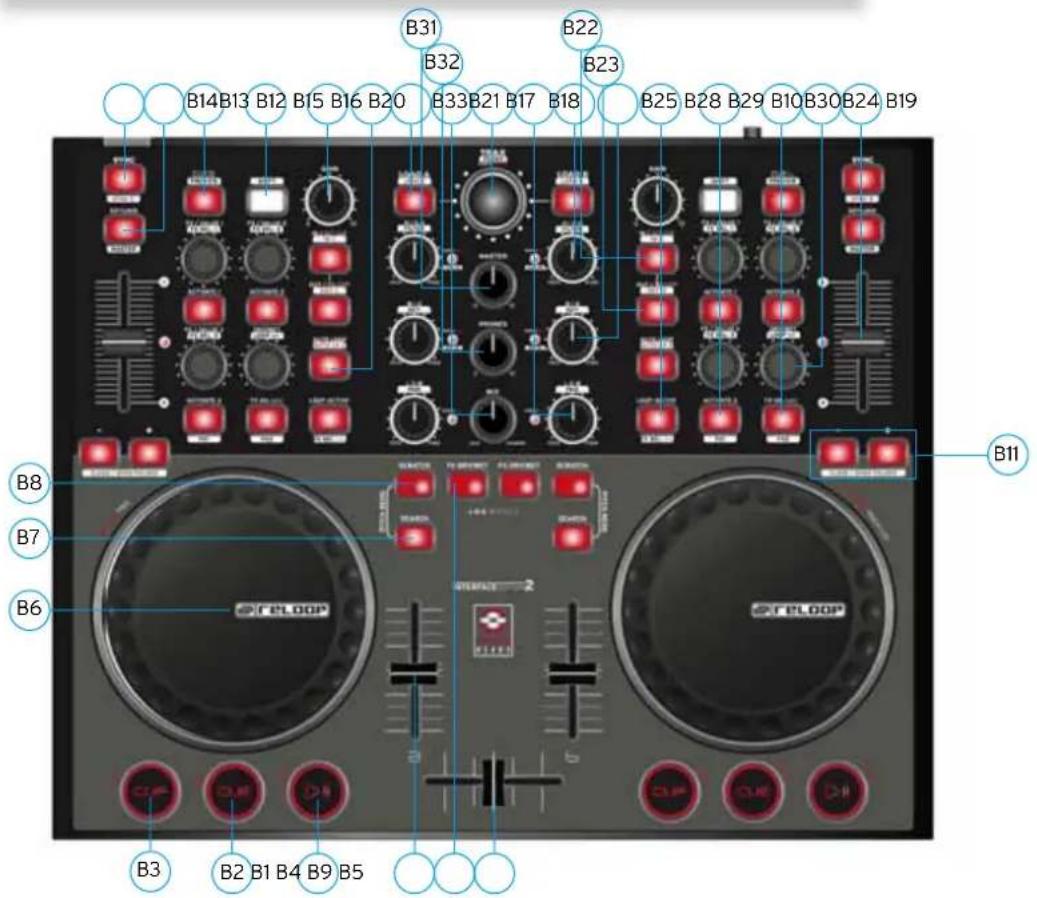
B31 B32 B22 B23 B14 B13 B12 B15 B16 B20 B33 B21 B17 B18 B25 B28 B29 B10 B30 B24 B19 B8 B7 B6 FEL00P B11 B3 B2 B1 B4 B9 B5B1. Play/Pause Button (Shift: Deck C/D) [Traktor PRO]
B2. Cue Button (Shift: Deck C/D) [Traktor PRO]
B3. CUP Button (Shift: Deck C/D) [Traktor PRO]
B4. Linefader
B5. Crossfader
B6. Jog Wheel
B7. Search Button
B8. Scratch Button
B9. FX Dry/Wet Button
B10. Pitchfader
B11. Pitch Bend Button (Shift: Close/Open Folder)
B12. Key Lock Button
B13. Sync Button (Shift: C/D) [Traktor PRO]
B14. Cue Button (Shift: Preview)
B15. Shift Button
B16. Gain Knob
B17. EQ High Knob (Shift: Filter)
B18. EQ Mid Knob (Shift: Key)
B19. EQ Low Knob (Shift: Shift: Pan) [Traktor PRO]
B20. Trax Encoder (Shift: Folder)
B21. Load Button (Shift: Deck C/D Button) [Traktor PRO]
B22. Loop In / Set Cue Button (Shift: Loop In Button Deck C/D) [Traktor PRO]
B23. Loop Out / Reloop Button (Shift: Loop Out Deck C/D) [Traktor PRO]
B24. Auto Loop Button (Shift: Auto Loop Deck C/D) [Traktor PRO]
B25. Loop Active Display (Shift: FX Select Advanced Mode) [Traktor PRO]
B26. FX Value 1-3 Encoder (Shift: FX Select 1-3)
B27. Activate 1-2 Buttons
B28. Activate 3 Button (Shift: FX 1 Routing Button) [Traktor PRO]
B29. FX On Advanced Mode (Shift: FX 2 Routing Button) [Traktor PRO]
B30. Dry/Wet Turning Knob (Shift: Auto Loop Increase/Decrease)
B31. Master Volume
B32. Headphones Volume
B33. Cue Mix Fading
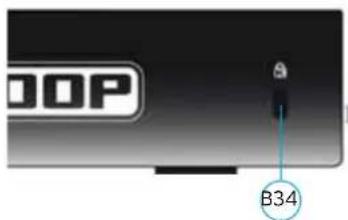
B34. Kensington Lock
Designations only for the Interface Edition:
text_image
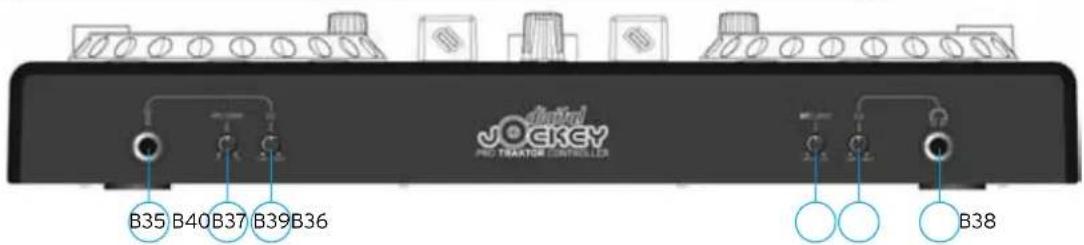
Jockey PRO TRACTOR CONTROLLER B35 B40 B37 B39 B36 B38B35. 6.3 mm Microphone Input
B36. Microphone Equalizer
B37. Record Gain
B38. 6.3 mm Headphones Input
B39. Headphones Equalizer
B40. Crossfader Curve
text_image
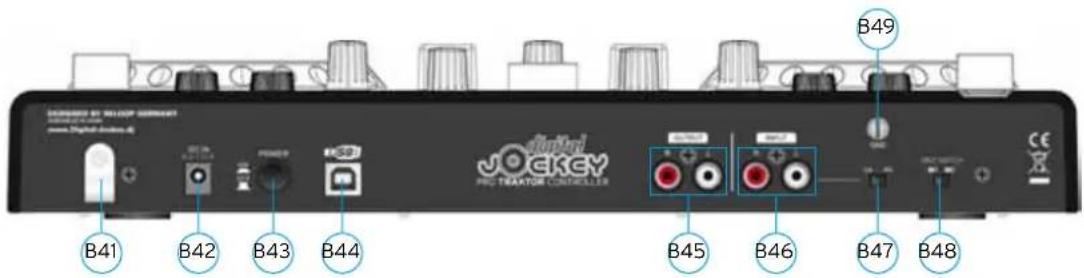
B41 B42 B43 B44 Jockey Pro TEAVATOR CONTROLLER B45 B46 B47 B48 B49B41. Mains Cord Strain Relief
B42. Mains Connection
B43. On/Off Button
B44. USB Port
B45. Audio Output (Master)
B46. Audio Input
B47. Phono/Line Switch
B48. Freely Assignable MIDI Switch
B49. GND Grounding Screw
text_image
DOP B34Differences for Traktor LE
text_image
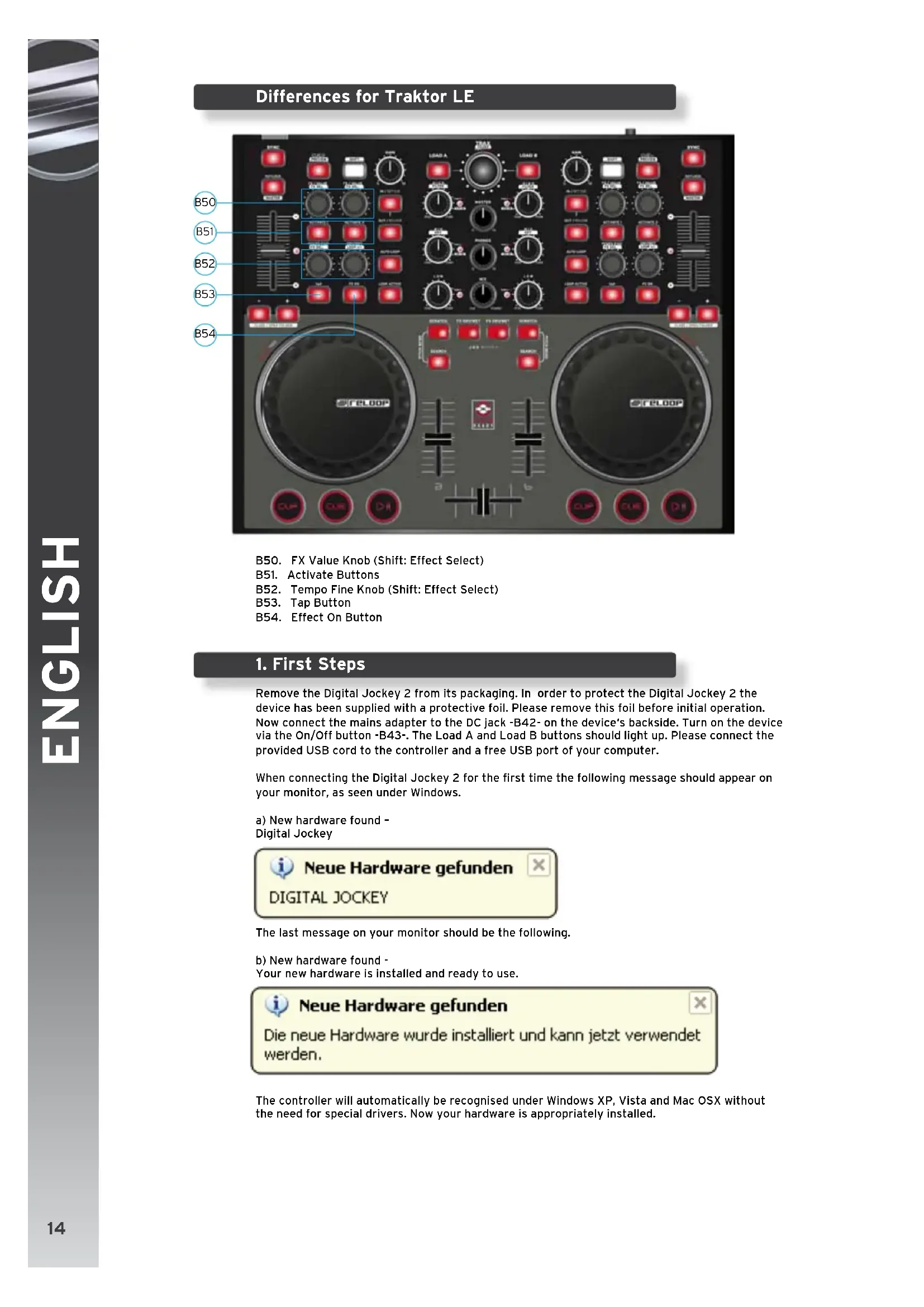
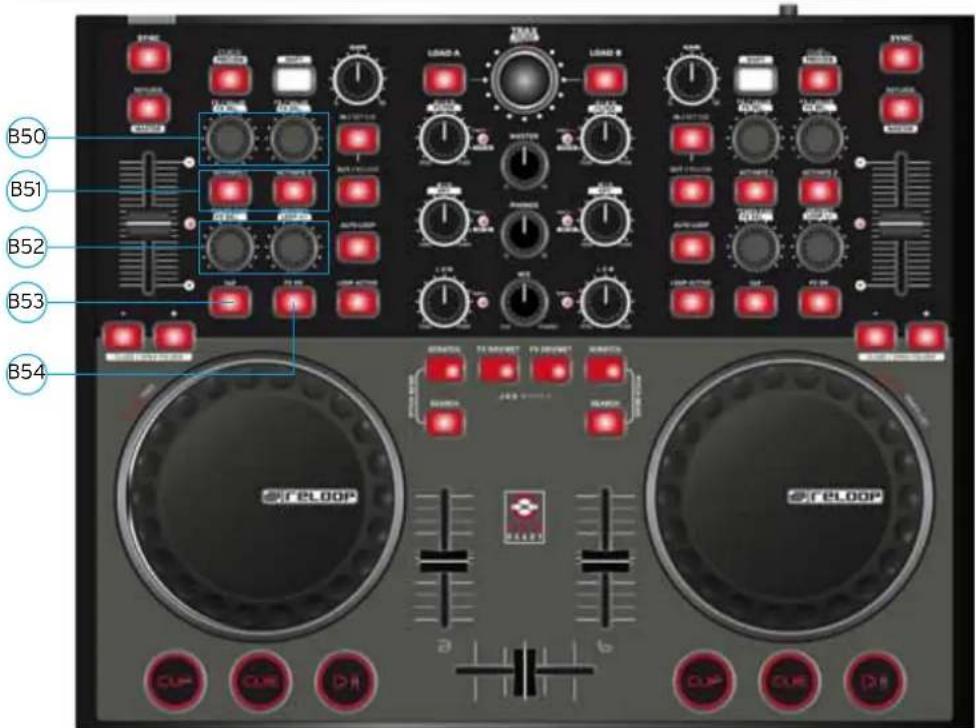
B50 B51 B52 B53 B54 RELOOP CURE DR CURE DRB50. FX Value Knob (Shift: Effect Select)
B51. Activate Buttons
B52. Tempo Fine Knob (Shift: Effect Select)
B53. Tap Button
B54. Effect On Button
1. First Steps
Remove the Digital Jockey 2 from its packaging. In order to protect the Digital Jockey 2 the device has been supplied with a protective foil. Please remove this foil before initial operation. Now connect the mains adapter to the DC jack -B42- on the device's backside. Turn on the device via the On/Off button -B43-. The Load A and Load B buttons should light up. Please connect the provided USB cord to the controller and a free USB port of your computer.
When connecting the Digital Jockey 2 for the first time the following message should appear on your monitor, as seen under Windows.
a) New hardware found - Digital Jockey

The last message on your monitor should be the following.
b) New hardware found - Your new hardware is installed and ready to use.

The controller will automatically be recognised under Windows XP, Vista and Mac OSX without the need for special drivers. Now your hardware is appropriately installed.
2. Peripheral Connections [Only Interface Edition]
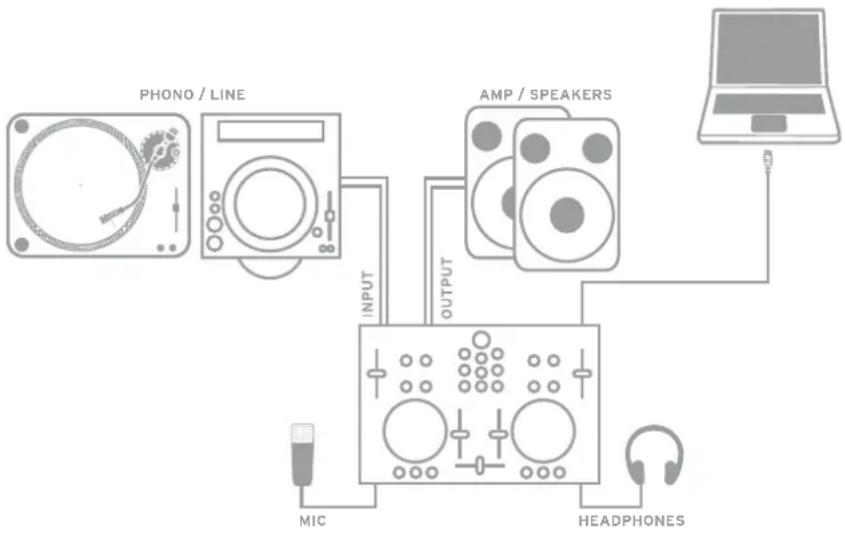
Your Digital Jockey 2 Interface Edition features an Integrated professional audio interface. Therefore an additional external or integrated PC sound card is not necessary. Below you can find a list of all possible connections.
a) Output Connection (rear panel) -B45-
Here you can plug in your main stereo system, for example an amplifier or active speakers.
b) Input Connection (rear panel) -B46-
You can connect a playback device to this input, like a turntable or a CD player, for example, in order to integrate external players in your setup.
![Reloop Digital Jockey 2 Interface Edition - Peripheral Connections [Only Interface Edition] - 1](/content/2026/02/379576/images/96fd473aaf36eae7574f1dd264b035941168a36708d20cbed20758a6f0aa48c0.jpg)
NOTE!
Next to the input there is a Phono/Line switch -B47- that has to be adjusted according to the connected source.
c) Microphone input (front panel) -B35-
Here you can plug in a regular dynamic microphone. Via the microphone equalizer -B36- it is possible to adjust the microphone's sound characteristics.
d) Headphones input (front panel) -B38-
Connect your headphones to this jack. Via the headphones equalizer -B39- it is possible to adjust the headphones' sound characteristics.

NOTE!
As the Reloop Digital Jockey 2 Interface Edition is not a stand-alone device the inputs and outputs are only functional in combination with computer and software.
flowchart
graph TD
    A["PROPHONE / LINE"] -->|INPUT| B["AMP / SPEAKERS"]
    B -->|OUTPUT| C["Laptop"]
    C --> D["HEADPHONES"]
    D --> E["MIC"]
    E --> A
3. ASIO Driver Installation [Only Interface Edition]
![Reloop Digital Jockey 2 Interface Edition - ASIO Driver Installation [Only Interface Edition] - 1](/content/2026/02/379576/images/5a016b351d52f8906a233c3afa55d2843f55b9bd628bd6d762bca90fb761b35d.jpg)
Put the provided installation CD in your CD ROM drive. An installation menu will start automatically.
![Reloop Digital Jockey 2 Interface Edition - ASIO Driver Installation [Only Interface Edition] - 2](/content/2026/02/379576/images/df1e5d881e8d992f3b46768482f95d204e203ab5fae99acb8546d857ea2010d1.jpg)
NOTE!
If your CD ROM auto start function has been disabled you can manually open the autorun.exe file on your CD.
Click on the „Install ASIO Driver“ button in order to carry out the setup. Please follow the messages displayed on screen in order to carry out the ASIO driver installation. As last step you should reboot your computer in order to complete the ASIO driver installation.
4. Traktor LE Software Installation
Carry out the Autorun.exe on the provided CD and wait until the installation menu pops up. Click on „Traktor LE“ in order to carry out the setup. The Traktor LE setup will start now; please follow the instructions on screen in order to carry out the installation. When carrying out Traktor LE for the first time a setup wizard will open up. Please choose „Reloop“ as manufacturer and in the context-menu below select your Digital Jockey Version in order to load the correct mapping.

Note for Mac users: Please manually execute the Traktor LE installation file on the provided installation disc.
Upgrade for Traktor Pro With the provided Traktor LE version you have the benefit of purchasing the extensive Traktor Pro version at a preferential proce. Current conditions regarding the prices can be found on www.native-instrumetns.com.
5. Operation
After the controller has been connected and the software has been installed you can control Traktor with the Digital Jockey 2. Compared to Traktor LE the Digital Jockey 2's user interface for Traktor Pro mainly differs in the effect and 4 deck operation. Please also see the user interface for Traktor LE.
Your Digital Jockey 2 has been optimized extensively for Traktor PRO. Below Traktor's full function assignment will be and described. Please also follow the complete Traktor instruction manual that can be found on the provided CD.
B1. Play/Pause Button
Push this button in order to start playback. Pushing the button again during playback will activate the pause mode.
Shift: Play/Pause for Deck C/D. [Traktor PRO]
B2. Cue Button [Traktor PRO]
With this button you can access the cue point.
Shift: Cue ponit for Deck C/D. [Traktor PRO]
B3. CUP Button
As long as you push and hold the CUP button (Cue & Play) the player will start the track from the cue point.
Shift: CUP Button for Deck C/D. [Traktor PRO]
B4. Linefader
It is possible to adjust the channel's volume with the linefader.
B5. Crossfader
With this controller is a fader that enables you to fade between Deck A and Deck B.
B6. Jog Wheel
The large jog wheels can be used for several functions such as scratching and the pitch bend function. Please also note items B7 - B9. If you own an Interface Edition your jog wheels are touch-sensitive allowing a more precise scratching ability.

NOTE! If no jog mode -B7 - B9- has been chosen the jog wheels are inactive in order to avoid an accidental pitch bending.
B7. Jog Mode: Search
By activating the search function it is possible to fast forward and rewind within a track.
B8. Jog Mode: Scratch
By pushing this button the scratch function will be activated.

NOTE! By simultaneously pushing the search and scratch buttons the pitch bend mode will be activated.
B9. Jog Modus: FX Dry/Wet
If Dry/Wet has been activated it is possible to fade the effect in and out by using the jog wheel. This mode is doubled by the Dry/Wet Turning Knob -B30- for comfortable effect modulation.
B10. Pitchfader
With the Pitchfader you can vary the track's pitch in the given pitch range. In the middle position (0%) the LED will be illuminated.
B11. Pitch Bend Buttons
By pushing the pitch bend buttons the track's pitch will temporarily be increased and decreased respectively. This function that is also known from CD players simulates the pushing and stopping of a record.
Shift: While holding the shift button and pushing the pitch bend buttons simultaneously when in browse mode (also see B20) it is possible to open and close folders respectively.
B12. Key Lock Button
By activating the Key Lock Button the tone pitch will be disabled. This way the original tone pitch will be kept when changing the track's speed.
Shift: Master Button. By pushing this button it is possible to choose one deck as master.
B13. Sync Button
By pushing the Sync Button the corresponding deck's pitch will be synchronized.
Shift: Sync function for Deck C/D. [Traktor PRO]
B14. Cue Button
Via this button the monitoring function for the respective deck will be activated.
Shift: Preview function. With this button you can monitor a track from the browser without having to load it via the player.
B15. Shift Button
With this button it is possible to access a controller element's second function. On the controller's surface all shift functions are displayed in white captions.
B16. Gain Knob
With the gain knob you can adjust a track's volume.
B17. High Knob
With this knob you can adjust the high frequencies.
Pushing the High Knob: High Kill function. By pushing the High Knob you can filter out the high frequencies.
Shift: Filter function. While additionally holding the shift button a filter can be modulated.
Shift & Pushing the High Knob: Filter On. By simultaneously holding the shift button and pushing the High Knob you will activate the filter.
B18. Mid Knob
With this knob you can adjust the mid frequencies.
Pushing the Mid Knob: Mid Kill function. By pushing the Mid Knob you can filter out the mid frequencies.
Shift: Key function. While additionally holding the shift button the tone pitch can be adjusted.
Shift & Pushing the Mid Knob: Key On. By simultaneously holding the shift button and pushing the Mid Knob you will activate the key function.
B19. Low Knob
With this knob ou can adjust the low frequencies.
Pushing the Low Knob: Low Kill. By pushing the Low Knob you can filter the bass frequencies.
Shift: Pan function. While additionally holding the shift button it is possible to adjust the pan value (balance).[Traktor PRO]
Shift & Pushing the Low Knob: By simultaneously holding the shift button and pushing the Low Knob you will activate the Pan function.
B20. Trax Encoder
With the Trax Encoder it is possible to navigate through the tracklist.
NOTE BROWSE MODE!
By pushing the Trax Encoder the Browse Mode will be activated. In Browse Mode you can navigate through the tree structure by using the left jog wheel. The right jog wheel can be used in order to navigate through the track list. By pushing the shift and pitch bend buttons +/- you can open and close chosen folders respectively. By pushing the Trax Encoder once more you will exit Browse Mode.
Shift: Folder Search. By holding the shift button and turning the Trax Encoder you can change between folders.
B21. Load A/B Button
In order to load a track onto a desired player push the Load A for the left and Load B for the right player.
Shift: Load C/D. In order to load a track onto a desired player push the Load C for the left and Load D for the right player. [Traktor PRO]
B22. Loop In/Set Cue Button
By pushing the Loop In button you will set the starting point of a manual loop. Simultaneously a cue point will be set.
Shift: Loop In Deck C/D. Here you can set a loop in point for deck C/D. [Traktor PRO]
B23. Loop Out/Reloop Button
Push the loop out button in order to set a loop ending point. Now the player will change to loop mode. By pushing the loop out button again you will leave the loop out mode. When pushing the loop out button in playback mode you will call up a previously set manual loop (Reloop).
Shift: Loop Out C/D. Setting a loop out point for deck C/D. [Traktor PRO]
B24. Auto Loop Button
With the Auto Loop function you can set an automatic loop with the push of a button without having to set the loop ending point manually. The desired bar length can be adjusted beforehand. Shift: Auto Loop Deck C/D. [Traktor PRO]
Note!
By holding the shift button and turning the Dry/Wet Encoder -B30- you can vary the auto bar length.
B25. Loop Active Display
If a loop is active this button will be illuminated.
Shift: FX Select (Advanced Mode). In Advanced Effect mode you can switch through the effects by using this button. [Traktor PRO]
B26. FX/Value 1-3 Encoder [Traktor PRO]
Depending on the chosen effect it is possible to adjust the parameters 1-3 with this controller. Shift: FX Select 1-3. In Chained Effect mode you can choose the effects for banks 1-3 with the encoders. [Traktor PRO]
B27. Activate 1-2 Buttons
Depending on the selected effect you can activate parameter 1 or 2 with these buttons.
B28. Activate 3 Button [Traktor PRO]
Depending on the selected effect you can activate parameter 3 with this button.
Shift: FX 1. With this function it is possible to assign and activate the effect bank for player A. [Traktor PRO]
B29. FX On Advanced Mode
By using this button in advanced effect mode you can activate the effect.
Shift: FX 2. With this function it is possible to assign and activate the effect bank for player B. [Traktor PRO]
B30. Dry/Wet Encoder
With the Dry/Wet encoder the effect rate can be faded in and out.
Shift: Loop +/-. By holding the shift button and simultaneously turning the Dry/Wet Encoder it is possible to vary the Auto Loop bar length.
B31. Master Volume
With this controller the master output volume can be adjusted.
B32. Headphones Volume
With this controller the headphones volume can be adjusted.
B33. Cue Mix Fading
With the Cue Mix controller you can simulate a pre-mix via the headphones. In the right position you can hear the master signal and in the left position you can hear the cue signal.
B34. Kensington Lock
Standardized connection for theft protection.
B35. 6.3 mm Microphone Jack
You can connect a microphone with a 6.3 mm jack to this input.
B36. Microphone Equalizer
With this equalizer it is possible to adjust the microphone's sound characteristics.
B37. Record Gain
Adjust the record level via this controller.
B38. 6.3 mm Headphones Input
You can connect headphones with a 6.3 mm jack to this input.
B39. Headphones Equalizer
With this equalizer it is possible to adjust the headphones' sound characteristics.
B40. Crossfader Curve
With this controller you can adjust the crossfading curve. The curve is steplessly adjustable from a constantly increasing curve up to a hard adjustment.
B41. Mains Cord Strain Relief
With this the cord will be relieved from strain.
B42. Mains Connection
You can connect the Digital Jockey 2's mains adapter to this connection.
B43. On/Off Button
With this button ou can turn the Digital Jockey 2 on and off respectively.
B44. USB Port
Connect your USB cord to this input.
Only Interface Edition:
B45. Audio Output (Master)
Connect your main sound system via RCA cord to this output.
B46. Audio Input
An external sound source (e.g. CD player, turntable) can be connected to this input.
B47. Phono/Line Switch
Depending on the connected sound source you can de-/activate the phono pre-amp.
B48. Freely Assignable MIDI Switch
For free assignments this MIDI switch is at the user's disposal.
B49. GND Grounding Screw
Connect your turntable's grounding cable to this screw.
Minimum system requirements PC:
- Windows XP (Service Pack 2), Vista (32 bit)
- Pentium III, 1 GHz or Athlon XP 1.4 GHz
- 512 MB RAM
Minimum system requirements Mac:
- Mac OS 10.4
- G4 1.5 GHz or Intel Core Duo Family
- 512 MB RAM

Support & Download
Please go regularly to www.digital-jockey.dj and www.reloopdj.com/forum in order to download new firmware updates or new mappings. Video tutorials and support are also at your disposal.
MODE D'EMPLOI
text_image
B50 B51 B52 B53 B54 RELOOP RELOOPB50. Potentiomètre FX Value (Shift : Effect Select)
B51. Touches Activate
B52. Potentiomètre Tempo-Fine (Shift : Effect Select)
B53. Touche Tap
B54. Touche Effect-On