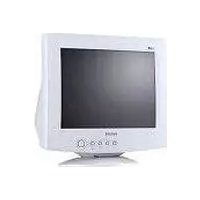
105S51 - Monitor PHILIPS - Free user manual and instructions
Find the device manual for free 105S51 PHILIPS in PDF.



| Product type | CRT Monitor |
| Brand | Philips |
| Model | 105S51 |
| Screen size | 38 cm (15 inches), visible diagonal 35.6 cm (14 inches) |
| Display technology | CRT 90° with anti-glare tube |
| Dot pitch | 0.28 mm |
| Maximum resolution | 1024 × 768 pixels |
| Scanning frequencies | Horizontal: 30-54 kHz, Vertical: 50-120 Hz |
| Video input signal | Analog RGB 0.7 Vpp / 75 ohms |
| Power supply | AC 100-240 V, 50/60 Hz (universal) |
| Power consumption (operating) | ≤ 75 W |
| Power consumption (standby) | ≤ 8 W |
| Net weight | 11.5 kg |
| Dimensions (W × H × D) | 360 × 362 × 387 mm |
| Connectivity | Built-in video cable with 15-pin D-sub connector |
| OSD functions | Contrast, Brightness, H/V Centering, H/V Size, Zoom, Pincushion, Trapezoid, Balance, Parallelogram, Rotation, Color temperature (6500K/9300K), User color, Degauss, Moiré reduction, Recall |
| Plug & Play | VESA DDC1/2B |
| Environmental standards | Energy Star, NUTEK |
| Safety | Grounded plug required; do not open or repair yourself |
| Cleaning | Soft dry cloth or slightly damp; never use solvents |
| Warranty | International Philips: 12 months from date of purchase |
Frequently Asked Questions - 105S51 PHILIPS
User questions about 105S51 PHILIPS
0 question about this device. Answer the ones you know or ask your own.
Ask a new question about this device
Download the instructions for your Monitor in PDF format for free! Find your manual 105S51 - PHILIPS and take your electronic device back in hand. On this page are published all the documents necessary for the use of your device. 105S51 by PHILIPS.
USER MANUAL 105S51 PHILIPS
Additional information available at our website
www.philips.com
Specifications subject to change without notice.
All dimensions shown are approximate.
©2001 Kenrokika Pluto Electronics N.V.
All rights reserved. Reproduction, copying, usage.
modifying, hiring, renting, public performance, transmission
and/or broadcasting in whole or part is prohibited
without the written consent of Philips Electronics N.V.
Microsoft and the Microsoft Internet Explorer logo are registered trademarks.
or trademarks of Microsoft Corporation in the United States and/or other countries
Made with Macromedia is a trademark of Macromedia, Inc.
Adobe Acrobat, and the Acrobat logo are trademarks of Adobe Systems Incorporated. QuickTime and the QuickTime logo are subsequently used under license.
QuickTime are the QuickTime logo and other sources. QuickTime is registered in the U.S. and other countries.


PHILIPS
Before operating the monitor please read this manual thoroughly. This manual should be retained for future reference.
Contents
Packing list 1
Precautions 2
Installation Instructions 3
Swivel Base 3
Power cord 3
Video cable 4
Operating Instructions 5
General Instructions 5
Front panel control 6
How to adjust a setting 6
Adjusting the picture 7-8
Plug and play 9
Technical Support (FAQ) 10
Appendix A – Specifications 11-12
Appendix B - Factory Preset Timing Table 13
Your International Guarantee---- 14
PACKING LIST
The product package should include the following items:
-
Monitor
-
Owner's Manual
-
Power Cord
-
Swivel Base
PRECAUTIONS
- Do not use the monitor near water, e.g. near a bathtub, washbowl, kitchen sink, laundry tub, swimming pool or in a wet basement.
- Do not place the monitor on an unstable cart, stand, or table. If the monitor falls, it can injure a person and cause serious damage to the appliance. Use only a cart or stand recommended by the manufacturer or sold with the monitor. If you mount the monitor on a wall or shelf, use a mounting kit approved by the manufacturer and follow the kit instructions.
- Slots and openings in the back and bottom of the cabinet are provided for ventilation. To ensure reliable operation of the monitor and to protect it from overheating, be sure these openings are not blocked or covered. Do not place the monitor on a bed, sofa, rug, or similar surface. Do not place the monitor near or over a radiator or heat register. Do not place the monitor in a bookcase or cabinet unless proper ventilation is provided.
- The monitor should be operated only from the type of power source indicated on the label. If you are not sure of the type of power supplied to your home, consult your dealer or local power company.
- The monitor is equipped with a three-pronged grounded plug, a plug with a third (grounding) pin. This plug will fit only into a grounded power outlet as a safety feature. If your outlet does not accommodate the three-wire plug, have an electrician install the correct outlet, or use an adapter to ground the appliance safely. Do not defeat the safety purpose of the grounded plug.
- Unplug the unit during a lightning storm or when it will not be used for long periods of time. This will protect the monitor from damage due to power surges.
- Do not overload power strips and extension cords. Overloading can result in fire or electric shock.
- Never push any object into the slot on the monitor cabinet. It could short circuit parts causing a fire or electric shock. Never spill liquids on the monitor.
- Do not attempt to service the monitor yourself; opening or removing covers can expose you to dangerous voltages and other hazards. Please refer all servicing to qualified service personnel.
- To ensure satisfactory operation, use the monitor only with UL listed computers which have appropriate configured receptacles marked between 100 - 240 VAC, Min. 1.5A.
- The wall socket shall be installed near the equipment and shall be easily accessible.
INSTALLATION INSTRUCTIONS
Swivel Base
To attach the swivel base to the monitor, do the following:
- Carefully turn the monitor on its side or upside down. (see figure 1)
- Locate the cavities at the bottom front of the monitor.
- Insert the pegs on the swivel base into these cavities. Push the swivel base forward until the swivel base locks in place.
- To remove the swivel base, hold the bottom of the swivel base, then push it out.

Figure 1 Installing and Removing the Swivel Base
Power Cord
Power Source:
- Make sure the power cord is the correct type that required in your area.
- This monitor has a universal power supply that allows operation in either 100/120V AC or 220/240V AC voltage area (No user adjustment is required.)
- Connect the power cord into your monitor's power input socket, and then plug the other end into a 3-pin AC power outlet. The power cord may be connected to either a wall power outlet or the power outlet socket on your PC, depending on the type of power cord supplied with your monitor.
Video cable
Connecting the Video Cable: The monitor comes with a built-in video cable. Plug the signal cable's 15-pin connector into the computer's video port and tighten the two screws on the cable connector.
Caution: Don't bend the signal cable, otherwise it will break the inner wire.
Connecting the Power Cord: Plug the power cord into the monitor's AC power socket. Then plug the power cord into a grounded AC outlet or UL-approved power strip or the power output socket on your PC.
Caution: If the AC outlet is not grounded (with three holes), install the proper grounding adapter (not supplied).

natural_image
Diagram of a computer monitor with two cables and connectors, no text or symbols presentFigure 2 Connecting Cables
- Power Cord 2. Signal Cable
OPERATING INSTRUCTIONS
General Instructions
The power switch is located at front panel of the monitor. Press the power switch to turn the monitor on or off. The other control knobs are located at the base of the monitor (See Figure 3). By changing these settings, the picture can be adjusted to your personal preferences.
- The power cord should be connected.
- Connect the video cable from the monitor to the video card.
- To turn the monitor on, press the POWER switch to ON position. The power indicator will light up.
- Your monitor features a unique quick switch system which provides a picture within seconds after the monitor is switched on.
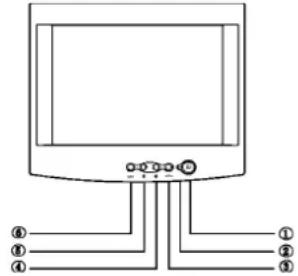
Figure 3 External Control Knob
| 1. | POWER SWITCH 4. CONTRAST/ ▶ | ||
| 2. | POWER INDICATOR 5. BRIGHTNESS/ ◀ | ||
| 3. | MENU 6. EXIT | ||
Notes
- Do not install the monitor in a location near heat sources such as radiators or air ducts, or in a place subject to direct sunlight, or excessive dust or mechanical vibration or shock.
- Save the original shipping carton and packing materials, as they will come in handy if you ever have to ship your monitor.
- For maximum protection, repackage your monitor as it was originally packed at the factory.
- To keep the monitor looking new, periodically clean it with a soft cloth. Stubborn stains may be removed with a cloth lightly dampened with a mild detergent solution. Never use strong solvents such as thinner, benzene, or abrasive cleaners, since these will damage the cabinet. As a safety precaution, always unplug the monitor before cleaning it.
Front Panel Control
- Power Switch: Press this knob to switch ON/OFF of monitor's power.
- MENU: Active OSD menu or function adjust confirm.
- Contrast ① / ▶: Adjust contrast or function adjust.
- Brightness ⚙ / ◀: Adjust brightness or function adjust.
- EXIT: Press the EXIT key to inactive OSD menu.
• Power Indicator:
Green — Power On mode.
Orange — Off mode.
How to adjust a setting
The monitor controls are accessed by pressing button MENU to enable OSD (On-Screen-Display). The main menu will be displayed as follows.

Figure 4 The OSD Message
Note: If adjustment or selection of any OSD menu is not made for more than 10 seconds, the current setup will be saved and the OSD will disappear automatically.
Adjusting the picture
The description for functional control icons
- CONTRAST :

Adjust the picture contrast.
- BRIGHTNESS

Adjust the picture brightness.
- H-CENTER

Adjust the horizontal position of the picture.
- H-SIZE

Adjust the picture's horizontal size.
- V-CENTER

Adjust the vertical position of the picture.
- V-SIZE

Adjust the picture's vertical size.
- ZOOM

Adjust the picture's horizontal and vertical size simultaneously.
- PINCUSHION

Adjust the pincushion and barrel.
- TRAPEZOID

Adjust the picture's trapezoid distortion.
- PIN-BALANCE

Adjust to compensate the pincushion unbalance.
- PARALLELOGRAM

Adjust the picture to be a rectangle.
- ROTATION

Adjust the picture tilt to horizontal position.
- 6500°K/9300°K (COLOR TEMPERATURE):
The color temperature for 6500^ is x = 0.313 , y = 0.329 and 9300^ is x = 0.283 , y = 0.297 . It presents two different color sets on the screen. You can select 9300^ or 6500^ by pressing MENU Key.
- USER COLOR (Red / Blue)

If the 9300^ K normal white or 6500^ K warmer white do not satisfy your desire, properly adjust R . B GAIN controls to obtain your optimum whiteness level.
- DEGAUSS

If color impurity occurs when moving or swiveling the monitor, press MENU Key and degauss to fix the picture condition.
- MOIRE REDUCE

Moire is the result of interference between the phosphor layout and the video signal. In some cases, you may find the moire very noticeable. Press the MENU to enter in the moire reduce setting. Please adjust the level to the optimum condition. Note: Too high of a setting will cause the picture to shake.
- RECALL

Press RECALL to restore the monitor to factory settings.
- EXIT

Close OSD window.
- SELECT LANGUAGE

Select the language as you like.
THIS MONITOR WILL APPEAR TO BE NON-FUNCTIONAL IF THERE IS NO VIDEO INPUT SIGNAL. IN ORDER FOR THIS MONITOR TO OPERATE PROPERLY, THERE MUST BE A VIDEO INPUT SIGNAL.
This monitor meets the Power Management standards as set by the Video Electronics Standards Association (VESA) and/or the United States Environmental Protection Agency (EPA) and The Swedish Confederation Employees (NUTEK). This feature is designed to conserve electrical energy by reducing power consumption when there is no video input signal present. When there is no video input signal this monitor, following a time-out period, will automatically switch to an OFF mode. This reduces the monitor's internal power supply consumption. After the video input signal is restored, full power is restored and the display is automatically redrawn. The appearance is similar to a "Screen Saver" feature except the display is completely off. The display is restored by pressing a key on the keyboard, or clicking the mouse.
Plug and play
Plug & Play DDC1/2B Feature
This monitor is equipped with VESA DDC1/2B capabilities according to the VESA DDC STANDARD. It allows the monitor to inform the host system of its identity and, depending on the level of DDC used, communicate additional information about its display capabilities. The communication channel is defined in two levels, DDC1 and DDC2B.
The DDC1 is a unidirectional data channel from the display to the host that continuously transmits EDID information. The DDC2B is a bidirectional data channel based on the I²C protocol. The host can request EDID information over the DDC2B channel.
Video Cable Pin Assignments:
| 1. Red 5. Ground 9. NC 13. H-sync | |
| 2. Green 6. R-Ground 10. Ground 14. V- sync / * VCLK | |
| 3. Blue 7. G-Ground 11. Monitor Ground 15. DDC-Serial Clock | |
| 4. Ground 8. B-Ground 12. DDC-Serial Data * FOR DDC | |
TECHNICAL SUPPORT (FAQ)
| Problem & Question Possible | Solution |
| Power LED is not on *Check | if the Power Switch is in the ON position*Power Cord should be connected |
| No Plug & Play *Check if the | PC system is Plug & Play compatible*Check if the Video Card is Plug & Play compatible*Check if the D-15 plug pin of Video Cable is bent*Make sure the Monitor Drivers are installed |
| Picture is fuzzy *Adjust the | Contrast and Brightness Controls. |
| Picture bounces or a wave pattern is present in the picture | *Move electrical devices that may cause electrical interference. |
| The power LED is ON (orange) but there's no video or no picture | *Computer Power Switch should be in the ON position*Computer Video Card should be snugly seated in its slot*Make sure monitor's video cable is properly connected to the computer.*Inspect monitor's video cable and make sure none of the pins are bent.*Make sure computer is operational by hitting the CAPS LOCK key on the keyboard while observing the CAPS LOCK LED. The LED should either turn ON or OFF after hitting the CAPS LOCK key. |
| Missing one of the primary colors (RED, GREEN, or BLUE) | *Inspect the monitor's video cable and make sure that none of the pins are bent. |
APPENDIX A - SPECIFICATIONS
| CRT 38cm(15"), 90° deflection, Viewable Image Size 35.6cm (14"), diagonal Display ColorAnalog input Unlimited colors Input Signal All timing that meets scanning frequencies SpecificationVideo Analog R, G, B 0.7Vpp positive/75 ohmSync.Vertical sync.: Positive/Negative SynchronizationHorizontal 30kHz to 54kHz automaticallyVertical 50Hz to 120Hz automatically Max. Resolution 1024×768 Video bandwidth 65MHz Factory Preset Timings: 6 User mode Timings: 9 MisconvergenceCenterCorner Power SourceOperating Humidity Weight DimensionsMonitor Signal Cable 15 pin mini D-SubExternal Controls: SwitchMENU KEYCONTRAST/UP KEYBRIGHTNESS/DOWM KEYEXIT KEY | 29mm neck, 0.28mm dot pitch non-glare screen. Horizontal sync.: Positive/Negative |
| 0.3mm Max. 0.4mm Max. Switching mode power supply AC 100-240V, 50Hz/60Hz full range 0°C to 40°C ambient 10% to 85% relative, non-condensing 11.5kg(Net) 360(W) × 362(H) × 387(D)mm POWER SWITCH |
| Functions ( OSD ) • CONTRAST | ||
| BRIGHTNESSH-CENTERH-SIZEV-CENTERV-SIZEZOOMPINCUSHIONTRAPEZOIDPIN-BALANCEPARALLELOGRAMROTATION6500°KUSER COLOR9300°KDEGAUSSMOIRE REDUCERECALLEXITSELECT LANGUAGEPlug & Play DDC1/2B | ||
| EPA ENERGYSTAR® | On mode | ≤ 75W |
| Off mode | ≤ 8W | |
| Power consumption 75W Max.Preset display area 270mm × 202mm | ||
| Regulations | UL, CSA, CB report, SEMKO, TUV-S,TUV-Buart, FCC, ICES(State in FCC), CE,EPA | |
| For selected models :TUV/GS, MPR II | ||
APPENDIX B - FACTORY PRESET TIMING TABLE
| STANDARD RESOLUTION | HORIZONTAL FREQUENCY | VERTICAL FREQUENCY | |
| IBM | 720×400 | 31.5kHz | 70Hz |
| VGA | 640×480 | 31.5kHz | 60Hz |
| VESA/85 | 640×480 | 37.5kHz | |
| VESA/85 | 800×600 | 46.9kHz | |
| VESA/85 | 800×600 | 53.6kHz | |
| VESA/60 | 1024×768 | 48.4kHz | |
75Hz 75Hz 85Hz 0Hz
Your International Guarantee
Dear Customer,
Thank you for purchasing this Philips product which has been designed and manufactured to the highest quality standards.
If, unfortunately, something should go wrong with this product Philips guarantees free of charge labor and replacement parts irrespective of the country where it is repaired during a period of 12 months from date of purchase. This international Philips guarantee complements the existing national guarantee obligations to you of dealers and Philips in the country of purchase and does not affect your statutory rights as a customer.
The Philips guarantee applies provided the product is handled properly for its intended use, in accordance with its operating instructions and upon presentation of the original invoice or cash receipt, indicating the date of purchase, dealer's name and model and production number of the product.
The Philips guarantee may not apply if:
• the documents have been altered in any way or made illegible;
- the model or production number on the product has been altered, deleted, removed or made illegible;
- repairs or product modifications and alterations have been executed by unauthorized service organizations or persons;
- damage is caused by accidents including but not limited to lightning, water or fire, misuse or neglect.
Please note that the product is not defective under this guarantee in the case where modifications become necessary in order for the product to comply with local or national technical standards which apply in countries for which the product was not originally designed and/or manufactured. Therefore always check whether a product can be used in a specific country.
In case your Philips product is not working correctly or is defective, please contact your Philips dealer. In the event you require service whilst in another country a dealer address can be given to you by the Philips Consumer Help Desk in that country, the telephone and fax number of which can be found in the relevant part of this booklet.
In order to avoid unnecessary inconvenience, we advise you to read the operating instructions carefully before contacting your dealer. If you have questions which your dealer cannot answer or any related question please contact the Philips Consumer Information Centers or via:
Website: http://www.philips.com
Support Technique (FAQ) 10
Appendice A – Spécifications---- 11-12
natural_image
Diagram of a computer monitor with two cables and connectors, no text or symbols presentnatural_image
Line drawing of a computer monitor with two cables and connectors (no text or symbols)natural_image
Diagram of a computer monitor with two cables and connectors, no text or symbols presentnatural_image
Diagram of a computer monitor with ventilation slots and connected cables (no text or labels)Figura 2 - Conectando Cables
- Cordònde de poder 2. Cable de signo
natural_image
Line drawing of a computer monitor with attached cables and connectors (no text or symbols)natural_image
Diagram of a computer monitor with two cables and connectors, no text or symbols present- www.philips.com
- Contents
- PACKING LIST
- PRECAUTIONS
- INSTALLATION INSTRUCTIONS
- Swivel Base
- Power Cord
- Power Source:
- Video cable
- OPERATING INSTRUCTIONS
- General Instructions
- Notes
- Front Panel Control
- How to adjust a setting
- Adjusting the picture
- THIS MONITOR WILL APPEAR TO BE NON-FUNCTIONAL IF THERE IS NO VIDEO INPUT SIGNAL. IN ORDER FOR THIS MONITOR TO OPERATE PROPERLY, THERE MUST BE A VIDEO INPUT SIGNAL.
- Plug and play
- Plug & Play DDC1/2B Feature
- Your International Guarantee
Brand : PHILIPS
Model : 105S51
Category : Monitor