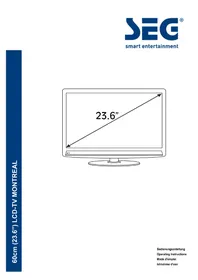
Montreal - TV SEG - Free user manual and instructions
Find the device manual for free Montreal SEG in PDF.



| Product Type | LCD TV |
| Brand | SEG |
| Model | Montreal |
| Screen Size (Diagonal) | 23.6 inches (60 cm) |
| Resolution | 1920 x 1080 pixels (Full HD) |
| Net Weight | 7.3 kg |
| Power Supply | 100-240 V AC, 50/60 Hz, 60 W |
| Standby Power Consumption | < 1 W |
| TV System | PAL BG/DK/I |
| Video Inputs | HDMI (x2), VGA, SCART, YPbPr, Composite Video, RF (Antenna) |
| Audio Inputs | PC Audio (3.5 mm), L/R Audio for Composite Video |
| Audio Outputs | Headphone (3.5 mm), COAX (Digital) |
| Speakers | 2 x 3 W |
| Remote Control | Infrared, range 5 m, angle 30°, batteries 2 x AA |
| Main Functions | DTV/ATV, teletext, subtitles, parental control, sleep timer, picture/sound settings, adjustable screen format |
| Wall Mounting | VESA 100 x 100 mm (mount not included, screws M4 x 10 max) |
| Maintenance | Clean with a soft, dry cloth. Unplug before cleaning. Do not use solvents. |
| Safety | Follow instructions: avoid humidity, do not block ventilation, unplug during storms, do not open the device. |
| Repairability | No user-serviceable parts. Contact customer service. 2-year warranty (Switzerland). |
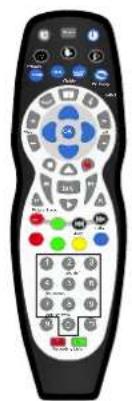
| Included Accessories | Remote control, batteries, power cable, quick start guide |
| Manual available in | French, English, German, Italian and other languages on request |
Frequently Asked Questions - Montreal SEG
User questions about Montreal SEG
0 question about this device. Answer the ones you know or ask your own.
Ask a new question about this device
Download the instructions for your TV in PDF format for free! Find your manual Montreal - SEG and take your electronic device back in hand. On this page are published all the documents necessary for the use of your device. Montreal by SEG.
USER MANUAL Montreal SEG
natural_image
Front view of a black remote control with various function keys and buttons (no readable text or symbols)Fernbedienung
natural_image
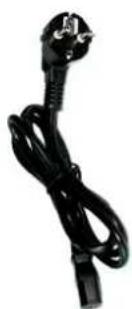
Black electrical plug with a coiled cable (no text or symbols visible)Netzkabel
text_image
SEG total mechanical 25.6°Benutzerhandbuch
Kurzanleitung
Anschlüsse
text_image
out COAX RF Headphone out Audio in R L VIDEO rP b SCART VGA PC-IN HDMI P Y Common Interfacetext_image
Source TV Menu Help Quick Start Guide Pic Swap Exit Info VOL CH - R DVD Menu P Picture S Sound SD1 SD2 -Day +Day -1 abs 3 4 5 6 gn1 jki mmc 7 8 9 pgra luv wayz SUB 0 TXT Recording Lists
text_image
Source OKtext_image
Input Source DTV TV SCART AV YPBPR VGA HDMI EXIT Quit OK SelectMenüs bedienen
text_image
PICTURE Picture Mode User Contrast 50 Brightness 50 Color 50 Sharpness 50 Tint 0 OK Out END Back OK Select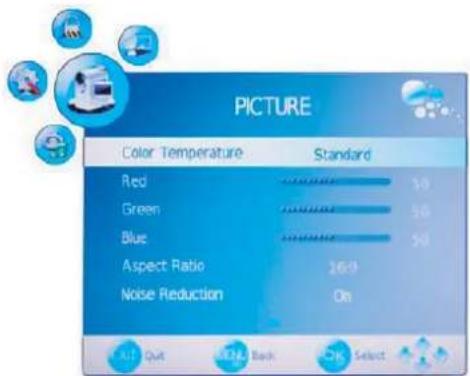
text_image
PICTURE Color Temperature Standard Red 50 Green 50 Blue 50 Aspect Ratio 26.9 Noise Reduction On All Out Back OK SelectAlthough the LCD screen is made with high-precision technology and 99.99% or more of the pixels are effective, black dots may appear or bright points of light (red, blue or green) may appear constantly on the LCD screen and is not a malfunction.
Safety Precautions
- Caution 1.
- Safety Information 2
Getting Started
- Names of each part(Front View) / Accessories 3
- Names of each part(Back View).4
- Remote control.5
Basic Use
- Powering the LCD TV / Selecting input source 8
Application
- CustomizingTV SETTINGS 10
- Customizing the PICTURE Settings 12
- Customizing the SOUND Settings 13
- Customizing the SETUP Settings 14
- Customizing the EXTRAS Settings 15
Maintenance and Service
- Trouble shooting 16.
- Specifications 17

Caution
The lightening flash with arrowhead symbol, within an equilateral triangle is intended to alert the user to the presence of un-insulated "dangerous voltage" within the products enclosure that may be of sufficient magnitude to constitute a risk of electric shock to the persons.

The exclamation point within an equilateral triangle is intend to alert the user to the presence of important operating and maintenance (servicing) instructions in the literature accompanying the appliance.
Correct disposal of this Product

"Correct Disposal of Product"
This sign indicates that this product may not be disposed of with your regular household waste. The recycling and separate collection of such products is your responsibility. Please drop off the above-mentioned waste at a designated place for recycling waste electrical and electronic equipment. If you do not know where to drop off your waste equipment for recycling, please contact your local city office or household waste collection service.

This appliance complies with European Safety and Electrical directives
Caution: Suffocation Notice.
Packaging materials are no toys, please keep away from children. Plastic bags can cause suffocation when pulled over the head.
Safety Information
To ensure reliable and safe operation of this equipment, please read carefully all the instructions in this user guide, especially the safety information below.
Electrical safety
- The TV set should only be connected to a mains supply which matches that stated on the label on the rear of the TV.
-
To prevent overload, don't share the same mains supply socket with too many other items of equipment.
-
Do not place any connecting wires where they may be stepped on or tripped over.
- Do not place heavy items, which may damage the leads, on them.
- Hold the Mains plug, not the wires, when removing from a socket.
- During a thunderstorm or while leaving the TV for long periods, disconnect the aerial (if outdoor) and mains adaptor from the supply.
- Do not allow water or moisture to enter the TV or mains adaptor. Do NOT use in wet or moist areas such as Bathrooms, steamy kitchens or near swimming pools.
- Pull the plug out immediately, and seek professional help if:
- the mains plug or cable is damaged
- liquid is spilt onto the set, or if it is accidentally exposed to water or moisture
- anything accidentally penetrates the ventilation slots
- the set doesn't work normally.
- Do NOT remove the safety covers. There are no user serviceable parts inside. You may invalidate the warranty. Qualified personnel must only service this apparatus.
- To avoid battery leakage, remove exhausted batteries from the remote control handset, or when not using for a long period.
- Do NOT break open or throw exhausted batteries on a fire.
Physical safety
- Do NOT block ventilation slots in the back cover. You may place the TV in a cabinet, but ensure at least 5cm (2") clearance all around.
- Do NOT tap or shake the TV screen, you may damage the internal circuits. Take good care of the remote control, do not drop.
• To clean the TV use a soft dry cloth. Do NOT use solvents or petrol based fluids. For stubborn stains, you may use a damp soft cloth with dilute detergent.
Names of each part
Front View
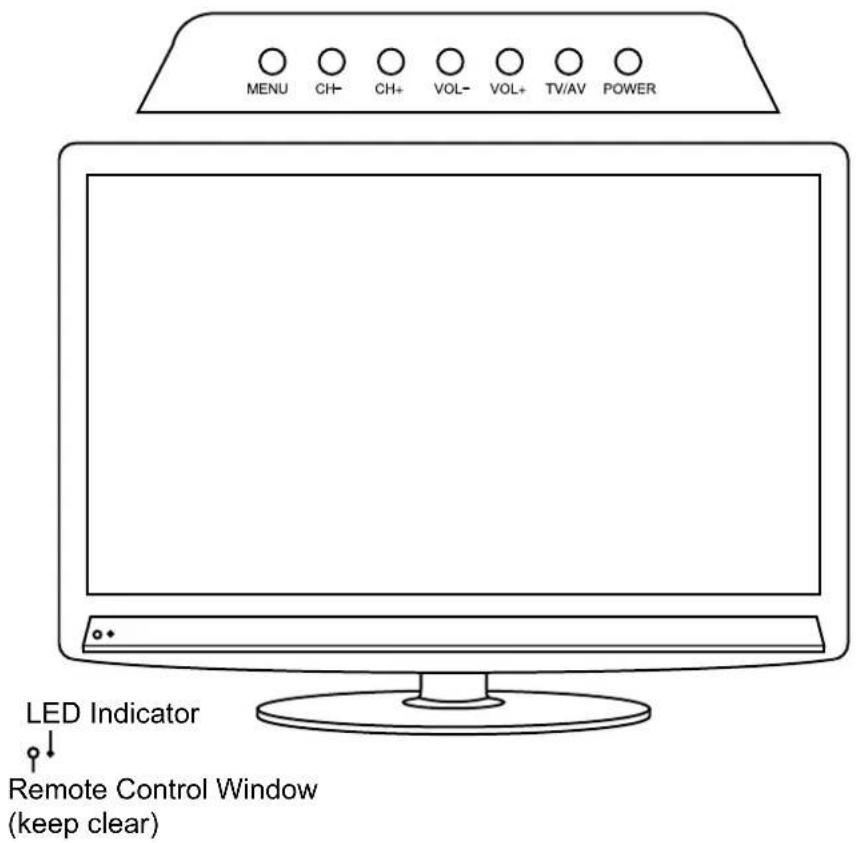
text_image
MENU CH- CH+ VOL- VOL+ TV/AV POWER LED Indicator Remote Control Window (keep clear)Accessories
text_image
Front panel of a remote control with labeled buttons and ports in English and SpanishRemote Control
natural_image
Black electrical plug with a terminal terminal, tied with a coiled cable (no text or symbols visible)Power cable

Batteries for Remote Control
User Guide Quick Start Guide
Connections
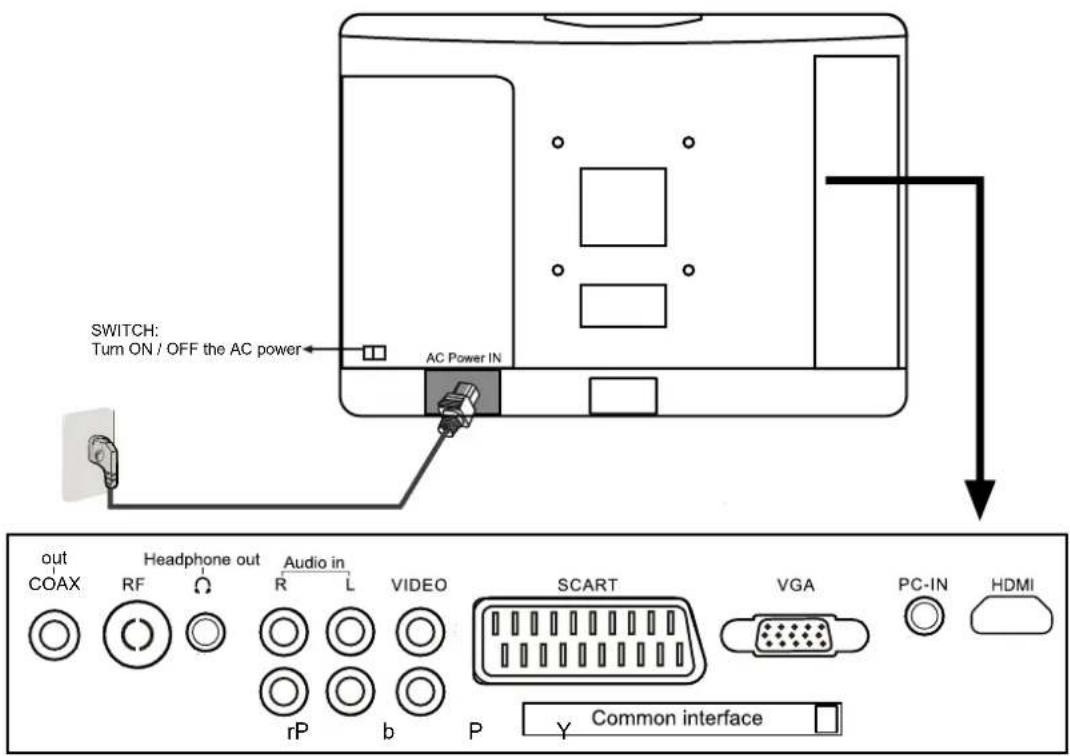
text_image
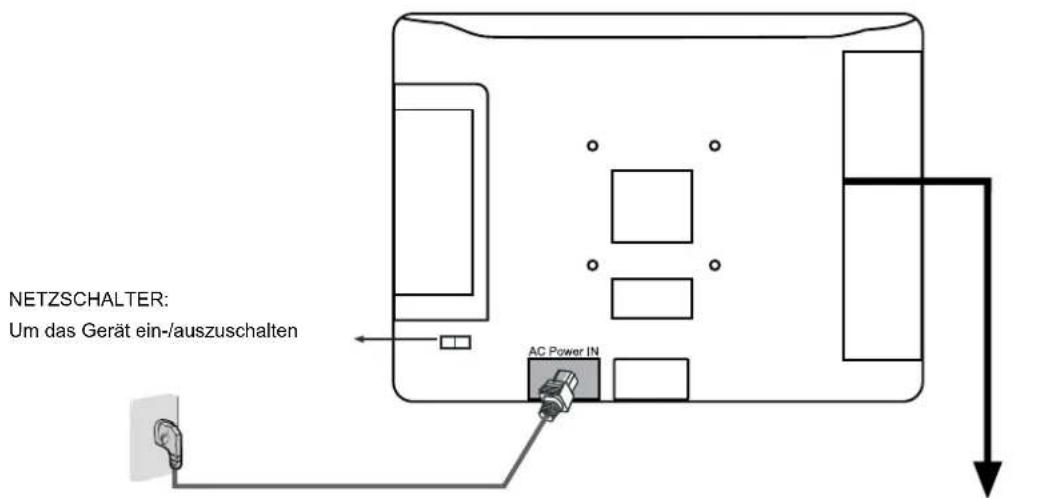
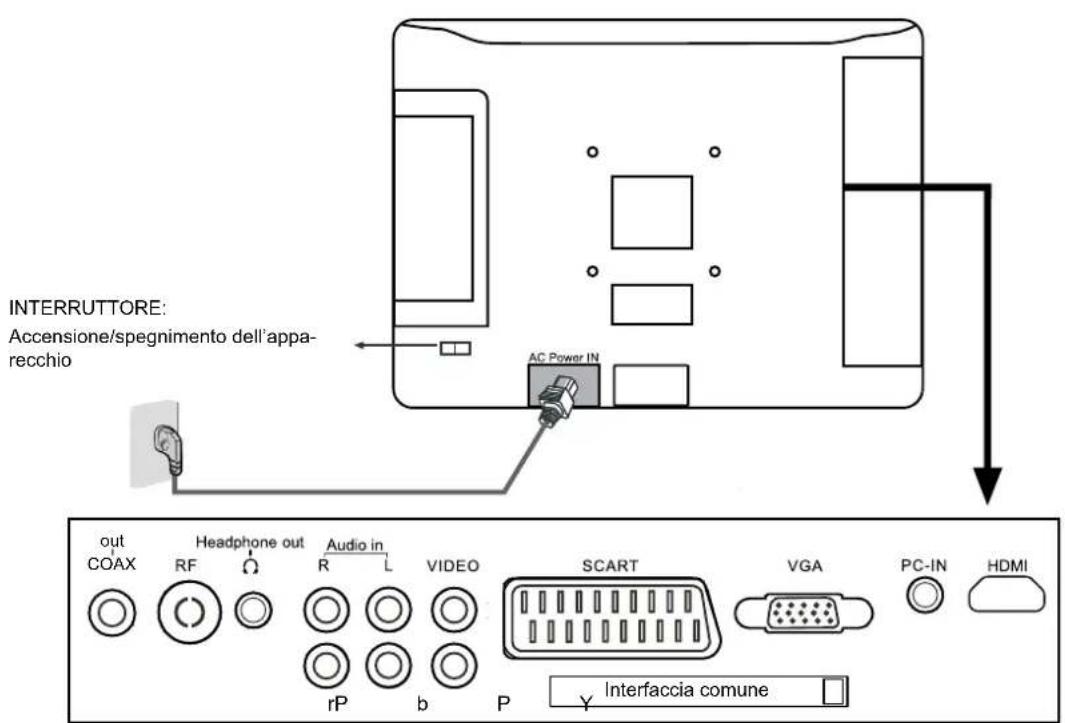
SWITCH: Turn ON / OFF the AC power AC Power IN out COAX Headphone out RF Ω Audio in R L VIDEO rP b SCART VGA PC-IN HDMI Y Common interface| Name Function Description | |
| AC POWER IN | Connect to power supply 100 - 240V AC 50/60HZ |
| SWITCH | Turn on/off the AC power |
| COAX out | Output to Audio amplifier |
| RF | Connectto Aerial, Tuner input 75 Ohm Coaxial Socket. |
| Ω Headphone | Connect headphone |
| (AUDIO)L/R IN | Audio signal input for AV |
| VIDEO | Connect to the Video output of external equipment |
| SCART | Connect to the scart input / output of external equipment |
| VGA IN | Connect to the PC VGA output to display PC graphics |
| PC Audio IN | PC audio input |
| HDMI | Connect to the HDMI socket of your DVD or Satellite Box |
| YPbPr | Connect to the YPbPr output on external equipment. |
| Common Interface | CI slot ( Pay as you view card slot ) |
Wall Mounting
The TV is provided with mounting holes for a VESA 100mm approved wall mounting bracket (NOT SUPPLIED). Remove the screws holding the base to the base bracket and lift the base away (do not remove the base mounting bracket). Mount the VESA bracket using 4 x M4x 10 Iso metric threaded screws (not supplied). Do not use screws longer than 10 mm, damage will occur to the internal parts. Fit the wall bracket securely following the manufacturers instructions.
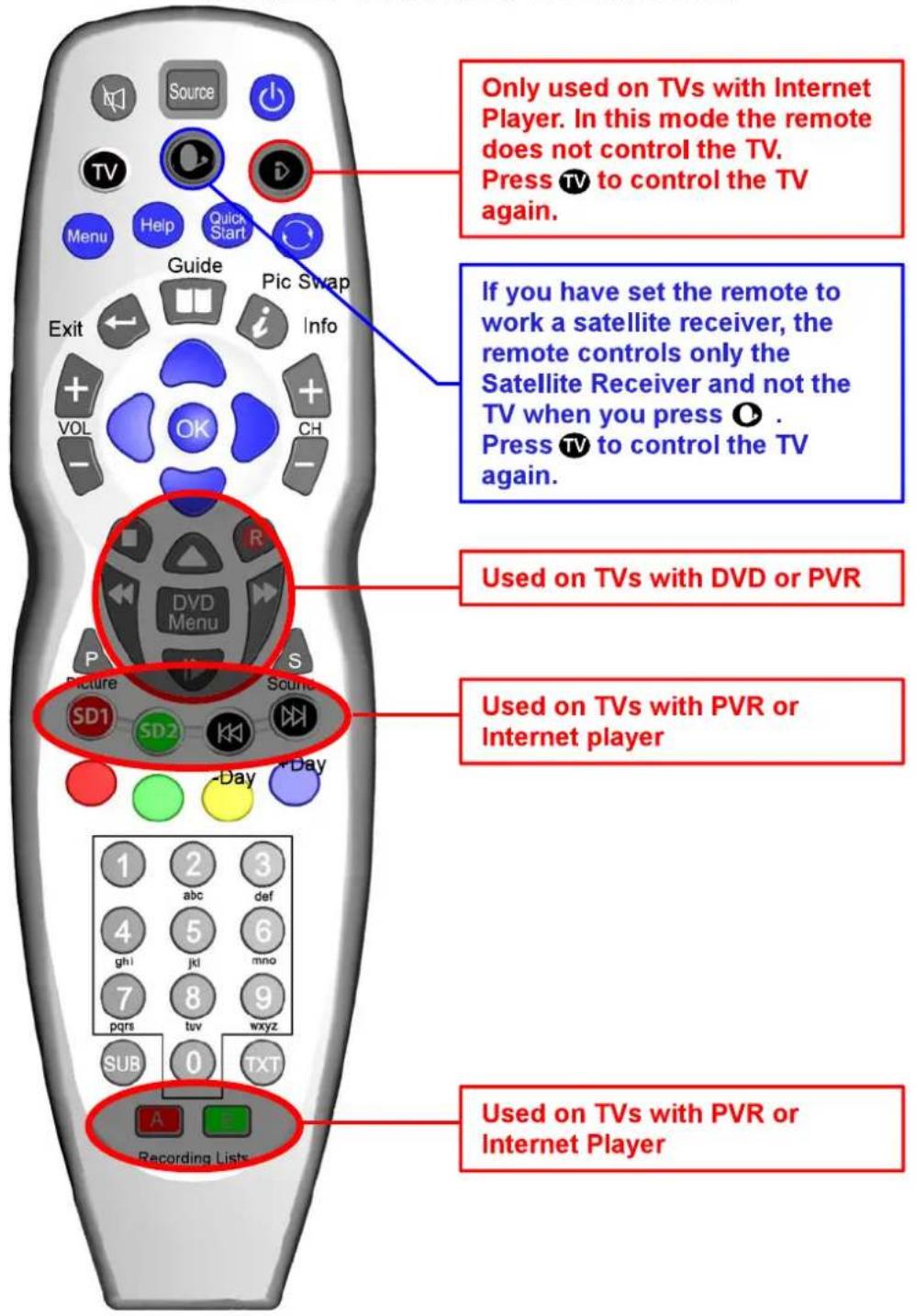
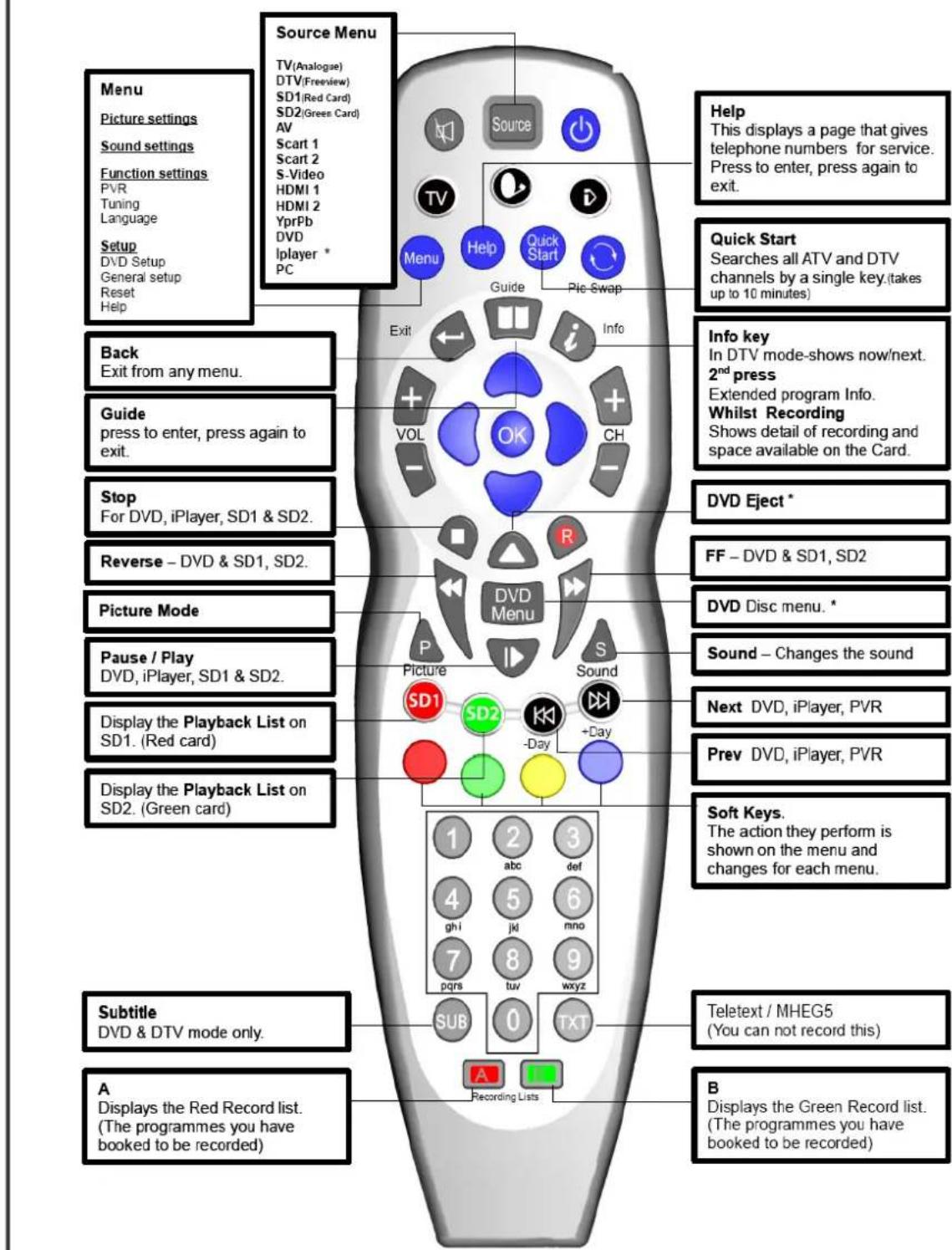
Remote Control
● Functions of remote control buttons
Depending on the model of your television, some buttons will have no function
text_image
Only used on TVs with Internet Player. In this mode the remote does not control the TV. Press TV to control the TV again. If you have set the remote to work a satellite receiver, the remote controls only the Satellite Receiver and not the TV when you press ○ . Press TV to control the TV again. Used on TVs with DVD or PVR Used on TVs with PVR or Internet player 1 2 3 4 5 6 ghi jkl mno 7 8 9 pqrs tuv wxyz SUB 0 TXT Recording Lists A Used on TVs with PVR or Internet PlayerRemote Control
text_image
Source Menu TV(Analogue) DTV(Freerview) SD1(Red Card) SD2(Green Card) AV Scart 1 Scart 2 S-Video HDMI 1 HDMI 2 YprPb DVD Iplayer * PC Menu Picture settings Sound settings Function settings PVR Tuning Language Setup DVD Setup General setup Reset Help Back Exit from any menu. Guide press to enter, press again to exit. Stop For DVD, iPlayer, SD1 & SD2. Reverse – DVD & SD1, SD2. Picture Mode Pause / Play DVD, iPlayer, SD1 & SD2. Display the Playback List on SD1. (Red card) Display the Playback List on SD2. (Green card) Subtitle DVD & DTV mode only. A Displays the Red Record list. (The programmes you have booked to be recorded) RECording Lists Exit VOL OK CH R DVD Menu Picture Sound SD1 SD2 -Day +Day 1 abc def 4 gh i jkl 6 nno 7 pgrs 8 9 wxyz SUB 0 TXT Help This displays a page that gives telephone numbers for service. Press to enter, press again to exit. Quick Start Searches all ATV and DTV channels by a single key.(takes up to 10 minutes) Info key In DTV mode-shows now/next. 2nd press Extended program Info. Whilst Recording Shows detail of recording and space available on the Card. DVD Eject * FF – DVD & SD1, SD2 DVD Disc menu.* Sound – Changes the sound Next DVD, iPlayer, PVR Prev DVD, iPlayer, PVR Soft Keys. The action they perform is shown on the menu and changes for each menu. Teletext / MHEG5 (You can not record this) B Displays the Green Record list. (The programmes you have booked to be recorded)Remote Control
text_image
Source TV Menu Help Quick Start Guide Pic Swap Exit Info VOL + - OK CH R DVD Menu P Picture S Sound SD1 SD2 -Day +Day -Color Green Yellow 1 2 3 abc def 4 5 6 ghi jd mno 7 8 9 pors tvw wyz SUB 0 TXT A Recording Lists
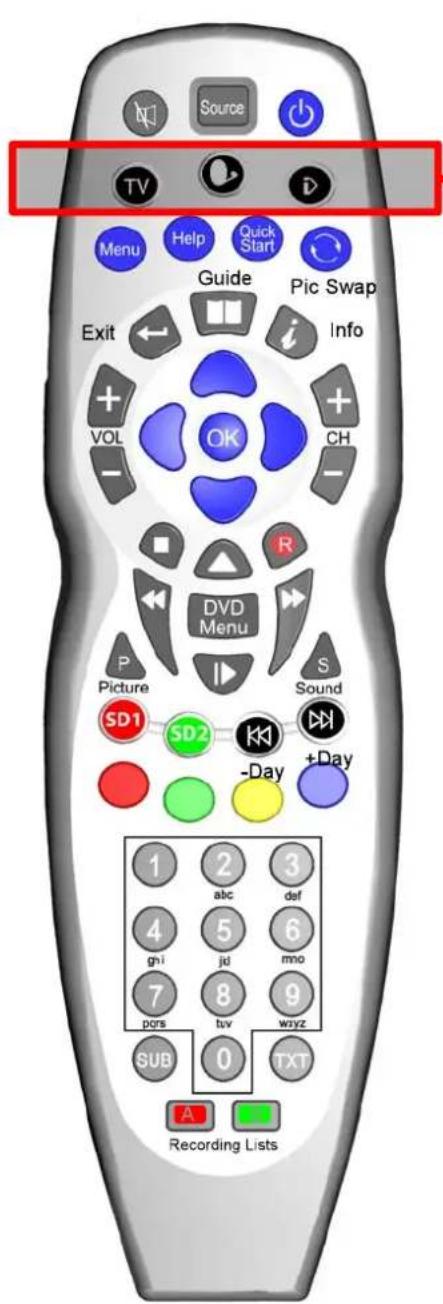
This button puts the Remote in TV control mode

This button puts the Remote in a Multi Satellite control mode
* A number of modes are available. See below for details

This button puts the Remote into an Internet Player mode
*This is only used on some TVs and Digital Boxes
To Set the Multi-Satellite Mode button
The Sat button Q is programmable in the remote and can be set as follows:
To set the button if you have no Satellite Receiver:
Press Q and at the same time press 0
If you have a Satellite Receiver with Recorder (Known as "Plus" type)
Press ① and at the same time press 1
If you have a Satellite Receiver with High Definition (Known as "HD" type)
Press Q and at the same time press 2
If you have a normal Digital Satellite Receiver (Known as "Digital" type)
Press Q and at the same time press 3
If you want to use this button to switch on the DVD Player *
Press 📄 and at the same time press 4 * DVD Player only fitted on certain models.
O + 0 \~ NO SAT RECEIVER
Q + 1 \~ SAT +
+2\~SAT HD
+3\~SAT DIGITAL
Powering the LCD TV
Power On / Off the LCD TV
Power Switch On / Off

Press the power switch to setting - and the standby indicator will light red.
To turn on the LCD TV
Press the power button on the LCD TV or the indicator will light green.

button on the remote control, the standby
To turn off the LCD TV
Press the power button on the LCD TV or the indicator will light red.

button on the remote control, the standby
To turn the LCD TV off completely press the power switch to setting ☐ and the standby indicator light will extinguish.
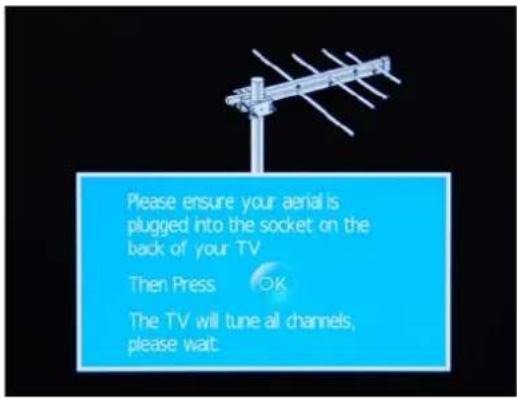
When you initially turn on the LCD TV you will see the first time installation menu as below:
Ensure that the aerial is plugged in to the TV, Make sure your Remote is in TV mode (by pressing TV button), switch on the TV by pressing ⏻. You will see the first time installation menu.
Press the OK button on the remote control to start the tuning procedure. This process will find all available ATV and DTV channels and store them.
By pressing the Quick Start button the first time installation can be recalled at any time.
text_image
Please ensure your aerial is plugged into the socket on the back of your TV Then Press OK The TV will tune all channels, please wait.Selecting Input Source
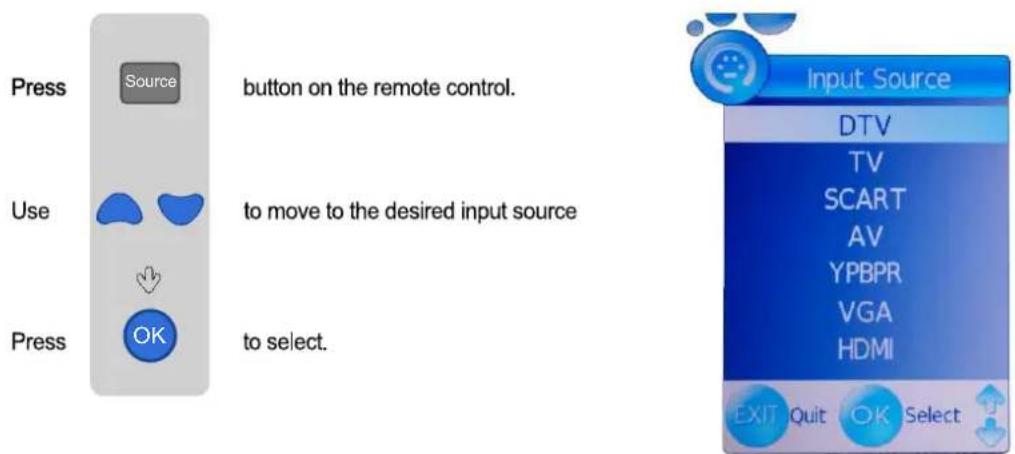
You can select the input source menu by pressing the Source button on the remote control or the TV / AV button on the LCD TV.
text_image
Press Source button on the remote control. Use to move to the desired input source Press OK to select. Input Source DTV TV SCART AV YPBPR VGA HDMI EXIT Quit OK SelectOperating the Menu
- Turn the LCD TV on
- Press the MENU button on the Remote Control.
- Use the ◀ and ▶ buttons to navigate through the menu.
- Press the EXIT button to exit the Menu.
TV SETTINGS MENU
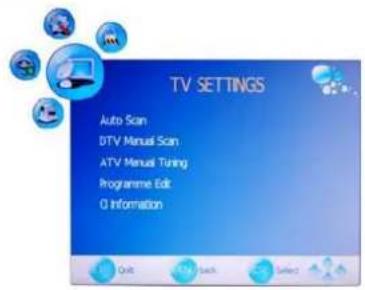
Allows you to search channels and set up a variety of channel options. (Select TV source)
text_image
TV SETTINGS Auto Scan DTV Manual Scan ATV Manual Tuning Programme Edit O Information Quit Back SelectSOUND MENU:
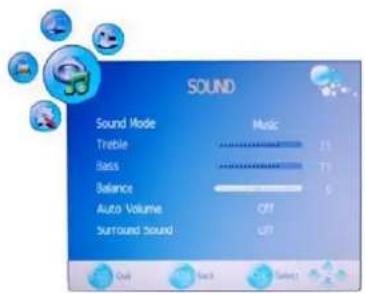
Allows you to customize the sound options and effects. (Select TV source for example)
text_image
SOUND Sound Mode Music Treble 25 Bass T1 Balance 6 Auto Volume OFF Surrounded Sound OFF Out Back SelectPICTURE MENU:
Allows you to make adjustments to your picture settings. (select TV source for example)
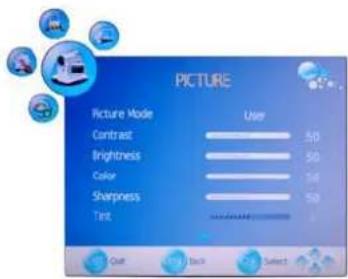
text_image
PICTURE Picture Mode User Contrast 50 Brightness 50 Color 50 Sharpness 50 Text 50 Quit Back SelectSETUP MENU:
Allows you to setup a variety of setup options. (Select TV source)
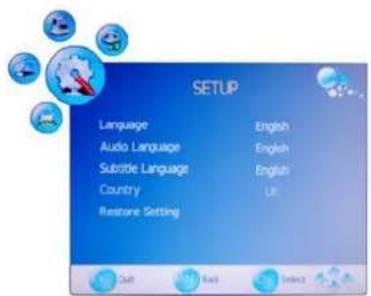
text_image
SETUP Language English Audio Language English Subtable Language English Country Ur Restore Setting Quit Back SelectEXTRAS MENU:
Allows you to set up a variety of lock/time and setup options. (Select TV source)
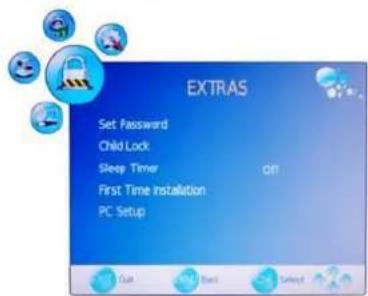
text_image
EXTRAS Set Password Child Lock Sleep Timer First Time Installation PC Setup Quit Next CancelNote: Use the left right up down navigation buttons to select the required options in the menus.
Customizing the TV Settings
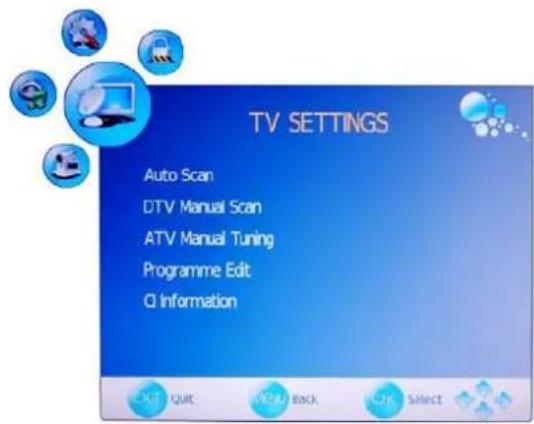
text_image
TV SETTINGS Auto Scan DTV Manual Scan ATV Manual Tuning Programme Edit Q InformationUse the ◀ and ▶ buttons to select the TV SETTINGS menu(as the picture above), press ▼ button to enter the menu.
The TV SETTINGS menu includes the following options :
Auto Scan
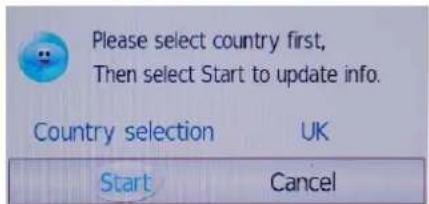
Press ◀ and ▶ buttons to select the Country, and press ▼ and ▲ buttons to select "Start", and press OK button to start auto tuning.
text_image
Please select country first, Then select Start to update info. Country selection UK Start CancelDTV Manual Scan
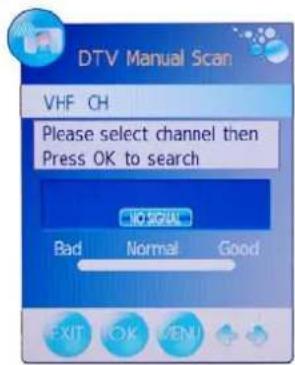
Press ▶ button to enter the submenu. Press ◀ or ▶ button to select a channel and press OK button to start search.
text_image
DTV Manual Scan VHF OH Please select channel then Press OK to search IO SIGNAL Bad Normal Good EXIT OK OPENCustomizing the TV Settings
ATV Manual Tuning
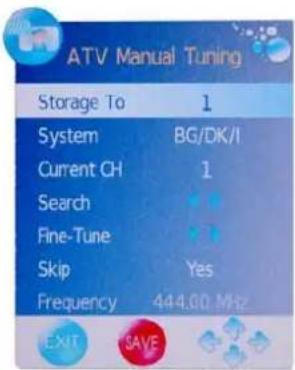
Press ▶ button to enter the submenu.
Storage To
Select a position to store the program.
Current CH
Select a program you want to tune.
Search
Press ◀ and ▶ buttons to manual search.
Fine-Tune
Press ◀ and ▶ buttons to fine-tune.
Skip
Select "Yes" to skip the program when you scan the programs by CH+/-
Frequency
Display the current channel's frequency.
Press RED button to save all the setups you have changed.
text_image
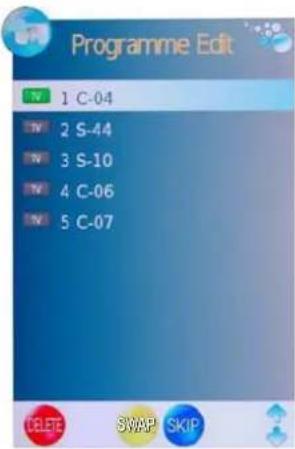
ATV Manual Tuning Storage To 1 System BG/DK/I Current CH 1 Search Fine-Tune Skip Yes Frequency 444.00 MHz EXIT SAVEProgram Edit: Press ▶ button to enter the submenu as the following picture.
text_image
Programme Edit TV 1 C-04 TV 2 S-44 TV 3 S-10 TV 4 C-06 TV 5 C-07 DELETE SWAP SKIPDelete: Select a channel and press the red button on the remote control, Delete will appear on the right of the program edit menu next to the channel you have chosen. Press the red button again to confirm the delete, the channel will be deleted. However if you decide not to continue to delete press the menu button to quit.
SWAP: Select a program, and press YELLOW button, then you can use ▼ and ▲ buttons to change the position of the program, press YELLOW again to confirm the change. Press menu to exit and it will automatically save the current set.
Skip: Select a channel and press the blue button to label the channel, as long as the channel has a skip label it will be skipped when searching through the channels with the CH+/- buttons.
CI Information
Please contact your "pay perview" provider who can supply a viewing card and cam unit with instructions for their use.
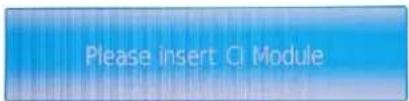
text_image
Please insert CI ModuleCustomizing the PICTURE Settings
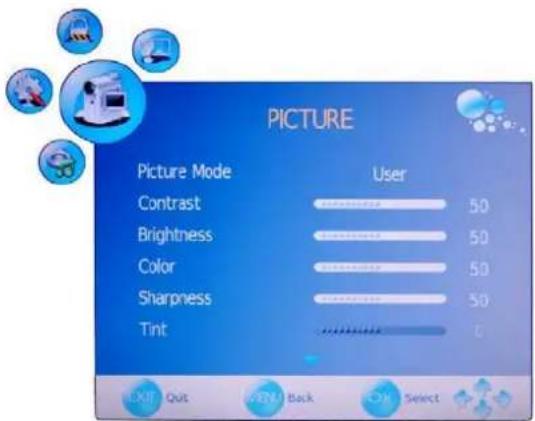
text_image
PICTURE Picture Mode User Contrast 50 Brightness 50 Color 50 Sharpness 50 Tint 0 EXIT Quit BACK Edit Select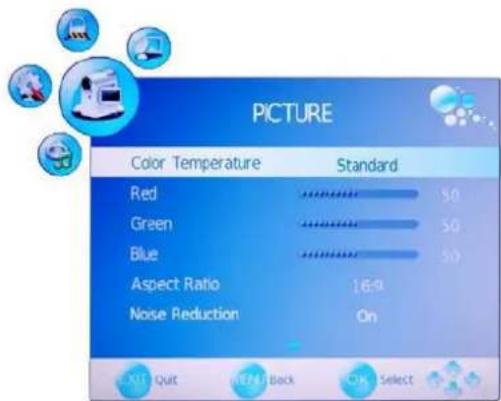
text_image
PICTURE Color Temperature Standard Red 50 Green 50 Blue 50 Aspect Ratio 16:9 Noise Reduction On OK Quit BACK OK SelectUse the ◀ and ▶ buttons to select the PICTURE menu(as the picture above), press ▼ button to enter the menu.
The PICTURE menu includes the following options :
| Picture Mode | Choose from Standard, Dynamic, User and Mild. |
| Note: Contrast, Brightness and Colour are only available and can get adjusted for the user in the Picture Mode Settings. | |
| Contrast Controls the difference between the brightest and darkest regions of the picture. | |
| Brightness Controls the overall brightness of the picture | |
| Colour Control the colour. | |
| Sharpness | Increase this setting to see crisp edges in the picture; decrease it for soft edges . |
| Tint Controls the tint ( NTSC mode only). | |
| Colour Temperature | Choose from Standard, Cool, User and Warm. |
| Note: Red, Green and Blue are only available in PC, VGA mode when in Colour Temperature Mode. | |
| Red | Controls the red colour of the picture. |
| Grenn | Controls the green colour of the picture. |
| Blue | Controls the blue colour of the picture. |
| Aspect Ratio | Choose from Auto, 4:3, 16:9, Zoom1 and Zoom2. |
| Noise Reduction | Reduce any interference noise by selecting “ON”. |
Customizing the SOUND Settings
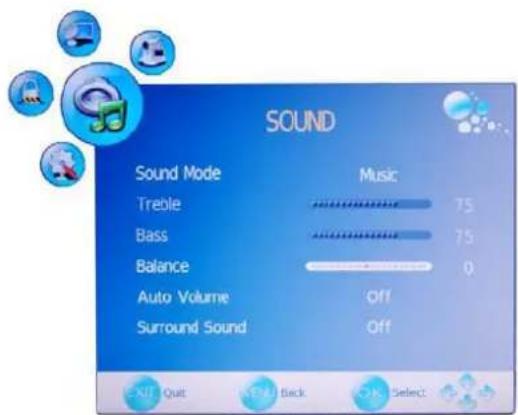
text_image
SOUND Sound Mode Music Treble 75 Bass 75 Balance 0 Auto Volume Off Surround Sound Off EXIT Quit NEW Back OK SelectUse the ◀ and ▶ buttons to select the SOUND menu(as the picture above), press ▼ button to enter the menu.
The SOUND menu includes the following options :
| Sound Mode | Allows you to select among: Standard, Music, Movie, Sports and User. |
| Treble(Can be adjusted when the sound mode is User)Controls the relative intensity of higher pitched sounds. | |
| Bass(Can be adjusted when the sound mode is User)Controls the relative intensity of lower pitched sounds. | |
| Balance To adjust the balance of the left and right sound track, or turn off the volume of the left and right sound track. | |
| Auto Volume | Control the volume of the program automatically when you turn on the function by selecting “On”. |
| Surround Sound | Turn on/off the surround sound function by selecting “off”/“surround”. |
Customizing the SETUP Settings
text_image
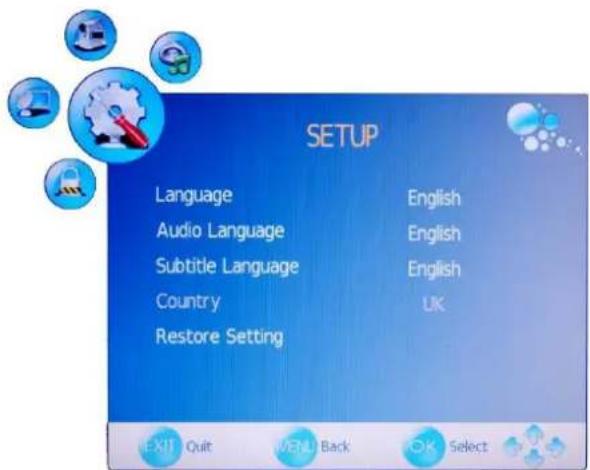
SETUP Language English Audio Language English Subtitle Language English Country UK Restore Setting EXIT Quit END Back OK SelectUse the ◀ and ▶ buttons to select the OPTION menu(as the picture above), press ▼ button to enter the menu.
The SETUP menu includes the following options:
| Language | Allows you to select menu language. |
| Audio Language (can be selected in DTV mode) Allows you to select audio language. | |
| Subtitle Language (can be selected in DTV mode) Allows you to select subtitle language. | |
| Country | Defaulted to Germany. |
| Reset Setting | Press ▶ button to restore factory default. |
Customizing the EXTRAS Settings
text_image
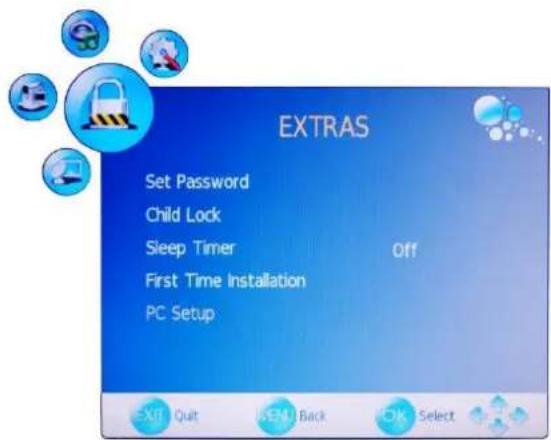
EXTRAS Set Password Child Lock Sleep Timer Off First Time Installation PC Setup EXIT Quit OPEN Back OK SelectUse the ◀ and ▶ buttons to select the EXTRAS menu(as the picture above), press ▼ button to enter the menu.
The EXTRAS menu includes the following options :
| Set Password | Set pin code. The default is 0000. If the Pin code has been changed you must enter the present code.New : Enter the new password.Confirm: Enter the new password and press OK to complete the change. |
| Child Lock | Lock the channel, you have to enter the code to view the channel. Use ▲/▼ button to select the channel, and press the green button on the remote control to set, and there will be a “ ”on the channel, press the green button again to cancel. |
| Sleep Timer | Allows you to setup the sleep timer among: 10min, 20min, 30min, 60min, 90min, 120min, 180min, 240min and off. |
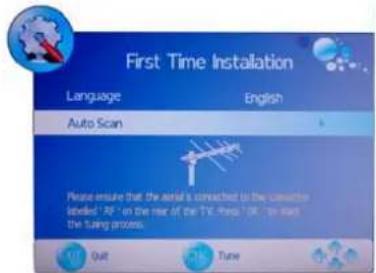
First Time Installation
* Please ensure that the aerial is connected to the connector labelled "RF" on the rear of the TV. Press "OK" to start the tuning process.
* You can select "Language"(OSD display language), When you have selected, press ◀/▶ buttons to select "OK".
text_image
First Time Installation Language English Auto Scan Please ensure that the serial is connected to the command sanded "AP" on the rear of the TV press "OK" to start the Tung process. M Quit TunePC Setup(only in VGA mode)
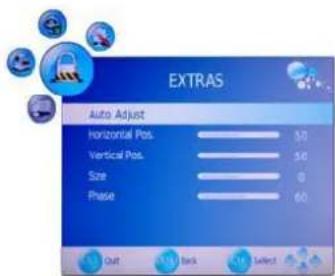
Press ▶ button to enter the submenu to adjust the picture of the screen.
text_image
EXTRAS Auto Adjust Horizontal Pos. 50 Vertical Pos. 50 Size 0 Phase 60 Out Back SelectTrouble shooting
- Do not use other functions that are not mentioned in this user's manual.
- In case a problem occurs with your LCD TV, please take the following steps first.
- If you still have the problem, turn the power off and contact your dealer or an authorized service center.
| Problem | Action |
| No power to TV. | Check all connections. |
| The screen appears too slowly after the power is turned on. | This problem occurs for a brief time in the process of image elimination processing in order to hide temporary screen noise that occurs when the power is turned on. But if the screen does not come after 1 minute contact your dealer or an authorized service center. |
| Screen is too bright or too dark. | Perform brightness adjustment or Contrast adjustment. |
| Screen is too large or too small. | Adjust the screen size. |
| Stripes appear on the screen and it shakes. | Stop using wireless telephones, hair driers and electric drills. |
| Screen appears, Voice is not heard | 1. Press the "MUTE"button.2. Increase the sound level by pressing volume adjustment button.3. Check if sound terminal of external input is connected properly.If the sound still does not work and the other channels are the same after you have done as the above, contact your dealer or an authorized service center. |
| Remote control does not work | 1. Check if main power is On.2. Check that the batteries of the remote controller were loaded properly.3. Check to see if any obstacle exists between the LCD TV and the remote control, then remove it, if any.4. If the batteries have no power, replace them with two new batteries.5. Ensure the remote control is in TV mode by pressing the TV button. |
- This LCD TV is for household use and registered as harmless on electromagnetic waves.
• Therefore, you can use it in every location as well as residential areas.
Specifications
TV
TV System PAL, BG, DK, I
Screen size 23,6"(diagonal)
Resolution 1920x1080 pixels
Aerial input 75
Audio output power
Ω (unbalanced)
2×3 W
AC 100-240V 50/60Hz 60WPower Consumption
<1WStandby Power Consumption
7,3 KgWeight
Remote control
Type infrared
Control distance 5m
Control angle 30° (horizontal)
Batteries 2 x 1.5 V, size AA
Dimensions 60 x 204 x 32mm
Weight 140 g (without battery)
This product fulfils the following EU regulations:
• EN55013: 2001+A1:2003+A2:2006
• EN55020: 2007
• EN61000-3-2: 2006
• EN61000-3-3:1995+A1:2001+A2:2005
• EN55022:2006(CLASS-A)
• EN55024:1998+A1:2001+A2:2003
• EN60065: 2002+A1:2006
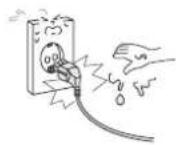
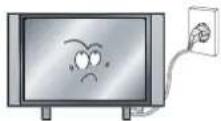
Do not touch the power plug with wet hands.
- Doing so may result in electric shock.
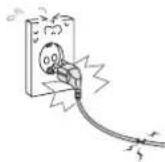
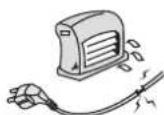
Do not use a damaged power cord or plug or a loose outlet.
- Doing so may result in fire or electric shock.
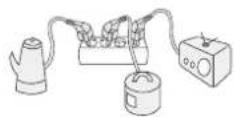
Do not plug several devices into the same outlet.
- Doing so may cause the outlet to overheat and start a fire.
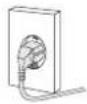
Insert the power plug fully into the outlet.
• A loose or improperly inserted power plug may result in fire.
Do not bend the power cord excessively or place heavy objects on it.
- Doing so may result in fire or electric shock.
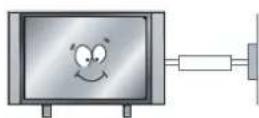
Be sure to ground the unit.
- Failing to do so may lead to electric shock when a short circuit or overload occurs. If necessary, install a ground fault circuit breaker. Never ground to a telephone line, lightning rod, or metal gas pipe. (Doing so may result in fire, electric shock, or other hazards.)
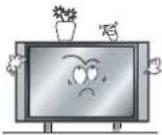
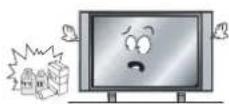
Do not place containers with liquids such as flower vases, soft drink cans, or medicine bottles or small metallic objects on top of the unit.
- If liquid enters the unit or any metal object falls into the unit, it may result in short-circuit, fire, or electric shock.
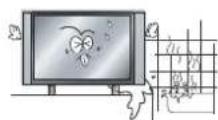
Do not place the unit where it is exposed to rain, excessive moisture or grease.
- Doing so may result in fire, electric shock, malfunction, or deformation.
Do not use or store flammable or combustible materials near the unit.
- Doing so may result in fire or explosion.
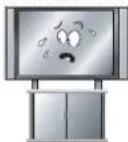
Do not place the unit on an unstable surface, such as a wobbly stand or sloped table, or on any surface whose area is smaller than the bottom area of the unit.
- If a child climbs on the unit, it could topple and fall onto the child, resulting in serious injury to the child or damage to the unit. Place the unit on a flat stable surface.
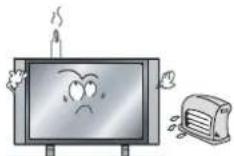
Do not place a burning candle, burning anti-mosquito incense, or lighted cigarette on top of the unit. Do not place the unit near any heat source such as a fireplace or space heater.
- Doing so poses a serious risk of fire.
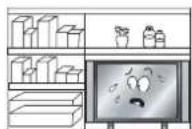
Do not place the unit in a poorly ventilated enclosure, such as a cabinet.
- Doing so poses a serious risk of fire.
Do not run power cords near heat-producing appliances such as radiators, stoves, or irons.
• The excessive heat could melt the insulation and expose live wires, resulting in fire or electric shock.
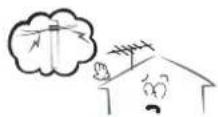
Install the antenna away from high-voltage power lines and communication cables and make sure it is installed securely.
- If the antenna touches a power line, contact with the antenna could result in fire, electric shock, serious injury, or death.
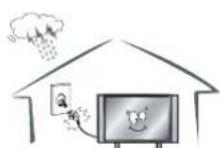
Disconnect the power cord from the wall outlet during an electrical storm.
• Not doing so may result in fire or electric shock.
Do not insert any metal objects, such as a screwdriver, paper clip, or bent wire into the ventilation openings or AV terminals.
- Doing so poses a serious risk of fire or electric shock.
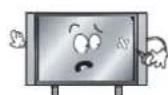
[NO TEXT]
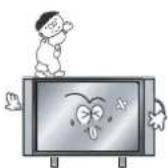
Do not allow children to climb or hang on the unit.
• The unit could topple over onto a child and result in serious injury.
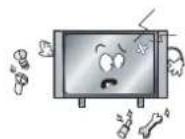
Never disassemble or modify the unit in any way. Do not attempt to service the unit yourself.
- Doing so may result in fire or electric shock. If the unit requires repair, contact the service center.
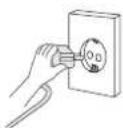
When disconnecting the power cord from an AC outlet, always grasp it by the plug.
- Pulling on the cord can damage the internal wire and may result in fire.
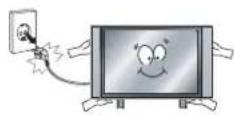
Always unplug the unit before cleaning.
• Not doing so may result in fire or electric shock.
The purpose of these precautions is to ensure user safety and prevent property damage.
Be sure to read and observe all safety precautions.

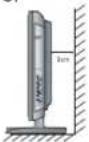
Install the unit at an adequate distance from the wall to ensure sufficient ventilation.
- If the temperature inside the unit rises, it may result in fire.
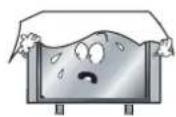
Do not cover the unit with a tablecloth, curtain, or other material.
- If the temperature inside the unit rises, it may result in fire.
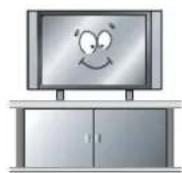
Be sure to place the unit on a level surface.
⚠️Warnings
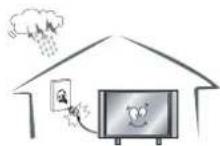
Form a drip loop where the coaxial antenna cable enters your building to prevent rainwater from traveling along the cable and coming in contact with the antenna input terminal.
- If rainwater finds its way inside the unit, it may result in fire or electric shock.
- The following precautions are divided into "Warnings" and "Cautions".
⚠ Warning : Ignoring this precaution may result in death or serious injury.
Caution: Ignoring this precaution may result in injury or property damage.
When not using the unit for long periods of time, disconnect the power cord from the wall outlet.
- Dust could accumulate over time on the unit and cause it to generate heat and ignite, or deteriorate insulation, which in turn may result in an electrical fire.
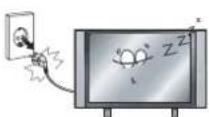
When moving the unit, be sure to turn off the unit and unplug the power cord from the wall outlet.
- Moving the unit with the power cord connected to the outlet may cause damage to the cord, resulting in fire or electric shock.
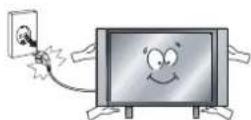
If you notice any unusual odors or smoke around the unit, immediately disconnect the unit from the outlet and contact the service center.
- Failure to do so may result in fire or electric shock.
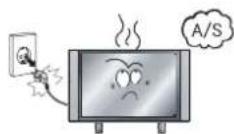
⚠️Warnings
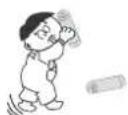
When removing the batteries from the remote control, make sure children do not swallow them. Keep the batteries out of the reach of infants and children.
• If a child has swallowed a battery, seek medical attention immediately.
Always use two or more people to lift or move the unit.
- If the unit is dropped, it could be damaged or otherwise cause injury.
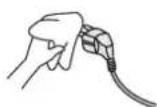
Wipe off any moisture, dirt, or dust on the power plug pins with a clean dry cloth.
- Failure to do so may result in fire or electric shock.
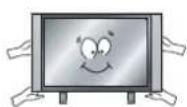
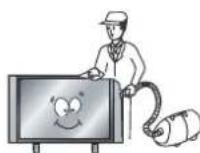
It is advisable to clean the interior of the unit at least once a year. Contact the store of purchase or service center for information.
- Continuing to use the unit without cleaning off the dust build-up inside it may result in fire or electric shock.
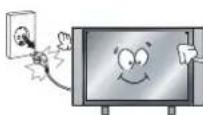
Always turn off the unit and unplug the power cord when cleaning the unit. Use a soft dry cloth to clean the unit.
- Never clean with industrial strength polish, wax, benzene, paint thinner, air freshener, lubricant, detergent, or other such chemicals. Also, do not clean with a damp cloth.
Écran LCD
natural_image
Black electrical plug with a terminal connector, isolated on white background (no text or symbols visible)text_image
SEG Internal integrated 23.6"Guide d'utilisation
text_image
Source TV Menu Help Quick Start Guide Pic Swap Exit Info VOL OK CH - R DVD Menu P Picture S Sound SD1 SD2 -Day +Day -Color 1 2 3 abs def 4 5 6 gni jki mmc 7 8 9 pgns luv wxyz SUB 0 TXT Recording Lists
text_image
Please ensure your aerial is plugged into the socket on the back of your TV Then Press OK The TV will tune all channels. please wait.text_image
Source OKtext_image
Input Source DTV TV SCART AV YPBPR VGA HDMI EXIT Quit OK SelectUtilisation du menu
text_image
IMAGE Mode Image Standard Current: 10 Latency: 3.0 Crash: 1.0 Diffusion: 1.0 Sensor: 2 Out Refuse SelectMENU SON :
text_image
PICTURE Picture Mode User Contrast 50 Brightness 50 Color 50 Sharpness 50 Tint 0 OK Quit BACK OK Select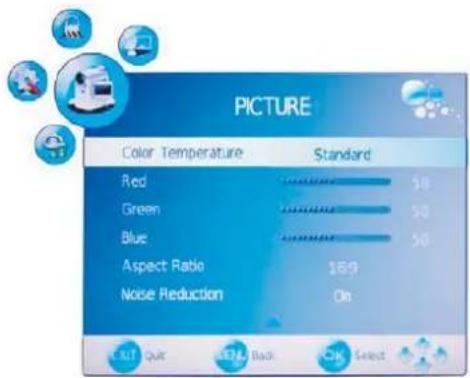
text_image
PICTURE Color Temperature Standard Red 50 Green 50 Blue 50 Aspect Ratio 169 Noise Reduction On S.T Quit Back OK Selecttext_image
EXTRAS Upgrade Auto Pass Horizontal 50 Exit Vertical 50 Take 0 Please 60 OK Cancel Selectnatural_image
Front view of a black remote control with various function keys and buttons (no readable text or symbols)Telecomando
natural_image
Black electrical outlet cable with a terminal connector (no text or symbols visible)text_image
SEG real-mediated 25.61°Guida per l'utente
Guida rapida
Collegamenti
text_image
Source TV Menu Help Quick Start Guide Pic Swap Exit Info VOL OK CH - R DVD Menu P Picture SD1 SD2 Sound -Day +Day -1 abs 3 4 5 6 gnj jki mmc 7 8 9 pgra luv wayz SUB 0 TXT Recording Lists
text_image
Please ensure your aerial is plugged into the socket on the back of your TV Then Press Ok The TV will tune all channels please wait.text_image
Source OKtext_image
Input Source DTV TV SCART AV YPBPR VGA HDMI EXI Quit OK Selecttext_image
PICTURE Picture Mode User Contrast 50 Brightness 50 Color 50 Sharpness 50 Tint 0 OK Out Blend Back OK Select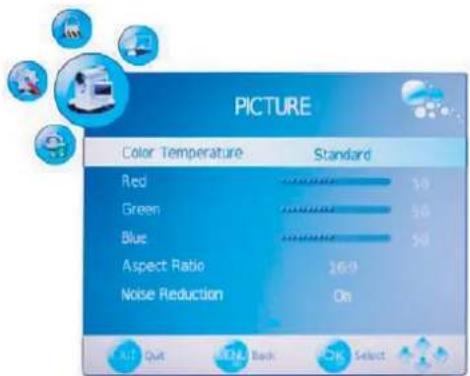
text_image
PICTURE Color Temperature Standard Red 50 Green 50 Blue 50 Aspect Ratio 26.9 Noise Reduction On All Out Back OK Selectservice@schmid-electronics.de
service@schmid-electronics.de