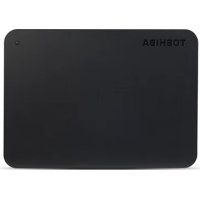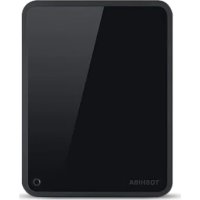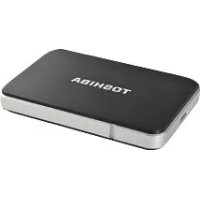
StorE Edition - External hard drive TOSHIBA - Free user manual and instructions
Find the device manual for free StorE Edition TOSHIBA in PDF.


User questions about StorE Edition TOSHIBA
0 question about this device. Answer the ones you know or ask your own.
Ask a new question about this device
Download the instructions for your External hard drive in PDF format for free! Find your manual StorE Edition - TOSHIBA and take your electronic device back in hand. On this page are published all the documents necessary for the use of your device. StorE Edition by TOSHIBA.
USER MANUAL StorE Edition TOSHIBA
Toshiba Places ....3
Check the Components ....3
Safety Instructions ....4
System Requirements ....5
Installing the drive ....5
Connecting the drive to your computer 6
Dismount and disconnect the drive ....7
Cleaning the drive case / enclosure 7
Further Advise ....7
Frequently Asked Questions ....7
Troubleshooting 8
TOSHIBA Support 9
Regulatory statements ......10
Introduction
Thank you for choosing our TOSHIBA STOR.E EDITION 2.5" Hard Disk Drive.
Please read this User's Manual carefully, as it contains all relevant information for installation, usage and maintenance of the drive, as well as security and safety advice.
In case it does not behave as expected, please refer to the "Frequently Asked Questions" section at the end of this manual.
Toshiba Places
Toshiba Places
Toshiba Places offers you a convenient way to browse, access and buy music, video and other content to enjoy on your PC*. Just go to www.toshibaplaces.com and enjoy!
*Content available depends on country of residence.
Check the Components
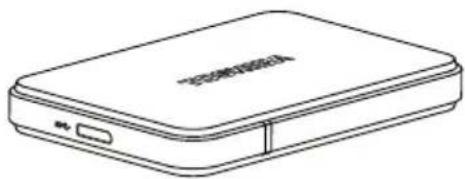
natural_image
Line drawing of a rectangular electronic device with a USB port and a logo on the front face (no text or symbols on the device itself)STOR.E EDITION 2.5" (including User's Manual)
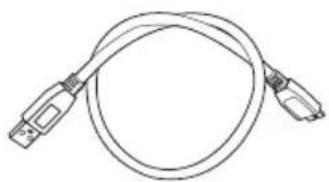
natural_image
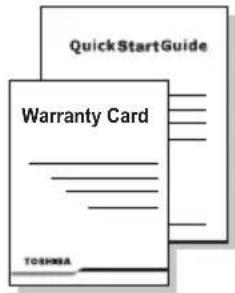
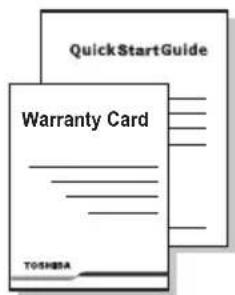
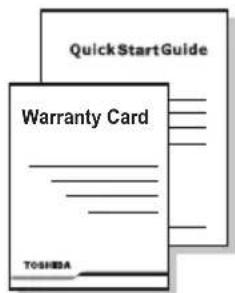
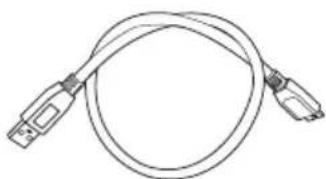
Line drawing of a USB cable with two connectors (no text or symbols)USB 3.0 Micro-B Cable Quick Start Guide and Warranty Leaflet
text_image
QuickStartGuide Warranty Card TOSHMAThis User's Manual is uploaded on the drive itself. We recommend to backup the User's Manual onto a CD or your local hard disk drive, directly after the drive being installed.
Safety Instructions
In order to avoid malfunction or damage of the drive, please carefully follow the precautions listed below.

WARNING
■ Make sure that you backup all your data on the drive, as Toshiba is not responsible for data corruption or data loss. Toshiba will not cover any data recovery cost.
Do not
■ open the enclosure or drive
■ disassemble the drive or parts of it
- place liquids near or on the drive, as it may damage the drive, cause personal injury or may result in an electrical shock or fire
■ bump, drop or jar the drive
■ move the drive while operating, as data damage may happen
■ use other connectors than USB bus powered types
■ disconnect cables while operating. Please dismount the drive first!
■ expose the drive to temperatures outside the range of 5^ C – 35^ C while operating, and temperatures of -20^ C – 60^ C while switched off
■ expose the drive to wet or damp conditions
■ cover the drive during operation, as it may become overheated
- Immediately disconnect the drive if
■ smoke or an unusual smell is coming from the drive enclosure
■ water has entered the drive enclosure or if it becomes wet
■ an object has entered the drive enclosure
■ the cable has been damaged (in such case replace the cable with a new one)
If the drive behaves not as expected or you have doubts about the electrical safety, please contact immediately the TOSHIBA hotline or an authorised reseller!
System Requirements
Windows® XP / VISTA®/Windows® 7
■ CPU with 750 MHz or faster
■ 10 MB system hard disk space
256 MB system memory
■ One free port of USB 3.0 or USB 2.0
NOTE
USB 3.0 is backward compatible with USB 2.0.
Installing the drive
Some information about bus-powered operation and the supplied USB cable:
- Your drive is bus-powered. Therefore, there is no need to connect an external power supply as all needed current will be supplied by the connected USB port(s).
■ Passive USB hubs or USB connectors like keyboards, mice or similar products cannot be used or connected to the drive.
■ Make sure that the connectors will be inserted correctly. - Never use pressure for connecting the cables. Check the polarity before connecting!
Connecting the drive to your computer
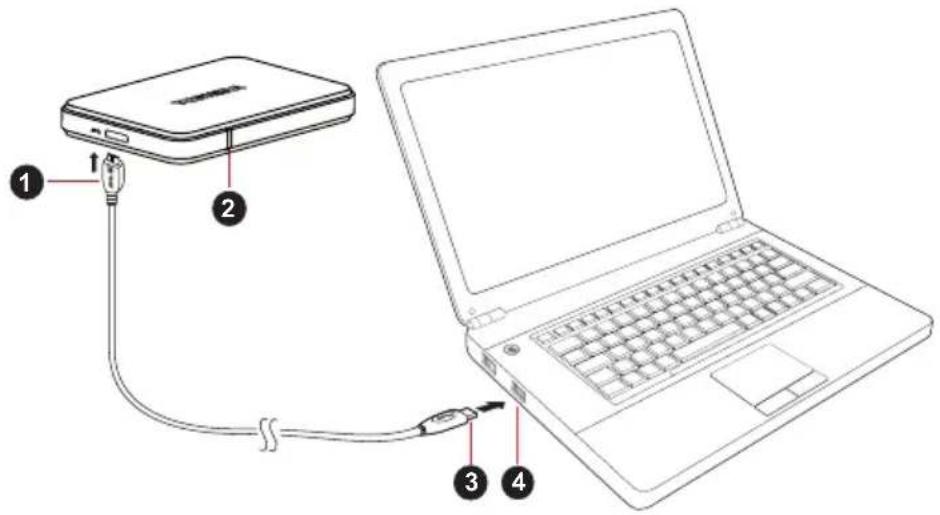
text_image
Diagram showing connection of a laptop with labeled components: cable, connector, and power cord.- USB 3.0 Micro-B connector 3. USB 3.0 Standard-A connector
- Power/Data indicator light 4. USB 3.0 host
backward compatible to USB 2.0
- With your computer powered on and fully booted up, plug the USB 3.0 Standard-A connector into a USB port of your host system, or an active USB HUB.
NOTE
You may need USB 3.0 Express Card Host Controller for your computer if the computer doesn't have USB 3.0 port. You also can connect the device to USB 2.0 port of your computer, However the transfer rate will be downgraded to that of USB 2.0.
- Now, plug the USB 3.0 micro-B connector into the corresponding port of the drive itself.
- Immediately,
■ the Power/Data indicator light will illuminate
■ the drive will power up
■ the drive should mount and a new drive icon should appear in "My Computer"
Dismount and disconnect the drive
It is strongly recommended not to unplug the drive by just unplugging the cable connection as it may be that data is written to the drive at that time.
Such data will be lost and the drive may be damaged physically!
Please follow the steps below for a safe dismount of the drive (Windows 7).
- Click the "Hardware and Eject Media – icon"
A pop-up message box will appear listing the external devices connected to your computer. - Select the TOSHIBA drive to eject.
After a few seconds, you will get the notification that it is now safe to remove the device. - Click "OK" and you can unplug the drive now.
Cleaning the drive case / enclosure
Before cleaning the drive, make sure that it's physically disconnected from the computer. We suggest to use standard products for cleaning it and to make sure that possible remaining liquid on the surface will be wiped off.
Further Advise
For any further action of normal operation such as renaming the drive, backup data, or file management, we suggest to read your operation system user's manual.
Also for maintenance tasks such as defragmenting and optimisation we suggest to refer to the operating system user's manual.
We also strongly suggest having anti-virus software installed to protect your data against intended damage caused by virus or trojan programs.
Frequently Asked Questions
Q: Do I need to format my drive after installation?
A: No, as the drive is already formatted during the manufacturing process.
Q: Do I need USB drivers for Windows Vista, XP or Windows 7?
A: No, they are already available with your operating system.
Q: Can I boot my system from the drive?
A: No, because Windows does not support booting from external hard disk drives.
Q: Why doesn't the drive need a fan?
A: The drives are designed to have optimal heat dissipation, and therefore no fan is required. This results in a near silent operation.
Q: Why is the capacity of my drive (as shown in Windows) lower than the drives actual stated capacity?
A: This difference can be explained because of the different methods of calculating the capacity.
Hard drive manufacturers calculate on the decimal system, while the operating system calculates in the binary system.
Example decimal:
$$ 1 \mathrm{GB} = 1, 0 0 0 \mathrm{MB} = 1, 0 0 0, 0 0 0 \mathrm{KB} = 1, 0 0 0, 0 0 0, 0 0 0 \text { bytes } $$
Example binary:
$$ 1 \mathrm{GB} = 1, 0 2 4 \mathrm{MB} = 1, 0 4 8, 5 7 6 \mathrm{KB} = 1, 0 7 3, 7 4 1, 8 2 4 \text { bytes } $$
As a result, a 120GB (decimal) hard disk appears in Windows to have just 112GB (binary).
Q: Can I use my drive to copy an operating system from one computer to another?
A: No, you must follow the operating system supplier instructions for installation. A simple copy does not work.
Q: Does Toshiba offer a data recovery services?
A: Yes, Toshiba offers a Data Recovery Service for external hard drives. Please check our website www.toshiba-europe.com/services for further information about this service.
Troubleshooting
My computer does not recognize the disk drive at all.
■ Make sure all of your connections are secure.
If your drive is connected via a USB hub, make sure that it has its own power supply.
If using an add-on card, make sure it is working properly and update the software/firmware. If using Windows XP, make sure you have Service Pack 1 or later.
Is it dangerous if the drive feels warm whilst in operation?
A: This is normal, and therefore not dangerous.
The drive gives me a "Device cannot start".
A: Two possible reasons. It is either a power problem and you should check the connections, or the drive has a malfunction and requires service.
I cannot see my drive in "My Computer", but it does appear in the Device Manager.
A: Follow these instructions:
- Right-click "My Computer".
- Select "Manage" in the pop-up menu.
-
Select "Disk Management". You should see a list of available storage devices.
-
Check whether your drive is listed.
-
Right-click the right hand box and select "Delete Partition" in the pop-up menu.
-
Right-click the box and select "Create New Partition" in the pop-up menu.
-
Then select "Primary Partition" in the partition wizard window. Click next.
-
A drive letter will be displayed, which you can change. Click next.
-
Confirm to format the drive.
As I try to format the drive, I receive the message “Could not complete format”.
A: This can be caused by formatting the drive with FAT file system. Try "NTFS" file system. This should solve the problem.
TOSHIBA Support
Need help?
For the latest driver updates, User's manuals & FAQs please have a look at the TOSHIBA options & services support page:
computers.toshiba.eu/options-support
Please see computers.toshiba.eu/options-warranty for the TOSHIBA hotline numbers.
Regulatory statements
CE Compliance
CE
This product is CE marked in accordance with the requirements of the applicable EU Directives. Responsible for CE marking is Toshiba Europe GmbH, Hammfelddamm 8, 41460 Neuss, Germany. A copy of the official Declaration of Conformity can be obtained from following website: http://epps.toshiba-teg.com.
Working Environment
The Electromagnetic Compliance (EMC) of this product has been verified typically for this product category for a so called Residential, Commercial & Light Industry Environment. Any other working environment has not been verified by Toshiba and the use of this product in these working environments is maybe restricted or cannot be recommended. Possible consequences of the use of this product in non verified working environments can be: Disturbances of other products or of this product in the nearby surrounding area with temporarily malfunction or data loss/corruption as result. Example of non verified working environments and related advices:
Industrial environment (e.g. where 3-phase 380V mains is being used mainly): Danger of disturbances of this product due to possible strong electromagnetic fields especially near to big machinery or power units.
■ Medical environment: The compliance to the Medical Product Directive has not been verified by Toshiba, therefore this product cannot be used as a medical product without further verification. The use in usual office environments e.g. in hospitals should be no problem if there is no restriction by the responsible administration.
■ Automotive environment: Please search the owner instructions of the related vehicle for advices regarding the use of this product (category).
Aviation environment: Please follow the instructions of the flight personnel regarding restrictions of use.
Additional Environments not Related to EMC
■ Outdoor use: As a typical home/office equipment this product has no special resistance against ingress of moisture and is not strong shock proofed.
- Explosive atmosphere: The use of this product in such special working environment (Ex) is not allowed.
Following information is only valid for EU-member States:
REACH - Compliance Statement
The new European Union (EU) chemical regulation, REACH (Registration, Evaluation, Authorization and Restriction of Chemicals), entered into force on 1 June 2007.
Toshiba will meet all REACH requirements and is committed to provide our customers with information about the chemical substances in our products according to REACH regulation.
Please consult the following website
www.toshiba-europe.com/computers/info/reach for information about the presence in our articles of substances included on the candidate list according to article 59(1) of Regulation (EC) No 1907/2006 (“REACH”) in a concentration above 0.1 % weight by weight.
Disposal of products
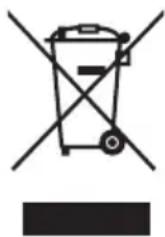
The crossed out wheeled dust bin symbol indicates that products must be collected and disposed of separately from household waste.
The black bar indicates that the product was placed on the market after August 13, 2005.
By participating in separate collection of products, you will help to assure the proper disposal of products and thus help to prevent potential negative consequences for the environment and human health.
For more detailed information about the collection and recycling programmes available in your country, please visit our website (http://eu.computers.toshiba-europe.com) or contact your local city office or the shop where you purchased the product.
Notices
©2011 TOSHIBA Europe GmbH. All rights reserved.
TOSHIBA reserves the right to make technical changes. TOSHIBA assumes no liability for damages incurred directly or indirectly from errors, omissions or discrepancies between this product and the documentation.
The Toshiba name and its logos are registered trademarks of Toshiba. Other trademarks mentioned or appearing in this document are the property of their respective owners. Errors and omissions excepted.
Obsah
Úvod 2
Toshiba Places 2
natural_image
Line drawing of a rectangular electronic device with a USB port and a logo on the front face (no text or symbols on the device itself)natural_image
Line drawing of a USB cable with two connectors (no text or symbols)text_image
Diagram showing connection of a laptop with labeled components: power connector, cable, and keyboard-
USB 3.0 Mikro-B konektor 3. USB 3.0 Standardní-A konektor
-
Indikátor napájení/dat 4. Hostitel USB 3.0
natural_image
Line drawing of a rectangular electronic device with a labeled ports (no text or symbols on the body)natural_image
Line drawing of a broadband cable with two connectors (no text or symbols)text_image
QuickStartGuide Warranty Card TOSHIBAtext_image
Diagram showing connection of a laptop with labeled components: power connector, cable, and screen.1 GB = 1.024 MB = 1.048.576 KB = 1.073.741.824 Byte
natural_image
Line drawing of a rectangular electronic device with a USB port and a logo on the front face (no text or symbols on the device itself)natural_image
Line drawing of a USB cable with two connectors (no text or symbols)text_image
QuickStartGuide Warranty Card TOSHIBAtext_image
Diagram showing connection of a laptop with labeled components: power connector, cable, and screen.- USB 3.0 mikro B-stik 3. USB 3.0 standard A-stik
- Indikatorlampe for strøm/data 4. USB 3.0-vært
bagudkompatibel med USB 2.0
1 GB = 1.024 MB = 1.048.576 KB = 1.073.741.824 byte
Dette betyder, at en harddisk på 120 GB (i 10-talssystemet) i Windows ser ud til kun at være på 112 GB (i det binære talsystem).
natural_image
Line drawing of a rectangular electronic device with a USB port and a logo on the cover (no text or symbols)natural_image
Line drawing of a broadband cable with two connectors (no text or symbols)text_image
Diagram showing connection of a laptop with labeled components: power adapter, cable, and screen.1 GB = 1.024 MB = 1.048.576 KB = 1.073.741.824 bytes
natural_image
Line drawing of a rectangular electronic device with a USB port and a logo on the cover (no text or symbols present)natural_image
Line drawing of a USB cable with two connectors (no text or symbols)text_image
Diagram showing connection of a laptop with labeled components: cable, connector, and power cord.natural_image
Line drawing of a rectangular electronic device with a USB port and a logo on the front face (no text or symbols on the device itself)natural_image
Line drawing of a broadband cable with two connectors (no text or symbols)text_image
Diagram showing connection of a laptop with labeled components: power connector, cable, and keyboardnatural_image
Line drawing of a rectangular electronic device with a USB port and a logo on the front face (no text or symbols on the device itself)natural_image
Line drawing of a USB cable with two connectors (no text or symbols)text_image
Diagram showing connection of a laptop with labeled components: power adapter, cable, and keyboard1GB = 1.024MB = 1.048.576KB = 1.073.741.824 bytes
natural_image
Line drawing of a rectangular electronic device with a USB port and a logo on the front face (no text or symbols on the device itself)natural_image
Line drawing of a USB cable with two connectors (no text or symbols)USB 3.0 Micro-B kabel Vodič za brzi početak rada i jamstveni list
text_image
QuickStartGuide Warranty Card TOSHIBAOvaj Korisnički priručnik nalazi se učitan na samom pogonu. Preporučujemo da odmah nakon instalacije pogona napravite sigurnosnu kopiju Korisničkog priručnika na CD disku ili na vašem lokalnom pogonu tvrdog diska.
Sigurnosne upute
Kako biste izbjegli neispravan rad ili oštećenje pogona, pažljivo slijedite dolje navedene mjere opreza.

UPOZORENJE
text_image
Diagram showing connection of a laptop with labeled components: power adapter, cable, and keyboard1 GB = 1.024 MB = 1.048.576 KB = 1.073.741.824 bajtova
Kao rezultat, tvrdi disk veličine 120 GB (decimalno) se u sustavu Windows pojavljuje kao samo 112 GB (binarno).
natural_image
Line drawing of a rectangular electronic device with a USB port and a logo on the front face (no text or symbols)natural_image
Line drawing of a broadband cable with two connectors (no text or symbols)text_image
Diagram showing connection of a laptop with labeled components: cable, connector, and screennatural_image
Line drawing of a rectangular electronic device with a USB port and a logo on the front face (no text or symbols on the device itself)natural_image
Line drawing of a USB cable with two connectors (no text or symbols)text_image
Diagram showing connection of a laptop with labeled components: power connector, cable, and screen.1 GB = 1.024 MB = 1.048.576 KB = 1.073.741.824 byte
natural_image
Line drawing of a rectangular electronic device with a USB port and a logo on the cover (no text or symbols)natural_image
Line drawing of a USB cable with two connectors (no text or symbols)text_image
Diagram showing connection of a laptop with labeled components: power connector, cable, and screen.1 GB = 1.024 MB = 1.048.576 KB = 1.073.741.824 bytes
natural_image
Line drawing of a rectangular electronic device with a USB port and logo (no text or symbols on the body)natural_image
Line drawing of a USB cable with two connectors (no text or symbols)text_image
Diagram showing connection of a laptop with labeled components: power connector, cable, and screen.-
USB 3.0 Micro-B-kontakt 3. USB 3.0 Standard-A-kontakt
-
Indikator for strøm/data 4. USB 3.0-vert
Ustuga Toshiba Places ....2
Ustuga Toshiba Places
natural_image
Line drawing of a rectangular electronic device with a labeled ports (no text or symbols on the body)natural_image
Line drawing of a USB cable with two connectors (no text or symbols)text_image
QuickStartGuide Warranty Card TOSHIBAtext_image
Diagram showing connection of a laptop with labeled components: power connector, cable, and screen.natural_image
Line drawing of a rectangular electronic device with a USB port and a logo on the cover (no text or symbols)natural_image
Line drawing of a USB cable with two connectors (no text or symbols)text_image
Diagram showing connection of a laptop with labeled components: power adapter, cable, and keyboard1GB = 1,000MB = 1,000,000KB = 1,000,000,000 bytes
Exemplo binário:
1GB = 1,024MB = 1,048,576KB = 1,073,741,824 bytes
natural_image
Line drawing of a rectangular electronic device with a labeled ports (no text or symbols on the body)natural_image
Line drawing of a broadband cable with two connectors (no text or symbols)USB 3.0 Micro-B kabl Vodič za brzi početak korišćenja i Garantni list
text_image
QuickStartGuide Warranty Card TOSHIBAKorisnički priručnik je učitan na sam čvrsti disk. Preporučujemo vam da napravite rezervnu kopiju korisničkog priručnika na CD-u ili na lokalnu pogonsku jedinicu čvrstog diska, odmah nakon što instalirate čvrsti disk.
text_image
Diagram showing connection of a laptop with labeled components: power connector, cable, and screen.-
USB 3.0 Micro-B priključak 3. USB 3.0 Standard-A priključak
-
Indikatorska lampica za napajanje/podatke
-
USB 3.0 host je kompatibilan sa prethodnom verzijom, sa USB 2.0
-
Kada se računar uključi i potpuno pokrene, uključite USB 3.0 Standard-A priključak u USB otvor na vašem glavnom sistemu, ili aktivnom USB HUB.
NAPOMENA
1 GB = 1.024 MB = 1.048,576 KB = 1.073,741,824 bajta
Kao rezultat, čvrsti disk od 120 GB (decimalni sistem) na Windows sistemu čini se da ima samo 112 GB (binarni sistem).
P: Da li mogu da upotrebim pogonsku jedinicu za kopiranje operativnog sistema sa jednog računara na drugi?
O: Ne, morate se pridržavati uputstava dobavljača operativnog sistema za instalaciju. Jednostavan postupak kopiranja neće funkcionisati.
P: Da li Toshiba nudi usluge oporavka podataka?
O: Da, Toshiba nudi uslugu oporavka podataka za spoljne čvrste diskove. Pogledajte veb sajt www.toshiba-europe.com/services za više informacija o ovoj usluzi.
Rešavanje problema
natural_image
Line drawing of a rectangular electronic device with a USB port and a logo on the front face (no text or symbols on the device itself)natural_image
Line drawing of a USB cable with two connectors (no text or symbols)text_image
QuickStartGuide Warranty Card TOSHIBAtext_image
Diagram showing connection of a laptop with labeled components: power adapter, cable, and keyboardnatural_image
Symbol of a trash bin crossed with a diagonal line and a horizontal bar below (no text or labels)TOSHIBA-support ....8
Bestämmelser 9
Inledning
natural_image
Line drawing of a rectangular electronic device with a USB port and a logo on the front face (no text or symbols on the device itself)natural_image
Line drawing of a broadband cable with two connectors (no text or symbols)text_image
QuickStartGuide Warranty Card TOSHIBAtext_image
Diagram showing connection of a laptop with labeled components: power connector, cable, and screen.natural_image
Line drawing of a rectangular electronic device with a USB port and a logo on the cover (no text or symbols)natural_image
Line drawing of a USB cable with two connectors (no text or symbols)text_image
Diagram showing connection of a laptop with labeled components: power connector, cable, and screen.- Konektor USB 3.0 Micro-B 3. Konektor USB 3.0 Standard-A
- Indikátor napájania/spracovania údajov 4. Zásuvka USB 3.0
spätne kompatibilné s USB 2.0
natural_image
Line drawing of a rectangular electronic device with a USB port and a logo on the cover (no text or symbols)natural_image
Line drawing of a USB cable with two connectors (no text or symbols)text_image
Diagram showing connection of a laptop with labeled components: power connector, cable, and keyboard- Priključek USB 3.0 Micro-B 3. Priključek USB 3.0 Standard-A
- Lučka za napajanje/podatke 4. Gostitelj USB 3.0
Toshiba Places ....2
natural_image
Line drawing of a rectangular electronic device with a labeled ports (no text or symbols on the body)natural_image
Line drawing of a broadband cable with two connectors (no text or symbols)text_image
QuickStartGuide Warranty Card TOSHIBAtext_image
Diagram showing connection of a laptop with labeled components: power connector, cable, and screen.natural_image
Symbol of a trash bin crossed with no text or labels, accompanied by a blank rectangular block below (no text or symbols present)text_image
QuickStartGuide Warranty Card TOSHURAوكتيب الضمان
natural_image
Line drawing of a USB cable with two connectors (no text or symbols)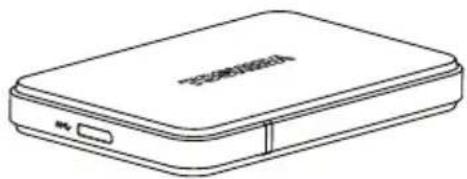
natural_image
Line drawing of a rectangular electronic device with a USB port and label (no text or symbols on the device itself)USB 3.0 Micro-B لبداية السریعةکل STOR.E EDITION 2.5"
text_image
Diagram showing connection of a laptop with labeled components: power bank, USB cable, and connected cables.1 ..“Hardware and Ej
natural_image
Symbol of a waste bin with no text or labels, crossed by two crossed lines and a solid black rectangle below (no text or symbols present)إشعارات