EasyManual
Pixma TS8000 - Printer CANON - Free user manual and instructions
Find the device manual for free Pixma TS8000 CANON in PDF.



User questions about Pixma TS8000 CANON
0 question about this device. Answer the ones you know or ask your own.
Ask a new question about this device
Download the instructions for your Printer in PDF format for free! Find your manual Pixma TS8000 - CANON and take your electronic device back in hand. On this page are published all the documents necessary for the use of your device. Pixma TS8000 by CANON.
USER MANUAL Pixma TS8000 CANON
natural_image
Silhouette of a person operating equipment with a device and a bag nearby (no text or symbols)Getting Started
Démarrage
Inbetriebnahme
Aan de Slag-gids
Guida Rapida
Para Começar
Guía de inicio
Ξεκινώντας
Uppstartsguide
Komme i gang
Før du begynder
Aloitusopas
text_image
1Installing the Printer......page1
Installation de l'imprimante ......page1
natural_image
Red background with white icons of a laptop and smartphone, no text or symbols presentConnecting with Computer and Smartphone/Tablet......page5
text_image
Prohibition sign with red circle and diagonal line crossing a device diagram, indicating no prohibition or disapproval.When the printer starts printing, automatically the operation panel opens and the paper output tray comes out. Keep the front of the printer clear.
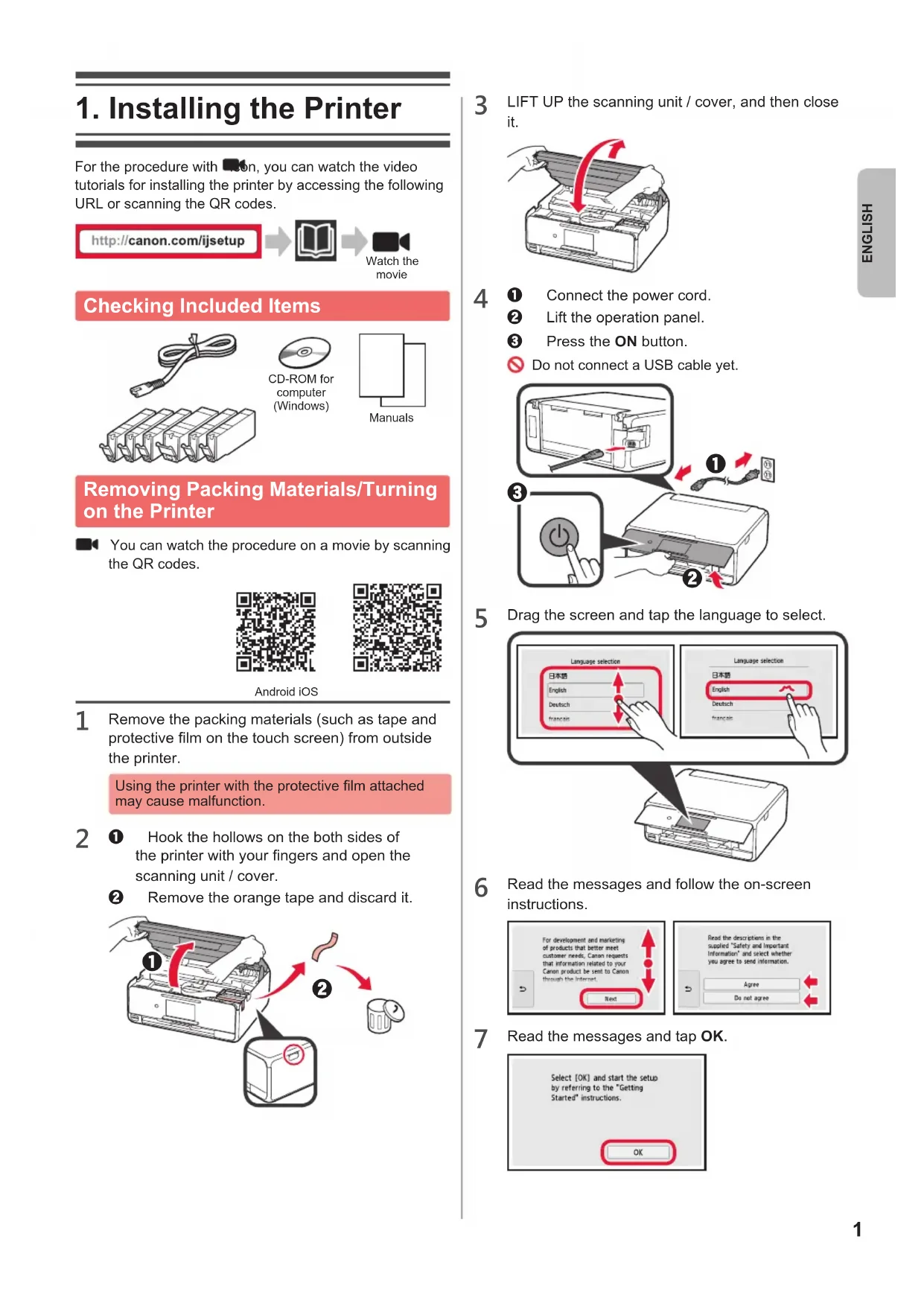
For the procedure with 📄, you can watch the video tutorials for installing the printer by accessing the following URL or scanning the QR codes.
http://canon.com/ijsetup

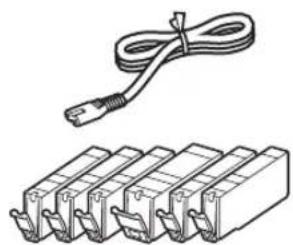
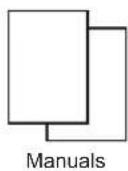
Checking Included Items
natural_image
Illustration of a cable and two separate electrical connectors (no text or symbols)
Removing Packing Materials/Turning on the Printer
You can watch the procedure on a movie by scanning the QR codes.

Android iOS

1 Remove the packing materials (such as tape and protective film on the touch screen) from outside the printer.
Using the printer with the protective film attached may cause malfunction.
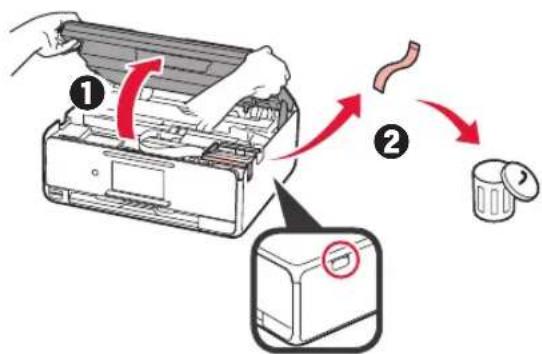
2 Hook the hollows on the both sides of the printer with your fingers and open the scanning unit / cover.
② Remove the orange tape and discard it.
text_image
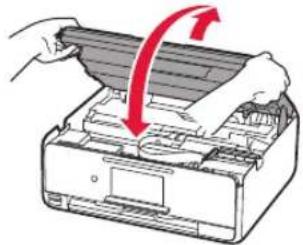
Diagram illustrating the process of removing a printer into a waste bin, with numbered steps and directional arrows indicating removal.3 LIFT UP the scanning unit / cover, and then close it.
natural_image
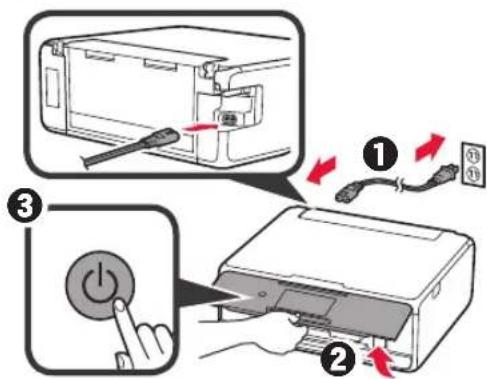
Illustration of a printer with a paper strip being inserted, showing red arrows indicating the process (no text or symbols present)4 ① Connect the power cord.
② Lift the operation panel.
③ Press the ON button.
Do not connect a USB cable yet.
text_image
Diagram illustrating the process of inserting a power button into a printer, with numbered steps and directional arrows indicating action.5 Drag the screen and tap the language to select.
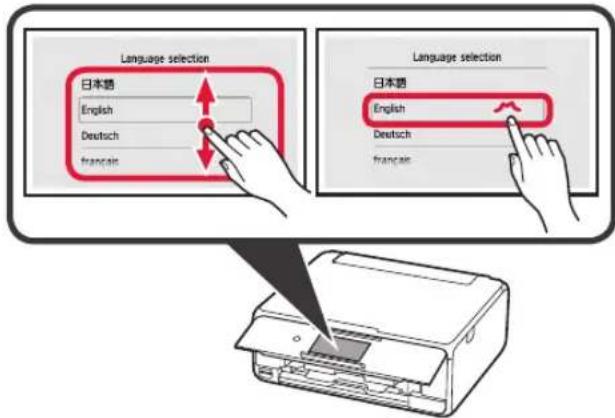
text_image
Language selection 日本語 English Deutsch francais Language selection 日本語 English Deutsch francais6 Read the messages and follow the on-screen instructions.
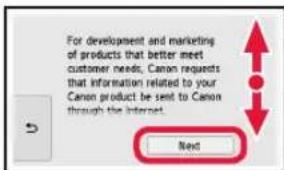
text_image
For development and marketing of products that better meet customer needs, Canon requests that information related to your Canon product be sent to Canon through the internet. Next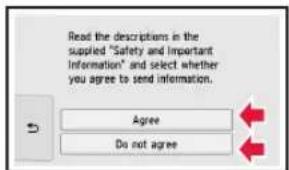
text_image
Read the descriptions in the supplied "Safety and Important Information" and select whether you agree to send information. Agree Do not agree7 Read the messages and tap OK.
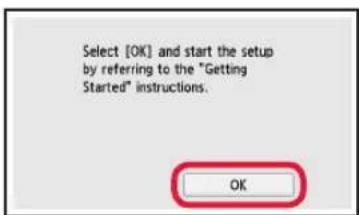
text_image
Select [OK] and start the setup by referring to the "Getting Started" instructions. OKInstalling the Ink Tank
You can watch the procedure on a movie by scanning the QR codes.

Android iOS

1 Open the scanning unit / cover.
Do not touch the print head holder (A) until it stops.
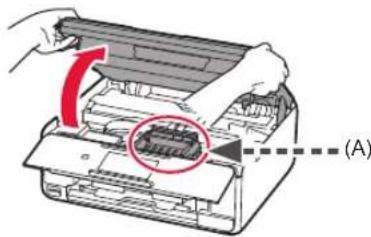
text_image
Diagram showing printer operation with a red circle highlighting the internal structure, labeled (A)2 ① Remove the orange tape.
② Remove the protective wrap.
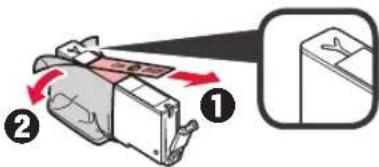
text_image
Diagram illustrating a device with labeled parts and directional arrows, likely illustrating a process or assembly.Remove the orange tape completely.
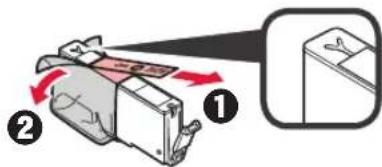
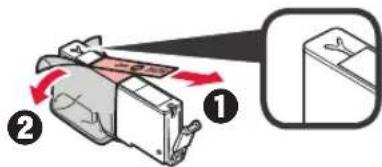
3 Hook the orange cap with your finger to remove it GENTLY.
(A) Do not push the both sides of the ink tank with the Y-shape air hole blocked.
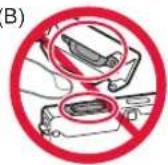
(B) Do not touch.
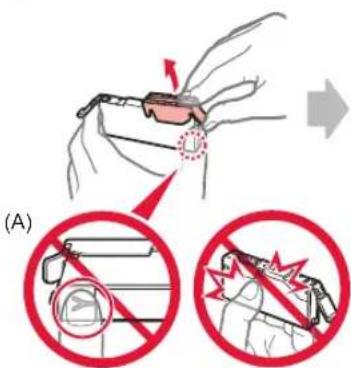
text_image
(A)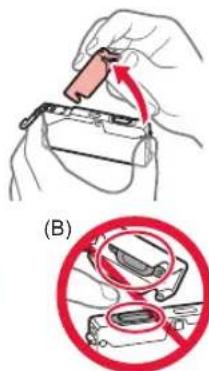
text_image
(B)4 Insert the ink tank into the print head holder and push it down firmly until it snaps into place. After the lamp lights up, install the next ink tank.
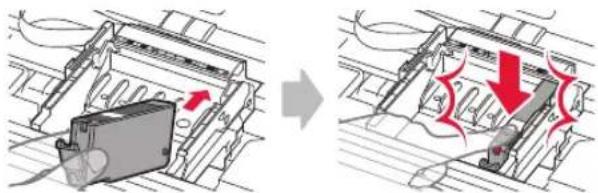
natural_image
Diagram showing a device being processed from a machine, with arrows indicating process flow (no text or symbols present)5 Check that all lamps are lit.
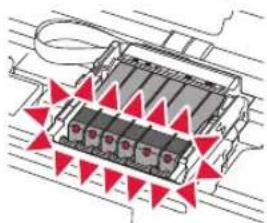
natural_image
Diagram of a mechanical component with red triangular arrows indicating flow or movement (no text or symbols)6 LIFT UP the scanning unit / cover, and then close it.
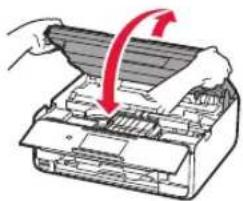
natural_image
Illustration of a printer with a red arrow indicating compression or disassembly (no text or symbols present)If an error message appears, make sure the ink tanks are installed correctly.
Loading Paper / Aligning the Print Head
You can watch the procedure on a movie by scanning the QR codes.
Android iOS

To obtain better print result, print a pattern for print head alignment and scan it.
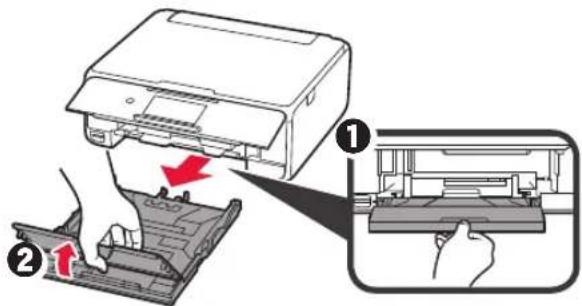
1 ① Pull out the cassette.
② Remove the cassette cover.
text_image
Diagram illustrating printer press operation with labeled steps and directional arrows indicating process flow2 ① Pull out the cassette forward while pressing the lock on the cassette. ② Open the paper guides, and then align the guide in front with the mark of LTR or A4.
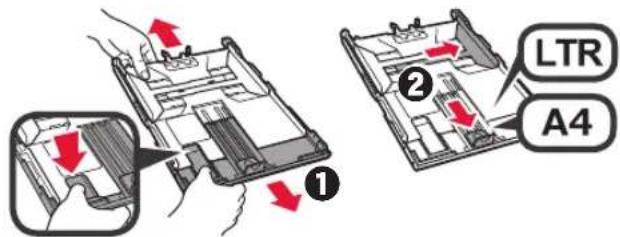
text_image
① ② LTR A43 ① Load several sheets of plain paper with the print side facing down. ② Slide the right paper guide to align it with the side of the paper stack. ③ Align the paper stack with the paper guide in front.
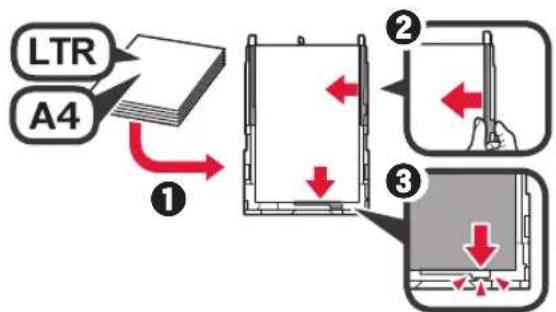
flowchart
graph TD
    A["LTR"] --> B["1"]
    C["A4"] --> B
    B --> D["2"]
    D --> E["3"]
    E --> F["3"]
4 ① Attach the cassette cover. ② Insert the cassette.
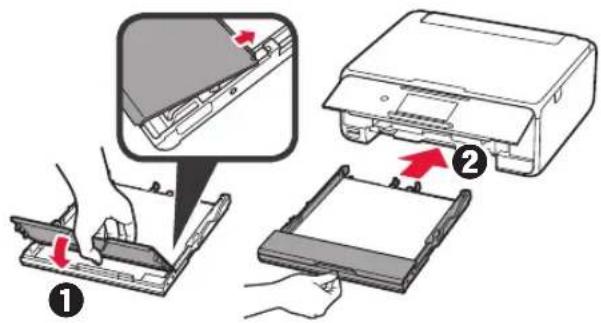
text_image
Diagram illustrating a printer press operation with labeled steps and directional arrows indicating movement.5 Read the messages and tap OK.
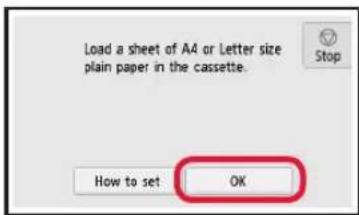
text_image
Load a sheet of A4 or Letter size plain paper in the cassette. How to set OK6 When the pattern for print head alignment is printed, tap Yes.
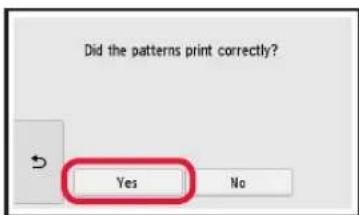
text_image
Did the patterns print correctly? Yes No7 Follow the on-screen instructions to load the pattern on the platen glass.
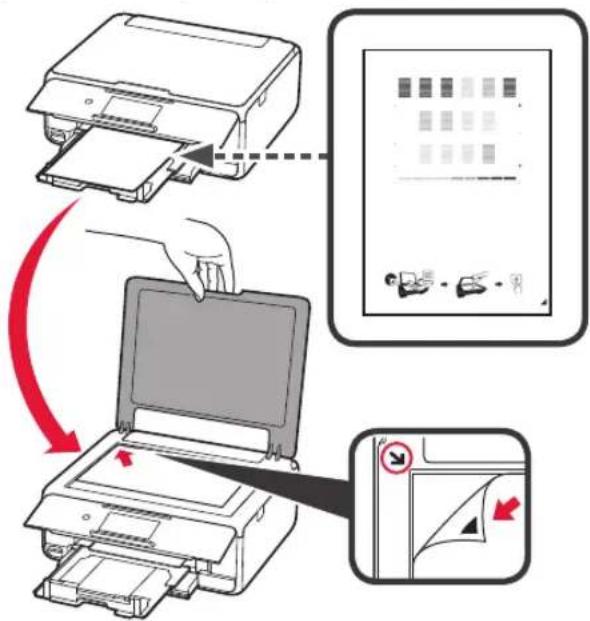
text_image
Diagram illustrating printer operation steps with red arrows indicating process flow8 Close the document cover, and then follow the on-screen instructions to tap OK.
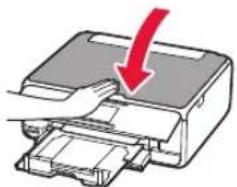
natural_image
Diagram of a printer with a red downward arrow indicating compression or disassembly (no text or symbols present)9 If the following screen appears, tap OK.
text_image
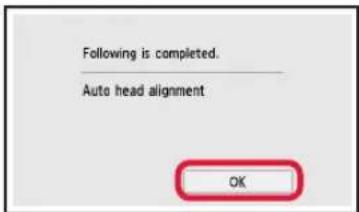
Following is completed. Auto head alignment OKThe print head alignment is now complete.
Selecting a Printer Connection Method
The connection method varies depending on how you use the printer. Select a printer connection method according to the table below. In the following description, smartphones and tablet devices are collectively described as smartphone.
| Using the printer with your computer or smartphone connected Using | the printer without connecting any other devices | |
| Wireless LAN connection USB connection Do not connect | ||
Connecting the printer to your computer or smartphone via a wireless router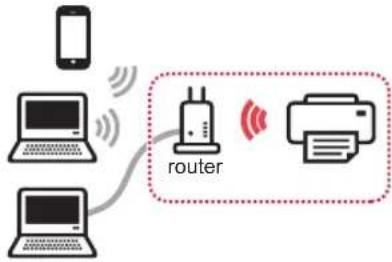 Connecting the printer to your computer or smartphone directly without a wireless router* Connecting the printer to your computer or smartphone directly without a wireless router*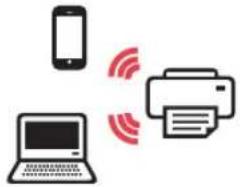 | 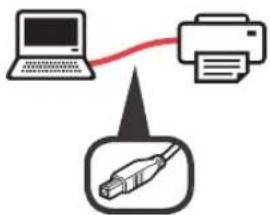 USB cable USB cable |  |
 Tap Do not connect on the connection method selecting screen. The setup is now complete. Tap Do not connect on the connection method selecting screen. The setup is now complete. | ||
* You may not connect your smartphone to the Internet wirelessly during connecting the printer to the smartphone directly. In that case, you may be charged depending on the contract with your service provider.
* Up to 5 devices can be connected to the printer via wireless LAN connection directly.
1 Tap your printer connection method.
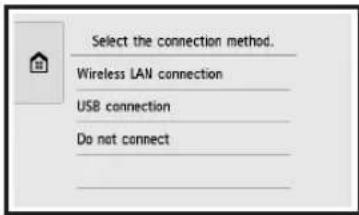
text_image
Select the connection method. Wireless LAN connection USB connection Do not connectFollow the on-screen instructions to proceed with the setup.
Users who select USB connection:
Do not connect a USB cable until you are instructed.
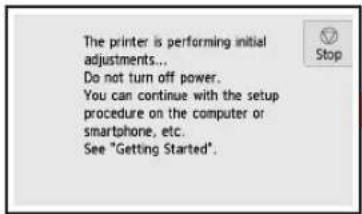
2 If the following screen appears, proceed to the next page.
■ If you select Wireless LAN connection:
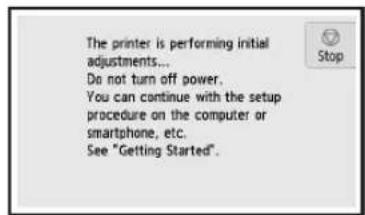
text_image
The printer is performing initial adjustments... Do not turn off power. You can continue with the setup procedure on the computer or smartphone, etc. See "Getting Started".■ If you select USB connection:
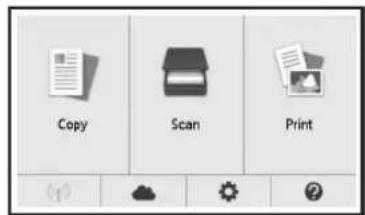
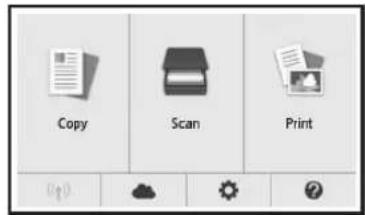
text_image
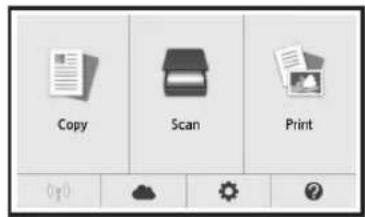
Copy Scan Print2. Connecting with Computer and Smartphone/Tablet
If you connect the printer to both your computer and your smartphone, connect it to the computer first.
To connect the printer only to your smartphone, proceed to "Connecting with Smartphone" on page 6.
Connecting with Computer
You need connection setup for each computer. Proceed with the setup from step 1 for each computer.
The followings describe the procedures for Windows and Mac OS.
If you use a computer except for Windows or Mac OS such as Chrome OS, access "http://canon.com/ijsetup", and then follow the instructions on the Canon website to set up your computer.
1 Select one of the following steps A to B start up the setup file.
A MacOS Windows
Accessing the Canon website
① Visit the Canon website below and click Set Up.

text_image
http://canon.com/ijsetupFollow the on-screen instructions to proceed with the setup.
② If the following screen appears, click Download.
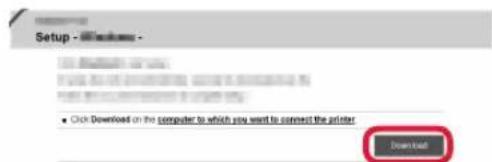
text_image
Setup - Microsoft - ■ Click Download on the computer to which you want to connect the printer Download③ Start up the downloaded file.
B Windows
Using the Setup CD
① Insert the setup CD into your computer.

When using Windows 10, Windows 8.1 or Windows 8:
② Click or File Explorer on the taskbar.
③ Select This PC or Computer on the left side of the opened window.
4 Double-click the CD-ROM icon on the right side of the window.
* If the contents of the CD-ROM appear, double-click MSETUP4.EXE.
2 Click Start Setup.
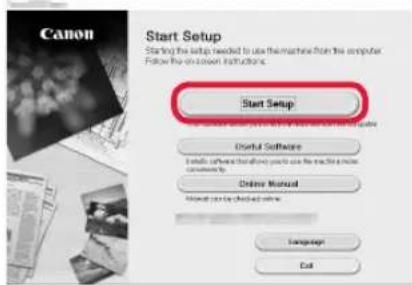
text_image
Start Setup Starting the setup needed to use the machine from the computer. Follow this on-coven instructions. Start Setup Use a software for a computer system (e.g. Windows, Sony, or Linux). Use a software for a computer system (e.g. Windows, Sony, or Linux). Use a software for a computer system (e.g. Windows, Sony, or Linux). Use a software for a computer system (e.g. Windows, Sony, or Linux). Use a software for a computer system (e.g. Windows, Sony, or Linux). Use a software for a computer system (e.g. Windows, Sony, or Linux). Use a software for a computer system (e.g. Windows, Sony, or Linux). Use a software for a computer system (e.e. Windows, Sony, or Linux). Use a software for a computer system (e.g. Windows, Sony, or Linux). Use a software for a computer system (e.g. Windows, Sony, or Linux). Use a software for a computer system (e.g. Windows, Sony, or Linux). Use a software for a computer system (e.g. Windows, Sony, or Linux). Use a software for a computer system (e.g. Windows, Sony, or Linux). Use an Software System Use an Software System (e.g. Windows, Sony, or Linux). Use an Software System (e.g. Windows, Sony, or Linux). Use an Software System (e.g. Windows, Sony, or Linux). Use an Software System (e.g. Windows, Sony, or Linux). Use an Software System (e.g. Windows, Sony, or Linux). Use an Software System (e.g. Windows, Sony, or Linux). Use an Software System (e.g. Windows, Sony, or Linux). Use an Software System (e.g. Windows 100%, 100%) Use an Software System (e.g. Windows 100%, 100%) Use an Software System (e.g. Windows 100%, 100%) Use an Software System (e.g. Windows 100%, 100%) Use an Software System (e.g. Windows 100%, 100%) Use an Software System (e.g. Windows 100%, 100%)Follow the on-screen instructions to proceed with the setup.
You can set up your smartphone in the middle of the steps.
On the following screen, click Instructions to proceed with setup of your smartphone.
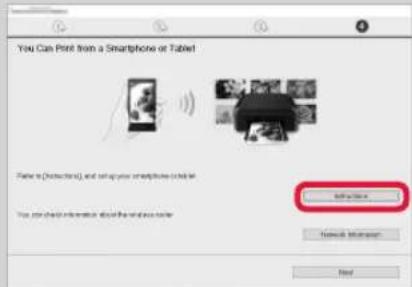
text_image
You Can Print from a Smartphone or Tablet Faster to [Desktop], and set up your smartphone to table. Self-care Your check-in information about the social media.* Depending on your settings, the screen above may not appear. In that case, proceed to "Connecting with Smartphone" on page 6 after finishing the connection to your computer.
3 If the following screen appears, click Exit.
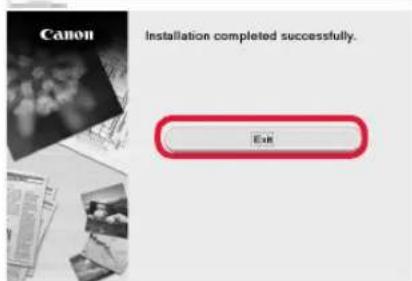
text_image
Canon Installation completed successfully. ExitThe connection with your computer is now complete. You can print from your computer.
Connecting with Smartphone
You need connection setup for each smartphone. Proceed with the setup from step 1 for each smartphone.
Preparation
- Turn on Wi-Fi on your smartphone.
• If you have a wireless router, connect your smartphone to the wireless router.
* For operations, refer to manuals of your smartphone and the wireless router or contact those manufacturers.
1 Install the application software Canon PRINT Inkjet/SELPHY in your smartphone.


: Search "Canon PRINT" in App Store.

: Search "Canon PRINT" in Google Play.
Or access the Canon website by scanning the QR code.

2 Check the display on the printer.
The screen turns off when no operation is made for 10 minutes. Tap the touch screen to display the screen.
■ If the following screen appears:
Check the icon on the lower left, and then proceed to A or B
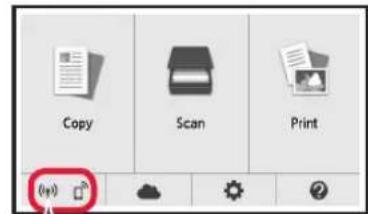
text_image
Copy Scan PrintThe following icon appears.
(The printer is connected to a network.)

Yes
■ If the following screen appears: Proceed to B.
text_image
The printer is performing initial adjustments... Do not turn off power. You can continue with the setup procedure on the computer or smartphone, etc. See "Getting Started".No (Proceed to B.)
If appears, the printer can not communicate by wireless LAN connection. For details, access "http://canon.com/ijsetup" to see Frequently Asked Questions.



① Tap the installed application software.
② Follow the on-screen instructions to register the printer.
③ Make sure that the following screen appears.
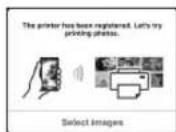
The connection with your smartphone is now complete. You can print from your smartphone.
To print photos, load photo paper. Proceed to "Loading Photo Paper" on page 8.

Procedures below vary depending on iOS or Android. Select your operating system and proceed to its procedure.
iOS
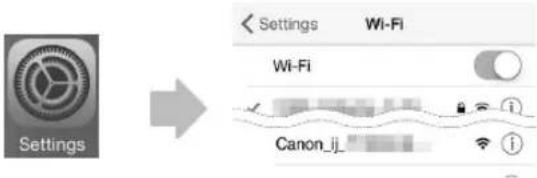
① Tap Settings on the HOME screen, and then tap Canon_ij_XXXX on the Wi-Fi settings.
text_image
Settings Settings Wi-Fi Wi-Fi Canon_ijIf Canon_ij_XXXX does not appear on the list, see "Preparation of the Printer" below to operate the printer, and then repeat step ①.
② Tap the installed application software.
③ Follow the on-screen instructions to register the printer.
Follow the on-screen instructions to proceed with the setup.
If you select Auto Select Conn. Method (recommended) on the connection method selecting screen, the appropriate connection method is selected automatically depending on your environment.
④ Make sure that the following screen appears.
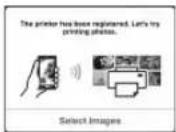
Android
① Tap the installed application software.
② Follow the on-screen instructions to register the printer.
If a message saying "Printer is not registered. Perform printer setup?" does not appear, see "Preparation of the Printer" below to operate the printer, and then wait for a while until a message appears.
Follow the on-screen instructions to proceed with the setup.
The appropriate connection method is selected depending on your environment.
③ Make sure that the following screen appears.
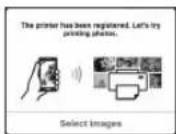
The connection with your smartphone is now complete. You can print from your smartphone.
To print photos, load photo paper. Proceed to "Loading Photo Paper" on page 8.
Preparation of the Printer
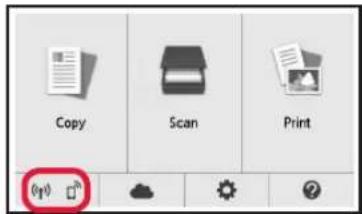
① Tap on the printer's touch screen.
② Tap the icon on the lower left of the HOME screen.
text_image
Copy Scan Print③ Tap Yes or No.
④ Tap LAN settings > Wireless LAN > Wireless LAN setup > Easy wireless connect.
⑤ Tap Yes.
⑥ Return to the operation of your smartphone.
Loading Photo Paper
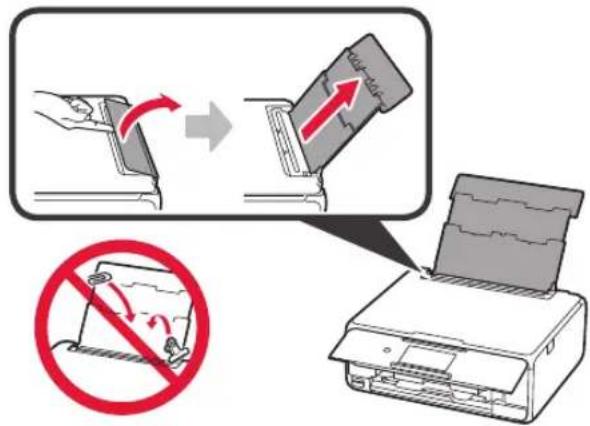
Load photo paper in the rear tray.
1 Open the rear tray cover and pull out the paper support.
text_image
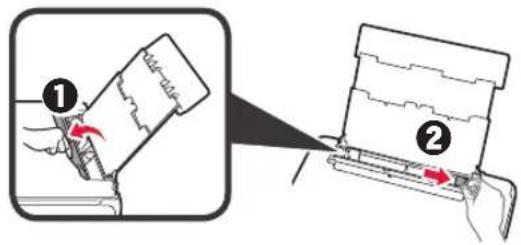
Diagram illustrating printer operation with a paper being inserted, showing no printing and cutting process2 ① Open the feed slot cover.
② Slide the right paper guide to the end.
text_image
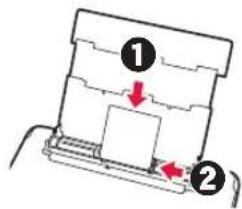
Diagram illustrating two steps of a document processing or packaging process, labeled ① and ② with arrows indicating direction.3 ① Load several sheets of photo paper with the print side facing up.
② Slide the right paper guide to align it with the side of the paper stack.
text_image
Diagram showing two labeled components (① and ②) with arrows indicating direction of movement or flow.4 Close the feed slot cover.
Read the message on the printer's screen and register the information of the loaded paper.
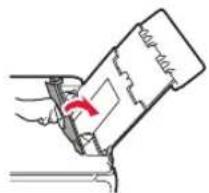
natural_image
Diagram of a mechanical assembly with a red arrow indicating direction (no text or symbols present)Printing Photos Saved on a Memory Card
You can print photos saved on a memory card with easy operations.
1 Make sure the printer is turned on.
2 Load several sheets of photo paper.
3 Insert the memory card into the card slot.
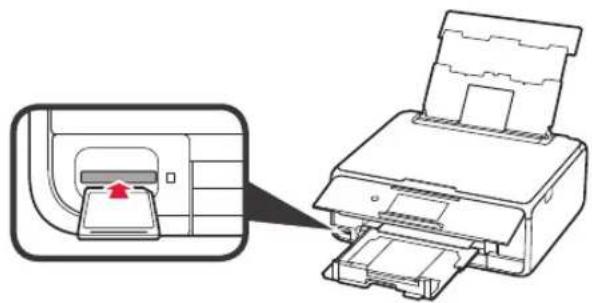
natural_image
Diagram showing a printer being inserted into a paper airplane, with an inset close-up highlighting the printer's internal structure (no text or symbols present)4 Select photos to be printed.
5 Tap the Color button.
The printer starts printing.
1. Installation de l'imprimante
natural_image
Illustration of a cable and four rectangular electronic components (no text or symbols)
text_image
Diagram illustrating the process of removing a printer into a waste bin, with numbered arrows indicating removal steps.natural_image
Illustration of a printer with a red arrow indicating compression or disassembly (no text or symbols present)text_image
Diagram illustrating the process of inserting a power button into a printer, with numbered steps and directional arrows indicating action.text_image
Diagram showing printer operation with labeled parts and directional arrow, marked as (A)2 ① Retirez la bande orange.
② Retirez l'emballage de protection.
text_image
Diagram showing a device with labeled parts and directional arrows, likely illustrating a process or assembly.natural_image
Illustration of a hand holding glasses with a red arrow and circular motion indicator (no text or symbols)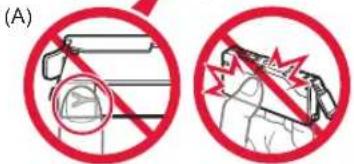
text_image
(A)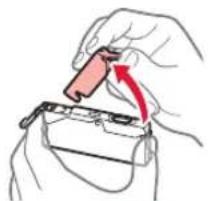
natural_image
Hand holding a small red object with an arrow indicating direction (no text or symbols)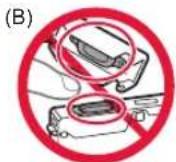
natural_image
Diagram showing a device being processed from a left-side panel to a right-side panel, with red arrows indicating process flow (no text or symbols present)natural_image
Diagram of a heat exchanger or cooling unit with red triangular warning symbols (no text or labels)natural_image
Illustration of a printer with a red arrow indicating compression or disassembly (no text or symbols present)text_image
Diagram illustrating printer press operation with labeled steps and directional arrows indicating process flowtext_image
Diagram showing a printer press operation with labeled steps and directional arrows indicating movementtext_image
Diagram illustrating printer operation steps with red arrows indicating process flow, including printer image and document preview.natural_image
Diagram of a printer with a red downward arrow indicating compression or disassembly (no text or symbols present)text_image
Diagram illustrating printer printing process with directional arrows and no-noise warning symboltext_image
Diagram illustrating two steps of a document processing or assembly, labeled ① and ②, with arrows indicating process direction.text_image
Diagram showing two labeled components (① and ②) with arrows indicating movement or force, likely illustrating a mechanical or electrical assembly.natural_image
Diagram of a mechanical component with a red arrow indicating direction (no text or symbols)natural_image
Diagram showing a printer being inserted into a paper airplane, with no visible text or symbols.natural_image
Illustration of a cable and two stacked electronic components (no text or symbols)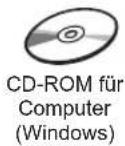
text_image
Diagram illustrating the process of removing a printer into a waste bin, with numbered arrows indicating removal steps.natural_image
Illustration of a printer with a red arrow indicating compression or disassembly (no text or symbols present)text_image
Diagram illustrating the process of inserting a power button into a printer, with numbered steps and directional arrows indicating action.text_image
For development and marketing of products that better meet customer needs, Canon requests that information related to your Canon product be sent to Canon through the Internet. Next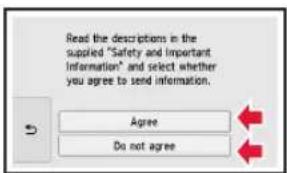
text_image
Read the descriptions in the supplied "Safety and Important Information" and select whether you agree to send information. Agree Do not agreetext_image
Select [OK] and start the setup by referring to the "Getting Started" instructions. OKtext_image
Diagram showing printer operation with red arrow indicating rotation and labeled section (A)text_image
Diagram showing a device with labeled parts and directional arrows, likely illustrating a process or assembly.natural_image
Illustration of a hand holding a small object with a red arrow indicating direction (no text or symbols)(B)
natural_image
Diagram showing a device being processed or assembled, with arrows indicating process flow (no text or symbols present)natural_image
Diagram of a device with red triangular markers indicating mounting points (no text or symbols present)natural_image
Illustration of a printer with a red arrow indicating compression or disassembly (no text or symbols present)text_image
Diagram illustrating printer press operation with labeled steps and directional arrows indicating process flowtext_image
Diagram showing a printer's internal structure and assembly process, with labeled parts and directional arrows indicating movement.text_image
Load a sheet of A4 or Letter size plain paper in the cassette. How to set OKtext_image
Did the patterns print correctly? Yes Notext_image
Diagram illustrating printer operation steps with red arrows indicating process flownatural_image
Diagram of a printer with a red downward arrow indicating compression or disassembly (no text or symbols present)text_image
Following is completed. Auto head alignment OKtext_image
Select the connection method. Wireless LAN connection USB connection Do not connecttext_image
The printer is performing initial adjustments... Do not turn off power. You can continue with the setup procedure on the computer or smartphone, etc. See "Getting Started".text_image
Copy Scan Printtext_image
Setup - Microsoft ■ Click Download on the computer to which you want to connect the printer Downloadtext_image
Canon Start Setup Starting the setup needed to use the machines from the computer. Follow the on-screen instructions. Start Setup Useful Software In addition, if before you want you to use the machine in more convatively. Online Manual Manual can be checked online. Language Cuttext_image
You Can Print from a Smartphone or Tablet Paring to [Description] and using your smartphone to add it. You can check information about the next user order. Instructions Remove Information Nexttext_image
Canon Installation completed successfully. Exittext_image
Copy Scan Print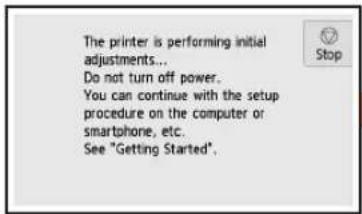
text_image
The printer is performing initial adjustments... Do not turn off power. You can continue with the setup procedure on the computer or smartphone, etc. See "Getting Started".text_image
Diagram illustrating printer press process with directional arrows and prohibition symbolstext_image
Diagram illustrating two steps of a document processing or packaging, labeled ① and ②, with arrows indicating process direction.text_image
Diagram showing two labeled components (① and ②) with arrows indicating movement or flow, likely illustrating a process or assembly.natural_image
Diagram of a mechanical device with a red arrow indicating rotation or force direction (no text or symbols)natural_image
Diagram showing a printer being inserted into a paper airplane, with an inset close-up highlighting the printer's internal structure (no text or symbols present)natural_image
Illustration of a cable and four rectangular connectors (no text or symbols)
text_image
Diagram illustrating the process of inserting a printer into a waste bin, with numbered steps and directional arrows indicating movement.natural_image
Illustration of a printer with a paper roll being inserted, showing red arrows indicating the process (no text or symbols present)text_image
Diagram illustrating the process of inserting a power button into a printer, with numbered steps and directional arrows indicating action.text_image
For development and marketing of products that better meet customer needs, Canon requests that information related to your Canon product be sent to Canon through the Internet. Next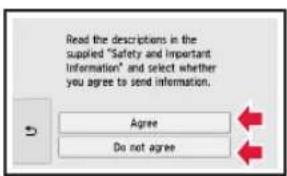
text_image
Read the descriptions in the supplied "Safety and Important Information" and select whether you agree to send information. Agree Do not agreetext_image
Select [OK] and start the setup by referring to the "Getting Started" instructions. OKDe inkttank installeren
text_image
Diagram showing printer operation with labeled component (A) and red arrow indicating rotation or movementtext_image
Diagram illustrating a device's motion with numbered steps and directional arrows, likely illustrating a mechanical or electrical process.natural_image
Diagram showing a device inside a container being processed, with arrows indicating process flow (no text or symbols present)5 Controleer of alle lampjes branden.
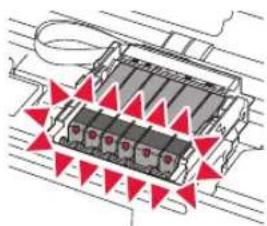
natural_image
Diagram of a mechanical or electrical component with red triangular markers indicating positions or features (no text or symbols present)natural_image
Illustration of a printer with a red arrow indicating compression or disassembly (no text or symbols present)text_image
Diagram illustrating printer press operation with labeled steps and directional arrows indicating press releaseflowchart
graph TD
    A["LTR"] --> B["Device"]
    C["A4"] --> B
    B --> D["Device with Red Arrow"]
    D --> E["Device with Red Arrow"]
    E --> F["Device with Red Arrow"]
text_image
Diagram illustrating the step-by-step installation of a printer into a stackable device, with labeled arrows indicating process flow.text_image
Load a sheet of A4 or Letter size plain paper in the cassette. How to set OKtext_image
Did the patterns print correctly? Yes Notext_image
Diagram illustrating printer operation steps with red arrows indicating process flow, including printer image and document preview.natural_image
Diagram of a printer with a red downward arrow indicating compression or disassembly (no text or symbols present)text_image
Following is completed. Auto head alignment OKtext_image
Select the connection method. Wireless LAN connection USB connection Do not connecttext_image
The printer is performing initial adjustments... Do not turn off power. You can continue with the setup procedure on the computer or smartphone, etc. See "Getting Started".■ Als u USB-verbinding (USB connection) selecteert:
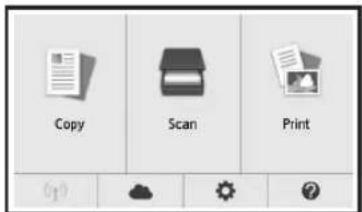
text_image
Copy Scan Printtext_image
Setup - Microsoft ■ Click Download on the computer to which you want to connect the printer Send totext_image
Canon Start Setup Starting the setup needed to use the machines from the computer. Follow the on-parent instructions. Start Setup Useful Software Include software that allows you to use the device in most guidelines. Online Manual Manual can be checked online. Campaigns Cuttext_image
You Can Print from a Smartphone or Tablet Path to [Userphone] and send your smartphone to all. Instructions Next Nexttext_image
Canon Installation completed successfully. ExitiOS : Zoek "Canon PRINT" in App Store. Android : Zoek "Canon PRINT" in Google Play.
text_image
Copy Scan Print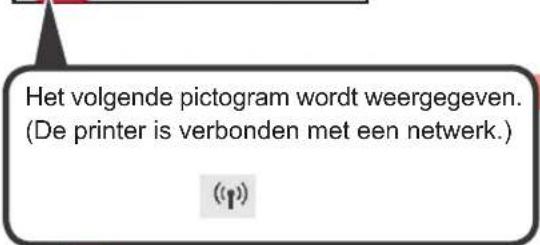
text_image
The printer is performing initial adjustments... Do not turn off power. You can continue with the setup procedure on the computer or smartphone, etc. See "Getting Started".text_image
Copy Scan Print③ Tik op Ja (Yes) of Nee (No).
4 Tik op LAN-instell. (LAN settings) > Draadloos LAN (Wireless LAN) > Draadloos LAN instellen (Wireless LAN setup) > Eenv. draadloos verbinden (Easy wireless connect).
⑤ Tik op Ja (Yes).
⑥ Ga verder met de bediening van uw smartphone.
Fotopapier plaatsen
text_image
Diagram illustrating printer printing process with directional arrows and no-smoking symboltext_image
Diagram illustrating two steps of a document processing or assembly, labeled ① and ②, with arrows indicating process direction.text_image
Diagram showing two labeled components (① and ②) with arrows indicating movement or flow, likely illustrating a process or assembly.natural_image
Diagram of a mechanical component being inserted into a housing, showing a red arrow indicating direction (no text or symbols present)natural_image
Diagram showing a printer being inserted into a paper airplane, with an inset close-up highlighting the printer's internal structure (no text or symbols present)natural_image
Illustration of a cable and two separate electrical connectors (no text or symbols)
text_image
Diagram illustrating the process of removing a fan into an air conditioner, with numbered steps and directional arrows.natural_image
Illustration of a printer with a paper roll being inserted, showing red arrows indicating the process (no text or symbols present)text_image
Diagram illustrating the process of inserting a power button into a printer, with numbered steps and directional arrows indicating action.text_image
For development and marketing of products that better meet customer needs, Canon requests that information related to your Canon product be sent to Canon through the Internet. Next Read the descriptions in the supplied "Safety and Important Information" and select whether you agree to send information. Agree Do not agreetext_image
Select [OK] and start the setup by referring to the "Getting Started" instructions. OKtext_image
Diagram showing printer operation with red arrow indicating rotation and labeled section (A)text_image
Diagram illustrating a device's motion with numbered steps and directional arrows, including a magnified inset showing the next step.natural_image
Illustration of a hand holding a pair of glasses with a red arrow indicating motion (no text or symbols)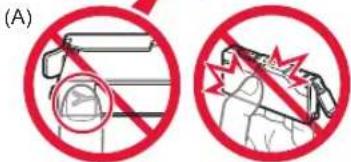
text_image
(A)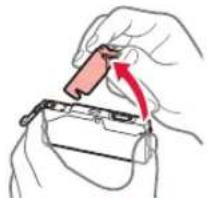
natural_image
Illustration of a hand inserting a small component into a battery pack (no text or symbols)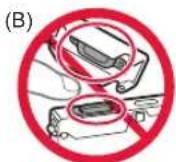
natural_image
Diagram showing a device being processed from a left-side panel to a right-side panel, with red arrows indicating process flow (no text or symbols present)natural_image
Diagram of a battery pack with red triangular warning symbols indicating hazard zones (no text or labels)natural_image
Illustration of a printer with a red arrow indicating compression or disassembly (no text or symbols present)text_image
Diagram showing a printer being inserted into a device, with labeled parts and directional arrows indicating process flow.text_image
Diagram showing a printer's internal structure and assembly process, with labeled parts and directional arrows indicating movement.text_image
Load a sheet of A4 or Letter size plain paper in the cassette. How to set OKtext_image
Did the patterns print correctly? Yes Notext_image
Diagram illustrating printer operation steps with labeled parts and red arrows indicating process directionnatural_image
Diagram of a printer with a red downward arrow indicating compression or disassembly (no text or symbols present)text_image
Following is completed. Auto head alignment OKtext_image
Select the connection method. Wireless LAN connection USB connection Do not connecttext_image
The printer is performing initial adjustments... Do not turn off power. You can continue with the setup procedure on the computer or smartphone, etc. See "Getting Started".text_image
Copy Scan Print2. Connessione con computer e smartphone/tablet
text_image
Setup - All services - • Click Download on the computer to which you want to connect the printer Downloadtext_image
Canon Start Setup Starting the setup needed to use the machine from the computer. Follow the on-screen instructions. Start Setup Useful Software Useful software that allows you to use the device more on desktop. Online Manual Manual can be checked or locked. Language Cuttext_image
You Can Print from a Smartphone or Tablet Paste in [Download], and will print your smartphone content. Subscribe Your user check is necessary about the next page.text_image
Canon Installation completed successfully. Exittext_image
Copy Scan Print
text_image
The printer is performing initial adjustments... Do not turn off power. You can continue with the setup procedure on the computer or smartphone, etc. See "Getting Started".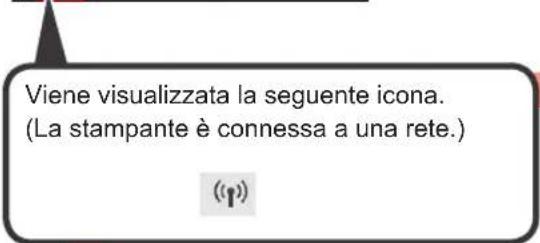
text_image
Copy Scan Print③ Toccare Si (Yes) o No.
4 Toccare Impostaz. LAN (LAN settings) > LAN wireless (Wireless LAN) > Impostazione LAN wireless (Wireless LAN setup) > Connessione w.less facile (Easy wireless connect).
⑤ Toccare Sì (Yes).
⑥ Riprendere le operazioni sullo smartphone.
text_image
Diagram illustrating printer printing process with directional arrows and no-noise symbol indicating print or print absence.text_image
Diagram illustrating two steps of a document processing or assembly, labeled ① and ②, with arrows indicating process direction.text_image
Diagram showing two labeled components (① and ②) with arrows indicating movement or flow, likely illustrating a process or assembly.natural_image
Diagram of a mechanical component being inserted into a housing (no text or symbols visible)natural_image
Diagram showing a printer being inserted into a paper airplane, with an inset close-up highlighting the printer's internal structure (no text or symbols present)natural_image
Illustration of a cable and two separate electrical connectors (no text or symbols)
text_image
Diagram illustrating the process of removing a printer into a waste bin, with numbered arrows indicating removal steps.natural_image
Illustration of a printer with a paper roll being inserted, showing red arrows indicating the process (no text or symbols present)text_image
Diagram illustrating the process of inserting a power button into a printer, with numbered steps and directional arrows indicating action.text_image
For development and marketing of products that better meet customer needs, Canon requests that information related to your Canon product be sent to Canon through the Internet. Next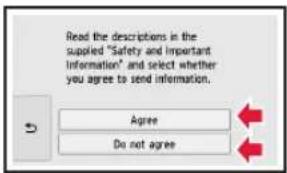
text_image
Read the descriptions in the supplied "Safety and Important Information" and select whether you agree to send information. Agree Do not agreetext_image
Select [OK] and start the setup by referring to the "Getting Started" instructions. OKtext_image
Diagram showing a hand inserting a component into a printer, with a red arrow and label (A) indicating the process.text_image
Diagram illustrating a device's motion with numbered arrows and labeled components, including a magnified inset showing the device.Remova completamente a fita laranja.
3 Puxe a aba laranja CUIDADOSAMENTE.
natural_image
Diagram showing a device being processed into a machine, with red arrows indicating process flow (no text or symbols present)natural_image
Diagram of a mechanical or electrical component with red triangular markers indicating positions or features (no text or symbols present)natural_image
Illustration of a printer with a red arrow indicating compression or disassembly (no text or symbols present)text_image
Diagram showing printer press operation with labeled steps and directional arrows indicating press directiontext_image
Diagram showing a printer's internal structure and assembly process, with labeled parts and directional arrows indicating movement.text_image
Load a sheet of A4 or Letter size plain paper in the cassette. How to set OKtext_image
Did the patterns print correctly? Yes Notext_image
Diagram illustrating printer operation steps with red arrows indicating process flow, including printer image and document preview.natural_image
Diagram of a printer with a red downward arrow indicating compression or disassembly (no text or symbols present)text_image
Following is completed. Auto head alignment OKtext_image
Select the connection method. Wireless LAN connection USB connection Do not connecttext_image
The printer is performing initial adjustments... Do not turn off power. You can continue with the setup procedure on the computer or smartphone, etc. See "Getting Started".text_image
Copy Scan Printtext_image
Setup - Windows - ■ Click Download on the computer to which you want to connect the printer Download③ Inicie o arquivo baixado.
B Windows
text_image
Canon Start Setup Starting the setup needed to use the machines from the computer. Follow the on-screen instructions. Start Setup Useful Software In addition, if there is about you to use the machine in a new software. Online Manual Manual can be checked or allowed. Language Cuttext_image
You Can Print from a Smartphone or Tablet Paste to [Electronic] and write up your smartphone could be OK OK You can check in this article about the website reader Newark Internet Nexttext_image
Canon Installation completed successfully. Exittext_image
Copy Scan Printtext_image
The printer is performing initial adjustments... Do not turn off power. You can continue with the setup procedure on the computer or smartphone, etc. See "Getting Started".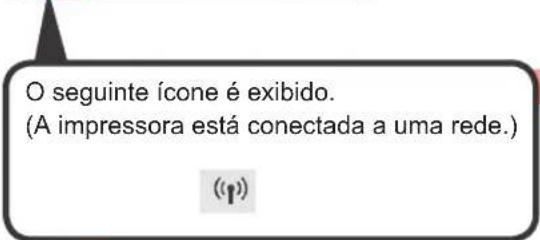
text_image
Diagram illustrating printer printing process with red arrows indicating print direction and no printing symboltext_image
Diagram illustrating two steps of a document processing or assembly, labeled ① and ②, with arrows indicating process direction.text_image
Diagram showing two labeled components (① and ②) with arrows indicating movement or flow, likely illustrating a process or assembly.natural_image
Diagram of a mechanical component with a red arrow indicating rotation (no text or symbols)natural_image
Diagram showing a printer being inserted into a paper airplane, with no visible text or symbols.natural_image
Illustration of a cable and two separate electrical connectors (no text or symbols)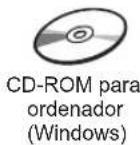
text_image
Diagram showing two steps of a printer's internal processing, with numbered arrows indicating process sequence.natural_image
Illustration of a printer with a red arrow indicating compression or disassembly (no text or symbols present)text_image
Diagram illustrating the process of inserting a power button into a printer, with numbered steps and directional arrows indicating action.text_image
For development and marketing of products that better meet customer needs, Canon requests that information related to your Canon product be sent to Canon through the Internet. Next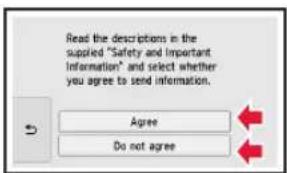
text_image
Read the descriptions in the supplied "Safety and Important Information" and select whether you agree to send information. Agree Do not agreetext_image
Select [OK] and start the setup by referring to the "Getting Started" instructions. OKtext_image
Diagram showing a printer with a red arrow indicating rotation and a magnified inset of the internal structure, labeled (A)2 ① Retire la cinta naranja.
② Retire el envoltorio protector.
text_image
Diagram showing a device with labeled parts and directional arrows, likely illustrating a process or assembly.Retire totalmente la cinta naranja.
natural_image
Hand holding a small electronic component with a red arrow indicating direction (no text or symbols)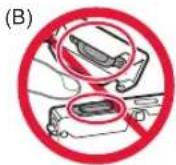
natural_image
Diagram showing a device being processed from a machine, with red arrows indicating process flow (no text or symbols present)natural_image
Diagram of a mechanical component with red triangular arrows indicating flow or movement (no text or symbols)natural_image
Illustration of a printer with a red arrow indicating compression or disassembly (no text or symbols present)text_image
Diagram illustrating a printer's internal structure with labeled parts and directional arrows indicating assembly or repair.text_image
Diagram showing a printer's internal structure and assembly process, with labeled parts and directional arrows indicating movement.text_image
Load a sheet of A4 or Letter size plain paper in the cassette. How to set OKtext_image
Did the patterns print correctly? Yes Notext_image
Diagram illustrating printer operation steps with red arrows indicating process flow, including printer image and document preview.natural_image
Diagram of a printer with a red downward arrow indicating compression or disassembly (no text or symbols present)text_image
Following is completed. Auto head alignment OKtext_image
Select the connection method. Wireless LAN connection USB connection Do not connecttext_image
The printer is performing initial adjustments... Do not turn off power. You can continue with the setup procedure on the computer or smartphone, etc. See "Getting Started".■ SiseleccionaConexión USB (USB connection):
text_image
Copy Scan Printtext_image
Setup ■ Click Download on the computer to which you want to connect the printer Downloadtext_image
Canon Start Setup Starting the setup needed to use the machine from the computer Following on written instructions. Start Setup Useful Software Include software that allows you to use the next file or more computer by: Online Manual Instructions can be checked online. Language Edittext_image
You Can Print from a Smartphone or Tablet Refer to [ption] and set up your smartphone icon at Add to the next page You can check information about the next page order. Remove Information Nexttext_image
Canon Installation completed successfully. Exittext_image
Copy Scan Print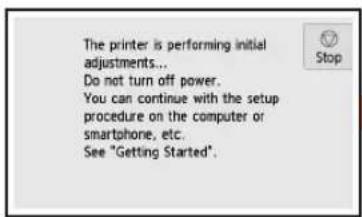
text_image
The printer is performing initial adjustments... Do not turn off power. You can continue with the setup procedure on the computer or smartphone, etc. See "Getting Started".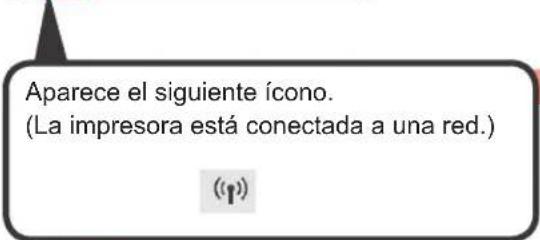
text_image
Diagram illustrating printer printing process with directional arrows and no-noise warning symboltext_image
Diagram illustrating two steps of a document processing or assembly, labeled ① and ②, with arrows indicating process direction.text_image
Diagram showing two labeled components (① and ②) with arrows indicating movement or flow, likely illustrating a process or assembly.natural_image
Diagram of a mechanical component with a red arrow indicating direction (no text or symbols)natural_image
Diagram showing a printer being inserted into a paper airplane, with no visible text or symbols.natural_image
Illustration of a cable and two separate electrical connectors (no text or symbols)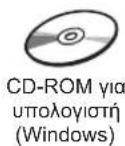
text_image
Diagram illustrating the process of removing a printer into a waste bin, with numbered steps and directional arrows indicating removal.natural_image
Illustration of a printer with a red arrow indicating compression or disassembly (no text or symbols present)text_image
Diagram illustrating the process of inserting a power button into a printer, with numbered steps and directional arrows indicating action.text_image
For development and marketing of products that better meet customer needs, Canon requests that information related to your Canon product be sent to Canon through the Internet. Next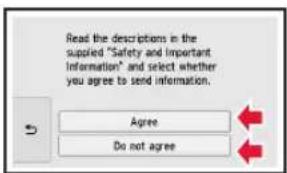
text_image
Read the descriptions in the supplied "Safety and Important Information" and select whether you agree to send information. Agree Do not agreetext_image
Select [OK] and start the setup by referring to the "Getting Started" instructions. OKtext_image
Diagram showing printer operation with labeled component (A) and red arrow indicating rotationtext_image
Diagram illustrating a device's motion with labeled parts and directional arrows, including a magnified inset showing the device's edge.natural_image
Illustration of a hand holding a pair of glasses with a red arrow indicating motion (no text or symbols)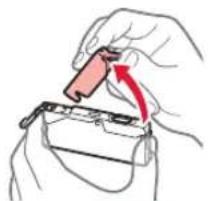
natural_image
Hand holding a small red object with an arrow indicating direction, no text or symbols present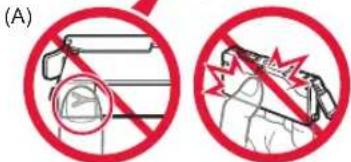
text_image
(A)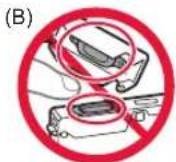
natural_image
Diagram showing a device being processed from a paper holder to a printer, with red arrows indicating process flow (no text or symbols present)natural_image
Diagram of a mechanical component with red triangular arrows indicating force or direction (no text or symbols)natural_image
Illustration of a printer with a paper roll being inserted, showing the blade and paper (no text or symbols)text_image
Diagram illustrating printer press operation with labeled steps and directional arrows indicating press release or movementflowchart
graph TD
    A["LTR"] --> B["Table with Pin 1"]
    C["A4"] --> D["Table with Pin 2"]
    D --> E["Screen with Red Arrow Down"]
    E --> F["Screen with Red Arrow Up"]
    F --> G["Screen with Red Arrow Down"]
text_image
Diagram illustrating the process of inserting a device into a printer, with labeled steps ① and ② showing component insertion.text_image
Load a sheet of A4 or Letter size plain paper in the cassette. How to set OKtext_image
Did the patterns print correctly? Yes Notext_image
Diagram illustrating printer operation steps with red arrows indicating process flownatural_image
Diagram of a printer with a red downward arrow indicating compression or disassembly (no text or symbols present)text_image
Following is completed. Auto head alignment OKtext_image
Select the connection method. Wireless LAN connection USB connection Do not connecttext_image
The printer is performing initial adjustments... Do not turn off power. You can continue with the setup procedure on the computer or smartphone, etc. See "Getting Started".text_image
Copy Scan Printtext_image
Setup - 500000 ■ Click Download on the computer to which you want to connect the printer Downloadtext_image
Canon Start Setup Starting the setup needed to use the machines from the computer. Follow the open-down instructions. Start Setup: Use a software to install your computer system. Useful Software Include software that allows you to use the installed hardware computer by Online Manual Show you to be checked online. Language Cuttext_image
You Can Print from a Smartphone or Tablet Refer to (Downloaded) and set up your smartphone to add it. You can check information about the next user order. Instructions Next Nexttext_image
Canon Installation completed successfully. Exittext_image
Copy Scan Print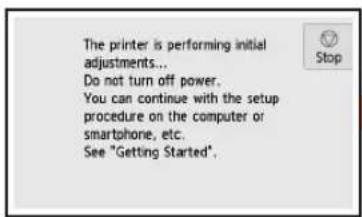
text_image
The printer is performing initial adjustments... Do not turn off power. You can continue with the setup procedure on the computer or smartphone, etc. See "Getting Started".
text_image
Copy Scan Printtext_image
Diagram illustrating printer press process with directional arrows and no-noise warning symboltext_image
Diagram illustrating two steps of a document processing or assembly, labeled ① and ②, with arrows indicating process direction.text_image
Diagram showing two labeled components (① and ②) with arrows indicating movement or force, likely illustrating a mechanical or electrical assembly.natural_image
Diagram of a mechanical component being inserted into a housing, showing a red arrow indicating rotation (no text or symbols present)natural_image
Diagram showing a printer being inserted into a paper airplane, with no visible text or symbols.natural_image
Illustration of a cable and two separate electrical connectors (no text or symbols)
text_image
Diagram illustrating the process of removing a printer into a waste bin, with numbered steps and directional arrows indicating removal.natural_image
Illustration of a printer with a red arrow indicating compression or disassembly (no text or symbols present)4 ① Anslut strömkabeln.
text_image
Diagram illustrating the process of inserting a power button into a printer, with numbered steps and directional arrows indicating action.text_image
For development and marketing of products that better meet customer needs, Canon requests that information related to your Canon product be sent to Canon through the Internet. Next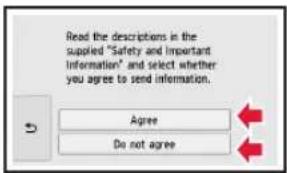
text_image
Read the descriptions in the supplied "Safety and Important Information" and select whether you agree to send information. Agree Do not agreetext_image
Select [OK] and start the setup by referring to the "Getting Started" instructions. OKtext_image
Diagram showing printer operation with red arrow indicating rotation and a magnified inset highlighting internal structure, labeled (A)2 ① Ta bort den orange tejpen.
text_image
Diagram illustrating a device's motion with numbered steps and directional arrows, including a magnified inset showing the device's internal structure.Ta bort den orange tejpen helt.
natural_image
Diagram showing a device being processed from a left-side frame to a right-side view, with red arrows indicating process flow (no text or symbols present)natural_image
Diagram of a mechanical component with red triangular arrows indicating flow or movement (no text or symbols)natural_image
Illustration of a printer with a red arrow indicating compression or disassembly (no text or symbols present)text_image
Diagram illustrating printer press operation with labeled steps and directional arrows indicating press directiontext_image
Diagram showing a printer's internal structure and assembly process, with labeled parts and directional arrows indicating movement.text_image
Load a sheet of A4 or Letter size plain paper in the cassette. How to set OKtext_image
Did the patterns print correctly? Yes Notext_image
Diagram illustrating printer operation steps with red arrows indicating process flow, including printer image and document preview.natural_image
Diagram of a printer with a red arrow indicating compression or disassembly (no text or symbols present)text_image
Following is completed. Auto head alignment OKtext_image
Select the connection method. Wireless LAN connection USB connection Do not connecttext_image
The printer is performing initial adjustments... Do not turn off power. You can continue with the setup procedure on the computer or smartphone, etc. See "Getting Started".■ Om du väljer USB-anslutning (USB connection):
text_image
Copy Scan Printtext_image
Setup - - Click Download on the computer to which you want to connect the printer Downloadtext_image
Canon Start Setup Starting the setup needed to use the machine from the computer. Follow the on-screen instructions. Start Setup Useful Software Install software that will just you to use the next user's device Useful Software Online Manual Manual can be checked online. Campaigns Cuttext_image
You Can Print from a Smartphone or Tablet! Printer is [Electronic] and print your smartphones to file Subscribe Show you check this email about the website's next Next Nexttext_image
Canon Installation completed successfully. Exittext_image
Copy Scan Printtext_image
The printer is performing initial adjustments... Do not turn off power. You can continue with the setup procedure on the computer or smartphone, etc. See "Getting Started".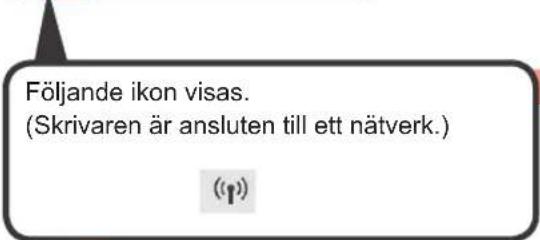
text_image
Copy Scan Printtext_image
Diagram illustrating printer printing process with directional arrows and no-noise warning symboltext_image
Diagram illustrating two steps of a document processing or assembly, labeled ① and ②, with arrows indicating process direction.text_image
Diagram showing two labeled components (① and ②) with arrows indicating movement or flow, likely illustrating a process or assembly.natural_image
Diagram of a mechanical component with a red arrow indicating direction (no text or symbols)natural_image
Diagram showing a printer being inserted into a paper airplane, with an inset close-up highlighting the printer's internal structure (no text or symbols present)natural_image
Illustration of a cable and two separate electrical connectors (no text or symbols)
Fjerne beskyttelsesmateriale / slå på skriveren
Du kan se fremgangsmåten på film ved å skanne QR-kodene.

Android iOS

text_image
Diagram illustrating the process of removing a fan into an air conditioner, with numbered steps and directional arrows.natural_image
Illustration of a printer with a red arrow indicating compression or disassembly (no text or symbols present)text_image
Diagram illustrating the process of inserting a power button into a printer, with numbered steps and directional arrows indicating action.text_image
For development and marketing of products that better meet customer needs, Canon requests that information related to your Canon product be sent to Canon through the Internet. Next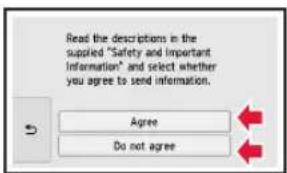
text_image
Read the descriptions in the supplied "Safety and Important Information" and select whether you agree to send information. Agree Do not agreetext_image
Select [OK] and start the setup by referring to the "Getting Started" instructions. OKInstallere blektanken
Du kan se fremgangsmåten på film ved å skanne QR-kodene.

Android iOS

1 Åpne skanneenheten/dekselet.
text_image
Diagram showing printer operation with red arrow indicating rotation and a magnified inset highlighting internal structure, labeled (A)2 ① Fjern den oransje tapen.
text_image
Diagram illustrating a device's motion with numbered steps and directional arrows, including a magnified inset showing the device's internal structure.natural_image
Diagram showing a device inside a container being processed, with arrows indicating process flow (no text or symbols present)5 Kontroller at alle lampene lyser.
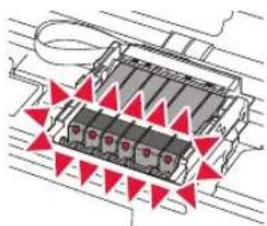
natural_image
Diagram of a mechanical or electrical component with red triangular markers indicating positions or features (no text or symbols present)natural_image
Illustration of a printer with a red arrow indicating compression or disassembly (no text or symbols present)text_image
Diagram illustrating printer press operation with labeled steps and directional arrows indicating press directiontext_image
Diagram illustrating the process of inserting a printer into a device, with labeled steps ① and ② showing component insertion.text_image
Load a sheet of A4 or Letter size plain paper in the cassette. How to set OKtext_image
Did the patterns print correctly? Yes Notext_image
Diagram illustrating printer operation steps with red arrows indicating process flow, including printer image and document preview.natural_image
Diagram of a printer with a red downward arrow indicating compression or disassembly (no text or symbols present)text_image
Following is completed. Auto head alignment OKtext_image
Select the connection method. Wireless LAN connection USB connection Do not connecttext_image
The printer is performing initial adjustments... Do not turn off power. You can continue with the setup procedure on the computer or smartphone, etc. See "Getting Started".■ Hvis du velger USB-tilkobling (USB connection):
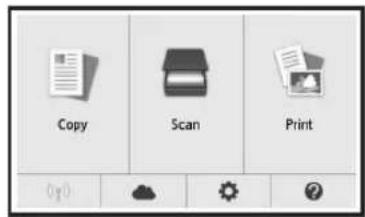
text_image
Copy Scan Printtext_image
Setup - Windows - ■ Click Download on the computer to which you want to connect the printer Download③ Start den nedlastede filen.
B Windows
text_image
Canon Start Setup Starting the setup needed to use the machines from the computer. Follow the creation instructions. Start Setup Useful Software Useful software that allows you to use the machine in more conversion. Online Manual Internet uses the desktop and audio. Language Calltext_image
You Can Print from a Smartphone or Tablet Paste to [ption] and use your smartphone on desktop Subscriptions You can check information about the website server. Network Manager Nexttext_image
Canon Installation completed successfully. Exittext_image
Copy Scan Printtext_image
The printer is performing initial adjustments... Do not turn off power. You can continue with the setup procedure on the computer or smartphone, etc. See "Getting Started".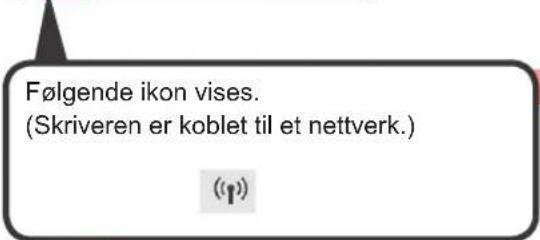
text_image
Copy Scan Printtext_image
Diagram illustrating printer printing process with directional arrows and no-smoking symbol2 ① Åpne spordekselet for mating.
text_image
Diagram showing two steps of a document processing or assembly, labeled ① and ② with arrows indicating direction.text_image
Diagram showing two labeled components (① and ②) with arrows indicating movement or flow, likely illustrating a process or assembly.4 Lukk spordekselet for mating.
natural_image
Diagram of a mechanical component with a red arrow indicating direction (no text or symbols)natural_image
Diagram showing a printer being inserted into a paper airplane, with no visible text or symbols.4 Velg bildene som skal skrives ut.
5 Trykk på Farge (Color)-knapen.
Skriveren starter utskriften.
1. Installation af printeren
natural_image
Illustration of a cable and three separate electrical connectors (no text or symbols)
CD-ROM til computer (Windows)
Vejledninger
text_image
Diagram illustrating the process of removing a printer into a waste bin, with numbered steps and directional arrows indicating removal.natural_image
Illustration of a printer with a paper roll being inserted, showing red arrows indicating the process (no text or symbols present)text_image
Diagram illustrating the process of inserting a power button into a printer, with numbered steps and directional arrows indicating action.text_image
For development and marketing of products that better meet customer needs, Canon requests that information related to your Canon product be sent to Canon through the Internet. Next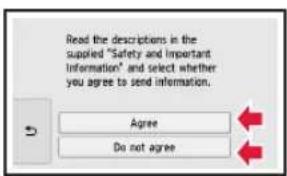
text_image
Read the descriptions in the supplied "Safety and Important Information" and select whether you agree to send information. Agree Do not agreetext_image
Select [OK] and start the setup by referring to the "Getting Started" instructions. OKtext_image
Diagram showing a printer with a red arrow indicating rotation and a magnified inset of the internal structure, labeled (A)2 ① Fjern den orange tape.
text_image
Diagram showing a device with labeled parts and directional arrows, likely illustrating a process or assembly.Fjern al den orange tape.
natural_image
Illustration of a hand holding glasses with a red arrow and circular motion indicator (no text or symbols)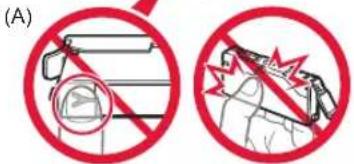
text_image
(A)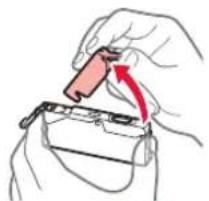
natural_image
Hand holding a small red object with an arrow indicating direction (no text or symbols)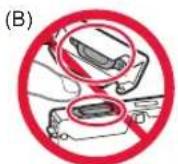
natural_image
Diagram showing a device inside a storage unit before and after processing, with red arrows indicating process flow (no text or symbols present)natural_image
Diagram of a mechanical component with red triangular elements and internal components (no text or symbols)natural_image
Illustration of a printer with a paper roll being inserted, showing the blade and paper (no text or symbols)text_image
Diagram showing printer press application process with labeled steps and directional arrows indicating movementtext_image
Diagram illustrating the process of inserting a device into a printer, with labeled steps ① and ② showing component insertion.5 Læs meddelelserne, og tryk på OK. Load a sheet of A4 or Letter size plain paper in the cassette. Stop How to set OK
text_image
Did the patterns print correctly? Yes Notext_image
Diagram illustrating printer operation steps with labeled parts and directional arrows indicating process flow.natural_image
Diagram of a printer with a red downward arrow indicating compression or disassembly (no text or symbols present)text_image
Following is completed. Auto head alignment OKPrinthovedjustering er fuldført.
text_image
Select the connection method. Wireless LAN connection USB connection Do not connecttext_image
The printer is performing initial adjustments... Do not turn off power. You can continue with the setup procedure on the computer or smartphone, etc. See "Getting Started".text_image
Copy Scan Printtext_image
Setup - - Click Download on the computer to which you want to connect the printer Download③ Start den downloadede fil.
B Windows
Brug Setup-CD'en
① Sæt setup-cd'en i computeren.

Når Windows 10, Windows 8.1 eller Windows 8 bruges:
text_image
Canon Start Setup Starting the setup needed to use the machine from the computer. Follow the on-screen instructions. Start Setup Useful Software Install software that should you use the device more in our view. Online Manual Manual can be checked online. Camera Cuttext_image
You Can Print from a Smartphone or Tablet! Printer is [Electronic] and read up your smartphone card kit. Instructions Next Nexttext_image
Canon Installation completed successfully. Exittext_image
Copy Scan Printtext_image
The printer is performing initial adjustments... Do not turn off power. You can continue with the setup procedure on the computer or smartphone, etc. See "Getting Started".
text_image
Copy Scan Printtext_image
Diagram illustrating printer printing process with directional arrows and no-noise warning symboltext_image
Diagram illustrating two steps of a document processing or writing, labeled ① and ② with arrows indicating direction.text_image
Diagram showing two labeled components (① and ②) with arrows indicating movement or flow, likely illustrating a process or assembly.natural_image
Diagram of a mechanical component with a red arrow indicating direction (no text or symbols)natural_image
Diagram showing a printer being inserted into a paper airplane, with no visible text or symbols.natural_image
Illustration of a cable and two separate electrical connectors (no text or symbols)
text_image
Diagram illustrating the process of a printer's internal structure and disposal, labeled with steps ① and ②.natural_image
Illustration of a printer with a red arrow indicating compression or disassembly (no text or symbols present)text_image
Diagram illustrating the process of inserting a power button into a printer, with numbered steps and directional arrows indicating action.text_image
For development and marketing of products that better meet customer needs, Canon requests that information related to your Canon product be sent to Canon through the Internet. Next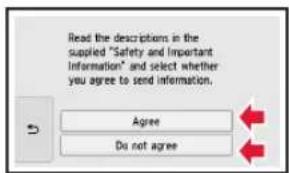
text_image
Read the descriptions in the supplied "Safety and Important Information" and select whether you agree to send information. Agree Do not agreetext_image
Select [OK] and start the setup by referring to the "Getting Started" instructions. OKtext_image
Diagram showing printer internal structure with red arrow indicating rotation, labeled (A)text_image
Diagram illustrating a device's motion with numbered steps and directional arrows, including a magnified inset showing the device's screen.natural_image
Diagram showing a device being processed from a machine, with arrows indicating process flow (no text or symbols present)natural_image
Diagram of a heat exchanger or cooling unit with red triangular arrows indicating airflow or heat distribution (no text or symbols)natural_image
Illustration of hands using a printer to lift a stack of paper with a red arrow indicating the motion (no text or symbols present)text_image
Diagram showing printer press application process with labeled steps and directional arrows indicating movementtext_image
Diagram showing a printer's internal structure and assembly process, with labeled parts and directional arrows indicating movement.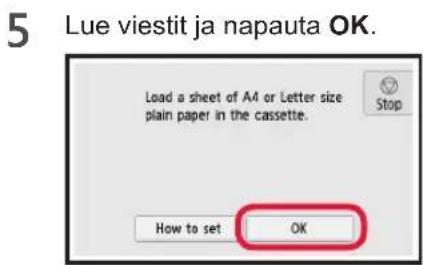
text_image
5 Lue viestit ja napauta OK. Load a sheet of A4 or Letter size plain paper in the cassette. Stop How to set OKtext_image
Did the patterns print correctly? Yes Notext_image
Diagram illustrating printer operation steps with red arrows indicating process flow, including printer image and document preview.natural_image
Diagram of a printer with a red arrow indicating compression or disassembly (no text or symbols present)text_image
Following is completed. Auto head alignment OKtext_image
Select the connection method. Wireless LAN connection USB connection Do not connecttext_image
The printer is performing initial adjustments... Do not turn off power. You can continue with the setup procedure on the computer or smartphone, etc. See "Getting Started".text_image
Copy Scan Printtext_image
Setup - All downloads - • Click Download on the computer to which you want to connect the printer Downloadtext_image
Start Setup Starting the setup needed to use the machines from the computer. Follow the on-screen instructions. Start Setup Use a desktop or network device to access the system to the main system. Usual Software Use desktop software to access all users to use the desktop or network computer by: Online Setup Manual can be checked online. Campaigns Cuttext_image
You Can Print from a Smartphone or Tablet Power in [Downloading] and use your smartphones to print. Subscribers You can check the information about the next user's code. Tutorial Options Nexttext_image
Canon Installation completed successfully. Exittext_image
Copy Scan Print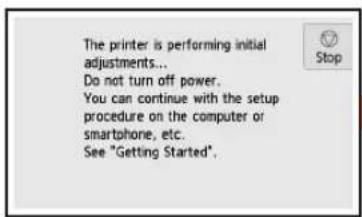
text_image
The printer is performing initial adjustments... Do not turn off power. You can continue with the setup procedure on the computer or smartphone, etc. See "Getting Started".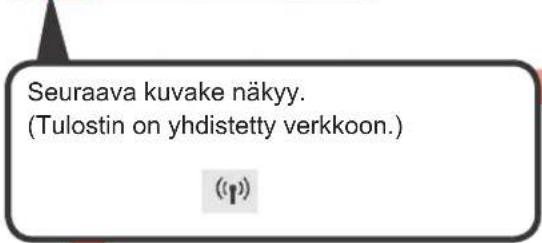
text_image
Copy Scan Printtext_image
Diagram illustrating printer printing process with directional arrows and no-smoking symboltext_image
Diagram illustrating two steps of a document processing or assembly, labeled ① and ②, with arrows indicating process direction.text_image
Diagram showing two labeled components (① and ②) with arrows indicating movement or flow, likely illustrating a process or assembly.natural_image
Diagram of a mechanical component with a red arrow indicating direction (no text or symbols)natural_image
Diagram showing a printer being inserted into a paper airplane, with no visible text or symbols.natural_image
Abstract graphic with two red question marks inside a gray oval shape (no text or symbols)Visit the Website
text_image
Diagram showing three device icons: a laptop, a smartphone, and a tablet, with corresponding red arrows pointing to them.
Read Online Manual
Frequently Asked Questions