ManualGo.com
imageRUNNER ADVANCE 4245i - Printer CANON - Free user manual and instructions
Find the device manual for free imageRUNNER ADVANCE 4245i CANON in PDF.



Download the instructions for your Printer in PDF format for free! Find your manual imageRUNNER ADVANCE 4245i - CANON and take your electronic device back in hand. On this page are published all the documents necessary for the use of your device. imageRUNNER ADVANCE 4245i by CANON.
USER MANUAL imageRUNNER ADVANCE 4245i CANON
To view the manual in PDF format, Adobe Reader/Adobe Acrobat Reader is required. If Adobe Reader/Adobe Acrobat Reader is not installed on your system, please download it from the Adobe Systems Incorporated website. Driver Installation Guide
- Provides instructions on installing the printer, fax, and other drivers. - Printer Driver Installation Guide - Mac Printer Driver Installation Guide - Fax Driver Installation Guide - Network ScanGear Installation Guide
- Included on the same CD-ROM as each driver. e-Manual HTML manual
- Describes all the functions of the machine. Also provided with a search function that is useful for nding and checking information.
- Includes “Practical Work ows,” which introduces ows of practical operations using functions of the machine. User’s Guide (This Manual)
- Describes the precautions for using the machine.
- Provides an overview of functions, basic operations, and required settings before using functions.
- Describes the maintenance and troubleshooting procedures for the machine.
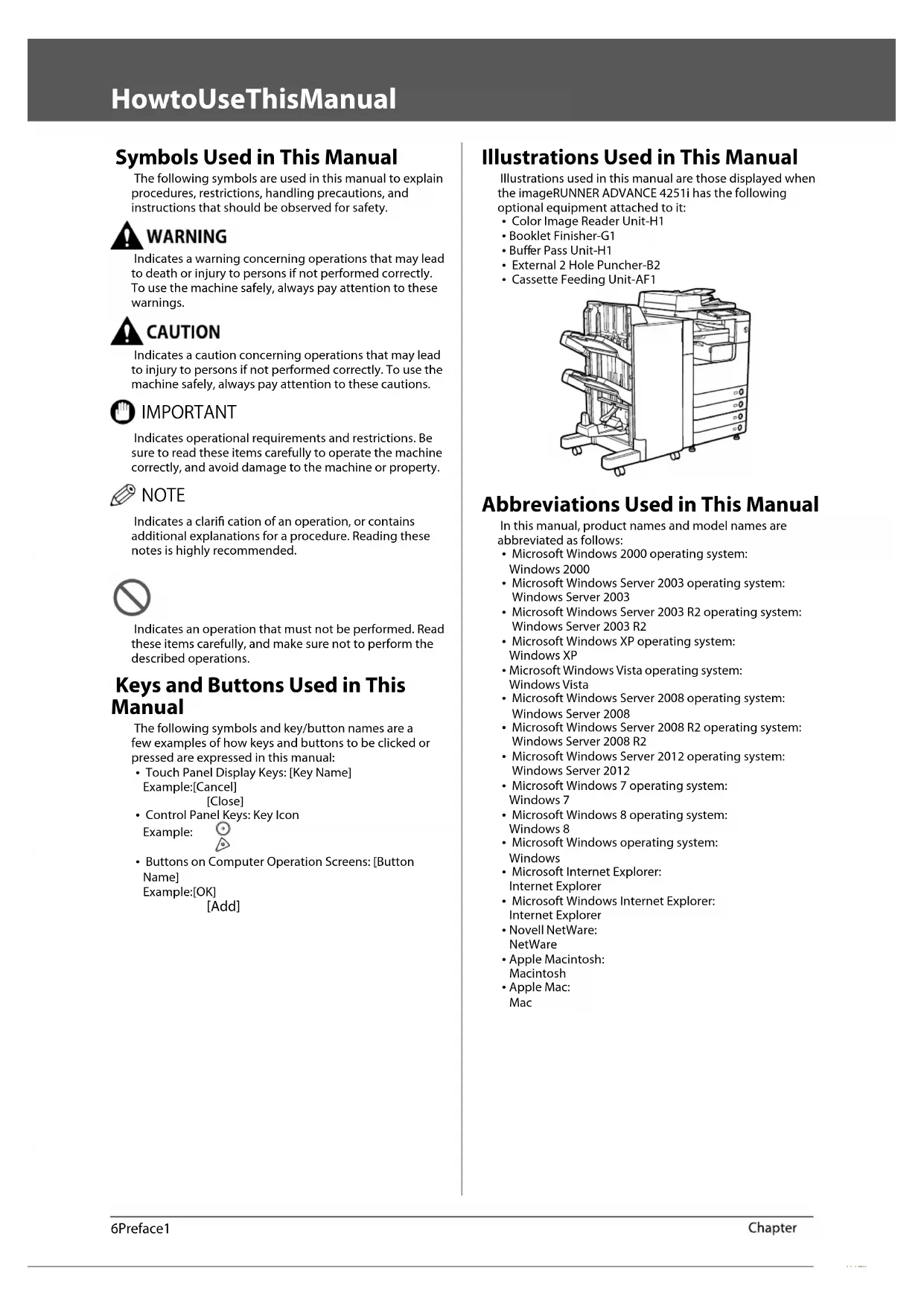
- Buttons on Computer Operation Screens: [Button Name] Example: [OK] [Add] Illustrations Used in This Manual Illustrations used in this manual are those displayed when the imageRUNNER ADVANCE 4251i has the following optional equipment attached to it:
Abbreviations Used in This Manual In this manual, product names and model names are abbreviated as follows:
- Apple Mac: MacEnglish 7 Preface 1 Trademarks “MEAP” is a trademark of CANON Inc., referring to an “application platform” for Canon multifunction and single function printers. This product contains the Universal Font Scaling Technology or UFST® under license from Monotype Imaging, Inc.. UFST® is a trademark of Monotype Imaging, Inc. registered in the United States Patent and Trademark O ce and may be registered in certain jurisdictions. Apple, AppleTalk, EtherTalk, LocalTalk, Mac, Macintosh, Mac OS, and Safari are trademarks of Apple Inc., registered in the U.S. and other countries. Microsoft, Windows, Windows Vista, Windows Server, Internet Explorer, Excel and PowerPoint are either registered trademarks or trademarks of Microsoft Corporation in the United States and/or other countries.
Adobe, PostScript, and the PostScript logo are either registered trademarks or trademarks of Adobe Systems Incorporated in the United States and/or other countries. Copyright © 2007 -08 Adobe Systems Incorporated. All rights reserved. Protected by U.S. Patents 5,737,599; 5,781,785; 5,819,301; 5,929,866; 5,943,063; 6,073,148; 6,515,763; 6,639,593; 6,754,382; 7,046,403; 7,213,269; 7,242,415; Patents pending in the U.S. and other countries. All instances of the name PostScript in the text are references to the PostScript language as de ned by Adobe Systems Incorporated unless otherwise stated. The name PostScript also is used as a product trademark for Adobe Systems’ implementation of the PostScript language interpreter. Except as otherwise stated, any reference to a “PostScript printing device,” “PostScript display device,”or similar item refers to a printing device, display device or item (respectively) that contains PostScript technology created or licensed by Adobe Systems Incorporated and not to devices or items that purport to be merely compatible with the PostScript language. Adobe, the Adobe logo, PostScript, the PostScript logo, and PostScript 3 are either registered trademarks or trademarks of Adobe Systems Incorporated in the United States and/or other countries. Linux is a registered trademark of Linus Torvalds. Microsoft and Windows are either registered trademarks or trademarks of Microsoft Corporation in the United States and/or other countries. All other trademarks are the property of their respective owners.
The PDF logo is a trademark or registered trademark of Adobe Systems Incorporated in the United States and other countries. Copyright © 2008 Adobe Systems Incorporated. All rights reserved. Protected by U.S. Patents 6,185,684; 6,205,549; 7,213,269; 7,272,628; 7,278,168; Patents pending in the U.S. and other countries. All instances of the name PostScript in the text are references to the PostScript language as de ned by Adobe Systems Incorporated unless otherwise stated. The name PostScript also is used as a product trademark for Adobe Systems’ implementation of the PostScript language interpreter. Except as otherwise stated, any reference to a “PostScript printing device,” “PostScript display device,”or similar item refers to a printing device, display device or item (respectively) that contains PostScript technology created or licensed by Adobe Systems Incorporated and not to devices or items that purport to be merely compatible with the PostScript language. Adobe, the Adobe logo, PostScript, the PostScript Logo, and PostScript 3 are either registered trademarks or trademarks of Adobe Systems Incorporated in the United States and/or other countries. All other trademarks are the property of their respective owners. Other product and company names herein may be the trademarks of their respective owners.8 Preface 1 How to Use This Manual (e-Manual) How to Install the e-Manual ● Follow the procedure below to install the e-Manual. ❏ Windows 1. Insert the e-Manual CD-ROM into your computer. 2. Select the language for the e-Manual. 3. Select [Install]. If you select [Display Manuals], the e-Manual is displayed without installation. 4. Read the License Agreement, and then click [Yes]. 5. Click [Next]. The e-Manual is saved in the [Documents] folder on your computer. If the shortcut icon is created on the Desktop or if the [index. html] le is double-clicked, the e-Manual is displayed.
- The folder name di ers depending on your operating system. The folder name is [Documents] if you are using Windows Vista/7/8 and [My Documents] if you are using Windows 2000/XP. ❏ Macintosh 1. Insert the e-Manual CD-ROM into your computer. 2. Drag-and-drop the [iRADV_4251i Manual_eng] folder to the location you want to save it.
3. Double-click the [index.html] le inside the [iRADV_4251i Manual_eng] folder to display the e-Manual.
Enter keyword(s) here Enter a key word in the search dialog box, and press . The search results page is displayed. Select from functions The instructions of each function and operation method are described. [Top] The top page of the e-Manual is displayed. [Site map] The site map of the e-Manual is displayed. [Help] The usage of the e-Manual is displayed. [Glossary] The glossary is displayed. First of all… This section describes the required information to use the machine, and the information of optional product and software. Select from purpose This section includes the introduction of functions of the machine for each purpose. [O ce Locations] Inquiries for the machine are displayed. [Third Party Software] The information about the third party software is displayed. [Trademarks] The trademarks are displayed. [Copyright] The information of copyrights is displayed. [Disclaimers] The disclaimers are displayed. ● Performing a Search Enter a keyword in the entry eld which is located at the top of the “Top page” or on the search area in the “Topic page,” and then click to display the search results. ● Printing a Topic Page
- On a topic page, you can print by category or by topic.
- Depending on the settings of the Web browser, the background colour and images of the topic page may not be printed.10 Preface 1 Legal Notices Product Name Safety regulations require the product’s name to be registered. In some regions where this product is sold, the following name(s) in parenthesis may be registered instead.
- imageRUNNER ADVANCE 4225i (F192100) EMC requirements of EC Directive This equipment conforms with the essential EMC requirements of EC Directive. We declare that this product conforms with the EMC requirements of EC Directive at nominal mains input 230 V, 50 Hz although the rated input of the product is 220 to 240 V, 50/60 Hz. Use of shielded cable is necessary to comply with the technical EMC requirements of EC Directive. Laser Safety This Product is certi ed as a Class 1 laser product under IEC60825-1:2007 and EN60825-1:2007. This means that the product does not produce hazardous laser radiation. Since radiation emitted inside the product is completely con ned within protective housings and external covers, the laser beam cannot escape from the machine during any phase of user operation. Do not remove protective housings or external covers, except as directed by the equipment’s manual. Additional Information When servicing or adjusting the optical system of the product, be careful not to place screwdrivers or other shiny objects in the path of the laser beam. Also, accessories such as watches and rings should be removed before working on the product. The re ected beam, even though visible or invisible, can permanently damage your eyes.
This Product has been classi ed under IEC60825-1:2007 and EN60825-1:2007, which conform to the following classes;
CLASS 1 LASER PRODUCT
LUOKAN 1 LASER-TUOTE LASERPRODUKT KLASS 1 Use of controls, adjustments, or performance of procedures other than those speci ed in the manuals for this machine may result in hazardous radiation exposure. International ENERGY STAR Program As an ENERGY STAR® Partner, Canon Inc. has determined that this machine meets the international ENERGY STAR Program for energy e ciency. The International ENERGY STAR O ce Equipment Program is an international program that promotes energy saving through the use of computers and other o ce equipment. The program backs the development and dissemination of products with functions that e ectively reduce energy consumption. It is an open system in which business proprietors can participate voluntarily. The targeted products are o ce equipment, such as computers, displays, printers, facsimiles, and copiers. The standards and logos are uniform among participating nations. IPv6 Ready Logo The protocol stack included in this machine has obtained the IPv6 Ready Logo Phase-2 established by the IPv6 Forum.English 11 Preface 1 WEEE Directive Only for European Union and EEA (Norway, Iceland and Liechtenstein) These symbols indicate that this product is not to be disposed of with your household waste, according to the WEEE Directive (2012/19/EU), the Battery Directive (2006/66/EC) and/or national legislation implementing those Directives. If a chemical symbol is printed beneath the symbol shown above, in accordance with the Battery Directive, this indicates that a heavy metal (Hg = Mercury, Cd = Cadmium, Pb = Lead) is present in this battery or accumulator at a concentration above an applicable threshold speci ed in the Battery Directive. This product should be handed over to a designated collection point, e.g., on an authorized one-for-one basis when you buy a new similar product or to an authorized collection site for recycling waste electrical and electronic equipment (EEE) and batteries and accumulators. Improper handling of this type of waste could have a possible impact on the environment and human health due to potentially hazardous substances that are generally associated with EEE. Your cooperation in the correct disposal of this product will contribute to the e ective usage of natural resources. For more information about the recycling of this product, please contact your local city o ce, waste authority, approved scheme or your household waste disposal service or visit www.canon-europe.com/weee, or www. canon-europe.com/battery. R & TTE Directive This equipment (F191900/F192000/ F192100) conforms with the essential requirements of EC Directive 1999/5/ EC and is usable in EU. (Only for models with facsimile functionality.) (For Europe Only) Canon Inc./Canon Europa N. V. Information Security Standard (IEEE 2600) This machine is compliant with IEEE Std 2600™ - 2008 (hereinafter referred to as IEEE 2600), a global information security standard for multifunction peripherals and printers, and is able to achieve the security requirements de ned in IEEE 2600.* For information on how this machine meets the security requirements de ned in IEEE 2600, see e-Manual > Security > IEEE 2600 Security Standard.
- IEEE 2600.1 CC Authentication has not been obtained for this machine by itself. Copyright Copyright CANON INC. 2013 No part of this publication may be reproduced or transmitted in any form or by any means, electronic or mechanical, including photocopying and recording, or by any information storage or retrieval system without the prior written permission of Canon Inc. This product includes software and/or software modules that are licensed by Canon Inc. or its licensors from third parties. Use and distribution of this software and/or software modules are subject to conditions (a) through (c) below. (a) UFST: Copyright © 1989 - 1996, 1997, 2003, 2004, 2008, all rights reserved, by Monotype Imaging Inc. (b) Copyright © Unpublished Work of Novell, Inc. All Rights Reserved. (c) Portions of this software are copyright © 2007 The FreeType Project (www.freetype.org). All rights reserved. Third Party Software This product includes third-party software modules. Use and distribution of this software modules, including any updates of such software modules (collectively, the “SOFTWARE”) are subject to conditions (1) through (9) below. (1) You agree that you will comply with any applicable export control laws, restrictions or regulations of the countries involved in the event that this product including the SOFTWARE is shipped, transferred or exported into any country. (2) Rights holders of the SOFTWARE retain in all respects the title, ownership and intellectual property rights in and to the SOFTWARE. Except as expressly provided herein, no license or right, expressed or implied, is hereby conveyed or granted by rights holders of the SOFTWARE to you for any intellectual property of rights holders of the SOFTWARE. (3) You may use the SOFTWARE solely for use with the Canon product you purchased (the “PRODUCT”). (4) You may not assign, sublicense, market, distribute, or transfer the SOFTWARE to any third party without prior written consent of rights holders of the SOFTWARE. (5) Notwithstanding the foregoing, you may transfer the SOFTWARE only when (a) you assign all of your rights to the PRODUCT and all rights and obligations under the conditions to transferee and (b) such transferee agrees to be bound by all these conditions. (6) You may not decompile, reverse engineer, disassemble or otherwise reduce the code of the SOFTWARE to human readable form. (7) You may not modify, adapt, translate, rent, lease or loan the SOFTWARE or create derivative works based on the SOFTWARE. (8) You are not entitled to remove or make separate copies of the SOFTWARE from the PRODUCT. (9) The human-readable portion (the source code) of the SOFTWARE is not licensed to you. Notwithstanding (1) through (9) above, in case the other conditions accompany third-party software modules, these software modules are subject to the other conditions.12 Preface 1 The Software Subjected to the Other Conditions Please refer to eManual on a CD-ROM bundled with this product, for more detail and corresponding license conditions. If you need source code of certain Software, under respective Licenses, used for this product, please send email with the following information in English or Japanese at: <oipossg@canon.co.jp>
- Name of the model that you purchased.
- Product ID number labeled on the back of the main unit. Please refer to eManual on a CD-ROM bundled with this product, for more detail and corresponding license conditions. Disclaimers The information in this document is subject to change without notice. CANON INC. MAKES NO WARRANTY OF ANY KIND WITH REGARD TO THIS MATERIAL, EITHER EXPRESS OR
IMPLIED, EXCEPT AS PROVIDED HEREIN, INCLUDING
WITHOUT LIMITATION, THEREOF, WARRANTIES AS TO
INCIDENTAL, OR CONSEQUENTIAL DAMAGES OF ANY
NATURE, OR LOSSES OR EXPENSES RESULTING FROM THE USE OF THIS MATERIAL. Legal Limitations on the Usage of Your Product and the Use of Images Using your product to scan, print or otherwise reproduce certain documents, and the use of such images as scanned, printed or otherwise reproduced by your product, may be prohibited by law and may result in criminal and/or civil liability. A non-exhaustive list of these documents is set forth below. This list is intended to be a guide only. If you are uncertain about the legality of using your product to scan, print or otherwise reproduce any particular document, and/or of the use of the images scanned, printed or otherwise reproduced, you should consult in advance with your legal advisor for guidance.
- Certi cates of Deposit
- Postage Stamps (cancelled or uncancelled)
- Identifying Badges or Insignias
- Internal Revenue Stamps (cancelled or uncancelled)
- Selective Service or Draft Papers
- Bonds or Other Certi cates of Indebtedness
- Checks or Drafts Issued by Governmental Agencies
- Motor Vehicle Licenses and Certi cates of Title
- Copyrighted Works/Works of Art without Permission of Copyright Owner Super G3 Super G3 is a phrase used to describe the new generation of fax machines that use ITU-T V.34 standard 33.6 Kbps* modems. Super G3 High Speed Fax machines allow transmission times of approximately 3 seconds* per page which results in reduced telephone line charges.
- Approximately 3 seconds per page fax transmission time based on CCITT/ ITU-T No.1 Chart, (JBIG, Standard Mode) at 33.6 Kbps modem speed. The Public Switched Telephone Network (PSTN) currently supports 28.8 Kbps modem speeds or slower, depending on telephone line conditions. NOTE The fax function is available only if the FAX Board is installed.English 13 Preface 1 Important Safety Instructions Please read these “Important Safety Instructions” thoroughly before operating the machine. As these instructions are intended to prevent injury to the user or other persons or destruction of property, always pay attention to these instructions. Also, since it may result in unexpected accidents or injuries, do not perform any operation unless otherwise speci ed in the manual. Improper operation or use of this machine could result in personal injury and/or damage requiring extensive repair that may not be covered under your Limited Warranty. Installation
- Never block the ventilation slots and louvers on the machine. These openings are provided for proper ventilation of working parts inside the machine. Blocking these openings can cause the machine to overheat. Never place the machine on a soft surface, such as a sofa or rug.
- Do not install the machine in the following locations: - A damp or dusty location - A location near water faucets or water - A location exposed to direct sunlight - A location subject to high temperatures - A location near open ames
- Do not install the machine near alcohol, paint thinner, or other ammable substances. If ammable substances come into contact with electrical parts inside the machine, it may result in a re or electrical shock.
- Do not place the following items on the machine. If these items come into contact with a high-voltage area inside the machine, it may result in a re or electrical shock. If these items are dropped or spilled inside the machine, immediately turn OFF the main power switch, and disconnect the power cord from the power outlet. Then, contact your local authorized Canon dealer. - Necklaces and other metal objects - Cups, vases, owerpots, and other containers lled with water or liquids
- Do not install the machine in unstable locations, such as unsteady platforms or inclined oors, or in locations subject to excessive vibrations, as this may cause the machine to fall or tip over, resulting in personal injury.
- Do not remove the machine’s leveling feet after the machine has been installed, as this may cause the machine to fall or tip over, resulting in personal injury.
- Do not damage or modify the power cord. Also, do not place heavy objects on the power cord, or pull on or excessively bend it, as this could cause electrical damage and result in a re or electrical shock.
- Keep the power cord away from a heat source; failure to do this may cause the power cord coating to melt, resulting in a re or electrical shock.
- Do not connect or disconnect the power cord with wet hands, as this may result in electrical shock.
- Do not connect the power cord to a multiplug power strip, as this may cause a re or electrical shock.
- Do not bundle up or tie the power cord in a knot, as this may result in a re or electrical shock.
- Insert the power plug completely into the power outlet, as failure to do so may result in a re or electrical shock.
- Do not use power cords other than the power cord provided, as this may result in a re or electrical shock.
- As a general rule, do not use extension cords. Using an extension cord may result in a re or electrical shock.
- Do not use power supplies with voltages other than those speci ed herein, as this may result in a re or electrical shock.
- Always grasp the power plug when disconnecting the power cord. Pulling on the power cord may expose or snap the core wire, or otherwise damage the power cord. If the power cord is damaged, this could cause current to leak, resulting in a re or electrical shock. IMPORTANT Leave su cient space around the power plug so that it can be unplugged easily. If objects are placed around the power plug, you will be unable to unplug it in an emergency.14 Preface 1 Handling
- Do not attempt to disassemble or modify the machine. There are high-temperature and high- voltage components inside the machine which may result in a re or electrical shock.
- If the machine makes strange noises, or gives o smoke, heat, or strange smells, immediately turn OFF the main power switch, and disconnect the power cord from the power outlet. Then, contact your local authorized Canon dealer. Continued use of the machine in this condition may result in a re or electrical shock.
- Do not use highly ammable sprays near the machine. If gas from these sprays comes into contact with the electrical components inside the machine, it may result in a re or electrical shock.
- To avoid damage to the power cord and creating a re hazard, always turn OFF the main power switch, and unplug the interface cable when moving the machine. Otherwise, the power cord or interface cable may be damaged, resulting in a re or electrical shock.
- Make sure that the power plug is rmly inserted into the power outlet if the machine was moved. Do not use the machine while the connection is loose, as doing so may cause a re.
- Do not drop paper clips, staples, or other metal objects inside the machine. Also, do not spill water, liquids, or ammable substances (alcohol, benzene, paint thinner, etc.) inside the machine. If these items come into contact with a high-voltage area inside the machine, it may result in a re or electrical shock. If these items are dropped or spilled inside the machine, immediately turn OFF the main power switch, and disconnect the power cord from the power outlet. Then, contact your local authorized Canon dealer.
- Do not place heavy objects on the machine, as they may tip over or fall resulting in personal injury.
- Close the feeder gently to avoid catching your hands, as this may result in personal injury.
- Do not press down hard on the feeder when using the platen glass to make copies of thick books. Doing so may damage the platen glass and result in personal injury.
- Do not touch the nisher while the machine is printing, as this may result in personal injury.
- Paper that has just been output from the machine may be hot. Be careful when removing or aligning paper from the output tray. Touching paper right after it is output may result in low-temperature burns.
- Do not place your hands, hair, clothing, etc., near the exit and feed rollers. Even if the machine is not in operation, your hands, hair, or clothing may get caught in the rollers, which may result in personal injury or damage if the machine suddenly starts printing.
- Do not place your hands in the part of the tray where stapling is performed (near the rollers) when a nisher is attached, as this may result in personal injury.
- Do not insert your hand into the machine while the paper drawer is removed, as this may result in personal injury.English 15 Preface 1
- The laser beam can be harmful to human bodies. Since radiation emitted inside the product is completely con ned within protective housings and external covers, the laser beam cannot escape from the machine during any phase of user operation. Read the following remarks and instructions for safety. - Never open covers other than those instructed in the manuals for this machine. - Do not remove the following caution label which is attached to the machine. If the label has been removed, contact your local authorized Canon dealer.
When the Color Image Reader Unit-H1 and Cassette Feeding Unit-AF1 are attached. - If the laser beam escapes from the machine, exposure may cause serious damage to your eyes. - Controlling, adjusting, or operating the machine in ways not mentioned in the manuals for this machine may cause dangerous radiation to escape from the machine. IMPORTANT Press for safety when the machine will not be used for a long period of time, such as overnight. Also, turn OFF the main power switch, and disconnect the power cord for safety when the machine will not be used for an extended period of time, such as during consecutive holidays. Maintenance and Inspections
- When cleaning the machine, rst turn OFF the main power switch, then disconnect the power cord. Failure to observe these steps may result in a re or electrical shock.
- Unplug the power plug periodically and clean with a dry cloth to remove dust and grime. Accumulated dust may absorb humidity in the air and may result in a re if it comes into contact with electricity.
- Clean the machine using a slightly dampened cloth with a mild detergent mixed with water. Do not use alcohol, benzene, paint thinner, or other ammable substances. Check detergent for ammability prior to use. If ammable substances come into contact with a high-voltage area inside the machine, it may result in a re or electrical shock.
- There are some areas inside the machine which are subject to high-voltages. When removing jammed paper or when inspecting the inside of the machine, do not allow necklaces, bracelets, or other metal objects to touch the inside of the machine, as this may result in burns or electrical shock.
- Do not burn or throw used toner cartridges into open ames, as this may cause the toner remaining inside the cartridges to ignite, resulting in burns or a re.
- Make sure that the power plug is rmly inserted into the power outlet after cleaning the machine. Do not use the machine while the connection is loose, as doing so may cause a re.
- Check the power cord and power plug regularly. If the following conditions occur, contact your local authorized Canon dealer, as the condition may cause a re: - There are burn marks on the power plug. - The blade on the power plug is deformed or broken. - The power goes OFF and ON when the power cord is bent. - There are cuts, cracks, or indentations on the power cord. - A part of the power cord becomes hot.
- Check the power cord and power plug regularly to make sure that they are not handled in the following manner, as this may result in a re or electrical shock: - The connection part of the power plug is loose. - Stress is being applied to the power cord by a heavy object or by a xing it with staples. - The power plug is loose. - The power cord is tied in a bundle. - The power cord protrudes into a walkway. - The power cord is in front of a heater.16 Preface 1
- The xing unit and its surroundings inside the machine may become hot during use. When removing jammed paper or when inspecting the inside of the machine, do not touch the xing unit and its surroundings, as doing so may result in burns or electrical shock.
- When removing jammed paper or when inspecting the inside of the machine, do not expose yourself to the heat emitted from the xing unit and its surroundings for a prolonged period of time. Doing so may result in low temperature burns, even though you did not touch the xing unit and its surroundings directly.
- There are high-temperature and high-voltage components inside the machine. Touching them may result in personal injury or burns. Do not touch the internal parts of the machine which are not instructed to in the manuals for the machine.
- Do not burn or throw used toner cartridges into open ames, as this may cause the toner remaining inside the cartridges to ignite, resulting in burns or a re.
- Do not store toner cartridges or copy paper in places exposed to open ames, as this may cause the toner or paper to ignite, resulting in burns or a re.
- If you accidentally spill or scatter toner, carefully wipe up the loose toner with a damp, soft cloth and avoid inhaling any toner dust. Do not use a vacuum cleaner that is not equipped with safety measures to prevent dust explosions to clean up loose toner. Doing so may cause damage to the vacuum cleaner or result in a dust explosion due to static discharge.
- Keep toner and other consumables out of the reach of small children. If these items are ingested, consult a physician immediately.
- Do not dismantle the toner cartridge, as doing so may cause toner to y out and enter your eyes or mouth. If toner gets into your eyes or mouth, wash them immediately with cold water and immediately consult a physician.
- If toner escapes from the toner cartridge, make sure not to ingest the toner or allow it to directly touch your skin. If toner touches your skin, wash it away with soap and water. If your skin still feels irritated after washing it, or you ingest toner, consult a doctor immediately. Other Warnings For cardiac pacemaker users: This product emits low level magnetic ux. If you use a cardiac pacemaker and feel abnormalities, please move away from the product and consult your doctor.English 17 Preface 1 Installation Location and Handling This section describes precautions for installation location and handling. We recommend that you read this section prior to using this machine. Installation Precautions ■ Avoid Installing the Machine in the Following Locations
- Avoid locations subject to temperature and humidity extremes, whether low or high. For example, avoid installing the machine near water faucets, hot water heaters, humidi ers, air conditioners, heaters, or stoves.
- Avoid installing the machine in direct sunlight. If this is unavoidable, use curtains to shade the machine. Be sure that the curtains do not block the machine’s ventilation slots or louvers, or interfere with the electrical cord or power supply.
- Avoid poorly ventilated locations. This machine generates a slight amount of ozone etc. during normal use. Although sensitivity to ozone etc. may vary, this amount is not harmful. Ozone etc. may be more noticeable during extended use or long production runs, especially in poorly ventilated rooms. It is recommended that the room be appropriately ventilated, su cient to maintain a comfortable working environment, in areas of machine operation.
- Avoid locations where a considerable amount of dust accumulates. • Avoid locations where ammonia gas is emitted.
- Avoid locations near volatile or ammable materials, such as alcohol or paint thinner. • Avoid locations that are subject to vibration. For example, avoid installing the machine on unstable oors or stands.
- Avoid exposing the machine to rapid changes in temperature. If the room in which the machine is installed is cold but rapidly heated, water droplets (condensation) may form inside the machine. This may result in a noticeable degradation in the quality of the copied image, the inability to properly scan an original, or the copies having no printed image at all.
- Avoid installing the machine near computers or other precision electronic equipment. Electrical interference and vibrations generated by the machine during printing can adversely a ect the operation of such equipment.18 Preface 1
- Avoid installing the machine near televisions, radios, or similar electronic equipment. The machine might interfere with sound and picture signal reception. Insert the power plug into a dedicated power outlet, and maintain as much space as possible between the machine and other electronic equipment.
- Contact an authorized Canon dealer if communication is unavailable. Depending on your locale or your telephone connection, you may be unable to perform data communication. In this case, contact your local authorized Canon dealer.
- Do not remove the machine’s leveling feet. Do not remove the machine’s leveling feet after the machine has been installed. If you put weight on the front of the machine while the drawers or units within the machine are pulled out, the machine may fall forward. To prevent this from happening, make sure that the machine’s leveling feet are in place.
- Avoid installing the machine at high altitudes of about 3,000 metres above sea level, or higher. Machines with a hard disk may not operate properly when used at high altitudes of about 3,000 metres above sea level, or higher. ■ Select a Safe Power Supply
- Plug the machine into a 220 - 240 V AC outlet.
- Make sure that the power supply for the machine is safe, and has a steady voltage.
- Do not connect other electrical equipment to the same power outlet to which the machine is connected.
- Do not connect the power cord to a multiplug power strip, as this may cause a re or electrical shock.
- The power cord may become damaged if it is stepped on, a xed with staples, or if heavy objects are placed on it. Continued use of a damaged power cord can lead to an accident, such as a re or electrical shock.
- The power cord should not be taut, as this may lead to a loose connection and cause overheating, which could result in a re.
- If excessive stress is applied to the connection part of the power cord, it may damage the power cord or the wires inside the machine may disconnect. This could result in a re. Avoid the following situations: - Connecting and disconnecting the power cord frequently. - Tripping over the power cord. - The power cord is bent near the connection part, and continuous stress is being applied to the power outlet or the connection part. - Applying excessive force on the power plug. ■ Moving the Machine
- If you intend to move the machine, even to a location on the same oor of your building, contact your local authorized Canon dealer beforehand. Do not attempt to move the machine yourself.
■ Provide Adequate Installation Space Provide enough space on each side of the machine for unrestricted operation.
- When the Color Image Reader Unit-H1 is attached: 100 mm or more1,094 mm1,167 mm
- When the Color Image Reader Unit-H1, Inner Finisher-D1, and Paper Deck Unit-B2 are attached: 100 mm or more1,406 mm1,167 mmEnglish 19 Preface 1
- When the Color Image Reader Unit-H1, Inner Finisher-D1, External 2 Hole Puncher-B2, and Paper Deck Unit-B2 are attached: 100 mm or more 1,666 mm 1,167 mm
- Do not attempt to disassemble or modify the machine.
- Some parts inside the machine are subject to high-voltages and temperatures. Take adequate precautions when inspecting the inside of the machine. Do not carry out any inspections that are not described in the manuals for this machine.
- Be careful not to spill liquid or drop any foreign objects, such as paper clips or staples inside the machine. If a foreign object comes into contact with electrical parts inside the machine, it might cause a short circuit and result in a re or electrical shock.
- If there is smoke, or unusual noise, immediately turn the main power switch OFF, disconnect the power cord from the power outlet, and then call your local authorized Canon dealer. Using the machine in this state may cause a re or electrical shock. Also, avoid placing objects around the power plug so that the machine can be disconnected whenever necessary.
- Do not turn the main power switch OFF or open the front covers while the machine is in operation. This may result in paper jams.20 Preface 1
- Do not use ammable sprays, such as spray glue, near the machine. There is a danger of ignition.
- This machine generates a slight amount of ozone etc. during normal use. Although sensitivity to ozone etc. may vary, this amount is not harmful. Ozone etc. may be more noticeable during extended use or long production runs, especially in poorly ventilated rooms. It is recommended that the room be appropriately ventilated, su cient to maintain a comfortable working environment, in areas of machine operation.
- For safety reasons, press when it will not be used for a long period of time, such as overnight. As an added safety measure, turn OFF the main power switch, and disconnect the power cord when the machine will not be used for an extended period of time, such as during consecutive holidays.
- Use a modular cable that is shorter than 3 metres.
- Use a USB cable that is shorter than 3 metres.
- Paper that has just been output from the machine may be hot. Be careful when removing or aligning paper from the output tray. Touching paper right after it is output may result in low-temperature burns.English 21 Preface 1 Backing Up/Exporting Data Various data such as the received data, stored data, address book, and Settings/Registration settings are stored on the hard disk of the machine. A malfunction in the hard disk may cause these data to be lost. Please regularly back up/export your important data. Please note that Canon will not be held responsible for any damages caused by the loss of data. You can backup/export data in the following ways:
- Import/Export Individually You can backup/export the following data: ● Data You Can Backup/Restore You can backup data in the machine and restore the data to the machine. The backed up data can only be restored to this machine. Data References Mail Box Settingse-Manual > Remote UIFax Inbox SettingsMemory RX Inbox SettingsAttribute information for Advanced Space documentsMail Box/Fax Inbox/Memory RX Inbox les Advanced Space les Form for Superimpose Image* 1 You can also backup/restore data in another machine of the same model. * 2 You can also backup/restore data in another machine of the imageRUNNER ADVANCE series. ● Data You Can Import/Export All You can save/load multiple items at once. In addition, you can exchange data with this machine and other machines which support the Import/Export All function. IMPORTANT You cannot use the Import All function, depending on the recipient’s machine model. For more information, contact your local authorized Canon dealer. Data References Settings/Registration Basic Informatione-Manual > Remote UIPaper Type Management SettingsForwarding SettingsBox SettingsDepartment ID Management SettingsMain Menu SettingsWeb Access SettingsFavorite SettingsAddress BookUser Access Control for Advanced SpaceQuick Menu SettingsMEAP Application Setting InformationUser Setting Information22 Preface 1 ● Data You Can Import/Export Individually You can save/load data individually. In addition, you can exchange data with this machine and other machines which do not support the Import/Export All function. Data References Address Lists e-Manual > Remote UI Device Settings (Forwarding Settings, Address Book, Send Function Favorite Settings) Settings/Registration Printer Settings Paper Information Web Access Favorites e-Manual > Web Access ● Other Data You Can Import/Export You can exchange data with this machine and other machines which do not support the Import/Export All function. Data References Quick Menu Information e-Manual > Quick Menu User information of the Advanced Space e-Manual > Security Data Relating to MEAP License les for MEAP applications e-Manual > MEAP Data saved from MEAP applications
Instruction manuals for each MEAP application User authentication information registered for the Local Device Authentication system of SSO-H (Single Sign-On H) e-Manual > MEAP
- 1 You may be able to back up data stored by MEAP applications, depending on the application. NOTE
- By using the HDD Data Encryption & Mirroring Kit or the HDD Mirroring Kit, you can store the same data on two hard disks connected to the machine and synchronize them. Even in this case, we recommend that you regularly back up/export your important data, as it is possible that a malfunction in both hard disks may cause the data to be lost.
- The passwords and PIN are backed up at the same time. However, some of the passwords may not be backed up, depending on the type of the password.
- If your machine is not connected to a network, it is recommended that you print and store important information such as the Address Book. (See e-Manual > Basic Operations.)23
InternetOriginalCopy/PrintI-FaxE-Mail Fax Send In-Company ComputerFile ServerE-MailSend Outside the CompanyCopy MEAP Print Fax Advanced Space Scan Telephone Line LAN LAN Remote Remote Fax Advanced Space The imageRUNNER ADVANCE 4251i/4245i/4235i/4225i incorporates a rich array of input and output features that can greatly enhance your e ciency. Equipped with features that meet the needs of document work in a digitized o ce, the imageRUNNER ADVANCE 4251i/4245i/4235i/4225i represents the ultimate in a digital multitasking machines. ● To see the setting ows to use each functions, see the following pages.
Network/USB Connection (p. 27)
- Scan and Store/Access Stored Files (p. 28)
- Sending Faxes/Printing (p. 29)
- Sending/Receiving Remote Fax (p. 29)
- Scan and Send/Remote Scan (p. 30)
- Remote UI/MEAP (p. 31)English 25 Flow of Basic Operations 2 Copy
You can use various copy functions to suit your needs. For more details, see the following references. ► “How to Make a Copy,” on p. 38
e-Manual > Copy Fax Remote Fax You can send scanned documents by fax and receive fax documents with this machine. For more details, see the following references. ► “Sending a Fax,” on p. 39
e-Manual > Fax Send You can send documents scanned on the machine via e-mail/fax/I-fax. For more details, see the following references. ► “Sending Scanned Data (E-Mail/Fax/I-Fax/File
ervers),” on p. 40 ► e-Manual > Scan and Send Scan You can scan documents and store them in data storage areas of this machine. For more details, see the following references. ► “Storing Scanned Data ,” on p. 41
e-Manual > Scan and Store Advanced Space You can print or send data stored in this machine with various settings. For more details, see the following references. ► “Accessing Stored Files,” on p. 42 ► e-Manual > Access Stored Files Remote
You can access to the machine from your computer by using a web browser. For more details, see the following references. ► “Operating the Machine from a Computer (Remote UI),” on p. 43 ► e-Manual > Remote UI
Print If you install a printer driver in your computer, you can print documents from your computer. For more details, see the following references. ► “Printing from a Computer,” on p. 44 ► e-Manual > Print
MEAP You can install MEAP applications which correspond to the machine in order to expand the functions. ► e-Manual > MEAP For more information on the detailed procedure and other functions, see e-Manual.26 Flow of Basic Operations 2 Flow of Settings for Using the Desired Functions Logging In as an Administrator To specify the settings, you must log in to the machine as an administrator. There are two methods for logging in; logging in from the touch panel display of the machine and logging in from a computer using the Remote UI. To log in as the administrator, enter the System Manager ID and System PIN as follows: • System Manager ID: 7654321 • System PIN: 7654321 IMPORTANT The default setting for both the System Manager ID and System PIN is ‘7654321’. We recommend that you change the password after logging in to the machine. In this example, the default System Manager ID and System PIN are used to log in. ● Logging In from the Machine To log in as the administrator using the touch panel display, perform the following procedures.
Enter the System Manager ID and System PIN → press [Log In]. In the System PIN, the number you enter is masked with asterisks.
You are now logged in to the machine as an administrator. When you are nished with the operation, press [Log Out] (Log In/Out) on the control panel to log out. To return to the Main Menu screen, press . ● Logging In from a Computer To log in as the administrator from a computer using the Remote UI, perform the following procedures. NOTE
- To log in as the administrator using the Remote UI, you must specify the network connection settings in advance. For instructions on specifying the network connection settings, see “Network/USB Connection,” on p. 27. • If you are using a login service, see e-Manual > MEAP. • For information on necessary system environment and preparation to start the Remote UI, see e-Manual > Remote UI.
Start the Web browser on your computer.
Enter ‘http://<IP address or host name of the machine>’ in [Address].
You are now logged in to the machine as an administrator. When you have nished specifying settings and performing operations, press [Log Out] to log out.English 27 Flow of Basic Operations 2 Network/USB Connection TCP/IP AppleTalk NetWare USB Connection Using Network Cable Using USB Cable Network Settings ● Press → [Preferences] → [Network]. Specify [Con rm Network Connection Set. Changes], [Ethernet Driver Settings], [SNMP Settings], [Dedicated Port Settings], [Use Spool Function]. ► e-Manual> Network Settings for Using the Machine as a USB Device ● Press → [Preferences] → [External Interface]. Specify [USB Settings] → [On]. ► e-Manual> Security Protocol Settings (TCP/IP) ● Press → [Preferences] → [Network]. Specify [IPv4 Settings], [IPv6 Settings], [DNS Settings]. ► e-Manual> Network Connecting to the TCP/IP Network Proceed to the Next Settings Macintosh Network Settings Make AppleTalk active on your Macintosh. NetWare Print Service Settings You can specify the settings from computer by using the following software.
- NWADMIN or PCONSOLE (Novell software provided with NetWare)
- Canon utilities Protocol Settings (AppleTalk) ● Press → [Preferences] → [Network]. Specify [AppleTalk Settings]. ► e-Manual> Network Protocol Settings (NetWare) ● Press → [Preferences] → [Network]. Specify [NetWare Settings]. ► e-Manual> Network
Connecting to the NetWare Network28 Flow of Basic Operations 2 Scan and Store/Access Stored Files Required Options: To perform printing, the PS Printer Kit or Direct Print Kit (for PDF/XPS) is required. Logging In to the Machine as an Administrator Using Mail Box/ Advanced Space Using Advanced Space on the Network Using Memory Media Client Machine Server Machine Network Connection: Network (TCP/IP, AppleTalk, Netware) or USB Network Settings: SMB/CIFS (only if necessary) Displaying the Store Location ● Press → [Preferences] → [Display Settings] → [Store Location Display Settings]. Select [On] for each item. The default setting is [O ] except for the mail box. ► e-Manual> Settings/Registration USB Settings ● Press → [Preferences]
Sending Faxes/Printing Required Options: Fax board or Remote Fax Kit is required, depending on the fax function. An optional product is required, depending on the print function. Sending Faxes from the Machine Printing from a Computer Sending Faxes from a Computer Logging In to the Machine as an Administrator Network Connection: Network (TCP/IP, AppleTalk, Netware) or USB Network Settings: SMB/CIFS (only if necessary) Fax Line Settings ● Press → [Function Settings] → [Send] → [Fax Settings]. Specify [Set Line], [Register Unit Telephone Number], [Register Unit Name], [Select Line Type], [Edit Line Name for Select Line Screen], [Default Address List When Selecting Line]. ► e-Manual> Settings/Registration Printing the TX Terminal ID ● Press → [Function Settings] → [Send] → [Common Settings] → [TX Terminal ID]. Specify [Print]. ► e-Manual> Settings/Registration Fax Driver Installation Install the fax driver from the CD-ROM. Printer Driver Installation Install the printer driver from the CD-ROM. Setting the Fax Options Specify the properties. Setting the Printer Options Specify the properties. Settings Completed Sending/Receiving Remote Fax Required Options: Fax board or Remote Fax Kit is required, depending on the fax function. Receiving Remote Fax Sending Remote Fax Logging In to the Machine as an Administrator Server Machine Client Machine Enabling Remote Fax ● Press → [Function Settings] → [Send] → [Fax Settings] → [Remote Fax Settings]. Set [Use Remote Fax] to [On]. ► e-Manual> Settings/ Registration Server Machine Client Machine Remote Fax Sending Settings ● Press → [Function Settings] → [Send] → [Fax Settings] → [Remote Fax TX Settings]. Set the IP address of the server. ► e-Manual> Settings/ Registration Remote Fax Receiving Settings Example: ● Press → [Function Settings] → [Send] → [E-Mail/I-Fax Settings]. Select [Communication Settings] → set the e-mail server. ► e-Manual> Settings/ Registration Registering the Destination (Client Machine) Example: ● Press → [Set Destination]
- [Register Destinations] → [Register New Dest.] → [I-Fax]. Enter the name and IP address of the client machine. ► e-Manual> Settings/Registration Setting the Client Machine as Forwarding Destination ● Press → [Function Settings] → [Receive/Forward] → [Common Settings] → [Forwarding Settings] → [Register]. Set the registered client machine as forwarding destination. ► e-Manual> Settings/ Registration Settings Completed
Setting the Current Date and Time ● Press → [Preferences] → [Timer/Energy Settings] → [Date/Time Settings]. Enter the date and time. ► e-Manual> Settings/Registration30 Flow of Basic Operations 2 Scan and Send/Remote Scan Required Options: An optional product is required, depending on the function. Sending to a File Server Sending by E-Mail/I-Faxes Remote Scanning Logging In to the Machine as an Administrator Network Connection: TCP/IP Network Settings: SMB/CIFS Logging On to Windows with Administrator Privileges Network Settings Setting the User and Password for Accessing the Shared Folder File Server Settings
- WebDAV Server E-Mail Server Settings ● Press → [Function Settings] → [Send] → [E-Mail/I-Fax Settings]. Select [Communication Settings] → set the e-mail server → press [OK]. ► e-Manual> Settings/Registration Installing the Scanner Driver Install the scanner driver form the CD-ROM. Selecting the Scanner Driver Switching the Scanner Online ● Press [Scanner] → [Online]. ► e-Manual> Scanner Settings Completed Starting Color Network ScanGear or Network ScanGear from a TWAIN-Compliant ApplicationEnglish 31 Flow of Basic Operations 2 Remote UI/MEAP Remote UI Settings (Managing the Machine from a Computer) MEAP Settings (Managing Applications from a Computer by Using SMS) Logging In to the Machine as an Administrator Network Connection: TCP/IP Enabling the Remote UI ● Press → [Management Settings] → [License/Other] → [Remote UI]. Select [On] to use SSL and Reference Print. ► e-Manual> Remote UI SSL Encrypted Communication Settings ● Press → [Preferences] → [Network] → [TCP/IP Settings] → [SSL Settings] → [Key and Certi cate]. Select ‘Default Key’ (preinstalled key pair and server certi cate) → press [Set as the Default Key] → [Yes]. ► e-Manual> Network Enabling Access to the Machine from the Web Browser ● Press → [Preferences] → [Network] → [TCP/IP Settings]. Set [Use HTTP] to [On]. ► e-Manual> Network Restart (The settings become e ective.) Starting Web Browser Enter the following URL in <Address>. http://<IP address of the machine or host name> Enter the System Manager ID and System PIN → press [Administrator Login]. Click [Service Management Service]. Enter the password → click [Log In]. Settings Completed32 Flow of Basic Operations 2 Parts and Their Functions This section provides you with the names and functions of all the parts of the machine. For more information on optional products, parts and their functions, see e-Manual > Optional Products/Software. External View ● When the Color Image Reader Unit-H1 and Cassette Feeding Unit-AF1 Are Attached
Output Tray Prints and copies are output to this tray. Control Panel Includes the keys, touch panel display, and indicators required for operating the machine. Feeder (Optional) Originals placed in the feeder are fed one sheet at a time to the platen glass for scanning. Main Power Switch Press to the “I” side to turn the power ON. LAN Port (Ethernet Port) Use an Ethernet cable to connect the machine to a network. USB Port Use the USB port to connect external hard disks and other devices to the machine. You can also connect the machine to a network using a USB cable. Right Cover of the Main Unit Open this cover when clearing a paper jam inside the main unit. Multi-Purpose Tray Use the multi-purpose tray to feed paper manually, and for loading nonstandard paper stock, such as envelopes. Paper Drawer’s Upper Right Cover Open this cover when clearing a paper jam in Paper Drawers 1 and 2. Paper Drawer 1/Paper Drawer 2 Holds up to 550 sheets of paper (80 g/m
Front Cover of the Main Unit Open this cover when replacing the waste toner container. LINE 1 Use this port to connect a fax line to the machine. LINE 2 Use this port to connect the Super G3 2nd Line Fax Board to the machine.
- The Super G3 2nd Line Fax Board is an optional product. For more information, see e-Manual > Optional Products/ Software.
- For information on the optional products required to use the fax function, see e-Manual > Optional Products/Software.English 33 Flow of Basic Operations 2 Internal View ● When the Color Image Reader Unit-H1 and Cassette Feeding Unit-AF1 Are Attached
Platen Glass Use the platen glass when scanning books, thick originals, thin originals, transparencies, etc. Upper Cover of the Fixing Unit Open this cover to clear a paper jam in the xing unit. Waste Toner Container Waste toner accumulates here.
Toner Replacement Cover Open this cover to replace the toner cartridge. Toner Cartridge When toner runs out, pull out the toner cartridge, and replace it with a new one.34 Flow of Basic Operations 2 Control Panel Parts and Functions
Energy Saver key Press to set or cancel the Sleep mode. Lights when the machine enters the Sleep mode. USB Port Use to connect memory media to the machine via USB. Settings/Registration key Press to specify settings/registration. Counter Check key Press to display the copy and print count totals on the touch panel display. Clear key Press to clear entered values or characters. Stop key Press to stop a job in progress. Edit Pen Use when operating the touch panel display, such as to enter characters. Start key Press to start an operation. Main Power Indicator Lights when the main power is turned ON. Error Indicator Flashes or lights if there is an error in the machine. Processing/Data Indicator Flashes or blinks green when the machine is performing operations, and maintains a steady green light when fax data is stored in memory.
Reset key Press to restore the standard settings of the machine. ID (Log In/Out) key Press to log in/out of the machine when a login service is set. Numeric keys Press to enter numerical values. Touch Panel Display The settings screen for each function is shown on this display. Eight function keys are displayed by default. Brightness Adjustment Dial Use to adjust the brightness of the touch panel display. Volume Settings Key Press to adjust the fax sending/receiving alarm volume, transmission volume, and other settings. Status Monitor/Cancel key Press to check the status of jobs or to cancel print jobs. Also, you can check the status of the machine such as the amount of paper remaining in the paper source. Quick Menu key Press to display functions registered in the Quick Menu. Main Menu key Press to display the Main Menu screen. Use each function by selecting it from the Main Menu screen.English 35 Flow of Basic Operations 2 Using Control Panel ● Use Quick Menu If functions that are frequently used are set in the Quick Menu beforehand, you can recall the function by pressing
If you are using a login service, Quick Menu screen set for each user appears. To register a function in the Quick Menu, set the function and press [Register to Quick Menu] from . ● If You Want to Check or Change the Job Status Press on the control panel to check the job status or cancel print jobs. Also, you can check the status of the machine such as the amount of paper remaining in the paper deck unit. ● Logging In/Out If you are managing the machine with a login service, such as Department ID Management or SSO-H (Single Sign-On H), a log in screen appears. If the log in screen appears, enter the Department ID and PIN or the user name and password → press (Log In/Out) or [Log In] on the screen. Press (Log In/Out) or [Log Out] after you nish using the machine to log out.36 Flow of Basic Operations 2 Using Touch Panel Display ● If the touch panel display is turned OFF If nothing is displayed on the touch panel display after the main power switch is turned ON, press . ● Customizing Main Menu Screen You can specify settings for the displayed screen by pressing on the top right of the screen. To perform this procedure, log in to the machine as an administrator. NOTE
- The items displayed when is pressed may di er, depending on the function.
- If authentication function is used, items displayed may di er or may not be available, depending on the login user’s privileges.
- For more information on the customizing, see e-Manual > Basic Operations. ● Selecting Each Function If on the control panel is pressed, the Main Menu screen is displayed. Select a function from the Main Menu screen. NOTE You can display a shortcut key for a function on the top of the Main Menu screen. For more information on storing the shortcut key for function, see e-Manual > Basic Operations. ● Use Help If (Help) is displayed on the top right of the function setting screen, press (Help) to check the explanation of the function or how to specify settings.English 37 Flow of Basic Operations 2 Main Power and Energy Saver Key This section describes how to use the main power switch and the Energy Saver key. Do not connect or disconnect the power cord with wet hands, as this may result in electrical shock. ● How to Turn ON the Main Power Make sure that the power plug is rmly inserted into the power outlet, and then turn ON the main power of the machine following the procedure below.
1. Open the main power switch cover.2. Press the main power switch to the “I” side.3. Close the main power switch cover.
- If you are using a login service, log in using the procedure for the login service you are using.
- If you want to turn OFF the main power and then back ON again, wait for at least 10 seconds after the main power indicator is turned OFF before turning ON the main power. However, when [Quick Startup Settings for Main Power] is enabled, if you don’t wait more than 20 seconds after the Main Power indicator is turned OFF, quick startup is not performed. ● Shutting Down the Machine This machine performs a procedure to protect the hard disk when the machine is shut down. This enables the machine to be shut down safely, even if there are any jobs being processed, or a MEAP application is running while the machine is shutting down.
1. Open the main power switch cover.2. Press the main power switch to the “ “ side.3. Close the main power switch cover.
- Do not turn the main power OFF while using Fax/I-Fax function. Sending or receiving I-fax or fax documents cannot be done when the main power is turned OFF.
- If the message <Backing up stored data from the Remote UI...> is displayed on the touch panel display, do not turn the main power OFF. This may cause the machine to fail to back up the stored data.
- Data stored in the machine may be damaged if the Advanced Space is accessed by another imageRUNNER ADVANCE machine or a computer immediately before the machine shuts down.
- The machine may take some time to completely shutdown. Do not unplug the power cord until the main power indicator of the machine is OFF.
- If the main power is turned OFF during scanning or printing, a paper jam may occur. ● Energy Saver Key If the machine is idle for a certain period of time, the machine will enter the Auto Sleep mode to minimize energy consumption. Press to cancel the Sleep mode and resume normal machine operations.38 Flow of Basic Operations 2 How to Make a Copy This section describes the ow of basic copy operations.
Placing originals in the feeder Adjust the slide guides to t the size of your originals. Neatly place your originals with the side to be copied face up. Placing originals on the platen glass Open the feeder. • Place your originals face down.
Select [Copy] from the Main Menu screen.
- Copy Basic Features Screen is displayed.
You can set various copying functions. For more information, see e-Manual > Copy.
Setting the Number of Copies
Enter the number of copies.
- If a log in screen for Department ID Management or SSO-H appears, you must enter the applicable authentication information (ID, password/PIN). If the Copy Card Reader-F1 is attached, rst insert a control card.
- If a login service, such as Department ID Management or SSO-H has been set, press (Log In/Out) to log out.English 39 Flow of Basic Operations 2 Sending a Fax This section describes the ow of basic fax operations. An optional product is required to use the Fax function.
Placing originals in the feeder Adjust the slide guides to t the size of your originals. Neatly place your originals with the side to be copied face up.
Placing originals on the platen glass Open the feeder. • Place your originals face down.
Select [Fax] from the Main Menu screen. • Press [Fax].
- Fax Basic Features Screen is displayed.
- You can also display the Select Line screen when pressing [Fax] on the Main Menu screen. For more information, see e-Manual > Settings/Registration. • You can set various facsimile functions. For more information, see e-Manual > Fax.
After a job is sent, the send settings may be retained except the speci ed destinations. • To cancel the settings, press . • To send other jobs with the same settings, specify destinations for the jobs as the destination speci ed for the previous job is not retained.
- If a log in screen for Department ID Management or SSO-H appears, you must enter the applicable authentication information (ID, password/PIN). If the Copy Card Reader-F1 is attached, rst insert a control card.
- If a login service, such as Department ID Management or SSO-H has been set, press (Log In/Out) to log out.
- The send settings for the last send job may be retained. - To cancel the settings, press . - The speci ed destinations are not retained.40 Flow of Basic Operations 2 Sending Scanned Data (E-Mail/Fax/I-Fax/File Servers) This section describes the ow of basic scan and send operations.
Placing originals in the feeder Adjust the slide guides to t the size of your originals. Neatly place your originals with the side to be copied face up. Placing originals on the platen glass Open the feeder. • Place your originals face down.
Select [Scan and Send] from the Main Menu screen.
- Press [Scan and Send].
- Scan and Send Basic Features screen is displayed. You can set various send functions. For more information, see e-Manual > Scan and Send.
After a job is sent, the send settings may be retained except the speci ed destinations. • To cancel the settings, press . • To send other jobs with the same settings, specify destinations for the jobs as the destination speci ed for the previous job is not retained.
- If a log in screen for Department ID Management or SSO-H appears, you must enter the applicable authentication information (ID, password/PIN). If the Copy Card Reader-F1 is attached, rst insert a control card.
- If a login service, such as Department ID Management or SSO-H has been set, press (Log In/Out) to log out.
- The send settings for the last send job may be retained. - To cancel the settings, press . - The speci ed destinations are not retained.English 41 Flow of Basic Operations 2 Storing Scanned Data This section describes the ow of basic Scan and Store operations. It also describes an example of how to store scanned data in a mail box.
Place the original on the feeder or the platen glass Placing originals in the feeder Adjust the slide guides to t the size of your originals. Neatly place your originals with the side to be copied face up. Placing originals on the platen glass Open the feeder. • Place your originals face down.
- If a log in screen for Department ID Management or SSO-H appears, you must enter the applicable authentication information (ID, password/PIN). If the Copy Card Reader-F1 is attached, rst insert a control card.
- If a login service, such as Department ID Management or SSO-H has been set, press (Log In/Out) to log out.
Select [Scan and Store] from the Main Menu screen.
- Press [Scan and Store].
- Select [Mail Box] from the screen where you can select the type of storage location. As an example, this procedure uses a mail box to store scanned data.
Specify the mail box that you nt to store the le in. • Select the desired mail box.
- Press [Scan]. You can set various scan functions. For more information, see e-Manual > Scan and Store.
- Press .42 Flow of Basic Operations 2 Accessing Stored Files This section describes the ow of basic Access Stored Files operations. The procedure for printing or sending les stored in a mail box is used here as an example.
Select [Access Stored Files] from the Main Menu screen.
- Select [Mail Box] from the Storage Selection screen. As an example, this procedure describes how to print or send les stored in a mail box. • Select the desired mail box. You may need to enter a PIN when specifying the mail box.
Start Printing or Sending Printing
- Press [Start Printing]. Sending
- Press [Start Sending]. You can set various print or send settings. For more information, see e-Manual > Access Stored Files.
- If a log in screen for Department ID Management or SSO-H appears, you must enter the applicable authentication information (ID, password/PIN). If the Copy Card Reader-F1 is attached, rst insert a control card.
- If a login service, such as Department ID Management or SSO-H has been set, press (Log In/Out) to log out.English 43 Flow of Basic Operations 2 Operating the Machine from a Computer (Remote UI) The Remote UI (User Interface) is preinstalled software in the machine that enables you to access the machine’s functions by using your computer’s Web browser. For example, the Remote UI enables you to access the machine to check job status, execute jobs, and specify various settings. ● The Remote UI Is Useful in the Following Situations
- If you want to check the job status • If you want to edit Address Book from your computer • If you want to check the remaining amount of paper or toner from your seat
- Enter the IP address of the machine in the address bar of the Web browser, and press [ENTER] on the keyboard.
Checking the Job Status and Specifying the Settings.
Click [Settings/Registration].
- To login as the administrator, enter the System Manager ID and System PIN click [Administrator Login].
- To login as a general user, click [General User Login].
- If the Log In screen is displayed, enter the user name and password click [Log In].
- If a login service such as Department ID Management or SSO-H has been set, enter the appropriate login information.44 Flow of Basic Operations 2 Printing from a Computer If you install a printer driver in your computer, you can use the machine to print data created using application software. This section describes the ow of basic operations to print data from your computer.
Select [Print] from the [File] menu.
- From the [File] menu in the application software, click [Print].
Select the printer to use.
- Select the printer to use in [Printer] click [Properties].
- The properties screen of the printer driver appears. The default setting for [Print Style] is [2-sided printing]. However, for some driver versions, [1-sided printing] is the default setting.
- Printing methods may di er, depending on the applications you are using. For details, see the instruction manuals provided with the application software.
- The screens may di er, depending on the operating system, and the type and version of the printer driver you are using.45
- A screen prompting you to load paper also appears if the selected paper drawer is not fully inserted into the machine. Make sure that the paper drawer is properly in place. • Do not load the following types of paper into the paper drawers. Doing so may cause a paper jam. - Severely curled or wrinkled paper - Thin straw paper - Transparencies - Paper which has been printed on using a thermal transfer printer - The reverse side of paper which has been printed on using a thermal transfer printer • Make sure that you fan the sheets of paper well before placing them. Recycled paper, pre-punched paper, and heavy paper should be fanned particularly well before loading it. • Never place paper or any other items in the empty part of the drawer next to the paper stack. Doing so may cause paper jams. • When you are printing in the Staple mode, do not remove the output sheets that are waiting to be stapled. (Printing and stapling resume after you clear the paper jam.) NOTE
- Register the size and type of the loaded paper in [Paper Settings] in [Preferences] (Settings/Registration). • You can use custom paper sizes. For more information, see e-Manual > Settings/Registration > Registering/Editing/Deleting Custom Paper Sizes. • You can name, register, and edit custom paper types. For more information, see e-Manual > Settings/Registration > Registering/Editing Custom Paper Types. • The following paper sizes can be loaded into Paper Drawers 1, 2, 3, and 4: - Paper Drawer 1: A4, A4R, A5R, Custom (139.7 mm x 182.0 mm to 297.0 mm x 390.0 mm) - Paper Drawers 2, 3, and 4: A3, A4, A4R, A5R, Custom (139.7 mm x 182.0 mm to 297.0 mm x 431.8 mm) - Envelopes can be loaded into Paper Drawer 2 only if the Envelope Feeder Attachment-D1 is attached. - Paper Drawers 3 and 4 are available for use only if the Cassette Feeding Unit-AF1 is attached. • For more information on the paper types that can be loaded in paper drawers, see e-Manual > Basic Operations. • If a message prompting you to load paper appears during printing, the remaining prints are automatically made after you load the correct paper. If you select a di erent paper source, the remaining prints are made after you press [OK]. • Press [Cancel] to cancel printing.
Open the paper drawer.
1. Press the open button on the paper drawer in which you want to load paper. 2. Grip the handle, and pull out the paper drawer until it stops.
Prepare the paper to load.
Open the packaging for the paper, and remove the paper stack. NOTE
- For high-quality printouts, use paper recommended by Canon. • Before loading paper, always fan the sheets several times, and align the edges to facilitate feeding.
Load the paper stack into the paper drawer.
1. Make sure that the paper size setting of the paper drawer matches the size of the paper to load in the paper drawer. 2. Load the paper stack against the right wall of the paper drawer. 3. Gently push the paper drawer back into the machine until it clicks into place in the closed position.English 47 Routine Maintenance 3 When returning the paper drawer to its original position, be careful not to get your ngers caught, as this may result in personal injury. IMPORTANT
- Paper which is curled must be straightened out before loading it into the paper deck unit.
- You will not be able to make copies or print if you load paper that exceeds the loading limit mark (), or if the paper drawer is not completely pushed into the machine.
- Make sure that the height of the paper stack does not exceed the loading limit mark (
- Always check that the paper drawers are in place. NOTE
- When loading paper into the paper drawer for the rst time, set the paper size plate to match the paper size being loaded. (See “Adjusting a Paper Drawer to Hold a Di erent Paper Size,” on p. 47.)
- The number of sheets that can be loaded in the paper drawers is 550 sheets (80 g/m
- If there are instructions on the paper package about which side of the paper to load, follow those instructions.
- When the paper is loaded into the paper drawer, the side facing up is the one printed on.
- If problems, such as poor print quality or paper jams occur, try turning the paper stack over and reloading it.
- For more information on the print direction of preprinted paper (paper which has logos or patterns already printed on it), see e-Manual > Copy.
- Rewrap any remaining paper in its original package, and store it in a dry place, away from direct sunlight.
- If paper runs out and printing is stopped, load a new paper stack. Printing restarts after the new paper stack is loaded.
- If you print on the paper which has absorbed moisture, steam may come out from the output area of the machine. This is because the moist on the paper evaporates when the high temperature is applied when a toner is xed to the paper. It is not a malfunction. (This especially happens in low room temperature.) Adjusting a Paper Drawer to Hold a Di erent Paper Size If you want to load a di erent size paper into a paper drawer, follow the procedure described below to adjust the paper drawer guides. When handling paper, take care not to cut your hands on the edges of the paper.
Remove the paper loaded in the paper drawer.
1. Press the open button on the paper drawer for which you want to adjust the paper size. 2. Grip the handle, and pull out the paper drawer until it stops. 3. Remove all of the remaining paper.
Adjust the position of the paper drawer guides.
1. Slide the left guide while squeezing it on the top to align it with the mark for the desired paper size. 2. Slide the front guide while squeezing it on the top to align it with the mark for the desired paper size. IMPORTANT Slide the guides until they click into place. If the left guide and front guide are not aligned correctly, the paper size will not correctly appear on the touch panel display. It is also necessary to adjust the guides correctly to avoid causing a paper jam, dirty prints, or making the inside of the machine dirty.48 Routine Maintenance 3
Load the appropriate size paper into the paper drawer.
1. Make sure that the paper size setting of the paper
drawer matches the size of the paper to load in the paper drawer.
2. Load the paper stack against the right wall of the paper
Change the paper drawer’s paper size plate to match the new paper size.
1. Open the inside cover of the paper drawer, and lift up
2. Rotate the plate so that the new paper size is on the
right side of the plate.
3. Insert the plate straight down, and close the inside
cover. NOTE The paper size that cannot be used depending on the model and settings is also listed on the paper size plate.
Gently push the paper drawer back into the machine until it clicks into place in the closed position. When returning the paper drawer to its original position, be careful not to get your ngers caught, as this may result in personal injury.English 49 Routine Maintenance 3 Replacing the Stamp Cartridge (For the Color Image Reader Unit-H1) Originals sent via the feeder can be stamped to indicate that they have been sent. Replace the stamp cartridge when the stamp mark is faint or no longer visible. IMPORTANT When replacing the stamp cartridge, take care not to allow ink to come into contact with your hands or clothing. If ink gets onto your hands or clothing, wash it o immediately with cold water. NOTE The Color Image Reader Unit-H1 is an optional product.
1. Pull the lever → open the feeder cover. 2. Open the inner cover, holding it by its tab.
Load the stamp cartridge.
1. Remove the old stamp cartridge, using tweezers. 2. Push in the new stamp cartridge until it clicks, using tweezers.
- Make sure that the stamp cartridge is not protruding from the surface.
- Insert the stamp cartridge properly, or paper jams may occur.
1. Close the inner cover. 2. Close the feeder cover.
When closing the covers, be careful not to get your ngers caught, as this may result in personal injury.50 Routine Maintenance 3 Replacing the Toner Cartridge/Waste Toner Container Replacing the Toner Cartridge When there is only a small amount of toner remaining inside the machine, the message <Replace toner cartridge.> appears on the touch panel display. You can continue printing, but at this time you should purchase a new toner cartridge to have it available when needed.
When the Black toner or all of the toners run out completely and prints can no longer be made, a screen with instructions on how to replace the toner cartridge appears on the touch panel display. Follow the procedure described below to replace the toner cartridge. If you press [Close], you can continue operations, such as setting modes and scanning originals, even if you do not replace the toner cartridge immediately.
- Do not burn or throw used toner cartridges into open ames, as this may cause the toner to ignite, resulting in burns or a re. • If you accidentally spill or scatter toner, carefully wipe up the loose toner with a damp, soft cloth and avoid inhaling any toner dust. Do not use a vacuum cleaner that is not equipped with safety measures to prevent dust explosions to clean up loose toner. Doing so may cause damage to the vacuum cleaner or result in a dust explosion due to static discharge.
- Keep toner out of the reach of small children. • If toner is ingested, consult a physician immediately. • If toner gets onto your hands or clothing, wash it o immediately with cold water. Washing it o with warm water will set the toner, and make it impossible to remove the toner stains. IMPORTANT
- Use only toner cartridges intended for use with this machine. • For information on the supported Canon genuine toner, see “Consumables,” on p. 55. • Do not replace toner cartridges until the message prompting you to do so appears. • You can replace a toner cartridge while the machine is printing. NOTE
- When the message <Replace toner cartridge.> appears, approximately 2,000 pages can be printed. • Complete instructions on how to replace the toner cartridge can be accessed by pressing [Previous] or [Next] on the touch panel display. • If toner runs out during a print job, the remaining prints are made after you replace the toner cartridge. • After replacing toner cartridges, if printed colours are di erent from the colours printed before you replaced the toner cartridges, perform an [Auto Adjust Gradation] in [Adjustment/Maintenance] (Settings/Registration). (See e-Manual > Settings/Registration.)
Remove the toner cartridge.
1. Open the toner replacement cover. 2. Pull out the toner cartridge. Pull the toner cartridge out halfway, and then remove it completely while supporting it and keeping it straight with your other hand from underneath. Do not burn or throw used toner cartridges into open ames, as this may cause the toner remaining inside the cartridges to ignite, resulting in burns or a re. IMPORTANT Never touch the tip of the toner cartridge or subject it to shock by hitting it. Doing so may cause the toner cartridge to leak.English 51 Routine Maintenance 3
Prepare the new toner cartridge.
1. Open the package of the toner cartridge, and remove the toner cartridge. 2. Remove the protective cap of the new toner cartridge. Twist the protective cap of the new toner cartridge in the direction of the arrow (counterclockwise) to remove it.
1. Push the new toner cartridge in the direction indicated by the arrow on the cartridge. 2. Push the new toner cartridge in until it stops. IMPORTANT Support the new toner cartridge with your hand from underneath while pushing it into the machine with your other hand. NOTE Firmly push the toner cartridge in until it stops. Otherwise, the toner cartridge will be pushed back out, and the toner replacement cover will not close.
Close the toner replacement cover.
When closing the toner replacement cover, be careful not to get your ngers caught, as this may result in personal injury. Replacing the Waste Toner Container When the waste toner container nears capacity, a message appears on the touch panel display. In this case, you should prepare a new waste toner container. When the waste toner container is full, a screen with instructions on how to replace the waste toner container appears on the touch panel display. Follow the procedure described below to replace the waste toner container. Even if you do not replace the waste toner container immediately, you can perform printing for a while. The number of prints you can make depends on the content you print. However, if you continue printing, an error will occur and you will become unable to print.
- Do not burn or throw used waste toner containers into open ames. Also, do not store waste toner containers in places exposed to open ames, as this may cause the toner to ignite, resulting in burns or a re.
- If you accidentally spill or scatter toner, carefully wipe up the loose toner with a damp, soft cloth and avoid inhaling any toner dust. Do not use a vacuum cleaner that is not equipped with safety measures to prevent dust explosions to clean up loose toner. Doing so may cause damage to the vacuum cleaner or result in a dust explosion due to static discharge.
- Keep toner out of the reach of small children.
- If toner is ingested, consult a physician immediately.
- If toner gets onto your hands or clothing, wash it o immediately with cold water. Washing it o with warm water will set the toner, and make it impossible to remove the toner stains. IMPORTANT
- Your local authorized Canon dealer will dispose of used waste toner containers. Use the provided cover to cover up the opening of the used waste toner container.
- Used toner cannot be reused. Do not mix new and used toner together.
- Use only waste toner containers intended for use with this machine.
- Do not replace the waste toner container before the message prompting you to replace it appears on the touch panel display. NOTE Complete instructions on how to replace the waste toner container can be accessed by pressing [Previous] or [Next] on the touch panel display.52 Routine Maintenance 3
Open the front cover of the machine.
1. Open the front cover of the machine.
2. Turn the lever to the right.
Remove the waste toner container.
Cover up the opening of the used waste toner container.
1. Remove the cover from the used waste toner container.
2. Use the provided cover to cover up the opening of the
Remove the protective cap of the new waste toner container.
1. Remove the cover from the opening of the used waste
2. Attach the cover to the waste toner container.
Close the front cover of the machine.
1. Turn the lever to the left.
2. Close the front cover of the machine.
When closing the front cover of the machine, be careful not to get your ngers caught, as this may result in personal injury.English 53 Routine Maintenance 3 Routine Cleaning If the original is not copied clearly, clean the following parts of the machine. For high-quality printouts, we recommend cleaning these parts once or twice a month. ● Platen glass ● Underside of the feeder ● Feeder’s rollers
- When cleaning the machine, rst turn OFF the main power switch, and disconnect the power cord. Failure to observe these steps may result in a re or electrical shock. • Disconnect the power cord from the power outlet regularly, and clean the area around the base of the power plug’s metal pins and the power outlet with a dry cloth to ensure that all dust and grime is removed. If the power cord is connected for a long period of time in a damp, dusty, or smoky location, dust can build up around the power plug and become damp. This may cause a short circuit and result in a re. IMPORTANT
- When cleaning with a cloth, do not dampen it too much, as this may damage the original or break the machine. • Do not use alcohol, benzene, paint thinner, or other solvents for cleaning. Doing so may result in damage to the plastic parts. NOTE The feeder is an optional product. Cleaning the Platen Glass and Underside of the Feeder If the platen glass or the underside of the feeder is dirty, the original may not be scanned clearly, or the size of the original may be detected incorrectly. Clean the platen glass and the underside of the feeder by following the procedure below.
Clean the platen glass and the underside of the feeder with a cloth which is wrung after being dampened in water, and then wipe them clean with a soft, dry cloth.
1. Clean the platen glass. 2. Clean the underside of the feeder.
NOTE If stains will not come out, clean the platen glass and the underside of the feeder with a cloth which is wrung after being dampened in water with detergent, and then wipe them clean with a soft, dry cloth. Manual Feeder Cleaning If originals that have been fed through the feeder have streaks or appear dirty, clean the feeder’s scanning area and the rollers. Clean the rollers of the feeder with a cloth which is wrung after being dampened in water, and then wipe them clean with a soft, dry cloth. IMPORTANT
- Spin the rollers while cleaning them. • If the document feed scanning area is dirty, documents may not be scanned clearly, and the size of the document may not be detected correctly.
Clean the rollers of the feeder.
1. Pull the lever, and open the feeder cover. 2. Clean the rollers (a total of three places) inside the feeder cover.54 Routine Maintenance 3
Clean the rollers inside the inner cover.
1. Open the inner cover, holding it by its tab. 2. Clean the rollers (a total of three places) inside the inner cover.
Clean the transparent plastic area on top of the inner cover.
1. Clean the plastic area. 2. Close the inner cover, and then close the feeder cover.
When closing the covers, be careful not to get your ngers caught, as this may result in personal injury.
Clean the feeder scanning area (thin glass strip).
1. Open the feeder. 2. Clean the feeder scanning area.
Clean the resin roller and the surrounding area.
1. Turn the resin roller while turning the feed dial. 2. Clean the area while turning the resin roller. 3. Close the feeder. When closing the feeder, be careful not to get your ngers caught, as this may result in personal injury. Automatic Feeder Cleaning If your originals have black streaks or appear dirty after scanning them through the feeder, perform an automatic feeder cleaning for the rollers of the feeder.
Press [Adjustment/Maintenance] [Maintenance] [Clean Feeder].
Place 10 sheets of blank paper into the feeder press [Start]. It takes approximately 15 seconds to clean the feeder. Use normal A4 size paper. When cleaning is complete, try scanning again.
- Feeder Cleaning cannot be performed during printing.
- To cancel feeder cleaning while it is in progress, press [Cancel].English 55 Routine Maintenance 3 Consumables The following consumables are available from Canon. For more information, contact your local authorized Canon dealer. We recommend that you order paper stock and toner from your local authorized Canon dealer before your stock runs out. ● Recommended Paper In addition to plain paper (A3 and A4 size), recycled paper, colour paper, transparencies (recommended for this machine), tracing paper, labels, and other types of paper stock are available. For more information, contact your local authorized Canon dealer. Do not store paper in places exposed to open ames, as this may cause the paper to ignite, resulting in burns or a re. IMPORTANT
- Some commercially available paper types are not suited for this machine. Contact your local authorized Canon dealer when you need to purchase paper.
- To prevent moisture build-up, tightly wrap any remaining paper in its original package for storage. NOTE For high-quality printouts, use paper recommended by Canon. ● Toner If a message prompting you to replace the toner cartridge appears on the touch panel display, replace the used toner cartridge with a new one. For optimum print quality, using Canon genuine toner is recommended. Product Name Supported Canon Genuine Toner imageRUNNER ADVANCE 4251i/4245iCanon C-EXV 38 Black TonerimageRUNNER ADVANCE 4235i/4225iCanon C-EXV 39 Black Toner
- Do not burn or throw used toner cartridges into open ames, as this may cause the toner remaining inside the cartridges to ignite, resulting in burns or a re.
- Do not store toner cartridges in places exposed to open ames, as this may cause the toner to ignite, resulting in burns or a re.
- If you accidentally spill or scatter toner, carefully wipe up the loose toner with a damp, soft cloth and avoid inhaling any toner dust. Do not use a vacuum cleaner that is not equipped with safety measures to prevent dust explosions to clean up loose toner. Doing so may cause damage to the vacuum cleaner or result in a dust explosion due to static discharge. Keep toner out of the reach of small children. If toner is ingested, consult a physician immediately. IMPORTANT
- Store toner cartridges in a cool location, away from direct sunlight. (The recommended storage conditions are temperatures below 30°C, and humidity below 80%.)
- [Be careful of counterfeit toners] Please be aware that there are counterfeit Canon toners in the marketplace. Use of counterfeit toner may result in poor print quality or machine performance. Canon is not responsible for any malfunction, accident or damage caused by the use of counterfeit toner.For more information, see http://www.canon.com/counterfeit. ● Stamp Cartridge The stamp cartridge is used to stamp originals. Use the tweezers provided to remove and replace the stamp cartridge.
Stamp Ink Cartridge-C156 Routine Maintenance 3 ● Staple Cartridge Finisher Staple Cartridge (Name/ Shape) Booklet Finisher-G1 Staple Cartridge-D3 Staple Finisher-G1 Booklet Finisher-G1 Inner Finisher-D1 Staple-J1 ● Genuine Consumables Canon continuously develops technology innovations in Canon Toners, Drums and Cartridges, speci cally designed for use in Canon Multi-Functional machines. Experience the bene ts of optimal print performance, print volume and high quality outputs, achieved through Canon’s new advanced technologies. Therefore, the use of Canon genuine consumables is recommended for your Canon Multi-Functional machines.English 57 Routine Maintenance 3 When an Error Message/Error Code Is Displayed When an Error Message Is Displayed Error messages may appear on the touch panel display of the machine or the Web browser. Self-diagnostic error messages appear in the following cases: ● When scanning or printing cannot be performed because of an operational error ● When you need to make a decision or take some action during scanning or printing ● When you need to make a decision or take some action while browsing the network Example of an Error Message on the Touch Panel Display
Example of an Error Message on the Web Browser For information on error messages and instructions on resolving errors, see e-Manual > Problem Solving. When an Error Code Is Displayed If a job or operation does not complete successfully, the error code is displayed on the Details screen for Log on the Status Monitor/Cancel screen. You can check the error code in the following locations: ● Details screen for Log on the Status Monitor/Cancel screen: When a job or operation is not completed normally:
● Results row of the Communication Management Report: If an error occurs during a send, receive, or fax job, the error code is printed. iRADV4251i04/12/2013START TIME END TIME TYPEDELIVER DEPT.IDADDRESS BOOKDEPT.IDADDRESS BOOKDEPT.IDADDRESS BOOKDEPT.IDADDRESS BOOKDELIVERDELIVERDELIVERTO/FROM DATA DETAILS RESULTDEVICE INFORMATION COMMUNICATION LOG REPORT For information on error codes and instructions on resolving errors, see e-Manual > Problem Solving.58 Routine Maintenance 3 Service Call Message If a malfunction occurs and the machine cannot operate normally, a screen prompting you to contact your local authorized Canon dealer is displayed.
If a screen such as the one above is displayed, contact your local authorized Canon dealer. (See “Contacting Your Local Authorized Canon Dealer,” on p. 58.) If a screen such as the one below is displayed and the print or scan function does not operate normally, some functions may still be available. ● When [Limited Functions Mode] Is Displayed:
If [Limited Functions Mode] is displayed, you can temporally set the Limited Functions Mode to continue to use the machine until the cause of the malfunction is cleared. For more information, see “Setting the Limited Functions Mode from the Service Call Message Screen,” on p. 59. If a screen such as the one below is displayed and the print or scan function does not operate normally, some functions may still be available. ● When the Print or Scan Function Does Not Operate Normally: The selected function cannot be used. Press to return to the Main Menu.
● When a Service Call Message Is Displayed on the Bottom of the Screen:
Even if a message prompting you to call your service representative appears on the bottom of the screen, some functions may still be available. For more information on the available functions, see e-Manual > Problem Solving. Contacting Your Local Authorized Canon Dealer If a screen prompting you to contact your local authorized Canon dealer is displayed, follow the procedure described below.
Turn OFF the main power of the main unit.
1. Open the main power switch cover. 2. Press the main power switch to the “” side. 3. Close the main power switch cover. IMPORTANT If you turn OFF the main power switch when there is a job waiting to print, that job is erased.English 59 Routine Maintenance 3
Wait at least 10 seconds after the main power indicator is turned o , and then turn the main power switch back to ON.
1. Open the main power switch cover. 2. Press the main power switch to the “I” side. 3. Close the main power switch cover.
If the machine still does not operate normally, follow the procedure below, and then contact your local authorized Canon dealer.
1. Turn the main power switch OFF. 2. Remove the power plug from the power outlet.
Do not connect or disconnect the power cord with wet hands, as this may result in electrical shock. Always grasp the power plug when disconnecting the power cord. Pulling on the power cord may expose or snap the core wire, or otherwise damage the power cord. If the power cord is damaged, this could cause current to leak, resulting in a re or electrical shock. NOTE When you contact your local authorized Canon dealer, have the following information available: - Product name - Details of the malfunction - The error code displayed on the touch panel display Setting the Limited Functions Mode from the Service Call Message Screen When [Limited Functions Mode] is displayed, follow the procedures below. IMPORTANT If you turn OFF the main power switch when there is a job waiting to print, that job is erased. NOTE If you set Limited Functions Mode to ‘On’ from the Service Call Message screen, [Limited Functions Mode] in [Management Settings] (Settings/Registration) is also set to ‘On’. (See e-Manual > Security.)
Press [Limited Functions Mode] [Yes]. A message prompting you to turn the main power switch back ON appears.
Turn OFF the main power of the main unit.
1. Open the main power switch cover. 2. Press the main power switch to the “ ” side. 3. Close the main power switch cover.
Wait at least 10 seconds after the Main Power Indicator is turned o , and then turn the main power switch back to ON.
1. Open the main power switch cover. 2. Press the main power switch to the “I” side. 3. Close the main power switch cover. The machine starts up in the Limited Functions mode.60 Routine Maintenance 3 Location of Staple/Paper Jams Paper Jams and staple jams may occur in the following parts of the machine. See the applicapble section to clear the paper jam. For details on the procedure, see the e-Manual. Locations of Paper Jams > Problem Solving > Locations of Paper Jams
Locations of Staple Jams > Problem Solving > Locations of Staple Jams
Type: Plain 1 (60 g/m
), Recycled, Colour, Pre-Punched, Heavy 1 (91 g/m
), and Heavy 2 (106 g/m
Multi-Purpose Tray: Weight: 52 g/m
), Recycled, Colour, Pre-Punched, Heavy 1 (91 g/m
), Tracing, Bond, Transparency, Labels, and Envelopes Paper Sizes Paper Drawer 1: A4, A4R, A5R, and Custom size (139.7 mm x 182.0 mm to 297.0 mm x 390.0 mm) Paper Drawer 2: A3, A4, A4R, A5R, and Custom size (139.7 mm x 182.0 mm to 297.0 mm x 431.8 mm) Multi-Purpose Tray: A3, A4, A4R, A5R, Custom size (99.0 mm x 148.0 mm to 297.0 mm x 431.8 mm), and Envelopes Warm-Up Time After Powering ON (when [Quick Startup Settings for Main Power] is set to ‘O ’): 30 seconds After Powering ON (when [Quick Startup Settings for Main Power] is set to ‘On’): 10 seconds The time until key operations can be performed on the touch panel display is 7 seconds or less. Even if [Quick Startup Settings for Main Power] is set to ‘On’, the machine does not startup quickly, depending on the situations. If the hard disk capacity is 1 TB, the warm-up time becomes longer in the Quick Startup mode. Returning from the Sleep mode: 10 seconds
- Activation time may vary, depending on the environment and conditions under which the machine is being used. (At a room temperature of 20°C in all above cases.) First Copy Time imageRUNNER ADVANCE 4251i: 3.7 seconds imageRUNNER ADVANCE 4245i/4235i: 3.8 seconds imageRUNNER ADVANCE 4225i: 5.2 seconds Copy Speed
- Except when paper is fed from the multi-purpose tray The copy speed may vary depending on the settings for paper type, paper size, and the sending method. When continuously copying, adjustments for machine temperature or image quality may cause machine operations to pause or become slow. Margin Top: 4.0 mm Left and Right: 2.5 mm Bottom: 2.5 mm (Custom size: 5.5 mm)English 65 Appendix 4 Item Speci cations Paper Feeding System/Capacity Paper Drawers: 680 sheets (64 g/m
) and 550 sheets (80 g/m
Multi-Purpose Tray: 80 sheets (80 g/m
- The hard disk capacity is subject to change in future release. Power Source imageRUNNER ADVANCE 4251i:
Power Consumption Maximum Power Consumption:
When the machine is in the Sleep mode:
When the main power switch is turned OFF: [Quick Startup Settings for Main Power] is set to ‘On’: 0.45 W [Quick Startup Settings for Main Power] is set to ‘O ’: 0.2 W
- The power consumption may vary, depending on the environment and conditions under which the machine is being used. Dimensions (H x W x D) 902 mm x 565 mm x 708 mm (With the Color Image Reader Unit-H1) Weight Approximately 77.9 kg (Including the Color Image Reader Unit-H1) Installation Space (W x D) 876 mm x 708 mm (When the Color Image Reader Unit-H1 is attached and the multi-purpose tray is extended)66 Appendix 4 Color Image Reader Unit-H1 Item Speci cations Original Feeding Mechanism Automatic Document Feeder Size and Weight of Originals Size: A3, A4, A4R, A5, and A5R Weight: Black and White Original: 1-sided scanning: 42 g/m
2-sided scanning: 50 g/m
Original Tray Capacity 100 sheets (80 g/m
Original Scanning Speed Copying (A4 in Black-and-White at 600 dpi): 1-sided scanning: imageRUNNER ADVANCE 4251i: 51 sheets/minute imageRUNNER ADVANCE 4245i: 45 sheets/minute imageRUNNER ADVANCE 4235i: 35 sheets/minute imageRUNNER ADVANCE 4225i: 25 sheets/minute 2-sided scanning: 17 pages/minute Scanning (A4 in Black-and-White at 600 dpi or A4 in Black-and-White/Full Colour at 300 dpi): 1-sided scanning: 51 sheets/minute 2-sided scanning: 17 pages/minute Resolution for Reading 600 dpi x 600 dpi Number of Tones 256 Acceptable Originals sheet, book, three dimensional object (up to 2 kg) Magni cation Regular paper size: Same Ratio 1:1 Reduction 1:0.70 (A3 → A4R) 1:0.50 (A3 → A5R) 1:0.25 Enlargement 1:1.41 (A4R → A3) 1:2.00 (A5R → A3) 1:4.00 Copy Ratio: 25% to 400% (in 1% increment) Power Source/Consumption From the main unit/Approximately 55 W (feeder and reader) Dimensions (H x W x D) 201 mm x 565 mm x 540 mm (feeder and reader) Weight Approximately 14.4 kg (feeder and reader) Cassette Feeding Unit-AF1 Item Speci cations Paper Sizes A3, A4, A4R, A5R, and Custom size (139.7 mm x 182.0 mm to 297.0 mm x 431.8 mm) Paper Drawers Capacity 550 sheets x 2 cassettes (80 g/m
Power Source/Maximum Power Consumption From the main unit/Approximately 30 W Dimensions (H x W x D) 248 mm x 565 mm x 650 mm Weight Approximately 27.5 kg Envelope Feeder Attachment-D1 Item Speci cations Acceptable Envelopes COM10 No.10, Monarch, DL, and ISO-C5 Capacity 50 sheets (or 30 mm in height) Feeding Speed 10 cpm Dimensions (H x W x D) 81 mm x 439 mm x 307 mm Weight Approximately 1.2 kgEnglish 67 Appendix 4 Paper Deck Unit-B2 Item Speci cations Paper Sizes A4 Paper Drawers Capacity 3,000 sheets (64 g/m
) and 2,700 sheets (80 g/m
Power Source/Maximum Power Consumption From the main unit/Approximately 35 W Dimensions (H x W x D) 473 mm x 372 mm x 603 mm Weight Approximately 37 kg Installation Space Including the Main Unit (W x D) 937 mm x 708 mm Staple Finisher-G1 Item Speci cations Paper Size/Weight/Type Size: A3, A4, A4R, A5R, Custom size (99.0 mm x 148.0 mm to 297.0 mm x 431.8 mm), and Envelopes Weight: 52 g/m
), Recycled, Colour, Pre-Punched, Bond, Heavy 1 (91 g/m
), Tracing, Labels, Transparency, and Envelopes Capacity Per Tray (Upper Tray) No nishing set, Collate, Group mode: A4 and A5R: 1,300 sheets (or 188 mm in height) A3 and A4R: 650 sheets (or 96 mm in height) Collate + O set, Group + O set mode: A4: 1,300 sheets (or 188 mm in height) A3 and A4R: 650 sheets (or 96 mm in height) Staple mode: A4: 1,300 sheets/30 sets (or 188 mm in height) A3 and A4R: 650 sheets/30 sets (or 96 mm in height) No nishing set, Collate, Group mode with di erent paper sizes: 650 sheets (or 96 mm in height) Staple mode with di erent paper sizes: 650 sheets/30 sets (or 96 mm in height) Capacity Per Tray (Lower Tray) No nishing set, Collate, Group mode: A4 and A5R: 1,700 sheets (or 243 mm in height) A3 and A4R: 650 sheets (or 96 mm in height) Collate + O set, Group + O set mode: A4: 1,700 sheets (or 243 mm in height) A3 and A4R: 650 sheets (or 96 mm in height) Staple mode: A4: 1,700 sheets/30 sets (or 243 mm in height) A3 and A4R: 650 sheets/30 sets (or 96 mm in height) No nishing set, Collate, Group mode with di erent paper sizes: 650 sheets (or 96 mm in height) Staple mode with di erent paper sizes: 650 sheets/30 sets (or 96 mm in height)68 Appendix 4 Item Speci cations Max. Stapling Capacity/Available Staple Size A4: 50 sheets (52 g/m
A3 and A4R: 30 sheets (52 g/m
Corner Staple/Double Staple mode: A3, A4, and A4R Power Source/Maximum Power Consumption From the main unit/Approximately 85 W Dimensions (H x W x D) 1,097 mm x 648 mm x 646 mm (when the auxiliary tray is extended) Weight Approximately 46 kg Installation Space Including the Main Unit (W x D) 1,524 mm x 700 mm (when the multi-purpose tray and the auxiliary tray are extended) 1,631 mm x 700 mm (when the optional External Puncher is attached, the multi-purpose tray, and the auxiliary tray are extended) Booklet Finisher-G1 Item Speci cations Paper Size/Weight/Type Size: A3, A4, A4R, A5R, Custom size (99.0 mm x 148.0 mm to 297.0 mm x 431.8 mm), and Envelopes Weight: 52 g/m
), Recycled, Colour, Pre-Punched, Bond, Heavy 1 (91 g/m
), Tracing, Labels, Transparency, and Envelopes Capacity Per Tray (Upper Tray) No nishing set, Collate, Group mode: A4 and A5R: 1,300 sheets (or 188 mm in height) A3 and A4R: 650 sheets (or 96 mm in height) Collate + O set, Group + O set mode: A4: 1,300 sheets (or 188 mm in height) A3 and A4R: 650 sheets (or 96 mm in height) Staple mode: A4: 1,300 sheets/30 sets (or 188 mm in height) A3 and A4R: 650 sheets/30 sets (or 96 mm in height) No nishing set, Collate, Group mode with di erent paper sizes: 650 sheets (or 96 mm in height) Staple mode with di erent paper sizes: 650 sheets/30 sets (or 96 mm in height) Capacity Per Tray (Lower Tray) No nishing set, Collate, Group mode: A4 and A5R: 1,700 sheets (or 243 mm in height) A3 and A4R: 650 sheets (or 96 mm in height) Collate + O set, Group + O set mode: A4: 1,700 sheets (or 243 mm in height) A3 and A4R: 650 sheets (or 96 mm in height) Staple mode: A4: 1,700 sheets/30 sets (or 243 mm in height) A3 and A4R: 650 sheets/30 sets (or 96 mm in height)English 69 Appendix 4 Item Speci cations Capacity Per Tray (Lower Tray) No nishing set, Collate, Group mode with di erent paper sizes: 650 sheets (or 96 mm in height) Staple mode with di erent paper sizes: 650 sheets/30 sets (or 96 mm in height) Max. Stapling Capacity/Available Staple Size A4: 50 sheets (52 g/m
A3 and A4R: 30 sheets (52 g/m
Corner Staple/Double Staple mode: A3, A4, and A4R Available Saddle Stitch Capacity/ Size A3 and A4R: 16 sheets (60 g/m
Power Source/Maximum Power Consumption From the main unit/Approximately 113 W Dimensions (H x W x D) 1,097 mm x 766 mm x 646 mm (when the auxiliary tray is extended) Weight Approximately 75 kg Installation Space Including the Main Unit (W x D) 1,642 mm x 700 mm (when the multi-purpose tray and the auxiliary tray are extended) 1,749 mm x 700 mm (when the optional External Puncher is attached, the multi-purpose tray, and the auxiliary tray are extended) External 2 Hole Puncher-B2/External 2/4 Hole Puncher-B2/External 4 Hole Puncher-B2 Item Speci cations Paper Size/Weight/Type Size: External 2 Hole Puncher-B2: Two Holes: A3, A4, and A4R External 2/4 Hole Puncher-B2: Two Holes: A3, A4, and A4R Four Holes: A3 and A4 External 4 Hole Puncher-B2: Four Holes: A3, A4, and A4R Weight: 52 g/m
), Recycled, Colour, Bond, Heavy 1 (91 g/m
and Heavy 4 (164 g/m
), Recycled, Colour, Pre-Punched, Bond, Heavy 1 (91 g/m
), Tracing, Labels, Transparency, and Envelopes Capacity Per Tray (Standard Tray) No nishing set, Collate, Group, Collate + O set, Group + O set mode: A4: 1,000 sheets (or 125 mm in height) A3, A4R, and A5R: 500 sheets (or 62.5 mm in height) Staple mode: A4: 30 sets (or 125 mm in height) A3 and A4R: 30 sets (or 62.5 mm in height) No nishing set, Collate, Group mode with di erent paper sizes: 500 sheets (or 62.5 mm in height) Staple mode with di erent paper sizes: 30 sets (or 62.5 mm in height)
- The number of sheets or sets which the tray can hold may vary, depending on the output settings. Capacity Per Tray (Inner Finisher Additional Tray-A1) No nishing set, Collate, Group, Collate + O set, Group + O set mode: A3, A4, A4R, and A5R: 100 sheets (or 12.5 mm in height) Staple mode: A3, A4, and A4R: 15 sets (or 8.1 mm in height) No nishing set, Collate, Group mode with di erent paper sizes: 100 sheets (or 12.5 mm in height) Staple mode with di erent paper sizes: 15 sets (or 8.1 mm in height) Max. Stapling Capacity/Available Staple Size Corner Staple/Double Staple mode: A4: 50 sheets (52 g/m
A3 and A4R: 30 sheets (52 g/m
Power Source/Maximum Power Consumption From the main unit/49 W Dimensions (H x W x D) 295 mm x 697 mm x 554 mm (when the auxiliary tray is extended) Weight 13.5 kg (when the optional Inner Finisher Additional Tray-A1 is attached) Installation Space Including the Main Unit (W x D) 1,054 mm x 700 mm (when the multi-purpose tray and auxiliary tray are extended) 1,164 mm x 700 mm (when the optional Inner Puncher is attached, the multi-purpose tray, and the auxiliary tray are extended) Inner Finisher Additional Tray-A1 Item Speci cations Paper Size/Weight/Type See the speci cations of "Paper Size/Weight/Type" in Inner Finisher-D1. Capacity Per Tray See the speci cations of "Capacity Per Tray (Inner Finisher Additional Tray-A1)" in Inner Finisher-D1. Dimensions (H x W x D) 70 mm x 384 mm x 450 mm (when the auxiliary tray is extended) Weight Approximately 1.5 kgEnglish 71 Appendix 4 Inner 2 Hole Puncher-A1/Inner 2/4 Hole Puncher-A1/Inner 4 Hole Puncher-A1 Item Speci cations Paper Size/Weight/Type Size: Inner 2 Hole Puncher-A1: Two Holes: A3, A4, and A4R Inner 2/4 Hole Puncher-A1: Two Holes: A3, A4, and A4R Four Holes: A3 and A4 Inner 4 Hole Puncher-A1: Four Holes: A3, A4, and A4R Weight: 52 g/m
), Recycled, Colour, Bond, Heavy 1 (91 g/m
and Heavy 4 (164 g/m
) (Inner 2/4 Hole Puncher-A1/Inner 4 Hole Puncher-A1) Power Source/Maximum Power Consumption From the main unit/Approximately 37 W Dimensions (H x W x D) 216 mm x 144 mm x 531 mm Weight Approximately 7.7 kg Inner 2Way Tray-H1 Item Speci cations Paper Size/Weight/Type Size: A3, A4, A4R, A5R, Custom size (99.0 mm x 148.0 mm to 297.0 mm x 431.8 mm), and Envelopes Weight: 52 g/m
), Recycled, Colour, Pre-Punched, Bond, Heavy 1 (91 g/m
), Tracing, Labels, Transparency, and Envelopes Capacity Per Tray Tray A: 250 sheets* (80 g/m
- When A4 or smaller size paper is used. Dimensions (H x W x D) 76 mm x 427 mm x 407 mm Weight Approximately 574 g Installation Space Including the Main Unit Included in the main unit dimensions72 Appendix 4 Copy Card Reader-F1 Item Speci cations Available Cards Magnetic Card Readout Method Magnetic readout Magnetic Card Reading Direction Inserting Direction Store/Replay Replay Power Source From the main unit Dimensions (H x W x D) 40 mm x 88 mm x 96 mm (excluding the attachment kit and cable) Weight Approximately 200 g (including the attachment kit and cable) Super G3 FAX Board-AP1 NOTE Speci cations remain the same even when the Super G3 2nd Line Fax Board is installed. Item Speci cations Telephone Line Used
Public Switched Telephone Network Scan line Density (Scan, Transmission) Normal: 8 pels
Receiving Paper Sizes A3, A4, A4R, A5, A5R Transmission Times JBIG: Approximately 2.6 seconds Auto Dial Function Address Book: 1,800 destinations (including destinations stored in one-touch buttons) Image Memory Approximately 20,000 pages
- 1 When using an IP telephone service, facsimile communication may not be performed normally via an IP telephone line. It is recommended to use facsimile communication via a general telephone (Public Switched Telephone Network) line.
- 2 Pels stands for picture elements (pixels).
Adobe, PostScript et le logo PostScript sont des marques ou des marques déposées d’Adobe Systems Incorporated aux Etats-Unis et dans d’autres pays. Copyright © 2007 -08 Adobe Systems Incorporated. All rights reserved. Protected by U.S. Patents 5,737,599; 5,781,785; 5,819,301; 5,929,866; 5,943,063; 6,073,148; 6,515,763; 6,639,593; 6,754,382; 7,046,403; 7,213,269; 7,242,415; Patents pending in the U.S. and other countries. All instances of the name PostScript in the text are references to the PostScript language as de ned by Adobe Systems Incorporated unless otherwise stated. The name PostScript also is used as a product trademark for Adobe Systems’ implementation of the PostScript language interpreter. Except as otherwise stated, any reference to a “PostScript printing device,” “PostScript display device,”or similar item refers to a printing device, display device or item (respectively) that contains PostScript technology created or licensed by Adobe Systems Incorporated and not to devices or items that purport to be merely compatible with the PostScript language. Adobe, the Adobe logo, PostScript, the PostScript logo, and PostScript 3 are either registered trademarks or trademarks of Adobe Systems Incorporated in the United States and/or other countries. Linux is a registered trademark of Linus Torvalds. Microsoft and Windows are either registered trademarks or trademarks of Microsoft Corporation in the United States and/or other countries. All other trademarks are the property of their respective owners.
CLASS 1 LASER PRODUCT
- Importation/Exportation totale
- 2 Pels signi e pixels.
Adobe, PostScript und das PostScript-Logo sind entweder eingetragene Warenzeichen oder Warenzeichen von Adobe Systems Incorporated in den USA und/der anderen Ländern. Copyright © 2007 -08 Adobe Systems Incorporated. All rights reserved. Protected by U.S. Patents 5,737,599; 5,781,785; 5,819,301; 5,929,866; 5,943,063; 6,073,148; 6,515,763; 6,639,593; 6,754,382; 7,046,403; 7,213,269; 7,242,415; Patents pending in the U.S. and other countries. All instances of the name PostScript in the text are references to the PostScript language as de ned by Adobe Systems Incorporated unless otherwise stated. The name PostScript also is used as a product trademark for Adobe Systems’ implementation of the PostScript language interpreter. Except as otherwise stated, any reference to a “PostScript printing device,” “PostScript display device,”or similar item refers to a printing device, display device or item (respectively) that contains PostScript technology created or licensed by Adobe Systems Incorporated and not to devices or items that purport to be merely compatible with the PostScript language. Adobe, the Adobe logo, PostScript, the PostScript logo, and PostScript 3 are either registered trademarks or trademarks of Adobe Systems Incorporated in the United States and/or other countries. Linux is a registered trademark of Linus Torvalds. Microsoft and Windows are either registered trademarks or trademarks of Microsoft Corporation in the United States and/or other countries. All other trademarks are the property of their respective owners.
CLASS 1 LASER PRODUCT
Typ: Normal 1 (60g/m
Adobe, PostScript e il logo PostScript sono marchi registrati o marchi di fabbrica di Adobe Systems Incorporated negli Stati Uniti e/o in altri paesi. Copyright © 2007 -08 Adobe Systems Incorporated. All rights reserved. Protected by U.S. Patents 5,737,599; 5,781,785; 5,819,301; 5,929,866; 5,943,063; 6,073,148; 6,515,763; 6,639,593; 6,754,382; 7,046,403; 7,213,269; 7,242,415; Patents pending in the U.S. and other countries. All instances of the name PostScript in the text are references to the PostScript language as de ned by Adobe Systems Incorporated unless otherwise stated. The name PostScript also is used as a product trademark for Adobe Systems’ implementation of the PostScript language interpreter. Except as otherwise stated, any reference to a “PostScript printing device,” “PostScript display device,”or similar item refers to a printing device, display device or item (respectively) that contains PostScript technology created or licensed by Adobe Systems Incorporated and not to devices or items that purport to be merely compatible with the PostScript language. Adobe, the Adobe logo, PostScript, the PostScript logo, and PostScript 3 are either registered trademarks or trademarks of Adobe Systems Incorporated in the United States and/or other countries. Linux is a registered trademark of Linus Torvalds. Microsoft and Windows are either registered trademarks or trademarks of Microsoft Corporation in the United States and/or other countries. All other trademarks are the property of their respective owners.
CLASS 1 LASER PRODUCT
Adobe, PostScript, y el logotipo de PostScript son marcas comerciales o marcas comerciales registradas de Adobe Systems Incorporated en los Estados Unidos y otros países. Copyright © 2007 -08 Adobe Systems Incorporated. All rights reserved. Protected by U.S. Patents 5,737,599; 5,781,785; 5,819,301; 5,929,866; 5,943,063; 6,073,148; 6,515,763; 6,639,593; 6,754,382; 7,046,403; 7,213,269; 7,242,415; Patents pending in the U.S. and other countries. All instances of the name PostScript in the text are references to the PostScript language as de ned by Adobe Systems Incorporated unless otherwise stated. The name PostScript also is used as a product trademark for Adobe Systems’ implementation of the PostScript language interpreter. Except as otherwise stated, any reference to a “PostScript printing device,” “PostScript display device,”or similar item refers to a printing device, display device or item (respectively) that contains PostScript technology created or licensed by Adobe Systems Incorporated and not to devices or items that purport to be merely compatible with the PostScript language. Adobe, the Adobe logo, PostScript, the PostScript logo, and PostScript 3 are either registered trademarks or trademarks of Adobe Systems Incorporated in the United States and/or other countries. Linux is a registered trademark of Linus Torvalds. Microsoft and Windows are either registered trademarks or trademarks of Microsoft Corporation in the United States and/or other countries. All other trademarks are the property of their respective owners.
CLASS 1 LASER PRODUCT
CANON AUSTRALIA PTY. LTD
1 Thomas Holt Drive, North Ryde, Sydney, N.S.W. 2113, Australia
CANON CHINA CO., LTD
15F Jinbao Building No.89 Jinbao Street, Dongcheng District, Beijing 100005, China CANON SINGAPORE PTE. LTD. 1 HarbourFront Avenue #04-01 Keppel Bay Tower, Singapore 098632