Room Rocker - Speaker ION - Free user manual and instructions
Find the device manual for free Room Rocker ION in PDF.


| Product Type | Portable speaker with docking station for iOS and Bluetooth connectivity |
| Brand | ION |
| Model | Room Rocker |
| Power Supply | Included AC adapter (wall plug) |
| Connectivity | Bluetooth (A2DP, AVRCP), iOS docking station (30-pin), 3.5 mm auxiliary input |
| Speakers | 2 x 63.5 mm (2.5") full-range drivers + 25.4 mm (1") tweeter + down-firing subwoofer |
| Dimensions (approx.) | 45 x 25 x 20 cm (estimate) |
| Weight (approx.) | 5 kg (estimate) |
| Remote Control | Yes, with included batteries (CR2032 battery) |
| Functions | Play/pause, volume control, previous/next track, mute, shuffle, Bluetooth connect/disconnect |
| Docking Station Compatibility | iPad (3rd gen), iPad 2, iPad, iPhone 4S/4/3GS/3G, iPod touch (1-4th gen), iPod nano (1-6th gen) |
| Care and Cleaning | Wipe with a dry, soft cloth. Do not use abrasive products. |
| Safety | Read safety instructions before use. Plug into an appropriate wall outlet. |
| Spare Parts and Repairability | Contact ION Audio technical support via www.ionaudio.com/supporthome. |
| Box Contents | Room Rocker speaker, remote control (batteries included), AC adapter, 3.5 mm stereo cable, quick start guide, safety and warranty instructions |
Frequently Asked Questions - Room Rocker ION
User questions about Room Rocker ION
0 question about this device. Answer the ones you know or ask your own.
Ask a new question about this device
Download the instructions for your Speaker in PDF format for free! Find your manual Room Rocker - ION and take your electronic device back in hand. On this page are published all the documents necessary for the use of your device. Room Rocker by ION.
USER MANUAL Room Rocker ION
Make sure that the items listed below are included in the box:
ROOMROCKER
- Remote Control (batteries included)
Power Adapter
- 1/8" stereo cable
- Quickstart Guide
- Safety Instructions & Warranty Information Booklet
READ SAFETY INSTRUCTION BOOKLET BEFORE USING THE PRODUCT
ION Audio technical support can be contacted at www.ionaudio.com/supporthome.
FEATURES
TOP PANEL
-
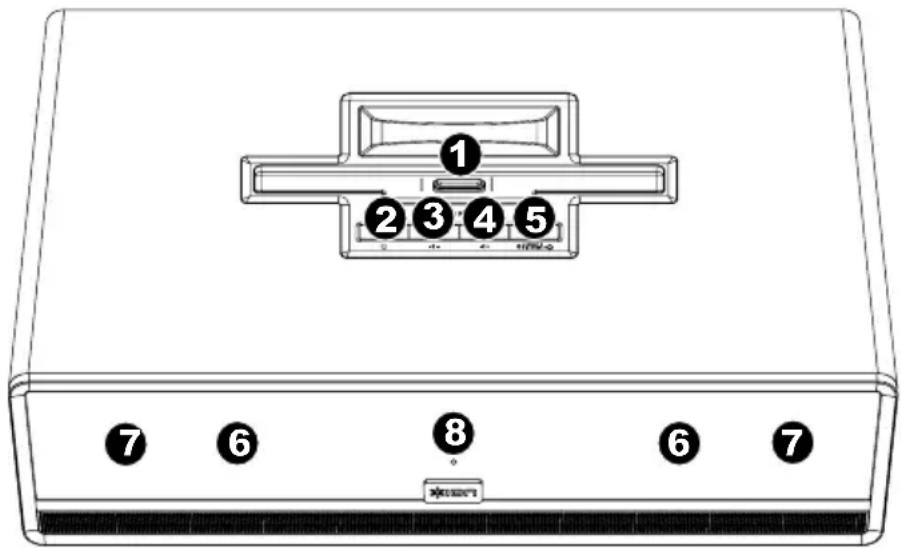
iOS Device Dock - Connect your compatible iOS device here. When docking iPod/iPhone/iPad, insert it at a vertical position and then push the device back. When dismounting the iPod/iPhone/iPad, pull it forward and then lift to remove the device. See the PAIRING A BLUETOOTH® DEVICE section for more details.
-
Note: If you are using ROOM ROCKER with a Bluetooth device, ROOM ROCKER will no longer play audio from an iOS device connected to the dock connector until the Bluetooth device is unpaired.
Note: iPad (3rd generation) may not charge while in use and high screen brightness. To charge iPad (3rd generation) let the screen go to sleep. -
Note: It is recommended to remove your iPad or other device from the cradle before transporting or traveling with ROOM ROCKER.
-
Power Button - Press this button to turn ROOM ROCKER on/off.
- Volume - Press this button to decrease the volume.
- Volume + - Press this button increase the volume.
- Connect/Disconnect - Press this button to unpair your iOS device from ROOM ROCKER. You can also press this to re-connect to Bluetooth devices after 'forget this device' has been selected from the device.
- Speakers - 2.5" full range drivers. For optimal performance, place on a table about 3-3 12 feet tall and about 10 inches away from a wall.
- Tweeter- 1" tweeter for output of the high frequencies.
- Blue LED - A power LED that tells you the unit is turned on. Note: If you are using ROOM ROCKER with a Bluetooth device, ROOM ROCKER will no longer play audio from an iOS device connected to the dock connector until the Bluetooth device is unpaired.
The Bluetooth® word mark and logos are registered trademarks owned by Bluetooth SIG, Inc. and any use of such marks by ION Audio is under license.
REAR PANEL
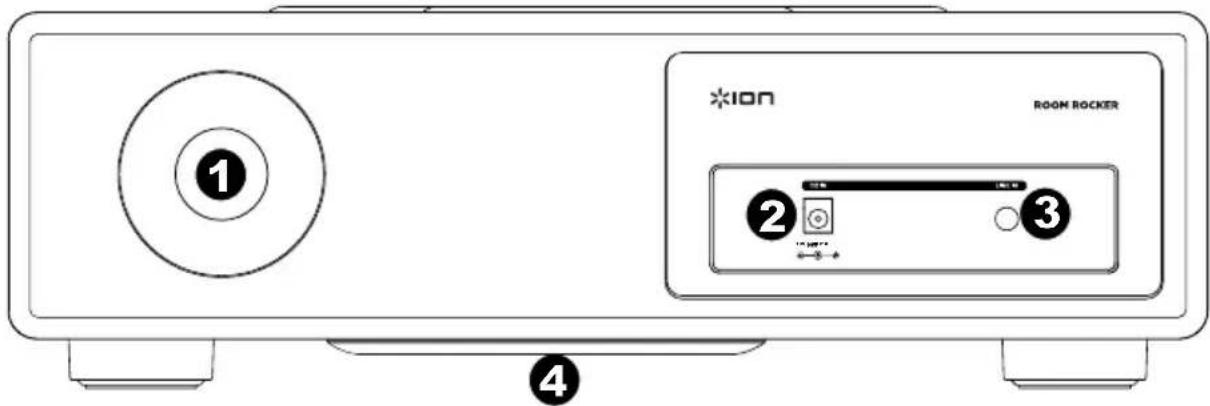
- Bass Reflex Port - Efficiently projects air and sound energy from the back port, enhancing the reproduction of low frequencies generated by the woofer.
- Power - Use the included power adapter to connect to a wall outlet.
- Aux In - 1/8" input for connecting devices such as a CD player, MP3 player, tapedeck, mixer, etc. Note: The Aux In signal will always be mixed in with the Bluetooth or dock connector signal.
- Subwoofer (Bottom panel) - This is the downward-firing subwoofer, enhancing the lowest bass frequencies. Note: If nearby objects on a table are rattling, move these items or turn down the bass EQ from your device.
REMOTE CONTROL
- Power
- Mute
- Previous Track
- Next Track
- Play/Pause
- Volume Down
- Volume Up
- Connect/Disconnect
9.Shuffle
Note: Room lighting and battery life can affect the operating range of the remote control.
Note: In order to use the remote control for the first time, first pull out the tab attached to the battery compartment.

PAIRING A BLUETOOTH DEVICE
Pairing Instructions
- Turn on your Bluetooth device.
- Power on ROOM ROCKER.
- To pair ROOM ROCKER, simply find 'ION Room Rocker' on your Bluetooth device and connect to it. ROOM ROCKER will be paired when it's LED is lit. Note: If prompted for a pairing code, enter '0000'.
- To break connection and use a different device, click the Disconnect button on the top of ROOM ROCKER.
- If you are not seeing ION Room Rocker as a choice on your Bluetooth device, press the Connect/Disconnect button on ROOM ROCKER.
Note: If you are having difficulty pairing, make sure your Android® device is upgraded to the latest software version. Also, ensure you are within the Bluetooth range of up to 50 feet. Maximum range will be achieved when using devices with Bluetooth 4.0.
Note: if you select 'forget this device' on your iOS device, you will need to press the Connect/Disconnect button once on ROOM ROCKER in order to re-pair with that same device.
Android is a trademark of Google Inc.
ROOM ROCKER LED Activity
Solid Blue Light - When the paired LED stays solid blue, the Bluetooth DISCONNECT button can be used to disconnect with the current Bluetooth device so you can pair with another.
No Light - ROOM ROCKER is in pairing mode and ready to search for Bluetooth devices.
Note: You can pair with a smartphone, iPhone, iPad, or Android device equipped with Bluetooth that supports A2DP or AVRCP.
Note: If you are using ROOM ROCKER with a Bluetooth device, ROOM ROCKER will no longer play audio from an iOS device connected to the dock connector until the Bluetooth device is unpaired.
Note: If you select 'forget this device' on your iOS device, you will need to press the DISCONNECT button once on ROOM ROCKER in order to re-pair with that same device.
The ROOM ROCKER dock is compatible with the following devices (not included):
iPad (3^rd generation)
iPad 2®
iPad®
iPhone 4S®
iPhone 4
iPhone 3GS
iPhone 3G
iPod touch® (2nd, 3rd, and 4th generation)
iPod nano® (3rd, 4th, 5th, and 6th generation)
Laptops with Bluetooth connectivity
Androids (with Bluetooth that supports A2DP)
BlackBerry® (with Bluetooth that supports A2DP)
iPad, iPhone, iPod touch, and iPod nano are trademarks of Apple, Inc.
The Trademark BlackBerry® is owned by Research In Motion Limited and is registered in the United States and may be pending or registered in other countries. ION Audio is not endorsed, sponsored, affiliated with or otherwise authorized by Research In Motion Limited.
TROUBLESHOOTING
Should you experience difficulties in the use of ROOM ROCKER, please refer to the following chart:
| Symptom Possible problem Solution | ||
| ROOM ROCKER does not power on | Power adapter is not plugged into a wall outlet or the connector is not plugged into the power jack on the back of the ROOM ROCKER. | Plug the power adapter into a wall outlet and plug the connector into the power jack on the ROOM ROCKER. |
| Wall outlet is not functioning. Plug another device into the same outlet to confirm the outlet is working. | ||
| iPad does not respond to the speaker system | iPad is not docked properly. Remove your iPod from the dock and check for any obstruction on the connectors in the docking and on your iPod. Then reseat it in the dock. | |
| Your iPad is locked up. | Make sure your iPad is working properly before docking into the unit. | |
| You are paired via Bluetooth. Press Disconnect to break Bluetooth connection. | ||
| iPad/iPhone/iPod does not charge | iPad/iPhone/iPod is not docked properly. | Remove your iPad/iPhone/iPod from the dock and check for any obstruction on the connectors in the docking and on your device. Then reseat it in the dock. |
| iPad/iPhone/iPod battery has a problem. | Please make sure your iPad/iPhone/iPod is working properly before docking into the unit. | |
| ROOM ROCKER does not play the sound from Bluetooth device | The Bluetooth device is too far from ROOM ROCKER to receive a signal. | Move the Bluetooth device closer to ROOM ROCKER |
| ROOM ROCKER does not play the sound from docked device | Bluetooth device is paired with ROOM ROCKER. | Unpair the Bluetooth device in order to regain use of the dock connector. |
| Sound is noisy You may be playing from dock, and/or Bluetooth at the same time as playing something through aux in. | Remove aux cable OR unpair Bluetooth OR stop sound source playing on dock connector. | |
| I hear a rattling sound when playing at loud volumes | Items nearby are vibrating due to the bass frequencies | Move ROOM ROCKER to a location without these items, move the items themselves, or turn down the bass EQ from your source. |
| Sound is distorted | Sound source is distorted. If the source is an iPad/iPhone/iPod, check the sound file on a computer to hear if it is also distorted. If you are using an external sound source like a digital audio player, try reducing the output volume on the device itself. Also try turning bass boost OFF or change the EQ setting. | |
| Lower the bass or or choose a different bass EQ preset on your device. | ||
| Volume level is set too high. Decrease the volume from the source. | ||
GUIA DE INICIO RAPIDO (ESPANOL)
CONTENIDO DE LA CAJA
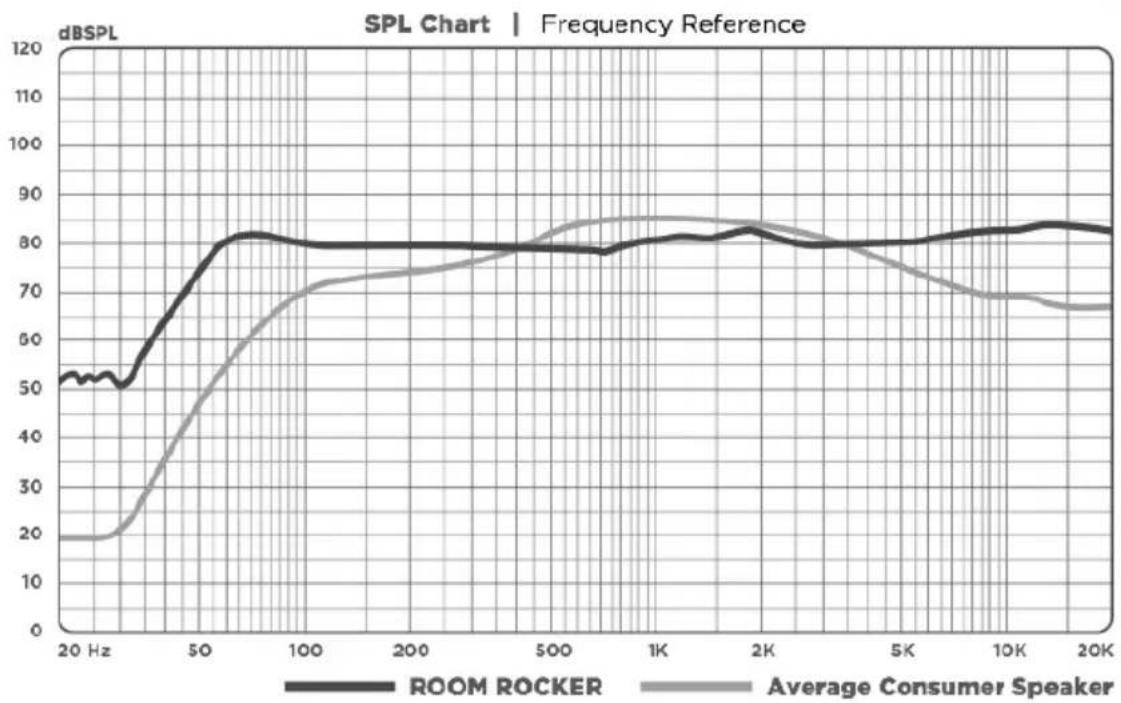
ROOM ROCKER is tuned to give you precise sound reproduction across a wide frequency range.
SPECIFICATIONS
POWER ADAPTER: 18V DC 3A, center pin positive
REMOTE POWER: 3V CR2025 lithium battery
BLUETOOTH PROFILE SUPPORTED TYPES: A2DP and AVRCP
TOTAL OUTPUT POWER: 40W
SUBWOOFER POWER: 26W
POWER PER CHANNEL: 7W
MAIN SPEAKERS: (2) 2.5" speakers
TWEETERS: (2) 1" tweeters
SUBWOOFER: 4" Subwoofer
DIMENSIONS (LxWxH): 9.75" x 15.1" x 6.25" (247.6mm x 381mm x 158.75mm)
WEIGHT: 8.3 lbs (3.8 kg)