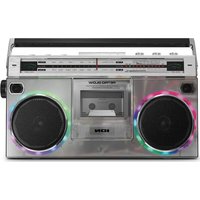
Retro Glow - Loudspeaker ION - Free user manual and instructions
Find the device manual for free Retro Glow ION in PDF.


| Product Type | Speaker with cassette player and radio |
| Brand | ION |
| Model | Retro Glow |
| Mains power | IEC 2-pin power cable (included, 183 cm) |
| Built-in rechargeable battery | Li-Ion, full charge in 6 hours |
| Backup batteries | 6 D-type alkaline batteries (not included) |
| Wireless connectivity | Bluetooth |
| Auxiliary input | 3.5 mm jack |
| USB port | Playback and recording of audio files |
| microSD reader | Playback and recording of audio files |
| Cassette deck | Playback and recording |
| Radio | AM/FM with telescopic antenna |
| Recording | To cassette, USB or microSD from internal microphone, auxiliary, radio or Bluetooth |
| LED lighting | 6 modes, adjustable and can be turned off |
| Headphone output | 3.5 mm jack |
| Box contents | Retro Glow, power cable, quick start guide, safety instructions and warranty |
| Maintenance and cleaning | Clean the cassette heads with a cotton swab dipped in isopropyl alcohol (70-80%) every 10-20 hours |
| Factory reset | Press and hold the Light button for 5 seconds |
Frequently Asked Questions - Retro Glow ION
User questions about Retro Glow ION
0 question about this device. Answer the ones you know or ask your own.
Ask a new question about this device
Download the instructions for your Loudspeaker in PDF format for free! Find your manual Retro Glow - ION and take your electronic device back in hand. On this page are published all the documents necessary for the use of your device. Retro Glow by ION.
USER MANUAL Retro Glow ION
Thank you for purchasing the Retro Glow™. At ION, your entertainment is as important to us as it is to you. That's why we design our products with one thing in mind—to make your life more fun and more convenient.
Note: Before you first use the product, please fully charge the battery. Your unit was purposely shipped with a reduced battery charge to ensure safe transit.
Use the included power cable to connect the unit to a power outlet and let it charge for up to 6 hours. This helps ensure the longest life for your battery.
Note: Retro Glow™ comes with a built-in rechargeable battery, but for a truly retro experience, you can also use D-cell batteries.
Box Contents
Retro Glow™
Power Cable (6 ft. / 183 cm)
Quickstart Guide
Safety & Warranty Manual
Support
For additional product support, visit ionaudio.com/support.

For the latest information about this product (documentation, technical specifications, system requirements, compatibility information, etc.) and product registration, visit ionaudio.com.
Setup
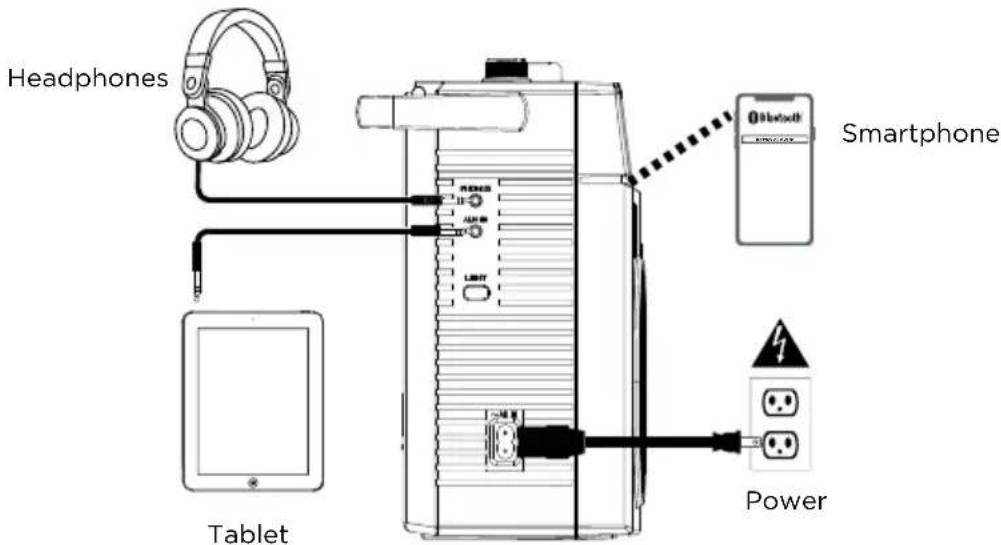
Items not listed under Introduction > Box Contents are sold separately.
Charging and Battery Information
For the quickest charging time, power off Retro Glow ^™ and use the included power cable to connect the 2-Prong IEC Power Input on the side panel of the unit to a power outlet, and then let it charge for up to 6 hours.
Here are some other recommendations for getting the longest life from the internal battery.
General Usage Fully charge the battery before using it.
Avoid full discharge of the battery if possible. Li-Ion batteries are maintenance-free, and the battery will last longest when operating between 30–80% charged.
Do not use the product while charging the battery.
Do not charge the battery in exceedingly hot (greater than 90^ F/ 32^ C) or exceedingly cold (less than 32^ F/ 0^ C) temperatures.
Storage For best product longevity, do not store at exceedingly hot (greater than 90^ F/ 32^ C) or exceedingly cold (less than 32^ F/ 0^ C) temperatures.
For best product longevity, store with a 50% battery charge.
If you leave the battery level low and do not charge it for 6 months, it may permanently lose capacity.
Repair If the battery fails to charge, contact ION Audio at ionaudio.com.
Disposal Bring the unit to a recycling center or dispose of in accordance with local ordinances.
Features
Front Panel
![RETRO GLOW AM/TV RADIO CABBRTI RECOPH BLUETOON SPEAKER [100/100] ION 3 4 5 6 7 8 9 10 11 12 13 14 15 16 17 18 19 20 21 22 23 24 25 26 27 28 29 30 31 32 33 34 35 36 37 38 39 40 41 42 43 44 45 46 47 48 49 50 51 52 53 54 55 56 57 58 59 60 61 62 63 64 65 66 67 68 69 70 71 72 73 74 75 76 77 78 79 80 81 82 83 84 85 86 87 88 89 90 91 92 93 94 95 96 97 98 99 100](/content/2026/04/706135/images/0ba18347ae367e1eb5f21c87ae782f125562fd79378b5f1e61bb5003dcafc90e.jpg)
- Cassette Holder: Press the Stop/Eject button to open the cassette deck and insert a tape here.
- Internal Mic: Use this microphone to record external audio sources such as speech, live music, nature sounds, beatboxing, etc. to USB, microSD, and cassette.
- Speakers: Listen to your audio source here.
Note: When headphones are connected to the Headphone Output, the internal speakers will be muted.
-
Volume Level Displays: View the audio playback level for the left and right channels.
-
Power LED: The LED will illuminate red when the unit is powered on by selecting Aux, Radio, or BT/USB/SD with the Function switch.
- Stereo LED: The LED will illuminate green when a stereo FM station is selected.
- Charging LED: When the unit is powered on with the power/charging cable connected, the LED will illuminate solid red, and the LED will turn off when fully charged.
- Radio Channel Display: View the selected radio station here.
Rear Panel
- Battery Compartment: Retro Glow™ comes with a built-in rechargeable battery, but for a truly retro experience, you can insert 6 new "D" size alkaline batteries (not included) into this compartment to power the unit.
- Power Switch: Use this switch to turn Retro Glow™ on and off.
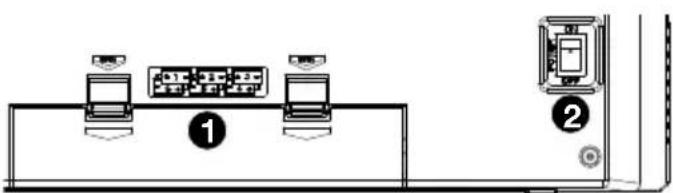
IMPORTANT: Ensure that this switch is set to Off when Retro Glow™ is not in use. If no audio is played after 5 minutes in Bluetooth or Aux modes, Retro Glow™ will play a beeping sound every 5 minutes to remind you to set this switch to the Off position to conserve battery life.
Top Panel
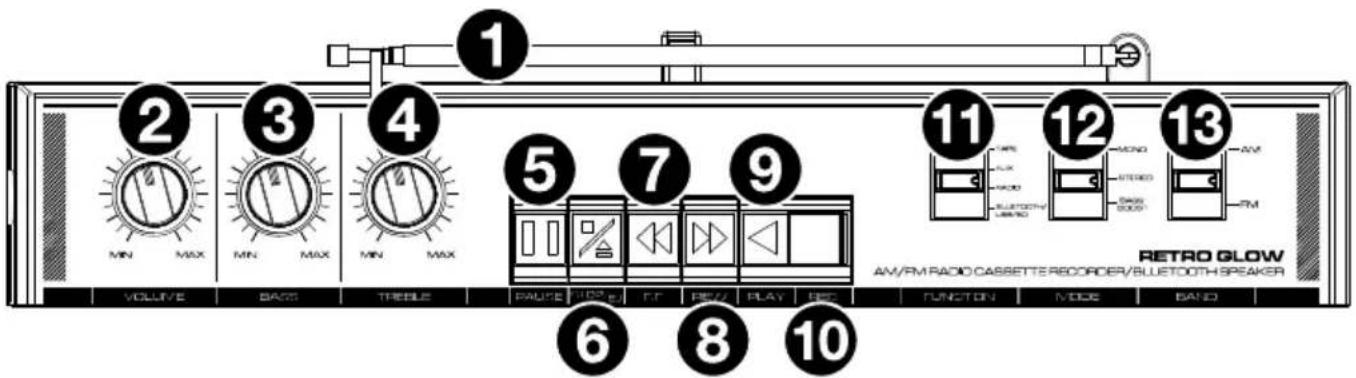
- Antenna: Adjust the antenna to get the best radio station reception.
- Volume: Adjust this to control the overall playback volume.
- Bass: Adjust this to control the low frequencies for the audio playback.
- Treble: Adjust this to control the high frequencies for the audio playback.
- Pause: In Tape mode, press this button to pause the tape playback.
- Stop/Eject: In Tape mode, press this button to stop or eject a tape.
Note: While the tape is stopped, all LEDs will turn off. -
Fast Forward: In Tape mode, press this button to fast forward the tape.
Note: The cassette mechanism will not auto-stop when fast forwarding. Press the Stop button after fast forwarding is completed. -
Rewind: In Tape mode, press this button to rewind the tape.
Note: The cassette mechanism will not auto-stop when rewinding. Press the Stop button after rewinding is completed. - Play: In Tape mode, press this button to play the tape.
Note: There will be a delay in playback for a few seconds after the Play button is pressed. - Record: In Tape mode, press the Record button to record to a tape.
- Function: Adjust this switch to power the unit on/off. Select your sound source as Tape, Aux, Radio, or BT (Bluetooth)/USB/SD.
- Mode: Adjust this switch to change the FM radio mode from Mono, Stereo, or Bass Boost.
- Band: Adjust this switch to select AM or FM radio.
Note: When using AM radio, the lights are automatically disabled to improve reception.
Side Panels
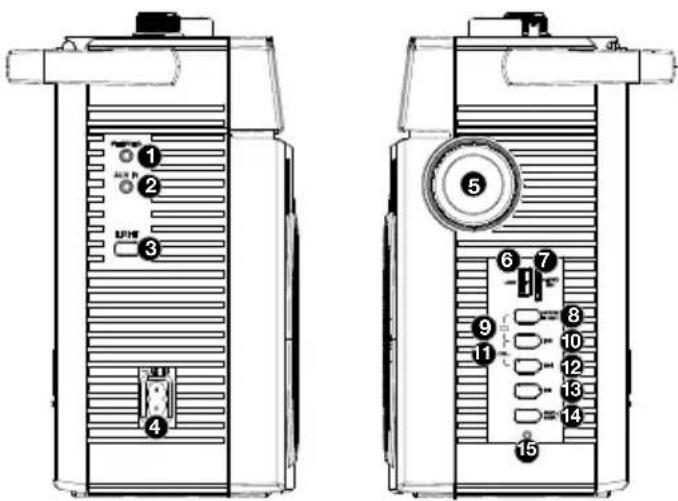
- Headphone Output: Connect your headphones to this 1/8" (3.5 mm) output.
Note: When headphones are connected to the Headphone Output, the internal speakers will be muted.
-
Aux Input: Connect your smartphone, MP3 player, or similar device here using an 1/8" (3.5 mm) cable (not included).
-
Light Mode: Press this button to cycle between the light modes: Rainbow Rings, Rainbow Sweep, Dual Spinning Light Rings (Clockwise), Dual Spinning Light Rings (Beat Sync), Color Cycle, and Off.
To turn the lights off directly, press and hold this button for 2 seconds.
To reset the unit to its factory settings, press and hold this button for 5 seconds.
-
2-Prong IEC Power Input: Connect the included power cable here.
-
Tuning Dial: Adjust this dial to tune in to a radio station.
-
USB Port: Connect your USB flash drive here to play music or record the audio from Bluetooth, tape, radio, internal mic, or the aux input.
-
MicroSD Card Slot: Insert your microSD card here to play music or record audio from Bluetooth, tape, radio, internal mic, or the aux input.
-
Mode/Stop Rec: Press and release this button to switch between Bluetooth, USB, or microSD card source playing modes. When recording, press and release this button to stop recording.
-
Switch Folders: Press the Mode/Stop Rec and Previous Track buttons simultaneously to switch between the recorded tracks folder and other music folders on a USB flash drive or microSD card.
-
Previous Track: Press this button to go to the beginning of the current playing USB, microSD card, or Bluetooth track. During playback, double press this button to go to the previous track. Press and hold this button to rewind the track during playback.
-
Delete Track: Press and hold both the Previous Track and Next Track buttons to delete the currently playing track from the USB flash drive or microSD card.
-
Next Track: Press this button to go to the next USB, microSD card, or Bluetooth track. Press and hold this button to fast forward the track during playback.
-
Play/Pause: Press this button to play/pause a USB, microSD card, or Bluetooth track. Press and hold this button to disconnect from a paired Bluetooth device.
-
Rec./Rep.: Press and hold the Rec./Rep. button to record the audio source (Bluetooth, radio, tape, or mic) to the USB flash drive or microSD card. Press Mode/Stop Rec to stop the recording and the recorded content will be transferred to the USB flash drive or microSD card. When playing tracks from the USB flash drive or microSD card, press and release this button to switch between sequential playback, repeat a single track, and repeat all tracks.
-
Media Status: The LED will slowly flash blue when the USB flash drive, microSD card, or Bluetooth source is playing back. When in Bluetooth pairing mode, the LED will quickly flash blue. When a Bluetooth device is paired, the LED will be lit solid blue. When recording to the USB flash drive or microSD card, the LED will slowly flash red. When playing back tracks that were recorded to the USB flash drive or microSD card, the LED will flash purple. When recorded audio is paused, the LED will be lit solid purple.
Operation
Playback
Playing a Tape:
- Press the Stop/Eject button to open the cassette holder.
- Insert a tape and close the cassette holder.
- Set the Function switch to Tape.
- Press the Play button to play the tape.
IMPORTANT! After extensive usage, tape heads can acquire oxide build-up, especially if the cassettes are old. To ensure best performance, use a tape head cleaner periodically.
While in Tape Mode, the LEDs will only be active during playback. When the tape is stopped, the LEDs will turn off.
Aux In Playback:
- Connect your smartphone, MP3 player, or similar device to the Aux Input using an 1/8" (3.5 mm) cable (not included).
- Set the Function switch to Aux.
- Start playback on your external audio device.
- Adjust the Volume dial to the desired level.
Note: If the line output of your external device is connected, you only need to adjust the system's volume control. If your external device's headphone output is connected, you may need to adjust the volume control on both your external device and Retro Glow™ to achieve the desired volume.
IMPORTANT: If no audio is played after 5 minutes in Aux mode, Retro Glow™ will play a beeping sound every 5 minutes to remind you to set the Power switch to the Off position to conserve battery life.
USB Flash Drive/MicroSD Card Playback:
Note: When the function switch is set to BT/USB/SD, it will default to BT mode always. In order to go to USB/SD mode, insert the USB flash drive or microSD card and press the Mode button to switch modes.
Note: In USB and SD modes, files are played in order by time.
- Insert the USB flash drive into the USB port or insert a microSD card into the microSD card slot.
- Set the Function switch to BT/USB/SD and press the Mode button to switch to USB/SD mode.
- Press the Play button to begin playback.
- Press the side panel Stop button to stop playback.
Listening to the Radio:
- Set the Function to Radio.
- Select the desired frequency band (AM or FM).
Note: When using AM radio, the lights are automatically disabled to improve reception. - Select the desired radio station by turning the Tuning dial.
- Extend and adjust the antenna for best reception.
- Adjust the volume to the desired level.
Radio Reception:
For best radio reception and to avoid interference, follow these tips:
- Move Retro Glow™ away from sources that can cause radio frequency interference, such as laptop power supplies, flat screen TVs, electric blankets, external hard drives, light dimmers, walls, and windows.
- Try listening to the radio at a park or other open outdoor space, away from tall buildings.
Pairing A Bluetooth Device:
- Adjust the Function switch on Retro Glow ^™ to the BT/USB/SD position.
- Turn on your Bluetooth device.
- Navigate to your Bluetooth device's setup screen, find RETRO GLOW and connect. A voice prompt will be heard saying "Bluetooth pairing" when pairing and "Bluetooth connected" when connected to your Bluetooth device.
Note: If your Bluetooth device prompts for a pairing code, enter "0000". - Press and hold the Play/Pause button to disconnect from a paired Bluetooth device. A voice prompt will be heard saying "Bluetooth disconnected" when disconnected from the Bluetooth device.
IMPORTANT: If no audio is played after 5 minutes in Aux mode, Retro Glow™ will play a beeping sound every 5 minutes to remind you to set the Power switch to the Off position to conserve battery life.
Recording to Tape
Note: Most cassettes feature a protective plastic strip which, when removed, will not allow any recording to be made to the cassette. When the plastic strip has been removed, the Retro Glow™'s Record button will not function when attempting to record to the cassette. To record to a cassette which no longer has a plastic strip, use adhesive tape to cover the strip opening.
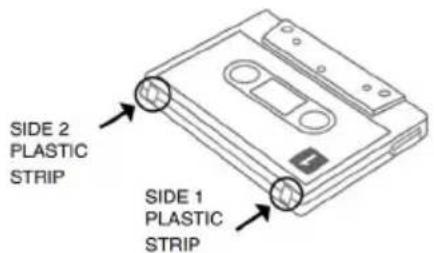
Recording from the Internal Microphone to Tape:
- Press Stop/Eject to open the cassette holder.
- Insert a blank tape and close the cassette holder.
- Set the Function switch to Tape.
- To begin recording, press the Record button and the Play button simultaneously.
- To stop recording, press Stop/Eject button.
Recording from the Aux Input to Tape:
- Connect your smartphone, MP3 player, or similar device to the Aux Input using an 1/8" (3.5 mm) cable (not included).
- Set the Function switch to Aux.
- Connect your external audio device and start its playback. Adjust the output volume on your source device.
- Play your source and check the levels on the Level Display.
- To begin recording, press the Record button and the Play button simultaneously.
- To stop recording, press Stop/Eject button.
Recording from the Radio to Tape:
- Press Stop/Eject to open the cassette holder.
- Insert a blank tape and close the cassette holder.
- Set the Function switch to Radio.
- Set the Band switch to the desired frequency band (AM or FM).
- Adjust the Tune dial to select a radio station.
- Extend and adjust the antenna for best reception.
- To begin recording, press the Record button and the Play button simultaneously.
- To stop recording, press Stop/Eject button.
Recording Bluetooth to Tape:
- Press Stop/Eject to open the cassette holder.
- Insert a blank tape and close the cassette holder.
- Set the Function switch to Bluetooth/USB/SD.
- Pair your Bluetooth device to the unit and begin playing music. See the section Playback > Pairing a Bluetooth Device for setup details.
- To begin recording, press the Record button and the Play button simultaneously.
- To stop recording, press Stop/Eject button.
Recording from a USB Flash Drive or MicroSD Card to Tape:
- Press Stop/Eject to open the cassette holder.
- Insert a blank tape and close the cassette holder.
- Insert a USB Flash Drive or microSD card into the unit.
- Set the Function switch to Bluetooth/USB/SD.
- Press the side panel Play button to begin playback.
- To begin recording, press the Record button and the Play button simultaneously.
- To stop recording, press Stop/Eject button.
Recording to USB/microSD
Note: Only use either a USB flash drive or a microSD card at a time, but not both when recording. The unit may not record properly if both a USB and microSD card are plugged in at the same time.
Recording from the Internal Microphone to a USB Flash Drive or microSD Card:
- Insert a USB flash drive or microSD card into the unit.
- Set the Function switch to BT/USB/SD and press and release the Mode button to select USB playback or SD mode. if there are tracks on the USB flash drive, playback will begin.
- To begin recording, press and hold the side panel Rec./Rep. button and speak into the internal microphone. Before recording begins, USB playback will stop.
- To stop recording, press Mode/Stop Rec button.
Recording from Tape to a USB Flash Drive or microSD Card:
- Press the Stop/Eject button to open the cassette holder.
- Insert a tape and close the cassette holder.
- Insert the USB flash drive into the USB port or insert a microSD card into the microSD card slot.
- Set the Function switch to Tape.
- Press Play to playback the tape.
- To begin recording, press and hold the side panel Rec./Rep. button.
- To stop recording, press Mode/Stop Rec button.
Recording from the Aux Input to a USB Flash Drive or microSD Card:
- Connect your smartphone, MP3 player, or similar device to the Aux Input using an 1/8" (3.5 mm) cable (not included).
- Insert the USB flash drive into the USB port or insert a microSD card into the microSD card slot.
- Set the Function switch to Aux.
- Connect your external audio device and start its playback.
- Adjust the output volume on your source device and check the levels on the Level Display.
- To begin recording, press and hold the side panel Rec./Rep. button.
- To stop recording, press Mode/Stop Rec button.
Recording from the Radio to a USB Flash Drive or microSD Card:
- Insert the USB flash drive into the USB port or insert a microSD card into the microSD card slot.
- Set the Function switch to Radio.
- Set the Band switch to the desired frequency band (AM or FM).
- Adjust the Tune dial to select a radio station.
- Extend and adjust the antenna for best reception.
- To begin recording, press and hold the side panel Rec./Rep. button.
- To stop recording, press Mode/Stop Rec button.
Recording Bluetooth to a USB Flash Drive or microSD Card:
- Insert the USB flash drive into the USB port or insert a microSD card into the microSD card slot.
- Set the Function switch to BT/USB/SD and press the side panel Mode/Stop Rec button to select Bluetooth Mode.
- Pair your Bluetooth device to the unit. See Playback > Pairing a Bluetooth Device for pairing details.
- To begin recording, press and hold the side panel Rec./Rep. button. The LED will slowly flash red to indicate recording.
- Playback your Bluetooth source.
- To stop recording, press the side panel Mode/Stop Rec button. Press Mode/Stop Rec again to playback the previously recorded track.
Cassette Care
To avoid tape jamming, tape tangling, or playback issues, please follow these tips:
- Check that there are no loose layers of tape visible through the cassette center window. If there are, manually wind up loose tape using a pencil or hexagonal barrelled ballpoint pen.
Note: If the cassette feels tight when manually winding, the tape may be jamming from ridges formed in the winding of the tape (visible through the center window). These may be removed, in most cases, by fast forwarding the cassette to the end, and then rewinding it to the beginning.
- When recording, use new high-quality, brand name tapes.
- Do not expose cassettes to direct sunlight, fluorescent lights, dust, or oils.
- Do not touch the surface of the tape.
- Before storing tapes, rewind or fast forward them to the end of a side.
- Store tapes in a dry, temperate environment.
Tape Head Cleaning
For continued high performance from Retro Glow™, periodically clean the head, pinch roller, and capstan every 10-20 hours of operation.
To clean the tape deck:
- Power off Retro Glow™.
- Press the Stop/Eject button to open the cassette holder.
- Remove any tape in the deck.
- Moisten a new cotton swab with isopropyl alcohol (70-80%).
- Carefully rub the face of each head, pinch roller, and capstan with the moistened cotton swab.
- Let the cassette holder dry for 5-10 minutes before putting a tape back in it.
Troubleshooting
If Retro Glow ^™ is not charging: Ensure that the power cable is connected securely.
If the Retro Glow™ battery is draining quickly: Ensure that the Power switch is set to Off when not in use. Leaving the switch on will continue to drain the battery even if no sound is being played.
If the sound is distorted: Try lowering the volume control of your sound source. Also, try to reduce the overall volume of Retro Glow™ using the Volume knob.
If there is too much bass: Try adjusting the tone or EQ control on your sound source to lower the bass level. This will allow you to play the music louder before clipping (distortion) occurs.
If there is poor AM reception: When you have a Bluetooth device that is connected, disconnect your Bluetooth device in order to listen to AM radio. To adjust AM reception, move the entire unit.
If you cannot connect your audio device to Retro Glow™ via Bluetooth:
- Have your audio device (e.g., smartphone or tablet) and Retro Glow™ as close together as possible while trying to connect. Make sure both the audio device and Retro Glow™ are unobstructed by walls, furniture, etc.
- Reset the Bluetooth connection on Retro Glow™ to disconnect Retro Glow™ from any other audio device and restart the search process. If this does not work right away, power off Retro Glow™ and then power it back on. See Playback > Pairing a Bluetooth Device for more information.
- Reset the Bluetooth connection on your audio device by turning Bluetooth off and back on. You can find this under the Bluetooth menu in the Settings for your phone or other audio device.
If this does not work, and you have connected to Retro Glow™ before, find Retro Glow™ in the list of available or previously connected devices in your audio device's Bluetooth menu, tap the "gear" or "i" icon located next to it and then select Unpair or Forget. Turn Retro Glow™ off and back on and try pairing again once it reappears in your available devices list.
Note: If Retro Glow ^™ has been paired to another audio device recently that is still within range, you may need to repeat this process with that audio device to fully disconnect.
To reset the unit to its factory settings, press and hold the Lights button on the side panel for 5 seconds. The lights will flash twice in Rainbow Ring mode to indicate the reset is completed. When Retro Glow ^™ is reset in Bluetooth, USB, or microSD mode, both the lights and connection status will be reset, which will remove any paired devices from memory. In all other modes, the lights will revert to the original factory setting when reset.
Technical Specifications
| Model | iSP112C |
| Output Power | 28 W (peak) |
| Frequency Response | 80 Hz-10 KHz |
| Drivers | 2 5.0" / 127 mm full-range speakers |
| Bluetooth Specifications | Profile: A2DP, AVRCPRange: Up to 100 feet / 30.5 meters |
| Supported Cassette Type Type 1 (normal bias) | |
| Radio Frequency Range 522-1710 kHz (AM), 87.5-108 MHz (FM) | |
| USB/MicroSD Card File Types | .MP3, .WAV |
| USB/MicroSD Card File System | FAT32 |
| USB/MicroSD Card Maximum File Size | 32 GB |
| USB Charging Port +5 V, 1 A | |
| Power 6 "D" alkaline batteries, internal rechargeable lithium-ion battery, or power cableConnection: C7 PolarizedInput Voltage: 120 VAC, 60 HzConsumption: 12 W (during battery charging) | |
| Internal Rechargeable Battery Battery life: Up to 10 hoursRecharge time: 6 hours | |
| Dimensions(width x depth x height) | 16.73" x 5.9" x 9.6"425 x 150 x 245 mm |
| Weight 7.05 lb. | 3.2 kg |
Specifications are subject to change without notice. Bluetooth and wireless reception and range are affected by walls, obstructions, and movement. For optimal performance, place the product in the center of the room so it is unobstructed by walls, furniture, etc. Battery life may vary based on temperature, age, and volume usage of product.
Trademarks & Licenses
ION Audio is a trademark of inMusic Brands, Inc., registered in the U.S. and other countries. The Bluetooth word mark and logos are owned by the Bluetooth SIG, Inc. and any use of such marks by ION Audio is under license. All other product names, company names, trademarks, or trade names are those of their respective owners.
ionaudio.com
- Box Contents
- Support
- Setup
- Charging and Battery Information
- Features
- Front Panel
- Rear Panel
- Top Panel
- Side Panels
- Operation
- Playback
- Playing a Tape:
- Aux In Playback:
- USB Flash Drive/MicroSD Card Playback:
- Listening to the Radio:
- Radio Reception:
- Pairing A Bluetooth Device:
- Recording to Tape
- Recording to USB/microSD
- Cassette Care
- Tape Head Cleaning
- Troubleshooting
- Trademarks & Licenses
Brand : ION
Model : Retro Glow
Category : Loudspeaker