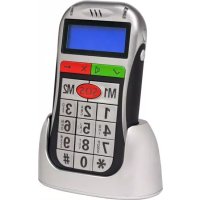
Easy Pocket - Mobile Phone ITT - Free user manual and instructions
Find the device manual for free Easy Pocket ITT in PDF.



| Product Type | Mobile phone |
| Brand | ITT |
| Model | Easy Pocket |
| Dimensions (estimated) | Approximately 120 x 50 x 15 mm |
| Weight (estimated) | Approximately 80 g |
| Power | Rechargeable lithium battery via micro USB charger |
| SIM card type | Standard SIM card (1 slot) |
| Screen | LCD screen with contrast and brightness adjustment |
| Main functions | Calls, SMS, FM radio, flashlight, alarm, calculator, contacts directory, call log, profiles (general, meeting, outdoor, indoor, headset) |
| Contact memory | Up to 300 contacts |
| Speed dial | 8 programmable numbers |
| Memory keys | M1 and M2 for predefined numbers |
| SOS function | Programmable SOS number, sends emergency message |
| FM radio | Requires headset, with built-in speaker |
| Connectivity | GSM/GPRS |
| Security | PIN code, PUK code, phone lock (default password 1122) |
| Maintenance | Clean with a dry cloth; do not expose to moisture |
| Spare parts and repairability | Use only original accessories and batteries; contact an authorized service center for any repairs |
| General information | Manual available in multiple languages; free download at notice-facile.com |
Frequently Asked Questions - Easy Pocket ITT
User questions about Easy Pocket ITT
0 question about this device. Answer the ones you know or ask your own.
Ask a new question about this device
Download the instructions for your Mobile Phone in PDF format for free! Find your manual Easy Pocket - ITT and take your electronic device back in hand. On this page are published all the documents necessary for the use of your device. Easy Pocket by ITT.
USER MANUAL Easy Pocket ITT
- Getting to know your phone 11
1.1 Your Phone 11
1.2 Installing SIM card and battery 11
1.3 Battery charging 11
1.4 Power on/off 12
1.4.1 Power on 12
1.4.2 Power off 12
1.5 Using shortcut keys 12 - Using Call Function 14
2.1 Making a call 14
2.2 Answering or rejecting a call 14
2.2.1 Answer a call 14
2.2.2 Reject a call 14
2.3 Adjusting call volume 14
2.4 Ending a call 14
3.Call Record 14
3.1 Missed calls 14
3.2 Dialled calls 14
3.3 Received calls 14
3.4 Clear logs 14 - Contacts 14
4.1 Contacts 14
4.2 Add new contact 14
4.3 Delete all 14
4.4 Copy all 15
4.5 Owner numbers 15
4.6 Preferred storage 15
4.7 Memory status 15
4.8 Speed dial 15
5. Message 15
7. Settings 17
5.1 Write message 15
5.2 Inbox 16
5.3 Outbox 16
5.4 Drafts 16
5.5 Settings 16
5.5 Memory status 16
5.5 Voice mail 16
5.5 Broadcast messages 16
6. Tools 16
6.1 Alarms 16
6.2 Calculator 16
6.3 FM Radio 16
7.1 Time and date 17
7.2 Display 17
7.3 Phone settings 17
7.3.1 Language 17
7.3.2 Auto keypad lock 17
7.3.3 Input method settings 17
7.4 Call 17
7.4.1 Call ID 17
7.4.2 Call waiting(Need network support) 17
7.4.3 Call Divert 17
7.4.4 Call barring 18
7.4.5 Line switching 18
7.4.6 Call time reminder 19
7.4.7 Auto radial 19
7.4.8 Closed User Group 19
7.4.9 Answer mode 19
7.5 Network 19
7.5.1 Network selection 19
7.5.2 Preferences 19
7.6 Network status 19
7.7 Security 19
7.7.1 SIM security 19
7.7.2 Phone security 20
7.8RestoreFactory settings 21
8.Profiles 21
8.1 General 21
8.2 Meeting 21
8.3 Outdoor 21
8.4 Indoor 21
8.5 Headset 21
9. Safety Precaution 21
9.1 Usage environment 22
9.2 Medical devices 22
9.2.1 Pacemaker 22
9.2.2 Hearing aids 22
9.2.3 Emergency calls 22
9.3 Password access 23
9.3.1 Phone password 23
9.3.2 PIN code 23
9.3.3 PIN2 code 23
9.3.4 PUK code 23
9.3.5 PUK2 code 23
9.4 Cautions for battery charging 24
9.5 Cautions for battery usage 24
9.6 Cautions for spare parts usage 25
9.7 Other safety information 26
Declaration
The content of this guide is protected by Copyright Law. It is forbidden to copy, distribute, publish or cite the content of this user guide, in whatever form without empowerment of our company.
The company has carefully and closely reviewed the content of this user guide. Nevertheless, it is possible that there are mistakes and omissions.
The pictures in this manual only works as the reference, please base on the actual picture while using the phone.
The company reserves the right to update and improve any products described in this guide, as well as the content of this guide. Amendments will be made without prior notification.
This is the user guide for the mobile phone only and does not include an introduction to this product's software and hardware configuration.
Some functions mentioned in this guide also need the support of a network operator or service provider. If you are unable to confirm whether you will be able to use certain functions or services with this phone, please consult your network operator or service provider.
The phone may include some commodities, technology or software, which is under the control of export law, and regulations of China or other countries and areas; therefore, any illegal transfer action is forbidden.
In the fullest extent permitted by applicable law, in any case, the company or the party with its permit should take no responsibility for any loss of data, income and any special, occasional or indirect loss, no matter what reason it caused by.
In order to ensure your safety, please read the "Safety Notice" and "Safety Precaution".
Typographic conventions used in this user guide include:
<>: Shows function key;
"": Shows prompts on the phone interface;
【】:Shows the keys;
[ ]: Shows the phone menus.
Safety notice

If you dial or answer a call while driving, please use the hands-free device or use your phone after parking the vehicle.

All phones may be susceptible to interference, which could affect performance.

In order to ensure high performance and to avoid damage the phone, please use the original accessories and battery. Please do no use products which are not compatible.

To avoid interfering blasting operation, please switch off your phone in blasting scene or areas with sign "Turn off bidirectional radios.
Pay attention to and obey any relevant rules and regulations.

If you need to connect your phone to other devices, please read the user guide of that device carefully for safety.

Please back up the important phone information or to have a handwritten record to avoid important data lost.

Please make sure your phone is switched off or in flight mode during the whole flight, for mobile phone will interfere with the communication network for the airplane.

Please switch off your phone near medical devices or places which phone using is forbidden.

To avoid the risk of any explosion, please switch off the phone at gas stations and places near fuel, chemicals or other dangerous substances.

Please don't burn the phone battery or treat it as ordinary rubbish as this could endanger life and damage the environment.
Please obey local environmental policy, and dispose and recycle them timely.

Keep small parts (e.g. Storage card) out of the reach of children, to prevent them from being swallowed or causing other dangers.

Make sure the phone is switched on and within service coverage before dialling the emergency number. Press the call key to inform your position. Don't end the call unless told to do so.
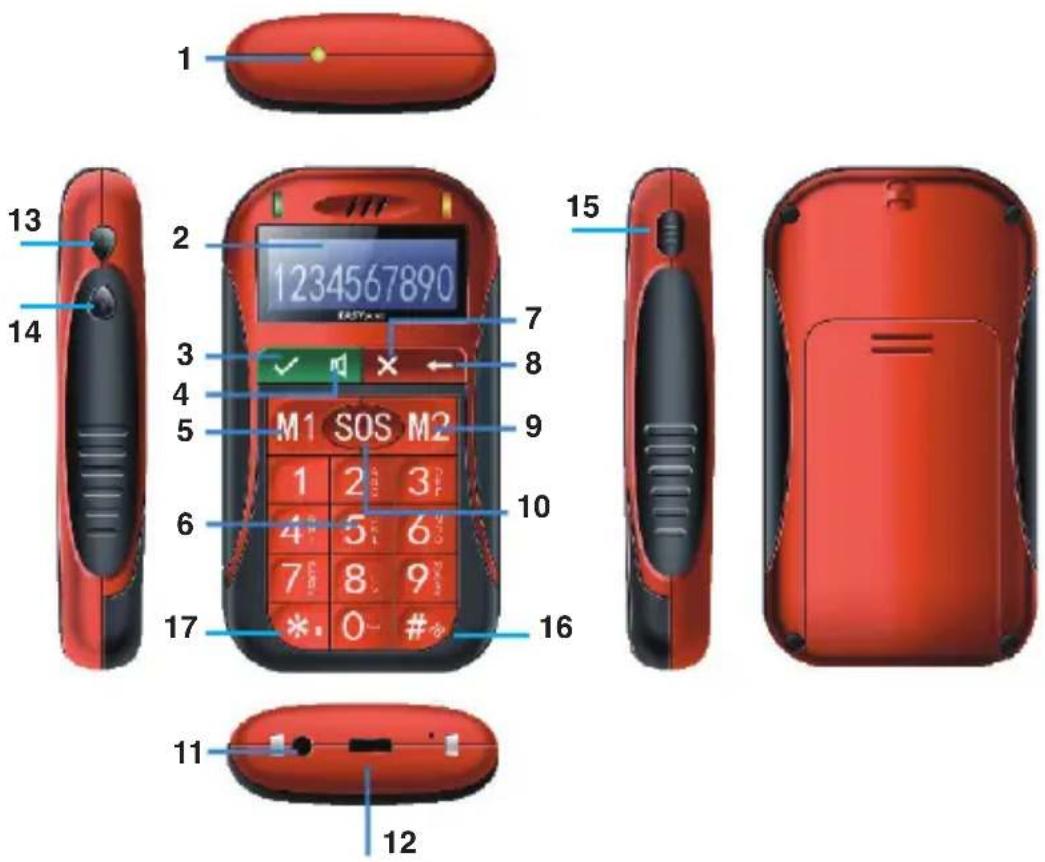
Get started • Keys and parts
| 1 Torch |
| 2 Display |
| 3 Dial key |
| 4 Handsfree / FM key |
| 5 M1 key |
| 6 Number key |
| 7 Menu / Return key |
| 8 Poweron/PowerOff End key |
| 9 M2 key |
| 10 SOS key |
| 11 earphone jack |
| 12 Charger jack |
| 13 Up key / Menu Volume UP key |
| 14 Down key Volume DOWN key |
| 15 Flashlight key |
| 16 # key |
| 17 * key |
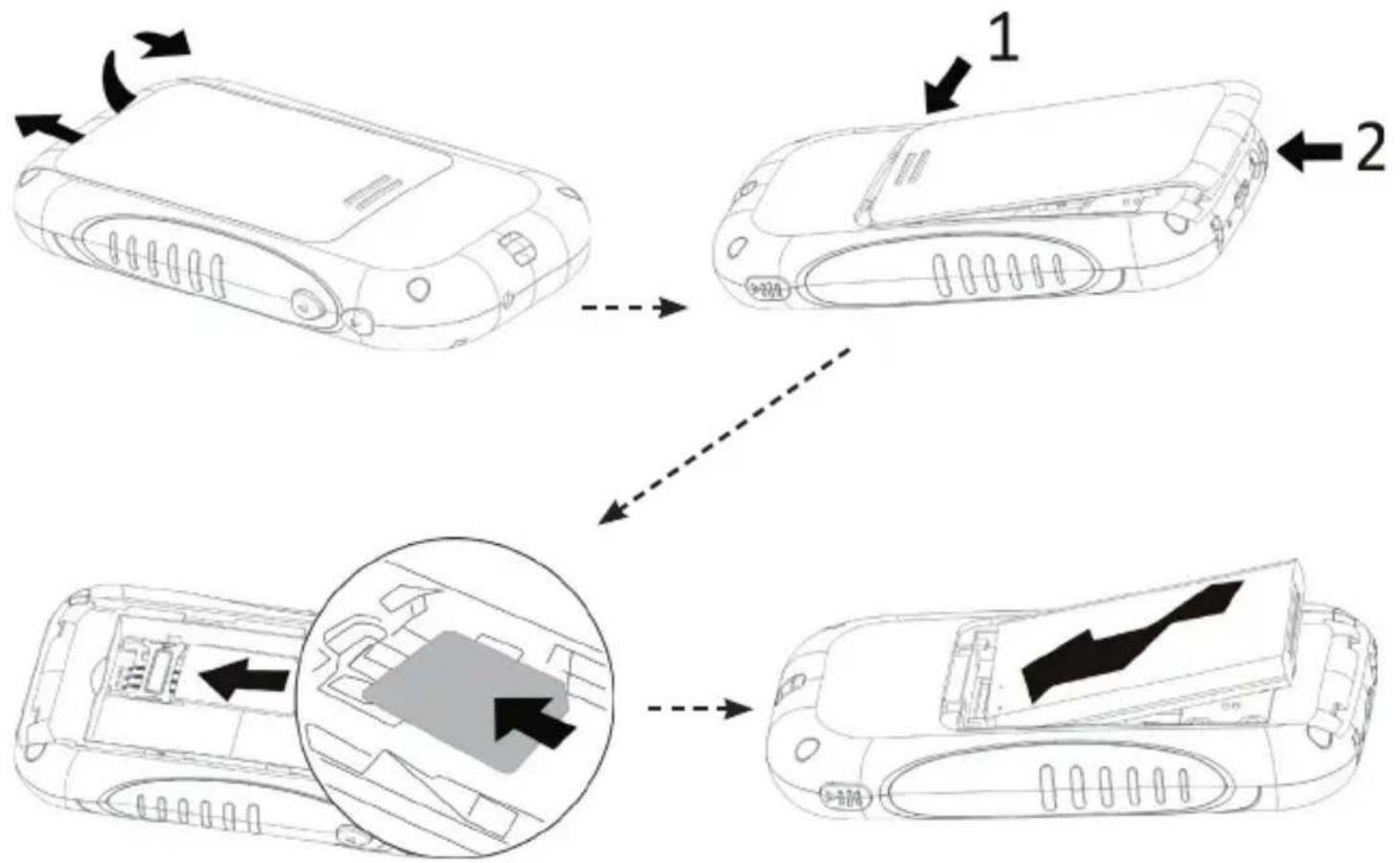
Clamping and loading the battery icon
1. Getting to know your phone
1.1 Your Phone
1.2 Installing SIM card and battery
(1) Hold on End Key for about three seconds to switch off the phone.
(2) Remove the battery cover.
(3) Remove the battery.
(4) Follow the sign for SIM1 on the phone to install SIM1. Please make sure that the golden contacts of the card face downwards, then push the card gently until it fixes itself in the card slot.
(5) Insert the battery with its golden contact part facing the set phone battery contact piece, and
then insert the battery cover.
(6) If the SIM card is not inserted or the contacts do not work, a warning will appear on the screen. In this mode, other functions still can be used
(7) If the SIM card is protected by PIN code, you must input right PIN code and then press Dial key. If three consecutive input the wrong PIN code, the mobile phone SIM card will be locked, and prompts for admission PUK code
(8) The phone will automatically search for the network.
- If the phone can connect to a network, you can see the network name and signal strength on your screen; If the phone can't find a network, you can only send emergency calls or other non-calling functions.
1.3 Battery charging
Charged by the travel charger
(1) Install the battery correctly into the phone.
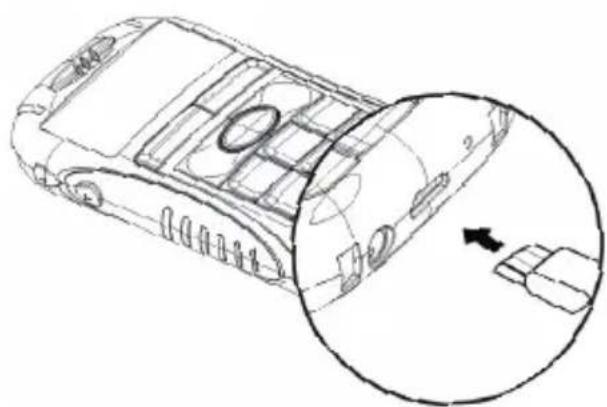
(2) Insert the lead of the travel charger to connecting slot of the phone, and then connect the charger to a standard power socket.
When charging is complete, unplug the charger from the micro USB power socket first, and then
disconnect the phone and charger.
Note: Battery charging status, Red Indicator light; when charging finish, Green Indicator light until remove charger.
1.4 Power on/off
1.4.1 Power on
Hold on End Key for three seconds to switch on the phone.
1.4.2 Power off
Hold on 【End Key】for three seconds to switch off the phone.
WARNING: Don't switch the phone on in areas where wireless phone usage is prohibited or where it may cause interference or danger, and also make sure that you haven't activated the function "Schedule power on/off".
1.5 Using shortcut keys
Pressing the shortcut keys to direct access to common phone functions.
| Key Operation | on/Function |
| Tick key | 1. In standby mode, press the Key to enter Call History. 2. Input phone number, press the Key to make a call. 3. In Main Menu or Sub-Menu mode, press the key to enter the menu. 4. When incoming call, press the key to answer a call. 5. In message input mode, press the key enter Writing language menu to select different input language |
| X | 1. In standby mode, press the key to enter Main Menu 2. In Main Menu or Sub-Menu mode, press the key to return to Previous Menu. 3. In input phone number or write message mode, press the Key to delete information. 4. When incoming call, press the key to reject a call. |
| Hold on the key 2-3 seconds to switch on/off the Flashlight | |
| Press key to enter Handsfree/FM function | |
| * | 1. Press Dial key & * key at same time to activate keypad unlock /lock function. 2. Input message status, press * key to shift input method |
| # | Hold on # key 2-3 seconds to activate vibration function |
| SOS | Settings => tick key => Security Settings => tick key => Phone Security => SOS number => tick key => input number => tick key =>Done the SOS number is save. Hold on SOS key 2-3 seconds, Indicator light, then it will call SOS number and at same time send out Help message |
| M1 M2 | Settings => tick key => Security Settings(number 7) => tick key => Phone Security => M1/M2 number => tick key => input number => tick key =>Done the M1 /M2number is save. Press M1/M2 key, then it will call M1/M2 number (setting) directly. (Before this action,make sure the keypad is unlocked) - keypad unlock: tick key + * |
| Power on Power Off End key | 1. Press the Key to return to standby mode 2. During a call,press the Key to Hang up a call 3. When incoming call,press the key to reject a call |
2. Using Call Function
2.1 Making a call
(1) You can make calls in the standby mode. Input the telephone number by Number keys (including the area code when making a long distance call), press the Dial key to send a call. If you input wrong numbers, please press Return key to delete.
(2) Answering or rejecting a call
2.2.1 Answer a call
When there is an incoming call, you can press
【Dial Key】to answer.
2.2.2 Reject a call
When there is an incoming call, you can press
【End Key】to reject it.
2.3 Adjusting call volume
During a call, you can press 【Up/Down Key】o adjust the call volume.
2.4 Ending a call
Press【End Key】to end the call.
3. Call record
Enter the main menu, and then select
【Call menu】to enter the call list.
3.1 Missed calls
Display recent calls unpicked up
3.2 Dialled calls
Display recent calls dialled.
3.3 Received calls
Display recent calls received.
3.4 Clear logs
[Clear logs→Missed calls]
Delete the missed calls.
[Clear logs→Dialled calls]
Delete the dialled calls.
[Clear logs→Received calls]
Delete the received calls.
[Clear logs→Clear all]
Delete all the call entries.
NOTE: Making IDD
Press the * key until your screen displays “+” which is a symbol of an international call, and then input the country code, area code and the phone number or input the country code ,mobile phone number and press the 【 Dial key 】
4.Contacts
4.1 Contacts
(1) On the Home Screen, press【UP/Down Key】 and select [Contacts].
(2) Key in the first few characters of contact person's name.
(3) The contacts list will automatically jump to the character you have entered or the matched contact will be displayed.
In the search mode, you might press * key to change the input method.
4.2 Add new contact
On the Contacts list, select [Add new contact] to create a new contact.
Contact tick key Add new contact tick key Name tick key Edit tick key input name tick key Done tick key :
first result, the name is inserted
Scroll down => select => Numbers => tick
key => Edit => tick key => input number => select
save => tick key => Saved :
second result, the number is inserted Check in contact, name and number have been saved
4.3 Delete all
You can delete all contacts from SIM or phone
4.4 Copy all
You can copy all contacts either from SIM or phone
4.5 Owner numbers
You can enter edit your own name and number
4.6 Preferred storage
You may select the preferred storage of contacts in either SIM or phone
4.7 Memory status
The max storage on the phone is 300 contacts
4.8 Speed dial
You can enter 8 different speed dial numbers. Set number => tick key => edit => insert selected number from contacts list => tick key => done.
5. Message
5.1 Write message
On the Home Screen, press
UP Key OR MENU and select [Messaging Write message] to edit a new SMS directly.
In the message interface, press Dial Key to enter the message input interface to write the message. When you finish inputting the message, press Dial key to send message.
Send message: After editing message, input the number and then send the message. If the message is not sent, it will be automatically saved in the Outbox.
Note: message input method shift introduction
(in Write message mode, press * key to shift and select input method to write corresponding letter and digital)
5.2 Inbox
Store all received SMS.
5.3 Outbox
Store all SMS sent.
5.4 Drafts
Store all SMS failed to be sent.
5.5 settings
5.5.1 Profile settings
- Auto-recognize network server number, suggest no edit.
- time for keep sent message in nework server, default maximum
- mode for network server feedback, default text.
5.5.2 Common settings
You can select the following settings
1. Reply path
2. Save sent message
5.6 Memory status
5.7 Voice mail
The phone will support this function. The caller can leave messages in your voice mailbox and the phone will notify you .You may to subscribe a
voice mailbox to receive voicemails
5.8 Broadcast message
6. Tools
6.1 Alarms
On the Home Screen, press 【Down Key OR MENU】 to enter the main menu, and select [Tools→Alarms], then you can set the alarm time, ring and mode.
6.2 Calculator
Directly input numbers, press M1 Key to select your desired operation symbols (+, -, /, X) . Press Call Key to get the answer.
6.3 FM Radio
Press【Down Key OR MENU】to enter the main menu, and select [Tools→FM Radio], plug into earphone, Then press【Call Key】to select options: Auto search, Power on/off, tune, channel list, Volume, Loudspeaker.
- Press Auto Search to search automatically search for a channel or location.
- Press Volume to adjust the player volume
- Press Power on/off to active/deactivate the radio
- Press Channel list to see the saved channels
- Press Tune to set a frequency by pressing the
number keys.
- Press Loudspeaker to change sound from speaker or earphone.
7. Settings
7.1 Time and date
Press【Down Key OR MENU】o enter the main menu, and select [Settings Time and date set time/date]
Date format: Set date format as dd-mm-yy by Down/Up key;
Set date and time: Set date and time by Down/ Up key.
7.2 Display
To set the LCD's backlight and brightness.
7.2.1 LCD Backlight
Set LCD's contrast.
7.2.2 Brightness
Set the time of shutdown backlight.
7.3 Phone settings
7.3.1 Language
You can select the language you want.
7.3.2 Auto keypad lock
After activating this function, the phone will be locked automatically if the time you set is arrived, so as to avoid error operations.
Off: Deactivate the keypad lock function.
On: Active the keypad lock function.
7.3.3 Input method settings To set the input method.
7.4 Call
7.4.1 Call ID
Set by network: If you set the function on, you will send call ID to others.
- Hide ID: If you set the function on, you won't send call ID to others.
Send ID: If you set the function on, you will send call ID to others.
7.4.2 Call waiting (Need network support)
Activate: If you set the function on, the network will alert you that there is an incoming call. You can keep current call and answer another one.
Deactivate: Cancel call waiting function, then the new incoming calls won't be answered while you're on the phone already.
Query status: Select it to view current status of this function.
7.4.3 Call divert
Based the set diverting conditions, incoming calls will be forward into voice mail or other numbers.
All voice calls: All incoming calls will be transferred to the preset number or your voice mail. Select [Query status] to view the current unconditional call divert status.
If unreachable: Calls will be transferred to the appointed number or your voice mail, when your phone is out of the service coverage or is switched off.
If no answer: Calls will be transferred to the voice mail or the preset phone number, if the set time is over and phone still won't be answered.
If busy: Calls will be transferred to the voice mail or the preset phone number when you are on the phone.
All data calls: All incoming data calls will be transferred to the preset number or your voice mail. Select [Query status] to view the current unconditional call divert status.
Cancel all diverts: All Call Divert functions are cancelled.
7.4.4 Call barring
This function helps you to restrict the incoming and outgoing calls.
7.4.4.1 Outgoing calls
You can activate outgoing calls barring according to following conditions
- All calls
- international calls
- international except home.
7.4.4.2 Incoming calls
You can activate incoming calls barring according to following conditions
- All calls
- when roaming
7.4.4.3 Cancel all
You need to enter barring password to confirm this operation;
7.4.4.4 Change barring password (pwd)
There is no default password. You may press "tick" directly to skip to enter the old pwd in the first use.
Caution:
- Some network operators forbid the function. For more details, please contact your network service provider.
- The network operator will provide you the initial network password while you apply for this service.
7.4.5 Line switching
Line Switching is mainly for use of the SIM card
which has two mobile phone numbers, it can shift between two mobile phone numbers
7.4.6 Call time reminder
To set a time reminder during a call.
7.4.7 Auto radial
If you set this function on, the phone will redial the number after an unsuccessful call.
7.4.8 Closed User Group
To set any key answer and auto answer when headset inserted.
7.4.9 Answer mode
Any key answer: If "ON" is selected, you can answer the call by pressing any key except the Call key
7.5 Network
7.5.1 Network selection
New search: To refresh your network connectivity before using the network.
Select network: To list the network list for your selection if you select [Manual] mode.
Selection mode: To make operator selection by [Manual] or [Automatic].
7.5.2 Preferences
Preferences is used when the network selection under [Automatic] mode. The location numbers in the preferred network list show the search priority. Your service provider's network will be
shown in the display. This feature helps you to select your GSM/GPRS network if your service provider does provide more than one network choice. However, please make sure you have applied for the international roaming service when you are traveling abroad.
7.6 Network status
To show the current network status.
7.7 Security
7.7.1 SIM security
- Sim lock
PIN code is the personal identification number for SIM card. If never be modified, the initial password set by network operator should be 1122. If activated the power-on PIN code, then you have to input the PIN password each time you switch the phone on. You can modify the PIN code to prevent your SIM card being used by others.
Caution:
If you input your PIN code incorrectly three times in succession, the SIM card will be locked automatically, and prompting to enter PUK code to unlock it. Therefore, please do remember the PIN code, if you modify it.
PUK code is made up by 8 digits, unmodifiable. When the phone is locked by PIN code, please enter correct PUK code to unlock the phone. If you incorrectly input the PUK code ten times in succession, then the SIM card cannot be used any more. Some PUK codes are provided together with the SIM card, some should be gained from the network service provider. If you don't know the PUK code while your PIN code is locked, please never input the code casually. In this case, please call the hotline of the service provider for your SIM card, after simply checking about the user identity, you can gain the PUK code for free to unlock your phone.
Caution:
Please be careful when use this function. If you forget PUK code, please consult your network operator. If you incorrectly input the PUK code ten times in succession, the SIM card will be scrap.
- Change password
Change PIN
To change PIN code.
Change PIN2
To change PIN2 code
PIN2 code is the personal identification code required for some certain functions (such as set fixed number, set phone fare, etc).
PIN2 code is another password provided together with SIM card by service provider. If wrongly input it for three times in succession, the phone will be locked until correct PUK2 code entered, for detailed operation, please refer to PIN code and PUK code.
Caution:
If you incorrectly input the PUK2 code ten times in succession, you will not be able to use SIM card. Please be careful when use this function.
7.7.2 Phone security
- Phone lock: Secured by phone password, the phone will be protected from other unauthorized users. When password function has been activated for call record, message and so on, you have to enter correct password on corresponding main menu or sub-menu. The defaulted password is "1122".
- Change password: change the password of phone lock.
M1 number: set M1 number
Tick key => enter M1 number => tick key => done.
M2 number: set M2 number
Tick key => enter M2 number => tick key => done.
SOS number: set SOS number
Tick key => enter SOS number => tick key => done.
7.8 Restore factory settings
Reset all parameter values into default status.
Please enter the privacy preserving password (Initial password is 1122) to resume factory setting.
8. Profiles
8.1 General
-
Activate: Activate the chosen profile.
-
Customize: Set the options as required.
8.2 Meeting
For the settings, please refer to"General".
8.3 Outdoor
For the settings, please refer to"General".
8.4 Indoor
For the settings, please refer to"General".
8.5 Headset
For the settings, please refer to"General".
9. Safety Precaution
9.1 Usage environment
Please remember to obey relevant rules and regulations whenever use your phone. This will prevent bad effect from you and the environment.
-
Switch off your phone near explosive places, such as gas station, bunkers, chemical factories or blasting scene, and adhere to any safety signs and instructions there. Breaking any rules may cause explosion or injury.
-
Phone using in plane will interfere with the flight operation and bring dangers. Therefore, please do switch off your phone before boarding, and make sure it is power off during the whole flight.
-
Please keep the phone in its special bracket while you're driving. Please don't put it on a seat or in places where it could fall off when the car encounters collision or break. In order to ensure safe driving and avoid road accidents, please don't use the phone when driving. If you must use it, please use the phone's hands-free asset or park at roadside before making or answering a call.
-
Please put the phone away from the high temperature environment, for explosion might be caused when the battery is of excess high temperature.
9.2 Medical devices
Please switch off your phone in areas near the electronic medical equipments that obviously requires switching the phone off (Such as heart pacemakers, hearing aids, etc). Most medical devices can shield the phone's RF signal, but some can't. If you have any doubts or need to find out more, please consult your doctor or medical device manufacturer.
9.2.1 Pacemaker
Pacemaker manufacturers advise the distance between your phone and heart pacemaker should be 6 inches (15.3 cm) at least, otherwise the phone could interfere with the pacemaker. The personnel who wears pacemaker should do the followings:
- Should always keep a distance (at least 6 inches) between the phone and pacemaker, when the phone is switched on.
- Should not have the phone in a breast pocket
- Should listen to the phone closer to the ear which is farther from the pacemaker.
Caution:
Please switch off your phone while you feel there is interference, and consult the doctor timely.
9.2.2 Hearing aids
Mobile phone might bring some interference to some hearing aids. If so, please consult the hearing aids manufacturer.
9.2.3 Emergency calls
As the phone uses a radio signal, wireless and ground communication network and personal settings functions like other phones, it is impossible to ensure your phone can be connected successfully in any situation, so please don't rely purely on your phone as the only means of notification in cases of emergency (such as medical first aid).
Make an emergency call
If your phone is switched off, please turn on your phone and check whether the network signal is strong enough.
(1) Input the local first aid number correctly (such as 120), different areas have different first aid numbers.
(2) Please press the call key to call.
Caution:
While making an emergency call, you should try best to provide all important information precisely. At this time, the phone may be the only communication tool, so don't end the call without permission.
9.3 Password access
Your phone and SIM card can be protected by a password to prevent others using them illegally.
9.3.1 Phone password
This protects your phone from unauthorized users. You can set the preset password when you use it for the first time. After using it, please modify your phone password as soon as possible and keep it secret.
9.3.2 PIN code
This is personal identification code, which is used to protect the SIM card from unauthorized users. Generally, the PIN code and SIM card will be provided together. After activating the PIN code, you need to input correct password each time you switch the phone on to ensure normal usage.
Caution: If you input your PIN code incorrectly
for three times in succession, the SIM card will be locked. You need to enter the PUK code to unlock it.
(If you don't have a PUK code, please contact your network operator or SIM card retailer for this information. Please don't input any characters).
9.3.3 PIN2 code
This is the password for activating special functions of the SIM card. You need to input it while entering some functions (eg.Charge Unit, Fixed Dialling etc). Usually, the PIN2 code and the SIM card will be provided together. If you incorrectly input the PIN2 code for three times in succession, it will be locked and you will need to input PUK2 to unlock it.
9.3.4 PUK code
This is used to unlock the PIN code. Usually the PUK code and SIM card are provided together. If you don't have it, please contact with your network operator or SIM card retailer. SIM Card won't be used any more, if you incorrectly input the PUK code ten times in succession. In that case, please apply a new SIM card from your network operator. PUK code is unmodifiable.
9.3.5 PUK2 code
This is used to unlock the PIN2 code. Usually the PUK2 code and the SIM card are provided together. PUK2 can modify the locked PIN2 code. If you incorrectly input the PUK2 code for ten times in succession, you will not be able to access some functions. Please apply to your operator for a new card. The PUK2 code is unmodifiable. If you lose it, please contact your service provider.
9.4 Cautions for battery charging
The phone provides power by using a lithium battery. The standby time and call time will be influenced by the system's environment and phone settings.
- Please use the approved battery and charger designated for this product. The company will take no responsibility for damage caused by unauthorized battery or charger.
- The battery icon will start scrolling when the phone is charged in power-on-state.
Caution:
- If there is no battery left at all, then the battery icon will appear after 2-3 minutes of charging. The battery charging time depends on the status
of the phone (whether switched on, making a call), usually, it will take about 2-5 hours.
-
To make the new battery achieve its best capacity, please charge and discharge the phone for twice or three times. Please charge the new battery over 10 hours for the first several times.
-
Don't use wet hands to touch the battery or charger while charging in order to avoid danger.
- Try not to use the phone while charging.
- The battery icon stops scrolling while the battery is full, and then you can disconnect the phone from the charger adapter.
9.5 Cautions for battery usage
The battery usage depends on the network, phone setting and usage situation.
- Never use any damaged battery.
- The phone will consume a little power if it is near network station. Therefore, the call and standby time depends greatly on the signal strength of honeycomb network and the parameters set by network operator.
- The battery charging time lies on the remnant power, and the type of the battery and charger. When the operation time (talk time and standby
time) is noticeably shorter than normal, it is time to replace with a new battery.
- Only use batteries and charges authorized for this device, otherwise, explosion might be caused. Please disconnect the charger while unused. Do not leave the battery connected to a charger over one week, for overcharging may shorten the life length.
- Do not connect the anode and cathode of a battery inversely.
- Do not leave the battery in places with over-high or over-low temperature, otherwise, the battery capacity will be reduced and battery life will be shortened. Always try to keep the battery in room temperature.
- Do not short-circuit the battery. This may damage the electronic core or internal protected circuit. If you keep the unused battery in the pocket or bags, metal objects (eg. coin, clip or pen, etc) inside might have the anode directly contacted with the cathode of the battery and caused accidental short circuit. Therefore, please carefully and separately store the battery.
- Don't burn your phone battery or treat it as common rubbish. Please adhere to the
local environmental policy in order to avoid endangering life and causing environmental damage, and recycle your batteries in time.
- If your phone, battery or other charging device is accidentally penetrated by water, you must not put it inside any calefaction equipment (such as drier, microwave oven etc.) to dry it. The phone or other products may go wrong, and may even cause the phone, battery or other charging device to burn, expand and explode.
- Please deal with the discarded battery according to the relative introduction.
The company will take no responsibility for any direct or indirect damage caused by user error.
9.6 Cautions for spare parts usage
- Please put all spare parts (such as SIM card, storage card, battery etc) out of reach of children, in case danger occurs.
- Please do switch off the phone and unplug the phone and charger before you removing the battery from the phone.
- As the phone's spare parts are not waterproof, please keep all spare parts dry.
- You should pull out the plug of any spare part correctly when you switch off the power, don't drag the power line forcibly.
If the phone, battery, and charger don't operate normally, please contact closest qualified maintenance centres timely.
9.7 Other safety information
- If you don't use your phone, it's better to switch it off and remove the battery so as to save energy and avoid cellular radiation.
- Please don't have the volume over loud while using the phone, which might impair your hearing.
- The unprofessional shouldn't disassemble the terminal and battery of the phone.
- It is recommended that you should try not to use the holster with magnet button, for the magnet may interfere with the phone signal, and hard iron button may crush the LCD screen. Plastic phone cover will lead to poor volatilization of vapor and have the internal components corrupted, moreover, it can have the phone shell oxidized and faded.
- If you or your family has a medical record of dizziness or epilepsy, please consult with the doctor first, if you want to play phone games or use the flashlight (the flash doesn't available in all phone models).
- Please don't put the flashlight too close to the
eyes of human beings or animals, as this could do harm to the eyes.
- Should avoid the phone falling off from high places.
EASYpocket
Manuale d'uso
ITALIANO
Contenuti
MANUEL D'INSTRUCTION
FRANÇAISE
Contenu
DECLARATION OF CONFORMITY
TOP TRONIC MONACO s.a.r.l.
of 20, Blvd Princesse Charlotte - MC 98000 Monaco
declare under sole responsibility that the product
M O d EASYPOCKET
Description GSM telephone
is in conformity with the essential requirements of the following specifications:
SAFETY EN60950-1:2006
RADIO SPECTRUM EN30151: (2003-03)
SAR EN50360:2001
E M C EN 301489-7: (2005-11)
EN 301489-1: (2008-04)
Following the provisions of Low Voltage Directive 72/23EEC and EMC Directive 89/336/EEC, as amended by Directive 93/68EEC, R&TTE Directive 1999/5/EC on the approximation of the laws of the Member States relating to electromagnetic compatibility.
The product is marked with CE marking and Notify Body number CE 1313 CE

Hazardous Substances (RoHS) 2002/95/EC
Hazardous Substances (RoHS) 2002/95/EC



1313

www.ttmonaco.com
All mentioned trademarks belong to their respective owners

- Message 15
- Settings 17
- Declaration
- Safety notice
- Clamping and loading the battery icon
- Getting to know your phone
- Your Phone
- Installing SIM card and battery
- Battery charging
- Power on/off
- Power on
- Power off
- Using shortcut keys
- Using Call Function
- Making a call
- Answer a call
- Reject a call
- Adjusting call volume
- Ending a call
- Call record
- Missed calls
- Dialled calls
- Received calls
- Clear logs
- [Clear logs→Missed calls]
- [Clear logs→Dialled calls]
- [Clear logs→Received calls]
- [Clear logs→Clear all]
- NOTE: Making IDD
- 4.Contacts
- Contacts
- Add new contact
- first result, the name is inserted
- Delete all
- Copy all
- Owner numbers
- Preferred storage
- Memory status
- Speed dial
- Message
- Write message
- Inbox
- Outbox
- Drafts
- settings
- Profile settings
- Common settings
- Memory status
- Voice mail
- Broadcast message
- Tools
- Alarms
- Calculator
- FM Radio
- Settings
- Call barring
- Outgoing calls
- Incoming calls
- Cancel all
- Change barring password (pwd)
- Caution:
- Line switching
- Call time reminder
- Auto radial
- Closed User Group
- Answer mode
- Network
- Network selection
- Preferences
- Network status
- Security
- SIM security
- - Sim lock
- Phone security
- Restore factory settings
- Profiles
- General
- Meeting
- Outdoor
- Indoor
- Headset
- Safety Precaution
- Usage environment
- Medical devices
- Pacemaker
- Hearing aids
- Emergency calls
- Make an emergency call
- Password access
- Phone password
- PIN code
- PIN2 code
- PUK code
- PUK2 code
- Cautions for battery charging
- Cautions for battery usage
- Cautions for spare parts usage
- Other safety information
- EASYpocket
- Contenuti
- MANUEL D'INSTRUCTION
- FRANÇAISE
- Contenu
- DECLARATION OF CONFORMITY
- TOP TRONIC MONACO s.a.r.l.
- M O d EASYPOCKET
- Description GSM telephone
- SAFETY EN60950-1:2006
- RADIO SPECTRUM EN30151: (2003-03)
- SAR EN50360:2001
- E M C EN 301489-7: (2005-11)
- EN 301489-1: (2008-04)
- The product is marked with CE marking and Notify Body number CE 1313 CE
Brand : ITT
Model : Easy Pocket
Category : Mobile Phone