Dual 19 - Mobile Phone ITT - Free user manual and instructions
Find the device manual for free Dual 19 ITT in PDF.


| Product Type | Mobile Phone |
| Brand | ITT |
| Model | Dual 19 |
| Dimensions | 106 mm x 48 mm x 13.2 mm |
| Weight | 70 g (including battery) |
| Battery Capacity | 700 mAh |
| Standby Time | Up to 350 hours |
| Talk Time | Up to 3 hours |
| Networks | GSM dual band (850/1900 or 900/1800) |
| SIM Card | Dual SIM (SIM1 and SIM2) |
| Display | Color screen (not specified size) |
| Camera | Rear camera, up to 1.3 MP (1280x960 resolution) |
| Video Recording | Yes, with DV mode |
| FM Radio | Yes |
| Bluetooth | Yes |
| Memory Expansion | T-Flash (microSD) card slot |
| Messaging | SMS, MMS |
| Audio Player | Yes (via video player and sound recorder) |
| Video Player | Yes |
| Alarm | Yes, with multiple alarms |
| Calculator | Yes |
| Calendar | Yes |
| Sound Recorder | Yes |
| Games | Boxman (pre-installed) |
| Web Browser | WAP browser |
| Maintenance | Keep dry, avoid extreme temperatures, use only approved accessories |
Frequently Asked Questions - Dual 19 ITT
User questions about Dual 19 ITT
0 question about this device. Answer the ones you know or ask your own.
Ask a new question about this device
Download the instructions for your Mobile Phone in PDF format for free! Find your manual Dual 19 - ITT and take your electronic device back in hand. On this page are published all the documents necessary for the use of your device. Dual 19 by ITT.
USER MANUAL Dual 19 ITT
5.1 SIM card installation.... 10
5.2 Battery Installation.... 10
5.3 Charging the Battery ....11
5.4 Security Settings....11
- YOUR PHONE....11
6.1 Power On 11
6.2 Making a Call ....11
6.3 Rejecting a Call.... 12
6.4 Answering a Call 12
6.5 Volume Settings 12
6.6 Ending Calls 12
6.7 Emergency Service.... 12
6.8 Extension Call/Quick Dial.... 13
6.9 Missed/ Dialed Call 13
6.10 Call Divert.... 13
6.11 Call Barring.... 13
6.12 T-flash Card.... 13
6.13 Power Off 13
- STANDBY SCREEN 13
- LIST OF MAIN MENUS AND SUBMENUS 13
- CALL LOG.... 14
9.1 Dialed numbers.... 14
9.2 Received calls.... 15
9.3 Missed calls.... 15
9.4 Rejected calls.... 15
9.5 Delete all 15
9.6 Call time 15
9.7 Call cost 15
9.8 GPRS flow rate 15
- MEDIA 16
10.1 Camera 16
10.2 DV 16
10.3 Image viewer.... 17
10.4 Video player 17
10.5 FM radio.... 18
- PHONEBOOK 18
-
FILE MANAGER. 18
-
MESSAGE 19
13.1 Template SMS.... 19
13.2 Voice mail.... 19
13.3 Cell broadcast.... 19
13.4 SMS settings.... 19
13.5 MMS settings 20
13.6 Message memory 20
13.7 Write message 21
13.8 Inbox 21
13.9 Outbox....22
13.10 Draftbox....23
13.11 Sentbox 23
- TOOLS 24
14.1 Alarm 24
14.2 Calendar.... 24
14.3 Calculator 25
14.4 Sound recorder 25
14.5 STK 25
- SETTINGS 26
15.1 Call setup 26
15.2 Phone 27
15.3 Display 28
15.4 Security 29
15.5 Profiles 30
15.6 Link....30
- GAMES 30
16.1 Boxman....30
- INTERNET 31
17.1 URL 31
17.2 Homepage....31
17.3 Bookmarks 31
17.4 History 31
17.5 Snapshot 31
17.6 WAP settings....31
- TECHNICAL INFORMATION 32
1. SAFETY AND PRECAUTIONS
Please read these simple guidelines. Not following them may be dangerous or illegal.
Read the complete user guide for further information.
Switch off the phone in proximity of chemical plants, gas stations and other locations containing explosive objects.
Keep the phone away from children.
When driving, please use the hands free calling device to ensure safety. Please park the car for communication unless in emergency.
Switch off the phone when boarding an airplane and do not switch the phone on during the flight.
Be careful when using the mobile phone in the vicinity of such devices as pacemakers, hearing aids and other electro-medical equipment, which may be interfered by the mobile phone.
No guarantee for the accessories and parts not produced by the original factory.
Never attempt to disassemble the phone by yourself. Contact the supplier in case of any trouble with your mobile phone.
Do not recharge the phone without battery being installed.
Charge the phone in well-ventilated environment and keep away from inflammable and high explosive articles.
To avoid demagnetization, keep the handset away from magnetic substances, such as magnetic discs or credit cards.
Keep the phone away from liquid. If soaking or erosion occurs, take the battery out and contact the supplier.
Avoid using the phone in too high or too low temperature environments. Never leave the phone exposed under direct sunlight, in high humidity or in a dusty environment.
Do not use liquid or a damp cloth with strong detergents to clean the handset.
Wireless phones may be susceptible to interference, which can affect performance.
Use only approved enhancements and batteries. Do not connect incompatible products.
Use only in the normal position as explained in the produce documentation. Do not touch the antenna unnecessarily.
Ensure the phone is switched on and in service. Enter the emergency number, then press the call key. Give your location. Do not end the call until given permission to do so


2. CARE AND MAINTENANCE
Battery care
-Your device is powered by a rechargeable battery. When the charge is low, please re-charge the battery. In order to extend the lifetime of the battery allow it to run out of power before recharging.
- Unplug the charger from power source and the phone when not in use. Do not leave the battery connected to a charger once the battery is full. Overcharging may shorten battery lifetime.
- Extreme temperature can affect the ability of your battery to charge. Battery works only at room temperature (between 15 and 25^ ). If the temp erature of the battery is too hot or too cold, the battery will not charge and can malfunction. Extreme temperatures reduce and cause malfunctions in the battery.
- Use the battery only for intended purpose.
Never use unauthorized charger or a damaged battery.
Do not short-circuit the battery. Accidental short-circuiting can occur when a metallic object such as a coin, clip, or pen causes direct connection of the polarity; (+) and (-) terminals of the battery (metal stripes on the battery). This might happen, for example, when you have a spare battery or magnetic objects in the vicinity. Short-circuiting the terminals can damage the battery or the connectors.
- Do not leave the battery in very warm or cold places, such as in a closed car in summer or winter.
All of the above suggestions apply to the phone, battery, charger, or any accessory.
If phone or accessories are not working properly, refer only to authorised service facilities. Damaged batteries can damage or ruin components (e.g. Plastics).
- When the phone or accessories have been exposed to very high or low temperature and return to normal temperature, moisture can form inside and damage circuit boards.
- Do not attempt to open the phone or accessories other than as instructed in this guide.
- Do not drop, knock, or shake the phone or accessories. Rough handling can break internal circuit boards and fine mechanics.
- Do not use chemicals, solvents, or detergents to clean the phone or accessories.
- Do not paint the phone or accessories. Paint can clog the moving parts and prevent proper operation.
- Use only the supplied or authorized replacement parts. Unauthorized parts, modifications, or attachments can damage the phone and may violate regulations governing radio devices.
- Do not throw batteries in fire!
Dispose of batteries according to local regulations. Please recycle when possible. Do not dispose as household waste.
Mobile phone maintenance
- Keep the device dry. Precipitation, humidity, and all types of liquids or moisture can contain minerals that will corrode internal parts and circuits. If your device does get wet, remove the battery and allow the device to dry completely before replacing it.
- Do not use or store the device in dusty, dirty areas to avoid damage to moving parts and components.
- Do not store the phone or accessories in warm areas. High temperatures reduce the life of electronic devices.
Do not dispose as household waste.
- Do not use the mobile phone during charging. Keep the phone away from charger before use.
FURTHER SAFETY INFORMATION
The unit and the accessories can contain small parts. Keep them out of the reach of small children.
OPERATING ENVIRONMENT
Remember to follow any particular rules that may apply wherever you happen to be, and always turn off the unit whenever its use is forbidden, or it can cause interference or danger. Only use the units in its normal user position.
This unit complies with guidelines for radiation when it is used either in a normal position against your ear, or when it is at least 2.2 cm (7/8 inch) from your body. If the unit is carried close to your body in a case, belt holder or other holder, these should not contain any metal, and the product should be placed at the distance from yr body specified above.
Make sure that the distance instructions above are followed until the transfer is complete.
Parts of the unit are magnetic, the unit can attract metal object. Do not keep credit cards or other magnetic media near the unit, as information stored on them can be erased.
MEDICAL UNITS
The use of equipments that transmits radio signals, e.g. mobile phones, can interfere with
insufficiently protected medical apparatus. Consult a doctor or the manufacturer of the apparatus to determine if it has adequate protection against external radio signals, or if you have any question. Generally, you should turn off your mobile phone anytime you're asked to do so.
Hospitals and other health care facilities sometimes use equipment that can be sensitive to external radio signals.
PACEMAKERS
Pacemakers manufacturers recommend a distance at least 15 cm. (6 inches) between a mobile phone and a pacemaker to avoid the risk of interference with the pacemaker.
These recommendations are in accordance with independent research and recommendations from Wireless Technology Research. People with pacemakers should:
- always keep the unit at a distance of at least 15 cm from the pacemaker
- do not carry the unit in a breast pocket
- hold the unit against the ear on the opposite side from the pacemaker to reduce the risk of interference
If you suspect that there is a risk of interference, turn off the unit and move it further away.
HEARING AIDS
Some digital wireless units can cause interference to some hearing aids. Contact your operator in case of interference.
VEHICLES
Radio signals can affect electronic systems in motor vehicles (e.g. electronic fuel injection, ABS brakes, automatic cruise control, and air bag systems) that have been incorrectly installed or are inadequately protected. Contact the manufacturer or its representative for more information about yr vehicle or any additional equipment.
Do not keep or transport flammable liquid gases or explosives together with the unit or its accessories. For vehicles equipped with air bags: remember that air bags fill with air with considerable force.
Do not place objects, including fixed or portable radio equipment in the area above the airbag or the area where it might expand. Serious injuries may be caused if the mobile phone equipment is incorrectly installed and the airbag fills with air.
It is forbidden to use the unit whilst flying. Turn off the unit before you board a plane. Using wireless telecom units inside a plane can involve risk for air safety and interfere with telecommunications. It can also be illegal.
AREAS WITH EXPLOSION RISK
Always turn off the unit when you are in an area where there is a risk of explosion and follow all signs and instructions. An explosion risk exists in the places that include areas where you're normally requested to turn off your car engine. Within such an area, sparks can cause explosion or fire which can lead to personal injuries, even death.
Turn off the unit at filling stations i.e. near petrol pumps and garages.
Follow the restrictions that are in force on the use of radio equipment near places where fuel is stored and sold, chemical factories and places where blasting is in progress.
Explosion risk areas are often – but not always – clearly marked. This also applies to lower decks on ships: the transport or storage of chemicals; vehicles that use liquid fuel (such as propane or butane); areas where the air contains chemicals or particles, such as
grain, dust or metal powder.
EMERGENCY CALLS IMPORTANT!
Mobile phones such as this unit use radio signals, the mobile phone network, the terrestrial network and user-programmed functions. This means that connection in all circumstances cannot be guaranteed.
Therefore you should never rely solely on a mobile phone for very important calls such as medical emergencies.
CERTIFICATION INFORMATION (SAR)
This model meets international guidelines for exposure to radio waves. Your mobile device is a radio transmitter and receiver. It is designed not to exceed the limits for exposure to radio waves recommended by international guidelines.
These guidelines were developed by the independent scientific organization ICNIRP and include safety margins designed to assure the protection of all persons regardless of age and health.
The guidelines use a unit of measurement known as the Specific Absorption Rate, or SAR. The ICNIRP SAR limit for mobile devices used by the general public is 2.0 W/kg.
As SAR is measured utilizing the device's highest transmitting power, the actual SAR of the device while operating is typically below the above indicated level.
This is due to automatic changes to the power level of the device to ensure it only uses the minimum level requested to reach the network.
While there may be differences between the SAR levels of various phones and at various positions, they all meet the governmental requirements for safe exposure.
The World Health Organization has stated that present scientific information does not indicate the need for any special precaution for the use of mobile devices. They note that if you want to reduce your exposure then you can do so by limiting the length of calls or using a “hands-free” device to keep the mobile phone away from the head and body.
3. Appearance
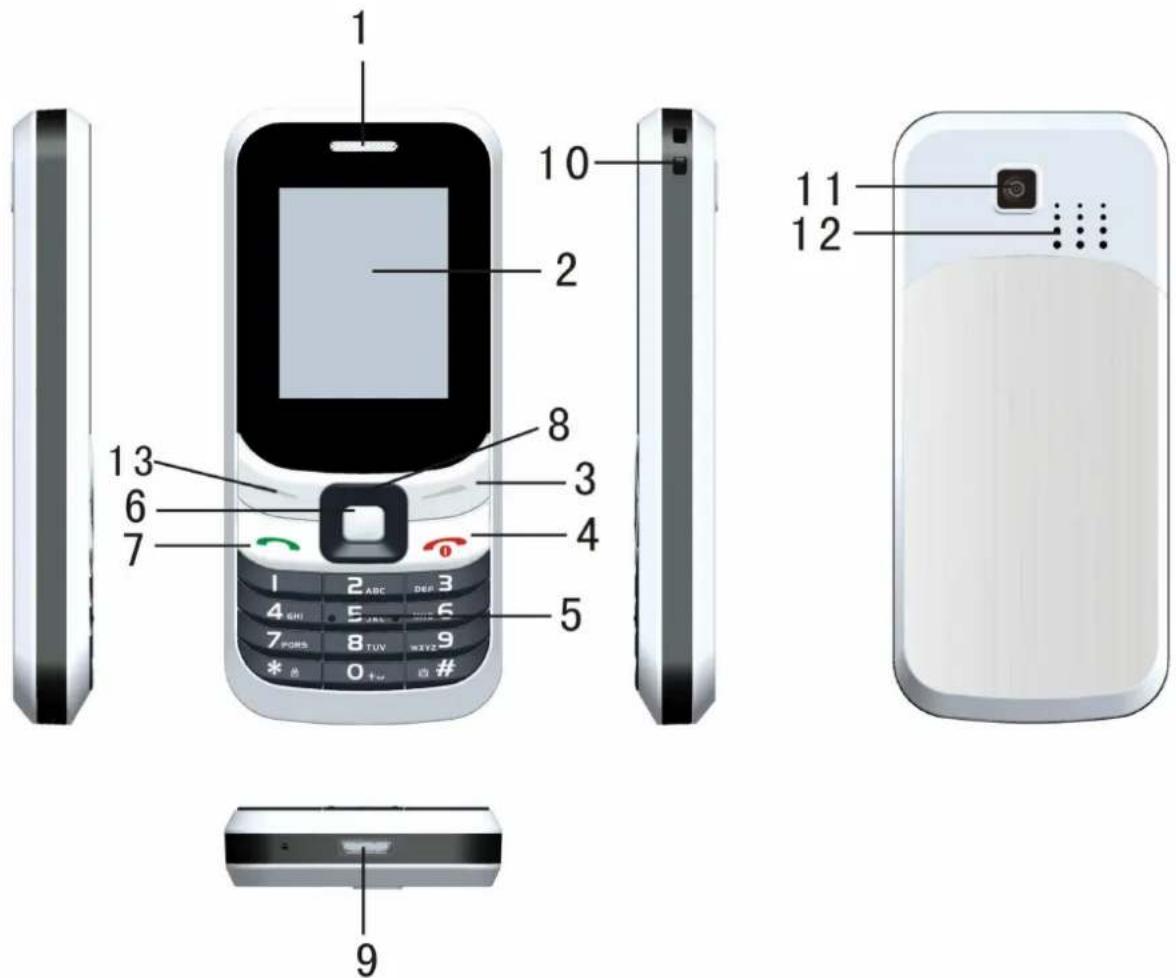
| 1. Earpiece 2. Screen 3. Right soft key | |
| 4. End/Power key 5. Number key 6. OK key | |
| 7. Dial key 8. Navigation key 9. Earphone/Charger plug | |
| 10. Neck strap Eyelet 11. Camera 12. Loud speaker | |
| 13. Left soft key |
4. Keypad Definitions
| Key Definitions | |
 | After inputting numbers, press this key to accede options.In standby mode, press this key to access Main Menu. |
 | While using menu functions, press this key to select menu options. |
 | Return to previous screen.Press this key from the Home Screen to enter the shortcut you choose. |
 | Press this key to dial using SIM1 or receive an incoming call.In standby mode, press this key to access Dialed Calls. |
 | Mainly used as power on/off.Press to return to standby screen in any interface.End calls or reject incoming calls. |
 | Press this key to move through menus.During a call, press to increase or reduce volume.Press this key from the Home Screen to enter the shortcut you choose. |
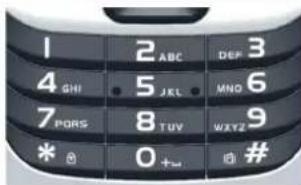 | In standby mode, input the number and open dial interface.In entry mode, input relevant character. |
  | In dial interface, input relevant character.Adjust volume in FM /video play interface.In entry mode, pressing “#” key change the input method, pressing “*” key input relevant punctuation. |
5. Getting Started
5.1 SIM card installation
When you subscribe to a cellular network, you will receive a plug-in SIM card complete with your subscription details, such as your PIN, and available optional services.
Caution: Do not bend or scratch your SIM card. Avoid exposing your SIM card to static electricity, water, or dirt.
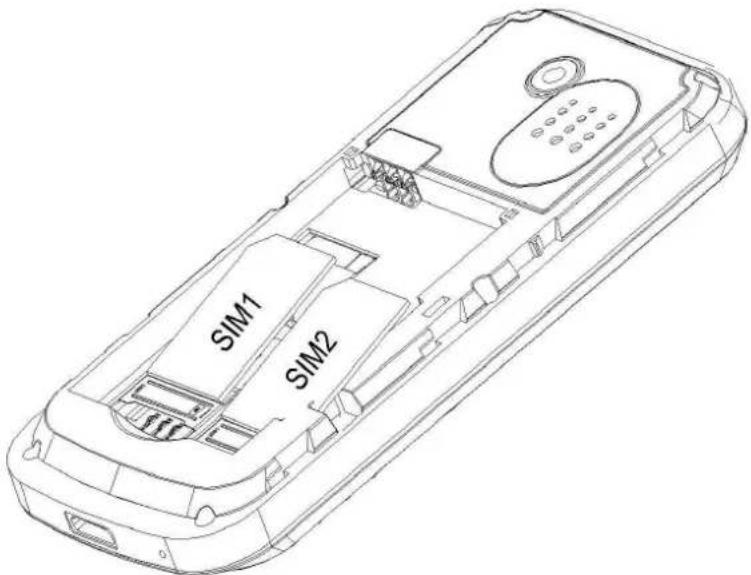
Tips: Face the golden contacts of SIM card towards the cell phone and push the SIM card into the slot.
5.2 Battery Installation
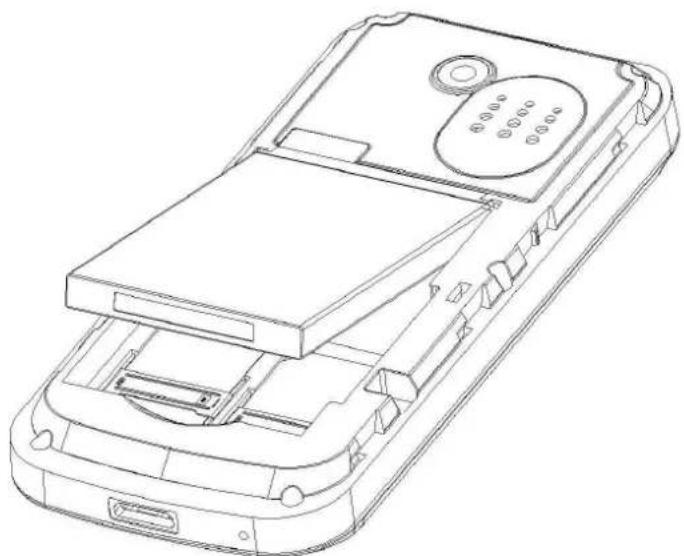
natural_image
Line drawing of a mobile phone casing with internal compartments and ventilation slots (no text or symbols)Caution: Install according to the illustration above to avoid breaking the battery
connectors.
5.3 Charging the Battery
Insert the charger; the flash symbol on the charger plug must face upwards.
Connect the charger to a standard wall outlet and the battery power icon in the up-right corner of the screen will start scrolling. When the battery bar stops scrolling, the battery charge is complete. Press the two sides of the charger plug and disconnect the charger from the phone.
- When the battery charge is low, a "low battery" message will display across the screen and the battery icon will look empty. If the battery level is insufficient, the phone will turn off automatically. Do not use your phone under low battery state for an extended period of time or it may cause battery damage.
5.4 Security Settings
—PIN code
PIN code (Personal Identity Number) prevents unauthorized use of your phone. The PIN code is provided by your network operator with the SIM card.
If you enter the wrong code three times in a row, the PIN code will be blocked. To unblock the PIN code, you need to enter your PUK. Your PUK is provided by your network operator.
=Power on Pwd
Activate/Modify/Deactivate Startup password (the length of the password is 4-8 numbers). If you activate the "Startup password", you need to enter the password each time you turn the phone on. If you want to modify the Startup password or deactivate it, enter Modify/Deactivate option to set.
6. Your Phone
6.1 Power On
- Press and hold end key to turn on your phone, light the backlight, and display power on animation.
- If you do not insert a SIM card, or the SIM card does not work properly, your phone will show the "Insert SIM" message. In this condition, you can only access part of the menu and can perform emergency calls.
- If the PIN code is blocked, the alert message asking for PUK code will display on the screen before power on.
The phone will search the network automatically after power on.
If your phone registers to network correctly, the name of the network and signal strength will display; if your phone can't register or can't register correctly, you can only access emergency calls and other functions that do not rely on the network.
6.2 Making a Call
In standby mode, press NUMERIC KEYS to enter dial panel and input dial phone number.
When you finish inputting phone number, press the dial key to make a call. If you're making a long distance call, add the area code preceding the telephone number.
Press left soft key to access Options.
—Add to contacts
Add a phone number to telephone directory
—Add to existing contact
Add a phone number to an already existing name
—Send SMS
Send message to a defined number
—Send MMS
Send MMS message to a defined number
—Insert wpn
Pause p/Wait w
—SIM 1 call
Dial the number of SIM card 1
—SIM 2 call
Dial the number of SIM card 2
-IP call
Dial IP phone
6.3 Rejecting a Call
Press end key to reject an incoming call.
6.4 Answering a Call
When you receive a call, the phone will ring or vibrate and will display an incoming call indicator. Press the dial key to answer.
During the call, press "MENU":
·Turn on hand free
-Shuttle
- Contact
-Messages
-Call record
- Start to record
·Mute
6.5 Volume Settings
During a call, press the left or right key to adjust volume.
6.6 Ending Calls
Press end key to end or cancel a call.
6.7 Emergency Service
You can dial an emergency call without the SIM card.
Contact your service provider to get the emergency call number.
6.8 Extension Call/Quick Dial
In the dial panel, after inputting phone number, quickly press key (*) three times until the symbol "P" appears, then input the extra number.
6.9 Missed/ Dialed Call
Enter main menu->Call log->Missed calls/Dialed numbers.
In standby mode, press dial key to check Dialed numbers.
6.10 Call Divert
When the call divert is activated, incoming calls will be diverted to voice mail or other phone numbers according to the call divert settings.
6.11 Call Barring
When the call barring activated, some of the calls will be barred according to the call barring setting condition. Contact your service provider to sign up for call barring.
6.12 T-flash Card
Insert the T-Flash card into phone from the side slot. This will expand the Flash memory of the phone.
6.13 Power Off
In standby mode, press and hold end key to turn off phone.
7. Standby Screen
Press and hold end key to turn on your phone.
On the screen, icons indicate the network name, signal strength, battery levels, time and date, and phone configuration information. Refer to icons information in standby screen.
8. List of Main Menus and Submenus
In standby screen, press OK key to access the main menu. The main menu includes items:
(1) Call log (2) Media (3) Phone book (4) File mgr. (5) Message (6) Tools (7) Settings (8)
Games (9) Internet.
List of main menus and sub menus as below
Call log Dialed numbers
Received calls
Missed calls
Rejected calls
Delete all
Call time
Call cost
GPRS flow rate
Media Camera
DV
Image viewer
Video player
FM radio
Phonebook
File mgr.
Message Write messages
Inbox
Outbox
Draftbox
Sentbox
Tools Alarm
Calendar
Calculator
Sound recorder
STK
Settings Call setup
Phone
Display
Security
Profiles
Link
Games Boxman
Internet URL
Homepage
Bookmarks
Histories
Snapshot
WAP settings
9. Call log
9.1 Dialed numbers
Display the latest Dialed numbers list.
Press Ok key to view details, or press "Options":
—Detail
Display information about dialed calls (Number, Date, Time, Duration, Style, and SIM
Name)
—Call
Recall the number
—Save
Save the number to Phone/SIM1/SIM2
—Send message
-SMS
Send SMS to receiver
·MMS
Send MMS to receiver
—Add to existing contact
Add the number to existing contact
—Set as rejected number
Set as rejected number.
-IP call
Enter SIM1/SIM2 Add IP prefix number to the number and call.
— Delete
Delete the number.
— Delete all
Delete all numbers.
9.2 Received calls
Refer to "Dialed calls"
9.3 Missed calls
Refer to "Dialed calls"
9.4 Rejected calls
Refer to "Dialed calls"
9.5 Delete all
Delete all records.
9.6 Call time
Display details of SIM1/SIM2: Last call, Received calls, Dialed numbers, and All calls. Press "Reset" to reset the call time.
9.7 Call cost
Check: All costs, Max costs, Cost rate, Cost reset.
9.8 GPRS flow rate
Select SIM1 or SIM2 first, and press OK key to display information of Last sent, Last receive, Total sent, and Total receive. Press "Reset" to reset the counter.
10. Media
10.1 Camera
Photos can be previewed in the screen; press OK to shoot and "back" to return to upper menu. Press "Options" to access:
- Photo directory
Change folder
Send: MMS/ Bluetooth
Slide play
Delete
Set as wallpaper
Rename
Mark: Mark/ Unmark/ Mark all/ Unmark all
Detail: File Name/ Date/ Time/ Size/ Location/ Resolution
Slide setting: Select effect (None/ Box extend/ Grid extend/ Rightward extend/ Leftward extend/ Upward extend/ Downward extend/ Order effect); Slide delay time (2S/ 3S/ 6S/ 10S/ 16S/ 20S)
-Settings
Quality: High/Normal/Low
Avoid coruscate: 50Hz/60Hz
Shutter: Activate/Deactivate
Auto Save: Activate/Deactivate
Parameter Prompt: Activate/Deactivate
- Storage location: Select file folder to store
- Help: Opens the help information
Press the left or right key to enter:
-Size: 1280x960/640x480/320x240/176x220
·Environment: Normal/ Night
·Light
- Contrast
- Exposal compensate
-Frame: No frame/ Frame1
·Burst: Forbidden/ 3 Photos/ 6 Photos
- White balance: Auto/ Incandescence/ Fluorescent/ Sun Light/ Cloudy
·Delay: Forbidden/ 3S/ 10S
-Effect: Normal/ B&W/ Red/ Green/ Blue/ Yellow/ Negative/ Canvas
10.2 DV
Videos can be previewed in the screen; press OK key to shoot and "back" to return to upper menu. Press "Options" to access:
-Video directory
New folder
Use audio: Power on animation/ Power off animation
Send: MMS/ Bluetooth
Delete
Detail: Filename/ Date/ Time/ Size/ Location/ Resolution/ Duration
Edit: Rename/ Copy
Search
Sort: Name/Date/Size/Type
Mark: Mark/ Unmark/ Mark all/ Unmark all
Memory query: Memory card
-Settings
Avoid coruscate: 50Hz/60Hz
Audio: Activate/Deactivate
Type: 3Gp/Avi
Parameter prompt: Activate/Deactivate
- Storage location: Select file folder to store
- Help: Supply the help information
Press left or right key to enter:
-Size: 320x240/176x144/160x128/128x96
·Light
- Contrast
-Effect: Normal/ B&W/ Red/ Green/ Blue/ Yellow/ Negative/ Canvas
10.3 Image viewer
Choose photos to preview or return. Access to Options:
- Change folder
- Send: MMS/Bluetooth
-Slide play
-Delete
- Set as wallpaper
·Rename
·Mark: Mark/Unmark/Mark all/Unmark all
-Detail: File Name/Date/Time/Size/Location/Resolution
•Slide setting: Select effect (None/ Box extend/ Grid extend/ Rightward extend/ Leftward extend/ Upward extend/ Downward extend/ Order effect); Slide delay time (2S/ 3S/ 6S/ 10S/ 16S/ 20S)
10.4 Video player
Preview the videos. Press the direction key to select Fast-Reverse、Play/Pause、Fast-Forward、full screen or other icon. Press OK to operate the player. Press “*” or “#” keys to adjust volume. Press “List” and then “Options”:
•Play
- Add video item
- Update list
- Delete from List
-Detail: Name, Date, Time, Resolution, Duration, and Size
·Power on animation
·Power off animation
·Mark: Mark/Unmark/Mark all/Unmark all
10.5 FM radio
Enter FM radio, Press the direction key to select icons on screen, then press the OK key to operate. Press “*” or “#” keys to adjust volume. Press “Options” to enter:
—Auto search and save
—Channel list
—Save
—Manual search
—Open/Close speaker
—Background play
—Help
Select "Return" to turn off the radio.
11. Phonebook
You can store contacts' personal information and numbers and search for previously stored contacts.
Available Options:
—New
—Contacts search
—Write message: Send SMS/ Send MMS
—Dial up: Dial directly/ IP dial
—Send vCard: By SMS/ By Bluetooth
— Delete
—Mark: Mark/ Mark all
—Copy: Copy to SIM1/ Copy to SIM2/ Copy to phone/ Copy to card
—Others: Speed dial setting/ Own number/ Memory query/ Double line display/ Single line display
12. File manager.
·New folder
- Delete
·Detail
- Edit: Rename/ Copy
-Search
- Sort: Name, Time, Size, and Type.
·Mark: Mark, Unmark, Mark all, Unmark all
- Memory query: Memory card
13. Message
After entering Messages, press "Options": Template SMS, Voice mail, Cell broadcast, SMS settings, MMS settings, and Message memory.
13.1 Template SMS
Press to select a template:
—Edit
Edit the template.
—Send
Send the template by SMS.
—Back
Exit to the upper submenu.
13.2 Voice mail
Select SIM1 or SIM2.
—Line 1 number
- Retrieve message
Select SIM1 or SIM2 to dial.
- Number settings
Select SIM1 or SIM2 to edit.
This function needs a network supply. Please contact with your service provider for more information.
—Line 2 number
Refer to "Line 1 number".
—Fax number
Refer to "Line 1 number".
—Data number
Refer to "Line 1 number".
13.3 Cell broadcast
-Read
Read broadcast
—Startup
Select the startup: Turn-on/Deactivate
—Channel
Add channel/ List channel
—Language
Select language: All language/ English etc.
13.4 SMS settings
—SIM1 message center
Set SIM1 message center number. It is suggested not to change the default number if you don't know the correct one. Contact your operator provider to get your Message center number.
—SIM2 message center
Set SIM2 message center number. It is suggested not to change the default number if you don't know the correct one. Contact your operator provider to get your Message center number.
—Message validity period
Set the message validity: 1 hour/ 6 hours/ 24 hours/ 72 hours/ 1 week/ Maximum
—Status report
Set the status report: Activate/ Deactivate
—Save sent messages
Set the save sent messages: Prompt/ Save/ Not Save
—Prior storage medium
Set the store medium: SIM/ Phone
13.5 MMS settings
—SIM1 MMS count
—SIM2 MMS count
—Delivery report
Set: Activate/ Deactivate.
—Read report
Set: Activate/ Deactivate.
—Anonymity
Set: Activate/ Deactivate.
—Priority
Set: High priority/ Medium priority/ Low priority.
—Retrieve MMS
Set: Retrieve manual/Retrieve auto
—Play sound
Set: Activate/ Deactivate.
—Adverting
Set: Activate/ Deactivate.
—Message validity period
Set: 12 hours/ 1 day/ 1 week/ Maximum.
—Storage location
Set: Picture/Music/Movie
—Restore to default
Reset all settings to the original values.
13.6 Message memory
— SMS
Check the memory of SMS (Phone, SIM1, and SIM2)
— MMS
Check the memory of MMS (MMS Memory not download/WAP Push Memory/OTA Memory)
13.7 Write message
13.7.1 New SMS
This function creates a new empty SMS.
After completing the SMS, press "Options" to enter:
—Send
Input number or access to Phonebook. Select SIM1 or SIM2 to send the SMS.
—Insert template
Press to select a template to insert to SMS.
—Contact info
Insert a number to SMS.
—Add phiz
Select a phiz to insert to SMS.
—Save
Save the edited SMS to SIM1 or SIM2.draftbox.
13.7.2 New MMS
—Sent
Send the MMS.
-To
- Add addresses
- Add group
- Delete
-Modify
—Cc
Refer to "To".
—Bcc
Refer to "To".
—Edit title
—Edit content
Press to access to "Options"
- Edit text
- Insert slide
- Insert picture
-Insert sound
- Insert video
- Delete slide
- Set slide time
—Preview
Preview the MMS
—Save
Save the MMS to draftbox.
13.8 Inbox
After entering the Inbox, press OK key to check the details of message or access
"Options":
—Reply
- SMS: Reply SMS to sender.
-MMS: Reply MMS to sender.
— Delete
Delete the message.
—Call
-Dial: Select SIM1 or SIM2 to call the sender.
-IP dial: Select SIM1 or SIM2 to call the sender.
—Lock
Lock the message
—Mark
Mark
Unmark
Mark all
Unmark all
SIM1 storage SMS
SIM2 storage SMS
—Sort
Time: Arrange the messages according to the time.
Name: Arrange the messages according to the senders' names.
Subject: Arrange the messages according to the subjects.
Type: Arrange the messages according to the type.
13.9 Outbox
13.9.1 SMS
Checks about unsuccessfully sent message in outbox.
Access to "Options":
—Send
Resend the message.
— Delete
Delete the message.
—Lock
Lock the message.
—Mark
Mark
Unmark
Mark all
Unmark all
SIM1 storage SMS
SIM2 storage SMS
—Sort
Time: Arranged the messages according to the time.
Name: Arranged the messages according to the senders' names.
Subject: Arranged the messages according to the subjects.
Type: Arranged messages according to the type.
13.9.2 MMS
Press to select MMS, open it and do the following options:
—Send
Send MMS.
-Play
Play MMS.
— Delete
Delete the MMS
—Edit
Edit MMS
13.10 Draftbox
You can save unsent and edit incomplete messages in draftbox.
Press to access to "Options":
— Delete
Delete the message.
—Edit
Edit the message.
—Lock
Lock this message.
—Mark
Mark
Unmark
Mark all
Unmark all
SIM1 storage SMS
SIM2 storage SMS
—Sort
Time: Arranged the messages according to the time.
Name: Arranged the messages according to the senders' names.
Subject: Arranged the messages according to the subjects.
Type: Arranged messages according to the type.
13.11 Sentbox
Check the messages in sentbox.
13.11.1 SMS
Select one message to open, then access Options:
—Forward
You can forward the selected message to others.
— Delete
Delete the message.
—Call
Dial/IP dial
—Detail
You can check the Contact, Date, Time, and Pos.
13.11.2 MMS
Select a message to open, then access Options:
—Play
Play the message
—Delete
Delete the message.
—Forward
You can forward the selected message to others.
—Message details
Display details of message.
14. Tools
14.1 Alarm
The alarm clock feature sounds an alert or makes a vibration alert at a user defined time
—Alarm1
·Edit
Set alarm of name, time, ring and mode.
- Activate/Close
Set alarm1 activate or deactivate.
—Alarm2
Refer to "Alarm1".
—Alarm3
Refer to "Alarm1".
14.2 Calendar
You can use this feature to view the year, date and solar term easily. Press "Options" to enter:
—New schedule
-Name
Enter the schedule name.
Date
Edit the schedule date.
·Time
Edit the schedule time
·Ring
Fixed Ringtones/ More Ringtones
·Freq
Set Freq: Once/ Everyday/ Every week/ Every month/ Every year/ No awake.
·Deadline
—View schedule
View schedule
—All schedule
Display all schedules.
- Check
·Edit
·New schedule
- Delete
- Delete all
—Clear today calendar
Delete today schedule.
—Clear all
Delete all schedules.
—Go to date
Enter the Solar calendar and it can go to the date you want to check.
—By week
14.3 Calculator
This feature allows you to use your phone as a calculator for simple calculations. Press the numeric keys to enter the numbers. Press the direction key and OK key to calculate.
14.4 Sound recorder
This function allows you to record sounds.
From left to right: Play/Pause, Stop, Record, File list. Press left or right key to select icons on screen, then press OK key to operate. After record, access Options:
·Audition
- Record again
- Delete
- Send: MMS/ Bluetooth
- Record file list
After entering the file list, select one file, then access Options:
·New folder
- Set as call ring: SIM1/SIM2
- Send: MMS/Bluetooth
-Delete
•Detail
Check the file detail: Filename, Date, Time, Size, and Location
- Edit: Rename/Copy
-Search
- Sort: Name/Time/Size/Type
·Mark: Mark/Unmark/Mark all/Unmark all
·Memory query: Memory card
14.5 STK
The STK (SIM Toolkit) card is a SIM (Subscriber Identity Module) card for GSM networks; this product has a variety of exciting features and capabilities.
15. Settings
15.1 Call setup
15.1.1 Dual-SIM
- Set dual sys call forward
- SIM enable select: Only SIM1 enable/ Only SIM2 enable / Dual SIM enable
·SIM settings: Call/ SMS/ MMS/ Internet/ Prompt Dial/ Original SIM Reply
- Set SIM name
·Dual SIM settings wizard
- Help
15.1.2 Network settings
This function can let you select the network manually or automatically.
Select SIM1/SIM2 and then access:
—Auto select
Mobile phone will search various networks. This operation will let your phone register the most suitable network.
—Manual select
Mobile phone will search various networks. You can select the suitable network from the listed networks.
15.1.3 Divert calls
Select SIM1/SIM2
-Unconditional
-If busy
·If no answer
- If unreachable
- Cancel all diverts
15.1.4 Restrict calls
Select SIM1/SIM2
- All outgoing calls: Activate/Deactivate/Check status
- All incoming calls: Activate/Deactivate/Check status
·Incoming when roam: Activate/Deactivate/Check status
- All intl outgoing: Activate/Deactivate/Check status
-Outgoing intl roam: Activate/Deactivate/Check status
- Cancel all barring
- Change password
15.1.5 Call Waiting
Select SIM1/SIM2
-Activate
- Deactivate
- Check status
15.1.6 Hide ID
Select SIM1/SIM2
—Hide id
—Display id
—Display id by network
15.1.7 Line selection
Select SIM1/SIM2
—Line 1
—Line 2
15.1.8 Fly mode
—Active
—Select when power on
15.1.9 Others
—IP number
In this function, you can set IP call to enter the number.
Select SIM1/SIM2 first and then select the number and access:
SIM1
·Active/ Cancel
-Modify
SIM2
·Active/ Cancel
- Modify
—50 secs warning
Set: Activate/ Deactivate.
—connect prompt
Set: Activate/ Deactivate.
—Any key/reject mode
Set: SMS reply after reject/ any key answer
—Auto redial
Set: Activate/ Deactivate.
15.2 Phone
15.2.1 Time and date
—Set time
— Set date
— Time display type
-12 hours
·24 hours
—Date display type
·Year-month-day
·Month-day-year
·Day-month-year
15.2.2 Language
Select the language here.
15.2.3 Set shortcut
From the top to the bottom: left key, right key, up key, down key, left soft key and right soft key.
15.2.4 Auto power on/off
—Auto power on
·Edit
--Time
--Mode: Once/Every day/ Every week
-Activate/Close
—Auto power off
·Edit
--Time
--Mode: Once/Every day/ Every week
-Activate/Close
15.2.5 Key Press Vibrate
-Activate/Close
If the function is active, phone will vibrate anytime a key is pressed..
15.2.6 Power management
See battery capacity
15.2.7 Restore factory settings
Input default password 1234 to restore factory settings.
15.3 Display
15.3.1 Wallpaper settings
Select picture as wallpaper.
—Default
—More wallpapers
15.3.2 Set idle display
Select the idle content, display or not
—Time & date
—Network name
—Custom word
15.3.3 Contrast
Press left/right key to increase/reduce the LCD contrast
15.3.4 Backlight
Set Backlight and Time here.
—Always on
-30 sec
-20 sec
-15 sec
-10 sec
-5 sec
15.3.5 Keypad light
-20 sec
-10 sec
-5 sec
—Night mode
—Deactivate
15.3.6 Animation effect
—Power on animation
Default
- More animations
—Power off animation
Default
- More animations
15.4 Security
15.4.1 Pin
Select SIM1/SIM2
—Activate
—Modify
—Deactivate
15.4.2 Pin2
Select SIM1/SIM2
—Modify
15.4.3 Privacy protect
— Settings
Enter the password: 1234, then you can set the follow items as privacy protection: Call log, Message, Camera, Contacts, File manager, Calendar, and Udisk.
—Password change
15.4.4 Auto key
—Deactivate
-5 sec
-15 sec
-30 sec
-1 minute
-5 minutes
15.4.5 Red key locks keypad
—Activate
—Deactivate
15.4.6 Power on PWD
15.4.7 Theft proof
—Activate
—Deactivate
—Modify PWD
15.5 Profiles
—Standard
—Silent
—Vibrate
—Low ring
—High ring and vibrate
Press to enter "Options": Active/ Settings/ Rename
15.6 Link
14.6.1 Bluetooth
—Open/Close Bluetooth
—Bluetooth visibility
·Show phone
·Hidden
—Paired device
—My Bluetooth name
—Help
15.6.2 Network count
—Build a new link setting
—Add a new link setting
—Search
— Delete a setting list
—Edit
16. Games
16.1 Boxman
·New game
- Continue
-Select scene
- Help
17. Internet
17.1 URL
Enter the website URL. After confirmation you can connect with this WAP page.
17.2 Homepage
Enter the homepage URL; it will connect with default page automatically.
17.3 Bookmarks
You can select, add bookmark, enter the bookmark's address, name and save it. Press to access options:
—Access
Connect with WAP page.
— View
Check the details of bookmark
—Edit
Edit the name and information of bookmark.
— Delete
Delete the bookmark.
— Delete all
Delete all bookmarks.
17.4 History
Save the browsed WAP page. Select page and press to confirm.
-Access
Connect with WAP page.
.View
Check the details of bookmark
- Delete
Delete the bookmark.
- Delete all
Delete all bookmarks.
17.5 Snapshot
If you want to browse the page but not update if frequently, you can save it and browse it in the Snapshot.
17.6 WAP settings
—Browser setting
You can select "Delete cache, Network count SIM1, Network count SIM2, Image
Download, Play Background Sound, Accept Pushmsg".
—Prior storage medium
-Picture
•Music
•Movie
—GPRS setting
—Restore to default
18. Technical Information
Weight: 70g (including battery)
Size Length106mm × Width48mm × 13.2mm Depth
Battery: 700mAh
Networks: GSM dual band 850/1900 or 900/1800
270-350 hrs standby
2.5-3 hrs talk time
Accessories: Handset, Charger, Battery, Earphone
Explanation:
The company has the final right of the explanation for this document.
Software upgrades will not be announced.

- SAFETY AND PRECAUTIONS
- CARE AND MAINTENANCE
- Battery care
- Mobile phone maintenance
- FURTHER SAFETY INFORMATION
- OPERATING ENVIRONMENT
- MEDICAL UNITS
- PACEMAKERS
- HEARING AIDS
- VEHICLES
- AREAS WITH EXPLOSION RISK
- EMERGENCY CALLS IMPORTANT!
- CERTIFICATION INFORMATION (SAR)
- Appearance
- Keypad Definitions
- Getting Started
- SIM card installation
- Battery Installation
- Charging the Battery
- Security Settings
- —PIN code
- =Power on Pwd
- Your Phone
- Power On
- Making a Call
- Rejecting a Call
- Answering a Call
- Volume Settings
- Ending Calls
- Emergency Service
- Extension Call/Quick Dial
- Missed/ Dialed Call
- Call Divert
- Call Barring
- T-flash Card
- Power Off
- Standby Screen
- List of Main Menus and Submenus
- Call log
- Dialed numbers
- Received calls
- Missed calls
- Rejected calls
- Delete all
- Call time
- Call cost
- GPRS flow rate
- Media
- Camera
- DV
- Image viewer
- Video player
- FM radio
- Phonebook
- File manager.
- Message
- Template SMS
- Voice mail
- Cell broadcast
- SMS settings
- MMS settings
- Message memory
- Write message
- New SMS
- New MMS
- Inbox
- Outbox
- MMS
- Draftbox
- Sentbox
- SMS
- Tools
- Alarm
- Calendar
- Calculator
- Sound recorder
- STK
- Settings
- Call setup
- Dual-SIM
- Network settings
- Divert calls
- Select SIM1/SIM2
- Restrict calls
- Call Waiting
- Phone
- Display
- Keypad light
- Animation effect
- Security
- Pin
- Pin2
- Privacy protect
- Auto key
- Profiles
- Link
- Games
- Boxman
- Internet
- URL
- Homepage
- Bookmarks
- History
- Snapshot
- WAP settings
- Technical Information
Brand : ITT
Model : Dual 19
Category : Mobile Phone