
Divar IP 3000 - Voice recorder BOSCH - Free user manual and instructions
Find the device manual for free Divar IP 3000 BOSCH in PDF.
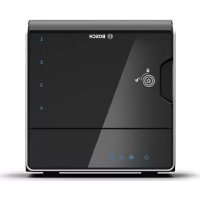



| Product Type | IP Network Video Recorder (with audio function) |
| Brand | Bosch |
| Model | Divar IP 3000 |
| Dimensions (W x D x H) | 440 x 300 x 44 mm (1U) |
| Weight | Approximately 3.5 kg |
| Power Supply | 100-240 VAC, 50-60 Hz (mains adapter) or PoE+ (IEEE 802.3at) |
| Power Consumption | Maximum 30 W |
| Main Features | Continuous and alarm recording, instant playback, IP camera management, alarm and event management, iSCSI support, dual streaming, up to 16 channels |
| Storage | Internal hard disk (capacity varies by model) or external iSCSI storage |
| Recording Resolution | Up to 4 CIF (704x576) per channel, depending on configuration |
| Maintenance and Cleaning | Clean the device with a soft, dry cloth. Do not use chemical or abrasive products. |
| Security | User management with differentiated rights, secure connection (HTTPS), possible two-factor authentication, connection log |
| Spare Parts and Repairability | External power supply, network cables, hard disk (replaceable by an authorized technician). Repairability index: 6/10 (estimate) |
| General Information | Integrated Bosch VMS software for configuration and operation. Manufacturer's warranty: 2 years. |
Frequently Asked Questions - Divar IP 3000 BOSCH
User questions about Divar IP 3000 BOSCH
0 question about this device. Answer the ones you know or ask your own.
Ask a new question about this device
Download the instructions for your Voice recorder in PDF format for free! Find your manual Divar IP 3000 - BOSCH and take your electronic device back in hand. On this page are published all the documents necessary for the use of your device. Divar IP 3000 by BOSCH.
USER MANUAL Divar IP 3000 BOSCH
Bosch Video Management System

BOSCH
Quick Start Manual
German
English
Spanish
French
Chinese (Simplified)
Bosch Video Management System
| deutsch | Inhaltsverzeichnis 4 |
| english | Table of contents 44 |
| español | Tabla de contenidos 79 |
| français | Table des matières 118 |
| 中国语文 CHS | 目录 158 |
Table of Contents
1 Introduction 5
2 System Overview 9
2.1 Hardware requirements 50 2.2 Software requirements 51 2.3 License requirements 51 2.4 Supported system structures 51
3 Installation 54
3.1 Installing the software modules 54 3.2 Activating the software 54 3.3 Starting the applications 56
4 Basic configuration tasks 59
4.1 Detecting devices 59 4.2 Adding a VRM device with iSCSI storage 61 4.3 Configuring the structure 63 4.3.1 Configuring the Logical Tree 64 4.4 Configuring schedules 66 4.5 Configuring stream quality settings 67 4.6 Configuring scheduled recording settings 68 4.7 Configuring an event 69 4.8 Configuring an alarm 70 4.9 Creating a user group 71
5 Basic operation tasks
5.1 Displaying a camera in an Image pane 72 5.2 Starting a camera sequence 72 5.3 Starting instant playback 74 5.4 Starting manual recording 74 5.5 Finding recorded video data 75 5.6 Playing recorded videos 76 5.7 Using the Timeline 76 5.8 Handling alarms 77
1 Introduction
![Operator Client - Control System Camera Tools Alarms Extras Help 16.01.2013 15:37 UTC-3 BOSCH Enterprise Logical Tree MS1 [1] Airport Camera 1 Camera 2 Camera 3 (172.26.5.120) Camera 4 (172.26.5.120) Input 1 (172.26.5.120) Relay 1 (172.26.5.120) Monitor Wall MS2 [2] Central Station Camera 1 Camera 2…](/content/2026/02/369423/images/98d1ebe7a4629b000a362e64f94fdbb815177023f7c6882a4d5af499055d7eb8.jpg)
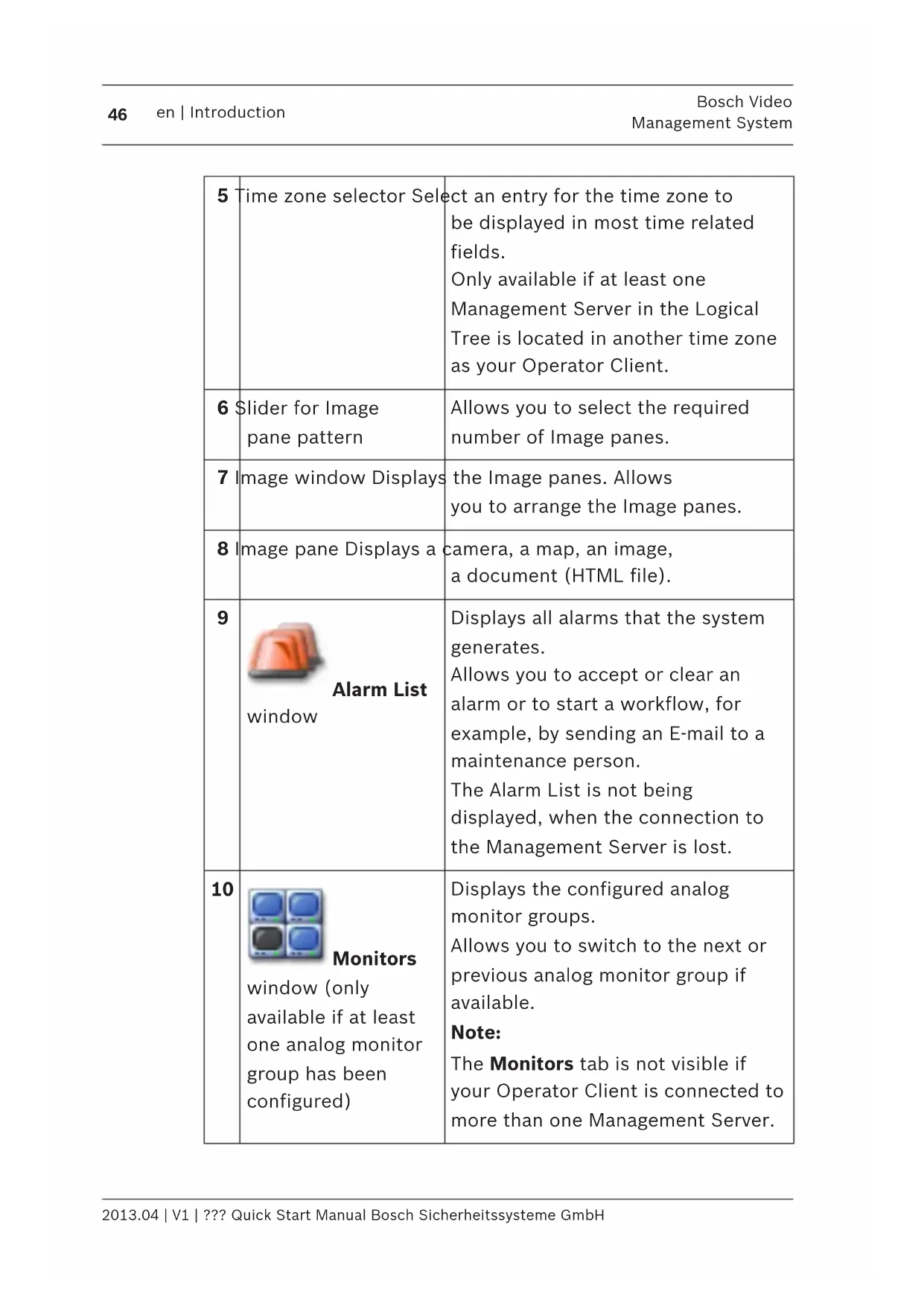
| 1 | Menu bar Allows you to | select a menu command. |
| 2 | Toolbar Displays the available buttons. Point to an icon to display a tooltip. | |
| 3 | Playback controls Allows you to control instant playback or a camera sequence or alarm sequence. | |
| 4 | Performance meter Displays the CPU usage and the memory usage. | |
| 5 | Time zone selector Select an entry for the time zone to be displayed in most time related fields.Only available if at least one Management Server in the Logical Tree is located in another time zone as your Operator Client. | |
| 6 | Slider for Image pane pattern | Allows you to select the required number of Image panes. |
| 7 | Image window Displays | the Image panes. Allows you to arrange the Image panes. |
| 8 | Image pane Displays a camera, a map, an image, a document (HTML file). | |
| 9 |  Alarm List window Alarm List window | Displays all alarms that the system generates.Allows you to accept or clear an alarm or to start a workflow, for example, by sending an E-mail to a maintenance person.The Alarm List is not being displayed, when the connection to the Management Server is lost. |
| 10 |  Monitors window (only available if at least one analog monitor group has been configured) Monitors window (only available if at least one analog monitor group has been configured) PTZControl window PTZControl window | Displays the configured analog monitor groups.Allows you to switch to the next or previous analog monitor group if available.Note:The Monitors tab is not visible if your Operator Client is connected to more than one Management Server.Allows you to control a PTZ camera. |
| 11 |  LogicalTree window LogicalTree window | Displays the devices your user group has access to. Allows you to select a device for assigning it to an Image pane. |
 FavoritesTree window FavoritesTree window | Allows you to organize the devices of the Logical Tree as required. | |
 Bookmarkswindow Bookmarkswindow | Allows to manage bookmarks. | |
 Mapwindow Mapwindow | Displays a site map. Allows you to drag the map to display a particular section of the map.If activated, a map is displayed automatically for each camera displayed in an Image pane. In this case, the camera must be configured on a map. | |
This manual guides you through the basic steps of the configuration and operation with Bosch VMS.
For detailed help and step-by-step instructions read the
Configuration Manual and the Operator's Manual or use the
Online Help. You find the manuals as PDF files on your
Setup CD.
Bosch VMS integrates digital video, audio and data across any IP network.
The system consists of the following software modules:
- Management Server
- VRM recording (Video Recording Manager)
- Operator Client (VRM recording / DiBos DVRs / iSCSI recording / VIDOS NVRs / local recording)
- Client Configuration
To achieve a running system, you must perform the following tasks:
- Install services (Management Server and VRM)
- Install Operator Client and Configuration Client
- Connect to network
- Connect devices to network – Basic configuration:
- Add devices (e.g. by device scan)
- Build logical structure
- Configure schedules, cameras, events, and alarms
- Configure user groups. Bosch VMS Archive Player displays exported recordings.
2 System overview
If you plan to install and configure Bosch VMS, participate in a system training on Bosch VMS.
Refer to the Release Notes of the current Bosch VMS version for supported versions of firmware and hardware and other important information.
See data sheets on Bosch workstations and servers for information on computers where Bosch VMS can be installed.
The Bosch VMS software modules can optionally be installed on one PC.
Important components
- Management Server (selectable in Setup): Stream management, alarm management, priority management, Management logbook, user management, device state management. Additional Enterprise System license: Managing Enterprise User Groups and Enterprise Accounts.
- Configuration Wizard: Easy and fast setup of a recording system.
- Configuration Client (selectable in Setup): System configuration and administration for Operator Client.
- Operator Client (selectable in Setup): Live monitoring, storage retrieval and playback, alarm and accessing multiple Management Server computers simultaneously.
- Video Recording Manager (selectable in Setup): Distributing storage capacities on iSCSI devices to the encoders, while handling load balancing between multiple iSCSI devices. Streaming playback video and audio data from iSCSI to Operator Clients.
- Mobile Video Service (selectable in Setup): Provides a transcoding service that transcodes the live and recorded video stream from a camera configured in Bosch VMS to the available network bandwidth. This service enables video
clients like an iPhone or a Web client to receive transcoded streams, for example for unreliable network connections with limited bandwidth. Not supported on Windows XP.
- Web Client: You can access live and playback videos via Web browser.
- Mobile App: You can use the Mobile App on iPhone or iPad to access live and playback video.
- Bosch Video Streaming Gateway (selectable in Setup): Provides the integration of 3rd party cameras and NVR-like recording, e.g. in low-bandwidth networks.
- Cameo SDK (selectable in Setup): The Cameo SDK is used to embed Bosch VMS live and playback Image panes to your external third-party application. The Image panes follow the Bosch VMS based user permissions.
The Cameo SDK provides a subset of the Bosch VMS Operator Client functionalities that enables you to create applications similar to the Operator Client.
- Client Enterprise SDK: The Client Enterprise SDK is meant to control and monitor the behaviour of Operator Client of an Enterprise System by external applications. The SDK allows to browse devices that are accessible by the running, connected Operator Client and to control some UI functionalities.
- Client SDK / Server SDK: The Server SDK is used to control and monitor the Management Server by scripts and external applications. You can use those interfaces with a valid administrator account.
The Client SDK is used to control and monitor the Operator Client by external applications and scripts (part of the related server configuration).
2.1 Hardware requirements
See the data sheet for Bosch VMS. Data sheets for platform PCs are also available.
2.2 Software requirements
See the data sheet for Bosch VMS.
Bosch VMS must not be installed on a computer where you want to install Bosch VMS Archive Player.
2.3 License requirements
See the data sheet for Bosch VMS for the available licenses.
2.4 Supported system structures
An operator or installer can be responsible for the following system structures:
- Single server system
- Multi server system (Enterprise System)
- Multi system environment
 | System with access point for logon |
 | Single server system,System access point: Management Server |
 | Enterprise System,System access point: Enterprise Management Server |

| 1 Multi system environment 4 System access point:Server on which logonrequest of an operator orinstaller is processed. | ||
| 2 Single server system 5 Management Server | ||
| 3 Multi server system 6 Enterprise ManagementServer |
Use cases for multi system access
Two Bosch VMS features valid for multi system environments are available:
- Enterprise System
- Server Lookup
An operator might want to access a multi-system environment for the following reasons:
- Configure multiple systems (Server Lookup)
- Maintenance and monitoring of multiple systems (Server Lookup)
- Alert (SMS, Email, or third-party) driven on-demand monitoring of multiple systems (Server Lookup)
- Simultaneous connection to multiple servers for seamless operation of one distributed system (Enterprise System)
Related Topics
- Enterprise System
- Server Lookup
3 Installation
This chapter provides a list of hardware that can be connected with Bosch VMS and instructions on how to install the software and how to activate it.
Caution!
Install BIS server and Bosch VMS Management Server on different computers.
3.1 Installing the software modules
Caution!
Do not install DiBos Web client on any Bosch VMS computer.
Install every software module on the computer that is supposed to be used for this module.
To install:
- Insert the product CD-ROM.
- Start setup.exe or start the Bosch VMS Setup on the Welcome screen.
- In the next dialog box, select the modules to be installed on this computer.
- Follow the instructions on the screen.
3.2 Activating the software
Main window
When you install Bosch VMS for the first time, you must activate the licenses for the software packages that you have ordered, including the base package and any expansions and/or optional features.
To obtain the Activation Key for a license, you need the
Authorization Number. This number is included in your product box.
With a Bundle Information file you can ease the process of activating.
Caution!
The computer signature is used for licensing. This computer signature can change after exchanging hardware on the Management Server computer. When the computer signature is changed, the license for the base package becomes invalid.
To avoid licensing problems, finish the hardware and software configuration before you generate the computer signature.
The following hardware changes can make the base license invalid:
Exchanging the network interface card.
Adding a VMWare or VPN virtual network interface.
Adding or activating a WLAN network interface.
Switchover of a Stratus server mainboard without teaming settings.
To activate the software:
- Start Configuration Client.
- On the Tools menu, click License Manager.... The License Manager dialog box is displayed.
- Click to check the boxes for the software package, the features, and the expansions that you want to activate. For the expansions, enter the number of licenses. If you have received a Bundle Information file, click Import Bundle Info to import it.
- Click Activate.
The License Activation dialog box is displayed.
- Write down the computer signature or copy and paste it into a text file.
- On a computer with Internet access, enter the following URL into your browser:
https://activation.boschsecurity.com
If you do not have an account to access the Bosch License Activation Center, either create a new account (recommended) or click the link to activate a new license without logging on. If you create an account and log on before activating, the License Manager keeps track of your activations. You can then review this at any time. Follow the instructions to obtain the License Activation Key.
- Return to the Bosch VMS software. In the License
Activation dialog box, type the License Activation Key obtained from the License Manager and click Activate. The software package is activated.
3.3 Starting the applications
Note:
- Before using the system, activate the licenses that you have ordered. The Configuration Manual or the Configuration Client Online Help describe how to activate the licenses.
- To be sure that your Bosch VMS uses the language that you need, please configure this language in your Configuration Client. See the Online Help for details.
Only the user called Admin can log on to Configuration Client.
Note:
You cannot start Configuration Client when another user on another computer in the system has already started Configuration Client.
To start Configuration Client:
- From the Start menu, select Programs > Bosch VMS > Config Client.
The dialog box for logging on is displayed.
- In the User Name: field, type your user name.
When you start the application for the first time, enter Admin as user name, no password required.
- In the Password: field, type your password.
- Click OK.
The application starts.
To start Operator Client:
- From the Start menu, select Programs > Bosch VMS > Operator Client. The dialog box for logging on is displayed.
- In the User Name: field, type your user name. When you start the application for the first time, type Admin as user name, no password required. To access multiple Management Server computers simultaneously, type the user name of a member of an Enterprise Group.
- In the Password: field, type your password.
- In the Connection: list, select the IP address or the DNS name of the Management Server or Enterprise Management Server.
- Click OK.
If dual authorization has been configured for your user group, the next logon dialog is displayed.
A user of the configured second user group enters the required information.
The application starts.
If dual authorization is optional, just click OK again on the second logon dialog box. But you then only have the user rights of your user group and not the potentially extended user rights of your dual authorization group.
To quit Operator Client:
- On the System menu, click Exit.
The application quits.
If you logged on to Operator Client as a user who is not authorized to quit the application, the Enter Logoff
Password dialog box is displayed.
- Ask a user with corresponding user rights to enter his user name and password to confirm the process.
4 Basic configuration tasks
For detailed information on the various fields, see the Online Help for the appropriate application window.
4.1 Detecting devices

Scan > Bosch VMS Scan Wizard dialog box
You scan the network to detect the following devices:
- VRMs
- Video Streaming Gateway
- ONVIF cameras,
- iSCSI devices: you add them manually.
- Live only and local storage encoders
- VIDOS NVRs
You scan for each device group separately. Just right-click the appropriate item in the Device Tree, for example right-click VRM Devices and click Scan VRM Devices.
To scan VRM devices:
- Select the desired check boxes for the device types that you want to integrate. Click Next >>.
- Select the desired check boxes for the VRM devices that you want to integrate.
Click Next >>.
- Click Add iSCSI Device.
The Add iSCSI Device dialog box is displayed.
- Type a desired display name, the IP address of an iSCSI device, and the device type, then click OK.
The iSCSI device is added to Scan Wizard.
- Select an iSCSI device, select the desired VRM, and click Assign to assign the iSCSI device to the VRM.
Click Next >>.
- Select the required encoders, select the desired VRM, and click Assign to assign them to the VRM.
The video data of these encoders will be stored on the assigned iSCSI device.
Click Next >>.
- Type all user names and passwords of the listed devices in the appropriate cells.
Click Test all to authenticate all devices.
Click Test selected to authenticate only the selected devices. This is useful when you repeat the device scan and you want only the new ones to be authenticated.
- Click Save >>.
Click Finish when you did not select further devices to be scanned.
To scan local storage or live only encoders:
- Select the desired encoders and click Assign.
The video data of these encoders will be stored on their local storage devices, or their video data will not be stored (live only).
- Type all user names and passwords of the listed device in the appropriate cells.
Click Test all to authenticate all devices.
Click Test selected to authenticate only the selected devices. This is useful when you repeat the device scan and you want only the new ones to be authenticated.
- Click Save >>.
Click Finish when you did not select further devices to be scanned.
To scan VIDOS NVRs:
- Select the desired VIDOS NVRs.
Click Next >>.
- Type all user names and passwords of the listed device in the appropriate cells.
Click Test all to authenticate all devices.
Click Test selected to authenticate only the selected devices. This is useful when you repeat the device scan and you want only the new ones to be authenticated.
- Click Finish.
4.2 Adding a VRM device with iSCSI storage
Devices >

Main window >
In your network, you need a VRM service running on a computer, and an iSCSI device.
Caution!
When you add an iSCSI device with no targets and LUNs configured, start a default configuration and add the IQN of each encoder to this iSCSI device.
When you add an iSCSI device with targets and LUNs pre-configured, add the IQN of each encoder to this iSCSI device.
See Configuring an iSCSI device for details.
To add a VRM device and an iSCSI device:
1.
Right-click

and click Scan VRM Devices.
The Bosch VMS Scan Wizard is displayed.
- Click to check the IP address of the desired VRM computer.
You can select multiple computers.
- Click Next >>.
The next step of the wizard is displayed.
4. Click Add iSCSI Device.
The Add iSCSI Device dialog box is displayed.
- Type a desired display name, the IP address of an iSCSI
device, and the device type and click OK.
The device is added to the scan wizard dialog box.
- Assign the iSCSI device to the VRM.
If required assign multiple iSCSI devices.
- Click Next >>.
The next step of the wizard is displayed.
- Assign the desired IP devices to the VRM.
- Click Next >>.
The next step of the wizard is displayed.
- Type the user names and passwords of the devices in the table.
- Click Test all to log on to all devices.
If required, select the desired devices and click Test
selected to log on to these devices.
In the Status column, the successful logons are indicated

with .

The failed logons are indicated with .
12. Click Finish.
The iSCSI device is connected to the VRM. Video streams from an IP device assigned to this VRM are recorded on the assigned iSCSI device.
If required, a dialog box is displayed for changing the device names of the detected IP devices to be used for display. Bosch VMS names the devices with default names. If desired, you can use the existing names of the devices.
Notes:
- You can manually add devices like a VRM or an iSCSI device by right-clicking the parent device. For example: Right-click

and click Add VRM.
4.3 Configuring the structure

Main window >
Maps and Structure
On the Maps and Structure page, you configure the Logical Tree.
The Logical Tree is used in the Operator Client to control cameras and other devices.
Use the User Groups page to customize this tree for each user group that can access the Operator Client. In the Operator Client only those parts of the Logical Tree are displayed which are permitted for the user group.

Notice!
If you move a group of devices in the Logical Tree, these devices lose their permission settings. You must set the permissions in the User Groups page again.
You can arrange all the devices of your system according to your requirements. For example, you can add all cameras of one part of a building to a corresponding folder.
You can integrate maps into your structure. On these maps you can place cameras or other devices which helps the user to localize the devices. You can only import 2D DWF files.
On a map, you can create links to other maps so that the user can click from one map to a linked one.
4.3.1 Configuring the Logical Tree
Main window >

Maps and Structure

Main window >
Maps and Structure
You can add devices, resource files and folders to the Logical
Tree. Devices are listed in the Device Tree and you can drag any level of the Device Tree to the Logical Tree.
A resource file can be a site map, document, Web file, audio file, a Command Script, or a camera sequence file.
A site map is a 2D DWF file that you can add to the Logical Tree.
Adding a map to the Logical Tree, creates a map folder in which you can organize the logical devices that are specific to the map.
A folder allows you to further organize devices in the Logical Tree.
When you start the Configuration Client for the first time, the Logical Tree is empty.
If a user group does not have the permission to access a device (e.g., a camera), the device is not being displayed on the map or in the Logical Tree.
You can add the following items from the Device Tree or the Logical Tree to a map:
- Cameras
- Relays
- Inputs
- Documents
- Command Scripts
- Camera sequences
Adding an item to a map creates a hot spot on the map.
When you add an item to a map folder in the Logical Tree, it is also displayed on the upper left corner of the map. When you add an item to a map, it is also added under the corresponding map node in the Logical Tree of the Operator Client.
To configure the Logical Tree you perform some of or all the following steps several times.
To configure the Logical Tree:
1.

Click to add folders according to your needs.
- Drag devices from the Device Tree to the appropriate folders.
You can select multiple devices by pressing the CTRL- or the SHIFT-key.
3.

Click to add resource files to your structure.
4.
Select a folder and click to add maps under the selected folder.
- Right-click a folder and click Assign Map to assign a map to the selected folder.
6.
Select a folder and click to add a Client Command Script under the selected folder.
7.
Select a folder and click to add a document under the selected folder.
8.
Select a folder and click to add a camera sequence under the selected folder.
- Drag devices from the Logical Tree or the Device Tree to a map to locate them.
You can add an item only once in a map but you can add it to several locations in the Logical Tree and to several maps.
4.4 Configuring schedules

Main window > Schedules
There are two schedule types available:
- Recording Schedules
- Task Schedules
You can configure a maximum of 10 different Recording
Schedules in the Recording Schedule Table. In these segments the cameras can behave differently. For example, they can have different frame rate and resolution settings (to be configured in
the Cameras and Recording page). In every point in time,
exactly one Recording Schedule is valid. There are no gaps and no overlaps.
You configure Task Schedules for scheduling various events which can occur in your system (to be configured in the Events page).
The schedules are used in other pages of the Configuration Client:
- Cameras and Recording page
Used to configure recording.
- Events page
Used to determine when events cause logging, alarms, or execution of Command Scripts.
- User Groups page
Used to determine when the members of a user group can log on.
4.5 Configuring stream quality settings

Main window > Cameras and Recording >

Stream Quality Settings dialog box

Notice!
For XFM4 encoders configure the maximum bit rate with the value of the target bit rate plus 10%. The maximum bit rate is used when a scene is busy and contains motion.
Notice!
Bosch VMS uses the two streams in dual streaming encoders as follows:
VRM recording and local storage: Stream 2 is used for Live, stream 1 is used for all recording modes.

ARM based firmware: Stream 2 can also be used for recording. The compression achieved is dependent on the stream quality settings, the image complexity, and the level of motion in the scene. With these interdependencies, it is possible to over-specify encoder performance. For example, with a highly complex scene with high motion, the encoder may not be able to deliver 4 CIF full frame rate on both streams simultaneously. Refer to your encoder guidelines to help estimate the best settings for your conditions.
To add a stream quality settings entry:
1.
Click

to add a new entry in the list.
- Type in a name.
To remove a stream quality settings entry:
▶

Select an entry in the list and click entry.
to delete the
You cannot delete default entries.
To rename a stream quality settings entry:
- Select an entry in the list.
- Enter the new name in the Name: field. You cannot rename default entries.
- Click OK.
To configure stream quality settings:
- Select an entry in the list.
- Make the appropriate settings.
4.6 Configuring scheduled recording settings


Main window > Cameras and Recording >
You can configure the recording settings of all devices that are added to the VRM Devices item in the Device Tree.
Note: For recording, ensure that the corresponding VRM or local storage is properly configured.
VRM: Devices > Expand



Local Storage: Devices > Expand >
To add a recording settings entry:
1.

Click to add a new entry in the list.
- Type in a name.
To remove a recording settings entry:
Select an entry in the list and click entry.

to delete the
You cannot delete default entries.
To rename a recording settings entry:
- Select an entry in the list.
- Enter the new name in the Name: field. You cannot rename default entries.
- Click OK.
To configure recording settings:
- Select an entry in the list.
- Make the appropriate settings and click OK.
3.
Click

or .

- In the Recording column, select the desired recording setting for each encoder.
4.7 Configuring an event

Main window > Events
To configure an event:
- In the tree, select an event or event state, for example
System Devices > Authentication > Operator
Authentication Rejected.
The corresponding Event Configuration Table is displayed.
- In the Trigger Alarm - Schedule column, click a cell and select the appropriate schedule.
The schedule determines when the alarm is triggered.
Select one of the Recording Schedules or Task Schedules that you have configured in the Schedules page.
- In the Log - Schedule column, click a cell and select the appropriate schedule.
The schedule determines when the event is logged.
- In the Script - Script column, click a cell and select an appropriate Command Script.
- In the Script - Schedule column, click a cell and select the appropriate schedule.
The schedule determines when the event triggers the start of the Command Script.
4.8 Configuring an alarm

Main window >
Alarms
Before configuring an alarm you must configure the trigger in Events.
To configure an alarm:
- In the tree, select an alarm, for example System Devices > Authentication > Operator Authentication Rejected.
The corresponding Alarm Configuration Table is displayed.
- In the Priority column, click ... in a cell to type the alarm priority for the selected alarm (100 is low priority, 1 is high priority).
In the Title column, click ... in a cell to type the title of the alarm to be displayed in Bosch VMS, for example in the Alarm List.
In the Color column, click ... in a cell to display a dialog box for selecting a color for the alarm to be displayed in the Operator Client, for example in the Alarm List.
- In the 1-5 columns, click ... in a cell to display the Select Image Pane Content dialog box.
Make the required settings.
- In the Audio File column, click ... in a cell to display a dialog box for selecting an audio file that is played in case of an alarm.
- In the Alarm Options column, click ... in a cell to display the Alarm Options dialog box.
This dialog box allows you to configure the following settings for alarms:
– Cameras that start recording in case of an alarm - Triggering PTZ commands in case of alarm - Notifications that are sent in case of an alarm
Note: The date of the time zone of the Management Server is used.
- Workflow that has to be processed in case of an alarm
- Assigning cameras that are displayed in analog monitor groups in case of an alarm.
4.9 Creating a user group
To create a group or account:
- Click the desired tab for the group or account that you want to add:
- User Groups
- Enterprise User Groups
- Enterprise Access
2.
Click

The appropriate dialog box is displayed.
- Type in the name and a description.
- For an Enterprise Account, enter a password and confirm this password.
- Click OK.
A new group or account is added to the corresponding tree.
5 Basic operation tasks
This chapter provides a selection of step-by-step instructions for basic operation tasks.
5.1 Displaying a camera in an Image pane
Main window
To assign a camera image to an Image pane:
Drag a camera from the Logical Tree window to an Image pane. The selected camera image is displayed in the Image pane.
Or:
- Select an Image pane.
- In the Logical Tree window, double-click a camera.
The selected camera image is displayed in the Image pane.
- Repeat the above steps for every camera you want to display.
You can also drag maps and documents to Image panes.
Or:
In the Logical Tree, right-click a camera and click Show in next free Image pane.
The camera is displayed.
To move a camera within the Image window:
Drag the camera into another Image pane.
To zoom digitally:
Right-click anywhere on an Image pane and click Zoom in.
5.2 Starting a camera sequence
Main window
With a camera sequence, a group of cameras are displayed one after the other.
You configure the dwell time for these sequences in the Options dialog box (Extras menu, Options... command).
Under the following conditions, a sequence is not being displayed:
- Video loss
- Connection to the camera lost
- No permission to display the camera
- Camera not configured
In addition, for sequences displayed on an analog monitor via a decoder, DiBos cameras cannot be displayed.

Notice!
When the configuration is changed and activated, a camera sequence (pre-configured or automatic) usually is continued after restart of the Operator Client.
But in the following cases the sequence is not continued:
A monitor where the sequence is configured to be displayed has been removed.
The mode of a monitor (single/quad view) where the sequence is configured to be displayed has been changed.
The logical number of a monitor where the sequence is configured to be displayed is changed.
To start a camera sequence:
- Select an Image pane where you want the sequence to be played.
- Right-click a folder in the Logical Tree or Favorites Tree window and click Show as sequence in selected Image pane.
The cameras of the selected folder are displayed one after
the other in the selected Image pane. 📋 indicates that the sequence is running.
To pause a camera sequence:
▶

In the Image window toolbar, click

The sequence stops playing, as indicated by

To jump to the previous / next step of a camera sequence:
▶


In the Image window toolbar, click or .
The sequence jumps to the previous or next step.
5.3 Starting instant playback

Main window >
You can view the recordings of a camera in an Image pane in the Live Mode.
The current setting of the digital zoom and the image section are used for instant playback.
The start time (number of seconds in the past or rewind time)
for instant playback is configured in the Options dialog box
(Extras menu, Options... command).
To start instant playback:
- Select the required Image pane.
2.

Click
The recording is played.

To return to live image, click
Note: More than one Image pane with instant playback is possible, even multiple instant playbacks of the same camera.
5.4 Starting manual recording
Main window
You can start recording for each camera manually. The quality level of alarm recording mode is used. The duration of alarm recording is configured in the Configuration Client.
If the selected camera is already recording, the quality level is changed to alarm recording mode. The alarm recording can be protected when NVR recording is used. With VRM recording, the alarm recording is not protected.
To start recording:
- Select an Image pane displaying a camera.
2.
Click

Recording is started.
VRM recordings only: You cannot manually stop recording. The recording stops after the configured alarm recording time. In the Timeline of the camera, the pre-alarm recording is displayed as alarm recording, if pre-alarm recording is configured in Configuration Client.
5.5 Finding recorded video data
Main window > > Tools menu > Find Video... command >
Select Search Parameters dialog box
or
Main window > Tools menu > Find in Logbook... command >
Please select a Server dialog box > Select Search Parameters dialog box
To find video data:
- Enter or select the required search criteria.
- Click Search.

The window with the matching entries is displayed.
- For playing the corresponding video, double-click the entry.
The corresponding video is displayed.
5.6 Playing recorded videos
Note:
Bosch Allegiant cameras are not recorded within Bosch VMS.
To play recorded videos:
- Assign a camera to an Image pane.
- Use a Timeline control for the required playing option.
5.7 Using the Timeline
You can access a specific time in the Timeline via the Hairline.
To navigate in the Timeline: - Click somewhere in the Timeline. The images of the selected point in time are displayed in the Image window.
- Click somewhere in the Timeline. The images of the selected point in time are displayed in the Image window.
In the date and time field, enter the required values.
- In the date and time field, enter the required values.
Click
The Hairline jumps to this time. The images of the entered point in time are displayed in the Image window. Use a Timeline control for the required playing option.

The Hairline jumps to this time. The images of the entered point in time are displayed in the Image window. Use a Timeline control for the required playing option.
You can select a time period in the Timeline using the Hairline.
You can use this selection for further tasks such as for exporting video data.
Drag the bottom handles of the Hairline to select a time period or to change this selection.
Drag the upper handles to move the hairline or selection.
5.8 Handling alarms

Main window > > Alarm List tab or

Main window > > Alarm List tab
Displays all events and alarms your user group is authorized to see.
Allows you to perform the following tasks:
- Customize the list to quickly find a particular entry.
- Accept or clear alarms
- Start a workflow, for example, by sending an E-mail to a maintenance person.
- Add comments to an alarm.
- Search for specific events or alarms.

Click to accept an alarm.
The alarm is removed from all Alarm Lists and alarm video displays of the other operators.

Click to display a dialog box displaying an action plan. If configured, you can enter a comment.

Click to clear an alarm.
You cannot clear an alarm that has the comment or force workflow attribute before you have displayed the action plan and entered a comment.
If the alarm is configured as an auto-clear alarm, the alarm is removed from the Alarm List after the auto-clear time (configured in the Configuration Client).

Click to revoke the acceptance of an alarm.
The alarm appears again on the Alarm Lists and alarm video displays of the other operators.

Click to turn alarm audio on / off.
The latest incoming alarm triggers an alarm sound.


Click to display the Alarm List window.
Table of Contents
1 Introduction 80
https://activation.boschsecurity.com
Main Window >>

Cameras and Recording
![Operator Client - Control System Camera Tools Alarms Extras Help 16.01.2013 15:37 UTC-3 BOSCH Enterprise Logical Tree MS1 [1] Airport Camera 1 Camera 2 Camera 3 (172.26.5.120) Camera 4 (172.26.5.120) Input 1 (172.26.5.120) Relay 1 (172.26.5.120) Monitor Wall MS2 [2] Central Station Camera 1 Camera 2…](/content/2026/02/369423/images/d030ae1c99630ce06e5d36bc0d3d5aa7cf67a7efe1c1fa882ce8fe5b1d657319.jpg)
https://activation.boschsecurity.com
VMS Operator Client.
https://activation.boschsecurity.com
- Enterprise User Groups
- Enterprise Access
2.

Click.
The corresponding dialog box is displayed.

- BOSCH VIDEO MANAGEMENT SYSTEM
- QUICK START MANUAL
- TABLE OF CONTENTS
- INTRODUCTION
- SYSTEM OVERVIEW
- INSTALLATION
- BASIC CONFIGURATION TASKS
- BASIC OPERATION TASKS
- IMPORTANT COMPONENTS
- HARDWARE REQUIREMENTS
- SOFTWARE REQUIREMENTS
- LICENSE REQUIREMENTS
- SUPPORTED SYSTEM STRUCTURES
- USE CASES FOR MULTI SYSTEM ACCESS
- RELATED TOPICS
- CAUTION
- INSTALLING THE SOFTWARE MODULES
- TO INSTALL
- ACTIVATING THE SOFTWARE
- TO ACTIVATE THE SOFTWARE
- STARTING THE APPLICATIONS
- NOTE
- TO START CONFIGURATION CLIENT
- TO START OPERATOR CLIENT
- TO QUIT OPERATOR CLIENT
- DETECTING DEVICES
- TO SCAN VRM DEVICES
- TO SCAN LOCAL STORAGE OR LIVE ONLY ENCODERS
- TO SCAN VIDOS NVRS
- ADDING A VRM DEVICE WITH ISCSI STORAGE
- TO ADD A VRM DEVICE AND AN ISCSI DEVICE
- CLICK ADD ISCSI DEVICE
- CLICK FINISH
- NOTES
- CONFIGURING THE STRUCTURE
- NOTICE
- CONFIGURING THE LOGICAL TREE
- TO CONFIGURE THE LOGICAL TREE
- CONFIGURING SCHEDULES
- CONFIGURING STREAM QUALITY SETTINGS
- TO ADD A STREAM QUALITY SETTINGS ENTRY
- TO REMOVE A STREAM QUALITY SETTINGS ENTRY
- TO RENAME A STREAM QUALITY SETTINGS ENTRY
- TO CONFIGURE STREAM QUALITY SETTINGS
- CONFIGURING SCHEDULED RECORDING SETTINGS
- TO ADD A RECORDING SETTINGS ENTRY
- TO REMOVE A RECORDING SETTINGS ENTRY
- TO RENAME A RECORDING SETTINGS ENTRY
- TO CONFIGURE RECORDING SETTINGS
- CONFIGURING AN EVENT
- TO CONFIGURE AN EVENT
- CONFIGURING AN ALARM
- TO CONFIGURE AN ALARM
- CREATING A USER GROUP
- TO CREATE A GROUP OR ACCOUNT
- DISPLAYING A CAMERA IN AN IMAGE PANE
- TO ASSIGN A CAMERA IMAGE TO AN IMAGE PANE
- TO MOVE A CAMERA WITHIN THE IMAGE WINDOW
- TO ZOOM DIGITALLY
- STARTING A CAMERA SEQUENCE
- TO START A CAMERA SEQUENCE
- TO PAUSE A CAMERA SEQUENCE
- TO JUMP TO THE PREVIOUS / NEXT STEP OF A CAMERA SEQUENCE
- STARTING INSTANT PLAYBACK
- TO START INSTANT PLAYBACK
- STARTING MANUAL RECORDING
- TO START RECORDING
- FINDING RECORDED VIDEO DATA
- TO FIND VIDEO DATA
- PLAYING RECORDED VIDEOS
- TO PLAY RECORDED VIDEOS
- USING THE TIMELINE
- TO NAVIGATE IN THE TIMELINE: - CLICK SOMEWHERE IN THE TIMELINE. THE IMAGES OF THE SELECTED POINT IN TIME ARE DISPLAYED IN THE IMAGE WINDOW
- IN THE DATE AND TIME FIELD, ENTER THE REQUIRED VALUES
- HANDLING ALARMS
Brand : BOSCH
Model : Divar IP 3000
Category : Voice recorder