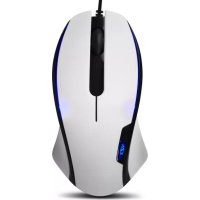
Avatar S - Mouse NZXT - Free user manual and instructions
Find the device manual for free Avatar S NZXT in PDF.

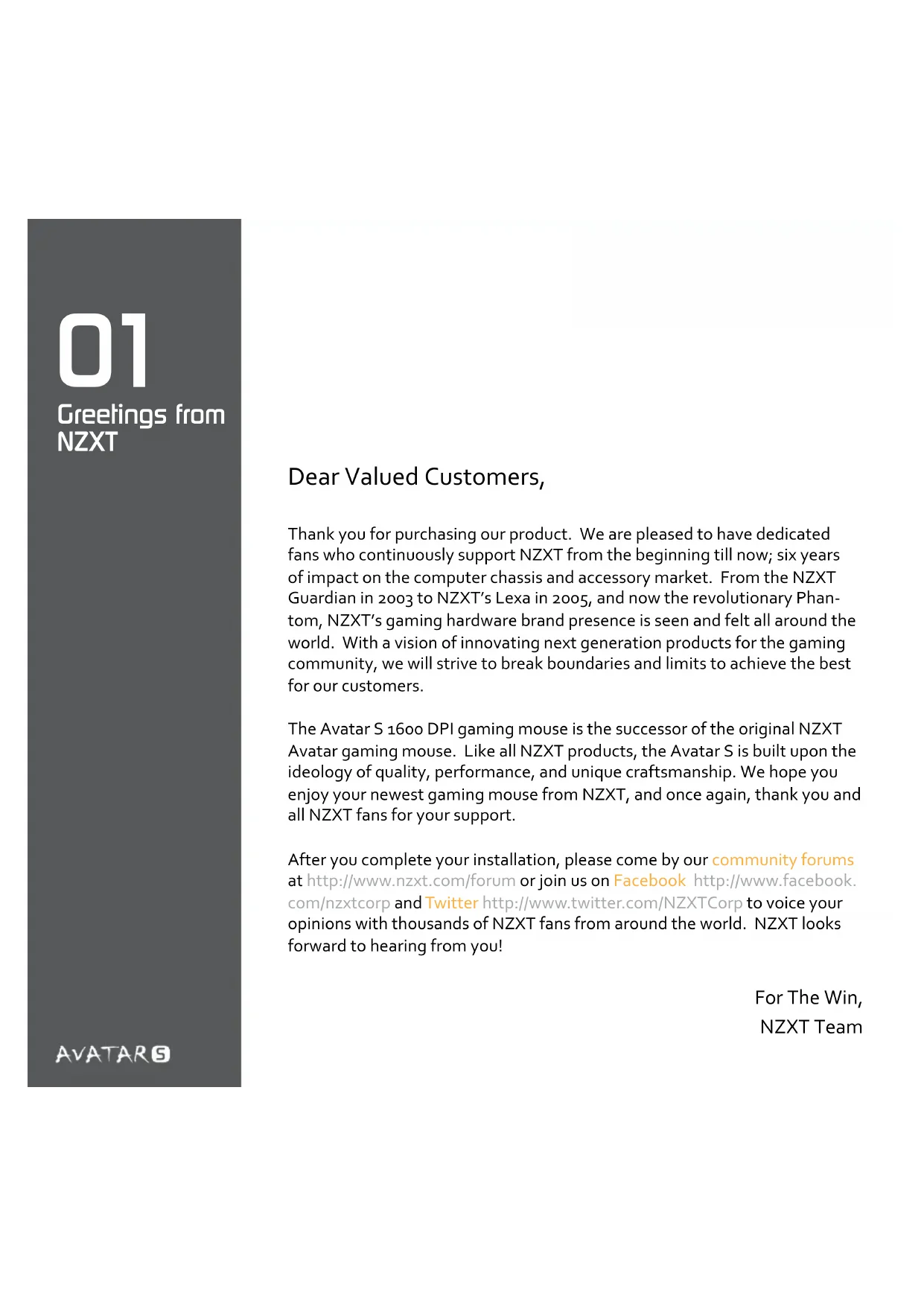


| Product Type | Mouse |
| Brand | NZXT |
| Model | Avatar S |
| Sensor | Laser 1600 DPI |
| DPI Settings | 1600 / 800 / 400 |
| Tracking Speed | 30 inches/sec |
| Acceleration | 20G |
| Polling Rate | 1000 Hz |
| Internal Memory | 16 KB (1 profile) |
| Number of Buttons | 5 programmable |
| Design | Ambidextrous, slim and medium size |
| Lighting | LED (on/off, DPI indicator) |
| Feet | Teflon |
| Connectivity | USB |
| Compatible Operating System | Windows XP / Vista / 7 |
| Power | Via USB port |
| Maintenance and Cleaning | Clean with a dry, soft cloth |
| Safety | Do not expose to liquids |
| Spare Parts and Repairability | Not specified by the manufacturer |
Frequently Asked Questions - Avatar S NZXT
User questions about Avatar S NZXT
0 question about this device. Answer the ones you know or ask your own.
Ask a new question about this device
Download the instructions for your Mouse in PDF format for free! Find your manual Avatar S - NZXT and take your electronic device back in hand. On this page are published all the documents necessary for the use of your device. Avatar S by NZXT.
USER MANUAL Avatar S NZXT
natural_image
Line drawing of a computer mouse head with visible internal structure and no text or symbolsNZXT.
AVATARS
USER MANUAL
Table of contents
Greetings from NZXT ....1
Package Content 2
System Requirements ....2
Features and Specifications ....3
Advanced Functions ....7
Button Assignment ....7
Macro setup ....7
Advanced Mousewheel Options ....3
Orientation....8
Config/Profile 8
DPI Switcher....8
Polling Rate 9
Sensitivity 11
X-Y Master Sensitivity 11
Win Pointer Speed 11
Acceleration 11
Advanced Settings 13
Scroll Speed 13
Sensitivity 13
Double Click Speed 13
Test Area 13
01
Greetings from NZXT
AVATARS
Dear Valued Customers,
Thank you for purchasing our product. We are pleased to have dedicated fans who continuously support NZXT from the beginning till now; six years of impact on the computer chassis and accessory market. From the NZXT Guardian in 2003 to NZXT's Lexa in 2005, and now the revolutionary Phantom, NZXT's gaming hardware brand presence is seen and felt all around the world. With a vision of innovating next generation products for the gaming community, we will strive to break boundaries and limits to achieve the best for our customers.
The Avatar S 1600 DPI gaming mouse is the successor of the original NZXT Avatar gaming mouse. Like all NZXT products, the Avatar S is built upon the ideology of quality, performance, and unique craftsmanship. We hope you enjoy your newest gaming mouse from NZXT, and once again, thank you and all NZXT fans for your support.
After you complete your installation, please come by our community forums at http://www.nzxt.com/forum or join us on Facebook http://www.facebook.com/nzxtcorp and Twitter http://www.twitter.com/NZXTCorp to voice your opinions with thousands of NZXT fans from around the world. NZXT looks forward to hearing from you!
For The Win,
NZXT Team
02
Content & Requirements
Package Content
- NZXT Avatar S 1600 DPI high end gaming mouse
• NZXT Avatar S Manual Card
System Requirements:
- Internet Connection [ Drivers ]
• 40MB of free hard disk space - Windows XP/x64/7/Vista Platforms
• PC system with USB Port built in
Features and Specifications
- Precision and Flexibility: 1600 DPI laser sensor with 1600/800/400 • •
- DPI settings out of the box
- Tracking speed of 30 inches per second and acceleration up to 20G
- Hardware DPI switch allows for driver-less DPI switch while in game without the hassle of drivers
- 16Kb Onboard Memory stores 1 profile of macros/key assignments, dpi settings, polling rate, X-Y master sensitivity, and LED settings for gaming on-the-go
- Narrow and medium sized mice ideal for users that prefer a thinner and lower profile form
- Ambidextrous design ideal for both left and right handed users
- LED on/off settings
- Teflon feet for effortless gliding on any surface
• 5 Key programmable mice - Immense customizability: Ability to modify default DPI settings individually, setup in-game macros, media keys, and X-Y sensitivity options
- Polling rate of 1000Hz
04
Detailed Specs
Detailed Specs
Max Speed 30 in/sec
Max Acceleration 20g
Polling Rate 1000Hz
Onboard Memory 16KB
DPI Switching
The NZXT Avatar S features on-the-fly hardware DPI switching, by holding the left side button and scrolling up or down. The DPI includes three level (1600, 800, and 400) settings reflected by the LED indicator colors; blue, purple, and red respectively. The drivers do not need to be installed in order for this function to work properly.
Driver Installation
The NZXT Avatar S is functional without the drivers, however, installing the driver will provide additional features such as macro setting and sensitivity change. The installation files can be downloaded from our website at HYPERLINK "http://www.nzxt.com" www.nzxt.com. Please read the steps below to install the drivers for the mouse. To check for newest drivers, please click either the update button or reference the NZXT website.
- Plug the NZXT Avatar S gaming mouse into a USB on your computer
- Go to HYPERLINK "http://www.nzxt.com/new/xxx/xxx" www.nzxt.com/new/xxx/xxx and download the driver
- Follow the instructions on screen for license agreement, selection of folder location, and finally click FINISH to complete installation.
- Restart your computer to complete installation
Note: Please use a dedicated USB port for the mouse to ensure the drivers work properly with the mouse. If the NZXT Avatar S is plugged into a port different from the port used during installation, the mouse may function like without drivers.
06
Avatar S Driver Interface
AVATAR5
Advanced Functions
[Button assignment/mousewheel options/Macro setting/Profile configuration]
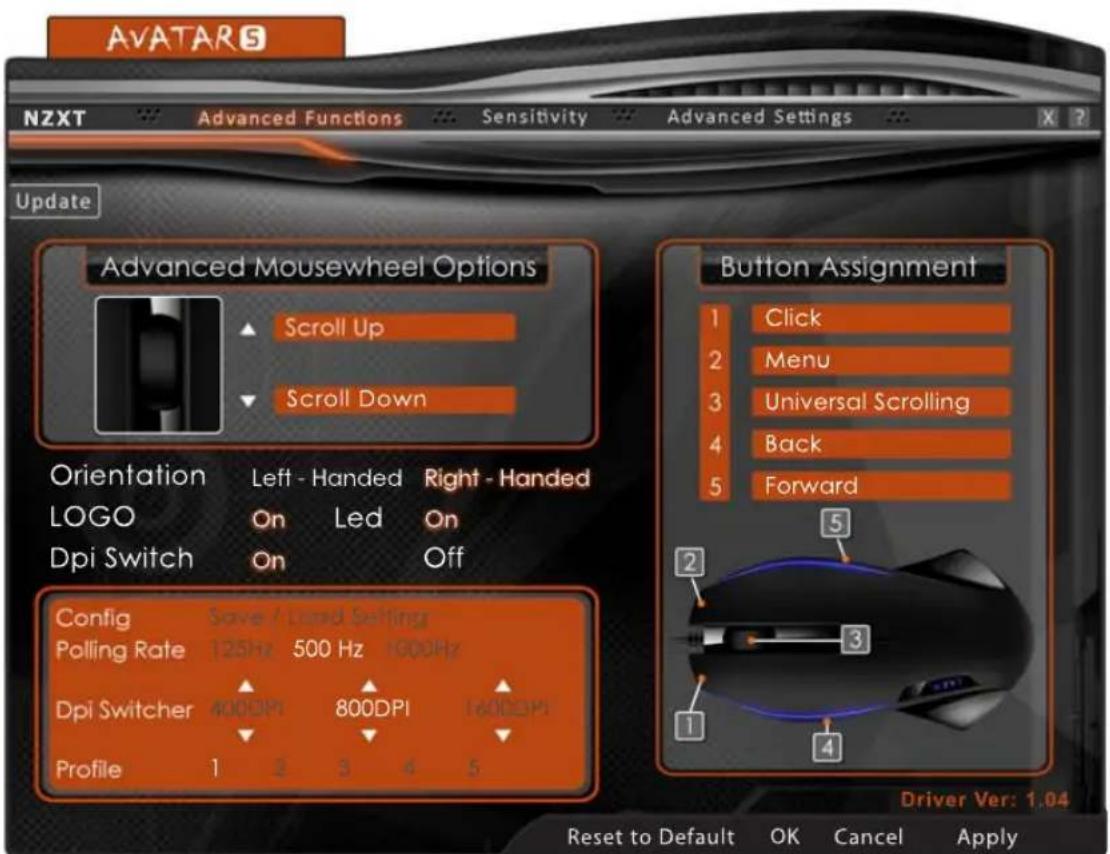
Here is the main window for the Avatar S interface, the user can change assignment of buttons, create profiles and set advanced buttons like media control on the mouse buttons.
Button Assignment
Please use the button assignment to change the default functions of the 5 buttons on the mouse. Clicking the orange icon and select from the list of options to change the individual keys. The keys are mapped on the sample photo of the Avatar S. In order to use macros, please select the Advanced option from the drop down menu.
Macro setup
From the Macro Configuration menu, the user can set a Single key from the media keys or additional keys. The other option is the macro tab, enter the desired key combinations in the white box. The maximum amount of keys allowed is eight keys, not including delays.
Advanced Mousewheel Options
The scroll up and down functions of the mouse can also be configured like the buttons on the mouse, please follow the same instructions detailed above.
Orientation
A left handed user can use this function to automatically flip the forward back buttons and the left/right click options. [Note: The DPI Switching function will still remain the same]
Config/Profile
The NZXT Avatar S features a total of five profiles from shown as 1-5, changing the button assignment will auto save the settings on the current profile. Under Config, the five profiles can be saved to a file that is usable on other computers with the driver installed.
DPI Switcher
Other than switching the DPI using the left side and scroll button, the DPI can also be changed here by clicking the desired DPI speed.
Polling Rate
The polling rate of the mouse is the rate at which Windows gets information from the USB port, a higher polling rate results in a more fluid and accurate mouse movement at the cost of more CPU usage. The Windows by default has the USB ports working at 125Hz, giving 8ms response times. From the polling rate, you can change the frequency to 125Hz(4ms), 500Hz(2ms) and 1000Hz(1ms) to get better response times.
Logo LED, Scroll Wheel ON/OFF
Avatar S also includes the options to turn the LED logo light and the scrolling wheel on or off without affecting the DPI settings.
10
Sensitivity
AVATAR5
11 Sensitivity
AVATARS
Sensitivity
X-Y Master Sensitivity
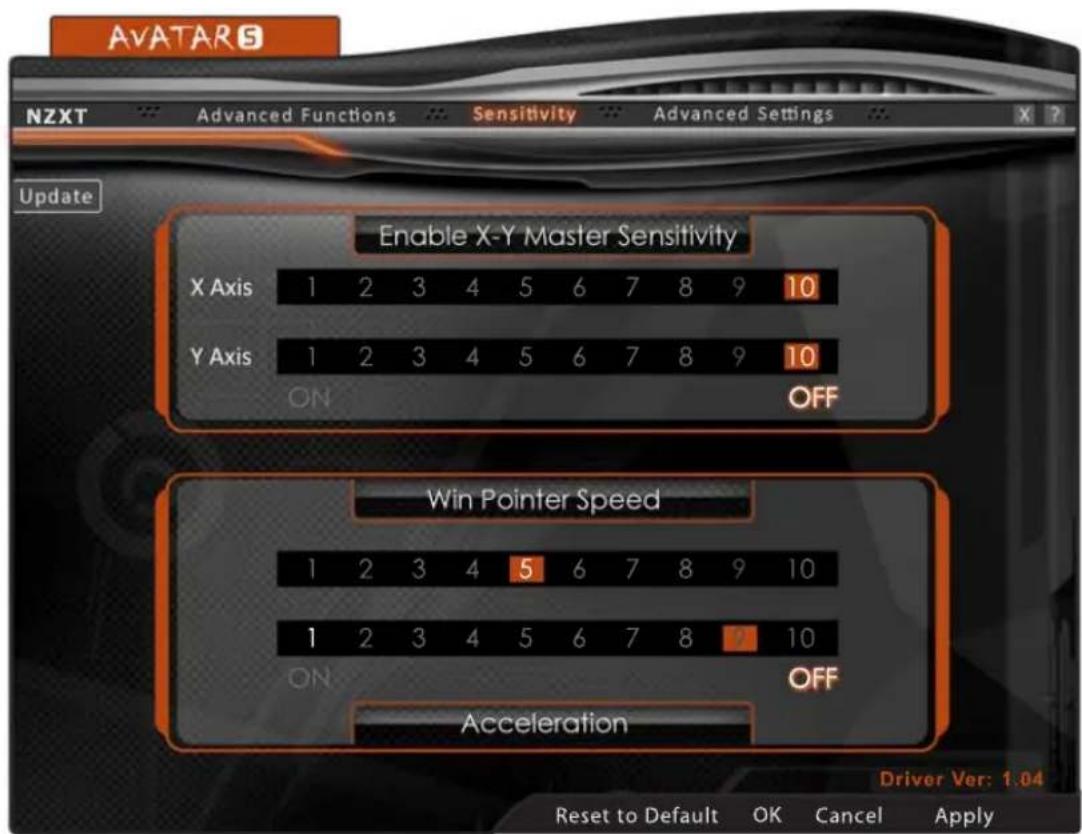
The X Axis and Y Axis sensitivity can be adjusted individually for different horizontal and vertical movement. Use the ON and OFF buttons to enable and disable this configuration.
Win Pointer Speed
Win Pointer Speed refers to the Windows implementation of senility, 5 is the default speed.
Acceleration
The speed of the acceleration refers to the additional movement added by the driver, in able for this function to work properly please make sure the Windows acceleration in the Control Panel is disabled. In Windows XP, it is listed as 'Enhance Pointer Precision'. This function can also be turned ON and OFF.
12
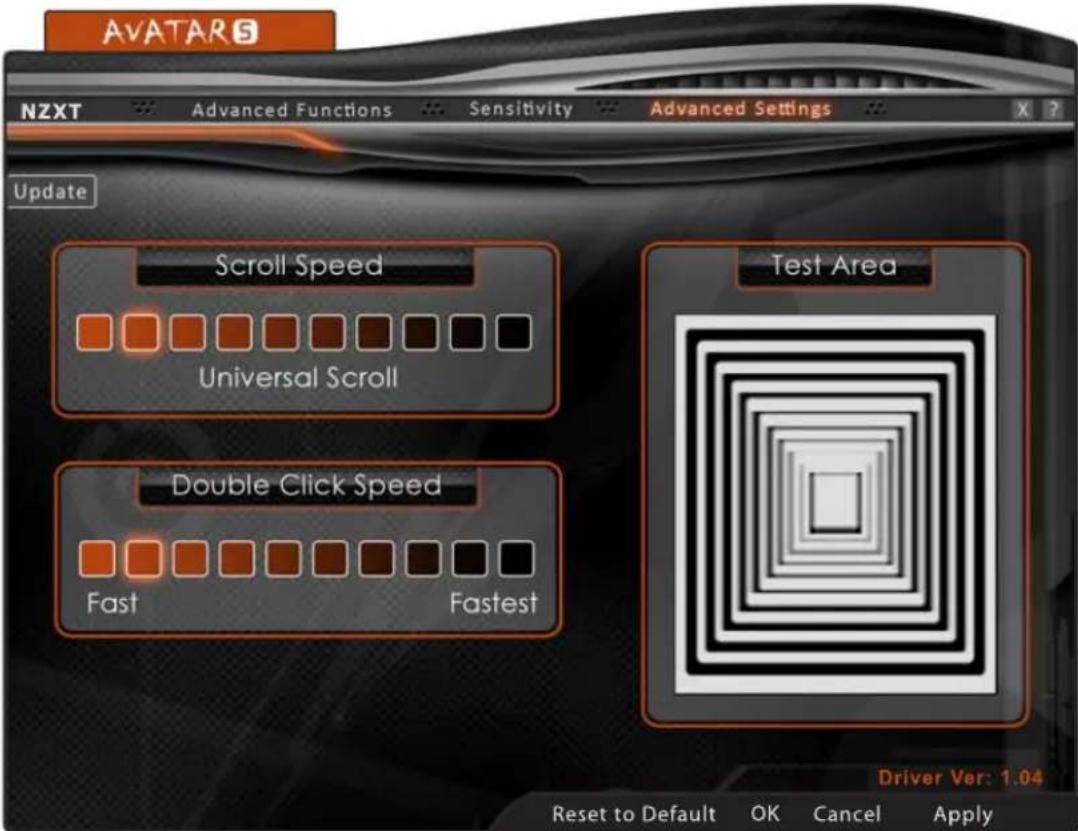
Advanced Settings
AVATARS
13
Advanced Settings
Advanced Settings
Scroll Speed
Adjust the scroll speed here.
Sensitivity
This changes the speed at which the pointer moves.
Double Click Speed
The speed of the double click can be changed here, a faster option means the a faster click time in order to enable the double click function
Test Area
Please use this area to test the double click settings.
14
Key Features
AVATARS
natural_image
Line drawing of a mechanical device with no visible text or symbols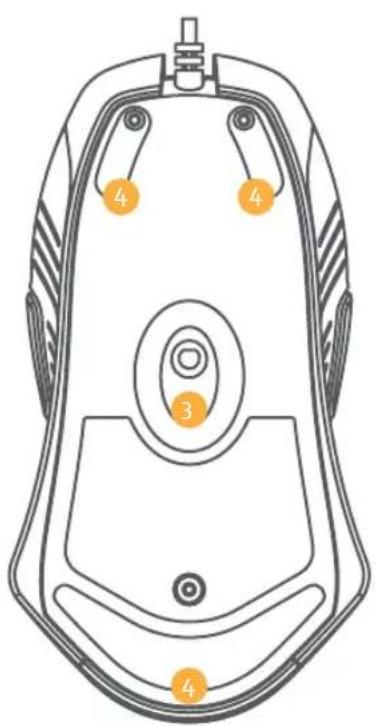
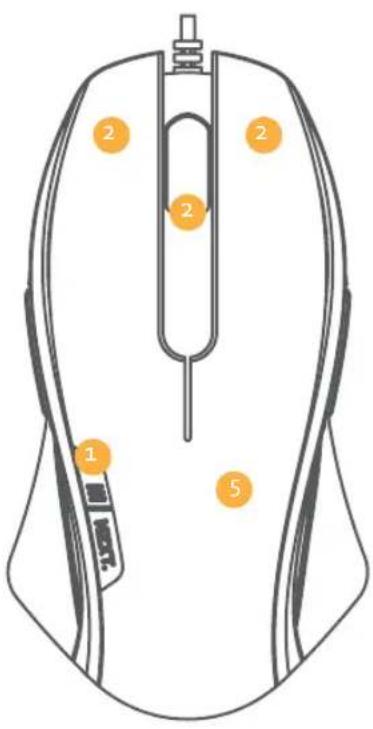
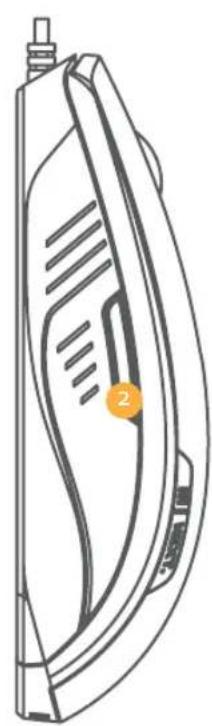
1 - LED DPI Indicator
2 - All Programmable Bottoms (Five including the scroller)
3 - 1600 DPI High Performance Gaming IR Sensor
4 - Extruded Smooth Gliding Teflon Feet
5 - Top Scratch Resistant Surface
NZXT.
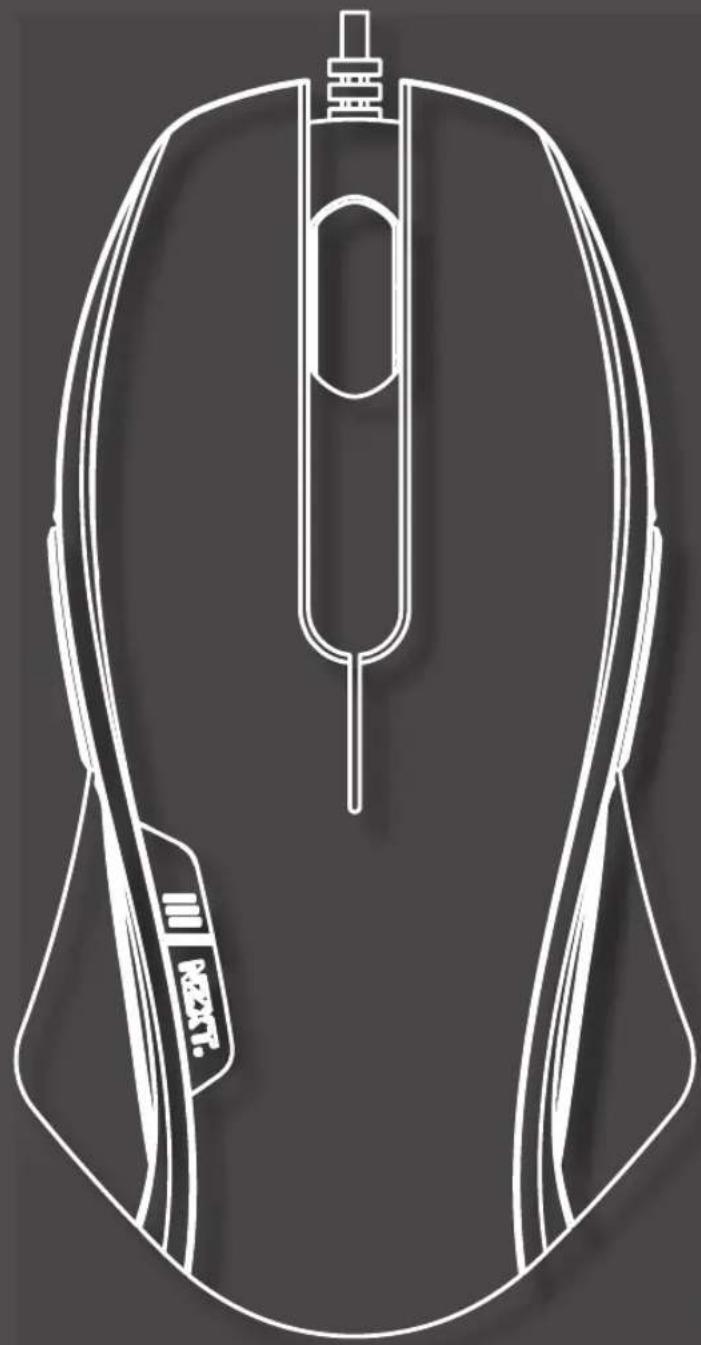
natural_image
Line drawing of a computer mouse head with visible internal structure and no text or symbolsAVATARS
MANUEL DE L'UTILISATEUR
Table des matières
Félicitations de NZXT.... 1
Chers clients importants,
natural_image
Line drawing of a computer mouse head with visible internal structure and no text or symbolsAVATARS
Gebrauchsanleitung
Inhalt
Willkommen! 1
Packungsinhalt 2
Treiberin- stallation
AVATAR5
Treiberinstallation
natural_image
Line drawing of a computer mouse head with visible internal structure and no text or symbolsAVATARS
取扱説明書
目次
NZXTからのごあいさつ 1
パッケージ内容 2
システム要件 2
特性および技術仕様……3
高度な機能 7
ボタンの割当 7
マクロ設定 7
高度マウスホイールオプション 3
配向 8
構成/プロファイル 8
DPI切替装置 8
ポーリングレート 9
感度 11
X-Yマスター感度 11
Win ポインタ速度 11
加速 11
詳細設定 13
スクロール速度 13
感度 13
ダブルクリック速度 13
テスト領域 13
顧客の皆さまへ
natural_image
Line drawing of a computer mouse head with visible internal structure and no text or symbolsAVATARS
사용 설명서
목차
NZXT의 인사말 1
패키지 내용물 2
시스템 요구사항 2
특징 및 사양 3
고급 기능 7
버튼 지정 7
매크로 설정 7
고급 마우스 훨 옵션 3
방향 8
구성/프로파일 8
DPI 전환기 8
폴링률 9
감도 11
X-Y마스터감도 11
원 포인터 속도 11
가속도 11
고급 설정 13
스크롤 속도 13
감도 13
더블 클릭 속도 13
테스트 영역 13
친애하는 고객님께,
natural_image
Line drawing of a computer mouse head with visible internal structure and no text or symbolsAVATARS
用户手册
目录
NZXT 致辞 .... 1
包装清单 2
系统要求 2
功能特点和规格....3
高级功能 7
按钮分配 7
宏设置 7
高级鼠标轮选项 3
方向 8
配置/配置文件 8
DPI 切换器 8
轮询率 9
灵敏度 11
X-Y 主灵敏度 ..... 11
natural_image
Line drawing of a computer mouse head with visible internal structure and no text or symbolsAVATARS
MANUAL DEL USUARIO
Tabla de contenido
Saludos de NZXT 1
- Table of contents
- 01
- Greetings from NZXT
- Dear Valued Customers,
- 02
- Content & Requirements
- Package Content
- System Requirements:
- Features and Specifications
- 04
- Detailed Specs
- DPI Switching
- Driver Installation
- 06
- Avatar S Driver Interface
- Advanced Functions
- Button Assignment
- Macro setup
- Orientation
- Config/Profile
- DPI Switcher
- Polling Rate
- Logo LED, Scroll Wheel ON/OFF
- 10
- Sensitivity
- Sensitivity
- X-Y Master Sensitivity
- Win Pointer Speed
- Acceleration
- 12
- Advanced Settings
- 13
- Scroll Speed
- Double Click Speed
- Test Area
- 14
- Key Features
- AVATARS
- MANUEL DE L'UTILISATEUR
- Table des matières
- Chers clients importants,
- Gebrauchsanleitung
- Inhalt
- Treiberin- stallation
- Treiberinstallation
- 目次
- 顧客の皆さまへ
- 목차
- 친애하는 고객님께,
- 目录
- MANUAL DEL USUARIO
- Tabla de contenido
Brand : NZXT
Model : Avatar S
Category : Mouse