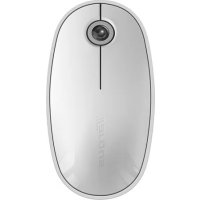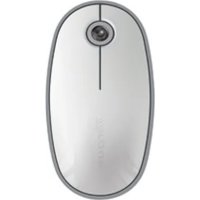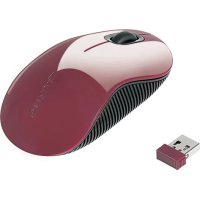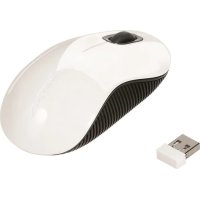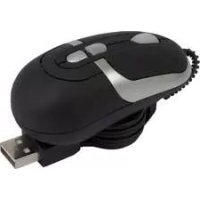
AMU25CA - Mouse TARGUS - Free user manual and instructions
Find the device manual for free AMU25CA TARGUS in PDF.


User questions about AMU25CA TARGUS
0 question about this device. Answer the ones you know or ask your own.
Ask a new question about this device
Download the instructions for your Mouse in PDF format for free! Find your manual AMU25CA - TARGUS and take your electronic device back in hand. On this page are published all the documents necessary for the use of your device. AMU25CA by TARGUS.
USER MANUAL AMU25CA TARGUS
Congratulations on your purchase of the Targus Stow-N-Go™ Ultra Portable Mouse. This mouse features a resolution changing function for users who require more precision with different types of applications. The attachable cable storage on the bottom of the mouse is great for users on the go. This is a plug and play device so no additional software is required. This mouse supports both Windows and Macintosh platforms.
Contents
Targus Stow-N-Go™ Ultra-Portable Mouse
- Carrying pouch
- User Guide
System Requirements
- Operating System - Windows® 2000 / XP
- Windows Vista™
Mac OS 8.9 and above - USB 1.1 or 2.0 port
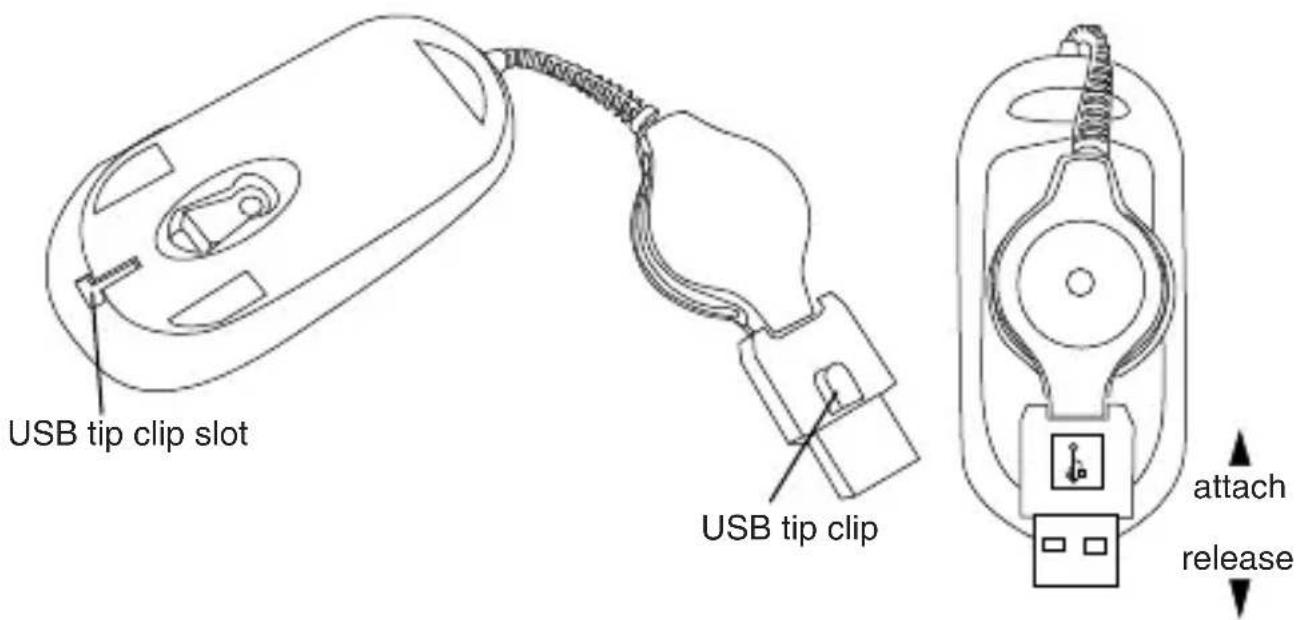
Using the Cable Clip
The retractable cable can be attached to the bottom of the mouse for ease of carrying.
Operating Instructions
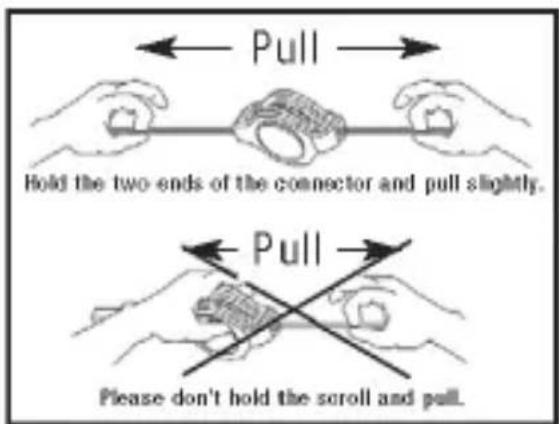
To extend the cable, pull both ends of the USB cable away from the mouse's cord wheel at the same time. Continue pulling both ends until the cable reaches the length you want. To retract the cable, or shorten the length, draw both ends of the USB cable slightly and quickly release until the cable reaches the length you want or is completely retracted. Plug the standard USB end of the cable into an available USB port on your computer. You are now ready to use the mouse.
Connecting the mouse to your computer
1 Plug the standard USB end of the cable into an available USB port on your computer.
2 The Found New Hardware Wizard appears. If it does not, the operating system has installed the default driver automatically. No other steps are necessary.
3 Click Next. The wizard searches for the appropriate device driver.
4 Click Next.
5 Click Finish to complete the driver installation.
You are now ready to use the mouse.
Selecting the Resolution
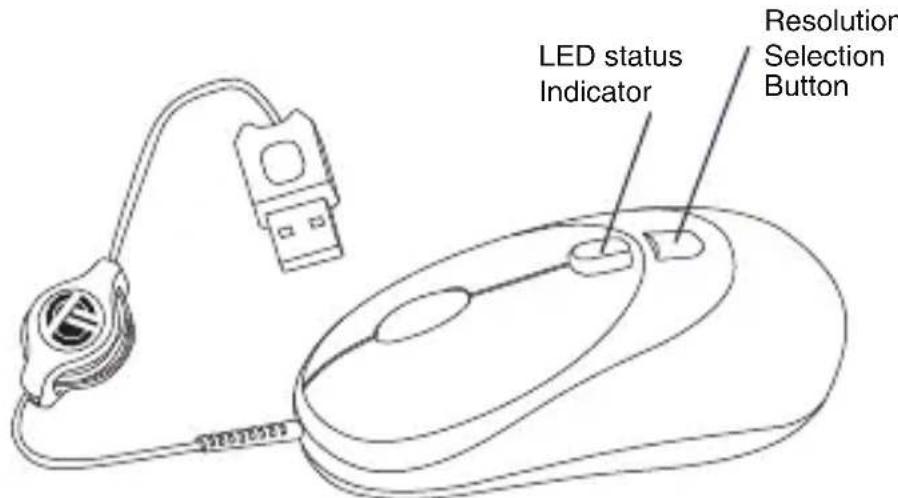
This mouse is designed with 2 user selectable resolutions: by pressing the resolution selection button, the user can select from the available resolutions which provide improved precision coupled with ultra-fast speed for the different types of applications, i.e. text, CAD drawing, detailed drawings.
- 1,000-cpi: default, no light
- 1,500-cpi: blue LED light
Fine Tuning the Mouse Cursor Speed
Due to the change in (high) resolution, the mouse may become too sensitive and difficult to use (too fast for some users). After selecting the suitable resolution, you can also fine tune the sensitivity. This can be adjusted in the "control panel" of the Windows operating system. Click on Start -> Setting -> Control Panel -> Mouse
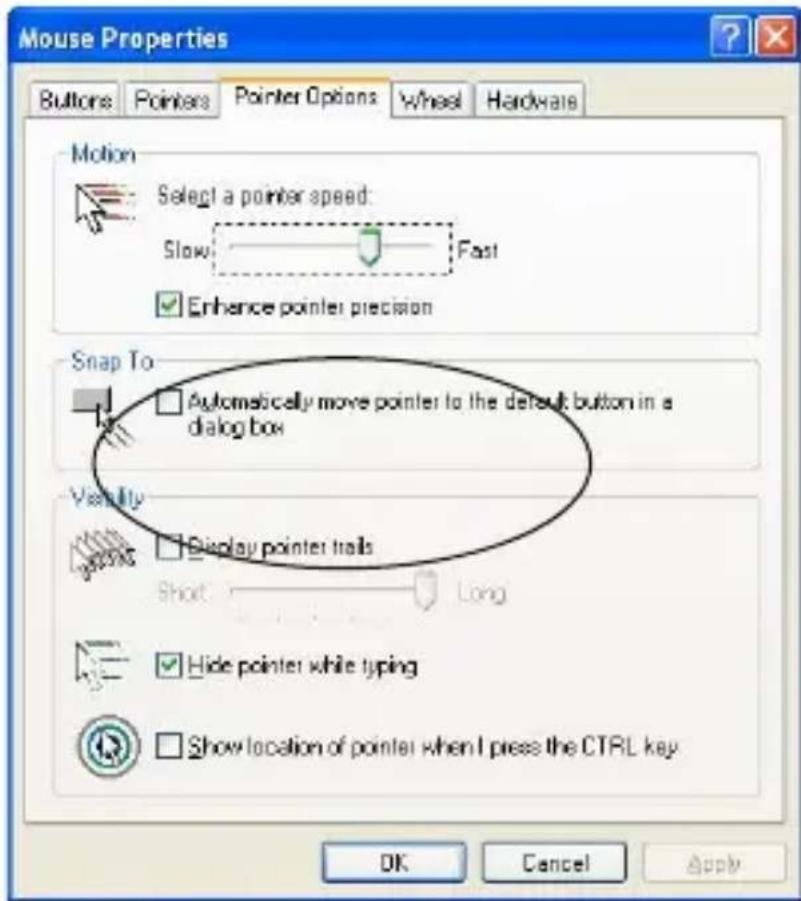
In the "mouse properties" window, locate the "pointer options" tab. Under "motion", use the slider to change the speed of the mouse. Click Apply to confirm the setting.
Safety Measures
Never point the optical sensor toward the face, particularly the eyes, to avoid possible injury.

NOTE: WHILE THE MOUSE IS FUNCTIONING, OPTICAL LIGHT IS VISIBLE TO THE NAKED EYE. BE CAREFUL NOT TO LOOK DIRECTLY INTO THE EMITTER HOLE WHILE THE MOUSE IS ACTIVE.
Operating Hints
For optimal performance:
- Never use the mouse on a glass or mirrored surface as these surfaces will cause the mouse to fail temporarily.
- Avoid using the mouse on surfaces with repetitive patterns, such as printed magazine photographs, as this type of surface may cause the mouse to respond slowly or fail temporarily.
Technical Support
For technical questions, please visit:
Internet: www.targus.com/support.asp
Email: info.cn@targus.com
Product Registration
Targus recommends that you register your Targus accessory shortly after purchasing it. To register your Targus accessory, go to: www.targus.com/registration.asp
You will need to provide your full name, email address, phone number, and company information (if applicable).
Warranty
Targus warrants this product to be free from defects in materials and workmanship for one year. If your Targus accessory is found to be defective within that time, we will promptly repair or replace it. This warranty does not cover accidental damage, wear and tear, or consequential or incidental loss. Under no conditions is Targus liable for loss of, or damage to a computer; nor loss of, or damage to, programs, records, or data; nor any consequential or incidental damages, even if Targus has been informed of their possibility. This warranty does not affect your statutory rights.
Regulatory Compliance
This device complies with Part 15 of the FCC Rules. Operation is subject to the following two conditions: (1) This device may not cause harmful interference, and (2) This device must accept any interference received, including interference that may cause undesired operation.
This Class B digital apparatus complies with Canadian ICES-003.
FCC Statement
Tested to Comply
This equipment has been tested and found to comply with the limits of a Class B digital device, pursuant to Part 15 of the FCC Rules. These limits are designed to provide reasonable protection against harmful interference in a residential installation. This equipment generates, uses, and can radiate radio frequency energy and if not installed and used in accordance with the instructions, may cause harmful interference to radio communications. However, there is no guarantee that interference will not occur in a particular installation.
If this equipment does cause harmful interference to radio or television reception, which can be determined by turning the equipment off and on, the user is encouraged to try to correct the interference by one or more of the following measures:
- Reorient or relocate the receiving antenna;
- Increase the separation between the equipment and receiver;
- Connect the equipment into an outlet on a circuit different from that to which the receiver is connected;
- Consult the dealer or an experienced radio/TV technician for help.
Changes or modifications not authorized by the party responsible for compliance could void the user's authority to operate this product
Microsoft, Windows® are either registered trademarks or trademarks of Microsoft Corporation in the United States and/or other countries. All trademarks and registered trademarks are the properties of their respective owners. All rights reserved.