EasyManual
StreetPilot 2720 - Gps GARMIN - Free user manual and instructions
Find the device manual for free StreetPilot 2720 GARMIN in PDF.


User questions about StreetPilot 2720 GARMIN
0 question about this device. Answer the ones you know or ask your own.
Ask a new question about this device
Download the instructions for your Gps in PDF format for free! Find your manual StreetPilot 2720 - GARMIN and take your electronic device back in hand. On this page are published all the documents necessary for the use of your device. StreetPilot 2720 by GARMIN.
USER MANUAL StreetPilot 2720 GARMIN
© Copyright 2006–2007 Garmin Ltd. or its subsidiaries
Garmin International, Inc.
1200 East 151 ^st Street,
Olathe, Kansas 66062, USA
Tel. (913) 397.8200 or (800) 800.1020
Fax (913) 397.8282
Garmin (Europe) Ltd.
Liberty House
Hounsdown Business Park,
Southampton, Hampshire, SO40 9RB UK
Tel. +44 (0) 870.8501241 (outside the UK)
0808 2380000 (within the UK)
Fax +44 (0) 870.8501251
Garmin Corporation
No. 68, Jangshu 2 ^nd Road,
Shijr, Taipei County, Taiwan
Tel. 886/2.2642.9199
Fax 886/2.2642.9099
All rights reserved. Except as expressly provided herein, no part of this manual may be reproduced, copied, transmitted, disseminated, downloaded or stored in any storage medium, for any purpose without the express prior written consent of Garmin. Garmin hereby grants permission to download a single copy of this manual onto a hard drive or other electronic storage medium to be viewed and to print one copy of this manual or of any revision hereto, provided that such electronic or printed copy of this manual must contain the complete text of this copyright notice and provided further that any unauthorized commercial distribution of this manual or any revision hereto is strictly prohibited.
Information in this document is subject to change without notice. Garmin reserves the right to change or improve its products and to make changes in the content without obligation to notify any person or organization of such changes or improvements. Visit the Garmin Web site (www.garmin.com) for current updates and supplemental information concerning the use and operation of this and other Garmin products.
Garmin ^® , StreetPilot ^® , and MapSource ^® are registered trademarks and City Navigator ^™ is a trademark of Garmin Ltd. or its subsidiaries and may not be used without the express permission of Garmin.
This bilingual version of the StreetPilot 2720 manual is provided as a convenience. If necessary, please consult the most recent revision of the English manual (Garmin part number 190-00474-00) regarding the operation and use of the StreetPilot 2720.

PREFACE
Contact Garmin
If you encounter any difficulty while using your Garmin ^® StreetPilot ^® 2720, or if you have any questions, in the U.S.A. contact Garmin Product Support by phone at 913/397.8200 or 800/800.1020, Monday–Friday, 8 AM–5 PM Central Time. You can also go to the Garmin Web site at http://www.garmin.com/support.
In Europe, contact Garmin (Europe) Ltd. at 44/0870.8501241.
Serial Number
Record the serial number (8-digit number located on the back of the unit) in case your StreetPilot 2720 needs service or you would like to buy additional maps.
Serial Number: ____ ____ ____ ____ ____
Quick Links
• Finding an address: page 9
• Viewing the Map page: page 16
- Creating a new saved route: page 20
- Saving a location you have found: page 12
• Using the mileage logs: page 25
- Turning off the GPS to use indoors: page 19
- Adjusting the volume: page 29
- Adjusting the brightness: page 35
- Loading the USB drivers: page 36
- Cleaning and storing your unit: page 39
PREFACE
TABLE OF CONTENTS
Preface...... i
Contact Garmin ......i
Serial Number ......i
Quick Links i
Warning iii
Caution iv
Getting Ready 1
Looking at the StreetPilot 2720 ....1
Installing the 2720 in Your Vehicle 2
Using the Remote Control 4
Using the 2720 ....5
Manual Conventions 5
Find It and Go! 6
Finding a Restaurant 6
Following Your Route 7
Where To? 8
Using the Where To? Menu 8
Understanding the Search Results ....8
Finding an Address 9
Understanding the Information Page .....10
Finding Recently Found Locations .....10
Finding Locations in a Different Area 11
Narrowing Your Search 11
My Locations 12
Saving Locations 12
Finding Saved Locations 12
Setting a Home Location 13
EN-ii StreetPilot 2720 Owner's Manual
Editing Saved Locations ....13
Saving Coordinates ....14
Deleting a Saved Location ....15
Viewing the Map and Using the Tools .... 16
Viewing the Map Page 16
Browsing the Map 17
Trip Computer 18
Turn List 18
GPS Info Page 19
Creating and Editing Routes 20
Creating a New Saved Route ....20
Editing a Saved Route 21
Adding Multiple Destinations to a Saved
Route 22
Saving the Active Route ....23
Navigating a Saved Route 23
Recalculating the Route ....23
Deleting All Saved Routes ....23
Stopping Your Route 23
Adding a Detour to a Route ....23
Adding Avoidances ....24
Using the Logs 25
Adjusting the Track Log 25
Using the Mileage Logs 25
Traffic Information 26
Connecting the FM Traffic Receiver .....26
Viewing Traffic Incidents 26
Avoiding Traffic 26
Traffic Symbols 27
Severity Color Code 27
Changing the Traffic Settings 27
Adding an FM Traffic Subscription 28
Customizing the StreetPilot 2720 ...... 29
Adjusting the Volume 29
Customizing the General Settings .....29
Changing the Map Settings 31
Customizing the Map Data Fields ....33
Changing the Navigation Settings ....34
Adjusting the Traffic Settings 35
Changing the Screen Settings 35
Viewing Unit Information (About) 35
Restoring the Settings 35
Appendix 36
Connecting to Your Computer 36
Updating the Software and Map Data .....37
Using a Remote GPS Antenna 37
Custom POIs (Points of Interest) ....38
Using xImage to Customize Your Splash
Screen 38
Caring for Your StreetPilot 2720 39
Technical Specifications 40
Changing the Fuse ....40
FCC Compliance 41
Industry Canada Compliance 41
Software License Agreement 41
Declaration of Conformity (DoC) 41
2720 Troubleshooting 42
Index 43

Warning
This manual uses the term Warning to indicate a potentially hazardous situation, which, if not avoided, could result in death or serious injury.
Failure to avoid the following potentially hazardous situations could result in an accident or collision resulting in death or serious injury.
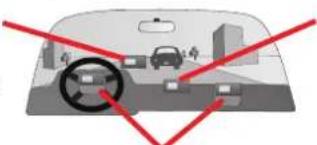
When installing the unit in a vehicle, place the unit securely so that it does not interfere with vehicle operating controls or obstruct the driver's view of the road (see diagram).
Do not mount where driver's field of vision is blocked.
text_image
Diagram showing a car's rearview with red arrows pointing to a circular object, possibly indicating a focus or navigation point.Do not place unsecured on the vehicle dash.
Do not mount in front of an airbag field of deployment.
When navigating, carefully compare information displayed on the unit to all available navigation sources, including information from street signs, visual sightings, and maps. For safety, always resolve any discrepancies or questions before continuing navigation.
Always operate the vehicle in a safe manner. Do not become distracted by the unit while driving, and always be fully aware of all driving conditions. Minimize the amount of time spent viewing the screen of the unit while driving and use voice prompts when possible.
Do not enter destinations, change settings, or access any functions requiring prolonged use of the unit's controls while driving. Pull over in a safe and legal manner before attempting such operations.

- LAMPS INSIDE THIS PRODUCT CONTAIN MERCURY AND MUST BE RECYCLED OR DISPOSED OF ACCORDING TO AL, STATE, OR FEDERAL LAWS.
For more information go to: www.garmin.com/aboutGarmin/environment/disposal.jsp.
WARNING: This product, its packaging, and its components contain chemicals known to the State of California to cause cancer, birth defects, or reproductive harm. This Notice is being provided in accordance with California's Proposition 65. If you have any questions or would like additional information, refer to our Web site at http://www.garmin.com/prop65.

Caution
This manual uses the term Caution to indicate a potentially hazardous situation, which, if not avoided, may result in minor injury or property damage. It may also be used without the symbol to alert you to avoid unsafe practices.
Failure to avoid the following potentially hazardous situations may result in injury or property damage.
The unit is designed to provide you with route suggestions. It does not reflect road closures or road conditions, traffic congestion, weather conditions, or other factors that may affect safety or timing while driving.
Use the unit only as a navigational aid. Do not attempt to use the unit for any purpose requiring precise measurement of direction, distance, location, or topography. This product should not be used to determine ground proximity for aircraft navigation.
The Global Positioning System (GPS) is operated by the United
States government, which is solely responsible for its accuracy and maintenance. The government's system is subject to changes which could affect the accuracy and performance of all GPS equipment, including the unit. Although the unit is a precision navigation device, any navigation device can be misused or misinterpreted and, therefore, become unsafe.
The unit has no user-serviceable parts. If you ever have a problem with your unit, take it to an authorized Garmin dealer for repairs.
The unit is fastened shut with screws. Any attempt to open the case to change or modify the unit in any way voids your warranty and may result in permanent damage to the equipment.
Important Information
MAP DATA INFORMATION: One of the goals of Garmin is to provide customers with the most complete and accurate cartography that is available to us at a reasonable cost. We use a combination of governmental and private data sources, which we identify in product literature and copyright messages displayed to the consumer. Virtually all data sources contain inaccurate or incomplete data to some extent. In some countries, complete and accurate map information is either not available or is prohibitively expensive.
The California Electronic Waste Recycling Act of 2003 requires the recycling of certain electronics. For more information on the applicability to this product, see www.erecycle.org.
GETTING READY
Looking at the StreetPilot 2720
text_image
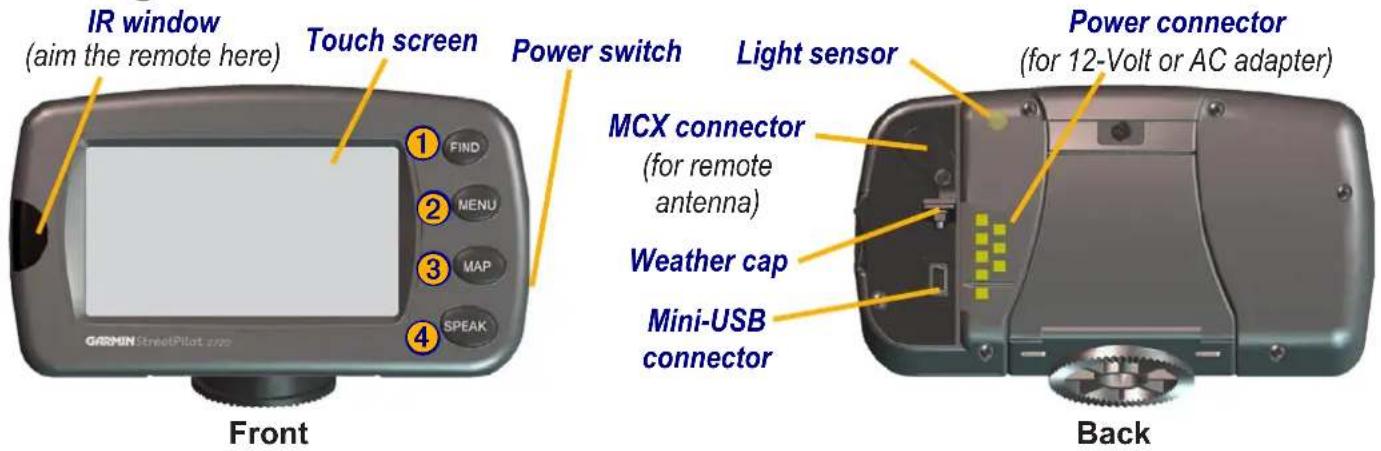
IR window (aim the remote here) Touch screen Power switch Light sensor MCX connector (for remote antenna) Weather cap Mini-USB connector Power connector (for 12-Volt or AC adapter) Front Back2720 Keys
① Find—opens the Where To? menu. Press twice to Go Home. Press and hold to open Recent Finds.
② Menu—opens the Main menu. Press repeatedly to open the Main menu, Tools menu, and Settings menu.
③ Map—opens the Map page. Press repeatedly to open the Map page, Trip Computer, and Turn List.
④ Speak—announces status and voice directions.

Installing the 2720 in Your Vehicle
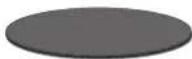
You can use the permanent or temporary adhesive disks, or the non-skid friction mount, to mount the StreetPilot in your vehicle.
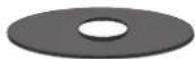
Permanent
adhesive disk
Temporary
adhesive disk
To attach the mounting disk to your dashboard:
- Clean and dry the area where you want to place the mount.
- Remove one side of the backing from the adhesive and place the adhesive on the bottom of the mounting base. Remove the backing from the bottom of the adhesive.
- Place the mounting base so the locking lever is facing you and then position the base on the cleaned area. Apply pressure to adhere the base to the dashboard.

NOTE: The permanent adhesive disk is extremely difficult to remove. Only install it if you are sure you want to leave the mount in that location.
To mount your StreetPilot 2720:
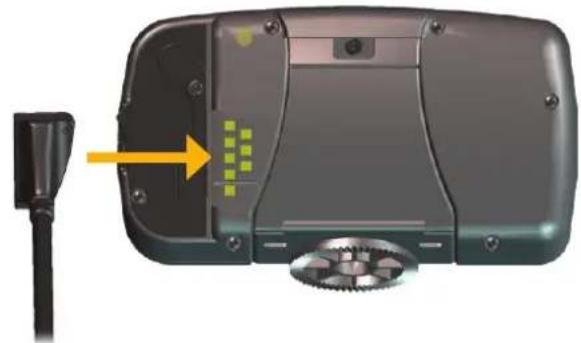
- Align the power plug on the vehicle adapter to the connector and slide the plug into the connector until fully seated.
natural_image
Close-up of a device's internal components with a yellow arrow pointing to a component, no visible text or symbols.-
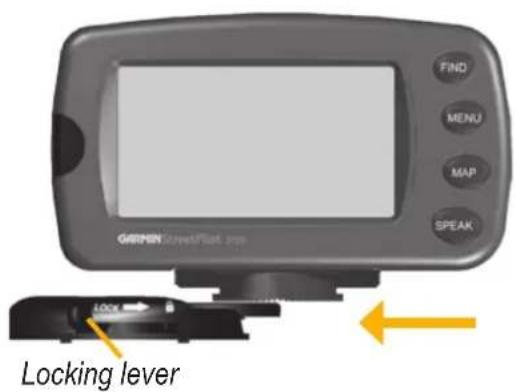
Slide the locking lever on the mounting base to the left, in the unlocked position
-
Slide the bottom of the StreetPilot into the mounting base until it clicks into place.
- Slide the base's locking lever to the right, in the locked position.
text_image
GREEN STREET/Back 2.0m FIND MENU MAP SPEAK Locking lever- Plug the power adapter into an available 12-Volt receptacle in your vehicle.
- Route the cable so it does not interfere with vehicle operation.
StreetPilot 2720 Owner's Manual EN-3
Removing the 2720 from the Mount
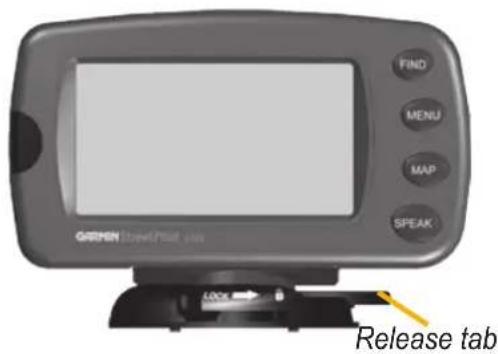
- Slide the locking lever to the left, to the unlocked position.
- Press the release tab down.
text_image
GEHEN Brand/Brand mini FIND MENU MAP SPEAK Release tab- Slide the 2720 out of the mounting base.
Using the Remote Control
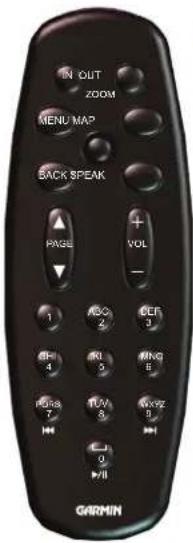
The remote control operates using two AAA batteries. To use the remote, aim it toward the IR window on the front left of the StreetPilot.
(Zoom) In—zooms into the map.
(Zoom) Out—zooms out of the map.
Menu—opens the Main menu. Press repeatedly to scroll through the Main menu, the Tools menu, and Settings menu.
Map—opens the Map page. Press repeatedly to scroll through the Map, Trip Computer, and Turn List.
Back—returns to the previous page and cancels data entry.
text_image
N OUT ZOOM MENU MAP BACK SPEAK PAGE + VOL - 1 2 3 4 5 6 7 8 9 10 11 GARMINSpeak—announces the next turn or the GPS status.
Thumb Stick—highlights options and moves the map arrow. Press in to make a selection.
Page ▲ and ▼—scrolls through lists and pages. Vol+ and ——raises and lowers the volume.
Alphanumeric Keys—enters numbers and letters. To enter letters or numbers, press the key repeatedly until the correct character appears.
Using the 2720
Here a some helpful tips for using your 2720.
- Use your finger to touch the screen and select objects. You can also press the keys on the front of the unit or on the remote control to operate your 2720.
- Touch the Back button on any screen to return to the previous screen.
- Touch ▲ and ▼ ew all of the items in a list.
- When a keyboard appears on the screen, type the name or numbers using your finger. To enter a space, touch □Touch to □Numbers or special characters. To delete the last character you entered, touch □Delete
- You can look at other areas of the map by touching the map and pulling your finger across the screen. See page 17 for more information.
• To adjust the volume, touch Volume on the Main menu.
Manual Conventions
When you are instructed to "touch" something, use your finger to touch an item on the screen. When you are instructed to "press" something, press a key on the front of the unit or on the remote control.
You will see small arrows (>) used in the text. They indicate that you should touch a series of items. For example, if you see “touch Tools > GPS Info > GPS Settings” you should touch the Tools button, then touch GPS Info, and then touch GPS Settings.
FIND IT AND GO!
As soon as you turn on your Garmin StreetPilot 2720, it begins acquiring GPS satellite signals. The bars in the upper-left corner indicate satellite strength. Touch the bars to view more information about the GPS signals.
Finding a Restaurant

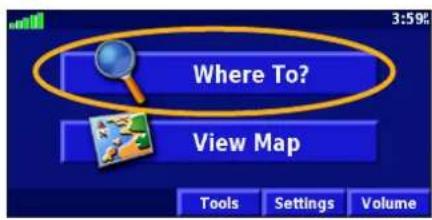
① Touch Where To?
text_image
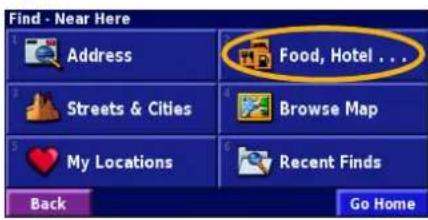
Where To? View Map Tools Settings Volume② Touch Food, Hotel....
text_image
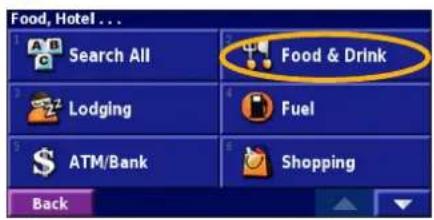
Find - Near Here Address Streets & Cities My Locations Back Food, Hotel . . . Browse Map Recent Finds Go Home③ Touch Food & Drink.
text_image
Food, Hotel ... Search All Food & Drink Lodging Fuel ATM/Bank Shopping Back④ Touch a food category.
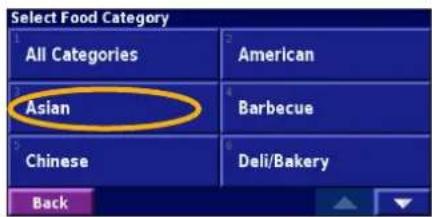
text_image
Select Food Category All Categories Asian American Barbecue Chinese Deli/Bakery Back⑤ Touch a location.
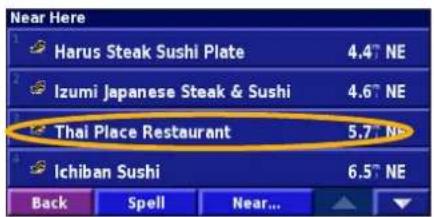
text_image
Near Here Harus Steak Sushi Plate 4.4" NE Izumi Japanese Steak & Sushi 4.6" NE Thai Place Restaurant 5.7" NE Ichiban Sushi 6.5" NE Back Spell Near...⑥ Touch Go To.
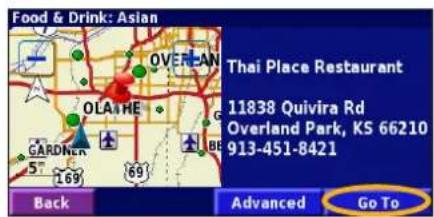
text_image
Food & Drink: Asian Thai Place Restaurant 11838 Quivira Rd Overland Park, KS 66210 913-451-8421 Back Advanced Go ToEN-6 StreetPilot 2720 Owner's Manual
Following Your Route
Follow the route to your destination using the map and the voice prompts. As you travel, your StreetPilot guides you to your destination with voice prompts, arrows, and directions along the top of the map. If you depart from the original route, your StreetPilot recalculates the route and provides new route instructions.
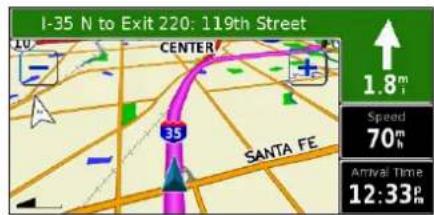
text_image
I-35 N to Exit 220: 119th Street CENTER SANTA FE 1.8m Speed 70m Arrival Time 12:33mYour route is marked with a magenta line.
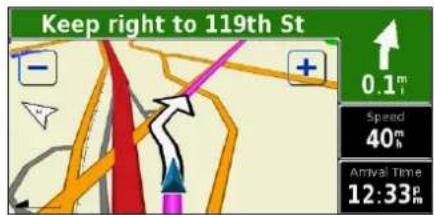
text_image
Keep right to 119th St 0.1m Speed 40m Arrival Time 12:33pFollow the arrows. A checkered flag marks
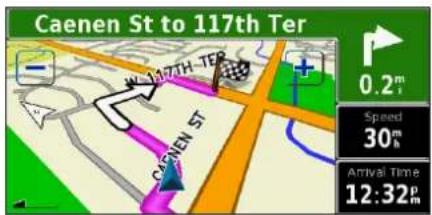
text_image
Caenen St to 117th Ter 0.2m Speed 30m Arrival Time 12:32myour destination.
For more information about using the map and other tools, see pages 16–19.
Taking a Better Route
If you need to take a detour, press the Menu key and touch Detour. For more information about taking detours, see page 23.
WHERE To?
Using the Where To? Menu
The Where To? menu (Find menu) provides several categories to search for locations. Press the Find key, or touch Where To? on the Main menu.
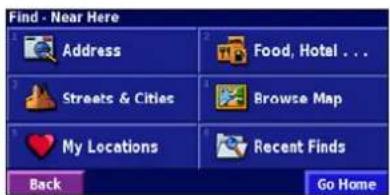
text_image
Find - Near Here Address Food, Hotel ... Streets & Cities Browse Map My Locations Recent Finds Back Go HomeWhere To? Menu
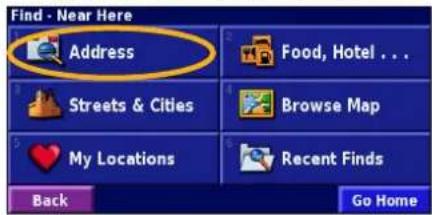
Address—enter the house number and street name to find a specific address. See page 9.
Food, Hotel...—search for locations, such as schools, shopping centers, and hospitals.
Streets & Cities—find a city, street, intersection, or exit.
Browse Map—use the map to find the location you are looking for, which can be helpful when you know where the location is, but do not know the name. See page 17.
My Locations—save your favorite locations in My Locations. For example, you can save the hotel where you will be staying while on vacation. See page 12.
Recent Finds—find locations you have recently selected from the search result list.
Understanding the Search Results
Your StreetPilot sorts the search results list by distance from your current location; the closest locations are listed first.
Touch the 📄 to view all of the results.
See page 11 to narrow your search or search in different areas.
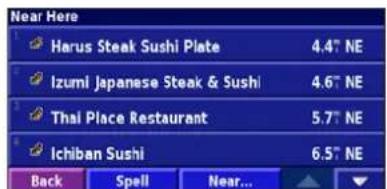
text_image
Near Here Harus Steak Sushi Plate 4.4" NE Izumi Japanese Steak & Sushi 4.6" NE Thai Place Restaurant 5.7" NE Ichiban Sushi 6.5" NE Back Spell Near...Search Results
Finding an Address

① From the Main menu, touch Where To? Touch Address.
text_image
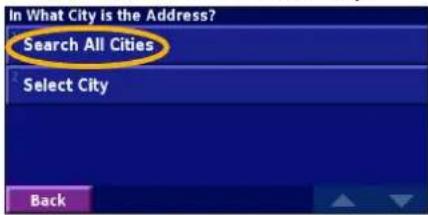
Find - Near Here Address Food, Hotel ... Streets & Cities Browse Map My Locations Recent Finds Back Go Home② Touch a state. Touch Search All Cities or select a city.
text_image
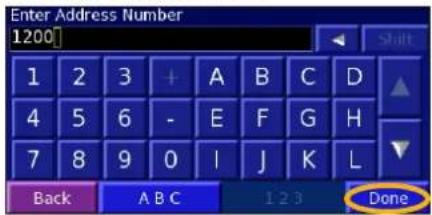
In What City is the Address? Search All Cities Select City Back③ Enter the address number and touch Done.
text_image
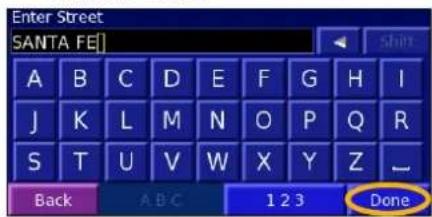
Enter Address Number 1200 1 2 3 + A B C D 4 5 6 - E F G H 7 8 9 0 I J K L Back A B C 1 2 3 Done④ Enter the street name and touch Done.
text_image
Enter Street SANTA FE] A B C D E F G H I J K L M N O P Q R S T U V W X Y Z _ Back ABC 1 2 3 Done⑤ Select the street and then select the city.
text_image
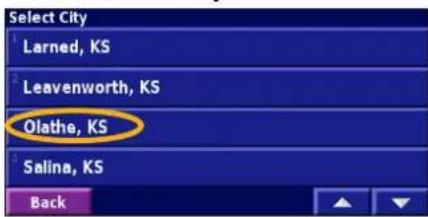
Select City Larned, KS Leavenworth, KS Olathe, KS Salina, KS Back⑥ Select the address, if necessary. Touch Go To.
text_image
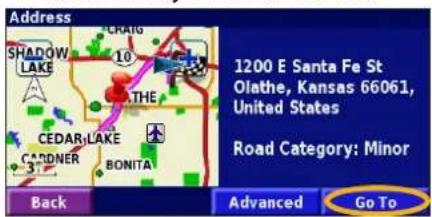
Address 1200 E Santa Fe St Olathe, Kansas 66061, United States Road Category: Minor Back Advanced Go ToSearching for a city, street, intersection, or exit is very similar to searching for an address. From the Main menu, touch Where To? > Streets & Cities.
WHERE TO?

Understanding the Information Page
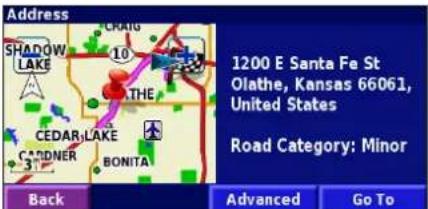
When you select a location from the search results list, the location's information page opens, as shown below.
text_image
Address 1200 E Santa Fe St Olathe, Kansas 66061, United States Road Category: Minor Back Advanced Go ToTouch Go To to create a route to this location.
Touch Advanced to view other options for this location:
- Insert in Current Route—add this location as the next stop (point) in your route.
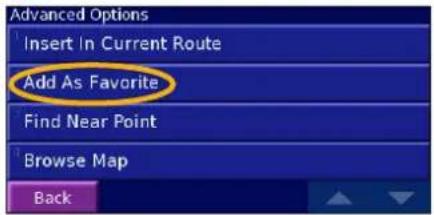
- Add As Favorite—add this location to your Favorites. For more information, see page 12.
• Find Near Point—find a different location near this location. - Browse Map—view this location on the map.
EN-10 StreetPilot 2720 Owner's Manual
Finding Recently Found Locations
Your StreetPilot stores the last 50 locations you have found in Recent Finds.
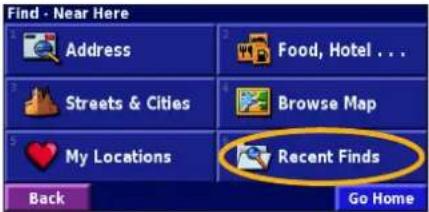
① Touch Where To? > Recent Finds.
text_image
Find - Near Here Address Food, Hotel ... Streets & Cities Browse Map My Locations Recent Finds Back Go Home② Select a location from the list.
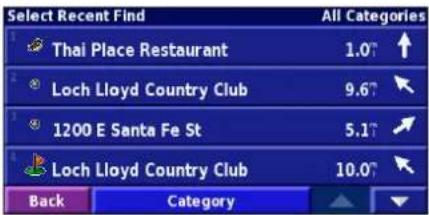
text_image
Select Recent Find All Categories Thai Place Restaurant 1.0° ↑ Loch Lloyd Country Club 9.6° ↓ 1200 E Santa Fe St 5.1° ↗ Loch Lloyd Country Club 10.0° ↓ Back CategoryTouch Category to display recent finds of a specific category, such as Cities.
Finding Locations in a Different Area
You can search for locations in a different area, such as a different city or near your destination.
① From the search results list, touch Near....
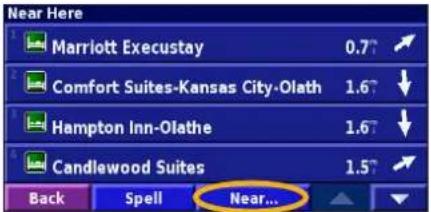
text_image
Near Here Marriott Execustay 0.7° Comfort Suites-Kansas City-Olath 1.6° Hampton Inn-Olathe 1.6° Candlewood Suites 1.5° Back Spell Near...② Select one of the search options.
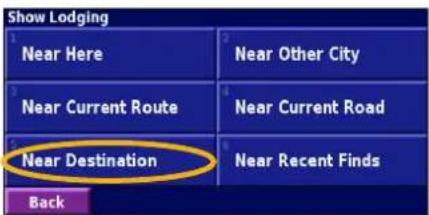
text_image
Show Lodging Near Here Near Other City Near Current Route Near Current Road Near Destination Near Recent Finds BackA list of locations appears.
StreetPilot 2720 Owner's Manual EN-11
Narrowing Your Search
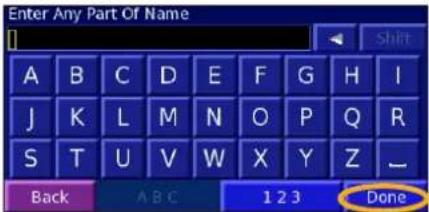
To narrow your search, you can spell part of the name of the location you are searching for.
① From the search results list, touch Spell.
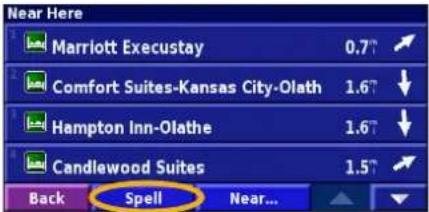
text_image
Near Here Marriott Execustay 0.7" Comfort Suites-Kansas City-Olath 1.6" Hampton Inn-Olathe 1.6" Candlewood Suites 1.5" Back Spell Near...② Enter part of the name and touch Done.
text_image
Enter Any Part Of Name A B C D E F G H I J K L M N O P Q R S T U V W X Y Z _ Back ABC 1 2 3 DoneA list of locations appears.
My Locations

Saving Locations
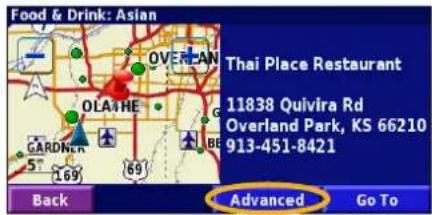
Any time you are viewing a location's information page, you can save that location as a Favorite.
① Touch Advanced.
text_image
Food & Drink: Asian Thai Place Restaurant 11838 Quivira Rd Overland Park, KS 66210 913-451-8421 Back Advanced Go To② Touch Add As Favorite.
text_image
Advanced Options Insert In Current Route Add As Favorite Find Near Point Browse Map BackSaving a Current Location
From the Main menu, touch View Map. Touch anywhere on the map, and then touch Save As Favorite.
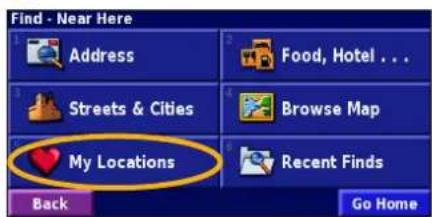
Finding Saved Locations
From the Main menu, touch Where To?
① Touch My Locations.
text_image
Find - Near Here Address Streets & Cities My Locations Back Food, Hotel ... Browse Map Recent Finds Go Home② Touch Favorites.
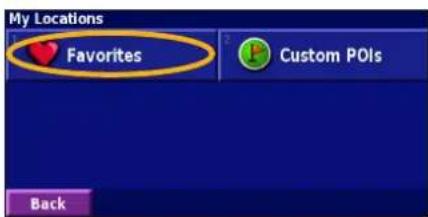
text_image
My Locations Favorites Custom POIs Back③ Touch a saved location.
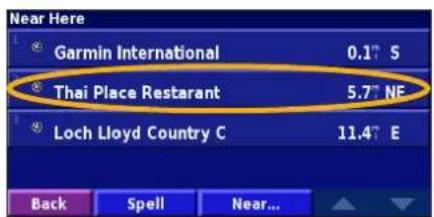
text_image
Near Here Garmin International 0.1° S Thai Place Restarant 5.7° NE Loch Lloyd Country C 11.4° E Back Spell Near...EN-12 StreetPilot 2720 Owner's Manual
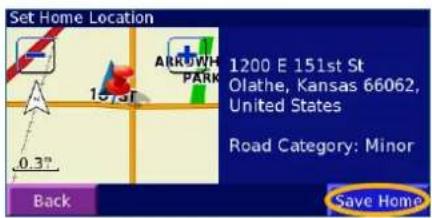
Setting a Home Location
① Touch Where To? > Go Home. ② Select an option.
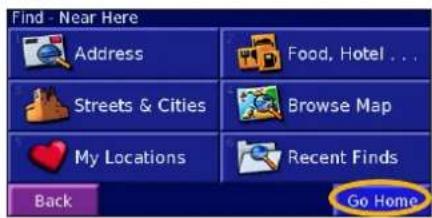
text_image
Find - Near Here Address Food, Hotel ... Streets & Cities Browse Map My Locations Recent Finds Back Go Home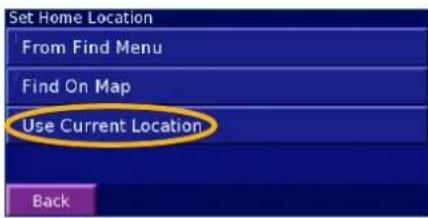
text_image
Set Home Location From Find Menu Find On Map Use Current Location Back③ Touch Save Home.
text_image
Set Home Location 1200 E 151st St Olathe, Kansas 66062, United States Road Category: Minor Back Save HomePress the Find key twice to create a route to your Home Location. To change your Home Location, first delete it from your Favorites (see page 15 for more information). Then set it again using the instructions above.
Editing Saved Locations
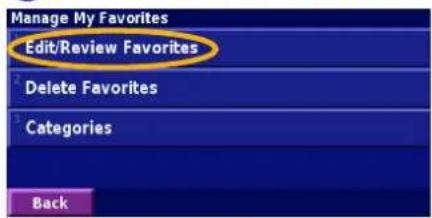
From the Main menu, touch Tools > My Data > Favorites.
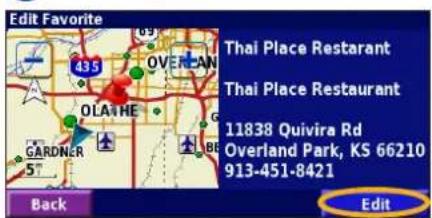
① Touch Edit/Review Favorites. ② Touch a location to edit.
text_image
Manage My Favorites Edit/Review Favorites Delete Favorites Categories Back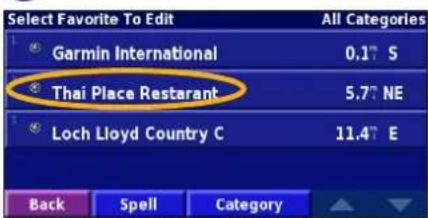
text_image
Select Favorite To Edit Garmin International 0.1° S Thai Place Restarant 5.7° NE Loch Lloyd Country C 11.4° E Back Spell Category③ Touch Edit.
text_image
Edit Favorite Thai Place Restaurant Thai Place Restaurant 11838 Quivira Rd Overland Park, KS 66210 913-451-8421 Back EditStreetPilot 2720 Owner's Manual EN-13
Saving Coordinates
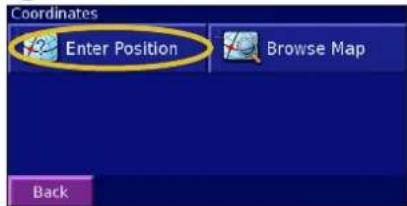
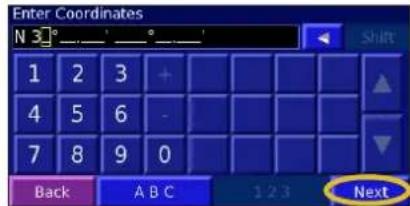
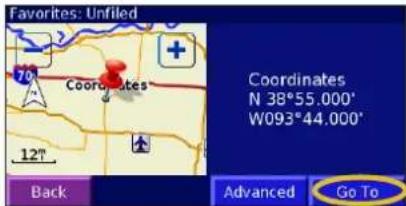
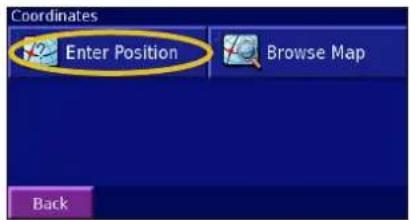
If you know the geographic coordinates of your destination, you can use your StreetPilot to navigate to any location using its latitude and longitude coordinates. From the Menu page, touch Where To? > My Locations > Coordinates.
Entering the Coordinates
① Touch Enter Position.
text_image
Coordinates Enter Position Browse Map Back② Enter the coordinates, and touch Next.
text_image
Enter Coordinates N 3° _ _ _ _ _ 1 2 3 + 4 5 6 - 7 8 9 0 Back A B C 1 2 3 Next③ Touch Go To.
text_image
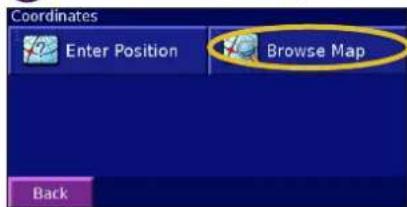
Favorites: Unfiled Coordinates N 38°55.000' W093°44.000' 127 Back Advanced Go ToBrowsing the Map for Coordinates
① Touch Browse Map.
text_image
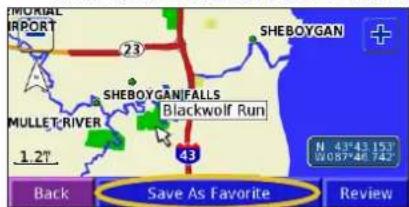
Coordinates Enter Position Browse Map Back② Touch the location on the map, and touch Save As Favorite.
text_image
MURIAL IMPORT 23 SHEBOYGAN SHEBOYGAN/FALLS Blackwolf Run MULLET/RIVER 1.2° 43 N 43°43'153" 0087°46'742" Back Save As Favorite Review③ Touch Go To.
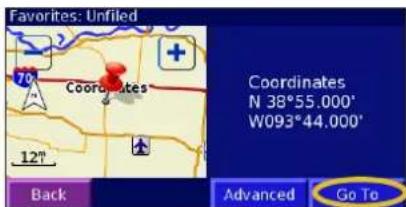
text_image
Favorites: Unfiled Coordinates N 38°55.000' W093°44.000' 12° Back Advanced Go ToEN-14 StreetPilot 2720 Owner's Manual
Deleting a Saved Location
To delete a saved location, touch Tools > My Data > Favorites.
① Touch Delete Favorites.
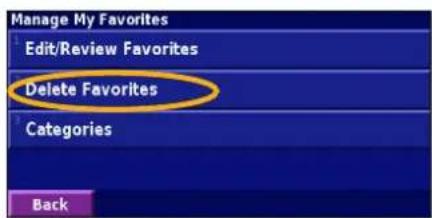
text_image
Manage My Favorites Edit/Review Favorites Delete Favorites Categories Back② Touch By Selection.
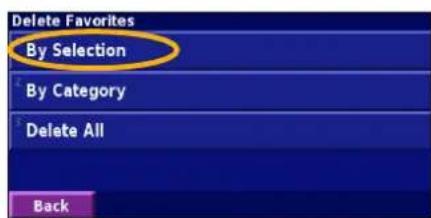
text_image
Delete Favorites By Selection By Category Delete All Back③ Touch a saved location.
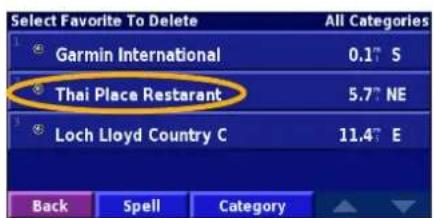
text_image
Select Favorite To Delete Garmin International 0.1° S Thai Place Restarant 5.7° NE Loch Lloyd Country C 11.4° E Back Spell Category④ Touch Delete.
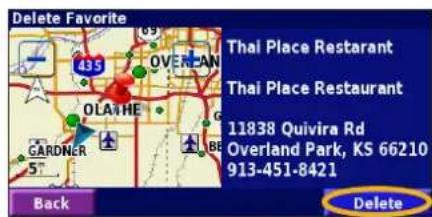
text_image
Delete Favorite Thai Place Restaurant Thai Place Restaurant 11838 Quivira Rd Overland Park, KS 66210 913-451-8421 Back DeleteDelete Options
By Selection—touch each location and delete them each individually.
By Category—select one category to delete all of the locations assigned to that category.
Delete All—removes all saved locations from your Favorites.
VIEWING THE MAP AND USING THE TOOLS
Viewing the Map Page
From the Main menu, touch View Map to open the map or press the Map key. Touch an area of the map to see additional information, as shown below. The position icon shows your current location.
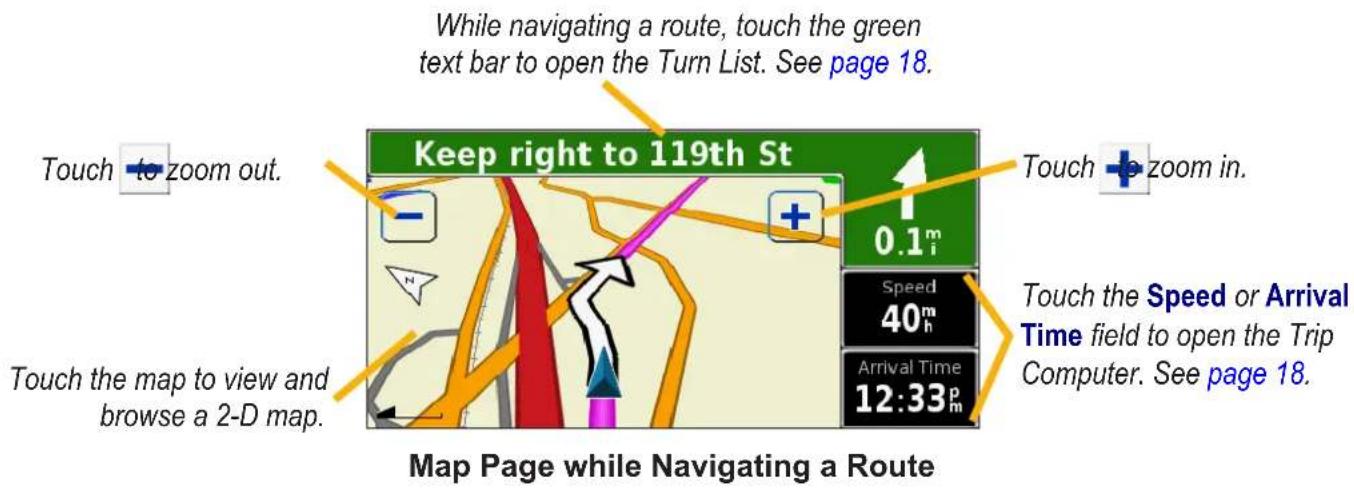
text_image
While navigating a route, touch the green text bar to open the Turn List. See page 18. Keep right to 119th St Touch to zoom out. Touch the map to view and browse a 2-D map. Touch + zoom in. 0.1m Speed 40m Arrival Time 12:33pm Touch the Speed or Arrival Time field to open the Trip Computer. See page 18. Map Page while Navigating a RouteBrowsing the Map
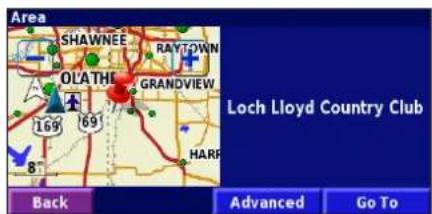
From the Main menu, touch View Map. You can also touch 📋 Where to? > Browse Map. Touch and drag anywhere on the map to browse the map (view different parts of the map).
① Touch any object on the map. Touch Review.
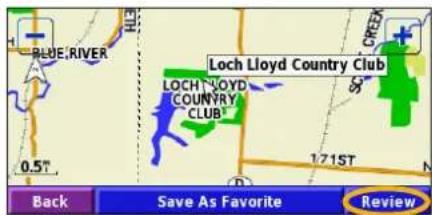
text_image
LOCH LLOYD Country Club LOCH LLOYD COUNTRY CLUB 0.5T 171ST Back Save As Favorite Review② Touch Go To or Advanced.
text_image
Area SHAWNEE RAYTOWN OLATHE GRANDVIEW Loch Lloyd Country Club 169 69 HARF Back Advanced Go ToStreetPilot 2720 Owner's Manual EN-17
Tips for Browsing the Map
- Touch the map and drag to view different parts of the map.
- Use the + and -icons to zoom in and out.
- Touch any object on the map. An arrow appears pointing at the object you selected.
- Touch Review to open the location's information page; for more information, see page 10.
- Touch Save As Favorite to save the location selected by the arrow to your Favorites.
- TouchBack to return to the previous screen.
Trip Computer
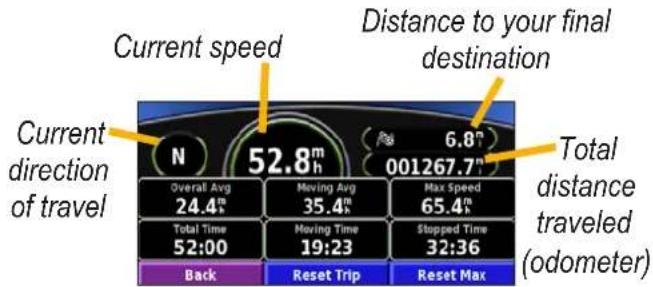
The Trip Computer indicates your current speed and provides statistics about your trip.
To view the Trip Computer, select the Speed or Arrival Time field on the map. Or, from the Main menu, touch Tools > Trip Computer.
text_image
Current speed Distance to your final destination Current direction of travel N 52.8m Overall Avg 24.4m Total Time 52:00 Back Reset Trip Reset Max Moving Avg 35.4m Moving Time 19:23 Max Speed 65.4m Stopped Time 32:36 Total distance traveled (odometer)Touch Reset Trip to reset all information on the Trip Computer. To reset the maximum speed, touch Reset Max.
Turn List
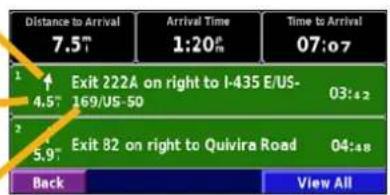
The Turn List provides a list of turn-by-turn instructions for your entire route as well as arrival information.
While navigating a route, touch the green text bar on the Map page to open the Turn List. Or, from the Main menu, touch Tools > Turn List. The next turn on your route is listed at the top of the list. Touch View All to see all the turns in the route. Touch 📋 to 📃 through the list.
Direction of this turn
Distance to this turn
Turn directions
text_image
Distance to Arrival 7.5m Arrival Time 1:20m Time to Arrival 07:07 Exit 222A on right to I-435 E/US- 4.5m 169/US-50 03:42 Exit 82 on right to Quivira Road 04:48 Back View AllTouch a turn to see the turn on a map (the Next Turn page). You can also, press Speak on the remote control to open the Next Turn page. Touch and to zoom in and out of the turn on the map.
GPS Info Page
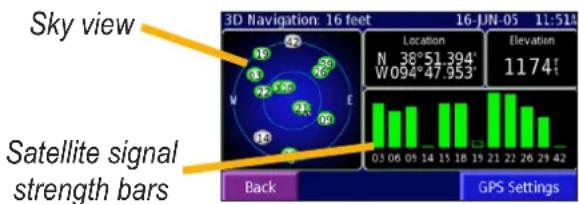
From the map or Main menu, touch the signal strength bars in the upper-left corner of the screen to view the GPS Info page. Or, from the Main menu, touch Tools > GPS Info.
text_image
Sky view Satellite signal strength bars Back GPS Settings 3D Navigation 16 feet Location N 38°51.394' W094°47.953' Elevation 1174' 16-JUN-05 11:51tThe sky view shows the satellites you are receiving. The satellite signal strength bars indicate the strength of each satellite signal. A solid bar indicates your StreetPilot has a strong fix on that GPS satellite, and the GPS satellite is ready for use.
For more information about GPS, see http://www.garmin.com/aboutGPS/.
GPS Settings
From the Main menu, touch Settings > General > GPS. You can also access the GPS Settings by touching the GPS Settings button on the GPS Info page.
Use Indoors—touch Yes to turn the GPS receiver off and use the unit indoors.
Set Position—if Use Indoors is enabled, you can select a location on the map as your current location (position). Touch OK after you select your location.
WAAS/EGNOS—disable and enable WAAS/EGNOS. Wide Area Augmentation System (WAAS) and Euro Geostationary Navigation Overlay Service (EGNOS) are systems of satellites and ground stations that provide GPS signal corrections, giving you even better position accuracy.
To learn about WAAS and EGNOS, visit http://www.garmin.com/aboutGPS/waas.html.
CREATING AND EDITING ROUTES
Creating a New Saved Route
You can store up to 50 saved routes. From the Main menu, touch Tools > My Data > Routes.
① Touch Create New Saved Route.
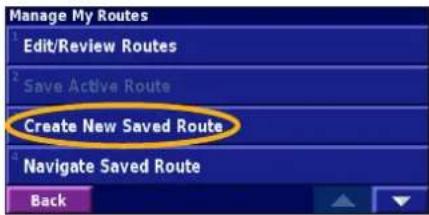
text_image
Manage My Routes Edit/Review Routes Save Active Route Create New Saved Route Navigate Saved Route Back② Touch an option and touch Next. Select the start point.
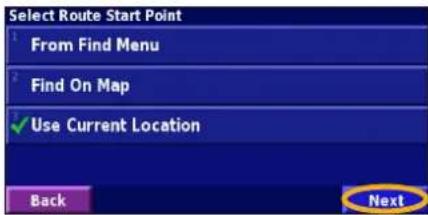
text_image
Select Route Start Point From Find Menu Find On Map ✓ Use Current Location Back Next③ Touch an option and touch Next. Select the end point.
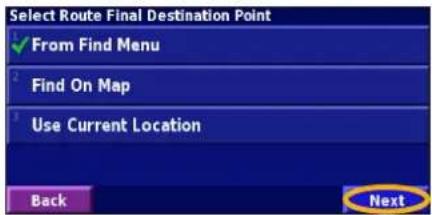
text_image
Select Route Final Destination Point ✓ From Find Menu Find On Map Use Current Location Back Next④ To add a stop, touch Yes, then touch Next. Select the point.
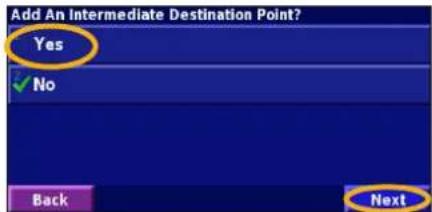
text_image
Add An Intermediate Destination Point? Yes ✓ No Back Next⑤ Select your preference and touch Next. See page 34.
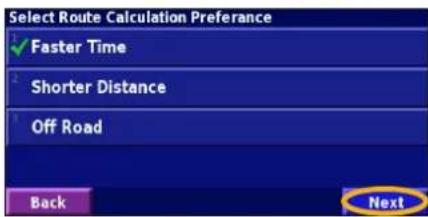
text_image
Select Route Calculation Preference ✓ Faster Time Shorter Distance Off Road Back Next⑥ Touch Finish.
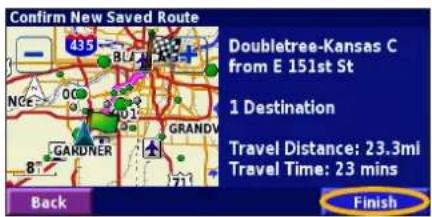
text_image
Confirm New Saved Route Doubletree-Kansas C from E 151st St 1 Destination Travel Distance: 23.3mi Travel Time: 23 mins Back FinishEN-20 StreetPilot 2720 Owner's Manual
Editing a Saved Route
From the Main menu, touch Tools > My Data > Routes.
① Touch Edit/Review Routes.
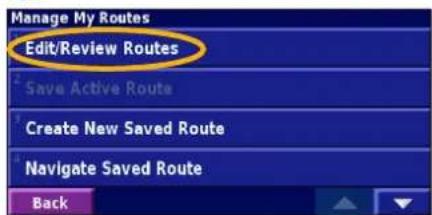
text_image
Manage My Routes Edit/Review Routes Save Active Route Create New Saved Route Navigate Saved Route Back② Touch the route to edit.
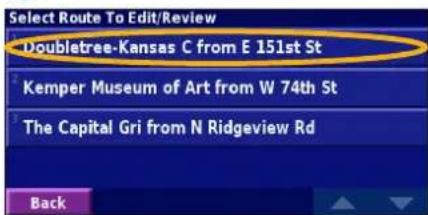
text_image
Select Route To Edit/Review Doubletree-Kansas C from E 151st St Kemper Museum of Art from W 74th St The Capital Gri from N Ridgeview Rd Back③ Touch Edit.
text_image
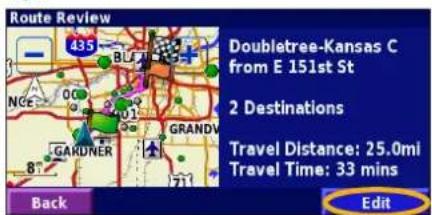
Route Review Doubletree-Kansas C from E 151st St 2 Destinations Travel Distance: 25.0mi Travel Time: 33 mins Back Edit④ Touch the item to edit.
text_image
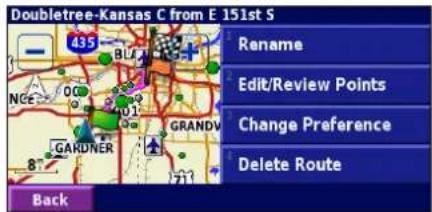
Doubletree-Kansas C from E 151st S Rename Edit/Review Points Change Preference Delete Route BackRename—enter a new name for the route using the on-screen keyboard.
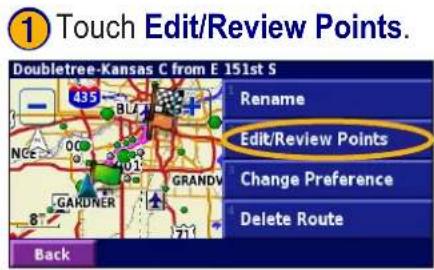
Edit/Review Points—add, arrange, remove, re-order, and review points in the route. For more info, see the next page.
Change Preference—change the route calculation preference to Faster Time, Shorter Distance, or Off Road. See page 34 for information about the route preferences.
Delete Route—delete this route.
Adding Multiple Destinations to a Saved Route
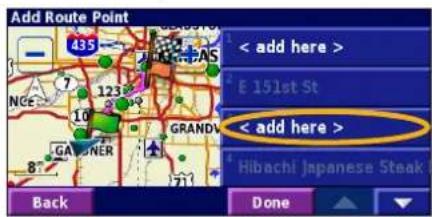
You can add multiple destinations (also called via points, midpoints, or stops) to your route as you create it, as described on page 20. You can also add points to your route when you edit the route, as described below. Follow the steps on the previous page to begin editing the route.
text_image
① Touch Edit/Review Points. Doubletree-Kansas C from E 151st S Rename Edit/Review Points Change Preference Delete Route Back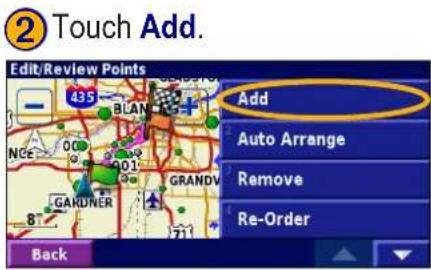
text_image
② Touch Add. Edit/Review Points Add Auto Arrange Remove Re-Order BackAuto Arrange—arranges the points to provide the shortest route.
Remove—touch the point you want to remove and then touch Remove.
Re-Order—touch the point you want to move. Touch Move Up or Move Down. Touch Done when finished.
③ Touch where you to want to add the point.
text_image
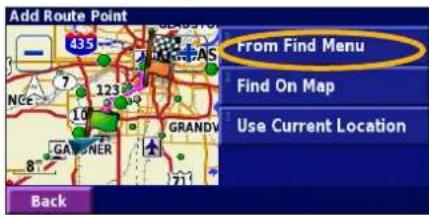
Add Route Point 435 123 7 10 GRANDV GARDNER Back Done < add here > E 151st St < add here > Hibachi Japanese Steak④ Touch an option and then select the point.
text_image
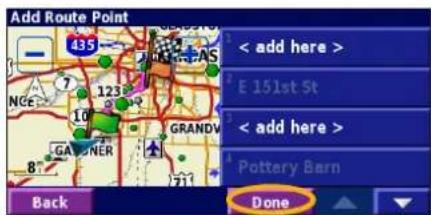
Add Route Point From Find Menu Find On Map Use Current Location Back⑤ Add points as necessary. Touch Done when finished.
text_image
Add Route Point 435 123 GRANDV < add here > E 151st St < add here > Pottery Barn Back DoneEN-22 StreetPilot 2720 Owner's Manual
Saving the Active Route
From the Main menu, touch Tools > My Data > Routes > Save Active Route.
Navigating a Saved Route
From the Main menu, touch Tools > My Data > Routes > Navigate Saved Route. Touch the route you want to navigate.
Recalculating the Route
From the Main menu, touch Tools > My Data > Routes > Recalculate Route.
Deleting All Saved Routes
From the Main menu, touch Tools > My Data > Routes > ▼ delete All Saved Routes.
Stopping Your Route
From the Main menu, touch Stop and then touch Yes.
Adding a Detour to a Route
If you need to take a detour from your current route, open the Main menu and touch Detour.
1/2 mile, 2 miles, or 5 miles—select the distance of the detour. For example if a road sign indicates that the street is closed for the next 2 miles, touch 2 miles in the list. Your StreetPilot recalculates your route for the next two miles.
Detour by Road(s) In Route—select roads in your route to avoid. For example, if the highway ramp is closed, select the ramp in the list of roads. Your StreetPilot recalculates your route to avoid that ramp.
Detour by Traffic Event on Route—if you are using an FM Traffic Receiver, you can detour around traffic events (incidents).
Remove All Detours—touch to remove any detours you have entered for the route.
Adding Avoidances
From the Main menu, touch Settings > Navigation > ▼ > Avoidance Setup. Select the road type to avoid. Touch ▼ to view more road types to avoid.
Creating Custom Avoids
From the Avoidance Setup menu, touch ▼ times and then touch
Custom Avoids.
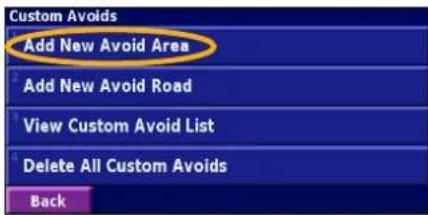
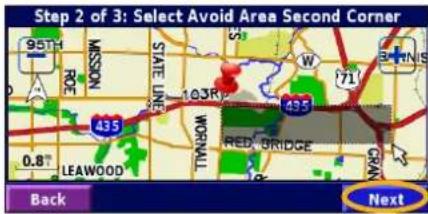
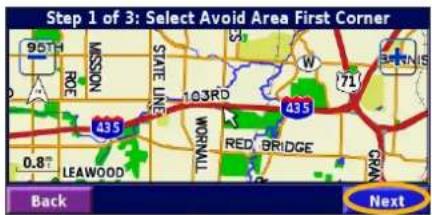
You can enter specific areas and roads to avoid in your routes. When you add a new avoid road, select the beginning point and the end point to define the section of the road that you want to avoid.
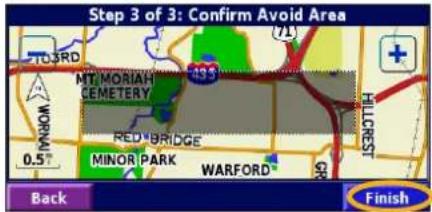
When you add a new avoid area, create a rectangular area by selecting the diagonally opposite corners.
① Touch Add New Avoid Area or Add New Avoid Road.
text_image
Custom Avoids Add New Avoid Area Add New Avoid Road View Custom Avoid List Delete All Custom Avoids Back③ Touch the second corner and touch Next.
text_image
Step 2 of 3: Select Avoid Area Second Corner 95TH MISSION STATE LINE 103R W 71' 435 RED BRIDGE LEAWOOD 0.8" NEWD Back Next② Touch the first corner and touch Next.
text_image
Step 1 of 3: Select Avoid Area First Corner 95TH MASSON ROE STATE LINE 103RD W 435 RED BRIDGE LEAWOOD 0.8" 71' OKAM Back Next④ Touch Finish.
text_image
Step 3 of 3: Confirm Avoid Area MT MORIAH CEMETERY RED BRIDGE MINOR PARK WARFORD Back FinishUSING THE LOGS
Adjusting the Track Log
As you travel, the StreetPilot creates a bread crumb trail (track log) of your movement so you can see where you have been. From the Main menu, touch Tools > My Data > Track Log.
Recording—turn off and on the track log recorder. It is on by default.
Percentage Full—displays the current percentage capacity of the track log. To clear the track log, touch Percentage Full > Yes > OK.
Displaying the Track Log
From the Main menu, touch Settings > Map > Zoom Level Detail > Track Log. Select a zoom setting at which the track log is shown. Touch OK.
Your track log is now shown as a fine dotted line on the map.
StreetPilot 2720 Owner's Manual EN-25
Using the Mileage Logs
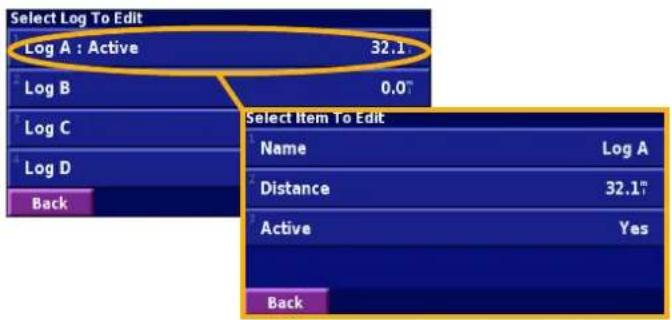
You can keep four different mileage logs of your travels. One log is always active to record your mileage. From the Main menu, touch Tools > My Data > Mileage Log. Touch a log to edit it.
text_image
Select Log To Edit Log A : Active 32.1 Log B 0.0" Log C Log D Back Select Item To Edit Name Log A Distance 32.1" Active Yes BackName—enter a new name.
Distance—reset the mileage log.
Active—turn this log on or off.
TRAFFIC INFORMATION
Using a Garmin® FM TMC Traffic Receiver, your StreetPilot 2720 can receive and use traffic information broadcast over the FM radio data system. No more changing the radio stations to hear the latest traffic report!
When a traffic message is received, your StreetPilot displays the incident on the map and can change your route to avoid the traffic incident.
For more information about the FM Traffic Receiver, visit the Garmin Web site (www.garmin.com). For participating FM subscription providers and covered cities, refer to http://www.garmin.com/fmtraffic.
Connecting the FM Traffic Receiver
Plug the cable from the FM Traffic Receiver into the mini-USB connector on the back of the StreetPilot under the weather cap.
Viewing Traffic Incidents
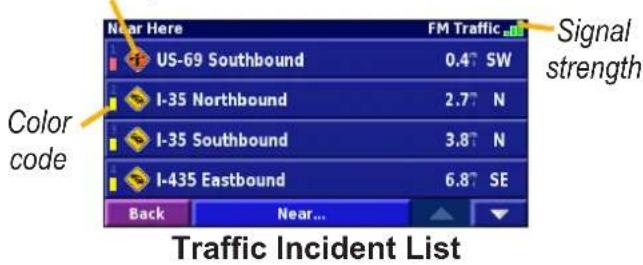
From the Main menu, touch Tools > Traffic. Touch an item in the list to view the details. Touch Near... to view traffic at a different location.
Traffic symbol
text_image
Near Here US-69 Southbound 0.4° SW I-35 Northbound 2.7° N I-35 Southbound 3.8° N I-435 Eastbound 6.8° SE Back Near... Signal strength Color code Traffic Incident ListAvoiding Traffic
When a traffic incident is on your current route, a 06 appears in the lower-left corner of the map showing the total delay in minutes. To avoid the traffic, touch 06 touch the incident, and then touch Detour Around.
Traffic Symbols
| North American | Meaning International |
| Road Condition | |
| Road Construction | |
| Road Closed | |
| Congestion | |
| Accident | |
| Incident | |
| Information |
Severity Color Code
The bars to the left of the traffic symbols indicate the severity of the traffic incident.
= Low severity; traffic is still flowing.
= Medium severity; traffic is a bit congested.
= High severity; traffic is heavily congested.
StreetPilot 2720 Owner's Manual EN-27
Changing the Traffic Settings Traffic Settin
From the Main menu, touch Settings > Traffic.
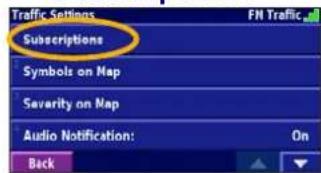
Subscriptions—if you have an FM Traffic Receiver connected, touch FM Traffic Subscriptions to view your subscriptions. Touch the subscription to display the expiration date. See the next page for information about adding an FM Traffic subscription.
Symbol Style—select the style of traffic symbols you want to display on the map: North American or International.
Audio Notification—turn on or off the audio notification that alerts you about a traffic incident.
Avoid Traffic—select Yes to avoid traffic incidents when generating a route.
TRAFFIC INFORMATION
Adding an FM Traffic SubscriptionFM Traffic Subscription
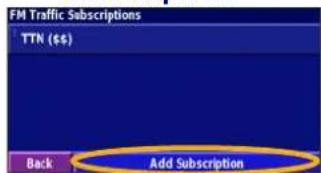
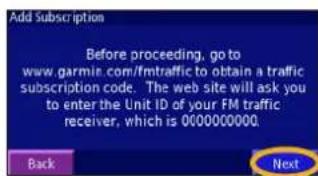
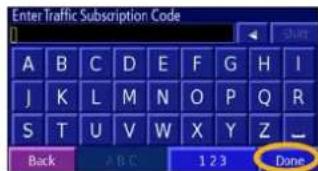
Your FM Traffic Receiver came with a trial subscription, or you may be in an area with free service. You can also add subscriptions to expand your service area. Write down your FM Traffic Receiver's unit ID. Go to http://www.garmin.com/fmtraffic to purchase a traffic subscription and get a 25-character traffic subscription code.
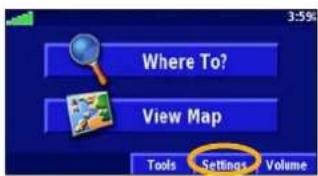
① Touch Settings.
text_image
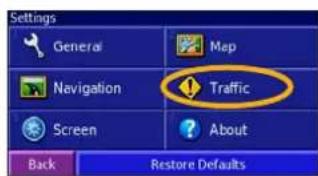
Where To? View Map Tools Settings Volume② Touch Traffic.
text_image
Settings General Map Navigation Traffic Screen About Back Restore Defaults③ Touch Subscriptions.
text_image
Traffic Settings FN Traffic Subscriptions Symbols on Map Severity on Map Audio Notification: On Back④ Touch Add Subscription
text_image
FM Traffic Subscriptions TTN (€6) Back Add Subscription⑤ Touch Next.
text_image
Add Subscription Before proceeding, go to www.garmin.com/fmtraffic to obtain a traffic subscription code. The web site will ask you to enter the Unit ID of your FM traffic receiver, which is 000000000. Back Next⑥ Enter the code and touch Next.
text_image
Enter Traffic Subscription Code A B C D E F G H I J K L M N O P Q R S T U V W X Y Z _ Back A B C 1 2 3 Done⑦ Touch OK.
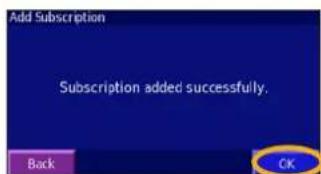
text_image
Add Subscription Subscription added successfully. Back OKEN-28 StreetPilot 2720 Owner's Manual
CUSTOMIZING THE STREETPILOT 2720
Adjusting the Volume
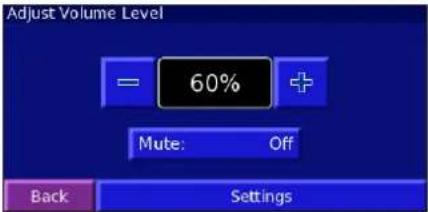
From the Main menu, touch Volume. Touch the 📋 and 📋 to adjust the volume of the speaker. Touch Settings to open the Audio Settings; see page 30.
text_image
Adjust Volume Level 60% Mute: Off Back SettingsCustomizing the General Settings
From the Main menu, touch Settings > General.
Changing the GPS Settings
From the Main menu, touch Settings > General > GPS. See page 19.
Changing the Language
From the Main menu, touch Settings > General > Language.
Voice Language—change the language for all voice prompts and messages. Touch the voice you want to use and touch OK. To delete that voice from your StreetPilot, touch Delete and OK.
Your StreetPilot contains two different types of voice languages: text-to-speech and pre-recorded. Languages noted with “TTS” are text-to-speech (TTS) voices. The text-to-speech voices “read” and “speak” the words that appear on the StreetPilot. The voices have an extensive vocabulary, and they pronounce the street names as you approach turns. The languages without “TTS” are pre-recorded voices, which have a limited vocabulary and do not speak names of locations or streets.


NOTE: If you change the Voice Language, your StreetPilot must restart to complete this change.
Text Language—change the on-screen text to the selected language. Changing the Text Language does not change the language of map data or user-entered data.
Speech Rate—select the rate for the vocal prompts.
Customizing the Keyboard
From the Main menu, touch Settings > General > Keyboard.
Input Type—select the English Only keyboard, or select West European to use diacritical characters.
Entry Type—select how keyboard keys display: ABCDEF displays keys in alphabetical order. QWERTY displays a standard typewriter configuration.
Customizing the Audio Settings
From the Main menu, touch Settings > General > Audio.
EN-30 StreetPilot 2720 Owner's Manual
Guidance—turn on the vocal guidance prompts or select Speak Key Only to provide vocal guidance prompts only when the Speak key is pressed.
Attention Tone—turn on or off the attention tone that sounds before voice prompts.
Touch Screen Tone—turn on or off the tone that sounds each time you touch the screen.
Keypress Tone—turn on or off the tone that sounds each time you press a key on the remote.
Speed Adjusted Volume—select how much the volume increases as your speed increases: Low, Medium, or High. To manually control the volume, select Off.
Customizing Proximity Alerts
From the Main menu, touch Settings > General > Proximity Alerts. This adjusts the visual and audio notifications for custom POIs you have loaded on the StreetPilot. See page 38 for more information.
Changing Your Time Settings
From the Main menu, touch Settings > General > Time.
Time Zone—select your time zone or a nearby city. Touch Custom to set the time manually. Touch OK after you adjust the time. Touch List Time Zones to return to the time zone/city list.
Time Format—select 12 or 24-hour time format.
Daylight Saving—select Auto, Yes, or No. The Auto setting automatically adjusts the time for daylight saving time based on your time zone.
Selecting Units
From the Main menu, touch Settings > General > Units. Change all units of measure to Statute or Metric. Custom allows you to select metric or statue for a variety of units, such as distance, speed, and temperature.
Turning Safe Mode Off and On
From the Main menu, touch Settings > General > Safe Mode. Turn on or off the Safe Mode, which disables all unit functions that require significant operator attention and could become a distraction while driving. For example, when Safe Mode is On, you cannot search for a location while the vehicle is moving.
Changing the Map Settings
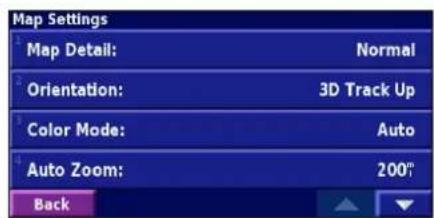
From the Main menu, touch Settings >Map.
Map Detail—adjust the amount of detail shown on the map. The map redraws slower when detail is added.
text_image
Map Settings Map Detail: Normal Orientation: 3D Track Up Color Mode: Auto Auto Zoom: 200° BackOrientation—change the perspective of the map.
- 2D North Up—display the map in two dimensions (2-D) with North at the top of the screen.
- 2D Track Up—display the map in two dimensions (2-D) with your direction of travel at the top of the screen.
- 3D Track Up—display the map in three dimensions (3-D), with your direction of travel at the top of the screen. This is the default map view.
Color Mode—select Day for a bright background. Select Night for a black background. Select Auto to automatically switch between the two based upon the time of day.
Auto Zoom—disable or enable automatic zooming on the map for optimal viewing. You can also specify a maximum auto zoom distance.
Route Color—select the color of the route line.
Dim Roads—dim roads that are not on your route. Select Never or While Routing.
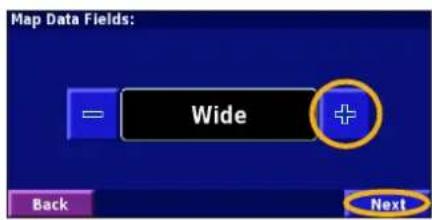
Map Data Fields—adjust the size and content of the data fields shown on the Map page. Select None to remove the data fields to see more of the map. Select Wide to make the data fields larger; they take up more room on the map. Select Thin to see more of the map and also the information in the fields. See the next page for more information.
Text Size—adjust the display size of text for various items shown on the map, such as railroads and streets.
Zoom Level Detail—customize which map items appear at various zoom levels. For each map item, you can select Off, Auto, or a maximum zoom distance.

NOTE: More detail increases the time it takes the map to refresh.
Detail Maps—enable and disable the detailed maps loaded in your StreetPilot.
Customizing the Map Data Fields
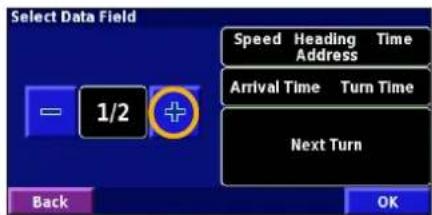
You can customize the information that appears in the data fields in the Map page. From the Main menu, touch Settings >Map >Map Data Fields.
① Touch to select Wide or Thin. Touch Next.
text_image
Map Data Fields: Wide Back Next④ Select the data field layout. Touch OK.
text_image
Select Data Field Speed Heading Time Address Arrival Time Turn Time Next Turn 1/2 Back OK② Touch the data field you want to customize.
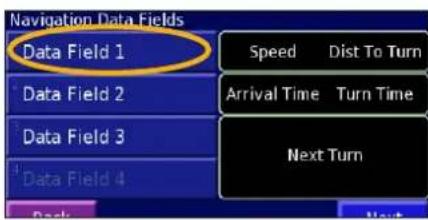
text_image
Navigation Data Fields Data Field 1 Speed Dist To Turn Data Field 2 Arrival Time Turn Time Data Field 3 Next Turn Data Field 4⑤ Repeat for each Navigation Data Field.
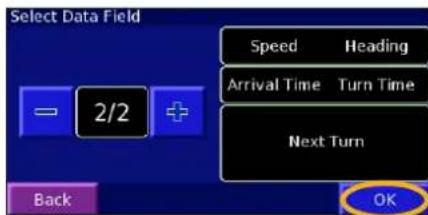
text_image
Select Data Field Speed Heading Arrival Time Turn Time Next Turn 2/2 Back OK③ Select the type of data to appear in this field.
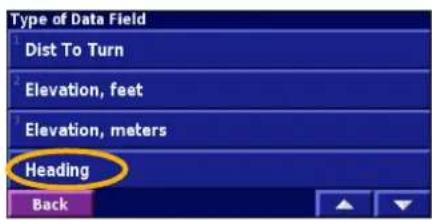
text_image
Type of Data Field Dist To Turn Elevation, feet Elevation, meters Heading Back⑥ Touch Next to change Non-Navigating fields.
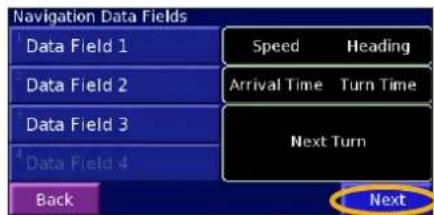
text_image
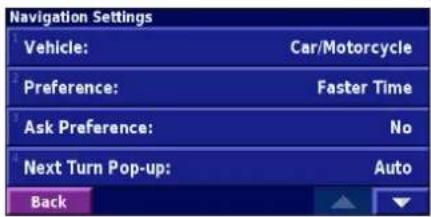
Navigation Data Fields Data Field 1 Data Field 2 Data Field 3 Data Field 4 Back Speed Heading Arrival Time Turn Time Next Turn NextChanging the Navigation Settings
From the Main menu, touch Settings > Navigation.
Vehicle—specify your vehicle type to optimize the route for your vehicle type because some roads have vehicle-based restrictions.
Preference—select a preference for route calculations.
- Faster Time—routes calculated with this setting are faster to drive but may be longer in distance.
- Shorter Distance—routes calculated with this setting are shorter in distance but may take more time to drive.
- Off Road—creates a direct-line route from your current location to your destination. This may be useful when you are travelling outside of detailed map coverage areas, or where no roads exist.
Ask Preference—select whether the unit asks for your preference each time it calculates a route.
text_image
Navigation Settings Vehicle: Car/Motorcycle Preference: Faster Time Ask Preference: No Next Turn Pop-up: Auto BackNext Turn Pop-up—turn on or off the Next Turn pop-up window. Auto opens the window as you near the turn.
Off-Route Recalculation—set the way the unit responds when you are off the route. You can silence the “off-route, recalculating” message here.
Continuous Auto Routing—turn on or off Continuous Auto Routing, which allows the StreetPilot to continually search for a better route to your destination. This can be useful if a traffic accident occurs on the current route. When On is selected, the StreetPilot automatically routes you around a severe traffic delay when a better alternate route exists.
Avoidance Setup—see page 24.
Adjusting the Traffic Settings See page 26.
Changing the Screen Settings From the Main menu, touch Settings > Screen.
Brightness—select Manual and then touch Next. Touch the decrease the brightness or to decrease it. Select Auto for automatic brightness adjustment based upon the light sensor's reading.
Calibrate Touch Screen—if you think the touch screen is not responding properly, you can calibrate the screen. Follow the on-screen instructions. Use the remote control to access this page, if necessary.
Viewing Unit Information (About)Unit Infor From the Main menu, touch Settings > ? About.
StreetPilot—view the unit's software version, audio version, and unit ID.
Detail Maps—view the version of detailed maps loaded.
FM Traffic Receiver—if you have an FM Traffic Receiver connected, you can view the FM Traffic Receiver's unit ID.
Restoring the Settings
To restore the unit to its original settings, open the Main menu and touch Settings >Restore Defaults >Yes.
APPENDIX
Connecting to Your Computer
To update your software and load additional maps or Custom POIs, you need to connect your 2720 to your computer using the USB cable provided.

NOTE: Do not connect the USB cable to your computer until you have loaded the USB drivers using the enclosed CD-ROM.
Load USB Drivers:
Place the enclosed USB Driver CD-ROM into your computer's CD-ROM drive.
If the CD-ROM does not start automatically, click Start and then Run.... Type the letter of your CD-ROM drive followed by setup (for example D:\setup). Then press Enter.
Follow the instructions on your computer screen.
Plug in the USB cable:
- Connect the power cable.
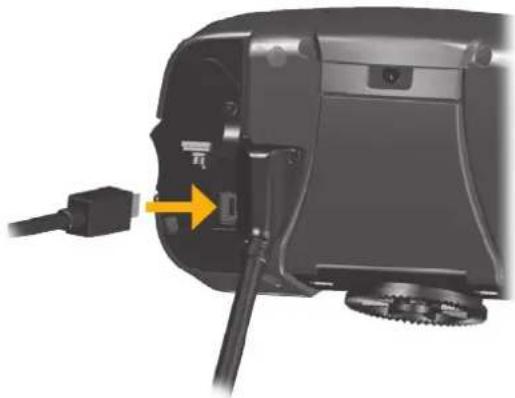
- Lift the bottom flap of the weather cap.
- Plug the mini-USB connector into the connector on the back of the 2720, under the weather cap.
- Plug the other end of the cable into an available USB connector on your computer.
natural_image
Close-up of a black industrial machine with a yellow arrow pointing to a cable outlet (no visible text or symbols)Updating the Software and Map Data
If you register your 2720, you will receive notification of software and map updates. To register your 2720, go to https://www.garmin.com/registration/selectreg.jsp.
To update the 2720 software:
- Load the USB drivers using the enclosed CD-ROM. See the previous page.
- Connect the AC cable to the power connector on the back of the StreetPilot. Turn on the StreetPilot.
- Connect the USB cable to your 2720 and your computer. See the previous page.
- Go to http://www.garmin.com/products/sp2720. Select Updates and Downloads.
- Click Download next to the unit software.
- Read and agree to the terms. Click Download.
- Select Run (or Open). Your software is updated.
You can also use WebUpdater to update your 2720 software. Go to http://www.garmin.com/products/webupdater/ to learn about WebUpdater.
Check http://www.garmin.com/unlock/update.jsp to see if an update for your map software is available.
To find out the version of the maps that are loaded on your 2720, open the Main menu. Touch Settings > About > Detail Maps.
To load maps to your 2720, see the MapSource Help file.
Using a Remote GPS Antenna
Use an optional external remote GPS antenna (Garmin GA 25) when using the unit in a vehicle with a coated windshield or an in-screen heating system, which can block GPS signals. Connect the antenna to the MCX connector located on the back of the unit. To purchase, go to http://www.garmin.com/products/sp2720. Click Accessories.
APPENDIX

Custom POIs (Points of Interest)
Your StreetPilot 2720 accepts custom points of interest (POI) databases, available from companies on the Internet. Some POI databases contain alert information so you can be notified when you approach points, such as safety cameras and school zones
After downloading your database, use the Garmin POI Loader to install the POIs into your unit. The POI Loader is available at http://www.garmin.com/products/sp2720. Select Updates and Downloads. Refer to the POI Loader Help file for more information.

CAUTION: Garmin is not responsible for the consequences of using a custom POI database or the accuracy of the safety camera or other custom POI database.
Finding Custom POIs
Press the Menu key and then touch Where To? > My Locations > Custom POIs.
EN-38 StreetPilot 2720 Owner's Manual
Adjusting the Custom POI Alerts
Press the Menu key and then touch Settings > General > Proximity Alerts.
Audio Notifications—turn off or on the alerts that sound as you approach a custom POI.
Visual Notification—turn off or on the pop-up alerts that appear as you approach a custom POI.
Continuous Notification—select the types of POIs you will be continually notified about.
Using xImage to Customize Your Splash Screen
xImage enables you to exchange images between your computer and your StreetPilot 2720 to customize or replace your current splash screen. xImage is available at www.garmin.com/ximage/. After installing xImage, refer to the Help file for complete instructions.
Caring for Your StreetPilot 2720
The StreetPilot 2720 is constructed of high-quality materials and does not require user maintenance other than cleaning.
Cleaning the Unit
Clean the unit's outer casing using a cloth dampened with a mild detergent solution and then wipe dry. Avoid chemical cleaners and solvents that can damage plastic components.
Caring for the Touch Screen
The touch screen is intended to be operated with a finger. Never use a hard or sharp object to operate the touch screen or damage can result. Though a PDA stylus can also be used to operate the touch screen, never attempt this while operating a vehicle.
Clean the touch screen using a soft, clean, lint-free cloth. Use water, isopropyl alcohol, or eyeglass cleaner if needed. Apply the liquid to the cloth and then gently wipe the touch screen.
Protecting Your StreetPilot 2720
- Do not store the unit where prolonged exposure to extreme temperatures can occur (such as in the trunk of a car), as permanent damage may result.
- To avoid theft, do not leave your StreetPilot in plain sight when you leave your vehicle.
- Do not store alkaline batteries in the remote control for extended periods of time. To reduce the chance for battery leakage in the battery compartment, remove the batteries when storing the remote control for more than six months.
APPENDIX
Technical Specifications
Size: 5.6" W x 3.2" H x 2.0" D (14.3 x 8.0 x 5.0 cm)
Weight: 0.93 lbs (420 g)
Unit Case: Rugged; fully gasketed; IPX7 waterproof*
Display: Sunlight-readable, 17:9 WQVGA automotive color TFT display with touch screen and auto dimming; 454 pixels by 240 pixels,
Map Storage: Pre-programmed internal memory
Temperature: 5° to 158°F (-15° to 70°C)
Power Supply
Source: 12 VDC
Usage: 12 watts maximum @ 13.8 VDC
Fuse: AGC/3AG - 1.0 Amp
Remote Control: Two AAA alkaline batteries (not included)
* The remote control is not waterproof.
EN-40 StreetPilot 2720 Owner's Manual
For a complete list of specifications, visit the Garmin Web site: http://www.garmin.com/products/sp2720/spec.html.
Contact your local waste disposal department for information on properly disposing of the unit.
Changing the Fuse
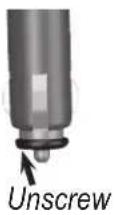
A 3AG 1.0 Amp fast blow fuse is located at the tip of the vehicle adapter. If you need to change the fuse, unscrew the black, round end piece and replace the fuse.
FCC Compliance
The unit complies with Part 15 of the FCC interference limits for Class B digital devices FOR HOME OR OFFICE USE. These limits are designed to provide more reasonable protection against harmful interference in a residential installation, and are more stringent than “outdoor” requirements. Operation of this device is subject to the following conditions: (1) This device may not cause harmful interference, and (2) this device must accept any interference received, including interference that may cause undesired operation. This equipment generates, uses, and can radiate radio frequency energy and, if not installed and used in accordance with the instructions, may cause harmful interference to radio communications. However, there is no guarantee that interference will not occur in a particular installation. If this equipment does cause harmful interference to radio or television reception, which can be determined by turning the equipment off and on, you are encouraged to try to correct the interference by one of the following measures:
• Reorient or relocate the receiving antenna.
- Increase the separation between the equipment and the receiver.
- Connect the equipment into an outlet on a circuit different from that to which the receiver is connected.
- Consult an experienced radio/TV technician for help.
The unit does not contain any user-serviceable parts. Repairs should only be made by an authorized Garmin service center. Unauthorized repairs or modifications could result in permanent damage to the equipment, and void your warranty and your authority to operate this device under Part 15 regulations.
Industry Canada Compliance
Category I radiocommunication devices comply with Industry Canada Standard RSS-210. Category II radiocommunication devices comply with
StreetPilot 2720 Owner's Manual EN-41

Industry Canada Standard RSS-310.
Software License Agreement
BY USING THE STREETPILOT 2720, YOU AGREE TO BE BOUND BY THE TERMS AND CONDITIONS OF THE FOLLOWING SOFTWARE LICENSE AGREEMENT. PLEASE READ THIS AGREEMENT CAREFULLY.
Garmin grants you a limited license to use the software embedded in this device (the "Software") in binary executable form in the normal operation of the product. Title, ownership rights, and intellectual property rights in and to the Software remain with Garmin.
You acknowledge that the Software is the property of Garmin and is protected under the United States of America copyright laws and international copyright treaties. You further acknowledge that the structure, organization, and code of the Software are valuable trade secrets of Garmin and that the Software in source code form remains a valuable trade secret of Garmin. You agree not to decompile, disassemble, modify, reverse assemble, reverse engineer, or reduce to human readable form the Software or any part thereof or create any derivative works based on the Software. You agree not to export or re-export the Software to any country in violation of the export control laws of the United States of America.
Declaration of Conformity (DoC)
Hereby, Garmin, declares that this 2720 is in compliance with the essential requirements and other relevant provisions of Directive 1999/5/EC.
To view the full Declaration of Conformity, see the Garmin Web site for your Garmin product: www.garmin.com/products/sp2720/. Click Manuals, and then select the Declaration of Conformity link.
2720 Troubleshooting
| Problem/Question Solution/Answer | |
| The touch screen is not responding to my taps. | Calibrate the screen. Press Menu on the remote. Use the remote to select Settings > Display > Recalibrate. Follow the on-screen instructions. |
| The remote control does not work. | Check that two AAA batteries are installed.Check the polarity of the batteries (+ and -).Install fresh batteries.Aim the front of the remote toward the IR port on the front of the 2720. |
| How do I clear all my user data?I need to reset my 2720. | Turn off the StreetPilot and then turn it back on. During start up, press and hold the Find key on the front of the 2720. Keep pressing Find until the message “Do you really want to erase all user data?” appears. Touch Yes to clear all user data.All original settings are restored. Your recent finds are also deleted. |
Tip
Be sure you load the USB drivers before you connect the USB cable. See page 36 for information.
INDEX
Symbols
2 dimensional 32
3 dimensional 32
A
adding a traffic subscription 28
add as favorite 10
audio settings 30
audio version 35
auto arrange, route 22
avoidances 24
avoiding traffic 26
B
better route 7,34
brightness of the screen 35
browse the map 17 coordinates 14
C
calibrating the screen 35
caring for your StreetPilot 39
cleaning 39
clear all user data 42
color code 27
color mode 32
contact Garmin i
continuous auto
routing 34
coordinates
browse map 14
entering 14
customizing the
StreetPilot 29–35
general settings 29
map data fields 33
map settings 31
navigation settings 34
restoring the settings 35
screen settings 35
splash screen 38
volume 29
custom avoids 24
Custom POIs 38
D
data field 16
changing 33
default settings 35
deleting
all saved routes 23
route 21
saved location 15
detail maps
disable/enable 32
version of 35
detour, adding 23
driving directions 18
E
editing saved locations 13
edit points in a route 21
EGNOS 19
enable maps 32
erase all user data 42
expand your search 11
F
favorite locations 12
FCC compliance 41
finding locations 8–11
address 9
item on the map 10
near this location 10
recent finds 10
restaurant 6
saved locations 12
spell the name 8
following your route 7
fuse 40
G
general settings 29
Go Home 13
GPS info page 19
..
home location 13
|
icon on the map page yellow diamond 26
insert in current route 10
installing the
StreetPilot 2-5
items to avoid 35
L
language 29
license agreement 41
locations
editing 13
finding 8–11
saving 12
log mileage 25
midpoints in the route 22
mileage logs 25
My Locations 12–15
coordinates 14
favorites 12
Go Home 13
Recent Finds 10
N
name of a saved
location 13, 21
narrowing your search 11
navigating a saved
route 23
INDEX
navigation settings 34
near button 11
North Up 32
0
odometer 18
Off Road route 34
original settings 35
P
position icon 16
proximity alert 38
R
re-order points in
route 22
recalculating the route 23
recently found
locations 10
remote control 4.39
remove all detours 23
remove points from
route 22
rename
route 21
saved location 13
reset
max. speed 18
mileage log 25
trip computer 18
restoring the settings 35
routes 20–24
add point 10
create new route 20
detour 23
edit a saved route 21
navigate a saved
route 23
save the active
route 23
stop 23
route preference 34
change 21
select 20
S
Safe Mode 31
saved locations 12
deleting 15
editing 13
finding 12
saved routes
deleting 23
editing 21
navigating 23
saving
coordinates 14
saving locations.
See saved locations
saving the active route 23
screen settings 35
serial number i
set position 19
severity color code 27
software license
agreement 41
software version 35
speaker volume 29
specifications 40
speed (speedometer) 18
spell 11
splash screen 38
stops in the route 22
stop navigation 23
storing the unit 39
symbols
traffic 27
yellow diamond 26
T
technical
specifications 40
text language 30
time 31
touch screen
calibrating 35
cleaning 39
track log 25
Track Up 32
traffic 26–28
avoid 26
incidents 26
symbols 27
Trip Computer 18
troubleshooting 42
Turn List 18
U
unit ID
FM Traffic
Receiver 35
StreetPilot 35
USB 36
use indoors 19
V
vehicle type 34
via points 22
viewing the map 16
voice language 29
volume 29
speed-adjusted 30
W
WebUpdater 37
Where To? 8–11
X
xImage 38
Y
yellow diamond 26
Z
zoom 16, 17, 18
Limited Warranty
This Garmin product is warranted to be free from defects in materials or workmanship for one year from the date of purchase. Within this period, Garmin will at its sole option repair or replace any components that fail in normal use. Such repairs or replacement will be made at no charge to the customer for parts or labor, provided that the customer shall be responsible for any transportation cost. This warranty does not cover failures due to abuse, misuse, accident, or unauthorized alteration or repairs.
THE WARRANTIES AND REMEDIES CONTAINED HEREIN ARE EXCLUSIVE AND IN LIEU OF ALL OTHER WARRANTIES EXPRESS OR IMPLIED OR STATUTORY, INCLUDING ANY LIABILITY ARISING UNDER ANY WARRANTY OF MERCHANTABILITY OR FITNESS FOR A PARTICULAR PURPOSE, STATUTORY OR OTHERWISE. THIS WARRANTY GIVES YOU SPECIFIC LEGAL RIGHTS, WHICH MAY VARY FROM STATE TO STATE.
IN NO EVENT SHALL GARMIN BE LIABLE FOR ANY INCIDENTAL, SPECIAL, INDIRECT, OR CONSEQUENTIAL DAMAGES, WHETHER RESULTING FROM THE USE, MISUSE, OR INABILITY TO USE THIS PRODUCT OR FROM DEFECTS IN THE PRODUCT. Some states do not allow the exclusion of incidental or consequential damages, so the above limitations may not apply to you.
Garmin retains the exclusive right to repair or replace the unit or software or offer a full refund of the purchase price at its sole discretion. SUCH REMEDY SHALL BE YOUR SOLE AND EXCLUSIVE REMEDY FOR ANY BREACH OF WARRANTY.
To obtain warranty service, contact your local Garmin authorized dealer or call Garmin Product Support for shipping instructions and an RMA tracking number. The unit should be securely packed with the tracking number clearly written on the outside of the package. The unit should then be sent, freight charges prepaid, to any Garmin warranty service station. A copy of the original sales receipt is required as the proof of purchase for warranty repairs.
Garmin International, Inc. Tel. 913/397.8200 Fax. 913/397.8282
Garmin (Europe) Ltd. Tel. 44/0870.8501241 Fax 44/0870.8501251
Online Auction Purchases: Products sold through online auctions are not eligible for rebates or other special offers from Garmin. Online auction confirmations are not accepted for warranty verification. To obtain warranty service, an original or copy of the sales receipt from the original retailer is required. Garmin will not replace missing components from any package purchased through an online auction.
International Purchases: A separate warranty is provided by international distributors for units purchased outside the United States. This warranty is provided by the local in-country distributor and this distributor provides local service for your unit. Distributor warranties are only valid in the area of intended distribution. Units purchased in the United States or Canada must be returned to the Garmin service center in the United Kingdom, the United States, Canada, or Taiwan for service.
PRÉFACE
My Locations (Mes Destinations) ......62
text_image
Diagram showing a car's cross-section with red arrows indicating navigation or movement paths, and a circular icon highlighting a vehicle.natural_image
Diagram of a device showing a cable connector and a mechanical gear assembly with no visible text or symbols.text_image
Where To? View Map Tools Settings Volumetext_image
Select Food Category All Categories Asian American Barbecue Chinese Dell/Bakery Backtext_image
Find - Near Here Address Streets & Cities My Locations Food, Hotel ... Browse Map Recent Finds Back Go Hometext_image
Near Here Harus Steak Sushi Plate 4.4" NE Izumi Japanese Steak & Sushi 4.6" NE Thai Place Restaurant 5.7" NE Ichiban Sushi 6.5" NE Back Spell Near...text_image
Food, Hotel ... Search All Food & Drink Lodging Fuel ATM/Bank Shopping Backtext_image
Food & Drink: Asian Thai Place Restaurant 11838 Quivira Rd Overland Park, KS 66210 913-451-8421 Back Advanced Go Totext_image
I-35 N to Exit 220: 119th Street CENTER SANTA FE 35 1.8m Speed 70m Arrival Time 12:33pmtext_image
Keep right to 119th St 0.1m Speed 40m Arrival Time 12:33mtext_image
Caenen St to 117th Ter 0.2m Speed 30m Arrival Time 12:32mvotre destination.
Where To? (Destination)
text_image
Find - Near Here Address Food, Hotel ... Streets & Cities Browse Map My Locations Recent Finds Back Go HomeMenu Where To? (Destination)
text_image
Near Here Harus Steak Sushi Plate 4.4" NE Izumi Japanese Steak & Sushi 4.6" NE Thai Place Restaurant 5.7" NE Ichiban Sushi 6.5" NE Back Spell Near...text_image
Find - Near Here Address Food, Hotel . . . Streets & Cities Browse Map My Locations Recent Finds Back Go Home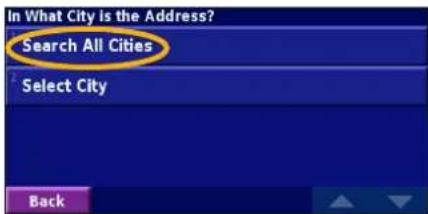
text_image
In What City is the Address? Search All Cities Select City Back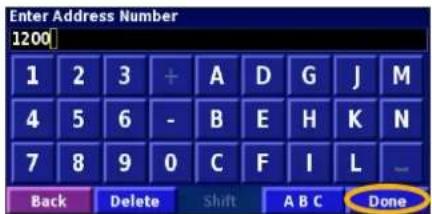
text_image
Enter Address Number 1200 1 2 3 + A D G J M 4 5 6 - B E H K N 7 8 9 0 C F I L - Back Delete Shift A B C Donetext_image
Enter Street SANTA FE A B C D E F G H I J K L M N O P Q R S T U V W X Y Z _ Back Delete Shift 1 2 3 Done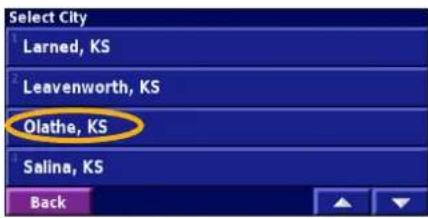
text_image
Select City Larned, KS Leavenworth, KS Olathe, KS Salina, KS Back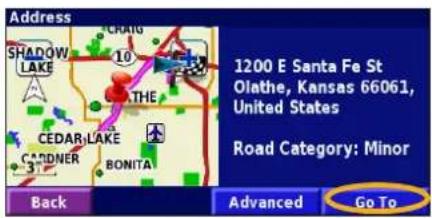
text_image
Address SHADOW LAKE 10 THE CEDAR LAKE CANDNER BONITA Back Advanced Go To 1200 E Santa Fe St Olathe, Kansas 66061, United States Road Category: Minortext_image
Address SHADOW LAKE 10 THE CEDAR LAKE CANDNER BONITA Back Advanced Go To 1200 E Santa Fe St Olathe, Kansas 66061, United States Road Category: Minortext_image
Find - Near Here Address Streets & Cities My Locations Back Food, Hotel ... Browse Map Recent Finds Go Hometext_image
Select Recent Find All Categories Thai Place Restaurant 1.0° ↑ Loch Lloyd Country Club 9.6° ↓ 1200 E Santa Fe St 5.1° ↗ Loch Lloyd Country Club 10.0° ↓ Back Categorytext_image
Show Lodging Near Here Near Other City Near Current Route Near Current Road Near Destination Near Recent Finds Backtext_image
Enter Any Part Of Name A B C D E F G H I J K L M N O P Q R S T U V W X Y Z _ Back A B C 1 2 3 Donetext_image
Food & Drink: Asian Thai Place Restaurant 11838 Quivira Rd Overland Park, KS 66210 913-451-8421 Back Advanced Go Totext_image
Advanced Options Insert In Current Route Add As Favorite Find Near Point Browse Map Backtext_image
Find - Near Here Address Streets & Cities My Locations Food, Hotel ... Browse Map Recent Finds Back Go Hometext_image
My Locations Favorites Custom POIs Backtext_image
Find - Near Here Address Food, Hotel ... Streets & Cities Browse Map My Locations Recent Finds Back Go Hometext_image
Set Home Location From Find Menu Find On Map Use Current Location Backtext_image
Set Home Location 1200 E 151st St Olathe, Kansas 66062, United States Road Category: Minor Back Save Hometext_image
Manage My Favorites Edit/Review Favorites Delete Favorites Categories Backtext_image
Edit Favorite Thai Place Restaurant Thai Place Restaurant 11838 Quivira Rd Overland Park, KS 66210 913-451-8421 Back EditMY LOCATIONS (MES DESTINATIONS)
① Effleurez Enter Position (Entrer position)
text_image
Coordinates Enter Position Browse Map Backtext_image
Distance to Arrival 7.5" Arrival Time 1:20" Time to Arrival 07:07 Exit 222A on right to I-435 E/US- 4.5" 169/US-50 03:42 Exit 82 on right to Quivira Road 04:48 Back View Alltext_image
Manage My Routes Edit/Review Routes Save Active Route Create New Saved Route Navigate Saved Route Backtext_image
Add An Intermediate Destination Point? Yes ✓ No Back Nexttext_image
Select Route Start Point From Find Menu Find On Map ✓ Use Current Location Back Nexttext_image
Select Route Calculation Preference ✓ Faster Time Shorter Distance Off Road Back Nexttext_image
Select Route Final Destination Point ✓ From Find Menu Find On Map Use Current Location Back Nexttext_image
Confirm New Saved Route Doubletree-Kansas C from E 151st St 1 Destination Travel Distance: 23.3mi Travel Time: 23 mins Back Finishtext_image
Manage My Routes Edit/Review Routes Save Active Route Create New Saved Route Navigate Saved Route Backtext_image
Select Route To Edit/Review Doubletree-Kansas C from E 151st St Kemper Museum of Art from W 74th St The Capital Gri from N Ridgeview Rd Backtext_image
Route Review Doubletree-Kansas C from E 151st St 2 Destinations Travel Distance: 25.0mi Travel Time: 33 mins Back Edittext_image
Doubletree-Kansas C from E 151st S Rename Edit/Review Points Change Preference Delete Route Backtext_image
Doubletree-Kansas C from E 151st S Rename Edit/Review Points Change Preference Delete Route Backtext_image
Edit/Review Points Add Auto Arrange Remove Re-Order Backtext_image
Add Route Point 435 123 7 10 GRANDY GARDNER Back Done < add here > E 151st St < add here > Hibachi Japanese Steak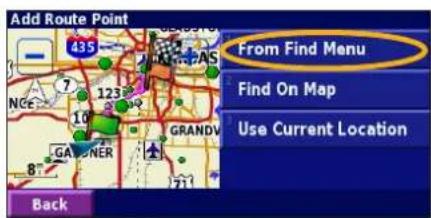
text_image
Add Route Point From Find Menu Find On Map Use Current Location Backtext_image
Add Route Point 435 123 7 10 GARONER GRANDV 8 Back Done < add here > E 151st St < add here > Pottery Barntext_image
Custom Avoids Add New Avoid Area Add New Avoid Road View Custom Avoid List Delete All Custom Avoids Backtext_image
Step 2 of 3: Select Avoid Area Second Corner 95TH MISSION STATE LINES 103R W 435 W 71' 435 LEAWOOD 0.8" RED BRIDGE Back Nexttext_image
Step 1 of 3: Select Avoid Area First Corner 95TH MASSON ROE STATE LINE 103RD W 435 RED BRIDGE WORMALL LEAWOOD 0.8" Back Nexttext_image
Step 3 of 3: Confirm Avoid Area MT MORIAH CEMETERY RED BRIDGE MINOR PARK WARFORD Back FinishUTILISATION DES JOURNAUX
text_image
Select Log To Edit Log A : Active 32.1" Log B 0.0" Log C Log D Back Select Item To Edit Name Log A Distance 32.1" Active Yes Backtext_image
Panneau routier Near Here FM Traffic Intensité du signal US-69 Southbound 0.4° 5W I-35 Northbound 2.7° N I-35 Southbound 3.8° N I-435 Eastbound 6.8° SE Back Near... Liste des incidents de circulationCongestion
Accident
Incident
Information


text_image
Where To? View Map Tools Settings Volumetext_image
Subscriptions Symbols on Map Severity on Map Audio Notification: On Backtext_image
FM Traffic Subscriptions TTN ($5) Back Add Subscriptiontext_image
Add Subscription Before proceeding, go to www.garmin.com/fmtraffic to obtain a traffic subscription code. The web site will ask you to enter the Unit ID of your FM traffic receiver, which is 000000000. Back Nexttext_image
Enter Traffic Subscription Code A B C D E F G H I J K L M N O P Q R S T U V W X Y Z _ Back 123 Done⑦ Sélectionnez OK.
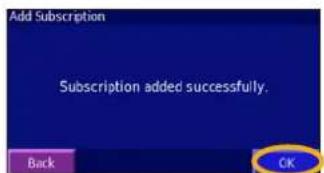
text_image
Add Subscription Subscription added successfully. Back OKtext_image
Adjust Volume Level - 60% Mute: Off Back Settingstext_image
Map Settings Map Detail: Normal Orientation: 3D Track Up Color Mode: Auto Auto Zoom: 200° BackOrientation (Orientation)—changez la perspective de la carte.
text_image
Select Data Field Speed Heading Time Address Arrival Time Turn Time Next Turn 1/2 Back OKtext_image
Navigation Data Fields Data Field 1 Speed Dist To Turn Data Field 2 Arrival Time Turn Time Data Field 3 Next Turn Data Field 4text_image
Select Data Field Speed Heading Arrival Time Turn Time Next Turn Back OKtext_image
Type of Data Field Dist To Turn Elevation, feet Elevation, meters Heading Backtext_image
Navigation Data Fields Data Field 1 Data Field 2 Data Field 3 Data Field 4 Back Speed Heading Arrival Time Turn Time Next Turn Nexttext_image
Navigation Settings Vehicle: Car/Motorcycle Preference: Faster Time Ask Preference: No Next Turn Pop-up: Auto Backnatural_image
Close-up of a black mechanical device with a yellow arrow pointing to a component, connected by a cable (no visible text or symbols)(14,3 x 8,0 x 5,0 cm)
For the latest free software updates (excluding map data) throughout the life of your Garmin products, visit the Garmin Web site at www.garmin.com.
© Copyright 2006–2007 Garmin Ltd. or its subsidiaries
Garmin International, Inc.
1200 East 151 ^st Street, Olathe, Kansas 66062, USA
Garmin (Europe) Ltd.
Liberty House, Houndown Business Park, Southampton, Hampshire, SO40 9RB, UK
Garmin Corporation
No. 68, Jangshu 2 ^nd Road, Shijr, Taipei County, Taiwan
www.garmin.com
Part Number 190-00475-90 Rev. C