Trail Guide - Gps GARMIN - Free user manual and instructions
Find the device manual for free Trail Guide GARMIN in PDF.



| Product Type | Automotive and outdoor navigation GPS |
| Brand | Garmin / DaimlerChrysler (Trail Guide) |
| Dimensions (L x H x D) | 11.4 x 5.6 x 2.3 cm |
| Weight | 171 g |
| Display | TFT 256 colors, high resolution, 3.8 x 5.6 cm (160 x 240 pixels), backlit, compatible with polarized glasses |
| Antenna | Retractable, MCX connector for external antenna |
| GPS receiver | 12 parallel channels, WAAS capable |
| Power | Internal rechargeable lithium-ion battery, 12/24 V DC adapter, up to 36 V; 115 V AC adapter |
| Battery life | Up to 20 hours (normal use) |
| Data storage | Permanent; 500 waypoints, 50 routes, 10,000 track points |
| Maps | Preloaded maps, ability to add MapSource maps via USB |
| Interface | USB |
| Water resistance | IPX7 standard (waterproof up to 1 meter for 30 minutes) |
| Operating temperature | -15 °C to 60 °C |
| Main functions | Point of interest search, route planning, voice guidance, TracBack, simulation mode, safety mode, zoom in/out, pan mode |
| Available languages | French, English, Spanish and others |
| Included accessories | Vehicle mount, power adapter, USB cable (depending on version) |
| Maintenance and cleaning | Clean the case with a damp cloth and mild detergent; screen with a soft, lint-free cloth (water or isopropyl alcohol). Do not use solvents. |
| Repairability | No user-serviceable parts. Repairs exclusively by an authorized Garmin service center. |
Frequently Asked Questions - Trail Guide GARMIN
User questions about Trail Guide GARMIN
0 question about this device. Answer the ones you know or ask your own.
Ask a new question about this device
Download the instructions for your Gps in PDF format for free! Find your manual Trail Guide - GARMIN and take your electronic device back in hand. On this page are published all the documents necessary for the use of your device. Trail Guide by GARMIN.
USER MANUAL Trail Guide GARMIN
Jeep

TRAIL GUIDE
OWNER'S MANUAL
© Copyright 2006 Garmin Ltd. or its subsidiaries
Garmin International, Inc.
1200 East 151 ^st Street,
Olathe, Kansas 66062, U.S.A.
Tel. 913/397.8200 or 800/800.1020
Fax 913/397.8282
Garmin (Europe) Ltd.
Unit 5, The Quadrangle, Abbey Park Industrial Estate,
Romsey, SO51 9DL, U.K.
Tel. 44/0870.8501241
Fax 44/0870.8501251
Garmin Corporation
No. 68, Jangshu 2 ^rd Road, Shijr,
Taipei County, Taiwan
Tel. 886/2.2642.9199
Fax 886/2.2642.9099
All rights reserved. Except as expressly provided herein, no part of this manual may be reproduced, copied, transmitted, disseminated, downloaded or stored in any storage medium, for any purpose without the express prior written consent of DaimlerChrysler Motors Company, LLC and Garmin. Information in this document is subject to change without notice. DaimlerChrysler Corporation reserves the right to change or improve its products and to make changes in the content without obligation to notify any person or organization of such changes or improvements. Visit the Garmin Web site at www.garmin.com/products/trailguide for current updates and supplemental information concerning the use and operation of this unit. Garmin ^® , AutoLocate ^® , and TracBack ^® are registered trademarks of Garmin Ltd. or its subsidiaries and may not be used without the express permission of Garmin. Trail Guide ^™ is a trademark of DaimlerChrysler Motors Company, LLC.
Thank you for purchasing the Trail Guide™! To get the most out of your new navigation system, go through this manual and learn the operating procedures for your unit.
Introduction: Contains the Table of Contents and Safety Information.
Getting Started: Provides information to help get you started. If you have never navigated with a GPS unit, try the “Tutorial” on page 2.
Basic Operation: Teaches you how to use your Trail Guide to find items, create routes, and initiate a TracBack ^® .
Using the Main Pages: Describes the Map page and other main pages of your Trail Guide.
Customizing Your Trail Guide: Explains how to change settings to meet your specific needs.
Understanding GPS: Describes the basics of GPS navigation and the features on the GPS Information page.
Appendix: Contains additional mounting instructions, specifications, and care and regulatory information.
Index: Provides key words to help you find information.
Manual Conventions
This manual uses the term “select” when you need to choose an icon, button, or tab. To select something, use the Rocker key to move the cursor (or highlighted area) to the position. To activate the selection, press OK.

This manual uses the term WARNING to indicate a potentially hazardous situation, that, if not avoided, could result in death or serious injury.

This manual uses the term CAUTION to indicate a potentially hazardous situation, that, if not avoided, can result in minor injury or property damage. It may also be used without the symbol to alert you to avoid unsafe practices.
INTRODUCTION > TABLE OF CONTENTS
Introduction ......i
Safety Information ....iii
Getting Started ....1
Introducing the Trail Guide 1
Tutorial 2
Vehicle Installation 4
Turning the Trail Guide On and Off 5
Using the Keys 6
Basic Operation 8
Finding Places and Routing to Them 8
My Locations 14
Setting Your Home Location 18
Using TracBack 19
Planning and Modifying Routes 21
Using the Main Pages 27
Map Page 27
Next Turn Page 30
Current Route Page 31
Trip Information Page 32
Customizing Your Trail Guide 33
Customizing the Map Page 33
Customizing the Display 35
Customizing the Overall System Setup 36
Customizing the Route Settings 37
Customizing the Units Settings 38
Changing the Time Settings 38
Changing the Track Setup 39
Customizing the Welcome Page 40
Viewing Software and Unit Information 40
Understanding GPS 41
The GPS Information Page 41
Appendix 45
Trail Guide Shortcuts 45
Data Fields 45
Adding Maps to Your Trail Guide 47
Caring for the Trail Guide 49
Specifications 50
Product and Regulatory Information 51
Index 53
Safety Information
Ensure that all persons read this manual carefully before using the navigation system. It contains instructions on how to use the system in a safe and effective manner.

WARNING: Please read and obey the following safetysafety precautions. Failure to do so may result in an accident involving injury or property damage.
- Consider practicing the unit's operation by using “simulator mode” prior to actual use. See page 5 for instructions.
- When in actual use, carefully compare indications from the Trail Guide to all available navigation sources, including information from other street signs, visual sightings, and maps. For safety, always resolve any discrepancies before continuing navigation.
-
Do not input destinations, change settings, or access any functions that require prolonged use of the unit's controls while you are driving. Pull over in a safe and legal manner and location before you attempt such operations.
-
Do not use the navigation system to route you to emergency services such as police and fire stations or hospitals and clinics. Not all emergency service locations are contained in the database. Please use your judgment and ask for directions in such situations.
- When driving, minimize the amount of time you spend viewing the screen. Glance at the screen only when necessary and safe to do so. If prolonged viewing of the screen is necessary, pull over at a safe location.
- Road conditions and regulations take precedence over information contained on the map. Observe actual traffic restrictions and circumstances while driving.
- Situations may occur where the navigation system erroneously displays the vehicle's location. Use your own driving judgment in this situation, taking into account current driving conditions. Please be aware that in this situation, the navigation system should automatically correct the vehicle's position within a few minutes.
INTRODUCTION > SAFETY INFORMATION
- Stop use immediately if a problem occurs. Failure to do so may cause injury or damage to the product. Return it to your authorized DaimlerChrysler dealer for service.
- Make certain the volume level of the navigation system is set to a level that still allows you to hear outside traffic and emergency vehicles.
- The map database is designed to provide you with route suggestions and does not take into account the relative safety of a suggested route or factors that may affect the time required to reach your destination. The system does not reflect road closures or construction, road characteristics (such as type of road surface, slope or grade, weight or height restrictions), traffic congestion, weather conditions, or any other factors that may affect the safety or timing of your driving experience. Use your own personal judgment if the navigation system is unable to provide you with an alternate route.
-
The map database supplied with the product contains the most recent map data that was available to us at the time of production. We use Navteq data sources. Some parts of the map may contain inaccurate or incomplete data to some degree. Because the map data may not be perfect, consider verifying the unit's map with your actual surroundings to confirm that you are arriving at the exact destination.
-
The Global Positioning System (GPS) is operated by the United States government, which is solely responsible for its accuracy and maintenance. The system is subject to changes which could affect the accuracy and performance of all GPS equipment. The Trail Guide is a precision navigation system; however, any navigation system can be misused or misinterpreted and, therefore, become unsafe.
- This product is intended to be used only as a navigational aid and must not be used for any purpose requiring precise measurement of direction, distance, location, or topography.
If you have any questions about the operation of the navigation system, please contact a local DaimlerChrysler dealer or call 800/800.1020.
GETTING STARTED
Introducing the Trail Guide
Trail Guide™ Owner's Manual 1
GETTING STARTED > TUTORIAL
Tutorial
This tutorial guides you through the steps for finding a restaurant in your area and then creating a route to it. If you have never used a GPS unit before, try this simple task. You will see that using your Trail Guide is fast and easy.
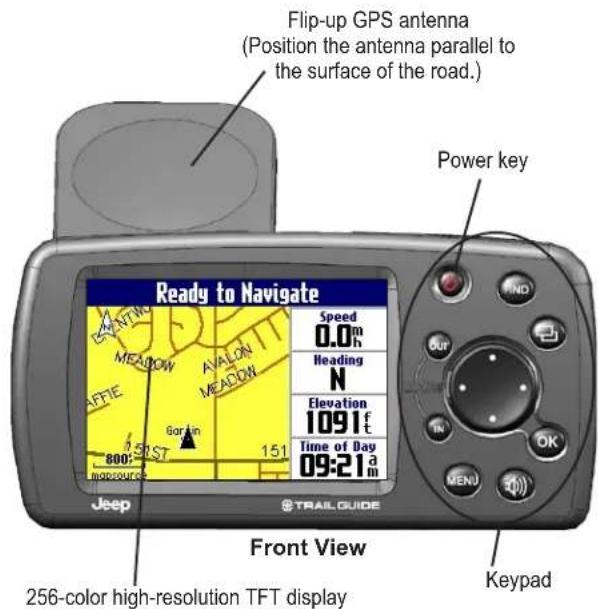
Make certain the antenna is unobstructed as it looks for satellites. For example, it cannot establish a satellite fix if your vehicle is parked in a garage. Position the antenna so that it is parallel to the surface of the road so that it can have the best view of the sky.
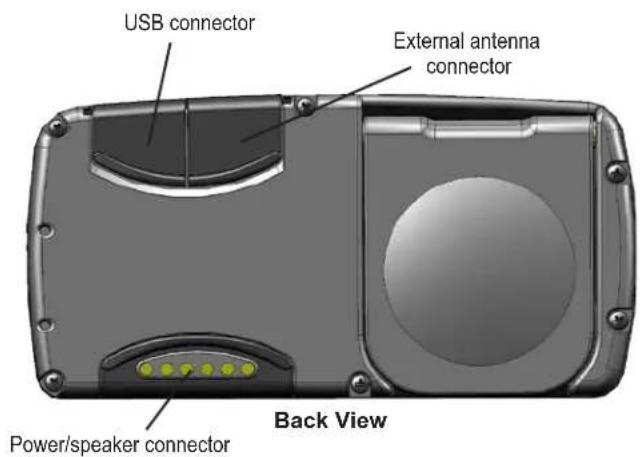
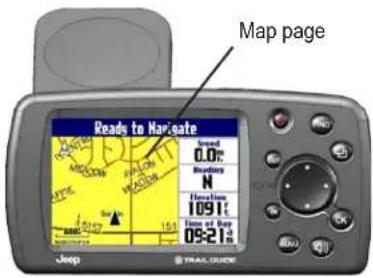
Step 1: If you have not already done so, flip up the antenna and snap your Trail Guide into the vehicle mount. See page 4 if you need additional instructions. Turn on the Trail Guide. When the unit has established a satellite fix, it displays a “Ready to Navigate” message.
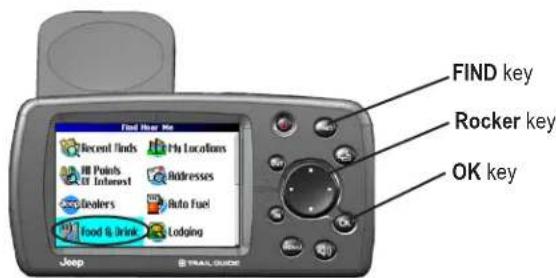
Step 2: Press FIND. The Find menu appears. Highlight the Food & Drink icon located in the Find menu, and press OK.
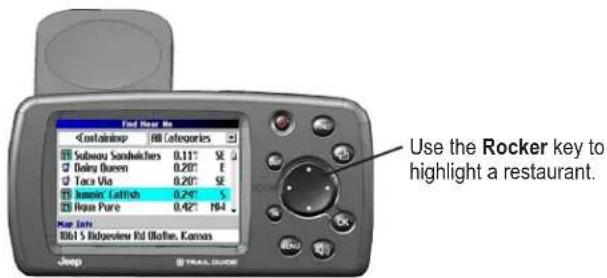
Step 3: A list of restaurants in your area appears. Use the Rocker key to highlight a restaurant in the list. Then press OK.
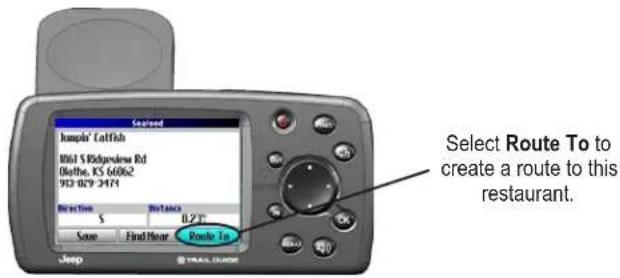
Step 4: Information about the restaurant appears. To create a route to this restaurant, highlight the Route To button located at the bottom of the page. Then press OK.
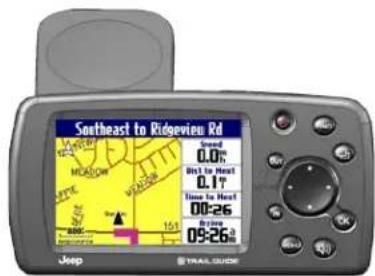
Your Trail Guide calculates the route and provides directions. Follow the purple line on the Map page to your destination.
GETTING STARTED > VEHICLE INSTALLATION
Vehicle Installation
You can install and store the Trail Guide in the dealer-installed vehicle mount. The Trail Guide runs off power from your vehicle when the ignition is turned on. Be sure the vehicle ignition is turned off before you install or remove the unit from the mount.
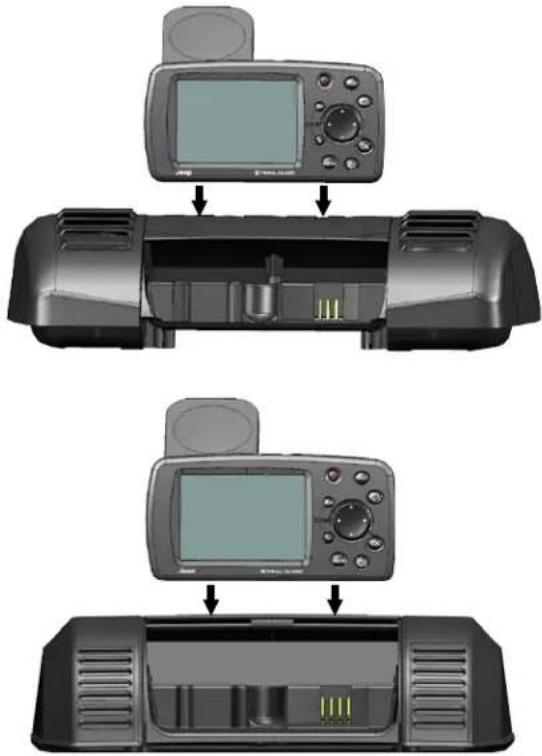
To install the Trail Guide in the mount:
- Flip up the GPS antenna on the back of the Trail Guide.
- Position the unit directly above the vehicle mount and line up the sides of the unit with the sides of the mount.
- Slide the unit straight down until it clicks into place.
To remove and store the Trail Guide:
- Pull the Trail Guide straight up and out of the vehicle mount.
- Store the Trail Guide in the slot behind the vehicle mount. Pull down the mount door to hide the unit from sight.
Your vehicle mount looks like one of the two shown below.
Turning the Trail Guide On and Off
Press and hold the Power key on the front of the unit to turn it on or off. When turned on, the Welcome page appears briefly, followed by a Safe Driving Warning Message. Press OK to acknowledge the message, or wait briefly until the Map page appears. Your Trail Guide automatically starts searching for satellite signals to find your current location.
Turning off Satellite Reception for Indoor Use
You can set your Trail Guide to indoor use, which stops satellite reception and conserves battery power. Thoroughly familiarize yourself with the routing features of the Trail Guide by simulating routes.
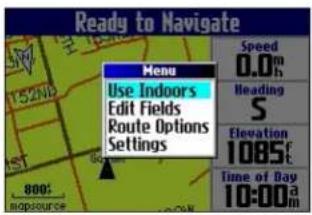
To turn off satellite reception:
- Press PAGE to open the Map page.
- Press MENU.
- Highlight Use Indoors, and press OK. GPS is disabled.
To turn on satellite reception:
- Press PAGE to open the Map page.
- Press MENU.
- Highlight Acquire Satellites, and press OK. GPS is enabled, and your Trail Guide begins to acquire satellite signals.
GETTING STARTED > USING THE KEYS
Using the Keys
Use the keys to perform specific tasks such as finding places or planning routes. With the exception of the Power key, press and quickly release a key to perform its function. If a key has a secondary function, press and hold the key to activate it.
Power—press and hold to turn the unit on or off. Press once to adjust the illumination of your screen. When the illumination screen appears, use the Rocker key to move the slider to the left or right to dim or brighten your backlight. Press OK.
OUT—zooms out on the Map page. Also scrolls down a list.
IN—zooms in on the Map page. Also scrolls up a list.
MENU—press to display a menu of options for the current page. Press MENU twice to open the Settings menu. Press and hold MENU to open the Route Options menu.
Speak—triggers your unit's "voice" to repeat the next turn or current destination when you are navigating a route. Press and hold to adjust the volume.
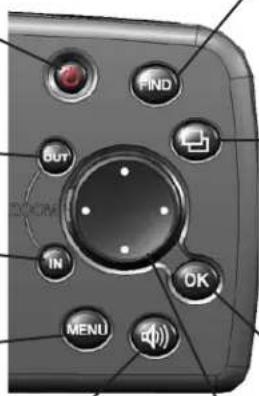
FIND—press to search for cities, addresses, and other points of interest. Press FIND twice to activate the Recent Finds menu. Press and hold FIND to route home (see page 18).
Page—press to open pages. Press Page to close the current page or menu and return to the previous page. When you are entering data, press Page to cancel the data entry and restore the previous value.
OK—press to select items. Press OK to display information pages when panning the Map page. To save your current location in My Locations, press and hold OK.
Rocker key—press to highlight options or move the map pointer in any direction.
Selecting Options and Entering Data
Use the OK key and the Rocker key to select options and activate your selections.
To select and activate an option or on-screen button:
- Use the Rocker key to move up, down, right, or left to the selection or on-screen button.
- Press OK to activate the feature.
To exit a menu or return to the previous setting:
Press Page . ThePage key moves backwards through your steps or menus.
Using the On-screen On-screen Keyboard
The on-screen keyboard opens when you need to enter data, such an address or a city. The on-screen keyboard is used in a variety of places throughout the Trail Guide. Its appearance may alter, depending on your purpose for using it, but it always functions the same way.
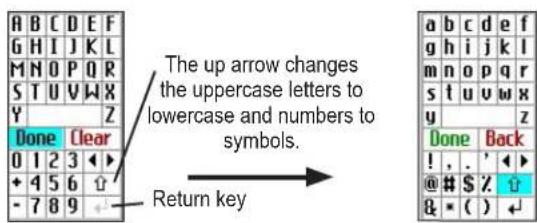
Use the Rocker key to select a letter or number and then press OK. To create spaces, select the blank space between the Y and Z. Use the Clear (Back) box to delete letters/numbers. The ◀ and ► keys are backspace and forwardspace keys. The up arrow Changes the uppercase letters to lowercase and the numbers to symbols. Use the Return Key to create a new line. When you have entered all text, select Done.
BASIC OPERATION > FINDING PLACES AND ROUTING TO THEM
BASIC OPERATION
Finding Places and Routing to Them
Use the Find menu to locate and create routes to cities, addresses, parks, restaurants, or hotels. You can even use the Find menu to locate Jeep dealers in your area.
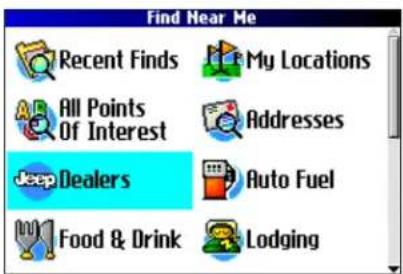
Find Menu
Press the Rocker key down to see more Find categories.
To find a place and route to it:
- Press FIND. The Find menu appears.
- Highlight a category to help you find your destination, such as Food & Drink, Jeep Dealers, or All Points of Interest. Press OK. A list of places near your current location appears.
- Highlight the place, and press OK. An information page appears.
- Highlight Route To, and press OK. The Trail Guide calculates your route.
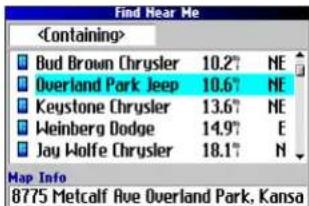
Find Menu Results List
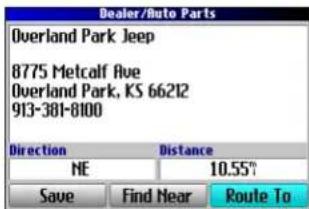
Information Page
Advanced Search Methods and Tips
The search results list can be quite long. Use the following tips to narrow your search.
Entering Containing Letters
If you know the name of the place you are searching for, select
the
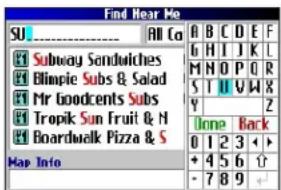
Using the Containing Field
Searching Sub-Categories
If you would like to search for a type of food (such as Chinese, Deli, International, Fast Food), highlight the All Categories box, and press OK. Highlight a food category (sub-category), and press OK. A new list appears filtered with the selected category.
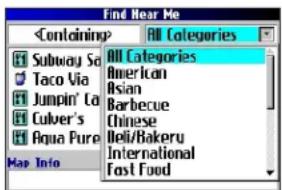
Using Sub-Categories
Panning and Finding
You can find places that are beyond your current location by panning to a particular area on the map. Open the Map page and pan the map to the location. Press FIND, and the unit searches for places near the map pointer. See page 28 for information about panning the map.
Finding Places Near this Place
After you have found a place, open the item's information page. To find another place (such as a hotel or restaurant) near this place, highlight Find Near, and press OK.
Saving this Place to My Locations
After you have found a place, open the item's information page. Highlight Save, and press OK to save this place to My Locations.
Using the Information Page Menu
After you have found a place, open the item's information page, and press MENU to reveal more options.
To see where this item is located on the map, select Show Map. For step-by-step directions from the place to your current location, select Directions to Me. Select Find Near Current Route to list all places along your current route.
BASIC OPERATION > FINDING PLACES AND ROUTING TO THEM
Finding an Address or Intersection
To search for an address or intersection, select Addresses or Intersections from the Find menu. In both cases, a search wizard appears that allows you to enter street information.
To find an address or intersection:
- Press FIND, highlight Addresses or Intersections, and press OK.
- A Wizard opens. Highlight a state, and press OK.
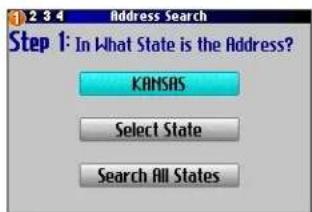
- Highlight Search All Cities, and press OK.
- Enter the address number and street using the on-screen keyboard. For intersections, you only need to enter street names.
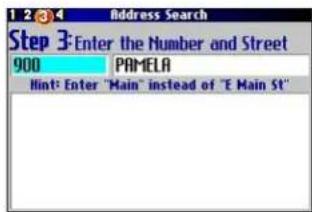
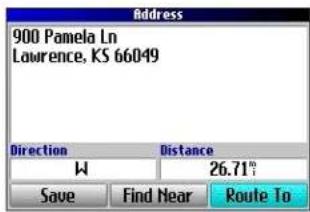
- A list of addresses or intersections appears. Highlight the place you are looking for, and press OK.
- To create a route to this address, highlight Route To, and press OK.
Finding a City
To search for a city, select Cities from the Find menu. A list of 50 cities near your current location appears.
To find a city:
- Press FIND, highlight Cities, and press OK. A list of cities appears. Use the Rocker key to move down the list.
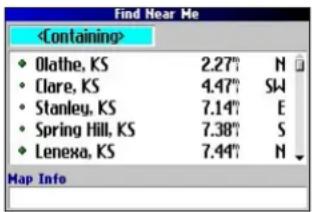
- Highlight the
box, and press OK to narrow your results or find a city not on the list. Enter the name of the city you are searching for using the on-screen keyboard. - Highlight a city, and press OK. An information page appears.
- To go to the city, highlight Route To, and press OK.
Finding an Exit
Select Exits from the Find menu to locate exits on highways, freeways, and interstates.
To find an exit:
- Press FIND, highlight Exits, and press OK. All exits on the highway or interstate that is closest to your current location are listed.
- To search for a particular road exit, press MENU, highlight Select Exit Road, and press OK. Enter the name of the road using the on-screen keyboard.
- If you know you want to stop at an exit that has a particular type of service, such as a gas station or rest area, select the All Categories box, and press OK. Then select a category from the list.
- Use the Rocker key to highlight an exit from the search results list, and press OK. An information page for that exit appears. Services at this exit appear on the exit's information page. Highlight the service you want to visit, and press OK to view information about it.
- To go to the exit, highlight Route To, and press OK.
BASIC OPERATION > FINDING PLACES AND ROUTING TO THEM
Finding Recently Found Places
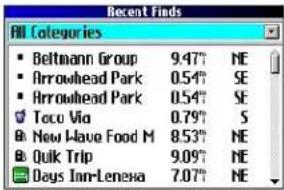
Your Trail Guide stores the 50 places you have found most recently. The most recently-reviewed item is at the top of the list.
To find a recently found place:
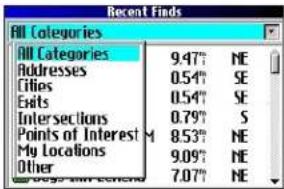
- Press FIND, highlight Recent Finds, and press OK. A list of recently found items appears.
- To narrow your search, highlight All Categories, and press OK.
- Highlight a category from the list, and press OK. The 15 most recent finds from the category appear.
- Highlight a place, and press OK.
- To create a route to this place, highlight Route To, and press OK.
The Trail Guide only stores places that you actually view. For example, if you search for a restaurant by name and five names bear. If you view information on two of them, then these two restaurants are stored in your Recent Finds list.
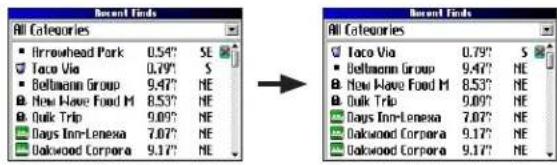
Deleting Recently Found Places
If you want to delete a place from the Recent Finds list, highlight the place's name and highlight the red ✕Press OK, and the name is removed from the list.
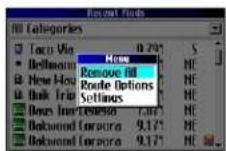
To remove all names in the Recent Finds list, press MENU while on the Recent Finds page. Highlight Remove All, and press OK.

NOTE: Deleting an item from the Recent Finds list only removes the item from this list. It does not delete the actual city from the Map page, your find database, or My Locations.
Planning a Trip
If you are planning a trip and would like to find vacation spots ahead of time, consider using the "chain find" method described below. You can also follow these instructions for finding places while you are already on a trip.
- Find the city you plan to visit. See page 11 for more instructions. In our example, Overland Park, KS, is chosen.
- Highlight Find Near and press OK. Highlight Lodging to look for a place to stay in Overland Park.
- Your Trail Guide returns the names of places to stay. Highlight a place to stay and press OK. In our example, Bed & Breakfast Kansas City is the lodging place.
-
From the Bed & Breakfast information page, highlight Find Near and press OK. Then highlight Food & Drink and press OK.
-
A list of all eating establishments near Bed & Breakfast Kansas City appears. Highlight a restaurant and press OK.
- To save the restaurant to your My Locations list, highlight Save from the information page.
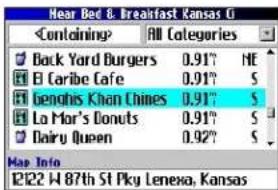
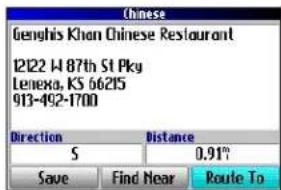
Restaurants near your lodging choice in Overland Park
You can also find entertainment, services, and a variety of other places near your chosen lodging area in the city of your choice. When you are ready to take your trip, simply find these places in your Recent Finds or My Locations list. For more information on trip planning, see “Planning and Modifying Routes” on page 21.
My Locations
You can save your favorite places to the My Locations category of the Find menu. This allows you to easily find your favorite places later. For example, if you have found a great campsite, you can save the place to My Locations. Then when you want to return to the campsite, you can quickly find and route to it.
Saving Your Favorite Places in Favorite Places in My
You can save up to 500 locations using four basic methods:
- Save an item you have found using the Find menu.
- Save your present location from the Where Am I? page.
- Save a new location from the map using the Rocker key.
- Enter a new location's position coordinates manually.
Saving an Item from the Find Menu
As discussed in the previous sections, you can save items you have found using the Find menu.
To save a place from the Find menu:
- Press FIND. Highlight the search category, and press OK.
- Highlight the place you want to save, and press OK.
- From the information page, highlight Save, and press OK.
Where Am I?
Use the Where Am I? feature to find out where you are and save your location. This is particularly useful if you are traveling off road or any place where street signs or navigational markers are not available.
You must have a valid position (2D or 3D) fix to mark your present location. You can determine the satellite fix by looking at the GPS page.
To find out where you are and save your location:
-
Press FIND, highlight Where Am I?, and press OK. Or, press and hold OK.
-
A Where Am I? page appears, listing your current location and the nearest major intersections, if available. Highlight Save, and press OK to save yoursave location to My Locations.
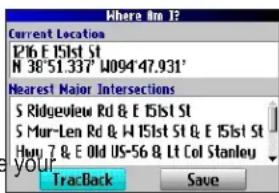
Saving a Map Location
As you pan the map, you can save a location you see to My Locations. See page 28 for information about panning the map.
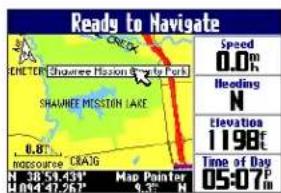
To save a place on the map to My Locations:
- Press Page to open the Map page.
- Press the Rocker key to select the place you want to save. Press OK.
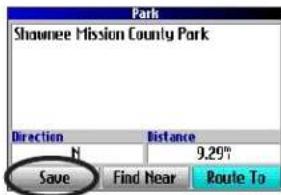
- An Information page opens. Highlight Save, and press OK.
- A Saved as My Location page opens. This page allows you to rename the saved location, select a new symbol, and file the saved location in a category. Highlight the on-screen OK button, and press OK when you are finished.
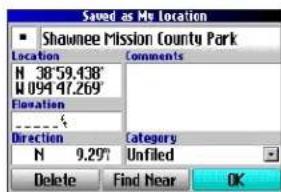
Entering a Location's Coordinates
You can manually enter location coordinates to create a location. This method can be useful for creating a location at a specific latitude/longitude position from a chart.
To enter a location's coordinates:
- Press and hold OK. Highlight Save, and press OK (or use your favorite method discussed in the previous section).
- On the Saved as My Location page, use the Rocker key to highlight the Location field, and press OK.
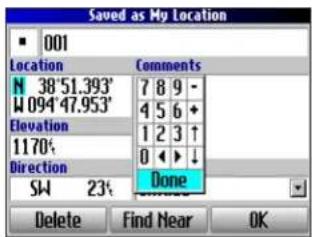
- Use the on-screen keyboard to enter the position coordinates, and press OK when finished.
- To change other information, highlight the appropriate field, and press OK. After entering your changes, highlight the on-screen OK button, and press the OK key.
Editing a Saved Location
You can edit many aspects of a saved location: the name, symbol, location coordinates, comment, elevation, and category.
To edit the saved location:
- Press FIND. Highlight My Locations, and press OK.
-
Highlight the saved location you want to edit, and press OK.
-
Highlight the item you want to change, and press OK.
-
Use the on-screen keyboard to enter new information.
-
When you are done editing the saved location, press Page to exit.
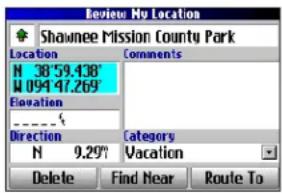
Organizing Saved Locations into Categories
You can organize your saved locations into categories to help you manage and use your saved locations. For example, you can create a “Vacation” category that stores all of the saved locations for your upcoming vacation. When the vacation is over, you can simply delete all the saved Vacation locations by pushing a few buttons.
To create a saved location category:
- Press FIND. Highlight My Locations, and press OK.
- Highlight the saved location you want to edit, and press OK.
- Highlight the Categories field, and press OK.
- Highlight Edit..., and press OK.
- Highlight Add New..., and press OK.
- Use the on-screen keyboard to enter the name of the new category. Highlight Done, and press OK when finished.
To assign a category to a saved location:
- Press FIND. Highlight My Locations, and press OK.
- Highlight the saved location you want to edit, and press OK.
- Highlight the Categories field, and press OK.
- From the list, highlight the category you want to assign the saved location to, and press OK.
To delete a category:
- Press FIND. Highlight My Locations, and press OK.
- Highlight the location you want to edit, and press OK.
- Highlight the Categories field, and press OK.
- Highlight Edit..., and press OK.
- Highlight the category you want to delete. Highlight the red ✗ to the right of the category, and press OK to delete it.
Deleting Saved Locations
You can delete saved locations when they are no longer needed.
To delete a saved location:
- Press FIND. Highlight My Locations, and press OK.
- Highlight the saved location you want to delete.
- Highlight the red to the right of the location, and press OK to delete it.
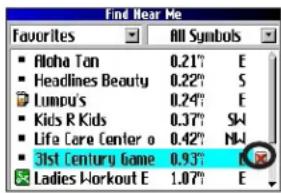
To delete saved locations by symbol or category:
- Press FIND, highlight My Locations, and press OK.
- Press MENU, highlight Delete..., and press OK.
- Highlight By Symbol... or By Category..., and press OK.
- When deleting by symbol, highlight the symbol of the saved location you want to delete, and press OK. When deleting by category, highlight the category you want to delete, and press OK.
- Highlight Yes, and press OK to confirm. Highlight No, and press OK to exit without deleting.
Findinginding My Locations
When you save an item, it is saved in the My Locations category of the Find menu. To find a location you have saved, open the My Locations category of the Find menu.
To find a saved location:
- Press FIND, highlight My Locations, and press OK.
- To narrow your search, highlight All Categories, and press OK. Highlight the category the saved location is assigned to, and press OK.
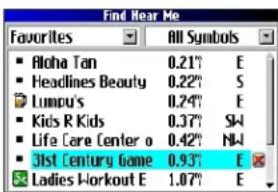
- To further narrow your search, highlight All Symbols, and press OK. Highlight the symbol assigned to the saved location, and press OK.
- Use the Rocker key to select the saved location, and press OK to open the information page.
- Highlight Route To, and press OK to go to this location.
Setting Your Home Location
Your Trail Guide allows you to set a Home location that can be your home, office, or any other place to which you return most often. After you set your Home location, you can choose to go Home. For example, if you are traveling in a new city or down an unknown street and you want to easily find your way home, simply press and hold FIND. Your Trail Guide automatically redirects you to your Home location.
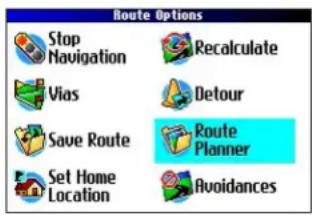
To set a Home location:
- Press MENU, highlight Route Options, and press OK. A Route Options menu appears.
- Highlight Set Home Location and press OK.
- Highlight one of the three options and press OK.
- Find your Home location using the selected option. Your Home location is set.
To route Home:
Press and hold FIND. The Trail Guide automatically creates a route to your Home location.
Changing Your Home Location
If you travel frequently, you may want to change your Home location to a new location, such as a hotel or your meeting place, so you can find your way “home” in unfamiliar surroundings.
To change your Home location:
- Press FIND, highlight My Locations, and press OK.
- Highlight your Home location and then highlight the red Press OK. Highlight Yes and press OK to confirm.
- Follow the previous instructions to reset your Home location.

Using TracBack
The Trail Guide records an electronic breadcrumb trail or "track log" as you travel. As a result, you can retrace your recent movements using the TracBack® feature. This feature is particularly useful when navigational markers are not readily available.
The track log starts recording as soon as the Trail Guide gets a location fix. For the best results, clear the track log before you start traveling. When the track log is full, new track points overwrite the oldest track points.
To use TracBack:
- Press FIND, highlight Where Am I?, and press OK.
- Highlight TracBack, and press OK.
- If you want to travel to the beginning of your track, highlight Yes, and press OK.
To select a spot along your track to travel to, highlight No, and press OK. Use the Rocker key to select the point to which you want to travel, and press OK.
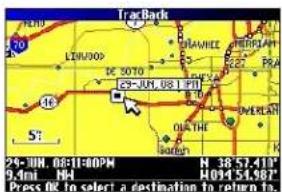
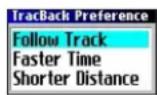
- A TracBack Preference window appears. Highlight the preferred method, and press OK.
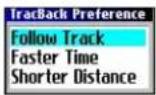
If you have selected to follow roads (Faster Time or Shorter Distance), the Trail Guide creates a turn-by-turn route to the selected end point. Follow the route just as you would follow any route.
If you selected to follow the track, you can use the Map page and the Compass page to guide you along the path. See the next page for more information about the Compass page.
Following Your Track with the Compass Page
If you have selected to follow your track (Follow Track), the Trail Guide traces your path to the destination. You can use the Map page and Compass page to navigate to your destination.
Press Page to view the Compass page. The middle of the page features a rotating compass ring that shows your course while you are moving. Your present heading is indicated at the top of the compass ring. The direction of the next turn is indicated by an arrow in the middle of the compass ring and a bearing "bug" on the outside of the compass ring. Directions to your next point or turn appear in the top text bar.
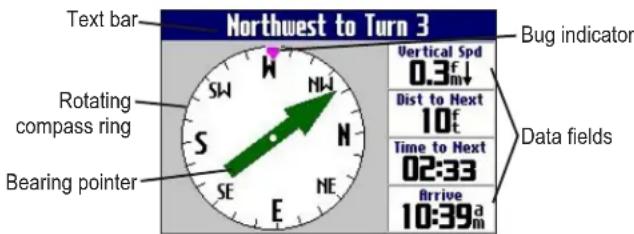
If the arrow points up, you are going in the correct direction. If the arrow points any direction other than up, turn toward the arrow until it points up, then continue in that direction.

NOTE: You must be moving for the compass to update and display your heading accurately.
You can change the data fields on the Compass page just as you can on the Map page (page 29). For a complete list and description of data field options, see page 45.
Instead of the bearing pointer, you can use a course pointer. Press MENU, highlight Course Pointer, and press OK. The course pointer now appears in the center of the compass to show you how to get back on course.

NOTE: The Compass page is only available when you are following a TracBack using the Follow Track method. See page 19 for more information.
Planning and Modifying Routes
Use Route Planner to plan your routes before you even leave the house. The Route Planner allows you to select a start point and a destination, and it automatically saves the route. You can also modify the route to add extra stops (via points) or avoid certain roads.
Planning a Route
Planning routes is fast and easy: simply pick a starting location and an ending location.
To plan a route:
- Press and hold MENU.
- Highlight Route Planner, and press OK. From the Route List page, highlight New, and press OK.
- From the Route Planner page, highlight
and press OK. Highlight one of the four options (described to the right), and press OK. Select your starting location.
- From the Route Planner page, highlight
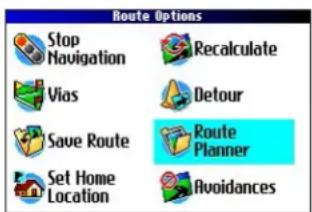
Highlight Navigate to start navigating this route. If you want to stop the route, select Stop Navigation from the Route Options menu. To resume the route, select Resume Navigation.
Finding Route Points
Your Trail Guide provides four options for selecting your starting and ending locations:
None—choose this option to begin the route wherever you are located at the present time.
Current Location—choose this option to begin or end the route at the address at which you are currently located. For example, if your current location is at 915 Elm, the Trail Guide enters this address as the Current Location.
Find Menu—choose this option to search for a starting or ending location using the Find menu.
Use Map—choose this option to find a point on the Map page.
When the Map page appears, use the Rocker key to move the map pointer to the location, and press OK.
BASIC OPERATION > PLANNING AND MODIFYING ROUTES
Saving a Route
Your Trail Guide automatically saves a route created with the Route Planner. You can also save an active route during navigation or after you have reached the destination.
To save an active route:
- Press and hold MENU.
- Highlight Save Route, and press OK. Press OK again at the verification window.
Your Trail Guide can hold up to 50 saved routes. If you save routes prior to taking a trip, you only need to retrieve the appropriate route and activate it as you prepare to leave.
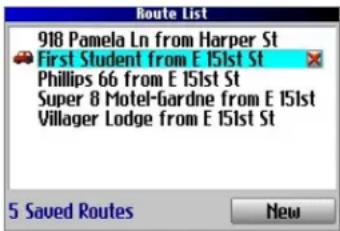
The vehicle icon indicates the route is active.
To select a saved route:
- Press and hold MENU.
-
Highlight Route Planner, and press OK. A list of your saved routes appears.
-
Highlight the name of the route, and press OK. An information page for your selected route appears.
- To activate the route, highlight Navigate, and press OK.
- If you want to change the route by adding via points, use the Rocker key to highlight the Via Points box, and press OK. See "Adding Via Points" on the next page for more information.
Deleting a Saved Route
You can delete a single route or all of the saved routes in your Trail Guide.
To delete a route:
- Press and hold MENU.
- Highlight Route Planner, and press OK. A list of your saved routes appears.
- To delete one route, highlight the name of the route. Use the Rocker key to highlight the red ▶ to the right of the route name, and press OK. Highlight Yes when the verification window appears, and press OK.
To delete all saved routes, press MENU. Highlight Delete All, and press OK. Highlight Yes when the verification window appears, and press OK.
Recalculating a Route
The Trail Guide will automatically recalculate your route if you stray from the current route. You can also prompt the Trail Guide to recalculate your route. For example, if you change your route preference (page 37), you can recalculate your route based on your new preference.
To recalculate your route:
- Press and hold MENU.
- Highlight Recalculate, and press OK.
Adding a Detour
When you are navigating a route, you might need to take a detour to avoid a roadblock or construction. After you select a detour distance, your Trail Guide calculates a new route and provides you with new driving instructions. The detour is saved until you stop the current navigation or until you turn off the unit.
To set a detour:
- Press and hold MENU.
- Highlight Detour, and press OK.
- Highlight a detour distance, and press OK.
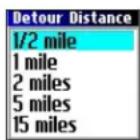
Your Trail Guide makes every possible attempt to get you back on the original route at your requested distance; however, the distance may be longer if no other roads can take you back to your original route. Sometimes, the route you are currently taking might be the only reasonable option. If so, you will not be able to take a detour.
Adding Via Points
Via points are extra stops you make on the way to your final destination. You can add stops to the route you are currently navigating, to the route you are planning, or to a route that you have previously saved.
To add via points to a saved route:
- Press and hold MENU.
- Highlight Route Planner, and press OK.
- Highlight the route to add extra stops to, and press OK.
- Highlight
- Highlight a method to find the location, and press OK.
- Highlight the location of the point. Continue until all points are added to the route.
Arranging Via Points
When you have entered all of the points, your Trail Guide can arrange them in the most efficient order so that you can visit each point without a lot of extra traveling.
Adds a via point (extra stop) and places it ahead of the existing point.
Deletes the point.
↑Moves the point up or down.
To arrange the order of the via points:
- Press and hold MENU.
- Highlight Route Planner, and press OK.
- Highlight the route you want to arrange, and press OK.
- Select the point you would like to move in the route order. Highlight the up for down arrow, and press OK. The point is moved up or down one spot.
- Continue arranging the points as necessary.
To optimize the route:
- Press and hold MENU.
- Highlight Route Planner, and press OK.
- Highlight the route you want to arrange, and press OK.
- Press MENU, highlight Optimal Via Order, and press OK.
The unit rearranges all of your extra stops based on your route preference (Faster Time, Shorter Distance, or Off Road). See page 37 for more information on route preferences. If you change your route preference, recalculate the route based on the new route preference (page 23).
To reverse the order of the route:
- Press and hold MENU.
- Highlight Route Planner, and press OK.
- Highlight the route you want to reverse, and press OK.
- Press MENU, highlight Reverse Route, and press OK.
Deleting Via Points
If you decide that you no longer want to visit one of your via points, select that point and use the Rocker key to highlight the red ☑ to the right of the via point. Press OK, and the point is immediately removed from the route.
Avoiding Roads and Areas
You can avoid areas and certain road types on your route. For example, if an area of roads is usually highly congested, you can add that area to your Avoid List.
To add an avoidance to your route:
- Press and hold MENU to open the Route Options menu.
- Highlight Avoidances, and press OK.
- Highlight the maneuver or road type you want to avoid, and press OK. The Trail Guide avoids all roads types that have a check mark in the Avoid... box.
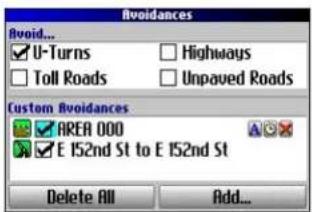
Avoidances Page
To avoid a road:
- Press and hold MENU to open the Route Options menu.
- Highlight Avoidances, and press OK.
- Highlight the Add... button, and press OK.
- Highlight Road Avoidance, and press OK to select a street to avoid on your routes. A map appears, enabling you to mark a start point on a road.
- Use the Rocker key to move the map pointer to the beginning point of the road you want to avoid, and press OK. A blue push pin marks the start point.
- Use the Rocker key to move the map pointer to the end of the road you want to avoid, and press OK.
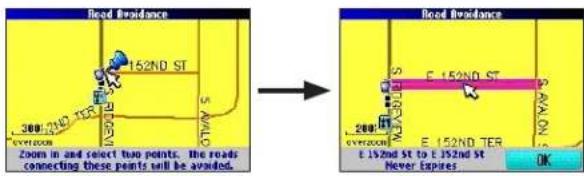
- A map of the avoided road appears. Press OK.
The Avoidances page, shown to the left, lists the avoided road with a default name (the street names).
To avoid an area:
- Press and hold MENU to open the Route Options menu.
- Highlight Avoidances, and press OK.
- Highlight the Add... button, and press OK.
- Highlight Area Avoidance, and press OK. A map appears, enabling you to mark a start point.
-
Use the Rocker key to move the map pointer to the first corner of the area you want to avoid, and press OK. A blue push pin marks the start point.
-
Use the Rocker key to move the map pointer to the far
corner of the area you want to avoid, and press OK. You have drawn a dark rectangle around the area you want to avoid.
- A map of the avoided area appears. Press OK.
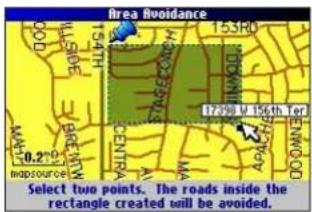
The Avoidances page, shown to the right, lists the avoided area with a default name (Area 000).
After you enter the avoid areas and roads, your Trail Guide avoids these roads/areas unless no other roads are available, until you remove them from the Custom Avoidances list, or until you uncheck them.
To uncheck an avoidance, select the check box to the left of the avoidance name, and press OK. A checked box indicates that the road/area will be avoided.
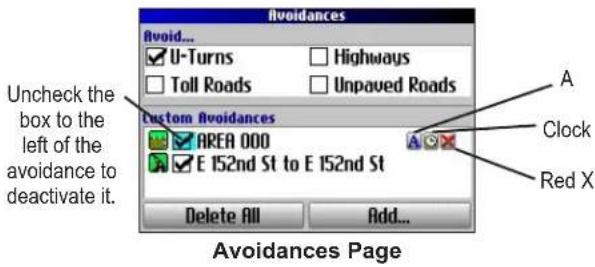
To change the name of an avoidance, select the A and use the on-screen keyboard to create a new name. Select the clock to choose the date that you want the avoidance to expire. Select the red to permanently delete the avoidance.
USING THE MAIN PAGES
Map Page
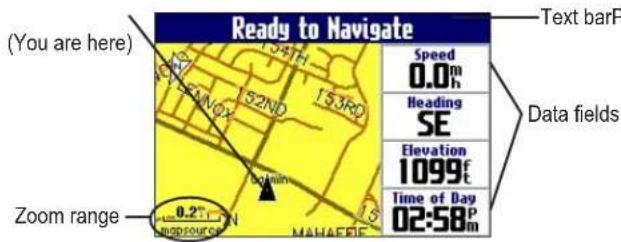
The Map page is one of the main pages of the Trail Guide. Whether you are navigating a route or simply traveling with your Trail Guide turned on, the map shows your current location and surrounding street detail. Customizable information boxes called data fields provide information such as your current speed, your traveling direction, and names of upcoming streets.
A text bar at the top of the map indicates the status of the GPS receiver. When you turn on your Trail Guide, the text bar indicates that the GPS receiver is attempting to locate satellites. After it establishes a fix on your location, the text bar reads "Ready to Navigate."
Zooming In and Out of the Map
The map has many zoom ranges, from 20 feet to 500 miles. Zoom in and out of the map by pressing IN and OUT. The current zoom range is displayed at the bottom left corner.
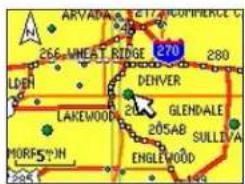
Base map at 5-mile zoom
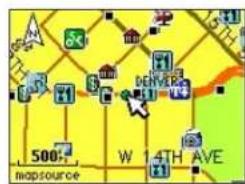
MapSource (detailed) map at 500-foot zoom
To zoom in and out:
- Press OUT to zoom out.
Press IN to zoom in.
When the selected zoom exceeds the resolution of the data in use, "overzoom" appears below the zoom range. When MapSource® data is used, "mapsource" appears below the zoom range.
USING THE MAIN PAGES > MAP PAGE
Panning the Map
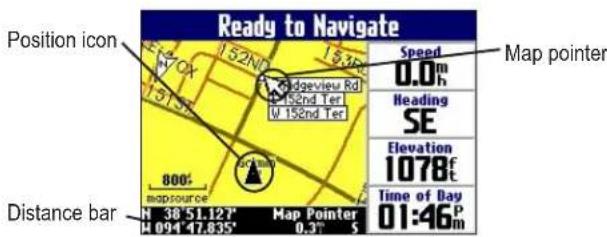
You can pan the map with the map pointer to view areas of the map that are not visible on the screen. As you pan past the edge of the screen, the map moves to provide continuous map coverage. The position icon indicates your present location and may not be visible on the screen when you pan the map.
To pan the map:
Press up, down, right, or left on the Rocker key.
The map pointer moves the map so you can view different parts of the map.
As you move the pointer, the distance and bearing from your present location to the pointer appear in the distance bar. The map pointer's location coordinates also appear in the bar. When you zoom while panning the map, the map pointer stays centered on the screen.
To re-center your location on the screen:
When you are finished panning the map, press Page ☐The map automatically moves to show your present location.
Use the pointer to select on-screen map features and review the item directly from the map.
To view details about an on-screen point:
- Use the Rocker key to move the pointer to the location or map item. If several items are grouped closely together, zoom in closer for a better view.
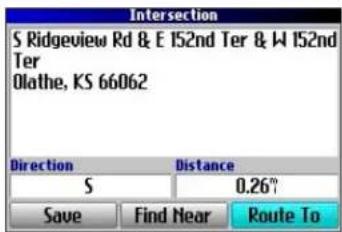
- Press OK to view more information about the point. The information and on-screen buttons vary depending on the type of item selected.
Viewing the Map Orientation
You can orient the map in one of two ways. North Up shows the Map page with North always at the top, as if you were reading a paper map. Track Up allows the map to automatically rotate so your direction of travel always appears at the top of the Map page. If you are using Track up, a white N indicator, in the top left corner of the Map page, points to the North.
Your Trail Guide is set to show the Map page in Track Up orientation until you zoom out to the 200-mile zoom range or above. To change the map orientation settings, see page 33.

Track Up
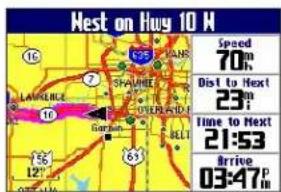
North Up
Data Fields
The Map page displays data fields on the right-hand column of the page. Information in these fields changes depending on whether you are navigating a route or just traveling with the Trail Guide turned on. Data fields also appear on the Trip Information page (page 32) and the Compass page (page 20). For a complete list and description of data field options, see page 45.
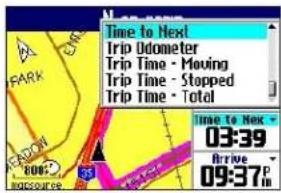
To change the data fields on the Map page:
- Open the Map page, and press MENU.
- Highlight Edit Fields, and press OK.
- Use the Rocker key to highlight the data field you want to change, and press OK.
- Highlight the new data field type in the list, and press OK.
- When you are finished changing the data fields, press Page ☐ to exit.
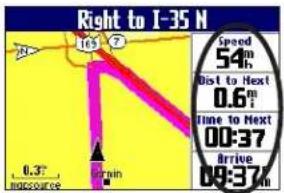
Data fields
USING THE MAIN PAGES > NEXT TURN PAGE
Next Turn Page
When you are navigating a route, the Next Turn page opens periodically to alert you that you need to turn soon. The Next Turn page displays a picture of the turn and provides text instructions. This page disappears after a few seconds. If you need to see it again, press the Speak key.
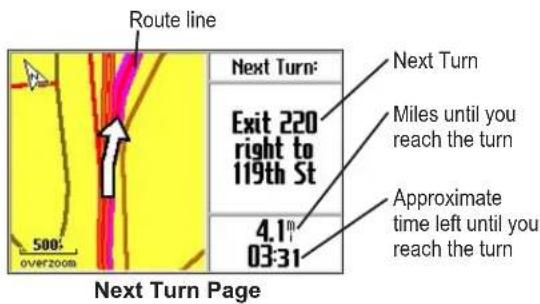
An added bonus to the Next Turn feature is that the Trail Guide voice announces upcoming turns. If you cannot safely view the Next Turn page, you can hear the verbal directions. Refer to page 6 to learn how to adjust the volume.
The Next Turn page opens and announces the same instructions for an upcoming turn up to three times:
- Immediately after you make a turn, the Next Turn page announces the next turn and the distance to the turn. So, if the next turn is not for 20 miles, you do not need to worry about navigation instructions for quite a while.
- As you approach the upcoming turn, the Next Turn page appears again. This message is announced in order to alert you to change lanes if necessary and start looking for signs in anticipation of the upcoming turn.
- Just before the upcoming turn, the Next Turn page appears one last time for that particular turn.
The Next Turn page disappears after a few seconds, and the page that you were previously viewing reappears. If you want to close the Next Turn page and return to the previous page, press Page
If you want to see the Next Turn page again, press the Speak key, and it reappears. You also can hear the announcement.
The Next Turn page is only available when you are navigating to a destination.
Current Route Page
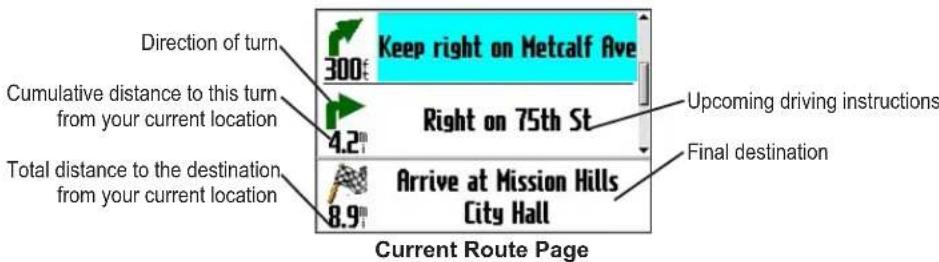
Another page that is visible when navigating is the Current Route page, which provides step-by-step route instructions from start to finish. Press Page to open the Current Route page.
The Current Route page displays directions for your entire route. You can look beyond the next turn and even get an estimated idea of what time you will reach an upcoming turn, provided you do not make stops along the way.
You can move through the entire list of turns by using the Rocker key. Highlight any of the turns on the list, and press OK to view the Next Turn page for that turn.
The Current Route page is only available when you are navigating to a destination.
USING THE MAIN PAGES > TRIP INFORMATION PAGE
Trip Information Page
If you are making a long trip, the Trip Information page can be very useful. It indicates your current speed and records many helpful statistics about your trip.
Be certain to reset the trip information (data) before beginning a trip. If you make frequent stops, leave the Trail Guide powered on in order to receive satellites. This allows the unit to accurately measure elapsed time during the trip.
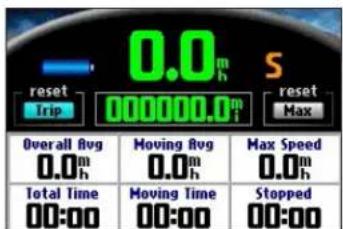
Trip Information Page

Indicates the unit is connected to an external power source and is being charged

Indicates the unit is connected to an external power source and is fully charged
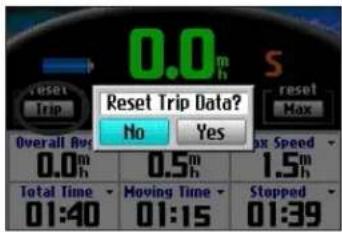
To reset the trip data or the maximum speed:
- Press Page to open the Trip Information page.
- Highlight the Trip or Max buttons, and press OK. A message appears asking if you want to reset the data.
- Highlight Yes, and press OK. The data is reset.
To change the data fields:
- Press Page to ppen the Trip Information page and then press MENU.
- Highlight Edit Fields, and press OK. A field in the first row, first column is highlighted, indicating that it can be changed.
- Use the Rocker key to highlight the field you want to change. Press OK to display a list of field choices. Highlight the appropriate choice, and press OK.
- Repeat Step 3 until you have finished changing the fields. Then press Page ☐
CustoMIZIng Your trail guIdE
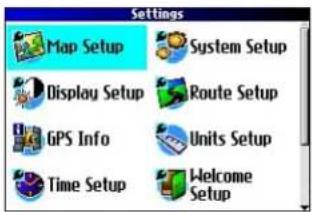
You can adjust the Trail Guide's settings to suit your needs. You can make most changes through the Settings page. Access this page by pressing MENU once and then selecting Settings. You can also access it by pressing MENU twice.
Your Trail Guide's factory settings (or default settings) do not need to be changed in order for your unit to function.
Customizing the Map Page
You can customize the way information appears on the Map page. Press MENU twice, highlight Map Setup, and press OK. A Map Setup page appears, which features six sections.
Layout Tab
Navtext—displays or hides the navigational text.
Turn Pointer—displays or hides the turn pointer that appears on the Map page when you are navigating.
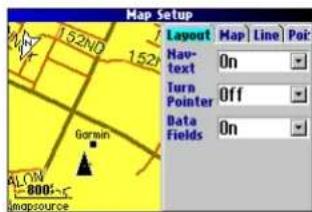
Data fields—displays or hides data fields on the Map page. If you choose to hide the data fields on the Map page, the turn pointer appears in the lower right-hand side of the page.
Map Tab
Map Detail—adjusts the amount of detail that is displayed on your Map page. A higher detail level causes the map to redraw slowly. For everyday use, keep the view level set to Normal.
Orientation—North Up displays the map with North at the top. Track Up rotates the map so your current direction of travel is at the top of the page. See page 29 for more information.
Road Lock—when On, the Trail Guide places the position icon on the nearest road. Select Off when you are not traveling on roads.
AutoZoom—when On, the Map page zooms in and out as you travel. As you approach a turn, the Map page progressively zooms in. After the turn is completed, it zooms out to show the next turn.
Color Mode—choose between Land and Water. Unless you are using a marine map, such as BlueChart™, you will probably keep Land, which is the default value. Water displays the color of water as white instead of blue.
Line, Point, City, and Area Tabs
Line tab—controls how the track log, railroads, and street labels are displayed on the Map page.
Point tab—controls how My Locations, exits, and points of interest (POIs) are displayed on the Map page.
City tab—controls how cities of various sizes are displayed.
Area tab—controls how rivers, lakes, parks, and points of interest are displayed on the Map page.
The Line, Point, City, and Area tabs contain two common settings, Text Size and Hide Above:
Text Size—specifies how large or small the names of items appear on the map. If you do not want the name of an item to appear on the Map page, select Off in the Text Size field. Names with Medium and Large letters also appear in bold.
Hide Above—specifies the maximum zoom range at which a map item appears. If Auto is selected, the maximum zoom range is determined by the Detail setting. If Off is selected, the item is not shown. Some map data is only visible at certain zoom ranges.
Restoring Map Setup Default Settings
You can restore map settings for each individual tab or for all tabs.
To restore settings to the map setup:
- Press MENU twice, highlight Map Setup, and press OK.
- Open the tab on which you want to restore the settings.
- Press MENU.
- To restore the settings on the open tab, highlight Restore Map Settings, and press OK.
- To restore all map setup settings, highlight Restore All Map Settings, and press OK.
Customizing the Display
You can change the lighting and color on the Trail Guide for optimal viewing. Press MENU twice, select Display Setup, and press OK.
Backlight Timeout—specifies the amount of time the backlight stays on when you are not pressing keys. The timeout only applies when you are using battery power.
Backlight Intensity—specifies how strong the backlight appears. Operating the backlight at a higher percentage (intensity) uses up the battery power more quickly.
Color Mode—sets the color mode for your viewing preferences. Daytime shows a bright and lighter background. Nighttime shows a black background for easier viewing during the night. Auto allows the Trail Guide to automatically switch between the two at sunrise and sunset. Custom allows you to create your own color scheme for a variety of objects, such as labels, buttons, and text bars.
To customize the colors:
- Highlight Custom for the Color Mode, and press OK.
- Highlight an item you would like to customize, and press OK.
- Highlight Change, and press OK. A color grid appears.
- Use the Rocker key to place the pointer over the color you want to use and then press OK. The new color appears for the item you selected.
- Highlight Save Colors, and press OK.
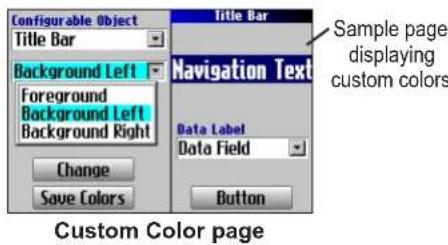
To restore the color settings, press MENU, highlight Restore Settings, and press OK.
CUSTOMIZING YOUR TRAIL GUIDE > CUSTOMIZING THE OVERALL SYSTEM SETUP
Customizing the Overall System Setup
You can customize various system setup features. Press MENU twice, highlight System Setup, and press OK.
GPS Mode—sets GPS to Normal, WAAS, Battery Saver (which periodically turns off the GPS receiver to save battery power), or GPS Off. See “Understanding GPS” beginning on page 41 for more information.
Voice Guidance—determines when the unit “speaks.”
• Automatic with Chime: The unit chimes and then speaks status messages and guidance messages during route navigation. For each turn on a route, the voice gives instructions three times: after you have completed a turn, as you are approaching the next new turn, and just before you reach the next turn.
• Automatic: The unit speaks guidance messages during route navigation, as described above. It does not give chimes.
- Button Only: The unit only speaks when the Speak key is pressed.
External Power Lost—if Turn Off is set, the unit shuts down after 30 seconds when the unit loses external power. If Stay On is set, the unit runs on battery power when external power is lost.
Text Language — changes all on-screen text to the selected language. Changing the text language does not affect the display of map data or user-entered data. Map data is always displayed in the language in which it is stored in the map.
Voice Language—changes the spoken language.
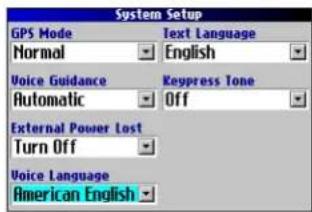
Keypress Tone—turns the keypress beep On or Off.
Safe Mode—turns the Safe Mode on and off. When your vehicle is moving, Safe Mode disables all functions that require significant operator attention and could distract the driver. When you come to a complete stop, these features are automatically enabled. Set to Off to allow a passenger to operate the unit.
To restore these settings, press MENU, highlight Restore Settings, and press OK.
Customizing the Route Settings
You can customize many routing features. Press MENU twice, highlight Route Setup, and press OK.
Off-Route Recalculate—controls how the unit recalculates the route when you depart from its original instructions.
- Prompted: You are asked if you want the unit to recalculate the route.
• Automatic (Announced): The unit automatically recalculates and announces to the user that it is recalculating. - Automatic (Silent): The unit automatically recalculates the route, but it does not announce to the user it is recalculating.
- Off: The unit does not recalculate when you go off route.
Route Preference—determines the criteria used for calculating your route. If you change your route preference, recalculate the route based on the new preference (page 23).
- Faster Time: Routes are faster to drive but may be longer in distance.
- Shorter Distance: Routes are shorter in distance but may take more time to drive.
- Off Road: The route is a direct line from your current location to your destination. This is useful when you are traveling outside of map areas, or where no roads exist.
- Prompted: You are asked to select the route preference option before the route is calculated.
Calculation Method—allows you to control how thoroughly the unit searches for the perfect route.
- Quickest Calculation: This calculation returns the fastest results, but it might not find the best route.
- Quick Calculation: This takes a bit more time to calculate but generates a better quality route.
- Better Route: This generates an even better quality route but takes a bit longer to calculate.
- Best Route: This generates the best route, but takes the longest time to calculate.
Calculate Routes for—allows you to specify your vehicle type. The unit optimizes the route for the vehicle type.
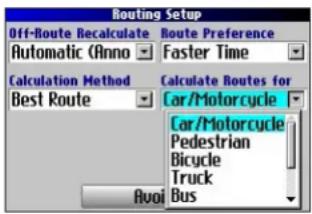
To restore these settings, press MENU, highlight Restore Settings, and press OK.
Customizing the Units Settings
Press MENU twice, highlight Units Setup, and press OK.
Distance and Speed—allows you to change the units used to measure distance. Statute shows speed in miles per hour and elevation in feet. Metric shows speed in kilometers per hour and elevation in meters.
Heading Display—displays your direction of travel in cardinal letters, degrees, or mils.
Location Format—allows you to select from a variety of formats. Use the default setting if you are unfamiliar with location formats.
Heading—allows you to select a heading. True shows true north headings, and Magnetic automatically calculates the magnetic variation for the geographical area. User allows you to input a magnetic variation in the Magnetic Variance field. Grid provides a true north heading as determined by the Location Format.
Vertical Speed—displays vertical speed in feet/minute, meters/minute, or meters/second.
Elevation—displays elevation in feet or meters.
Datum—allows you to select from over 100 different map datums to match almost any paper map or chart. Use the default setting if you are unfamiliar with datums.
To restore these settings, press MENU, highlight Restore Settings, and press OK.
Changing the Time Settings
Press MENU twice, highlight Time Setup, and press OK.
Time Format—displays time in a 12- or 24-hour format, or UTC.
Time Zone—select a time zone from the list. If your time zone is
not on the list, select Other to manually enter the UTC Offset. If you are not certain what the offset is between UTC and the local time zone, enter incremental offset values until the correct local time appears. As you move west of the Prime Meridian (0°
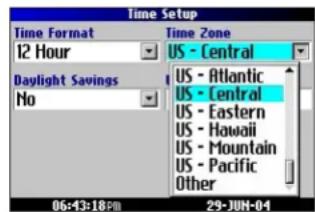
longitude) the offset is negative (-), and as you move east the offset is positive (+).
Daylight Savings—turn on (Yes), off (No), or set to Automatic (Auto) if it is available.
To restore these settings, press MENU, highlight Restore Settings, and press OK.
Changing the Track Setup
As you travel, the Trail Guide automatically records your path in the track log, creating an electronic "bread crumb" trail. This feature can be enabled or disabled from the Track Setup page. By default, it is enabled.
Press MENU twice, highlight Track Setup, and press OK.
Track Recording—select Enabled to record tracks or Disabled to stop tracks from being recorded.
Wrap When Full—select On to allow new track points to replace the oldest track points once the log is full. If set to Off, no new tracks are added until the track log is cleared.
Record Interval—sets the interval at which track points are recorded. With Auto, track points are recorded using a formula and the setting you choose in the Resolution field.
Resolution—selects the frequency at which you want track points to be recorded based on how you set Record Interval (above). Higher resolutions cause the track log to fill up more quickly.
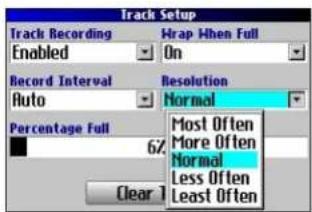
Percentage Full—shows the percentage of track memory used.
Clear Track—clears all of the points of the track log.
To restore these settings, press MENU, highlight Restore Settings, and press OK.
CUSTOMIZING YOUR TRAIL GUIDE > CUSTOMIZING THE WELCOME PAGE AND VIEWING SOFTWARE AND UNIT INFORMATION
Customizing the Welcome Page
You can customize the Welcome page that appears when you turn on your Trail Guide. Press MENU twice, highlight Welcome Setup, and press OK. Use the on-screen keyboard to type in your message and select Done. When you turn on the Trail Guide again, your message appears.
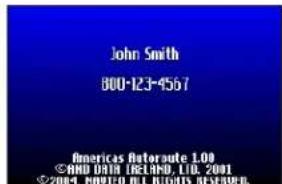
Default Welcome Page Customized Welcome Page
To use the default Welcome page again, repeat the above process and clear the text you entered previously.
Viewing Software and Unit Information
The About page displays the software version that is currently loaded in the Trail Guide. It also shows the unit ID number, which is used for registration and identification purposes. Press MENU twice, highlight About Trail Guide, and press OK.
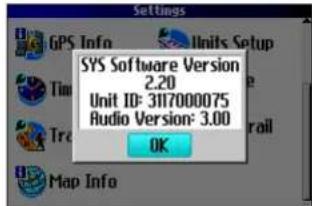
Software updates for your Trail Guide can be found periodically at www.garmin.com/products/trailguide.
UNDERSTANDING GPS
The Global Positioning System (GPS) is a satellite-based navigation system made up of a network of 24 satellites placed into orbit by the U.S. Department of Defense. GPS was originally intended for military applications, but the government made the system available for civilian use in the 1980s. GPS works in any weather condition, anywhere in the world, 24 hours a day. There are no subscription fees or setup charges to use GPS.
GPS satellites circle the earth twice a day in a very precise orbit and transmit signal information to Earth. The GPS receiver in your Trail Guide takes this information and uses triangulation to calculate your exact location. Essentially, the GPS receiver compares the time a signal was transmitted by a satellite with the time it was received. The time difference tells the GPS receiver how far away the satellite is. With distance measurements from a few more satellites, the receiver can determine your location and display it on the Map page.
A GPS receiver must be locked on to at least three satellites to calculate a 2D location (latitude and longitude) and track movement. With four or more satellites in view, the receiver can determine your 3D location (latitude, longitude, and altitude).
After your location has been determined, the GPS unit can calculate other information, such as speed, bearing, track, trip distance, distance to destination, sunrise and sunset, and time.
WAAS is a system of satellites and ground stations that provide GPS signal corrections, giving you even better position accuracy. WAAS corrects for GPS signal errors caused by ionospheric disturbances, timing, and satellite orbit errors, and it provides vital integrity information regarding the health of each GPS satellite.
The GPS Information Page
The GPS Information page provides a visual reference of GPS receiver functions, including current satellite coverage, receiver status, and position accuracy. To access this page, press MENU, highlight Settings, and press OK. From the Settings page, highlight GPS Info, and press OK.
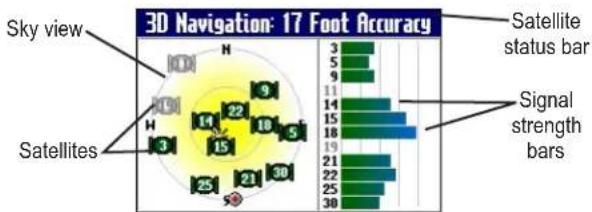
GPS satellites are positioned throughout the sky. As soon as you turn on your Trail Guide, it attempts to acquire satellite signals. The sky view area on the GPS Information page displays which satellites are currently in your area.
A signal strength bar appears for each satellite in view; the satellite's number (1–33) appears to the left of each bar. The progress of satellite acquisition is shown in three stages:
- No signal strength bar —the GPS receiver is looking for the satellite indicated. The corresponding number on the sky view is not highlighted.
- Hollow signal strength bar—the GPS receiver has found the satellite and is collecting data. The corresponding number on the sky view is not highlighted.
- Solid signal strength bar—the GPS receiver has collected the necessary data and the satellite is ready for use. The corresponding number on the sky view is highlighted.
radar
3D Navigation: 17 Foot Accuracy | Position | Value | |---|---| | Sky view | 3 | | Satellites | 5 | | Satellites | 9 | | Satellites | 11 | | Satellites | 14 | | Satellites | 15 | | Satellites | 18 | | Satellites | 19 | | Satellites | 21 | | Satellites | 22 | | Satellites | 25 | | Satellites | 21 | | Satellites | 30 | Satellite status bar Signal strength barsAfter a fix has been calculated, the Trail Guide updates your location and ground speed by selecting and using the best satellites in view.
Sky View and Signal Strength Bars
The sky view and signal strength bars indicate which satellites are currently visible and which satellites are being used to calculate a position fix. The signal strength bars also indicate the quality of each satellite signal.
The sky view provides a “bird’s eye” view of each satellite position relative to your unit’s last known location. The outer circle represents the horizon and shows cardinal heading references. The inner circle represents an elevation of 45^ above the horizon. Any satellite depicted near the center is directly overhead.
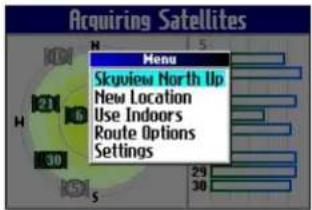
You can set the sky view to Track Up instead of North Up orientation. Track Up causes the top of the sky view to align to your current direction of travel. To change to Track Up, press MENU while on the GPS Info page. Then select Skyview Track Up. Press MENU again and then select Skyview North Up to change the orientation back to North Up.
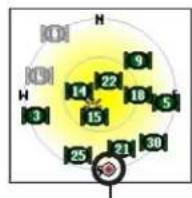
When the Sky View is shown in North Up, the red circle indicates your direction of travel.
Satellite Status Bar
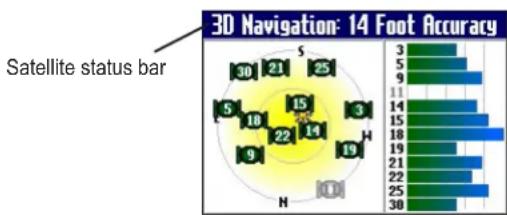
As soon as the GPS receiver has collected the necessary data to calculate a fix, the status bar indicates a position fix. The current GPS status and the accuracy of the position fix can be found in the satellite status bar located at the top of the page. The status bar displays one of the following messages:
Searching for Satellites—the GPS receiver is looking for any available satellites in view.
Locating Satellites—the GPS receiver is locating satellites and determining which ones are visible at your location.
Acquiring Satellites—the GPS receiver is collecting data from available satellites but has not collected enough data to calculate a position fix.
bar
3D Navigation: 14 Foot Accuracy | Position | Value | |---|---| | 1 | 30 | | 2 | 21 | | 3 | 25 | | 4 | 9 | | 5 | 11 | | 6 | 14 | | 7 | 18 | | 8 | 15 | | 9 | 19 | | 10 | 22 | | 11 | 18 | | 12 | 19 | | 13 | 21 | | 14 | 22 | | 15 | 25 | | 16 | 30 | Satellite status barReady to Navigate—the Trail Guide is ready to navigate routes.
2D Navigation—at least three satellites with good geometry have been found; a two-dimensional position fix (latitude and longitude) is being calculated. You might need to enter your elevation if the receiver only has a 2D fix. Displays “2D Differential” if you are tracking one of the WAAS satellites.
3D Navigation—at least four satellites with good geometry have been found; your location is now being calculated in latitude, longitude, and elevation. Displays “3D Differential” if you are tracking one of the WAAS satellites.
Lost Satellite Reception—the GPS receiver has temporarily lost satellite reception.
Poor GPS Coverage—the GPS receiver is not tracking enough satellites for a 2D or 3D fix due to bad satellite geometry or due to a shaded antenna, which can be caused from very dense overhead tress or tall buildings.
Receiver Not Usable—the Trail Guide is unusable, possibly due to incorrect initialization or abnormal satellite conditions. Turn the unit off and back on to reset and reinitialize the receiver if necessary.
GPS is Off—the GPS receiver has been turned off and cannot be used for navigation.
UNDERSTANDING GPS > THE GPS INFORMATION PAGE
Poor Satellite Reception Menu
If the Trail Guide cannot establish a position fix after several minutes, the Poor Satellite Reception menu appears. The menu might appear when you first use your Trail Guide or during normal use if the antenna is shaded or if the unit is used indoors.
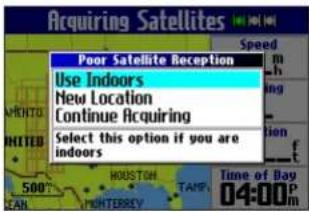
The Poor Satellite Reception menu gives you several options when an insufficient number of satellites is received to determine a position fix.
From the Poor Satellite Reception menu, you can turn off GPS when using the unit indoors, update your approximate location, or continue to search for the satellites. Updating your approximate location ensures that the Trail Guide is searching for the correct satellites and is useful if you have traveled over 500 miles with the unit turned off.
To select a new location:
- Press MENU, highlight Settings, and press OK.
- Highlight GPS Info, and press OK to open the GPS Information page.
- Press MENU.
- Highlight New Location, and press OK.
-
A window appears with two options. Highlight either Automatic or Use Map, and press OK:
-
Select Automatic to put the unit in AutoLocate mode and begin searching the sky for satellites.
- Select Use Map to select your location on a map page. Pan and zoom the map and use the map pointer to find your approximate location. Then press OK.
These options appear when you press MENU from the GPS Info page.
APPENDIX
Trail Guide Shortcuts
- Press and hold FIND to navigate to your Home location.
- Press and hold MENU to display the Route Options menu.
- Press and hold OK to display the Where Am I? page.
- Press FIND twice to display the Recent Finds page.
- Press MENU twice to display the Settings page.
- Press Power to open the backlight illumination window.
- Press zoom IN or OUT to scroll up or down a list.
- Press MENU and IN at the same time to shut off the Trail Guide if it locks up.
Data Fields
The following data fields are available:
Accuracy GPS—estimated GPS accuracy in feet or meters.
Arrive-Destination—estimated time of arrival at your destination.
Arrive-Next—estimated time of arrival at the next turn.
Bearing—compass direction from your location to your destination. (Appears only on the Compass page.)
Course—direction from your starting location to a destination. (Appears only on the Compass page.)
Distance-Destination—distance to your destination.
Distance-Next—distance to your next turn.
Elevation—elevation of your current location.
Heading—current direction of travel. (Not available on the Trip Information page.)
Location (lat/lon)—displays longitude and latitude of your current location.
Location (selected)—displays your current location in the position format you select in Units Setup page (see page 38).
Name-Destination—name of the destination. (Appears only on the Compass page.)
Name-Next—name of your next upcoming turn or maneuver. (Appears only on the Compass page.)
Odometer—running total of distance traveled. Unlike the Trip Odometer, the odometer cannot be reset.
Off Course—distance left or right you are from the original course (path of travel). (Appears only on the Compass page.)
APPENDIX > DATA FIELDS
Power (Battery)—battery power status.
Speed—current speed, displayed in miles or kilometers per hour. (Not available on the Trip Information page.)
Speed-Maximum—maximum speed recorded since the Trip Computer was last reset.
Speed-Moving Average—average speed of travel in motion since the Trip Computer was last reset.
Speed-Overall Average—average speed of travel (including time stopped) during the time the unit has been tracking your location.
Sunrise—time of today's sunrise at the unit's present location.
Sunset—time of today's sunset at the unit's present location.
Time of Day—current time.
Time to Destination—estimated time left until you reach your destination.
Time to Next—estimated time left until you reach the next turn.
To Course—direction of travel to get back on course. (Appears only on the Compass page.)
Trip Odometer—running total of distance traveled since the Trip Computer was last reset.
Trip Time-Moving—length of time in motion since the Trip Computer was last reset.
Trip Time-Stopped—length of time stopped (or stationary) since the Trip Computer was last reset.
Trip Time-Total—total length of time that the unit has been tracking your location since the Trip Computer was last reset. This is always equal to Moving Time plus Stopped Time.
Turn—angle difference (in degrees) from the bearing to your destination and your current line of travel. L means turn left; R means turn right. (Appears only on the Compass page.)
Velocity Made Good—speed at which you are closing on a destination along a desired course. Also referred to as the vector velocity to your destination. (Appears only on the Compass page.)
Vertical Speed—rate of altitude gain/loss over time. (Appears only on the Compass page.)
Adding Maps to Your Trail Guide
You can purchase additional MapSource ^® maps from Garmin for your Trail Guide.
Purchasing Additional MapSource Maps
In order to unlock and use additional MapSource data, you need your unit ID number (see page 40) and serial number (see page 51). After you unlock your map data, you can transfer it to the Trail Guide using MapSource and your computer.
Note that the preloaded maps on your Trail Guide are protected and cannot be erased. For example, if you add additional maps to your Trail Guide, you will not overwrite the original maps. If you load additional maps to the Trail Guide, these maps are not protected. The additional maps are overwritten each time you load new maps to the unit.
Controlling Map Views on the Map Page
You can view a list of your map families on the MapSource Info page.
To view the installed maps:
- Press MENU, highlight Settings, and press OK.
- Highlight Map Info and press OK. The MapSource Info page opens.
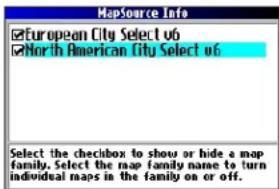
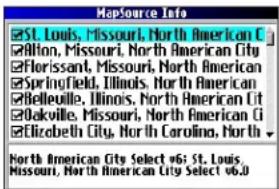
Map families loaded Individual maps loaded
The MapSource Info page lists the MapSource maps that are loaded onto the unit. These are actually map families: each map family may contain numerous smaller maps.
APPENDIX > ADDING MAPS TO YOUR TRAIL GUIDE
To see the smaller maps that make up the larger map family, highlight the map family name and then press OK. A list of all maps within that map family appears.
To disable a map, uncheck the box next to the map name. If the maps loaded in your Trail Guide do not overlap, you should not need to disable map families. If you load maps that cover the same area, however, you may want to disable one of the map families so that you can view detail from the other one.
Changing Map Families when Finding Places
If your Trail Guide contains map families that have overlapping information, you may need to specify a different map family. In most cases the Trail Guide knows which map family to use for this particular search.
To change the map family:
- Press FIND, highlight a category, and press OK.
- Press MENU, highlight Select Map, and press OK. A list of installed maps that contain searchable cities or places appears.
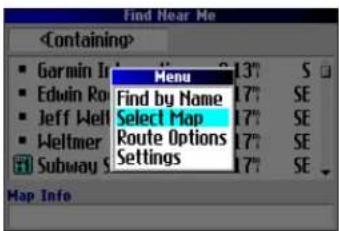
- Highlight the map family you want to use for the search and press OK. The Trail Guide will then return a list of cities or places only from this map family.
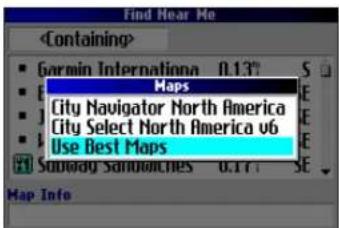
Caring for the Trail Guide
The Trail Guide is constructed of high quality materials and does not require user maintenance other than cleaning.
Cleaning the Case
Clean the unit's outer casing (except for the screen) using a cloth dampened with a mild detergent solution and then wipe dry. Avoid chemical cleaners and solvents that may damage plastic components.
Cleaning the Screen
Clean the screen using a soft, clean, lint-free cloth. You may use water, isopropyl alcohol, or eyeglass cleaner if needed. To use these cleaners, apply the liquid to the cloth and wipe the screen.
Storage
Do not store the Trail Guide where prolonged exposure to temperature extremes may occur (such as in the trunk of a car), as permanent damage may result.
Avoid Theft
To avoid theft, take your Trail Guide with you or remove it from view when you leave your vehicle.
Using the Trail Guide Responsibly
The Trail Guide is equipped with a Safe Mode feature to improve driver safety. When your vehicle is moving, Safe Mode disables all functions that require significant operator attention and could become a distraction when driving.
Read the safety information on pages iii–iv to learn how to install and use your Trail Guide safely and responsibly.
Battery Temperature Warning
Your Trail Guide contains an internal lithium-ion battery, which can store more energy than standard batteries. All batteries slowly lose the amount of energy they can hold over time. To maximize battery life, limit the unit's prolonged exposure to excessive heat and direct sunlight.
If Your Trail Guide Locks Up...
On rare occasions, your Trail Guide may freeze or lock up. In this case, reset it by pressing the Power key and the IN key at the same time. The unit turns off. The unit will operate normally when you turn it on again.
APPENDIX > SPECIFICATIONS
Specifications
Physical Specifications
Size: 4.5" W x 2.2" H x 0.9" D (11.4 x 5.6 x 2.3 cm)
Weight: 5.5 oz (171 g)
Display: 1.5" W x 2.2" H, 256-color, high resolution, transflective TFT (160 x 240 pixels), backlit. Compatible with polarized sunglasses.
Case: Rugged, fully gasketed, water resistant to IEC 60529 IPX7
Antenna: Flip-up patch. MCX-type connector for remote antenna.
Temp. Range: 5° to 140° F (-15° to 60° C)
Keypad: Nine multifunction backlit keys
Performance Specifications
Receiver: WAAS-enabled, 12 parallel channel receiver
Acquisition Times ^1
Warm: Approximately 15 seconds
Cold: Approximately 45 seconds
AutoLocate®: Approximately 2 minutes
Update Rate: Once per second, continuous
GPS Accuracy
Position: <15 meters (49 feet), 95% typical
Velocity: 0.05 m/s steady state
DGPS Accuracy
Position: 3–5 meters (10–16 feet), 95% typical
Velocity: 0.05 m/s steady state
Dynamics: Performs to specifications to 6 g's
Interface: USB
Data Storage: Indefinite; no memory battery required
Map Storage: Internal; full map coverage
Power Specifications
Source: 12/24 VDC with car adapter up to 36 V, 115 VAC adapter, internal lithium-ion battery
Battery Life ^2 : Up to 20 hours (typical use)
Usage: 5 watts maximum at 13.8 VDC
Fuse: AGC/3AG - 1.0 Amp High breaking capacity, rated 1500 A
Features
Waypoints (Saved Locations): 500 with name and graphic symbol
Routes: Up to 50 stored
Track Log: 10,000 track log points
^1 Warm = all data known; Cold = position, time and almanac known; AutoLocate = almanac known, position and time unknown.
^2 The lithium-ion battery loses capacity as its temperature decreases. Use of backlight and tones also reduces your battery life.
Product and Regulatory Information Product Registration
Help us better support you by completing our online registration today! Have the serial number of your Trail Guide handy and connect to our Web site (www.garmin.com). Look for the Product Registration link on our Home page.
Use this area to record the serial number (8-digit number located on the back of the unit behind the antenna) in case your Trail Guide is lost, stolen, or needs service. Keep your original sales receipt in a safe place or attach a photocopy inside the manual.
Serial Number: ____ ____ ____ ____ ____
Contact Garmin
Contact Garmin if you have any questions while using your Trail Guide. In the U.S.A. contact Garmin Product Support by phone: 913/397.8200 or 800/800.1020, Monday–Friday, 8 AM–5 PM Central Time; or go to www.garmin.com/support/, and click Product Support.
In Europe, contact Garmin (Europe) Ltd. at 44/0870.8501241.
Software License Agreement
BY USING THE TRAIL GUIDE, YOU AGREE TO BE BOUND BY THE TERMS AND CONDITIONS OF THE FOLLOWING SOFTWARE LICENSE AGREEMENT. PLEASE READ THIS AGREEMENT CAREFULLY.
Garmin grants you a limited license to use the software embedded in this device (the “Software”) in binary executable form in the normal operation of the product. Title, ownership rights, and intellectual property rights in and to the Software remain with Garmin.
You acknowledge that the Software is the property of Garmin and is protected under the United States of America copyright laws and international copyright treaties. You further acknowledge that the structure, organization, and code of the Software are valuable trade secrets of Garmin and that the Software in source code form remains a valuable trade secret of Garmin. You agree not to decompile, disassemble, modify, reverse assemble, reverse engineer, or reduce to human readable form the Software or any part thereof or create any derivative works based on the Software. You agree not to export or re-export the Software to any country in violation of the export control laws of the United States of America.
APPENDIX > PRODUCT AND REGULATORY INFORMATION
FCC Compliance
The Trail Guide complies with Part 15 of the FCC interference limits for Class B digital devices FOR HOME OR OFFICE USE. These limits are designed to provide more reasonable protection against harmful interference in a residential installation, and are more stringent than “outdoor” requirements.
Operation of this device is subject to the following conditions: (1) This device may not cause harmful interference, and (2) this device must accept any interference received, including interference that may cause undesired operation.
This equipment generates, uses, and can radiate radio frequency energy and may cause harmful interference to radio communications if not installed and used in accordance with the instructions. However, there is no guarantee that interference will not occur in a particular installation. If this equipment does cause harmful interference to radio or television reception, which can be determined by turning the equipment off and on, the user is encouraged to try to correct the interference by one of the following measures:
- Reorient or relocate the receiving antenna.
-
Increase the separation between the equipment and the receiver.
-
Connect the equipment into an outlet on a circuit different from that to which the receiver is connected.
- Consult the dealer or an experienced radio/TV technician for help.
The Trail Guide does not contain any user-serviceable parts. Repairs should only be made by an authorized Garmin service center. Unauthorized repairs or modifications could result in permanent damage to the equipment, and void your warranty and your authority to operate this device under Part 15 regulations.
The Mopar Warranty Difference
When installed in a DaimlerChrysler Corporation vehicle that is within the New Vehicle Limited Warranty period, Mopar Accessories are covered by either the 3-year/36,000-mile new Vehicle Limited Warranty, or the 12-month/12,000-mile Mopar Basic Limited Warranty, whichever is more favorable to you. These warranties are backed by thousands of DaimlerChrysler Motors Company, LLC, dealerships throughout the country.
See your DaimlerChrysler dealer for full details and a copy of the limited warranties.
INDEX
Symbols
2D Navigation 43
3D Navigation 43
A
Acquiring Satellites 43
Addresses, Finding 10
Antenna
External 1
Positioning of Flip-up 1
Area Tab 34
Assign Category 16
AutoZoom 34
Avoid
Area 26
Road 25
Road Type 25
B
Backlight 6, 35
Battery Icons 32
Battery Saver 36
Battery Temperature
Warning 49
Bearing Pointer 20
Best Route 37
C
Calculate Routes for 37
Categories 16
City, Finding 11
City Tab 34
Cleaning, Storing 49
Clear Track 39
Color Mode 34, 35
Compass Page 20
Contact Garmin 51
Course Pointer 20
Create a Category 16
Current Route Page 31
Customizing 33
Display Setup 35
Map Setup 33
Route Setup 37
System Setup 36
Track Setup 39
Units Setup 38
Welcome Page 40
D
Data Fields
Compass Page 20
Customizing 33
Definitions 45
Map Page 29
Trip Info Page 32
Datum 38
Daylight Savings 38
Daytime Color Mode 35
Delete
Avoidance 26
Category 16
Recent Finds 12
Route 22
Saved Location 17
Via Point 24
Detours 23
Directions to Me 9
Display Setup 35
E
Edit a Saved Location 16
Elevation 38
Entering Data 7
Exits, Finding 11
External Power Lost 36
F
Faster Time 37
FCC 52
Finding Places 8–13
Addresses 10
Cities 11
Exits 11
Intersections 10
My Locations 17
Recent Finds 12
Find Key 6
Find Menu 8
Find Near 9
Frozen Screen 49
G
GPS 41-44
Mode 36
Turn Off/On 43
H
Heading, Units 38
Hide Above 34
Home Location 18
|
Indoor Use 5
Intersections, Finding 10
K
Keyboard, On-screen 7
Keypress Tone 36
Keys 6
L
Layout Tab 33
Line Tab 34
Locating Satellites 43
Location Format 38
Locks Up 49
Lost Satellite Reception 43
M
Magnetic Variance 38
Mapping Software, Adding 47
Map Card 27
Map Detail Level 33
Map Info 47
Map Page
Controlling Map
Views 47
Customizing 33
Learning How to
Use 27–29
Map Setup 33–34
Maximum Speed,
Resetting 32
Menu Key 6
Modifying Routes 21
Move around the Map 28
My Locations 14–17. See
also Saved Location
Finding 17
Saving 14
N
Navigational Text
(Navtext) 27, 33
New Location 44
Next Turn Page 30
Nighttime Color Mode 35
North Up 33
INDEX
0
Off-Route Recalculate 37
Off Road 37
OK Key 6
On-screen Keyboard 7
Optimal Via Order 24
Orientation 29,33
Overzoom 27
P
Page Key 6
Panning the Map 28
Percentage Full 39
Point Tab 34
Poor GPS Coverage 43
Poor Satellite Reception 44
Power Key 6
R
Ready to Navigate 43
Recalculating Routes 23
Receiver Not Usable 43
Recent Finds 12
Record Interval 39
Register Your Product 51
Resetting Trip Data, Max Speed 32
Reset the Unit 49
Restore Settings Display 35
Map Setup 34
System Setup 36, 37, 38, 39
Reverse Route 24
Road Lock 33
Routes 21–26
Deleting 22
Detours 23
Modifying 21
Planning 21
Preference 37
Recalculating 23
Saving 22
Setup 37
Via Points 23
S
Safe Mode 36,49
Satellite Reception Off 5
Satellite Status Bar 43
Saved Location
Categories 16
Edit 16
Searching for Satellites 43
Select Exit Road 11
Select Map Set 48
Serial Number 51
Shortcuts 45
Show Map 9
Signal Strength Bars 42
Simulator Mode 5
Sky View 42
Software Version 40
Speak Key 6
Specifications 50
Storage 49
Street Detail Level 33
System Setup 36
T
Text Language 36
Text Size 34
Time Zone 38
TracBack 19
Track Log 19
Recording 39
Setup 39
Track Up 33
Trip Data, Resetting 32
Trip Information Page 32
Trip Planning 13
Turn On and Off 5
Turn Pointer 33
Tutorial 2
U
Units Setup 38
Unit ID, Finding 40
Use Current Location 21
Use Find Menu 21
Use Indoors 5
Use Map 21
UTC 38
V
Vertical Speed, Units 38
Via Points
Adding 23
Arranging 24
Deleting 24
Optimal Via Order 24
View Details 28
Voice Guidance 36
Voice Language 36
W
WAAS 36,41
Warranty 52
Welcome Page,
Customizing 40
Wrap When Full 39
Z
Zoom 27
Zoom In Key 6
Zoom Out Key 6
INTRODUCTION
PREMIERS PAS > INSTALLATION DANS UN VÉHICULE
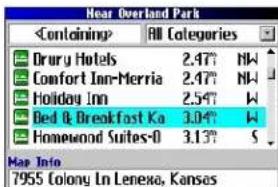
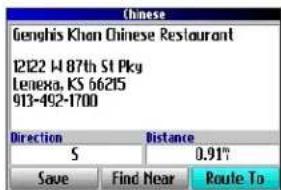
TH
Page Avoidance (Contournement)
North up (Nrd haut)
Champs de données
Champs de données
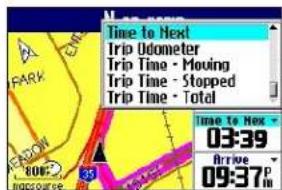
UTILISATION DES PAGES PRINCIPALES > PAGE NEXT TURN (PROCHAIN CHANGEMENT DE DIRECTION)
Page Next Turn (Prochain changement de direction)
Data Fields (Champs de
INTRODUCTION AU SYSTÈME GPS
ANNEXE
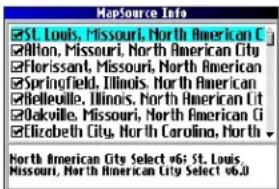
Compass (Boussole), Page 20
Configuration 33
Route Setup (Param. Rte) 37
Exits (Sorties), rechercher 11
External Power Lost (Perte alim. extern.) 36
F
Location Format (Fomat position) 38
New location (Nouvelle position) 44
Nighttime Color Mode (Mode coul. nuit.) 35
Reverse Route (Inverser route) 24
Road Lock (Verr. rout.) 33
S
Optimal Via Order (optimiser
Voice Guidance (Guidage vocal) 36
Voice Language (Langue vocale) 36
Voyage, planification 13
Vue du ciel 42
W
WAAS 36,41
Wrap When Full (Effacer si plein) 39
Z
Zoom 27
Zoom In, touche 6
INTRODUCCIÓN
INICIO >ENCENDIDO Y APAGADO DE TRAIL GUIDE
Menú Buscar
Uso del campo Que contenga
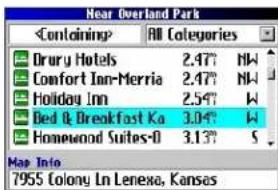
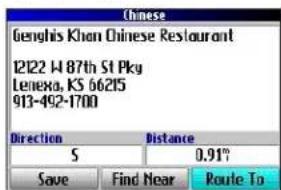
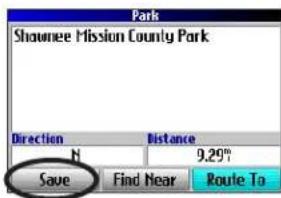
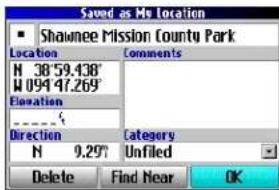
Campos de datos
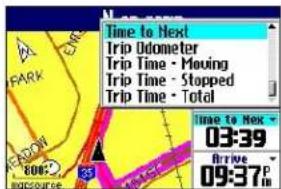
APÉNDICE
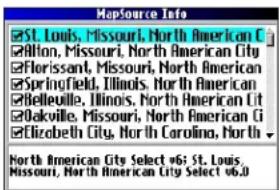
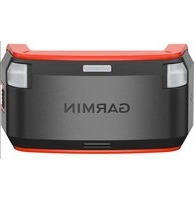
- Jeep
- TRAIL GUIDE
- Manual Conventions
- Safety Information
- INTRODUCTION > SAFETY INFORMATION
- GETTING STARTED
- Introducing the Trail Guide
- Tutorial
- Vehicle Installation
- To install the Trail Guide in the mount:
- To remove and store the Trail Guide:
- Turning the Trail Guide On and Off
- Turning off Satellite Reception for Indoor Use
- To turn off satellite reception:
- To turn on satellite reception:
- Using the Keys
- Selecting Options and Entering Data
- To select and activate an option or on-screen button:
- To exit a menu or return to the previous setting:
- Using the On-screen On-screen Keyboard
- BASIC OPERATION
- Finding Places and Routing to Them
- To find a place and route to it:
- Advanced Search Methods and Tips
- Entering Containing Letters
- Searching Sub-Categories
- Panning and Finding
- Finding Places Near this Place
- Saving this Place to My Locations
- Using the Information Page Menu
- Finding an Address or Intersection
- To find an address or intersection:
- Finding a City
- To find a city:
- Finding an Exit
- To find an exit:
- Finding Recently Found Places
- To find a recently found place:
- Deleting Recently Found Places
- Planning a Trip
- My Locations
- Saving Your Favorite Places in Favorite Places in My
- Saving an Item from the Find Menu
- To save a place from the Find menu:
- Where Am I?
- To find out where you are and save your location:
- Saving a Map Location
- To save a place on the map to My Locations:
- Entering a Location's Coordinates
- To enter a location's coordinates:
- Editing a Saved Location
- To edit the saved location:
- Organizing Saved Locations into Categories
- To create a saved location category:
- To assign a category to a saved location:
- To delete a category:
- Deleting Saved Locations
- To delete a saved location:
- To delete saved locations by symbol or category:
- Findinginding My Locations
- To find a saved location:
- Setting Your Home Location
- To set a Home location:
- To route Home:
- Changing Your Home Location
- To change your Home location:
- Using TracBack
- To use TracBack:
- Following Your Track with the Compass Page
- Planning and Modifying Routes
- Planning a Route
- To plan a route:
- Finding Route Points
- Saving a Route
- To save an active route:
- To select a saved route:
- Deleting a Saved Route
- To delete a route:
- Recalculating a Route
- To recalculate your route:
- Adding a Detour
- To set a detour:
- Adding Via Points
- To add via points to a saved route:
- Arranging Via Points
- To arrange the order of the via points:
- To optimize the route:
- To reverse the order of the route:
- Deleting Via Points
- Avoiding Roads and Areas
- To add an avoidance to your route:
- To avoid a road:
- To avoid an area:
- USING THE MAIN PAGES
- Map Page
- Zooming In and Out of the Map
- To zoom in and out:
- Panning the Map
- To pan the map:
- To re-center your location on the screen:
- To view details about an on-screen point:
- Viewing the Map Orientation
- Data Fields
- To change the data fields on the Map page:
- Next Turn Page
- Current Route Page
- Trip Information Page
- To reset the trip data or the maximum speed:
- To change the data fields:
- CustoMIZIng Your trail guIdE
- Customizing the Map Page
- Layout Tab
- Map Tab
- Line, Point, City, and Area Tabs
- Restoring Map Setup Default Settings
- To restore settings to the map setup:
- Customizing the Display
- To customize the colors:
- Customizing the Overall System Setup
- Customizing the Route Settings
- Customizing the Units Settings
- Changing the Time Settings
- Changing the Track Setup
- Customizing the Welcome Page
- Viewing Software and Unit Information
- UNDERSTANDING GPS
- The GPS Information Page
- Sky View and Signal Strength Bars
- Satellite Status Bar
- Poor Satellite Reception Menu
- To select a new location:
- APPENDIX
- Trail Guide Shortcuts
- Adding Maps to Your Trail Guide
- Purchasing Additional MapSource Maps
- Controlling Map Views on the Map Page
- To view the installed maps:
- Changing Map Families when Finding Places
- To change the map family:
- Caring for the Trail Guide
- Cleaning the Case
- Cleaning the Screen
- Storage
- Avoid Theft
- Using the Trail Guide Responsibly
- Battery Temperature Warning
- If Your Trail Guide Locks Up...
- Specifications
- Physical Specifications
- Performance Specifications
- Power Specifications
- Features
- Product and Regulatory Information Product Registration
- Contact Garmin
- Software License Agreement
- FCC Compliance
- The Mopar Warranty Difference
- INDEX
- Symbols
- A
- B
- C
- D
- E
- F
- G
- H
- |
- K
- L
- M
- N
- 0
- P
- R
- S
- T
- U
- V
- W
- Z
- INTRODUCTION
- Champs de données
- Page Next Turn (Prochain changement de direction)
- Data Fields (Champs de
- INTRODUCTION AU SYSTÈME GPS
- ANNEXE
- INTRODUCCIÓN
- APÉNDICE
Brand : GARMIN
Model : Trail Guide
Category : Gps