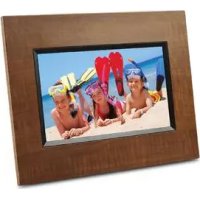
DPX702WD - Digital photo frame VIEWSONIC - Free user manual and instructions
Find the device manual for free DPX702WD VIEWSONIC in PDF.



| Brand | Viewsonic |
| Model | DPX702WD |
| Product Type | Digital Photo Frame |
| Screen Size | 7 inches (estimated) |
| Screen Resolution | 800 x 480 pixels (estimated) |
| Screen Type | LCD TFT |
| Supported Image Formats | JPEG (baseline up to 8000x8000, progressive up to 1024x1024), BMP (up to 1024x1024) |
| Connectivity | USB port, card reader (CompactFlash, Memory Stick, XD, SD, MMC) |
| Power | AC adapter included |
| Weight | Approximately 0.5 kg (estimated) |
| Dimensions | Approximately 200 x 150 x 30 mm (estimated) |
| Main Functions | Photo display, slideshow with adjustable effects and speed, copy, delete, rotate, full screen, black and white effect |
| Settings | Brightness, key beep, language, power saving, restore factory settings |
| Maintenance | Clean with a clean, dry cloth. Do not use liquid products. |
| Safety | Do not use near water, do not block ventilation openings, avoid heat sources, unplug if not used for a long time. |
| Compliance | FCC Class B, ICES-003, CE, RoHS, WEEE |
| Package Contents | Photo frame, AC adapter, stand, USB cable, quick start guide, replacement front bezel (depending on model) |
| Customer Service | ViewSonic website or retailer |
Frequently Asked Questions - DPX702WD VIEWSONIC
User questions about DPX702WD VIEWSONIC
0 question about this device. Answer the ones you know or ask your own.
Ask a new question about this device
Download the instructions for your Digital photo frame in PDF format for free! Find your manual DPX702WD - VIEWSONIC and take your electronic device back in hand. On this page are published all the documents necessary for the use of your device. DPX702WD by VIEWSONIC.
USER MANUAL DPX702WD VIEWSONIC
This device complies with part 15 of FCC Rules. Operation is subject to the following two conditions: (1) this device may not cause harmful interference, and (2) this device must accept any interference received, including interference that may cause undesired operation.
This equipment has been tested and found to comply with the limits for a Class B digital device, pursuant to part 15 of the FCC Rules. These limits are designed to provide reasonable protection against harmful interference in a residential installation. This equipment generates, uses, and can radiate radio frequency energy, and if not installed and used in accordance with the instructions, may cause harmful interference to radio communications. However, there is no guarantee that interference will not occur in a particular installation. If this equipment does cause harmful interference to radio or television reception, which can be determined by turning the equipment off and on, the user is encouraged to try to correct the interference by one or more of the following measures:
- Reorient or relocate the receiving antenna.
- Increase the separation between the equipment and receiver.
- Connect the equipment into an outlet on a circuit different from that to which the receiver is connected.
- Consult the dealer or an experienced radio/TV technician for help.
Warning: You are cautioned that changes or modifications not expressly approved by the party responsible for compliance could void your authority to operate the equipment.
For Canada
CE Conformity for European Countries
The device complies with the requirements of the EEC directive 2004/108/EC
CE as amended by 92/31/EEC and 93/68/EEC Art.5 with regard to “Electromagnetic compatibility”, and 2006/95/EC as amended by 93/68/EEC Art.13 with regard to “Safety.”
Following information is only for EU-member states:
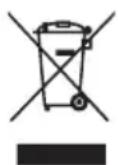
The mark shown to the right is in compliance with the Waste Electrical and Electronic Equipment Directive 2002/96/EC (WEEE).
The mark indicates the requirement NOT to dispose the equipment as unsorted municipal waste, but use the return and collection systems according to local law.
Important Safety Instructions
- Read these instructions.
- Keep these instructions.
- Heed all warnings.
-
Follow all instructions.
-
Do not use this unit near water.
-
Clean with a soft, dry cloth. If still not clean, see “Cleaning the Display” in this guide for further instructions.
-
Do not block any ventilation openings. Install the unit in accordance with the manufacturer's instructions.
-
Do not install near any heat sources such as radiators, heat registers, stoves, or other devices (including amplifiers) that produce heat.
-
Do not defeat the safety purpose of the polarized or grounding-type plug. A polarized plug has two blades with one wider than the other. A grounding type plug has two blades and a third grounding prong. The wide blade and the third prong are provided for your safety. If the provided plug does not fit into your outlet, consult an electrician for replacement of the obsolete outlet.
-
Protect the power cord from being walked on or pinched particularly at plugs. Convenience receptacles and the point where they exit from the unit. Be sure that the power outlet is located near the unit so that it is easily accessible.
-
Only use attachments/accessories specified by the manufacturer.
-
Use only with the cart, stand, tripod, bracket, or table specified by the manufacturer, or sold with the unit. When a cart is used, use caution when moving the cart/unit combination to avoid injury from tipping over.
-
Unplug this unit when unused for long periods of time.
-
Refer all servicing to qualified service personnel. Servicing is required when the unit has been damaged in any way, such as: if the power-supply cord or plug is damaged, if liquid is spilled onto or objects fall into the unit, if the unit is exposed to rain or moisture, or if the unit does not operate normally or has been dropped.
Declaration of RoHS Compliance
This product has been designed and manufactured in compliance with Directive 2002/95/EC of the European Parliament and the Council on restriction of the use of certain hazardous substances in electrical and electronic equipment (RoHS Directive) and is deemed to comply with the maximum concentration values issued by the European Technical Adaptation Committee (TAC) as shown below:
| Substance | Proposed Maximum Concentration | Actual Concentration |
| Lead (Pb) 0.1% < 0.1% | ||
| Mercury (Hg) 0.1% < 0.1% | ||
| Cadmium (Cd) 0.01% < 0.01% | ||
| Hexavalent Chromium ( Cr^6+ ) 0.1% | < 0.1% | |
| Polybrominated biphenyls (PBB) 0.1% | < 0.1% | |
| Polybrominated diphenyl ethers (PBDE) | 0.1% < 0.1% |
Certain components of products as stated above are exempted under the Annex of the RoHS Directives as noted below:
Examples of exempted components are:
- Mercury in compact fluorescent lamps not exceeding 5 mg per lamp and in other lamps not specifically mentioned in the Annex of RoHS Directive.
- Lead in glass of cathode ray tubes, electronic components, fluorescent tubes, and electronic ceramic parts (e.g. piezoelectronic devices).
- Lead in high temperature type solders (i.e. lead-based alloys containing 85% by weight or more lead).
- Lead as an allotting element in steel containing up to 0.35% lead by weight, aluminium containing up to 0.4% lead by weight and as a cooper alloy containing up to 4% lead by weight.
Package contents
Check your Digital Photo Frame package for the following items.
- Digital Photo Frame
- Power adapter
- Stand
- Quick Start Guide
- USB cable
- Replacing front panel*
* The bundled front panel varies depending on the model you purchase.
Replacing front panel
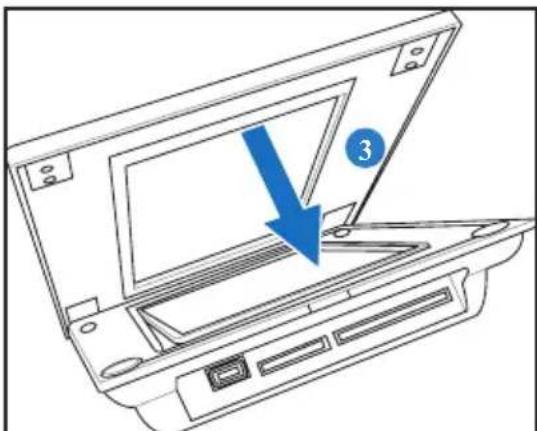
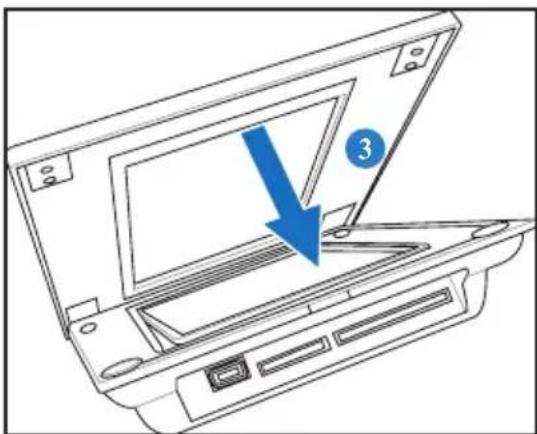
If your Digital Photo Frame package contains a spare front panel, follow these instructions to replace the front panel for personal preference.
- Locate the indent on the edge near the memory card socket.
- Follow the direction of the figure and gently lift the front panel.
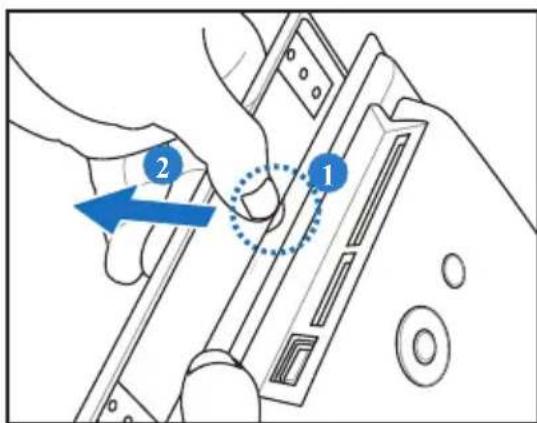
- To install a new front panel, align the panel edge to the Digital Photo Frame and gently place the panel on the device.
natural_image
Line drawing of a laptop computer with a blue arrow pointing to the screen (no text or symbols present)Connect
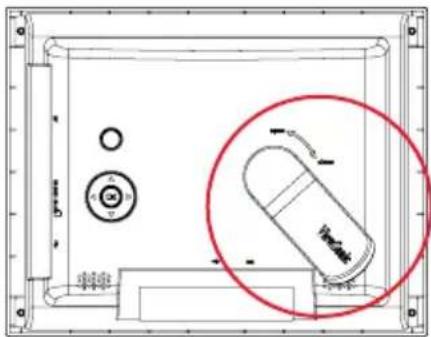
- Align the head of the stand with the socket, then rotate clockwise until the stand locks into place.
natural_image
Technical line drawing of a mechanical component with a highlighted circular detail (no text or symbols)- Plug the power adapter from the device to a power outlet.
Locate control keys (in the back panel)
Locate the control buttons in the back panel according to the following table.
| Button Function | |
| OK Enter | or confirm the selection |
| Left | Move to the previous or left selection |
| Right Move | to the next or right selection |
| Up Move | upward |
| Down Move | downward |
| Power On/Off | |
Turn ON/OFF the device
Turn on the device
Press turn on the device, then the main screens appear.
Turn off the device
Hold ⏻ for 2 seconds then release to turn off the device.
natural_image
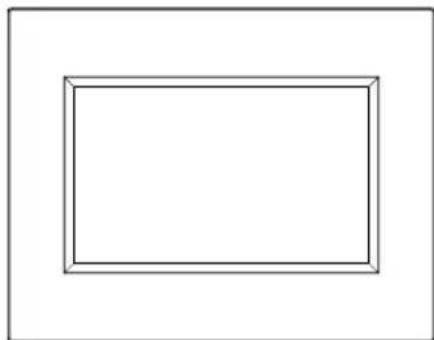
Simple geometric diagram with a rectangle and inner border (no text or symbols)Tips: If you can't turn on the device normally, please try to turn off the device then turn it on again.

The power LED lights blue during recharging, and turns off when the charge is complete.
Settings
Brightness
Allows you to adjust the screen brightness.
Language
Allows you to select the language you need.
Default
Go to SETTINGS > Default, then select Yes to restore to the factory default setting or No to discard the selection.
Set Beep
Allows you to turn on/off the key control sound.
Status
Displays the software version and the current memory size.

You will see Low battery please plug-in the power adapter on the screen when the battery is low. Plug the power adapter immediately, or the device will be turned off soon.
View Photos
From the main screen, press the Up and Down navigation keys to select PHOTO, then select the photo source you want to display.
Photos pre-stored in the device will appear when no memory card or USB flash disk is connected.
When photo source is selected, press OK to switch between 3 view modes:
- Browse mode : manual viewing of photos one-by-one
- Thumbnail mode: list of all photos
When viewing photos in Thumbnail mode, hold the Down navigation key for 2 seconds then release to quickly enter the setting menu for photo-related settings.
- Slideshow mode: automatically shifting display of photos
To exit the PHOTO function, switch to Thumbnail mode, then press the Up navigation key.
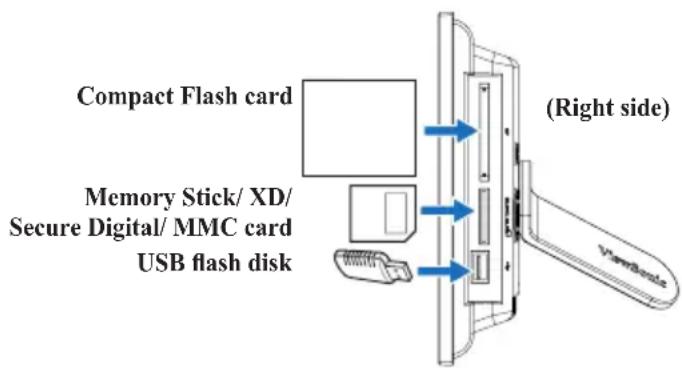
View photos from your memory card or USB flash disk
-
Insert your memory card with photos into the corresponding slot, OR: insert your USB flash disk into the USB port.
-
Photos on your memory card will appear after a few seconds.
Copy photos from your photo source
- In Thumnail mode, press the navigation keys to select one photo.
- Hold the Down navigation key ☐ for 2 seconds then release to quickly enter the setting menu.
- Select Copy to or Copy all to, then press OK.
- Select the source where you want to store the selected photos.
- Press OK to copy.
Copy multi-photos
- In Thumnail mode, select one photo, then press the Down navigation key ☐. The selected photo is labeled with a "+" mark.
- Repeat step 1 to other photos you want to copy to a source.
- Finishing selection, repeat step 2–5 in section Copy photos from your photo source.
Delete photos from your photo source
- In Thumnail mode, press the navigation keys to select one photo.
- Hold the Down navigation key ☐ for 2 seconds then release to quickly enter the setting menu.
- Select Delete or Delete all, then press OK.
Delete multi-photos
- In Thumnail mode, select one photo, then press the Down navigation key ☐. The selected photo is labeled with a "+" mark.
- Repeat step 1 to other photos you want to delete.
- Finishing selection, repeat step 2–3 in section Delete photos from your photo source.
Photo Setting menu
While in Thumnail mode, hold the Down navigation key for 2 seconds then release to enter the photo setting menu. You can adjust the screen view, slideshow sequence/effect/speed, copy or delete photos, effect, or rotate photos from the photo setting menu.
• Full Screen: sets the displayed photo to full screen.
When set to Full Screen, the displayed photo is automatically cropped to fit the screen.
- Slideshow Sequence: sets the photo transition sequence.
- Slideshow Effect: sets the photo transition effect.
- Slideshow Speed: sets the photo transition frequency.
- Copy/Copy all to: copy one or all photos to a selected source.
- Delete/Delete all: delete one or all photos.
- Effect: displays photos in black and white.
- Rotate: rotate the displayed photo 0/90/180/270 degrees.
Supported format
JPEG: JPEG Baseline (4:4:4/4:2:2/4:2:0, support up to 8000x8000 pixels), Progressive JPEG (Support up to 1024x1024 pixels)
BMP: MS Windows V3.1/4/8/16/24 uncompressed Bitmap. (Support up to 1024x1024 pixels)
The system allows you to display 4000 photos at most from your own memory card or USB flash disk.
Customer Support
For technical support or product service, see the table below or contact your reseller.
Note: You will need the product serial number.
| Country/Region Web Site | T=TelephoneF=Fax | ||
| Australia/New Zealand www.viewsonic.com.au | AUS=1800 880 818NZ=0800 008 822 | service@au.viewsonic.com | |
| Canada www.viewsonic.com | T=1-866-463-4775F=1-909-468-5814 | service.ca@viewsonic.com | |
| Europe/Middle East/Baltic countries/North Africa | www.viewsoniceurope.com Contact your reseller | ||
| Hong Kong www.hk.viewsonic.com T=852 3102 2900 service@hk.viewsonic.com | |||
| India www.in.viewsonic.com T=1800 11 9999 service@in.viewsonic.com | |||
| Korea www.kr.viewsonic.com T=080 265 9080 service@kr.viewsonic.com | |||
| Latin America (Argentina) | www.viewsonic.com/la/ | T=0800-666-0098F=1-909-444-5655 | soporte@viewsonic.com |
| Latin America (Brazil) www.viewsonic.com/la/ | T=0800-891-1829F=1-909-444-5655 | soporte@viewsonic.com | |
| Latin America (Chile) | www.viewsonic.com/la/ | T=800-440303F=1-909-444-5655 | soporte@viewsonic.com |
| Latin America (Columbia) | www.viewsonic.com/la/ | T=01800-9-156588F=1-909-444-5655 | soporte@viewsonic.com |
| Latin America (Mexico) | www.viewsonic.com/la/ | T=001-866-823-2004F=1-909-444-5655 | soporte@viewsonic.com |
| Renta y Datos, 29 SUR 721, COL. LA PAZ, 72160 PUEBLA, PUE. Tel: 01.222.891.55.77 CON 10 LINEASElectroser, Av Reforma No. 403Gx39 y 41, 97000 Merida, Yucatan. Tel: 01.999.925.19.16Other places please refer to http://www.viewsonic.com/la/soporte/index.htm#Mexico | |||
| Latin America (Peru) | www.viewsonic.com/la/ | T=0800-53311F=1-909-444-5655 | soporte@viewsonic.com |
| Macau | www.hk.viewsonic.com T=853 | 700 303 service@hk.viewsonic.com | |
| Puerto Rico & Virgin Islands | www.viewsonic.com | T=1-800-688-6688 (English)T=1-866-379-1304 (Spanish)F=1-909-468-1202 | service.us@viewsonic.comsoporte@viewsonic.com |
| Singapore/Malaysia/Thailand | www.ap.viewsonic.com | T=65 6461 6044 service@sg.viewsonic.com | |
| South Africa | www.viewsoniceurope.com www.viewsoniceurope.com/uk/Support/Calldesk.htm | ||
| United Kingdom | www.viewsoniceurope.com/uk/ | www.viewsoniceurope.com/uk/Support/Calldesk.htm | |
| United States | www.viewsonic.com | T=1-800-688-6688F=1-909-468-1202 | service.us@viewsonic.com |
Connector
natural_image
Technical line drawing of a mechanical component with a highlighted circular detail (no text or symbols)natural_image
Simple geometric diagram with two concentric rectangles (no text or symbols)The power LED lights blue during recharging, and turns off when the charge is complete.
Réglages
Luminosité
Conectar
natural_image
Technical line drawing of a mechanical component with a highlighted circular detail (no text or symbols)natural_image
Simple geometric diagram with two nested rectangles (no text or symbols)The power LED lights blue during recharging, and turns off when the charge is complete.
Configuraciones
Brillo
연결
natural_image
Technical line drawing of a mechanical component with a highlighted circular detail (no text or symbols)natural_image
Simple geometric diagram with two nested rectangles (no text or symbols)連接
natural_image
Simple geometric diagram with a rectangle and inner border (no text or symbols)
- For Canada
- CE Conformity for European Countries
- Following information is only for EU-member states:
- Important Safety Instructions
- Declaration of RoHS Compliance
- Package contents
- Replacing front panel
- Connect
- Locate control keys (in the back panel)
- Turn ON/OFF the device
- Turn on the device
- Turn off the device
- Settings
- Brightness
- Language
- Default
- Set Beep
- Status
- View Photos
- View photos from your memory card or USB flash disk
- Copy photos from your photo source
- Copy multi-photos
- Delete photos from your photo source
- Delete multi-photos
- Photo Setting menu
- Supported format
- Customer Support
- Connector
- Réglages
- Luminosité
- Conectar
- Configuraciones
- Brillo
- 연결
- 連接
Brand : VIEWSONIC
Model : DPX702WD
Category : Digital photo frame