
DPX804WH - Digital photo frame VIEWSONIC - Free user manual and instructions
Find the device manual for free DPX804WH VIEWSONIC in PDF.


| Product Type | Digital Photo Frame |
| Brand | ViewSonic |
| Model | DPX804WH |
| Display Size | 8 inches (diagonal) |
| Dimensions (Approx.) | 210 x 170 x 30 mm (8.3 x 6.7 x 1.2 in) |
| Weight (Approx.) | 0.6 kg (1.3 lbs) |
| Power Supply | DC 12V, 0.8A (adapter included) |
| Internal Memory | 128 MB |
| Supported Memory Cards | CF, xD, SD, MMC, MS |
| USB Port | Yes (for connection to PC or USB drives) |
| Supported Media | JPEG photos, MP3 music, MPEG-4 video (via card or USB) |
| Slideshow Modes | Photo slideshow, slideshow with music, clock, calendar |
| Remote Control | Included (infrared) |
| Display Orientation | Landscape and portrait |
| Operating Temperature | 0°C to 40°C (32°F to 104°F) |
| Cleaning Instructions | Use a soft, dry cloth. Do not use liquids. |
| Safety Certifications | FCC Class B, CE, RoHS compliant |
| Warranty (Typical) | 1 year (varies by region) |
| Spare Parts / Reparability | Contact authorized service centers; not user-serviceable |
Frequently Asked Questions - DPX804WH VIEWSONIC
User questions about DPX804WH VIEWSONIC
0 question about this device. Answer the ones you know or ask your own.
Ask a new question about this device
Download the instructions for your Digital photo frame in PDF format for free! Find your manual DPX804WH - VIEWSONIC and take your electronic device back in hand. On this page are published all the documents necessary for the use of your device. DPX804WH by VIEWSONIC.
USER MANUAL DPX804WH VIEWSONIC
This device complies with part 15 of FCC Rules. Operation is subject to the following two conditions: (1) this device may not cause harmful interference, and (2) this device must accept any interference received, including interference that may cause undesired operation.
This equipment has been tested and found to comply with the limits for a Class B digital device, pursuant to part 15 of the FCC Rules. These limits are designed to provide reasonable protection against harmful interference in a residential installation. This equipment generates, uses, and can radiate radio frequency energy, and if not installed and used in accordance with the instructions, may cause harmful interference to radio communications. However, there is no guarantee that interference will not occur in a particular installation. If this equipment does cause harmful interference to radio or television reception, which can be determined by turning the equipment off and on, the user is encouraged to try to correct the interference by one or more of the following measures:
- Reorient or relocate the receiving antenna.
- Increase the separation between the equipment and receiver.
- Connect the equipment into an outlet on a circuit different from that to which the receiver is connected.
- Consult the dealer or an experienced radio/TV technician for help.
Warning: You are cautioned that changes or modifications not expressly approved by the party responsible for compliance could void your authority to operate the equipment.
For Canada
CE Conformity for European Countries
CE
The device complies with the requirements of the EEC directive 2004/108/EC as amended by 92/31/EEC and 93/68/EEC Art.5 with regard to “Electromagnetic compatibility”, and 2006/95/EC as amended by 93/68/EEC Art.I3 with regard to “Safety.”
Following information is only for EU-member states:
The mark shown to the right is in compliance with the Waste Electrical and Electronic Equipment Directive 2002/96/EC (WEEE).
The mark indicates the requirement NOT to dispose the equipment as unsorted municipal waste, but use the return and collection systems according to local law.

Important Safety Instructions
- Read these instructions.
- Keep these instructions.
- Heed all warnings.
- Follow all instructions.
- Do not use this unit near water.
- Clean with a soft, dry cloth. If still not clean, see "Cleaning the Display" in this guide for further instructions.
- Do not block any ventilation openings. Install the unit in accordance with the manufacturer's instructions.
- Do not install near any heat sources such as radiators, heat registers, stoves, or other devices (including amplifiers) that produce heat.
- Do not defeat the safety purpose of the polarized or grounding-type plug. A polarized plug has two blades with one wider than the other. A grounding type plug has two blades and a third grounding prong. The wide blade and the third prong are provided for your safety. If the provided plug does not fit into your outlet, consult an electrician for replacement of the obsolete outlet.
- Protect the power cord from being walked on or pinched particularly at plugs. Convenience receptacles and the point where they exit from the unit. Be sure that the power outlet is located near the unit so that it is easily accessible.
- Only use attachments/accessories specified by the manufacturer.
- Using only with the cart, stand, tripod, bracket, or table specified by the manufacturer, or sold with the unit. When a cart is used, use caution when moving the cart/unit combination to avoid injury from tipping over.
- Unplug this unit when unused for long periods of time.
- Refer all servicing to qualified service personnel. Servicing is required when the unit has been damaged in any way, such as: if the power-supply cord or plug is damaged, if liquid is spilled onto or objects fall into the unit, if the unit is exposed to rain or moisture, or if the unit does not operate normally or has been dropped.
Declaration of RoHS Compliance
English
This product has been designed and manufactured in compliance with Directive 2002/95/EC of the European Parliament and the Council on restriction of the use of certain hazardous substances in electrical and electronic equipment (RoHS Directive) and is deemed to comply with the maximum concentration values issued by the European Technical Adaptation Committee (TAC) as shown below:
| Substance | Proposed Maximum Concentration | Actual Concentration |
| Lead (Pb) 0.1% <0.1% | ||
| Mercury (Hg) 0.1% <0.1% | ||
| Cadmium (Cd) 0.01% <0.01% | ||
| Hexavalent Chromium ( Cr^6+ ) 0.1% <0.1% | ||
| Polybrominated biphenyls (PBB) 0.1% <0.1% | ||
| Polybrominated diphenyl ethers (PBDE) 0.1% <0.1% |
Certain components of products as stated above are exempted under the Annex of the RoHS Directives as noted below:
Examples of exempted components are:
- Mercury in compact fluorescent lamps not exceeding 5 mg per lamp and in other lamps not specifically mentioned in the Annex of RoHS Directive.
- Lead in glass of cathode ray tubes, electronic components, fluorescent tubes, and electronic ceramic parts (e.g. piezoelectronic devices).
- Lead in high temperature type solders (i.e. lead-based alloys containing 85% by weight or more lead).
- Lead as an allotting element in steel containing up to 0.35% lead by weight, aluminium containing up to 0.4% lead by weight and as a cooper alloy containing up to 4% lead by weight.
Package Contents
• Digital Photo Frame
- Remote Control
- Power Adapter
- Quick Start Guide
- USB Cable (Optional)
English
Identifying the Parts
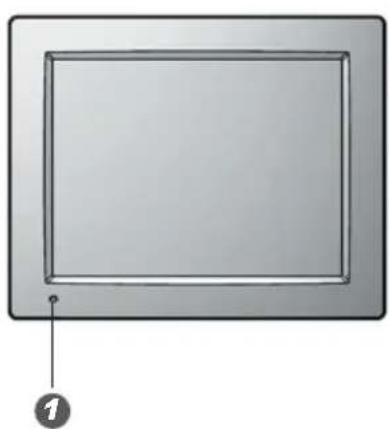
natural_image
Simple diagram of a rectangular frame with a numbered label pointing to the bottom-left corner (no text or symbols on the frame itself)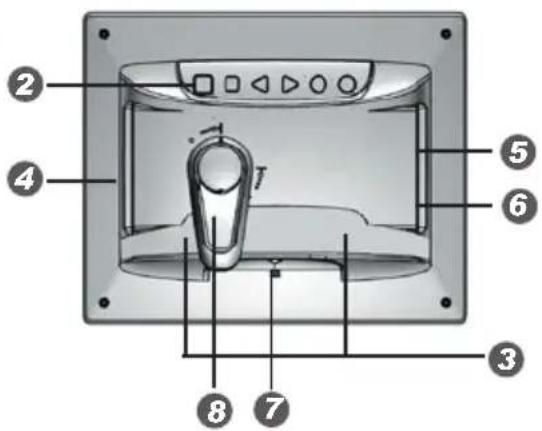
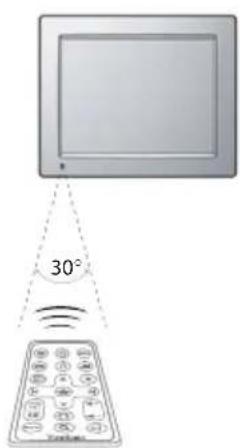
1 IR Sensor
2 Power button
□ Mode button
◀ Previous button
▷ Next button
Stop/Exit button
OK/Menu button
3 Speakers
4 CF Card Slot
5 xD/SD/MMC/MS Card Slot
6 USB Port
7 DC-IN Jack
8 Stand
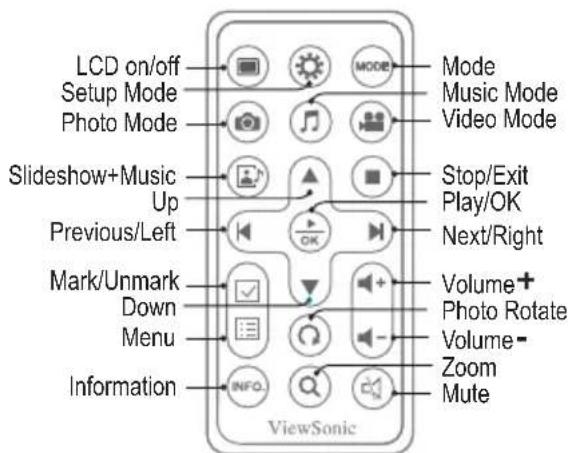
Remote Control
Getting Prepared
Inserting Memory Cards
English
With the label side facing the back of the photo frame, insert the memory card containing pictures, video clips, or music files to be displayed in the direction as illustrated.
• To remove cards, gently pull it out in the opposite direction.
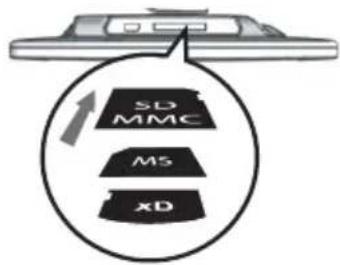
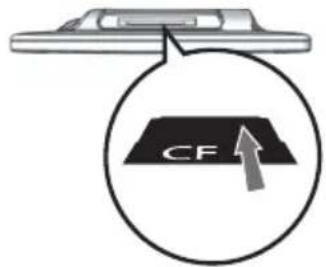

• The digital photo frame accommodates xD/CF/SD/MMC/MS cards.
- Before inserting the card, be sure it is formatted in FAT file system. Otherwise, the photo frame may not recognize the media files.
- Processing speed and file size are positively correlated in that large images take longer to load. To optimize its performance, it is suggested to use images less than 8 megapixel.
Positioning the photo frame
For desktop display, spread the stand as far as it can be spread on a flat and stable surface.
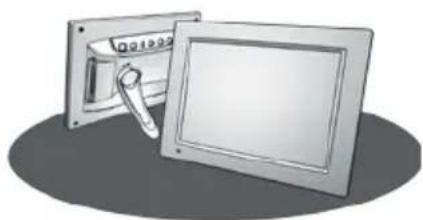
natural_image
Illustration of two rectangular panels with a handle, one open and one tilted, both without any text or symbols.Landscape display
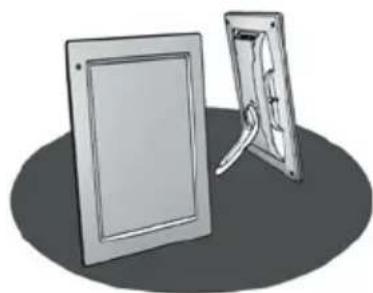
natural_image
Illustration of a framed picture frame and its folded image (no text or symbols)Portrait display
Powering it on
Connect the device to a power source with the supplied power adapter.
Press 🔒 to turn on the digital photo frame.
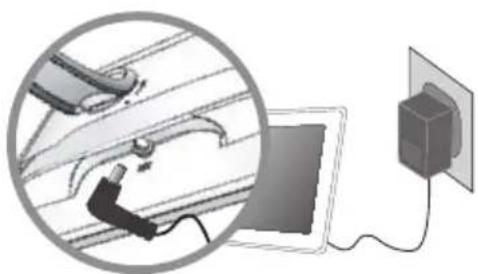
natural_image
Illustration of a device connected to a power outlet with a magnified inset showing cable connections (no text or symbols)
natural_image
Hand inserting a device into a control panel (no text or symbols visible)
• Power Adapter Output: 12Vdc, 0.8A (DPX704WH/DPX804WH/DPX704BK/DPX804BK/DPX704RW/DPX804RW); 12Vdc, 1.25A (DPX1004WH/DPX1004BK/DPX1004RW)
- Operating Temperature: 0^ 40^ .
Operation
Use MODE to bring up the function bar.
Use ◀◀/◀◀ to move to the desired mode; press ▶/OK/▶ to confirm.
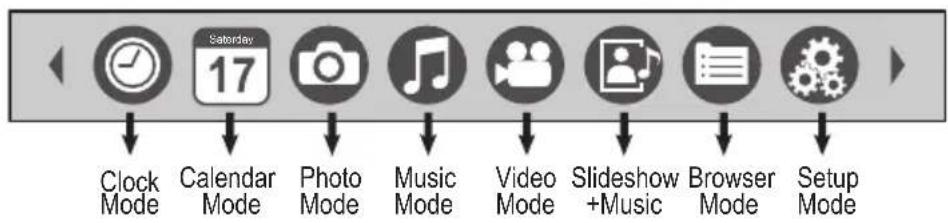
English

Clock Mode
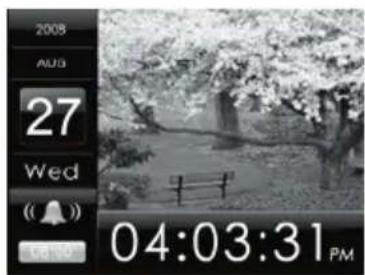
natural_image
Black-and-white photo of a tree with a bridge and fence, captured at 04:03:31 PM (no readable text or symbols)Display the current time
- If the alarm is activated, the alarm time will be displayed.

Calendar Mode
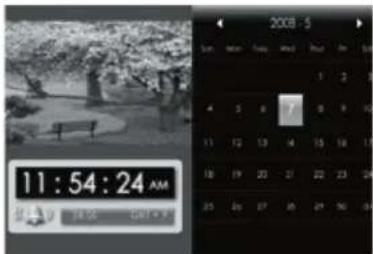
Display the monthly calendar
- Use ▲▼K▶/◀◀ to move to the desired month.

Photo Mode
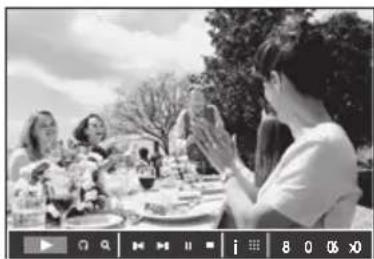
natural_image
Black-and-white photo of people enjoying a meal outdoors, with trees and tableware in the background (no visible text or symbols)Display all photos as a slideshow
• To enlarge the photo, press Q.
• To rotate the photo clockwise, press
To apply various settings for the selected photo, press OK / ▶. A toolbar appears.
Use ◀◀/◀◀ to scroll through it; press ▶OK/▶ to confirm.

Rotate Rotate the photo clockwise (90°/180°/270°)

Zoom Enlarge the photo to show the details

Previous Go back to previous photo

Next Advance to next photo

Play/Pause Pause or resume the slideshow

Stop Stop the slideshow

Photo Info Display photo information

Thumbnails Display photos in thumbnail mode
800X600
Resolution Display photo resolution
English
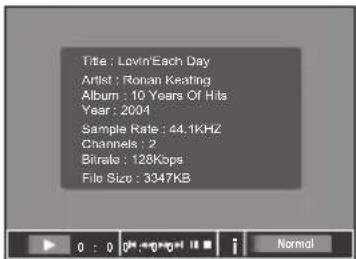
Play songs
• To adjust the volume, press ▶+◀-
• To mute the music, press 📁.
To apply various settings for the selected music, press OK / ☑. A toolbar appears. Use ◀/◀ to scroll through it; press OK / ☑ to confirm.
| 0:00:00 | Elapsed Time | Display the elapsed time |
| Previous | Go back to previous music | |
| F. Bwd | Reverse the playback | |
| F. Fwd | Speed up the playback | |
| Next | Advance to next music | |
| Play/Pause | Pause or resume the playback | |
| Stop | Stop the playback | |
| Music Info | Display music information | |
| Normal | Play all music once | |
| Repeat One | Repeat the currently selected music continuously | |
| Repeat All | Repeat all music continuously |

Video Mode
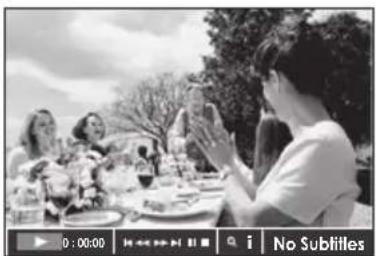
natural_image
Black-and-white outdoor photo of people enjoying a meal outdoors, no visible text or symbolsPlay video files
• To adjust the volume, press + - .
• To mute the music, press.
To apply various settings for the selected video file, press OK / ☑. A toolbar appears. Use ◀/◀/◀ to scroll through it; press OK / ☑ to confirm.
0:00:00 Elapsed Time Display the elapsed time
Previous Go back to previous video file
F. Bwd Reverse the playback
F. Fwd Speed up the playback
▶ Next Advance to next video file
Play/Pause Pause or resume the playback
■ Stop Stop the playback
Q Zoom Enlarge the video to show the details
j Video Info Display video file information
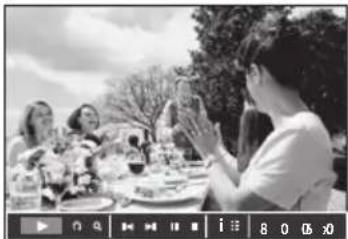
natural_image
Black-and-white photo of people enjoying a meal outdoors, with trees and tableware in the background (no visible text or symbols)Display photos one by one, together with background music
• To enlarge the photo, press Q.
• To rotate the photo clockwise, press
• To adjust the volume, press + -
• To mute the music, press.
To apply various settings for the selected photo, press OK / ▶. A toolbar appears.
Use ◀◀/◀◀ to scroll through it; press ▶ok/▶ to confirm.

Browser Mode
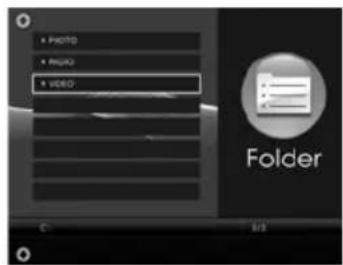
List out all of media files
Use to scroll through files; press play it back.

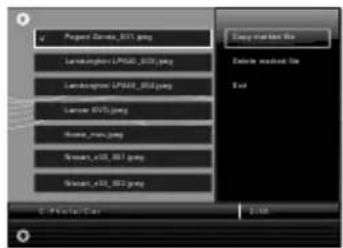
Copy / Delete files
- Use ☑ to mark files; press ☐ to open menu, and select COPY / DELETE function. (Copy the files to internal memory directly.)
- For remote control operating only.

Setup Mode
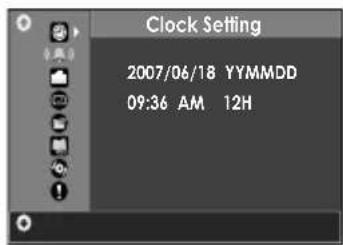
Use ▼▲/◀▶ to scroll through menu options; press OK / ▶ to confirm.

Clock Setting
yyyy/mm/dd YYMMDD/MMDDYY/DDMMYY
mm:ss AM/PM 12H/24H

Alarm Setting
yyyy/mm/dd
mm:ss
Ring 1/2
Mode Once/Daily/Off

Photo Setting
| Interval | Fast, Medium, Slow |
| Transition | select one to apply the slideshow effect |
| Display | Standard, Smart |

Display Setting
Brightness, Contrast, Color

Startup Setting
Clock, Calendar, Photo, Music, Video, Slideshow with music, Browser

Language Setting
English, Deutsch, Français, Italiano, Español, Nederlands, Português, Русский, 繁體中文, 简体中文

Default Setting
Restore Default

Firmware Version
Display the current firmware version
Connecting to External Devices
Mass Storage
English
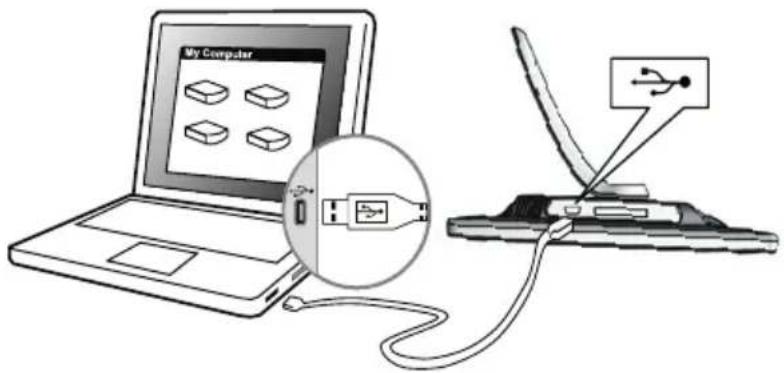
- Power on the photo frame.
- Connect the photo frame to computer's USB port with USB cable.
-
The photo frame now functions as a card reader.
-
Your photo frame comes with 128MB of built-in memory.
- When connected to a computer running Windows® 2000 or XP, the photo frame will be recognized instantly; no software installation is required.
Customer Support
For technical support or product service, see the table below or contact your reseller.
Note: You will need the product serial number.
| Country/Region | Web Site | T=TelephoneF=Fax | |
| Australia/New Zealand | www.viewsonic.com.au | AUS-1800 880 818NZ=0800 008 822 | service@au.viewsonic.com |
| Canada | www.viewsonic.com | T(Toll-Free)=1-866-463-4775T(Toll)=1-424-233-2533F=1-909-468-1202 | service.ca@viewsonic.com |
| Europe/Middle East/Baltic countries/North Africa | www.viewsoniceurope.com | Contact your reseller | |
| Hong Kong | www.hk.viewsonic.com | T=852 3102 2900 | service@hk.viewsonic.com |
| India | www.in.viewsonic.com | T=1800 11 9999 | service@in.viewsonic.com |
| Korea | www.kr.viewsonic.com | T=080 333 2131 | service@kr.viewsonic.com |
| Latin America (Argentina) | www.viewsonic.com/la/ | T=0800 666 0194 | soporte@viewsonic.com |
| Latin America (Brazil) | www.viewsonic.com/la/ | T=0800 891 6984 | soporte@viewsonic.com |
| Latin America (Chile) | www.viewsonic.com/la/ | T=800 440 303 | soporte@viewsonic.com |
| Latin America (Columbia) | www.viewsonic.com/la/ | T=01 800 915 6588 | soporte@viewsonic.com |
| Latin America (Mexico) | www.viewsonic.com/la/ | T=001 800 514 6518 | soporte@viewsonic.com |
| Renta y Datos, 29 SUR 721, COL. LA PAZ, 72160 PUEBLA, PUE. Tel: 01.222.891.55.77 CON 10 LINEASElectroser, Av Reforma No. 403Gx39 y 41, 97000 Merida, Yucatan. Tel: 01.999.925.19.16Other places please refer to http://www.viewsonic.com/la/soporte/index.htm#Mexico | |||
| Latin America (Peru) | www.viewsonic.com/la/ | T=0800 53458 | soporte@viewsonic.com |
| Macau | www.hk.viewsonic.com | T=853 700 303 | service@hk.viewsonic.com |
| Puerto Rico & Virgin Islands | www.viewsonic.com | T=1-800-688-6688 (English)T=1-866-379-1304 (Spanish)F=1-909-468-1202 | service.us@viewsonic.comsoporte@viewsonic.com |
| Singapore/Malaysia/Thailand | www.ap.viewsonic.com | T=65 6461 6044 | service@sg.viewsonic.com |
| South Africa | www.viewsoniceurope.com | www.viewsoniceurope.com/uk/Support/Calldesk.htm | |
| United Kingdom | www.viewsoniceurope.com/uk/ | www.viewsoniceurope.com/uk/Support/Calldesk.htm | |
| United States | www.viewsonic.com | T(Toll-Free)=1-800-688-6688T(Toll)=1-424-233-2530F=1-909-468-1202 | service.us@viewsonic.com |
English
English
- For Canada
- CE Conformity for European Countries
- CE
- Following information is only for EU-member states:
- Important Safety Instructions
- Declaration of RoHS Compliance
- Package Contents
- Identifying the Parts
- Remote Control
- Getting Prepared
- Inserting Memory Cards
- English
- Positioning the photo frame
- Powering it on
- Operation
- Play songs
- Video Mode
- Play video files
- 0:00:00 Elapsed Time Display the elapsed time
- Browser Mode
- Setup Mode
- Connecting to External Devices
- Mass Storage
- Customer Support
Brand : VIEWSONIC
Model : DPX804WH
Category : Digital photo frame