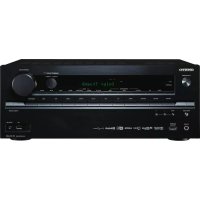
HTRC660 - AV receiver ONKYO - Free user manual and instructions
Find the device manual for free HTRC660 ONKYO in PDF.



| Product Type | AV Receiver |
| Brand | Onkyo |
| Model | HT-RC660 |
| Number of Channels | 7 channels |
| Nominal Output Power | 85 W per channel (8 ohms, 20 Hz-20 kHz, 0.08% THD) / 150 W per channel (6 ohms, 1 kHz, 1% THD) |
| Supported Audio Formats | Dolby Atmos, Dolby Surround, Dolby Digital, DTS, DTS-HD, etc. |
| HDMI Inputs | 6 (IN1 to IN6 + front AUX HDMI/MHL) |
| HDMI Outputs | 2 (OUT MAIN, OUT SUB) |
| 4K Compatibility | Yes, up to 4K/60 Hz (IN1 to IN4) |
| HDCP 2.2 | Yes (HDMI IN3 and HDMI OUT MAIN) |
| ARC (Audio Return Channel) | Yes |
| Wi-Fi | Yes, 2.4 GHz |
| Bluetooth | Yes, version 2.1+EDR, range ~15 m |
| USB Port | 1 (front), playback of MP3, WMA, FLAC, etc. |
| AM/FM Radio | Yes, with supplied antennas |
| Speaker Calibration | AccuEQ Room Calibration (microphone supplied) |
| Multi-zone | Zone 2 (line or power output) |
| Power Consumption | 630 W (Others), standby 0.2 W |
| Power Supply | AC 220-240 V, 50/60 Hz (Others) |
| Weight (Others) | 10.5 kg |
| Supplied Accessories | Indoor FM antenna, AM loop antenna, calibration microphone, batteries, labels |
| Maintenance and Cleaning | Use a soft, dry cloth. Do not use chemical products. |
Frequently Asked Questions - HTRC660 ONKYO
User questions about HTRC660 ONKYO
0 question about this device. Answer the ones you know or ask your own.
Ask a new question about this device
Download the instructions for your AV receiver in PDF format for free! Find your manual HTRC660 - ONKYO and take your electronic device back in hand. On this page are published all the documents necessary for the use of your device. HTRC660 by ONKYO.
USER MANUAL HTRC660 ONKYO
natural_image
Technical line drawing of a mechanical component with circular features and a flat top (no text or symbols)■ Advanced Manual found here
http://www.onkyo.com/manual/htrc60upg/adv/en.html

Before Start
About the Basic Manual
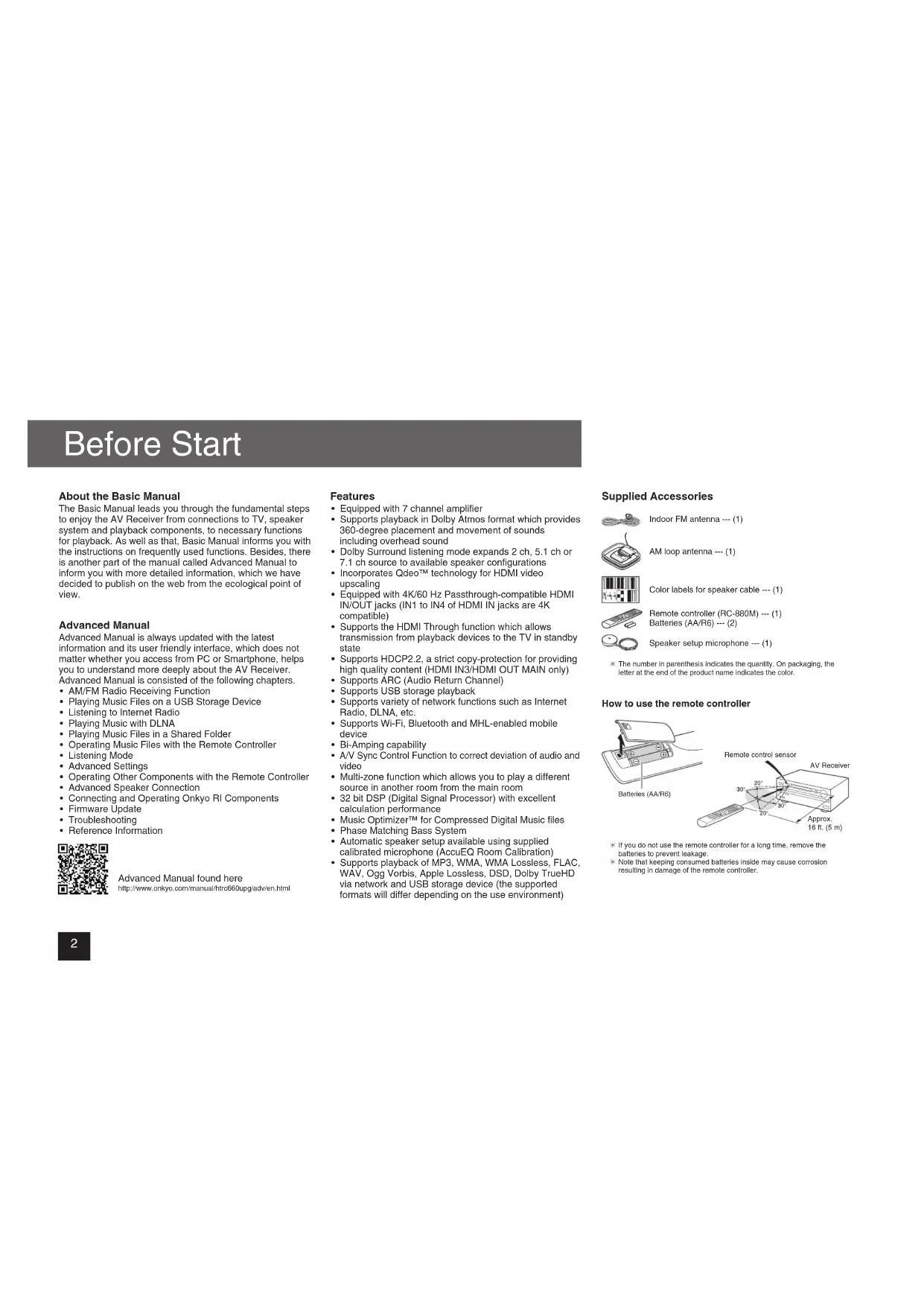
The Basic Manual leads you through the fundamental steps to enjoy the AV Receiver from connections to TV, speaker system and playback components, to necessary functions for playback. As well as that, Basic Manual informs you with the instructions on frequently used functions. Besides, there is another part of the manual called Advanced Manual to inform you with more detailed information, which we have decided to publish on the web from the ecological point of view.
Advanced Manual
Advanced Manual is always updated with the latest information and its user friendly interface, which does not matter whether you access from PC or Smartphone, helps you to understand more deeply about the AV Receiver. Advanced Manual is consisted of the following chapters.
• AM/FM Radio Receiving Function
- Playing Music Files on a USB Storage Device
- Listening to Internet Radio
- Playing Music with DLNA
- Playing Music Files in a Shared Folder
- Operating Music Files with the Remote Controller
- Listening Mode
• Advanced Settings
- Operating Other Components with the Remote Controller
• Advanced Speaker Connection
- Connecting and Operating Onkyo RI Components
- Firmware Update
- Troubleshooting
• Reference Information

Advanced Manual found here
http://www.onkyo.com/manual/htrc660upg/adv/en.html
Features
• Equipped with 7 channel amplifier
• Supports playback in Dolby Atmos format which provides 360-degree placement and movement of sounds including overhead sound
- Dolby Surround listening mode expands 2 ch, 5.1 ch or 7.1 ch source to available speaker configurations
- Incorporates Qdeo™ technology for HDMI video upscaling
- Equipped with 4K/60 Hz Passthrough-compatible HDMI IN/OUT jacks (IN1 to IN4 of HDMI IN jacks are 4K compatible)
• Supports the HDMI Through function which allows transmission from playback devices to the TV in standby state
• Supports HDCP2.2, a strict copy-protection for providing high quality content (HDMI IN3/HDMI OUT MAIN only)
• Supports ARC (Audio Return Channel)
• Supports USB storage playback
• Supports variety of network functions such as Internet Radio, DLNA, etc.
• Supports Wi-Fi, Bluetooth and MHL-enabled mobile device
• Bi-Amping capability
- A/V Sync Control Function to correct deviation of audio and video
- Multi-zone function which allows you to play a different source in another room from the main room
- 32 bit DSP (Digital Signal Processor) with excellent calculation performance
- Music Optimizer™ for Compressed Digital Music files
- Phase Matching Bass System
• Automatic speaker setup available using supplied calibrated microphone (AccuEQ Room Calibration)
• Supports playback of MP3, WMA, WMA Lossless, FLAC, WAV, Ogg Vorbis, Apple Lossless, DSD, Dolby TrueHD via network and USB storage device (the supported formats will differ depending on the use environment)
Supplied Accessories

Indoor FM antenna --- (1)

AM loop antenna --- (1)

Color labels for speaker cable --- (1)

Remote controller (RC-880M) --- (1) Batteries (AA/R6) --- (2)

Speaker setup microphone --- (1)
* The number in parenthesis indicates the quantity. On packaging, the letter at the end of the product name indicates the color.
How to use the remote controller
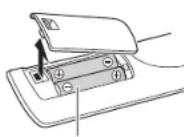
Batteries (AA/R6)
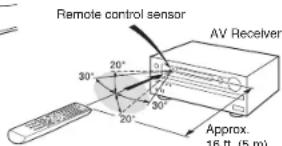
* If you do not use the remote controller for a long time, remove the batteries to prevent leakage.
* Note that keeping consumed batteries inside may cause corrosion resulting in damage of the remote controller.
Step 1: Connections
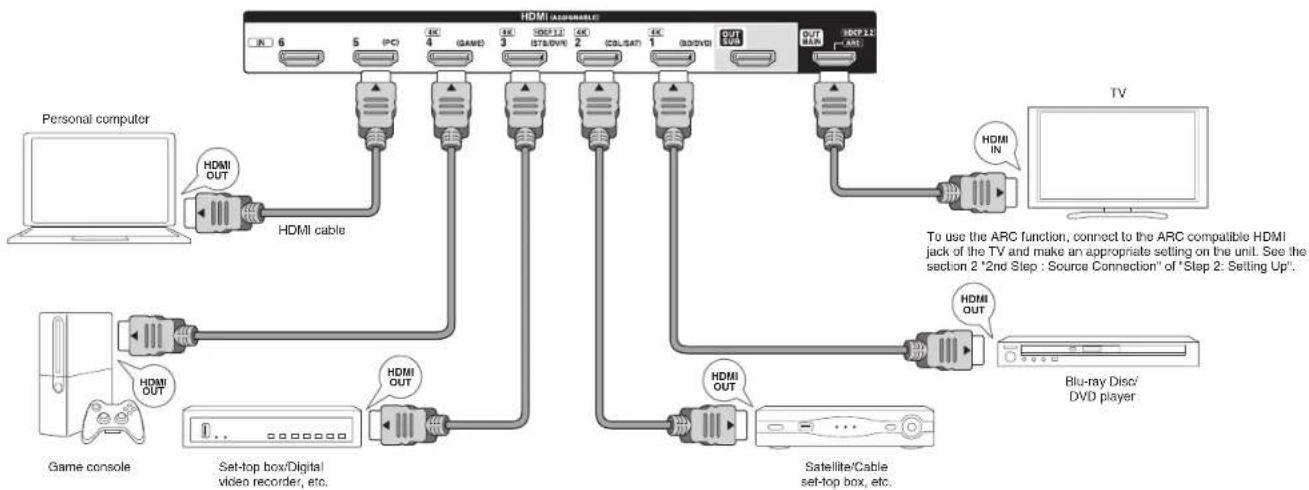
flowchart
graph TD
    A["Personal computer"] -->|HDMI OUT| B["Game console"]
    A -->|HDMI cable| C["Set-top box/Digital video recorder, etc."]
    A -->|HDMI OUT| D["Satellite/Cable set-top box, etc."]
    E["TV"] -->|HDMI IN| F["Blu-ray Disc/DVD player"]
    G["HDMI cable"] -->|HDMI OUT| H["Set-top box/Digital video recorder, etc."]
    I["HDMI OUT"] -->|HDMI OUT| J["Satellite/Cable set-top box, etc."]
    K["To use the ARC function, connect to the ARC compatible HDMI jack of the TV and make an appropriate setting on the unit. See the section 2 '2nd Step : Source Connection' of 'Step 2: Setting Up'."]
1 Connecting the TV and players
Important: The power cord must be connected only after all other connections are completed.
HDMI cable connection
The unit has many HDMI jacks on its rear panel and each of them corresponds to an input selector button of the same name on the front panel. For example, a Blu-ray Disc player will be connected to the HDMI IN1 jack and the BD/DVD button on the front panel will be used to listen to the playback sound (if the player is CEC compliant, input will be switched automatically). If you add another Blu-ray Disc player, you can use any other jack than HDMI IN1. It
is possible to change assignment of the input jacks and input selector buttons. For how to make settings, see the Advanced Manual.
To connect the TV and the unit, connect the HDMI OUT MAIN jack of the unit and the HDMI IN jack of the TV using an HDMI cable. With this connection, it becomes possible to display the setting screen of the unit on the TV or transmit video/audio signals from the player to the TV. If your TV supports ARC (Audio Return Channel), it is possible to play the TV sound with the AV receiver's speakers with this connection only. If your TV does not support ARC, you need, in addition to the HDMI OUT MAIN jack connection, a digital optical cable connection between the digital audio out optical jack of the TV and the DIGITAL IN OPTICAL jack of the unit or an analog audio cable connection between the audio output jack of the TV and the VIDEO/AUDIO IN TV/CD jack of the unit.
● Audio connection with a TV not supporting ARC

The unit supports the HDMI Through function that allows transmission from players to the TV even if the unit is in standby. You have to modify the settings to enable the input selection link with CEC compliant device, connection with ARC compatible TV, and HDMI Through function. See
the section 2 "2nd Step : Source Connection" of "Step 2: Setting Up".
- To enjoy HDCP2.2 protected video, connect the player to the HDMI IN3 jack and the TV to the HDMI OUT MAIN jack of the unit. Your player and TV need to support HDCP2.2.
• To play 4K or 1080p video, use the high speed HDMI cable. - Another TV can be connected to the HDMI OUT SUB jack. To use the function to display the unit's setting screen on the TV, connect the TV to the HDMI OUT MAIN jack.
- It is possible to send video and audio of an MHL-enabled mobile device by connecting the MHL-enabled mobile device to the AUX INPUT HDMI/MHL jacks on the front panel.
Connecting Components without HDMI
If your AV component does not have HDMI jack, use an available jack of your component for cable connection with this unit. Just as the HDMI jacks, other jacks on this unit have a preassigned input selector button on the front panel. See the name of the input selector button shown with the jack when connecting the device.

■ Audio signal connection
① Digital connection: Use a digital optical cable (OPTICAL) or digital coaxial cable (COAXIAL) for connection with a player.
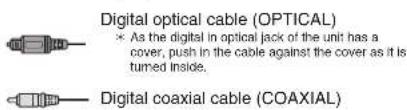
② Analog connection: Use an analog audio cable for connection with a player. To enjoy multi-zone playback of audio of a CD player or such other player without HDMI output jack, you need to use the RCA cable to connect the corresponding jacks of the player and this unit. For details on the multi-zone function, see the section 6 "Using the multi-zone function" of "Step 3: Playing Back".

③ Connection with turntable: If it uses an MM type cartridge and does not have a built-in audio equalizer, connect it to the ③ PHONO jack. If the connected turntable has a built-in audio equalizer, connect it to the ② TV/CD jack.
If it uses an MC type cartridge, install an audio equalizer compatible with MC type cartridge between the unit and the turntable by connecting it to the 2' TV/CD jack. For details, refer to the turntable's instruction manual. If the turntable has a ground wire, connect it to the GND terminal of this unit. If connecting the ground wire increases noise, disconnect it.
■ Video signal connection
The unit has a video upconversion function. For details, see the next section.
④ Use a component video cable to connect a TV with component video input jacks and a player with component video output jacks.

Step 1: Connections
⑤ Use a composite video cable to connect a TV with composite video input jack or a player with composite video output jack.

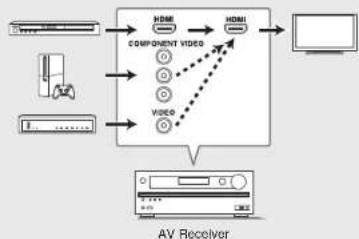
Video signals input to the composite video input jack or the COMPONENT VIDEO IN jacks will be upconverted to HDMI signals and then output from the HDMI output jack. Note that it is not possible to convert digital audio input signals to analog or vice versa.
flowchart
graph TD
    A["Input Image"] --> B["Component Video"]
    C["Video"] --> B
    D["AV Receiver"] --> B
    B --> E["Hardware Interface"]
    B --> F["Computer"]
    B --> G["Document Icon"]
    B --> H["Document Icon"]
    B --> I["Document Icon"]
    B --> J["Document Icon"]
* When you upconvert video signals input to the COMPONENT VIDEO IN jacks and output them from the HDMI OUT jack, set the output resolution of the player to 480i or 576i. If the input has 480p/576p or higher resolution, a message prompting you to change the resolution setting will appear. If your player does not support 480i or 576i output, use the composite video jack. * If multiple video signal inputs are put into one input system, the output will be made in the order of HDMI, COMPONENT VIDEO, and composite video.
2
Connecting speakers
Speaker layout
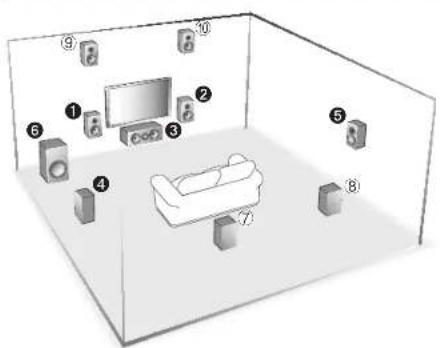
To enjoy the Dolby Atmos listening mode, Height speakers or Surround Back speakers need to be installed. The example above uses front Height speakers. As other types of Height speakers are also applicable, see the next page for details.
1 2 Front speakers
3 Center speakers
4 5 Surround speakers
6 Subwoofer
⑦ ⑧ Surround back speakers
⑨ Height speakers
• 5.1 ch: ①②③④⑤⑥
• 7.1 ch: ①②③④⑤⑥ + ⑦⑧ or
①②③④⑤⑥+⑨:⑩
7.8 and 9.10 share the same speaker
terminals. Select either of the groups.
- To use the multi-zone function, see the section 6 "Using the multi-zone function" of "Step 3: Playing Back".
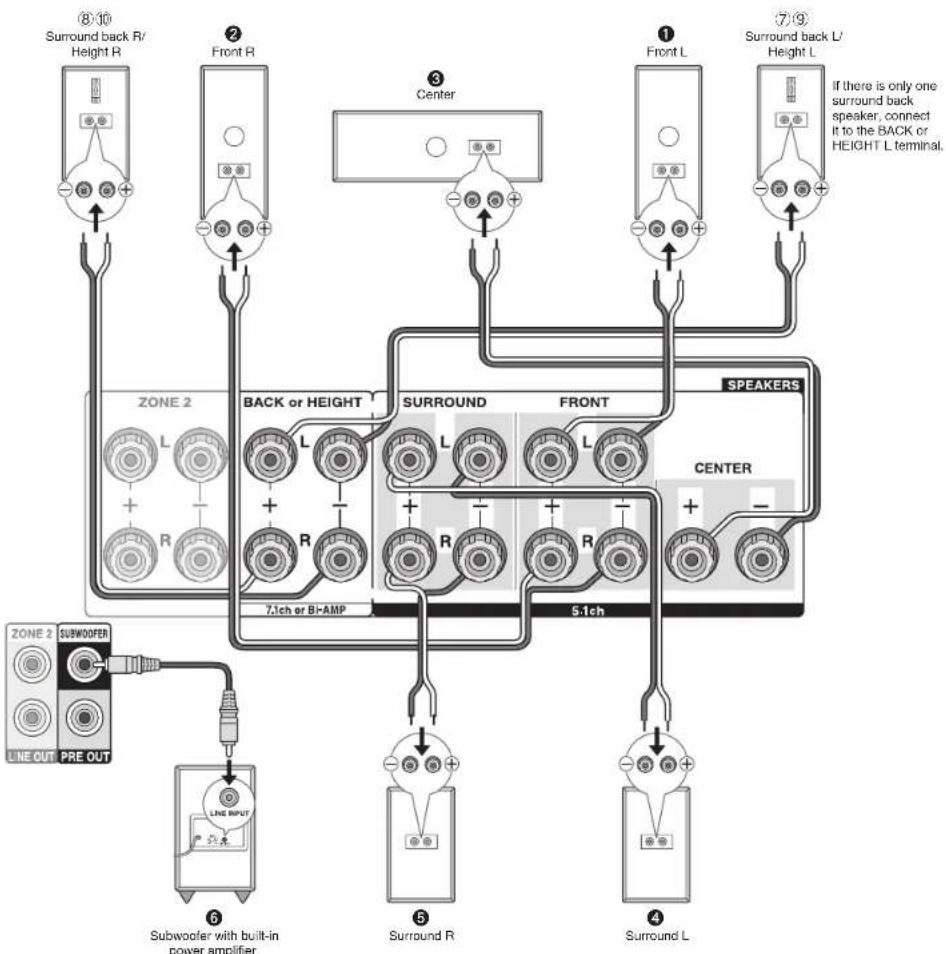
flowchart
graph TD
    A["8:10 Surround back R/ Height R"] --> B["Zone 2"]
    C["2 Front R"] --> D["Zone 2"]
    E["3 Center"] --> F["Zone 2"]
    G["1 Front L"] --> H["Zone 2"]
    I["7:9 Surround back L/ Height L"] --> J["Zone 2"]
    K["5:1ch"] --> L["Subwoofer with built-in power amplifier"]
    M["4 Surround L"] --> N["Subwoofer with built-in power amplifier"]
    O["5 Surround R"] --> P["Subwoofer with built-in power amplifier"]
    Q["7:1ch or BI-AMP"] --> R["Subwoofer with built-in power amplifier"]
    S["SPEAKERS"] --> T["Center"]
    U["Line OUT PRE OUT"] --> V["Line OUT"]
    W["Line OUT"] --> X["Line OUT"]
    Y["Line OUT"] --> Z["Line OUT"]
Step 1: Connections
Characteristics of speaker types
① ② output front stereo sound. ③ outputs center sounds such as dialogs and vocals. ④ ⑤ create back sound field. ⑥ reproduces bass sounds and creates rich sound field.
Connecting ⑦⑧ speakers or ⑨⑩ speakers enables playback in 7.1 ch configuration. ⑦⑧ speakers improve sense of envelopment created by back sound field as well as seamlessness of back sounds, providing more natural sound experiences in the sound field. ⑨⑩ speakers produce surround effects on a height plane. This unit performs optimal sound field processing for the type of the installed height speakers which is registered in initial settings (with setup wizard).
Instructions on how to connect speakers
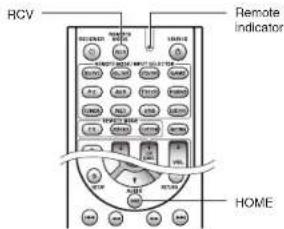
Important: Connect speakers with 4 Ω to 16 Ω impedance. You have to change the setting if any of the speakers have 4 Ω or more to less than 6 Ω impedance. You can set up by viewing the guidance displayed on the TV screen. Select the item with the cursor buttons of the remote controller and press ENTER to confirm your selection. To return to the previous screen, press RETURN. Press RCV and then HOME on the remote controller. Select "Setup" - "2. Speaker Setup" - "Speaker Settings" - "Speaker Impedance" and change the default value from "6ohms" (Default Value) to "4ohms".
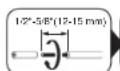

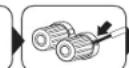
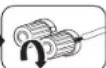
Cut and remove the plastic coating from the end of the speaker cable, twist the core and connect it to the terminal. Make correct connection between the unit's jacks and speaker's jacks (+ to + and - to -) for each channel. If connection is wrong, a bass sound may become poor due to reverse phase. Attaching the supplied colored speaker cable labels to the + side on the both ends of each channel's cable will help correct connection. Up to two subwoofer with built-in power amplifier can be connected to the subwoofer jacks. Set the cut-off filter selection switch of the subwoofer to DIRECT. If the subwoofer does not have a cut-off filter selection switch but has a cut-off frequency adjusting dial, turn it to the maximum frequency. If your subwoofer does not have builtin power amplifier, you can connect a power amplifier between the unit and the subwoofer.
- The speaker setting is 7.2 ch at the time of purchase. You can change it manually or by using automatic speaker setting.
- Short-circuiting the + cable and - cable or contacting the cable core to the rear panel of the unit may cause failure. Also do not connect two or more cables to one speaker terminal or one speaker to several terminals.
- Using a speaker with less impedance than the setting may result in failure.
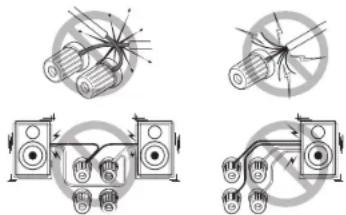
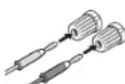
When using commercially available banana plugs: tighten the speaker terminals to the end and then insert the banana plugs. Do not insert the core of speaker cable directly into the hole for banana plug of speaker terminal. (North American models)
Height speakers arrangements
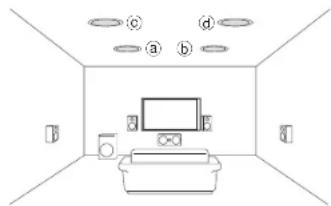
Dolby Laboratories recommends to place the speakers as described on "Installing speakers in ceiling" to obtain the best Dolby Atmos effect.
Installing speakers in ceiling
natural_image
Simple line drawing of a room interior with a TV, sofa, and wall-mounted devices (no text or symbols)a b Top Front
© Top Middle
Ceiling speakers, etc. are used for maximizing effects in Dolby Atmos or Dolby Surround listening mode. Install Top Front speakers midway between the position just above the listening position and the position just above the front speakers. Install Top Middle speakers just above the listening position. You can select a b or c d on the unit. For connection with the unit, use the SPEAKERS BACK or HEIGHT terminals.
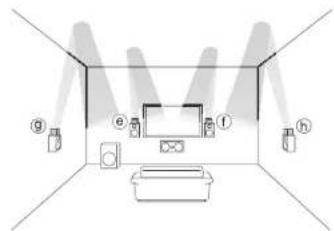
Using Dolby Enabled Speakers
natural_image
Interior view of a room with lighting fixtures and a TV (no text or symbols visible)⑧ ① Dolby Enabled Speaker (Front)
⑧⑨ Dolby Enabled Speaker (Surround)
A Dolby Enabled Speaker is specially designed to be used as a Height speaker. There are two types of Dolby Enabled Speakers, the one is to be placed on the top board of other speakers such as front speakers and surround speakers, and the other is integrated type with the normal speakers. Dolby Enabled Speakers designed with their output facing toward the ceiling to create an elevated audio effect in the Dolby Atmos and Dolby Surround listening modes by providing sounds echoing off the ceiling. You can select (e,f) or (g,h) on the unit. For connection with the unit, use the SPEAKERS BACK or HEIGHT terminals.

Other connections
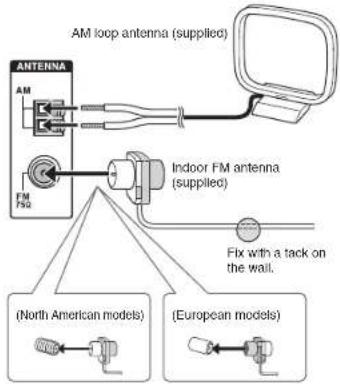
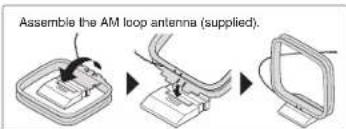
AM/FM antenna connections
Connect the antennas to listen to AM/FM broadcast. When listening to the broadcast for the first time, adjust the antenna position and orientation to get the best reception.
Step 1: Connections
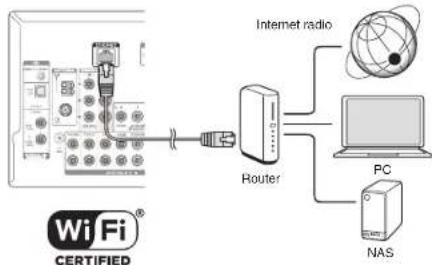
Network connection
You can enjoy Internet radio and DLNA by connecting the unit to LAN. The unit can be connected to the router with an Ethernet cable or to the wireless LAN router with Wi-Fi connection. In case of wired connection, connect the Ethernet cable to the Ethernet port. See the section 2 "4th Step : Network Connection" of "Step 2: Setting Up".
flowchart
graph TD
    A["Wi-Fi® CERTIFIED"] --> B["Router"]
    B --> C["Internet radio"]
    B --> D["PC"]
    B --> E["NAS"]
Headphones connection
Connect stereo headphones with a standard plug (1/4 inch or 6.3 mm) to the PHONES jack on the front panel. Sound from the speakers will be off while you are using the headphones.
- If you selected any other listening mode than Pure Audio (European models), Stereo, Mono and Direct, connecting headphones will switch the listening mode to Stereo.
Step 2: Setting Up
Important: When the unit is turned on for the first time, the setup wizard of the section 2 will automatically be launched. If you use the setup wizard to make the initial setup, connect a TV to the HDMI OUT MAIN jack of the unit via HDMI connection.

Turning the power on
Connect the power cord to the outlet. Press ON/STANDBY on the main unit or RECEIVER on the remote controller to turn the unit on or to standby mode.
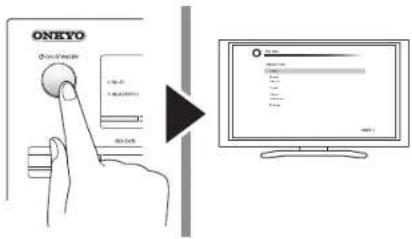
Firmware update notification: If the unit is connected via LAN and there is firmware update available, the "Firmware Update Available" message will appear. To execute updating, select "Update Now" with the cursor buttons of the remote controller and press ENTER. When "Completed!" appears, press ON/STANDBY on the main unit to turn the unit into standby mode. Then updating will be completed.
- The unit automatically turns itself into standby mode 3 minutes after "Completed!" appears on the display. In this case also, updating will be completed.

Making the Initial Setup with the Setup Wizard
Read before starting the procedure: Set up by answering the guidance displayed on the TV screen. Select the item with the cursor buttons of the remote controller and press ENTER to confirm your selection. To return to the previous screen, press RETURN.
- If you terminate the procedure on the way or change the setting made in the initial setup and want to call up the setup wizard again, press RCV and then HOME on the remote controller, select "Setup" - "7. Hardware Setup" - "Initial Setup", and press ENTER.
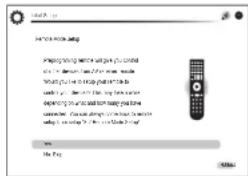
Select the language first. In the next screen, the summary of the setup wizard as below will be displayed. Select "Yes" in this screen and press ENTER on the remote controller.
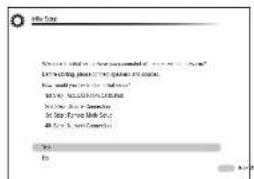
The setup wizard proceeds in the four steps as below.
■ 1st Step : AccuEQ Room Calibration
■ 2nd Step : Source Connection
■ 3rd Step : Remote Mode Setup
■ 4th Step : Network Connection
■ 1st Step : AccuEQ Room Calibration
The test tone coming from each speaker will be measured to enable setting of the number of speakers, volume level, each speaker's optimum crossover frequencies, and distance from the primary listening position, and also enable correction of distortion caused by the room acoustic environment.
- You cannot return to the previous screen during speaker setup, even if you press RETURN.
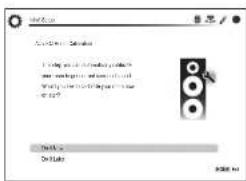
1. Place the speaker setup microphone.
When the start screen above is displayed, before starting the procedure, place the supplied speaker setup microphone at the measurement position ★ by referring to the figure below.
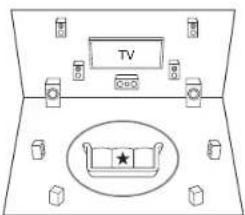

: Listening area

Measurement position with microphone
× Correct measurement will not be possible if the microphone is held by
Hand. Measurement is not possible if headphones are being used.
* The subwoofer sound may not be detected since it is extremely low
The subwoofer sound may not be detected since it is extremely low frequencies. Raise the subwoofer volume to around the half of its
maximum volume and make its frequency to the maximum level.
A loud test tone will be heard during measurement. Measurement may be interrupted if there is ambient noise or radio frequency interference. Close the window and turn off the home appliance and fluorescent light
- After placing the microphone at the measurement position, select "Do It Now" with the cursors and press ENTER.
- When "Please plug microphone that came in a box with AV receiver." is displayed, connect the microphone to the SETUP MIC jack of the unit.
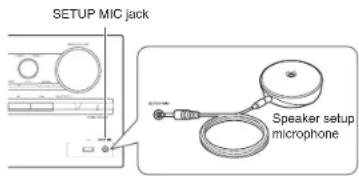
- Follow the guidance displayed on the TV screen.
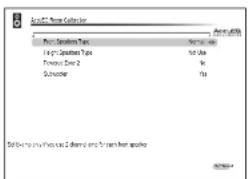
When the screen above is displayed, set the items with the cursors on the remote controller. Select the types for height speakers if the height speakers are used. Confirm the power supply of subwoofer and press ENTER on the remote controller in the next screen. Confirm the position of speaker setup microphone and press ENTER on the remote controller in the next screen.
- When the cursor is on an item, the content of the item will be shown on the lower left of the screen.
- The test tones sound from the connected speakers and automatic speaker setting starts. Measurement will be made twice for each speaker. It takes several minutes to be completed. Keep the room as quiet as possible during measurement. If any of the speakers do not produce the test tone, check for disconnection.
- During measurement, each speaker outputs the test tones at a high volume. Be careful of sound leak that may disturb your neighbors, or be careful not to frighten young children.
- When the measurement is completed, the measurement result is displayed.
Press ◀/▶ on the remote controller to check the settings. Press ENTER with "Save" selected. In the next screen showing that "AccuEQ Room Calibration" is "On", press ENTER on the remote controller. • If there is an error message, follow the on-screen instruction to remove the error cause.
- When "Please unplug setup microphone." Is displayed, disconnect the microphone.
■ 2nd Step : Source Connection
You can check whether or not each input source is connected correctly.
- When the Source Connection start screen is displayed, select "Yes, Continue" with the cursors and press ENTER.
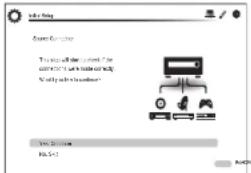
- Select the desired input to check the connection and press ENTER.
Start playback of the selected device. If connection is correct, video/audio of the input source selected on the unit will be played.
- After checking the connection, select "Yes" with the cursors and press ENTER.
- If you select "No" and press ENTER, the error cause will be displayed. Follow the guidance to remove the error cause and check the connection again.
- Select "Yes" with the cursors and press ENTER on the remote controller to check the connection of other Inputs or select "No, Done Checking" and press ENTER to skip.
If you select "Yes", you will return to the screen of step 2. If you select "No, Done Checking", you will proceed to step 5.
Step 2: Setting Up
- Enabling HDMI Linked Operation and Other Functions
In the next screen, you can enable the HDMI linked operation with CEC compliant device, connection with ARC compatible TV, and HDMI Through function. Select "Yes" with the cursors to enable them or "No, Done Checking" to skip, and press ENTER on the remote controller.
- Select "Yes" with the cursors and press ENTER to enable the CEC link function or select "No" and press ENTER to keep it disabled.
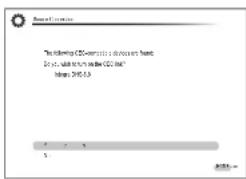
If you select "Yes", the connection with ARC compatible TV and HDMI Through function will be set to "Auto" and enabled.
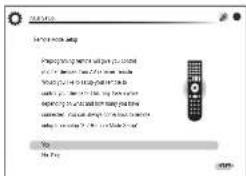
■ 3rd Step : Remote Mode Setup
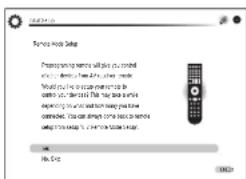
In this step, you can enable operation of the other components using the remote controller of the unit. When the Remote Mode Setup start screen is displayed, select "Yes" with the cursors and press ENTER on the remote controller. Follow the guidance to select the desired REMOTE MODE button and in the keyboard screen, enter the first three characters of the brand name of the device you are going to program (e.g., "ONK" for ONKYO) and search for the remote control code. The guidance will also explain how to set the remote controller.
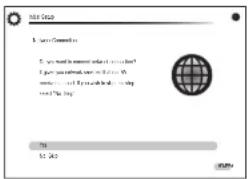
■ 4th Step : Network Connection
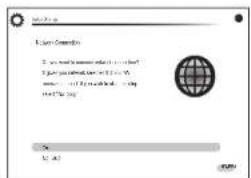
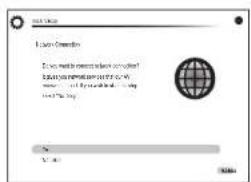
You can check the network connection and make the Wi-Fi setting. When the Network Connection start screen is displayed, select "Yes" with the cursors and press ENTER on the remote controller. If you select "Wired" in the next screen, you can view the LAN cable connection status. To make the Wi-Fi setting, select "Wireless", press ENTER on the remote controller and follow the sections below.
Make the following preparations.
Wi-Fi connection requires an access point such as wireless LAN router (*). Write down the SSID and password (key) of the access point if they are shown in the label of the main body. If the access point has an automatic setting button (may be called differently according to the manufacturer), you can set up without inputting the password. For how to use the automatic setting button of the access point, refer to its instruction manual.
The unit supports Wi-Fi connection with 2.4 GHz access point.
1. Select the SSID of the access point to be connected with the cursor buttons and press ENTER.
When the SSID of the access point appears on the TV screen, select the desired access point.
- If you changed the initial setting of the access point to skip password entry, Step 3 starts automatically.
- If you changed the initial setting of the access point to hide the SSID, see "When the access point is not displayed".
2. Select and set the authentication method.
The "Enter Password" screen, instead of the following screen, may be displayed automatically if the wireless LAN router does not have an automatic setting button.
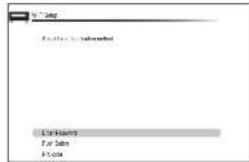
When the screen above is displayed, select and set one of the three authentication methods: "Enter Password", "Push Button" and "PIN code". See below for details of and how to set each method.
Enter Password: Enter the password of the access point to establish connection.
① Select "Enter Password" with the cursor buttons and press ENTER.
② Enter the password (*) on the keyboard screen, select "OK" with the cursor buttons and press ENTER.
* Select "Shift" and press ENTER to toggle between upper and lower case. Select "-" or "-" and press ENTER to move the cursor to the selected direction. Select "Back Space" and press ENTER to delete the character at the left of the cursor position. To select whether to mask the password with "*" or display it in plain text, press D on the remote control. Press + 10 on the remote controller to enable the "Shift" function and CLR to delete all the input characters.
③ If the security method of the access point to be connected is WEP, select "Default Key ID", select "OK" and press ENTER.
Push Button: Use the automatic setting button of the access point to establish connection.
① Select "Push Button" with the cursor buttons and press ENTER.
② Hold down the automatic setting button of the access point for the necessary seconds, select "OK" with the cursor buttons and press ENTER.
PIN code: Select this method when the automatic setting button of the access point is beyond the reach. Select "PIN code" with the cursor buttons and press ENTER to display the 8-digit PIN code. Register the displayed PIN code to the access point, select "OK" with the cursor buttons and press ENTER. For how to register the PIN code to the access point, refer to its instruction manual.
Step 2: Setting Up
3. Establish connection.
The connection process starts and the Wi-Fi indicator on the left of the unit's display starts flashing. When connection has been established, the Wi-Fi indicator changes from flashing to staying lit. If the Wi-Fi indicator does not stay lit, connection has not been established. Make the setting again. If "Push Button" does not work, try "Enter Password".
When the access point is not displayed
Select "Other..." with the ▶ cursor on the remote controller and press ENTER to display the keyboard screen. Input the SSID and password. Make the following settings according to the router setting.
■ WPA/WPA2 method
Select "WPA" or "WPA2" in "Security Method", select "OK" and press ENTER.
■ WEP method
Select "WEP" in "Security Method" and select "Default Key ID". Then select "OK" and press ENTER. If encryption setting has not been made on the wireless LAN router, select "None" in "Security Method", select "OK" and press ENTER.
■ Exiting the setup wizard
After finishing the initial setup, keep "Finished" selected and press ENTER on the remote controller. Connection and setting of the unit is now completed. See Step 3 and enjoy your home theater.
Step 3: Playing Back
1 Playing the player and TV
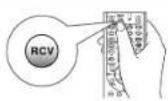
- To control the unit: The remote controller of this unit has the remote mode function for controlling other devices. You cannot control this unit when the remote controller is in the remote mode other than RECEIVER mode (for controlling this unit). Be sure to press ②RCV to select the RECEIVER mode before starting operation.
1. Turn the power on.
Press ① ORECEIVER on the remote controller to turn the power on.
- Switch the input on the TV to that assigned to the unit. Use the TV's remote controller.
2. Select the Input of the unit and start playback on the player or TV.
Press ③ INPUT SELECTOR to which the desired player has been assigned. Press TV/CD to play the TV's sound. You can also use the input selector buttons on the main unit.
- Input will automatically be selected if the TV or player is CEC compliant and connected to the unit with HDMI cable.
3. Select the desired listening mode.
Press ⑥ listening mode buttons to switch the mode so that you can enjoy different listening modes. For details about the listening modes, see "Listening modes" on the next page.
- Adjust the volume with ⑩.
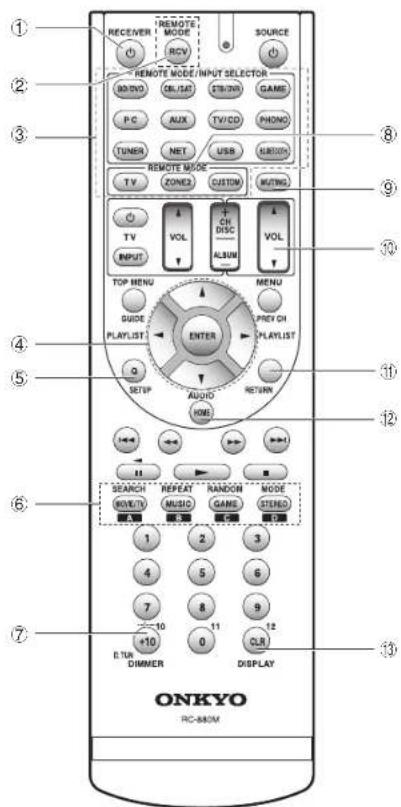
Remote controller parts name
① ◎RECEIVER button: Turns the unit on or into standby mode.
② RCV button: Switches the remote controller to the mode for operating this unit.
③ REMOTE MODE/INPUT SELECTOR button: Switches the input to be played.
④ Cursor buttons and ENTER button: Moves the cursor and confirms the selection.
⑤ Q SETUP button: Displays the Quick Setup menu that allows you to set the frequently used functions including input selection and volume adjustment.
⑥ Listening mode buttons: Allows you to select the listening mode.
⑦ DIMMER button: Switches the brightness of the display.
⑧ ZONE2 button: For use when the unit is connected with a pre-main amplifier in a separate room and sound is played there.
⑨ MUTING button: Temporarily mutes audio.
⑩ VOLUME buttons: Allows you to adjust the volume. This button also cancels the muting.
⑪ RETURN button: Returns the display to the previous state.
⑫ HOME button: Displays the HOME menu that allows you to make advanced settings and use Internet radio and DLNA.
⑬ DISPLAY button: Switches the information on the display.
- The buttons other than those above are for operating other devices.
Listening modes
You can select a listening mode from various options such as Dolby Atmos, Dolby Digital and DTS. Select the desired mode by switching and listening actual sound in different modes. The selectable listening modes depend on the format of the input signals.
MOVIE/TV: You can select a listening mode suitable for movies and TV programs.
MUSIC: You can select a listening mode suitable for music.
GAME: You can select a listening mode suitable for games.
STEREO: You can select a listening mode for stereo and all channel stereo sources.
PURE AUDIO (main unit only) (European models): The display and analog video circuits are cut off to provide purer sound.
- For details on the listening modes, see the Advanced Manual.
"Direct" for playing the input signals as-is Selecting this mode allows the input signals to be played as they are. For example, 2 ch signals of music CD will be played in stereo, 5.1 ch signals in 5.1 ch, and Dolby Digital signals of blu-ray disc or DVD in the Dolby Digital sound field according to the specified number of channels.
Other useful functions
■ Playing Video and Audio from Different Sources: It is possible to play audio and video from different sources. For example, you can play audio from the CD player and video from the BD/DVD player. In this case, press BD/DVD and then TV/CD. Then start playback on the BD/DVD player and CD player. This function is effective when an input with audio only has been selected (TV/CD, TUNER or PHONO in the initial setting).
■ Adjusting Sound Quality: It is possible to enhance or moderate the low and high pitched ranges of front speakers. Press TONE on the main unit several times to select the desired setting from "Bass", "Treble" and "Phase Matching Bass", and adjust with +/-.
- It cannot be set if the listening mode is Pure Audio (European models) or Direct.
"Bass": Allows you to enhance or moderate the low pitched range.
"Treble": Allows you to enhance or moderate the high pitched range.
"Phase Matching Bass": Allows you to keep the clear midrange and effectively enhance the low pitched range.
■ Muting Temporarily: Press MUTING on the remote controller. To cancel the muting, press MUTING again, or press VOL ▲/▼.
■ Changing the Display Brightness: Press DIMMER on the remote controller. The display brightness changes each time you press the button.
- Checking the Input Format: Press DISPLAY on the remote controller several times to switch the display of the main unit in order of:
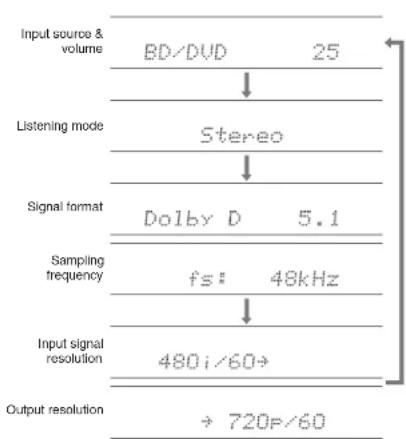
flowchart
graph TD
    A["Input source & volume"] --> B["BD/DVD 25"]
    B --> C["Listening mode Stereo"]
    C --> D["Signal format Dolby D 5.1"]
    D --> E["Sampling frequency fs: 48kHz"]
    E --> F["Input signal resolution 480i/60"]
    F --> G["Output resolution ÷ 720P/60"]
- If "Dolby D 5.1" is displayed in signal format, the Dolby Digital 5.1 ch signals are being input. When listening to AM/FM radio, the band, frequency and preset number are displayed.
Step 3: Playing Back

Listening to AM/FM Radio
The Basic Manual explains the method using automatic tuning. For manual tuning, see the Advanced Manual.
- Press TUNER on the main unit several times to select either "AM" or "FM".
- Press TUNING MODE on the unit, so that the "AUTO" indicator on the display lights.
- Press TUNING ▲n the unit.
The automatic tuning to a radio station starts. Searching stops when one is tuned. When tuned into a radio station, the "TUNED" indicator on the display lights. The "FM STEREO" indicator lights if the radio station is an FM radio station.
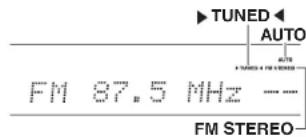
(Actual display varies depending on the country.)
Registering an AM/FM Radio Station: It allows you to register up to 40 of your favorite AM/FM radio stations.
- Tune into the AM/FM radio station you want to register.
- Press MEMORY on the unit. The preset number on the display flashes.
- Repeatedly press ◀PRESET on the unit to select a number between 1 and 40 while the preset number is flashing (about 8 seconds).
- Press MEMORY on the unit again. When registered, the preset number stops flashing. To select a preset radio station, press ◀PRESET▶ on the main unit or CH +/- on the remote controller.

Connecting and playing the Bluetooth-enabled device
You can wirelessly enjoy music files stored in a smartphone or other Bluetooth-enabled device. The coverage area is 48 feet (15 meters).
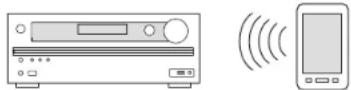
- The Bluetooth-enabled device needs to support the A2DP profile.
- Note that connection is not always guaranteed with all Bluetooth-enabled devices.
Pairing
Pairing is necessary when using the Bluetooth-enabled device for the first time. Before starting the procedure, learn how to enable the Bluetooth setting function and to connect with other devices on the Bluetooth-enabled device.
1. Press BLUETOOTH on the remote controller.
The unit enters the pairing mode and the BLUETOOTH indicator starts flashing.
2. While the BLUETOOTH Indicator Is flashing, complete connection on the Bluetooth-enabled device in the nearby area within about 2 minutes. If the name of this unit is displayed on the Bluetooth-enabled device's display, select this unit. Paring will end after a short time.
- If a password is requested, enter "0000".
- When connecting the unit to any other Bluetooth-enabled device, start pairing by pressing and holding BLUETOOTH until the BLUETOOTH indicator starts flashing. This unit can store the data of up to eight paired devices.
Playing sound of the Bluetooth-enabled device
If the unit is on and the Bluetooth-enabled device is connected, the input will be automatically switched to BLUETOOTH. Play music in this state.
- It may take about a minute until connection is established when the unit is on since the Bluetooth function takes some time to start up.
- If the volume setting on the Bluetooth-enabled device is low, the sound will not be output from this unit.
- Due to the characteristics of Bluetooth wireless technology, the sound produced on this unit may slightly be behind the sound played on the Bluetooth-enabled device.

Using the HOME menu
In the HOME menu, you can make advanced settings and use Internet radio and DLNA. For details on the operation, see the Advanced Manual.
- After pressing RCV, press HOME on the remote controller.
The HOME menu is displayed on the TV screen. You can also use the HOME button on the main unit.
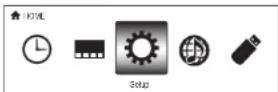
- Select the item with the cursor buttons of the remote controller and press ENTER to confirm your selection.
To return to the previous screen, press RETURN. To return to the HOME menu, press HOME.
■ Sleep Timer: Select to turn the unit into standby mode automatically when the specified time elapses.
■ InstaPrevue: Select to preview videos input from the HDMI input jacks collectively in a single screen. The screen has a main window (current input video) and sub windows (other input videos). To switch the current input, select the desired sub window with the cursor buttons and press ENTER.
- A black sub window is shown for the input with no video signals.
- "InstaPrevue" cannot be selected if the video is being input from HDMI IN 5 or 6, or there is no signal from the main window.
- Depending on video signals, the picture may not be properly rendered on the preview thumbnails.
Step 3: Playing Back
• 1080p or higher resolution is not supported.
■ Setup: You can change the assignment of input terminals and input selector buttons and also make various speaker settings and other advanced settings.
■ Network Service: Select to use Internet radio services and the DLNA function. When you connect the unit to the network and press ENTER, the network service screen will be displayed on the TV. On the TV screen, select the desired service or music file with the cursors of the remote controller and press ENTER to confirm and start playback.
Internet radio service: You can listen to TuneIn or such other Internet radio stations registered in advance.
DLNA : You can play music files stored in the PC or NAS device connected to the network. Select the server with the cursors, select the desired music file and press ENTER to start playback.
Home Media: You can play music files in a shared folder on the PC or NAS device connected to the network. Select the server with the cursors, select the desired music file and press ENTER to start playback.
- "Network Service" becomes selectable after the network starts up even if it cannot be selected first. It may take about a minute to start up.
- When "Network Service" is selected for the first time, the "DISCLAIMER" screen will appear on the TV. Select "Agree" if you agree the content. If you do not agree the content, you cannot use the network service.
* You cannot use the Network Service function unless the TV is connected via HDMI since selecting "Agree" in the "DISCLAIMER" screen is not possible. - Layout of the icons in the "Network Service" top menu can be changed. Press NET on the remote controller and press D. Select the source icon with the cursors and press ENTER, and then select the destination icon and press ENTER. The positions of the icons are switched each other.
■ USB: Select "USB" in the TV screen and connect a USB storage device to the USB port on the front panel. On the TV screen, select the desired folder or music file with the cursors of the remote controller and press ENTER to confirm and start playback.
- "USB" becomes selectable after the USB function starts up even if it cannot be selected first. It may take about a minute to start up.

Using Quick Setup menu
In the Quick Setup menu, you can set frequently used functions including input selection and volume adjustment.
1. Press Q SETUP on the remote controller.
The Quick Setup menu is displayed on the connected TV's screen.
| CTRLSAT | |
| Input | B3 DVD |
| Audio | CTRLSAT |
| Video | STID DVD |
| Information | GAMES |
| Listening Note | PG |
| AUX | |
2. Select the item with the cursor buttons of the remote controller and press ENTER to confirm your selection.
To return to the previous screen, press RETURN.
■ Input: Select the input and check the assignment of input selector buttons.
■ Audio : You can perform various audio settings including audio quality and speaker level adjustment.
- You cannot select this item when audio is output from the TV's speakers.
A/V Sync: If the video is behind the audio, you can delay the audio to offset the gap. Different settings can be set for each input.
- It cannot be set if the input is "NET", "USB" or "BLUETOOTH".
- It cannot be set if the listening mode is Pure Audio (European models) or Direct.
Bass, Treble: Adjust volume of the front speaker. - It cannot be set if the listening mode is Pure Audio (European models) or Direct.
Phase Matching Bass: Suppress phase shift in the midrange to enhance bass sound. Thus smooth and powerful bass sound can be obtained.
- It cannot be set if the listening mode is Pure Audio (European models) or Direct.
Subwoofer Level, Center Level: Adjust the speaker level while listening to the sound. The adjustment you made will be reset to the previous status when you turn the unit to standby mode.
- The speakers cannot be adjusted if they have been set to "No" or "None" in "Setup" - "2. Speaker Setup" - "Speaker Configuration".
AccuEQ Room Calibration: Disables the sound field correction setting set in the automatic speaker setting. The setting can be separately set to each input.
- This setting cannot be selected if the automatic speaker setting has not been performed.
- It cannot be set if headphones are connected or the listening mode is Pure Audio (European models) or Direct.
Late Night: Make small sounds to be easily heard. It is useful when you need to reduce the volume while watching a movie late night. You can enjoy the effect on Dolby Digital, Dolby Digital Plus and Dolby TrueHD sources only.
- Turning the unit to standby mode will set the setting to "Off". In case of Dolby TrueHD, the setting will be set to "Auto".
- You cannot use the function during Dolby TrueHD playback if "Setup" - "3. Audio Adjust" - "Dolby" - "Loudness Management" is set to "Off".
Music Optimizer: Improve the quality of the compressed audio. Playback sound of lossy compressed files such as MP3 will be improved. The setting can be separately set to each input.
- The setting is effective in the signals of 48 kHz or less. The setting is not effective in the bitstream signals.
- It cannot be set if the listening mode is Pure Audio (European models) or Direct.
Cinema Filter: Adjust the soundtrack that was processed to enhance its high pitch range, in order to make it suitable for home theater.
- This function can be used in the following listening modes: Dolby Atmos, Dolby Digital, Dolby Digital Plus, Dolby Surround, Dolby TrueHD, Multichannel, DTS, DTS-ES, DTS Neo:6 Cinema, DTS 96/24, DTS Neo:6, DTS-HD High Resolution Audio, DTS-HD Master Audio and DTS Express.
■ Video:
Monitor Out: The video input signals input to the unit will be converted by the unit when they are output from the HDMI OUT jack to the TV so that their resolution can match that of the TV used. Select the HDMI OUT jack to be used for output.
Step 3: Playing Back
Wide Mode: You can set the aspect ratio.
Picture Mode: You can adjust the image quality. "Cinema" will automatically adjust the image to be suitable to watch movie and "Game" suitable to play game. In "Standard", the resolution will be changed but the image quality will not be adjusted. In "Custom", you can adjust the brightness, contrast, hue and saturation as desired. If you do not adjust the resolution and image quality, select "Bypass".
- "Wide Mode" and "Picture Mode" can be set only on the video output from the HDMI OUT MAIN jack.
- "Video" cannot be selected if the input is "NET", "USB" or "BLUETOOTH".
Information:
Audio: Displays the audio input source, format, number of channels, sampling frequency, listening mode, number of output channels, and other audio information.
Video: Displays the video input source, resolution, signal format, color tone, 3D information, Aspect, Picture Mode, output, and other Video information.
Tuner: Displays the band, frequency, preset number, and other tuner (radio) information.
■ Listening Mode: Select the listening mode from the categories of "MOVIE/TV", "MUSIC" and "GAME".
- It cannot be set when audio is played from the TV's speakers.

Using the multi-zone function
You can multi-zone connect the unit with an integrated amplifier and speakers in a separate room and play sound from an external device connected to the analog audio input jacks of the unit, sound from the "NET", "USB" or "BLUETOOTH" source, and the AM/FM broadcasting. It is possible to perform playback in the main room and a separate room at the same time, for example by playing the Blu-ray Disc player in the main room where the unit is placed while playing Internet radio in a separate room. It is also possible to perform playback only in a separate room.
- As for analog audio input, it is possible to play the same source or different sources in the main room and separate room.
- As for the "NET", "USB" and "BLUETOOTH", you cannot select different inputs for the main room and separate room. For example, if "NET" has been selected in the main room and then "USB" is selected as playback source in the separate room, the input in the main room will change to "USB" accordingly.
- When listening to AM/FM broadcasting, you cannot select different stations for the main room and separate room. Therefore broadcasting of the same station will be heard in the both rooms.
Connecting with Player
To output audio of the Blu-ray Disc player or such other player as the source of multi-zone playback, it is necessary to connect the RCA audio output jacks of the player and the analog audio input jacks of the unit using the analog audio cable.
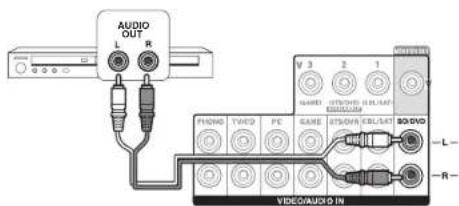
- Output to multi-zone is not possible if the connection is only with HDMI cable or digital cable.
- Analog audio output setting may be necessary on the player.
Making multi-zone connection
■ Connecting an Integrated Amplifier in a Separate Room
You can enjoy 2-channel stereo playback in the other room during playing 7.2-channel in the main room. Connect the LINE OUT ZONE2 jacks of the unit and the line-in jacks of the pre-main amplifier in a separate room with an analog audio (RCA) cable.
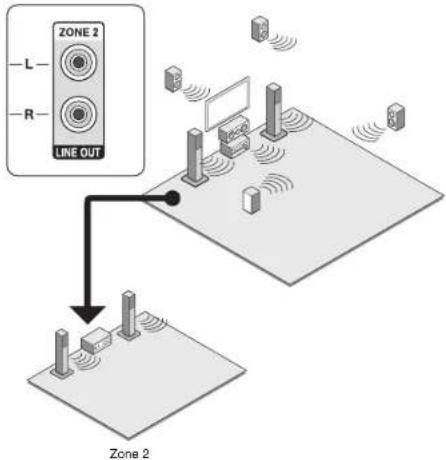
- The volume should be adjusted with the pre-main amplifier used in the separate room.
Step 3: Playing Back
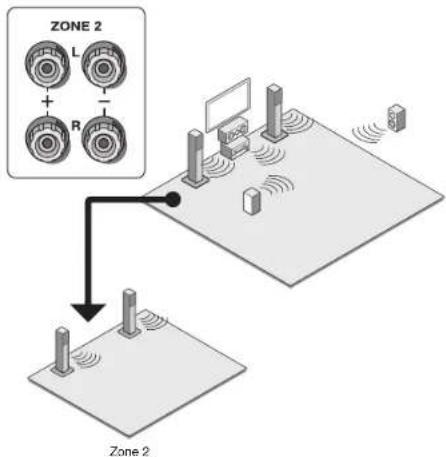
■ Connecting speakers in another room
It is possible to directly connect the speakers in another room without an amplifier. Connect the speakers in another room to the SPEAKERS ZONE2 terminals of the unit using speaker cables. Note that 5.2 ch will be the maximum (*) in the main room during Zone 2 playback. Sound cannot be output from the Surround Back speakers and Height speakers.
* In this case, the Dolby Atmos listening mode cannot be selected.
flowchart
graph TD
    A["Zone 2"] --> B["Sensor L"]
    A --> C["Sensor R"]
    B --> D["Central Display"]
    C --> D
    D --> E["Display"]
    style A fill:#f9f,stroke:#333
    style E fill:#ccf,stroke:#333
Change the setting: After connecting the speakers, press RCV and then HOME on the remote controller, select "Setup" - "2. Speaker Setup" - "Speaker Settings" and set "Powered Zone2" to "Yes".
- Adjust the volume on this unit. To adjust the volume, press ZONE2 on the remote controller and adjust with VOLA▼. To control on the main unit, press ZONE2 and within 8 seconds, adjust with the MASTER VOLUME control. You can mute the sound by pressing MUTING on the remote controller.
Performing multi-zone playback
- Press ZONE2 on the remote controller, point the remote controller at the unit and press ⏻RECEIVER. "Z2" lights on the main unit display and the multi-zone function is enabled. (Zone 2 is now on.)
- Press ZONE2 on the remote controller again and press INPUT SELECTOR of the input to be played in a separate room.
- If you turn the unit to standby during multi-zone playback, the Z2 indicators are dimmed and the playback mode is switched to playback in a separate room only. Performing steps 1 and 2 while the unit is in standby also switches the playback mode to playback in a separate room only. To play the same source in the main room and separate room, hold down ZONE2 for approximately 3 seconds.
To control on the main unit: Press ZONE2 and within 8 seconds, press the input selector button of the input to be played in a separate room. To play the same source in the main room and separate room, press ZONE2 twice.
To turn off the multi-zone function: Press ZONE2 on the remote controller and press ⬆RECEIVER. Alternatively press OFF on the main unit.
- If Zone 2 is on, power consumption during standby becomes larger than normal.
- If Zone 2 is turned on when the listening mode of the main room is Pure Audio, it will automatically switch to Direct. (European models)
- While Zone 2 is on, the RI linked system function (interlink between Onkyo components) is disabled.
- Pressing INPUT SELECTOR on the remote controller while you are using the remote controller for Zone 2 will switch the controlled target to the main room. To control Zone 2 again, press ZONE2 to enter the Zone control mode.
Step 3: Playing Back
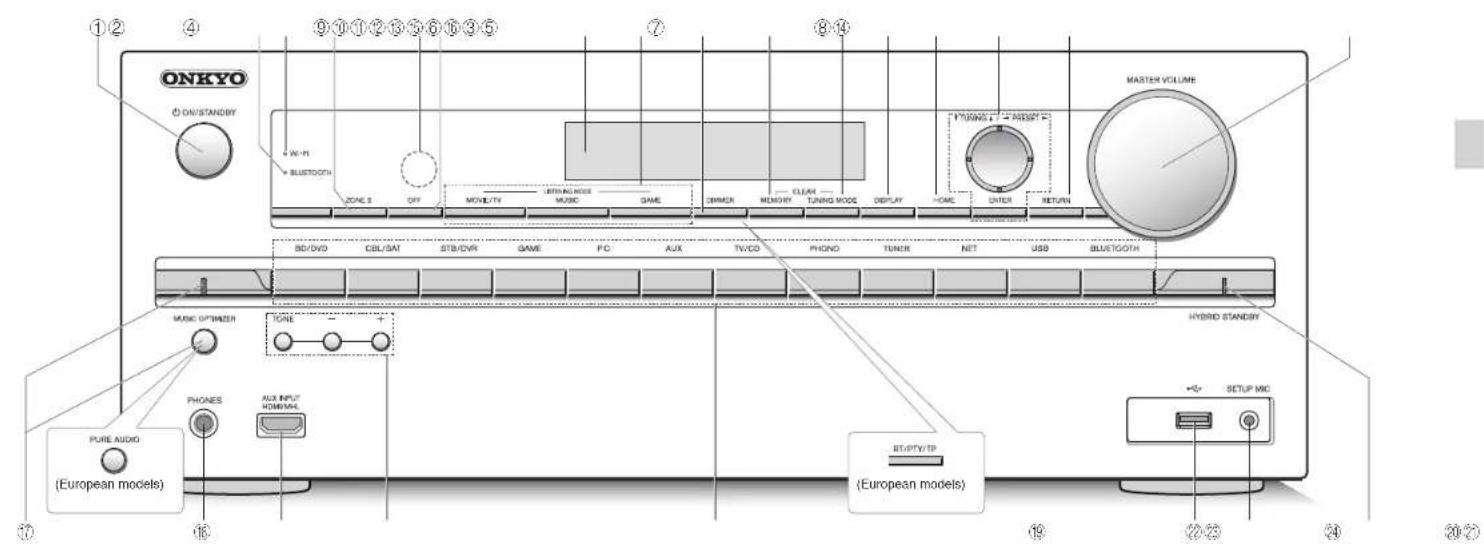
Front Panel
① ON/STANDBY button: Turns the unit on or into standby mode.
② BLUETOOTH Indicator: Flashes while pairing with a Bluetooth-enabled device is in progress and stays lit when pairing is completed.
③ WI-FI Indicator: Lights when the unit is connected to the wireless LAN router.
④ ZONE 2 button: Controls the multi-zone function.
⑤ Remote control sensor: Receives signals from the remote controller.
⑥ OFF button: Switches the multi-zone function to off.
⑦ Display
⑧ LISTENING MODE buttons: Allows you to select the listening mode.
⑨ DIMMER button (North American models): Switches the brightness of the display.
RT/PTY/TP button (European models): Can be used when receiving the station transmitting text information.
MEMORY button: Registers or deletes a station.
⑪ TUNING MODE button: Switches the tuning mode.
⑫ DISPLAY button: Switches the information on the display.
⑬ HOME button: Displays the HOME menu.
② Cursor buttons, ▼TUNING▲ button, ◀PRESET▶ button and ENTER button: Moves the cursor and confirms the selection. When listening to AM/FM broadcasting, tune in to the station with ▼TUNING▲ or select the registered station with ◀PRESET▶.
⑤ RETURN button: Returns the display to the previous state.
⑯ MASTER VOLUME: Allows you to adjust the volume.
17 MUSIC OPTIMIZER button and Indicator (North American models): Tums on/off the MUSIC OPTIMIZER function that improves the quality of the compressed audio.
PURE AUDIO button and Indicator (European models): Switches to the Pure Audio listening mode. The indicator lights when Pure Audio listening mode is set.
⑯ PHONES Jack: Stereo headphones with a standard plug are connected.
19 AUX INPUT HDMI/MHL jacks: An HD video camera or MHL-enabled mobile device is connected. It is possible to send video and audio of an MHL-enabled mobile device.
⑳ TONE and Tone Level buttons: Adjusts the high tone and low tone.
② Input selector buttons: Switches the input to be played.
② USB port: A USB storage device is connected so that music files stored in it can be played.
②3 SETUP MIC Jack: The supplied speaker setup microphone is connected.
HYBRID STANDBY indicator: Lights if the unit enters standby mode when the HDMI Through, network standby or Wakeup via Bluetooth function is enabled.
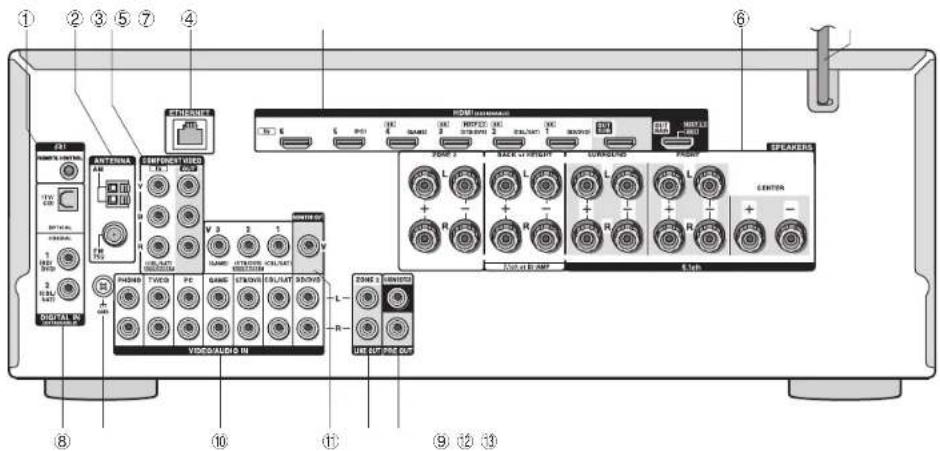
Rear Panel
① RI REMOTE CONTROL jack: An Onkyo product with RI jack can be connected and synchronized with this unit.
② ANTENNA AM/FM (75 Ω) terminal: The supplied antennas are connected.
③ COMPONENT VIDEO IN/OUT jacks: Component video input/output jacks.
④ ETHERNET port: Used for LAN connection.
⑤ HDMI IN/OUT jacks: Digital video signals and audio signals are transmitted between the unit and the connected devices.
⑥ SPEAKERS terminals: Speakers are connected. To use the multi-zone function, connect the speakers in the separate room to the ZONE2 speaker terminals.
⑦ Power cord
⑧ DIGITAL IN COAXIAL/OPTICAL Jacks: Digital audio signals are input.
⑨ GND terminal: The ground wire of the turntable is connected.
⑩ COMPOSITE VIDEO/AUDIO IN jacks: Analog video signals and audio signals are input.
⑪ MONITOR OUT V Jack: Video signals are output to the connected monitor or TV via a composite video cable.
⑫ LINE OUT ZONE 2 jacks: Audio output jacks connected to the integrated amplifier for multi-zone playback in a separate room.
⑲ PRE OUT SUBWOOFER jacks: A subwoofer with built-in amplifier is connected.
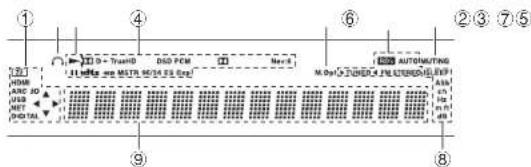
Display
① Lights in the following conditions. "Z2": ZONE 2 output is on. / "HDMI"; HDMI signals are input and HDMI input selector is selected. / "ARC"; Audio signals are input from ARC compatible TV and TV/CD input selector is selected. / "3D"; Input signals are 3D. / "USB" (*); "USB" input is selected and USB storage device is connected. / "NET" (*); "NET" input is selected and the unit is connected to the network. / "DIGITAL": Digital signals are input and the digital input selector is selected. / Cursor indicators; NET or USB is controlled.
* "USB" and "NET" will flash if the connection is not correct.
② Lights when headphones are connected.
③ Lights when NET or USB is controlled.
④ Lights according to the type of input digital signals and the listening mode.
⑤ Lights when Music Optimizer is enabled.
⑥ Lights in the following conditions. *AUTO": Tuning mode is auto. / ► TUNED◀: Receiving AM/FM radio. ◄ flashes while tuning is automatically performed. / "FM STEREO": Receiving FM stereo. / "RDS" (European models): Receiving RDS broadcasting.
⑦ "MUTING": Flashes when muting is on.
⑧ Lights in the following conditions. "SLEEP": Sleep timer has been set. / "ASb": Auto Standby is on. / "ch": Channel is being set. / "Hz": Crossover frequencies are being set. / "m/ft": Speaker distances are being set. / "dB": Speaker volume is being set.
⑨ Displays various information of the input signals. Pressing DISPLAY displays the type of input digital signals and the listening mode.
Troubleshooting
Before starting the procedure
Problems may be solved by simply turning the power on/off or disconnecting/connecting the power cord, which is easier than working on the connection, setting and operating procedure. Try the simple measures on both the unit and the connected device. If the problem is that the video or audio is not output or the HDMI linked operation does not work, disconnecting/connecting the HDMI cable may solve it. When reconnecting, be careful not to wind the HDMI cable since if wound the HDMI cable may not fit well. After reconnecting, turn off and on the unit and the connected device.
The AV receiver turns off unexpectedly.
- The AV receiver will automatically enter standby mode when Auto Standby is set and launched.
There's no sound, or it's very quiet.
- A wrong input selector button has been selected. Select a correct input for the player. Also check that muting is not on.
• Not all listening modes use all speakers.
There's no picture.
- A wrong input selector button has been selected.
• Video is not displayed if the listening mode is Pure Audio. (European models) - To display video from the connected player on the TV screen while the unit is in standby, you need to enable HDMI Through function.
- When the TV image is blurry or unclear, power cord or connection cables of the unit may have interfered. In that case, keep distance between TV antenna cable and cables of the unit.
- If you connect a player supporting HDCP2.2, be sure to connect it to the HDMI IN3 jack of the unit. At the time, connect the TV to the HDMI OUT MAIN jack.
HDMI control does not function correctly.
- Set the CEC link function of the unit to on. It is also necessary to make the HDMI linked system setting on the TV. See the TV's instruction manual for details.
The remote controller does not work.
- Be sure to press RCV first before operating the unit with the remote controller.
There is no sound for multi-zone function.
- With multi-zone function, sound is output only when the signal input source is an external component connected to the analog audio input jacks of the unit, "NET", "USB", "BLUETOOTH", "AM" or "FM". Multi-zone playback is not possible if the player and the unit are connected via HDMI cable or digital cable. Connect the RCA audio output jacks of the player and the analog audio input jacks of the unit with analog audio cable. Also analog audio output setting may be necessary on the player.
Cannot access to network.
- Try plugging/unplugging the unit or the wireless LAN router or check their power-on status. This will work well in many cases.
- If the desired wireless LAN router is not in the access point list, it may be set to hide SSID or the ANY connection may be off. Change the setting and try again.
Cannot connect Bluetooth.
- Try plugging/unplugging the unit and the Bluetooth-enabled player. After that, check that the Bluetooth function is enabled on the Bluetooth-enabled device and the connection with the unit has been established.
■ Resetting the unit
Resetting the unit to the status at the time of shipment may solve the problem. If the measures above do not solve the problem, reset the unit with the following procedure. If you reset the unit status, your preferences will be reset to the defaults. Note them down before starting reset.
- How to reset:
- While holding down CBL/SAT on the main unit (note that step 2 must be performed with this button pressed down).
- Press ON/STANDBY on the main unit ("Clear" appears on the display and the unit returns to standby).
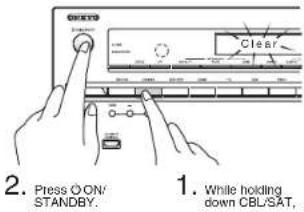
- How to reset the remote controller:
- While holding down RCV on the remote controller, press HOME until the remote indicator lights (about 3 seconds).
- Within 30 seconds, press RCV again.
Specifications
Amplifier Section
Rated Output Power All channe
85 watts minimum continuous power per channel, 8 ohm loads, 2 channels driven from 20 Hz to 20 kHz, with a maximum total harmonic distortion of 0.08% (FTC)
105 watts minimum continuous power per channel, 6 ohm loads, 2 channels driven at 1 kHz, with a maximum total harmonic distortion of 0.7% (ETC).
(North American)
7 ch x 150 W at 6 ohms, 1 kHz, 1 ch driven of 1% (IEC) (Others) Dynamic Power (w)
Dynamic Power (×)
* IEC60268-Short-term maximum output power
230 W (3 Ω, Front)
200 W (4 Ω, Front)
110 W (8 Ω, Front)
THD+N (Total Harmonic Distortion+Noise)
0.08% (20 Hz - 20 kHz, half power)
Damping Factor
60 (Front, 1 kHz, 8 Ω)
Input Sensitivity and Impedance (Unbalance)
200 mV/47 kΩ (LINE)
2.5 mV/47 kΩ (PHONO MM)
Rated RCA Output Level and Impedance
200 mV/2.2 kΩ (LINE OUT)
Maximum RCA Output Level and Impedance
2 V/2.2 kΩ (LINE OUT)
Phono Overload
70 mV (MM 1 kHz 0.5% Direct)
Frequency Response
5 Hz - 100 kHz/+1 dB, -3 dB (Direct mode)
Tone Control Characteristics
±10 dB, 20 Hz (BASS)
±10 dB, 20 kHz (TREBLE)
Signal to Noise Ratio
106 dB (LINE, IHF-A)
80 dB (PHONO MM, IHF-A)
Speaker Impedance
6 Ω - 16 Ω (North American)
4 Ω - 16 Ω (Others)
Video Section
Input Sensitivity/Output Level and Impedance
1 Vp-p/75 Ω (Component Y)
0.7 Vp-p/75 Ω (Component P /C, P/C)
1 Vp-p/75 Ω (Comp
Component Video Frequency Response
5 Hz - 100 MHz/+0 dB, -3 dB
Tuner Section
FM Tuning Frequency Range
87.5 MHz - 107.9 MHz (North American)
87.5 MHz - 108.0 MHz, RDS (Others)
AM Tuning Frequency Range
522/530 kHz - 1611/1710 kHz
Preset Channel
40
Network Section
Ethernet LAN
10BASE-T/100BASE-TX
Wireless LAN
IEEE 802.11 b/g/n standard
(Wi-Fi® standard)
2.4 GHz band:
1 - 11 ch (North American)
10 - 11 ch (Spain)
10 - 13 ch (France)
1 - 13 ch (Others)
e stand@wiFi
Bluetooth Section
Communication system
Bluetooth Specification version 2.1 + EDR (Enhanced Data Rate)
Maximum communication range
Line of sight approx. 15 m (米)
Frequency band
2.4 GHz band (2.4000 GHz - 2.4835 GHz)
Modulation method
FHSS (Freq Hopping Spread Spectrum)
Compatible Bluetooth profiles
A2DP 1.2 (Advanced Audio Distribution Profile)
AVRCP 1.3 (Audio Video Remote Control Profile)
Supported Codecs
SBC
Transmission range (A2DP)
20 Hz - 20,000 Hz (Sampling frequency 44.1 kHz)
* The actual range will vary depending on factors such as obstacles between
devices, magnetic fields around a microwave oven, static electricity,
ordless phone, reception sensitivity, antenna's performance, operating
system, software application, etc.
General
Power Supply
AC 120 V, 60 Hz (North American)
AC 220 - 240 V, 50/60 Hz (Others)
Power Consumption
6.3 A (North American)
630 W (Others)
0.1 W (Stand-by, North American)
0.2 W (Stand-by, Others)
80 W (No-sound)
Dimensions (W × H × D)
435 mm × 173.5 mm × 329 mm
17-1/8" × 6-13/16" × 12-15/16"
Weight
10.0 kg (22.0 lbs.) (North American)
10.5 kg (23.1 lbs.) (Others)
HDMI
Input
IN1 (BD/DVD, 4K), IN2 (CBL/SAT, 4K), IN3 (STB/DVR, 4K, HDCP2.2), IN4
(GAME, 4K), INS (PC), IN6, AUX INPUT (HDMI/MHL) (Front)
Output
OUT MAIN (ARC, HDCP2.2), OUT SUB
Video Resolution
Pass through: 4K 60 Hz (YCbCr 4:2:0)
Upscaling: 4K 30 Hz
Audio Format
DTS-HD Master Audio, DTS-HD High Resolution Audio, Dolby Atmos.
Dolby TrueHD, Dolby Digital Plus, DSD, Multichannel PCM
Supported
3D, Audio Return Channel, DeepColor, x.v.Color, LipSync, CEC (RIHD)
- Video Inputs
Component
IN (CBL/SAT)
Composite
IN1 (CBL/SAT), IN2 (STB/DVR), IN3 (GAME)
- Video Outputs
Component
OUT
Composite
MONITOR OUT
- Audio Inputs
Digital
OPTICAL (TV/CD)
COAXIAL 1 (BD/DVD), 2 (CBL/SAT)
Analog
BD/DVD, CBL/SAT, STB/DVR, GAME, PC, TV/CD, PHONO
● Audio Outputs
Analog
ZONE2 LINE OUT
2 SUBWOOFFER PREF OUT
Speaker Outputs
Specifications and features are subject to change without notice.
Others
License and Trademark Information
DOLBY
Manufactured under license from Dolby Laboratories. Dolby, Dolby Atmos, Dolby Surround, Surround EX and the double-D symbol are trademarks of Dolby Laboratories.

For DTS patents, see http://patents.dts.com. Manufactured under license from DTS Licensing Limited. DTS, DTS-HD, the Symbol, & DTS and the Symbol together are registered trademarks. and DTS-HD Master Audio is a trademark of DTS, Inc. © DTS, Inc. All Rights Reserved.

Qdeo and QuietVideo are trademarks of Marvell or its affiliates.

"CINEMA FILTER" and "CINEMA FILTER (logo)" are trademarks of Onkyo Corporation.
AccuEQ, Music Optimizer, RIHD and WRAT are trademarks of Onkyo Corporation.
"RIHD" and "RIHD (logo)" are trademarks of Onkyo Corporation.
HDMI
The terms HDMI and HDMI High-Definition Multimedia Interface, and the HDMI Logo are trademarks or registered trademarks of HDMI Licensing LLC in the United States and other countries.

CERTIFIED
The Wi-Fi CERTIFIED ^2 Logo is a certification mark of the Wi-Fi Alliance. Wi-Fi certified ^2 logo shows international association certifying interoperability "Wi-Fi alliance" ensures the product has passed the test for compatibility with other Wi-Fi certified equipment.
Bluetooth
The Bluetooth' word mark and logos are registered trademarks owned by Bluetooth SIG, Inc. and any use of such marks by Onkyo is under license. Other trademarks and trade names are those of their respective owners. Onkyo does not guarantee Bluetooth compatibility between the AV receiver and all Bluetooth-enabled devices. For compatibility between the AV receiver and another device with Bluetooth technology, consult the device's documentation and dealer. In some countries, there may be restrictions on using Bluetooth devices. Check with your local authorities.

*MHL, the MHL Logo, and Mobile High-Definition Link are trademarks or registered trademarks of MHL LLC in the United States and other countries." InstaPrevue and the InstaPrevue logo are trademarks or registered trademarks of Silicon Image, Inc. in the United States and other countries.
Apple, iPod and iPhone are trademarks of Apple Inc., registered in the U.S. and other countries.
Apple TV is a trademark of Apple Inc., registered in the U.S. and other countries.
((SiriusXM))
INTERNET RADIO
SIRIUS, XM and all related marks and logos are trademarks of Sirius XM Radio Inc. and its subsidiaries. All rights reserved.
DLNA ^® , the DLNA Logo and DLNA CERTIFIED ^® are trademarks, service marks, or certification marks of the Digital Living Network Alliance.
This product is protected by certain intellectual property rights of Microsoft. Use or distribution of such technology outside of this product is prohibited without a license from Microsoft.
Windows and the Windows logo are trademarks of the Microsoft group of companies.
QR Code is a registered trademark of DENSO WAVE INCORPORATED. Safari is a trademark or registered trademark of Apple Computer, Inc. in the United States and other countries.
"x.v.Color" is a trademark of Sony Corporation.
MPEG Layer-3 audio coding technology licensed from Fraunhoefer IIS and Thomson.
*All other trademarks are the property of their respective owners.*
DISCLAIMER
Through this device you are able to link to other services or websites which are not under the control of any company which has designed, manufactured or distributed have distributed this device, and its affiliates (collectively, "Company"). We have no control over the nature, content and availability of those services. The inclusion of any links does not necessarily imply a recommendation or endorse the views expressed within them.
All information, content and services available through this device belong to third parties and are protected by copyright, patent, trademark and/or other intellectual property laws of applicable countries.
The information, content and services provided through this device are for your personal, noncommercial use only. Any information, content or services may not be used in any manner other than previously approved by the appropriate content owner or service provider.
You may not modify, copy, republish, translate, exploit, create derivative works, upload, post, transmit, sell or distribute in any manner any information, content or services available through this device, unless expressly permitted by the appropriate copyright, patent, trademark and/or other intellectual property owner, including, without limitation, content owner or service provider.
THE CONTENT AND SERVICES AVAILABLE THROUGH THIS DEVICE ARE PROVIDED "AS IS".
COMPANY DOES NOT WARRANT INFORMATION, CONTENT OR SERVICES SO PROVIDED, EITHER EXPRESSLY OR IMPLIEDLY, FOR ANY PURPOSE.
COMPANY EXPRESSLY DISCLAIMS ANY WARRANTIES, EXPRESS OR IMPLIED, INCLUDING BUT NOT LIMITED TO, WARRANTIES OF TITLE, NON-INFRINGEMENT, MERCHANTABILITY OR FITNESS FOR A PARTICULAR PURPOSE.
Company makes no representation or warranty of any kind, express or implied, about the completeness, accuracy, validity, legality, reliability, suitability or availability with respect to the information, content or services available through this device. Company shall not be liable, whether in contract or tort, including negligence and strict liability, for any direct, indirect, special, incidental or consequential damages or any other damages arising out of, or in connection with, any information contained in, or as a result of the use of any content or service by you or any third party, even if Company has been advised of the possibility of such damages, nor shall Company be liable for any third party claims against users of this device or any third party.
In no event shall Company be responsible nor liable for, without limiting the generality of the foregoing, any interruption or suspension of any information, content or service available through this device. Company is neither responsible nor liable for customer service related to the information, content and services available through this device. Any question or request for service relating to the information, content or services should be made directly to the appropriate content owners and services providers.
Precautions
For European Models
Declaration of Conformity
We declare, under our sole responsibility, that this product complies with the standards:
-Safety
– Limits and methods of measurement of radio disturbance characteristics
- Limits for harmonic current emissions - Limitation of voltage changes, voltage fluctuations and flicker
– RoHS Directive, 2011/65/EU
- Hereby, Onkyo Corporation, declares that this HT-RC660 is in compliance with the essential requirements and other relevant provisions of Directive 1999/5/EC.
natural_image
Technical line drawing of a mechanical component with circular features and a base plate (no text or symbols)
Télécommande (RC-880M) --- (1)
Piles (AA/R6) --- (2)
■ Connexion de signal audio
natural_image
Simple line drawing of a room interior with a TV and wall-mounted devices (no text or symbols)natural_image
Interior layout diagram showing lighting fixtures and a central screen (no text or symbols)⑧ ① Enceinte Dolby Activé (Avant)
⑨ ⑥ Enceinte Dolby Activé (Surround)
■ 1st Step : AccuEQ Room Calibration
■ 2nd Step : Source Connection
■ 3rd Step : Remote Mode Setup
■ 4th Step : Network Connection
| CPU, SAT | |
| Input | RD DVD |
| Audio | CPU, SAT |
| Video | STD DVD |
| Information | GAME |
| Linking Mode | PC |
| ADX |
Panneau arrière
Affichage
0.08% (20 Hz - 20 kHz, mi-pulsance)
60 (Avant, 1 kHz, 8 Ω)
1 Vp-p/75 Ω (Composite)
522/530 kHz - 1611/1710 kHz
Chaîne préréglée
40
Partie Réseau
Ethernet LAN
10BASE-T/100BASE-TX
LAN sans fil
Norme IEEE 802.11 b/g/n
(normes Wi-Fi
Bande 2,4 GHz
Canal 10 - 13 (France)
FHSS (Freq Hopping Spread Spectrum)
s Bluetooth compatibles
AZDP 1,2 (Advanced Audio Distribution Profile)
Amer 1,2 (Radio Video Remote Control Music)
Formats supports CRC
Dimensions (L × H × P)
435 mm × 173,5 mm × 329 mm
17-1/8" × 6-13/16" × 12-15/16"
Poids
OUT MAIN (ARC, HDCP2.2), OUT SUB
Résolution vidéo
Pass through : 4K 60 Hz (YCbCr 4 :2 :0)
Conversion ascendante : 4K 30 Hz
Format audio
DTS-HD Master Audio, DTS-HD High Resolution Audio, Dolby Atmos,
Dolby TrueHD, Dolby Digital Plus, DSD, PCM multicanal
Supportés
3D, Audio Return Channel, DeepColor, x.v.Color, LipSync, CEC (RIHD)
- Entrées Vidéo
Composante
IN (CBL/SAT)
Composite
IN1 (CBL/SAT), IN2 (STB/DVR), IN3 (GAME)
- Sorties Vidéo
Composante
OUT
Composite
MONITOR OUT
- Entrées Audio
Numérique
OPTICAL (TV/CD)
COAXIAL 1 (BD/DVD), 2 (CBL/SAT)
Analogiqu
BD/DVD, CBL/SAT, STB/DVR, GAME, PC, TV/CD, PHONO
- Sortles Audio
Analogique
ZONE2 LINE OUT
2 SUBWOOFFER PREF OUT
natural_image
Technical line drawing of a mechanical component with circular features and a flat top (no text or symbols)Pilas (AA/R6) --- (2)

natural_image
Diagram showing two types of electronic devices with capacitors and speaker heads, no text or symbols present.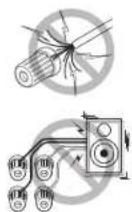
natural_image
Line drawing of a room interior with a TV, sofa, and wall-mounted devices (no text or symbols)natural_image
Interior layout diagram showing lighting fixtures and furniture placement (no text or symbols)■ 1st Step : AccuEQ Room Calibration
■ 2nd Step : Source Connection
■ 3rd Step : Remote Mode Setup
■ 4th Step : Network Connection
| CBL/SAT | |
| Input | EC-OVD |
| Action | CBL/SAT |
| Video | STB-OVD |
| Information | GAME |
| Understanding Mode | PC |
| NWX | |
Panel Trasero
Pantalla
60 (Eventual Unit 9.0)
Sensibilidade de Entrada e Impedancia (Desequillíbrio)
200 mV/47 kΩ (LINE)
2.5 mV/47 kΩ (PHONO MM)
Nivel de Salida BCA Nominal e Impedancia
200 mV/2.2 kΩ (LINE OUT)
70 mV (MM 1 kHz 0.5% Direct)
522/530 kHz - 1611/1710 kHz
17-1/8" × 8-13/16" × 12-15/16"
Peso
10,0 kg (22,0 lbs) (Norteamérica)
10.5 kg /23.1 lbe \ (Otrea)
10,5 kg (20,1 hbs.) (3,160)
• HDMI
IN1 (BD/DVD, 4K), IN2 (CBL/SAT, 4K), IN3 (STB/DVR, 4K, HDCP2.2), IN4 (GAME, 4K), IN5 (PC), IN6, AUX INPUT (HDMI/MHL) (Frontal)
Salida
OUT MAIN (ARC, HDCP2.2), OUT SUB
Resolución de Vídeo
3D, Audio Return Channel, DeepColor, x.v.Color, LipSync, CEC (RIHD)
- Entradas de Vídeo
Componentes
IN (CBL/SAT)
18 Park Way, Upper Saddle River, N.J. 07458, U.S.A.
For Dealer, Service, Order and all other Business Inquiries:
Tel: 201-785-2600 Fax: 201-785-2650
http://www.us.onkyo.com/
For Product Support Team Only:
1-800-229-1687
Europe
Onkyo Europe Electronics GmbH
Liegnitzerstrasse 6, 82194 Groebenzell, GERMANY
Tel: +49-8142-4401-0 Fax: +49-8142-4208-213
http://www.eu.onkyo.com/
Onkyo Europe Electronics GmbH (UK Branch)
Meridien House, Ground floor, 69 - 71 Clarendon Road,
Watford, Hertfordshire, WD17 1DS, United Kingdom
Tel: +44 (0)8712-00-19-96 Fax: +44 (0)8712-00-19-95
China
Onkyo China Limited (Hong Kong)
Unit 1033, 10/F, Star House, No 3, Salisbury Road,
Tsim Sha Tsui Kowloon, Hong Kong
Tel: 852-2429-3118 Fax: 852-2428-9039
http://www.hk.onkyo.com/
Onkyo China PRC (Mainland)
1301, 555 Tower, No.555 West NanJing Road, Jing'an District,
Shanghai, China 200041,
Tel: 86-21-52131366 Fax: 86-21-52130396
http://www.cn.onkyo.com/
Asia, Oceania, Middle East, Africa
Please contact an Onkyo distributor referring to Onkyo
SUPPORT site.
http://www.intl.onkyo.com/support/
The above-mentioned information is subject to change
without prior notice.
Visit the Onkyo web site for the latest update.
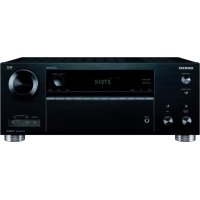
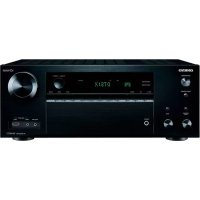
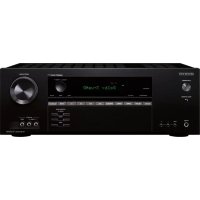
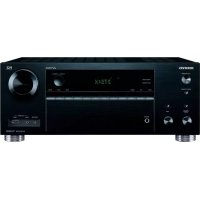
- Before Start
- About the Basic Manual
- Advanced Manual
- Features
- Supplied Accessories
- Step 1: Connections
- Connecting the TV and players
- HDMI cable connection
- Connecting Components without HDMI
- ■ Audio signal connection
- ■ Video signal connection
- 2
- Connecting speakers
- Characteristics of speaker types
- Instructions on how to connect speakers
- Height speakers arrangements
- Other connections
- AM/FM antenna connections
- Network connection
- Headphones connection
- Step 2: Setting Up
- Turning the power on
- Making the Initial Setup with the Setup Wizard
- ■ 1st Step : AccuEQ Room Calibration
- Place the speaker setup microphone.
- ■ 2nd Step : Source Connection
- ■ 3rd Step : Remote Mode Setup
- ■ 4th Step : Network Connection
- Make the following preparations.
- Select the SSID of the access point to be connected with the cursor buttons and press ENTER.
- Select and set the authentication method.
- Establish connection.
- When the access point is not displayed
- ■ WPA/WPA2 method
- ■ WEP method
- ■ Exiting the setup wizard
- Step 3: Playing Back
- Playing the player and TV
- Turn the power on.
- Select the Input of the unit and start playback on the player or TV.
- Select the desired listening mode.
- Remote controller parts name
- Listening modes
- Other useful functions
- Listening to AM/FM Radio
- Connecting and playing the Bluetooth-enabled device
- Pairing
- Playing sound of the Bluetooth-enabled device
- Using the HOME menu
- Using Quick Setup menu
- Press Q SETUP on the remote controller.
- Select the item with the cursor buttons of the remote controller and press ENTER to confirm your selection.
- ■ Video:
- Information:
- Using the multi-zone function
- Connecting with Player
- Making multi-zone connection
- ■ Connecting an Integrated Amplifier in a Separate Room
- ■ Connecting speakers in another room
- Performing multi-zone playback
- Front Panel
- Rear Panel
- Display
- Troubleshooting
- Before starting the procedure
- The AV receiver turns off unexpectedly.
- There's no sound, or it's very quiet.
- There's no picture.
- HDMI control does not function correctly.
- The remote controller does not work.
- There is no sound for multi-zone function.
- Cannot access to network.
- Cannot connect Bluetooth.
- ■ Resetting the unit
- - How to reset:
- Specifications
- Amplifier Section
- Video Section
- Tuner Section
- Network Section
- Bluetooth Section
- General
- HDMI
- - Video Inputs
- - Video Outputs
- - Audio Inputs
- ● Audio Outputs
- Others
- License and Trademark Information
- DOLBY
- CERTIFIED
- Bluetooth
- ((SiriusXM))
- INTERNET RADIO
- DISCLAIMER
- Precautions
- For European Models
- Declaration of Conformity
- ■ Connexion de signal audio
- Panneau arrière
- Affichage
- Partie Réseau
- - Entrées Vidéo
- - Sorties Vidéo
- - Entrées Audio
- - Sortles Audio
- Panel Trasero
- Pantalla
- • HDMI
- - Entradas de Vídeo
Brand : ONKYO
Model : HTRC660
Category : AV receiver