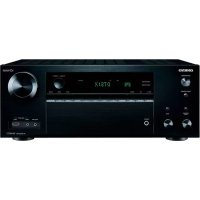
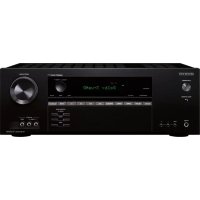
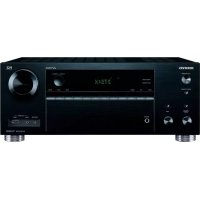
USER MANUAL HTRC630 ONKYO
natural_image
Technical line drawing of a mechanical component with circular features and a flat top panel (no text or symbols)
Advanced Manual found here
http://www.onkyo.com/manual/htrc630/adv/en.html

Before Start
About the Basic Manual
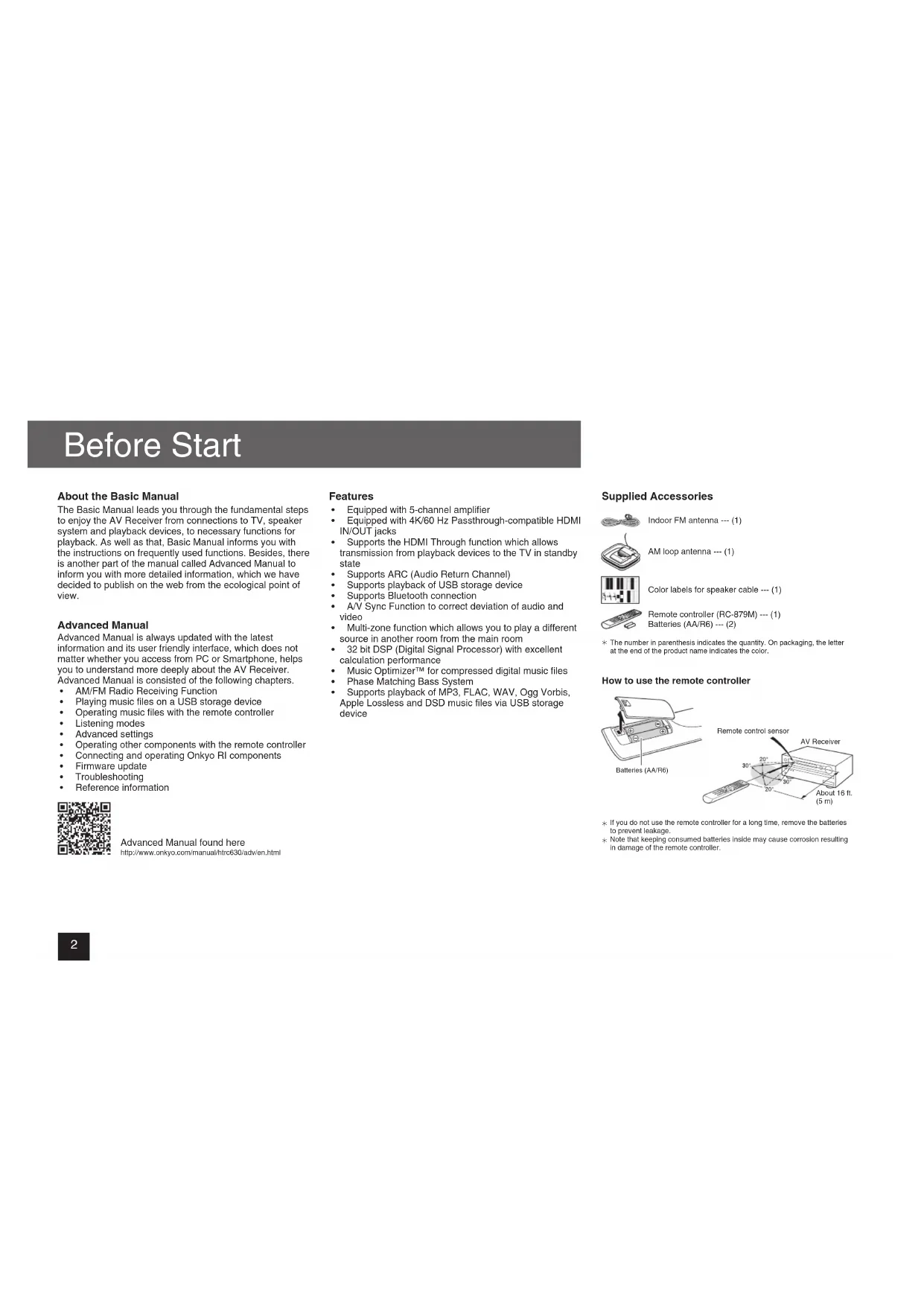
The Basic Manual leads you through the fundamental steps to enjoy the AV Receiver from connections to TV, speaker system and playback devices, to necessary functions for playback. As well as that, Basic Manual informs you with the instructions on frequently used functions. Besides, there is another part of the manual called Advanced Manual to inform you with more detailed information, which we have decided to publish on the web from the ecological point of view.
Advanced Manual
Advanced Manual is always updated with the latest information and its user friendly interface, which does not matter whether you access from PC or Smartphone, helps you to understand more deeply about the AV Receiver. Advanced Manual is consisted of the following chapters.
• AM/FM Radio Receiving Function
- Playing music files on a USB storage device
- Operating music files with the remote controller
- Listening modes
• Advanced settings
• Operating other components with the remote controller
• Connecting and operating Onkyo RI components
- Firmware update
- Troubleshooting
• Reference information

Advanced Manual found here
http://www.onkyo.com/manual/htrc630/adv/en.html
Features
• Equipped with 5-channel amplifier
• Equipped with 4K/60 Hz Passthrough-compatible HDMI IN/OUT jacks
• Supports the HDMI Through function which allows transmission from playback devices to the TV in standby state
• Supports ARC (Audio Return Channel)
• Supports playback of USB storage device
• Supports Bluetooth connection
• A/V Sync Function to correct deviation of audio and video
- Multi-zone function which allows you to play a different source in another room from the main room
• 32 bit DSP (Digital Signal Processor) with excellent calculation performance
• Music Optimizer™ for compressed digital music files
• Phase Matching Bass System
- Supports playback of MP3, FLAC, WAV, Ogg Vorbis, Apple Lossless and DSD music files via USB storage device
Supplied Accessories

Indoor FM antenna --- (1)

AM loop antenna --- (1)

Color labels for speaker cable --- (1)

Remote controller (RC-879M) --- (1)
Batteries (AA/R6) --- (2)
* The number in parenthesis indicates the quantity. On packaging, the letter at the end of the product name indicates the color.
How to use the remote controller
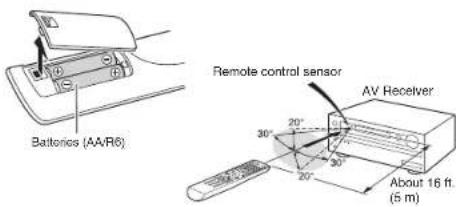
* If you do not use the remote controller for a long time, remove the batteries to prevent leakage.
* Note that keeping consumed batteries inside may cause corrosion resulting in damage of the remote controller.
Step 1: Connections
flowchart
graph TD
    A["Personal computer"] -->|HDMI OUT| B["HDMI cable"]
    B --> C["Set-top box/Digital video recorder, etc."]
    C -->|HDMI OUT| D["HDMI setup"]
    D --> E["Satellite/Cable set-top box, etc."]
    E --> F["Blu-ray Disc/DVD player"]
    F --> G["TV"]
    style A fill:#f9f,stroke:#333
    style B fill:#ccf,stroke:#333
    style C fill:#cfc,stroke:#333
    style D fill:#fcc,stroke:#333
    style E fill:#cff,stroke:#333
    style F fill:#ffc,stroke:#333
    style G fill:#fcc,stroke:#333
1 Connecting the TV and players
Important: The power cord must be connected only after all other connections are completed.
HDMI Cable Connection
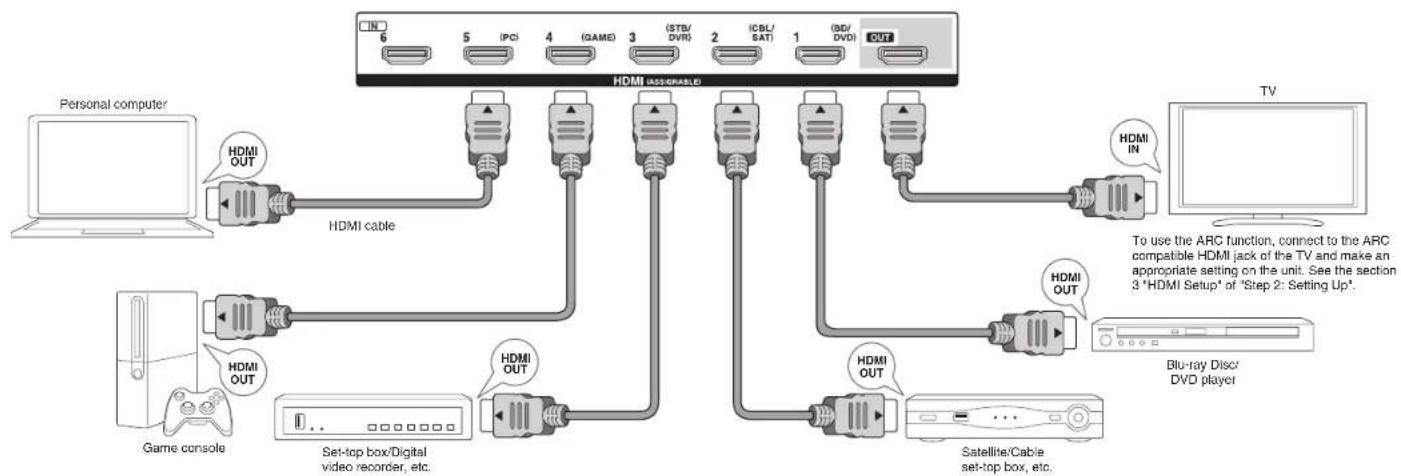
The unit has many HDMI jacks on its rear panel and each of them corresponds to an input selector button of the same name on the front panel. For example, a Blu-ray Disc player will be connected to the IN 1 jack and the BD/DVD button on the front panel will be used to listen to the playback sound (if the player is CEC compliant, input will be switched automatically). If you add another Blu-ray Disc player, you can use any other jack than IN 1. It is possible to change assignment of the input jacks and input selector buttons.
For how to make settings, see the Advanced Manual.
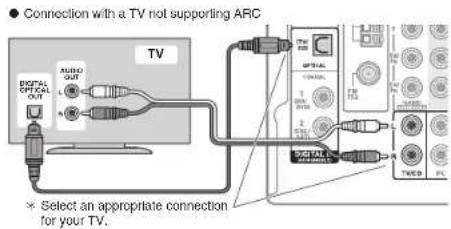
To connect the TV and the unit, connect the HDMI OUT jack of the unit and the HDMI IN jack of the TV using an HDMI cable. With this connection, it becomes possible to display the setting screen of the unit on the TV or transmit video/audio signals from the player to the TV. If your TV supports ARC (Audio Return Channel), it is possible to play the TV sound with the AV receiver's speakers with this connection only. If your TV does not support ARC, you need, in addition to the HDMI OUT jack connection, a digital optical cable connection between the digital audio out optical jack of the TV and the DIGITAL IN OPTICAL jack of the unit or an analog audio (RCA) cable connection between the audio output jack of the TV and the TV/CD analog audio input jack of the unit.
The unit supports the HDMI Through function that allows transmission from players to the TV even if the unit is in standby. You have to modify the settings to enable the input selection link with CEC compliant device, connection with ARC compatible TV, and HDMI Through function. See the
section 3 "HDMI Setup" of "Step 2: Setting Up".
- To play 4K or 1080p video, use the high speed HDMI cable.
Connecting Components without HDMI
If your AV component does not have HDMI jack, use an available jack of your component for cable connection with this unit. Just as the HDMI jacks, other jacks on this unit have a preassigned input selector button on the front panel. See the name of the input selector button shown with the jack when connecting the device.
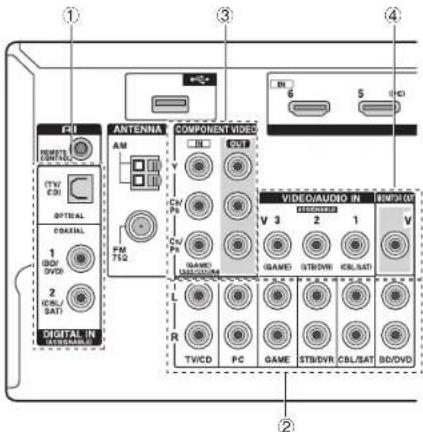
If you connect a turntable which does not have a built-in audio equalizer, you need to install an external audio equalizer between the unit and the turntable.
Step 1: Connections
■ Audio signal connection
① Digital connection: Use a digital optical cable (OPTICAL) or digital coaxial cable (COAXIAL) for connection with a player.
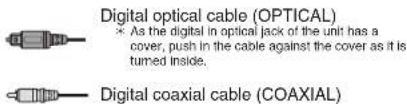
② Analog connection: Use an analog audio (RCA) cable for connection with a player.
To enjoy multi-zone playback of audio of a CD player or such other player without HDMI output jack, you need to use the analog audio (RCA) cable to connect the corresponding jacks of the player and this unit. For details on the multi-zone function, see the section 6 "Using the multi-zone function" of "Step 3: Playing Back".

■ Video signal connection
③ Use a component video cable to connect a TV with component video input jacks and a player with component video output jacks.
- When a component video cable is used for connecting the unit and the player, the unit and TV must also be connected with a component video cable.

④ Use a composite video cable to connect a TV with composite video input jack or a player with composite video output jack.
- When a component video cable is used for connecting the unit and the player, the unit and TV must also be connected with a component video cable.
Composite video cable
2 Connecting speakers
Important: The power cord must be connected only after all other connections are completed.
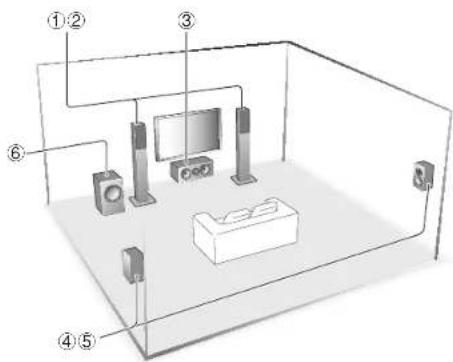
① ② Front speakers
③ Center speaker
④ ⑤ Surround speakers
⑥ Subwoofer
• Only one subwoofer can be connected.
- To use the ZONE function, refer to the section 6 "Using the multi-zone function" of "Step 3: Playing Back".
It is ideal to install the front speakers and center speaker at the height not too far from that of the screen. As for the surround speakers, it is recommended to install at the position slightly backward of the listening position and higher than the listener's ears, since it is preferable to obtain a diffused sound rather than a direct sound. As a bass sound reproduced by subwoofer is less directional, it is possible to place it at any position. Consider the best installation position where a bass sound can be clearly heard by listening to actual playback.
Step 1: Connections
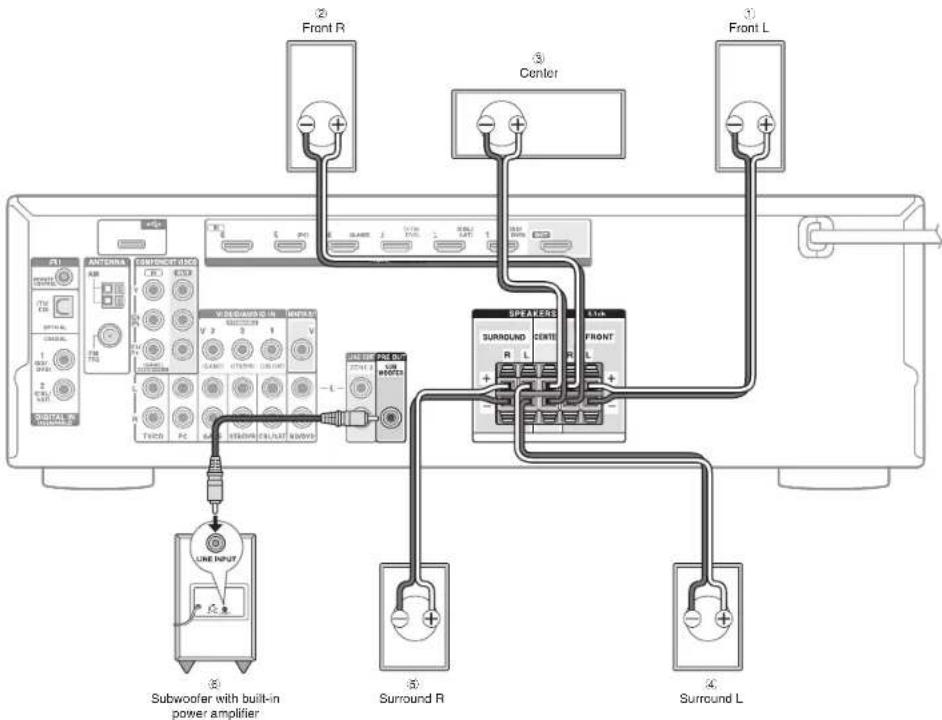

Important: Connect speakers with 6 to 16 impedance. Using a speaker with less impedance than the supported value may result in failure.
Cut and remove the plastic coating from the end of the speaker cable, twist the core and connect it to the terminal.
Make correct connection between the unit's jacks and speaker's jacks (+ to + and - to -) for each channel. If connection is wrong, a bass sound may become poor due to reverse phase. Attaching the supplied colored speaker cable labels to the + side on the both ends of each channel's cable will help correct connection. The subwoofer jack supports connection of a subwoofer with built-in power amplifier. Set the cut-off filter selection switch of the subwoofer to DIRECT. If the subwoofer does not have a cut-off filter selection switch but has a cut-off frequency adjusting dial, turn it to the
maximum frequency. If your subwoofer does not have built-in power amplifier, you can connect a power amplifier between the unit and the subwoofer.
- The speaker setting is 5.1 ch at the time of purchase. Change the setting when you use a configuration other than 5.1 ch.
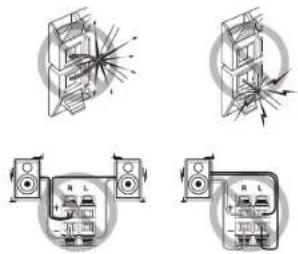
- Short-circuiting the + cable and - cable or contacting the cable core to the rear panel of the unit may cause failure. Also do not connect two or more cables to one speaker jack or one speaker to several jacks.
natural_image
Four-panel diagram showing speaker setup with sound wave effects and labeled components (no readable text or symbols)

Other connections
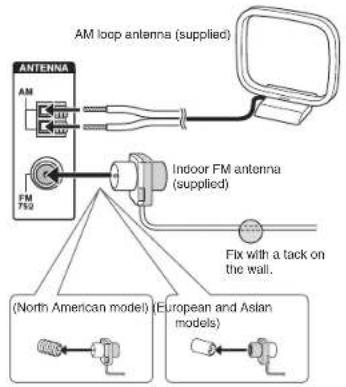
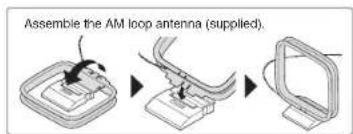
AM/FM antenna connections
Connect the antennas to listen to AM/FM broadcast. When listening to the broadcast for the first time, adjust the antenna position and orientation to get the best reception.
Step 1: Connections
Headphones connection
Connect stereo headphones with a standard plug (1/4 inch or 6.3 mm) to the PHONES jack. Sound from the speakers will be off while you are using the headphones.
- If you selected any other listening mode than Stereo, Mono and Direct, connecting headphones will switch the listening mode to Stereo.
Step 2: Setting Up
1
Turning the power on
Connect the power cord to the outlet. Press ON/STANDBY on the main unit or RECEIVER on the remote controller to turn the unit on or to standby mode.
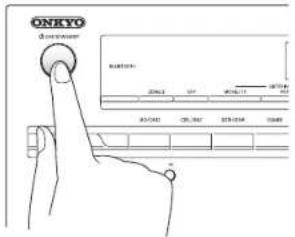
- When the unit is turned on, a large instantaneous current may flow affecting functionality of the computer and other devices. It is recommended to use a separate outlet from that for the computer or such other sensitive devices.
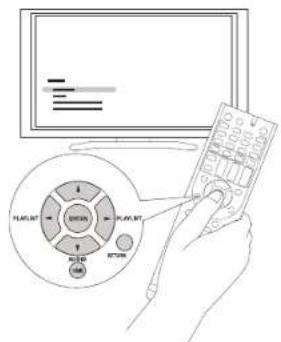
- Operation: You can set up by viewing the guidance displayed on the TV screen. To display the guidance, you need to make HDMI connection between the unit and TV. Select the item with the cursor buttons of the remote controller and press ENTER to confirm your selection. To return to the previous screen, press RETURN. To return to the Home menu, press HOME.
2
Making speaker setting
The speaker configuration of this unit is set to 5.1 ch by default. To use the unit in a different environments such as a configuration without center speaker, surround speaker or subwoofer, you need to make settings for each of the following items.
- If the settings do not match the actual speaker configuration, audio playback may not be performed correctly. Check your speaker configuration and make correct settings.
Changing speaker configuration
- After pressing RCV, press HOME on the remote controller.
- With the cursor, select "Setup", and press ENTER.
- Select "5. Sp Config" with the cursor, and press ENTER.
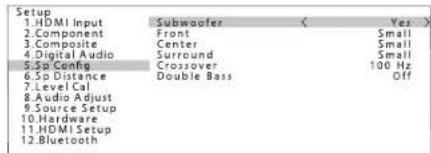
Move the cursor with ▶▶ buttons and set "None" for the speaker ("No" for subwoofer) which is not connected. Press HOME to save the changed setting and close the menu screen.
- This setting cannot be changed if headphones are connected or audio is output from the speakers of the TV.
Setting speaker distance
- After pressing RCV, press HOME on the remote controller.
- Select "Setup" with the cursor, and press ENTER.
- Select "6. Sp Distance" with the cursor, and press ENTER.
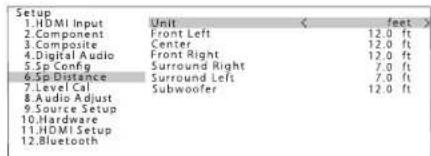
Move the cursor with ◀/▶ buttons and set the distance from each speaker to the listening position. Press HOME to save the changed setting and close the menu screen.
- This setting cannot be changed if headphones are connected or audio is output from the speakers of the TV.
- The distance of speakers cannot be changed if "No" or "None" is set for them in "Sp Config".
Adjusting volume level of speakers
- After pressing RCV, press HOME on the remote controller.
- With the cursor, select "Setup", and press ENTER.
- Select "7. Level Cal" with the cursor, and press ENTER.
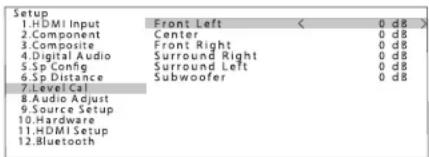
Move the cursor with ◀/▶ buttons and change the volume level of each speaker. A test tone will be output each time you change the level. Select the desired level. Press HOME to save the changed setting and close the menu screen.
- In the following cases, the setting cannot be changed: – Headphones are connected.
- Audio is output from the speakers of the TV.
- Muting is enabled.
- You cannot change the volume level of speakers when "No" or "None" is set for them in "Sp Config".
3 HDMI Setup
The unit supports the linked system function such as power on/off link when connected via HDMI cable with a CEC (Consumer Electronics Control) compliant TV or player. You need to change the initial setting to use the linked system function, HDMI Through function and ARC (Audio Return Channel) function.
- Operation: You can set up by viewing the guidance displayed on the TV screen. To display the guidance, you need to make HDMI connection between the unit and TV. Select the item with the cursor buttons of the remote controller and press ENTER to confirm your selection. To return to the previous screen, press RETURN.
HDMI CEC (RIHD)
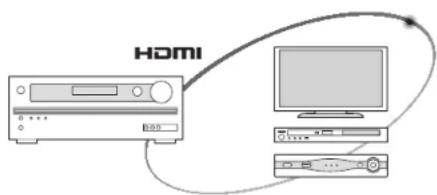
■ Turning the TV to standby mode will turn the unit to standby mode.
■ On the TV side, it is possible to set whether to output audio from the speakers connected to the unit or from the TV's speakers.
■ Starting playback of a CEC compliant player/recorder will automatically switch the unit's input to the HDMI input of the player/recorder. If the unit is in standby mode, it will automatically be turned on.
- Press RCV on the remote controller and then press HOME.
- Select "Setup" with the cursor buttons and press ENTER.
- Select "11. HDMI Setup" with the cursor buttons and press ENTER.
- Select "HDMI CEC (RIHD)" with the cursor buttons and select "On".
Step 2: Setting Up
HDMI Through
The function allows transmission from players to the TV even if the unit is in standby. Setting the HDMI CEC (RIHD) setting mentioned above to "On" can enable this setting automatically. It is also necessary to make the HDMI linked system setting on the TV. See the TV's instruction manual for details.
- Although enabling the HDMI Through function increases power consumption during standby.
ARC (Audio Return Channel)
Simple connection to the ARC compatible TV using a single HDMI cable allows to listen to the TV sound from the speakers connected to the unit. To use the ARC function, connect the unit to the ARC compatible HDMI jack of the TV. Then, set the HDMI CEC (RIHD) mentioned above to "On" on the unit, and make the following setting.
- Press RCV on the remote controller and then press HOME.
- Select "Setup" with the cursor buttons and press ENTER.
- Select "11. HDMI Setup" with the cursor buttons and press ENTER.
- Select "Audio Return Ch" with the cursor buttons and select "Auto".
Audio output of connected players
To enjoy digital surround sound including Dolby Digital and DTS, audio output should be set to "Bitstream output" on the connected blu-ray disc player or other devices. If the TV does not support bitstream signals, set the audio output to "PCM output" on the player to listen to the audio from the TV's speakers. For how to set the player, see the instruction manual of the player. Some settings of the blu-ray disc player may prevent reproduction of DTS-HD Master Audio. In that case, turn "BD video supplementary sound" (or secondary sound) to "Off" and try again.
Step 3: Playing Back
1
Playing the player and TV
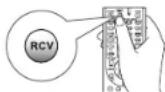
- To control the unit: The remote controller may be in the remote mode that enables control of other devices. In the state of remote mode, you will not be able to operate this unit. When you operate the unit, operate it from back to (a mode in which to operate this unit) RECEIVER mode by pressing ② RCV always.
1. Turning the power on.
Press ① ◎RECEIVER on the remote controller to turn the power on.
- You need to change the input setting of the TV to the one for connection with this unit. Use the TV's remote controller.
- Press③ INPUT SELECTOR to which the desired player has been assigned. Press TV/CD to play the TV's sound. You can also use the input selector buttons on the main unit.
- Input will automatically be selected if the TV or player is CEC compliant and connected to the unit with HDMI cable.
3. Select the desired listening mode.
Press the Ⓤ listening mode buttons to switch the mode so that you can enjoy different listening modes. For details about the listening modes, see "Listening modes".
4. Adjust the volume with ⑩.
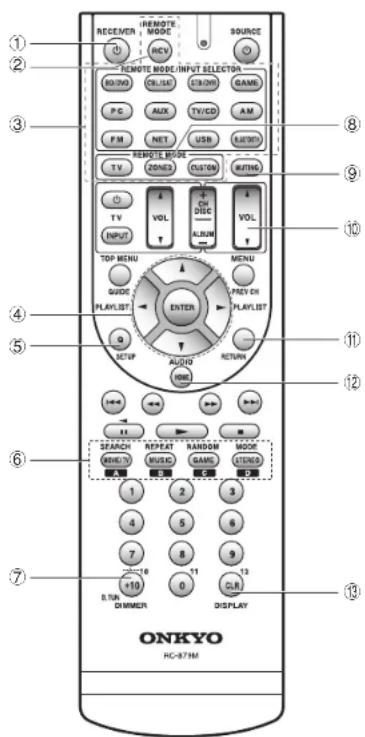
Remote controller parts name
① ◎RECEIVER button: Turns the unit on or into standby mode.
② RCV button: Switches the remote controller to the mode for operating this unit.
③ REMOTE MODE/INPUT SELECTOR buttons: Switches the input to be played.
The input selector button NET has no effect on this unit, since the unit does not have input selector "NET".
④ Cursor buttons and ENTER button: Moves the cursor and confirms the selection.
⑤ Q SETUP button: Displays the Quick Setup menu that allows you to set the frequently used functions including input selection and volume adjustment.
⑥ Listening mode buttons: Allows you to select the listening mode.
⑦ DIMMER button: Switches the brightness of the display.
⑧ ZONE2 button: For use when the unit is connected with a pre-main amplifier in a separate room and sound is played there.
⑨ MUTING button: Temporarily mutes audio.
⑩ VOLUME buttons: Allows you to adjust the volume.
⑪ RETURN button: Returns the display to the previous state.
⑫ HOME button: Displays the Home menu that allows you to make advanced settings and use other functions.
⑬ DISPLAY button: Switches the information on the display.
- The buttons other than ①-⑬ are for operating other devices.
Listening modes
Select the desired mode by switching and listening actual sound in different modes. The selectable listening modes depend on the format of the input signals.
MOVIE/TV: You can select a listening mode suitable for movies and TV programs.
MUSIC: You can select a listening mode suitable for music.
GAME: You can select a listening mode suitable for games.
STEREO: You can select a listening mode for stereo and all channel stereo sources.
- For details on the listening modes, see the Advanced Manual.
"Direct" for playing the input signals as-Is Selecting this mode allows the input signals to be played as they are. For example, 2 ch signals of music CD will be played in stereo, 5.1 ch signals in 5.1 ch, and Dolby Digital signals of blu-ray disc or DVD in the Dolby Digital sound field according to the specified number of channels.
Other useful functions
■ Playing Video and Audio from Different Sources: It is possible to play audio and video from different sources. For example, you can play audio from the CD player and video from the BD/DVD player. In this case, press BD/DVD and then TV/CD. Then start playback on the BD/DVD player and CD player. This function is effective when an input with audio only has been selected (TV/CD, AM or FM in the initial setting).
■ Adjusting Sound Quality: It is possible to enhance or moderate the bass and treble of front speakers. Press TONE on the main unit several times to select the desired setting from "Bass", "Treble", and "PM Bass" (Phase Matching Bass), and adjust with +/-
"Bass": Allows you to enhance or moderate the bass.
"Treble": Allows you to enhance or moderate the treble.
"PM Bass": Allows you to keep the clear midrange and effectively enhance the bass.
■ Muting Temporarily: Press MUTING on the remote controller. Press MUTING again to cancel muting.
■ Changing the Display Brightness: Press DIMMER on the remote controller several times to select the desired brightness.
■ Changing the Input Display: Press DISPLAY on the remote controller several times to switch the display of the main unit in order of:
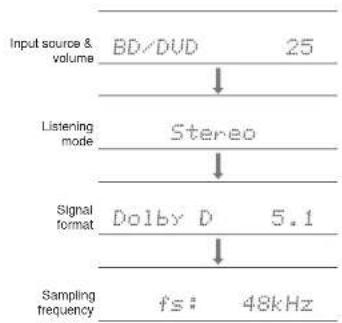
flowchart
graph TD
    A["Input source & volume"] --> B["BD/DVD 25"]
    B --> C["Listening mode Stereo"]
    C --> D["Signal format Dolby D 5.1"]
    D --> E["Sampling frequency fs: 48kHz"]
- If "Dolby D 5.1" is displayed in signal format, the Dolby Digital 5.1 ch signals are being input. When listening to AM/FM radio, the band, frequency and preset number are displayed.
Step 3: Playing Back
2 Listening to AM/FM Radio
Auto tuning method is explained in Basic Manual. For more details on AM/FM radio station, see Advanced Manual.
- Press AM or FM on the unit to select either "AM" or "FM".
- Press TUNING MODE on the unit so that the "AUTO" indicator on the unit's display lights.
- Press TUNING on the unit.
The automatic search for a radio station starts.
Searching stops when one is found. When tuned into a radio station, the "▶TUNED-indicator on the unit's display lights. The "FM STEREO" indicator lights if the radio station is an FM radio station.
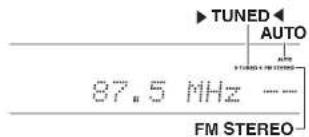
(Actual display depends on the country.)
Registering a Radio Station: It allows you to register up to 40 of your favorite AM/FM radio stations.
- Tune into the AM/FM radio station you want to register.
- Press MEMORY on the unit so that the preset number on the display flashes.
- Repeatedly press ◀PRESET on the unit to select a number between 1 and 40 while the preset number is flashing (about 8 seconds).
- Press MEMORY on the unit again.
When registered, the preset number stops flashing.
Repeat this procedure for all of your favorite AM/FM radio stations. Press RESET CH +/- to select the registered radio station.

Connecting and playing the Bluetooth-enabled device
You can wirelessly enjoy music files stored in a smartphone or other Bluetooth-enabled device. The coverage area is 48 feet (15 meters).
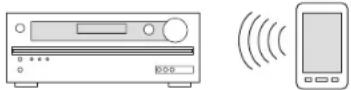
- The Bluetooth-enabled device needs to support the A2DP profile.
- Note that connection is not always guaranteed with all Bluetooth-enabled devices.
Pairing
Pairing is necessary when using the Bluetooth-enabled device for the first time. Before starting the procedure, learn how to enable the Bluetooth setting function and to connect with other devices on the Bluetooth-enabled device.
- Press BLUETOOTH on the remote controller.
The unit enters the pairing mode and the BLUETOOTH indicator starts flashing.
- While the BLUETOOTH indicator is flashing, complete connection on the Bluetooth-enabled device in the nearby area within about 2 minutes. If the name of this unit is displayed on the Bluetooth-enabled device's display, select this unit. Paring will end after a short time.
• If a password is requested, enter "0000".
- When connecting the unit to any other Bluetooth-enabled device, start pairing by pressing and holding BLUETOOTH until the BLUETOOTH indicator starts flashing. This unit can store the data of up to ten paired devices.
Playing sound of the Bluetooth-enabled device
If the unit is on and the Bluetooth-enabled device is connected, the input will be automatically switched to BLUETOOTH. Play music in this state.
- It may take about a minute until connection is established when the unit is on since the Bluetooth function takes some time to start up.
- If the volume setting on the Bluetooth-enabled device is low, the sound will not be output from this unit.
- Due to the characteristics of Bluetooth wireless technology, the sound produced on this unit may slightly be behind the sound played on the Bluetooth-enabled device.

In the Home menu, you can make advanced settings and use functions such as playback of files in USB storage device. For details on the operation, see the Advanced Manual.
- Press RCV on the remote controller and then press HOME.
The Home menu displays on the TV screen. You can also use the HOME button on the main unit.
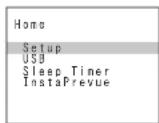
- Select the item with the cursor buttons of the remote controller and press ENTER to confirm your selection.
To return to the previous screen, press RETURN. To return to the Home menu, press HOME.
■ Setup: You can change the assignment of input terminals and input selector buttons and also make various speaker settings and other advanced settings.
■ USB: Select to connect a USB storage device to the USB port so that it can be played.
"USB" becomes selectable after the USB function starts up even if it cannot be selected first. It may take about a minute to start up.
Step 3: Playing Back
■ Sleep Timer: Select to turn the unit into standby mode automatically when the specified time elapses.
■ InstaPrevue: Select to preview videos input from the HDMI input jacks collectively in a single screen. The screen has a main window (current input video) and sub windows (other input videos). To switch the current input, select the desired sub window with the cursor buttons and press ENTER.
- A black sub window is shown for the input with no video signals.
- "InstaPrevue" cannot be selected if the video is being input from HDMI IN 6 or there is no signal from the input currently selected.
- Depending on video signals, the picture may not be properly rendered on the preview thumbnails.

In the Quick Setup menu, you can set frequently used functions including input selection and volume adjustment.
1. Press Q SETUP on the remote controller.
The Quick Setup menu is displayed on the connected TV's screen.
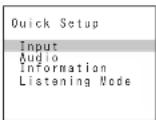
To return to the previous screen, press RETURN.
■ Input: Select the input and check the assignment of input selector buttons.
■ Audio: You can change various audio settings including the ones for adjusting audio quality and speaker level.
- You cannot select this item when audio is played from the TV's speakers.
A/V Sync: If the video is behind the audio, you can delay the audio to offset the gap.
- It cannot be set if the input is "USB" or "BLUETOOTH".
• It cannot be set if the listening mode is Direct.
Bass, Treble: Adjust volume of the front speaker.
• It cannot be set if the listening mode is Direct.
PM Bass (Phase Matching Bass): Suppress phase shift in the midrange to enhance bass sound. Thus smooth and powerful bass sound can be obtained.
- It cannot be set if the listening mode is Direct.
Subwoofer Level, Center Level: Adjust the speaker level while listening to the sound. The adjustment you made will be reset to the previous status when you turn the unit to standby mode.
- The speakers cannot be adjusted if they have been set to "No" or "None" in "Sp Config".
Late Night: Make small sounds to be easily heard. It is useful when you need to reduce the volume while watching a movie late night. You can enjoy the effect on Dolby Digital, Dolby Digital Plus and Dolby TrueHD sources only.
- Turning the unit to standby mode will set the setting to "Off". In case of Dolby TrueHD, the setting will be set to "Auto".
Music Optimizer : Improve the quality of the compressed audio. Playback sound of lossy compressed files such as MP3 will be improved. The setting can be separately set to each input.
- The setting is effective in the signals of 48 kHz or less. The setting is not effective in the bitstream signals.
• It cannot be set if the listening mode is Direct.
Cinema Filter: Adjust the soundtrack that was processed to enhance its high pitch range, in order to make it suitable for home theater.
- This function can be used in the following listening modes: Multichannel, Dolby Digital, Dolby Digital Plus, Dolby TrueHD, DTS, DTS-HD High Resolution Audio, DTS-HD Master Audio, DTS Express, DTS 96/24, Dolby PL II Movie, DTS Neo:6 and Neo:6 Cinema.
■ Information: Display the audio information.
■ Listening Mode: Select the listening mode from the categories of "MOVIE/TV", "MUSIC" and "GAME".
- It cannot be set when audio is played from the TV's speakers.

Using the multi-zone function
You can listen to the sound in a separate room by making the Zone connection (analog) between the unit and an integrated amplifier placed in the separate room.
You can use a Blu-ray Disc player in the main room in which the unit is placed, while receiving AM/FM broadcast in the separate room. Audio can be played in the main room and the separate room simultaneously, or only in the separate room.
- The sources you can enjoy in the separate room are the players connected to the analog audio input jacks of the unit, and AM/FM broadcast.
- When listening to AM/FM broadcasting, you cannot select different stations for the main room and separate room. Therefore broadcasting of the same station will be heard in the both rooms.
Connecting with Player
To use a Blu-ray Disc player or other players as the source of Zone audio output, it is necessary to connect the RCA audio output jacks of the player and the analog audio input jacks of the unit using the analog audio (RCA) cable.
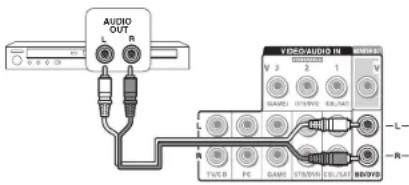
- Zone audio output is not possible if the player and the unit are connected only via HDMI cable or digital cable.
- Some players require analog audio output setting.
Making multi-zone connection
Connect the ZONE 2 LINE OUT jacks of the unit and the line-in jacks of the pre-main amplifier in a separate room with an analog audio (RCA) cable.
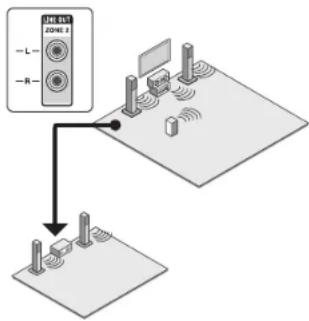
Step 3: Playing Back
-
Press ZONE2 on the remote controller, point the remote controller at the remote controller sensor and press ⏻RECEIVER.
"Z2" lights on the unit and the ZONE function is enabled. (ZONE 2 is now on.)
-
Press ZONE2 on the remote controller again and press INPUT SELECTOR of the input to be played in a separate room.
To play the same source in the main room and separate room, hold down ZONE2 for approximately 3 seconds. The volume should be adjusted with the pre-main amplifier used in the separate room.
To control on the main unit: Press ZONE2 and within 8 seconds, press the input selector button of the input to be played in a separate room. To play the same source in the main room and separate room, press ZONE2 twice.
To turn off the multi-zone function: Press ZONE2 on the remote controller and press ⬆RECEIVER. Alternatively press OFF on the main unit.
- Multi-zone playback cannot be performed if a player is connected to HDMI jack using HDMI cable or OPTICAL/COAXIAL jack using digital cable. Connect the players using analog audio cable for multi-zone playback. Analog audio output setting may be necessary on the player.
- If ZONE 2 is on, power consumption during standby becomes larger than normal.
- While ZONE 2 is on, the RI linked system function (interlink between Onkyo components) is disabled.
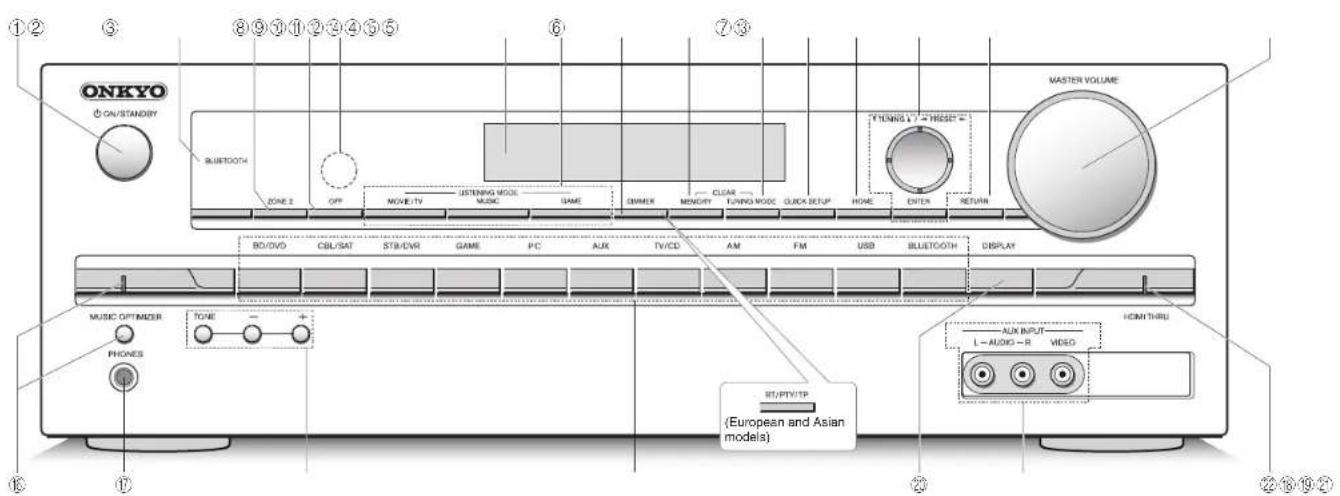
Front Panel
① ON/STANDBY button: Turns the unit on or into standby mode.
② BLUETOOTH indicator: Flashes while pairing with a Bluetooth-enabled device is in progress and stays lit when pairing is completed.
③ ZONE 2 button: Controls the ZONE function.
④ OFF button: Switches the ZONE function to
⑤ Remote control sensor: Receives signals from the remote controller.
⑥ Display
⑦ LISTENING MODE buttons: Allows you to select the listening mode.
⑧ DIMMER button (North American model): Switches the brightness of the display.
RT/PTY/TP button (European and Asian models):
Can be used when receiving the station transmitting text information.
⑨ MEMORY button: Registers or deletes a station.
⑩ TUNING MODE button: Switches the tuning mode.
⑪ QUICK SETUP button: Displays the Quick Setup menu.
⑫ HOME button: Displays the Home menu.
⑬ Cursor buttons, ▼TUNING▲ button, ◀PRESET▶ button and ENTER button: Moves the cursor and confirms the selection. When listening to AM/FM broadcasting, tune in to the station with ▼TUNING▲ or select the registered station with ◀PRESET▶.
⑭ RETURN button: Returns the display to the previous state.
⑮ MASTER VOLUME: Allows you to adjust the volume.
16 MUSIC OPTIMIZER button and Indicator: Turns on/off the MUSIC OPTIMIZER function that improves the quality of the compressed audio.
⑰ PHONES Jack: Stereo headphones with a standard plug are connected.
⑯ TONE and Tone Level buttons: Adjusts the high tone and low tone.
⑲ Input selector buttons: Switches the input to be played.
② DISPLAY button: Switches the information on the display.
② AUX INPUT AUDIO/VIDEO jacks: A video camera or such other device is connected.
② HDMI THRU Indicator: Lights when HDMI Through function is enabled.
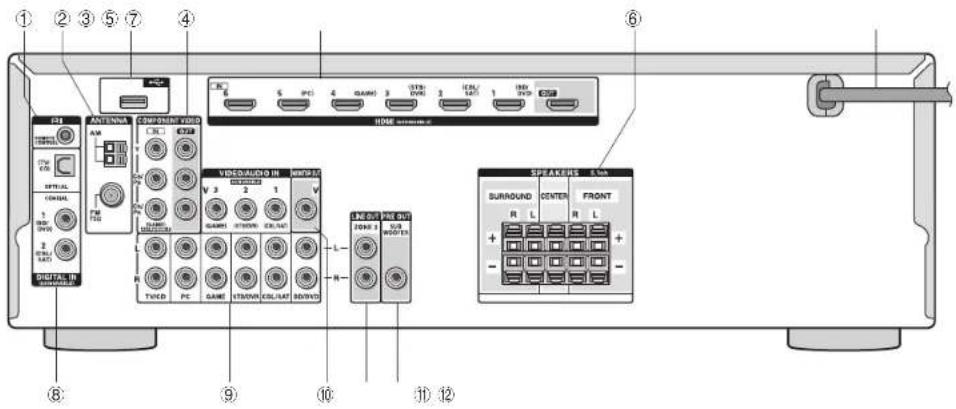
Rear Panel
① RI REMOTE CONTROL Jack: An Onkyo product with RI jack can be connected and synchronized with this unit.
② FM ANTENNA jack (75 Ω) and AM ANTENNA terminal: The supplied antennas are connected.
③ USB port: A USB storage device is connected so that music files stored in it can be played.
④ COMPONENT VIDEO IN and OUT jacks: Component video input/output jacks
⑤ HDMI IN/OUT Jacks: Digital video signals and audio signals are transmitted between the unit and the connected devices.
⑥ SPEAKERS terminals: Speakers are connected.
⑦ Power cord
⑧ DIGITAL IN COAXIAL/OPTICAL Jacks: Digital audio signals are input.
⑨ Composite VIDEO/AUDIO IN Jacks: Analog video signals and audio signals are input.
⑩ Composite MONITOR OUT V jack: Video signals are output to the connected monitor or TV.
⑪ LINE OUT ZONE 2 jacks: Audio output jacks connected to the pre-main amplifier for multi-zone playback in a separate room.
⑫ PRE OUT SUBWOOFER jack: A subwoofer with built-in amplifier is connected.
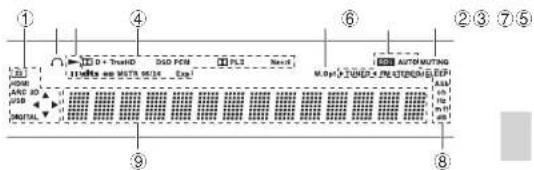
Display
① Lights in the following conditions. "Z2": ZONE 2 output is on. / "HDMI": HDMI signals are input and HDMI input selector is selected. / "ARC": Audio signals are input from ARC compatible TV and TV/CD input selector is selected. / "3D": Input signals are 3D. / "USB" (*): "USB" input is selected and USB storage device is connected. / "DIGITAL": Digital signals are input and the digital input selector is selected. / Cursor indicators: USB is controlled.
* "USB" will flash if the connection is not correct
② Lights when headphones are connected.
③ Lights when USB is controlled.
④ Lights according to the type of input digital signals and the listening mode.
⑤ Lights when Music Optimizer is enabled.
⑥ Lights in the following conditions. "AUTO": Tuning mode is auto. /▶TUNED◀*: Receiving AM/FM radio. ▶◀ flashes while tuning is automatically performed. /"FM STEREO": Receiving FM stereo. /"RDS" (European and Asian models): Receiving RDS broadcasting.
⑦ "MUTING": Flashes when muting is on.
⑧ Lights in the following conditions, "SLEEP"; Sleep timer has been set. / "ASb" (Auto Standby): Auto Standby is on. / "ch": Channel is being set. / "Hz": Crossover frequencies are being set. / "m ft": Speaker distances are being set. / "dB": Speaker volume is being set.
⑨ Displays various information of the input signals. Pressing DISPLAY displays the type of input digital signals and the listening mode.
Troubleshooting
Before starting the procedure
Problems may be solved by simply turning the power on/off or disconnecting/connecting the power cord, which is easier than working on the connection, setting and operating procedure. Try the simple measures on both the unit and the connected device. If the problem is that the video or audio is not output or the HDMI linked operation does not work, disconnecting/connecting the HDMI cable may solve it. When reconnecting, be careful not to wind the HDMI cable since if wound the HDMI cable may not fit well. After reconnecting, turn off and on the unit and the connected device.
The AV receiver turns off unexpectedly.
- The AV receiver will automatically enter standby mode when Auto Standby is set and launched.
There's no sound, or it's very quiet.
- A wrong input selector button has been selected. Select a correct input for the player. Also check that muting is not on.
• Not all listening modes use all speakers.
There's no picture.
• A wrong input selector button has been selected.
- To display video from the connected player on the TV screen while the unit is in standby, you need to enable "HDMI Through".
- When the TV image is blurry or unclear, power code or connection cables of the unit may have interfered. In that case, keep distance between TV antenna cable and cables of the unit.
HDMI control does not function correctly.
- Set the CEC setting of the unit to "On". It is also necessary to make the HDMI linked system setting on the TV. See the TV's instruction manual for details.
The remote controller does not work.
- Be sure to press RCV first before operating the unit with the remote controller.
There is no sound when multi-zone function is used.
- With multi-zone function, sound is output only when an external component connected to the analog audio input jacks of the unit is used, or when AM/FM broadcast is received. Multi-zone audio output is not possible if the player and the unit are connected via HDMI cable or digital cable. Connect the RCA audio output jacks of the player and the analog audio input jacks of the unit with an analog audio (RCA) cable. Also, some players require analog audio output setting.
Bluetooth
- Try plugging/unplugging the unit and the Bluetooth-enabled player. After that, check that the Bluetooth function is enabled on the Bluetooth-enabled device and the connection with the unit has been established.
■ Resetting the unit
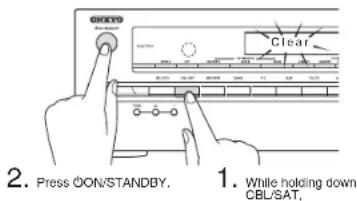
Resetting the unit to the status at the time of shipment may solve the problem. If the measures above do not solve the problem, reset the unit with the following procedure. If you reset the unit status, your preferences will be reset to the defaults. Note them down before starting reset.
- How to reset:
- While holding down CBL/SAT on the main unit (note that step 2 must be performed with this button pressed down)
- Press ON/STANDBY on the main unit ("Clear" appears on the display and the unit returns to standby)
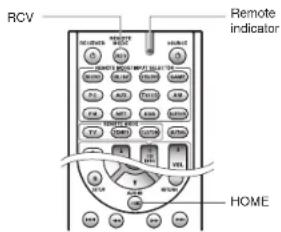
● How to reset the remote controller:
- While holding down RCV on the remote controller, press HOME until the remote indicator stays lit (about 3 seconds)
2. Within 30 seconds, press RCV again
Specifications
Amplifier Section
Rated Output Power
All channels: 60 watts minimum continuous power per channel,
8 ohm loads, 2 channels driven from 20 Hz to 20 kHz, with a
maximum total harmonic distortion of 0.7% (FTC)
90 watts minimum continuous power per channel, 6 ohm loads,
2 channels driven at 1 kHz, with a maximum total harmonic
rtion of 0.7% (FTC)
(North American)
5 ch × 100 W at 6 ohms, 1 kHz, 1 ch driven of 1% (IEC) (Others)
Maximum Effective Output Power
5 ch × 120 W at 6 ohms, 1 kHz, 1 ch driven (JEITA) (Asian)
Dynamic Power (±)
* IEC60268-Short-term maximum output power
160 W (3 Ω, Front)
125 W (4 Ω, Front)
85 W (8 Ω, Front)
THD+N (Total Harmonic Distortion+Noise)
0.7% (20 Hz - 20 kHz, half power)
Damping Factor
0 (Front, 1 kHz, 8 Ω)
Input Sensitivity and Impedance (Unbalance)
00 mV/47 kΩ (LINE)
Rated RCA Output Level and Impedance
00 mV/2.2 kΩ (LINE OUT)
Maximum RCA Output Level and Impedance
0 V/2.2 kΩ (LINE OUT)
Frequency Response
5 Hz - 100 kHz/+1 dB, -3 dB (Direct mode)
Tone Control Characteristics
±10 dB, 20 Hz (BASS)
±10 dB, 20 kHz (TREBLE)
Signal to Noise Ratio
100 dB (LINE, IHF-A)
Speaker Impedance
6Ω-16Ω
Video Section
Input Sensitivity/Output Level and Impedance
Vp-p/75 Ω (Component Y)
0.7 Vp-p/75 Ω (Component P /C, P /C,)
1 Vp-p/75 Ω (Composite)
Component Video Frequency Response
5 Hz - 100 MHz/+0 dB, -3 dB
Tuner Section
FM Tuning Frequency Range
87.5 MHz - 107.9 MHz (North American)
87.5 MHz - 108.0 MHz. RDS (Others)
AM Tuning Frequency Range
522/530 kHz - 1611/1710 kHz
Preset Channel
40
Bluetooth Section
Communication system
Bluetooth Specification version 2.1 + EDR (Enhanced Data Rate)
Maximum communication range
Line of sight approx. 15 m (*)
Frequency band
2.4 GHz band (2.4000 GHz - 2.4835 GHz)
Modulation method
FHSS (Freq Hopping Spread Spectrum)
patible Bluetooth profiles
A2DP 1.2 (Advanced Audio Distribution Profile)
AVRCP 1.3 (Audio Video Remote Control Profile)
Supported Codecs
SBC
Transmission range (A2DP)
20 Hz - 20,000 Hz (Sampling frequency 44.1 kHz)
The actual range will vary depending on factors such as obstacles
between devices, magnetic fields around a microwave oven, static
electricity, cordless phone, reception sensitivity, antenna's
performance, operating system, software application, etc.
General
Power Supply
AC 120 V, 60 Hz (North American)
AC 230 V, 50 Hz (European)
AC 220 - 240 V, 50/60 Hz (Others)
Power Consumption
3.2 A (North American)
330 W (European)
360 W (Others)
0.2 W (Stand-by, North American)
0.3 W (Stand-by, Others)
55 W (No-sound)
Dimensions (W × H × D)
435 mm × 150 mm × 321 mm
17-1/8" × 5-7/8" × 12-5/8"
Weigh
7.6 kg (16.8 lbs.) (North American)
8.1 kg (17.9 lbs.) (Others)
HDMI
Input
IN1 (BD/DVD), IN2 (CBL/SAT), IN3 (STB/DVR), IN4 (GAME), IN5 (PC).
IN6
Output
OUT
Video Resolution
Pass Through : 4K 60 Hz (YCbCr 4:2:0)
Audio Format
DTS-HD Master Audio, DTS-HD High Resolution Audio, Dolby TrueHD,
Dolby Digital Plus, DSD, Multichannel PCM
Supported
3D, Audio Return Channel, DeepColor, x.v.Color, LipSync, CEC (RIHD)
Component
IN (GAME)
Composite
IN1 (CBL/SAT), IN2 (STB/DVR), IN3 (GAME), AUX
■ Video Outputs
Component
OUT
Composite
MONITOR OUT
Digital
OPTICAL (TV/CD)
COAXIAL 1 (BD/DVD), 2 (CBL/SAT)
Analog
BD/DVD, CBL/SAT, STB/DVR, GAME, PC, TV/CD, AUX
■ Audio Outputs
Analog
ZONE2 LINE OUT
SUBWOOFER PRE OUT
Speaker Outputs
FRONT L/R, CENTER, SURROUND L/R
Phones
PHONES (Front, o 6.3)
■ Others
BI
1
USB 1
Specifications and features are subject to change without notice.
DOLBY TRUEHD
Manufactured under license from Dolby Laboratories. Dolby, Pro Logic and the double-D symbol are trademarks of Dolby Laboratories.
dts-hd
For DTS patents, see http://patents.dts.com.
Manufactured under license from DTS Licensing Limited. DTS, DTS-HD, the Symbol, & DTS and the Symbol together are registered trademarks of DTS, Inc. ^13 DTS, Inc. All Rights Reserved.
CINEMA FILTER
*CINEMA FILTER" and "CINEMA FILTER (logo)" are trademarks of Onkyo Corporation.
AccuEQ, Music Optimizer, RIHD and WRAT are trademarks of Onkyo Corporation.
"RIHD" and "RIHD (logo)" are trademarks of Onkyo Corporation.
HDMI®
The terms HDMI and HDMI High-Definition Multimedia Interface, and the HDMI Logo are trademarks or registered trademarks of HDMI Licensing LLC in the United States and other countries.
Bluetooth
The Bluetooth ^® word mark and logos are registered trademarks owned by Bluetooth SIG, Inc. and any use of such marks by Onkyo is under license. Other trademarks and trade names are those of their respective owners.
Onkyo does not guarantee Bluetooth compatibility between the AV receiver and all Bluetooth-enabled devices.
For compatibility between the AV receiver and another device with Bluetooth technology, consult the device's documentation and dealer. In some countries, there may be restrictions on using Bluetooth devices. Check with your local authorities.
InstaPrevue and the InstaPrevue logo are trademarks or registered trademarks of Silicon Image, Inc. in the United States and other countries.
Apple, iPod and iPhone are trademarks of Apple Inc., registered in the U.S. and other countries.
Apple TV is a trademark of Apple Inc., registered in the U.S. and other countries.
This product is protected by certain intellectual property rights of Microsoft. Use or distribution of such technology outside of this product is prohibited without a license from Microsoft.
Windows and the Windows logo are trademarks of the Microsoft group of companies.
QR Code is a registered trademark of DENSO WAVE INCORPORATED.
Safari is a trademark or registered trademark of Apple Computer, Inc. in the United States and other countries.
"x.v.Color" is a trademark of Sony Corporation.
MPEG Layer-3 audio coding technology licensed from Fraunhofer IIS and Thomson.
"All other trademarks are the property of their respective owners."
Precautions
For European Models
We declare, under our sole responsibility, that this product complies with the standards:
- Safety
– Limits and methods of measurement of radio disturbance characteristics
– Limits for harmonic current emissions
- Limitation of voltage changes, voltage fluctuations and flicker
- RoHS Directive, 2011/65/EU
– Hereby, Onkyo Corporation, declares that this HT-RC630 is in compliance with the essential requirements and other relevant provisions of Directive 1999/5/EC.
– С настоящето, Onkyo Corporation, декларира, че HT-RC630 в съответствие със съществените изисквания и другителижими разпоредби на Директива 1999/5/EC.
– Onkyo Corporation timto prohlašuje, že HT-RC630 splňuje základní požadavky a všechna příslušná ustanovení Směmice 1999/5/ES.
- Underlegnede Onkyo Corporation erklærer herved, at følgende udstyr HT-RC630 overholder de væsentlige krav og øvrige relevante krav i direktiv 1999/5/EF.
– Hiermit erklärt Onkyo Corporation, dass sich das Gerät HT-RC630 in Übereinstimmung mit den grundlegenden Anforderungen und den übrigen einschlägigen Bestimmungen der Richtlinie 1999/5/EG befindet.
– Käesolevaga kinnitab Onkyo Corporation seadme HT-RC630 vastavust direktiivi 1999/5/EÜ põhinõuelele ja nimelatud direktiivist tulenevatele telstele aslakohastele sätetele.
- ME THN ΠΑΡΟΥΣΑ Ο ΚΑΤΑΣΚΕΥΑΣΤΗΣ Οηκον Μερίους ΔΗΛΩΝΕΙ ΟΤΙ ΗΤ-RC630 ΣΥΜΜΟΡΦΩΝΕΤΑΙ ΠΡΟΣ ΤΙΣ ΟΥΣΙΩΔΕΙΣ ΑΠΑΙΤΗΣΕΙΣ ΚΑΙ ΤΙΣ ΛΩΠΕΣ ΣΧΕΤΙΚΕΣ ΔΙΑΤΑΞΕΙΣ ΤΗΣ ΟΔΗΓΙΑΣ 1999/5/ΕΚ
- Por la presente, Onkyo Corporation, declara que este HT-RC630 cumple con los requisitos esenciales y otras exigencias relevantes de la Directiva 1999/5/EC.
- Par la présente, Onkyo Corporation déclare que l'appareil HT-RC630 est conforme aux exigences essentielles et aux autres dispositions pertinentes de la directive 1999/5/CE.
- Con la presente Onkyo Corporation dichiara che questo HT-RC630 è conforme ai requisiti essenziali ed alle altre disposizioni pertinenti stabilite dalla direttiva 1999/5/CE.
– Ar ëo Onkyo Corporation deklarē, ka HT-RC630 atbilst Direktīvas 1999/5/EK būtiskaiām prasībām un citiem ar to saisītājiem notcikumiem.
- Šluo Onkyo Corporation deklaruoja, kad šis HT-RC630 atitinka esminius reikalavimus ir kitas 1999/5/EB Direktvyos nuostatas.
– A Onkyo Corporation ezzennel kijelenti, hogy a HT-RC630 tipusü berendezés teljesíti az alapvelő követelményeket és más 1999/5/EK irányelvben meghatározotí vonatkozó rendelkezéseket.
- Hierbij verklaart Onkyo Corporation dat het toestel I HT-RC630 in

natural_image
Technical line drawing of a mechanical component with circular features and a base plate (no text or symbols)
natural_image
Four technical diagrams showing mechanical components with arrows indicating motion or force, no text or symbols present.
3 Autres connexions
ARC (Audio Return Channel)
60 (Avant, 1 kHz, 8 Ω)
1 Vp-p/75 Ω (Composite)
522/530 kHz - 1611/1710 kHz
Chaîne préréglée
40
Partie Bluetooth
Specification Bluetooth version 2.1 + EDR (Enhanced Data Rate)
Portée maximale
FHSS (Freq Hopping Spread Spectrum)
Profils Bluetooth compatibles
A2DP 1.2 (Advanced Audio Distribution Profile)
AVRCP 1.3 (Audio Video Remote Control Profile)
Formats supportés
SBC
Dimensions (L × H × P)
435 mm × 150 mm × 321 mm
17-1/8" × 5-7/8" × 12-5/8
Poids
IN1 (BD/DVD), IN2 (CBL/SAT), IN3 (STB/DVR), IN4 (GAME), IN5 (PC),
IN6
Sortie
OUT
Résolution vidéo
Pass Through : 4K 60 Hz (YCbCr 4:2:0)
Format audio
DTS-HD Master Audio, DTS-HD High Resolution Audio, Dolby TrueHD,
Dolby Digital Plus, DSD, Multichannel PCM
Supportés
3D, Audio Return Channel, DeepColor, x.v.Color, LipSync, CEC (RIHD)
■ Entrées Vidéo
Composant
IN (CBL/SAT)
Composite
IN1 (CBL/SAT), IN2 (STB/DVR), IN3 (GAME), AUX
■ Sorties Vidéo
Composant
out
Composite
MONITOR OUT
■ Entrées Audio
Numérique
OPTICAL (TV/CD)
COAXIAL 1 (BD/DVD), 2 (CBL/SAT)
Analogique
BD/DVD, CBL/SAT, STB/DVR, GAME, PC, TV/CD, AUX
■ Sorties Audio
Analogique
ZONE2 LINE OUT
SUBWOOFER PRE OUT
natural_image
Technical line drawing of a mechanical component with circular features and a flat top panel (no text or symbols)
ARC (Audio Return Channel)
Panel Trasero
0 (Frontal, 1 kHz, 8 Ω)
522/530 kHz - 1611/1710 kHz
17-1/8" × 5-7/8" × 12-5/8"
Peso
7,6 kg (16,8 lbs.) (Norteamericanos)
IN1 (BD/DVD), IN2 (CBL/SAT), IN3 (STB/DVR), IN4 (GAME), IN5 (PC),
IN6
Salida
OUT
Resolución de Vídeo
Pass Through : 4K 60 Hz (YCbCr 4:2:0)
Formato de Audio
DTS-HD Master Audio, DTS-HD High Resolution Audio, Dolby TrueHD,
Dolby Digital Plus, DSD, PCM multicanal
Compatible
3D, Audio Return Channel, DeepColor, x.v.Color, LipSync, CEC (RIHD)
■ Entradas de Vídeo
Componentes
IN (CBL/SAT)
Compuesto
IN1 (CBL/SAT), IN2 (STB/DVR), IN3 (GAME), AUX
■ Salidas de Vídeo
Componentes
out
Compuesto
MONITOR OUT
■ Entradas de Audio
Digital
OPTICAL (TV/CD)
COAXIAL 1 (BD/DVD), 2 (CBL/SAT)
Analogico
BD/DVD, CBL/SAT, STB/DVR, GAME, PC, TV/CD, AUX
■ Salidas de Audio
Analógic
ZONE2 LINE OUT
SUBWOOFER PRE OUT
Salidas de Altavoces
FRONT L/R, CENTER, SURROUND L/R
Auriculares
PHONES (Frontal, ø 6,3)
■ Otros
RI
1
USB 1
18 Park Way, Upper Saddle River, N.J. 07458, U.S.A.
For Dealer, Service, Order and all other Business Inquiries:
Tel: 201-785-2600 Fax: 201-785-2650
http://www.us.onkyo.com/
For Product Support Team Only:
1-800-229-1687
Europe
Onkyo Europe Electronics GmbH
Liegnitzerstrasse 6, 82194 Groebenzell, GERMANY
Tel: +49-8142-4401-0 Fax: +49-8142-4208-213
http://www.eu.onkyo.com/
Onkyo Europe Electronics GmbH (UK Branch)
Meridien House, Ground floor, 69 - 71 Clarendon Road, Watford, Hertfordshire, WD17 1DS, United Kingdom
Tel: +44 (0)8712-00-19-96 Fax: +44 (0)8712-00-19-95
China
Onkyo China Limited (Hong Kong)
Unit 1033, 10/F, Star House, No 3, Salisbury Road, Tsim Sha Tsui Kowloon, Hong Kong.
Tel: 852-2429-3118 Fax: 852-2428-9039
http://www.hk.onkyo.com/
Onkyo China PRC (Mainland)
1301, 555 Tower, No.555 West NanJing Road, Jing'an District, Shanghai, China 200041,
Tel: 86-21-52131366 Fax: 86-21-52130396
http://www.cn.onkyo.com/
Asia, Oceania, Middle East, Africa
Please contact an Onkyo distributor referring to Onkyo SUPPORT site.
http://www.intl.onkyo.com/support/
The above-mentioned information is subject to change without prior notice.
Visit the Onkyo web site for the latest update.
SN 29401805
(C) Copyright 2014 Onkyo Corporation Japan. All rights reserved.
D1405-0