
BTX1 FM - Earphones MIDLAND - Free user manual and instructions
Find the device manual for free BTX1 FM MIDLAND in PDF.



| Product Type | Bluetooth intercom system for motorcycle with FM radio |
| Brand | Midland |
| Model | BTX1 FM |
| Bluetooth Version | 3.0 stereo (headset, hands-free, A2DP profiles) |
| Intercom range | Up to 10 meters between BTX1 FM modules |
| Battery type | Built-in rechargeable lithium battery |
| Battery life | Approximately 12 hours talk time |
| Charging time | Approximately 6 hours (first charge: 8 hours) |
| Water resistance | Waterproof – check connector caps in case of rain |
| FM Radio | FM stereo receiver with RDS, 6 station presets |
| Main functions | Intercom driver/passenger, Bluetooth phone, A2DP stereo music, FM radio, GPS connection, wired auxiliary input, VOX, AGC |
| Wired connectivity | 2.5 mm AUX audio input for MP3 player or PMR446 radio |
| Audio kit | Two ultra-thin stereo earpieces, interchangeable boom microphone and wired microphone |
| Mounting | Double-sided adhesive mount or clip for helmet |
| Care and cleaning | Clean with a soft dry cloth. Do not immerse. Check condition of rubber caps. |
| Safety | Do not use at excessive volume to avoid hearing damage. Keep at least 20 cm away from the body. |
| Warranty | 24 months for equipment, 6 months for accessories (battery, charger, etc.) |
| General information | Black color. CE and FCC approved. Manufacturer: Midland Europe. |
Frequently Asked Questions - BTX1 FM MIDLAND
User questions about BTX1 FM MIDLAND
0 question about this device. Answer the ones you know or ask your own.
Ask a new question about this device
Download the instructions for your Earphones in PDF format for free! Find your manual BTX1 FM - MIDLAND and take your electronic device back in hand. On this page are published all the documents necessary for the use of your device. BTX1 FM by MIDLAND.
USER MANUAL BTX1 FM MIDLAND
Main features 14
Technical specifications of Midland BTX1 FM 14
Charging batteries 14
Unit and fixing system description 15
Switching your Midland BTX1 FM on and off. 16
Operative "mode" 16
How to pair two BTX1 FM units. 17
Compatibility with other Midland BT line units. 17
Talk 2 All - Pairing to a different brand intercom 18
Pairing the BTX1 FM to Bluetooth devices. 18
GPS Navigator 20
How to listen to the FM Radio 20
How to use the wired audio input 21
Using a PMR446 transceiver with the cable connection 21
Setup and special configurations 22
Setup and Firmware update 23
Warranty 23
MIDLAND BTX1 FM
Basic Intercom System
BTX1 FM is an intercom communication system solution for motor cyclists. The design is very slim and aerodynamic, all the main functions are easy to operate thanks to the big three buttons placed on the front of the unit.
BTX1 FM is fixed on the helmet using the adhesive plate or the screw mounting clamp. Thanks to the audio kit with ultra slim speakers you can enjoy high quality stereo music while riding.
Main features
Intercom driver-passanger (10mt).
FM Radio Stereo with RDS
Connect your phone to receive and place phone call and listen to stereo music
Connect your GPS for voice street indication
Connection for PMR466 radio with internal or external Bluetooth
AUX wired connection for MP3 player and PMR446 radio
Setup and Firmware update via USB connection to a PC
Midland BTX1 FM is available in two versions:
Single BTX1 FM Intercom kit with one unit only
Twin BTX1 FM Intercom kit with with two units
Depending on the model purchased, the package contains the following parts:
BTX1 FM single
1 BTX1 FM communication unit
1 audio kit with two stereo speakers, microphone with boom and wired microphone
1 plate with bi-adhesive strip to fix the unit onto the helmet
1 clamp to fix the unit onto the helmet
1 miniUSB wall-mounting power supply
BTX1 FM Twin
2 BTX1 FM communication units
2 audio kits with two stereo speakers, microphone with boom and wired microphone
2 plates with bi-adhesive strip to fix the unit onto the helmet
2 clamps to fix the unit onto the helmet
1 miniUSB wall-mounting power supply with double plug
The units included in the TWIN kit are already paired and can therefore be immediately used in Intercom mode.
Technical specifications of Midland BTX1 FM
General:
Bluetooth ver. 3.0 stereo (Headset/Handsfree/A2DP protocol)
AGC system automatically controls the volume in relation to background noise
Voice (VOX) or manual communications activation
Manual controls to enable: telephone, intercom and wire connection
Fully waterproof
Lithium battery with 12 hours talk time
Recharge time:app.6 hours
Bluetooth connections:
With identical device for Driver to Passanger intercom
Bluetooth devices:
Mobile phone with MP3 player Stereo (A2DP protocol) and GPS navigator
PMR446 transceivers (with built-in or external Bluetooth connection) for group bike-to-bike communications
Wire connections:
For stereo audio input like iPod/MP3 player (with optional cable)
For PMR446 transceivers (with optional cable)
Attention: Midland BTX1 FM is designed to withstand rain and water. However, if it is raining, always verify that the rubber caps protecting the sockets are fully fitted.
Charging batteries
Attention: Make sure that the unit is fully charged before use. Allow at least 8 hours for a full charge before using the unit for the first time.
Charge the unit by inserting the wall-charger into the charging socket (lift the rubber cover to insert the plug).
The red LED on the unit will start flashing when charging begins.
Allow the headset to charge until the unit stops flashing or the blue LED turns on.
When the charge is complete (the red LED is not flashing), release the headset from the charger.
Normally, after the first time, it takes 6 hours for a full charge.
Attention: every time the mini USB recharging plug is inserted (or detached), the device is automatically turned off. To use it while it is in charge, you should turn the device on with the plug already inserted.
Unit and fixing system description
BTX1 FM description
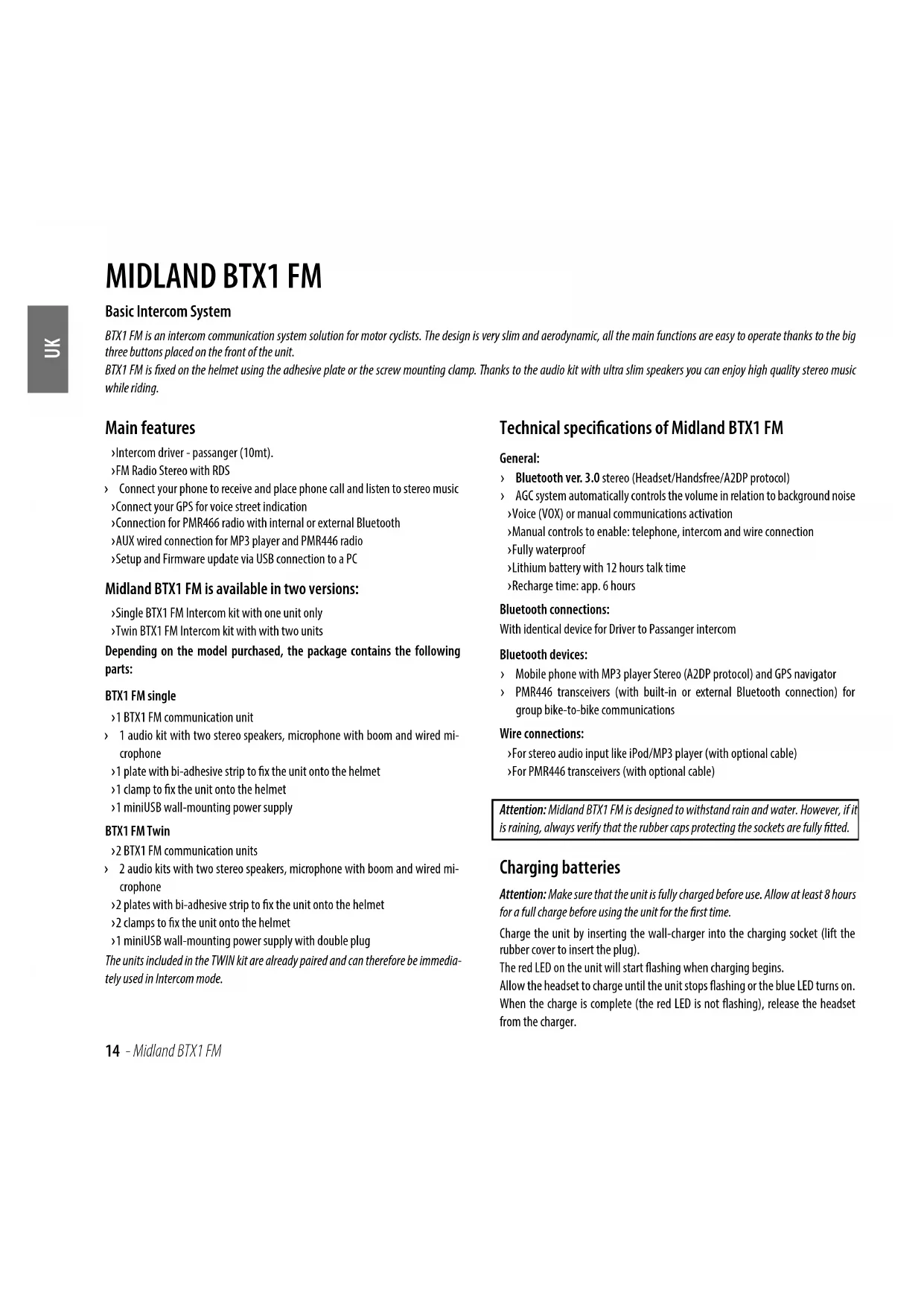
The BTX1 FM has five buttons on the front; the main three big button are multi functions buttons: the Forward (on the left), the middle button and the Backward (on the right), the two small rounded buttons are the Volume + and Volume -
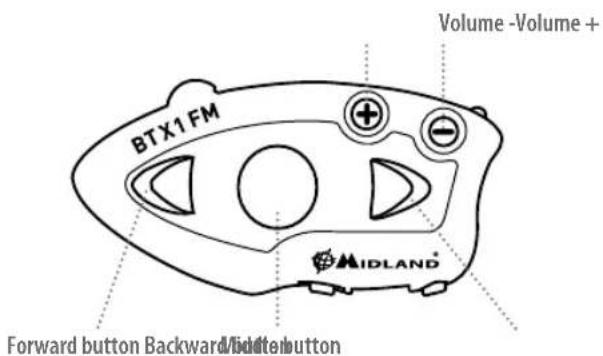
Description of the wired connections
On the bottom of the unit you can find three wired connection:
Charger jack: enables to recharge the unit using a standard miniUSB power supply
Audio kit jack: enable to connect an audio kit (stereo headset and microphone)
Auxiliary audio jack (AUX) 2.5mm: can be used to connect an audio source, like a stereo iPod/MP3 player or PMR446 transceiver
Description of the audio kit
The audio system includes two ultra-flat stereo speakers and two interchangeable microphones, which are both supplied with a bracket and wired connection.

Fixing the stereo speakers
The two stereo speakers have a Velcro/adhesive strip that aids their fixing into your helmet.
Beware not to completely cover your ear with the speakers, you must always be able to listen to the traffic sound and your indicators.
The microphone can be fixed onto the helmet in two ways:
Boom Microphone
Place the section with the Velcro/adhesive strip between the padding and the rigid cover of the helmet, so that the microphone is correctly positioned in front of your mouth and that the white symbol is facing your mouth. This type of microphone is suited for Open Faced and Flip Front helmets.

Wired microphone
Using the Velcro/adhesive strip, place the microphone inside the helmet in front of your mouth. This type of microphone is more suited for Full Faced helmets. The mini connector on the microphone allows you choose the microphone that best suits the helmet you are using.

Audio kit jack
The audio kit must then be connected to the central jack of the Midland BTX1 FM unit using the "L" shaped connector.
Description of the installation brackets
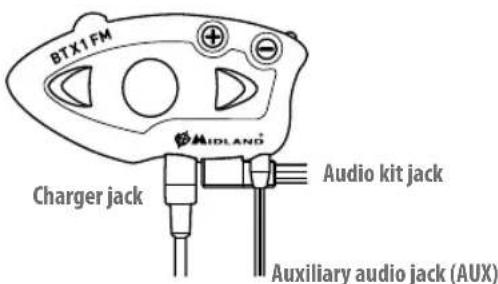
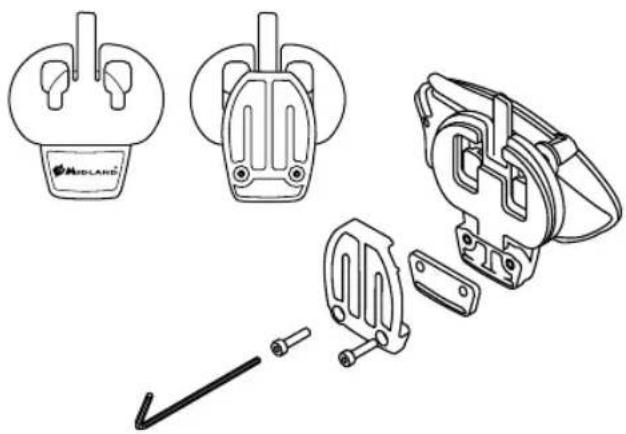
The Midland BTX1 FM can be fixed onto the helmet in two different ways: By either using the plate with bi-adhesive strip, or the clamp. These methods allow you to safely "fix" the BTX1 FM unit onto your helmet and to remove it at any time in order to recharge or store it.
Plate with bi-adhesive strip
The fixing plate has a bi-adhesive strip on one of its sides. To fix the plate in place, clean the application area on the helmet surface, remove the bi-adhesive film and
place the fixing plate on the helmet by keeping it contact with the surface for a few seconds.

Screw Clamp
Using the Allen Key, loosen the two screws on the clamp and place the Backward plate between the helmet padding and the external rigid protection. Then, tighten the two screws in order to firmly fix the clamp in place. Inside the clamp is included a small plastic spacer that can be removed to give a tighter fit if required.
Fitting and removing your Midland BTX1 FM
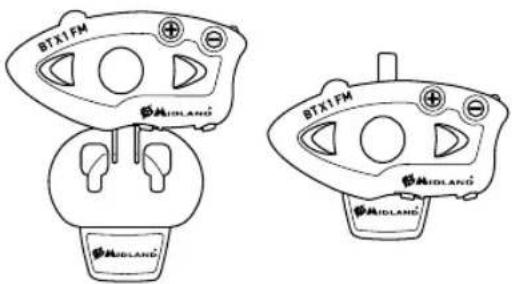
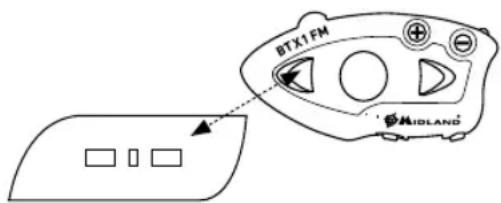
The BTX1 FM can be easily fitted onto the helmet by sliding it downwards so that it fits into the slot of the selected fixing device (plate with bi-adhesive strip or clamp). BTX1 FM is maintained in position thanks to the fixing clip located on the upper section (A).
To detach the BTX1 FM, simply press the fixing clip and push the unit upwards.
Switching your Midland BTX1 FM on and off
Switching the unit on:
Press and hold "Middle" button down for approximately 3 seconds until the BLUE indicator lights.
Switching the unit off:
Press and hold both "Middle" and "Backward" buttons together for approximately 3 seconds until the RED indicator flashes 3 times, thus lessening the chances that you might turn off the unit accidentally (especially whilst wearing gloves).
Operative "mode"
The BTX1 FM can operate in three main "mode": Intercom, Phone and FM Radio.
The 3 multi function buttons can have different functionality depending on which mode the unit is at that moment.
In "Intercom mode" the middle buttons let you manage the communications between driver and passanger
In "Phone mode" you can manage your Bluetooth cellular phone to place/ answer a phone call or to listen to the music (in stereo mode). Please use your phone responsibly and safely.
In "FM Radio mode" you can listen to your favourite radio station in stereo, seek for a specific radio station and save it (6 memory are available).
You can switch (toggle) from one mode to the other simply pressing the Middle button for 3 seconds. A voice announcement will tell in which mode you are on.
The toggle sequence is the following:
Intercom mode (if another unit has been paired)
FM Radio
Phone mode (if a phone has been paired)
Every time you turn on the unit, the default mode is Intercom (if it was previously paired to another unit), otherwise it will be Phone (If was paired to a phone).
If you need to know in which mode the unit currently is, just press the "Volume + " and "Volume - " button together. A voice announcement will tell you the current mode.
How to pair two BTX1 FM units
The two units supplied in the same BTX1 FM box, are already paired and ready to use, which mean you don't need to perform this procedure. The unit are already paired using the Middle button.
If the devices are not part of the same kit, or the units has been purchased separately, you need to first pair it in order to use it.
To pair the BTX1 FM to another BTX1 FM unit
To pair the BTX1 FM to another BTX1 FM unit, you must first enter the setup mode:
- Turn off the unit
- Press and hold down the middle button about 7 sec., until the Red light is on permanently.
- Now press the Middle button for 3 seconds. The Blue and Red light will flash.
- Do the same procedure on the other unit, When successfully paired, each unit will have the Blue light on for one second and than go back to the setup mode (Red light always on).
- Now the pairing procedure is complete, you just need to exit the setup mode before you can use the units:
- Double click on the Middle button, the Red light will turn off and the Blue light will start flashing.
You can use now your BTX1 FM.
How to use the Intercom
To use the intercom feature, be sure the both units are turned on and correctly paired together.
Manual activation
Press the Middle button on one of the two units. Communication is enabled and remains active until you press again the middle button. The intercom need some second to activate, you will hear a beep tone when the intercom is open.
Voice activation (VOX)
Simply start talking, after some seconds the communication will be opened and will remain active for the time you are talking. If there is no conversation the intercom will be closed after 40 seconds. If needed you can close the intercom manually without waiting 40 seconds (just press the middle button).
If needed, you can disable the VOX feature simply by pressing the Backward button for 7 sec. A voice announcement will advise you when the VOX is disabled. To turn the VOX on again, just press the same button and a voice announcement will advise you that the VOX is now active. This setting is remembered also if you turn off the unit.
Adjusting the volume
Your Midland BTX1 FM uses AGC technology, which automatically adjusts the listening volume in relation to background noises.
However, it is also possible to manually adjust the volume by means of the "Volume +" and "Volume -" buttons.
Attention: volume can be adjust only when an audio connection is active.
Attention: the volume buttons (Vol + and Vol-) cannot be used to adjust the volume of the wired audio source. The AGC system with automatically increase the volume on higher speed.
Compatibility with other Midland BT line units
The BTX1 FM is compatible with BT Next Conference and BTX2 FM.
When paired the max distance of the intercom is defined from the lower possible.
The BTX1 FM is compatible with the previous line of Midland BT (BT Next, BTX2 and BTX1) only if updated to firmware version 2014.
A-Manual activation
Mode Forward button Middle button Backward button
Intercom Short press: Open/Close intercom to paired
raider
Long press: Change mode
Long press: Toggle on/off wired
Talk 2 All - Pairing to a different brand intercom
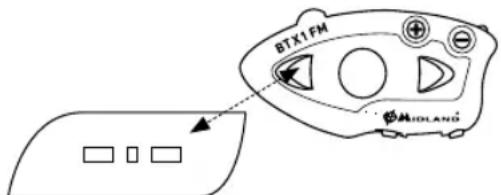
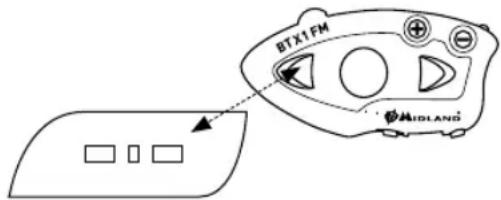
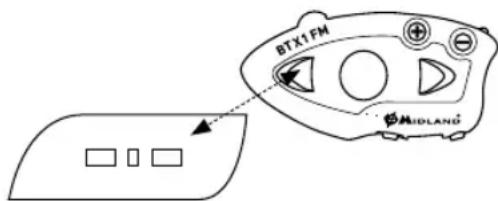
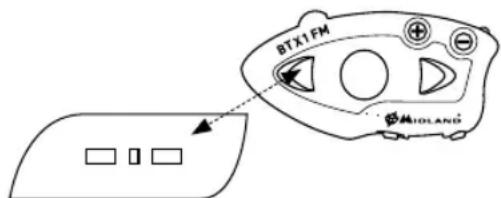
Thanks to the "Talk2 All - Universal Intercom" feature it is now possible to pair your BTX1 FM to a different brand intercom available on the market.
- On the BTX1 FM enter the setup mode: (With the unit OFF press and hold down the Middle button about 7 sec., until the Red light is on permanently.
- Press the "Forward" button for 3 seconds, the Red and Blu LED light will flash.
- On the other intercom (not Midland brand) follow the procedure to pair to a phone.
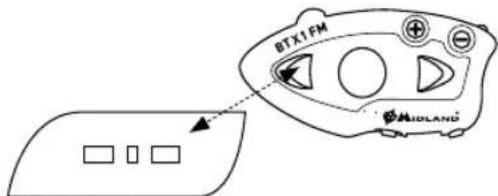
Talk2All - Universal Intercom not Midland brand device
Attention: remember to switch OFF all the other Bluetooth device, only the two devices involved in the pairing must be turned on.
If successfully paired the red/blue light will stop flashing and the blu light will slowly flash instead.
To open the intercom communication on the BTX1 FM press forward button.
On the other intercom just press the phone radial button.
Maybe it will be necessary to press the dial button two times, depending on the model of the not Midland intercom.
Attention: when using this configuration, the other intercom (not Midland brand) will not be able to be paired to a phone.
Pairing the BTX1 FM to Bluetooth devices
The BTX1 FM Conference unit can be paired to other Bluetooth devices, like Phone, GPS Navigator or PMR446 Radio with built-in or external Bluetooth (dongle). The pairing procedure must be done using the "Volume +" or the "Volume -" buttons.
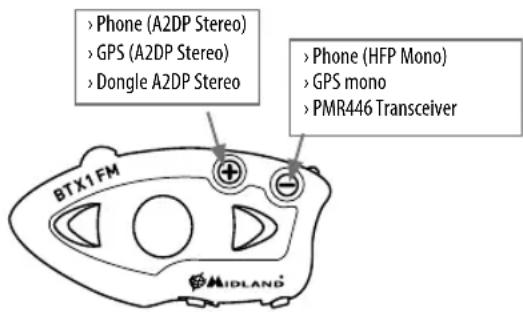
Pairing to the "Volume +" button: for Phone with music A2DP stereo, GPS Navigator with A2DP audio or external mono/Stereo A2DP dongle.
All devices paired to "Volume +" button has higher priority and will interrupt all the other communication (like Intercom, FM Radio and Music).
Pairing to the "Volume -" button: for a second phone with mono audio (Hands Free Protocol) for GPS navigators/ Radar detector and other devices which mono audio.
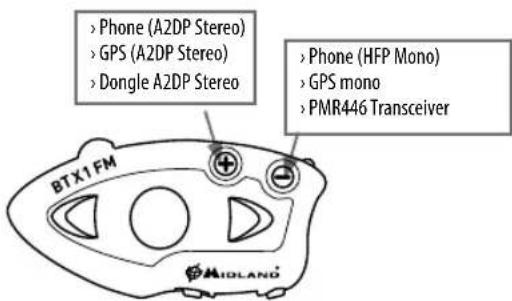
When a device is paired to the "Vol +" or "Vol -" buttons the "Phone" mode is activated.
Attention: A2DP audio source are supported only on Vol+. The second phone paired on Vol- can support only mono audio (HFP).
Background feature
It is possible to keep always in background the audio of the device paired on Vol- button. In this way the Intercom communication will not be interrupted, for example, by the GPS's street indication or the G8BT radio communication.
To activate the "Background" feature just press long the "Vol-" button, the voice "Background ON" will tell you that now is active.
To deactivate the "Background" feature just press again long the "Vol-" button, the voice "Background disable" will tell you that now is not active anymore.
By default the "Background" feature is off.
Attention: we can't guarantee this features because is depending on third part device.
Pairing with one or two phone
The cellular phone can be paired to the "Vol +" (if the support for stereo A2DP is requested) or to the "Vol -".
When a phone is paired to the "Vol +" or "Vol-" the "Phone" mode is activated. An incoming call has always the higher priority, that means all other communications will be closed (Intercom, FM Radio, Music).
If another incoming call will arrive on the second phone, alert sound will notify it.
How to pair the BTX1 FM to a Phone
To pair the BTX1 FM to a Phone, you must first enter the setup mode:
- Turn off the unit
- Press and hold down the middle button about 7 sec., until the Red light is on permanently.
- Now press for 3 seconds the "Volume +" or "Volume -" button, the Blue and Red light will flash.
- Enable the Bluetooth device search feature on your mobile phone
- After some seconds, "Midland BTX1 FM" will be displayed on your mobile phone. Follow the pairing procedure of your Phone. If a pin code is requested you must enter "0000" (four time zero).
When successfully paired, the Blue light of the unit will be on for one second and then the unit will exit the setup mode and switch to the working mode (the Blue light will start flashing).
You can use now your BTX1 FM together with the Phone.
How to use a Phone
After pairing your phone to the BTX1 FM unit you must switch to the "Phone" mode in order to use it. Press the middle button until you hear "Phone" from the voice announcement. Now all the three main buttons are dedicated to the phone (see Table B)
Answering a call
When you hear the phone ring, you can answer in two different ways:
Vocally:
Simply say one word to answer the call and start talking.
Manually:
Tap the "Forward" button and start talking.
Rejecting a call
If you don't wish to answer, you can let the mobile phone ring or press the "Forward" button for 3 seconds (you will hear one audio confirmation tone).
Making a call
There are several ways to make a call.
From the mobile keypad:
Dial the number on the mobile keypad:
Press "Send" on the mobile phone.
To redial the last number:
Phone on Vol+: Press"Forward" button for 3 seconds in order to radial the last number (you will hear one audio confirmation tone).
Phone on Vol:- Press"Backward" button for 3 seconds in order to radial the last number (you will hear one audio confirmation tone).
To make a voice call:
Phone on Vol+: Briefly press"Forward" button. If your mobile phone supports voice calls, you will be asked to speak the name of the contact you wish to call.
Phone on Vol:- Briefly press"Backward" button. If your mobile phone supports voice calls, you will be asked to speak the name of the contact you wish to call.
Priority: Calls have a high priority, which means that all other communications are temporarily disabled when a call arrives.
Ending a call
There are several ways to end a call:
Wait for the called person to end the call.
Press the "Forward" button (you will hear an audio confirmation tone).
Press"End" button on the mobile phone.
Using the MP3 player feature of the mobile phone
The mobile phone, when paired on "Volume +" can be used as stereo MP3 players. The BTX1 FM device fully supports the A2DP and AVRCP protocols that enable you to listen to stereo music and remotely control your mobile phone's MP3 player. You can even use the buttons on the BTX1 FM unit to control the following play options: Play, Pause, Forward and Backward.
B-Phone mode
| Mode Forward button (Phone on Vol+) Middle button Backward button (Phone on Vol-) | ||
| Phone Short press: Voice dial /accept or close if it is in progress | Long press: Change mode | Short press: Voice dial /accept or close if it is in progress |
| Long press: radial last number/ or reject | Long press: radial last number/ or reject | |
| Phone (when music is plaining and paired on "Vol +") | Short press: Forward the song Short press: Play/pause | Short press: Backward the song |
| Long press: Change mode | ||
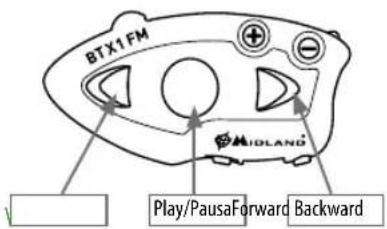
Available controls:
To play/pause music: click on the "Middle" button.
To skip forward to the next song: press the "Forward" button.
To skip backwards to the previous song: press the "Rear" button.
Priority: the music listening mode has the lowest priority. Therefore, it will always be disabled when another type of communication is enabled.
Attention: It is possible to control A2DP Stereo music only in "Phone Mode"
GPS Navigator
The GPS Navigator can be paired using the "Volume+ or the "Volume- button.
Volume + button (support for stereo A2DP audio)
Volume - button (support for mono audio in background)
How to pair the BTX1 FM to a GPS
In general is possible to pair the BTX1 FM to all the GPS for motorbike that support Bluetooth headset connection.
To pair the BTX1 FM to a GPS, you must first enter the setup mode:
- Turn off the unit
- Press and hold down the "Middle" button about 7 sec., until the Red light is on permanently.
- Now press firmly (3 sec) the "Volume +" or "Volume -" button, the Blue and Red light will flash.
- Enable the Bluetooth device search feature on your GPS
- After some seconds, "Midland BTX1 FM" will be displayed on your GPS.
- Follow the pairing procedure of your GPS. If a pin code is requested you must enter "0000" (four times zero).
- When successfully paired, the Blue light of the unit will be on for one second and then the unit will exit the setup mode and switch to the working mode (the Blue light will start flashing).
GPS navigator always in background
To keep the intercom open while the GPS give the street indication you must have the "background" feature active and the GPS paired on "Vol-" button
Attention: we can't guarantee this features because is depending on third part device
Support for Stereo (A2DP) voice announcement
BTX1 FM support Stereo (A2DP) voice announcement from GPS Navigators or smartphone application when paired on "Vol+ button. When a voice announcement "brake in", Intercom or FM radio is interrupted to give priority to the announcement itself. By default this features is ON; it's possible to change the priority using the "BT Updater" PC Software.
How to listen to the FM Radio
The FM Radio receiver is integrated inside the unit. You just need to switch to the "FM Radio" mode in order to use it. Long press the middle button until you hear "FM radio" from the voice announcement. Now all the three main button are dedicated to the FM Radio (See Table).
Press short the Forward or the Backward button to seek the FM Radio station. When you press long the Forward or the Backward button, you can scan up or down the 6 recorded stations. A voice announcement will tell you the number of which memory you are entering. A double beep tone will be played when the last or the first recorded station is reached.
To save the station you are listening, press the Forward and Backward buttons together for 3 sec. You will hear a beep tone for confirmation.
The station is saved over the last recorded station used.
Thanks to the RDS system, the FM Radio will choose the strongest signal available for the radio station you like to listen.
The RDS system is OFF by default, if needed you can toggle on/off the RDS pressing together the "Volume +" and "Volume -" buttons for 3 sec when the radio is on. A voice announcement will tell you the RDS status.
FM Radio with intercom
When you are in "FM Radio" mode is not possible to manually open the intercom, you can only open it using VOX feature (just talk) to the unit paired on the "Middle" button. To manually activate the intercom you must switch to "Intercom" mode.
Radio FM mode
Mode Forward button Middle button Backward button
FM Radio Short press: seek station up
Long press: Scan recorded
Short press: On/off
Long press: Change mode
Short press: seek station down
Long press: Scan recorded
How to Disable/Enable the FM Radio
By default the FM radio is on.
Disabling:
Enter the "Setup" mode: turn off the unit and hold down the "Middle" button about 7 sec., until the Red light is on permanently.
Press "Middle" and "Volume+" buttons together for 3 seconds. The blue LED will flash twice.
Double click on the "Middle" button to exit the "Setup" mode and use the BTX1 FM.
Enabling:
Follow the same procedure up described; now the blue LED will flash once.
To exit the "Setup" mode, double click the "Middle" button.
Pairing to a PMR446 radio with integrated or external Bluetooth
The PMR446 Radio can be paired to the "Volume +" or "Volume -" button. If paired on "Volume -" and the "Background" feature is activated, the PMR446 radio is always in the background even when you talk on the intercom.
Pairing procedure
Turn off the unit
Press and hold down the "Middle" button about 7 sec, until the Red light is on permanently.
Now press firmly (3 sec) the "Vol +" or "Vol -" button, the Blue and Red light will flash.
Follow now the pairing procedure explained on the manual of the transceiver itself
Attention: If you are pairing to a G8BT transceiver, just when the BTX1 FM finish the pairing (only the Blu LED is flashing) you must follow this procedure to activate the Bluetooth connection:
Turn off and on the G8BT and then press for 3 sec. the "BT" button.
Go to phone mode
Press "Backward" button to activate G8BT audio (no need to make the pairing procedure again)
You need to have "background" feature active if you want to have the two way radio conversation in background with the intercom
How to use the wired audio input
Your Midland BTX1 FM is also supplied with a wired audio input (AUX), that can be used to connect an audio source, like an iPod (or any other MP3 Player) or a PMR446 transceiver for group communication or for a coverage increase.
Listening to music
To listen to music from the wired input, connect the audio source using the optional AUX cable.
The volume buttons (Vol + and Vol-) cannot be used to adjust the volume of the wired audio source. The AGC system with automatically increase the volume on higher speed.
Attention: never set the volume of the MP3 Player to the maximum possible. Normally the best level is about the 70% of the maximum.
Hint: We recommend that you perform a few tests adjusting the volume of your iPod/MP3 player so at the normal speed the Headset volume is suited to your needs. The AGC system will automatically increase the volume on higher speed. Make a note to remember this setting for future trips.
Enabling/disabling the wired input
If needed the wired input can be enabled or disabled:
Enabling/Disabling: Make a Long press on the "Middle" and "Forward" button (you will hear one audio beep tone for enabling confirmation and two audio beep tone for disabling).
Using a PMR446 transceiver with the cable connection
In order to connect the transceiver to your Midland BTX1 FM, you need to purchase the specific 2.5mm plug AUX cable, sold separately.
ome manufacturers radios use a different pin configuration, so we recommend that you ask your dealer as to which cable is best suited to your needs.
The cable connected to the transceiver normally has also a PTT button that can be placed on the handlebar of your bike or held in your hand (If you are the passenger rider).
To communicate via the attached radio, press the PTT button to speak and release it to listen. It is not possible to talk and listen simultaneously.
Adjust the volume of the transceiver to your needs, remembering that the volume adjustment is controlled by the automatic AGC system and that it will therefore be automatically increased in relation to background noise.
If you wish to use a PMR446 transceiver for group communications and simultaneously maintain the Intercom feature enabled between two or more BTX1 FM devices, you must remember that every time you talk to communicate with the PMR 446 transceiver (pressing the PTT button), you will also activate the intercom of the BTX1 FM to the unit connected to the "Middle" button (thanks to the VOX feature).
To avoid the Intercom activation when you speak on the PMR446, you can decide to pair the BTX1 FM unit on the "Backward" or "Forward" (where the VOX is not active) or if you still want to use the "Middle" button, you must disable the VOX feature, as explained in the previous section.
Attention! If you disable the VOX feature, you will only be able to answer incoming phone calls by pressing the "Forward" button.
Setup and special configurations
Resetting all paired devices
Sometimes you may find it necessary to delete all the pairing references stored in the BTX1 FM unit (reset operation).
To perform this operation you must first enter the setup mode:
Turn off the unit
Press and hold down the "Middle" button about 7 sec., until the Red light is on permanently.
Than simultaneously press and hold down the "Volume +" and "Volume -" buttons for 3 seconds. The Blue Light will be lit on for 1 sec and then back to steady RED.
Double click on the "Middle" button to exit the "Setup" mode and use the BTX1 FM.
This procedure deletes all the paired Bluetooth devices stored in the memory and it is therefore possible to start a new "clean" pairing session.
Back to factory setting
Sometimes you may find it necessary to go back to the factory setting, to reset all the changes/setup already made and have a "clean" unit.
To perform this operation you must first enter the setup mode: Turn off the unit
Press and hold down the "Middle" button about 7 sec., until the Red light is on permanently.
Than simultaneously press and hold down all the three buttons "Forward" "Middle" "Backward" for 3 seconds. The Blue Light will be lit on for 1 sec and then back to steady RED.
Double click on the "Middle" button to exit the "Setup" mode and use the BTX1 FM.
Adjusting/ Disabling the VOX feature (Intercom and telephone)
The Intercom feature can be enabled both manually and vocally (VOX). The VOX activation is influenced by the background noise and therefore by the speed. For optimum results, it is possible to choose one of the following four microphone sensitivity levels: high, medium, low and very low. The default setting of BTX1 FM is "low". It is also possible to disable the VOX feature in order to activate the Intercom and phone call answering features in manual mode only.
Adjusting the sensitivity of the microphone (VOX)
To perform this operation you must first enter the setup mode:
- Turn off the unit
- Press and hold down the "Middle" button about 7 sec., until the Red light is on permanently.
- Your BTX1 FM is now in "Set up mode".
- Press the "Backward" button until the red light indicator changes to a steady blue.
- Now, press "Volume +" or "Volume -" to increase or reduce sensitivity. Every time you press the Volume buttons the RED light will flash for confirmation. When you reach the end of the upper and lower limit, the RED light will not flash.
- Press again the "Backward" button; the Blue light will flash several times, in order to let you know the selected sensitivity:
One flash = VOX disabled
Twice = very low sensitivity
3 times = low sensitivity
4 times= medium sensitivity (default setting)
5 times = high sensitivity
The light indicator is now back to steady RED ("Set up mode") and the changes are confirmed
- If needed, you can adjust again the sensitivity repeating the steps from point 1, otherwise exit the Setting mode by double clicking the "Middle" button. Once the red light turns off, the blue led starts blinking. Now you can use your BTX1 FM.
Disabling the VOX feature (Intercom and telephone)
Follow all the procedure described in the previous steps and choose the option of only one flash (VOX disabled).
Wired connection always in background
This feature let you keep the wired connection always on, even when the phone or the intercom is open. This feature can be useful when you connect a PMR446 transceiver.
By default this option is on.
Disabling:
Enter the "Setup" mode:
Turn off the unit
Press and hold down the "Middle" button about 7 sec., until the Red light is on permanently.
Press the "Forward" and "Middle" button together for 3 seconds. The blue LED will flash twice.
Double click on the "Middle" button to exit the "Setup" mode and use the BTX1 FM.
Enabling:
Follow the same procedure up described; now the blue LED will flash once.
To exit the "Setup" mode, double click the "Middle" button.
Setup and Firmware update
It is possible to configure and update the firmware of your BTX1 FM using the USB connection to your PC. On the Midland web site www.midlandeurope.com in the BTX1 FM page you can find the PC software and the new firmware updates if available.
ATTENTION DO NOT CONNECT THE UNIT TO THE PC BEFORE you DOWNLOAD AND INSTALL THE SOFTWARE
Use at your own risk
The use of the device will impair your ability to hear other sounds and others around you.
Listening to music or speaking on a telephone may prevent you from hearing others around you and distract you from riding safely. The use of such device while riding may endanger you and others, and its use, in some areas, could not be allowed.
Using this device at a high volume may result in permanent hearing loss.
If you experience ringing in your ear or any other hearing related pain, reduce the volume or discontinue using this device. With continued use at high volume, your ears may become accustomed to the sound level, which may result in permanent damage to your hearing.
Please use this device at a safe volume level.
Warranty
The warranty lasts 24 months for the main device and 6 months for the accessories (batteries, chargers, antennas, headsets).
For further information about the warranty, please visit www.midlandeurope. com
European CE Notice Certification and Safety Approval Information
This product is CE marked according to the RTTE Directive (99/5/EC) and is free use in all the EU countries.
Users are not permitted to make any changes or modifications to the device.
Modifications which are not expressly approved by the producer invalidate the warranty card.
For further information, please go to our website: www.cte.it
FCC Compliance Information
This device complies with Part 15 of the FCC Rules. Operation is subject to the following two conditions: (1) this device may not cause harmful interference, and (2) this device must accept any interference received, including interference that may cause undesired operation.
You are cautioned that changes or modifications not expressly approved by the part responsible for compliance could void the user's authority to operate the equipment.
"This device complies with Industry Canada licence-exempt RSS standard(s).
Operation is subject to the following two conditions: (1) this device may not cause interference, and (2) this device must accept any interference, including interference that may cause undesired operation of the device."
"This equipment complies with Industry Canada radiation exposure limits set forth for an uncontrolled environment."
NOTE: This equipment has been tested and found to comply with the limits for a Class B digital device, pursuant to part 15 of the FCC Rules. These limits are designed to provide reasonable protection against harmful interference in a residential installation. This equipment generates, uses and can radiate radio frequency energy and, if not installed and used in accordance with the instructions, may cause harmful interference to radio communications. However, there is no guarantee that interference will not occur in a particular installation. If this equipment does cause harmful interference to radio or television reception, which can be determined by turning the equipment off and on, the user is encouraged to try to correct the interference by one or more of the following measures:
» Reorient or relocate the receiving antenna.
Increase the separation between the equipment and receiver.
Connect the equipment into an outlet on a circuit different from that
to which the receiver is connected.
Consult the dealer or an experienced radio/TV technician for help.
Warning: Direct plug-in ac/dc power supply must be used for disconnecting the transceiver from the mains; the desktop charger must be positioned close to the unit and easily accessible
Inhalt
Talk2All - Universal Intercom not Midland brand device
Talk2All - Universal Intercom not Midland brand device
Talk2All - Universal Intercom not Midland brand device
supporte la reconnaissance
Carregar as baterias 63
Talk2All - Universal Intercom not Midland brand device
Emparelhamento do BTX1 FM a dispositivos Bluetooth
Evpyooinon kai anevpyooinon tou Midland BTX1 FM
Evpeyonoinon nC ouokevnc:
Piote Kai kpatiote natnevo to "Meaoio" nAnktpo yia nepinou 3 deutepOenta expi va avapei n MIAE evdeikn kuxvia.
Anepepyooinon tnc ouakeunc:
IIEOTK kpatnote natneva kai ta duo nAktpa Meaoia" KAI Backward a iya nepinou 3 deutepolenta mexvi va avoaopnoi n KOKINH Evdekriki luxvia 3 popec, xeiipiooc o onoioc meiwvic mavotntec va ohoete Tnv ouakeun oac kata laoboc (E16ika otav opate yavia).
Kataotaoic leitoupyiac
Talk2All - Universal Intercom not Midland brand device
NWCvaZevayapwOeTe TO BT NEXT Conference ouokoeC BLUETOOTH
To BTX1 FM mnpoei va cevyapoei e aee ocokuec Bluetooth onwc, kivto tnaepwo, nanyo GPS n noptodeknt PMR446 e evowmuovn e Eeotepiko
Bluetooth. H iadkaia Zeyayapawotoc npenei va npayatonoonthetai e xpon Tov niktpw "Volume ^+ nVolume-
Zeyuapumae to nAkpto "Volume +": yia kivnto thAepwoe u e uoukni A2DP stereo, npanyo GPS e A2DP audio n Eeotepki mono/stereo A2DP nyni.
Oλεοι οὐκεύες που ἐχουν ζέυγαρωσει με το πλήκτορ “Volume +” ἐχουν υψηλή ποτεραιόπτα καὶ έμορουν συ διακόψουν σοῦσδηποτάλη επικοίνωνία (όπως ενδοεπικοίνωνία, ράδιφωνο FM καὶ υουαίκή).
Zeuyapwmae to nKtpo "Volume": yia deupto kivto tnaepwoe m ovoqwiKO xO (npwtokoAIO yia eE0epa xepia), yia nanyouc GPS/ avxveuteC Radar kai aAee cuaekuec twv onoiw o npenei va eivat navt a 0to unoBpO.
Ppoooxn: n nnyn nyou A2DP unootnpicetai mvo oTo nnktpo Vol+. To 6eutepe KIVnto tnalepwov nou ceuyapwvei oTo Vol- unootnpcei movopwivko npxo (HFP).
Otaia ova 2euyapwei oto nAkpTo "Volume ^+ n oTo "Volume -, Evpyoioitea i kataotaon TnAepwo (Phone).
Poox:Inyn hov A2DP unoortpietai mvo stn ktpo "Volume ^+ .To eutepo Kivnto tnephiwo mtpei va euyapoeoi o nktpo "Volume-movopwivka (HFP).
Aetoupyia Ynoa@pou (Background)
Eivai epiKTo va biatnpnoTe oTo unoBaOpo naVt tic ouvdeoeic nxou nou exete cevyapoei otn movada oTo nnktpo Volume-Me auto tov tpono, ne evdoenikoiwvia dev 0a diakotetai ao napabeneya tic qwnntkec evdeieic tou nanyou GPS n tv enikoovnia meo npnoBekn G8BT.
Ia va evpyoioiOeTe Tn aeitoupyia unoAbpou "Background" anla niote napatetaeva to nAnktpo "Volume-". Mia qovntik EdoioiOn "Background enable" 0aac Evnpwoei ia tvv evpyoioiOn tnc.
Tia va anevepyoioane Tn leitoupyia unoapopou "Background" ana nieote npataetapeva to niktpo "Volume." Mia oovntik eidooin "Background off" 0aac evnpwoei yia tyn anevepyoioin n
ZeuyapwmaEva n doo kivnta tnlepwva
To kivnto nIeepwo mIopei va euyapoeoi oTo nnktpo "Volume ^+ (av anaiteiatau nootipnE otepoeovikou A2DP) nOTo nnktpo "Volume -".
'otav eva kivnto tnaepwvo ceyapowe ie to nAiktpo "Volume ^+ 1n to Aiktpo "Volume -", evepyonoiei aikataaon Tnaepwvo (Phone).
To nλeφwvo exi tvu npaotep npotepaotn npayma nou onhaiveoi ot OE nepiwnon kIanc, otoiaδnnote aan enikoivvia 0a kaei (evdoenikovvia, paiofovo FM,puoak).
Av npa nou ouvoiaceite exete eioepxoeyn knon oTo deutepo tnalepwo, evacnoc mnto aoc evnpwoei oxetik
ZeyuyapwmaeKivnto tnaewpwo
To KIVNTo TnEeepwvo MIOpei va Ceuyapoei OTO NkTPO "Volume +" (av anaTeiTaN UOoTHPiEn OTEpeOpWvKoU A2DP) n OTO NkTPO "Volume -". Eiva EpiKTo TcEvayapwma Doo KIVTov TnEeepwVv, Ev a OTO NkTPO "Volume +" KAI eva oTO NkTPO "Volume -".
Epyoataiak, to Kivto théφwo nou Luyapwve oTo nnktpo "Volume +" eiva auto nou npoeite va xeiipoteite ano tn movada
OtvavkvntoTnEepwoZevayapweIeTo nAnktpo "Volume ^+ 1to nAnktpo "Volume-,"EvpynoiEtai kataotaonTnEepwo (Phone).
To nλeφwvo exi tvuλoTeep npotepaotnta npayma nov onuaive oti oe nepintwn khanoc, oioiaohne aaln eikovvvia 0a klee (Evdoenikovwvia, padiopwvo FM,puoik).
Av tvn wpa nou ouvoulaite exete eioepxoyevn knon oTo deutepo tnalepwo, evac nxc umn th aoc evnuepwoe ioxetika.
Baoikokivnto tnaewpvo
O'atv Zeyuapwete du Knnta TnAeovva ot N ovada, mopeite va kaobopioeTe
noo 0a evai to baoikov KIVTO nIeepwvo (to kivnto nIeepwvo nou 0x eipieote ano to nKtpo nC movadac).
kataaonTnEepwvo (Phone),Kpatnoe natnevo to nktpo "Volume ^+ yia 3 deetopalenta. Hpwntikn evnpwn "Control on plus" oao eBaaovl otto KIVTO nAEPWNO TOU exei CEuyapwoe ME TO nAKTPO "Volume ^+ "EivaTo baakO. Tupa unopeite va diaxepiotee oec tic aeitoupyies Tou nAeWovu (knaeic, mouaikn ktn).
| CTe international The World in Communication | EC Certificate of Conformity (to EC Directive 99/5 -2004/108- 2006/95/EC) | DO: 7.1.4.4 Rev: 5 Authorised on: 02/02/2010 By: S. Peterlini Signature |
C E
DECLARATION OF CONFORMITY N° 2014032502 Rev 1
Manufacturer: C.T.E. International S.r.l.
Address: VIA SEVARDI 7-ZONA INDUSTRIALE MANCASALE-42124 REGGIO EMILIA
Products Name: BTX1 FM
Product Type: BLUETOOTH HEADSET INTERCOM
Brand: MIDLAND
The product described above is in conformity with the following Specifications based on sample testing:
| Item of 99/05/CE or 2004/108/EC | Standard | Title | Edition or date of issue |
| 3.1a | EN 60065 :2002 +A1+A11 + A2+A12 | Audio, video and similar electronic apparatus - Safety requirements | 2011 |
| 3.1a | EN 62479 | Assessment of the compliance of low power electronic and electrical equipment with the basic restrictions related to human exposure to electromagnetic fields (10 MHz to 300 GHz) IEC 62479:2010 (Modified) | 2010 |
| 3.1b | EN 301 489-1 | Electromagnetic compatibility and Radio spectrum Matters (ERM); ElectroMagnetic Compatibility (EMC) standard for radio equipment and services; Part 1: Common technical requirements | V1.9.2 |
| 3.1b | EN 301 489-17 | Electromagnetic compatibility and Radio spectrum Matters (ERM); ElectroMagnetic Compatibility (EMC) standard for radio equipment; Part 17: Specific conditions for Broadband Data Transmission Systems | V2.2.1 |
| 3.2 | EN 300 328 | Electromagnetic compatibility and Radio spectrum Matters (ERM); Wideband transmission systems; Data transmission equipment operating in the 2,4 GHz ISM band and using wide band modulation techniques; Harmonized EN covering the essential requirements of article 3.2 of the R&TTE Directive | V1.8.1 |
| 2004/108/EC | EN 55013 +A1 :2003+A2:2006 | Sound and television broadcast receivers and associated equipment - Radio disturbance characteristics - Limits and methods of measurement CISPR 13:2001 (Modified) | 2001 |
| 2004/108/EC | EN 55020 +A11 :2011 | Sound and television broadcast receivers and associated equipment - Immunity characteristics - Limits and methods of measurement CISPR 20:2006 | 2007 |
Supplementary information to the conformity assessment result on which the declaration is based:
Conformity assessment procedures are referred to art. 10(4) linked with Annex III of Directive 1999/5/ec.
The test sample fulfils the requirements specified above, on the basis of test result and their evaluation.
The product herewith complies with the essential requirements of EC Directive 99/05/EC, 2004/108/EC and following Implements and modifications, 2006/95/EC and following implements and modifications, 93/97/EC. Reference to any marking or other indication (e.g. on the product) is exhibited in attachment to this declaration.
CTE International srl Assurance Quality Responsible
Giovanni Bo
Produced or imported by:
CTE INTERNATIONAL s.r.l.
Via. R.Sevardi 7 42124 Mancasale Reggio Emilia Italy
Importado por:
ALAN COMMUNICATIONS, SA

- MIDLAND BTX1 FM
- Basic Intercom System
- Main features
- Midland BTX1 FM is available in two versions:
- BTX1 FM single
- BTX1 FM Twin
- Technical specifications of Midland BTX1 FM
- General:
- Bluetooth connections:
- Bluetooth devices:
- Wire connections:
- Charging batteries
- Unit and fixing system description
- BTX1 FM description
- Description of the wired connections
- Description of the audio kit
- Fixing the stereo speakers
- Boom Microphone
- Wired microphone
- Audio kit jack
- Description of the installation brackets
- Plate with bi-adhesive strip
- Screw Clamp
- Fitting and removing your Midland BTX1 FM
- Switching your Midland BTX1 FM on and off
- Switching the unit on:
- Switching the unit off:
- Operative "mode"
- How to pair two BTX1 FM units
- To pair the BTX1 FM to another BTX1 FM unit
- How to use the Intercom
- Manual activation
- Voice activation (VOX)
- Adjusting the volume
- Compatibility with other Midland BT line units
- A-Manual activation
- Mode Forward button Middle button Backward button
- Talk 2 All - Pairing to a different brand intercom
- Pairing the BTX1 FM to Bluetooth devices
- Background feature
- Pairing with one or two phone
- How to pair the BTX1 FM to a Phone
- How to use a Phone
- Answering a call
- Rejecting a call
- Making a call
- Ending a call
- Using the MP3 player feature of the mobile phone
- Available controls:
- GPS Navigator
- How to pair the BTX1 FM to a GPS
- GPS navigator always in background
- Support for Stereo (A2DP) voice announcement
- How to listen to the FM Radio
- FM Radio with intercom
- Radio FM mode
- How to Disable/Enable the FM Radio
- Disabling:
- Enabling:
- Pairing to a PMR446 radio with integrated or external Bluetooth
- Pairing procedure
- How to use the wired audio input
- Listening to music
- Enabling/disabling the wired input
- Using a PMR446 transceiver with the cable connection
- Setup and special configurations
- Resetting all paired devices
- Back to factory setting
- Adjusting/ Disabling the VOX feature (Intercom and telephone)
- Adjusting the sensitivity of the microphone (VOX)
- Disabling the VOX feature (Intercom and telephone)
- Wired connection always in background
- Setup and Firmware update
- Use at your own risk
- Warranty
- European CE Notice Certification and Safety Approval Information
- FCC Compliance Information
- Inhalt
- Emparelhamento do BTX1 FM a dispositivos Bluetooth
- Evpyooinon kai anevpyooinon tou Midland BTX1 FM
- Evpeyonoinon nC ouokevnc:
- Anepepyooinon tnc ouakeunc:
- Kataotaoic leitoupyiac
- NWCvaZevayapwOeTe TO BT NEXT Conference ouokoeC BLUETOOTH
- Aetoupyia Ynoa@pou (Background)
- ZeuyapwmaEva n doo kivnta tnlepwva
- ZeyuyapwmaeKivnto tnaewpwo
- Baoikokivnto tnaewpvo
- C E
Brand : MIDLAND
Model : BTX1 FM
Category : Earphones