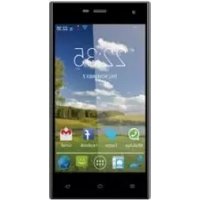
uSUN250 - Smartphone Sunstech - Free user manual and instructions
Find the device manual for free uSUN250 Sunstech in PDF.



| Product type | Smartphone |
| Brand | Sunstech |
| Model | uSUN250 |
| Operating system | Android |
| Display | Color touchscreen |
| Wireless connectivity | Wi-Fi 802.11 b/g/n, Bluetooth |
| Mobile network | GSM/GPRS dual SIM |
| Camera | Front and rear |
| Battery | Rechargeable lithium-ion |
| External storage | microSD card (via USB disk mode) |
| FM Radio | Yes (requires headphones) |
| Audio | Built-in speaker, headphone jack |
| Messaging | SMS, MMS, Email (Gmail, POP/IMAP) |
| Internet browsing | Web browser (Internet Explorer) |
| GPS | A-GPS with EPO assistance |
| Sensors | Proximity sensor, accelerometer |
| Security | Screen lock (pattern, PIN, password) |
| Maintenance and cleaning | Soft dry cloth, avoid liquids and chemicals |
| SAR (head) | 0.285 W/kg |
| SAR (body) | 0.0399 W/kg |
| Warranty | 2 years (legal warranty) |
| Included accessories | Charger, USB cable, headphones |
| Available languages | Multilingual (FR, EN, ES, PT...) |
Frequently Asked Questions - uSUN250 Sunstech
User questions about uSUN250 Sunstech
0 question about this device. Answer the ones you know or ask your own.
Ask a new question about this device
Download the instructions for your Smartphone in PDF format for free! Find your manual uSUN250 - Sunstech and take your electronic device back in hand. On this page are published all the documents necessary for the use of your device. uSUN250 by Sunstech.
USER MANUAL uSUN250 Sunstech
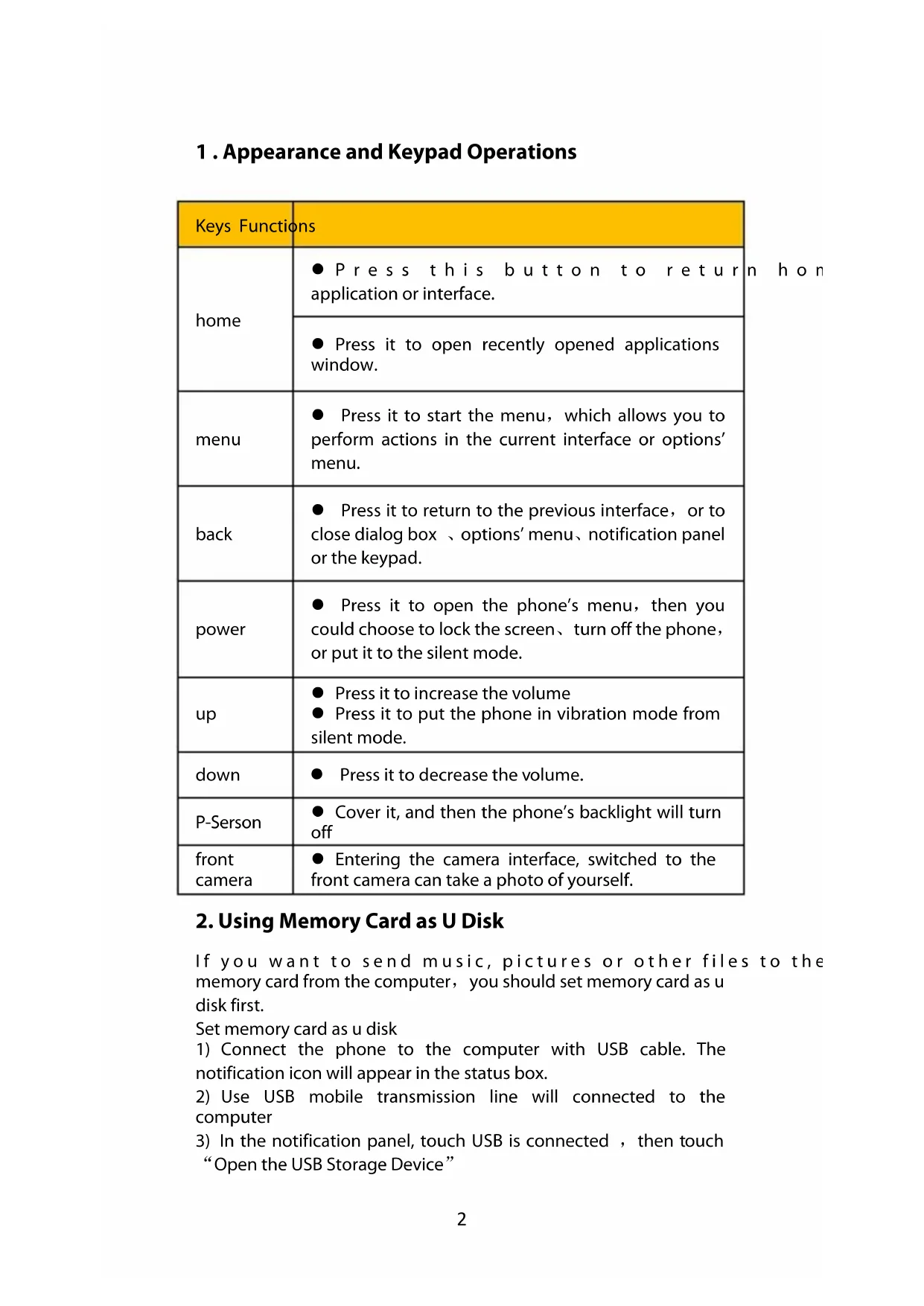
1 . Appearance and Keypad Operations
| Keys Functions | |
| home | ● Press this button to return application or interface. |
| ● Press it to open recently opened applications window. | |
| menu | ● Press it to start the menu, which allows you to perform actions in the current interface or options' menu. |
| back | ● Press it to return to the previous interface, or to close dialog box、options' menu、notification panel or the keypad. |
| power | ● Press it to open the phone's menu, then you could choose to lock the screen、turn off the phone, or put it to the silent mode. |
| up | ● Press it to increase the volume● Press it to put the phone in vibration mode from silent mode. |
| down | ● Press it to decrease the volume. |
| P-Serson | ● Cover it, and then the phone's backlight will turn off |
| front camera | ● Entering the camera interface, switched to the front camera can take a photo of yourself. |
2. Using Memory Card as U Disk
If you want to send music, pictures or other files to the memory card from the computer, you should set memory card as u disk first.
Set memory card as u disk
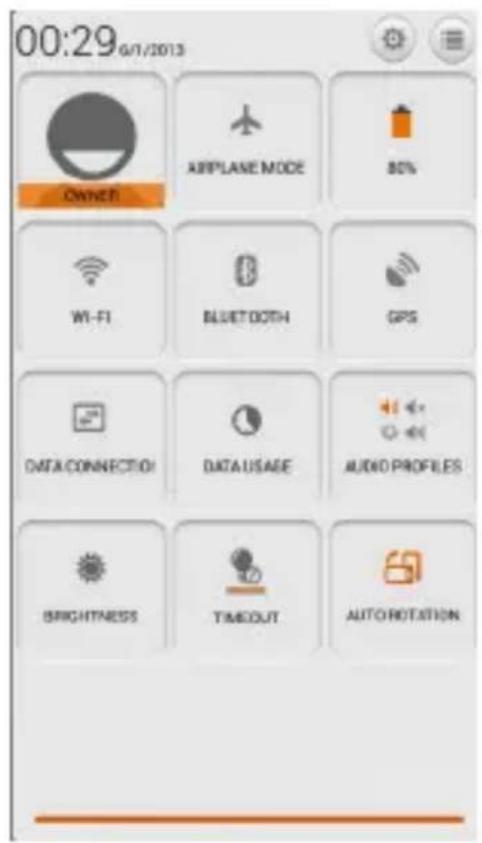
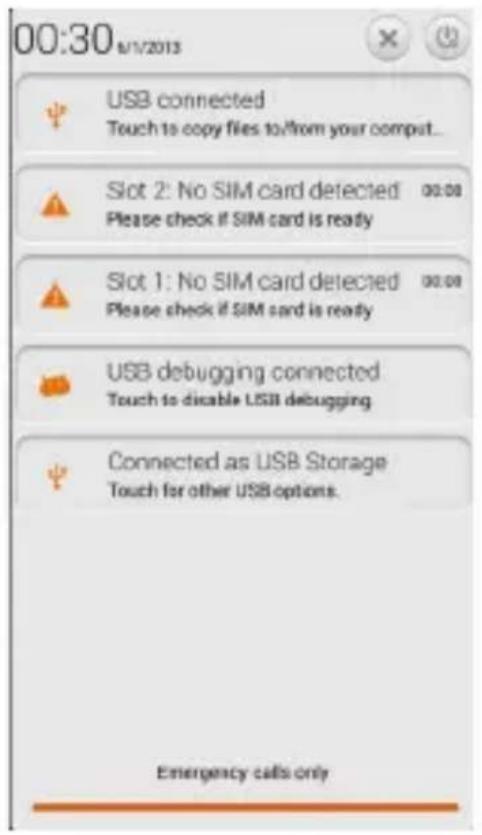
1) Connect the phone to the computer with USB cable. The notification icon will appear in the status box.
2) Use USB mobile transmission line will connected to the computer
3) In the notification panel, touch USB is connected, then touch "Open the USB Storage Device"
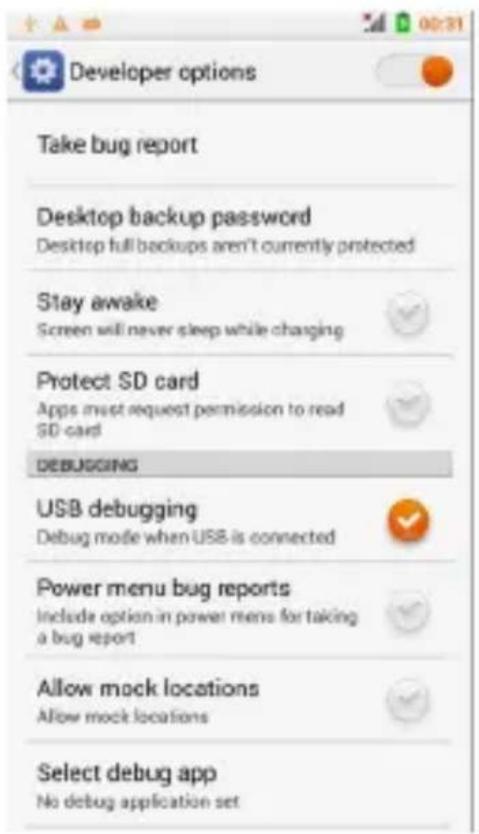
2) After connecting the phone to a PC you can check images taken by the camera.
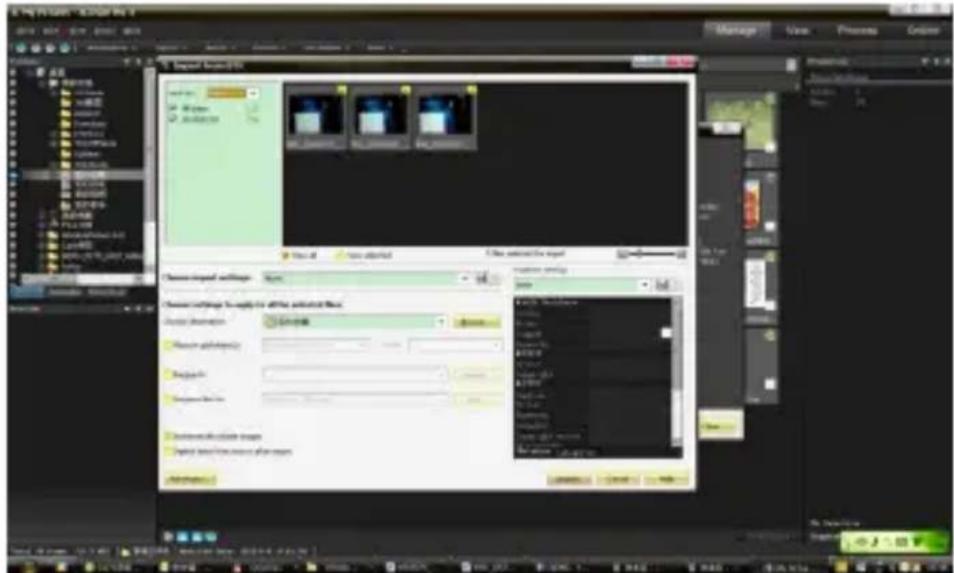
- Notice: Different PC operating systems and how to use the U disk.
1) WIN7 Can be use directly.
2) XP update Windows media player to the latest version.
3) Install wpdmtp.inf driver
- Notice:On the PC operation assistant tool such as mobile phone, Must be open the USB debugging.
3.WIFI
Open Wi-fi and to connect to the wireless network
1) Press home>menu, then touch settings>wifi and internet
2) Select the wi-fi box, to open Wi-Fi. Phone will automatically scan for available wireless networks.
3) Touch Wi-Fi settings. Then a list of Wi-Fi network will show the founded network name and security settings. (open network or WEP, WPA/WPA2 with password). If you enable the notification in
Wi-Fi settings, The status box will show this icon ( ) when open available wireless network founded.
4) Touch one of the Wi-Fi choices to connect the network. When you choose open network, phone will connect to it automatically. If you choose WEP, WPA/WPA2 with password, you should type the password first, then touch to connect it.
- Notices: when the phone is connected to the wireless network.
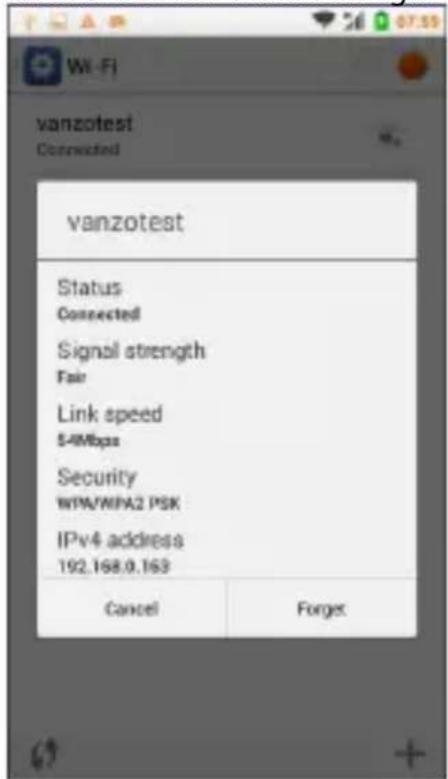
The status box will show this Wi-Fi icon ( ), and the approximate
signal strengthen (the number of lit bars).If touch the connected network, will display the name of Wi-Fi network, status, speed, signal,
strength, security, information and IP address.
If you want to delete the wireless settings, please touch "not reserve"
as in the right picture. If you want to connect to this network, you should re-enter these settings.
- Notices:
Unless you choose not to reserve the network, otherwise, there is no need to re-enter the corresponding password when next time connecting to the previously encrypted wireless network. Wi-Fi will search automatically, that is, phone doesn't need to perform additional steps to connect Wi-Fi networks.
- Notices:
Unless you choose not to reserve the network with password, otherwise, there is no need to re-enter the corresponding password when next time connecting to the previously encrypted wireless network. Wi-Fi will search automatically, that is, phone needn't to perform additional steps to connect Wi-Fi networks.
- Connect to other Wi-Fi networks
1) In the interface of wireless and network, touch Wi-Fi settings. The founded Wi-Fi networks will show on the Wi-Fi network list.
2) Touch other Wi-Fi networks, and then you can connect to this network.
- Notices: In addition, you can surf the internet via GPRS. We default that the GPRS in SIM1 is opened after started, users can select manually, the specific location is "settings>wireless and internet)data connection", touch "SIM1、SIM2、no data connection", when the dot turns green, it's already opened.
4. Bluetooth
Turn on Bluetooth or set the phone so that it can be detected
1) Press home>menu,/settings.
2) Touch wireless and internet, then choose Bluetooth box to open the Bluetooth function. After started, the status box will show this
icon ( ). Touch “ scan for devices” then it will starts to scan for all devices within range.
3) Touch Bluetooth settings, all the devices found will display in the list under the icon.
(select the box "can be detected", set it to be detected, the other Bluetooth devices will be able to find the phone.)
important: the maximum detecting time of the phone is 2 minutes.
- Pairing and connection of Bluetooth headset
1) Press home>menu, then touch settings.
2)Touch wireless and internet>Bluetooth settings, then select Bluetooth box, then your phone will scan for the Bluetooth devices within range, and show the founded devices in the list under the icon. - Tips:
a. If the list can't find your equipment, touch scanning equipment to re-scan it.
b. Make sure that the devices wanted are under the detected mode.
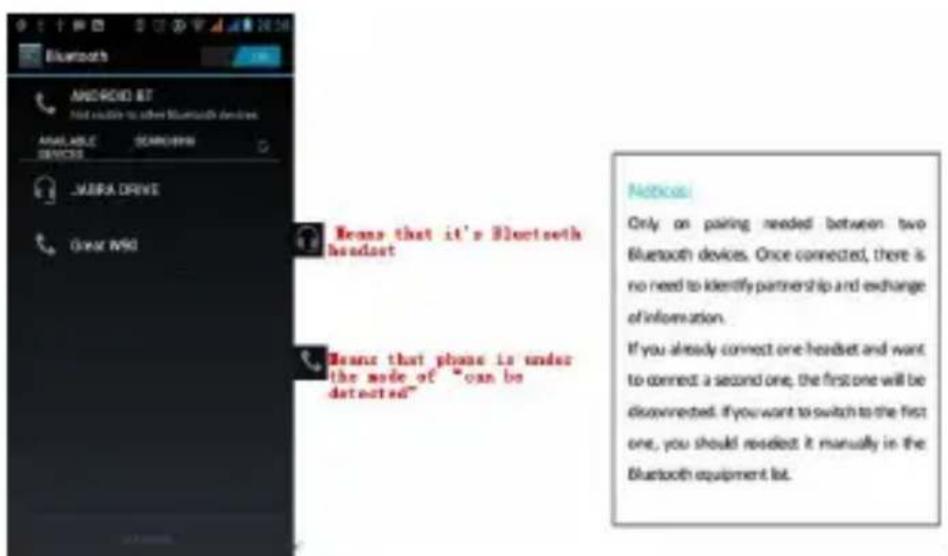
3) Touch headset in the equipment list to finish the connection. - Notices: Generally Bluetooth devices need a password to be paired, often use '0000' as the default password.4) The pairing and connecting status will show under the headset in the Bluetooth devices list. When The headset is connected to your phone, the
status box will show. This icon means you are connected. Then you can use the headset to make or receive calls.
- End the Bluetooth connection.
1) Press home>menu>settings>wireless and internet>Bluetooth settings.
2) In the list of Bluetooth equipment, touch or tap and hold the connected hand-free headset.
3) Press and select "cancel the pairing".
- Bluetooth proximity sensor
After pairing the two devices, you can see if the signal is strong or weak by the Bluetooth proximity sensor device
5.Mail
5.1 Gmail
-
Create an electronic mail account
-
Select mail> settings. You can activate or edit existing e-mail accounts as well as create a new e-mail account.
a. Select mail, Google account setting interface appears. Then touch 'next step' > create account>enter name, last name and e-mail account.
b. Google servers determine whether the name can be used, if so, new interface appears prompting enter password, then judge the password' security, users who doesn't meet the requirements need to re-enter the password.
c. Successfully register a new Gmail account, a messenger created automatically for testing.
- Loading mail account
a. Open Gmail skip introduction screen>loading interface appears >select load
b. Enter name, password then load
E-mail account initialization, prompting "login successful" All Google accounts will be synchronized.
- Creating and sending, mails
When creating mails, select mail > creating mails. Enter the address(recipient)、 theme and contents. Press MENU you can 'append'、'Add Cc/Bcc',select send or discarded.
Receive mails
There is tone for new mails, in the status box will show this button
of the unread mails in a proper way.
- Delete mails
When loading a mail account, if you want to delete it, you need to restore factory settings. When loading a second one, you could
press the menu button to delete it.
Notices: many functions depend on Gmail Account, for example: Electronic Market、Google Talk、Sync Contact and Calendar.
5.2 Email
- Load Email.
a. Open network connection,
b. In setting the account interface, input the correct email address and password and click next mobile phone automatically complete the sending and receiving server Settings. Pop-up mail find frequency, and user Settings interface, complete Settings, click next.
c. For account creation name, enter the email user name, and click next. Complete set, synchronize mailbox.
- Create and send Email
When creating mails, select mails > create mails. Enter the address(recipient)、theme and contents. Press MENU you could 'append'、'Add Cc/Bcc', select send or discarded or save as draft.
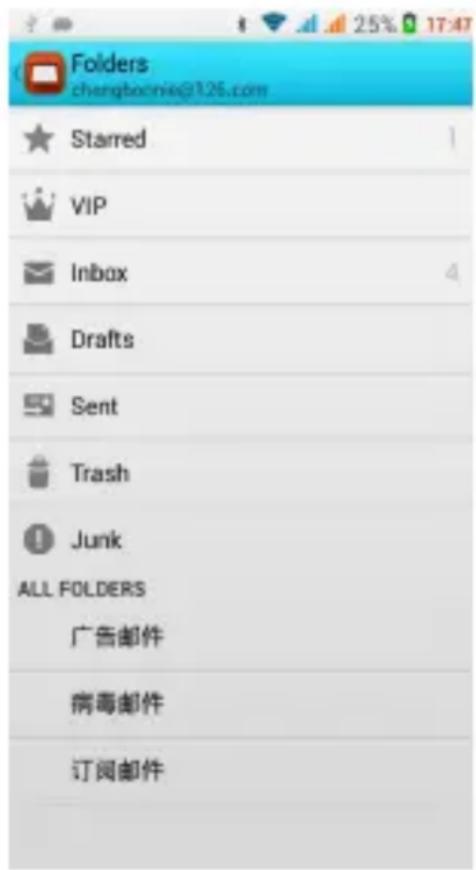
- Check the Email files
Click on the bottom folder options, list all folder options
6.Dialling
When the icon of internet server appears in the screen, you could dial or receive callings. The signal bar on the top right corner show the strength of network signal (the maximum with 4 signal bars).
- Start dialing
Open application's main menu>dial. You could choose SIM1 or SIM2 to do the dialing.
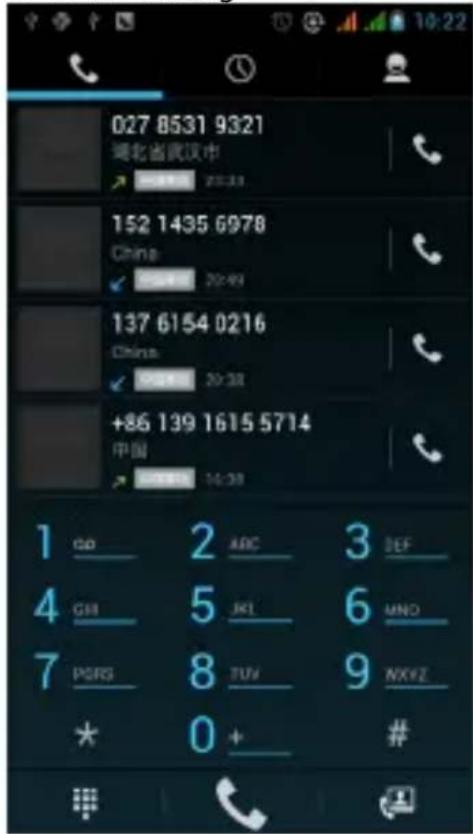
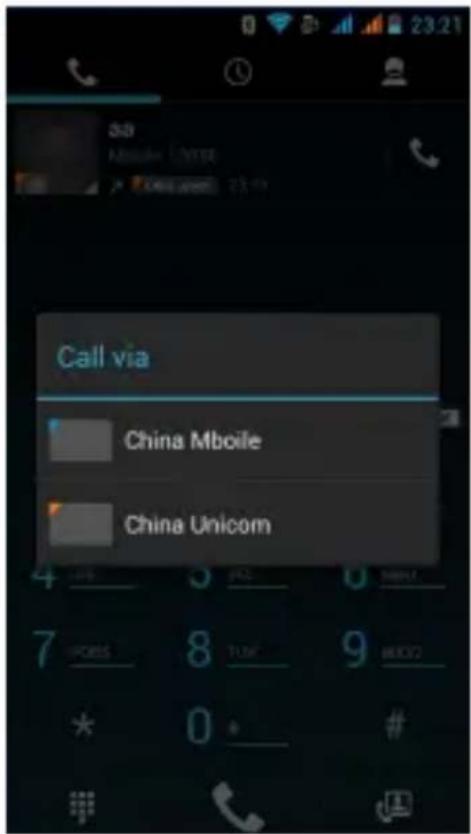
Dialling
At the dialing Keboard, enter the phone number, and then click the dialing key, after that, you should choose one SIM card or internet call. If needed to call the extension, you could click the "dial pad" in the bottom of the screen to open the interface or press menu key to select "delay 2 seconds", and then enter the number of the extension.
The dialup keyboard input number, click Menu can IP dial-up or speed dial
- Video call: video call usually refers to the Internet and mobile Internet based on (3 G Internet) end, through the phone between the speech of the real-time transmission and image (user of bust, photographs, items, etc.) of a way to communicate. Only 3 G to support this function. Input a number click video dial-up, each other answers the phone after both can through camera for video calls.
- Telephone calls in the call log
Every telephone number called and received in "SIM1、SIM2" will be reserved in phone's menu of call log. On the top left of every call record will show "SIM1 or SIM2"
All numbers in the call log can be dialed by clicking the button "dial" on the right side of the screen.
When number list appearing, click it to catch details; press it for
long you could dial via "SIM1 or SIM 2", meanwhile you can edit, delete, save the number or do other operations.
Receive callings
When calling comes (top left will show from which SIM card) press "Answer" and slide towards right until the middle button, then you can receive callings.
- Proximity sensor
According to the distance between phone and human body, it will adjust automatically the switch of the backlight.
During the call, close the phone to the ear, the backlight will turn off automatically, which could save batteries and prevent inadvertently touching.
- Refuse to answer the phone
a. When standby, calling comes, press "refuse" button and slide towards left side until the middle button, then you could refuse the calling.
b. When using, calling comes, click on the "refuse" button to refuse the calling. - Two-way call/multiparty call(conference call)
- Notices: this function needs that SIM card open multiparty call features.
1) Already exist a call in the phone
2) Click "Add calls", dial another call (or receive another call, phone default open "call waiting" (settings-dialing settings-other dialing settings), after both connected, could view the status of calling.
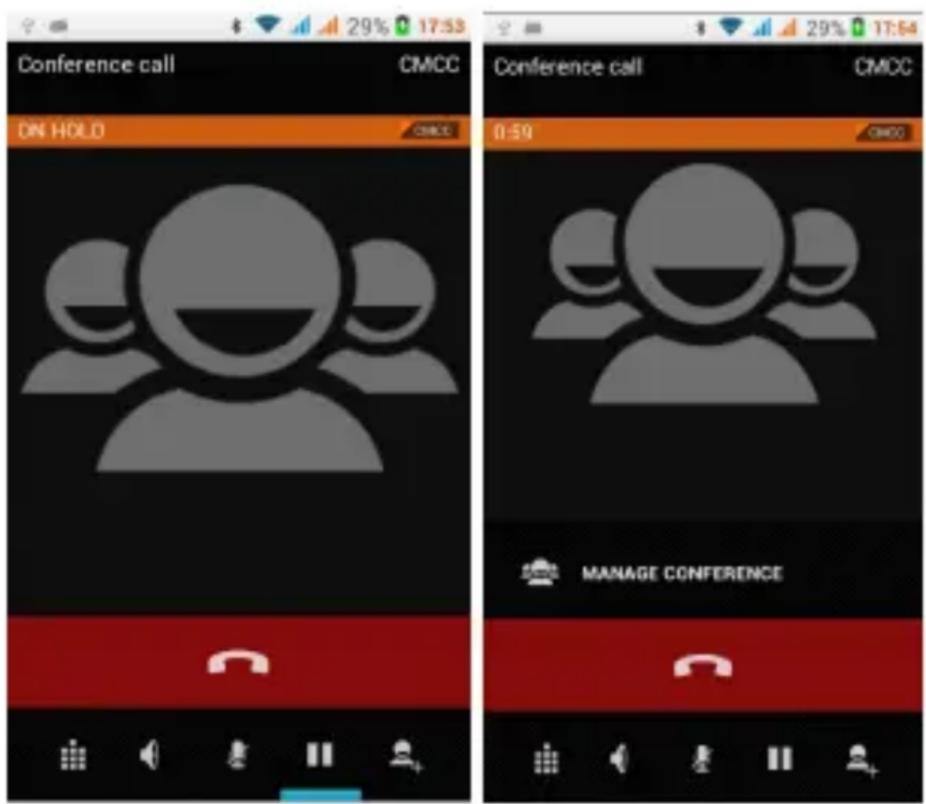
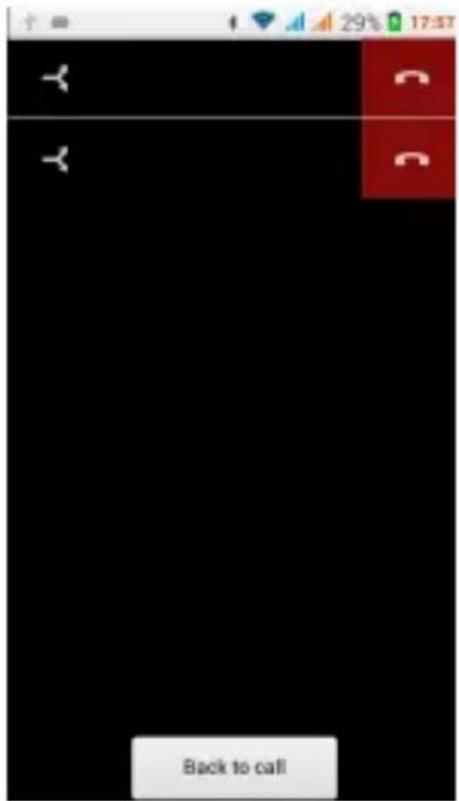
3) select "combine call" - you can combine two calls into one way.
4)after multiparty call connected,you could separate the calls or hang up one of them via“the small arrow of conference call”
- Telephone recording
During the call, more>start record, you could record the dialog of the call.
1) settings>set other functions of the call in the dialing settings, for example: Call Transfer- after all the settings finished and turned on, you could transfer the call to a certain number.
2) In settings>dialing settings>other dialing settings, open “call waiting”. After turned on, you can receive another call when your already on the line, The answering and rejecting functions are just like ordinary phones
- Call settings
Voice Call
1) Voice Mail:The voice mailbox in setting in the input voicemail number.
2) IP prefix number: Setting the different of SIM cards IP prefix numbers
3) Call forwarding: Can set respectively 2 a SIM card, the line is busy, and no one has to receive, not be connect four connecting way
3) Call barring: Can set respectively two to the SIM card call restrictions
4) Additional Settings: a.My phone number b.Call waiting.
Video Call
1) Local video replacement: Set a picture to display when camera off use.
2) Display peer video: Display picture for replacing peer video when it is unavailable.
3) Peer video replacement: Set a picture to display when peer video unavailable.
4)Enable back camera: Available to switch cameras if turn on.
5) Bigger Peer video: Turn on to make peer video bigger than local video.
6) Auto drop back: Drop back to voice call connecting automatically
7) Outgoing video call: Display local video when make a video call.
8) Incoming video call: Display local video when accept an incoming video call.
9) Other settings: a. Call forwarding b.Call barring c.Additional settings
Internet call
1) Account
2) Use Internet calling
Other Settings
1)FixedDialingNumbers
2) Minute Reminder: Turn on minute reminder at 50s of every minute.
3) Quick Response: Can edit the text messages rejected by the information when content.
7. Messaging
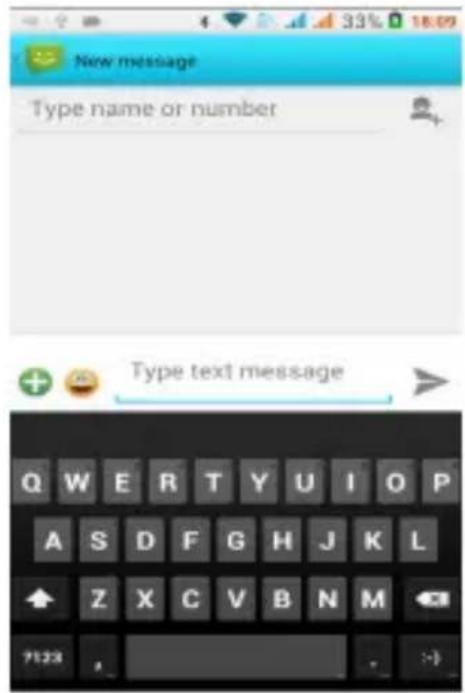
To Send SMS.
1) Press home>messaging, touch "new messages".
2) In the interface of "edit":
a. Click "recipient"box to start input method, you can also click "enter" box to start input method, in that way you can enter characters.
b. Click "send from SiM1 or SIM2" to send.
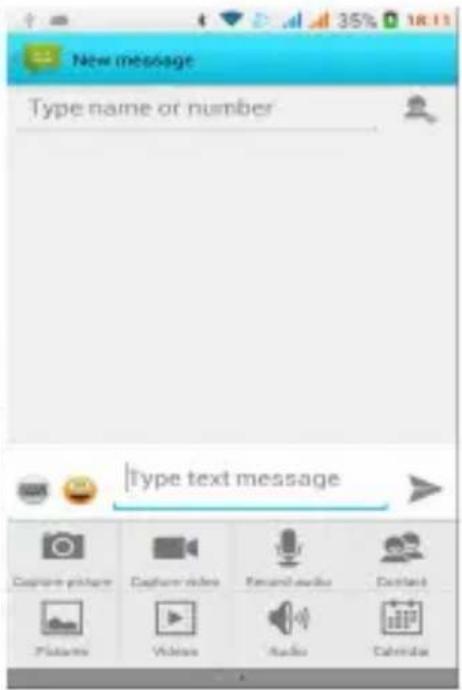
To Send MMS.
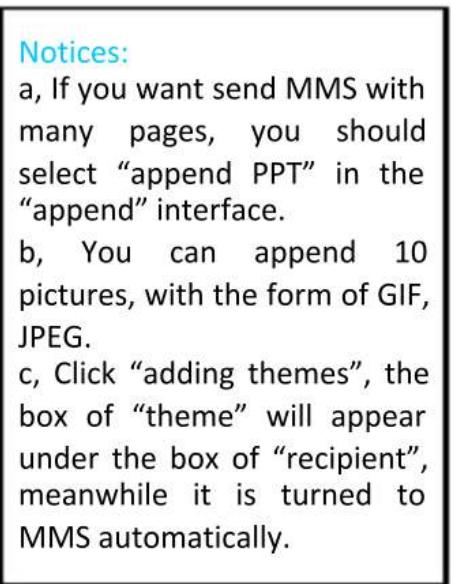
When creating message, it was defaulted as SMS, it will be turned to MMS when following operations were done. You can send MMS via clicking "send" after editing.
1) In the interface of "edit", Click the button of "Menu":
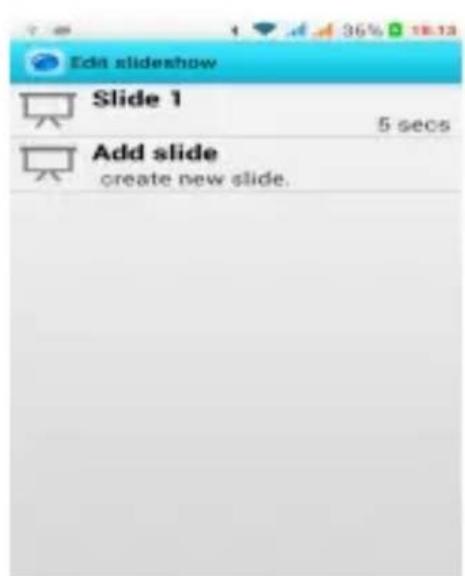
2) Click "append", you can send the following attachments, then it will be turned to MMS automatically.
- Send messages to multiple numbers
Enter multiple numbers in the box of entering, each number is separate with a comma.
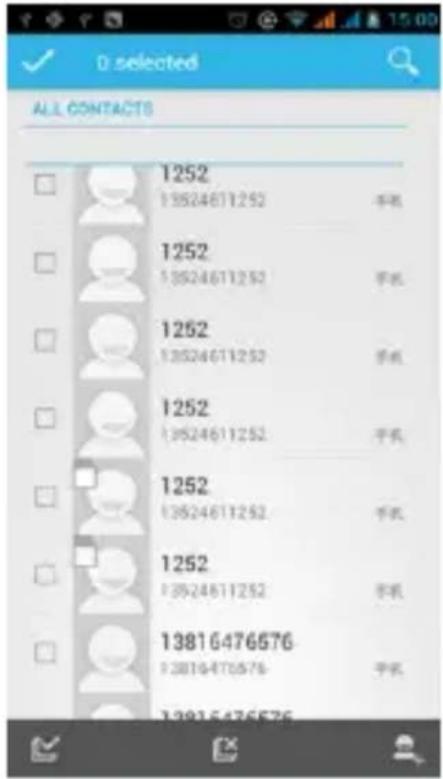
Click on the right side of the head with the receiver plus icon, can choose contact group in the address book
- Notices: For now this phone can send messages, you can only enter 312 characters in the box "recipient".
When a message is sent or sent again, a small yellow letter will appear. The number 1 or 2 on the letter refers to SIM1 or SIM2.
When message sending fails, a red triangle with an exclamation point will appear.
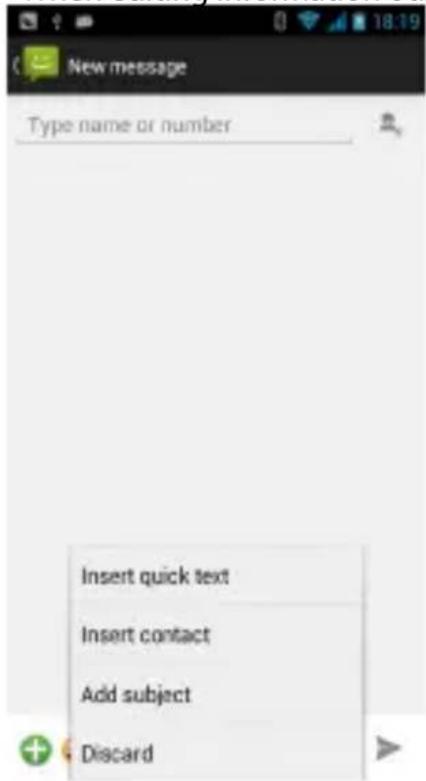
When editing information other functions of Menu button
8. Contacts
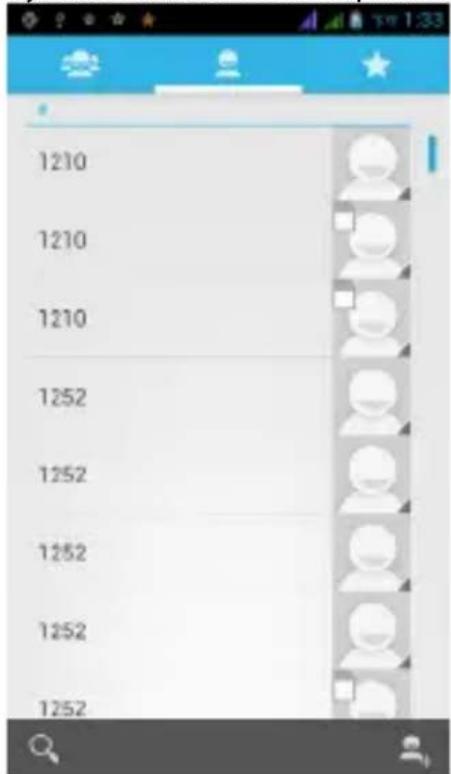
- Open the menu of applications>contacts Default display phone contacts and SIM card contacts, sort contacts by the first letter of the alphabet.
2) Click Search Icons, You can enter the contact search interface. a.To enter the Numbers or letters and the list of names of the phonebook, which will be shown in the search results.
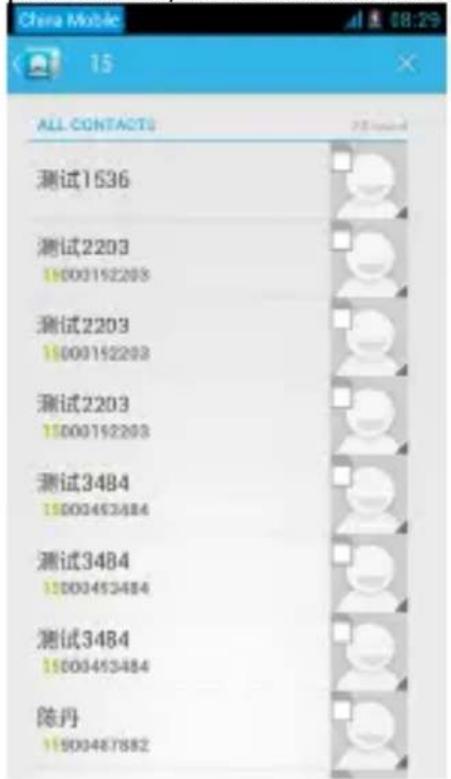
b.If the search didn't fine the contact, the interface will say contact not found.
3)Click“Add Contact"Icons,Can create New Contacts
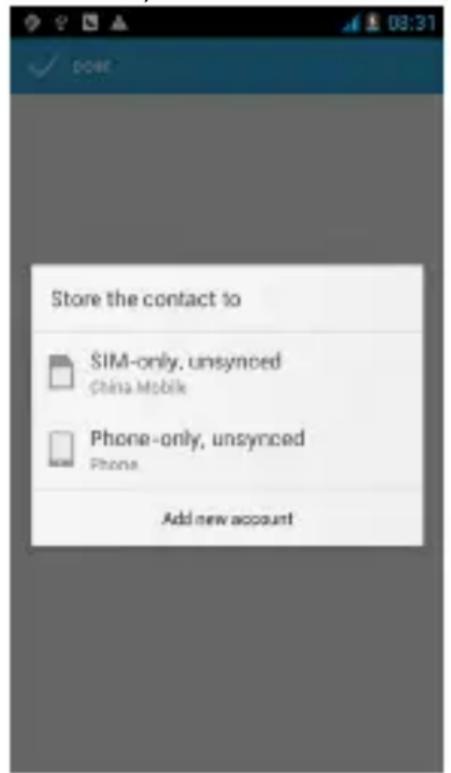
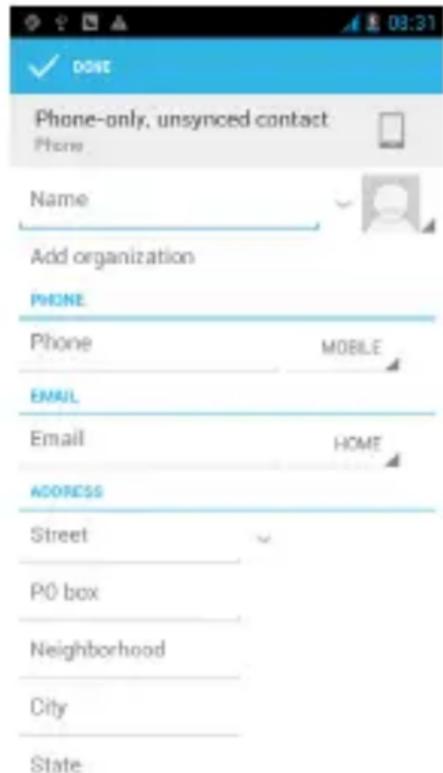
Select save contacts to phone or a SIM card, enter in the contact editing interface.
You can edit contact head, name, telephone number, group, save to and more, and then click "finish".
4) In contact interface, click on the Menu button
a. Menu >Delete contacts
Can "All" icons checked, click the delete button, delete all the contacts, including cell phone and SIM card of contact.
Can separate check one or more contacts, click delete to select the contact you want to delete.
b. Menu> To display a contact
You can choose all contacts, SIM card of contacts or mobile phone contacts
c. Choose the option also on the SIM card and cell phone whether or not to show all contacts.
d. Menu >Import/export
In the mobile phone you can choose, SIM card or SD card three parties to find contact information and import or export contacts.
First choose the "copy source" and then select the next step, selecting copy contact to, can complete the contact's copy.
e. Menu >Accounts
Account and synchronization set routine synchronization Settings.
f. Menu >Share visible contacts
All contacts can be imported into the SD card, or through bluetooth,
email, text message or MMS.
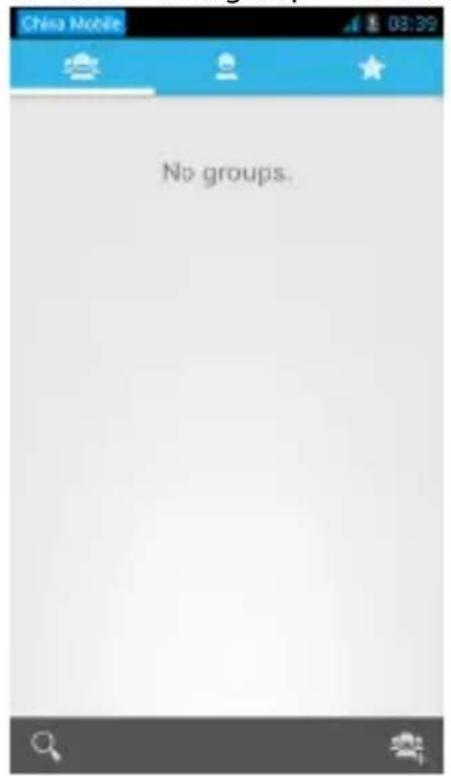
- Open the application interface >Contact, change to the group.
1)Click“Add group”to create a new group.
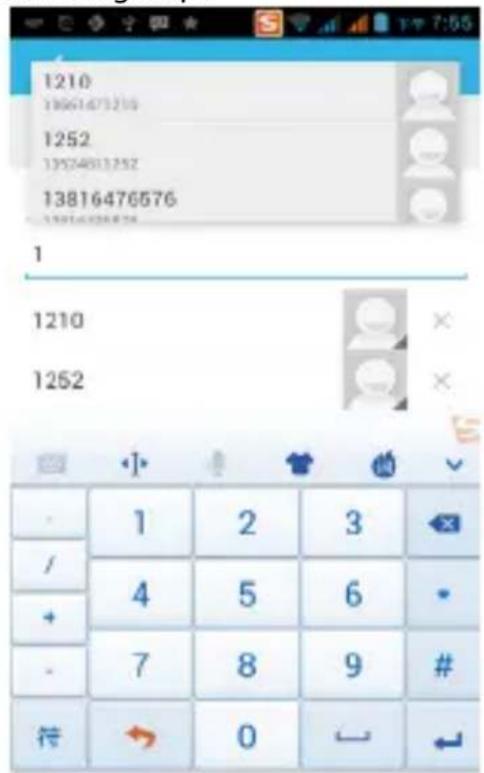
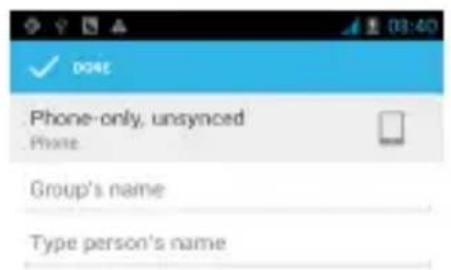
2) In "the group name" column input group name, in "type in the contact's name" column input contact key word, the phone will search all contacts and you can add a contact to the group. Finally
click "finish".
3) In a group, click on the Menu button, Menu functions
a. Menu>Update
You can modify the group name, delete or add group of contacts
b. Menu >Delete
You can delete the group but, you will not delete the contact from the phone.
c. Menu >Sending a group message.
Select the group and it will be added to the recipient bar.
d. Menu > Send Email by group
If contact of a group have the same email address, the automatic new mail, and E-mail address will be in the address bar add to the receiver
9. Internet Explorer
Internet explorer
1) In the interface of internet explorer, touch address filed and enter the URL.
2) Use keypad to enter URL. The appropriate web sites will appear on the screen. You can touch it directly go to the page or continue to enter URL.
- Homepage
Select "homepage", you can load in the set homepage. If you do not set it, you will use the vendor's preset homepage.
- Functions of menu
1) Menu>Backward
After browsing through multiple pages, the browser will return to the previous page before the current page.
2) Menu>Forward
After browsing through multiple pages, will move to a web page after the current page.
3) Menu>Windows
You can view all open windows to the current.
4) Menu>Bookmarks
a. Click the "Bookmarks" to make the current URL as a bookmark saved.
b. Click the bookmark under the bookmarks list, will open the URL.
5) Menu>More
a. Add bookmarks, save the current URL as bookmark.
b. Find on page, search what you need in current page.
c. Select text,in the text, click and drag to select a piece of text.
d. Page info, display page address and other information of the current browsing.
e. Share page,select the Bluetooth or SMS to share the current page.
f. Downloads,show all the content downloaded.
g. History, Show your browsing history, and view the most visited pages of information.
h. Setting, contains a variety of browser settings.
10. Recorder
Recorder can record voice, and send it quickly via Bluetooth or MMS as well as make it as ring tone.
- Notices: recorder can only save the audio files as AMR format.
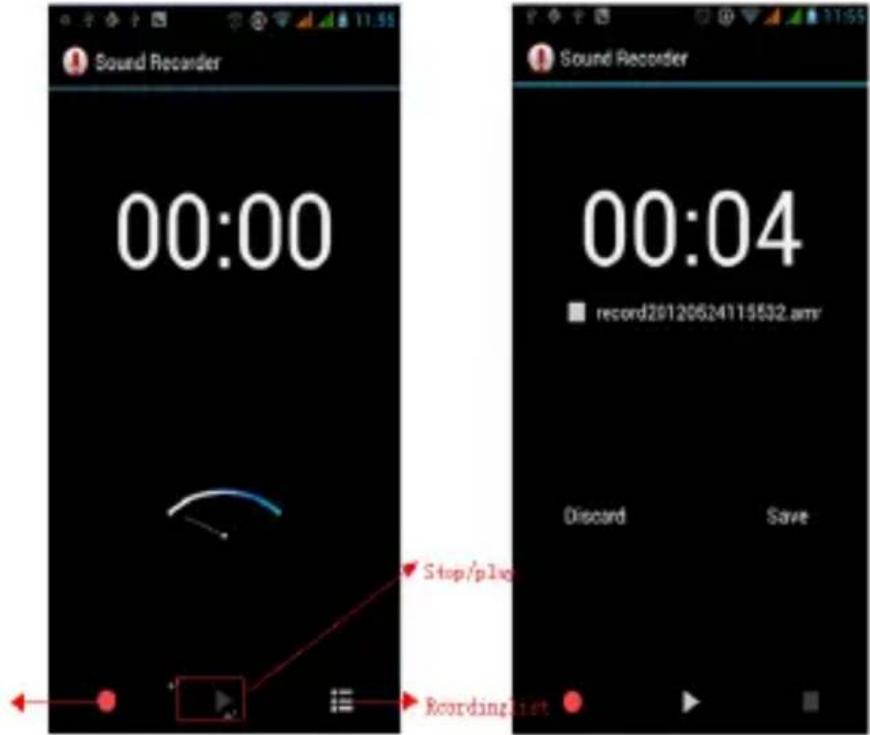
1) Click the recorder application.
2) Keep the phone's microphone near the voice source.
3) Click recorder to record voices, and click to stop or Recordinglist. All recordings save in my recording folder in the default music program.
11.Clock
(1) Open the menu of application, click
2) Click screen except the alarm at any position, screens, black, time with white shows, this time the standby time to screen will not turn off the screen. Click the screen again to restore normal clock interface.
3) Click screen set alarm button and enter the alarm clock mode
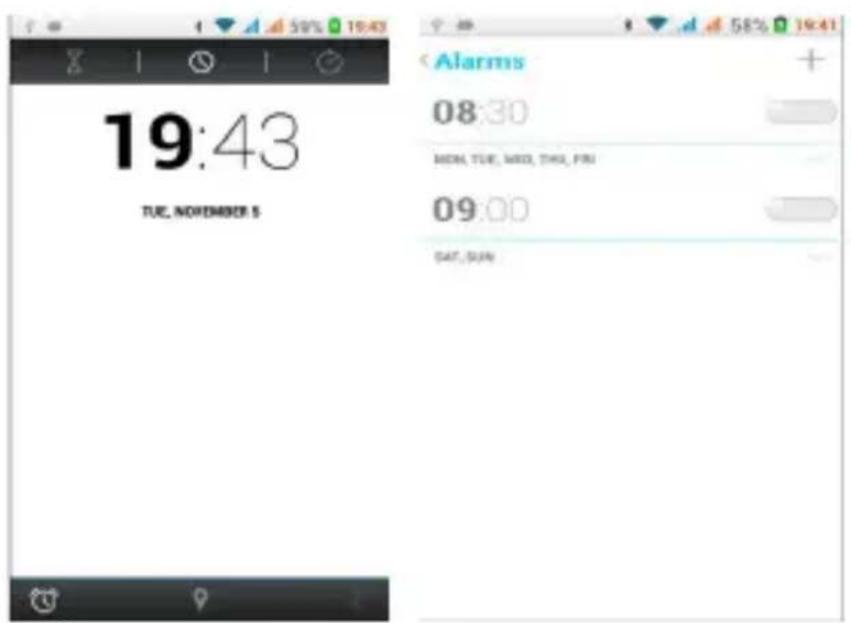
Alarm
After setting the alarm when the time you have entered arrives you will be alerted by ringing or vibrating to activate this function. Press Menu to add alarm, you can also add it from the adding interface. You could set the alarm according to your needs. In the interface of alarm will show three alarms which are not set.
Edit
You can edit the current alarm, edit time, ringing tones, vibration, repeat form and tabs.
12.Caculator
calculator
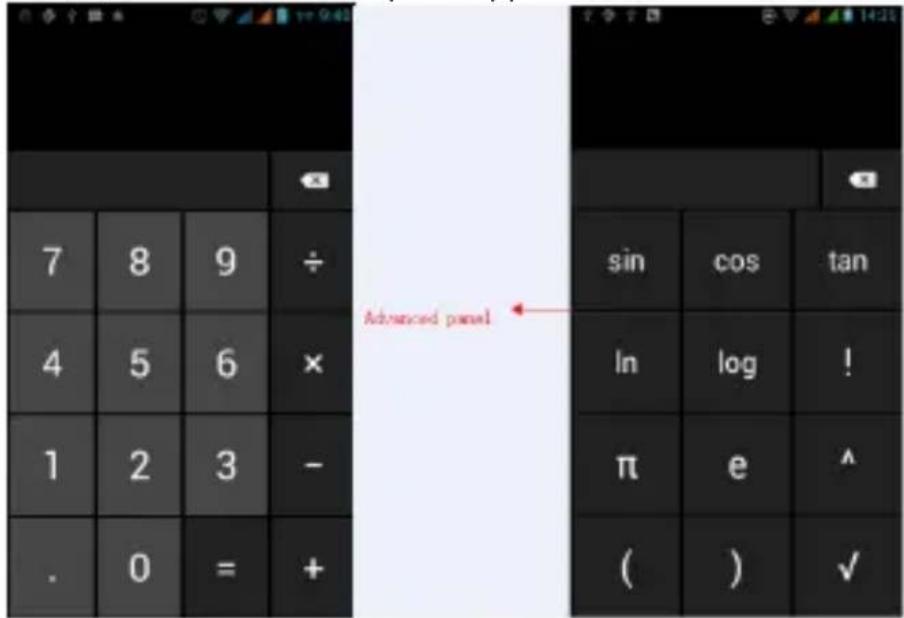
This function can convert your phone into a calculator, it can do simple calculations.
- In the calculator interface, press MENU or hold down the screen to the left, then the advanced panel appears.
13.Camera
13.1 camera
Prior preparation
Install memory card before using the camera or video camera. All your photos or videos taken by the phone are stored in memory card.
- Open camera
Press home, touch menu, select camera. To take a photo.
1) Find the object you would like to take a photo of by looking at the screen.
2) Touch the "shutter" button on the screen.
3) After taking the photo will be saved to the camera's galley folder.
4)You can view the photos by touching the preview box button.
5)Camera settings
Touch "setting Menu" in the interface of the camera to adjust the settings
Under camera viewfinder mode, press Menu, you can switch to video or photo gallery.
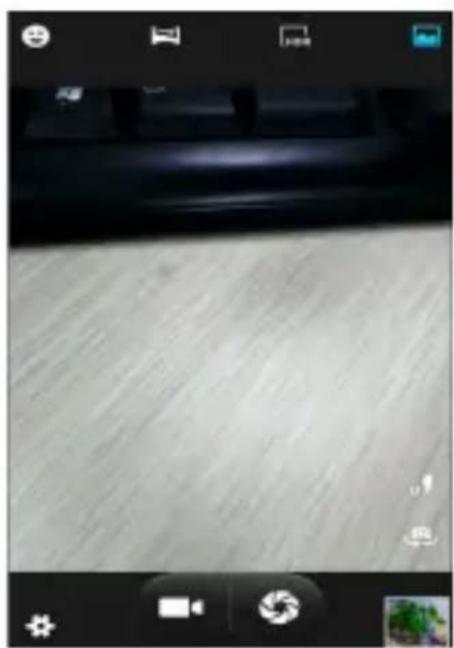
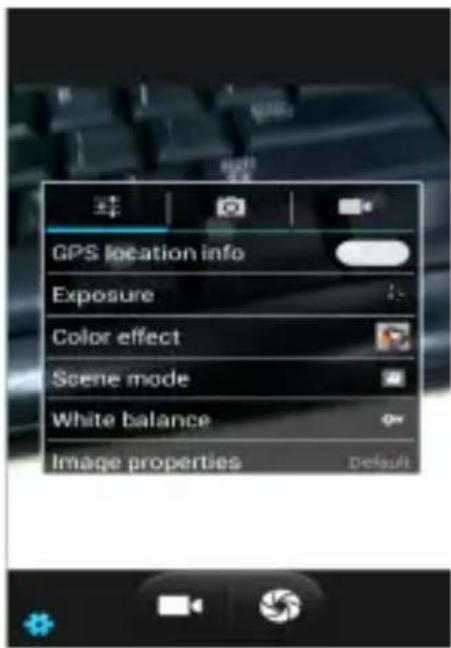
On the top right of the cameras viewfinder mode you can see a preview of the previous picture. Touch preview box, the photo display on full screen and you can enlarge it to view details.
- Shared Settings of Camera and Video camera
1)Flash mode: Auto、On、off.
2) White balance: Auto, Incandescent, Daylight, Fluorescent, Cloudy, Twilight, Shade, Warm fluorescent.
3)Color effect: None、Mono、Sepia、Negative、Aqua、Blackboard、
Whiteboard.
4) Scene mode, Auto、Night、Sunset、Party 、Portrait、Landscape、Night portrait、Theatre、Beach、Snow、Steady Photo、Fireworks、Sport、Candle light.
5)Other settings: store location, exposure, image properties, anti-flicker
- Camera Settings
1) Capture mode: normal、HDR、Face beauty、Panorama
2) Self timer: off, 2 seconds, 10 seconds
3) Continuous shot: 40 shots, 90 shots
4) Picture size: QVGA, VGA, 1M pixels, 1.3M pixels, 2M pixels, 3M pixels, 5M pixels
13.2 Video camera
Prior preparation
Install memory card before using the camera or video camera. All your photos or videos taken by the phone are stored in the memory card.
Take video
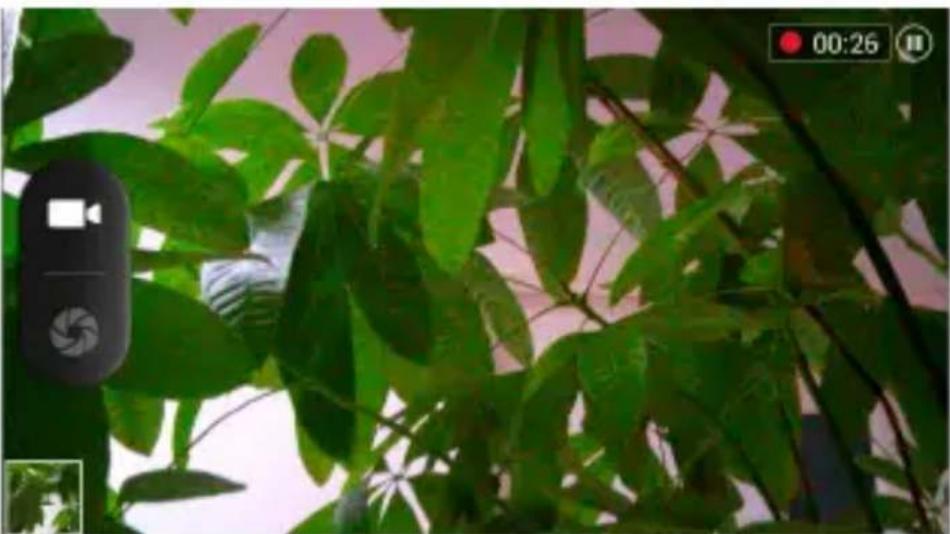
1) Aim the screen at what you would like to capture.
2) Touch the "shutter" button on the screen.
3) After recording ,videos will save to the camera's galley folder .
4) You can view the videos by touching the preview box button.
5) Video camera settings
Touch "set" in the camera interface to edit video camera settings. Under camera viewfinder mode, press Menu, you can switch to video or photos' gallery.
On the top right of camera viewfinder mode, display the preview of the previous video. Touch preview box, the video will display in full screen and you can touch the play button to view it.
- Shared Settings of Camera and Video camera
1)Flash mode: Auto、On、off.
2)White balance: Auto、Incandescent、Daylight、Fluorescent、Cloudy、Twilight、Shade、Warm fluorescent.
3) Color effect: None, Mono, Sepia, Negative, Aqua, Blackboard, Whiteboard.
4) Scene mode, Auto、Night、Sunset、Party 、Portrait、Landscape、 Night portrait、Theatre、Beach、Snow、Steady Photo、Fireworks、 Sport、Candle light.
- Videos settings
1)Microphone:off, on
2)audio mode: meeting, normal
3)time lapse interval: off, 1s, 1.5s, 2s, 2.5s, 3s, 5s, 10s
4)video quality: low, medium, high, fine
14. Images
- Open images
Press home, touch label of applications, then touch photo gallery. In the camera interface, Press menu to open the menu.
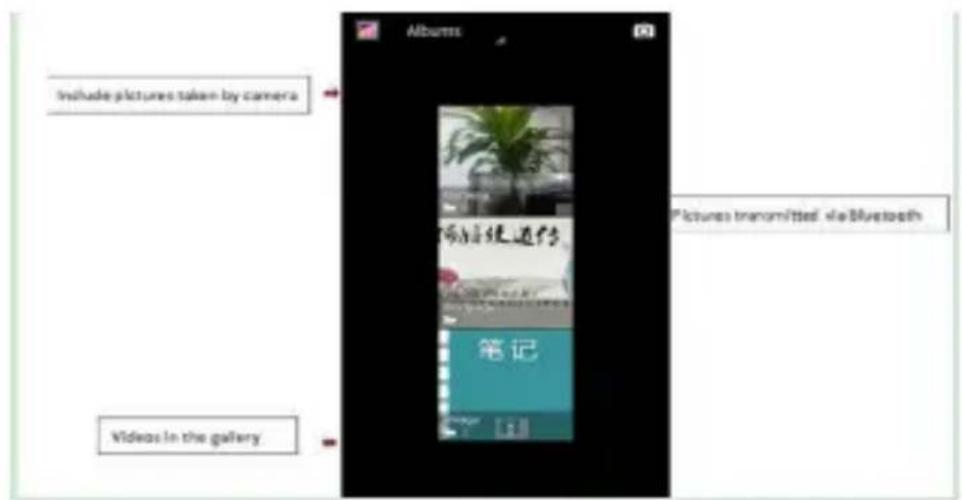
1) Files Interface
a. In the library the interface, upper right a slide show the play button, click on the way to the slide circulation play all image files.
b. Click on the images, enter the picture to see interface.
c. Choose a long press image files, pop-up corresponding operation.
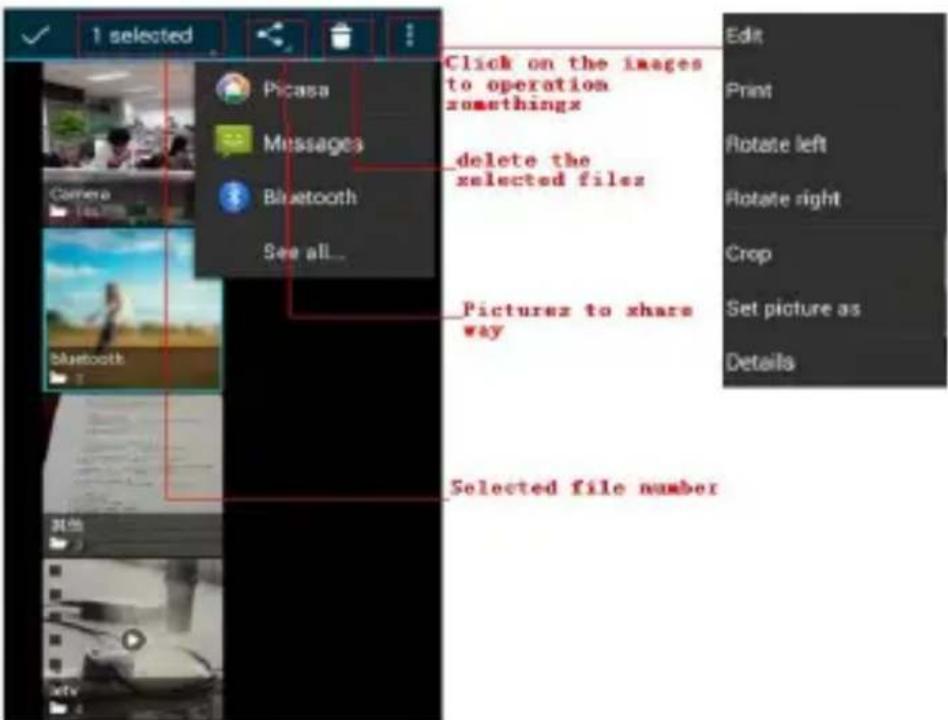
2) Use images
After taking pictures, you can view them and share them with your friends.
a. Use E-mail to send pictures: choose Gmail or E-mail, pictures will be automatically added to an E-mail. Write your information, click send.
b. Use Messaging to send pictures: Select the information, pictures will be additional to the MMS. Write your information, click send.
C. Use Bluetooth: Bluetooth list, select already pairing of bluetooth equipment, you can through Bluetooth send a picture.
4)Check pictures
In the photo view interface, you can drag or can forward to view the photos
5) Edit picture.
a. Edit light: Fill Light Highlights Shadows Auto-Fix.
b. Edit image effects : Cross-process, Posterize Lomo Documentary and so on.
c. Color Effects: Warmth Saturation B&W Sepia Negative Tint Duo-tone Doodle.
d. Crop: Crop Red Eye Straighten Rotate Flip Sharpen.
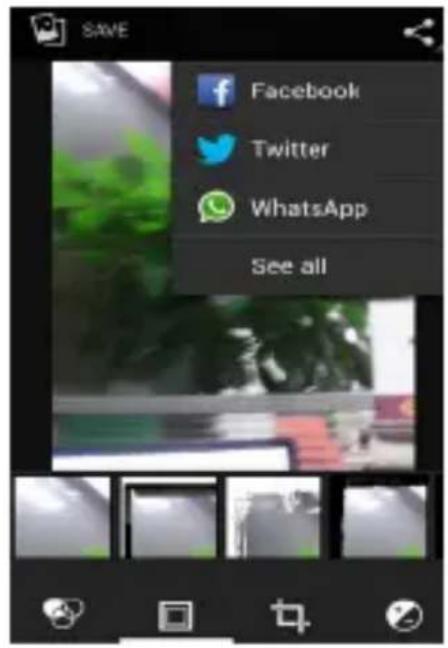
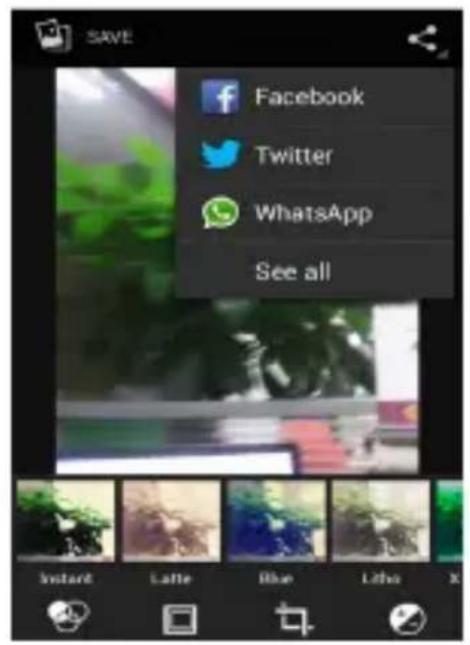
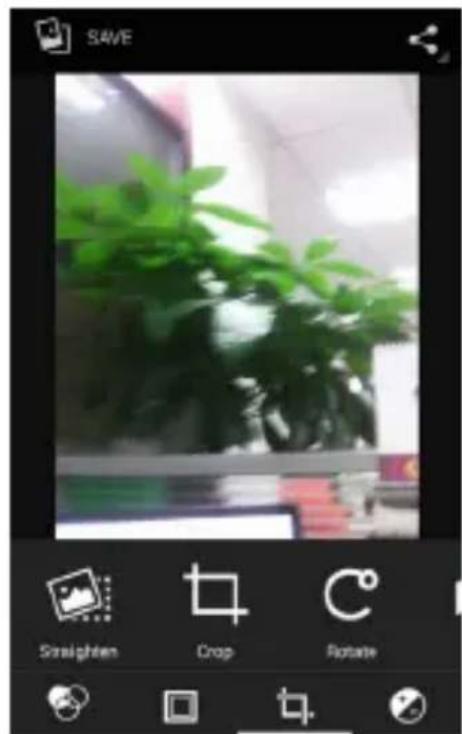
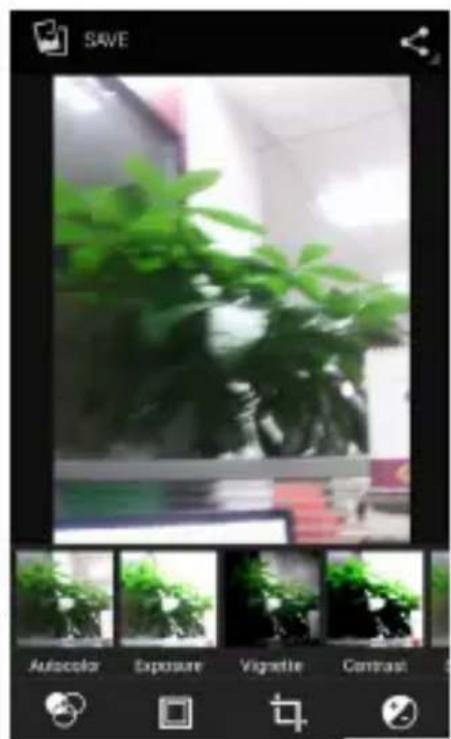
6) Crop pictures:
a. If you want to adjust the size of the clip, please hold the edge of the cutting tools. The arrow appears clip, can adjust its size.
b. If you want to adjust in the clip that keep proportion, please hold down any of the four corners of the one.
c. If you want move to the clip of the picture area, please hold cutting and then move to drag in to the position.
View images
1) In the picture interface, touch the photo album to view the images.
2) Touch the thumbnail to view pictures on full screen.
You can choose to display small or large thumbnails. Hold down the screen towards the left side to view the next photo or towards right to view the previous one.
In the photo album, press and hold down the picture towards left to view the next picture, or towards right to view the previous one.
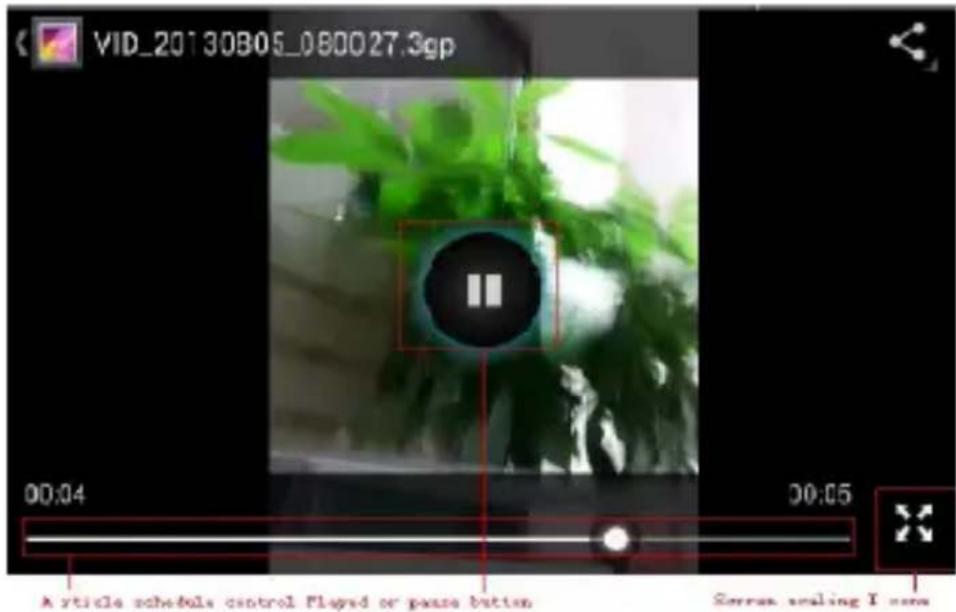
15. Music
The phone can play the digital audio files in memory card.: AMR、M4A、MIDI、MP3、WAV、OGG.
- Open Music
Press home icon and search the app music. Then the interface of Music Media appears.
Music Media
Your music files are classified according to the following four categories: Artists, albums, songs and play lists. Touch one of these categories; you can view the list inside.
Continue the operations, until your wanted music appears. Such as, if you choose Artists a list of artists sorted by the numbers will appear. Choose any on to open the list, then all the albums and songs will appear. Select one album, then the songs in it will be played.
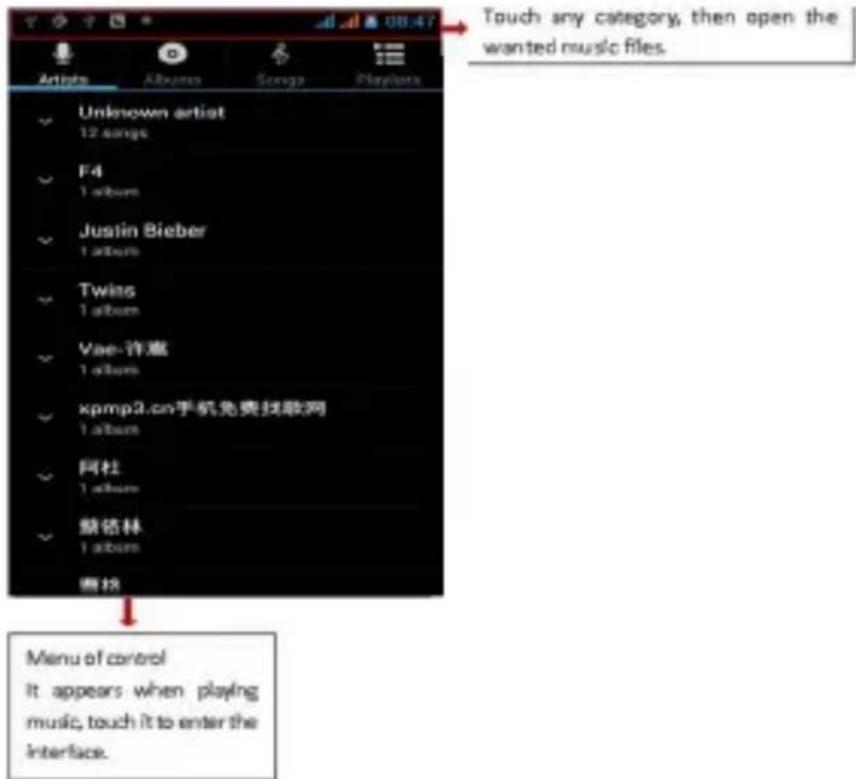
- Tips: You can play all of the songs in the interface of music media, in random sequence. Press Menu, and then touch the Party Shuffle. Then will start playing the first song randomly selected. To close the Party Shuffle, press Menu, then touch to turn off the Party Shuffle.
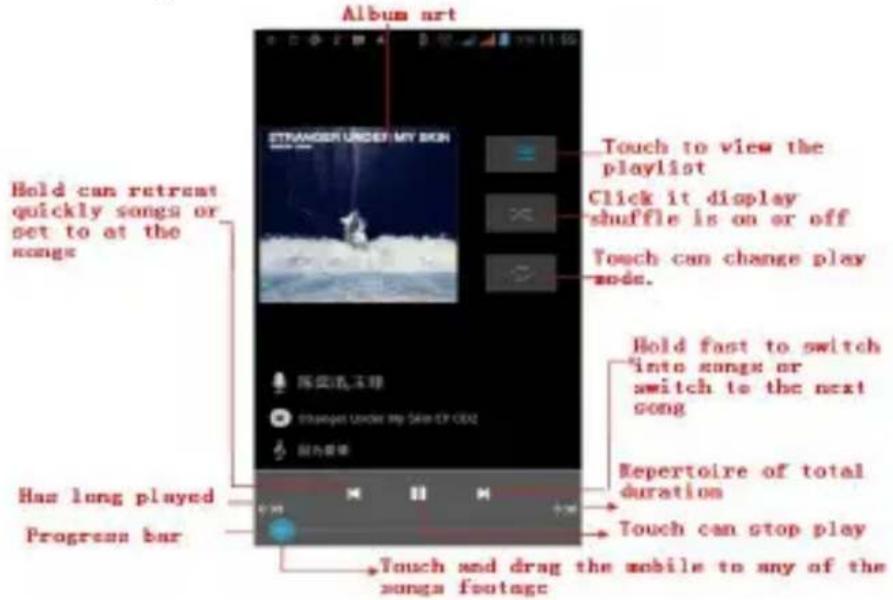
16. Calendar
Enter in the app calendar.
Load Googles accounts, enter the application, In the interface of month or week, your will use gray to highlight the day. Display default the date on the current month.
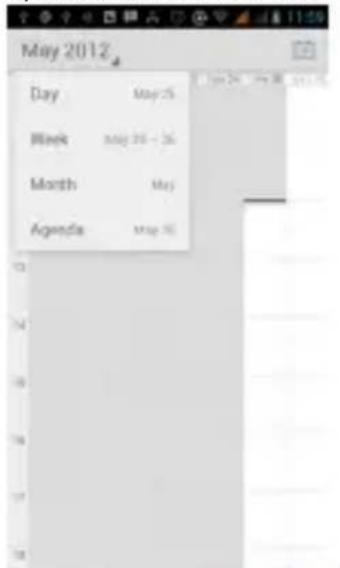
In the interface, press menu, 4 display modes will appear:
1) Schedule Interface shows a certain schedule(click on the initial time and view forward, click the final time to view backwards)
2) Day Interface displays a day's schedule (last clicked date), slide around to turn page according day.
3) Week Interface displays a week's schedule (date), slide around to turn page according week.
4) Today Interface displays a day's schedule, In the interface of month or week use gray to highlight the day.
5) Month interface displays a month's schedule (last clicked date) Slide around to turn page according month.
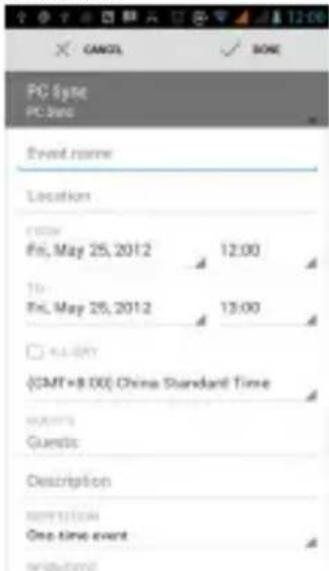
- New activities
1) Press menu, more < touch new activities.
2) Enter the name of activity in the activities' box.
Notices: Such as special occasions such as birthday or a day with events, set the all-day option to Yes. If the activity is at a certain time period, select the start time and end time.
3)Enter the event location, description, guests, repeat, remind time.
4) Click finish to return to calendar.


C

Outc

Serr

fresh
17.FM Radio
FM Radio
Through this app, you may listen to FM radio on the device, to use the FM radio is necessary connect a wired headset this also serves as an antenna to have a better reception, before opening this program, you can install the original equipment-headphones, when listening, you can switch it manually to speakers or the mode with wired headphones.
- Open FM radio
Touch this app radio.
to open the application of
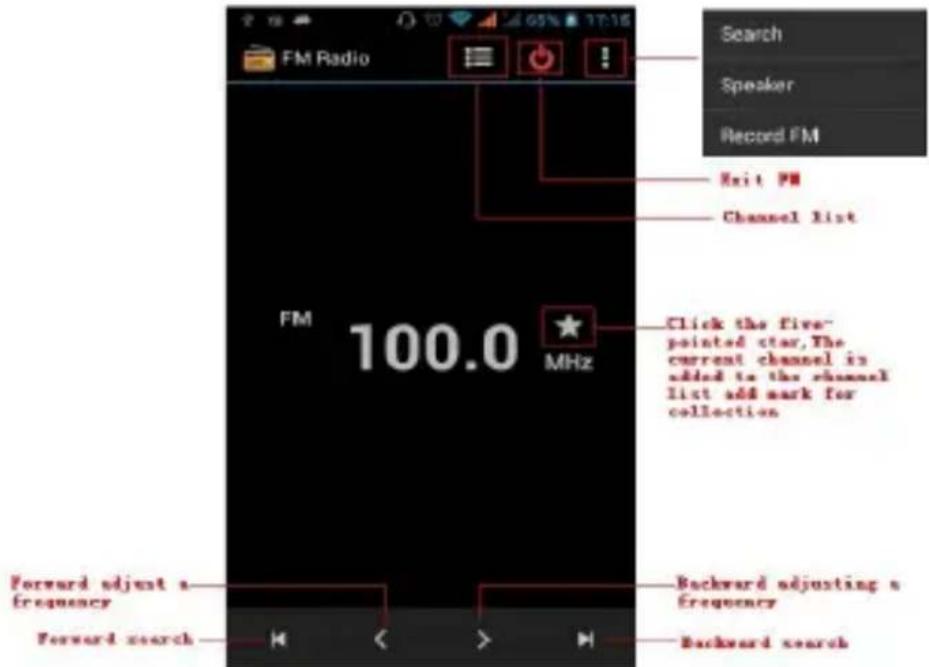
1) Click on the "search", automatic scanning search FM channel, and channel in list interface, list all channels
2) Click "FM recording", when you listening to the radio can be recorded. The recording name is to default and can be arbitrary.
3) Click "exit" to turn off the FM radio.
4) Must be insert a headphones to a better reception, select a speaker and you can listening the radio through of the speaker.
5) Click in the five-pointed star icon to add the channel as favorite.
- Listen to FM radio background
Click to return to key, the radio program moved to the background, right now you can still continue to listen to the show, and can also carry out any other program.
18.Settings
Your service provider may can default some device settings, so you is not possible be able to change these settings.
- SIM management

1) Touch it to choose or to disable the SIM card, the card is grey when disabled.
2) The default SIM card, you can choose Voice call, Video call, Messaging, Data connection.
- Wireless and internet

Flight mode Touch to open or close.
When you turn On the flight mode the Wi-Fi function will close automatically; turn off the flight mode then connect Wi-Fi, it can be used normally.
1) Wi-Fi and Wi-Fi settings
Touch Wi-Fi to
activate
Open Wi-Fi, it can search for available
networks automatically, networks without password can be used directly, others need to enter the password first.
- Bluetooth

Bluetooth switch turn ON will automatically and search nearby the other device with bluetooth.
Data usage

- Data usage set up mobile data traffic limit, flow more than limit will be close mobile data services.
- More
Wireless & networks
a. Airplane mode
b. VPN
c. Tethering&portable hotspot
d. Mobile networks
e. GPRS transfer mode
Audion profiles

This option gives the phone tones' settings under the status of receiving calls or notification. Including: Vibration, volume, ring tones, ring tones notification and feedback (Button operation tone, select Sound, screen lock tone, touch). To adapt every environment.
1) Select "Standard / Mute / Conference / Outdoor, Touch the spot on the right, when turns green, it opens.
2)Volume: Including the ring volume and alarm clock settings, you can manually slide to select.
- Displays

a. Brightness Adjust the brightness b. Auto rotating screen Rotate phone to change direction
c. Animation Choose to display animations d. Screen Timeout Adjust the delay before the screen automatically locks
Storage

a. Can view the SD card and cell phone memory usage.
b. Can Unmount SD card or Erase SD card.
c. Can choose the default memory.
- Battery

Boot time, the use in each module to use power in general
- Applications

1) Unknown sources allow to install non-electronic market applications
2) Manage applications manage and delete the installed applications.
3) Running services touch any of the services listed in> pop up 'to stop the service? 'two-button operation box, touch the 'Stop 'the service is stopped, and disappear from the "running services" list.
4) Storage use you can view the all program downloaded on Sd card or running or how many memory space they occupy
5) Battery use you can see the power situation.
6) Development. USB debug: USB debug only apply in the develop process. This function allows copy data in computer a devices.
- Location access

1) Use wireless Use wireless to find locations in the application (Google map).
Touch it to open or close
2) When using the GPS satellite positioning, set accuracy to street level (cancel it to save battery).
Touch it to open or close
3) GPS EPO assistance,use GPS assistance data(EPO)to speed uo GPS positioning
4) A-GPS Use auxiliary data can accelerate the process of GPS positioning.
Open it and remind you "it produce GPRS flows when using A-GPS".
Security

1) Set up screen locks Use images, PIN or password to lock the
screen.
a. Touch “images”, the first time there will be a simple unlock instructions and examples, click “next step” to continue the step “make the unlocking image”.
b. Touch PIN Enter PIN numbers to unlock the screen.
c. Touch password Set password to unlock the screen.
d. Touch "no" Stop this application.
2) Set up SIM card lock Enter (4-8numbers) PIN to set the lock of SIM.
SIM card PIN (Personal Identification Number) is to prevent unauthorized use of SIM cards.PIN code provided with SIM. The service provider gives the initial value.
Change a blocked PIN code, you need to open the "SIM Lock", then go to Change Password screen, the phone will automatically prompt enter the old PIN code and asked to enter a new PIN code twice, finally the phone will prompt that change the code successfully. If you enter the PIN with error for three times, SIM card PIN codes will be automatically locked, PUK codes is usually supplied with SIM card. If no, you should go to the service provider for the codes.
If you enter 10 times wrong PUK code, the SIM card will be permanently locked.
3) Password visible Password visible when enter it
4) Select device administration Add or delete device manager.
5) Use security credentials Allow application visit security credentials or other credentials.
6) Install from SD card Install the encrypted certificate from SD card.
7) set password Set or change Certificate store password
8) clear storage Clear all the contents of the certificate store and reset their passwords.
- Languages and keyboard

1) Selecting Language Country Include many languages on the phone.
2) Custom Dictionary Add words to custom delete.
3) Keyboard Settings Vibrating when buttons are pressed, Playing sound when
buttons are pressed, Capitalizing automatically, Speech Input(by microphone on the
keyboard), Inputting words(speech can be altered by sliding finger on space key), Displaying
tips activate predictive function when you input words); Auto-Text(Automatically input certain
words when press space key or specified keys)
4) Input method you can select Android keyboard or google input method.
- Backup & reset

1) Backup I data will application data, WLAN password and other Settings backup to Google's servers
2) Resetting to Factory Settings, Clear all data stored on the phone.
Add account

a. Corporate
b. Email
c. Google
- Date and Time

1) Automation Use date and time provided by Network.
2) Setting Date Touch ^+ and - to set date.
3) Selecting Time Zone Select Time Zone according to where you are.
4) Setting Time Touch "+" and "-" to set time.
5)Use 24 Hour Time Format ON/OFF
6) Select Date Format There are 3 kinds of formats you can choose from: Month-Day-Year, Day-Month-Year and Year-Month-Day, among which Year-Month-Day is the default setting.
Schedule power on/off

You can set time of boot or shutdown by touching it. You may also select to repeat it or a certain day during a week.
- Accessibility

1) Large text
2) Power button ends call: According to the "power" button to end the call to open, call, press the "power" will end the call and not shut down the screen
3) Auto-rotate screen
4) Speak passwords
5) Touch & hold delay
6) Install web scripts
7) Quick boot
- Developer options

a. USB Debugging: USB debugging only for development and USB disk.
b. Stay awake :Screen will never sleep while charging.
c. Allow mock locations
d. Desktop backup password
e. Strict mode enabled
f. Pointer location
q. Show touches
h. Show screen updates
i.Show CPU usage
j. Force GPU rendering
k. Window animation scale:
I. Transition animation scale
m. Don't keep activities
n. Background process limit
o. Show all APRs
- About phone

You can check the information on status bar and remaining power.
19. Notices for the use of phone
Your phone is a product of superior design and craftsmanship and should be treated with care. The following suggestions can help you comply with the terms of repair kits, to extend the life of mobile phone.
1) Place the mobile phone and their parts and components out of reach of small children.
1) Keep the phone dry, rain, humidity and all types of liquids which contain minerals will corrode electronic circuits.
2) Don't touch the phone with wet hands when charging, it will cause electric shock or damage the phone.
3) Avoid place the device in high temperature environment. Temperatures will shorten the life of electronic devices, damage batteries, and warp or melt certain plastics.
4) Avoid place the device in too low temperature environment. When the temperature rises, the phone will produce water vapor that may damage electronic circuit.
5) Avoid place the phone in dusty, dirty places, otherwise parts may be damaged.
6) To avoid the phone in a lit cigarette, near open flame or any heat source.
7) Do not open the device, non-professional approach will do damage to the phone.
8) Do not throw it from height, knock or shake the phone, rough handling can damage internal circuit boards.
9) Do not paint the phone, because the paint will block headphones, microphones or other removable parts, and lead it not work.
10) Use clean, soft, dry cloth to clean the camera, light sensor lenses. Prohibit the use of harmful chemicals and cleaning agents, cleaning fluids to clean the phone
11) If mobile phone, battery, charger, or mobile phone accessories are defective, send to the nearest qualified service center for inspection.
12) If is necessary, Service Centre staff will assist you and will arrange for phone repairs.
-Recovery mode uSUN250
How to enter in Recovery Mode.
Please, follow these steps.
1-To enter in the recovery mode first you should power off the device,
Then first press the "ON-OFF" key for one second and then press "VOL+" Key at the same time, until the appears the Android doll.
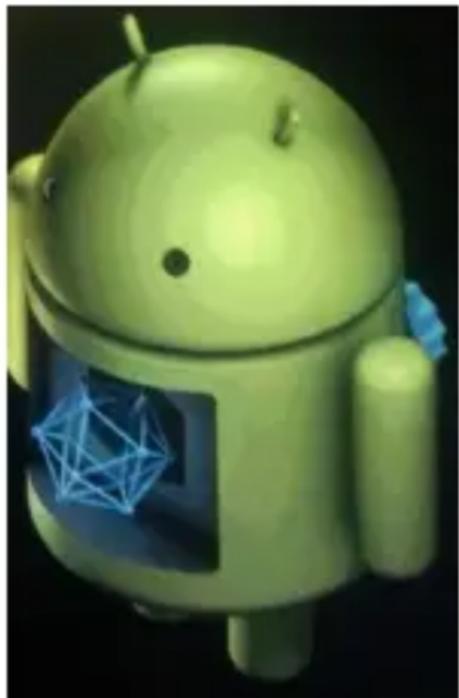
After appears another Android doll.
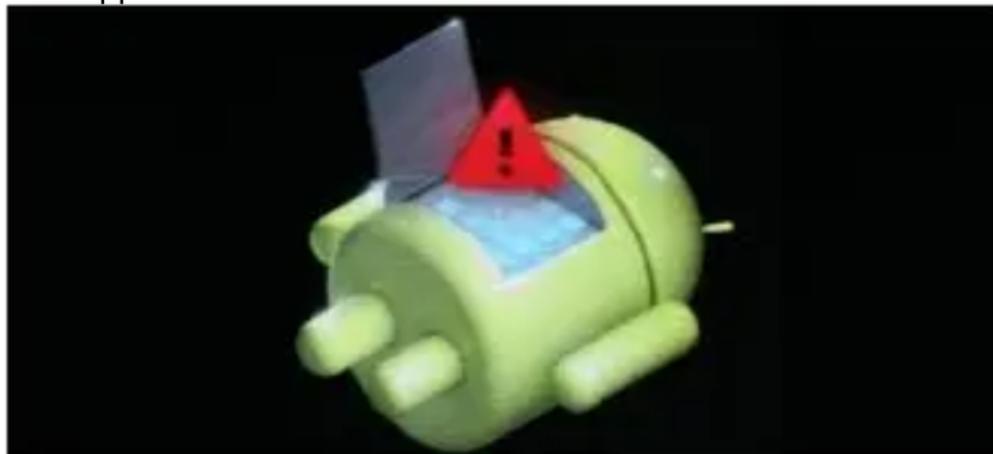
1-Push the "Power" and appears the Internal menu.
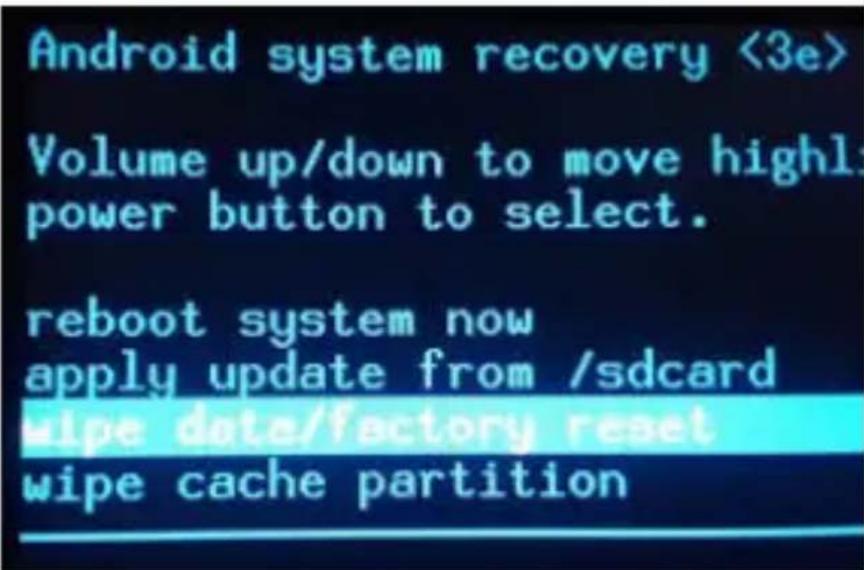
2-Push "VOL -" key and select "wipe data / factory reset" then press "VOL +".
3- Select "Yes delete all user data" with the "VOL-" Key and then press
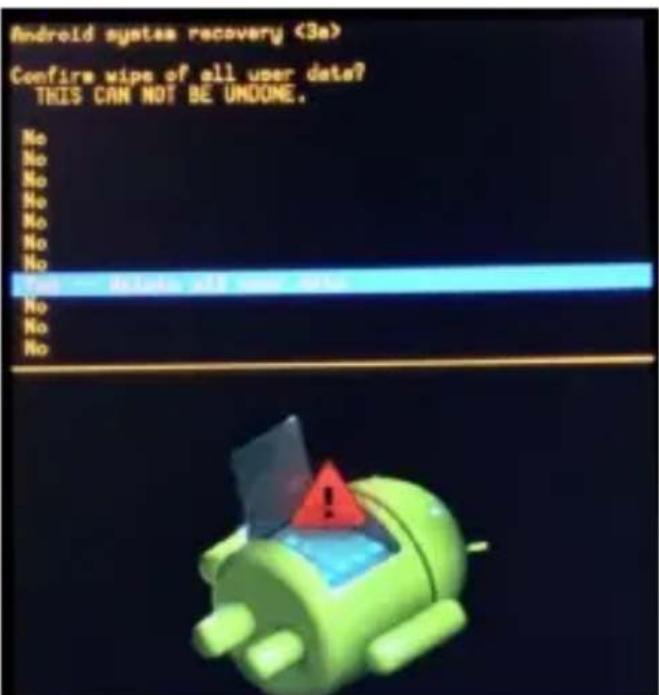
"VOL + " to select.
Android-appeared.
4- When it finishes select "reboot system now" press the "VOL + "button and the unit will re-start itself. (this process may last for a few minutes)
How to download the software using the unit.
IMPORTANT: When you download the software, all data will be deleted as photos, videos and Apps that you have been installed.
Do not interrupt this process please make sure the battery is fully charged.
Please, follow these steps.
1- Open browser and search and open this link:
www.sunstech.es/download/
2- Select the model of the tablet that you have and download the software.(This software is installed In the INTERNAL SD).
3- When it finished the download, select the App "Wireless update" in your unit.
4-Select the software and wait until the process is finished.
Made in China
EUROPEAN WARRANTY
1. General
This warranty is granted without prejudice and in addition to the recognized rights for the consumer vis-à-vis the seller provided in the Royal Legislative Decree of 16 November, approving the restated text of the General Law for the Protection of Consumers and Users and other complementary legislation. Therefore, the recognized legal rights for the consumer are not limited or excluded according to the relevant Regional, National or European legislation.
This warranty shall be valid in all the European Union Member States with the limitations that legally correspond in the country in which they are intended to be implemented in accordance with their implementing legislation.
Notwithstanding the foregoing, SUNSTECH shall respect the rights and limitations related to the product warranty that legally correspond in each of the States listed in the Attachment in accordance with their implementing legislation for any product provided that it is intended for the EU market and has purchased or used by the consumer or user within the EEA.
2. Legal Warranty
This SUSTECH product has a two (2) year warranty counting from the date of delivery and/or purchase. During the above timeframe, SUNSTECH shall be held responsible for any lack of conformity of the product in relation to the contract in accordance with the provisions of the Law for the Protection of Consumers and Users, that shall entitle the consumer to request the repair or replacement of the product, unless one of these options is objectively impossible or disproportionate.
Accordingly, the remedy (i.e. the repair or replacement) shall be deemed to be disproportionate if it imposes unreasonable costs on the seller. In order to determine this, the following shall be considered: (i) the value of the product if there were no lack of conformity; (ii) the relevance of the lack of conformity; and (iii) if the other form of remedy could be carried out without major inconvenience to the consumer and user.
To determine whether the costs are unreasonable, the costs incurred by one form of remedy must be significantly higher than the costs corresponding to the other form of remedy.
In addition, the consumer may choose between requesting a reduction in the price or terminating the contract, if he is not entitled to demand the repair or replacement of the product and whenever these actions would not be completed within a reasonable timeframe and would cause more inconvenience to the consumer and user. However, the termination shall not take place where the lack of conformity is minor.
Both the repair and the replacement of the product as a result of the product's lack of conformity shall be free of charge for the consumer and user, including labour and materials.
In any case, repairs under warranty shall be carried out by SUNSTECH's Official Technical Assistance Service or its authorized distributors.
3. Conditions for the warranty to be exercised
To exercise the legal and commercial warranty, it is necessary to submit documentary evidence showing the delivery and/or purchase date of the product, whether the invoice, receipt, delivery slip or sealed and dated warranty card. Documents which have been tampered with or falsified will not be accepted.
The consumer shall contact SUNSTECH's Customer Service Team using the website (under the support section) and will be informed about what action to take. At that time, the consumer shall have to provide a clear description of the malfunction or the lack of conformity of the product with the contract.
In any case, repairs under the warranty shall be carried out by SUNSTECH's Official Technical Assistance Services or its authorized distributors so that SUNSTECH can be held responsible under the legal and/or commercial warranty.
4. Exceptions
The warranty does not foresee or include periodic maintenance or product installation revisions.
In addition, the product will not be considered as lacking conformity in relation to the contract and therefore, it will not be covered by the legal or commercial warranty when:
-
The lack of conformity corresponds to a discrepancy with the safety standards or the local or national techniques of a different country to the one it was originally designed and produced in;
-
This product or any of its identification features (number of series, etc.) have been partially or completely opened, assembled, unassembled, handled and/or repaired by a person not part of SUNSTECH's Official Technical Assistance Services team or its authorized distributors
-
The lack of conformity is a result of an incorrect installation (except if the installation has been carried out by one of SUNSTECH's authorized sellers or under its responsibility, or by the consumer following SUNSTECH's installation instructions) or an abusive or inadequate use of the product, including but not limited to, a usage that is not in accordance to the normal purpose of the product or the directions for use and maintenance, as defined by SUNSTECH;
-
The lack of conformity has been caused by a computer virus, an action or a manipulation of passwords, software installation, manipulation or reinstallation, etc.;
- The lack of conformity is due to the use of accessories, chargers or consumables that are not SUNSTECH originals and therefore are not designed for that product;
- The lack of conformity is due to the use of any third party software or application that modifies, changes or adapts the software that was approved and/or included by SUNSTECH in the product;
- The lack of conformity is a result of downloading or using third party multimedia services and/or contents available or accessible through the product;
- Damages in or through the battery, which are due to it being overcharged, are produced;
- Any of the box seals or battery cells have been damaged, or there is clear evidence that shows these were handled; and/or
- The product damages are caused by any unforeseeable or force majeur circumstances, especially, lightning, water, fire, applying incorrect voltage or any other cause that is not due to the product manufacturing or design.
Under no circumstances will SUNSTECH be held responsible for the loss of any data stored in the product. The consumer will be held responsible for any back-up copies and the protection of any data from loss, damage or destruction.
None of the warranties included here cover the replacement of parts, due to ware or rupture of mechanisms, rubber, boxes and/or plastic, as well as any aesthetic damage resulting from the normal use of the product, for example, if the screen loses its shine with the use of the product. In the same way, the warranties do not cover any type of damage produced during the transportation of the product (including but not limited to aesthetic damage, blows, lines, scratches, stains, dents, etc.) in which case the applicable provisions under SUNSTECH's general contract conditions will apply.
For further information go to www.sunstech.es
You can also contact:
AFEX SUNS, S.A.
Pallars, 189-191
08005 BARCELONA
SAFETY AND PRECAUTION WARNINGS
SAR
www.sar-tick.com
This product can be adjusted to the SAR national limits of 2W / Kg . The specific SAR maximum values are in the information section of this guide.
When you hold the product or use it on your body, maintain a distance of 1.5 cm for 30 minutes every 2 hours to help reduce radiofrequency exposure standards.
dy
This device offers communication and entertainment services that follow SUNSTECH's high standards and technological experience.
- The content may differ from the final product of the software provided by the suppliers of services or transmitters and it is subject to alteration without prior notice.
- The elements that come with the device and any available accessory may vary according to the region or supplier of the services.
- The elements provided are designed uniquely for this device and may not be compatible with other devices.
- You may purchase additional accessories at your local SUNSTECH distributor. Ensure that they are compatible with the device before you purchase them.
- Other accessories may not be compatible with the device.
- SUNSTECH is not held responsible for problems of insufficient return or any change to the operating system's software. Any attempt to personalize the operating system may cause the device or the applications to function incorrectly.
Instruction icons



Warning: Situations that can cause injuries to yourself or third parties.
Precaution: Situations that can cause damages to the device or other equipment.
Note: Notes, recommendations of use or additional information.
Copyright

2013 Afex suns, S. A.
Copyright
This guide is protected by international copyright laws.
Reproduction, distribution, translation or transmission of any part of this guide is not allowed under any circumstances or through any means, be it electronic or mechanic. This includes photocopies, records or storage in any information retrieval and storage systems, without previous written authorization from Afex Suns, S.A.
Safety information
This section contains safety information for mobile devices. Some of the content may not apply to your device. In order to avoid injury to yourself or third parties or damage to the device, read the device's safety information before you use it.

Warning
If you do not comply with these safety regulations and warnings, you may suffer serious injury or even death.
Do not use damaged power cords or connectors or loose sockets.
Unsafe connections may cause an electric discharge or a fire.
Do not touch the power cord if your hands are wet and do not pull the cord to disconnect the charger.
If you do so, you may be electrocuted.
Do not bend or damage the power cord.
If you so do, this may cause an electric discharge.
Do not cause a short-circuit in the charger or the device.
If you do so, this may cause an electric discharge or the device may not function correctly.
Use batteries, chargers, accessories and supplies that have been approved by the manufacturer.
- The use of generic batteries or chargers may shorten the useful life of the device or cause incorrect functioning. It may also cause a fire or the battery may explode.
- Only use batteries or chargers that have been approved by SUNSTECH, specifically designed for the device. Any non compatible batteries and chargers may cause serious physical injuries or damage the device.
- SUNSTECH will not be held responsible for the safety of the user whenever accessories or supplies that have not been approved by the brand are used.
Do not cut or drop the charger or the device.
When handling or disposing of the device and charger do so with caution.
- Never throw the battery or the device into the fire. Never place the battery or the device on any sources of heat, such as, ovens, microwaves, glasshouses or radiators, etc. If it overheats, the device may explode. Follow all local regulations with regards to disposing
of the used battery or device.
- Do not squash the device or make holes in it.
- Avoid exposing the device to high pressure because this may cause an internal short-circuit and overheating.
Protect the device, battery and charger in order to stop them from getting damaged.
- Avoid exposing the device and battery to very high or very low temperatures.
- Extreme temperatures may damage the device and reduce the charging capacity and the duration of the device and battery.
- Avoid the battery entering into contact with metal objects because this may cause a connection between the positive and negative terminals of the battery and damage it temporarily or permanently.
- Never use damaged chargers or batteries.
Do not store the device in or near heaters, microwaves, heated kitchen equipment or high pressure containers.
- The battery may have leakages.
The device may overheat and cause a fire.
Do not use or store the device in places with a lot of dust or material transported by air.
Dust or foreign materials may cause the device to malfunction and may result in a fire or an electric discharge.
Safety information
Do not bite or suck the device or the battery.
- This may damage the device or cause an explosion or a fire.
Children and animals may choke on small pieces. - When children use the device, ensure that they do so correctly.
Do not insert the device or the accessories provided into your eyes, ears or mouth.
If you do so, you make choke or suffer serious injuries.
Do not handle damaged lithium-ion batteries or batteries that show evidence of leakage.
To dispose of lithium-ion batteries safely, contact your closest authorized service centre.

Precaution
If you do not comply with these regulations and warnings, you may suffer injuries or cause material damage.
Do not use the device near other electronic devices.
- Most electronic devices use radiofrequency signals. The device may interfere with other electronic devices.
- If you use a LTE data connection, this may cause an interference with other devices, such as audio equipment and telephones.
Do not use the device in a hospital, plane or car that may be affected by interference caused by radiofrequency.
-
If possible, avoid using the device at any distance lower than 15 cm from a pacemaker, because the device may cause interferences with it.
-
To minimize any possible interference with a pacemaker, use the device only on the opposite side of the body in relation to the position of the pacemaker.
-
If you use medical equipment, contact the manufacturer of the equipment before using the device in order to ascertain whether the equipment will be affected by the radiofrequency emitted by the device.
-
If electronic devices are used on a plane, these may interfere with the electronic navigation instruments. Ensure that the device turned off during take-off and landing. After take-off you may use the device on "airplane mode" as long as this is allowed by the cabin crew.
-
The electronic devices in your car may malfunction due to the radio interference of the device. Contact the manufacturer for further information.
Do not expose the device to smoke or strong emanations.
If you do so, you may damage the outside part of the device or cause its malfunctioning.
If you use hearing devices, contact the manufacturer for further information about radio interference.
The radiofrequency that the device emits may interfere with some hearing devices. Before using the device, contact the manufacturer in order to ascertain whether the hearing device will be affected by the radiofrequency emitted by the device.
Do not use the device near other devices or apparatuses that emit radiofrequency, such as sound systems or radio towers.
Radiofrequency may cause the malfunctioning of the device.
Turn off the device in potentially explosive atmospheres.
- Turn off the device instead of removing the battery in potentially explosive atmospheres.
- Always respect the standards, instructions and warning signs in potentially explosive atmospheres.
- Do not use the device in petrol stations or near fuel or chemicals or in demolition areas.
- Do not store or transport flammable liquids, gases or explosive material in the same compartment in which the device, its parts or accessories are.
If you become aware of the device or the battery letting off strange odours or sounds or if you see smoke or liquid coming out of the device or battery, stop using the device immediately and take it to an authorized service Centre.
If you do not do so, this may cause a fire or an explosion.
Comply with all the safety regulations and warnings related to the use of mobile devices when driving a vehicle.
When driving, your main responsibility is to control the vehicle safely. If the law does not allow mobile phone use when driving, do not use the mobile device. For your and others' safety use your common sense and remember the following advice:
- Get to know the device and its operating functions, like speed dialling and recall system. These functions allow the time necessary to make and receive calls to be reduced.
- Put the device in a place where it is easy to reach. Make sure that you can access the wireless device without taking your eyes off the road. If you receive a telephone call at an inconvenient time, let voice-mail answer it.
- Stop phone calls when there is heavy traffic or when there are adverse climate conditions. Rain, sleet, snow, ice and heavy traffic can be very dangerous.
- Do not jot down or look for telephone numbers. Jotting down a task or looking at your calendar may distract you from your responsibility, which is to drive safely.
- Dial carefully and assess the state of the traffic. Make phone calls when you are not moving or before hitting traffic. Try to schedule phone calls when the car is parked.
- Do not have very stressful or emotional phone calls that distract you. Tell the person that you are speaking to that you are driving and end any conversations that may take away your attention from the road.
Correct use and maintenance of the mobile device.
Keep the device dry.
- Humidity and liquids may damage the parts or the electronic circuits of the device.
- Do not turn on the device if it is wet. If it is already turned on, turn it off and take the battery out immediately (if you cannot turn it off or take the battery out, just leave it as it is). After this, dry device with a towel and take it to the service centre.
- Liquids will change the colour of the label which indicates the damage caused by the water inside the device. The damage caused by the water in the device may cancel the manufacturer's warranty.
Place the device only on flat surfaces.
If it drops, the device may get damaged.
Do not store the device in very hot or cold places. It is recommended that you use the device at temperatures between 5^ and 35^ .
- Do not store the device in places with very high temperatures, such as inside a car in the summer. If you do so, you may cause the screen to malfunction, the device may get damaged or the battery
may explode.
- Do not expose the device to direct sunlight for long periods of time (for example, on the dashboard of a car).
- Store the battery at temperatures between 0^ and 45^ .
Do not store the device with metal objects, such as coins, keys and necklaces.
- The device may get scratches or stop working properly.
- If the battery terminals come into contact with metal objects, a fire may occur.
Do not store the device near magnetic fields.
- It is possible for the device to start malfunctioning and for the battery to lose power due to being exposed to these fields.
- Cards with magnetic stripe, such as credit cards, telephone cards, travel passes may get damaged due to the magnetic fields.
If the device overheats, stop using it and its applications for a while.
Prolonged skin exposure to a hot device may cause symptoms of burning with low temperature, such as red spots and pigmentation.
Do not use the device if the back cover is not in place.
The battery may come out of the device, which can cause damage or malfunctioning.
If the device has a lamp or a camera flash, do not use it near people's or animal's eyes.
This may cause a temporary loss of vision or damage the eyes.
Be careful when exposing yourself to intermittent light.
- When you use the device, leave some lights turned on in the bedroom and do not have the screen too close to your eyes.
- Convulsions or fainting may occur due to exposure to intermittent light when looking at videos or playing games with intermittent lights for prolonged periods of time. If you feel unwell, stop using the device immediately.
- If anyone close to you suffered from convulsions or fainting when using a similar device, visit a doctor before using the device.
- If you feel discomfort, such as muscle cradisoriented, stop using the device immediately and visit a doctor.
- To avoid eye fatigue, have frequent breaks when using the device.
Reduce the risk of injury caused by repetitive movements.
When you carry out repeated actions, such as pressing keys, drawing characters on the touch screen or playing a game, you may feel discomfort in your hands, neck, shoulders or other parts of the body. When you use the device during prolonged periods of time, hold it with relaxed hands, touch the keys lightly and rest frequently. If you continue feeling discomfort during or after taking these steps, stop using the device and visit a doctor.
When you use earphones, protect your hearing and your ears.
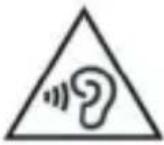
- Excessive exposure to loud sounds can cause damage to hearing.
-
Exposure to loud sounds while you are walking may distract you and cause an accident.
-
Always lower the sound before connecting the earphones to an audio source and use the minimum amount of volume necessary to listen to music or have a conversation.
- In dry environments, static electricity may accumulate in the earphones. Avoid using earphones in dry environments or touch metal objects to discharge the static electricity before connecting the earphones to the device.
- Do not use an earphone while you are driving or riding a vehicle. If you do so you may get distracted and cause an accident or you may be subject to legal action, depending on the area where you are driving.
Use the device with caution while you are walking or moving.
- Always pay attention to what is happening around you to avoid physical injury to yourself and others.
- Make sure the earphone cord does not get entangled round your arms or nearby objects.
Do not take devices in your front pockets or round your waist.
You may get injured or damage the device if it falls.
Do not paint your device or put any stickers on it.
- Paint and stickers can obstruct the mobile parts and stop the device from working properly.
- If you are allergic to paint or to the metal parts of the device, you may get a stingy feeling, eczema or swelling. If this happens, stop using the device and visit a doctor.
Do not use the device if the screen is cracked or broken.
The broken glass can cause hand and face injuries. Take the device to an authorized service centre to get it repaired.
Install the mobile devices and the equipment with caution.
- Make sure that the whole mobile device or related equipment that is installed in your vehicle is assembled safely.
- Avoid placing the device and the accessories where the airbag is or next to it. Any wireless equipment installed incorrectly can cause serious injuries when the airbags inflate quickly.
Do not allow the product to fall or to be subject to strong impacts.
- The device may get damaged or malfunction.
- If you bend or deform it the device may get damaged and its parts may malfunction.
Guarantee of the maximum duration of the battery and charger.
-
Avoid charging the device for over a week, because overcharging can reduce the battery's service life.
-
With time, the device will run out of battery (even when it is not being used) and you will need to recharge it to use it again.
- Disconnect the charger from the power sources when it is not being used.
- Use the battery only for the purpose for which it was designed.
- If you do not use the battery for a long time, you may reduce its service life and performance. You may also cause the malfunctioning or explosion of the battery or a fire.
- Follow all the instructions in this manual to guarantee the longest service life possible for your device and battery. Any damage or operating problems caused by not complying with the warnings and instructions may cancel the manufacturer's warranty.
- With time, the device may wear out. Some parts and repairs are covered under the warranty during the validity period; however, the damages or deterioration caused by the use of accessories not approved by the brand are not covered.
Take the following information into account when using the device.
- Use it in a vertical position, as you would a traditional telephone.
- Speak directly into the microphone.
- Do not cover the antenna area with your hands or other objects. This may cause connection problems or cause the battery to run down.
Do not unassembled, change or repair the device.
- Any alteration or change to the device manufacturer's warranty. If you need to repair the device, take it to an authorized service centre.
- Do not disassemble or make holes in the battery, this may cause an explosion or a fire.
- Turn off the device before removing the battery. If you remove the battery while the device is still turned on, this may cause malfunctioning.
Take the following information into account when cleaning the device.
- Use a towel or a rubber cloth to clean the device and the charger.
- Clean the battery terminals with cotton or with a towel.
- Do not use chemical substances or detergents. If you do so, you may cause discoloration or corrosion of the outside part of the device or you may cause an electric discharge or a fire.
Do not use it for any other purpose other than the one it was designed for.
The device may malfunction.
When you use the device in public, try not to disturb others.
Only allow qualified professionals to carry out the maintenance of your device.
It is possible for damages to occur and the manufacturer's warranty is cancelled if you allow non qualified personnel to carry out the
maintenance of the device.
Be careful when handling SIM cards, memory cards or cables.
- When inserting a card or connecting a cable to the device, make sure the card is inserted correctly or that the cable is connected on the right side.
- Do not take the card out when the device is transferring information or it has access to it, because you may lose data and damage the card or the device.
- Protect the cards from strong discharges, static electricity and noise generated from other electronic devices.
- Do not touch the contacts or the gold terminals with your fingers or with metal objects. If the card is dirty clean it with a soft cloth.
- If you insert a card or connect a cable forcefully or incorrectly you may cause damage to the multifunctional socket or other parts of the device.
Make sure you have access to emergency services.
It is possible that in some areas or circumstances you may not be able to make emergency phone calls. Before travelling to remote areas or developing countries, plan an alternative form of communicating with the emergency services.
Protect your personal data and avoid confidential information from being spread or used incorrectly.
- When you use the device, make sure you make back-up copies of important data. SUNSTECH will not be held responsible for any loss of data.
- When you dispose of the device, make a back-up copy of all the data and after re-establish the device to avoid personal information from being used inappropriately.
- Read the licenses screen carefully when you download applications. Be especially careful with applications that have access to various functions or a significant amount of your personal information.
- Control your accounts frequently to avoid any suspicious or non-authorized use. If you find any indication of your personal information not being used appropriately, contact your services supplier to delete or change the information in your account.
- If you lose the device or it is stolen, change the passwords of your accounts to protect your personal information.
- Avoid using applications from unknown sources and block the device with a pattern, a password or a PIN.
Do not distribute material protected with copyright.
Do not distribute material protected with copyright without the authorization of the content owners. If you do so, you may violate copyright laws. The manufacturer will not be held responsible for any legal problem caused by illegal use of material protected by the user.
Malware and virus
Follow these suggestions to protect the device against malware and virus. If you do not do so, you may cause damages or loss of data that may not be covered under the warranty.
- Do not download unknown applications.
- Do not use unreliable websites.
- Delete any suspicious text messages or emails from unknown senders.
- Create a password and change it regularly.
- Deactivate the wireless functions, such as Bluetooth, when you are not using them.
- If the device behaves strangely, execute an antivirus program to detect a possible infection.
- Execute an antivirus program on the device before starting applications and files that you just downloaded.
- Install anti-virus programs on your computer and execute them regularly to detect any possible infections.
- Do not edit the registration adjustments or change the device's operating system.
Information about the certification of the Specific Absorption Rate (SAR).
THIS DEVICE FOLLOWS INTERNATIONAL STANDARDS OF EXPOSURE TO RADIO WAVES.
Your mobile device is a radio transmitter and receiver. It was designed to not exceed the limits of exposure to radio (electromagnetic fields of radiofrequency) recommended by international standards. The standards were developed by an independent scientific organization (ICNIRP) and include a substantial safety margin designed to ensure the safety of all people, regardless of their age or state of health.
The exposure to radio wave standards use a measurement unit known as the Specific Absorption Rate, SAR. The SAR limit for mobile devices is 2W / Kg . The SAR tests are carried out using standard operation positions with the device transmitting at its maximum certified energy level in all frequency bands. The highest SAR amounts under the ICNIRP standards for this device model are:
Maximum SAR for this model and conditions under which it registered
| SAR for positions near the head. | 0.285 W/Kg |
| SAR for positions near the body. | 0.0399 W/Kg |
During the use, the real SAR values for this device are usually a lot lower from the values indicated previously. This is due to maximizing the system's efficiency and to minimize the interference with the network, the operation capacity of your mobile device reduces automatically when the maximum power is not needed for
the call. The lower the amount of energy leaving the device, the lower the SAR amount will be.
A SAR test was carried out with the device on the body with a distance of 1.5cm . To comply with the radiofrequency requirements, while using the device on the body, the device shall have to be at least 1.5cm away from the body.
Some organizations, like the World Health Organization or the Food and Drug Administration of the United States suggest that if user want to reduce exposure, they can use a hands free accessory to main the wireless device far away from the head and body when in use, or reduce the amount of time spent using the device.
Correct disposal of this product.
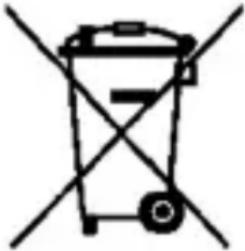
(Electronic device waste)
(This applies in countries where recollection systems happen separately).
The presence of this symbol on the product, accessories or information material indicates that neither the product nor its electronic accessories (such as, the charger, helmets, USB cable) should be disposed of with other household waste.
To avoid any possible damage to the environment or human health caused by uncontrolled disposal of waste, separate these products from other waste and recycle them. This way, you are promoting the sustainable reuse of material resources.
Individual users can contact the establishment where they purchased the product or the relevant local authorities to get information about where and when they can take it in order to submit it to ecological and safe recycling.
Business users can contact their supplier and check the purchase contract conditions. This product and its electronic accessories should not be disposed of with other commercial waste.
Correct disposal of this product's batteries
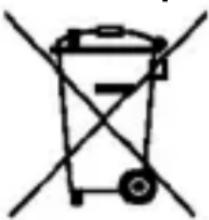
(This applies in countries where recollection systems happen separately).
The presence of this mark on the batteries, manual or product packaging indicates that when the service life of the batteries has ended they should not be disposed of with other household waste. The chemical symbols Hg, Cd and Pb indicate that the battery has mercury, cadmium or lead at levels a lot higher than the reference values admitted by the 2006/6 Directive of the European Union.
If the batteries are not disposed of correctly, these substances may cause personal injury or damage the environment.
To protect natural resources and promote recycling, separate the batteries from other waste and recycle them through the free collection service in your area.
Exemption from responsibility clause
Part of the content and services to which you obtain access through this device belong to third parties and are protected under copyright, patent, registered trademark and/or other intellectual property laws. This content and services are only for personal use and not commercial use. It is possible that the content or the services cannot be used if not authorized by the content owner or the supplier of the services. Without prejudice to the aforementioned information, except when expressly authorized by the content owner or service supplier, you cannot change, copy, reedit, charge, publish, transmit, translate, sell, create derivative works, explore or distribute in any way or by any means the content or the services shown through this device.
THE CONTENT AND THE SERVICES OF THIRD PARTIES ARE PROVIDED "AS IS". SUNSTECH DOES NOT GUARANTEE THE CONTENT OR THE SERVICES PROVIDED, EITHER EXPRESSLY OR IMPLICITLY, FOR NO PURPOSE. SUNSTECH EXPRESSLY RENOUNCES ANY IMPLICIT GUARANTEES, INCLUDING BUT NOT LIMITED TO, MERCHANTABILITY OR SUITABILITY GUARANTEES FOR A PURPOSE IN PARTICULAR. SUNSTECH DOES NOT GUARANTEE THE VERACITY, VALIDITY, REPRODUCTION, LEGALITY OR INTEGRITY OF ANY TYPE OF CONTENT OR SERVICE PROVIDED THROUGH THIS DEVICE AND UNDER NO CIRCUMSTANCES, INCLUDING NEGLIGENCE, WILL SUNSTECH BE HELD RESPONSIBLE. BOTH IN TERMS OF CONTRACT OR PREJUDICE TO ANY DIRECT OR INDIRECT, ACCIDENTAL, SPECIAL OR CONSEQUENTIAL DAMAGES, LAWYERS' FEES, EXPENSES OR ANY OTHER TYPE OF DAMAGE FROM OR IN RELATIONTO ANY TYPE OF INFORMATION INCLUDED IN OR AS A RESULT OF THE USE OF ANY TYPE OF CONTENT OR SERVICE BY YOURSELF OR A THIRD PARTY, THE POSSIBILITY OF THE REFERRED DAMAGES IS KNOWN."
The services of third parties may cease or be interrupted at any time and SUNSTECH does not carry out representations or guarantees in relation to the availability of content or service for any period of time. The content and services are transmitted by third parties through networks and transmission locations over which SUNSTECH has no control. Without limiting the generality of this clause, SUNSTECH expressly renounces any responsibility for any interruption or suspension of content or service provided through this device.
SUNSTECH is not responsible for customer service regarding content and services. Any question or request for service regarding content or services should be sent directly to the services and content suppliers.
DECLARATION OF CONFORMITY
Council Directive(s) to which conformity is declared:
Directive (1999/5/EC) - R&TTE Directive (2011/65/EU) - RoHS
Application of the Standards
EN60950-1:2006+A11:2009+A1:2010+A12:2011
EN 62471:2008 EN 62209-1:2006
EN62209-2:2010 EN50360:2001
EN62311:2008 EN62479:2010
EN 62479:2010 EN 301 489-1 V1.9.2
EN301489-3V1.4.1 EN301489-7V1.3.1
EN301489-17V2.1.1 EN301489-24V1.5.1
EN301489-1V1.9.2 EN301489-34V1.3.1
EN301511V9.0.2 EN301908-1V5.2.1
EN301908-2V5.2.1 EN300328V1.7.1
EN300440-1V1.6.1 EN300440-2V1.4.1
Manufacturer's name:
AFEX SUNS, S.A.
Manufacturer's address:
C/Pallars 189,08005 Barcelona
Type of equipment:
SMARTPHONE
Trade:
SUNSTECH
Model no.:
uSUN250
We, the undersigned, hereby declare under our sole responsibility that the specified equipment is in conformity with the above Directive(s) and Standard(s)
Place:Barcelons
(Sig.8,9的同胚)
Victor Planas Bas
(Full name)
Date: 27-December-2013
General Manager
(Posifom)
sunstech
Manual del usuario
uSUN250
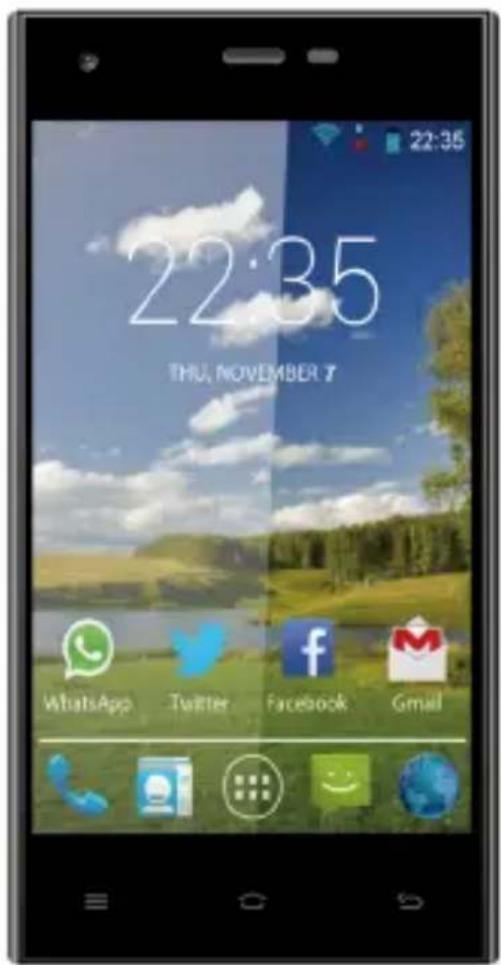
Indices
1.APARIENCIA Y OPERaciones DEL TECLADO. 56
2. CÓMOSUAR LATARJETA DE MEMORIA COMODISCO U 56
3.WIFI 58
4. BLUETOOTH 60
5.CORREO 61
6.MARCADO 63
7. MENSAJERIA 67
8.CONTACTOS 69
9.INTERNET EXPLORER 72
10. GRABADA 73
11.RELOJ. 74
12.CACULADORA 75
13.CAMARA. 75
14. IMAGENES 78
15.MUSICA 81
16.CALENDARio 82
17.RADIO FM .84
18.CONFIGURACION 85
19. AVISOS PARA EL USO DEL TELEFONO 90
- La humedad y los liquidosSEOSEOSEOSEOSEOSEOSEOSEOSEOSEOSEOSEOSEOSEOSEOSEOSEOSEOSEOSEOSEOSEOSEOSEOSEOSEOSEOSEOSEOSEOSEOSEOSEOSEOSEOSEOSEOSEOSEOSEOSEOSEOSEOSEOSEOSEOSEOSEOSEOSEOSEOSEOSEOSEOSEOSEOSEOSEOSEOSEOSEOSEOSEOSEOSEOSEOSEOSEOSEOSEOSEOSEOSEOSEOSEOSEOSEOSEOSEOSEOSEOSEOSEOSEOSEOSEOSEOSEOSEOSEOSEOSEOSEOSEOSEOSEOSEOSEOSEOSEO SEO
2M pixels, 3M pixels, 5M pixels
13.2 Camera video
1) "Unknown Sources" you permit dinstaller des applications de sources non approuvees.
Directive (1999/5/CE) - R & TTE
Directive (2011/65/UE) - RoHS

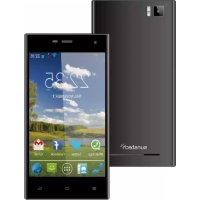
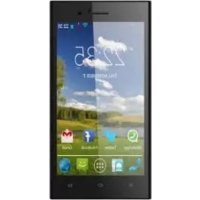
- . Appearance and Keypad Operations
- Using Memory Card as U Disk
- 3.WIFI
- Open Wi-fi and to connect to the wireless network
- Bluetooth
- 5.Mail
- Gmail
- - Load Email.
- 6.Dialling
- - Start dialing
- Dialling
- Voice Call
- Video Call
- Internet call
- Other Settings
- Messaging
- To Send SMS.
- To Send MMS.
- - Send messages to multiple numbers
- Contacts
- Internet Explorer
- Internet explorer
- Recorder
- 11.Clock
- Alarm
- Edit
- 12.Caculator
- calculator
- 13.Camera
- camera
- Video camera
- Images
- Music
- - Open Music
- Music Media
- Calendar
- 17.FM Radio
- FM Radio
- 18.Settings
- - SIM management
- - Wireless and internet
- - Bluetooth
- Data usage
- Audion profiles
- - Displays
- Storage
- - Battery
- - Applications
- - Location access
- Security
- - Languages and keyboard
- - Backup & reset
- - Date and Time
- Schedule power on/off
- - Accessibility
- - Developer options
- Notices for the use of phone
- -Recovery mode uSUN250
- How to download the software using the unit.
- Made in China
- EUROPEAN WARRANTY
- General
- Legal Warranty
- Conditions for the warranty to be exercised
- Exceptions
- SAFETY AND PRECAUTION WARNINGS
- SAR
- Instruction icons
- Copyright
- Safety information
- Warning
- When handling or disposing of the device and charger do so with caution.
- Protect the device, battery and charger in order to stop them from getting damaged.
- Do not store the device in or near heaters, microwaves, heated kitchen equipment or high pressure containers.
- Do not use or store the device in places with a lot of dust or material transported by air.
- Do not bite or suck the device or the battery.
- Do not insert the device or the accessories provided into your eyes, ears or mouth.
- Do not handle damaged lithium-ion batteries or batteries that show evidence of leakage.
- Precaution
- If you do not comply with these regulations and warnings, you may suffer injuries or cause material damage.
- Do not use the device near other electronic devices.
- Do not use the device in a hospital, plane or car that may be affected by interference caused by radiofrequency.
- Do not expose the device to smoke or strong emanations.
- If you use hearing devices, contact the manufacturer for further information about radio interference.
- Do not use the device near other devices or apparatuses that emit radiofrequency, such as sound systems or radio towers.
- Turn off the device in potentially explosive atmospheres.
- Comply with all the safety regulations and warnings related to the use of mobile devices when driving a vehicle.
- Correct use and maintenance of the mobile device.
- Keep the device dry.
- Place the device only on flat surfaces.
- Do not store the device in very hot or cold places. It is recommended that you use the device at temperatures between 5° and 35° .
- Do not store the device with metal objects, such as coins, keys and necklaces.
- Do not store the device near magnetic fields.
- If the device overheats, stop using it and its applications for a while.
- Do not use the device if the back cover is not in place.
- If the device has a lamp or a camera flash, do not use it near people's or animal's eyes.
- Be careful when exposing yourself to intermittent light.
- Reduce the risk of injury caused by repetitive movements.
- When you use earphones, protect your hearing and your ears.
- Use the device with caution while you are walking or moving.
- Do not take devices in your front pockets or round your waist.
- Do not paint your device or put any stickers on it.
- Do not use the device if the screen is cracked or broken.
- Install the mobile devices and the equipment with caution.
- Do not allow the product to fall or to be subject to strong impacts.
- Guarantee of the maximum duration of the battery and charger.
- Do not unassembled, change or repair the device.
- Take the following information into account when cleaning the device.
- Do not use it for any other purpose other than the one it was designed for.
- When you use the device in public, try not to disturb others.
- Only allow qualified professionals to carry out the maintenance of your device.
- Be careful when handling SIM cards, memory cards or cables.
- Make sure you have access to emergency services.
- Protect your personal data and avoid confidential information from being spread or used incorrectly.
- Do not distribute material protected with copyright.
- Malware and virus
- Correct disposal of this product.
- Correct disposal of this product's batteries
- Exemption from responsibility clause
- DECLARATION OF CONFORMITY
- Directive (1999/5/EC) - R&TTE Directive (2011/65/EU) - RoHS
- sunstech
- Manual del usuario
- uSUN250
- Indices
- Camera video
- Directive (1999/5/CE) - R & TTE
- Directive (2011/65/UE) - RoHS
Brand : Sunstech
Model : uSUN250
Category : Smartphone