
CELT22 - Smartphone Sunstech - Free user manual and instructions
Find the device manual for free CELT22 Sunstech in PDF.


| Product Type | Smartphone |
| Brand | Sunstech |
| Model | CELT22 |
| Dimensions | 155 x 75 x 8 mm |
| Weight | 180 g |
| Display Size | 5.5 inches |
| Resolution | 720 x 1280 pixels |
| Operating System | Android 11 (Go edition) |
| Processor | Quad-core 1.5 GHz |
| RAM | 2 GB |
| Internal Storage | 16 GB (expandable via microSD) |
| Rear Camera | 8 MP with LED flash |
| Front Camera | 5 MP |
| Battery Capacity | 3000 mAh (removable) |
| Network | 4G LTE, 3G, 2G |
| SIM | Dual SIM (Nano-SIM) |
| Connectivity | Wi-Fi 802.11 b/g/n, Bluetooth 4.2, GPS, microUSB 2.0 |
| Sensors | Accelerometer, proximity, light |
| Power Supply | Input: AC 100-240V, 50/60Hz; Output: 5V/1A |
| Main Functions | Calls, SMS, camera, video playback, music, internet browsing, GPS navigation |
| Care and Cleaning | Wipe with a soft, dry cloth; avoid solvents; keep away from water |
| Safety | Keep away from children; do not expose to extreme temperatures; use original charger |
| Spare Parts and Repairability | Battery and back cover replaceable; service by qualified personnel |
| General Information | Color: Black; SAR value: 0.5 W/kg (head) |
Frequently Asked Questions - CELT22 Sunstech
User questions about CELT22 Sunstech
0 question about this device. Answer the ones you know or ask your own.
Ask a new question about this device
Download the instructions for your Smartphone in PDF format for free! Find your manual CELT22 - Sunstech and take your electronic device back in hand. On this page are published all the documents necessary for the use of your device. CELT22 by Sunstech.
USER MANUAL CELT22 Sunstech
natural_image
Abstract illustration of a stylized white sphere above a gray book with partial crescent shapes, set against a dark background with a white circle and curved lines (no text or symbols)CELT22
MOBILE PHONE
USER GUIDE
CONTENT
- GENERAL DESCRIPTION....1
- KEYMAP DESCRIPTION & FUNCTIONS....2
- SIM CARD / TF CARD SLOT / BATERRY POSITION .... 3
- MESSAGE 3
4.1 Write message....3
4.2 Inbox 3
4.3.Outbox 3
4.4.Drafts 4
4.5.Sent box 4
4.6 Settings 4
- MULTIMEDIA 4
5.1. Camera 4
5.2 DV 5
5.3. Audio 5
5.4 Video 5
5.5 FM Radio 5
- SETTINGS 6
6.1 Phone settings....6
6.2 Display....6
6.3 Security settings....6
6.4 Call settings 7
6.5 Speed Dial....7
6.6 50S....8
6.7 Talkback....8
- FUN & GAMES 8
- APPLICATIONS....8
8.1Calculator....8
8.2 World clock....8
8.3 Torch 8
8.4 Bluetooth 8
-
PHONEBOOK....9
-
CALL HISTORY 9
- SOUND RECORDER....10
ENGLISH
User guide
CELT22
- IMAGE....10
- CALENDAR....10
- ALARM 10
- USER PROFILE....11
- FILE MANAGER....11
- WARNINGS....12
ENGLISH
User guide
CELT22
1. GENERAL DESCRIPTION

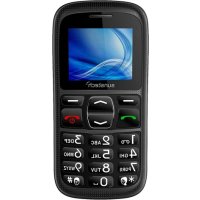
- 1.77 LCD Display
- Camera
- Camera flashlight
- Torch light key
- Speaker
- SOS key
- Receiver
- 2.4" LCD display
- Left soft key (Menu key)
- Right soft key (Back key)
- Dialing key
- End call key / Power on & off Key
- Main keypad
- Flash light
- Earphone jack
- Volume +
- Volume-

ENGLISH
User guide
CELT22
2. KEYMAP DESCRIPTION & FUNCTIONS
1) Left soft key: Enter menu or sub-menus; activate the function which is chosen.
2) Right soft key: Enter phone book; Get back to superior menu; Silent ring tone when receiving a call.
3) Dialing key: To make a phone call; to answer an incoming call; To enter call history under standby mode.
4) End call key / Power on & off key: To end a call; To go back to standby mode; To power on/off the phone by long pressing.
5) Up key: To scroll the options when browsing a menu list; As a shortcut for camera under standby mode; Zoom in under camera function; To turn up volume.
6) Down key: To scroll the options when browsing a menu list; As a shortcut for FM radio under standby mode; Zoom out under camera function; To turn down volume.
7) M1 & M2 key: Set a phone number for each of them, then they can be used as speed dial, press it, the number will be dialed in idle screen; M1 is used as left orientation key in menu; M1 is used as right orientation key in menu.
8) OK & Camera key: OK key; Shortcut key to enter camera function; Taking photo key under camera key.
9) 0-9 number key: To dial numbers under standby mode and enter numbers and characters in editing mode.
10)* key: Press twice to get "+" to call international phone numbers; Press once to choose punctuation under wiring SMS/MMS mode.
11) # key: Long pressing to switch General/Silent/Vibration mode under standby mode; Press once to switch input method under wiring SMS/MMS mode.
12) Torch key on side: To turn on /off the torch light.
13) Volume key on side: "+" for turning up the volume; "-" for turning down the volume.
14) SOS key: Press it when you are in emergency and need help. The phone will alter like 5S and then call to the emergency contact number you set.
ENGLISH
User guide
CELT22
3. SIM CARD / TF CARD SLOT / BATERRY POSITION

4. MESSAGE
The device supports Short Messaging Service (SMS). You can send and receive text messages and manage them.
4.1 Write message
Enter the SMS editing interface, input the recipient number or select from your phone book, edit the message. Press the ***, you will have the punctuation list and select the one you want. Press "#", you can choose different input methods. If you want to delete the contents, you, press the right soft key to delete one by one or long press to delete all content. After finishing editing, press "send" to send your message.
By pressing the left soft key, you can choose to send, to insert template, to add contact information, to add phiz, to save as draft or to exit.
4.2. Inbox
You can view your received massages. After viewing, you can reply, delete, lock, move, copy, mark, sort the messages, or call the sender or add the sender to phonebook.
4.3. Outbox
Sending failed messages will be saved here.
ENGLISH
User guide
CELT22
4.4. Drafts
You can save your unfinished SMS in to Drafts. Later you can view, delete, edit, lock, move, copy, mark or sort them.
4.5. Sent box
The messages you send out will be saved here. you can view, delete, edit, lock, move, copy, mark or sort them.
4.6 Settings
Validity period: 1 hour, 6 hours, 24 hours, 72 hours, 1 week, maximum.
Status report: After activating it, each time you send messages, you will receive a report for sending successfully or failed.
5. MULTIMEDIA
5.1. Camera
Camera supports photographing function, you can take pictures by press key "box" with the embedded camera and adjust the camera settings. The camera lens is in the rear side of the mobile phone and the screen is the viewfinder window. The pictures are taken in JPG format. After downloading to PC, please view with appropriate software. If the mobile phone memory is insufficient, please delete certain pictures or other files in "File manager", or use a memory card to store.
In the capture interface, you can press up or down direction key to zoom in or zoom out.
You can also make different settings:
- Flash: Off/activate /auto
• Size: 480*640/240*320
• Quality: Low/normal/advanced - Shutter sound: on/off
• Autosaves: on/off
• Storage: Phone/memory card
*In the camera options, you can choose "DV mode" to record videos.
ENGLISH
User guide
CELT22
5.2.DV
Press key "☐" key to start video recording. The recording time depends on the time limit and the capacity of the memory card. Enter options to perform the following settings: Switch to camera, Camcorder setting, Video settings and Storage.
5.3. Audio
The screen of the Audio player shows the caption: Option & Back under this option there is Music list, Add, Set ringtone, Shuffle, Repeat and Settings.
Accessing list will show the name of the music that you have downloaded. Select one song of them, you can enter into a list: Play, Refresh list and settings by choosing "options" which is under the detailed list. If your detailed list is empty, you can only see Refresh list and Settings.
Press the Up & Down to set Music Playing Mode.
M1 and M2: to switch to the previous song and the next song separately. Pause and Play.
Volume: Press the orientations keys UP and DOWN to change de volume during playing.
5.4 Video
Enter Video player. Press left soft key to enter options: Play, Send, Rename, Delete, and Storage.
5.5 FM Radio
To use the FM Radio, user can insert the earphone first and then listen to it, or can listen without using an earphone. You can perform the followings operations as your need:
Press UP-DOWN Key to change volume.
Press M1 and M2 for SEARCH Channel Automatically.
Press "☐" to stop or start the radio.
Channel list: it list the channel which searched by hand or auto search.
Manual search: A certain channel can be heard by manual input the frequency. Key "#" means ".", input 89.9, only need to press key "8, 9, #, 9".
Background play: can be switch on/off.
Record: The FM program can be record by "record" function.
ENGLISH
User guide
CELT22
6. SETTINGS
In this menu, you can perform the following functions:
6.1 Phone settings
Time & date: You can set time & date. You can set time format (12 hours or 24 hours). You can set date format (Year-Mon-Day, Mon-Day-Year or Day-Mon-Year).
Language settings: There are four menu display languages and corresponding writing languages: English, French, Portuguese and Spanish.
Shortcut settings: You can set shortcut functions to the Up & Down direction key. Camera for Up key and FM radio for Down key are set by default, you can also set the way you like.
Auto power on/off: You can auto power on /off time and repeat mode. Press the "☐" button to edit.
Power management: Here you can see how much percentage of the battery capacity left.
Restore factory: Restore factory pass words: 1234
6.2 Display
Power on/off display: Sunstech Animation is set as power on/off display by default. You can reset with animation or pictures you prefer.
Wallpaper setting: You can change wallpapers as you prefer.
Idle display setting: Select the items that you want them to show on idle display.
Backlight: Set time for backlight on LCD. 30 secs is set by default. After 30 secs without using the phone, the LCD will turn off.
Keypad backlight time: Set backlight time for keypad. 5 secs is set by default. After 5 secs without pressing the keypad, the keypad light will turn off.
6.3 Security settings
This function provides you with related settings for safety use.
PIN: To activate PIN lock, you need to input the correct PIN code. If you set PIN lock ON, you need to input the PIN code each time when you power in the mobile phone. In case you input a wrong PIN for three consecutive times, you need to input the PIN Unblocking Key (PUK). The PUK is used to unlock and change the locked PIN. To obtain the PUK, contact your SIM card providers.
Change PIN2: To change PIN2 code of PIN code.
Phone locked: This function enables you to lock/unlock the phone. If you
ENGLISH
User guide
CELT22
activate it, each time when you switch on your phone, you need to input the password which is 1234 by default.
Modify privacy password: This refers to the password for Phone locked, Privacy and Restore factory. You can reset with 4-8 digits.
Privacy: To activate this function, you need to input the password 1234. And then you will see a list of items that you can set. If you set "Call history", each time when you open call history, you need to input the password.
Auto keypad lock: Select the time you prefer, after the selected time pass, the keypad will locked automatically.
Lock screen by end-key: If you activate this function, the keypad will be locked by simply pressing the end-key.
Blacklist: Enter this menu, you will read the list of blacklist.
6.4 Call settings
Dual SIM: Here you can set Standby mode or Flight mode for SIMs. When you are at plane, please turn Flight mode on.
Flip to answer: If you activate this function, you can answer the incoming call by flipping the phone without pressing the answer key.
Call divert: There are five different options, including call forwarding unconditional/call forwarding on busy/call forwarding on no reply/Divert if unreachable/Cancel all diverts.
Call waiting: Set the status to be activated or off. This function depends on the network operator. Please ask the local network operator for more details
Call barring: Restrict the numbers which you will dial or receive.
Hide ID: Set as you want.
Others: Call time reminder, Auto redial, Vibration when connected, Auto record voice call.
6.5 Speed Dial
M1/M2: You are encouraged to set phone number for both of them. After this, you can made call to these numbers simply by pressing M1 / M2 in the idle screen.
Set number 2-9: Here you can setup 9 speed dial number which are correspond to the number keys 29.
After the speed dial status is On, press and hold one of the 9 speed dial number keys (standby state), the phone will make phone call to the corresponding phone number which has set in the speed dial number list.
ENGLISH
User guide
CELT22
6.6 SOS
Status: Activate / off
Number list: You can set up to 5 numbers for SOS callings. After you press the SOS button, the phone will alert 5 seconds and then the phone will call to the numbers you set automatically.
Content: Besides of calling, the phone will send a SMS to the numbers as well. You can customize the content you prefer.
6.7 Talkback
Incoming call: If you activate it, when there is an incoming calling, there will be Voice Report for the phone number.
Contact: If you activate it, when you choose a phone number, the number will be reported.
Dialing: If you activate it, when you press the number keys, * key and # key, there will be voice report.
7. FUN & GAMES
A game called "Sokoban" is pre-installed in the phone; users can enjoy little fun by playing it.
8. APPLICATIONS
In this menu, you can perform the following:
8.1Calculator
This function provides the different calculators service including Plus, Minus, Multiplication and Division.
8.2 World clock
You can set the time of the preferred city.
8.3 Torch
You can set torch on or off in this menu.
8.4 Bluetooth
Users can turn on/off Bluetooth in this menu, and send/receive files via Bluetooth.
Before operate this followings, please activate the Bluetooth first.
Bluetooth visibility: Open it, other Bluetooth devices can search your device before being paired with your device.
Pair device: Here you can see all devices that are paired with your device. If your device hasn't been paired yet, you can choose "Add new device" and
ENGLISH
User guide
CELT22
then the phone will search other Bluetooth devices. Select the one you are going to pair, and then press "Pair" button to get paired.
Device name: It is set "Sunstech" by default, if you'd like to to change, you can press "OK" button into editing mode and input the name you like.
Bluetooth file storage: Here you can choose where to store the files that you receive by Bluetooth, to Phone or to Memory Card.
Help: There is brief introduction for how to use the Bluetooth.
9. PHONEBOOK
The phone can store up to 300 phone numbers. The number of telephone numbers that an SIM card can store depends on the storage capacity of the SIM card. The telephone numbers stored in the mobile phone and in the SIM cards form a phone book.
After selecting a telephone in the phonebook, you can also select Options to perform the following operations:
New: Add new contact into phonebook.
Write message: Send SMS / MMS to the selected number.
Call: Call selected phone number from SIM1 or SIM2.
Copy: Copy phone number from phone to SIM or SIM to phone.
Delete: Delete the phone number from Phonebook.
Delete multiple: Delete multiple phone numbers from Phonebook.
Delete all: Delete all phone numbers from Phonebook.
Delete phone: Delete all phone numbers stored in phone from Phonebook.
Delete SIM1: Delete all phone numbers stored in SIM1 from Phonebook.
Delete SIM2: Delete all phone numbers stored in SIM12 from Phonebook.
Import/export contacts:
Others: You can check your own number, service number and memory status.
10. CALL HISTORY
Enter this menu; you can see the following callings:
Missed calls: You can view as a list of the missed calls. If you have missed calls, the LED notification light will be lighting. When the phone indicates that some calls are missed, you can select Read to see details of the call. And then you can find a lot of options for missed call, for example, call/write message/add to contacts/add to blacklist/delete/delete all.
Dialed calls: You can view a list of the calls that you dialed. You can also have different options mentioned in Missed calls for dialed calls.
ENGLISH
User guide
CELT22
Received calls: You can view a list of the calls that you received. You can also have different options mentioned in Missed calls for received calls.
Rejected calls: When the number in your backlist calls you, your phone won't ring, but the number will show in your rejected calls. You can also have different options mentioned in Missed calls for Rejected calls. What's more, you can also remove the number out of the blacklist.
11. SOUND RECORDER
Enter Sound recorder, you can simply press the "OK" to start recording. You can press "Pause" to have a little break, when you finish, please press "Stop" to save the sound that you record.
12. IMAGE
Enter this menu, you can have access to Photograph mode, also, you can view images and have different settings for each of them. For example, set as wallpaper/delete/share by MMS or Bluetooth/ rename/ Slide show.
13. CALENDAR
Enter this menu; there is a monthly-view calendar for you to keep track of important appointments, etc.
14. ALARM
Five alarm clocks are set but deactivated by default. You can activate one, multiple or all of them as needed. For each of the alarm clock, you can have customization settings by click "××" into the editing mode.
Alarm name: Set as you like
Alarm time: Set as you like
Alarm ringtone: Set as you like
Repeat mode: Once/Daily/Working days
ENGLISH
User guide
CELT22
15. USER PROFILE
This mobile phone provides multiple profiles, so you can customize settings to adapt to specific events or environments. Available options are:
Normal - Customization:
Ring settings: Set different ringtones for incoming call and messages.
Adjust volume: You can turn up or down the volume for caller ringtone, message ringtone, alarm ringtone, call volume.
Ring type: Ringtone/vibrate/silent/vibrate then ring/ring and vibrate.
Other alert rings: Key tone (Silent or Ringtone 1), Battery low alert (Activate or Off), Dial tone (Activate or Off), Flip tone (Silent or Ringtone 1), Flip on tone (Silent or Ringtone 1).
Silent - Customization:
Like Normal mode
Meeting - Customization:
Like Normal mode
Indoor - Customization:
Like Normal mode
Outdoor - Customization:
Like Normal mode
Vibrate/ring mode - Customization:
Like Normal mode
16. FILE MANAGER
The phone provides a certain space for users to manage files; it also supports the memory card (Max 16GB). You can use the file manager to conveniently manage various directories and files on the phone and on the memory card. In this menu, you can manage the pictures, music files, video files, EBooks and others.
ENGLISH
User guide
CELT22
17. WARNINGS
 | Correct disposal of this Product(Waste Electrical & Electronic Equipment)(WEEE)Your product is designed and manufactured with high quality materials and components which can be recycled and reused.This symbol means that electrical and electronic equipment, at their end of life should be disposed of separately from your household waste.Please dispose of this equipment at your local community waste collection/recycling centre.In the European Union there are separate collection systems for used electrical and electronic products. Please help us to conserve the environment we live in! |
 | DO NOT place objects on top of the device, as objects may scratch the device. |
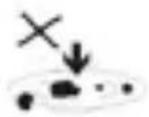 | DO NOT expose the device to dirty or dusty environments. |
 | DO NOT place the device on an uneven or unstable surface. |
 | DO NOT insert any foreign objects into the device. |
 | DO NOT expose the device to strong magnetic or electrical field. |
 | DO NOT expose the device to direct sunlight as it can damage the device. Keep it away from heat sources. |
 | DO NOT store your device in temperatures higher than 40°C(104°F). The internal operating temperature for this device is from 20°C(68°F) to 60°C(140°F). |
ENGLISH
User guide
CELT22
 | DO NOT use the device in the rain. | |
 | Please check with your Local Authority or retailer for proper disposal of electronic products. | |
 | The device and adaptor may product some heat during normal operation of charging. To prevent discomfort or injury from heat exposure, DO NOT leave the device on your lap. | |
 | POWER INPUT RATING: Refer to the rating label on the device and be sure that the power adaptor complies with the rating. Only use accessories specified by the manufacturer. | |
 | Clean the device with a soft cloth. If needed, dampen the cloth slightly before cleaning. Never use abrasives or cleaning solutions. | |
 | Always power off the device to install or remove external devices that do not support hot-plug. | |
 | Disconnect the device from an electrical outlet and power off before cleaning the device. | |
 | DO NOT disassemble the device. Only a certified service technician should perform repair. | |
 | The device has apertures to disperse heat. DO NOT block the device ventilation, the device may become hot and malfunction as a result. | |
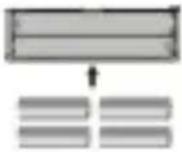 | Risk of explosion if battery replaced by an incorrect type. Dispose of used batteries according to the instruction. | |
ENGLISH
User guide
CELT22
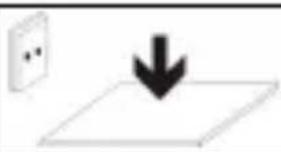 | PLUGGABLE EQUIPMENT: the socket-outlet shall be installed near the equipment and shall be easily accessible. |
 | European Union: DisposalInformation.This symbol means that according to local laws and regulations your product and/or its battery shall be disposed of separately from household waste. When this product reaches its end of life, take it to a collection point designated by local authorities. The separate collection and recycling of your product and/or its battery at the time of disposal will help conserve natural resources and ensure that it is recycled in a manner that protects human health and the environment. |
| MADE IN CHINA | |

natural_image
Abstract illustration of a stylized white sphere above a gray book with partial crescent shapes, set against a dark background with a white circle and curved lines (no text or symbols)CELT22
TELÉFONO MÓVIL
MANUAL DE USUARIO
CONTENIDO
4. MENSAJES SMS
natural_image
Abstract illustration of a white sphere above a gray book with partial moon-like elements, set against a dark background (no text or symbols)CELT22
TÉLÉPHONE PORTABLE
GUIDE DE L'UTILISATEUR
CONTENU
- DESCRIPTION GÉNÉRALE....1
- ASSIGNATIONS ET FONCTIONS DES TOUCHES....2
- CARTE SIM / FENTE DE CARTE SD / EMPLACEMENT DE BATTERIE 3
- MESSAGES 3
4. MESSAGES
Importer/exporter contacts:
natural_image
Abstract illustration of a stylized white sphere above a gray book with partial crescent shapes, set against a dark background with a white circle (no text or symbols)CELT22
TELEMÓVEL
GUIA DO UTILIZADOR
CONTEÚDO
-
DIVERSÃO E JOGOS....8
-
APLICAÇÕES....8
8.1 Calculadora....8
8.2 Relógio mundial 8
8.3 Lanterna 9
8.4 Bluetooth 9
-
LISTA TELEFÓNICA....9
-
HISTÓRICO DE CHAMADAS....10
PORTUGUÈS
Guia do utilizador
CELT22
- GRAVADOR DE SOM....10
- IMAGEM....11
- CALENDÁRIO....11
- ALARME 11
- PERFIL DE UTILIZADOR....11
- GESTOR DE FICHEIROS 12
- ADVERTÊNCIAS....12
PORTUGUÈS
Guia do utilizador
CELT22
1. DESCRIÇÃO GERAL

4. MENSAGEM
For you. For everyone.
- CONTENT
- ENGLISH
- User guide
- CELT22
- GENERAL DESCRIPTION
- KEYMAP DESCRIPTION & FUNCTIONS
- SIM CARD / TF CARD SLOT / BATERRY POSITION
- MESSAGE
- Write message
- Inbox
- Outbox
- Drafts
- Sent box
- Settings
- MULTIMEDIA
- Camera
- 5.2.DV
- Audio
- Video
- FM Radio
- SETTINGS
- Phone settings
- Display
- Security settings
- Call settings
- Speed Dial
- SOS
- Talkback
- FUN & GAMES
- APPLICATIONS
- 8.1Calculator
- World clock
- Torch
- Bluetooth
- PHONEBOOK
- CALL HISTORY
- SOUND RECORDER
- IMAGE
- CALENDAR
- ALARM
- USER PROFILE
- FILE MANAGER
- WARNINGS
- CONTENIDO
- MENSAJES SMS
- CONTENU
- MESSAGES
- CONTEÚDO
- PORTUGUÈS
- Guia do utilizador
- DESCRIÇÃO GERAL
- MENSAGEM
Brand : Sunstech
Model : CELT22
Category : Smartphone