Aeris 146 - Phone SWISSVOICE - Free user manual and instructions
Find the device manual for free Aeris 146 SWISSVOICE in PDF.



User questions about Aeris 146 SWISSVOICE
0 question about this device. Answer the ones you know or ask your own.
Ask a new question about this device
Download the instructions for your Phone in PDF format for free! Find your manual Aeris 146 - SWISSVOICE and take your electronic device back in hand. On this page are published all the documents necessary for the use of your device. Aeris 146 by SWISSVOICE.
USER MANUAL Aeris 146 SWISSVOICE
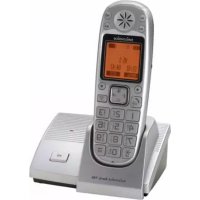
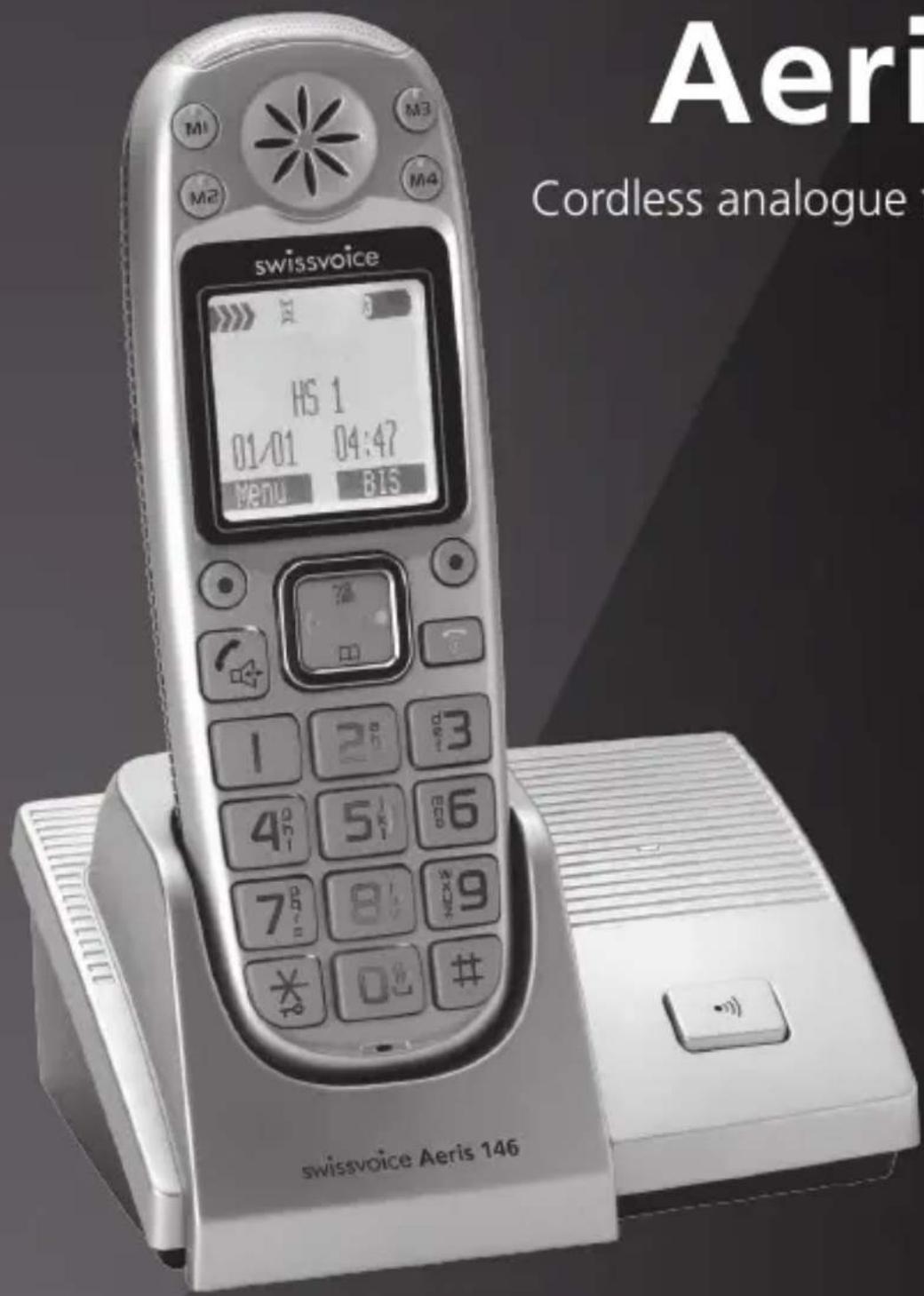
Cordless analogue telephone (DECT)
text_image
Aeri Cordless analogue swissvoice HS 1 01/01 04:47 Menu 815 1 2 3 4 5 6 7 8 90#
swissvoice Aeris 146Mode d'emploi
User manual
Instrucciones
Bienvenue chez Swissvoice
text_image
swissvoico Aaris 146 1natural_image
Technical line drawing of a remote control device with labeled ports and internal components (no text or symbols)Touche SOS
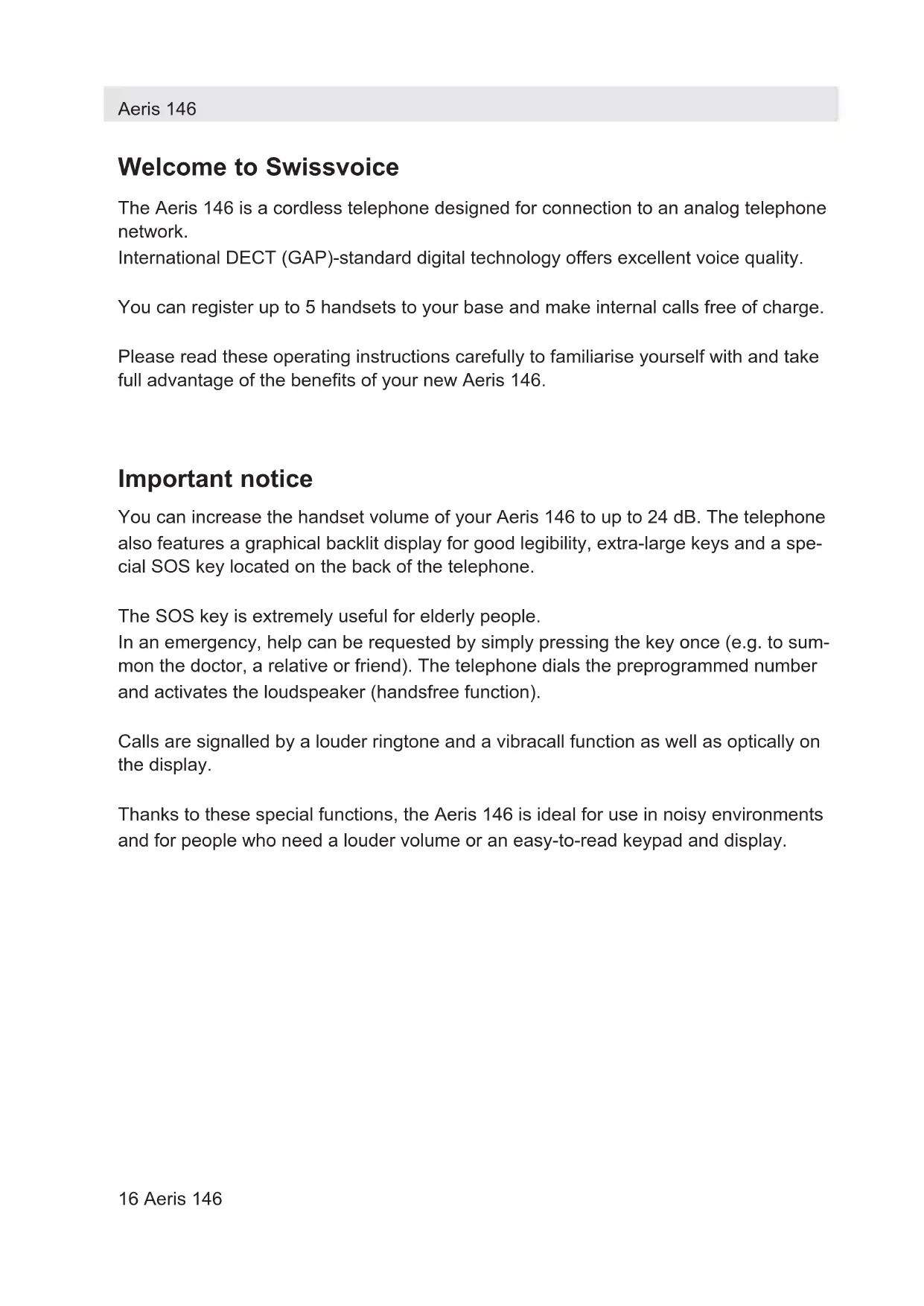
Welcome to Swissvoice
The Aeris 146 is a cordless telephone designed for connection to an analog telephone network.
International DECT (GAP)-standard digital technology offers excellent voice quality.
You can register up to 5 handsets to your base and make internal calls free of charge.
Please read these operating instructions carefully to familiarise yourself with and take full advantage of the benefits of your new Aeris 146.
Important notice
You can increase the handset volume of your Aeris 146 to up to 24 dB. The telephone also features a graphical backlit display for good legibility, extra-large keys and a special SOS key located on the back of the telephone.
The SOS key is extremely useful for elderly people.
In an emergency, help can be requested by simply pressing the key once (e.g. to summon the doctor, a relative or friend). The telephone dials the preprogrammed number and activates the loudspeaker (handsfree function).
Calls are signalled by a louder ringtone and a vibracall function as well as optically on the display.
Thanks to these special functions, the Aeris 146 is ideal for use in noisy environments and for people who need a louder volume or an easy-to-read keypad and display.
Contents
Handset keys 18
SOS key 19
Display symbols 19
Battery advice 20
Telephoning 22
Accepting a call 22
Set speaker/loudspeaker volume 22
Switch handset off 22
Redial 23
Mute the handset microphone 23
Keypad lock 23
Paging – Locate mislaid handsets 23
Phonebook 23
Speed dialling 24
Calls list (CID book) 25
Voicebox (network answering machine) 26
Extending the Aeris 146 26
Telephoning with several call partners 27
Handset settings 28
Base station settings 28
Appendix 29
Warranty certificate 47
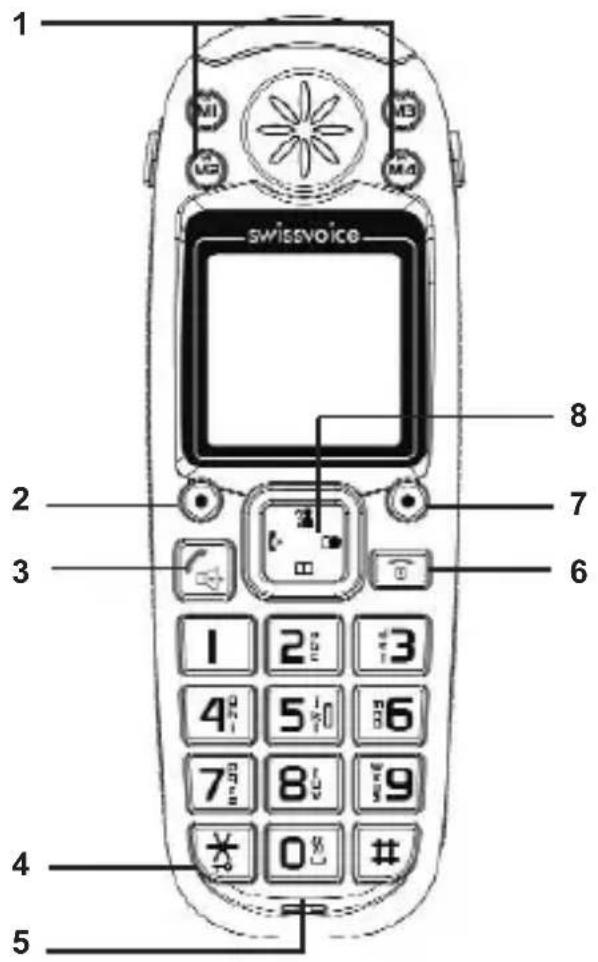
Handset keys
text_image
1 2 3 4 5 Swissvoice 8 7 6 0 # 7 M1 M2 M3 M4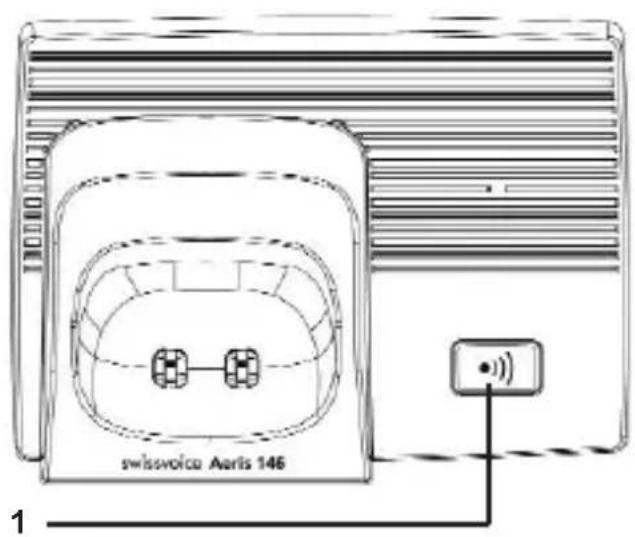
text_image
swissvoice Aaris 146 11 M1 - M4 Speed Dial keys
2 Softkey left / Menu key
3 Talk key/Loudspeaker key, handsfree speaking
4 Star key / In standby: Long press to activate/deactivate the keypad lock.
5 Key 0
In standby: Long press to activate the vibracall/optical call signalisation function (press briefly to deactivate the function)
6 End call key / Press and hold down to switch the handset off. Press briefly to reactivate the handset.
7 Softkey right
8 Navigation keys
? : Open calls list/Increase volume during conversation
m : Open phonebook/
Decrease volume during con-versation
: Internal call/ Conference
call
: Redial/ During preselec-
on: Insert a dial pause
Base station Aeris 146:
1 Paging key
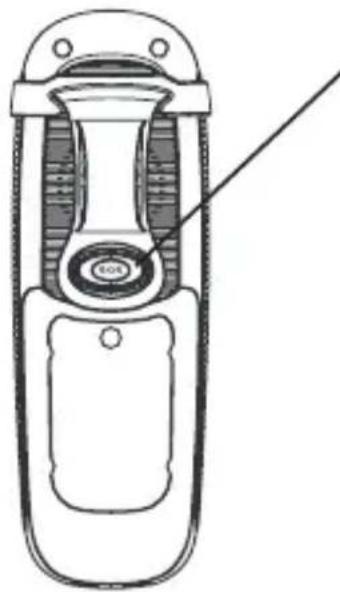
SOS key
natural_image
Technical line drawing of a mobile phone case with internal components and a labeled component (no text or symbols present)SOS key
The SOS key is located on the back of the telephone.
To program, view, edit or delete the SOS key, refer to the chapter "Speed dialling".
Display symbols
You have unanswered calls in the calls list.
You have new messages in your voicebox (network answering machine).
You have pressed the Talk key.
You have pressed the handsfree key.
Indicates the battery charge status.
Vibracall/optical call signalisation function activated.
Symbol il displayed when the handset is within range of the base station. Flashes when out of range.
Indicates that the alarm is set.
-0 Indicates that the keypad is locked.
Range / Location
To obtain the best possible range, we recommend positioning the telephone in a location central to your sphere of activity. Avoid positioning the telephone in niches, recesses and behind steel doors.
The maximum range between base station and handset is approximately 300 meters outdoors. Depending on the surrounding conditions as well as spatial and structural factors, the range may be smaller. Silent zones can occur due to the digital transmission in the frequency range used – even within the range, depending on the structural environment. In this case the transmission quality may be reduced through the increased incidence of short breaks in transmission. Normal call quality can be restored if you move slightly out of the silent zone. If the range is exceeded, the call will be disconnected unless you move back into range within ten seconds.
Battery advice
Use only the original batteries (3 x NiMH, AAA, 1.2 V / 800 mAh) as well as the original power supply (7,5 V DC).
The handset operating times (standby 120 hours/active 6 hours) and charging times apply only if the battery is charged to the defined minimum capacity (1.2 V / 800 mAh).
Charging is electronically controlled to ensure optimal charging and care of batteries in different charge states. Full capacity is achieved only after several charging cycles.
Note:
Using other rechargeable batteries or non-rechargeable batteries/primary cells can be dangerous and cause malfunctions or damage to the telephone. Do not short-circuit the batteries (danger). In particular, avoid inadvertent short-circuits during storage and transport e.g. bunch of keys, metal panels or similar objects, and make sure the batteries do not come into contact with greasy materials. When not in the handset, therefore, batteries should be stored only in insulating packaging. Ensure also that the contacts do not touch greasy parts.
Rechargeable batteries can become warm while recharging. This is a normal occurrence and is not dangerous.
Connecting the phone
- Before you can start using your telephone you must plug in the telephone connector cable and the mains cable.
- The NiMH batteries are pre-installed in the handset. To activate the handset you have to remove the red tagged protective plastic tape.

Pull out the plastic tape, your handset is ready to operate.
- To replace the batteries first remove the direct dial paper foil, remove the security screw and pull out the battery cover. Insert the batteries in the battery compartment and make sure to respect the polarity. Put the battery cover back and security screw in place, as well as the direct dial paper foil.
- To charge the batteries, insert the handset in the base station. The animated battery symbol on the handset signals the charging procedure. The batteries will take around 15 hours to fully charge (initial charge).
Set language
Default setting on delivery: English.
- Press Menu, select Settings and press Select.
- Select Language and press Select.
- Choose the desired language from the list, confirm with Save.
The display texts are now displayed in the selected language.
Set date and time
- Press Menu, select HSettings and press Select.
- Select Date & Time and press Select.
- Scroll through the list using the navigation keys.
- Select date and time format. Press Save.
- Enter date and time and press Save.
- Press the End call key to return to standby mode.
Telephoning
- Dial the desired number using the keypad.
- Press the Talk key.
End the call
- Press the End call key.
Accepting a call
- Incoming calls are signalled by a ring tone on the handset.
- Press the Talk key and conduct your conversation.
End the call
- Press the End call key.
Please note that when handsfree speaking is activated, call partners should speak alternately and avoid speaking simultaneously. This telephone suppresses the first call signal in order to evaluate the incoming number signal and verify whether the number is stored in the phonebook. Calls cannot be made if the battery is almost discharged or the handset is out of range of the base station.
Set speaker/loudspeaker volume
You can adjust the speaker/loudspeaker volume during a conversation (5 levels available).
Select the desired volume using the Navigation keys.
Switch handset off
- Press and hold the End call key (approx. 3 sec).
- Press and hold the End call key to reactivate the handset.
Redial
The Redial list contains up to 10 entries.
- Press the softkey under Redial and select the desired entry.
- Press the Talk key.
Edit redial list
- Open the Redial list, press the softkey under More.
- Select a function from the list:
-AddFB – Add number to the phonebook.
-Delete – Delete the entry from the phonebook.
-DeleteAll – Delete the entire phonebook.
Mute the handset microphone
You can temporarily mute the handset microphone to talk to someone else in the room without the caller hearing. Press the softkey under Mute.
To reactivate the microphone, press the softkey Mute again.
Keypad lock
Activate keypad lock
- Press the Star key approx. 3 sec. All keys (except the speed dial keys) are locked.
Deactivate keypad lock
- Press the Star key approx. 3 sec.
Paging – Locate mislaid handsets
All registered handsets ring for a short time, when the Paging key on the base is pressed. To stop the ring press the End call key on the handset or the Paging key on the base.
Phonebook
You can store up to 50 names and numbers in the phonebook on each handset.
Names can be up to 20 letters long and numbers up to 12 digits.
You can combine different numbers in groups with the same ringer melody.
Digits / Characters
Different characters are printed on each key. The entries in the phonebook are sorted alphabetically.
Press key to insert a pause inside a phone number. "P" appears on the display.
Press and hold key to insert a flash signal. "R" appears on the display.
Add new entries in the phonebook
- Press Menu, select Phonebook and press Select.
- Select New and press Select.
- Enter the desired name and press Next to access the further edit functions.
- Press Save.
Edit phonebook
- Press Menu, select Phonebook and press Select.
- Select a function from the list:
- New – as described above.
-Edit – Select the desired entry and edit it.
Delete / DeleteAll
-PSStatus – View the number of free space.
Speed dialling
You can assign the 4 most used numbers to the 4 speed dial keys and an emergency number to the SOS key located on the back of the telephone.
Program your speed dial keys/the emergency key (SOS key)
Your handset is in standby.
- Press the desired speed dial key or the SOS key on the back of the telephone.
- Enter the corresponding number, press Next.
- Select a melody from the list, press Save.
Call a speed dialling number/the emergency number (SOS number)
To call a speed dialling number, press the corresponding speed dial key. To call the emergency number, press the SOS key on the back of the telephone. The selected number is called.
View the speed dial numbers/the SOS number
Press The first programmed speed dial number appears. Press again the second speed dial number appears, etc.
The SOS number appears after the speed dial keys.
Edit/delete the speed dial numbers/the SOS number
The procedure is the same as described in chapter "Edit the phonebook".
Calls list (CID book)
The caller's number is displayed on the handset. The calls list can contain up to 40 entries. New calls are displayed by .
To use this function, the caller's number must be transmitted (CLIP). Contact your network operator for further information.
Call a number from the calls lists
- Press Menu. Select CIDBook and press Select. (You can also open the calls list by pressing 📁)
Select the desired entry from the list.
- Press the Talk key, the number is dialled or press the softkey under More and select an edit function from the list.
If the caller's number is suppressed, only NewCall is displayed. The call is not entered in the call list.
Edit calls list
- Open the calls list (CID book), press the softkey under More.
- Select a function from the list:
- Add number to the phonebook.
-Delete – Delete entry from the calls list.
-DeleteAll – Delete the entire calls list.
Voicebox (network answering machine)
You can forward the incoming calls to your operator's network answering machine (Voicebox).
This function must be enabled by your network operator. New Voicebox messages are signalled on your handset display by (dependent on network operator).
Extending the Aeris 146
The delivered handset is already registered on to base station. In standby the internal number of the handset is displayed.
You can register up to 5 handsets to your base station.
If you register your Aeris 146 handset with a "third party" base station or a "third party" handset on your Aeris 146 base station (GAP), you may not be able to use some functions or only to a limited extent.
Register new handsets
Accessory handsets must be registered to the base station.
- Before registering a handset to the base, you must press and hold the base unit key for about 5 seconds and then release it.
- Press Menu, select Registration and press Select.
- Select the desired base station. Press Select. The handset seeks the base station you have entered (flashing display).
- Once the base station has been found, you are requested to enter the system PIN (0000 on delivery). Press Select.
- If the registration is successful you will hear a confirmation signal.
Telephoning with several call partners
During a call you can make a second internal call (enquiry call), switch between call partners (brokering) or simultaneously converse (3-way conference call) without the need for two telephone lines.
Internal conversation / Internal call
- Press
- Select the desired internal party and press Select.
If you receive an external call while you are on the phone to an internal call partner, you will hear an incoming call alert. End the internal call by pressing the End call key. Press the Talk key. You are connected to the external party.
Call transfer to another handset
You are conducting an external call and you want to transfer it to another handset.
- Call the internal party (see above).
- Press the End call key to transfer the call to the other handset.
Conference
You are conducting an external call.
- Press, enter the number of the handset you want to call.
- Press the Star key, when the internal party responds. The three call partners are connected.
- Any teleconference partner can press the End call key to leave the conference and end the call.
Handset settings
- Press Menu, select HOSettings and press Select.
- Select a function from the following list:
- Alarm - The activated alarm is displayed in standby mode. The alarm sounds for 30 seconds or can be deactivated immediately by pressing any key. The volume is the same as for the ringtone.
- AudioSetup - Set the desired speaker/loudspeaker volume.
-RingSetup -Select the desired ringer melody for internal and external calls. - ToneSetup - Activate or deactivate the following options:
KeyTone - Every time a key is pressed, a brief beep is heard.
RangeAlarm - A warning beep is sounded if you exceed the maximum range.
- Language - Choose the language for the display texts.
- To better distinguish between handsets, you can give each handset a name.
- AutoAnswer - Just pick up the handset from the base to answer a call (without pressing any key).
- LCDContrast - Set the desired display contrast.
- Date & Time - Set the desired date and time format and enter date and time.
- SelectBase - If your handset is registered with several base stations, you can select the base station on which you want to operate the handset.
- HReset - To reset the handset.
Base station settings
The system PIN on delivery is 0000.
- Press Menu, select BSettings and press Select.
-
Select a function from the following list:
-
TerminateHS - Select the handset you want to deregister.
- DialMode - Tone: Normal dialling procedure on analog lines. Pulse: May be required for connecting older telephone systems. Please refer to the relevant documentation.
- FlashTime - Select Flash 1 (300 ms) = France or Flash 2 (100 ms) = UK / Spain.
- ModifyPIN - You can modify the PIN code (0000 on delivery).
- BReset. - To reset the base station.
Appendix
Using Internet/cable telephone adapters on an analog port
When using an analog telephone on the analog connection of an Internet or cable telephone adapter, not all the described features (in particular calling line display) may function in the same way as with a standard analog telephone line. This does not cause the Aeris 146 to malfunction.
Several factors can cause a failure of specific features to function:
- The Internet/cable telephony provider may not provide the function on its Internet/cable telephony connection.
- The adapter used to convert Internet/cable telephony to analog telephony (usually supplied by the provider) may not forward the functions to connected telephones or may forward them in a non-analog format.
If this happens, please check the Aeris 146 on an analog fixed line and/or contact your Internet/cable telephony provider.
Care
Your telephone is a sophisticated product in terms of design and construction, and should therefore be handled with care.
To clean the telephone, wipe first with an antistatic cloth or a damp, soft leather cloth and then dry using a dry cloth.
Recycling (environmental protection)

At the end of the product's life cycle, the telephone must not be disposed of in normal domestic waste. Please take it to a collection point for processing electrical and electronic equipment: see symbol on the product, in the user manual and/or packaging.
Some materials used in this product can be recycled if you take it to a recycling depot. By recycling parts or raw materials from used products you will be making an important contribution to environmental protection. Please contact your local authority if you require information about collection points in your neighbourhood.
Disposing of the rechargeable battery
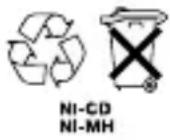
By law, all used batteries and accumulators must be recycled and not disposed of in domestic waste. Please dispose of them according to the official regulations. Take them to a recycling depot. The batteries/accumulators will be recycled since they may, for example, contain nickel cadmium (Ni - Cd), lead (Pb), cadmium (Cd) or mercury (Hg). The batteries and accumulators are labelled with symbols and information on their contents,
e.g.:
Warranty conditions
Your telephone is subject to a guarantee from the date of purchase in accordance with the legal provisions of the country in which the telephone was purchased. As evidence of the date of purchase, please keep the receipt or the warranty card completed by the retailer. All defects attributable to material and manufacturing faults will be corrected free of charge within the warranty period, either by repairing or replacing the defective equipment.
The warranty does not cover expendable materials (battery cells), defects which affect the value or use of the equipment only insignificantly, and damage caused by incorrect use, ordinary wear and tear, or manipulation by third parties.
This warranty does not cover consequential damage caused by the use, failure or defectiveness of the product. In particular, no liability whatsoever is accepted for damage to property and pecuniary loss.
To claim under this warranty, please contact the retailer where you purchased your telephone.
Approval and conformity
This analog telephone DECT complies with the basic requirements contained in the R&TTE Directive 1999/5/EC on radio equipment and telecommunications terminal equipment and is suitable for connection and operation in the member state indicated on the base station and/or packaging.
The declaration of conformity may be viewed at: www.swissvoice.net.

The CE symbol confirms the conformity of the telephone with the above directive.
Bien venido a Swissvoice
text_image
swissvoice Aaris 146 1natural_image
Line drawing of a remote control device with labeled buttons and ports (no text or symbols)Tecla SOS
Warranty Certificate
swissvoice Warranty Certificate
Garantieschein, Bon de garantie, Certificato di garanzia, Garantiebewijs, Takuutodistus, Garantibevis, Garantisedel, Garantibevis, Certificado de Garantía, Talão de garantia
| device type: | (Gerätetyp, type d'appareil, tipo di apparecchio, toesteltype, laitetyppi, maskintype, apparattyp, apparattype, modelo del aparato, modelo do aparelho): |
| serial number: | (Seriennummer, numéro de série, numero di serie, serienummer, sarjanumero, serienummer, serienummer, serienummer, número de serie, número de série): |
| dealer's stamp: | (Händlerstempel, sceau du vendeur, timbro del rivenditore, stempel van de dealer, kauppiaan leima, forhandlerens stempel, försäljarens stämpel, forhandlerstempel, sello del comerciante. carimbo do vendedor): |
| dealer's signature: | (Unterschrift des Händlers, signature du vendeur, firma del rivenditore, handtekening van de dealer, kauppiaan allekirjoitus, forhandlerens underskrift, försäljarens underskrift, forhandlers underskrift, firma del comerciante, assinatura do vendedor): |
| date of purchase: | (Kaufdatum, date d'achat, data d'acquisto, datum van aankoop, ostopäiväys, kjøpsdato, datum för köpet, salgsdato, fecha de adquisición, data de compra): |
Internet:
www.swissvoice.net
© Swissvoice SA 2009
20405255xx_ba_a0
SV 20405255