RC3300 - Mp3 player Ricatech - Free user manual and instructions
Find the device manual for free RC3300 Ricatech in PDF.



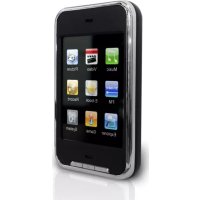
| Product type | MP3/MP4 player |
| Screen | Color TFT 320x240, 260,000 colors, touchscreen |
| Supported audio formats | MP3, WMA, WAV, FLAC |
| Supported video formats | AVI (MPEG-4) |
| Supported photo formats | JPEG, BMP |
| FM radio | Yes, with 20 station memory |
| Voice recording | Yes, via built-in microphone |
| E-book function | Yes, with bookmark support |
| Games | Yes, built-in block game |
| Memory expansion | Mini SD card up to 4 GB |
| Power supply | Rechargeable lithium battery via USB or AC charger |
| Connectivity | USB 2.0, 3.5mm headphone jack |
| Built-in speaker | Yes, switchable with headphones |
| Equalizer | Presets: Normal, 3D, Rock, Pop, Classic, Jazz + user equalizer |
| Playback modes | Repeat (once, track, folder, all), random, sequential |
| Lock function | Yes, to prevent accidental operation |
| Firmware update | Yes, via USB |
| System compatibility | Windows 98SE/ME/2000/XP |
Frequently Asked Questions - RC3300 Ricatech
User questions about RC3300 Ricatech
0 question about this device. Answer the ones you know or ask your own.
Ask a new question about this device
Download the instructions for your Mp3 player in PDF format for free! Find your manual RC3300 - Ricatech and take your electronic device back in hand. On this page are published all the documents necessary for the use of your device. RC3300 by Ricatech.
USER MANUAL RC3300 Ricatech
User Manual (English)
Table of Contents
Major Functions. 03
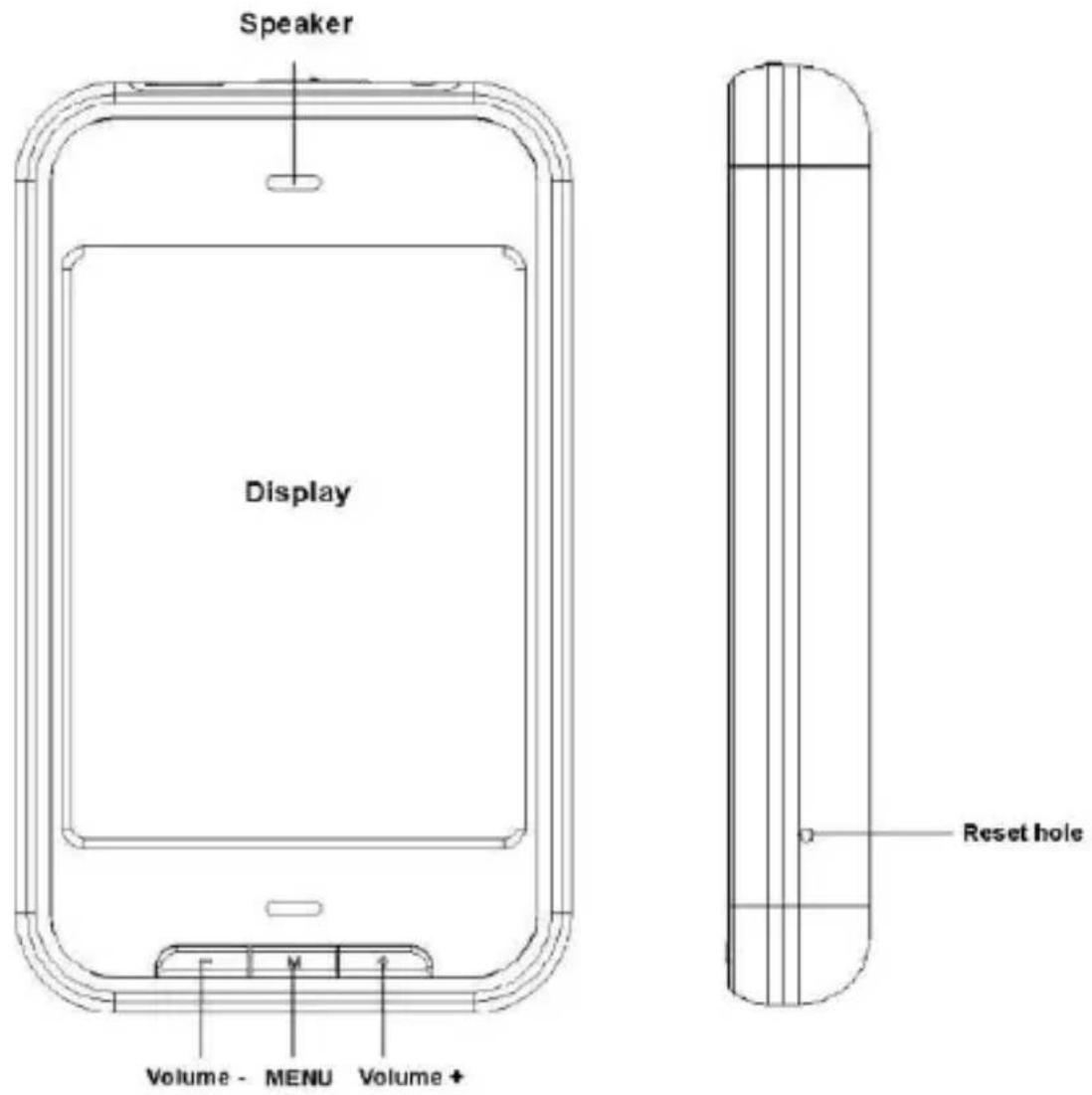
Description of Button/Interfaces. 04
Description of Display Screen. 05
Basic Operation. 08
Master Interface. 10
Music Mode. 11
Video Playing. 14
FM Radio. 16
PictureBrowse. 19
E-book 21
Recording. 24
Resource Manager 25
Games. 27
System Setup. 27
Video Conversion. 37
Firmware Upgrade 39
Common Troubles 41
Major Functions
- Brand new contact screen operation system, with even more visual and convenient operation
-320x240 dot matrix 260K-color full color high speed TFT display screen
It supports the music format of MP3, WMA and WAV
It supports MPEG-4 (AVI) video format
FM radio and capable of saving 20 radio channels
It supports picture browse in the formats of JPEG, gif and BMP
Built-in microphone and extra long time recording
- Energy efficiency setup, with brightness capable of free modulation and automatic power off
Multiple EQ and cycle for your option
It supports multiple foreign written languages
It supports WIN98S/ME, WIN2000 and WINXP systems
-USB2.0 high-speed transmission
It supports e-book reading
It supports game functions
- Moving hard disk functions
It supports firmware upgrade
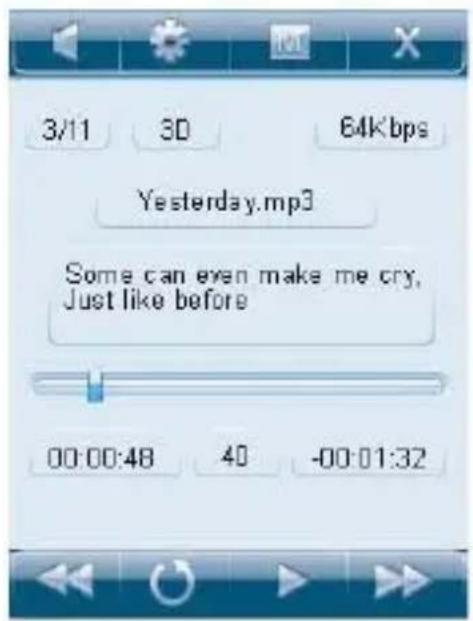
01: Play mode
02: Loop mode
03: Play/pause state
04:Power display
05: Current music/total music
06:EQ
07: Bit rate
08: Music name
09:Lyric
10: Progress bar
11: Time already playing the current music
12: Volume
13: Current remaining time
01:Power display
02: Manual search mode
03: Preset radio channel mode
04: Save radio channels
05:Delete radio channels
06: Automatic search mode
07: Radio frequency
08:Receiving area
09: Frequency progress bar
10: Receiving area frequency range
11:Volume
01:Power display
02: Recorded file name
03: Recording time
04: Recording progress bar
05:Recording quality
06: Remaining time for recording
Basic Operation
Poweron
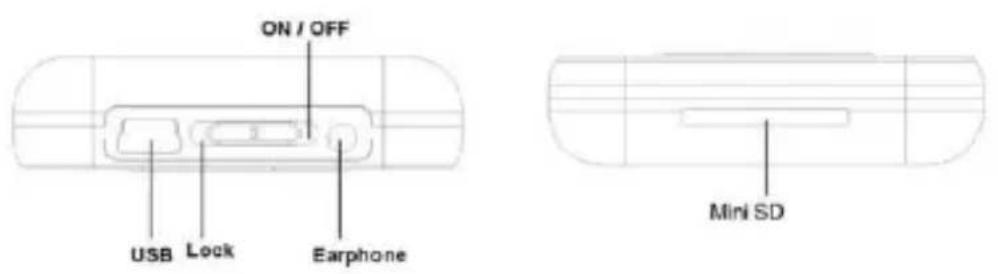
Push the power switch of the player towards the direction of ⑥ for 3 seconds for power on.
Power off
In the power off state, push the power switch of the player towards the direction of for 3 seconds for power off.
Lock button on/off
In the states of video, music and radio, you can set the lock button as ON to prevent unintended button error operation.
Button lock: Push the switch button of the player towards the direction of , and the
earphone/built-in speaker.
Power reset
If there is shutdown to the player in the process of operation, you can turn off and restart the player by pressing RESET button.
Connecting the computer and data file transmission
Start the computer and then connect the unit with the USB port of the computer using the connection line. In this way you can perform USB power supply or USB data transmission. This unit and the computer can be connected using the USB interface, and can be used as a moving disk. All you do is put your favorite music in the player without the procedures of any third party
Battery
High capacity lithium battery is used for this unit.
The duration available of the battery power depends on volume, types of playing files and operation of batteries. The player can be set up by the user as [user define power off time] or [display setup] to save batteries.
Charging
In the time of charging, connect the player with the USB port of the USB or the charger. If the charger attached to the unit is used, the indicator of the charger during charging is red. When the indicator of the charger turns green, it indicates that the battery is full.
Using the MINI SD card
After this unit is connected with the computer, you will find two moving disks. The first one is the built-in memory disk for this unit and the other is the disk for the MINI SD card. If no card is inserted, the second disk cannot be opened. This unit supports the extension of the MINI SD card from 128MB to 4GB.
Inserting and Pulling out the MINI SD card
Inserting: Put the MINI SD card face up (side with words) (with the direction of the
display screen as the face), and slightly force the card into the socket of the card, i.e. connecting the unit. Under this state, you can play the content in the MINI card.
Pulling: Slightly push the MINI SD, and it will bounce by a section, and then you can take it out.
Caution: Please perform inserting and pulling operation when power is off! Otherwise, it will lead to the loss or damage to the files within the unit! If no card is inserted, the computer will be unable to perform read and write operation for the disk notes of the later moving disk (MINI SD card).
Main Interface
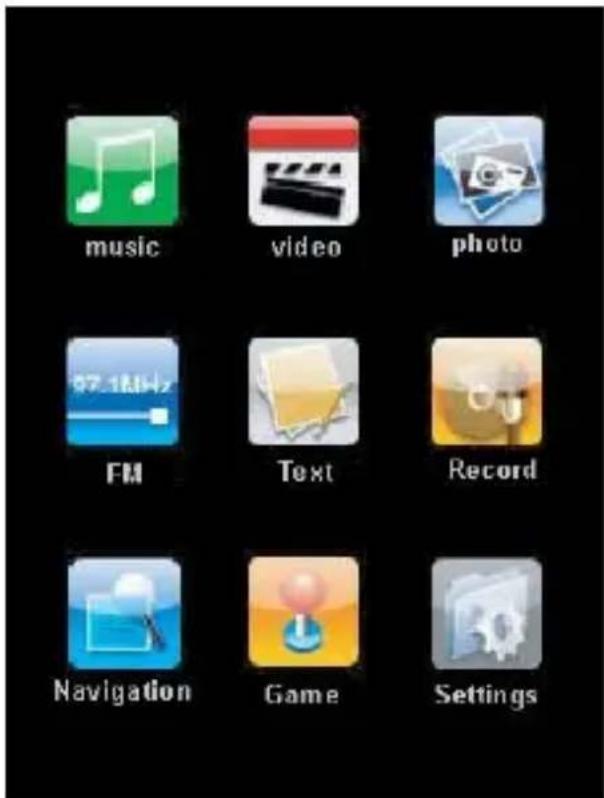
MP4 provides a contact screen operation system, which allows you to perform even more visually. In the main menu interface, click on the corresponding function icons on the screen to access the selected function mode.
After accessing the corresponding function mode, gently touch the contact screen. You can see a menu window.
After some time or after at the upper part of the screen on the screen is contacted, the menu window will disappear.
Press M button at the lower part of the screen or contact at the bottom of the contact screen to directly return to the main menu interface.
Long press M button at the lower part of the screen or in the control menu at the upper part of the screen to return to the main menu to select he interface.
Music mode
In the main menu interface, click on "Music" function icon on the contact screen to access the "Music" function interface.
1. Description of playing interface
After accessing the "Music" function mode, gently touch the screen to be able to see the "Menu Window".
Touch the “” at the upper part of the “screen menu”, and the “Menu Window” will disappear.
Press “M” button at the upper part of the screen or “” button at the bottom of the contact screen to be able to directly return to the “Main Menu” interface.

Built-in speaker on/off control button
Use the music mode setup shortcut button to be able to perform the music playing mode, the loop mode and the EQ mode.

rectly return to the "Main Menu" interface.

ose the button menu display.
Short press the button to enter the previous music and long press for the fast rewind of the current music

cess the music list to select the music files

ay/pause the current music
Short press the button to access the next music and long press for the fast
2. Description of the music list interface
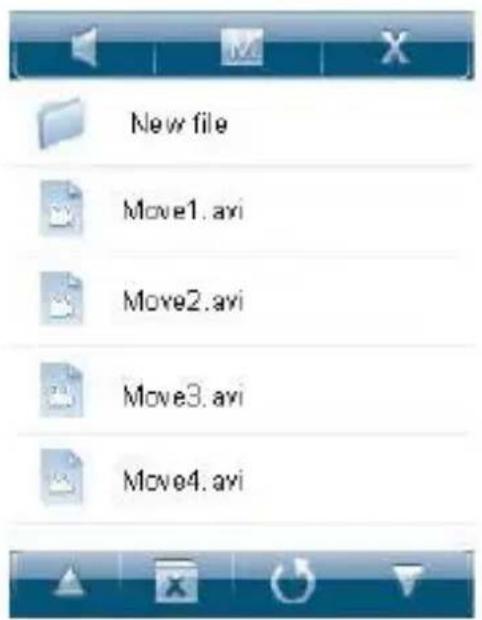
Directly touch the "name of music" on the screen to be able to play the selected music.

Built-in speaker on/off control button
Directly return to the main menu interface
Close the button menu display
File browse up
Delete the selected music
Return to the folder at the upper level
File browse down
3. Lyric display
The player supports “*LRC” lyric files (The user can download via “www.lrc.com” website, or acquire lyric files via “LRC”) to perform synchronous playing of lyrics and music. Names of lyrics and files of music must be identical.
When there is any lyric file bearing the same name under the directory of playing music, the playing will directly access the lyric display interface.
Movie playing
In the main menu interface, click on "Movies" function icon on the screen to be able to access the "Movie" function interface.
After accessing the "Movie" function mode, gently touch the contact screen to be able to see the menu window.
Touch the “” at the upper part of the “screen menu”, and the “Menu Window” will disappear.
Press “M” button at the upper part of the screen or “” button at the bottom of the contact screen to be able to directly return to the “Main Menu” interface.
1. Description of movie file list interface
Directly click on the name of video file on the screen to be able to start playing the selected video.

Built-in speaker on/off control button

Directly return to the main menu interface

Close the button menu display

File browse up

Delete the selected music

Return to the folder at the upper level

File browse down
Description of movies playing
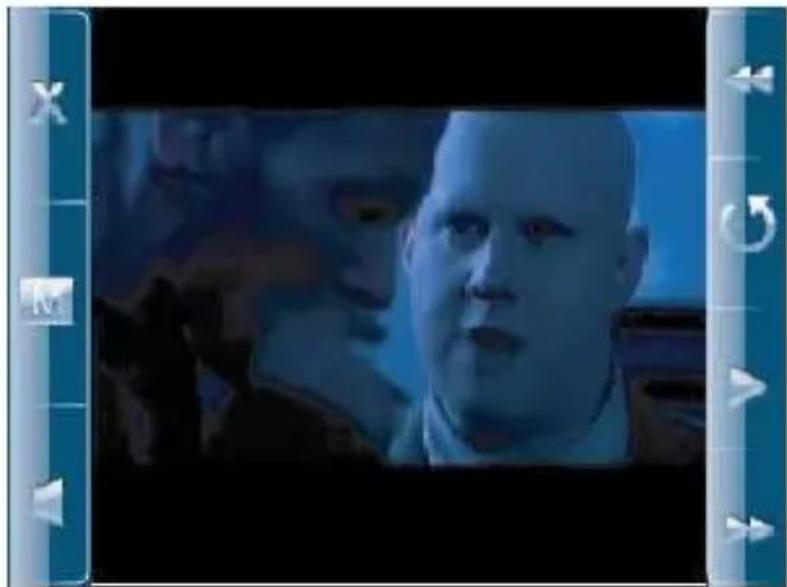

Close button menu display

Directly return to the main menu interface

Built-in speaker on/off control button

Short press the button to access the previous video and long press for fast rewind
of the current video

Access the video list and select the video files.

Play/pause the current video.

Short press the button to access the next video and long press for the fast forward the current video
FM radio
In the main menu, click on "Radio" function icon on the screen to be able to access the "Radio" function interface.
After accessing the "Radio" function mode, gently touch the screen to be able to see the menu window.
Touch the “” at the upper part of the “screen menu”, and the “Menu Window” will disappear.
Press “M” button at the upper part of the screen or “.” button at the bottom of the contact screen to be able to directly return to the “Main Menu” interface.
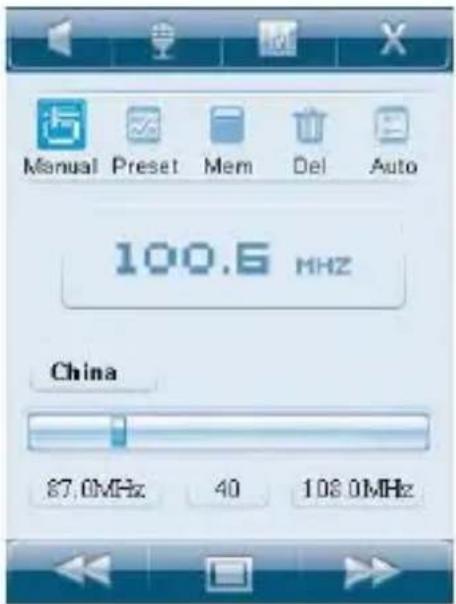

Built-in speaker on/off control button

FM interior record shortcut button

Directly return to the main menu interface

Close the button menu display

Switch radio channels to the low frequency direction
Use the "Switch" button in the FM mode to switch over to the states of "Manual Search, Preset, Delete, Save, Automatic Search", etc
Switch radio channels to the high frequency direction
1. Searching radio channels
Short press “” button in the FM mode. Select “Manual” option and short press “/” button to search radio channels up and down. You can perform silencing treatment for this operation.
2. Saving radio channels
Short press the “ ” button in the FM state. Select “ Save” option. Short press “ ” button to save the current radio channels. After selecting the radio channel selection positions CH1 and CH2, short press again the “YES” button for saving the same.
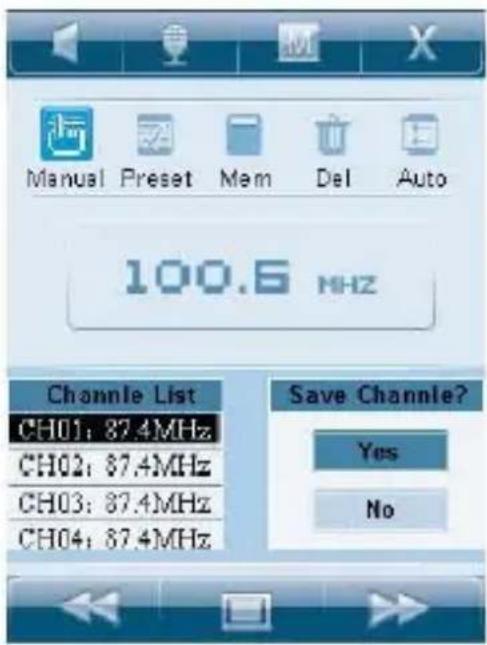
3. Fully automatic search and memory of radio channels
Short press “” button to select the “Auto” option. Press “” to be able to perform fully automatic search of radio channels and saving. After the search is over, it will switch to the first radio channel for the frequency modulation. In the process of radio frequency search, press “/” button to be able to stop automatic search.
4. Deleting radio channels
Short press “” button to select “Delete” option. Short press “” button to pop up the radio channel preset list. Select the preset radio channel position CH1 or CH2 to be deleted, and then short press “” button for “YES” and deletion.
5. FM interior recording
In the radio state, press " ” button to be able to access the FM recording interface.
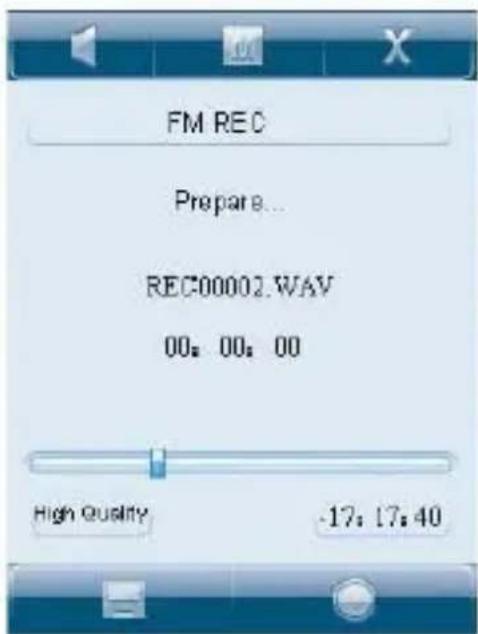

Built-in speaker on/off control button

Directly return to the main menu interface

Close the button menu display
Long press the button to save the recorded files and exit the recording state
Short press the button to start/pause recording
Picture browse
In the main menu interface, click on "Picture" function icon to be able to access the "Picture" function interface.
After accessing the "Picture" function mode, gently touch the contact screen to be able to see the "menu window".
Touch the “ ” at the upper part of the “screen menu”, and the “Menu Window” will disappear.
Press "M" button at the upper part of the screen or " ” button at the bottom of the contact screen to be able to directly return to the "Main Menu" interface.
1. Description of the picture file list interface
Directly click on the "picture file name" on the screen to be able to display the selected pictures.
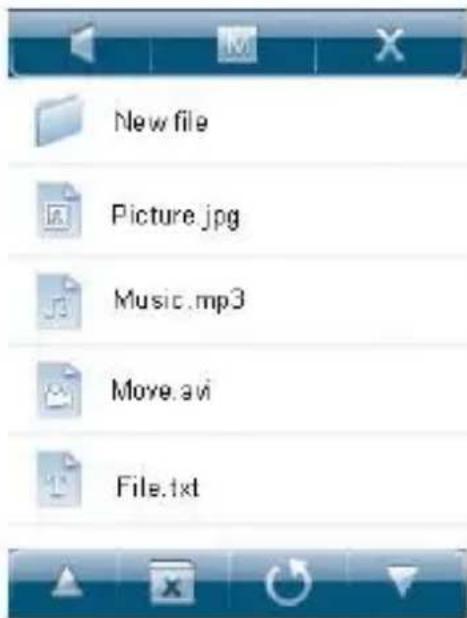
Built-in speaker on/off control button
Directly return to the main menu interface
Close the button menu display
File browse up
Delete the selected pictures
Return to the folder at the upper level
File browse down
2. Picture browse
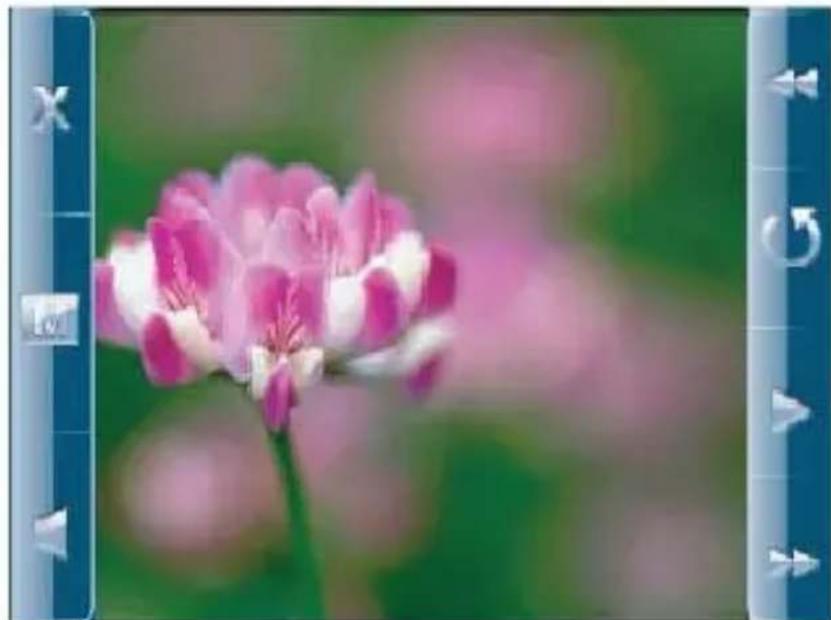
Close the button menu display;
Directly return to the main menu interface;
Built-in speaker on/off control button;
Access the previous picture;
Access the picture list to select from the picture files;
Automatic picture browse playing/pausing switch button;
Access the next picture.
E-book
In the main menu interface, touch the "E-book" function icon to be able to access the "E-book" function interface.
After accessing the "E-book" function mode, gently touch the screen to be able to see the menu window.
Touch the “ × ” at the upper part of the “screen menu”, and the “Menu Window” will
disappear.
Press “M” button at the upper part of the screen or “” button at the bottom of the contact screen to be able to directly return to the “Main Menu” interface.
1. E-book file list
Directly touch the "E-book file name" on the screen to be able to start displaying the selected e-book.
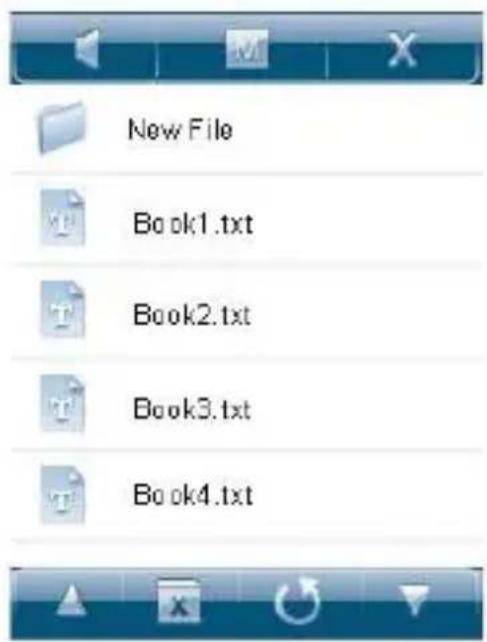

Built-in speaker on/off control button

Directly return to the main menu interface

Close the button menu display

File browse up

Delete the selected e-book

Return to the folder at the upper level

File browse down
2. E-book browse
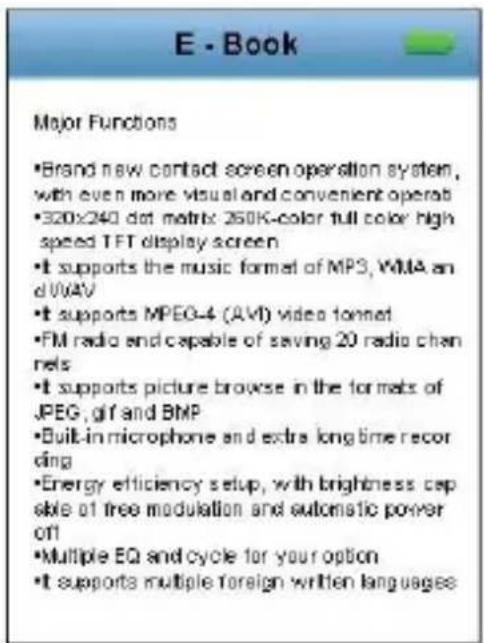

Built-in speaker on/off controller

Automatic e-book browse setup button to be able to set automatic browsing timing time

Press this button to be able to directly return to the main interface

Close the button zone display

E-book text page down

Return to the e-book text file interface

E-book bookmark function button

E-book text page up
Prompt: Push the power switch to the “ ” direction for one second to be able to start/pause automatic browse function of the e-book.
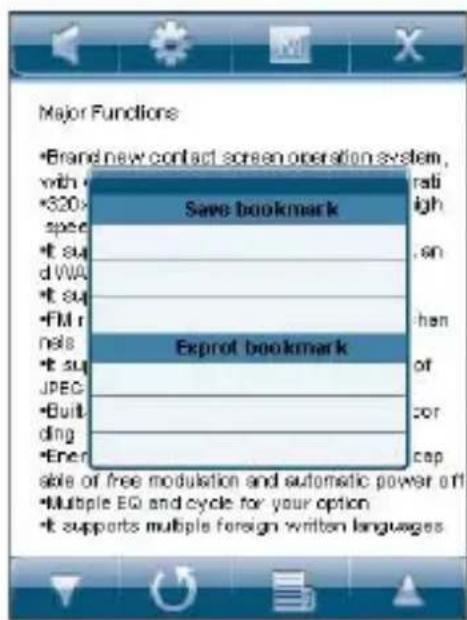
3. E-book bookmark setup
In the e-book browse state, short press “” button to pop up the e-book setup menu. Press the e-book setup menu and then press “/” button to select the bookmarks to be saved/exported. After selecting the “Save/ExportBookmark” zone, press “” button to confirm saving/exporting bookmarks, and then press “” to cancel saving/exporting the bookmark.
Recording
In the main menu interface, touch "Record" function icon on the screen to be able to access "MIC voice recording" function interface.
After accessing the "Record" function mode, gently touch the screen to be able to seethe menu window.
Touch the “” at the upper part of the “screen menu”, and the “Menu Window” will disappear.
Press “M” button at the upper part of the screen or “” button at the bottom of the contact screen to be able to directly return to the “Main Menu” interface.
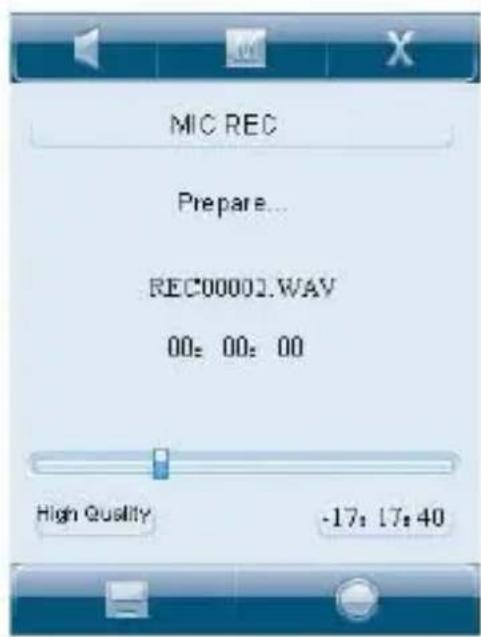
Built-in speaker on/off control button
Directly return to the main menu interface
Close the button menu display
Long press the button to save the recorded files and exit the recording state
Short press the button to start/pause recording
Resource Manager
In the main menu interface, touch the "Resource manager" function icon on the screen to be able to access the "Resource Manager" function interface.
In "Source Manager", you can list all files and folders saved in the player. The user can directly select the music, video, e-book and pictures and other files supported by the player in this interface for playing and can also perform deletion operation for the selected files.
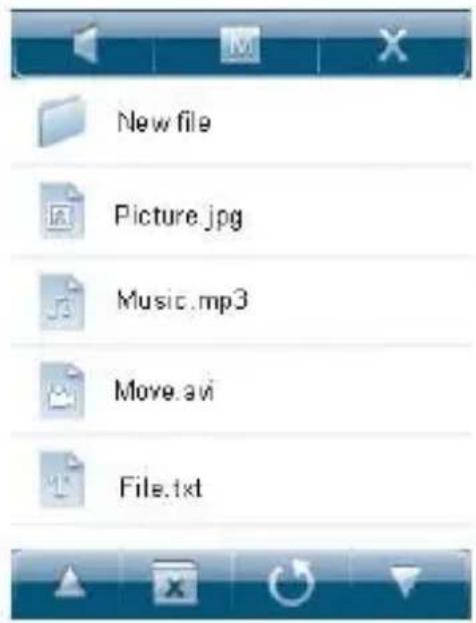
Built-in speaker on/off control button
Directly return to the main menu interface
Close the button menu display
File browse up
Delete the selected files
Return to the folder at the upper level
File browse down
Games
In the face of the main menu interface, touch "Game" function icon on the screen to be able to access the "Game" function interface.
Long press "M" button at the lower part of the screen to be able to directly return to the main menu interface.
Game rules: When one line is filled with blocks, and the blocks at the top will move downwards until the end when the blocks are placed down. If you clear one line at the same time, there will be 100 credits, 300 credits for 2 lines, 700 credits for 3 lines, 1500 credits for 4 lines. When the credits exceed 10000, the speed will be faster.
Operation method
1. Start
Push the power switch to the “ ” direction for one second to start the games. Short press “PLAY” button to perform start/pause function switching.
2. How to play games
Press + / - button to move the blocks left or right and "M" to adjust the directions of blocks.
3. Exit
Long press "M" button to quit the game and return to the game main interface.
System setup
In the main menu interface, touch the "System" function on the screen to be able to access the "System" setup function. This function can offer function settings such as "music", "Radio", "Record", "Display", "Auto play set", "System", "Power Off time", "Default Set", "Firmware Upgrade", etc.
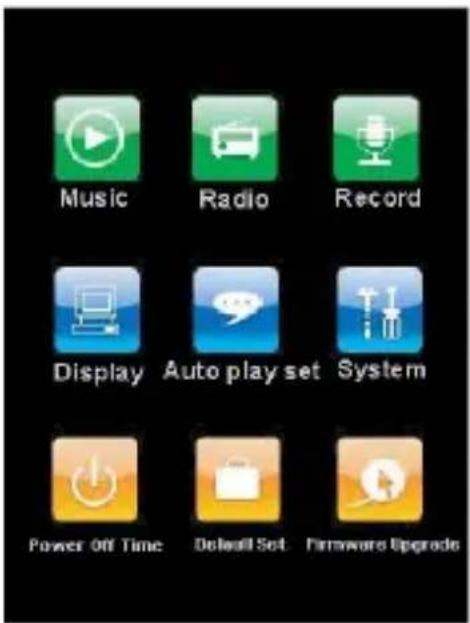
Touch the corresponding function setup icon on the screen to be able to access the corresponding function setup options.
In the “Setup” interface, long press “M” menu button to return to the main menu interface.
1. Music
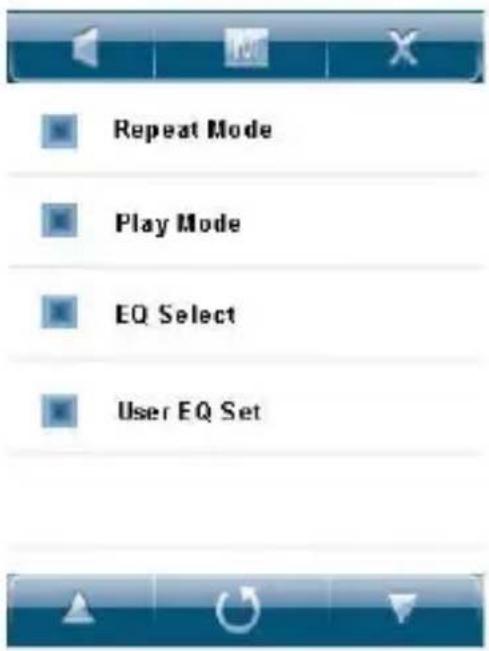
In this setup, there are 4 options: Repeat Mode, Play Mode, EQ select and user EQ Set. At this time touch the screen “/” the icon button to select the setup options. Short touch the selected zone on the screen to access Level 2 menu. In the 4 options, touch “/” icon on the screen to select the corresponding setup, short touch the selected zone on the screen to exit and save the settings. Touch “” icon to return to the upper level of setup menu.
1) Repeat Mode
In this menu, there is: single once, repeat single music, folder once, repeat folder, repeat once, repeat all, trial listening for your option.
2) Play Mode
In this menu, there is: Sequence playing, random playing selection for your option.
3) EQ select
In this menu, there is: normal, 3D, rock, popular, classical, bass, jazz, user define for your option.
4) user EQ Set
In this menu there are five frequencies, for each of which there are 7 levels for the user in adjustment.
2. Radio
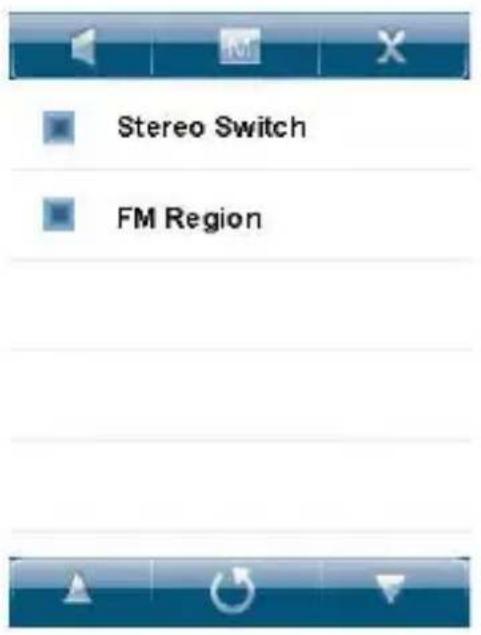
In this setup, there are two options: stereo switch and FM Region.
At this time touch “/” icons on the screen to select the set options. Then short press the selected zone on the screen to access :Level 2 menu. In the two options, touch “/” icons on the screen to select the corresponding setup. Short touch the selected zone to exit and save the settings. Touch the “icon button to return to the upper level of setup menu.
1) Stereo switch
Under this menu, there are options such as on and off for your option.
2) FM Region
Under this menu: there are options such as China, Europe, Japan and USA for your option.
3. Record
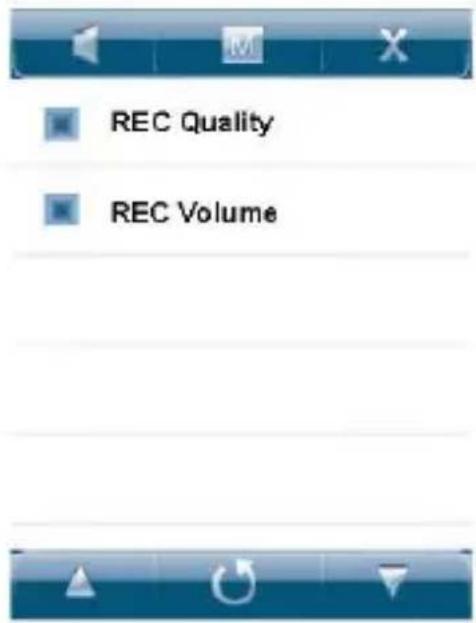
In this setting, there are two options: REC Quality and REC Volume.
At this time touch “/” buttons to select the setup options. Then short touch the selected zone on the screen to access Level 2 menu. In 3 options, touch “/” icon button on the screen to select the corresponding setup and then short touch the selected zone to confirm exiting and saving the setup. Touch “” icon button to return to the upper level of setup menu.
1)REC quality
In this menu there is: high quality and common quality for your option.
2)REC volume
In this menu, there are 5 options: +1 , +2 , +3 , +4 , +5 . The higher the level is, the greater volume it records.
4. Display
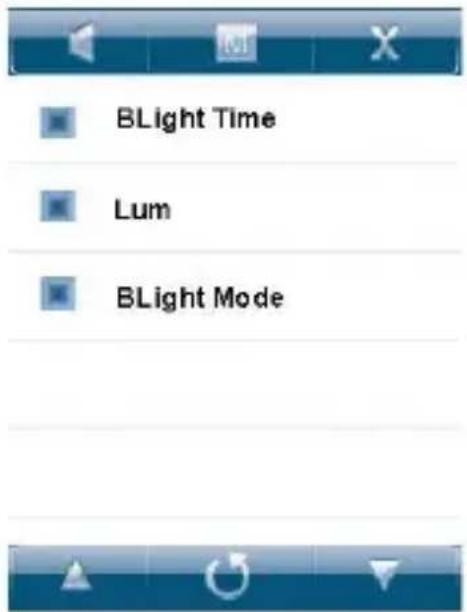
In this setup there are 3 modes options: backlight time, Lum and backlight Mode.
At this time touch “/” icon button to select the setup option. Then short touch the selected the zone on the screen to access Level 2 menu. In two options, touch “/” icon on the screen to select the corresponding setup. Short touch the selected zone on the screen to confirm exiting and saving the setup. Touch “” icon button to return to the upper level of the setup menu.
1) Backlight Time
In this menu there are 6 options such as: 5 seconds, 10 seconds, 15 seconds, 20 seconds, 30 seconds and long time lighting for your option.
2) Lum
In this menu, there are 5 options such as 1, 2, 3, 4 and 5. The higher the level is, the brighter it will be.
3) Backlight Mode
In this menu there are two options such as normal and power efficiency for your option.
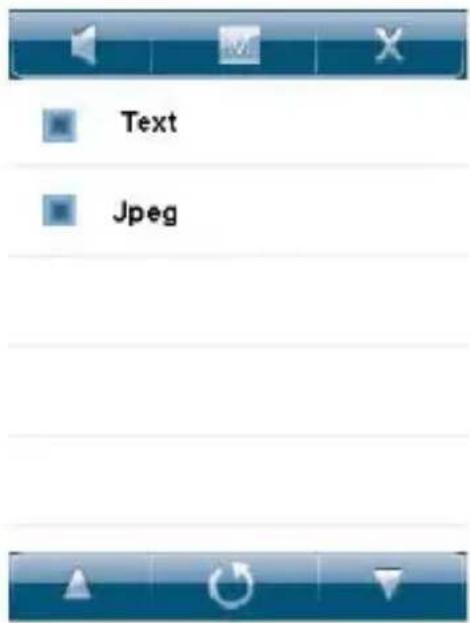
5. Auto play set
In this setup there are two options: text and Jpeg.
At this time touch “/” icon button to select the setup option. Then short touch the selected the zone on the screen to access Level 2 menu. In two options, touch “/” icon on the screen to select the corresponding setup. Short touch the selected zone on the screen to confirm exiting and saving the setup. Touch “/” icon button to return to the upper level of the setup menu.
1) Text
In this menu, there are 5 options such as 10 seconds, 15 seconds, 20 seconds, 25 seconds and 30 seconds for your option.
2)Jpeg
In this menu, there are 5 options such as 1 seconds, 2 seconds, 3 seconds, 4 seconds and 5 seconds for your option.
6. System
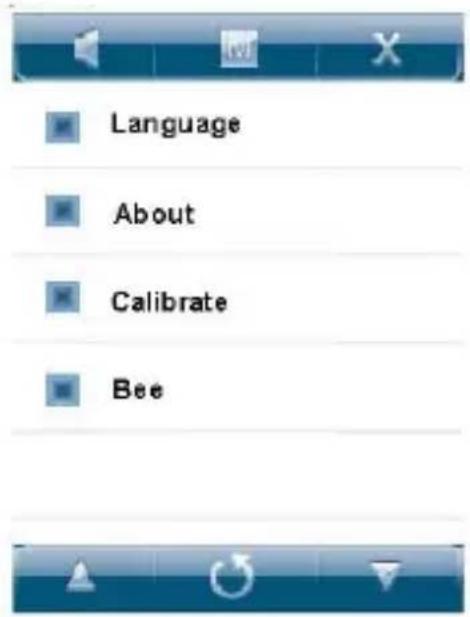
In this setup there are 4 options such as Language, About, Calibrate and Bee.
At this time touch“/”icon button to select the setup option. Then short touch the
selected the zone on the screen to access Level 2 menu. In four options, touch “/”
icon on the screen to select the corresponding setup. Short touch the selected zone on the screen to confirm exiting and saving the setup. Touch “ ” icon button to return to the upper level of the setup menu.
1) Language
Three languages: simplified Chinese, traditional Chinese and English for your option.
2) About
In this menu, there is the remaining capacity and system software version number.. Short touch the information display zone on the screen and exit.
3) Calibrate
When you find that the contact screen position is not right, you can calibrate the contact buttons using this function.
4) Bee
In this menu, there are two options such as On and Off for your option.
7. Power Off time
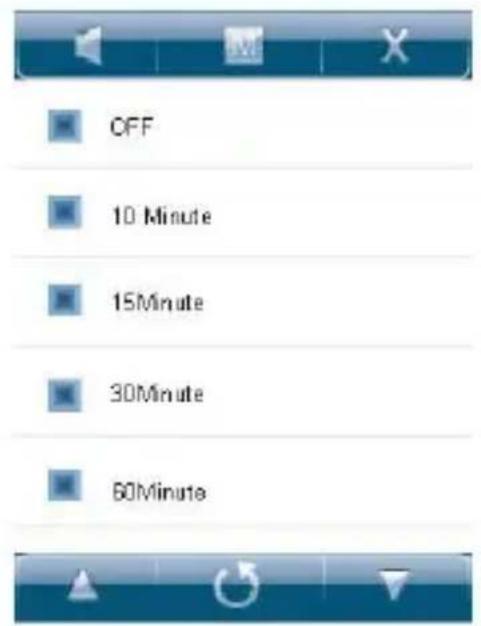
In this setup there are 6 options such as close, 10 minutes, 15 minutes, 30 minutes, 60 minutes, and 120 minutes for your option. At this time touch “/” icon button to select the setup option. Then short touch the selected zone on the screen to access Level 2 menu. In 4 options, touch “/” icon on the screen to select the corresponding setup. Short touch the selected zone on the screen to confirm exiting and saving the setup. Touch “” icon button to return to the upper level of the setup menu.
8. Default set
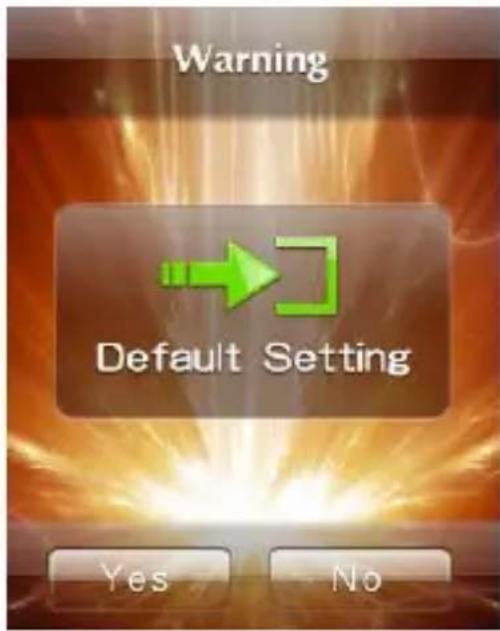
Touch "Default Setup" icon on the screen to access the "System recovery default" warning interface. Short touch "OK" button on the screen to restore to the factory default setup. Short touch "Cancel" on the contact screen to give up this recovery operation.
9. Firmware upgrade
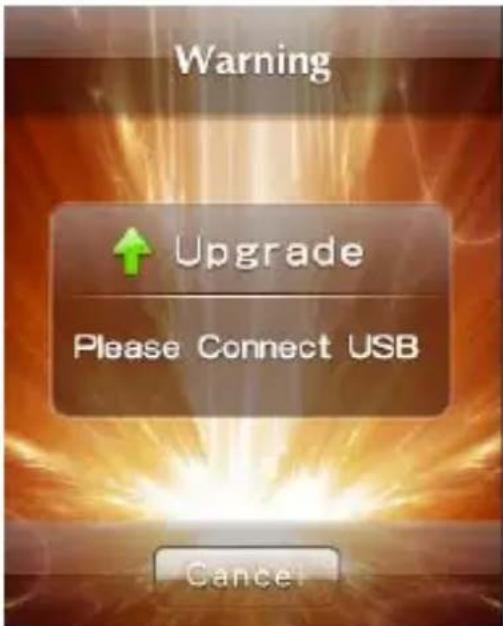
Touch "Firmware Upgrade" icon on the screen to access the "Firmware Upgrade" warning interface. Connect the player to the computer USB interface to update the new firmware operation for the player. Short touch "Cancel" on the contact screen to give up this recovery operation.
Installing tool software
Put the drive disk attached to the unit in the computer compact disk driver. In the Windows Operation System, it will automatically pop up the installation interface. Click on "Video Convert Tool V3.X" to start installing all software for MP3 player. Follow the installation prompt to complete the installation process very easily.
Producing video files
AVI is the most popular video format for the current portable media player as well as one of the most popular formats on the network. The video culture coded in the XVID/DIVX format has higher video quality, and moreover, the files are smaller. In the viewing quality, the video file effect coded in the XVID/DIVX is not inferior to the effect of coded in the WMV or RMVB format.
It supports the formats of AVI, MPG, MPEG, RMVB, VMV and DAT, etc to convert into the AVI format in a quickest speed and highest quality.
System requirements
The basic configuration required by the video conversion software is:
CPU: INTEL or AMD core: INTEL requires at least INTEL PENTIUM3 or over, including INTEL CELERON series WINDOWS operation that must be installed with the player in the version of MS MEDIA PAAYER9 or over.
Operation steps
- Click and run the program of "AV Converter.exe", shown as follows:
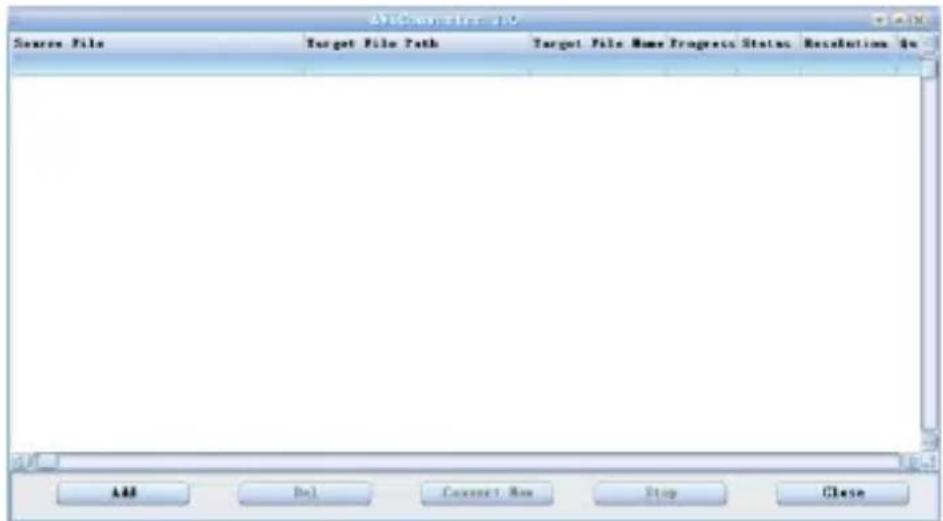
- click "add", show dialog as follows:
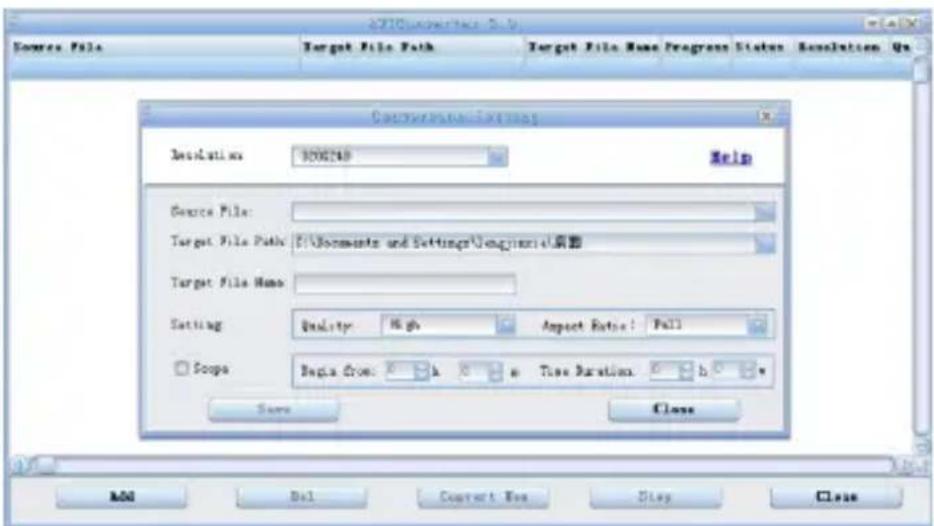
- Select and set your desired parameters, select your desired video/audio file and AVI video file routine to be generated, click [Start to Convert] button, then begin to convert to AVI file.
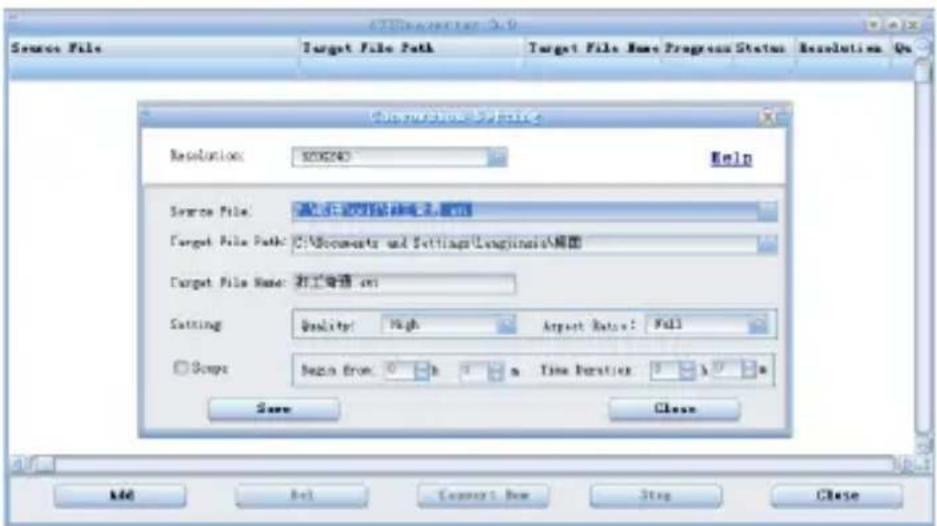
- The successfully converted AVI video file can be played in MP4 player. During the operation, enter Video Play menu, select the corresponding file, short press [MODE] key to play in video, long press to exit (the Video Play interface refers to the Screen Description).
Upgrade Player Driver
The player can upgrade or resume the damaged player driver via the tool software in the attached disk.
- For the first upgrading of computer, insert the drive disk into the CD-ROM of computer, then connect the MP4 player with computer (it requires you to press and hold the MENU key), till it appears the program Installation Interface.
- Implement the next step according to the Dialog box prompt, and select the "Upgrading Tool" folder in the attached disk in the "Browse" option of the fourth Dialog box, then click Confirm.
-
Operate as per the prompt in dialog box till the accomplishment
-
When the installation of programs required by computer is OK, you can begin the upgrading; select and run the firmware upgrading tool Consumer.exe (can be found in attached disk), then open the option and select Rock2*.rfw file (the Interface is as follows).
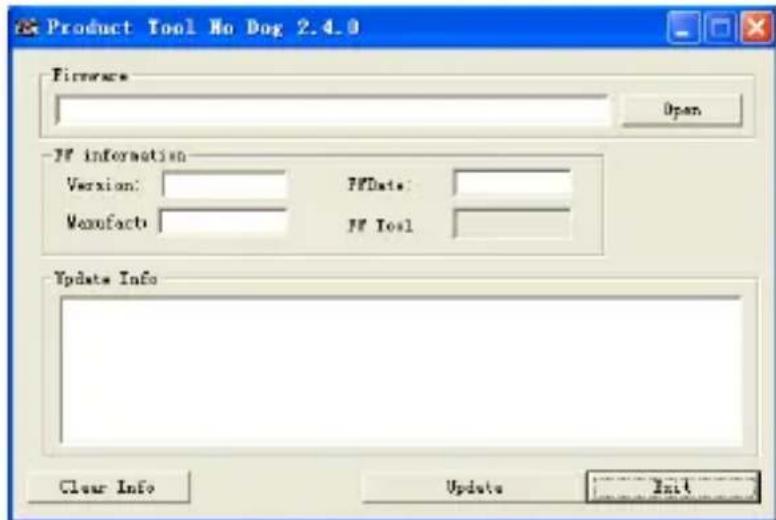
- Connect the player to PC via USB cable (press and hold the MENU key before the On-line operation), then click [Burnt Firmware] till the Auto Upgrading is achieved.
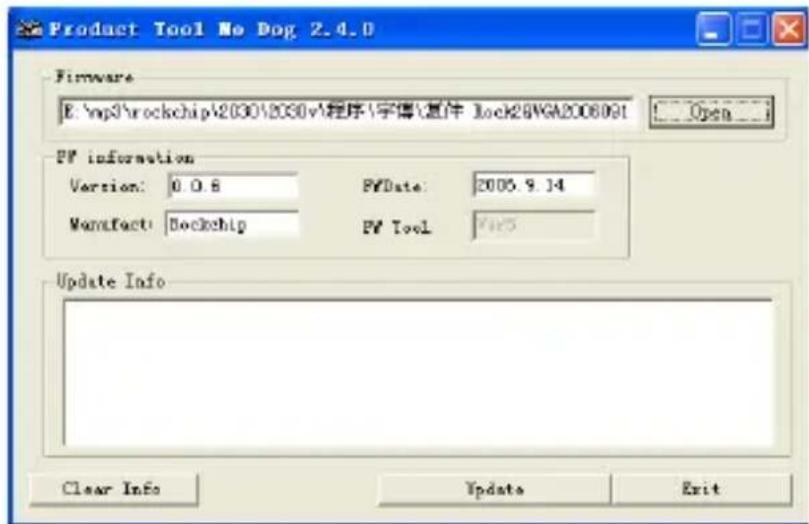
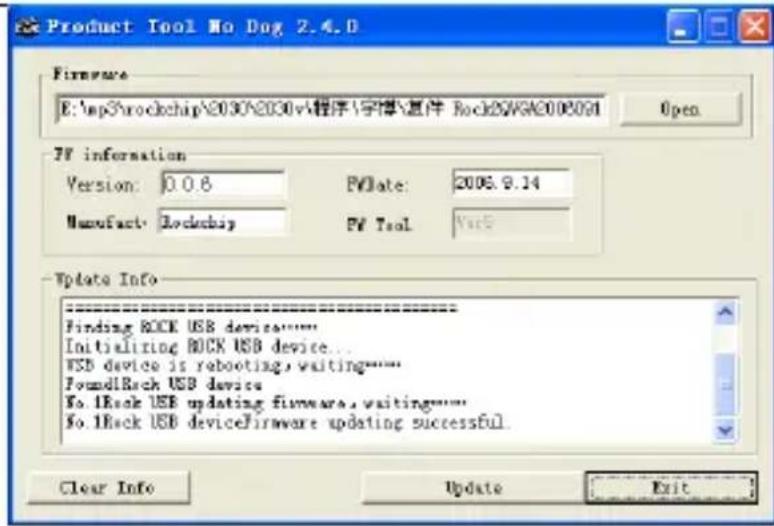
Note: Firmware upgrade is to improve and optimize the performance of the player. The normal work of the player would not be affected even if the firmware isn't upgraded. The wrong operation of upgrading firmware would cause the device not to work normally! The firmware upgrade software of this player is not applied to other series of players.Firmware upgrade
Common troubleshooting
- Products cannot be opened.
Check the battery. If the battery is discharged, please use the provided adaptor to charge the battery and then retry. Based on the discharging state, the charging of full battery needs some time. If there is no response of the product, please press "RESET" button on the side of the unit. Note that RESET will be disconnected, but there is no influence on the product.
- Buttons do not work.
Check whether the power switch is in the HOLD position. If it is, please move it to the opposite direction.
- No sound.
Check whether the voice is set to "0". If it is so, please control it to your favorite position. Check whether there is any playing source on the product. If there is no playing source on the product, there will be no output of sound.
- Noise in playing.
The damaged music files may utter noise, or discontinued sound output. Check whether the earphone is connected. There is impurity in the jack/terminal in the earphone and there is noise.
- The time for playing the files in the connected memory is shortened.
Compared with the files in the built-in memory, it requires more sources while playing the files on the external memory of MP4. Therefore, if the product playing is respectively saved in the same file in the memory and the outside memory and the built-in memory, the time for playing the former may be shortened.
- FM radio channels unable to work normally
Since there is no configuration of independent antenna, the MP4 uses the connected earphone to receive FM radio signals. Therefore, please try to stretch your ears so that the signal effect will be better. The reception sensitivity may differ as the positions are different. If you cannot hear the FM radio in the zone being checked, it may be due to the cause of the FM modules. In this case, please contact the nearest customer service center.
- Noise in the recorded files
The MP4 has been equipped with super fine microphone. This may lead to the noise in the production process so that the quality will be badly distributed, which is the cause of the nature of the digital equipment.
- Clobbers displayed on the screen
Please check whether proper language options are set up. The language options will be set up in the "Settings" - "System Settings" - "Language Settings".
- Unable to download files
Make sure that the computer and the player are properly connected.
Make sure that the memory space of the memory is full.
Make sure that the USB connection lines are damaged.