RC-1201 - Mp3 player Ricatech - Free user manual and instructions
Find the device manual for free RC-1201 Ricatech in PDF.


| Product Type | MP3 Player |
| Brand | Ricatech |
| Model | RC-1201 |
| Dimensions (approx.) | 4.0 x 2.0 x 0.5 inches |
| Weight | Approx. 1.5 oz (42 g) |
| Power Source | Built-in rechargeable lithium-ion battery, USB charging |
| Battery Life | Up to 15 hours of music playback |
| Storage Capacity | Internal memory: 8 GB (expandable via microSD card up to 32 GB) |
| Supported Audio Formats | MP3, WMA, WAV, FLAC, APE |
| Display | 1.8-inch TFT color screen |
| Playback Functions | Play, pause, skip, repeat, shuffle, equalizer presets |
| Additional Features | FM radio, voice recording, e-book reader, photo viewer |
| Connectivity | USB 2.0, 3.5mm headphone jack |
| Languages Supported | English, Spanish, French, German, Italian, etc. |
| Safety Precautions | Do not expose to water or extreme temperatures; use only authorized chargers |
| Cleaning and Maintenance | Wipe with a soft dry cloth; do not use chemicals |
| Spare Parts Availability | Battery and USB cable available from manufacturer or authorized dealers |
| Repairability | Not user-serviceable; contact Ricatech support for repairs |
| General Information | Designed for personal music enjoyment; features intuitive button controls |
Frequently Asked Questions - RC-1201 Ricatech
User questions about RC-1201 Ricatech
0 question about this device. Answer the ones you know or ask your own.
Ask a new question about this device
Download the instructions for your Mp3 player in PDF format for free! Find your manual RC-1201 - Ricatech and take your electronic device back in hand. On this page are published all the documents necessary for the use of your device. RC-1201 by Ricatech.
USER MANUAL RC-1201 Ricatech
natural_image
Gray electronic device with a portrait of a woman and control buttons (no readable text or symbols)User Manual
Introduction:
We would like to congratulate you with the purchase of your Ricatech RC-1200 MP4 Player. To ensure you enjoy this player with all its option to its fullest, we advise you to read this manual carefully before using the device.
While reading this manual, kindly connect the player to the provided adapter or USB port of your computer as it needs to be charged at least for 8 hours the first time.
We wish you the best with using your MP4 player. Please be so kind to contact us if you have any questions or problems. The contact data can be found on the back of this booklet.
With kind regards,
Ricatech BV
1、Display and buttons
1.1 Displayer
1.2 Battery Level
“’ indicates that the power of Battery is full.
When power run out, Indicator will become blank, at this time you should charge for your player
Please turn on the player before charge.
Please turn off the player when not using it.
Charge:
There are 2 ways to charge the player
(1) Charge by connecting to PC
(2) Charge by the charger (if supplied)
Note: Only charge by the charger supplied, the wrong charger may damage the player
1.3 Definition to the processing key
Keys processing includes 3 actions: Press, Press and Hold, push
Press: Press a key shortly
Press and Hold: Press a key and hold it at least 1.2s
Push: Push a key once
2. Basic Functions
2.1 Enter into master menus
Turn on power and then you will enter into master menu.
2.2 Volume Adjust
Press 'VOL' button shortly, then press 'VOL+' or 'VOL-' to increase or decrease volume.
2.3 Turn on
2.3.1 Push 'power on/off' button right, then press 'play' key for 4 seconds, you will enter into the master menu
2.4 Turn off
2.4.1 Press 'play' button for 4 seconds to turn off the player.
2.4.2 when the power is too low, the player will turn off automatically.
2.4.3 Don't turn off the player directly by pushing power on/off switch. You should press and hold 'play' key to turn off the player firstly, then push the 'power on/off' button left to power off.
2.4.4 When not using the player, please make on/ff switch in the off position. It can save the power and lengthen the using time of battery.
3、Play & Stop
On music mode, Press Play to play music.
When music is playing, press Play button to pause; or press it long to turn off the player.
Start / Stop recording
On recording mode, press 'Play' button to stop.
4、Play music
4.1、Steps:
Put earphone into earphone jack
Turn power on to enter into master menus, press „MENU“ button to enter into music mode, and then press „play“ button you will listen to wonderful music
Select music: next music;
Previous music.
Volume adjusts: when the music is playing, press „VOL“ to enter into volume mode and press
button to decrease volume, button to increase volume.
4.2、Equalizer Mode
In playing state
Press MENU button to enter into submenu;
Press Next button to choose Equalizer Mode;
Press MENU button to enter into 'Equalizer' submenu.
Select an equalizer: :
Detail of each equalizer (EQ):
Natural
Rock
Pop
Classical
Soft
Jazz
DBB
Press Next button to select an EQ and press MENU to confirm it.
4.3 Synchronous Lyric Display
The player supports lyric files with *.LRC suffix, and displays synchronously.
How to use lyric files
Please make sure the lyric have the same name with the music
For example:
Music file: My heart will go on.mp3
Lyric file: My heart will go on.lrc
How to know if lyric is available
If lyric matched, a symbol will be shown near the volume.
When marched lyric available :
Press and hold MENU to enter into lyric interface;
Press MENU return to music mode.
5、Voice Recording
Each fold can save up to 99 voice recording files.
5.1, how to enter into it
5.1.1, Enter into main menu:
5.1.2, Press next button to choose Record mode
5.1.3, Press Menu button to enter into Record mode, screen will display as following:
5.1.4. Press Play button to start recording.
5.2, Select Record Type
5.2.1. in the interface of „Record „stop
5.2.2. Press Menu button shortly to enter into record submenu
5.2.3. Press „Next" button to select „Record type" submenu then presses „Menu" button to select it.
Fine record
wav file, fine quality
Long REC
act file, normal quality
Fine VOR
VOR file, (Recording controlled by voice, pause
when mute) Long VOR VOR file, (Recording controlled by voice, pause when mute)
5.2.4. Press Next button to choose appropriate type and press Menu button to select it
5.2.5. Press Play button to start recording.
5.3, Play recorded files
Enter into main menu
Press Next button to choose 'voice' menu
Press Menu button to enter into it
Press Play button again to play the file.
How to choose voice record files
Previous: Select previous file
Next: Select next file
6、FM radio
6.1. Enter into main menu;
6.2. Press next button to choose "FM Radio" menu
6.3. Press Menu button to enter into it
6.4. Automatic searching
Press and hold or button for two second, then the player will search forward or backward at the speed of 0.1 MHz/sec, when finding a station, it will stop automatically; if you
want to stop searching, shortly press' or 'button
6.5. Manual micro adjusting
Shortly press button: 0.1MHz backward; shortly press button: 0.1MHz forward.
6.6. Save current channel:
Press Mode to entry into FM submenu
Press 'Mode' button again to save the channel.
6.7. Listen to a saved channel:
You can press Play button to listen to a saved channel.
6.8. Volume control
Press 'VOL' enter into volume
: Increase volume;
-: Decrease volume
: 20 channels can be saved each in “General Frequency” and “Japan Frequency”
7、Photo Browse
This function is available for the pictures of JPEG, GIF, BMP format.
7, 1; on main menu, press Next/Prevision to choose 'Photo Browse' menu
7, 2: Press Menu to enter into corresponding submenu.
7, 3; Press Next or Prevision button to choose the picture you want to review, then press Play button to play it
8、E-BOOK: can read text file
8.1. On main menu, press Next/Prevision to choose „E-BOOK“ menu
8.2. Press Menu button to enter into corresponding submenu:
8.3. Press „Next' or „Prevision' to choose the document you want to read, then press Play to read it
9、System
9.1 You can set system performances here, options may vary in different firmware version Enter into main menu
Press Next button to choose "system"
Press Menu button to enter into it.
9.2 Options introduction:
| clock | Set date and time when saving recorded file |
| LCD set | Set screen brightness |
| Language | Choose different languages |
| ScreenSaver Sel | Choose different screensaver |
| power off | Set a count down time in minutes, the player will shut off when time out. |
| Replay mode | Set repeat status |
| Online mode | There are three option(Multi,normal,encrypted) |
| Memory info | Check memory space and usage status |
| Firmware Version | Version of player's firmware |
| Exit | Exit from Setting interface |
9.2.1. Press Menu to enter into 'clock' interface
Clock:
Press |◀◀ or ▶▶| button to change the time and press 'VOL' to set it, after setting, press Menu button to exit.
9.2.2 LCD Set
Press Menu button to enter into screensaver setting;
Press Next button to choose (Last for previous)
After setting, press Menu button to exit.
9.2.3 Language Setting
Press Menu button to enter into language setting;
Press Next for choosing (Last for previous)
After setting, press Menu to exit.
9.2.4, power off Setting
Please note:
You can set time in seconds on 'off time' mode, allow the player shut down automatically This function is unavailable if the time is 0.
You can set time on ‘Sleep mode’, allow the player is shut down automatically. It is designed for listening to music before sleeping.
Note: Sleep mode valid only once after setting, you have to set again if you want to use it next time.
9.2.5,'Replay mode'
Please enter into 'replay mode' menu
Note: in "Manual replay" you should do it manually.
In “Auto replay” the player can identify sentence automatically when on A-B repeat. (This function is designed for repeat sentences in language studies.)
9.2,6'Memory info'
You can check total memory space and the percentage of usage.
9.2, 7, 'Firmware version'
You can find the player's firmware's version.
Tips: Press Play can exit current menu quickly. The function is valid on all other menus.
10、Movie
On main menu, press Next/Prevision to choose „Movie“ menu. And then press „plays“ button you can watch the movie.
If you want to change the volume, you should stop the movie, then press „VOL" button, then press : Increase volume; -: Decrease volume
11、How to install the CD driver.
11.1. Please insert the CD to the CD-ROM, open the CD, double-click "setup.exe", and then proceed according to the instructions.
11.2. After the driver is set up successfully, by clicking the “start” Program MP3 Player Utilities 3.57, you can see five tools: AMV Convert Tool, AMV Player, MP3 Player Disk Tool, MP3 Player Update Tool & Sound Convert Tool. Among of them, MP3 Player Disk Tool is for setting encrypted drive, MP3 Player Update Tool is for updating the firmware/bios, and Sound Convert Tool is for converting the format of Audio file.
11.3. Using as USB flash drive
As USB flash drive, it is USB2.0 interface. Compatible with Win98, Win98se, Win2000, Win Me & Win XP, and Mac OS 10.3 & above, and Linux Redhat 8.0 & above. For
Win98/Win98se, setting up the driver is required.
When this device is connected with computer, by short pressing [MODE] to switch it to MP3 player mode.
This device can recognize a maximum of 99 first grade folders set up by the user in the USB flash drive.
12. MP3 Player Disk Tool
After install the utility from the CD, you can run MP3 Player Disk Tool to format the player and for the encryption function
12.1 Format: You can format the player either by this program or by Windows.
12.2. Partition and Encrypt
You can divide USB disk into two parts by this tool, one is encrypted and the other is non-encrypted
Note: Windows 2K should be installed SP4 to support this function
Steps:
12.2.1. Connect the player with PC
12.2.2. Run MP3 Player Disk Tool
12.2.3. Select "partition and encryption"
12.2.4. Select a suitable space for encrypted disk and setup user name and password
12.2.5. Click "start" and finish the partition
12.2.6. You will see two disks. Click encrypted disk "RdiskDecrypt" and input user name and
password in the dialogue; if they are correct, you can open the disk and copy files in it.
12.2.7. Every time you connect the disk with your PC, you need input user name and password to open the encrypted disk.
Warning: Divide one disk into parts will remove all data, and so does combine process.
Warning: Please remember username and password. If you forget it, you can only making combine processing and you will loss all encrypted data.
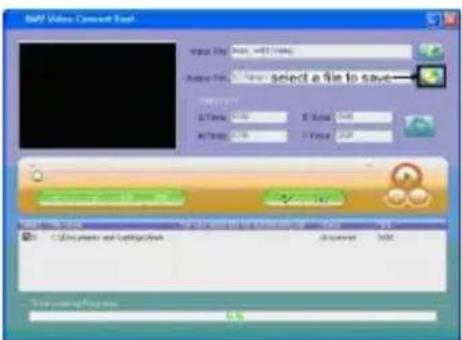
13、AMV convert tool.
The program can support *.ASF,*.WMV,*.MPG,*.RM,*.MOV,*.VOB formats, but you must convert them into AMV format by using AMV convert Tool.
Following is its instruction:
13.1, open AMV convert Tool.
13.2, Select the files you need to convert.

text_image
Add Text Error File name: 10.00 select a file to convert Load location: C:\Shop Load size: 5.00 Load time: 3.00 Load duration: 2.00 Load resolution: 1.00 Load output: 0.00 Load success rate: 100% Load success rate: 100%13.3, Select a folder to save converted files.
14.4, Click ' ↗' to start converting.
text_image
BASF Video Connection Tool Input File: BASF, w170000 Selected Pin: Select a file to save A: 0.00 B: 0.00 C: 0.00 D: 0.00 E: 0.00 F: 0.00 G: 0.00 H: 0.00 I: 0.00 J: 0.00 K: 0.00 L: 0.00 M: 0.00 N: 0.00 O: 0.00 P: 0.00 Q: 0.00 R: 0.00 S: 0.00 T: 0.00 U: 0.00 V: 0.00 W: 0.00 X: 0.00 Y: 0.00 Z: 0.00 X1: 147 C:\Documents and Settings\Work document Index User saving Tools
text_image
Add Value Content Tool Start: 100.00000000 Add Date: 20-Sep End Date: 20-Sep Start to convert the file15、Technical Specifications
| Dimension | 90*40*9mm | |
| Weight | 43g | |
| Screen | 262K, 1.8"TFT | |
| Memory | 128M – 4GB Flash(optional) | |
| Power Supply | Max 8 hours play | |
| Sample rate | 8KHz | |
| Voice Recorder | Format | WAV (32K bps), ACT (8K bps) |
| Time | 35hours (ACT, 128M Flash) | |
| MP3、WMA、WMV、AMV | Max. Output | (L) 10mW + (R)10mW (32Ohm) |
| MP3 Bit rate | 8K bps – 320K bps | |
| WMA、WMV、AMV Bit rate | 5K bps – 192K bps | |
| Freq. Response | 20Hz to 20KHz | |
| SNR | 85dB | |
| Freq. Range | 76MHz – 90MHz / 87MHz – 108MHz | |
| Max. Stored Channels | 20 + 20 | |
| Max. Output | (L) 10mW + (R)10mW (32Ohm) | |
| SNR | 45dB | |
| FM Radio | ||
| Supported Music Formats | MP3, WMA,ACT | |
| Operate Temperature | -5 to 40 degree | |
| 18 Languages Display | Simple Chinese, English, Trad Chinese, French, German, Italian etc. | |
| Supported Systems | Windows98/SE/ME/2K/XP、Mac OS 10、Linux 2.4.2 | |
Frequently asked questions (FAQ) :
| No Sound | Check the volume settings or try another headset. |
| Not recognized on PC | When using Windows 98, you need to install the drivers from the supplied CD-ROM. |
| Bad FM reception | The headset cable is used as an antenna, please check the cable condition. |
| Files are being skipped | Copyright protected files (Microsoft DRM) downloaded from paid services are not supported by this player. These files will be skipped. |
| Files are played for only 10 seconds. | Player is set to “Intro mode” please set the play mode to “Normal” (Chapter 12.1.1) |
| Videofiles are not played. | Only uncompressed files will be played. Files compressed with DIVX or XVID compression will be converted but will not be played by the player. |
| Sound quality is bad. | Check if the quality of your music is sufficient. The quality can vary from 64Kbps (average) to 320kbps (Good) |
Warranty:
Ricatech BV covers all products (Excl. Accessories) with a 2 year warranty applying to all faults caused by a factory-error. External physical damage will not be covered by our warranty
| Warranty: | All hardware errors occurring within 2 years after purchase unless caused by points mentioned below. |
| No Warranty : | Faults caused by:*Dismountal by any other service center then ours.*Firmware upgrade*Water and moisture damage*Drop and bump damage*Usage with non approved Ricatech accessories.*Short-circuit or over-voltage by host computer (PC)*Physical damage, loss or damage to accessories |
| Out of warranty repairs | Please be so kind to contact us for out-of-warranty repairs.We will provide you with a quotation with the expected costs.Goods out of warranty cannot be returned to your reseller. |

text_image
RICATECH®Ricatech BV
Tinstraat 103
2984AN Ridderkerk
The Netherlands
For technical support and price quotations please contact our helpdesk directly at :
Email : Support@ricatech.com