RC-800 - Mp3 player Ricatech - Free user manual and instructions
Find the device manual for free RC-800 Ricatech in PDF.


User questions about RC-800 Ricatech
0 question about this device. Answer the ones you know or ask your own.
Ask a new question about this device
Download the instructions for your Mp3 player in PDF format for free! Find your manual RC-800 - Ricatech and take your electronic device back in hand. On this page are published all the documents necessary for the use of your device. RC-800 by Ricatech.
USER MANUAL RC-800 Ricatech
RICATECH RC800 PORTABLE MP4 PLAYER
RC800
RC-800
Pure Freshness...

natural_image
Row of colorful RICATECH audio recording devices with control buttons (M, VQL) and playback controls (no readable text beyond branding)NOTE: Please charge the player for at least 8 hours before using!
-The player will not charge well on a shared USB connection like one on front of an ATX Housing or via an unpowered USB HUB.
-Use the USB connection on the back of your computer casing, or an optional Ricatech® power adapter model RCCH03.
Cautions
- Do not subject the device to severe impact or drop it from a high position.
- Do not use the player in extreme hot or cold, dusty or damp environment. Do not expose it to direct sunlight.
● Back up your data frequently in case of accidental data loss.
- Avoid using the player in a strong magnetic field such as next to a microwave oven or conventional television.
- Keep the device away from water or other liquids. In the event that water or other liquids come in contact with the device, power off the product immediately, take out the battery and clean the device after letting it dry.
- Do not use chemical solution to clean the device in order to avoid corrosion. Clean it with a dry cloth.
- We are not responsible for the damages or lost data caused by malfunction, misusing, repairing the device or battery replacement.
- Do not attempt to disassemble, repair or modify the product, warranty will be void.
- The design of the player or actual display may be different from what is shown in this manual. It should be subject to the actual display or design.
1 Key Features
- MP3&WMA Player
- AVI Video player
- JPEG photo viewer
- MicroSD Memory card reader
- Folder Navigation
- Voice Recorder
- Stereo FM radio
- FM Recording
● Removable Storage Device - Computer Games
- Customizable settings
● Built-in, rechargeable lithium-ion battery
2 System Requirements
● Hardware: IBM PC or Compatible PC, Notebook with USB interface
- Operating System: Windows98/SE (with DirectX 9.0 or above), Windows Me, Windows2000/XP
3 Package Content
Please check the package for the following items. If any one of them is missing, please contact the Ricatech® helpdesk with the information in the back of this booklet:
- Stereo earphones
- USB cable
- User Manual
- Application CD
- Warrantycard
● 1x MP4 Player model: RC800
4 Before Using
4.1 Connect to the PC and download audio files
When using Windows 98/SE, you are required to install the included driver before connecting the unit. For detailed information about driver installation, see the "Driver Installation" section.
The MP3 player is a plug & play device for WIN2000/XP/ME OS. You don't need to install the driver. Just connect the player to the PC and download audio files following these steps:
(1) Attach the supplied USB cable to the player and USB port of the PC.
Double click the "My Computer", icon. You will see a "removable disk" which represents the player. Now you can use the removable disk as a normal local disk drive, copying audio files from or to the removable disk.
4.2 Removing the player from the PC safely
For Windows2000/XP:
(1) Left click the ⚫ (Remove hardware safely)icon at the right hand corner of the taskbar.
(2) Click the pop-up mini-window with message of "Stop the USB Mass Storage Device - Drive (X)".
(3) When you are prompted to remove the device, pull out the MP3 player.
For Win98, please make sure the data transfer is completed before unplugging the MP3 player.
4.3 Charging the battery
The device has a built-in lithium-icon rechargeable battery. It is charged via USB connection. You are required to charge it when you use it for the first time. It takes about 8 hours to fully charge the battery the first time. Connect the larger end of the USB cable to the USB interface of PC, and connect the other smaller end of the USB cable to the USB interface of this player. The device is connected to PC and being charged.
NOTICE: For maximum performance, lithium-ion batteries need to be used often. If you don't use the device often, be sure to recharge the battery at least once per month.
4.4 Using a memory card
The device has a built-in memory card slot for reading data from a micro-SD card.
To use a memory card,
(1) Insert a Micro-SD card to the card slot on the unit body.
(2) Press and hold the MENU button to display the main menu.
(3) Select "Explorer" and press the MENU button to enter the folder browser mode.
(4) In the folder browser mode, you see two folders named "Internal memory" and "Micro SD". To play the audio or video files stored on the memory card, access the "Micro SD" folder.
5 Keys Description

text_image
A B C D E F G H I JA. Earphone Jack
B. LCD Display
C. MENU: Hold for a while to enter the main menu. Briefly press to confirm selection confirm or enter the folder navigation mode.
D. Previous: Play the previous track. / Move up.
E. Next: Play the next track. / Move down.
F. Play/Pause: Turn on or turn off the device. / Play or pause audios.
G. VOL (volume): Adjust the volume / Return to the previous screen.
H. Power Switch: Turn on or turn off the power
I. USB Port: Connect to a computer
J. Memory Card Slot: For inserting a Micro SD-card
Note: The RC800 supports MicroSD cards up to 4GB. MicroSDHC cards are not supported!
6 Power On/Off
To power On:
(1) Slide the Power Switch to the right to power on the player.
(2) Press and hold the Play/Pauze button until you see prompt on the display.
To power Off:
(1) Press and hold the PLAY/PAUSE button until you see prompt on the display.
(2) Slide the Power Switch to the left to turn off the power.
(Be sure to complete this step to save battery power.)
Note: This player has a built-in power-saving feature which enables the device to power off automatically if it is idle for about 3 minutes.
7 Basic operation
| Function | Operation |
| Play/Pause | Press the PLAY/PAUSE button to play or pause. |
| Adjust Volume | (1) Shortly press the VOL button until you see a red volume icon blinking.(2) Press the PREVIOUS/NEXT button to decrease or increase volume.(3) Press the VOL button again to confirm. |
| Previous Track | Shortly press the PREVIOUS button. |
| Next Track | Shortly press the NEXT button. |
| Fast Forward | Press and hold the NEXT button. |
| Rewind | Press and hold the PREVIOUS button. |
| A-B Repeat | To repeat a specified section of a track,(1) While playing, shortly press the VOL button to enter A-B repeat mode.(2) Press the MENU button again to select the start point.(3) Press the MENU button again to select the end point.To stop A-B repeat, press the MENU button, and then press the VOL button to exit. |
8 Selecting Functions.
Press and hold the MENU button to display the main menu. Use the PREVIOUS/NEXT button to select a menu, and press the MENU button to confirm your selection.

text_image
Music Video FM Radio Photo Game Record Settings Navigation E-book9 Playing music
9.1 Enter the music mode
Press and hold the MENU button to display the main menu. Use the PREVIOUS/NEXT button to select "Music" menu, and press the MENU button to confirm selection. Now you are in the MUSIC mode, refer music playing to the basic operations.

text_image
0001/0003 00:04:48 00:01:09 I swear.mp3 128kbps NOR9.2 Folder navigation
To navigate through folders:
(1) In the MUSIC mode, shortly press the MENU button to enter folder navigation mode.
(2) Press the PREVIOUS/NEXT button to select a folder or track, and press the MENU button to confirm selection.

text_image
Folder 1 Folder 2 Folder 3 Track 110 Playing video files (For advanced users)
(1) Press and hold the MENU button to display the main menu.
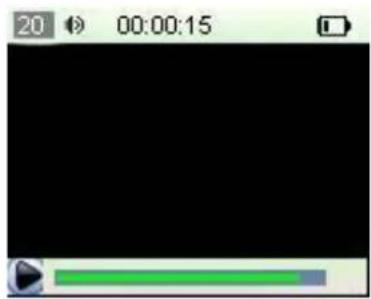
(2) Use the PREVIOUS/NEXT button to select the "Video" menu, and press the MENU button to enter the video player mode.
text_image
20 00:00:15(3) Press the PREVIOUS/NEXT button to search a video file that you want to play, and press the MENU button to play. For detail information about playing, see the "Basic Operation" section. (Note: During playing, you can shortly press the MENU button to enter folder navigation mode.)
Note: This player can only play uncoded AVI videos. For other formats, you need to use the converting tool included on the driver CD to convert them. For detail information about the converter, see AVI Converter Quick User Guide on the CD.
11 Viewing photos
To view photos,
(1) Press and hold the MENU button to display the main menu.
(2) Select "Photo" and press the MENU button to confirm.
(3) Press the PREVIOUS/NEXT button to select a folder or image, and press the MENU to confirm.
(4) Select the photo that you want to display and press the MENU button to enlarge it to full screen.
(5) In the full screen mode, you can press the PREVIOUS/NEXT button to display the previous or the next photo. Press the PLAY/PAUSE to start auto slide show, or press the MENU button to enter folder navigation mode.
Note: Some images may not be displayed. Try to use an image viewer (ACDSee for example) to convert them. See "Appendix – Convert image file" for details.
12 Reading E-book
12.1 Reading
(1) Press and hold the MENU button to display the main menu.
(2) Select "E-book" and press the MENU button to confirm.
(3) Press the PREVIOUS/NEXT button to select a .txt file, and press the MENU button to open the selected file.
(4) Press the PREVIOUS/NEXT button to page up or page down, or press the PLAY/PAUSE button to page up or down automatically (by setting the time interval between 1 and 5 in Settings/Auto Slide show/Text).
(5) During reading, you can use the bookmark to mark the page for resuming reading later. For information about bookmark, see "Using bookmark" section.
12.2 Using bookmark
(1) Go to the page that you want to mark.
(2) Press and hold the VOL button to show up a "Save Bookmark" window for saving bookmark.
(3) Press the PREVIOUS/NEXT button to select one line on the menu and press the MENU button to confirm. The bookmark is saved. It starts from the first line of current page.
(4) To read the page that you marked, shortly press the VOL button to show up the "Load Bookmark" window. Select the bookmark and press the MENU button to confirm. You will be guided to that page.
Note: Some TXT file may not be read. This may because its format is not supported. Skip it or reload another file.
13 Browsing all files
To browse all files stored in the player,
(1) Press and hold the MENU button to display the main menu.
(2) Select "Explorer", and press the MENU button to enter the browser mode.
(3) Press PREVIOUS/NEXT button to select a file that you want to view, and press the MENU button to play or display it.
14 Voice Recording
- Record
(1) Press and hold the MENU button to display the main menu.
(2) Select "Record", and press the MENU button to enter the recorder mode.
(3) Shortly press the PLAY/PAUSE button to start recording. During recording, you can press the PLAY/PAUSE button to pause or resume recording.
(4) Shortly press the MENU button to stop and save recording.
- Play recordings
To play the recording, switch to the MUSIC mode, enter folder navigate mode, search and play the recording file.
15 Deleting file
To delete a file,
(1) In the folder navigation mode, select the file that you want to delete.
(2) Press and hold the VOL button until a dialogue box shows up.
(3) Use the PREVIOUS/NEXT button to select "YES" and press the MENU button to confirm.
16 FM Radio (optional)
On the main menu, select "FM Tuner" and press the MENU button to turn on the FM radio.

text_image
FM Radio 93.9MHz 87MHz 108MHz EUROPE- Search Station
(1) Shortly press the MENU button to show the submenus.
(2) Press the PREVIOUS/NEXT button to select "Auto" or "Manual", and press the MENU button to activate auto-search or manual-search mode. In the Manual mode, press the PREVIOUS/NEXT button to tune in stations.
- Save station
To save the found station,
(1) Shortly press the MENU button to activate the submenus.
(2) Press the PREVIOUS/NEXT button to select "Save" and press the MENU button to confirm.
(3) Press the PREVIOUS/NEXT button to select an empty location for the station, and press the PLAY/PAUSE button to continue.
(4) Press the PREVIOUS/NEXT button to select "YES" or "NO", and press the PLAY/PAUSE button to confirm.
- Listen to Station
To listen to saved station,
(1) Shortly press the MENU button to activate submenus.
(2) Press the PREVIOUS/NEXT button to select "Preset" menu and press the MENU button to enter the PRESET mode.
(3) In the PRESET mode, press the PREVIOUS/NEXT button to select a saved station for listening.
- Delete station
(1) Shortly press the MENU button to activate submenus.
(2) Press the PREVIOUS/NEXT button to select "Delete" menu and press the MENU
button to continue.
(3) Press the PREVIOUS/NEXT button to select the station that you want to delete, and press the PLAY/PASUE button to continue.
(4) Press the PREVIOUS/NEXT button to select "YES" or "NO", and press the PLAY/PAUSE to confirm.
- Record FM program
When you are listening to a station, you can press and hold the VOL button to record your favourite programs. For detail information about recording, see "Record" section.
17 Playing game
This player provides a popular and funny game - Tetris World. To activate the game, on the main menu, select "Game" and press the MENU button to enter the gaming mode. Basic operation is as follows:
Start game
Press the PLAY/PAUSE button
Move the block left and right
Press PREVIOUS and NEXT button
Rotate the block
Press the MENU button
Insert the block
Press the VOL button
18 Customizing Settings (For advanced users)
To customize the player settings:
(1) On the main menu, select the "Settings" item and press the MENU button to enter the system settings mode.
(2) Press the PREVIOUS/NEXT button to select setting item and press the MENU button to confirm or press the VOL button to cancel/return.
| Music | Repeat mode | Once(Play current track once and then stop) |
| Repeat One (Repeat current track) | ||
| Folder(Play all audio files in the current folder and stop after playing) | ||
| Folder Rep.(Repeat all audio files in the current folder) | ||
| Normal(Play all audio files stored in the player and stop after playing all) | ||
| Repeat All(Repeat all audio files stored in the player) | ||
| Intro(Play the first 10 seconds of every audio file) | ||
| Play mode | Order(Play audio files in order) | |
| Shuffle(Play audio files randomly) | ||
| Preset EQ | Normal, 3D, Rock, Pop, Classical, Bass, Jazz, User EQ | |
| User EQ(User-defined equalizer setting) | (1) Press the VOL button to switch EQ column.(2) Press the PREVIOUS/NEXT button to adjust value.(3) Repeat pressing the VOL button until the cursor is on the YES button, and then press the MENU button to confirm.(4) Go to the EQ Select menu, and select User EQ to enable the equalizer setting. | |
| FM Radio | Stereo SW(Enable or disable stereo effect) | On, Off |
| FM region | China, Europe, Japan, America | |
| Record | REC Quality | High Quality, General Quality |
| REC Volume | +1、+2、+3、+4、+5 | |
| Auto slide show | TEXT (Set interval between the previous and the next page when the device is in auto page up/down mode.) | |
| Photo (Set interval between the previous and the next slide in auto slide show mode.) | ||
| Display | Backlight | 5 seconds, 10 seconds, 15 seconds, 20 seconds, 30 seconds, Always On. |
| Brightness (Set the brightness of the screen) | ||
| Backlight mode | NormalPower Save (Turn off the screen when there is no activity within a certain time) | |
| System | About - Information about the product | |
| Upgrade - Upgrade the firmware | ||
| Load Default - Restore the player to default setting | ||
| Sleep Timer(Set the continuous playing time before the player is turned off automatically.) | Off, 10 minutes, 15minutes, 30 minutes, 60 minutes, 120 minutes | |
| Language( Select language in which the on-screen text is displayed) | Simplified Chinese, Traditional Chinese, English, Korean, Japanese, Spanish, French, German, Italian, Portuguese, Russian, etc. | |
19 Troubleshooting
| Problem | Possible Cause | Solution |
| The LCD displays nothing when the device is started. | Battery is too low. | Charge the battery. |
| No sound when playing an audio file. | The volume is too low. | Adjust the volume. |
| Bad audio file. | Delete or skip the file. | |
| The player cannot be connected to the PC. | The USB interface is not supported by PC's motherboard. | Update or replace the PC's motherboard. |
| The displayed time is changing constantly. | The bit rate of the MP3 file is changing during playback. | Try to use fixed bit rate to compress the MP3 file. |
| The PC has error when you plug and unplug the player. | The player is disconnected from the PC abruptly while transferring files. | Do not disconnect the player from the PC when transferring files. |
| Total memory displayed on the player is not in accordance with the marked amount. | Part of memory is used to store programs and display characters. | |
| Some of MP3 files cannot be played properly. | The MP3 file is compressed by a standard, such as MPEG I Layer 1 or Layer 2 that the player does not support. | 1. Delete the unsupported MP3 files.2. Use MPEG I Layer 3 standard to compress the unsupported MP3 files. |
| The video cannot be played. | The file format is not supported. | Make sure the video is in AVI format. If not, use the provided converting tool to convert it. |
| The video data is corrupted | Skip it or reload another file | |
| The photo cannot be displayed | The file format is not supported | Try to use an image editor (ACDSee for example) to convert it. See “Appendix – Converting image file” for details. |
| The image resolution is beyond limitation of the device. | The device supports a maximum resolution of 3520 X 2816. Make sure resolution of the image does not excess this limitation. | |
| The TXT file cannot be read | The file format is not supported. | Skip it or reload another file. |
20 Technical Specifications
| Item | Specification |
| Capacity | 128MB or above |
| Battery Type | Rechargeable Lithium Battery |
| Battery Life | Approx. 5 Hours |
| LCD Display | 1.8-inch TFT screen |
| Earphone Power | 5mW+5Mw |
| Video Format | AVI (XviD) |
| Audio Format | MP3, WMA |
| Photo Format | JPEG |
| Image Resolution | 3520 X 2816 (Max.) |
| Bit Rate | MP3: 8-320kbps; WMA: 32-384kbps |
| SNR | >90dB |
| USB Port | USB2.0 |
| Operational Temperature | 0°C ~ +55°C |
| Storage Temperature | -20°C ~ +55°C |
| Operational Relative Humidity * | 20% ~ 90% (40°C) |
| Storage Relative Humidity * | 20% ~ 93% (40°C) |
21 Notice
● Make sure all keys are enabled before operation. If they are locked, hold down the PLAY/PAUSE and VOL button to unlock them.
- Please charge the battery immediately when the display indicates low battery, or the device will be powered off automatically.
- The device does not guarantee compatibility with all memory cards from various manufacturers.
- Please disconnect the player from PC properly to avoid data loss.
- The transfer rate displayed on the PC may be different depending on the operating system. Exact transfer rate should be subject to the player's indication.
- When the recorded voice file is too large, the response of the device may be slow.
Appendix – Converting image file
Converting steps:
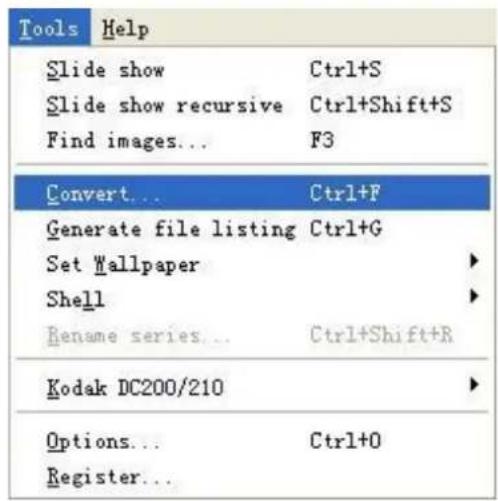
① Run the ACDSee program, select the image that you want to convert, and click "Tool" → "Convert".
text_image
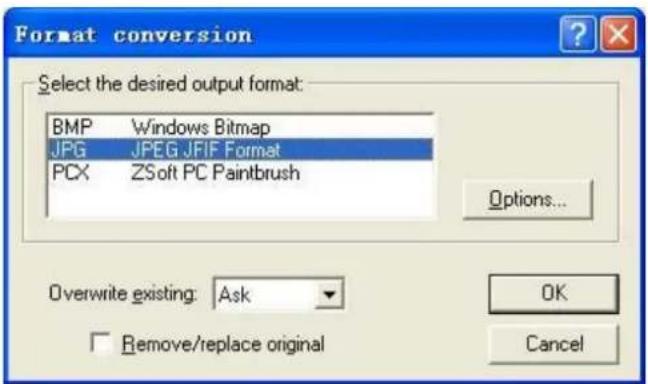
Tools Help Slide show Ctrl+S Slide show recursive Ctrl+Shift+S Find images... F3 Convert... Ctrl+F Generate file listing Ctrl+G Set Wallpaper Shell Rename series... Ctrl+Shift+R Kodak DC200/210 Options... Ctrl+O Register...② Select "JPG JPEG JFIF Format" and then click "Options".
text_image
Format conversion Select the desired output format: BMP Windows Bitmap JPG JPEG.JFIF Format PCX ZSoft PC Paintbrush Options... Overwrite existing: Ask Remove/replace original OK Cancel③ Deselect the options circled in red and then press "OK" button to confirm.

text_image
JPEG Options Image quality Best compression Best quality 65 Progressive Component sampling YUV 122 (Default) Optimize Huffman codes Smoothing 0 Save these settings as the defaults OK Cancel Reset allWarranty:
Ricatech BV covers all products (Excl. Accessories) with a 2 year warranty applying to all faults caused by a factory-error. External physical damage will not be covered by our warranty
| Warranty: | All hardware errors occurring within 2 years after purchase unless caused by points mentioned below. |
| No Warranty : | Faults caused by:*Dismountal by any other service center then ours.*Firmware upgrade*Water and moisture damage*Drop and bump damage*Usage with non approved Ricatech accessories.*Short-circuit or over-voltage by host computer (PC)*Physical damage, loss or damage to accessories |
| Out of warranty repairs | Please be so kind to contact us for out-of-warranty repairs.We will provide you with a quotation with the expected costs.Goods out of warranty cannot be returned to your reseller. |
RICATECH
Ricatech BV
Tinstraat 103
2984AN - Ridderkerk
The Netherlands
Tel: 0031 (0)180446020
Fax: 0031 (0)180446029
Mail: info@ricatech.com
Technical Support
Tel: 0031 (0)180446023
Mail : support@ricatech.com
WWW.RICATECH.COM