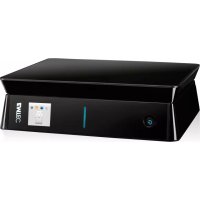
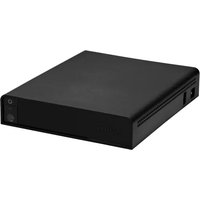
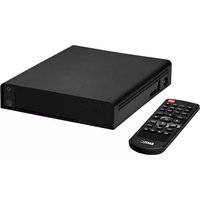
Movie Cube S900H - Media player EMTEC - Free user manual and instructions
Find the device manual for free Movie Cube S900H EMTEC in PDF.



| Product type | Media player |
| Brand | EMTEC |
| Model | Movie Cube S900H |
| Video connectivity | HDMI, SCART, Y/Pb/Pr, Composite A/V output |
| Audio connectivity | Optical/coaxial audio output |
| USB connectivity | 2 USB 2.0 ports (host), 1 mini USB port (PC) |
| Network connectivity | Ethernet RJ45, WiFi via optional USB adapter |
| TV antenna input | Yes (ANT. IN) |
| TV antenna output | Yes (ANT. OUT) – allows simultaneous recording and viewing |
| Power supply | AC adapter (DC jack) |
| Main functions | Media playback (video, audio, photos), TV recording, network browsing |
| Supported formats | Not specified in manual; common formats supported |
| Maintenance and cleaning | Use a dry cloth; avoid contact with water or liquids |
| Safety | Avoid shocks, humidity, strong magnetic fields; unplug in case of disturbance |
| Languages of the manual | FR, DE, EN, ES, IT, NL, PL, PT and others (translation available upon request) |
| Included accessories | USB cable, A/V cable (RCA), power adapter (non-exhaustive details) |
Frequently Asked Questions - Movie Cube S900H EMTEC
User questions about Movie Cube S900H EMTEC
0 question about this device. Answer the ones you know or ask your own.
Ask a new question about this device
Download the instructions for your Media player in PDF format for free! Find your manual Movie Cube S900H - EMTEC and take your electronic device back in hand. On this page are published all the documents necessary for the use of your device. Movie Cube S900H by EMTEC.
USER MANUAL Movie Cube S900H EMTEC
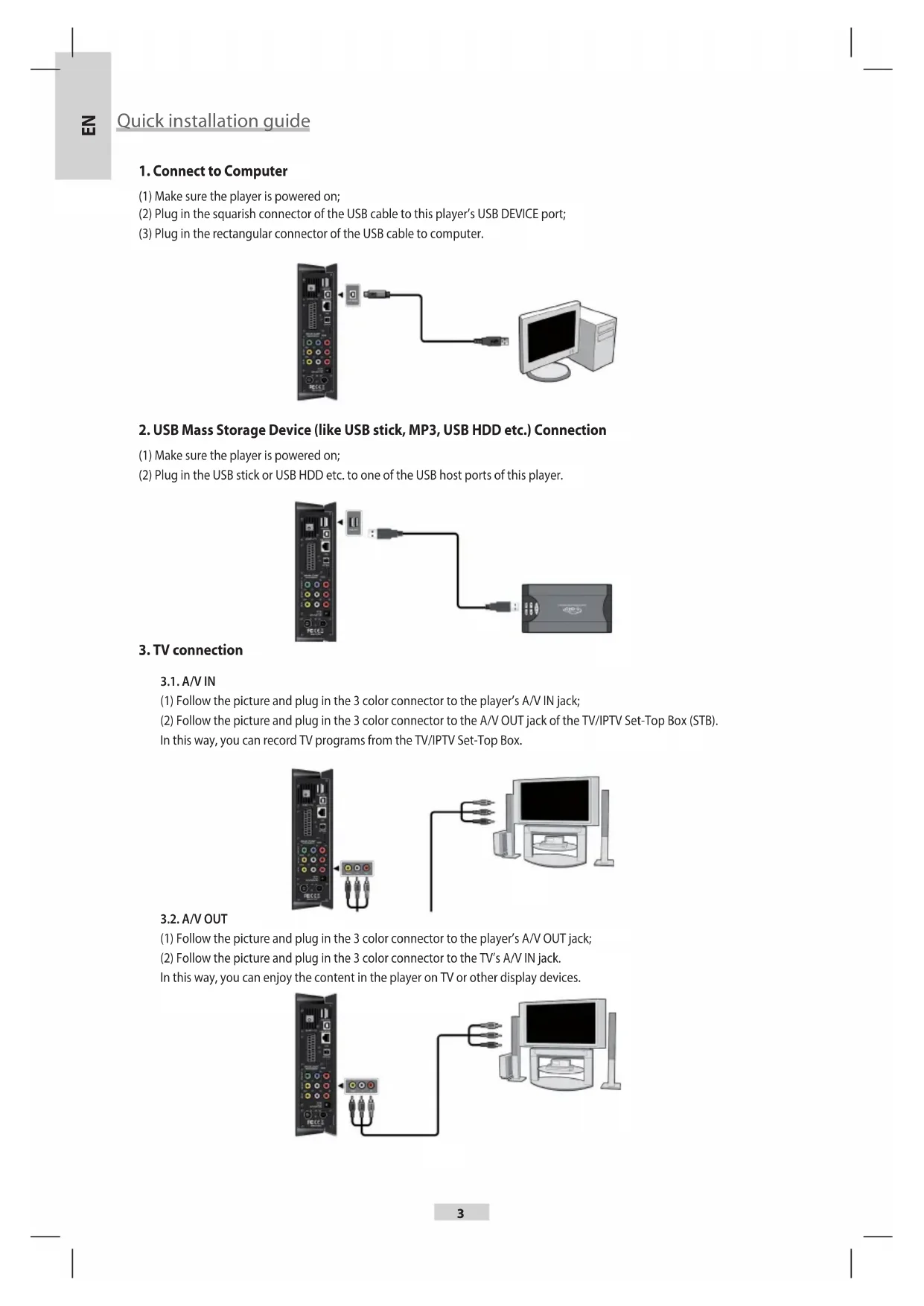
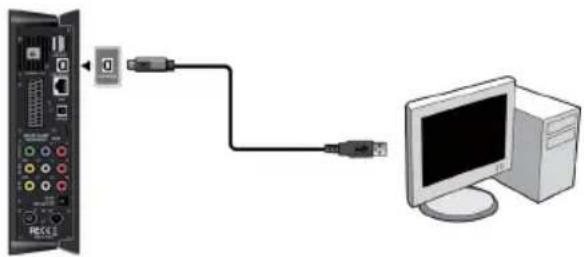
1. Connect to Computer
(1) Make sure the player is powered on;
(2) Plug in the squarish connector of the USB cable to this player's USB DEVICE port;
(3) Plug in the rectangular connector of the USB cable to computer.
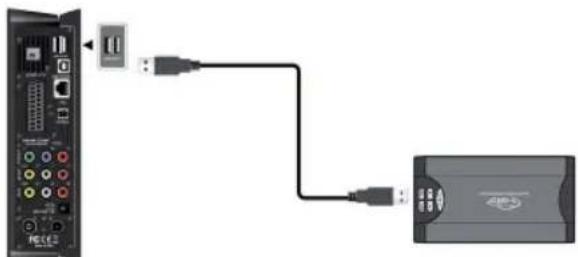
2. USB Mass Storage Device (like USB stick, MP3, USB HDD etc.) Connection
(1) Make sure the player is powered on;
(2) Plug in the USB stick or USB HDD etc. to one of the USB host ports of this player.
3. TV connection
3.1.A/V IN
(1) Follow the picture and plug in the 3 color connector to the player's A/V IN jack;
(2) Follow the picture and plug in the 3 color connector to the A/V OUT jack of the TV/IPTV Set-Top Box (STB). In this way, you can record TV programs from the TV/IPTV Set-Top Box.
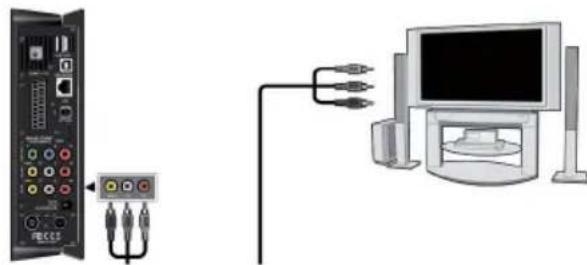
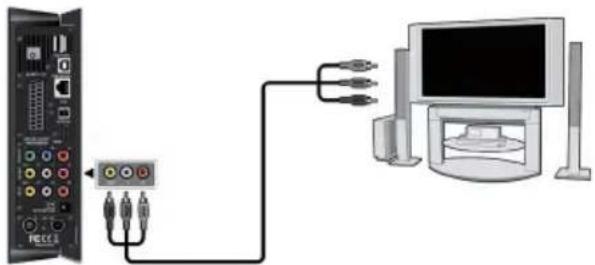
3.2.A/V OUT
(1) Follow the picture and plug in the 3 color connector to the player's A/V OUT jack;
(2) Follow the picture and plug in the 3 color connector to the TV's A/V IN jack.
In this way, you can enjoy the content in the player on TV or other display devices.
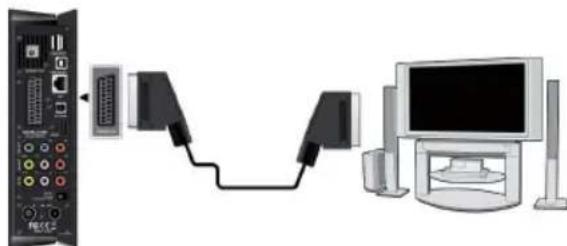
3.3.SCART OUT
(1) Follow the picture and plug one connector on the SCART cable to the player's SCART socket;
(2) Follow the picture and plug the other connector on the SCART cable to the TV's SCART socket.
3.4. Y/Pb/Pr Component OUT
(1) Follow the picture and plug in the 3 color connector to the player's Y/Pb/Pr jack;
(2) Follow the picture and plug in the 3 color connector to the TV's Y/Pb/Pr jack.
(3) Select the appropriate TV input source.
Y/Pb/Pr cable connection only output video, you will need AV cable or S/PDIF optical cable for audio output.
Follow the Audio Connection method as below:
First method: Use the audio output from the A/V OUT jack;
Second method: Use the audio output from the S/PDIF optical jack.
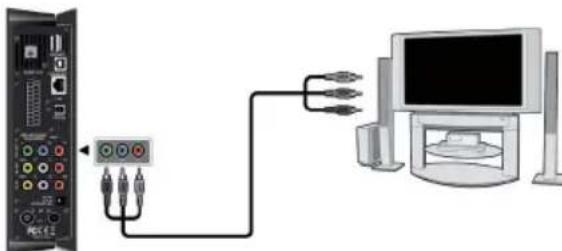
In this way, you can also enjoy videos, music, and photos in the player on TV.
3.5.HDMIOUT
(1) Follow the picture and plug one connector on your HDMI cable to the player's HDMI jack;
(2) Follow the picture and plug the other connector on your HDMI cable to the TV's HDMI jack.
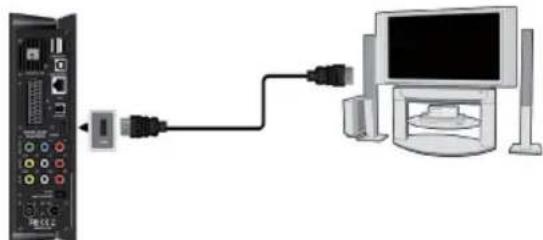
In this way, you can have the highest quality video and audio via a single cable.
3.6.ANT./RF IN
Follow the picture and plug a TV Aerial to the ANT. / RF IN socket;
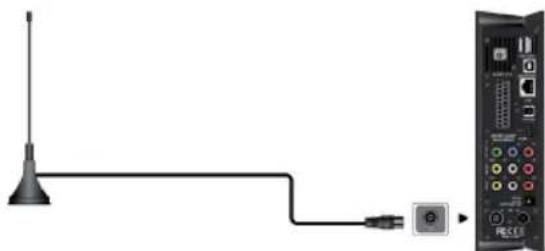
3.7.ANT./RF OUT
(1) Make sure the player is powered on;
(2) Make sure a TV Aerial is connected to the ANT./RF IN socket:
(3) Follow the picture and plug a TV cable to the ANT. / RF OUT socket then plug the cable to a TV or other TV receiver.
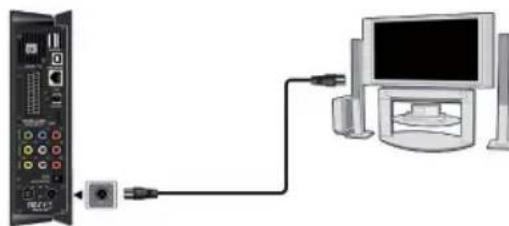
The player can loop out the DVB-T signal to other TV receiver device. In this way, you can watch the TV programs with another TV receiver while recording
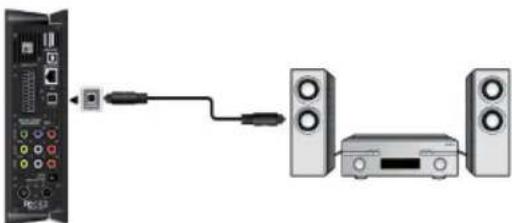
4. Digital Audio Device connection
(1) Follow the picture and plug in the Toslink connector of your optical fiber to the player's S/PDIF Optical jack;
(2) Follow the picture and plug in the other connector of your optical fiber to the digital audio device (digital amplifier or decoder).
(3) Select the appropriate input source in the digital audio device.
Note: Optical fiber cable is an optional accessory sold separately.
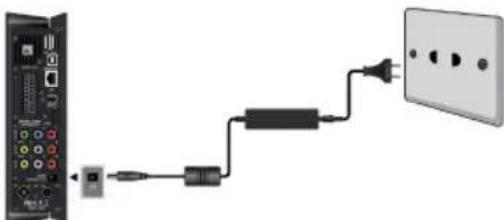
5. Power connection
(1) Follow the picture and connect the AC adaptor to the player's DC IN jack;
(2) Follow the picture and plug in the AC adaptor to the power outlet.
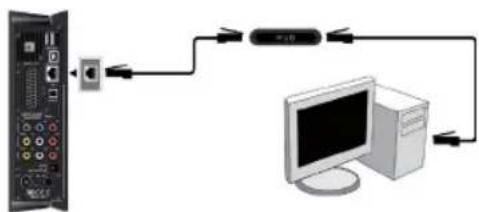
6. Ethernet connection
To connect to a LAN (Local Area Network) you require a cat5, cat5e or cat6 network cable (not supplied).
(1) Connect one of the crystal plugs on the cable to the player's RJ45 LAN socket;
(2) Connect the other crystal plug on the cable to a RJ45 LAN port on your router, switch, or hub devices.
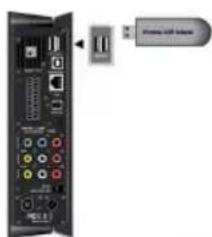
7. WLAN connection
(1) Make sure the player is powered on;
(2) Plug the Wireless LAN USB Adapter (i.e. Wi-Fi USB Dongle) to the USB HOST port of the player.
6."OTDI IVTTBOFJQU/ FUXFSL
EN - When using this player, please do not let the player come into contact with water or other liquid, if water is accidentally spilled on the player, please use a dry cloth to absorb the spillage.
Electronic products are vulnerable, when using please avoid shaking or hitting the player, and do not press the buttons too hard.
During electrostatic discharge and the strong electromagnetic field, the product will malfunction, then unplug the power cable and the product will return to normal performance next time it is powered on.

- CONNECT TO COMPUTER
- USB MASS STORAGE DEVICE (LIKE USB STICK, MP3, USB HDD ETC.) CONNECTION
- TV CONNECTION
- 3.1.A/V IN
- 3.2.A/V OUT
- 3.3.SCART OUT
- Y/PB/PR COMPONENT OUT
- FOLLOW THE AUDIO CONNECTION METHOD AS BELOW
- 3.5.HDMIOUT
- 3.6.ANT./RF IN
- 3.7.ANT./RF OUT
- DIGITAL AUDIO DEVICE CONNECTION
- POWER CONNECTION
- ETHERNET CONNECTION
- WLAN CONNECTION
- 6."OTDI IVTTBOFJQU/ FUXFSL
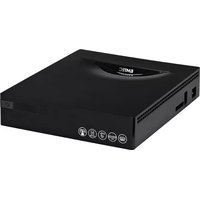
Brand : EMTEC
Model : Movie Cube S900H
Category : Media player