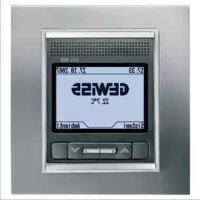
GW12771VT - Alarm Clock Gewiss - Free user manual and instructions
Find the device manual for free GW12771VT Gewiss in PDF.



| Product type | KNX/EIB control and display panel |
| Brand | Gewiss |
| Model | GW12771VT |
| Category | Radio alarm clock (home automation) |
| Dimensions (approx.) | Flush-mounted, suitable for GW 24 237 box |
| Weight (approx.) | 200 g |
| Power supply | KNX/EIB bus (30 V DC) and 230 V AC mains |
| Display | 2.8" monochrome graphic LCD with backlight |
| Controls | 6 front buttons (4 navigation, 2 function) |
| Main functions | Light on/off, dimmer, shutters/blinds, thermal regulation, scenarios, anti-theft, timers, alarm, memo, temperature display |
| Access protection | Password up to 5 alphanumeric characters |
| Operating temperature | 0 °C to +40 °C |
| Storage temperature | -20 °C to +70 °C |
| Relative humidity | Max. 93% (non-condensing) |
| Protection degree | IP20 |
| Connectivity | KNX/EIB bus, mini USB port |
| Backup battery | Rechargeable ML1220 3 V (maintains date/time up to 72 h) |
| Maintenance | Dry cloth |
| Package contents | Panel, bus terminal, small cover, LUX aesthetic plate, 4 screws, manual |
| Standards | KNX/EIB, CE, Low Voltage and EMC directives |
Frequently Asked Questions - GW12771VT Gewiss
User questions about GW12771VT Gewiss
0 question about this device. Answer the ones you know or ask your own.
Ask a new question about this device
Download the instructions for your Alarm Clock in PDF format for free! Find your manual GW12771VT - Gewiss and take your electronic device back in hand. On this page are published all the documents necessary for the use of your device. GW12771VT by Gewiss.
USER MANUAL GW12771VT Gewiss
bus KNX/EIB, 29 V dc SELV
Contents of the pack 57
Summary 58
Operating principle 58
Commands and Display 59
Commands 59
Home page 59
Icons 60
Cursor 60
Viewing device status 60
Viewing timer profiles (thermal regulation and timer) 61
Backlighting 61
Keying in text 61
SECURITY
Password 62
Setting/Modifying the password 62
Cancelling the password 62
BASIC FUNCTIONS
Regulating the date 63
Regulating the time 63
Wakeup alarm 64
Creating or changing the wakeup alarm 64
Disabling the wakeup alarm 65
Reinstating the wakeup alarm 65
Event reminder 65
Creating an event reminder 65
Disabling the acoustic signal 66
Viewing and modifying an event reminder 66
Cancelling an event reminder 67
Adjusting and switching a dimmer light ON and OFF 68
Switching a light ON and OFF 68
Opening, closing and regulating shutters and blinds 69
Modifying the thermal regulation 70
Activation of a scene or a scene sequence 70
Activating and deactivating a logic function 71
Activating and deactivating a timer 71
Burglar Alarm System 72
Complete arming of the burglar alarm system 72
Partial arming of the burglar alarm system 72
Complete disarming of the burglar alarm system 73
ADVANCED FUNCTIONS
Scene 74
Assigning a scene to the scene system 74
Cancelling a scene from the scene system 74
Programming a scene sequence 75
Learning a scene 75
Creating a new scene sequence 75
Modifying a scene sequence 76
Modifying the number of repetitions of a scene sequence 78
Renaming a scene sequence 78
Cancelling a scene sequence 79
Programming the thermal regulation system 80
CONTENTS
Programming the timers 81
Creating a new timer 81
Modifying a timer 82
Renaming a timer 83
Programming logic functions 84
Cancelling a timer 84
Creating a logic function 84
Modifying a logic function 86
Renaming a logic function 87
Cancelling a logic function 88
Dictionaries 89
Default word list 89
Adding a word 90
Modifying a word 91
INSTALLATION
Warnings when installing the KNX/EIB 92
Electrical connections 92
Initialising with the Easy base unit 93
USB Port 94
Completing installation 94
CONFIGURATION
Menu tree 95
General settings 96
Setting the time and date 97
Assigning a name 98
Renaming objects and scenes 98
Names of the systems 98
Names of the rooms 98
Assigning objects to rooms 99
Assigning objects to systems 99
View 100
PROGRAMMING WITH THE EASY BASE UNIT
Programming with the Easy base unit 101
Configuration of the functions 101
Optimising procedure 101
Function for the ON/OFF command for a light 101
Function to command and regulate a shutter/blind 102
Function to command a scene 102
Function to control thermal regulation slave devices 103
Function to command and control the burglar alarm system 103
IN SERVICE
Behaviour on the failure and reinstatement of the bus power supply 104
Cleaning the control panel 104
Changing the battery 104
Reset 104
Resetting the control panel 104
Reset to default settings 104
TECHNICAL SPECIFICATIONS 105
GENERALWARNINGS
Warning! The safety levels of this device can only be guaranteed if these instructions are fully observed. It is therefore essential to carefully read and keep them for future reference. All Chorus products must be installed in compliance to CEI 64-8 Standard for household appliances and similar items, in dust-free environments where no special protection is required to prevent penetration of water.
The GEWISS sales division is at your complete disposal for any further technical details or information you may require.
Gewiss SpA reserves the right to make changes to the product described in this manual at any time and without giving any notice.
Contents of the pack
n. 1 Easy Control Panel and Display - flush-mounted - LUX
n. 1 Bus terminal
n. 1 Cover with screws
n. 1 LUX design plate
n. 4 Fixing screws for box GW 24 237
n. 1 Installation and user manual
Summary
The Easy Command Panel and Display - flush-mounted - LUX allows you to interact with all the other devices in the Home Automation system, and the RF burglar alarm systems fitted with an EIB interface (GW 20 476), in a simple and user-friendly manner through the KNX/EIB bus. The device can be configured using the Easy Base Unit to :
- send activation and deactivation commands (ON/OFF) to the electrical loads connected to other KNX/EIB devices;
- regulate the light intensity on lighting fixtures connected to a KNX/EIB dimmer;
- move motorised awnings and shutters connected to KNX/EIB actuators;
- set and programme the function modes (OFF, Comfort, Precomfort, Economy and Auto) of the thermal regulation system;
- select the function mode (heating/air conditioning) for the thermal regulation system;
- send scenes memorizing and activation commands;
- send arming (total or partial) and disarming commands to the burglar alarm system.
The control panel is fitted with a 2.8" monochromatic LCD display screen, backlit with 6 buttons on the front which can be used to browse through the menu pages, view the real-time status of various devices and adjust the settings where necessary. Access to the navigation menu can be protected by a numerical password.
The device can be used as a timer on a daily or weekly basis, it can perform logic operations and can handle complex scenes, sending the commands at intervals which can be set as required. The control panel also has time, date, event reminder and environmental thermostat functions. The device is installed inside the flush-mounted box GW 24 237.
Operating principle
The control panel replicate the commands, function modes and the display elements available on the various Easy EIB Home Automation system devices, through the menu and function buttons, and also provides other general information. To make this easier for the user, it is possible to access each element of the system and interact with the same, using two different logic procedures: Systems and Rooms.
This choice option allows the user to group together data and functions according to what the user wishes to achieve. For instance, if the user wishes to control the lighting system, it is recommended to select Systems Lighting, where it is possible to clearly view the status of all the lights in the house; on the other hand if the user wished to prepare the dining room for a dinner party, it is recommended to select Rooms Living from where the user can use the buttons to set the modes for lighting, shutters, climate control, scenes etc.
Commands and Display
COMMANDS
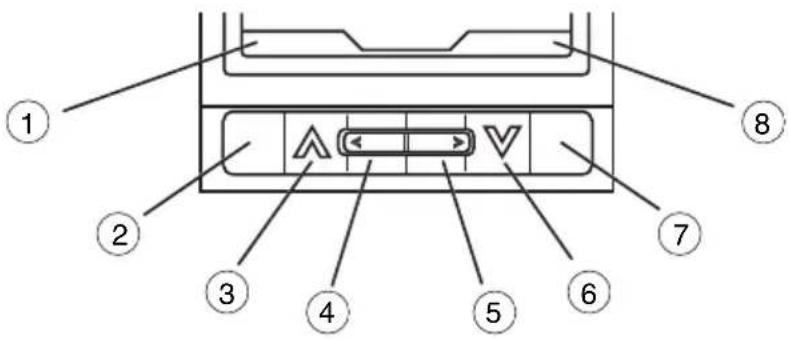
The six push Buttons situated under the liquid crystal display screen are used to browse the menu and access the functions, to send commands and requests for information, to enter or select data, to configure or modify functions.
| 1 Variable function | |
| 2 | Multi-function button 1 : the related function is indicated in writing ①above it. Press and hold the button to return to the Home page. |
| 3 Upward scroll and enabling of functions represented by the icons on the Home page | |
| 4 Left scroll | |
| 5 Right scroll | |
| 6 Downward scroll and enabling of functions represented by the icons on the Home page | |
| 7 | Multi-function button : the related function is indicated in writing ⑧above it |
| 8 Variable function | |
HOME PAGE
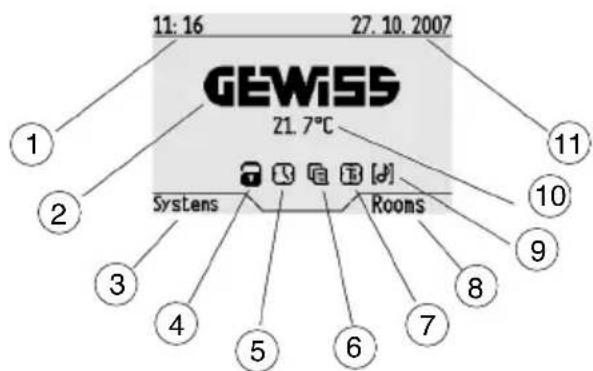
The following information is displayed on the screen in normal operating conditions:
- the icon indicates that the burglar alarm is ON and is replaced by the icon [!] if interventions are made to the burglar alarm system.
| 1 Current time | |
| 2 Gewiss logo | |
| 3 Function to access systems | |
| 4 Burglar alarm ON indicator * | |
| 5 Wake-up alarm ON indicator and access to the function | |
| 6 Event reminder ON indicator and access to the function | |
| 7 Timer ON indicator and access to the function | |
| 8 Function to access different rooms | |
| 9 Indication of activation of acoustic alarm associated with a logical function and access to functional list | |
| 10 Room temperature | |
| 11 Current data |
ICONS
| ON | Enabling of a menu function |
| Off | Disabling of a menu function |
| 10 | Timer enabled |
| 20 | Event reminder enabled |
| Burglar alarm armed | Burglar alarm armed |
| [!] | Burglar alarm ON |
| [4] | Acoustic alarm for logical function |
| ^ | Increase in light intensity using a dimmer or opening of shutters or blinds |
| ✓ | Decrease in light intensity using a dimmer or closing of shutters or blinds |
| × | Stopping of variation of light intensity using a dimmer or stopping of shutter or blind movements |
| A | Regulation of the blind laths during opening phase |
| X | Regulation of the blind laths during closing phase |
| D | Select the channel to configure, execute and learn the scenes |
| U | Wakeup alarm enabled |
| ON | Access / Enable |
| OFF | Switch off / Disable / Thermal regulation mode OFF |
| UP | Raises the shutter / awning |
| DOWN | Lowers the shutter / awning |
| INC | Increases light intensity |
| DEC | Decreases light intensity |
| STOP | Stops all movement / Stops light intensity regulation |
| AUTO | Automatic thermal regulation mode |
| ECONOMY | Economy thermal regulation mode |
| PRECOMFORT | Precomfort thermal regulation mode |
| COMFORT | Comfort thermal regulation mode |
| HEATING | Heating |
| COOLING | Air conditioning |
CURSOR
If an item on the menu is negative this is indicated by the position of the cursor.

This screenshot, for instance, shows the cursor is on the "Lighting" menu item.
VIEWING DEVICE STATUS
The status of all devices is displayed on the screen in negative mode.
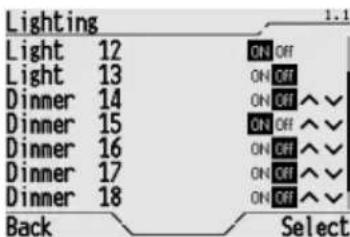
This screenshot, for instance, shows that Light 12 and Dimmer 15 are ON, whilst all the other lighting fixtures are OFF. The dimmer icon is ON even when the light intensity is less than 100% . It is not possible to view the status of the shutters, therefore the icon will never be displayed in negative mode.
VIEWING TIME PROFILES (THERMAL REGULATION AND TIMER)
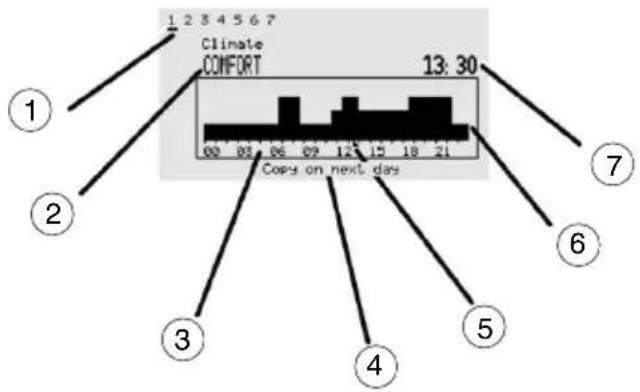
| 1 Day of the week |
| 2 Thermal regulation mode enabled or timer status, at the selected time |
| 3 Daily time scale |
| 4 Copy settings to the next day |
| 5 Timer cursor |
| 6 Daily settings graphics |
| 7 Time relative to the cursor |
BACKLIGHTING
The monochromatic graphic display is backlit by a white light. The backlighting is activated by pressing any of the front push buttons and automatically turns off 30 seconds after the last button is pressed.
KEYING IN TEXT
To key in text use the buttons. The letters are selected using the and , buttons which scroll the letters and numbers available. The sequence is as follows:


[space] 0123456789ABCDEFGHIJKLMNOPQRSTUVWXYZabcdefghijklmnopqrstuvwxyz

The button cancels the last displayed letter, whilst the button moves forward one space.
SECURITY
For extra security it is possible to set a password to access the navigation menu. This precaution is useful when, for instance, the control panel is placed in an area which is frequented by many people, when it also controls the burglar alarm or when you want to set a limit for the number of people who are allowed to configure or change the Home Automation settings.
The password protection is enabled each time you return to the Home Page or after timeout (see General Settings section).

WARNING: once the password has been set, all access to the navigation menu will require the password to be entered.
Password
SETTING/MODIFYING THE PASSWORD
The password can contain up to 5 alphanumeric characters. The control panel distinguishes between upper and lower case: for instance "larch", "Larch" and "LARCH" are all different passwords. To set or modify the password, please proceed as follows:
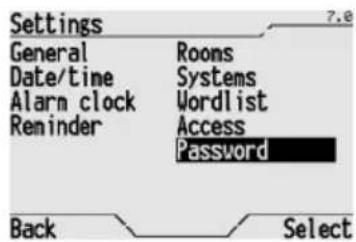
From the Home page, Systems/Rooms > Settings > Password.
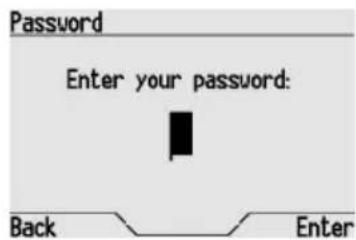
Enter the correct password on the displayed screen (please consult the Keying in Text section for information on how to key in the letters and numbers) and press Enter to confirm.
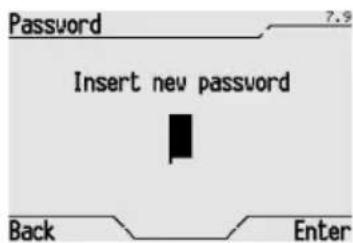
If no password had been set for the control panel this procedure is complete, on the contrary a pop-up will appear to enter the new password. Enter the new password and press Enter to confirm.

WARNING: Write the password down and store in a safe place, because it will always be needed to access the menu from now on.
To cancel an existing password, enter the old password, leave the new password field empty, and press Enter to confirm.

WARNING: Once the password has been cancelled, access to the navigation menu is open to everyone.
Regulating the time
The time profiles for the thermal regulation and programmed activation of the timer functions are all controlled by the clock on the control panel. The time set on this clock is displayed on the Home Page on the control panel.
The control panel does not automatically adjust to changes from winter to summer time, or vice versa, so this must be adjusted manually when necessary.
To regulate the time, please proceed as follows:
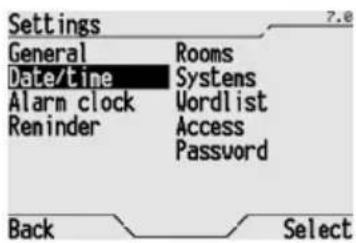
From the Home page, Systems/Rooms Settings Date/time.
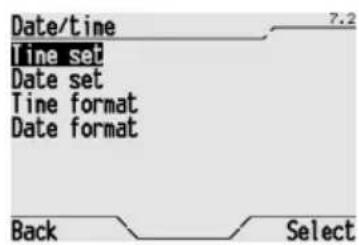
Select Time set.
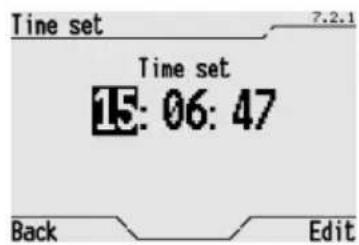
Use the and buttons to scroll the hours, minutes and seconds. Use the and buttons to increase or decrease the value displayed. Press Edit to confirm the new time. Select Back to exit without changing the time.
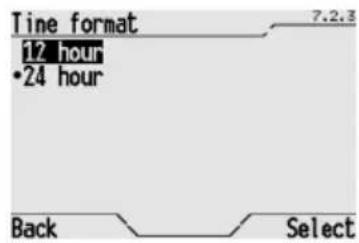
It is also possible to change the time display format (24 hour clock or 12 hour clock). Select Time Format, then select the desired format (indicated with a dot) and press Select to confirm.
Regulating the date
The daily profiles for the thermal regulation and programmed activation of the timer functions are all controlled by the calendar on the control panel. The date set is displayed on the Home Page on the control panel. To regulate the date, please proceed as follows:
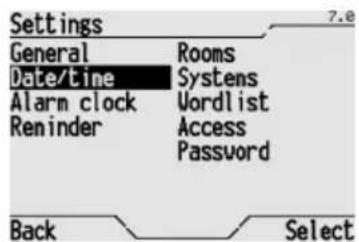
From the Home page, Systems/Rooms > Settings > Date/time.
BASIC FUNCTIONS
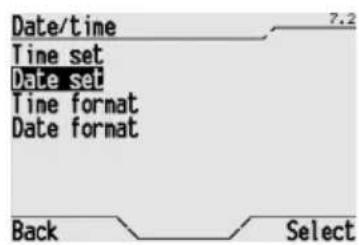
Select Date set
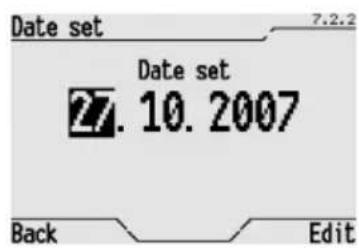
Use the and buttons to scroll the days, months and year. Use the and buttons to increase or decrease the value displayed. Press Edit to confirm the new date. Select Back to exit without changing the date.
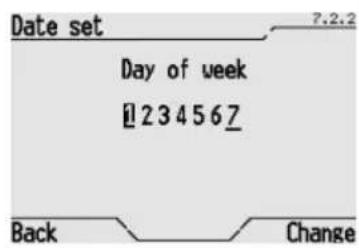
It is also possible to set the day of the week (1 = Monday...7 = Sunday). Use the and buttons to select the day of the week, and press Change to confirm.
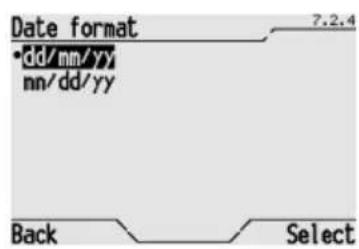
It is also possible to change the date display format (day/month/year or month/day/year). Select Date format, then select the desired format (indicated with a dot) and press Select to confirm.
Wakeup alarm
It is possible to set a wakeup alarm on the control panel, which will ring every day at the same time, or ring once and then be disabled. The alarm time is memorised by the control panel and the wakeup alarm can be enabled or disabled as necessary. The icon indicates that the wakeup alarm is ON and is displayed on the Home Page on the control panel.
CREATING OR CHANGING THE WAKEUP ALARM
To create a new wakeup alarm, or change the one already set, please proceed as follows:
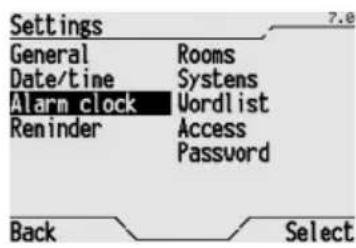
From the Home page, Systems/Rooms Settings Alarm clock.
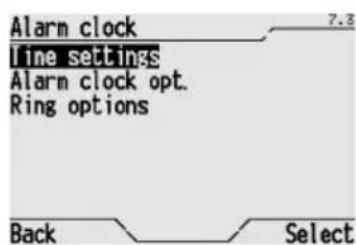
Select Time settings to enter a new wakeup time or change the one already set. Press Select to confirm.
BASIC FUNCTIONS
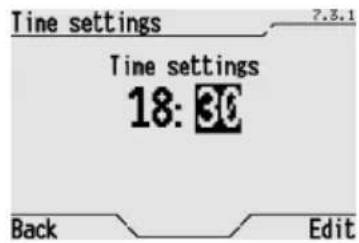
Set the new time using the hour:time format using the and buttons, then press Edit to confirm.
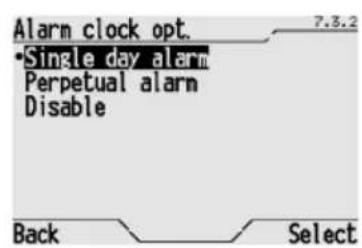
Select Alarm clock opt. On the screen, it is possible to set a wakeup alarm to ring once or every day at the same time. The default setting is Disable.
Select one of the activation options (indicated with a dot) and press Select to confirm.
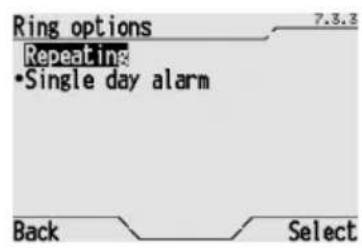
Select Ring options. On the screen, it is possible to select how the alarm should ring:
- Single day alarm: The wakeup alarm rings for one minute and is then disabled forever;
- Repeating: The alarm rings for one minute five times, at five minute intervals; the repetition cycle is interrupted when the alarm is switched off.
DISABLING THE WAKEUP ALARM
When the wakeup alarm is ringing it can be switched off from the Home Page selecting icon l and pressing or
If the wakeup alarm is enabled, but is not yet ringing, select the 9 icon and press the or buttons to access the menu and modify or disable the alarm.
To permanently disable the wakeup alarm, select Disable on the Alarm clock opt. menu (the wakeup alarm will be disabled but the set time will not be cancelled).
REINSTATING THE WAKEUP ALARM
To reistate the previously disabled wakeup alarm, Single day alarm or Perpetual alarm on the Alarm clock opt. menu (the wakeup alarm will be enabled at the previously set time).
Event reminder
The control panel can also be used to store a short event reminder message, similar to an electronic Post-it® concept. The event reminder can be used, for instance, to exchange messages with other members of the family or as a timed ringing notepad. It is possible to memorise up to 8 events, each with their own title. The icon indicates that the event reminder is ON and is displayed on the Home Page on the control panel.
CREATING AN EVENT REMINDER
To create a new event reminder, please proceed as follows:
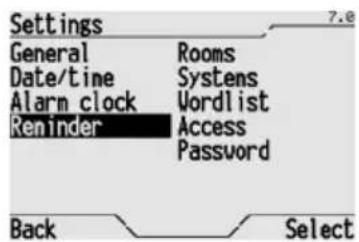
From the Home page, Systems/Rooms > Settings > Reminder.
BASIC FUNCTIONS
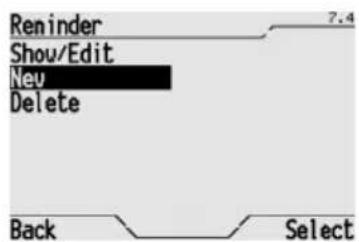
Select New and press Select to confirm.
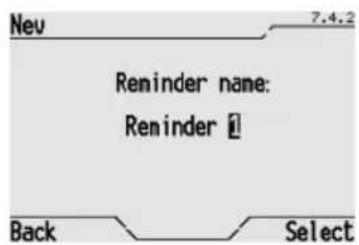
Enter the title of the event on the displayed window, that can contain up to 20 characters (please consult the Keying in Text section for information on how to key in the letters and numbers). Press Select to confirm.
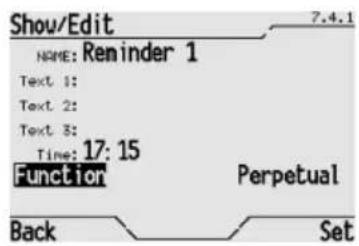
Enter the following data on the displayed window:
- the event reminder text (up to three rows, with 20 characters per row; please consult the Keying in Text section for information on how to key in the letters and numbers).
- the event reminder alarm time, using the hour:minute format, which will enable an acoustic signal at the set time;
- the function mode: Standard (the event reminder is activated every day at the set time) or Extraordinary (the event reminder is activated just once, at the set time, then disabled); use the and buttons to select the function mode.
Use Set and Back to move from one row to another.
Press Set to confirm.
DISABLING THE ACOUSTIC ALARM
To disable the event reminder acoustic alarm, select Back on the displayed window. Press Back again to disable viewing of event reminders.
VIEWING AND MODIFYING AN EVENT REMINDER
To view and modify an event reminder, please proceed as follows:
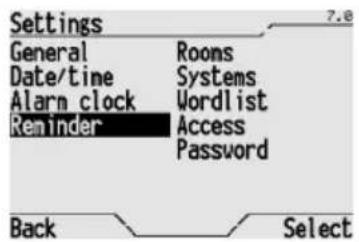
From the Home page, Systems/Rooms Settings Reminder.
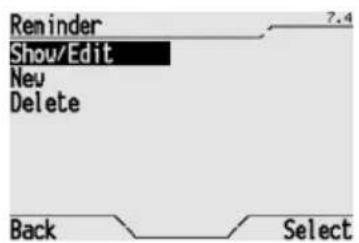
Select Show/Edit and press Select to confirm.
BASIC FUNCTIONS
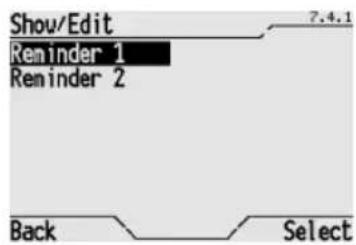
All the memorised event reminders are displayed on the screen. Use the and buttons to select the event reminder you wish to view, and press Select to confirm.
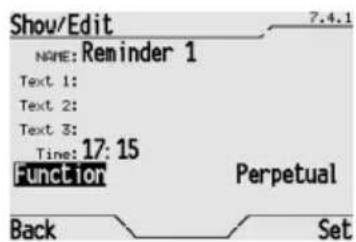
The name of the event appears. Press Select to confirm. Then repeatedly press the Set button: Each time the button is pressed it displays an element of the event reminder (Text 1, Text 2, Text 3, Time and Function). When an element is displayed, it can be modified following the same procedure used to create the event reminder.
When you have finished, press Set to save the changes or Back to exit and maintain the previous settings.
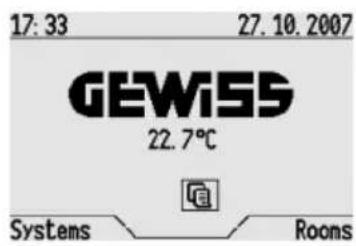
It is possible to access the window to create and modify an event reminder from the Home Page selecting the corresponding icon and pressing or buttons. The icon is only displayed if an event reminder is enabled.
CANCELLING AN EVENT REMINDER
To cancel an event reminder, please proceed as follows:
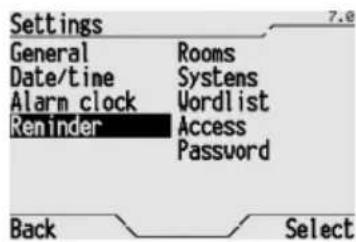
From the Home page, Systems/Rooms Settings Reminder.
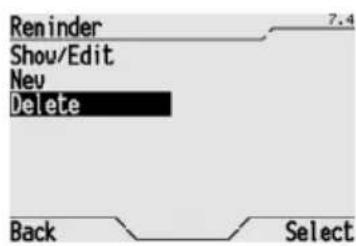
Select Delete and press Select to confirm.
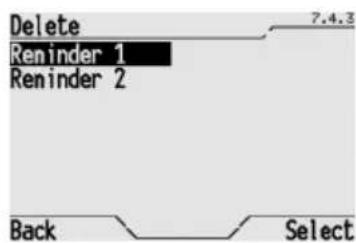
All the memorised event reminders are displayed on the screen. Use the and buttons to select the event reminder you wish to cancel, and press Select to confirm.
Switching a light ON and OFF
To switch a light ON or OFF, please proceed as follows:
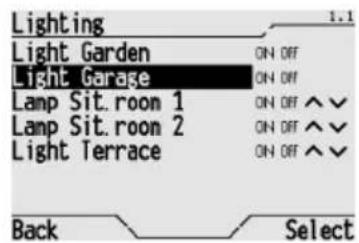
Select Systems or Rooms from the Home Page, then the system or room which incorporates the light in question, and then highlight the light using the and buttons.
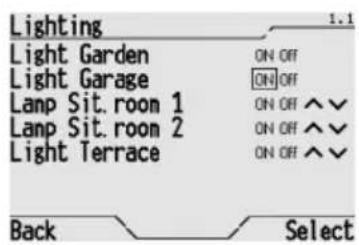
Highlight the action to be set using the and buttons:
- ON to switch the light on, or
OFF to switch the light off
And press Select to confirm.
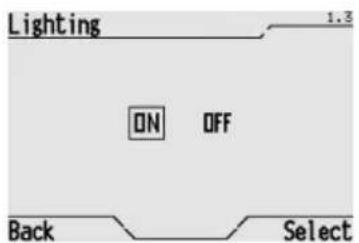
If you press Select with the name of the item highlighted, a new window will appear where you can view and control just the one light.
Adjusting and switching a dimmer light ON and OFF
To adjust or switch a dimmer light ON or OFF, please proceed as follows:
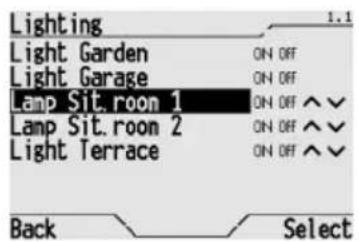
Select Systems or Rooms from the Home Page, then the system or room which incorporates the light in question, and then highlight the light using the and buttons.
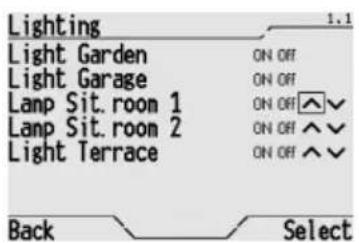
Highlight the action to be set using the and buttons:
- ON to switch the light on completely, or
OFF to switch the light off completely, or
to increase the intensity of the light, or - todecrease the intensity of the light and press Select to confirm.
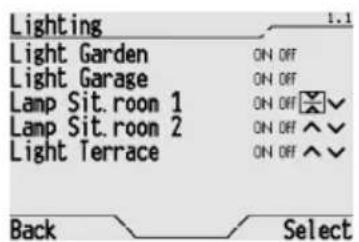
If you have chosen to increase or decrease the intensity of the light, the relative icon will become whilst the light intensity will start to adjust continuously.
Press Select when the light level reaches the intensity you require.
BASIC FUNCTIONS
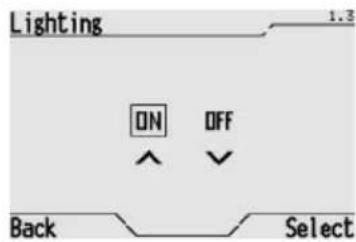
If you press Select with just the light highlighted, a new window will appear where you can view and control just the one light.
Opening, closing and regulating shutters and blinds
To open, close and regulate a shutter or a blind, please proceed as follows:
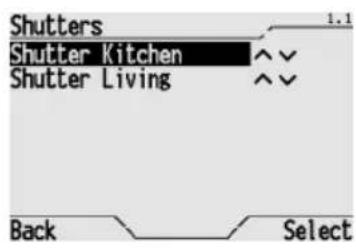
Select Systems or Rooms from the Home Page, then the system or room which incorporates the shutter or blind in question, and then highlight the light using the and buttons.
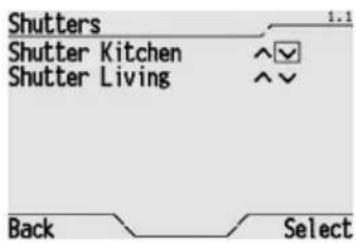
Highlight the action to be set for the shutter or blind using the and buttons:
open a shutter or raise a blind, or
to close a shutter or lower a blind, or
regulate the blind laths during the opening phase, or
regulate the blind laths during the closing phase and press Select to confirm.
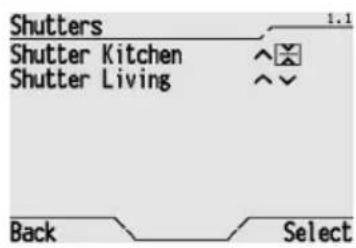
If you have chosen to open or close a shutter (or raise or lower a blind), the relative icon will become whilst the shutter (or blind) will start to move. Press Select to stop the movement before the shutter (or blind) is completely open (completely up) or closed (completely down).
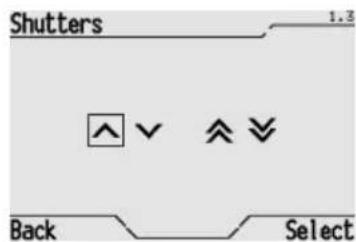
If you press Select with the name of the item highlighted, a new window will appear where you can view and control just this specific shutter or blind.
From this window it is possible to regulate the angle of the blind laths. Select the relative symbol ( oA and repeatedly press Select until the laths reach the desired inclination angle (each time you press the button the lath moves one pitch forward).
Activation of a scene or a scene sequence
To activate a scene or scene sequence, please proceed as follows:
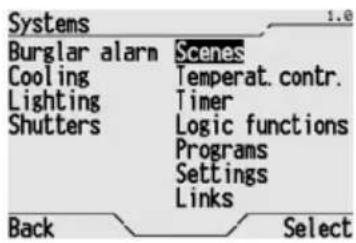
From the Home page, Systems/Rooms >Scenes.
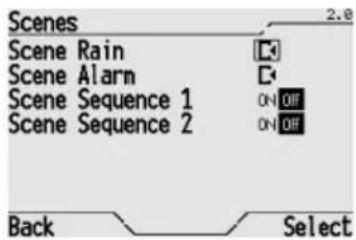
Select the scene to be activated highlighting the corresponding icon in the list, using the and buttons. Press Select to confirm.
If you wish to use a scene sequence, use the and buttons to highlight the ON or OFF icon which corresponds to the action to be performed (ON activates the scene sequence, OFF interrupts the current scene sequence).
If a scene sequence is interrupted, the status of the objects which comprise the scene remain the same as they were before the interruption command was given (for instance, if a light was on, it will stay on). When you activate a scene sequence which was previously interrupted, the sequence of the commands starts from the beginning again, and does not restart from where it was interrupted.
Modifying the thermal regulation
To modify the thermal regulation system functions, please proceed as follows:
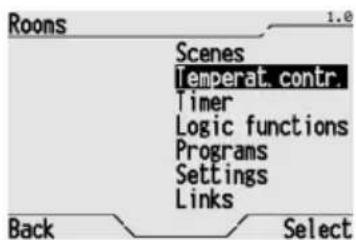
From the Home page, Systems/Rooms Temperat. contr.
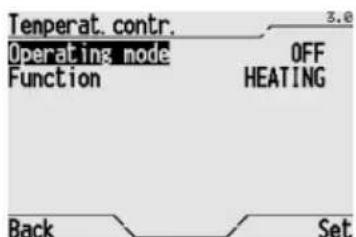
To modify the function mode, select Operating mode using the and buttons and then use the and buttons to choose from:
- OFF, which switches the system off (except the frostprotect and high temperature function modes):
- ECONOMY, PRECOMFORT and COMFORT which activates the corresponding temperature set points set on the slave devices;
- AUTO, where the timed-thermostats configured as slave devices implement their daily/weekly temperature profile (the thermostats configured as slave devices do not perform any type of command);
- ENABLE PROG., where all the slave devices implement the daily/weekly temperature profile set on the control panel.
Press Set to confirm.
To modify the function mode, select Function using the and buttons and then use the and buttons to choose from:
HEATING or
COOLING.
Press Set to confirm.
For further information on thermal regulation and setting the daily/weekly time profile, please refer to the "Programming thermal regulation system" section.
Activating and deactivating a timer
To activate or deactivate a timer, please proceed as follows:
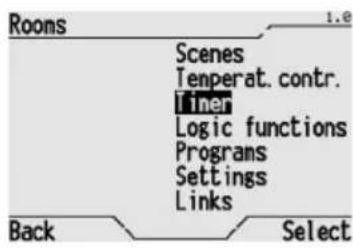
From the Home page, Systems/Rooms >Timer.
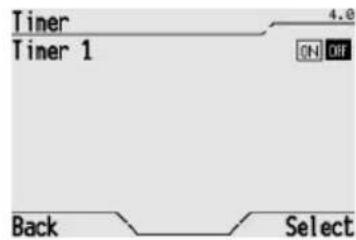
Select the timer to be activated or deactivated highlighting it in the list, using the and buttons.
Use the and buttons to select the icon:
- ON to activate the timer
- OFF to deactivate the timer and press Select to confirm.
Press Back to return to the previous menu.
For further information on the creation and programming of a timer, please refer to the Timer Programming section.
Activating and deactivating a logic function
To activate or deactivate a logic function, please proceed as follows:
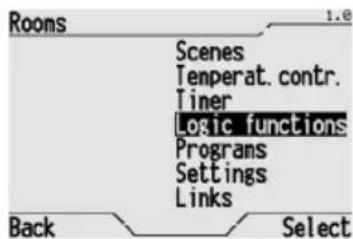
From the Home page, Systems/Rooms Logic functions
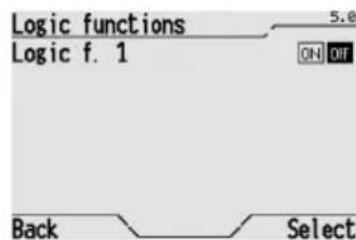
Select the logic function to be activated or deactivated highlighting it in the list, using the
and buttons.
Use the and buttons to select the icon:
- ON to activate the logic function
- OFF to deactivate the logic function and press Select to confirm.
Press Back to return to the previous menu.
For further information on the creation and programming of a timer, please refer to the Logic function Programming section.
Burglar Alarm System

WARNING: If the control panel is used to control the burglar alarm system, it is essential to enter a password on the control panel, as explained in the Password section. This is an essential security measure otherwise anyone can access the control panel and disarm the burglar alarm system.
COMPLETE ARMING OF THE BURGLAR ALARM SYSTEM
To arm the burglar alarm system completely, please proceed as follows:
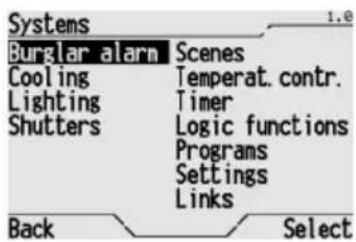
From the Home page, Systems Burglar alarm.
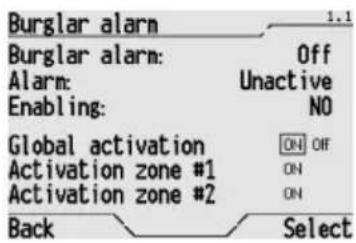
On the screen use the , , and buttons to select ON next to Global activation and press Select to confirm.
The arming of the burglar alarm is displayed by the writing Burglar alarm: On confirmed by the ON icon visible next to Global activation and the icon visible on the Home page.
If the burglar alarm system is not armed it is necessary to check that the alarm unit is enabled correctly, checking that the "YES" icon next to Enabling is visible (if the "NO" icon is visible the alarm unit is not enabled for arming and the alarm unit must be checked to find out why).
PARTIAL ARMING OF THE BURGLAR ALARM SYSTEM
To partially arm the burglar alarm system completely, please proceed as follows:
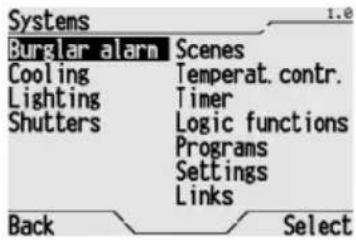
From the Home page, Systems >Burglar alarm.
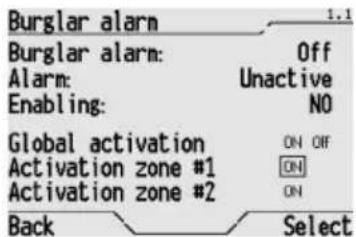
On the screen use the , , and buttons to select ON next to Activation zone #1 or Activation zone #2, according to the zone to be armed, and press Select to confirm. The arming of the burglar alarm is displayed by the writing Burglar alarm: Activat. zone#1 or Activat. zone#2 confirmed by the ON icon visible next to Activation zone #1 or Activation zone #2 and the on visible on the Home page.
If the burglar alarm system is not armed it is necessary to check that the alarm unit is enabled correctly, checking that the "YES" icon next to Arm is visible (if the "NO" icon is visible the alarm unit is not enabled for arming and the alarm unit must be checked to find out why).
COMPLETE DISARMING OF THE BURGLAR ALARM SYSTEM
To disarm the burglar alarm system completely, please proceed as follows:
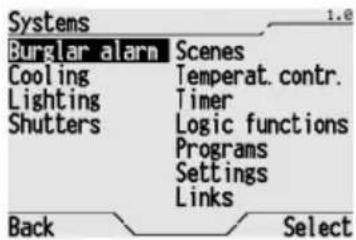
From the Home page, Systems Burglar alarm.
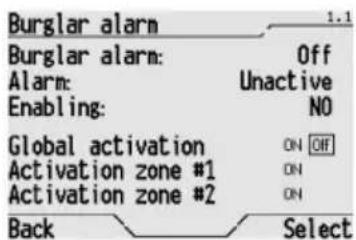
On the screen use the , , and buttons to select OFF next to Global activation and press Select to confirm.
It is not possible to partially disarm the burglar alarm system. If this is required, you must first disarm the entire system, then rearm the specific zones required.
To disarm the burglar alarm system it is also possible to access the control page from the Home Page selecting icon and pressing or to confirm.
When the burglar alarm is armed this is displayed on the Home Page by the non.
If the burglar alarm goes off, the burglar alarm icon will be replaced by the [!] icon. The control panel will emit an acoustic signal when the burglar alarm is armed.
Press the or buttons to switch off the acoustic signal. Press the or , buttons again, with the selector on the [!] icon on the Home page, to access the burglar alarm system control page.
After resetting the burglar alarm, the icon is no longer displayed.
Scene
The scene is a customised combination of lighting, acclimatisation, shutter and blind status etc.
To create a scene, please refer to the Creating a scene function section.
To activate a scene, please refer to the Activating a scene or a scene sequence section.
ASSIGNING A SCENE TO THE SCENE SYSTEM
A created scene has to be assigned to the Scene system before it can be used.
To assign a scene to the scene system, please proceed as follows:
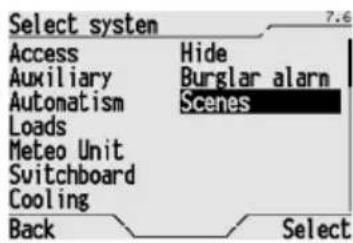
From the Home page, Systems/Rooms Settings Systems Scenes.
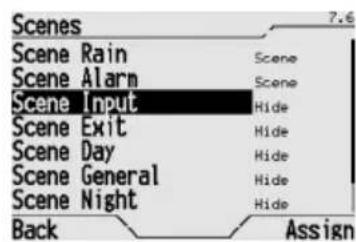
Use the and buttons to select the scene that you wish to assign, and press Assign to confirm.
CANCELLING A SCENE FROM THE SCENE SYSTEM
To cancel a scene from the scene system, please proceed as follows:
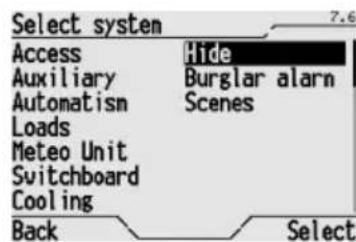
From the Home page, Systems/Rooms > Settings > Systems > Hide.
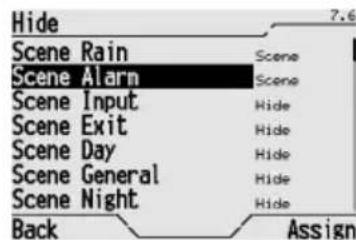
Use the and buttons to select the scene you wish to cancel, and press Assign to confirm.
The scene is not actually cancelled, but simply stored on hold, and can be assigned to the Scene system again when required.
A scene that is not assigned to the Scene system is not displayed in the list of those which can be enabled, or those that can be learned.
LEARNING A SCENE
The scene learning process consists in the memorising of the current status of all the devices which are part of the same scene. To learn a scene, please proceed as follows:
Manually set the status of all the devices (lights, shutters, thermostats etc.) that are part of the scene function you have created.
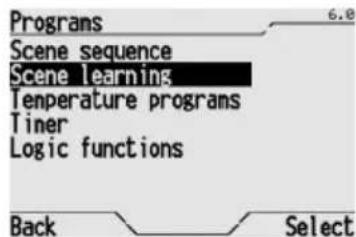
From the Home page, Systems/Rooms Programs Scene learning.
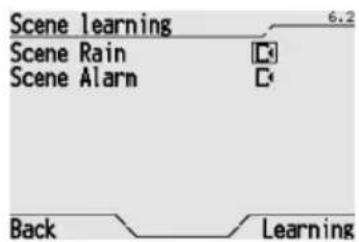
Use the and buttons to select the scene you wish to learn, highlighting the relative icon , and press Learning to confirm. Select Back if you wish to exit without memorising the scene.
Programming a scene sequence
The scene sequence is a scene where the chosen settings are not all activated at the same time, but are activated at intervals according to a preset timed sequence. It is possible to programme up to 16 scene sequences, each of which can manage 16 objects (lights, shutters etc.). Each command can be set for delayed activation of from 1 second to 24 hours. All scenes can be created, modified, renamed and cancelled as required.
CREATING A NEW SCENE SEQUENCE
To create a scene sequence, please proceed as follows:
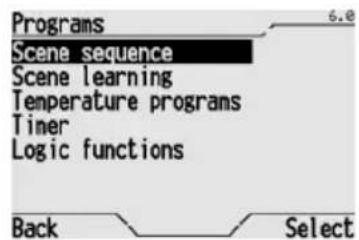
From the Home page, Systems/Rooms Programs Scene sequence.
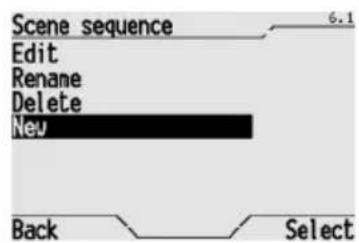
Select New to create a new scene.
ADVANCED FUNCTIONS
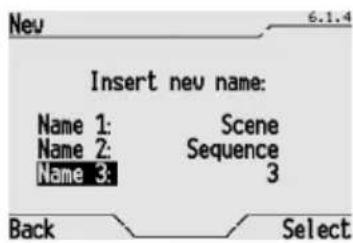
Enter the name of the new scene on the screen. The name is created by selecting 3 different terms from the preset dictionaries (for the terms in the dictionaries, please refer to the Dictionaries section). This name will appear on the screen in the menu and should clearly identify what the scene actually does.
Use the and , buttons to move from one dictionary to another, and use the and buttons to scroll terms in the dictionary.
Press Change to confirm the name.
A new window appears where you must enter the commands for the new scene. For further details on how to enter and configure the commands, please refer to the Modifying a scene sequence section.
MODIFYING A SCENE SEQUENCE
To modify a scene sequence, adding or eliminating commands or changing the order in which they are activated, please proceed as follows:
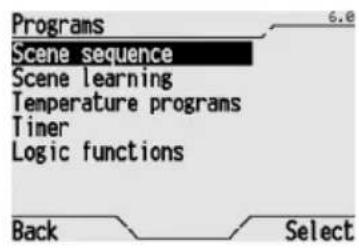
From the Home page, Systems/Rooms Programs Scene sequence.
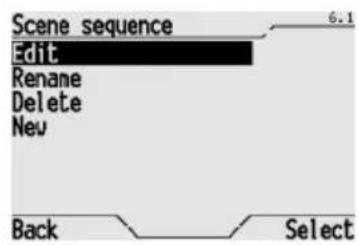
Select Edit to enter the modification procedure.
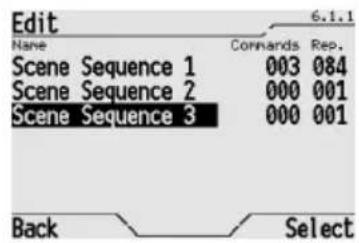
The window displays the complete list of the scene sequences, with the number of commands for each scene, and the number of repetitions set for each activation.
Use the and buttons to select the scene you wish to modify, and press Select to confirm.
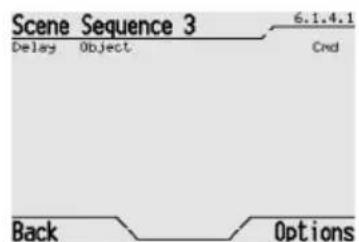
If the scene has no commands the popup on the screen will be empty, on the contrary a list of set commands will be displayed.
The delay set for activating each command on the scene sequence is displayed, the object it refers to and the action it performs.
Select Options to view the list of functions available:
- Insert new command, which allows you to queue a new command behind those already entered; if you are creating a new scene, this is the only option available.
- Shift up, which allows you to move the highlighted command up the list; if you need to move it higher than one place, repeat the procedure as necessary.
- Shift down, which allows you to move the highlighted command down the list; if you need to move it lower than one place, repeat the procedure as necessary.
- Delete, which allows you to cancel the highlighted command.
Press Select to confirm the function mode.
ADVANCED FUNCTIONS
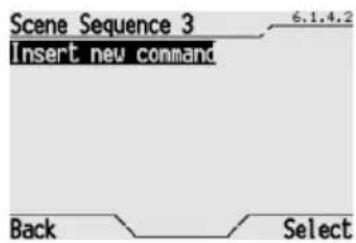
To enter a new command in the scene sequence, select Insert new command.
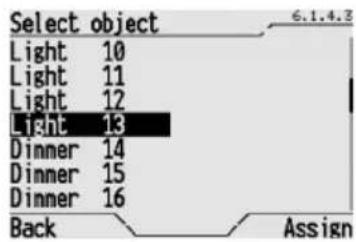
The window on the screen lists all the objects which can be used (scenes, lights, shutters etc.). Select the object you require and press Assign to confirm.
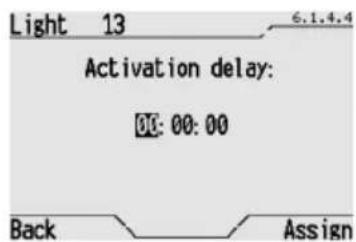
Enter the activation delay time in the window that opens, that is the time that must pass between the time the previous command is activated and the time the new command is activated. Enter the time using the hour:time format with the , , and buttons, then press Assign to confirm.
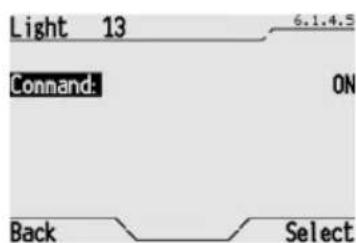
A new window appears where you can set the command that the object must perform. Use the and buttons to scroll the available commands and press Select to confirm. The commands which are available depend on the type of object. The most common commands are as follows: ON=enable/activate; OFF=disable/deactivate; UP=raise shutter/blind; DOWN=lower shutter/blind; STOP=stop; INC=increases dimmer intensity; DEC=decreases dimmer intensity etc.
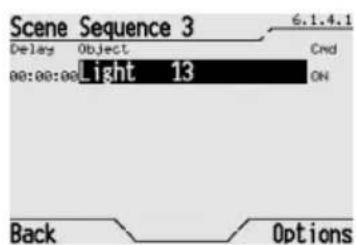
After confirming the new command, a new window appears which lists all the commands of the scene sequence, with the time delays, the objects and the command that is activated; the last command to be entered is the last in the list.
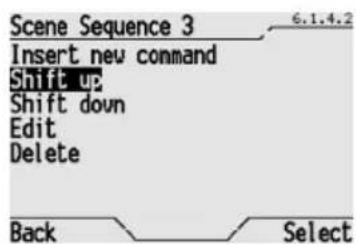
To modify the activation sequence of the commands, use the and buttons to select the command from the command list and select Shift up or Shift down in the Option Menu; press Select to confirm.
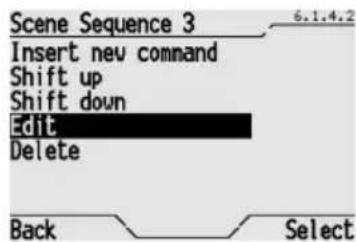
To modify a command, use the and , buttons to select the command from the command list and select Edit in the Option Menu; press Select to confirm. Then modify, as necessary, the time delay and the command that the object must perform.
ADVANCED FUNCTIONS
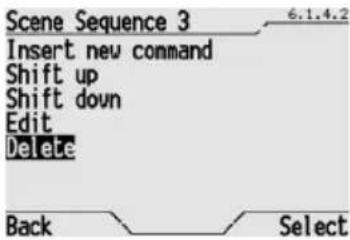
To cancel a command, use the and , buttons to select the command from the command list and select Delete in the Option Menu; press Select to confirm.
MODIFYING THE NUMBER OF REPETITIONS OF A SCENE SEQUENCE
A scene sequence can be repeated automatically for a specific number of times or indefinitely. This means it is possible, for instance, to create presence simulations, control the functions of a water pump to avoid problems caused by icing in the winter and so on. To change the number of times a scene is repeated, please proceed as follows:
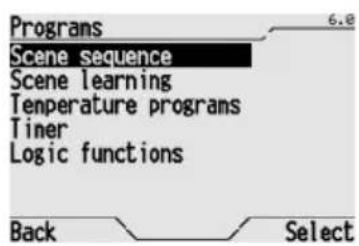
From the Home page, Systems/Rooms > Programs > Scene sequence.
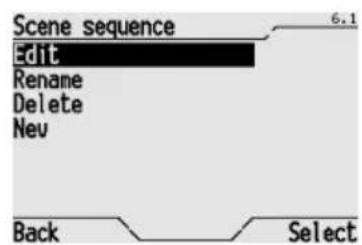
Select Edit to enter the modification procedure and press Select to confirm.
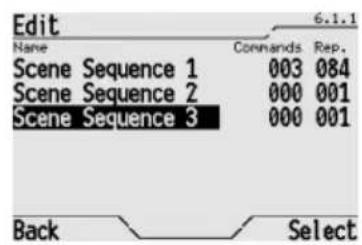
The window displays the complete list of the scene sequences, with the number of repetitions (Rep) set for each activation.
Use the and buttons to select the scene for which you wish to modify the repetitions, use the button to move to the Rep column and press Select to confirm.
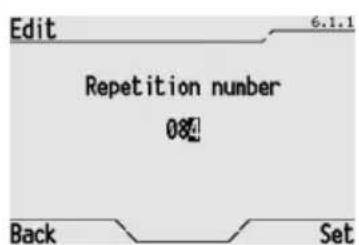
In the window that opens it is possible to increase or decrease, using the , , and , buttons, the number of repetitions. If this is set to 0, the number of repetitions is infinite (in this case to stop the scene sequence you have to deactivate it manually as indicated in the Activating a scene or a scene sequence section).
Press Select to confirm.
RENAMING A SCENE SEQUENCE
If you wish to rename a scene sequence, for instance to make the name more distinctive or because the name no longer corresponds to the actions foreseen by the scene after modifications, please proceed as follows:
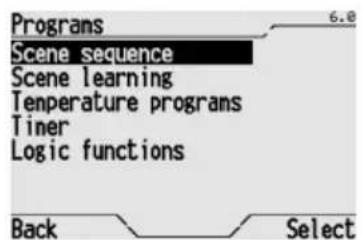
From the Home page, Systems/Rooms > Programs > Scene sequence.
ADVANCED FUNCTIONS
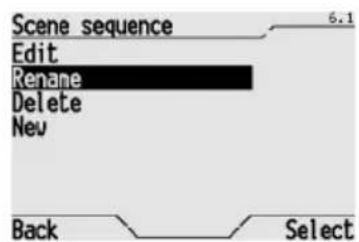
Select Rename to enter the rename menu and press Select to confirm.
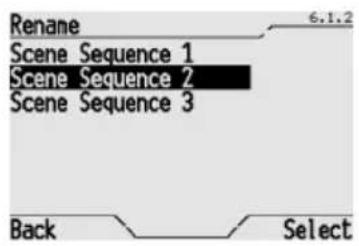
The window that opens lists all the scene sequences. Use the and buttons to select the scene you wish to rename, and press Select to confirm.
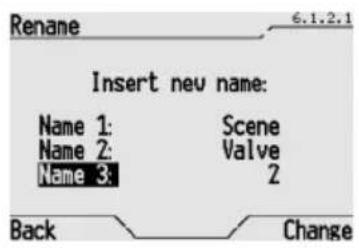
Enter the name of the new scene in the window that opens. The name is created by selecting 3 different terms from the preset dictionaries (for the terms in the dictionaries, please refer to the Dictionaries section).
Use the and , buttons to move from one dictionary to another, and use the and buttons to scroll terms in the dictionary.
Press Change to confirm the name.
CANCELLING A SCENE SEQUENCE
To cancel a scene sequence, please proceed as follows:
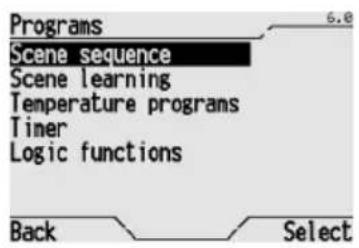
From the Home page, Systems/Rooms > Programs > Scene sequence.
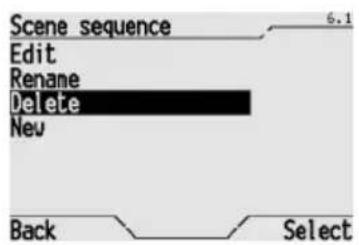
Select Delete and press Select to confirm.
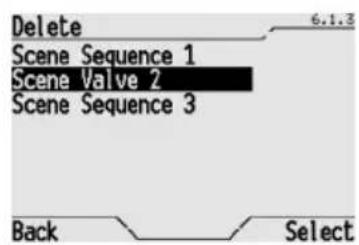
The window that opens lists all the scene sequences. Use the and buttons to select the scene you wish to cancel, and press Select to confirm.
The popup message "Scene cancelled correctly" confirms it has been cancelled.
Programming the thermal regulation system
The control panel can act as the master controller and send the function type and mode via the bus to the various thermostats and timed-thermostats installed on the system and configured as slave devices.
To programme the function modes on a weekly basis and the times they must be activated, please proceed as follows:
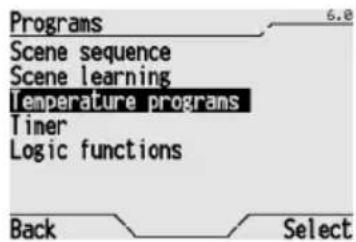
From the Home page, Systems/Rooms Programs Temperature programs.
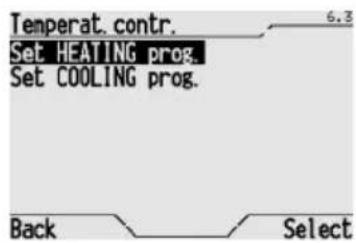
On the window that appears, use the and buttons to select the function type profile (heating or conditioning) that you need to change and press Select to confirm.
The two heating and air conditioning profiles are managed separately by the control panel. When the season changes, it is therefore sufficient to simply change the function type on the control panel (see the Modifying the thermal regulation section).
The thermostats and timed-thermostats set as slave devices on the system comply to the function type and mode set on the control panel.
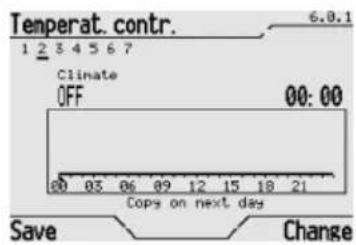
This window shows the profile for the current day, which is underlined. All the information displayed on the screen is illustrated in detail in the section "Viewing Time Profiles".
If you wish to move on to another day, press the button and use the and buttons until the day you wish to modify is highlighted. Press Change to confirm. Use the and buttons to change from days to hours to Copy on next day, and vice-versa.
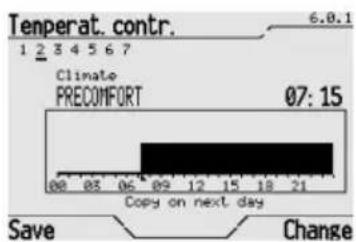
Use the and buttons to move the cursor to the hours section; this is regulated 15 minutes at a time and the time is shown in the top right section of the square.
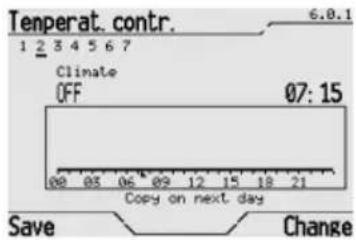
When you reach the time when the change in function mode should occur, select Change several times until you see the desired Mode highlighted in the left top corner above the square. The mode option changes cyclically - OFF, ECONOMY, PRECOMFORT, COMFORT and AUTO.
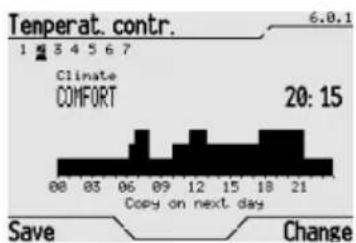
The set mode remains activated until the next change is made, if set, or until the end of the day if there are no other variations. The operating function mode is also displayed on the screen in graphic form.
WARNING: The control panel sets the mode, not the temperature; this is set on the slave timer-thermostats and thermostats for each mode (with the same mode, therefore timed-thermostats and thermostats could manage different room temperatures). In the time range set as AUTO, the control panel will send the slave timed-thermostats the AUTO mode command.
The timed-thermostats will hence follow the daily temperature profile memorised in their own database and will also set the function mode for the thermostats in their zone.
ADVANCED FUNCTIONS
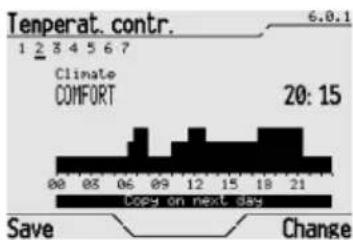
To copy the time profile to the next day, press and when "Copy on next day" is highlighted select Change to copy the same. To copy this profile to all days of the week, select "Copy on next day" repeatedly until you return to the day you started from.
The copied profile can be modified at will following the instructions provided above.
When you have finished programming, select Save to save the changes and return to the Programming menu.
To set the thermal regulation function type, please refer to the Modifying thermal regulation section.
Programming the timers
The control panel can be used to associate weekly (timer) function profiles to various objects (lights, scenes, shutters etc.) to automate repeated actions. For instance it is possible to open or close an awning at a set time to protect the room from the sun, or activate the "wake-up" scene every morning at a set time. It is possible to programme up to 12 timers.
It is also possible to use the timers and the scene sequences to create "presence simulations" which can help to reduce burglary risks. All timers can be created, modified, renamed and cancelled as required. The deactivation of a timer does not cancel the associated time profile.
CREATING A NEW TIMER
To create a new timer, please proceed as follows:
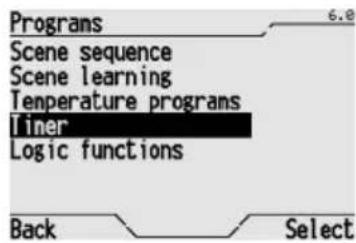
From the Home page, Systems/Rooms Programs Timer.
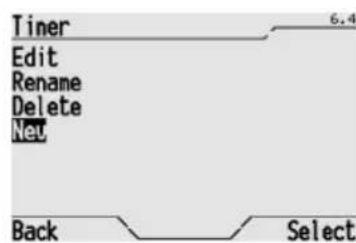
Select New to create a new timer.
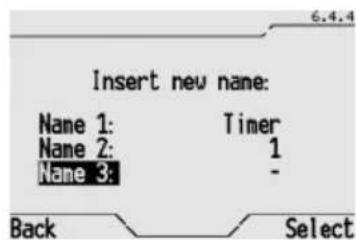
Enter the name of the new timer on the window that appears on the screen. The name is created by selecting 3 different terms from the preset dictionaries (for the terms in the dictionaries, please refer to the Dictionaries section). This name will appear on the screen in the menu and should clearly identify what the timer actually does.
Use the and buttons to move from one dictionary to another, and use the and buttons to scroll terms in the dictionary.
Press Select to confirm the name.
ADVANCED FUNCTIONS
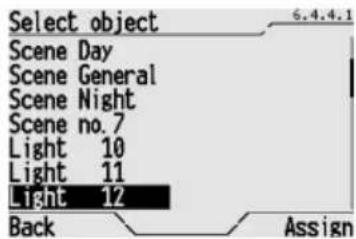
Select the object name of the new timer on the window that appears on the screen and select Assign to confirm.
The time profile will appear on the screen. For further details on how to modify the time profile, p lease refer to the Modifying a timer section.
MODIFYING A TIMER
To modify the time profile on a timer, that is setting when and what the object related to the timer should do, please proceed as follows:
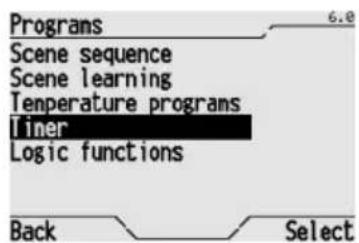
From the Home page, Systems/Rooms Programs Timer.
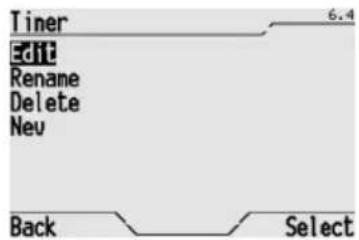
Select Edit to enter the modification procedure.
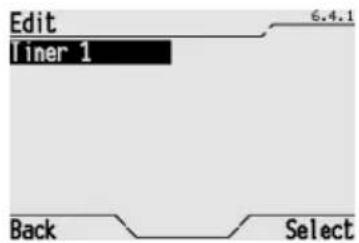
The window that opens lists all the timers. Use the and buttons to select the timer you wish to modify, and press Select to confirm.
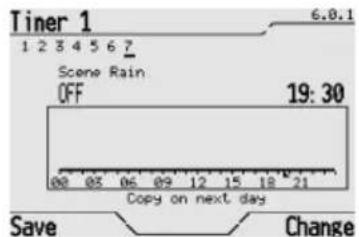
This window shows the profile for the current day, which is underlined. All the information displayed on the screen is illustrated in detail in the section "Viewing Time Profiles".
If you wish to move on to another day, press the button and use the and buttons until the day you wish to modify is highlighted. Press Change to confirm.
Use the and buttons to change from days to hours to Copy to the next day, and vice-versa.
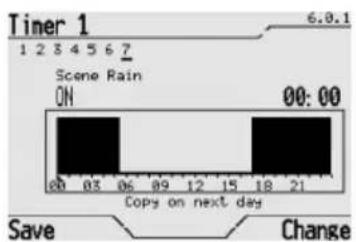
Use the and buttons to move the cursor to the hours section; this is regulated 15 minutes at a time and the time is shown in the top right section of the square.
When you reach the time when the change in the object status should occur, select Change several times until you see the desired status highlighted in the left top corner above the square. The status changes cyclically listing the options available for the object (for instance ON/OFF, UP/DOWN/STOP etc.). The set status remains activated until the next change is made, if set, or until the end of the day if there are no other variations.
The operating status is also displayed on the screen in graphic form.
ADVANCED FUNCTIONS
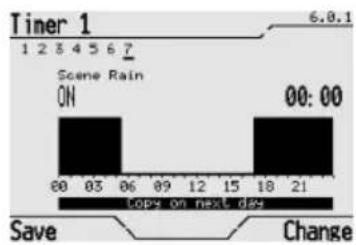
To copy the time profile to the next day, press and when "Copy on next day" is highlighted select Change to copy the same. To copy this profile to all days of the week, select "Copy on next day" repeatedly until you return to the day you started from.
The copied profile can be modified at will following the instructions provided above.
When you have finished programming, select Save to save the changes and return to the Programming menu.
To activate a timer, please refer to the Activating a timer section.
RENAMING A TIMER
To rename a timer, please proceed as follows:
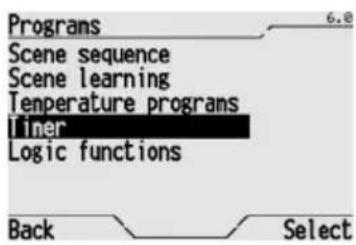
From the Home page, Systems/Rooms > Programs > Timer.
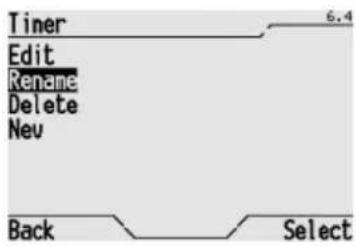
Select Rename and press Select to confirm.
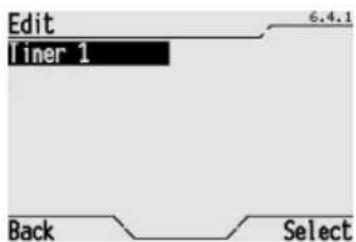
The window that opens lists all the created timers. Use the and buttons to select the timer you wish to rename, and press Select to confirm.
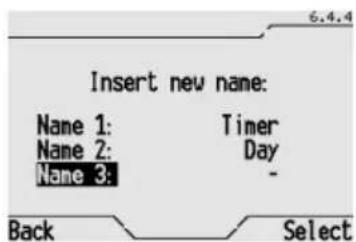
The old name which can be cancelled or modified is displayed on the screen, using 3 different terms from the preset dictionaries (for the terms in the dictionaries, please refer to the Dictionaries section).
Use the and , buttons to move from one dictionary to another, and use the and buttons to scroll terms in the dictionary.
Press Select to confirm the name.
CANCELLING A TIMER
WARNING: When a timer is no longer required, it is not always necessary to cancel it, sometimes you can simply deactivate it as illustrated in Activating a timer section. This means you do not lose the settings of the time profile.
To cancel a timer, please proceed as follows:
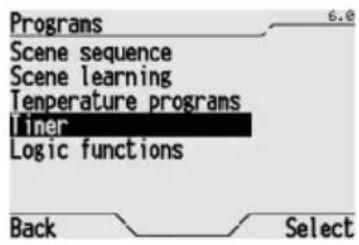
From the Home page, Systems/Rooms Programs Timer.
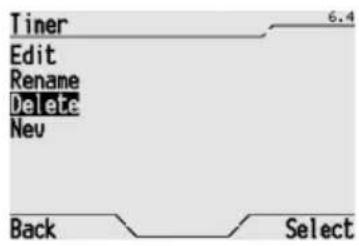
Select Delete and press Select to confirm.
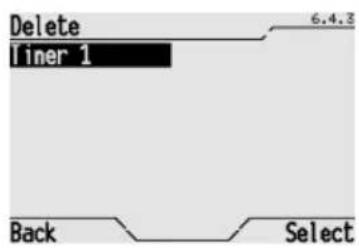
The window that opens lists all the timers. Use the and buttons to select the timer you wish to cancel, and press Select to confirm.
The popup message "Object deleted" confirms it has been cancelled.
Programming logic functions
The control panel can also be used to associate logic functions to various objects. By using the logic functions it is possible to create conditioned actuations, that is actuations that depend on the status of 1, 2, 3 or 4 inputs. For instance you can logically connect two lights so that they are never on at the same time, or set the awnings to close where there is too much wind. It is possible to create up to 16 logic functions.
CREATING A LOGIC FUNCTION
To create a new logic function, please proceed as follows:
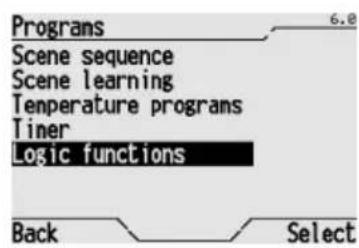
From the Home page, Systems/Rooms > Programs > Logic functions.
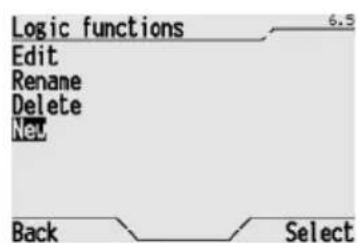
Select New to create a new function.
ADVANCED FUNCTIONS
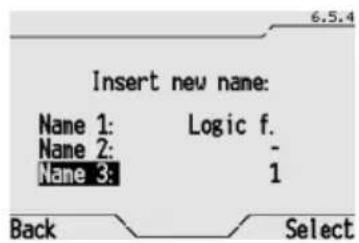

Enter the name of the new logic function on the screen. The name is created by selecting 3 different terms from the preset dictionaries (for the terms in the dictionaries, please refer to the Dictionaries section). This name will appear on the screen in the menu and should clearly identify what the logic function actually does.
Use the and buttons to move from one dictionary to another, and use the X and X buttons to scroll terms in the dictionary.
Press Select to confirm the name.
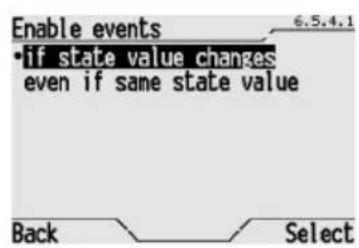
When the window opens, it is possible to set the mode in which the events should be enabled, according to whether the logic result is TRUE or FALSE). Use the and buttons to select the item:
- "if state value changes" the commands associated to the TRUE and FALSE events will only be performed when the result of the logic function changes (from FALSE to TRUE or from TRUE to FALSE);
- "even if same state value" the commands associated to the TRUE and FALSE events will be performed each time the bus receives a new input value from the logic function, even if the result (TRUE or FALSE) does not change.
Press Select to confirm.
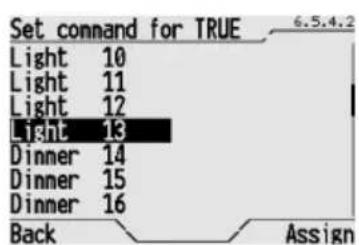
When the window opens, select the object on which the command should be performed if the result of the logic operation is TRUE and select Assign to confirm.
When the window opens, select the command that should be performed on the previously selected object if the result of the logic operation is TRUE, using the and buttons and choose Select to confirm.
The commands available all relate to the specific object (for instance ON/OFF for a light, UP/DOWN/STOP for a shutter) or the values belonging to the list of the selected object.
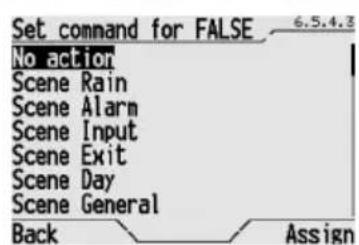
When the window opens, select the object on which the command should be performed if the result of the logic operation is FALSE and select Assign to confirm. The objects selected for the TRUE and FALSE results can be different.
When the window opens, select the command that should be performed on the previously selected object (if the result of the logic operation is FALSE), using the and buttons and choose Select to confirm. The commands available all relate to the specific object (for instance ON/OFF for a light, UP/DOWN/STOP for a shutter) or the values belonging to the list of the selected object. If the "No action" option is selected for a TRUE event or FALSE event, it is not necessary to select a command.
Audible alarm on logic functions
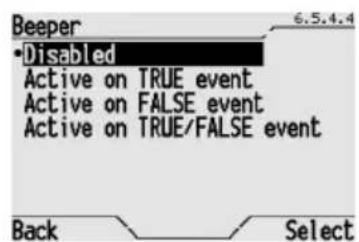
It is possible to associate an audible alarm to a logic function generated by the control and display panel buzzer. When the page opens it is possible to select:
- Disabled, where the audible alarm is never activated.
Active on TRUE event, which activates the audible alarm for a max of 5 minutes when the event is true. - Active on FALSE event, which activates the audible alarm for a max of 5 minutes when the event is false.
- Active on TRUE/FALSE event, which activates the audible alarm for a max of 5 minutes whether the event is true or false.
The audible alarm is indicated on the Home Page by the icon. To disable the audible alarm, use the and buttons to reach this icon, and then press the or button. The logic function page will open where the operator can check which function has generated the alarm and then cancel the alarm memory, as illustrated in the Activating / Deactivating a logic function.
ADVANCED FUNCTIONS
NOTE: It is possible to define a logic function with 1 input only, and associate the "No action" option for a true event or a false event. It is also possible to associate an audible alarm to this logic function. This means an audible alarm will be generated according to the input status.
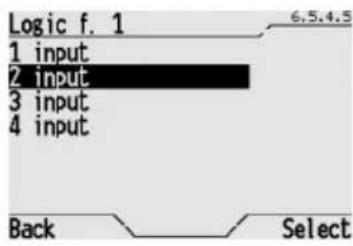
In this window select the number of inputs required to perform the desired function and press Select to confirm.
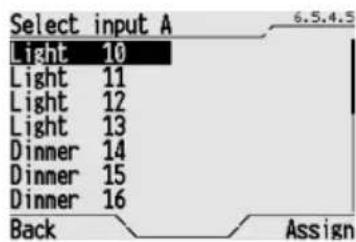
The window that opens lists all the available objects. Use the and buttons to select the object which corresponds to the first input (input A) and press Assign to confirm.
Repeat this procedure for all the other inputs (the objects already used will automatically be excluded from the list).
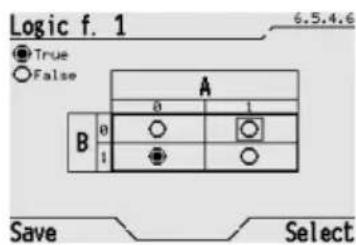
At the end the window will display the possible combinations among the selected inputs. When the function is created, the result of each combination of inputs is FALSE.
It is now possible to customise the logic function and assign a TRUE or FALSE result to each possible combination of the input statuses.
To make the result of a combination of inputs TRUE, use the , , and buttons to move to the box which represents the combination and modify the logic result using the Select button.
An empty circle indicates that the result is FALSE, a full circle indicates that the result is TRUE.
When the whole table shows all the logic results that you wish to associate to the various combinations of the input statuses, press Save to save the results.
To activate a logic function, please refer to the "Activating a logic function section".
MODIFYING A LOGIC FUNCTION
To modify a logic function, for instance to add inputs, modify the commands or the function layout, please proceed as follows:
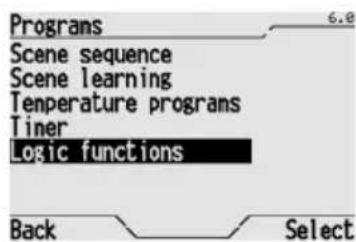
From the Home page, Systems/Rooms > Programs > Logic functions.
ADVANCED FUNCTIONS
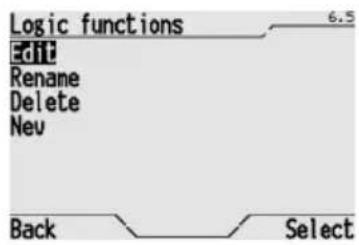
Select Edit to modify a logic function and press Select to confirm.
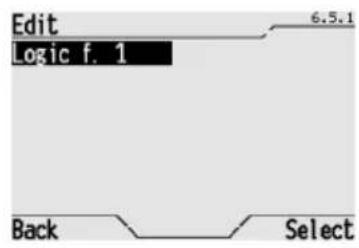
The window that opens lists all the logic functions. Select the function you want to modify and press Select to confirm.
The various programming windows described in the Creating a logic function section are proposed in sequence on the screen. The currently set value is indicated in each window, which can be confirmed or modified at will. When you have finished press Save to save all the new settings.
RENAMING A LOGIC FUNCTION
To rename a logic function, please proceed as follows:
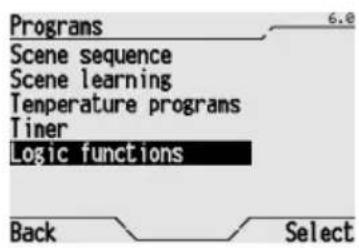
From the Home page, Systems/Rooms > Programs > Logic functions.
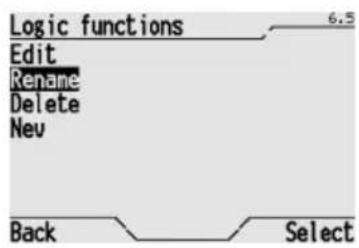
Select Rename to rename a logic function and press Select to confirm.
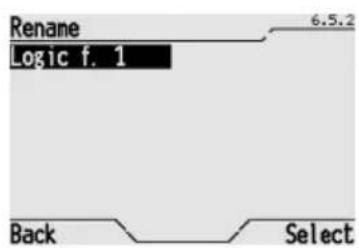
The window that opens lists all the logic functions. Select the function you want to rename and press Select to confirm.
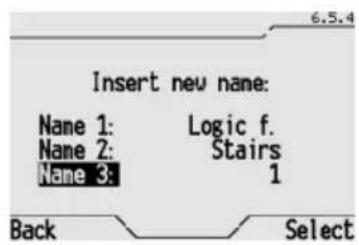
The old name which can be cancelled or modified is displayed on the screen, using 3 different terms from the preset dictionaries (for the terms in the dictionaries, please refer to the Dictionaries section). Use the and , buttons to move from one dictionary to another, and use the and buttons to scroll terms in the dictionary.
Press Select to confirm the name.
CANCELLING A LOGIC FUNCTION
To cancel a logic function, please proceed as follows:
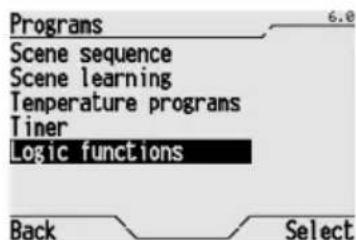
From the Home page, Systems/Rooms Programs Logic functions.
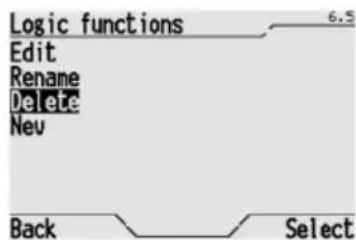
Select Delete to cancel a logic function and press Select to confirm.
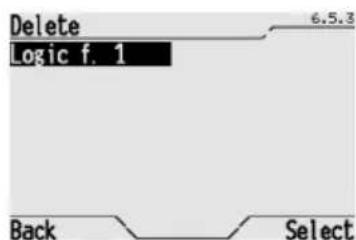
The window that opens lists all the logic functions. Select the function you want to cancel and press Select to confirm.
The popup message "Logic F. cancelled correctly" confirms it has been cancelled.
Dictionaries
DEFAULT WORD LIST
The control panel has five term dictionaries that are used when you need to name rooms, systems, functions, scenes etc.
The maximum length of the words in each dictionary is specified and each dictionary contains a group of default vocabulary, as seen in the chart below.
| DICTIONARY | MAX CHARACTERS | DEFAULT WORD LIST |
| Dictionary 1 10 | <null>, Actuator, Dimmer, Relay, Light, Lamp, Shelter, Curtain, Louvres, Window, Function, Cont Command, State, Switch, Rocker, Contact, Sensor, Detector, Alarm, Block, Priority, Scene, Input, Output, Enable, Disable, Heating, Cooling, Time, Delay, On, Off, Economy, Precomfort, Comfort, Auto, Valve, Irrig., Activat., Deactiv., General, Total, Partial, Zone, Room, Climate, Module, Value, Intensity, Temp., Brightness, Logic f., Voltage, Current, Power, Mode, Setpoint, Object, Timedther Thermostat, BurglarSys, Timer, Clock, Unit, Setting, Ringbell. | |
| Dictionary 2 8 | <null>, Actuat., Dimmer, Relay, Light, Lamp, Shelter, Curtain, Louvres, Window, Function, Control., Command, State, Switch, Rocker, Contact, Sensor, Detector, Alarm, Block, Prior., Scene, Input, Output, Enable, Disable, Heating, Cooling, Time, Delay, On, Off, Economy, Precomf., Comfort, Auto, Valve, Sequence, Activation, Deactivation, General, Total, Partial, Zone, Room, Water, Gas, Wind, Rain, Smoke, Twilight, Plug, Presence, Move, Door, Pos., Pos.% Battery, Master, Central, Left, Right, Above, Under, Up, Down, Slope, Descent, Exterior, Interior, Entrance, Exit, Anter., Bathroom, Balcony, Boiler, Cellar, Kitchen, Garage, Garden, Laundry, Mansard, Floor, Sit room, Living, GreenH., Studio, Tavern, Terrace, Office, Parents, Children, Guest, Day, Night, Big, Little, Nord, Sud, West, East, 1, 2, 3, 4, 5, 6, 7, 8, 9, 10, 11, 12, 13, 14, 15, 16, 17, 18, On/Off, Up/Down, Hea/Cool, Logic, Timer, Stairs. | |
| Dictionary 3 | 1 | <null>, 1, 2, 3, 4, 5, 6, 7, 8, 9, 0, A, B, C, D, E, F, G, H, I, J, K, L, M, N, 0, % |
| Rooms 13 | Hide, Anteroom, Hall, Bathroom, Balcony, Boiler, Room, Cellar, Passage, Kitchen, Outdoor, Garage Garden, Guard, Entrance, Indoor, Laundry, Serv. room, Mansard, Lodge, Reception, Storage, Sit room, Living, GreenH., Liv.Room, Studio, Tavern, Terrace, Office, Veranda, Room 1, Room 2, Room 3, Room 4, Underground, Low ground, Floor 1, Floor 2. | |
| Systems 13 | Hide, Access, Auxiliary, Automatism, Loads, Meteo Unit, Switchboard, Cooling, Meter, Dimmer, Emergency, Fan Coil, Inputs, Lighting, Irrigation, Lights, Measures, Detectors, Heating, Sensors, Shutters, Curtains, Climate, Thermostat, Output, Contr. Plug. |
ADDING A WORD
Users can add new words of their choice to the existing dictionaries, respecting the maximum number of characters per word of each dictionary (see previous table).
The maximum number of new words that can be added to the individual dictionaries is:
Dictionary 1: 70
Dictionary 2:10
Dictionary 3:10
Rooms: 20
Systems: 30
NOTE: When a dictionary reaches the maximum number of new words allowed, the Expand dictionary menu item is no longer displayed for that dictionary.
To add a new word to a dictionary, please proceed as follows:
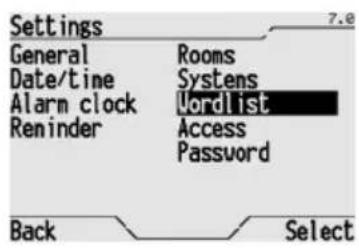
From the Home page, Systems/Rooms Settings Wordlist.
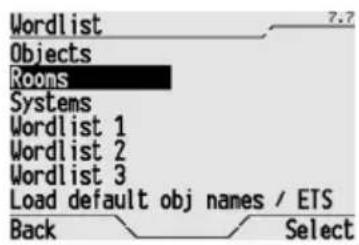
The dictionaries available are listed. Select the dictionary you wish to add a new word to and press Select to confirm.
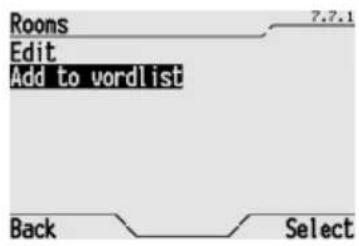
In the window that appears, select Add to wordlist and press Select to confirm.
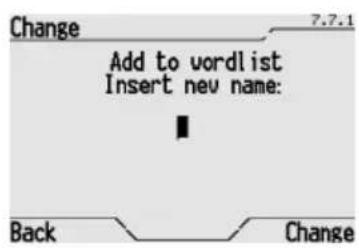
Now enter the new word. For further information on how to enter letters and numbers, please refer to the Keying in text section.
Press Change to confirm the addition of the new word.
MODIFYING A WORD
To modify a new word added to a dictionary, please proceed as follows:
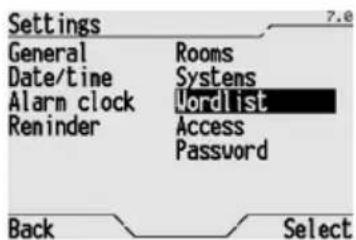
From the Home page, Systems/Rooms Settings Wordlist.
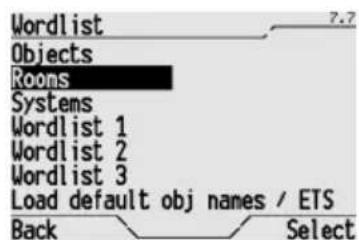
The dictionaries available are listed. Select the dictionary that contains the word you wish to modify and press Select to confirm.
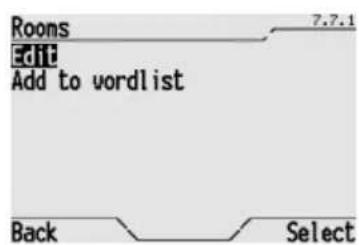
In the window that appears, select Edit and press Select to confirm.
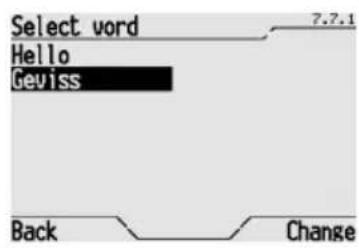
Use the and buttons to select the word you wish to modify from the list, and press Change to confirm.
WARNING: Only the words you have added to the dictionary will be listed, it is not possible to modify default vocabulary.
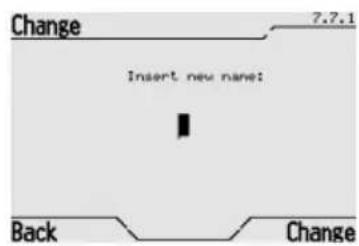
Change the word. For further information on how to enter letters and numbers, please refer to the Keying in text section.
Press Change to confirm the modified word.
INSTALLATION

WARNING: Only qualified personnel are permitted to install this device, according to the regulations in force and guide lines provided for KNX/EIB installation.
Warnings when installing the KNX/EIB
- The length of the bus line between the control panel, the Easy Display and the power supply unit must not exceed 350 metres.
- The length of the bus line between the control panel, the Easy Display and the most distant KNX/EIB device must not exceed 700 metres.
- To prevent undesired signals and overvoltages, where possible do not create loop circuits.
- Keep a distance of at least 4mm between the individually insulated cables on the bus line and those on the electric line.
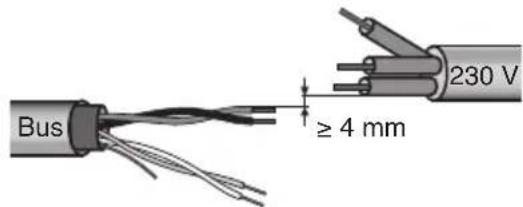
- Be careful not to damage the shielding electric continuity cable.


WARNING: The unused bus signal cables and the electric continuity cable must never touch powered elements or the grounding cable!
Electrical connections

WARNING: Disconnect the network voltage before connecting the device to the power network!
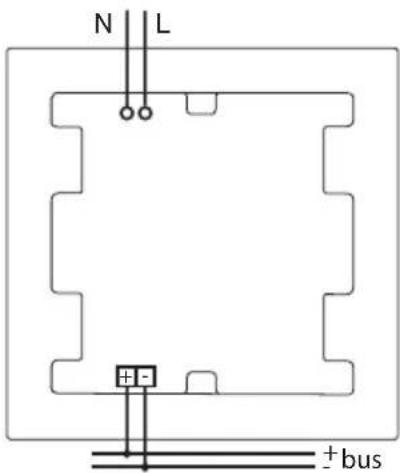
Electrical connections drawing
INSTALLATION
- Connect the red wire on the bus cable to the red terminal (+) clamp and the black wire to the black terminal clamp (-). Up to 4 bus lines can be connected to the bus terminal (wires of the same colour in the same terminal)
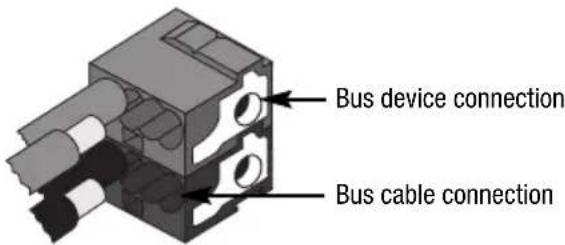
- Insulate the shield, the electric continuity cable and the remainder white and yellow wires on the bus cable (if you use a 4 wire bus cable) which are not necessary.
- Insert the bus clamp into the relative device terminal.
The fastener guides determine the direction it should be inserted.
- Close the bus clamp housing with the cover supplied.
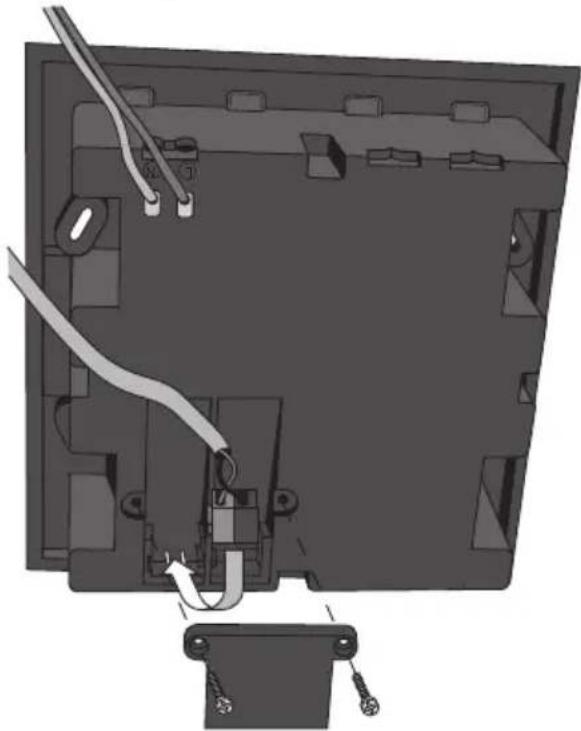
- Connect the mains power (230V) to the control panel using the two terminals marked L and N.
Initialising the Easy base unit
- Power up the device using the bus.
-
Allow the system to recognise the device using one of the procedures below:
-
Automatic learning (the device still has factory default settings):
- in the Easy base unit menu select "Application > New function" or "Application > Edit function": The device will automatically be recognised.
- Manual learning (the factory default settings have been modified):
- in the Easy base unit menu select "Application >New function"
- press the programming button briefly (< 2 seconds). The programming LED will light up during the learning process.
the device learned by the Easy base unit will be listed, with the assigned number, in the menu "Application New function" or "Application Edit function".
Completing installation
- Fasten the control panel to the flush-mounted unit GW 24 237 using the 4 screws supplied.
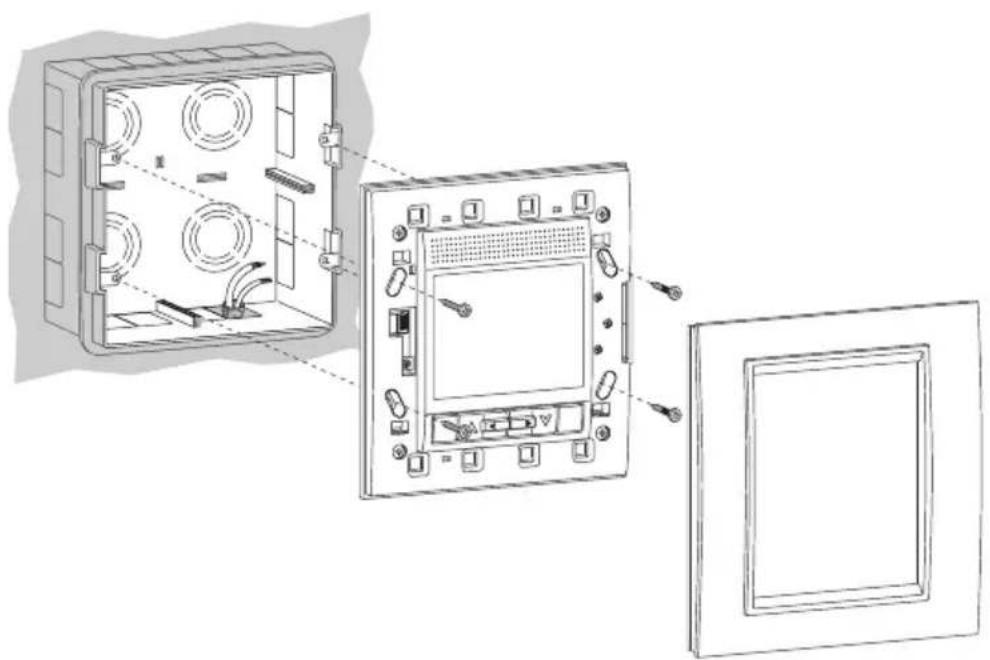
- Use a little pressure to apply the cover. A "click" indicates that it is securely fastened.
USB Port
Under the cover plate, to the left of the display, you will find the USB (1) mini port and the potentiometer to regulate the contrast on the display screen (2).
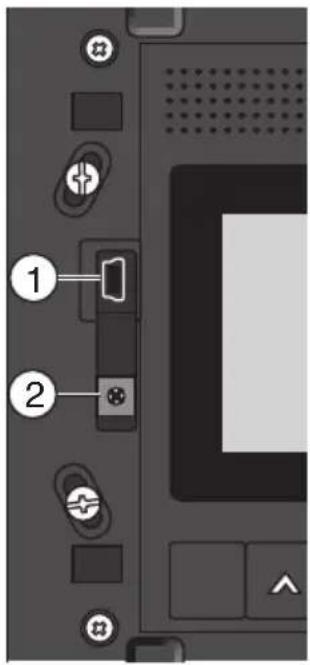
It is possible to connect the control panel to a PC using the USB port and, using the relative software it is possible to perform the functions listed below:
- Create a backup copy of the control panel settings (timer programmes, thermal regulation system settings, scene sequences, words added to the dictionaries etc.).
- Reload the previously saved settings onto the control panel.
- Copy the settings onto another control panel. It is only possible to copy the settings to another control panel if the communication objects have been configured in the same order on the bus as the original control panel.
For further information on the programming software functions, or to download the software, please visit the website www.gewiss.com and go to the Easy Control Panel and Display page (GW12771TB, GW12771VT, GW12771VA).
CONFIGURATION
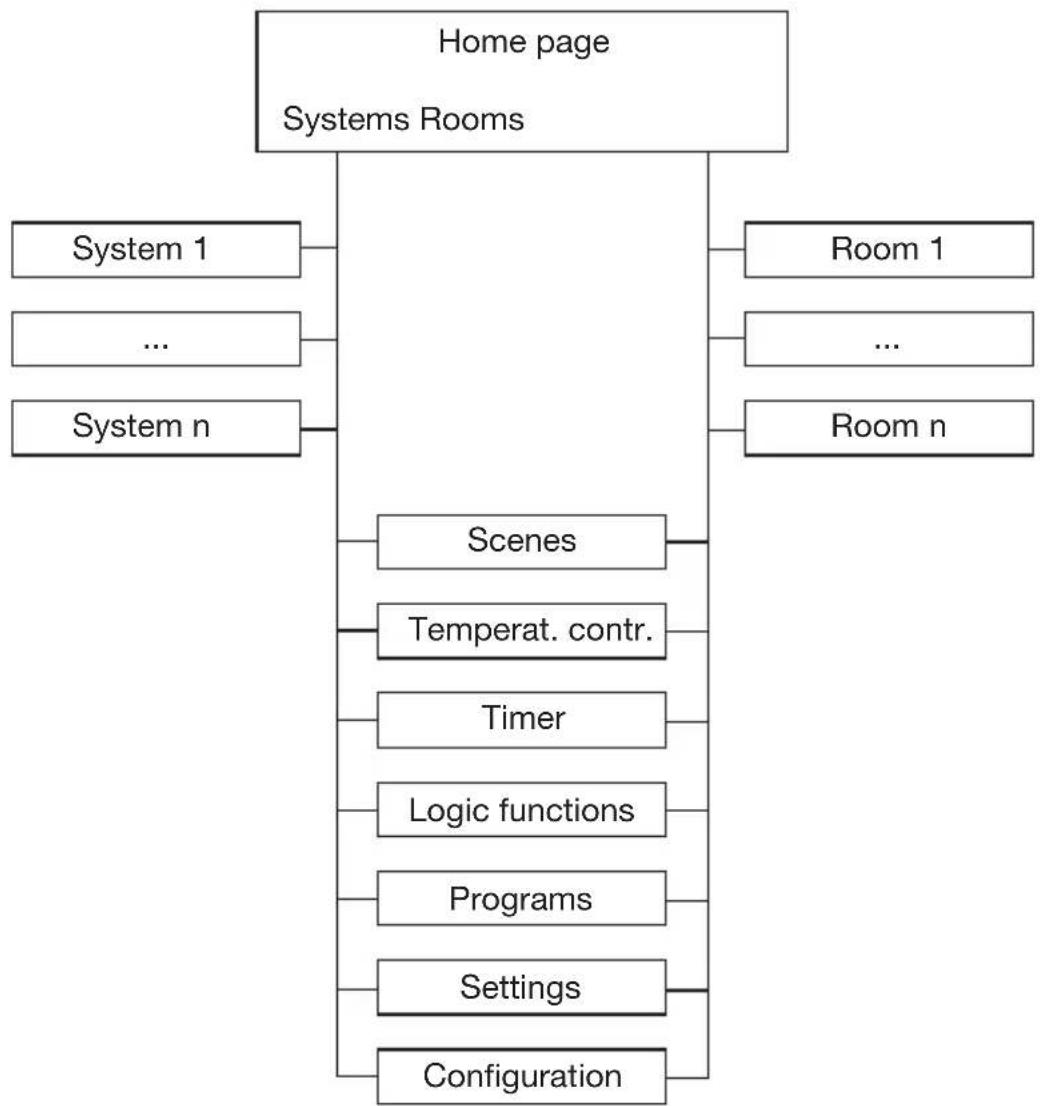
Menu tree
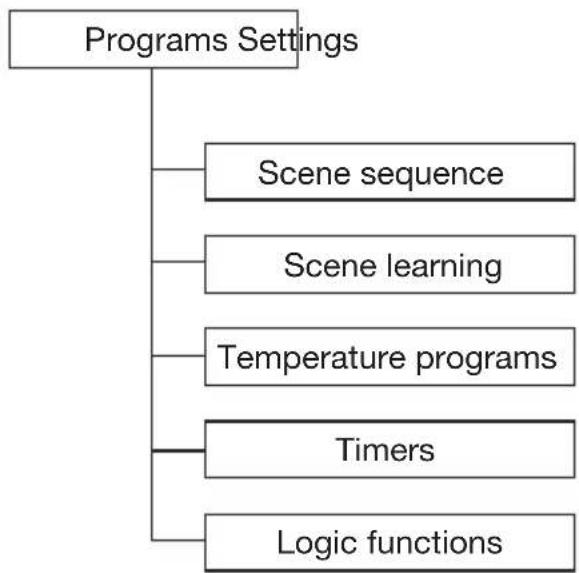
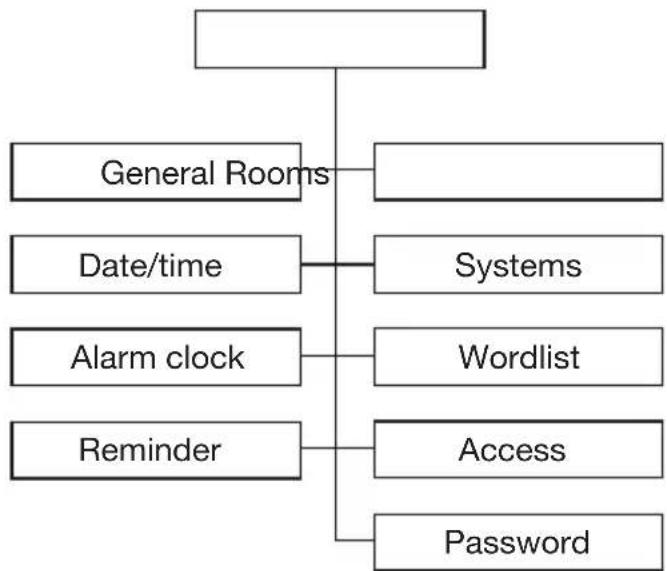
CONFIGURATION
General settings
The language used for the menus, the temperature scale and other elements on the control panel are part of the general settings and can be customised by the user.
The general default settings on the control panel are as follows:
| Language Italian | |
| Temperature range Degrees centigrade | |
| Backlighting 100% | |
| Beeper Disabled | |
| Timeout Home page Disabled |
To change the default settings, please proceed as follows:
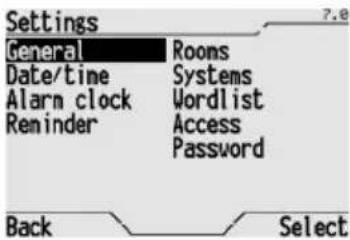
From the Home page, Systems/Rooms Settings General.
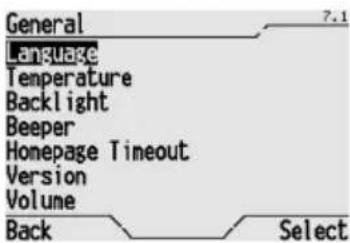
The list of parameters which can be modified is displayed.
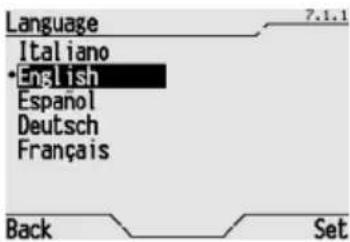
To change the language used in the menu, select Language and then the language you wish to use from the list (the current language used has a dot beside it). Press Set to confirm.
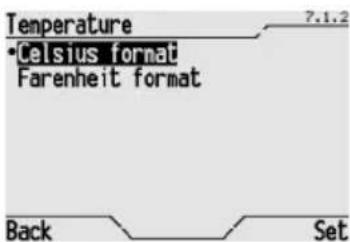
To change the temperature scale used, select Temperature and then the Celsius format or Fahrenheit format (the current format used has a dot beside it). Press Set to confirm.
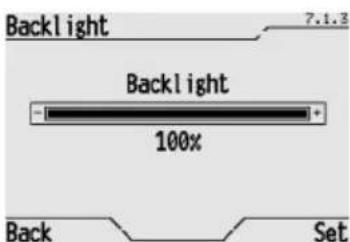
To change the luminosity level on the display screen, select Backlight and change the percentage value using the and buttons. Press Set to confirm the new setting.
If necessary, you can also change the contrast on the screen using the relative potentiometer. Please refer to the USB Port section for information on where to find the contrast potentiometer.
CONFIGURATION
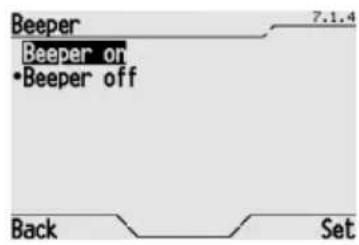
To enable or disable the beeper when the buttons are pressed select Beeper and then Beeper on or Beeper off (the current setting used has a dot beside it). Press Set to confirm.
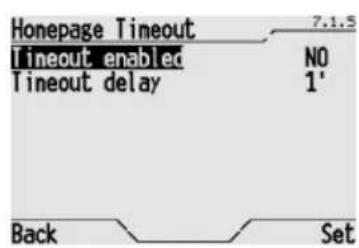
To enable or disable the time out (automatic return to the Home Page after a specific period of time has passed since a button was last pressed) select Homepage Timeout. On the page that opens, use the and buttons to move from Timeout enabled to Timeout delay and vice-versa, and the and buttons to change the value. The timeout duration can vary from 30 seconds to 15 minutes. Press Set to confirm.
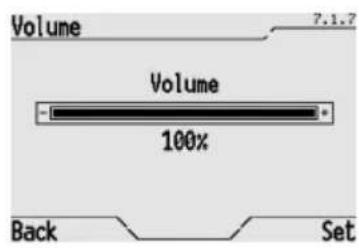
To change the volume of the sound signals on the control panel, select Volume and change the percentage value using the and buttons. Press Set to confirm the new volume.
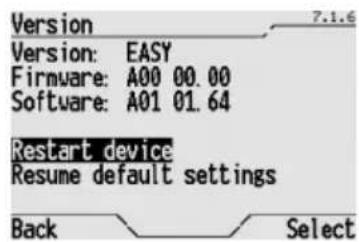
To find out the firmware and software versions used by the control panel, select Version. Select Back to exit the page.
Setting the time and date
Set the time and the date on the control panel as illustrated in the Regulating the time and Regulating the date sections to make sure the daily and weekly profiles on the thermal regulation and timers all function properly.
Assigning a name
To make the learning process of the various Home Automation system elements easier, it is possible to replace the standard names displayed on the screen with ones which are more descriptive and personal. It is recommended to assign names to objects, systems and rooms before you perform any other operations.
Renaming objects and scenes
The scenes and various objects used to create the function to control the lights, shutters etc., are identified by a default name and a progressive number. It is possible to change the name using the words in the 3 dictionaries, 1, 2 and 3, or create a new name by adding a word to the relative dictionaries. For further information on the dictionaries, please refer to the Dictionaries section.
To change the name automatically assigned to an object or a scene, please proceed as follows:
CONFIGURATION
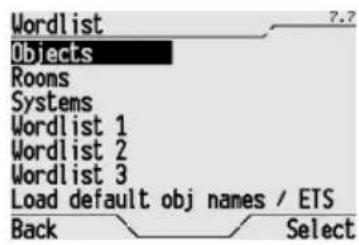
From the Home page, Systems/Rooms Settings Wordlist Objects.
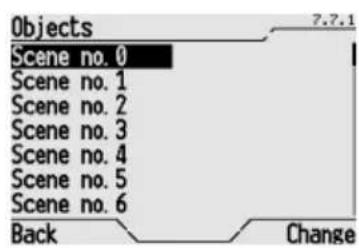
Use the buttons to select the object you wish to rename, and press Change to confirm.
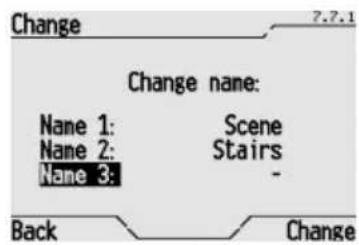
The old name which can be cancelled or modified is displayed on the screen, using 3 different terms from the preset dictionaries (for the terms in the dictionaries, please refer to the Dictionaries section).
Use the and buttons to move from one dictionary to another, and use the and buttons to scroll terms in the dictionary. Press Change to confirm the name.
ATTRIBUTION OF THE NAMES DOWNLOADED FROM ETS
If the names downloaded from ETS have not been modified locally, they will be assigned automatically to the objects during each download. To assign the name downloaded from ETS or the one assigned by default to replace a name assigned locally, please proceed as follows:
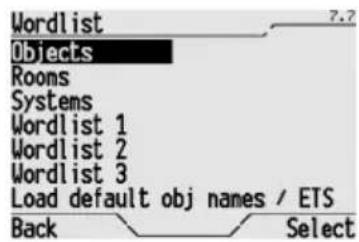
From the Home page, Systems/Rooms Setting Wordlist Objects.
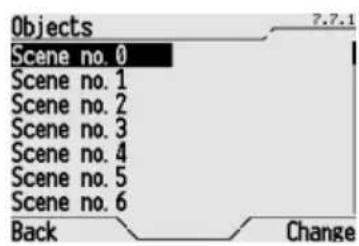
The various objects are listed. Select the object you wish to rename, and press Change to confirm.
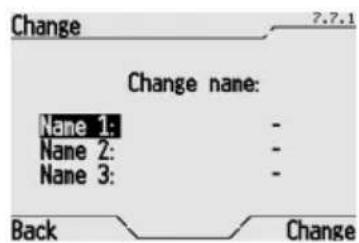
The name assigned locally is displayed on the screen. Scroll the terms in the 3 dictionaries and assign to Name 1, Name 2 and Name 3 the letter and .
Press Change to confirm.
The object will be assigned the name downloaded from ETS (or the default name if no name was selected via ETS).
CONFIGURATION
To replace all the names memorised locally with those downloaded via ETS (or the default name if no name was selected via ETS), please proceed as follows:
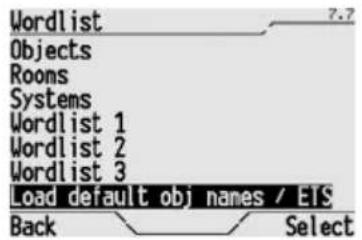
From the Home page, Systems/Rooms > Setting > Wordlist
Select Load default obj names / ETS object names and press Select to confirm.
Names of the rooms
The control panel has the rooms dictionary stored in its memory and this contains the most common words that identify the various types of rooms. If the required name is not included in the default dictionary, it is possible to add it as explained in the Dictionary section.
Names of the systems
The control panel has the Systems dictionary stored in its memory and this contains the most common words that identify the various types of systems. If the required name is not included in the default dictionary, it is possible to add it as explained in the Dictionary section.
Assigning objects to rooms
To assign various objects to specific rooms, please proceed as follows:
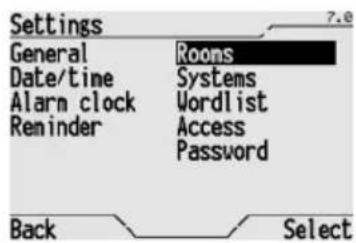
From the Home page, Systems/Rooms Settings Rooms.
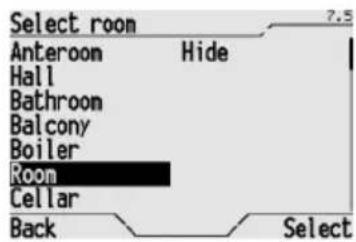
Select the room you wish to assign the objects to from the list and press Select to confirm.
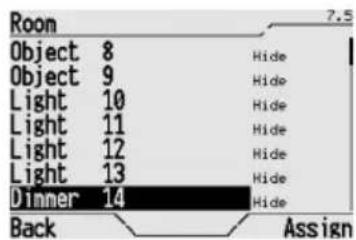
Select the objects that you want to assign to the selected room and press Assign to confirm. When an object is assigned, the name of the room it is assigned to appears at its side. If there is no name, the object has not been assigned to any room.
If you wish to exclude an object from an room, select Hide in the room list and then assign the object to be excluded to this nonexistent room.
CONFIGURATION
Assigning objects to systems
After creating a function, the object is automatically assigned to the relative logic system, for instance "lighting" in the case of lights or "Shutters" in the case of shutters or blinds.
It is in any case possible to assign objects to any system following the procedure below:
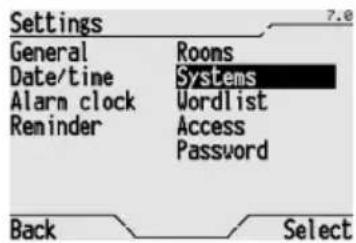
From the Home page, Systems/Rooms Settings Systems.
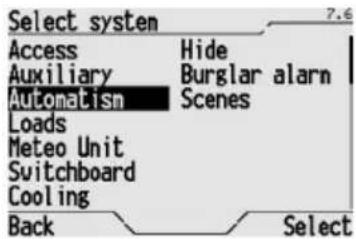
Select the system you wish to assign the objects to from the list and press Select to confirm.
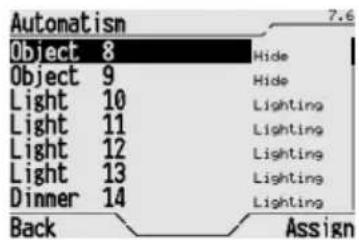
Select the objects that you want to assign to the selected system and press Assign to confirm. When an object is assigned, the name of the system it is assigned to appears at its side. If there is no name, the object has not been assigned to any room.
If you wish to exclude an object from a system, select Hide in the system list and then assign the object to be excluded to this nonexistent room.
View
To change the view mode of the control panel Home Page, that is to view only the item to access the systems, or only the item to access rooms, or both view modes, please proceed as follows:
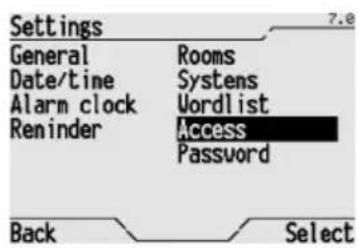
Dalla Home page, Systems/Rooms > Settings > Access.
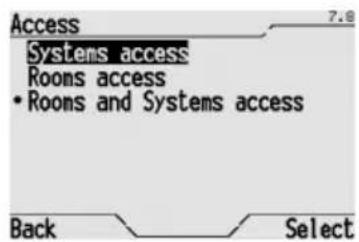
Select from Systems access, Rooms access or Rooms and Systems access and press Select to confirm (the current option is indicated with a dot).
PROGRAMMING WITH THE EASY BASE UNIT
Programming with the Easy base unit
The command and control panel is programmed using the Easy base unit (code GW 90 831).
Select the Systems/Rooms > Links menu to view the list of all the channels available to create a function.
There are three types of channels:
- Channels to manage the generic actuators, the dimmer actuators and the motor command actuators;
- Channels to manage the scenes
- Channels to manage the thermal regulation
Configuration of the functions
OPTIMISING PROCEDURE
To optimise the new function creation and configuration times, using the 11 objects available, please proceed as follows:
- Create specific names for the rooms and/or systems that will be used in the programming process (only if the default ones in the control panel memory are not sufficient, please see the Dictionaries section).
- Define the number of objects that will be used and rename them so that their function is clearly identified (see the Renaming objects section).
- Create the relative functions selecting the objects from the Systems/Rooms Links.
- Assign the objects to the rooms (please see the Assigning objects to rooms section).
- Assign the objects to the systems (only if you wish to change those automatically assigned please see the Assigning objects to systems section).
During the creation of a function, the message "BAU not ready or bus unconnected" appears on the screen to indicate that the configuration of a new function is in progress, the control panel will then reboot.
When you create a function with one of the 11 objects available, the relative object is moved automatically to the relative rooms (Lighting if it is connected to ON/OFF actuators or Shutters if it is connected to motor command actuators). This automatically updates the Systems list. If the function is cancelled in the future, the object will return to the "None" system and will be visible in the Configuration menu. It is however possible to assign the object to other systems apart from the main system.
The assigning to rooms is not an automatic process and must be performed manually after creating the function. The elimination and assigning of the "None" rooms is performed automatically.
The rooms are not updated automatically and the objects must be assigned following the instructions provided in the Assigning objects to rooms section.
FUNCTION FOR THE ON/OFF COMMAND FOR A LIGHT
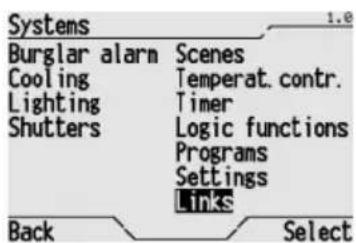
From the Home page, Systems/Rooms >Links.
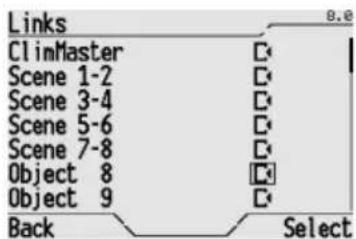
Select the object to be used to command the actuator connected to the light, select the relative icon and press Select to confirm.
The corresponding channel is displayed on the base unit to confirm the learning process. Now create the function through the base unit. The function will automatically be included in the "Lighting" environment.
To command the created function, please refer to the Switching a light ON and OFF section.
PROGRAMMING WITH THE EASY BASE UNIT
FUNCTION TO COMMAND AND REGULATE A SHUTTER/BLIND
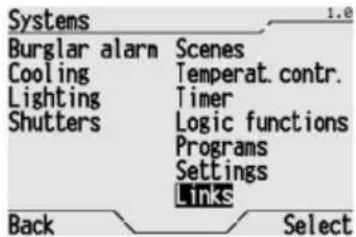
From the Home page, Systems/Rooms Links.
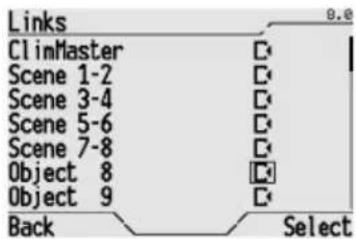
Select the object to be used to command the shutter/blinds, select the relative icon, and press Select to confirm.
The corresponding channel is displayed on the base unit to confirm the learning process. Now create the function through the base unit.
The function will automatically be included in the "Shutters" environment.
To command the created function, please refer to the Opening, closing and regulating shutters or blinds section.
FUNCTION TO COMMAND A SCENE
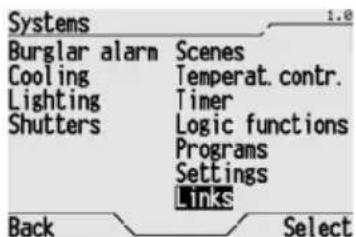
From the Home page, Systems/Rooms >Links.
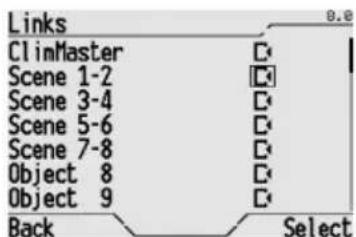
Select the couple of scenes you wish to use, select the relative icon and press Select to confirm. The corresponding channel is displayed on the base unit to confirm the learning process. Now create the function through the base unit.
The control panel contains 4 channels to command scenes, each of which can command 2 different scenes which belong to the same group of actuators. This is therefore a total of 8 different scenes available. To differentiate between the two scenes on the same scene channel (for instance "Scene 1-2") it is necessary to change the numbers of the two scenes in the unit base settings.
After creating the scene function it is necessary to assign the created scene to the system Scenes (please refer to the Assigning objects to systems section).
To learn a scene, please refer to the Learning scenes section.
To command a scene, please refer to the Activating a scene or a scene sequence section.
PROGRAMMING WITH THE EASY BASE UNIT
FUNCTION TO CONTROL THERMAL REGULATION SLAVE DEVICES
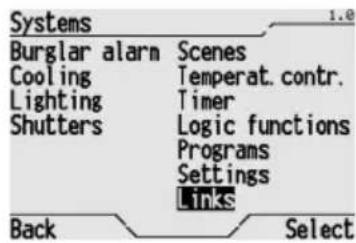
From the Home page, Systems/Rooms Links.
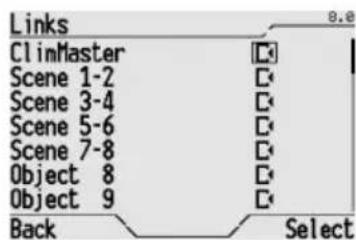
Select the Clim Master object which corresponds to the thermal regulation channel, select the relative icon , and press Select to confirm.
The corresponding channel is displayed on the base unit to confirm the learning process. Now create the function through the base unit.
To activate and modify the thermal regulation settings, please refer to the "Modifying thermal regulation" section.
To modify the daily/weekly profile, please refer to the "Programming the thermal regulation system" section.
FUNCTION TO COMMAND AND CONTROL THE BURGLAR ALARM SYSTEM
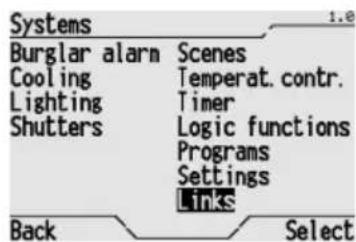
From the Home page, Systems/Rooms >Links.
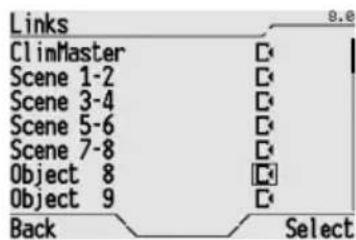
Select the object to be used to command the total arming of the burglar alarm system and select the relative icon
The corresponding channel is displayed on the base unit to confirm the learning process. Now create the function through the base unit. If necessary, repeat the procedure to select the objects for the partial arming of the burglar alarm system, for the alarm signals and the control unit enabled signal.
Assign the objects that will be used to command and control the burglar alarm system to the same system. The assigning procedure is illustrated in the Assigning objects to systems section.
Behaviour on the failure and reinstatement of the bus power supply
When there is no bus voltage, the control panel will remain on, but it is not possible to perform commands addressed to devices connected to the bus. The device is in full operating mode after around 5 seconds from reinstatement of the bus power supply. If there is no mains power connected to the control panel, it is no possible to perform any procedures. The time and date are maintained by the buffer power system (battery) whilst the settings are saved to a non-volatile memory. The control panel can be used again after 15 seconds from reinstatement of the power supply.
If there is no power supply, and the buffer battery is charged, the date and time are maintained for 72 hours. When this time has elapsed, it is necessary to set the time and date again.
Cleaning the control panel
Use a dry cloth to clean the control panel.
Changing the battery

WARNING: disconnect the network voltage before replacing the buffer battery!
To replace the buffer battery:
- Remove the finish plate.
- Unscrew the four screws and remove flush-mount unit cover;
- Disconnect the power supply and the bus power supply;
- Remove the bottom of the device by unscrewing the 4 front fastener screws;
- Remove the old battery using a screwdriver;
- Insert a new battery (rechargeable ML1220 3 V battery), making sure the poles are facing the right way;
- Reclose, reconnect and replace the covers following the above instructions in the reverse order.

WARNING
- only installation operators are allowed to change the batteries;
- never throw the battery into a fire.

The battery is a special waste product and therefore it must be disposed of according to the laws in force and taken to a special collection centre.
Reset
RESETTING THE CONTROL PANEL
Select Restart device (from the Home page, Systems/Rooms Settings General Version) to reset all settings on the control panel. All the settings will remain stored in the memory and the control panel will start to function again after a maximum of 15 seconds.
RESET DEFAULT SETTINGS
Select Resume default settings (from the Home page, Systems/Rooms > Settings > General > Version) to reset all settings on the control panel to the original default settings. The Reset default settings can not be reversed.

WARNING: You will lose all the settings when you use this option (words added to the dictionaries, timer programmes, scenes, scene sequences and logic functions, thermal regulation profiles, burglar alarm, event reminder, wakeup system settings etc.)!
TECHNICAL SPECIFICATIONS
Communication KNX/EIB Bus
Power supply 230V ac
bus KNX/EIB, 29 V dc SELV
rechargeable ML1220 3 V battery to update date and time
when power is cut
Bus cable KNX/EIB TP1
Bus current consumption 1.5mA
Power consumption 2 W
Control elements 1 mini programming button
4 navigation buttons
2 function buttons
1 potentiometer to regulate the display screen contrast
Display elements 1 2.8" backlit monochromatic display,
1 red programming LED
Detector elements 1 temperature probe, measurement range 0 ÷ +40^ C
with 0.1^ resolution
Access protection 1 alphanumeric password with max 5 characters
Ambit of use Indoors, dry places
Operating temperature 0 ÷ +40^ C
Storage temperature -20 ÷ +70 °C
Relative humidity Max 93% (no condensation)
Bus connection Slot in terminal, 2 pin 1 mm
Electrical connections Screw terminals, Max cable width: 2.5mm^2
Protection rating IP20
Size (L x H x W) 150 x 158 x 58 (17 from wall) mm
Reference Standards Low Voltage Standard 72/23/CE
Electromagnetic Compatibility Standard 89/336/CEE,
EN50090, EN60950
Certifications KNX/EIB
SOMMAIRE
AVERTISSEMENTS GENERAUX
DESCRIPTION GENERALE
Communication Bus KNX/EIB
Alimentation 230 V ca
bus KNX/EIB, 29 V cc SELV
Cable bus KNX/EIB TP1
Dimension (B x H x P)
150× 158× 58 (17 du mur) mm
Normes de reference
bus KNX/EIB, 29 V cc SELV
Cable bus KNX/EIB TP1
= 0 = 0 = 0 = 0 = 0 = 0 = 0 = 0 = 0 = 0 = 0 = 0 = 0 = 0 = 0 = 0 = 0 = 0 = 0 = 0 = 0 = 0 = 0 = 0 = 0 = 0
Bus KNX/EIB, 29 V dc SELV
According to article 9 paragraph 2 of the European Directive 2004/108/EC, the responsible for placing the apparatus on the Community market is:
GEWISS S.p.A Via A. Volta, 1 - 24069 Cenate Sotto (BG) Italy Tel: +39 035 946 111 Fax: +39 035 945 270 E-mail: qualitymarks@gewiss.com


+39 035 946 111
8.30-12.30/14.00-18.00
lunedi ÷ venerdi - monday ÷ friday
+39 035 946 260

sat@gewiss.com
www.gewiss.com

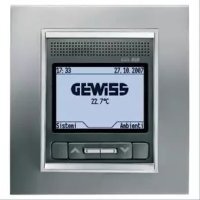
- SECURITY
- BASIC FUNCTIONS
- ADVANCED FUNCTIONS
- CONTENTS
- INSTALLATION
- CONFIGURATION
- PROGRAMMING WITH THE EASY BASE UNIT
- IN SERVICE
- TECHNICAL SPECIFICATIONS 105
- GENERALWARNINGS
- Contents of the pack
- Summary
- Operating principle
- Commands and Display
- COMMANDS
- HOME PAGE
- CURSOR
- VIEWING DEVICE STATUS
- VIEWING TIME PROFILES (THERMAL REGULATION AND TIMER)
- BACKLIGHTING
- KEYING IN TEXT
- Password
- SETTING/MODIFYING THE PASSWORD
- Regulating the time
- Regulating the date
- Wakeup alarm
- CREATING OR CHANGING THE WAKEUP ALARM
- DISABLING THE WAKEUP ALARM
- REINSTATING THE WAKEUP ALARM
- Event reminder
- CREATING AN EVENT REMINDER
- DISABLING THE ACOUSTIC ALARM
- VIEWING AND MODIFYING AN EVENT REMINDER
- CANCELLING AN EVENT REMINDER
- Switching a light ON and OFF
- Adjusting and switching a dimmer light ON and OFF
- Opening, closing and regulating shutters and blinds
- Activation of a scene or a scene sequence
- Modifying the thermal regulation
- Activating and deactivating a timer
- Activating and deactivating a logic function
- Burglar Alarm System
- COMPLETE ARMING OF THE BURGLAR ALARM SYSTEM
- PARTIAL ARMING OF THE BURGLAR ALARM SYSTEM
- COMPLETE DISARMING OF THE BURGLAR ALARM SYSTEM
- Scene
- ASSIGNING A SCENE TO THE SCENE SYSTEM
- CANCELLING A SCENE FROM THE SCENE SYSTEM
- LEARNING A SCENE
- Programming a scene sequence
- CREATING A NEW SCENE SEQUENCE
- MODIFYING A SCENE SEQUENCE
- MODIFYING THE NUMBER OF REPETITIONS OF A SCENE SEQUENCE
- RENAMING A SCENE SEQUENCE
- CANCELLING A SCENE SEQUENCE
- Programming the thermal regulation system
- Programming the timers
- CREATING A NEW TIMER
- MODIFYING A TIMER
- RENAMING A TIMER
- CANCELLING A TIMER
- Programming logic functions
- CREATING A LOGIC FUNCTION
- Audible alarm on logic functions
- MODIFYING A LOGIC FUNCTION
- RENAMING A LOGIC FUNCTION
- CANCELLING A LOGIC FUNCTION
- Dictionaries
- DEFAULT WORD LIST
- ADDING A WORD
- MODIFYING A WORD
- Warnings when installing the KNX/EIB
- Electrical connections
- Initialising the Easy base unit
- Completing installation
- USB Port
- General settings
- Setting the time and date
- Assigning a name
- Renaming objects and scenes
- ATTRIBUTION OF THE NAMES DOWNLOADED FROM ETS
- Names of the rooms
- Names of the systems
- Assigning objects to rooms
- Assigning objects to systems
- View
- Configuration of the functions
- OPTIMISING PROCEDURE
- FUNCTION FOR THE ON/OFF COMMAND FOR A LIGHT
- FUNCTION TO COMMAND AND REGULATE A SHUTTER/BLIND
- FUNCTION TO COMMAND A SCENE
- FUNCTION TO CONTROL THERMAL REGULATION SLAVE DEVICES
- FUNCTION TO COMMAND AND CONTROL THE BURGLAR ALARM SYSTEM
- Behaviour on the failure and reinstatement of the bus power supply
- Cleaning the control panel
- Changing the battery
- WARNING: disconnect the network voltage before replacing the buffer battery!
- WARNING
- Reset
- RESETTING THE CONTROL PANEL
- RESET DEFAULT SETTINGS
- TECHNICAL SPECIFICATIONS
- SOMMAIRE
- AVERTISSEMENTS GENERAUX
- DESCRIPTION GENERALE
Brand : Gewiss
Model : GW12771VT
Category : Alarm Clock