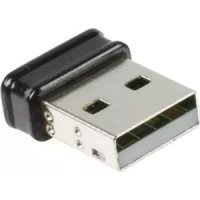
CMPWNUSB32 - Network card / adapter KONIG - Free user manual and instructions
Find the device manual for free CMPWNUSB32 KONIG in PDF.

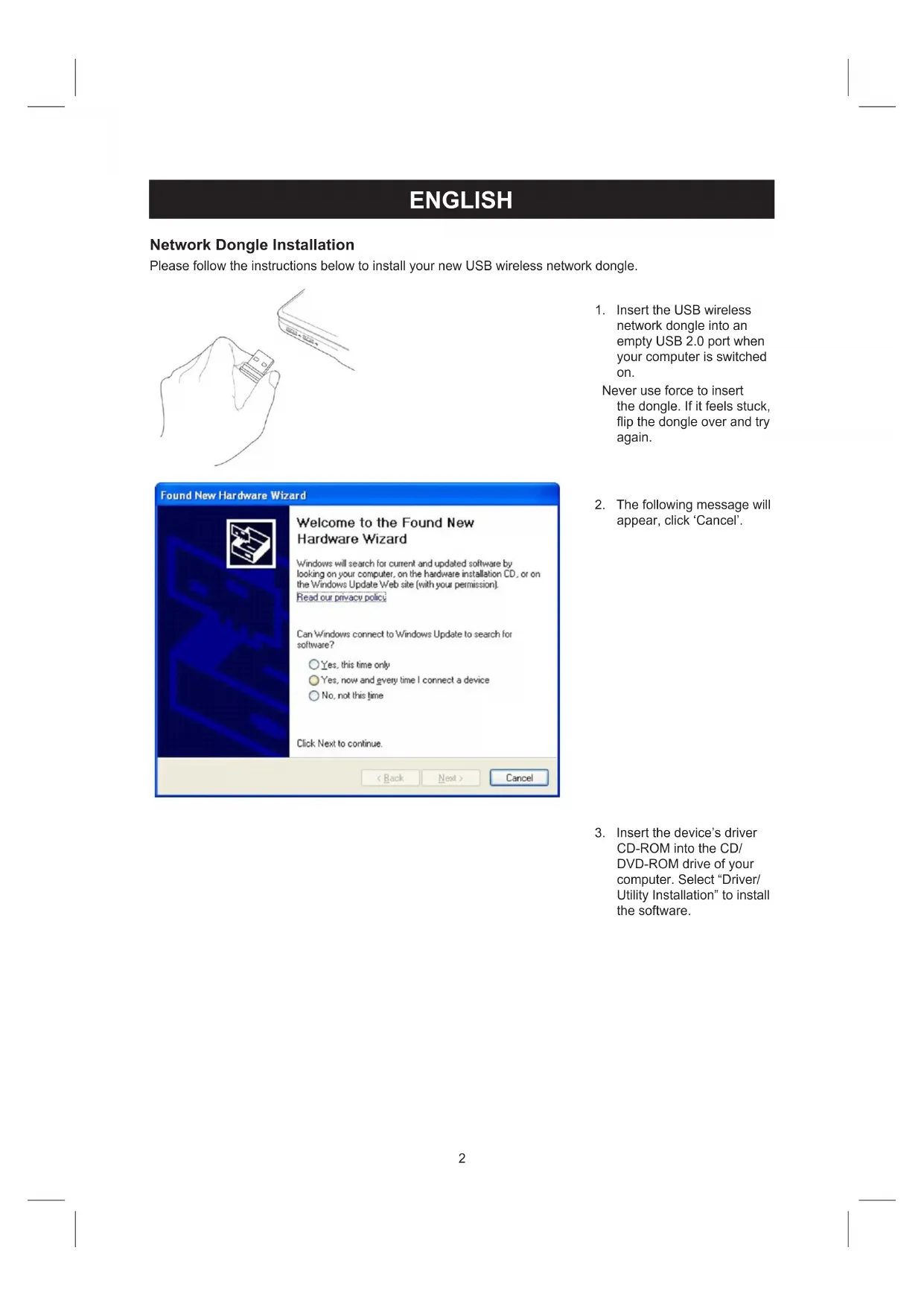


| Product Type | USB Wireless Network Adapter |
| Brand | Konig |
| Model | CMPWNUSB32 |
| Connectivity | USB 2.0 |
| Wireless Standards | IEEE 802.11b/g/n (estimated) |
| Maximum Speed | Up to 300 Mbps (estimated) |
| Frequency Band | 2.4 GHz (estimated) |
| Wireless Security | WEP, WPA, WPA2 (estimated) |
| Supported Operating Systems | Windows (estimated) |
| Power Supply | Via USB port |
| Dimensions (approx.) | 70 x 20 x 10 mm |
| Weight (approx.) | 20 g |
| Package Contents | USB adapter, CD-ROM with drivers, quick start guide |
| Installation | Insert the adapter, install the driver from the CD, restart the computer |
| Maintenance and Cleaning | Clean with a dry cloth. Do not use solvents. |
| Safety | Do not expose to water or moisture. |
| Warranty | No warranty in case of modification or incorrect use. |
| General Information | Design and specifications subject to change without notice. |
Frequently Asked Questions - CMPWNUSB32 KONIG
User questions about CMPWNUSB32 KONIG
0 question about this device. Answer the ones you know or ask your own.
Ask a new question about this device
Download the instructions for your Network card / adapter in PDF format for free! Find your manual CMPWNUSB32 - KONIG and take your electronic device back in hand. On this page are published all the documents necessary for the use of your device. CMPWNUSB32 by KONIG.
USER MANUAL CMPWNUSB32 KONIG
PENNA DI RETE WIRELESS USB 150 MBPS
HASZNÁLATI ÜTMUTATÖ (o. 38.)
VEZETEK NELKULI LAN USB 150 MBPS
WLAN USB-Adapter 150 Mbit/s
MANUAL DE USO (p. 32)
USB DE LAN INALAMBRICA A 150 MBP/S
KAYTTOOHJE (s. 44)
LANGATON LAN USB 150 MBPS
Network Dongle Installation
Please follow the instructions below to install your new USB wireless network dongle.
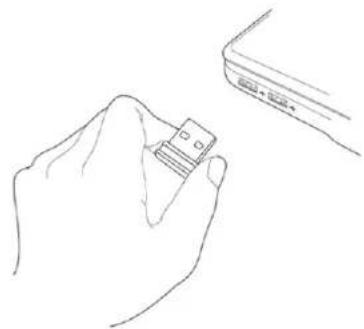
- Insert the USB wireless network dongle into an empty USB 2.0 port when your computer is switched on.
Never use force to insert the dongle. If it feels stuck, flip the dongle over and try again.
-
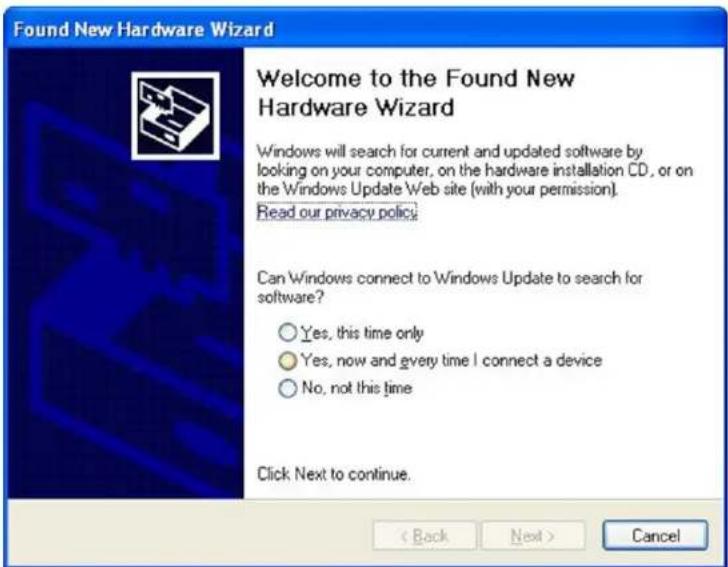
The following message will appear, click 'Cancel'.
-
Insert the device's driver CD-ROM into the CD/ DVD-ROM drive of your computer. Select "Driver/ Utility Installation" to install the software.
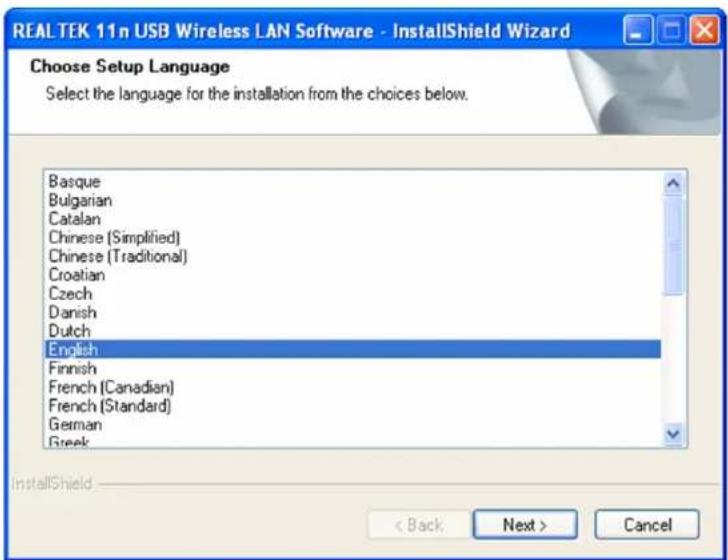
- Please select the language you wish to use, then click 'Next'.
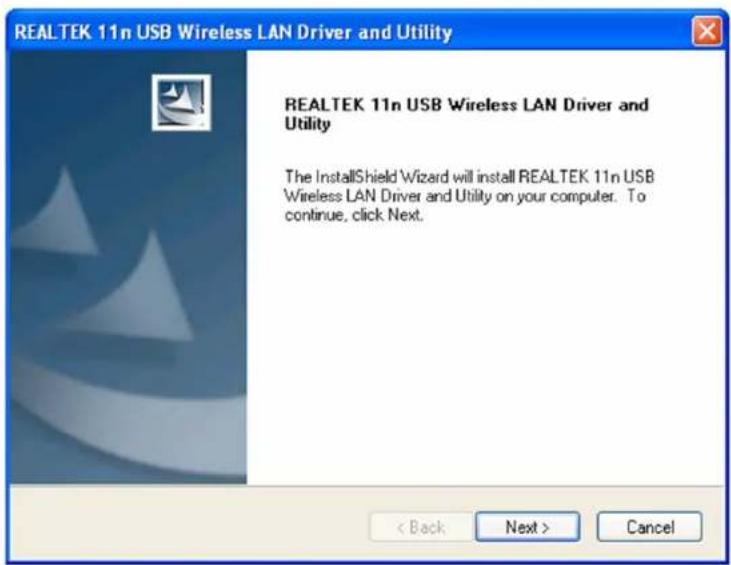
- Click 'Next' to continue.
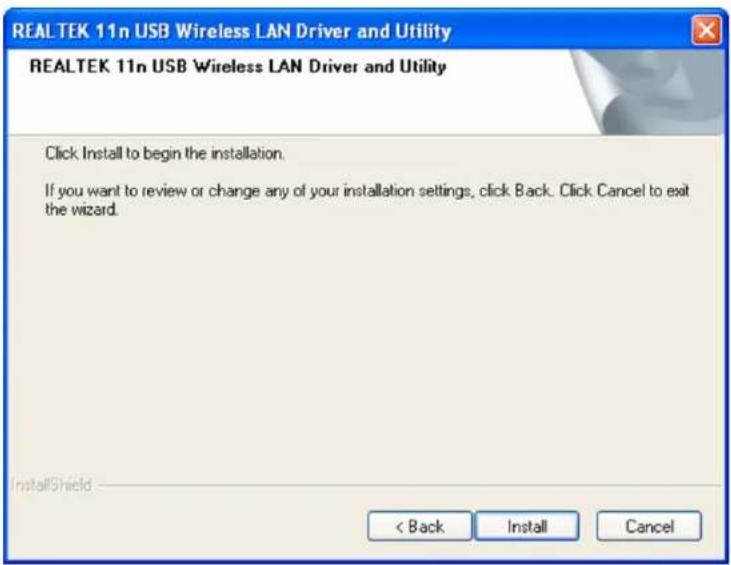
- Click Install to start the installation. The installation procedure needs a few minutes to complete so please be patient.
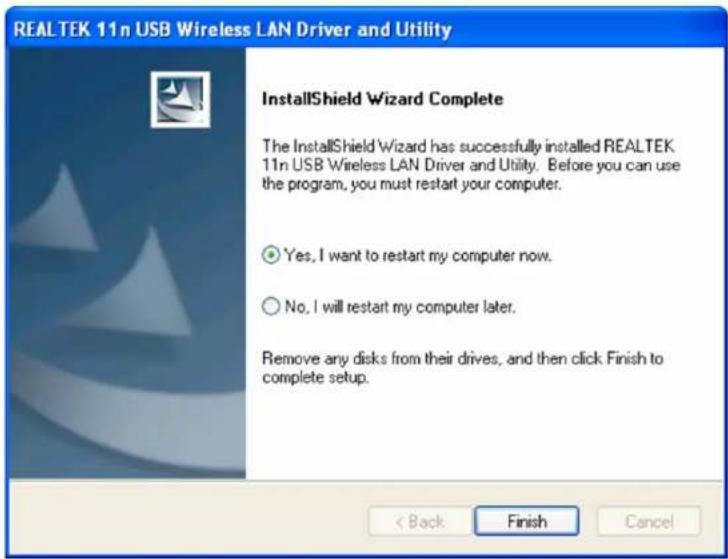
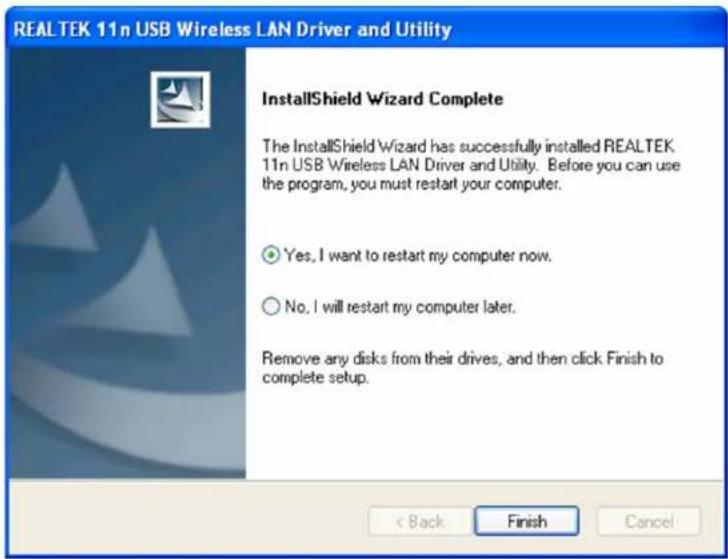
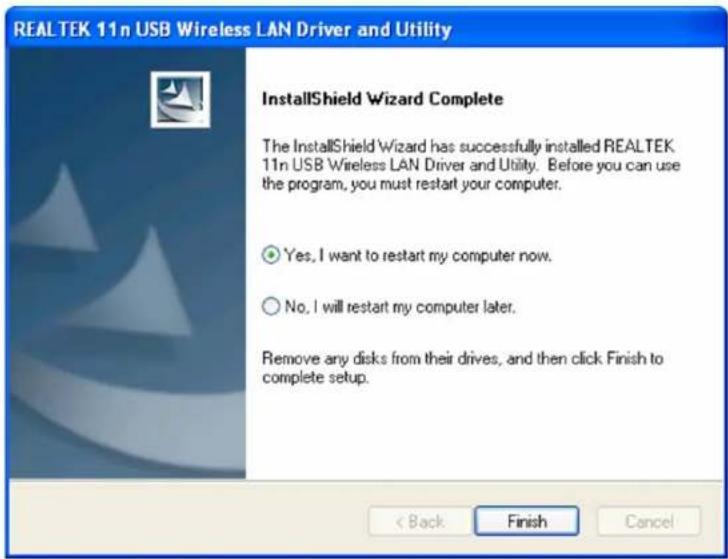
- Click 'Finish' to restart your computer and complete the installation procedure. If you do not want to restart your computer now, select 'No, I'll restart my computer later' and click 'Finish'. Please note you have to restart your computer before you can use your new USB wireless network dongle.
Connect to Wireless Access Point
Using the Configuration Utility to Connect to Wireless Access Point:
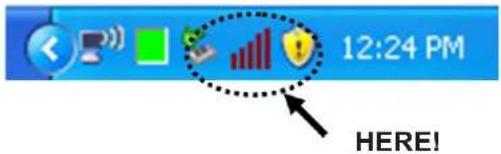
- After installation is complete, the wireless configuration utility will be shown automatically on your computer desktop. You will also see an icon in the lower-right corner of your windows system. Right click on the icon and select the configuration utility you want to use.
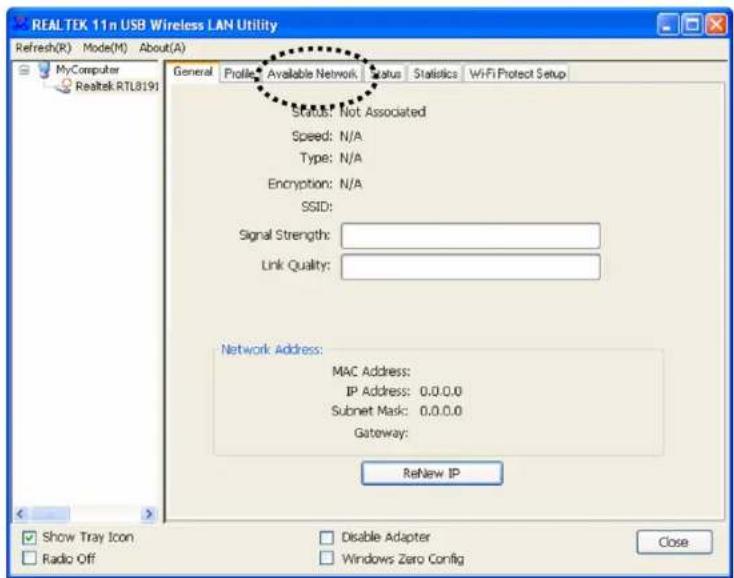
- The wireless utility will appear. Click the 'Available Network' tab to search for nearby wireless access points.
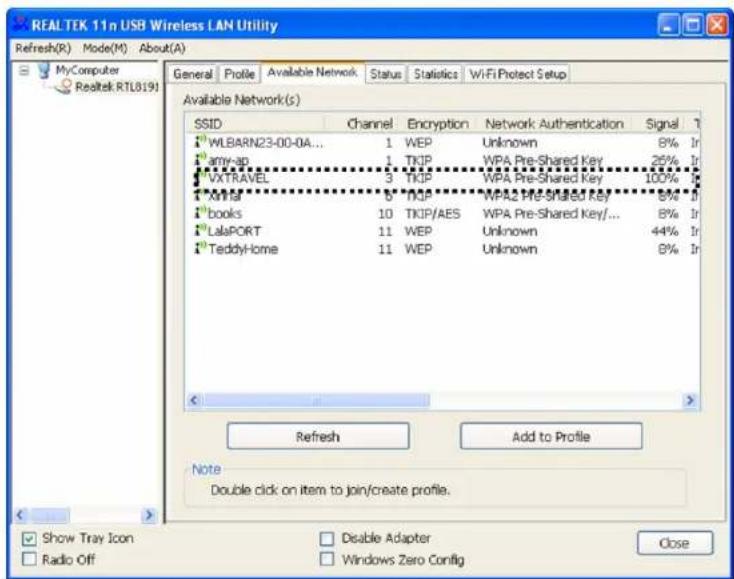
- Please wait for a short while and all the wireless access points that can be reached via this wireless network dongle will be displayed here.
Please select the access point you want to connect to and then double click or click 'Add to Profile'.
If the wireless access point you want to connect to is not displayed, please click 'Refresh'.
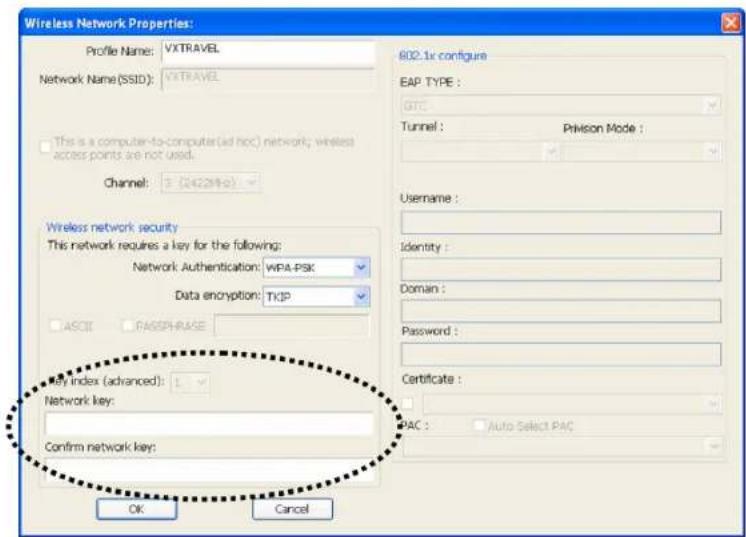
- If a password (a.k.a. 'Network Key') is required to access the wireless access point, please enter it in the Network key field and then re-enter it in the Confirm network key field for confirmation). Click OK when you have entered the password correctly.
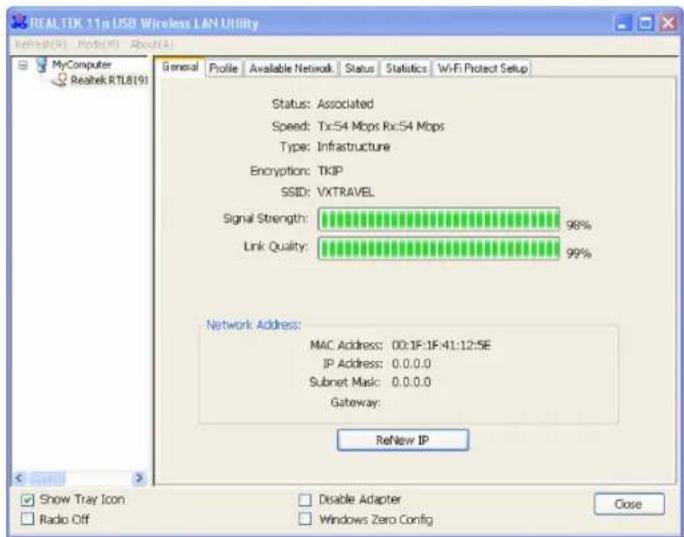
- The network dongle will now attempt to connect to the access point, this may take anything from a few seconds to a few minutes so please be patient. When the 'Status' becomes 'Associated' in the 'General' tab, your computer is connected to the selected access point. Click 'Close' to close the configuration menu.
For advanced settings and other features of this USB wireless network dongle, please refer to the user manual enclosed on the supplied CD-ROM.
Safety precautions:
Do not expose the product to water or moisture.
Maintenance:
Clean only with a dry cloth. Do not use cleaning solvents or abrasives.
Warranty:
No guarantee or liability can be accepted for any changes and modifications of the product or damage caused due to incorrect use of this product.
General:
Designs and specifications are subject to change without notice.
All logos brands and product names are trademarks or registered trademarks of their respective holders and are hereby recognized as such.
Keep this manual and packaging for future reference.
Attention:

This product is marked with this symbol. It means that used electrical and electronic products should not be mixed with general household waste. There is a separate collections system for these products.
DEUTSCH
Windows will search for current and updated software by looking on your computer, on the hardware installation CD, or on the Windows Update Web site (with your permission). Read our privacy policy.
Can Windows connect to Windows Update to search for software?
Yes, this time only.
Yes, now and every time I connect a device
No, not this time
Click Next to continue.
<Back
Next>
Cancel
Windows will search for current and updated software by looking on your computer, on the hardware installation CD, or on the Windows Update Web site (with your permission). Read our privacy policy.
Can Windows connect to Windows Update to search for software?
Yes, this time only.
Yes, now and every time I connect a device
No, not this time
Click Next to continue.
<Back
Next>
Cancel
Windows will search for current and updated software by looking on your computer, on the hardware installation CD, or on the Windows Update Web site (with your permission). Read our privacy policy.
Can Windows connect to Windows Update to search for software?
Yes, this time only.
Yes, now and every time I connect a device
No, not this time
Click Next to continue.
Back
Next)
Cancel
-
To akolouo mnuua 0a epaaviotei, kavte kik oTo 'Cancel'.
-
EioayeTe Tov oyno ouakeunc CD-ROM oTov oyno CD/DVD-ROM tou utlooyiatn aC. EtiaEgDr Driver/Utility Installation" yia va eYkataotnoeTe to loyiaikó.
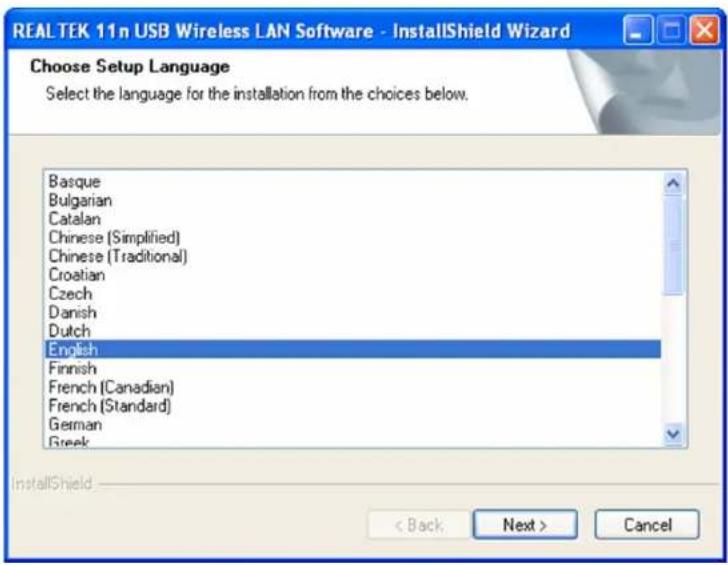
- ETIAETE T yAooa Ttou ETIupeite va xpnoiOIOHOET, OTNV Ouvexia KAVTE KAIK OTO Next'.
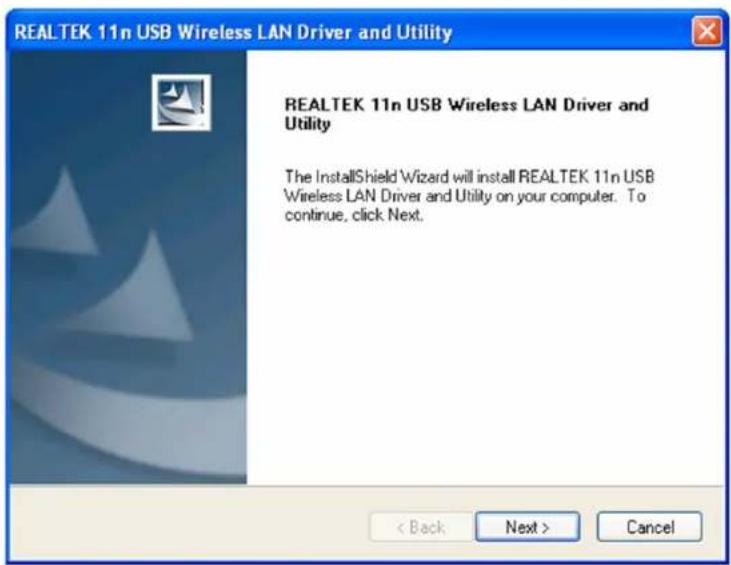
- KavTE KAIK OTo 'Next' Yia va ouveixoeTe.
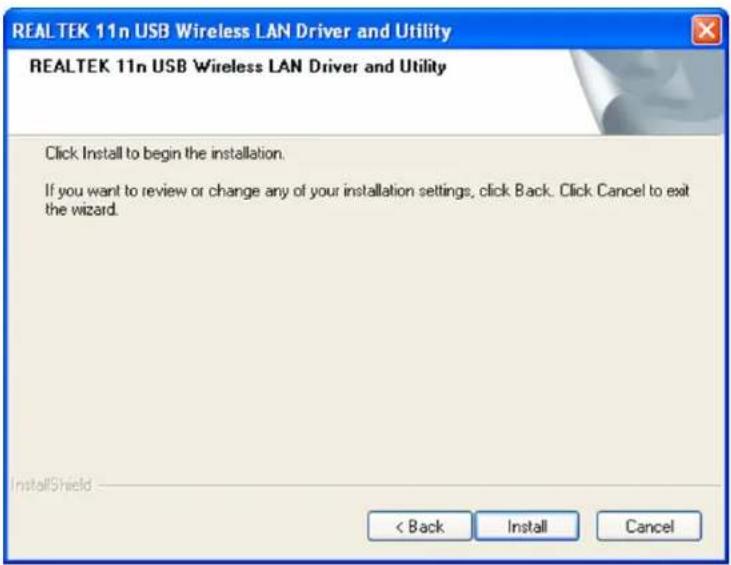
- Kavte klik oTo Install' ia va 5ekivnoe Tny ekataoataon. H diaikaofa ekataoataons xpeiaetai iya aettia va ookpwoei vi' auto exe UTIOOvH.
- Klik pa 'Next' for at fortsette.
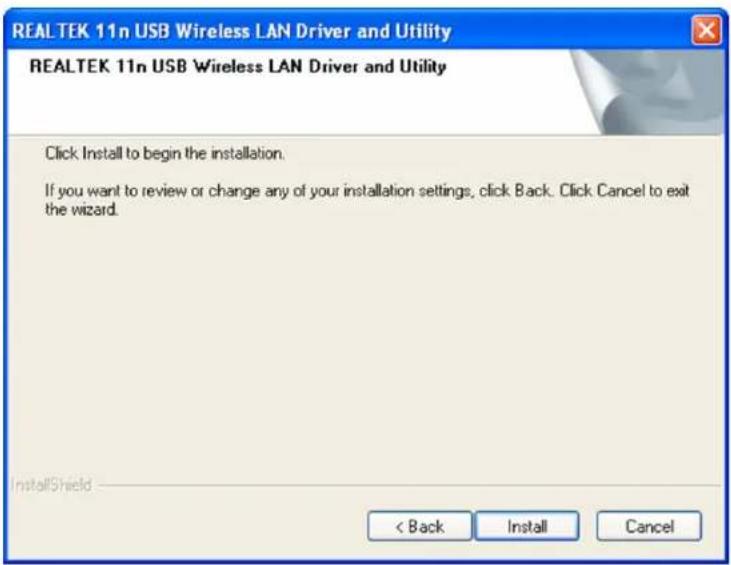
- Klik på 'Install' for at begynde installationen. Installationen tager nogle fã minutter, hav tãmodighed.
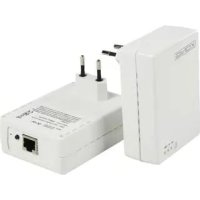
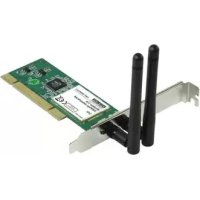
Brand : KONIG
Model : CMPWNUSB32
Category : Network card / adapter