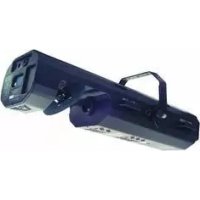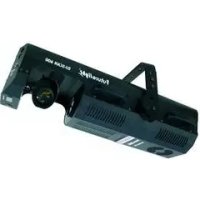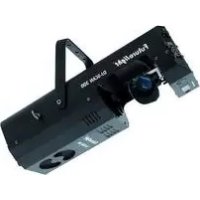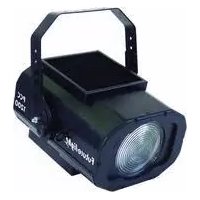
PCC1200 - Effect machine Futurelight - Free user manual and instructions
Find the device manual for free PCC1200 Futurelight in PDF.


| Product Type | Light effect machine |
| Brand | Futurelight |
| Model | PCC1200 |
| Power supply | 230 V AC, 50 Hz |
| Power consumption | 1300 W |
| Lamp | 1200 W G-22 (discharge) |
| Beam angle | 27° |
| Number of DMX channels | 4 |
| DMX connection | XLR 3-pin (input/output) |
| Control | DMX-512, Stand Alone, Master/Slave |
| Color wheel 1 | 5 dichroic filters + white |
| Color wheel 2 | 4 dichroic filters + blackout + white |
| Built-in effects | 48 programmable scenes, 8 DMX programs, Rainbow, dimmer |
| Sound control | Yes, via built-in microphone |
| Dimensions (L × W × H) | 470 × 410 × 450 mm |
| Weight | 18 kg |
| Max. ambient temperature | 45 °C |
| Min. distance to surfaces | 0.5 m |
| Fuse | T 8 A, 250 V |
| Maintenance | Weekly cleaning of the lens, monthly cleaning of the fan, annual interior cleaning |
| Lamp replacement | After cooling, use gloves, never bare hands |
| Repairability | By a qualified technician; use original parts |
| Compatible accessories | Barndoors, FUTURELIGHT controllers (EX-6/32, CP-240, etc.) |
Frequently Asked Questions - PCC1200 Futurelight
User questions about PCC1200 Futurelight
0 question about this device. Answer the ones you know or ask your own.
Ask a new question about this device
Download the instructions for your Effect machine in PDF format for free! Find your manual PCC1200 - Futurelight and take your electronic device back in hand. On this page are published all the documents necessary for the use of your device. PCC1200 by Futurelight.
USER MANUAL PCC1200 Futurelight
Professional Colour-Changer
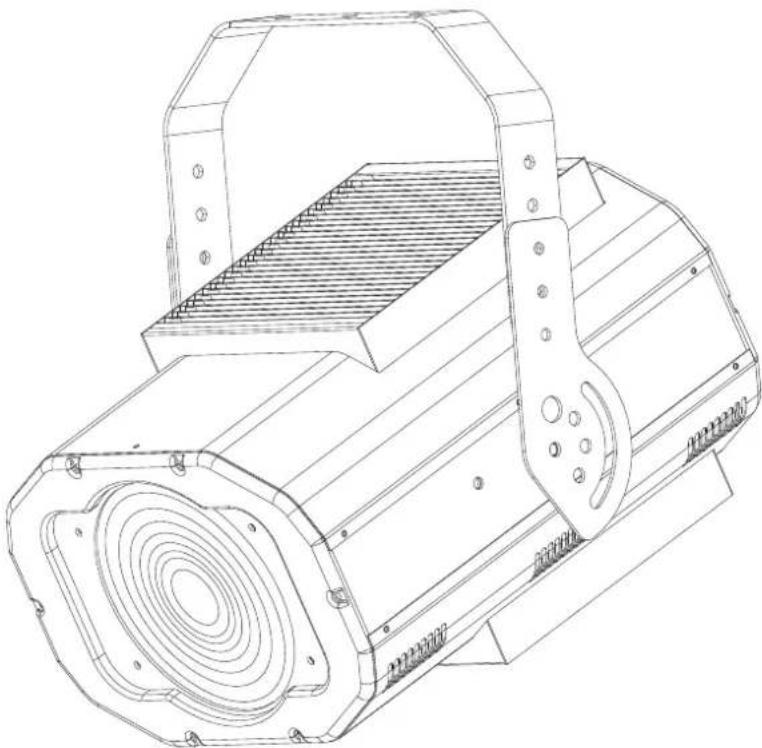
natural_image
Technical line drawing of a mechanical device with concentric circular features and mounting brackets (no text or symbols)MULTI-LANGUAGE-INSTRUCTIONS
Inhaltsverzeichnis
Table of contents
Sommaire/Contenido
Deutsch
EINFÜHRUNG......4
Installing/Replacing the lamp 29
Lamp adjustment.... 30
Overhead rigging.... 31
DMX-512 connection / connection between fixtures.... 32
Connection with the mains....33
OPERATION....33
Stand Alone operation.... 33
DMX-controlled operation 34
Addressing 34
DMX-protocol 35
Control Board 36
Main functions 37
Error Messages....42
CLEANING AND MAINTENANCE 42
Replacing the fuse 43
TECHNICAL SPECIFICATIONS.... 43
Français
INTRODUCTION 44
INSTRUCTIONS DE SÉCURITÉ 44
EMPLOI SELON LES PRESCRIPTIONS 46
DESCRIPTION DE L'APPAREIL 47
Features 47
You can find the latest update of this user manual in the Internet under:
Professional Colour-Changer
ACHTUNG!
natural_image
Line drawing of a mechanical device with no visible text or symbols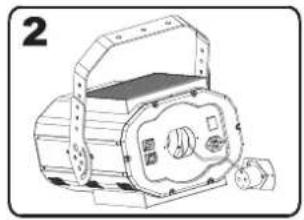
natural_image
Illustration of a mechanical device with no visible text or symbols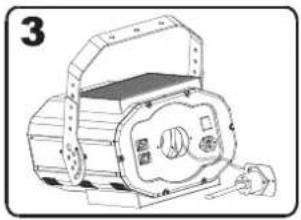
natural_image
Line drawing of a portable electronic device with a handle and control panel (no text or symbols)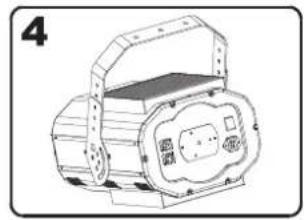
natural_image
Line drawing of a mechanical device with no visible text or symbolsDMX-512 Controller

Professional Colour-Changer
CAUTION!
Keep this device away from rain and moisture! Unplug mains lead before opening the housing!
For your own safety, please read this user manual carefully before you initially start-up.
Every person involved with the installation, operation and maintenance of this device has to
- be qualified
- follow the instructions of this manual
- consider this manual to be part of the total product
- keep this manual for the entire service life of the product
- pass this manual on to every further owner or user of the product
- download the latest version of the user manual from the Internet
INTRODUCTION
Thank you for having chosen a FUTURELIGHT PCC-1200. You will see you have acquired a powerful and versatile device.
Unpack your PCC-1200.
SAFETY INSTRUCTIONS
CAUTION!
Be careful with your operations. With a dangerous voltage you can suffer a dangerous electric shock when touching the wires!
This device has left our premises in absolutely perfect condition. In order to maintain this condition and to ensure a safe operation, it is absolutely necessary for the user to follow the safety instructions and warning notes written in this user manual.

Important:
Damages caused by the disregard of this user manual are not subject to warranty. The dealer will not accept liability for any resulting defects or problems.
English
If the device has been exposed to drastic temperature fluctuation (e.g. after transportation), do not switch it on immediately. The arising condensation water might damage your device. Leave the device switched off until it has reached room temperature.
Please make sure that there are no obvious transport damages. Should you notice any damages on the A/C connection cable or on the casing, do not take the device into operation and immediately consult your local dealer.
This device falls under protection-class I. The power plug must only be plugged into a protection class I outlet. The voltage and frequency must exactly be the same as stated on the device. Wrong voltages or power outlets can lead to the destruction of the device and to mortal electrical shock.
Always plug in the power plug last. The power plug must always be inserted without force. Make sure that the plug is tightly connected with the outlet.
Never let the power-cord come into contact with other cables! Handle the power-cord and all connections with the mains with particular caution! Never touch them with wet hands, as this could lead to mortal electrical shock.
Never modify, bend, strain mechanically, put pressure on, pull or heat up the power cord. Never operate next to sources of heat or cold. Disregard can lead to power cord damages, fire or mortal electrical shock.
The cable insert or the female part in the device must never be strained. There must always be sufficient cable to the device. Otherwise, the cable may be damaged which may lead to mortal damage.
Make sure that the power-cord is never crimped or damaged by sharp edges. Check the device and the power-cord from time to time.
If extension cords are used, make sure that the core diameter is sufficient for the required power consumption of the device. All warnings concerning the power cords are also valid for possible extension cords.
Always disconnect from the mains, when the device is not in use or before cleaning it. Only handle the power-cord by the plug. Never pull out the plug by tugging the power-cord. Otherwise, the cable or plug can be damaged leading to mortal electrical shock. If the power plug or the power switch is not accessible, the device must be disconnected via the mains.
If the power plug or the device is dusty, the device must be taken out of operation, disconnected and then be cleaned with a dry cloth. Dust can reduce the insulation which may lead to mortal electrical shock. More severe dirt in and at the device should only be removed by a specialist.
There must never enter any liquid into power outlets, extension cords or any holes in the housing of the device. If you suppose that also a minimal amount of liquid may have entered the device, it must immediately be disconnected. This is also valid, if the device was exposed to high humidity. Also if the device is still running, the device must be checked by a specialist if the liquid has reduced any insulation. Reduced insulation can cause mortal electrical shock.
There must never be any objects entering into the device. This is especially valid for metal parts. If any metal parts like staples or coarse metal chips enter into the device, the device must be taken out of operation and disconnected immediately. Malfunction or short-circuits caused by metal parts may cause mortal injuries.
During the initial start-up some smoke or smell may arise. This is a normal process and does not necessarily mean that the device is defective.
Caution: During the operation, the housing becomes very hot.
Do not switch the device on and off in short intervals as this would reduce the lamp's life.

HEALTH HAZARD!
Never look directly into the light source, as sensitive persons may suffer an epileptic shock (especially meant for epileptics)!
Keep away children and amateurs!
Never leave this device running unattended.
OPERATING DETERMINATIONS
This device is a lighting effect for creating decorative effects. This product is only allowed to be operated with an alternating voltage of 230 V, 50 Hz and was designed for indoor use only.
This device is designed for professional use, e.g. on stages, in discotheques, theatres etc.
Lighting effects are not designed for permanent operation. Consistent operation breaks will ensure that the device will serve you for a long time without defects.
Do not shake the device. Avoid brute force when installing or operating the device.
When choosing the installation-spot, please make sure that the device is not exposed to extreme heat, moisture or dust. There should not be any cables lying around. You endanger your own and the safety of others!
This device must never be operated or stockpiled in sourroundings where splash water, rain, moisture or fog may harm the device. Moisture or very high humidity can reduce the insulation and lead to mortal electrical shocks. When using smoke machines, make sure that the device is never exposed to the direct smoke jet and is installed in a distance of 0.5 meters between smoke machine and device. The room must only be saturated with an amount of smoke that the visibility will always be more than 10 meters.
The ambient temperature must always be between -5^ C and +45^ C. Keep away from direct insulation (particularly in cars) and heaters.
The relative humidity must not exceed 50 % with an ambient temperature of 45^ C.
This device must only be operated in an altitude between -20 and 2000 m over NN.
Never use the device during thunderstorms. Over voltage could destroy the device. Always disconnect the device during thunderstorms.
The symbol -· -m determines the minimum distance from lighted objects. The minimum distance between light-output and the illuminated surface must be more than 0.5 meters.
This device is only allowed for an installation via the mounting bracket. In order to safeguard sufficient ventilation, leave 50 cm of free space around the device.
The housing must never touch surrounding surfaces or objects.
Make sure that the area below the installation place is blocked when rigging, derigging or servicing the fixture.
Always fix the fixture with an appropriate safety-rope.
The maximum ambient temperature T_a = 45^ C must never be exceeded.
Operate the device only after having familiarized with its functions. Do not permit operation by persons not qualified for operating the device. Most damages are the result of unprofessional operation!
Never use solvents or aggressive detergents in order to clean the device! Rather use a soft and damp cloth.
English
Please use the original packaging if the device is to be transported. Make sure that you pack the device in the original state.
Please consider that unauthorized modifications on the device are forbidden due to safety reasons!
Never remove the serial barcode from the device as this would make the guarantee void.
If this device will be operated in any way different to the one described in this manual, the product may suffer damages and the guarantee becomes void. Furthermore, any other operation may lead to dangers like short-circuit, burns, electric shock, lamp explosion, crash etc.
DESCRIPTION OF THE DEVICE
Features
Extremely powerful colour-changer
- DMX-controlled operation or stand alone operation with Master/Slave-function
• 48 preprogrammed scenes in Program Run for stand alone operation
• Number of scenes in Program Run can be changed individually - The scenes in Program Run can be modified via the Control Board or via an external controller and loaded into the memory
- 8 built-in programs can be called up via DMX-controller
• Sound-controlled via built-in microphone
• Lightbeam with 27° radiation angle
• Control-Board with 4-digit display and foil-keyboard for adjusting the DMX-starting address, Program, Reset
• For bright 1200 W lamp - Colour-wheel 1 with 5 different, dichroic colour-filtres and white
- Colour-wheel 2 with 4 different, dichroic colour-filtres, blackout and white
- DMX-control via every standard DMX-controller
Overview
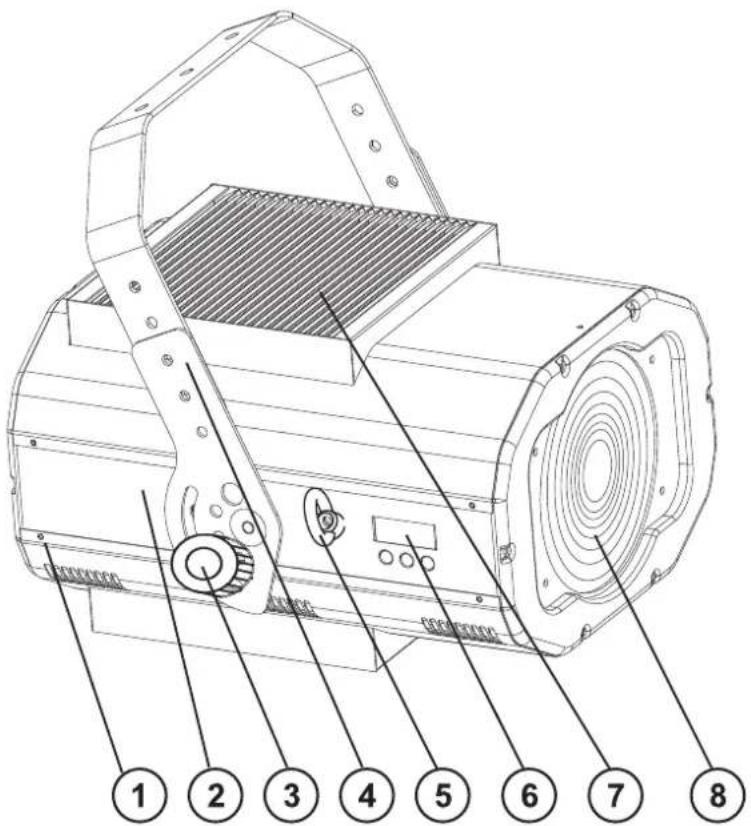
(1) Housing screws
(2) Housing cover
(3) Fixation screw
(4) Mounting bracket
(5) Safety eyelet
(6) Control Board
(7) Ventilation fan cover
(8) Fresnell-lens
English
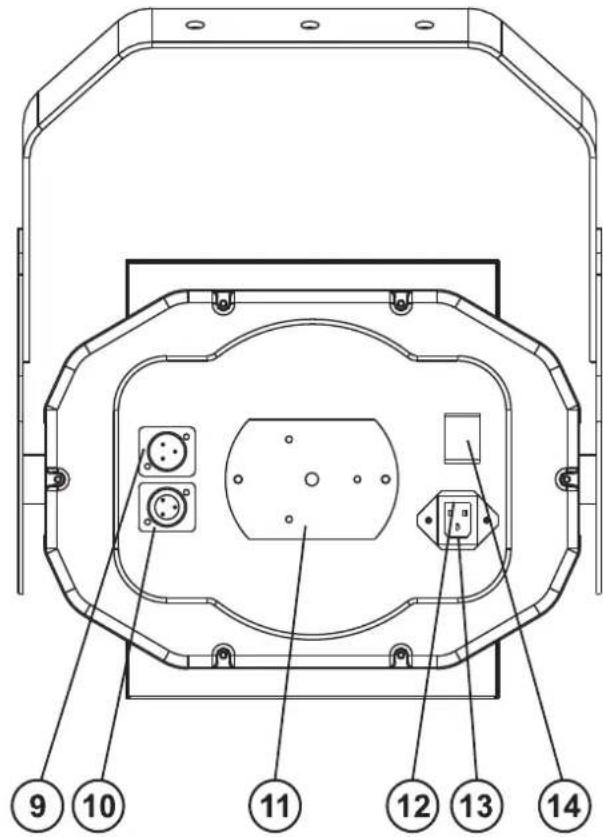
(9) DMX-In socket
(10) DMX-Out socket
(11) Lamp system
(12) Power supply
(13) Fuseholder
(14) Power switch
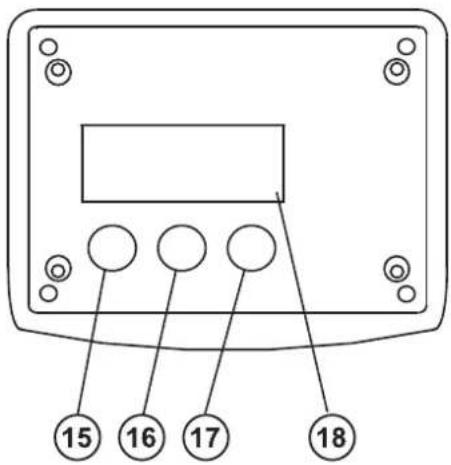
(15) Mode-button
(16) Down-button
(17) Up-button
(18) Display
INSTALLATION
Installing/Replacing the lamp

DANGER TO LIFE!
Only install the lamp with the device switched off! Unplug from mains before!
For the installation, you need one 230 V/1200 W G-22 lamp.
The lamp must only be changed when wearing appropriate protective clothing (protection glasses, protection gloves, helmet with sight, leather apron).

CAUTION!
The lamp has to be replaced when it is damaged or deformed due to the heat!
The lamp life given by the manufacturer must never be exceeded. This is why you need to take notes on the operational time of the lamp or check the operating hour meter regularly and replace the lamp in time.
Keep exchanged lamp in a protective container and remove accordingly.
During the operation, the lamp reaches temperatures of up to 600^ C.
Before replacing the lamp, unplug mains lead and let the lamp cool down (approx. 10 minutes).
During the installation do not touch the glass-bulbs bare-handed! Please follow the lamp manufacturer's notes!
Do not install lamps with a higher wattage! Lamps with a higher wattage generate temperatures the device was not designed for. Damages caused by non-observance are not subject to warranty.
Procedure:
natural_image
Line drawing of a mechanical device with no visible text or symbols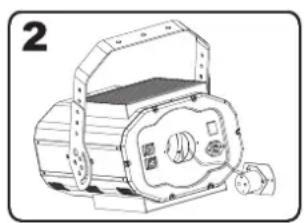
natural_image
Line drawing of a mechanical device with no visible text or symbols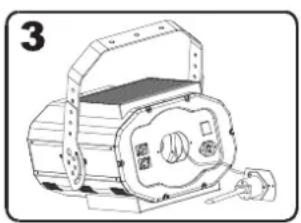
natural_image
Line drawing of a mechanical device with no visible text or symbols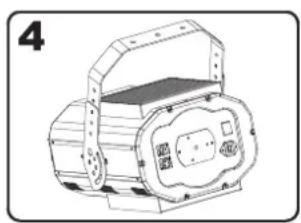
natural_image
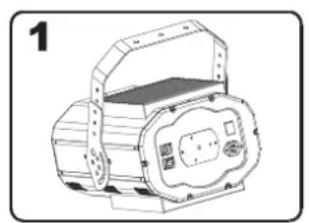
Line drawing of a mechanical device with a circular housing and internal components (no text or symbols)Step 1: Unscrew the fixation screws X, Y of the lamp system and carefully remove it from the housing.
Step 2: If replacing the lamp, remove the old lamp from the lamp holder.
Step 3: Insert the lamp into the lamp holder.
Step 4: Replace the lamp system in the housing and tighten the fixation screws.
Step 5: Adjust the lamp as described under lamp adjustment.

Do not operate this device with opened cover!
Lamp adjustment
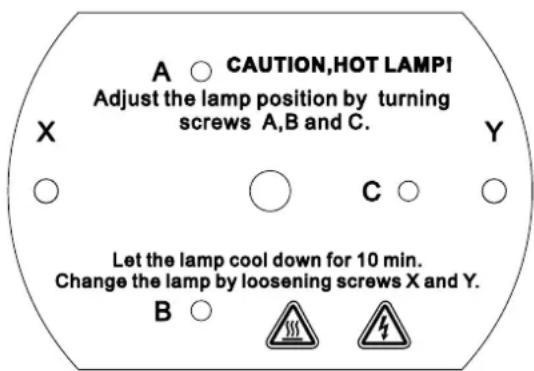
The lampholder is aligned at the factory. Due to differences between lamps, fine adjustment may improve light performance.
Strike the lamp, open the shutter, set the dimmer intensity onto 100 % and direct the light towards a flat surface (wall). Center the hot-spot (the brightest part of the beam) using the 3 adjustment screws "A, B, C". Turn one screw at a time to drag the hot-spot diagonally across the projected image. If you cannot detect a hot-spot, adjust the lamp until the light is even.
To reduce a hot-spot, pull the lamp in by turning all three until the light is evenly distributed.
If the light is brighter around the edge than it is in the center, or if light output is low, the lamp is too far back in the reflector. "Push" the lamp out by turning the screws "A, B, C" counterclockwise 14 -turn at a time the light is bright and evenly distributed.
Overhead rigging

DANGER TO LIFE!
Please consider the EN 60598-2-17 and the respective national norms during the installation! The installation must only be carried out by an authorized dealer!
The installation of the projector has to be built and constructed in a way that it can hold 10 times the weight for 1 hour without any harming deformation.
The installation must always be secured with a secondary safety attachment, e.g. an appropriate catch net. This secondary safety attachment must be constructed in a way that no part of the installation can fall down if the main attachment fails.
When rigging, derigging or servicing the fixture staying in the area below the installation place, on bridges, under high working places and other endangered areas is forbidden.
The operator has to make sure that safety-relating and machine-technical installations are approved by an expert before taking into operation for the first time and after changes before taking into operation another time.
The operator has to make sure that safety-relating and machine-technical installations are approved by an expert after every four year in the course of an acceptance test.
The operator has to make sure that safety-relating and machine-technical installations are approved by a skilled person once a year.
Procedure:
The projector should be installed outside areas where persons may walk by or be seated.
IMPORTANT! OVERHEAD RIGGING REQUIRES EXTENSIVE EXPERIENCE, including (but not limited to) calculating working load limits, installation material being used, and periodic safety inspection of all installation material and the projector. If you lack these qualifications, do not attempt the installation yourself, but instead use a professional structural rigger. Improper installation can result in bodily injury and or damage to property.
The projector has to be installed out of the reach of people.
If the projector shall be lowered from the ceiling or high joists, professional trussing systems have to be used. The projector must never be fixed swinging freely in the room.
Caution: Projectors may cause severe injuries when crashing down! If you have doubts concerning the safety of a possible installation, do NOT install the projector!
Before rigging make sure that the installation area can hold a minimum point load of 10 times the projector's weight.

DANGER OF FIRE!
When installing the device, make sure there is no highly-inflammable material (decoration articles, etc.) within a distance of min. 0.5 m.
Mount the projector with the mounting-bracket to your trussing system using an appropriate clamp.
For overhead use, always install an appropriate safety bond.
You must only use safety bonds complying with DIN 56927, quick links complying with DIN 56926, shackles complying with DIN EN 1677-1 and BGV C1 carbines. The safety bonds, quick links, shackles and the carbines must be sufficiently dimensioned and used correctly in accordance with the latest industrial safety regulations (e.g. BGV C1, BGI 810-3).
English
Please note: for overhead rigging in public or industrial areas, a series of safety instructions have to be followed that this manual can only give in part. The operator must therefore inform himself on the current safety instructions and consider them.
The manufacturer cannot be made liable for damages caused by incorrect installations or insufficient safety precautions!
Pull the safety bond through the hole in the mounting-bracket and over the trussing system or a safe fixation spot. Insert the end in the quick link and tighten the safety screw.
The maximum drop distance must never exceed 20 cm.
A safety bond which already held the strain of a crash or which is defective must not be used again.
Adjust the desired inclination-angle via the mounting-bracket and tighten the fixation screws.

DANGER TO LIFE!
Before taking into operation for the first time, the installation has to be approved by an expert!
DMX-512 connection / connection between fixtures
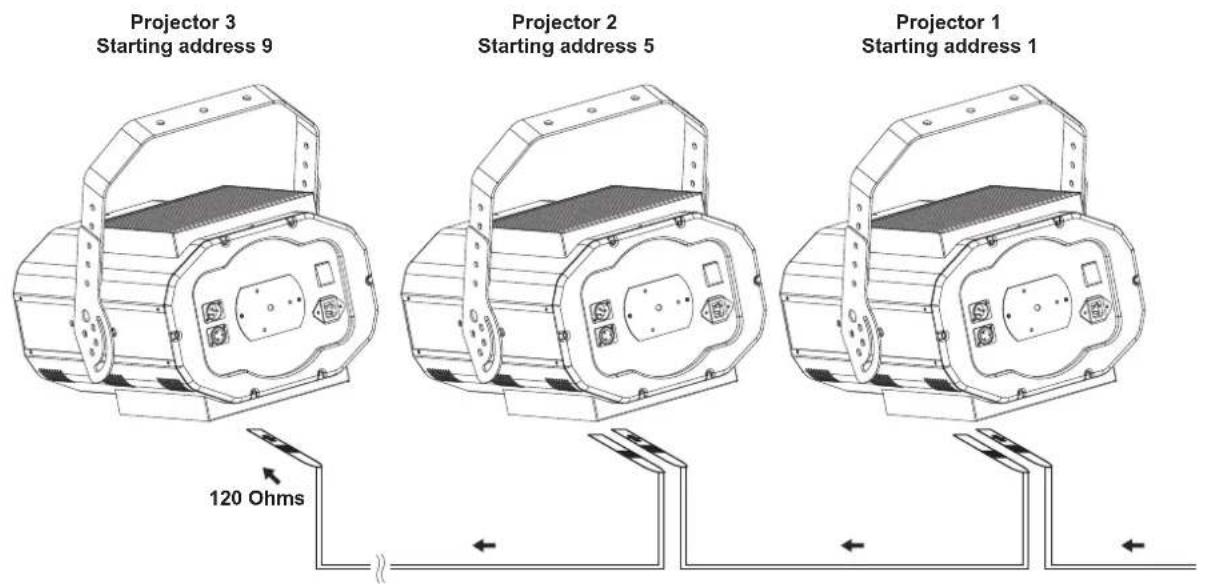
DMX-512 Controller

The wires must not come into contact with each other, otherwise the fixtures will not work at all, or will not work properly.


Please note, the starting address depends upon which controller is being used.

Only use a stereo shielded cable and 3-pin XLR-plugs and connectors in order to connect the controller with the fixture or one fixture with another.
English
Occupation of the XLR-connection:
DMX-output
XLR mounting-socket:
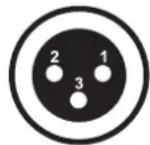
1: Ground
2: Signal (−)
3: Signal (+)
DMX-input
XLR mounting-plug:
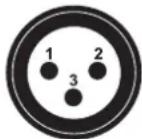
1: Ground
2: Signal (−)
3: Signal (+)
If you are using controllers with this occupation, you can connect the DMX-output of the controller directly with the DMX-input of the first fixture in the DMX-chain. If you wish to connect DMX-controllers with other XLR-outputs, you need to use adapter-cables.
Building a serial DMX-chain:
Connect the DMX-output of the first fixture in the DMX-chain with the DMX-input of the next fixture. Always connect one output with the input of the next fixture until all fixtures are connected.
Caution: At the last fixture, the DMX-cable has to be terminated with a terminator. Solder a 120 Ω resistor between Signal (−) and Signal (+) into a 3-pin XLR-plug and plug it in the DMX-output of the last fixture.
Connection with the mains
Connect the device to the mains with the enclosed power supply cable.
The occupation of the connection-cables is as follows:
| Cable Pin International | |||
| Brown Live L | |||
| Blue Neutral N | |||
| Yellow/Green Earth |  | ||
The earth has to be connected!
If the device will be directly connected with the local power supply network, a disconnection switch with a minimum opening of 3 mm at every pole has to be included in the permanent electrical installation.
The device must only be connected with an electric installation carried out in compliance with the IEC-standards. The electric installation must be equipped with a Residual Current Device (RCD) with a maximum fault current of 30 mA.
Lighting effects must not be connected to dimming-packs.
OPERATION
After you connected the effect to the mains, the PCC-1200 starts running. During the Reset, the motors are trimmed and the device is ready for use afterwards.
Stand Alone operation
In the Stand Alone mode, the PCC-1200 can be used without controller.
Disconnect the PCC-1200 from the controller and call the internal program.
- Press [ENTER] for 3 seconds to enter the main menu "MODE" (display flashing)
- Press [ENTER] and select "RUN" by pressing [UP] button.
- Press [ENTER] and select "AUTO" by pressing [UP] button.
- Press [ENTER] and select "ALONE" by pressing [UP] button.
- Press [ENTER] to confirm, the display shows "AU-A".
- Press[EXIT/DN] in order to return to the main menu.
Please refer to the instructions under Control Board, Main functions, menus Run and Edit.
DMX-controlled operation
You can control the projectors individually via your DMX-controller. Every DMX-channel has a different occupation with different features. The individual channels and their features are listed under DMX-protocol.
Addressing
The Control Board allows you to assign the DMX starting address, which is defined as the first channel from which the PCC-1200 will respond to the controller.
Please, be sure that you don't have any overlapping channels in order to control each PCC-1200 correctly and independently from any other fixture on the DMX-chain.
If several PCC-1200 are addressed similarly, they will work synchronically.
Press the Up/Down-buttons for setting the desired starting address. Now you can start operating the PCC-1200 via your lighting controller.
Note:
The modes of DMX 512 data are shown via the display:
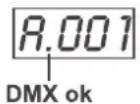
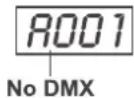
After switching on, the device will automatically detect whether DMX 512 data is received or not. If the data is received, the display will show "A.001" with the actually set address. If there is no data received at the DMX-input, the display will flash "A001" with the actually set address.
This situation can occur if:
- the 3 PIN XLR plug (cable with DMX signal from controller) is not connected with the input of the device.
- the controller is switched off or defective, if the cable or connector is defective or the signal wires are swap in the input connector.
Note:
It's necessary to insert the XLR termination plug (with 120 Ohm) in the last device in the link in order to ensure proper transmission on the DMX data link.
DMX-protocol
Control channel 1 - Colour-wheel 1
Linear colour change following the movement of the slider. In this way you can stop the colour-wheel in any position.
| Decimal Hexad. Percentage S/F Feature | |||||||
| 0 | 21 0 | 0 15 | 0% 8 | % S Open/white | |||
| 22 | 43 1 | 6 2B | 9% | 17% S Red | |||
| 44 | 65 2 | C 41 | 17% | 25% S Blue | |||
| 66 | 87 4 | 2 57 | 26% | 34% S Salmon | |||
| 88 | 109 | 58 6 | D 35 | % 43% S Dark yellow | |||
| 110 | 127 | 6E 7 | F 43% | 50% S Light blue | |||
| 128 | 187 | 80 | BB | 50% | 73% | F | Forwards rainbow effect with decreasing speed |
| 188 | 193 | BC | C1 | 74% | 76% | S | No rotation |
| 194 | 255 | C2 | FF | 76% | 100% | F | Backwards rainbow effect with increasing speed |
Control channel 2 - Colour-wheel 2
Linear colour change following the movement of the slider. In this way you can stop the colour-wheel in any position.
| Decimal Hexad. Percentage S/F Feature | |||||||
| 0 | 42 0 | 0 2A | 0% | 16% S | Open/w | white | |
| 43 | 85 | 2B | 55 1 | 7% 33% | S | Purple | |
| 86 | 128 | 56 80 | 34% | 50% | S Green | ||
| 129 | 171 | 81 | AB | 51% | 67% | S | Light yellow |
| 172 | 214 | AC | D6 6 | 7% 84% | S Pink | ||
| 215 | 255 | D7 | FF | 84% | 100% | S | Closed |
Control channel 3 - Dimmer intensity
You can invert the dimmer via the RDIM function.
| Decimal Hexad. Percentage S/F Feature | |||||||
| 0 | 255 | 00 | FF | 0% | 100% | S | Gradual adjustment of the dimmer intensity from 0 to 100 % |
Please note: when the shutter is closed for more than 15 seconds, the dimmer reduces the lamp intensity to 0 %.
Control channel 4 - Reset, internal programs
| Decimal Hexad. Percentage S/F Feature | |||||||
| 0 | 15 | 00 | 0F | 0% | 6% | S | Normal colour-change, search position via shortest distance |
| 16 | 31 10 | 1F | 6% 12% | S Normal | colour-change, search position clockwise | ||
| 32 | 47 20 | 2F | 13% | 18% S | Colour-change | at every position, search position via shortest distance | |
| 48 | 63 30 | 3F | 19% | 25% S | Colour-change | at every position, search position clockwise | |
| 64 | 79 40 | 4F | 25% | 31% S | No function | ||
| 80 | 95 50 | 5F | 31% | 37% S | Reset | ||
| 96 | 111 | 60 6F | 38% | 44% | S Internal program 1 | ||
| 112 | 127 | 70 7F | 44% | 50% | S Internal program 2 | ||
| 128 | 143 | 80 8F | 50% | 56% | S Internal program 3 | ||
| 144 | 159 | 90 9F | 56% | 62% | S Internal program 4 | ||
| 160 | 175 | A0 AF | 63% | 69% | S Internal program 5 | ||
| 176 | 191 | B0 BF | 69% | 75% | S Internal program 6 | ||
| 192 | 207 | C0 CF | 75% | 81% | S | Internal program 7 | |
| 208 | 223 | D0 DF | 82% | 87% | S | Internal program 8 | |
| 224 | 239 | E0 EF | 88% | 94% | S No function | ||
| 240 | 255 | F0 FF | 94% | 100% | S | No function | |
English
Control Board
The Control Board offers several features: you can simply set the starting address, run the pre-programmed program or make a reset.
The main menu is accessed by pressing the Enter-button for 3 seconds until the display starts flashing. Browse through the menu by pressing the Up-button. Press the Enter-button in order to select the desired menu. You can change the selection by pressing the Up-button. Confirm every selection by pressing the Enter-button. You can leave every mode by pressing the Exit-button. The functions provided are described in the following sections.
Default settings shaded.
| Main menu | Sub menu Extension Display Function | ||||
| 0 | M O | ADDR | VALU A001 ~ | AXXX DMX address setting | |
| SLAV ON/OFF | (SLAV) Slave setting | ||||
| EBOC ON/OFF | Change DMX address via external controller | ||||
| D RUN | AUTO | ALON (AU-A) | Automatic Program Run in Stand Alone | ||
| MAST (AU-M) | Automatic Program Run as Master | ||||
| SOUN | ALON (SO-A) | Sound-controlled Program Run in Stand Alone | |||
| MAST (SO-M) | Sound-controlled Program Run as Master | ||||
| DISP | VALU | D-00 ~ D-30 (DXX) D-00 | Display the DMX 512 value of each channel | ||
| RDIS ON/OFF | Reverse display | ||||
| CLDI | ON/OFF Shut off LED display | ||||
| 1 | SET | RDIM | ON/OFF Dimmer | Reverse | |
| REST | ON/OFF Reset | ||||
| LODA | ON/OFF | Restore factory settings | |||
| VER | V-1.0~V-9.9 | Software version | |||
| 2 | ADJU | LADJ | ON/OFF | Lamp adjustment | |
| TEST | T-01 ~ T-30 | Test function of each channel | |||
| 3 | TIME | MATI | 0000~9999 (hours) | Fixture running time | |
| LATI | 0000~9999 (hours) | Lamp running time | |||
| CLMT | ON/OFF | Service-function | |||
| CLLT | ON/OFF | Clear lamp time | |||
| 4 | EDIT | STEP | S-01 ~ S-48 | Steps of Program Run | |
| SC01 ~ SC48 | C01 ~ C30 | 01XX (00~FF) 30XX (00~FF) | Edit the channels of each scene | ||
| TIME (sec.) | I--X (1~9) | Time for each scene | |||
| CNIN | ON/OFF | Edit program via controller | |||
Main functions

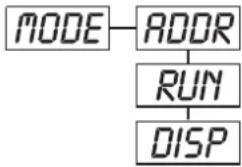
MODE - Main menu 0
flowchart
graph TD
    A["MODE"] --> B["ADDR"]
    B --> C["RUN"]
    C --> D["DISP"]
◆ Press [ENTER] for 3 seconds to enter the main menu "MODE" (display flashing)
◆ Press [ENTER] and select "ADDR", "RUN" or "DISP" by pressing [UP] button.
◆ Press [ENTER] for selecting the desired sub menu.
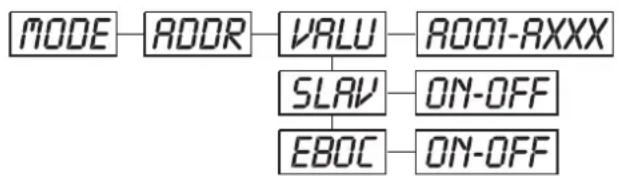
ADDR - DMX address setting, Slave setting
flowchart
graph LR
    A["MODE"] --> B["ADDR"]
    B --> C["VALU"]
    C --> D["RO01-AXXX"]
    C --> E["SLAV"]
    E --> F["ON-OFF"]
    E --> G["EBOC"]
    G --> H["ON-OFF"]
VALU - DMX address setting
With this function, you can adjust the desired DMX-address via the Control Board.
♦ Select "VALU" by pressing [UP] button.
◆ Press [ENTER], adjust the DMX address by pressing [UP] or [DN].
◆ Press [ENTER] to confirm.
◆ Press [EXIT/DN] in order return to main menu.
SLRV - Slave setting
With this function, you can define the device as slave.
♦ Select "SLAV" by pressing [UP] button.
◆ Press [ENTER], the display shows "ON" or "OFF".
◆ Press [UP] to select “ON” if you wish to enable this function or “OFF” if you don’t.
◆ Press [ENTER] to confirm.
◆ Press [EXIT/DN] in order to return to the main menu.
EBOC - DMX address setting via controller
With this function, you can adjust the desired DMX-address via an external controller.
♦ Select "EBOC" by pressing [UP] button.
◆ Press [ENTER], the display shows "ON" or "OFF".
◆ Press [UP] to select "ON" if you wish to enable this function or "OFF" if you don't.
◆ Press [ENTER] to confirm.
◆ Press [EXIT/DN] in order to return to the main menu.
◆ On the controller, set the DMX-value of channel 1 to "7".
◆ Set the DMX-value of channel 2 to "7" or "8". When set to "7" you can adjust the starting address between 1 and 255. When set to "8" you can adjust the starting address between 256 and 511.
◆ Set the DMX-value of channel 3 to the desired starting address. If you want to set the starting address to 57, set channel 1 to "7", channel 2 to "7" and channel 3 to "57". If you want to set the starting address to 420, set channel 1 to "7", channel 2 to "8" and channel 3 to "164" (256+164=420).
◆ Wait for approx. 20 seconds and the unit will carry out a reset. After that, the new starting address is set.
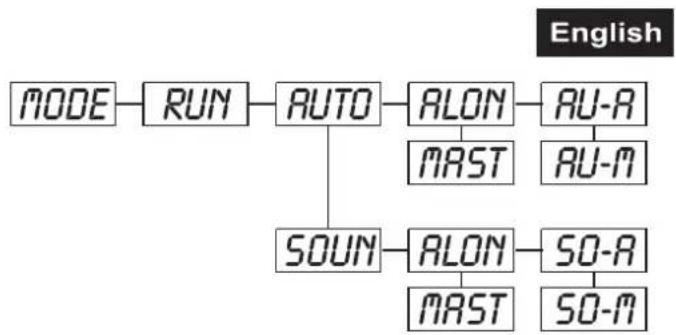
RUN - Program Run, Master setting
With the function "RUN", you can run the internal program. You can set the number of steps under Step. You can edit the individual scenes under Edit. You can run the individual scenes either automatically (AUTO), i.e. with the adjusted Step-Time or sound-controlled (SOUN). The selection "ALON" means Stand Alone-mode and "MAST" that the device is defined as master.
flowchart
graph TD
    A["MODE"] --> B["RUN"]
    B --> C["AUTO"]
    C --> D["ALON"]
    D --> E["AU-A"]
    C --> F["SOUN"]
    F --> G["ALON"]
    G --> H["SO-A"]
    G --> I["SO-M"]
    D --> J["MAST"]
    E --> K["AU-M"]
    G --> L["MAST"]
    H --> M["SO-M"]
♦ Select "AUTO" or "SOUN" by pressing [UP].
◆ Press [ENTER] for selecting the desired extension menu.
♦ Select "ALON" or "MAST" by pressing [UP].
◆Press [ENTER] to confirm.
◆ Press [EXIT/DN] in order to return to the main menu.
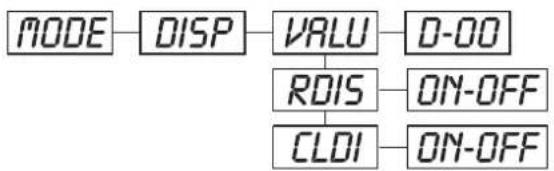
DISP - Display the DMX-value, Reverse display, Shut off LED display
flowchart
graph LR
    A["MODE"] --> B["DISP"]
    B --> C["VALU"]
    C --> D["D-00"]
    C --> E["ROIS"]
    E --> F["ON-OFF"]
    E --> G["CLDI"]
    G --> H["ON-OFF"]
VRLU - Display the DMX 512 value of each channel
With this function you can display the DMX 512 value of each channel.
♦ Select "VALU" by pressing [UP].
◆ Press [ENTER] to confirm; the display shows "D-00". In this setting, the DMX-adjustment of every channel will be displayed.
- Press [UP] in order to select the desired channel. If you select "D-14" the display will only show the DMX-value of the 14^th channel.
◆Press [ENTER] to confirm.
◆ The display shows "D-XX", "X" stands for the DMX-value of the selected channel.
◆ Press [ENTER] or [EXIT/DN] to exit.
ROIS - Reverse display
With this function you can rotate the display by 180^ .
♦ Select "rDIS" by pressing [UP].
◆ Press [ENTER], the display shows "ON" or "OFF".
- Press [UP] to select "ON" if you wish to enable this function or "OFF" if you don't; the display will rotate by 180^ .
◆ Press [ENTER] or [EXIT/DN] to exit.
CLOI - Shut off LED display
With this function you can shut off the LED display after 2 minutes.
◆ Select "CLDI" by pressing [UP].
◆ Press [ENTER], the display shows "ON" or "OFF".
◆ Press [UP] to select "ON" if you wish to enable this function or "OFF" if you don't.
◆ Press [ENTER] or [EXIT/DN] to exit.
English
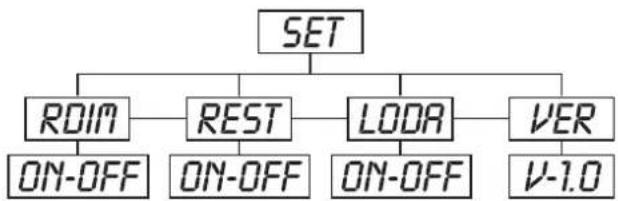
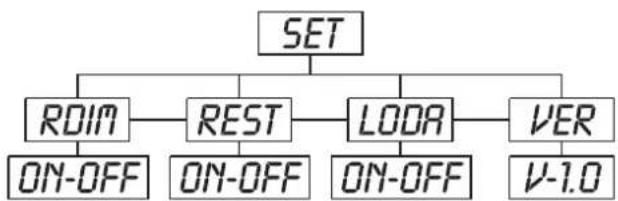
SET - Main menu 1
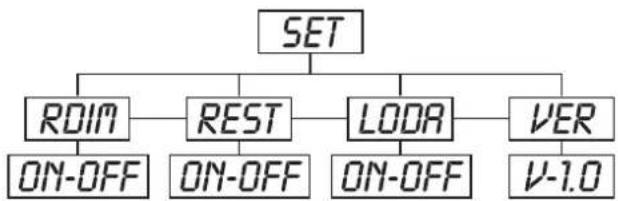
flowchart
graph TD
    A["SET"] --> B["ROOM"]
    A --> C["REST"]
    A --> D["LODA"]
    A --> E["VER"]
    B --> F["ON-OFF"]
    C --> G["ON-OFF"]
    D --> H["ON-OFF"]
    E --> I["V-1.0"]
◆ Press [ENTER] for 3 seconds to enter the main menu (display flashing).
◆ Press [UP] to select "SET".
ROIN - Dimmer Reverse
With this function you can reverse the Dimmer from 100-0 % to 0-100 %.
◆ Select "RDIM" by pressing [UP] button.
◆ Press [ENTER], the display shows "ON" or "OFF".
◆ Press [UP] to select "ON" if you wish to enable this function or "OFF" if you don't.
◆ Press [ENTER] or [EXIT/DN] to exit.
REST - Reset
With this function you can Reset the device via the Control Board.
◆ Select "rEST" by pressing [UP] button.
◆ Press [ENTER], the display shows "ON" or "OFF".
◆ Press [UP] to select "ON" if you wish to enable this function or "OFF" if you don't.
◆ Press [ENTER] or [EXIT/DN] to exit.
LODR - Restore factory settings
With this function you can restore the factory settings of the device. All settings will be set back to the default values (shaded). Any edited scenes will be lost.
♦ Select "LODA" by pressing [UP] button.
◆ Press [ENTER], the display shows "ON" or "OFF".
◆ Press [UP] to select "ON" if you wish to enable this function or "OFF" if you don't.
◆ Press [ENTER] to confirm.
◆ Press [EXIT/DN] in order to return to the main menu.
VER - Software version
With this function you can display the software version of the device.
♦ Select "VER" by pressing [UP] button.
◆ Press [ENTER], the display shows "V-X.X", "X.X" stands for the version number, e.g. "V-1.0", "V-2.6".
◆ Press [ENTER] or [EXIT/DN] in order to return to the main menu.
ADJU - Main menu 2
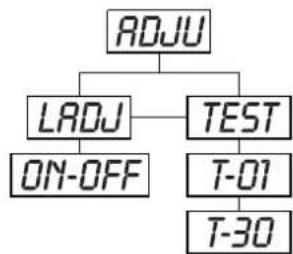
flowchart
graph TD
    A["ADJU"] --> B["LADJ"]
    A --> C["TEST"]
    B --> D["ON-OFF"]
    C --> E["T-01"]
    C --> F["T-30"]
◆ Press [ENTER] for 3 seconds to enter the main menu (display flashing).
◆ Press [UP] to select "ADJU".
LADJ - Lamp adjustment
With this function you can adjust the lamp via the Control Board. The shutter opens and the lamp can be adjusted. In this mode, the device will not react to any control signal.
English
♦ Select "LADJ" by pressing [UP] button.
◆ Press [ENTER], the display shows "ON" or "OFF".
◆ Press [UP] to select "ON" if you wish to enable this function or "OFF" if you don't.
◆ Press [ENTER] to confirm.
◆ Press [EXIT/DN] in order to return to the main menu.
TEST - Test function of each channel
With this function you can test each channel on its (correct) function.
♦ Select "tESt" by pressing [UP] button.
◆ Press [ENTER], the display shows "T-XX", "X" stands for the channel number.
◆ The current channel will be tested.
♦ Select the desired channel by pressing [UP] button.
◆ Press [ENTER] or [EXIT/DN] to exit.
TIME - Main menu 3
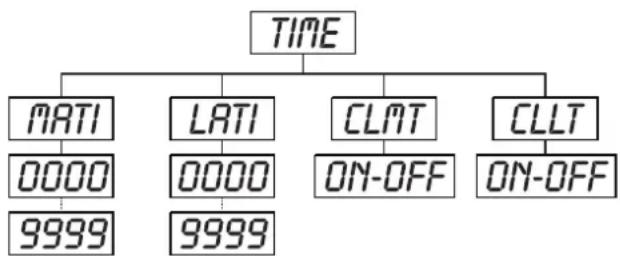
flowchart
graph TD
    A["TIME"] --> B["MATH"]
    A --> C["LATH"]
    A --> D["CLMT"]
    A --> E["CLLT"]
    B --> F["0000"]
    C --> G["0000"]
    D --> H["ON-OFF"]
    E --> I["ON-OFF"]
    F --> J["9999"]
    G --> K["9999"]
◆ Press [ENTER] for 3 seconds to enter the main menu (display flashing).
◆ Press [UP] to select "TIME".
MRTI - Fixture running time
With this function you can display the running time of the device.
◆ Select “MATI” by pressing [UP] button.
◆ Press [ENTER], the display shows "XXXX", "X" stands for the number of hours.
◆ Press [ENTER] or [EXIT/DN] to exit.
LATI - Lamp running time
With this function you can display the running time of the lamp.
♦ Select “LATI” by pressing [UP] button.
◆ Press [ENTER], the display shows "XXXX", "X" stands for the number of hours.
◆ Press [ENTER] or [EXIT/DN] to exit.
CLLT - Clear lamp time
With this function you can clear the running time of the lamp. Please clear the lamp time every time you replace the lamp.
♦ Select "CLLT" by pressing [UP] button.
◆ Press [ENTER], the display shows "ON" or "OFF".
◆ Press [UP] to select “ON” if you wish to enable this function or “OFF” if you don’t.
◆ Press [ENTER] to confirm.
◆ Press [EXIT/DN] in order to return to the main menu.
Ed. t - Main menu 4
◆ Press [ENTER] for 3 seconds to enter the main menu (display flashing).
◆ Press [UP] to select "EDIT".
STEP - Define the number of steps in Run
With this function you can define the number of steps in the Program Run.
♦ Select "STEP" by pressing [UP] button.
English
- Press [ENTER], the display shows "S-XX", "X" stands for the total amount of steps you want to save, so you can call up to 48 scenes in "RUN". For example if the "XX" is 05, it means that "RUN" will run the first 5 scenes you saved in "EDIT".
◆ Press [ENTER] to save and exit.
SC01 - Editing the channels of the individual scenes
With this function you can edit the program to be called up in Run.
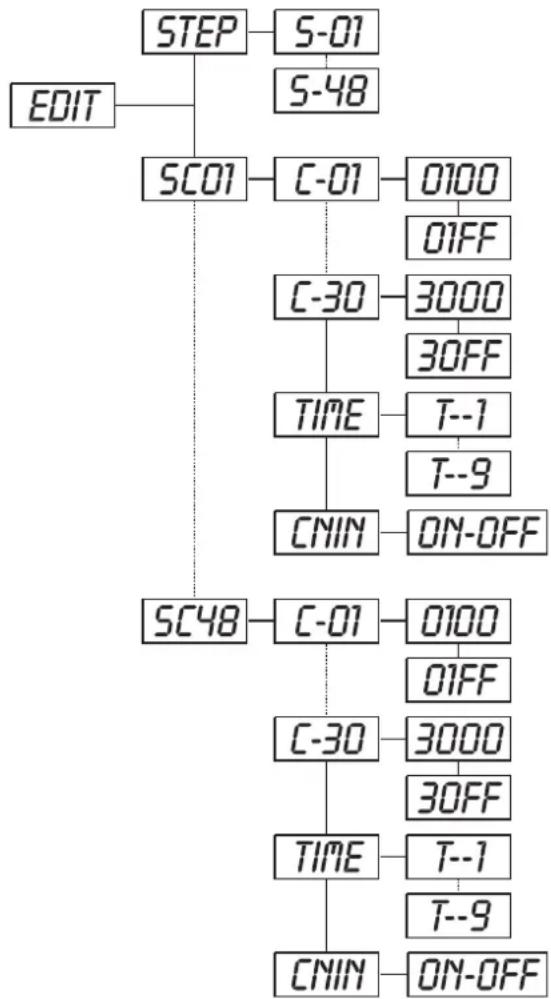
flowchart
graph TD
    A["EDIT"] --> B["STEP"]
    B --> C["S-01"]
    C --> D["S-48"]
    D --> E["SC01"]
    E --> F["C-01"]
    F --> G["0100"]
    F --> H["01FF"]
    E --> I["C-30"]
    I --> J["3000"]
    I --> K["30FF"]
    E --> L["TIME"]
    L --> M["T--1"]
    L --> N["T--9"]
    E --> O["CMIN"]
    O --> P["ON-OFF"]
    E --> Q["SC48"]
    Q --> R["C-01"]
    R --> S["0100"]
    R --> T["01FF"]
    Q --> U["C-30"]
    U --> V["3000"]
    U --> W["30FF"]
    Q --> X["TIME"]
    X --> Y["T--1"]
    X --> Z["T--9"]
    Q --> AA["CMIN"]
    AA --> AB["ON-OFF"]
a) Editing via the Control Board
♦ Select "SC01" by pressing [UP] button.
◆Press [ENTER], the display shows "SCXX", "X" stands for the scene no. to be edited.
◆ Change the scene no. by pressing [UP].
◆ Press [ENTER], the display shows “C-XX”, “XX” stands for the channel no. Such as “C-01”, it means you are editing channel 1 of the selected scene.
♦ Select the channel no. you would like to edit by pressing [UP].
- Press [ENTER] to enter editing for the selected channel, the fixture reacts to your settings. The display shows the DMX value of the edited channel. Such as “11XX”, it stands for channel 11 of the current scene, the DMX value is XX, XX is a hexadecimal number value “01-FF”.
♦ Adjust the desired DMX value by pressing [UP] or [DN].
◆ Press [ENTER] in order to edit other channels of this scene.
◆ Repeat above steps until you finish setting all the DMX values for all channels of this scene.
◆ Once all the channels completed, the display will flash "TIME".
◆ Press [ENTER] to edit the time needed, the display shows "t--X", "X" stands for the time needed to run the current scene, value "1-9". For example, "t--2" means you need 2 seconds to run the current scene.
◆ Adjust the desired time by pressing [UP].
◆ Press [ENTER] to save the settings for the scene you are editing, the display will change to the next scene automatically.
◆ Repeat above steps to edit and other scenes, you can edit and save a maximum of 48 scenes.
◆ Press [EXIT/DN] to exit. The number of steps can be defined under “STEP” and the scenes can be called up under “RUN”
b) Editing via the external controller
◆ Call up the first scene in your controller now.
♦ Select "SC01" by pressing [UP] button.
◆ Press [ENTER], the display shows "SC01".
◆ Press [ENTER], the display shows "C-01".
♦ Select "CNIN" by pressing [UP].
◆ Press [ENTER], the display shows "OFF".
◆ Press [UP], the display shows "ON".
◆ Press [ENTER], the display shows "SC02". You successfully downloaded the first scene.
◆Adjust the Step-time as described above.
◆ Call up the second scene in your controller now.
◆ Repeat steps 5-11 until all desired scenes are downloaded.
◆ Press [EXIT/DN] to exit. The number of steps can be defined under “STEP” and the scenes can be called up under “RUN”
Error Messages
When you turn on the fixture, it will make a reset first. The display may show "XXEr" while there are problems with one or more channels. "XX" stands for the channels equipped with a testing sensor.
For example, when the display shows "03Er", it means there is some error in channel 3. If there are some errors on channel 1, channel 2, channel 3 at the same time, you may see the error message "01Er", "02Er", "03Er" flash repeatedly for 5 times, and then the fixture will generate a reset signal, all the stepper motors will reset. If the error messages maintain after performing reset more than 3 times, it will detect whether the fixture has more than 3 errors. If the fixture has more than 3 errors (including 3 errors), all the channels can not work properly; but if the fixture has less than 3 errors, only the channels which have errors can not work properly, others can work as usual.
01Er:
(Color-wheel 1 error) This message will appear after the reset of the fixture if the magnetic-indexing circuit malfunctions (sensor failed or magnet missing) or the stepping-motor is defective (or its drive circuit on the main PCB). The color wheel is not located in the default position after the reset.
02Er:
(Color-wheel 2 error) This message will appear after the reset of the fixture if the magnetic-indexing circuit malfunctions (sensor failed or magnet missing) or the stepping-motor is defective (or its drive circuit on the main PCB). The color wheel is not located in the default position after the reset.
CLEANING AND MAINTENANCE
The operator has to make sure that safety-relating and machine-technical installations are inspected by an expert after every four years in the course of an acceptance test.
The operator has to make sure that safety-relating and machine-technical installations are inspected by a skilled person once a year.
The following points have to be considered during the inspection:
1) All screws used for installing the devices or parts of the device have to be tightly connected and must not be corroded.
2) There must not be any deformations on housings, fixations and installation spots (ceiling, suspension, trussing).
3) Mechanically moved parts like axles, eyes and others must not show any traces of wearing (e.g. material abrading or damages) and must not rotate with unbalances.
4) The electric power supply cables must not show any damages, material fatigue (e.g. porous cables) or sediments. Further instructions depending on the installation spot and usage have to be adhered by a skilled installer and any safety problems have to be removed.
DANGER TO LIFE!
Disconnect from mains before starting maintenance operation!
We recommend a frequent cleaning of the device. Please use a moist, lint-free cloth. Never use alcohol or solvents!

CAUTION!
The lens has to be replaced when it is obviously damaged, so that its function is impaired, e. g. due to cracks or deep scratches!
The objective lens will require weekly cleaning as smoke-fluid tends to building up residues, reducing the light-output very quickly. The cooling-fans should be cleaned monthly.
The dichroic colour-filters and the internal lenses should be cleaned monthly.
To ensure a proper function of the rotating parts, we recommend lubrication in six month intervals. The
English
quantity of oil must not be excessive in order to avoid that oil runs out when the wheel rotates.
There are no serviceable parts inside the device except for the lamp and the fuse. Maintenance and service operations are only to be carried out by authorized dealers.
Please refer to the instructions under "Installing/Replacing the lamp".
Replacing the fuse
If the lamp burns out, the fine-wire fuse of the device might fuse, too. Only replace the fuse by a fuse of same type and rating.
Before replacing the fuse, unplug mains lead.
Procedure:
Step 1: Unscrew the fuseholder on the rearpanel with a fitting screwdriver from the housing (anti-clockwise).
Step 2: Remove the old fuse from the fuseholder.
Step 3: Install the new fuse in the fuseholder.
Step 4: Replace the fuseholder in the housing and fix it.
Should you need any spare parts, please use genuine parts.
If the power supply cable of this device becomes damaged, it has to be replaced by a special power supply cable available at your dealer.
Should you have further questions, please contact your dealer.
TECHNICAL SPECIFICATIONS
| Power supply: 230 V AC, 50 Hz ~ | |
| Power consumption: 1300 W | |
| DMX-control-channels: 4 | |
| DMX-512-connection: 3-pin XLR | |
| Sound-control: via built-in microphone | |
| Colour-wheel 1: 5 colours and white | |
| Colour-wheel 2: 4 colours, blackout and white | |
| Dimensions (LxWxH): 470 x 410 x 450 mm | |
| Weight: 18 kg | |
| Maximum ambient temperature T_a : 45°C | |
| Maximum housing temperature T_B (steady state): 100°C | |
| Min.distance from flammable surfaces: 0.5 m | |
| Min.distance to lighted object: 0.5 m | |
| Fuse: T 8 A, 250 V | |
| Accessory: | |
| GE CP93 240V/1200W G-22 200h 3200K No. 8846 | 3000 |
| OSRAM 64756 230V/1200W G-22 200h | No. 88463010 |
| Barndoors for PCC-1200 | No. 51840980 |
| FUTURELIGHT EX-6/32 controller | No. 51834046 |
| FUTURELIGHT CP-240 controller | No. 51834265 |
| FUTURELIGHT CP-256/64 controller 16bit | No. 51834288 |
| FUTURELIGHT CP-512/64 controller 16bit | No. 51834295 |
| Wizard-512 USB DMX-Software + Interface | No. 51860102 |
| Wizard-1024 USB DMX-Software + Interface | No. 51860110 |
| FUTURELIGHT DES-3 DMX-terminator 3-pin | No. 51834001 |
Please note: Every information is subject to change without prior notice. 12.11.2007 ©
MODE D'EMPLOI
Futurelight®
PCC-1200
Professional Colour-Changer
ATTENTION!
natural_image
Line drawing of a mechanical device with a housing and internal components (no text or symbols)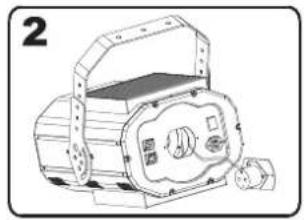
natural_image
Illustration of a mechanical device with no visible text or symbols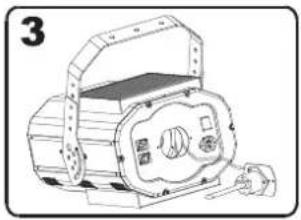
natural_image
Line drawing of a mechanical device with a handle and internal components (no text or symbols)
natural_image
Line drawing of a mechanical device with no visible text or symbols
SET - Menu principal 1
flowchart
graph TD
    A["SET"] --> B["ROOM"]
    A --> C["REST"]
    A --> D["LODA"]
    A --> E["VER"]
    B --> F["ON-OFF"]
    C --> G["ON-OFF"]
    D --> H["ON-OFF"]
    E --> I["V-1.0"]
Ed, t - Menu principal 4
Professional Colour-Changer
¡PRECAUCIÓN!
natural_image
Line drawing of a mechanical device with no visible text or symbols
natural_image
Line drawing of a mechanical device with no visible text or symbols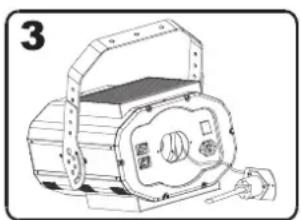
natural_image
Illustration of a portable electronic device with a handle and control panel (no text or symbols)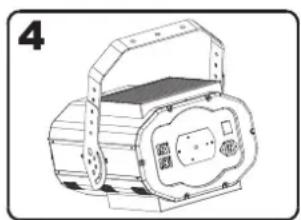
natural_image
Technical line drawing of a mechanical device with no visible text or symbolsDMX-512 Controller

SET - Menu principal 1
flowchart
graph TD
    A["SET"] --> B["ROOM"]
    A --> C["REST"]
    A --> D["LODA"]
    A --> E["VER"]
    B --> F["ON-OFF"]
    C --> G["ON-OFF"]
    D --> H["ON-OFF"]
    E --> I["V-1.0"]