
PocketCinema N100 - Projector AIPTEK - Free user manual and instructions
Find the device manual for free PocketCinema N100 AIPTEK in PDF.
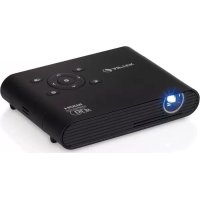

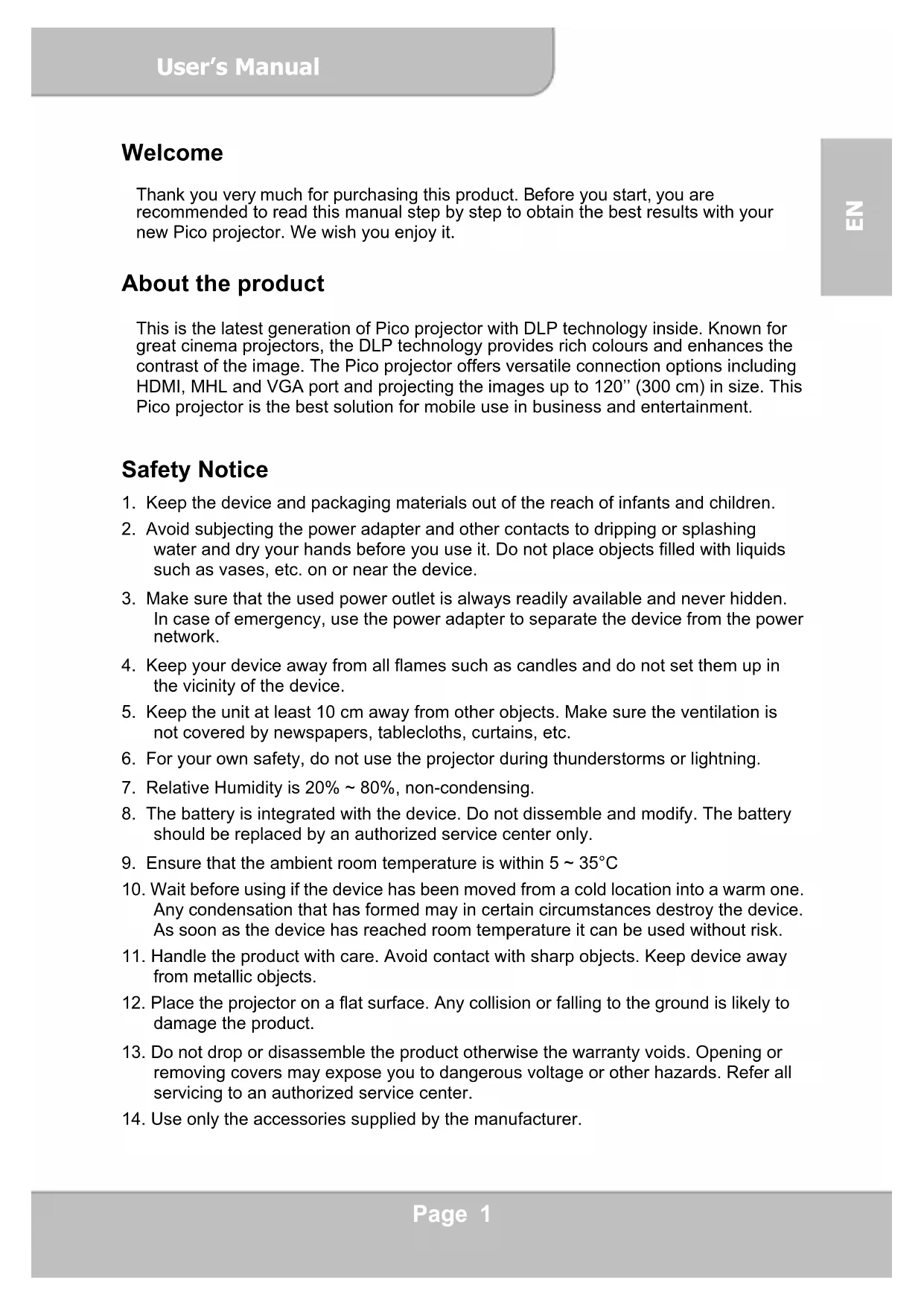


| Product type | DLP pico projector |
| Display technology | DLP (Digital Light Processing) |
| Light source | RGB LED |
| Native resolution | 854 x 480 pixels (WVGA) |
| Screen format | 16:9 |
| Contrast ratio | 1000:1 |
| Brightness | Up to 100 lumens |
| Projected image size | 36 cm to 305 cm (14" to 120") |
| Projection distance | 50 cm to 425 cm (20" to 167") |
| Focus | Manual (lever) |
| Connections | HDMI (MHL compatible), VGA (mini D-sub 15-pin), USB (charging), 3.5 mm audio output |
| Speaker | Built-in, mono |
| Power supply | Input 100-240 V~, output 12 V / 2 A |
| Battery | Built-in Li-polymer, 7.4 V / 2000 mAh |
| Battery life | Approximately 90 min (Boost), 120 min (Normal), 150 min (Eco) |
| Dimensions (L x W x H) | 132 x 95 x 25 mm |
| Weight | 270 g |
| Operating temperature | 5°C to 35°C |
| Humidity | 20% to 80% without condensation |
| Included accessories | Power adapter, remote control (CR2025 battery), HDMI cable, MHL cable, carrying case, user guide |
| Maintenance | Clean the lens with a soft cloth, avoid dust, do not block ventilation |
| Safety | Do not look directly at the light source, use only the provided adapter, do not expose to moisture |
| Repairability | Have any repairs carried out by an authorized service center; the battery should only be replaced by a professional |
Frequently Asked Questions - PocketCinema N100 AIPTEK
User questions about PocketCinema N100 AIPTEK
0 question about this device. Answer the ones you know or ask your own.
Ask a new question about this device
Download the instructions for your Projector in PDF format for free! Find your manual PocketCinema N100 - AIPTEK and take your electronic device back in hand. On this page are published all the documents necessary for the use of your device. PocketCinema N100 by AIPTEK.
USER MANUAL PocketCinema N100 AIPTEK
Thank you very much for purchasing this product. Before you start, you are recommended to read this manual step by step to obtain the best results with your new Pico projector. We wish you enjoy it.
About the product
This is the latest generation of Pico projector with DLP technology inside. Known for great cinema projectors, the DLP technology provides rich colours and enhances the contrast of the image. The Pico projector offers versatile connection options including HDMI, MHL and VGA port and projecting the images up to 120" (300 cm) in size. This Pico projector is the best solution for mobile use in business and entertainment.
Safety Notice
- Keep the device and packaging materials out of the reach of infants and children.
- Avoid subjecting the power adapter and other contacts to dripping or splashing water and dry your hands before you use it. Do not place objects filled with liquids such as vases, etc. on or near the device.
- Make sure that the used power outlet is always readily available and never hidden. In case of emergency, use the power adapter to separate the device from the power network.
- Keep your device away from all flames such as candles and do not set them up in the vicinity of the device.
- Keep the unit at least 10 cm away from other objects. Make sure the ventilation is not covered by newspapers, tablecloths, curtains, etc.
- For your own safety, do not use the projector during thunderstorms or lightning.
- Relative Humidity is 20% ~ 80%, non-condensing.
- The battery is integrated with the device. Do not disassemble and modify. The battery should be replaced by an authorized service center only.
- Ensure that the ambient room temperature is within 5 ~ 35 °C.
- Wait before using if the device has been moved from a cold location into a warm one. Any condensation that has formed may in certain circumstances destroy the device. As soon as the device has reached room temperature it can be used without risk.
- Handle the product with care. Avoid contact with sharp objects. Keep device away from metallic objects.
- Place the projector on a flat surface. Any collision or falling to the ground is likely to damage the product.
- Do not drop or disassemble the product otherwise the warranty voids. Opening or removing covers may expose you to dangerous voltage or other hazards. Refer all servicing to an authorized service center.
- Use only the accessories supplied by the manufacturer.
- Both product and user's manual are subject to further improvement or supplement without further notice.
Care and Safety Information for Pico Projectors
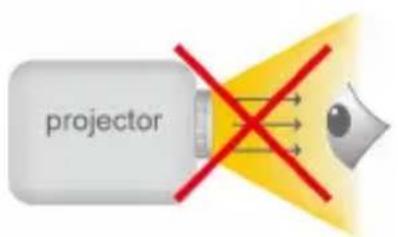
- Avoid facing directly into the projector's lens.
- During the operation, this product may heat lightly, which is normal.
- The device should not be used in a very dusty environment. Dust particles and other foreign objects may damage the unit.
- Do not expose the device to extreme vibrations. It may damage the internal components.
- Use the enclosed power adapter (see technical data): Check whether the mains voltage of the power supply matches the mains voltage available at the setup location. This equipment complies with the voltage type specified on the unit.
Avoid Hearing Damage:
Listening at high volume for a long period of time could cause damage to your ears.

Notice for Long-time Projection
The built-in battery supports approximately 150 minutes of projection. For long-time projection, you are recommended to use the AC adapter.
When the battery is too weak to stay in operation, the low battery capacity icon ( ) will flash. You need to charge the product while the icon is shown.
It's normal that the projector will feel warm with continuous use due to its high performance. If the projector runs for a long time and overheats, the High-Temperature icon (A) will appear on the screen. The system will automatically enter standby mode.
FCC Compliance Statement:
This device complies with Part 15 of the FCC Rules. Operation is subject to the following two conditions: (1) this device may not cause harmful interference, and (2) this device must accept any interference received, including interference that may cause undesired operation.

This equipment has been tested and found to comply with the limits for a Class B digital device, pursuant to Part 15 of the FCC rules. These limits are designed to provide reasonable protection against harmful interference in a residential installation. This equipment generates, uses, and can radiate radio frequency energy and, if not installed and used in accordance with the instructions, may cause harmful interference to radio communications.
However, there is no guarantee that interference will not occur in a particular installation. If this equipment does cause harmful interference to radio or television reception, which can be determined by turning the equipment off and on, the user is encouraged to try to correct the interference by one or more of the following measures:
- Reorient or relocate the receiving antenna.
- Move the equipment away from the receiver.
- Plug the equipment into an outlet on a circuit different from that to which the receiver is connected.
- Consult the dealer or an experienced radio/TV technician for additional suggestions.
You are cautioned that any changes or modifications to the equipment not expressly approved by the party responsible for compliance could void your authority to operate such equipment.
Table of Contents
| About the Product, Safety Notice | 1 |
| Package Content | 4 |
| Knowing Your Device | 5 |
| Getting Started | 7 |
| Projecting from External Video Input Source | 8 |
| HDMI, VGA | 9 |
| Smartphone & Tablets | 12 |
| Charging the external mobile devices | 12 |
| Trouble Shooting | 13 |
| Specifications | 14 |
Package Contents
Please check if the following items are located in your packaging:
Pico Projector - Power Adapter, Exchangeable Power Plug, Remote Control, HDMI Cable (A to A type), MHL Cable (HDMI A to USB D type), Carry Bag, User's Manual
Knowing your Device
Projector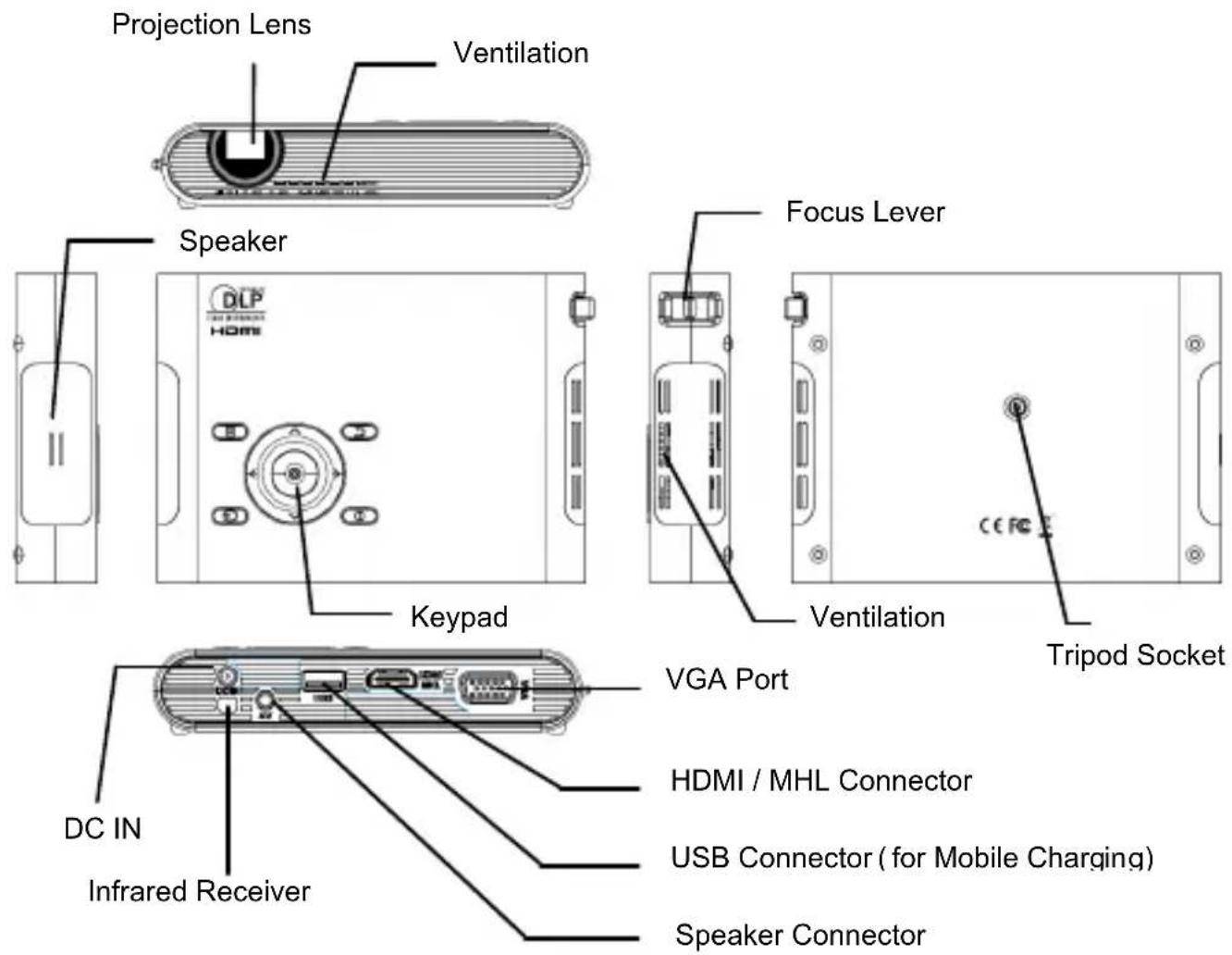
Control Panel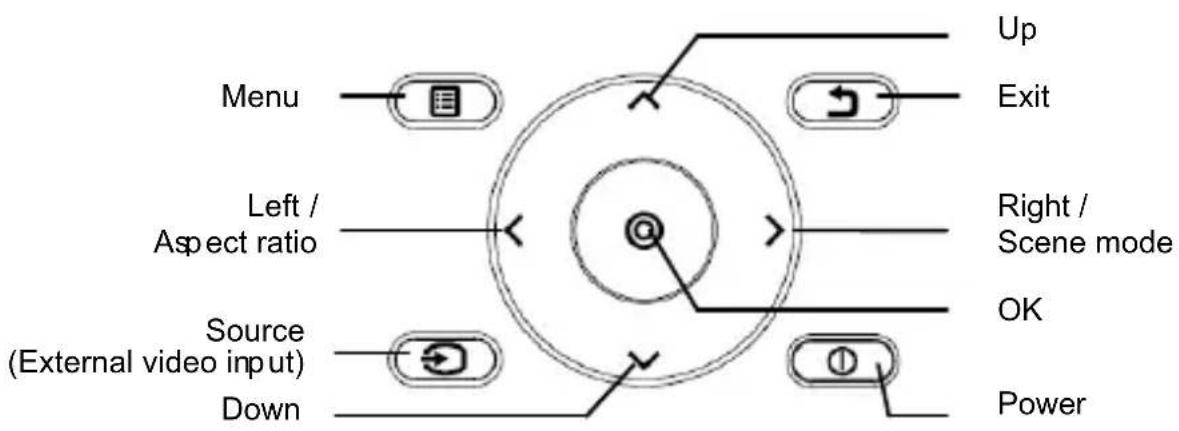
Remote Control
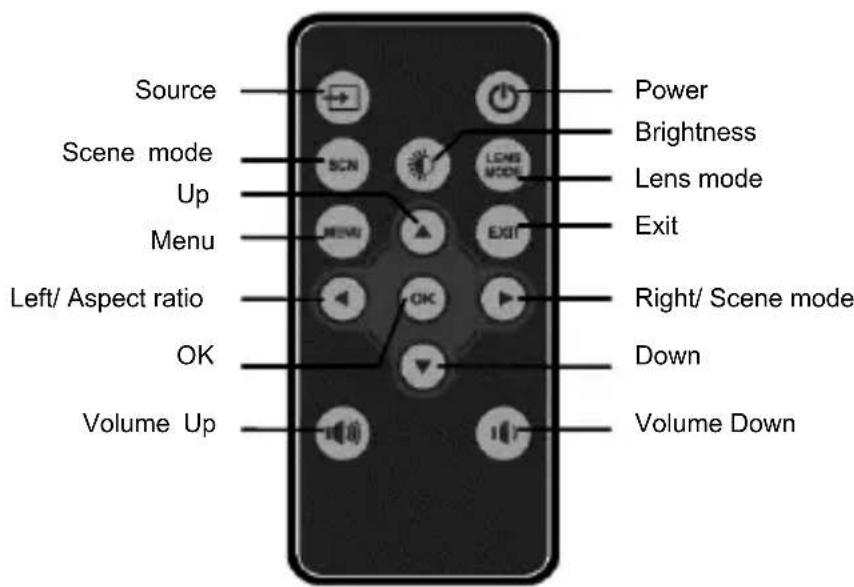
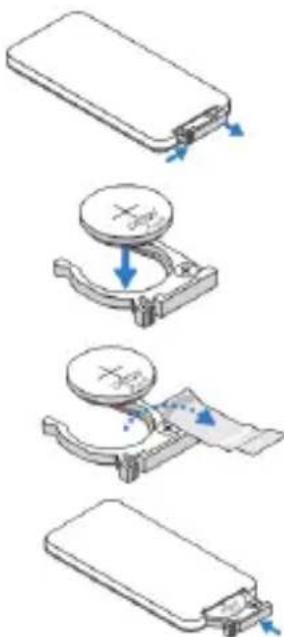
Installing the Remote Control Battery
- Remove the battery holder by holding down the side release firmly and pulling out the battery holder.
- Insert a CR2025 coin cell battery and align the polarity correctly according to the marking in the battery holder.
Note: When you use the remote control for the first time, there is a plastic sheet between the battery and its contact. Remove the sheet before use.
- Insert the battery holder.
Warning:
Improper use of the battery may cause overheating, explosion or ignition, which can result in an injury or a fire. Battery leakage may damage the remote controller.
Do not expose the remote controller unit to direct sunlight.
Do not expose the battery to fire or water.
Immediately replace the exhausted battery.
Take out the battery when the remote is not in use for a long time.
Operating Range with Remote Control
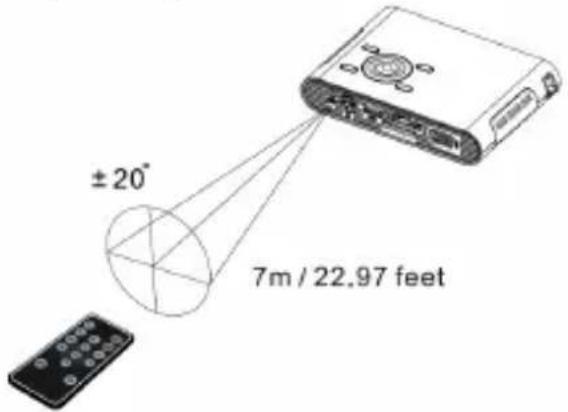
Note: Actual operating range may slightly differ from the diagram. Additionally, a weak battery reduces or eliminates the operating range of the remote control.
Getting Started
Charging the product
The projector has a built-in Li-Polymer battery for mobile use. Please charge the projector for 8 hours prior to its first use. Subsequent charging will take around 4 hours. The battery will be charged

only when the projector is not in use (Power off). Connect one end of the supplied AC adapter to the DC IN jack and the other end to a power outlet to start charging.
Exchange the plug (EU, US, etc.) of the AC adapter to accommodate the type of power outlet in your country if it's different.
Charging LED Indicator
During charging, the LED on the Power button turns Orange. It turns Green when the battery is fully charged.
Turn On / Off the Projector
Push the Power button for 2 seconds to turn on the projector.
To turn off the projector, push the Power button downward for 2 seconds.
Standby mode: Push the Power button for 1 second to turn on/off the projector lamp for a short break to save the battery and system reboot time. (The LED on buttons are still on when the projector is in standby mode.)
Adjusting the Focus according to distance
Place the projector on a flat surface and toward a wall or a projection screen. The projection distance and projection size are:
Distance: 50 cm ~ 425 cm (20" ~ 167")
Image size: 36 cm ~ 305 cm (14" ~ 120")
Adjust the focus by turning the Focus Lever upward or downward to get a sharp and clear picture.
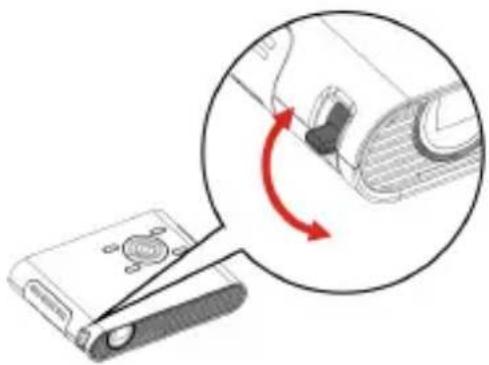
Note: Use a tripod (not included) to increase the height of the projection image when necessary. The tripod socket is located under the projector.
Projecting from External Video Input Source
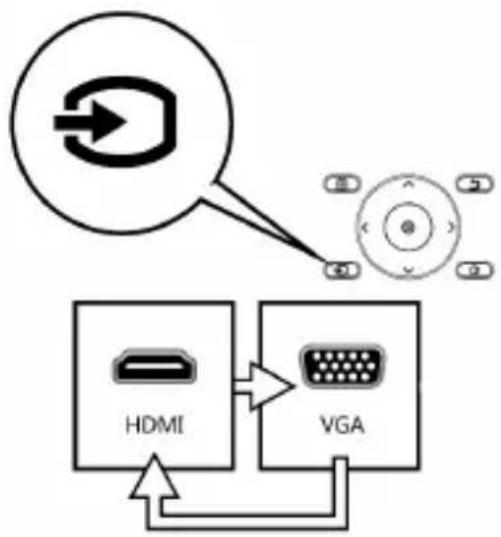
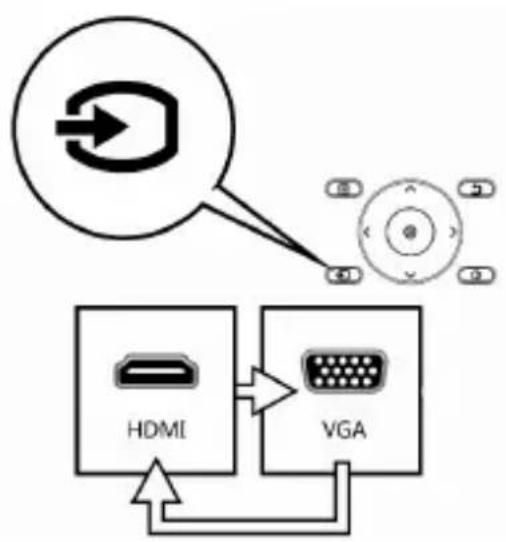
The projector has built-in multiple interfaces on the rear side. You can connect your external video input source to the projector by using the appropriate cable and press the Source key on the control panel of the projector to select the input source.
HDMI
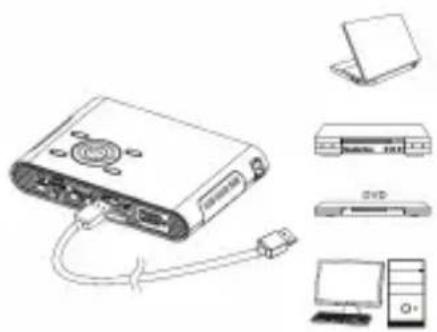
Use the HDMI cable to connect the HDMI port on the rear panel of the projector to the external HDMI signal source. After connected, the screen switches to HDMI source automatically.
VGA
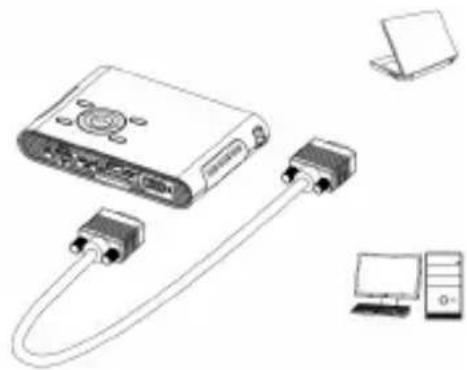
Use a VGA cable to connect the VGA port on the rear panel of the projector to the external VGA signal source. After connected, press the Source button on the remote control or control panel to select VGA source.
Note: VGA cable is not included in standard package.
Changing Playback Setting for External Video Source
Press menu on the control panel or remote control to enter the playback setting.
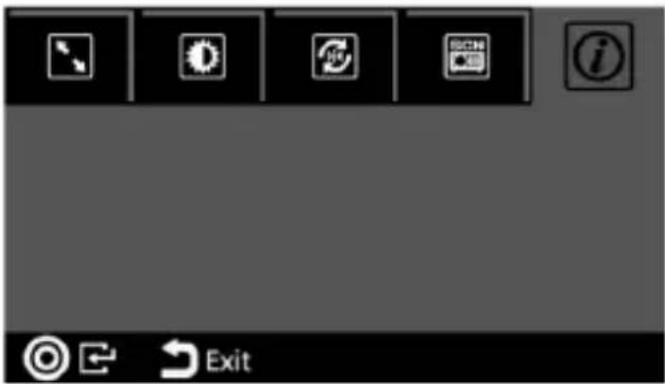
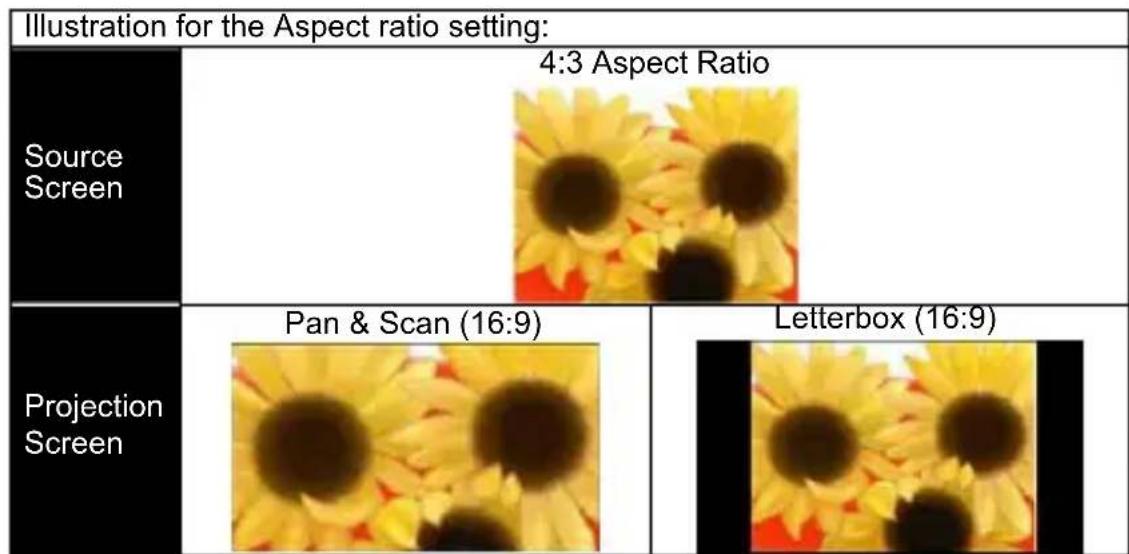
1. Aspect ratio
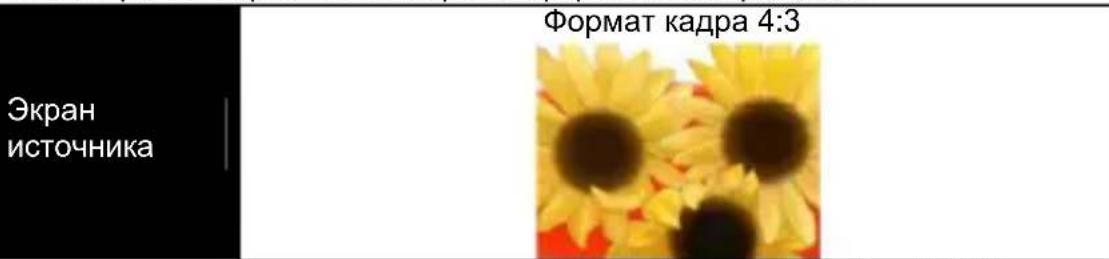
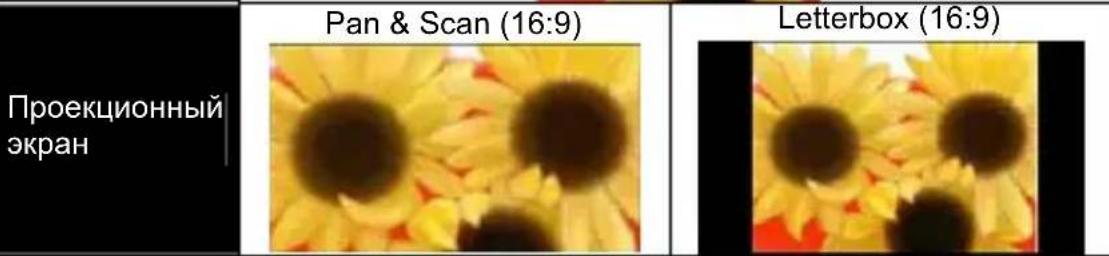
When the video file is in 4:3 aspect ratio, this function allows you to adjust how the image should appear on the 16:9 screen.
Press OK to display the options.
1) Pan & Scan: the image is scaled up to fit the 16:9 screen. 2) Letterbox: the image is displayed in its original aspect ratio.
2. Brightness
It allows you to change the brightness according to the environment and the power consumption.
1) Enhanced: Select this mode when an external power supply is available to maximize performance. 2) Normal: The default mode for optimizing projection performance and battery capacity. 3) Eco: This mode is recommended when the projector is operated in battery mode to save power.
Note: The projector automatically switches to Enhanced mode when it is powered by the power adapter.
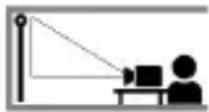
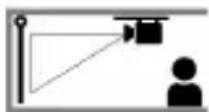
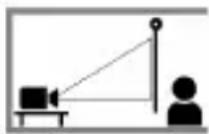
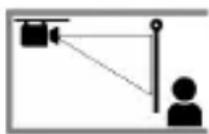
3. Projection (Lens) mode
It allows you to select the projection mode, depending on how the projector is mounted.
Front: This is the most common way to position the projector for quick setup and portability.
Front Ceiling: The projector turns the image upside down for ceiling-mounted projection.
Rear: The projector reverses the image so that it can project from behind a translucent screen.
Rear Ceiling: The projector reverses and turns the image upside down. It can project from behind a translucent screen in the ceiling-mounted position.




4. Scene selection
It allows you to select the ideal mode for watching movies, photo slideshows, or reading text with balanced brightness, color, and contrast.
Cinema: ideal for watching movies. Normal: ideal for photo slideshows. Text: ideal for images with text.
5. Information
Shows firmware version: Txxxx
Projecting from Smartphones or Tablets
- Connect smartphones that support MHL (Mobile High-Definition Link) for projection.
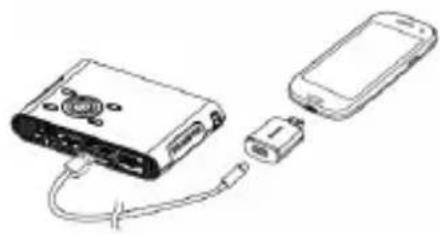
Connect Samsung Galaxy S2, Note; new HTC One, One X+, One X, One S; or Sony Xperia Z with the projector via an MHL (A to USB D type HDMI) cable.
Connect Samsung Galaxy S4, Note II with the projector via an MHL (A to USB D type HDMI) cable and a Samsung 5 to 11 pin MHL converter (as shown in the illustration) for projection.
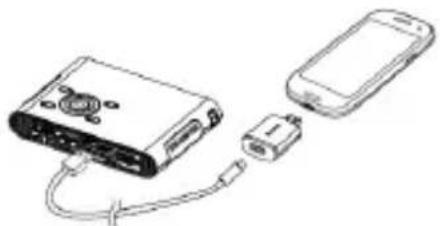
Note: It is normal for the projector to automatically charge the smartphones or tablets when connected with the MHL cable for projection.
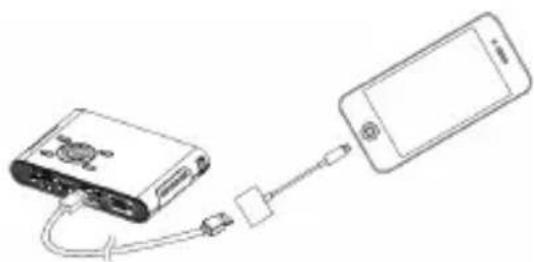
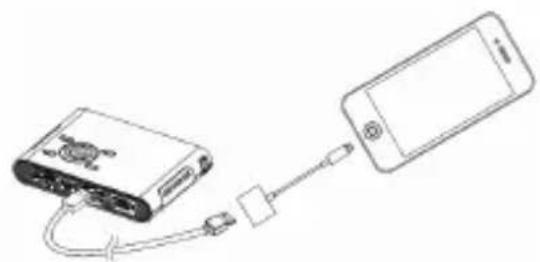
- Connect iPhone 5 for Mirror projection (with Lightning connector)
Connect iPhone 5, iPad 4th generation, iPad mini, and iPod touch 5th generation with the projector via an Apple Lightning Digital AV adapter and an A-to-A type HDMI cable.
iPhone 4S, 4, New iPad, iPad 2, and iPod
touch (4th generation) can connect with the projector using an Apple 30-pin digital AV adapter and an A-to-A type HDMI cable.
Charging the External Mobile Device
The internal battery of the projector can not only be used for projection, but also to charge your mobile device.
- Connect your mobile device to the projector via the USB cable with the end of Type A connector plugged into the USB port on the rear side of the projector.
- When the projector is powered on, the device will be charged automatically.
- When the projector is powered off, press the Source button ( ) to start or stop charging.
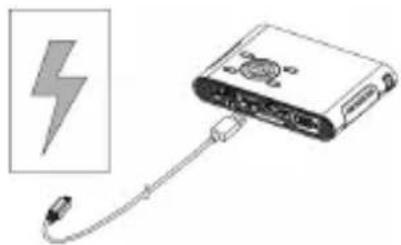
Note: The projector provides 5V/500mA output power for charging mobile devices.
Troubleshooting
If your projector does not seem to be functioning properly, check the items below before you contact an authorized service center.
| Symptom Check | Point |
| The projector does not work when connecting to a notebook or PC with cable. | 1. Check if the HDMI cable is plugged correctly. 2. Make sure the PC has been switched to projectordisplay. |
| The projected image is too dark. | 1. Use the projector in a darker environment. 2. Increase the brightness by using the AC power adapter. 3. Scale down the projectional image size. |
| The projected image is blurred. | 1. Adjust the focus. Please refer to “Adjusting the Focus”. 2. Check if the lens is dirty. |
| The surface temperature of projector is high. | Because of the high-luminance LED, it is normal that this projector generates heat in long-time use. It will not affect the performance of the projector. Always keep the ventilation slots free of dirt or obstructions and operate the projector in a properly ventilated environment. |
| Recovering from abnormality | This can be useful when the projector is freezing, crashing or locking up during the operation. Press the Power button for 8 seconds to reboot your projector. |
Specifications
| Item Description | |
| Optical Technology | DLP |
| Light Source | RGB LED |
| Aspect ratio 16:9 | |
| Resolution 854 x 480 Pixels (WVGA) | |
| Contrast Ratio 1000:1 | |
| Projection Image Size 36 | cm ~ 305 cm (14" ~ 120") |
| Projection Distance 50 cm | ~ 425 cm (20" ~ 167") |
| Throw Ratio (Diagonal: Distance) | 1.6 (Projection Distance/Width of Image) |
| Brightness Up to 100 Lumens | |
| Focus Manual | |
| Offset 100% | |
| Connections | HDMI / MHL: Comply with HDMI v1.3 and MHL v2.0 VGA: Mini D-sub 15-pin AV port: Audio out: 3,5mm mini jack USB port: Charging the mobile devices |
| Internal Speaker Mono | |
| Power Supply Input: 100 ~ | 240V AC Output: 12V, 2A DC |
| Battery Type Embedded 7.4V/2000 mAh Li-polymer battery | |
| Battery Life Enhanced mode : 90 min Normal mode: 120 min Eco mode: 150 min | |
| Power Consumption AC mode: 10.5 W Battery mode: 6.5 W ~ 10.5 W | |
| Dimensions (L x W x H) 132 x 95 x 25 mm | |
| Weight | 270 g |
| Humidity | 20 - 80%, 80% (Max.), non-condensing. |
| Operating Temperature | 5 °C - 35 °C. |
Welcome
Complies with FCC requirements:
This device complies with Part 15 of the FCC Rules. Operation is subject to the following two conditions: (1) This device may not cause harmful interference, and (2) This device must accept any interference received, including interference that may cause undesired operation.

This equipment has been tested and found to comply with the limits for a Class B digital device, pursuant to Part 15 of the FCC Rules. These limits are designed to provide reasonable protection against harmful interference in a residential installation. This equipment generates, uses and can radiate radio frequency energy and, if not installed and used in accordance with the instructions, may cause harmful interference to radio communications.
However, there is no guarantee that interference will not occur in a particular installation. If this equipment does cause harmful interference to radio or television reception, which can be determined by turning the equipment off and on, the user is encouraged to try to correct the interference by one or more of the following measures:
- Reorient or relocate the receiving antenna.
- Increase the separation between the equipment and receiver.
- Connect the device to another outlet so that it and the receiver are powered from different circuits.
- Contact your dealer or a radio equipment specialist for assistance.
You are warned that any changes or modifications not expressly approved by the party responsible for compliance could void your authority to operate this device.


At the end of the service life of this product, all its components must be disposed of properly. Batteries and rechargeable batteries must not be disposed of with household waste! Dispose of them at a recycling collection point.
Let's work together to protect our environment.
Table of Contents
The battery compartment should be replaced immediately.
Remove the battery from the remote control if it will not be used for a long time.
Operating range
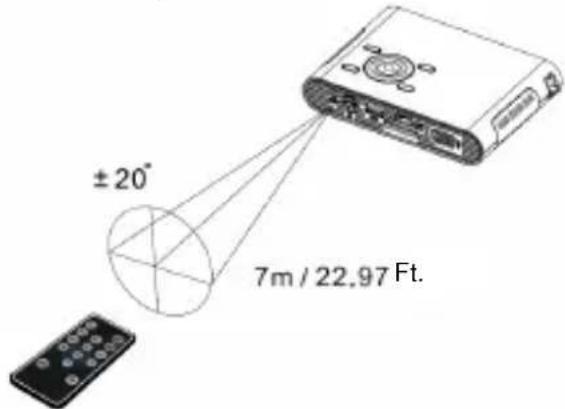
Note: The actual operating range may differ slightly from that shown in the figure. In addition, the operating range decreases as the battery discharges.
Getting started
Charging the device
The portability of the projector is ensured by the built-in lithium-ion battery. Before first use of the projector, the battery must be charged for
If the plug of the power adapter does not match the type of power outlet used in your country (EC, USA, etc.), replace it with a suitable plug.
Charge indicator
During charging, the charge indicator on the power button glows orange. When the battery is fully charged, it turns green.
Turning the projector on/off
Press and hold the power button for 2 seconds to turn on the projector. To turn off the projector, press and hold the power button again for 2 seconds.
Eco mode: Press the power button for 1 second to temporarily turn off the lamp to save time spent on system startup and battery energy. (The indicator light on the button remains lit in Eco mode.)
Focus adjustment depending on projection distance
Place the projector on a flat surface facing the wall or projection screen. The projection distance and image size are shown in the following range:
Distance: 50~425 cm (20"~167")
Image size: 36~305 cm (14"~120")
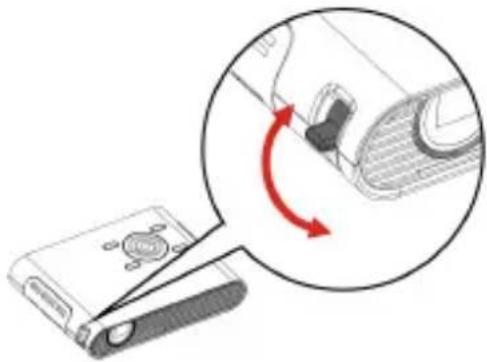
Adjust the focus by turning the focus ring up or down until a clear and sharp image is obtained.
Note: If you need to increase the height of the projected image, use a tripod (not included). The tripod socket is located at the bottom of the projector.
Illustration of image format adjustment options:
2. Brightness
Allows you to adjust the brightness according to the ambient lighting and energy consumption level.
1) Bright: Select this mode when using an external power source to ensure maximum brightness. 2) Standard: Standard mode with optimized brightness and battery life. 3) Eco: This mode is recommended for energy saving when the projector is running on battery power.
Note: The projector automatically switches to "Bright" mode when power is supplied from the adapter.
3. Projection mode (object)
One, One X+, One X, One S and Sony
Xperia Z to the projector using an MHL cable (HDMI type "A-USB-D").
Connect your Samsung
Galaxy S4 and Note II to the projector with
an MHL cable (HDMI type
"A-USB-D"), and Samsung smartphones
5-series with an 11-pin
MHL adapter (see figure).
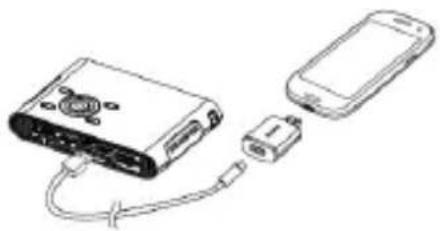
Note: When connecting smartphones or tablets to the projector, charging automatically begins. This is normal.

a
i 1
1
gaiy
a
1
j 1 j 1
y
(" (1 2 0 " 1 4) 3 0 5 3 6 : d _ d
y 1 y
a 1
jgl jll jll l jll jll jll jll jll jll jll jll jll jll jll jll jll jll jll jll jll jll jll jll jll jll jll jll jll jll jll jll jll jll jll jll jll jll jll jll jll jll
HDMI
one S one X one X+ new HTC one
(HDMI USB D A) MHL
2 Samsung Galaxy S4
USB D A) MHL
11 MHL J Samsung 5 (HDMI
1a
y
JMLH
Saiyblawx iPhone 5 2.
(olio!
iPad 4th iPhone 5


- ABOUT THE PRODUCT
- SAFETY NOTICE
- CARE AND SAFETY INFORMATION FOR PICO PROJECTORS
- AVOID HEARING DAMAGE
- NOTICE FOR LONG-TIME PROJECTION
- FCC COMPLIANCE STATEMENT
- PACKAGE CONTENTS
- KNOWING YOUR DEVICE
- REMOTE CONTROL
- INSTALLING THE REMOTE CONTROL BATTERY
- WARNING
- OPERATING RANGE WITH REMOTE CONTROL
- GETTING STARTED
- CHARGING THE PRODUCT
- CHARGING LED INDICATOR
- TURN ON / OFF THE PROJECTOR
- ADJUSTING THE FOCUS ACCORDING TO DISTANCE
- PROJECTING FROM EXTERNAL VIDEO INPUT SOURCE
- HDMI
- VGA
- CHANGING PLAYBACK SETTING FOR EXTERNAL VIDEO SOURCE
- ASPECT RATIO
- BRIGHTNESS
- PROJECTION (LENS) MODE
- SCENE SELECTION
- INFORMATION
- PROJECTING FROM SMARTPHONES OR TABLETS
- CHARGING THE EXTERNAL MOBILE DEVICE
- TROUBLESHOOTING
- WELCOME
- COMPLIES WITH FCC REQUIREMENTS
- TABLE OF CONTENTS
- OPERATING RANGE
- CHARGING THE DEVICE
- CHARGE INDICATOR
- TURNING THE PROJECTOR ON/OFF
- FOCUS ADJUSTMENT DEPENDING ON PROJECTION DISTANCE
- PROJECTION MODE (OBJECT)
Brand : AIPTEK
Model : PocketCinema N100
Category : Projector