
GXT 23 - Mouse TRUST - Free user manual and instructions
Find the device manual for free GXT 23 TRUST in PDF.


User questions about GXT 23 TRUST
0 question about this device. Answer the ones you know or ask your own.
Ask a new question about this device
Download the instructions for your Mouse in PDF format for free! Find your manual GXT 23 - TRUST and take your electronic device back in hand. On this page are published all the documents necessary for the use of your device. GXT 23 by TRUST.
USER MANUAL GXT 23 TRUST
text_image
Installation Configur a b c Trust USB b Your device is ready to use 2x Mobile 7 P MODULES P MODULES OK CANCEL APPLY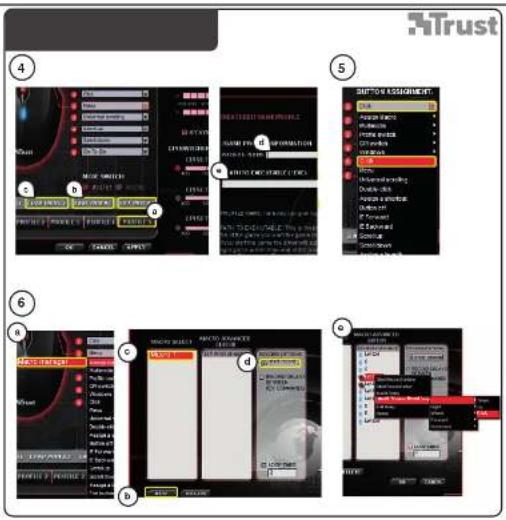
text_image
Trust 5 6 7 8 9 10 11 12 13 14 15 16 17 18 19 20 21 22 23 24 25 26 27 28 29 30 31 32 33 34 35 36 37 38 39 40 41 42 43 44 45 46 47 48 49 50 51 52 53 54 55 56 57 58 59 60 61 62 63 64 65 66 67 68 69 70 71 72 73 74 75 76 77 78 79 80 81 82 83 84 85 86 87 88 89 90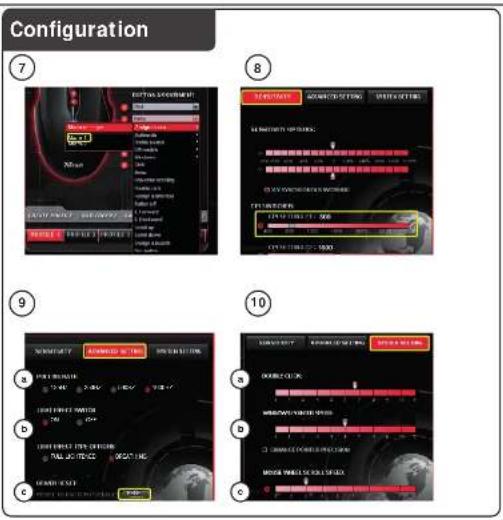
text_image
Configuration 7 8 9 10 C:\WINDOWS\SYSTEM\2003\2004\2005\2006\2007\2008\2009\2010\2011\2012\2013\2014\2015\2016\2017\2018\2019\2020\2021\2022\2023\2024\2025\2026\2027\2028\2029\2030\2031\2032\2033\2034\2035\2036\2037\2038\2039\2040\2041\2042\2043\2044\2045\2046\2047\2048\2049\2050\2051\2052\2053\2054\2055\2056\2057\2058\2059\2060\2061\2062\2063\2064\2065\2066\2067\2068\2069\2070\2071\2072\2073\2074\2075\2076\2077\2078\2079\2080\2081\2082\2083\2084\2085\2086\2087\2088\2089\2090 RETURN ON/OFF RETURN ON/OFF RETURN ON/OFF RETURN ON/OFF RETURN ON/OFF RETURN ON/OFF RETURN ON/OFF RETURN ON/OFF RETURN ON/OFF RETURN ON/OFF RETURN ON/OFF RETURN ON/OFF RETURN ON/OFF RETURN ON/OFF RETURN ON/OFF RETURN ON/OFF RETURN ON/OFF RETURN ON/OFF RETURN ON/OFF RETURN ON/OFF RETURN ON/OFO RETURN ON/OFO RETURN ON/OFO RETURN ON/OFO RETURN ON/OFO RETURN ON/OFO RETURN ON/OFO RETURN ON/OFO RETURN ON/OFO RETURN ON/OFO RETURN ON/OFO RETURN ON/OFO RETURN ON/OFO RETURN ON/OFO RETURN ON/OFO RETURN ON/OFO RETURN ON/OFO RETURN ON/OFO RETURN ON/OFO RETURN ON/OFO RETURN ON/OFF RETURN ON/OFF RETURN ON/OFF RETURN ON/OFF RETURN ON/OFF RETURN ON/OFF RETURN ON/OFF RETURN ON/OFF RETURN ON/OFF RETURN ON/OFF RETURN ON/OFF RETURN ON/OFF RETURN ON/OFF RETURN ON/OFF RETURN ON/OFF RETURN ON/OFF RETURN ON/OFF RETURN ON/OFF RETURN ON/OFF RETURN ON/OF RETURN ON/OF RETURN ON/OF RETURN ON/OF RETURN ON/OF RETURN ON/OF RETURN ON/OF RETURN ON/OF RETURN ON/OF RETURN ON/OF RETURN ON/OF RETURN ON/OF RETURN ON/OF RETURN ON/OF RETURN ON/OF RETURN ON/OF RETURN ON/OF RETURN ON/OF RETURN ON/OF RETURN ON/OF RETURN ON/OFO RETURN ON/OFO RETURN ON/OFO RETURN ON/OFO RETURN ON/OFO RETURN ON/OFO RETURN ON/OFO RETURN ON/OFO RETURN ON/OFO RETURN ON/OFO RETURN ON/OFO RETURN ON/OFO RETURN ON/OFO RETURN ON/OFO RETURN ON/OFO RETURN ON/OFO RETURN ON/OFO RETURN ON/OFO
text_image
Trust www.trust.com/ 18064/faq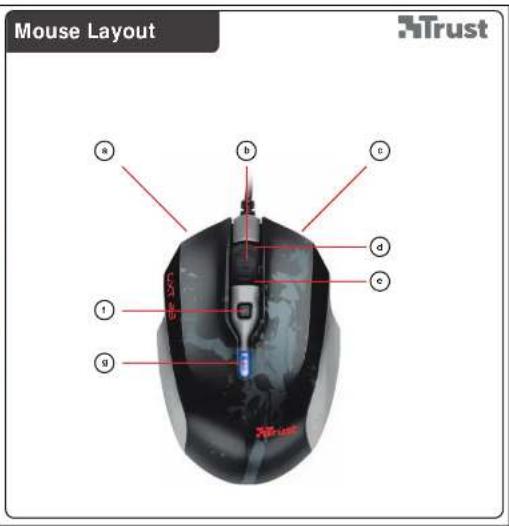
text_image
Mouse Layout a b c d e f g TrustGXT 23 Gaming Mouse - USER'S MANUAL
Trust
| Language | page | ||
| English | 2 | ||
| Deutsch | 5 | ||
| Français | 8 | ||
| Italiano | 11 | ||
| Español | 14 | ||
| Português | 17 | ||
| Nederlands | 20 | ||
| Dansk | 23 | ||
| Suomi | 26 | ||
| Norsk | 29 | ||
| Svenska | 32 | ||
| Polski | 35 | ||
| Česky | 38 | ||
| Slovenčina | 41 | ||
| Magyar | 44 | ||
| Română | 47 | ||
| Български | 50 | ||
| Русский | 53 | ||
| Еллэнvíкá | 56 | ||
| Türkçe | 59 | ||
| Hrvatski | 62 | ||
| Slovenski | 65 | ||
| С рпски | 68 | ||
GXT 23 Gaming Mouse - USER'S MANUAL
Trust
Mouse layout
- Button 1. (default function = left mouse click)
- Button 3. (default function = middle click)
- Button 2. (default function = right mouse click)
- Button 4. (default function = scroll up)
- Button 5. (default function = scroll down)
- Button 6. (default function = DPI cycle)
LED light. Blue= Mode1, Red= Mode2
Off= DPI #1, dimmed= DPI #2, full= DPI #3
Installation
① - Insert the Trust CD-ROM into your CD drive.
- Click "Run Setup.exe – Published by Trust International BV".
- Click "Install driver".
② - Connect the mouse to the USB port of the PC.
- Wait until the message 'Your device is ready to use' appears.
③ - Start the mouse configuration software.
- You can now start to configure the mouse.
- In the following part of the manual there be referred to the 'Apply' function that updates the mouse.
'Apply' Is located at the bottom of the main window.
The mouse can store 2 different modes. You can instantly switch between the 2 mode setups by assigning a
mouse button as mode switch.
▶ You don't need to click on 'Apply' after every single change. You can make all the changes that you want and
then click 'Apply' to update all changes directly to the mouse.
GXT 23 Gaming Mouse - USER'S MANUAL
Trust
④ Profile settings
Changing a profile
- Click one of the 5 profiles.
- Click on 'Edit Profile'
- Give your profile a name.
- Enter a path to an executable file on which this profile should be loaded automatically.
- Click on 'OK'
Save a setup
- Click on 'Save profile'.
- Enter a name for the mouse setup.
- Click on 'Save'.
- Your mouse setup is now saved.
Load your own settings
- Click on 'Load profile'.
- Select your own saved settings.
- Click on 'Open'.
- Click on 'Apply'. → The mouse is being updated.
Configuration
⑤ Assign a function
- Click on the button which you want to re-assign.
- Click on the function that you want to assign.
- Click on 'Apply'. → The mouse is beeing updated.
⑥ Create a macro function (store a sequence of keys in the software)
- Click on the button witch you want to re-assign.
- Click on 'Assign Macro'
- Click on 'Macro manager'
- Click on 'New' to create a new macro.
- Enter a name for your new macro.
- Click 'Start record' to start recording your macro.
- When you're finished creating your macro. Click 'Stop record'.
- By pressing the right mouse button in the 'key press sequence' window, you can add mouse events, delays and delete commands.
- Click 'OK' when your done creating macros.
⑦ Assign a macro function (store a sequence of keys in the software)
- Click on the button witch you want to re-assign.
- Hover on 'Assign Ma
- Click on the macro that you wish to assign (like the macro that you just created).
- Click on 'Apply'. → The mouse is beeing updated.
Change the DPI settings
GXT 23 Gaming Mouse - USER'S MANUAL
Trust
In the Sensitivity tab you can set 3 different DPI settings.
- Click on the DPI setting that you wish to adjust.
- Move the slider to the preferred DPI setting. (400 - 3200), (the X and Y axis cannot be set separately)
- Click on 'Apply'. → The mouse is beeing updated.
The DPI settings correspond to the dpi's cycled with dpi button.
① Advanced settings
Change the polling rate
- Click on the 'Advanced setting' tab.
- Select the desired polling rate (125Hz, 250Hz, 500Hz, 1000Hz)
- Click on 'Apply'. → The mouse is beeing updated.
▶ Higher polling rate will make the mouse responds faster.
Light effect switch
- Switch the led on or off.
Light effect type
Light effect option:
- full lightened (led constant on)
- breathing (led fades on/off).
- Click on the 'Advanced setting' tab.
- Click on 'Reset'
- Click on 'Apply'. → The mouse is beeing updated.
System settings:
Double click speed
- Move the slider to the preferred bubble click speed setting.
- Click on 'Apply'. → The mouse is beeing updated.
Windows pointer speed
- Move the slider to the preferred speed setting.
- Click on 'Apply'. → The mouse is beeing updated.
© Mouse wheel scroll speed
- Move the slider to the preferred wheel scroll speed. Or click '1 page' to scroll a full page.
- Click on 'Apply'. → The mouse is beeing updated.
GXT 23 Gaming Mouse - USER'S MANUAL
Trust
- full lightened (LED immer an)