U2520 - Soundbar ULTIMEA - Free user manual and instructions
Find the device manual for free U2520 ULTIMEA in PDF.

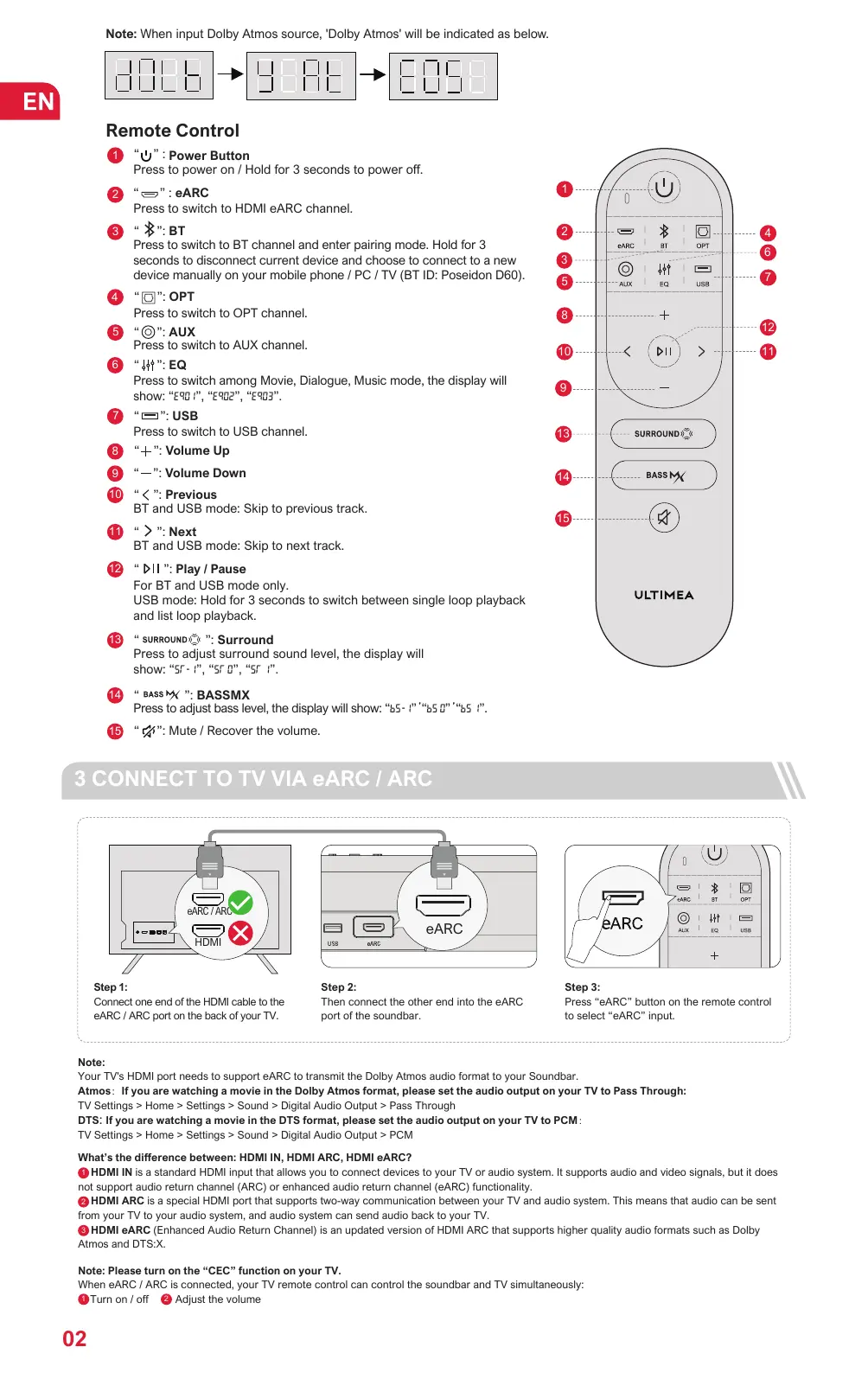


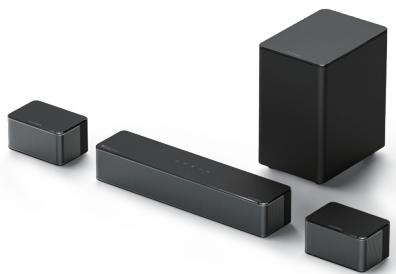
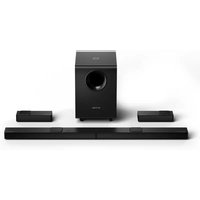
| Product Type | Soundbar with subwoofer and surround speakers |
| Brand | Ultimea |
| Model | U2520 |
| Soundbar Dimensions | 400 x 70 x 90 mm (W x H x D) |
| Soundbar Weight | 5.3 kg (net) |
| Subwoofer Dimensions | 155 x 244 x 215 mm (W x H x D) |
| Surround Speaker Dimensions | 135 x 70 x 90 mm (W x H x D) |
| Total Weight (package) | 6.8 kg |
| Power Supply | AC 100-240V, ~50/60Hz |
| Standby Power Consumption | < 0.5 W |
| Frequency Response | 40 Hz - 18 kHz |
| Speakers | 2.25" x 3 (soundbar) + 2.25" x 2 (surround) + 5.25" (subwoofer) |
| Connectivity | HDMI eARC, Optical, AUX, Bluetooth, USB |
| Key Features | EQ modes (Movie, Dialogue, Music), bass and surround adjustment, USB/BT playback |
| Care and Cleaning | Clean with a soft, dry cloth. Avoid abrasive products. |
| Safety | Install at least 20 cm away from the body. Do not expose to water. |
| Spare Parts and Repairability | Contact ULTIMEA support for replacement parts. |
| Operating Temperature | 0°C to 45°C |
| Box Contents | Soundbar, subwoofer, 2 surround speakers, cables, remote control, wall mount kit |
Frequently Asked Questions - U2520 ULTIMEA
User questions about U2520 ULTIMEA
0 question about this device. Answer the ones you know or ask your own.
Ask a new question about this device
Download the instructions for your Soundbar in PDF format for free! Find your manual U2520 - ULTIMEA and take your electronic device back in hand. On this page are published all the documents necessary for the use of your device. U2520 by ULTIMEA.
USER MANUAL U2520 ULTIMEA
01 User Manual English
Connection and Installation 02
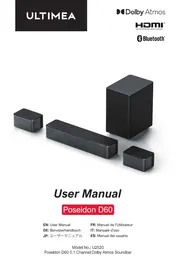
User Manual
Model No.: U2520
WE ARE READY TO HELP

support@ultimatea.com
Prefer video tutorial?
Setup guidance video, USER MANUAL or Trouble Shooting on ULTIMEA website.

@Ultimea_Official

support.ultimea.com

+1 888-598-8875(US)
+49 89-628-25828(EU)
Mon-Fri 9am-5pm(PST)
Mon-Fri 9am-5pm(CET)
1 ACCESSORIES LIST
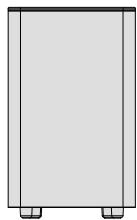
Subwoofer
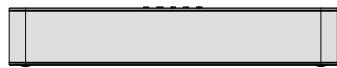
Soundbar

Surround Speaker x 2
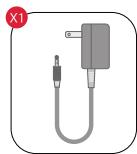
Power Adaptor
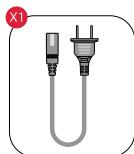
Subwoofer Power Cable
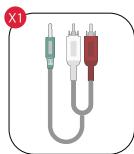
Stereo 3.5mm to RCA Audio Cable
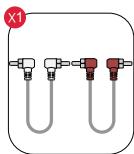
Stereo RCA to RCA Cable(6m)
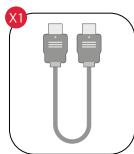
HDMI Cable
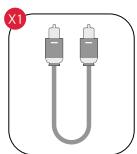
Digital Optical Cable
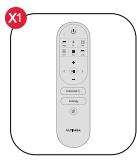
Remote Control
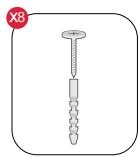
Wall Mounted Kit
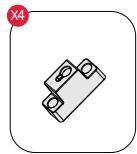
Wall Bracket
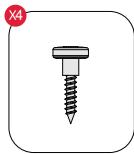
Mounting Screw on Speakers
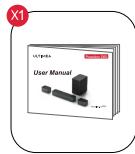
User Manual
2 SOUNDBAR CONTROLS
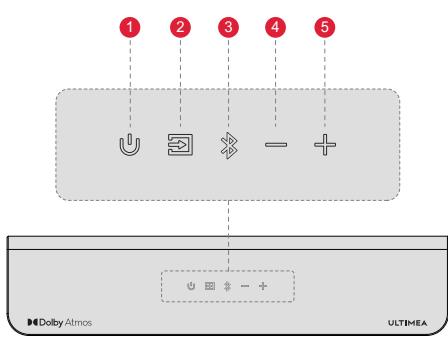
Control Panel
1 "U":PowerButton
Press to power on / Hold for 3 seconds to power off.
2 ":Input Mode
Press to switch channels: eARC-BT-OPT-AUX-USB.
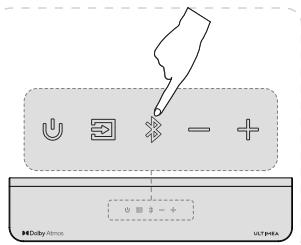
3 "":Bluetooth
Press to switch to BT channel and enter pairing mode. Hold for 3 seconds to disconnect current device and choose to connect to a new device manually on your mobile phone / PC / TV (BT ID: Poseidon D60).
4 “=”: Volume Down
5 "": Volume Up

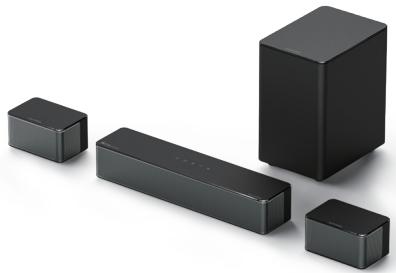
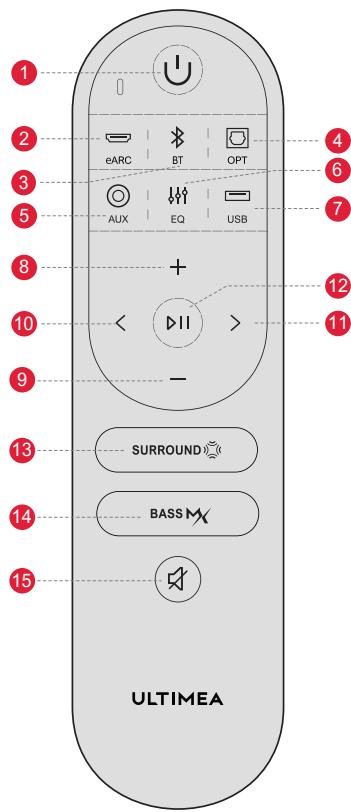
Remote Control
1 “U”:PowerButton
Press to power on / Hold for 3 seconds to power off.
2 “ ”: eARC
Press to switch to HDMI eARC channel.
3 "B":BT
Press to switch to BT channel and enter pairing mode. Hold for 3 seconds to disconnect current device and choose to connect to a new device manually on your mobile phone / PC / TV (BT ID: Poseidon D60).
4 “:OPT
Press to switch to OPT channel.
5 “O”:AUX
Press to switch to AUX channel.
6 “:EQ
Press to switch among Movie, Dialogue, Music mode, the display will show: “E901”, “E902”, “E903”.
7 “ ”: USB
Press to switch to USB channel.
8 “+”: Volume Up
9 “—”: Volume Down
10 " < ": Previous
BT and USB mode: Skip to previous track.
11 “>”: Next
BT and USB mode: Skip to next track.
12 "DII": Play / Pause
For BT and USB mode only.
USB mode: Hold for 3 seconds to switch between single loop playback and list loop playback.
13 " SURROUND": Surround
Press to adjust surround sound level, the display will show: "5r - 1", "5r 0", "5r 1".
14 "BASS": BASSMX
Press to adjust bass level, the display will show: "b5- f" "b5 g" "b5 i".
15 "A": Mute / Recover the volume.
3 CONNECT TO TV VIA eARC / ARC
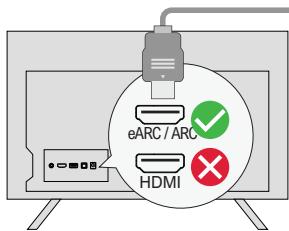
Step 1:
Connect one end of the HDMI cable to the eARC / ARC port on the back of your TV.
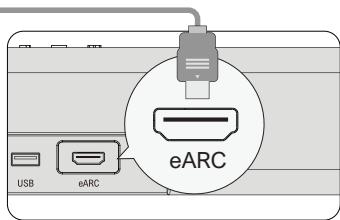
Step 2:
Then connect the other end into the eARC port of the soundbar.
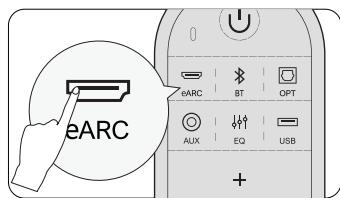
Step 3:
Press "eARC" button on the remote control to select "eARC" input.
Note:
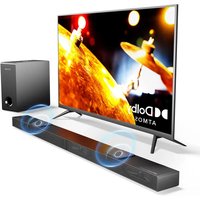
Your TV's HDMI port needs to support eARC to transmit the Dolby Atmos audio format to your Soundbar.
Atmos: If you are watching a movie in the Dolby Atmos format, please set the audio output on your TV to Pass Through:
TV Settings > Home > Settings > Sound > Digital Audio Output > Pass Through
DTS: If you are watching a movie in the DTS format, please set the audio output on your TV to PCM:
TV Settings > Home > Settings > Sound > Digital Audio Output > PCM
What's the difference between: HDMI IN, HDMI ARC, HDMI eARC?
HDMI IN is a standard HDMI input that allows you to connect devices to your TV or audio system. It supports audio and video signals, but it does not support audio return channel (ARC) or enhanced audio return channel (eARC) functionality.
HDMI ARC is a special HDMI port that supports two-way communication between your TV and audio system. This means that audio can be sent from your TV to your audio system, and audio system can send audio back to your TV.
3 HDMI eARC (Enhanced Audio Return Channel) is an updated version of HDMI ARC that supports higher quality audio formats such as Dolby
Atmos and DTS:X.
Note: Please turn on the "CEC" function on your TV.
When eARC / ARC is connected, your TV remote control can control the soundbar and TV simultaneously:
1 Turn on / off 2 Adjust the volume
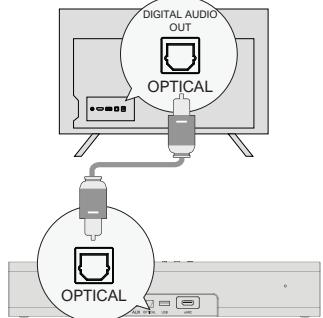
OPTICAL
OPTION 1: OPTICAL
Make sure the TV's port is OPTICAL OUT, connect both sides of the cable to OPTICAL, for both the TV and the soundbar.
Make sure the optical plug is inserted correctly as it shows in the picture. Do not insert the plug upside down and break the optical.
Note: If audio is playing from the internal TV speakers, mute or minimize the TV volume.
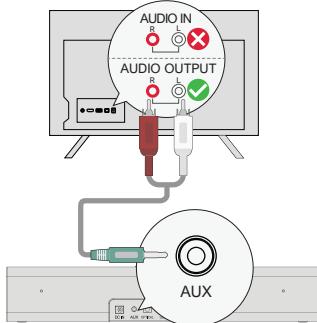
AUX
OPTION 2: AUX
Connect the 3.5mm to 3.5mm Audio Cable to your TV's AUDIO OUT port.
2 Not support AUDIO IN port on TV.
Note: Please remember to unplug the AUX cable from TV and Soundbar when you want to switch to other mode.
In Optical Mode: If there is no sound, try setting the TV audio output to PCM: TV Settings > Home > Settings > Sound > Digital Audio Output > PCM
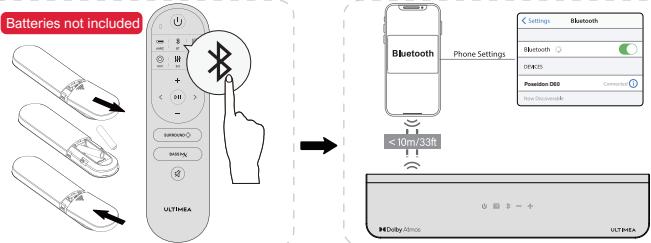
5 CONNECT TO BLUETOOTH
Press the " 串 " button on the soundbar or remote control to enter Bluetooth pairing mode.
2 Go to the Bluetooth setting on your phone, find and select "Poseidon D60" to connect the soundbar.
Note: If it's already in the Bluetooth mode and connected, press and hold “ ” button for 3 seconds to disconnect current device and choose to connect to new device manually on your mobile phone / PC / TV.
or
6 CONNECT TO SUBWOOFER AND SURROUND SPEAKERS
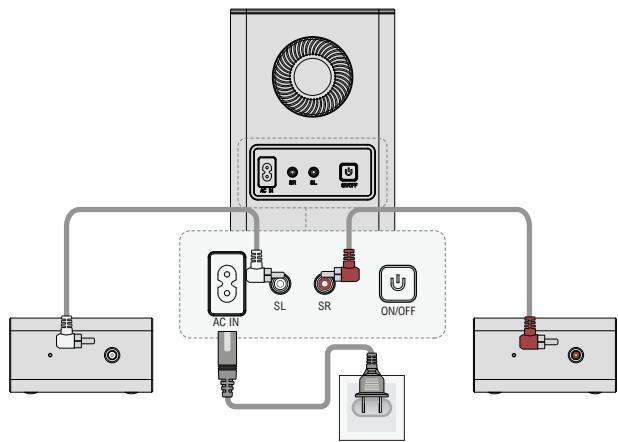
Use the 6m RCA-RCA cables to connect the subwoofer and surround speakers, please pay attention to match the same color interfaces on the surround speakers with the corresponding ones on the subwoofer and place the surround speakers accordingly.
Use power cable to connect your subwoofer and power port.
7 PAIRING SUBWOOFER
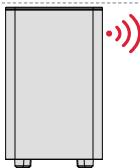

The subwoofer has been paired with the soundbar by ULTIMEA.
However you may need to re-pair the soundbar and subwoofer if there is no sound coming from the subwoofer.
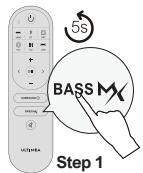
Step 1:
Press and hold the "BASS" button on the remote control for 5 seconds, the display will show "SUB" flashing.
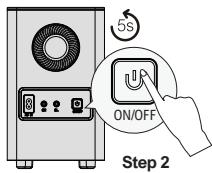
Step 2:
Press and hold the ON/OFF button on subwoofer for 5 seconds, the white LED will be fast flashing.
The white LED will be solid on when the subwoofer is paired successfully.
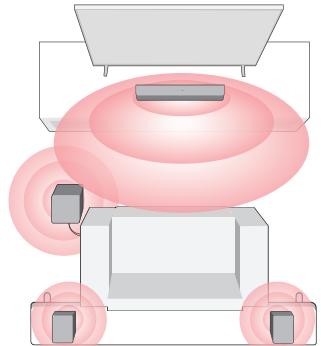
Full 360^ Surround (Better Surround)
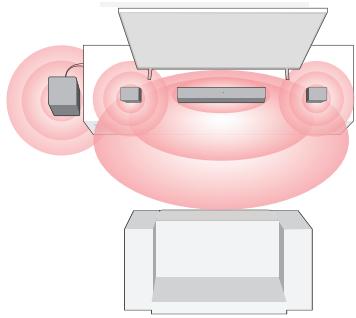
Front Surround
For a better listening experience, please choose one of the two placement options shown in the illustration above based on your home environment.
The soundbar and surround speakers should be placed at or near ear level.
9 WALL MOUNT INSTALLATION
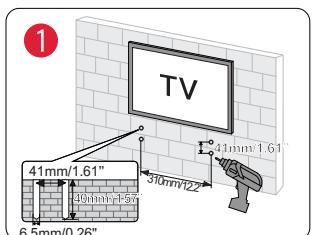
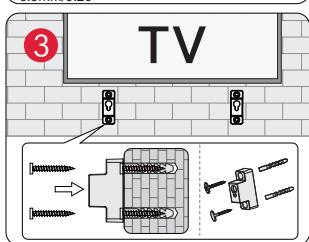
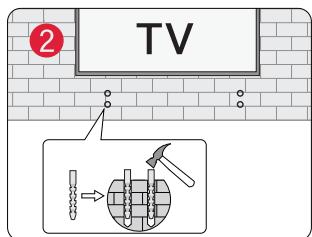
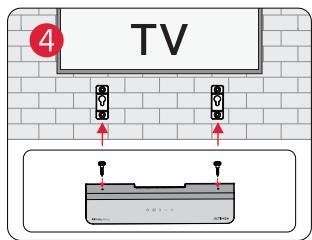
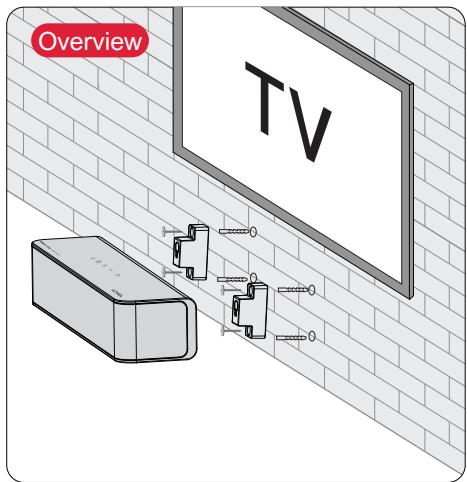
Note: Wall-mounted surround speakers follow the same configuration as shown in the above pictures
10 SPECIFICATIONS
| Model Number | U2520 |
| Power Supply | AC 100-240V, ~50/60Hz |
| Soundbar Drivers | 2.25" x 3 (Soundbar) + 2.25" x 2 (Surround Speaker) + 5.25" (Subwoofer) |
| Frequency Response | 40Hz - 18kHz |
| Standby Power | <0.5W |
| Operating Temperature | 0°C - 45°C/32°F - 113°F |
| Dimensions and Weight | ||
| Soundbar | 400(W) x 70(H) x 90(D)mm | 15.7" x 2.8" x 3.5" |
| Subwoofer | 155(W) x 244(H) x 215(D)mm | 6.1" x 9.6" x 8.5" |
| Surround Speaker | 135(W) x 70(H) x 90 (D)mm | 5.3" x 2.8" x 3.5" |
| Packaging | 335(W) x 442(H) x192(D)mm | 13.1" x 17.4" x 7.5" |
| Net Weight | 5.3kg / 11.68lbs | |
| Gross Weight | 6.8kg / 14.99lbs | |
Benutzerhandbuch
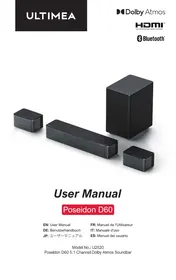
Modell Nr.: U2520
WIR SIND BEREIT ZU HELFEN

support@ultimatea.com
5 CONNECTER AU BLUETOOTH
REMARQUE:
Please read this user manual carefully and save it for future reference.
Do not make unauthorized alterations to the product, doing so may compromise safety, regulatory compliance, system performance, and may void the warranty.
- Avoid dropping.
- Do not disassemble.
- Do not submerge in water
- Avoid extreme temperatures.
- Do not use the device outdoors during thunderstorms.
- Use original or certified cables.
- Do not place dangerous items on top of this device (e.g. liquid filled objects, lit candles).
- Clean with a dry, soft lint-free cloth. Do not use any corrosive cleaner or oil.
- To avoid hearing damage, do not listen for extended periods at high volume.
- Do not expose the batteries to extreme heat sources such as direct sunlight or open flames.
The ideal operating temperature for this product and its accessories is between 41^ / 5^ and 95^ / 35^ .
The adapter should be installed near the device and should be easily accessible.
Do not use this product in environments of extreme heat or cold. Never expose this device to strong sunshine or wet environments.
PROPER DISPOSAL INSTRUCTIONS

This mark shown on the product or its packaging, indicates that this product should not be disposed of with other household waste at the end of its working life.
To prevent possible harm to the environment or human health from uncontrolled waste disposal, please separate this from other types of wastes and recycle it responsibly to promote the sustainable reuse of material resources.
Waste Electrical & Electronic Equipment
Household user should contact either the retailer where they purchased this product, or their local government office, for details of where and how they can take this item for environmentally safe recycling.
Business users should contact their suppliers and check the terms and conditions of the purchase contract. This product should not be mixed with other commercial wastes for disposal.
FCC REGULATORY COMPLIANCE
NOTE: This equipment has been tested and found to comply with the limits for a Class B digital device, pursuant to part 15 of the FCC Rules. These limits are designed to provide reasonable protection against harmful interference in a residential installation. This equipment generates uses and can radiate radio frequency energy and, if not installed and used in accordance with the instructions, may cause harmful interference to radio communications.
However, there is no guarantee that interference will not occur in a particular installation. If this equipment does cause harmful interference to radio or television reception, which can be determined by turning the equipment off and on, the user is encouraged to try to correct the interfer. ence by one or more of the following measures:
-
Reorient or relocate the receiving antenna. - Increase the separation between the equipment and the receiver.
-
Connect the equipment to an outlet on a circuit different from that to which the receiver is connected.
-
Consult the dealer or an experienced radio/TV technician
for help.
Any changes or modifications not expressly approved by the party responsible for compliance could void the user's authority to operate the equipment.
This device complies with Part 15 of the FCC Rules.
Operation is subject to the following two conditions:
(1) this device may not cause harmful interference.
(2) this device must accept any interference received, including interference that may cause undesired operation.
This equipment complies with FCC radiation exposure limits set forth for an uncontrolled environment. This equipment should be installed and operated with a minimum distance of 20cm between the radiator & your body. This transmitter must not be co-located or operating in conjunction with any other antenna or transmitter.
ISED WARNINGS
This device contains licence-exempt transmitter(s)/ receiver (s) that comply with Innovation, Science and Economic Development Canada's licence-exempt RSS (s). Operation is subject to the following two conditions:
(1) This device may not cause interference.
(2) This device must accept any interference, including interference that may cause undesired operation of the device.
This equipment complies with IC exposure limits set forth for an uncontrolled environment. This equipment shall be installed and operated with a minimum distance of 20cm between the radiator & body.
Declaration of Conformity
We (Manufacturer is responsible for this declaration)
Dynamic (Shenzhen) Technology Limited (Company name)
20th Floor, Building 4, Tianan Cloud Park, Bantian St.,
Longgang District Shenzhen, China 518000
(Company address)
Declare under our sole responsibility that the product Trade Mark: ULTIMEA
Product Name: Poseidon D60 5.1 Channel Dolby
Atmos Soundbar
Model No.: U2520
To which this declaration relates is in conformity with the essential requirement set out in the Council Directive on the Approximation of the laws of the Member States relating to RED Directive (2014/53/EU) & RoHS (2011/65/EU) product is responsible to affix CE marking, the following standards were applied:
EN 55032:2015/A11:2020
EN 55035:2017/A11:2020
ENIEC 61000-3-2:2021
EN 61000-3-3:2013/A1:2021
ETSIEN 301 489-1 V2.2.3(2019-11)
ETSIEN 301 489-17 V3.2.4(2020-09)
EN 300 328 V2.2.2(2019-07)
EN 50663:2017
ENIEC 62368-1:2020+A11:2020
IEC62321-3-1:2013
IEC 62321-4:2013+A1:2017
IEC 62321-5:2013
IEC 62321-6:2015
IEC 62321-7-1:2015
IEC 62321-7-2:2017
IEC 62321-8:2017
Full Name: Yoyo.Yu
Position: Approbation Manager
Signature:
Place/Date: Shenzhen, China/Dec.25-2022
Trade Marks:
Dolby Atmos
Dolby, Dolby Atmos, and the double-D symbol are registered trademarks of Dolby Laboratories Licensing Corporation.
Manufactured under license from Dolby Laboratories. Confidential unpublished works. Copyright 2012-2021 Dolby
Laboratories. All rights reserved.

Bluetooth
The Bluetooth® word mark and logos are registered trademarks owned by Bluetooth SIG, Inc. and any use of such
marks by Soundlab Technology Co.,Ltd. is under license. Other trademarks and trade names are those of their
respective owners.
HBMI
HIGH-DEFINITION MULTIMEDIA INTERFACE
The Adopted Trademarks HDMI, HDMI High-Definition Multimedia Interface, HDMI trade dress and the HDMI Logos
are trademarks or registered trademarks of HDMI Licensing Administrator, Inc. in the United States and other.
ULTIMEA
Poseidon D60 5.1 Channel Dolby Atmos Soundbar
Model No.: U2520

Dynamic GmbH
Buchenring 57,22359 Hamburg, Germany

UK Crossborder limited
7 Bell Yard London WC2A 2JR, UK United Kingdom
Made in China
Manufacturer: Dynamic (Shenzhen) Technology Limited
Address: 20th Floor, Building 4, Tianan Cloud Park, Bantian St.,
Longgang District, Shenzhen, China 518000
If you need our support, kindly reach out to our
service team. We are always glad to help.


- User Manual English
- WE ARE READY TO HELP
- Prefer video tutorial?
- ACCESSORIES LIST
- SOUNDBAR CONTROLS
- Control Panel
- Remote Control
- CONNECT TO TV VIA eARC / ARC
- Note:
- CONNECT TO BLUETOOTH
- CONNECT TO SUBWOOFER AND SURROUND SPEAKERS
- PAIRING SUBWOOFER
- Step 1:
- Step 2:
- WALL MOUNT INSTALLATION
- SPECIFICATIONS
- Benutzerhandbuch
- WIR SIND BEREIT ZU HELFEN
- CONNECTER AU BLUETOOTH
- REMARQUE:
- Please read this user manual carefully and save it for future reference.
- PROPER DISPOSAL INSTRUCTIONS
- Waste Electrical & Electronic Equipment
- FCC REGULATORY COMPLIANCE
- ISED WARNINGS
- Declaration of Conformity
- Dolby Atmos
- Bluetooth
- HBMI
- ULTIMEA
Brand : ULTIMEA
Model : U2520
Category : Soundbar