G Pro X filaire - Headphones LOGITECH - Free user manual and instructions
Find the device manual for free G Pro X filaire LOGITECH in PDF.



| Product type | Wired gaming headset |
| Brand | Logitech G |
| Model | G Pro X wired |
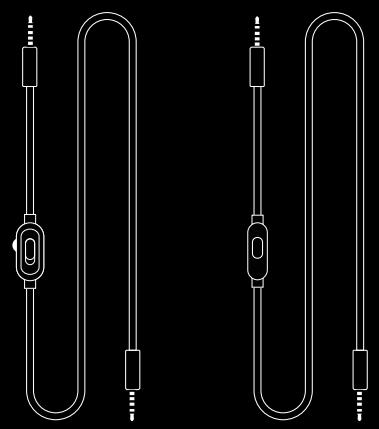
| Connectivity | Wired: console/PC cable (2.5 m), phone cable (1.5 m), 3.5 mm jack |
| Microphone | Detachable with Blue VO!CE filter via G HUB software |
| Speakers | 50 mm neodymium drivers |
| Spatial audio | DTS Headphone:X 2.0 (via USB DAC and G HUB) |
| Equalizer | 5-band customizable (via USB DAC and G HUB, saveable in the DAC) |
| USB DAC included | Yes, allows saving equalizer profiles |
| PC compatibility | Via USB DAC or PC sound card (separate jacks) |
| Console compatibility | Xbox One, PlayStation 4 (stereo via controller, Xbox One adapter required for some controllers) |
| Mobile compatibility | Mobile devices with headphone jack (stereo only, no advanced features) |
| Required software | Logitech G HUB (free) for equalizer, DTS Headphone:X 2.0 and Blue VO!CE |
| Weight | Approximately 320 g |
| Power supply | Powered via USB through the DAC (for advanced features); no power connection needed for standard jack mode |
| Care and cleaning | Clean with a soft, dry cloth; do not use liquids. Earpads and microphone can be gently wiped. |
| Safety | Avoid prolonged listening at high volume to protect hearing |
| Spare parts and repairability | Cables, microphone, earpads and headband available as spare parts from Logitech |
Frequently Asked Questions - G Pro X filaire LOGITECH
User questions about G Pro X filaire LOGITECH
0 question about this device. Answer the ones you know or ask your own.
Ask a new question about this device
Download the instructions for your Headphones in PDF format for free! Find your manual G Pro X filaire - LOGITECH and take your electronic device back in hand. On this page are published all the documents necessary for the use of your device. G Pro X filaire by LOGITECH.
USER MANUAL G Pro X filaire LOGITECH
SETUP GUIDE GUIDE D'INSTALLATION
ENGLISH 3
FRANÇAIS 7
ESPANOL. 11
PORTUGUES 15





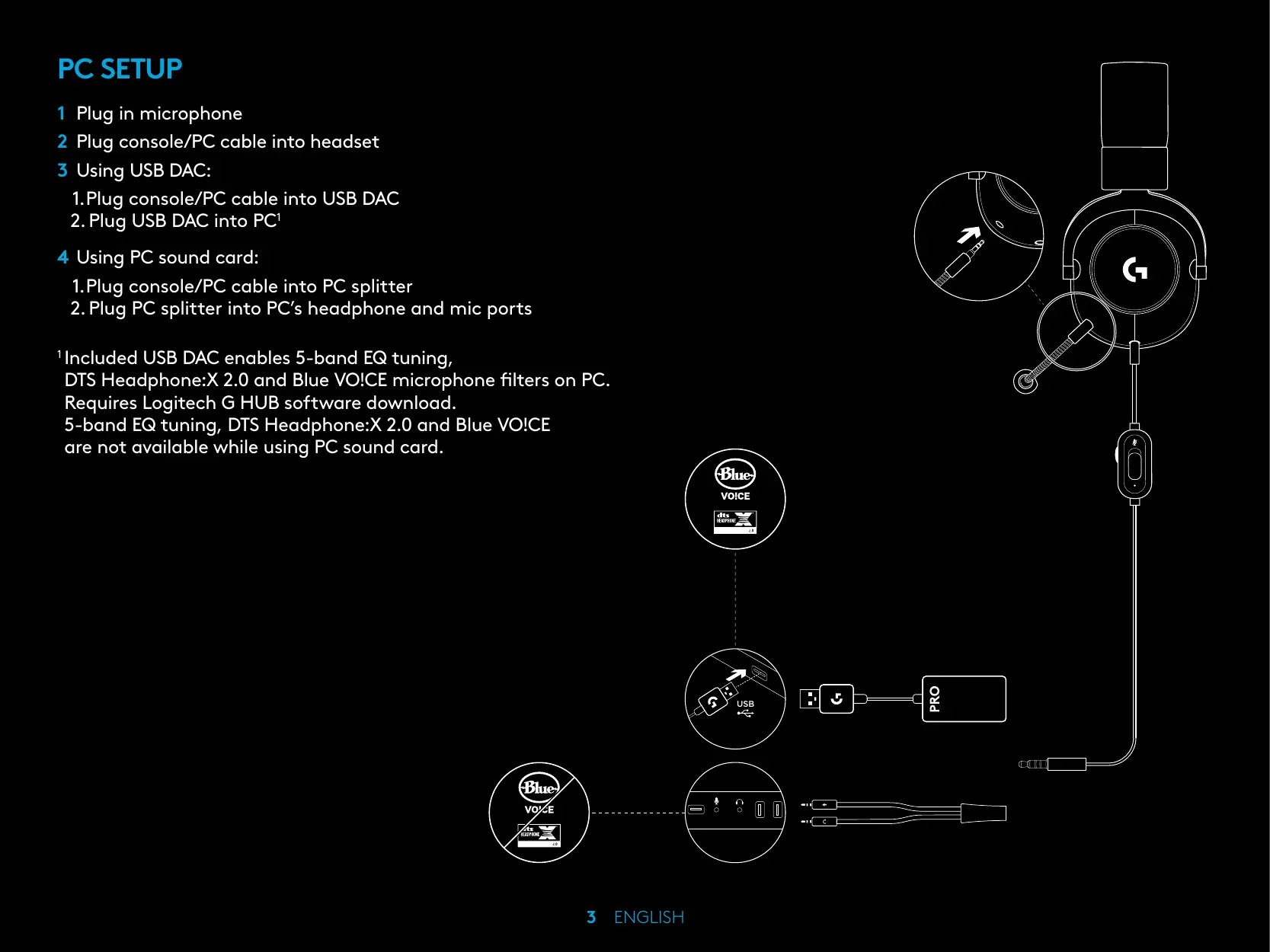
PC SETUP
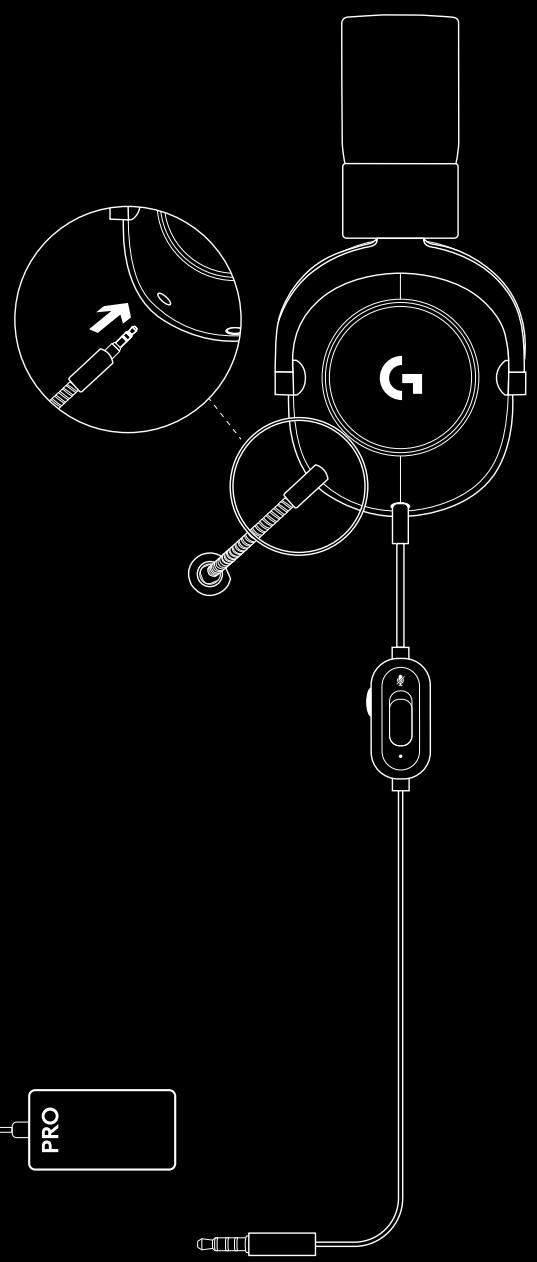
1 Plug in microphone
2 Plug console/PC cable into headset
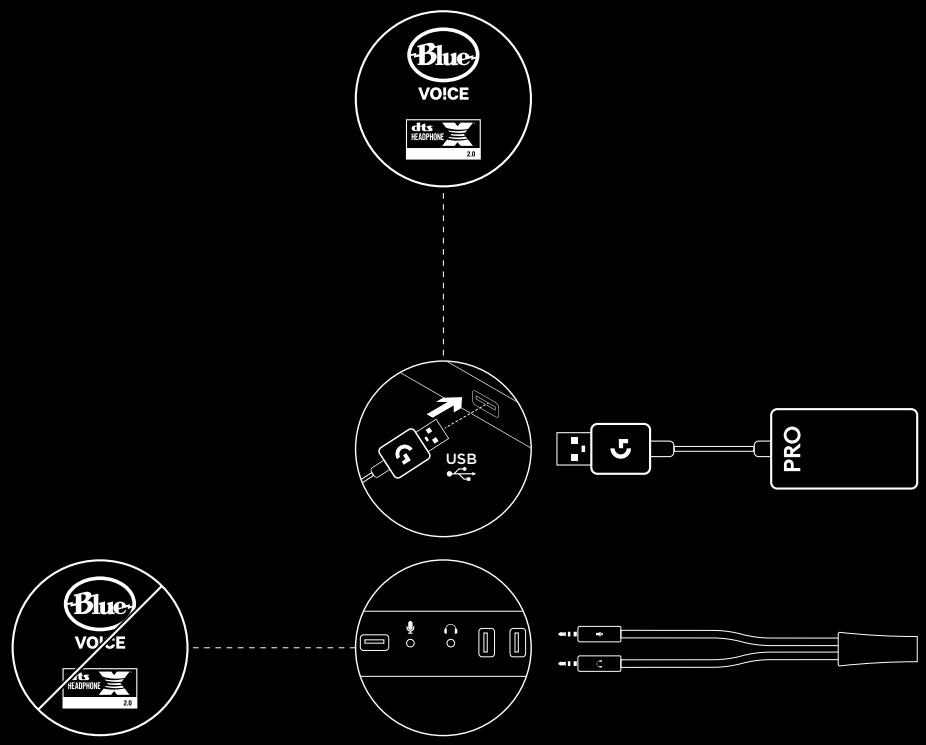
3 Using USB DAC:
1.Plug console/PC cable into USB DAC
2. Plug USB DAC into PC1
4 Using PC sound card:
1.Plug console/PC cable into PC splitter
2. Plug PC splitter into PC's headphone and mic ports
1Included USB DAC enables 5-band EQ tuning, DTS Headphone:X 2.0 and Blue VO!CE microphone filters on PC. Requires Logitech G HUB software download. 5-band EQ tuning, DTS Headphone:X 2.0 and Blue VO!CE are not available while using PC sound card.
CONSOLE SETUP (XBOX ONE™, PLAYSTATION®4)
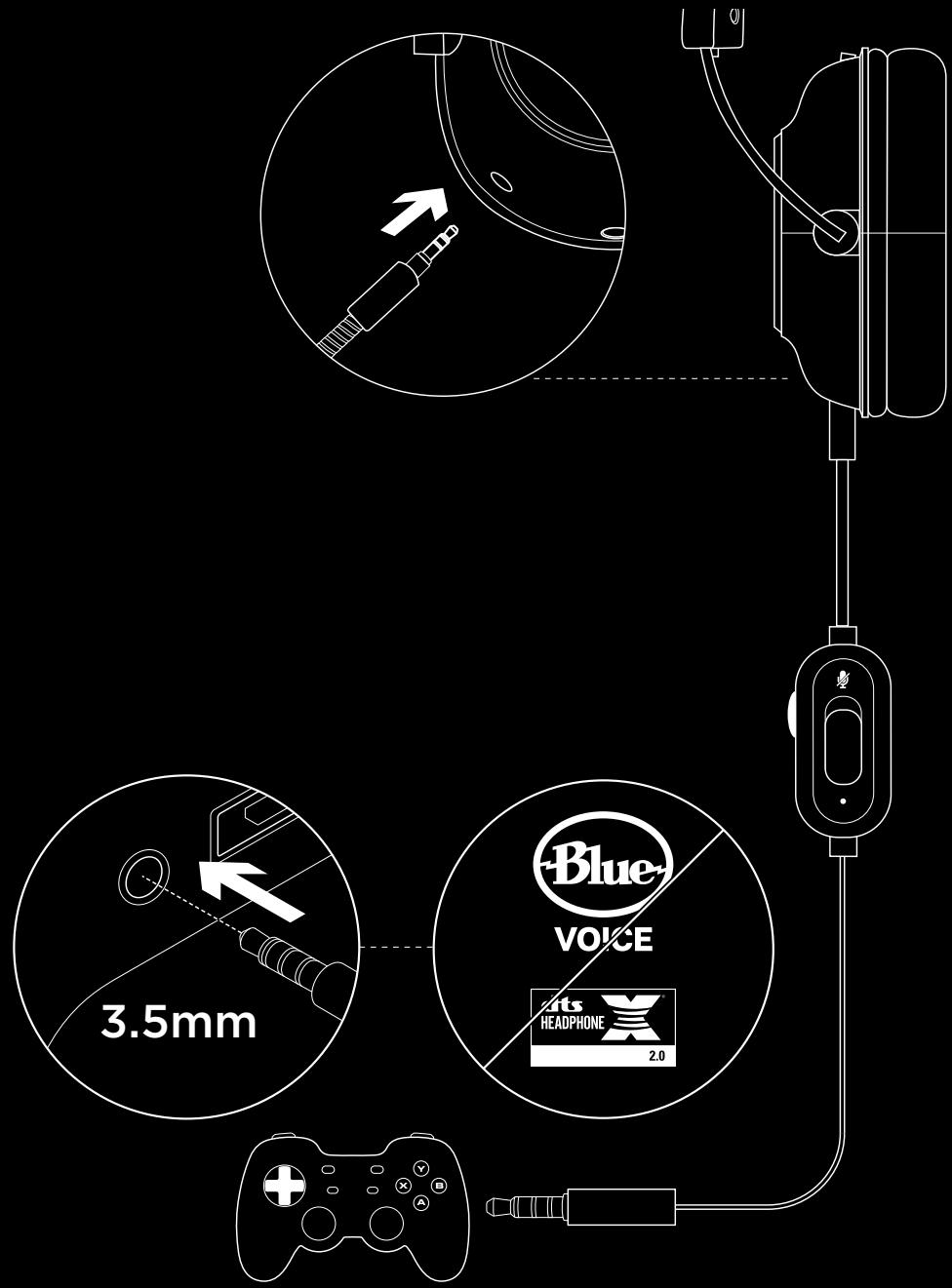
1 Plug in microphone
2 Plug console/PC cable into headset
3 Plug other end into controller2
2 Instructions may vary based on your system version. Please check your console manual for additional guidance. Xbox One and PlayStation 4 operate in stereo mode only via analog cable. Some Xbox One controllers may require Xbox One Stereo Headset Adapter, sold separately. 5-band EQ tuning, DTS Headphone:X 2.0 and Blue VOICE are not available while connected to console controller.
MICROPHONE POSITION SETUP
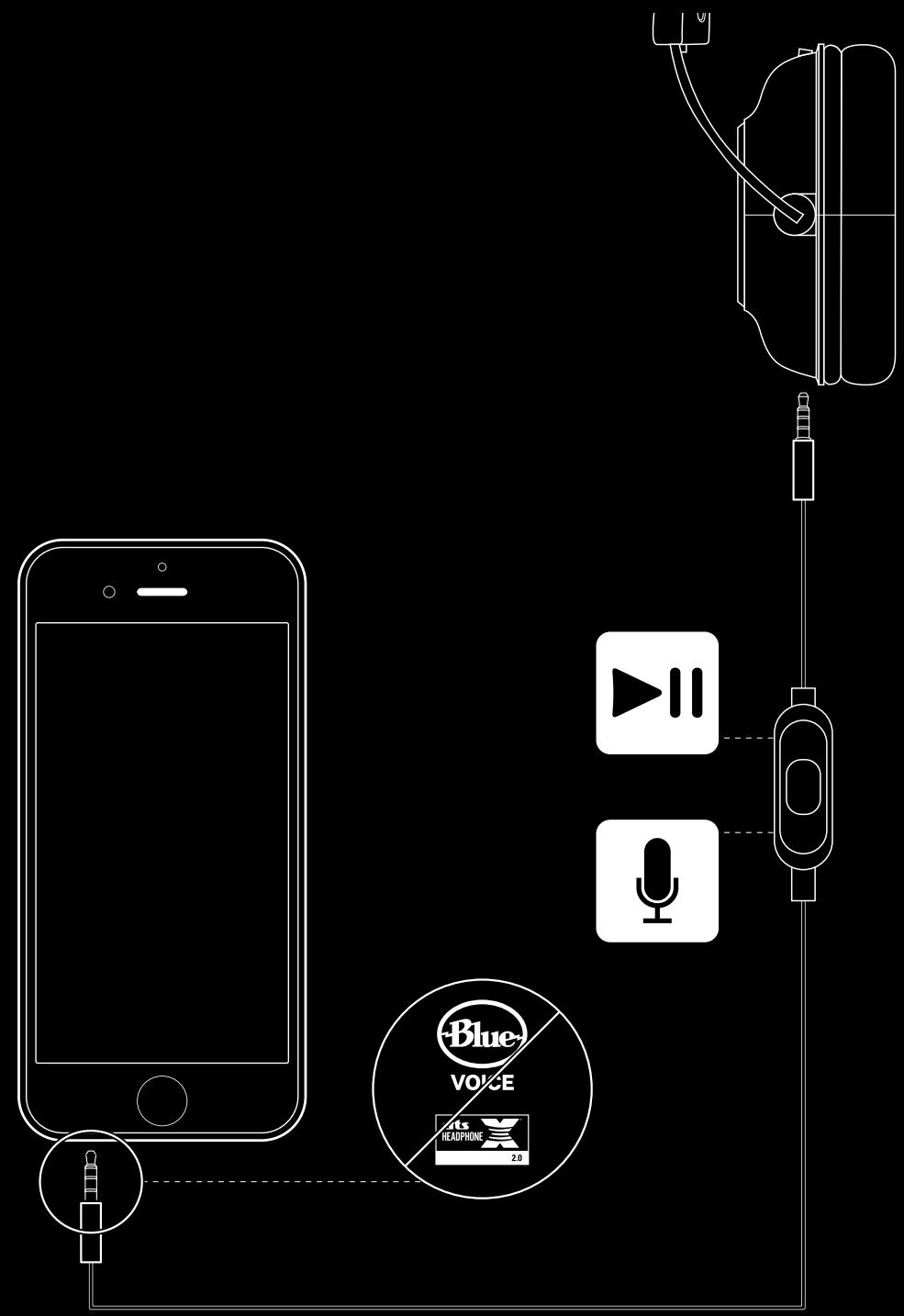
1 Remove microphone
2 Plug in mobile cable to headset
3 Plug mobile cable into phone3
35-band EQ tuning, DTS Headphone:X 2.0 and Blue VO!CE are not available on mobile devices.
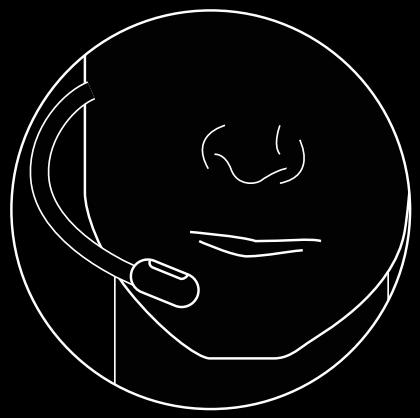
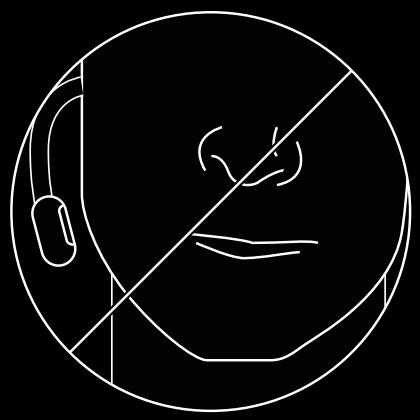
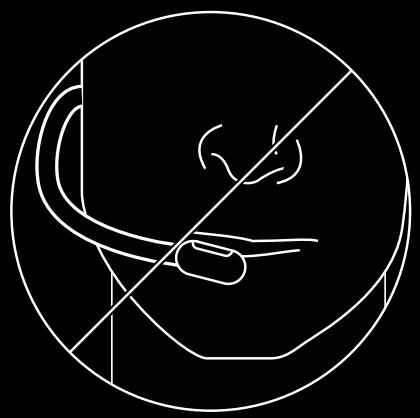
MICROPHONE PLACEMENT
Ideal placement of the microphone is at the corner of your mouth. In this position, your voice can be heard clearly without the microphone picking up breathing sounds.
Frequently ASKED QUESTIONS
Q: How do I save a custom EQ to the USB DAC?
A: Connect the USB DAC to a PC's USB port and use G HUB software to download a pre-configured EQ from your favorite pro gamer, or to configure your own custom EQ settings. After using G HUB to save your EQ to the DAC, you can then enjoy your custom settings even on tournament PCs with no G HUB software installed.
Q: Can I save Blue VO!CE settings to the USB DAC?
A: No, Blue VO!CE technology is only available while using G HUB software and the USB DAC on PC.
Q: Can I save DTS Headphone:X 2.0 settings to the USB DAC?
A: No, DTS Headphone:X 2.0 is only available while using G HUB software and the USB DAC on PC.
CONFIGURATION SUR PC
© 2019 Logitech, Logitech G, Logi and their respective logos are trademarks or registered trademarks of Logitech Europe S.A. and/or its affiliates in the U.S. and other countries. For DTS patents, see http://patents.dts.com. Manufactured under license from DTS Licensing Limited. DTS, the Symbol, & DTS and the Symbol together, Headphone:X, and the DTS Headphone:X logo are registered trademarks or trademarks of DTS, Inc. in the United States and/or other countries. All other trademarks are the property of their respective owners.

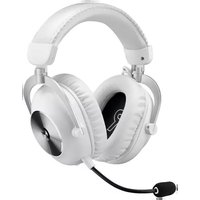
Brand : LOGITECH
Model : G Pro X filaire
Category : Headphones