
LaserJet 8150 - Printer HEWLETT PACKARD - Free user manual and instructions
Find the device manual for free LaserJet 8150 HEWLETT PACKARD in PDF.

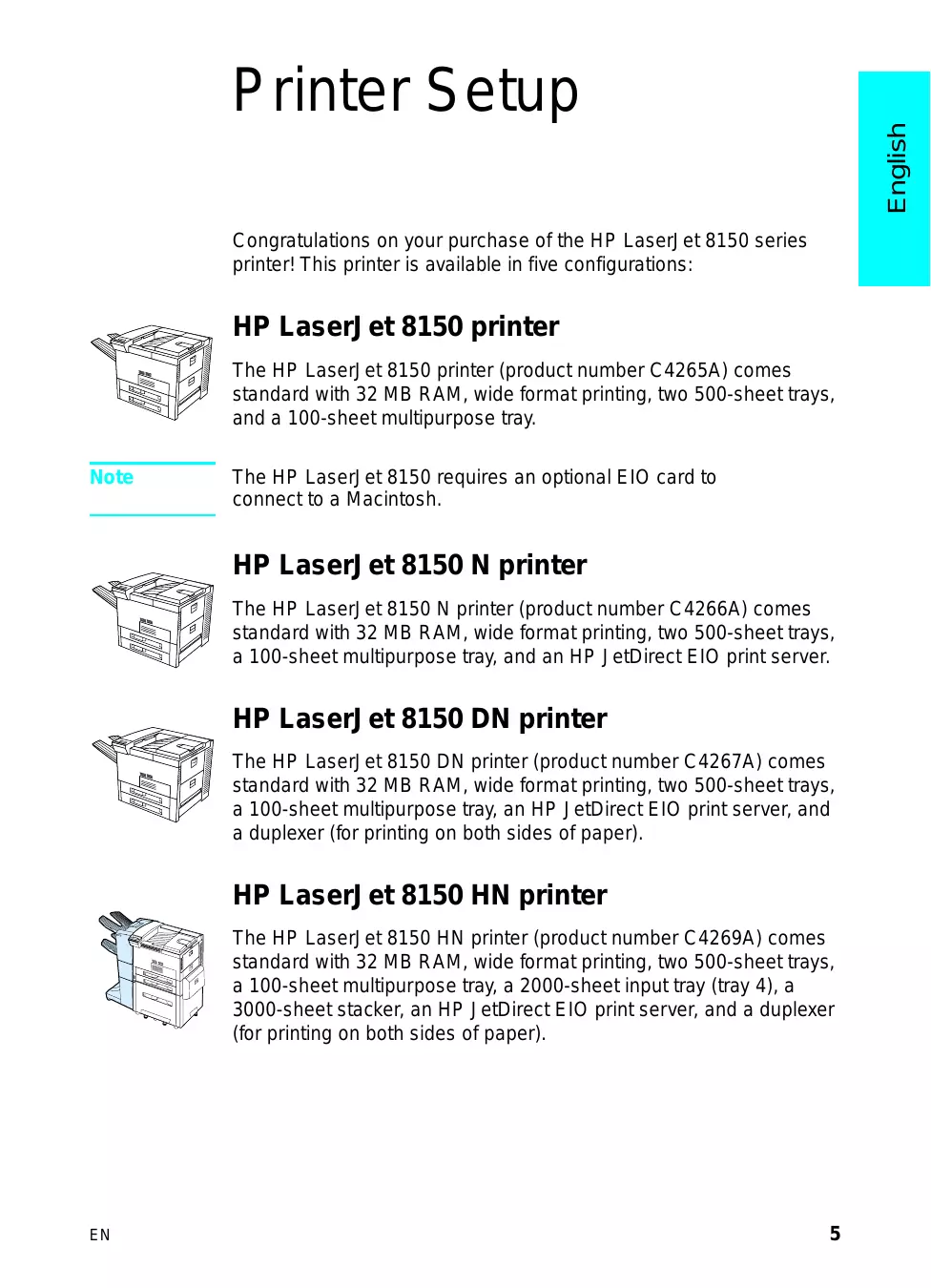


| Product type | Monochrome laser printer |
| Brand | Hewlett-Packard (HP) |
| Model | LaserJet 8150 |
| Product reference | C4265A (base model) |
| Weight (base model) | 51 kg (112 lb) |
| Standard RAM memory | 32 MB |
| Standard paper capacity | 1,100 sheets: two 500-sheet trays (trays 2 and 3) and one 100-sheet multifunction tray (tray 1) |
| Maximum paper capacity | Up to 3,100 sheets with optional 2,000-sheet feeder tray (tray 4) |
| Output bin | Standard output bin (rear) with adjustable paper stop |
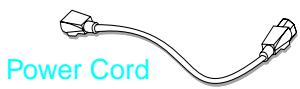
| Power supply | Power cord with grounded mains plug |
| Operating temperature | 10 to 32.5°C (50 to 91°F) |
| Operating humidity | 20 to 80% RH |
| Standard interfaces | IEEE-1284 bidirectional parallel, HP Fast InfraRed Connect (FIR) connector, EIO connector (C) |
| Optional network interface | HP JetDirect EIO print server with RJ-45 10/100Base-TX connector |
| Printer languages | PCL 6, PostScript 3 (depending on model) |
| Print speed | Up to 32 pages per minute (A4) |
| Print resolution | 600 x 600 dpi |
| Supported paper sizes | A4, A3, Letter, Legal, envelopes, transparencies, labels, etc. |
| Included accessories | Toner cartridge, parallel cable (base model), software CD-ROM, control panel cover |
| Available options | Duplex printing, 2,000-sheet feeder tray, sorter, stapler, HP Digital Copy unit (MFP) |
| Country of origin | Not specified |
Frequently Asked Questions - LaserJet 8150 HEWLETT PACKARD
User questions about LaserJet 8150 HEWLETT PACKARD
0 question about this device. Answer the ones you know or ask your own.
Ask a new question about this device
Download the instructions for your Printer in PDF format for free! Find your manual LaserJet 8150 - HEWLETT PACKARD and take your electronic device back in hand. On this page are published all the documents necessary for the use of your device. LaserJet 8150 by HEWLETT PACKARD.
USER MANUAL LaserJet 8150 HEWLETT PACKARD
HP LaserJet 8150, 8150 N, 8150 DN, 8150 HN, and 8150 MFP Printers
Copyright Hewlett-Packard
Company 2000
All Rights Reserved. Reproduction, adaptation, or translation without prior written permission is prohibited, except as allowed under the copyright laws.
Publication number C4265-90903
First Edition, October 2000
Warranty
The information contained in this document is subject to change without notice.
Hewlett-Packard makes no warranty of any kind with respect to this information. HEWLETT-PACKARD SPECIFICALLY DISCLAIMS THE IMPLIED WARRANTY OF MERCHANTABILITY AND FITNESS FOR A PARTICULAR PURPOSE.
Hewlett-Packard shall not be liable for any direct, indirect, incidental, consequential, or other damage alleged in connection with the furnishing or use of this information.
Trademark Credits
Acrobat is a trademark of Adobe Systems Incorporated.
PostScript is a trademark of Adobe Systems Incorporated which may be registered in certain jurisdictions.
Ariel, Monotype, and Times New Roman, are U.S. registered trademarks of the Monotype Corporation.
CompuServe is a U.S. trademark of CompuServe, Inc.
Helvetica, Palatino, Times, and Times Roman are trademarks of Linotype AG and/or its subsidiaries in the U.S. and other countries.
Microsoft, MS Windows, Windows and Windows NT are U.S. registered trademarks of Microsoft Corporation.
TrueType is a U.S. trademark of Apple Computer, Inc.
ENERGY STAR is a U.S. registered service mark of the U.S. EPA.
Contents
Installation Checklist 7
Step 1 Prepare Printer Location. 8
Step 2 Check Package Contents. 10
Step 3 Remove Internal Packaging 11
Step 4 Locate Printer Parts 12
Step 5 Install Accessories 13
Step 6 Install Toner Cartridge. 14
Step 7 Load Trays 2 and 3. 16
Step 8 Load Tray 1 (Optional) 18
Step 9 Attach Power Cord .20
Step 10 Install or Change the Control Panel Overlay (Optional) .21
Step 11 Configure the Control Panel Display Language (Optional). 22
Step 12 Test the Printer .24
Step 13 Connect Printer Cables. .25
Step 14 Install Printing Software 28
Step 15 Verify Printer Setup. 31
FCC Regulations. 32
Printer Setup
Congratulations on your purchase of the HP LaserJet 8150 series printer! This printer is available in five configurations:
Note
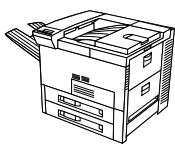
HP LaserJet 8150 printer
The HP LaserJet 8150 printer (product number C4265A) comes standard with 32 MB RAM, wide format printing, two 500-sheet trays, and a 100-sheet multipurpose tray.
The HP LaserJet 8150 requires an optional EIO card to connect to a Macintosh.
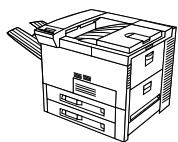
HP LaserJet 8150 N printer
The HP LaserJet 8150 N printer (product number C4266A) comes standard with 32 MB RAM, wide format printing, two 500-sheet trays, a 100-sheet multipurpose tray, and an HP JetDirect EIO print server.
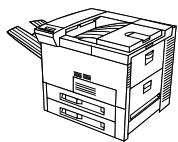
HP LaserJet 8150 DN printer
The HP LaserJet 8150 DN printer (product number C4267A) comes standard with 32 MB RAM, wide format printing, two 500-sheet trays, a 100-sheet multipurpose tray, an HP JetDirect EIO print server, and a duplexer (for printing on both sides of paper).
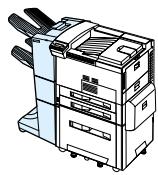
HP LaserJet 8150 HN printer
The HP LaserJet 8150 HN printer (product number C4269A) comes standard with 32 MB RAM, wide format printing, two 500-sheet trays, a 100-sheet multipurpose tray, a 2000-sheet input tray (tray 4), a 3000-sheet stacker, an HP JetDirect EIO print server, and a duplexer (for printing on both sides of paper).
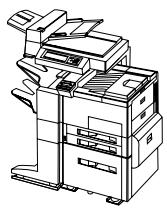
HP LaserJet 8150 MFP printer
The HP LaserJet 8150 MFP printer (product number C4268A) comes standard with 64 MB RAM, wide format printing, hard disk, two 500-sheet trays, a 100-sheet multipurpose tray, a 2000-sheet input tray (tray 4), a 3000-sheet Stapler/Stacker, an HP JetDirect EIO print server, a duplexer (for printing on both sides of paper), a copy connect EIO board, and an HP Digital Copy.
Installation Checklist
This guide will help you set up and install the new printer. For proper installation, please complete each section in order:
Unpack the printer steps 1-4
Install the printer steps 5-12
Connect the printer cables step 13
Install printing software step 14
Verify printer setup step 15
WARNING!
The printer is heavy. HP recommends that four people move it.
Note
To learn about all the features and capabilities of the printer, see the printer user guide and the help menus in the printer drivers (available after you install the printing software and online user guide).
Step 1 Prepare Printer Location

Printer Size
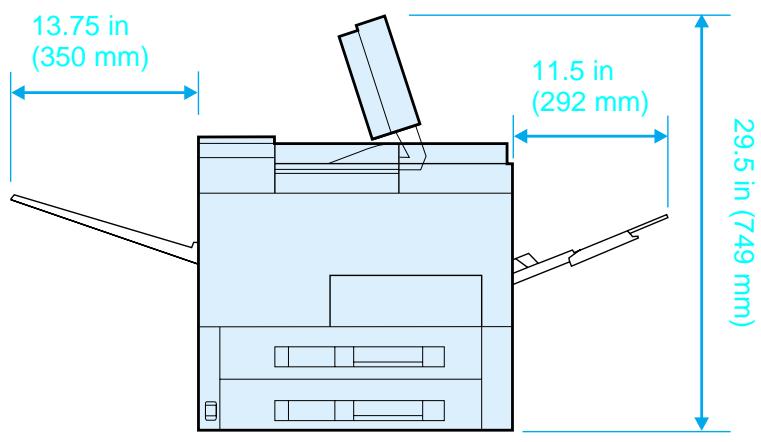
HP LaserJet 8150 Printer Dimensions (Top and Side Views)
Location requirements for the printer
A sturdy, level surface for placement
Space allowance around the printer
A well ventilated room
No exposure to direct sunlight or chemicals, including ammonia-based cleaning solutions
Adequate power supply
A stable environment—no abrupt temperature or humidity changes
Relative humidity 20% to 80%
Room temperature 50^ to 91^ F (10° to 32.5°C)
Printer Weight (without toner cartridge)
HP LaserJet 8150 and 8150 N printers: 51 kg (112 lbs)
HP LaserJet 8150 DN printer: 54kg (120 lbs)
HP LaserJet 8150 HN printer: 113kg (249 lbs)
HP LaserJet 8150 MFP printer: 136 kg (300 lbs)
Step 2 Check Package Contents
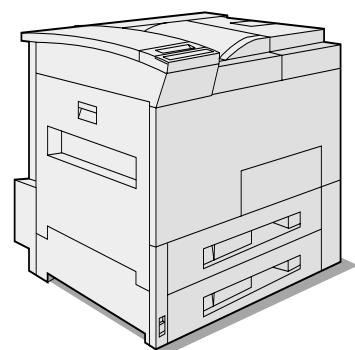
Printer
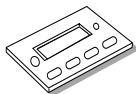
Control
Panel
Overlay
Printer
Documentation
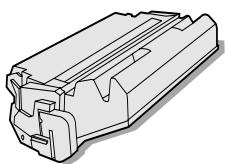
Toner
Cartridge

Printer Software
CD-ROM
Package Contents
Note
A printer parallel interface cable is only included with the HP LaserJet 8150 base printer. See the printer user guide for ordering information.
Step 3 Remove Internal Packaging
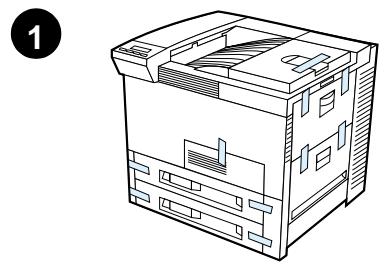
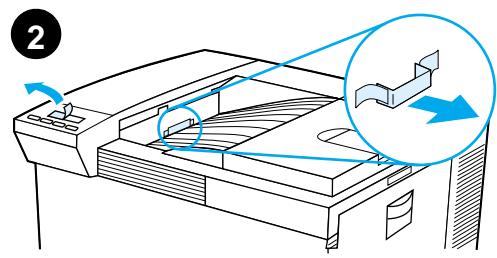
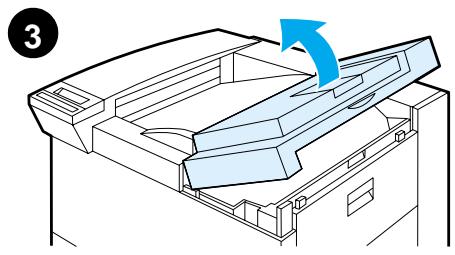
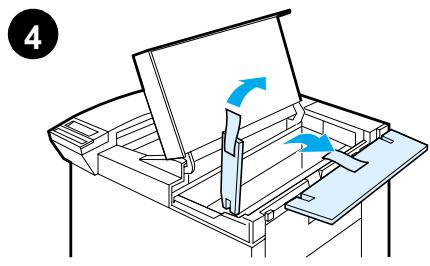
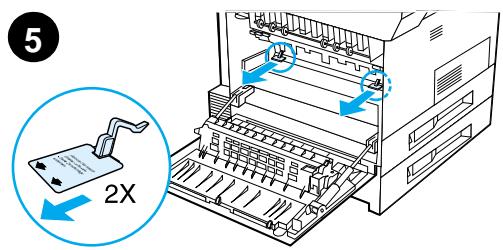
Note
Save all packing material. You may need to repack the printer at a later date.
WARNING!
This printer weighs approximately 51 kg (112 lbs). HP recommends that four people move it.
1 Remove all external packing tape from the printer.
2 Remove packing material from standard output bin and protective film from display.
3 Open the top cover.
4 Remove packing material and tape and close top cover.
5 Open the left-side door and remove the two packing spacers. Close the door.
Step 4 Locate Printer Parts
The following illustrations give the location and names of the important printer parts.
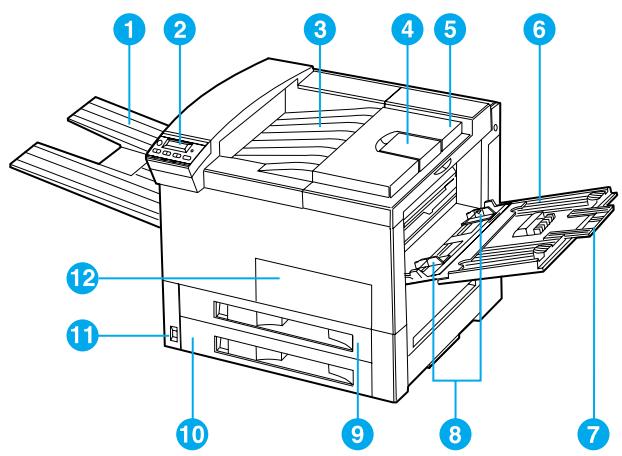
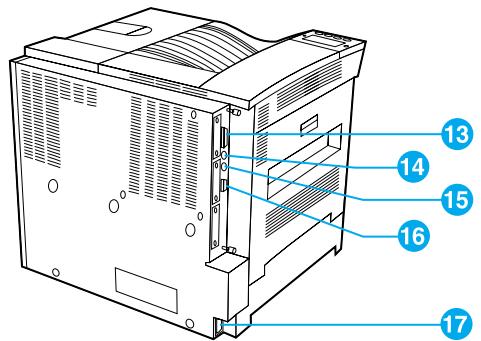
Printer Parts (front and rear views)
1 Face-up Bin
2 Control Panel
3 Standard Output Bin (Face-down)
4 Adjustable Paper Stop
5 Top Cover
6 Tray 1 (multipurpose)
7 Tray 1 extensions
8 Tray 1 paper width guides
9 Tray 2
10 Tray 3
11 Power Switch
12 Front Door
13 Parallel Cable Connector
14 Foreign Interface Harness (AUX)
15 HP Fast InfraRed Connect (FIR)
16 C-Link Connector
17 Power Cord Connector
Step 5 Install Accessories
Install any accessories that you have purchased with the printer. Use the installation instructions that are packaged with the accessories.
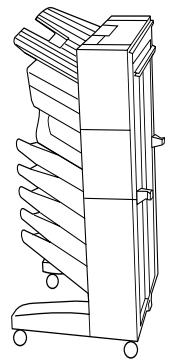
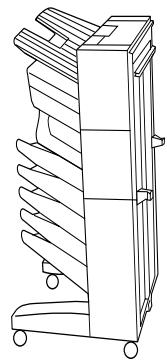
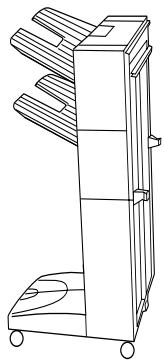
Multibin Mailbox (5-Bin with Stapler)
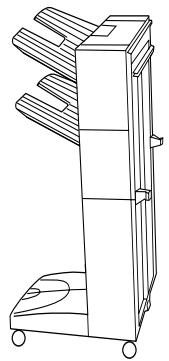
3000-sheet Stapler/Stacker or 3000-sheet Stacker
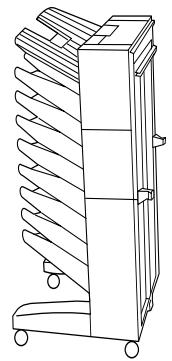
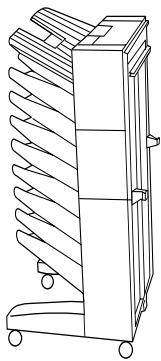
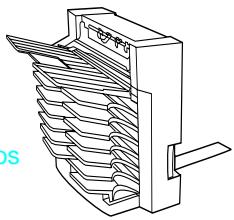
Multibin Mailbox (8-Bin)
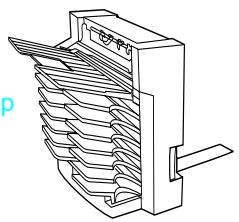
7-bin Tabletop Mailbox
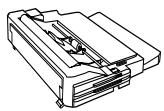
Duplexer
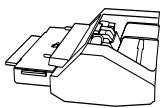
Envelope Feeder

HP Fast InfraRed Connect
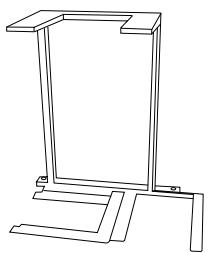
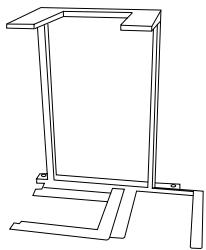
HP Digital Copy Stand
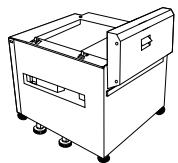
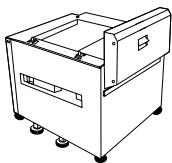
2000-sheet Input Tray
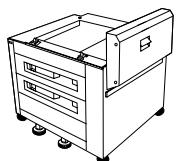
2x500-sheet Input Tray
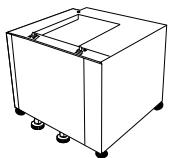
Printer Stand
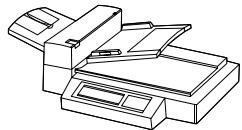
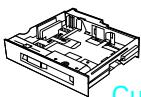
HP LaserJet MFP Upgrade Kit
Custom Paper Tray
Optional Accessories
Step 6 Install Toner Cartridge
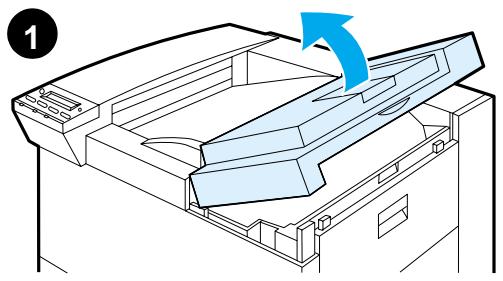
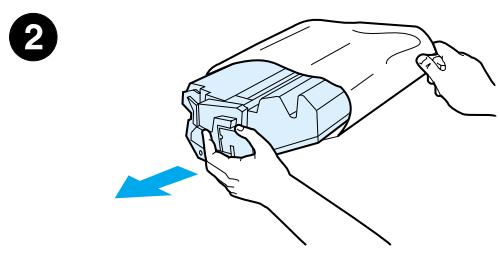
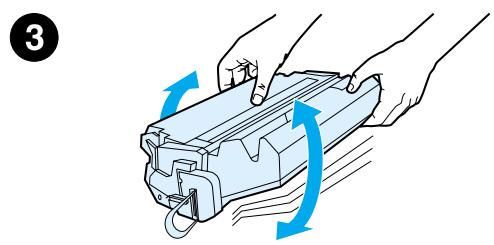
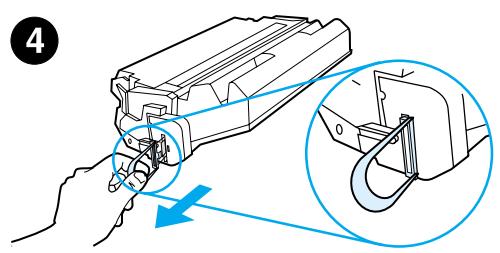
1 Open the printer's top cover.
2 Remove the toner cartridge from its packaging. (Save packaging for possible cartridge storage.)
Note
To prevent damage to the toner cartridge, do not expose it to light for more than a few minutes.
3 Rotate the cartridge and gently shake it from side to side to distribute the toner evenly inside the cartridge.
4 Locate the sealing tape tab on the end of the cartridge. Carefully bend the tab back and forth until it separates from the cartridge.
Continued on the next page.
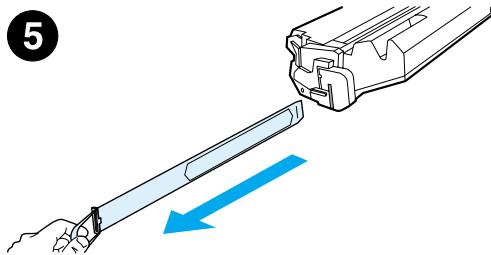
5 Firmly pull the tab straight out from the cartridge to remove the entire length of tape. Avoid touching any black toner on the tape.
Note
If the tab separates from the tape, grasp the tape and pull it out of the cartridge.
Note
If toner gets on your clothing, wipe it off with a dry cloth and wash clothing in cold water. (Hot water sets toner into fabric.)
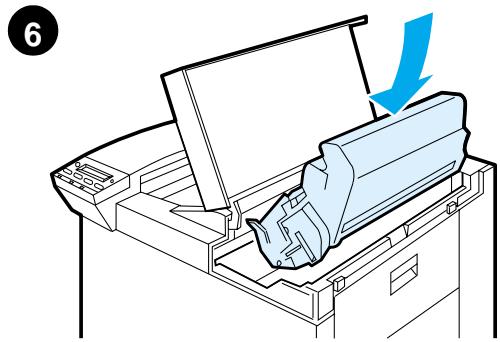
6 Position the cartridge as shown with the arrow pointing into the printer.
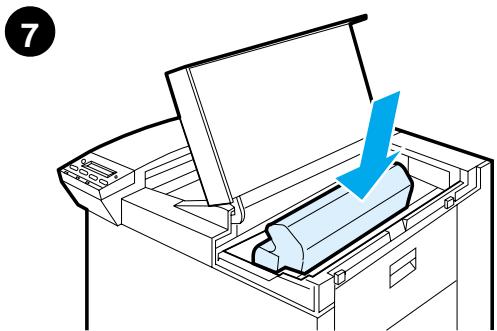
7 Slide the cartridge into the printer as far as it will go.
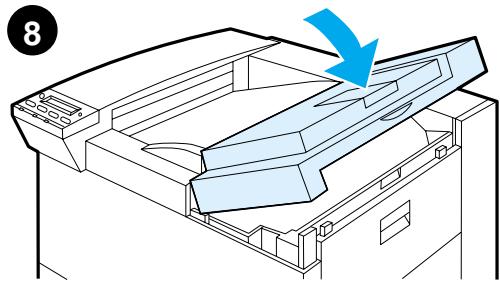
8 Close the top cover.
Step 7 Load Trays 2 and 3
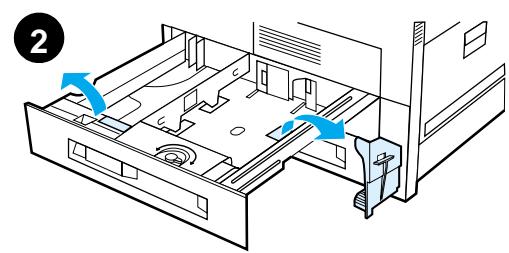
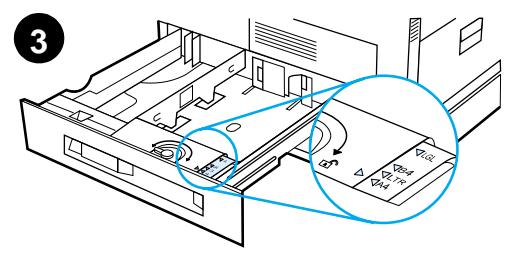
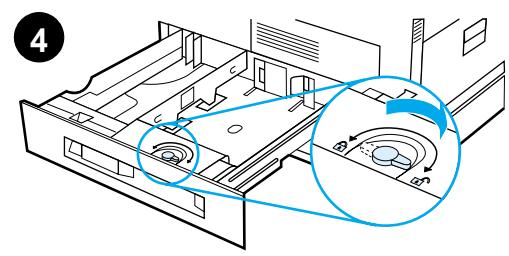
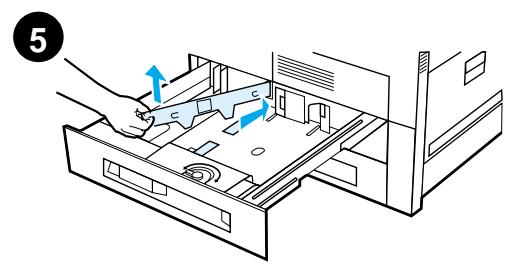
Note
To avoid a paper jam, never open the tray while it is in use.
The paper size setting is set to a default size at the factory. For example, the default for the United States is lettersize, while in Europe it is A4. If you would like to use a different default paper size, reconfigure the paper tray setting.
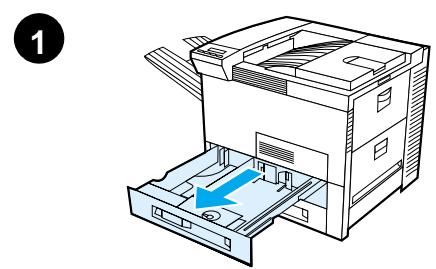
1 Open Tray 2 until it stops.
2 Remove the packing spacer and tape.
3 If you wish to load paper that is different than the default size, turn the paper guide to the mark that indicates the size of paper you are loading.
4 Turn the paper guide to the locked position.
5 Adjust the left paper guide by pushing in, then lifting up and out.
Continued on the next page.
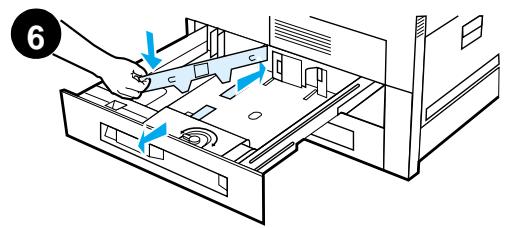
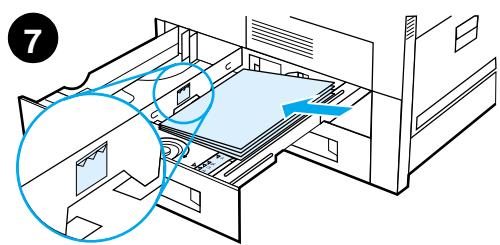
6 Position the guide over the appropriate lines marked in the tray. Press the guide into the rear slot and then lower down into the front slot. Be sure the guide is not skewed.
7 Insert up to 500 sheets of paper into the tray. Do not fill the input tray above the paper fill marks on the guide.
a Load Letter or A4 paper with the top of the page toward the rear of the tray and with the side-to-be-printed down for single-sided printing.
For two-sided printing, load the top of the page toward the rear of the tray and with the first side-to-be-printed up.
b Load short-edge fed media with the top of the page toward the right side of the tray and with the side-to-be-printed down for single-sided printing.
For two-sided printing, load media with the top of the page toward the left side of the tray and with the first side-to-be-printed up.
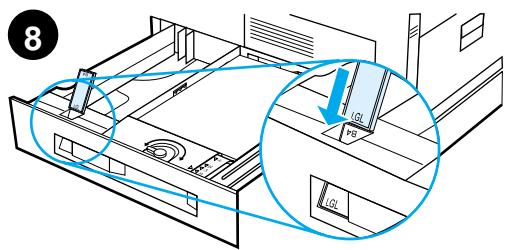
8 Make sure the paper size tab is set correctly.
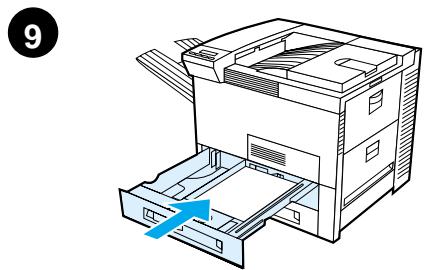
9 Slide the tray back into the printer.
If you wish to select your paper by type rather than tray (source), see your online user guide.
If you wish to print on paper sizes larger than letter or A4, adjust the paper stop guide on the Standard Output Bin (Face-down). (See your online user guide for instructions.)
Step 8 Load Tray 1 (Optional)
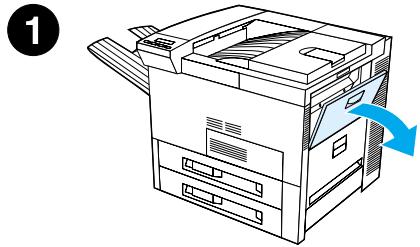
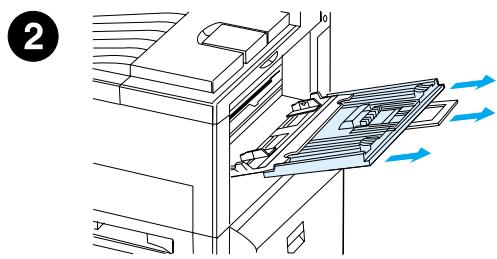
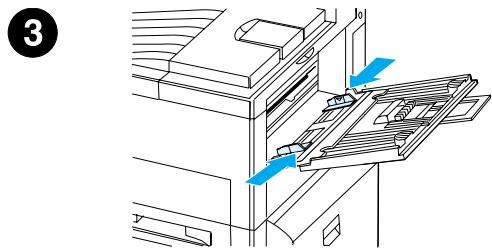
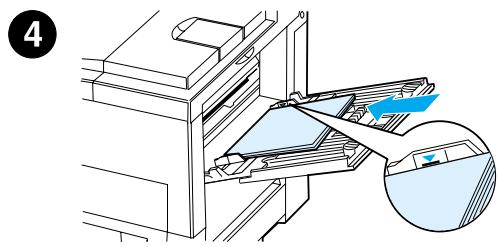
Tray 1 is a multi-purpose tray and holds up to 100 sheets of paper or 10 envelopes.
Tray 1 provides a convenient way to print envelopes, transparencies, custom-size paper, labels, or other types of media without having to unload the other trays.
CAUTION
To avoid a paper jam, never add or remove paper from Tray 1 while the printer is printing.
To avoid damaging the printer, print labels, envelopes, and transparencies from Tray 1 only. Send them to the Face-up Bin, do not print them on both sides, and remove them promptly.
Note
Paper loaded in Tray 1 will be printed first unless the Tray 1 setting is changed from the printer control panel. To change the order in which trays will be printed from, see your online user guide.
1 Open Tray 1.
2 Pull out the tray extension, if needed for the paper size you are printing.
3 Slide the paper width guides to the appropriate size marked on the tray.
4 Place paper into the tray without stacking it above the paperfill mark.
Continued on next page.
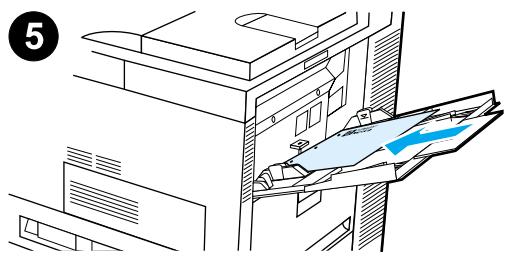
5 Paper loading differs by size:
a Load Letter or A4 paper with the top of the page toward the rear of the printer and with the side-to-be-printed up for single-sided printing.
For two-sided printing, load paper with the top of the page toward the rear of the printer and with the first side-to-be-printed down.
b Load short-edge fed media with the top of the page toward the printer and with the side-to-be-printed up for single-sided printing.
For two-sided printing, load media with the top of the page away from the printer and with the first side-to-be-printed down.
Note
Paper heavier than 28 lb (105 g/m²) should be printed from Tray 1 to the Face-up Bin to avoid curl.
Step 9 Attach Power Cord
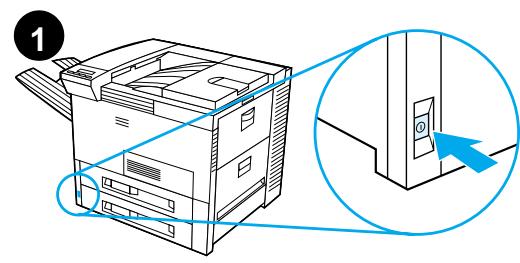

1 Locate the power switch on the front of the printer. Make sure the printer is turned off.
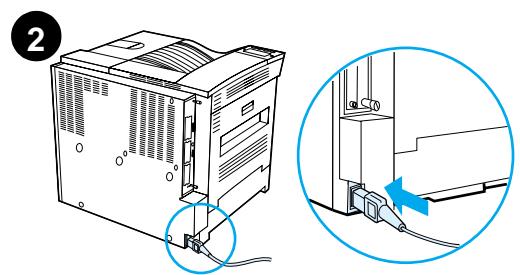
2 Connect the power cord to the printer and a grounded power strip or an AC outlet.
3 Turn the printer on. After the printer warms up, the READY message should appear on the control panel display and the Ready light should remain on. If the READY message does not appear, see the problem solving chapter in the online user guide.
Step 10 Install or Change the Control Panel Overlay (Optional)
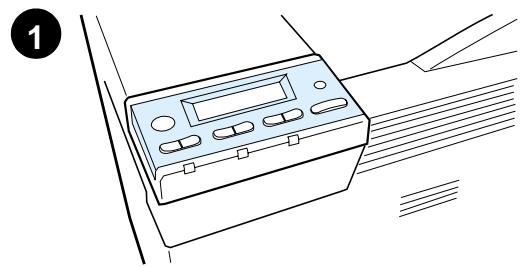
To change the overlay to a language other than English:
1 Locate the overlay you wish to install and remove it from its bag.
Note
Make certain the power switch is off.
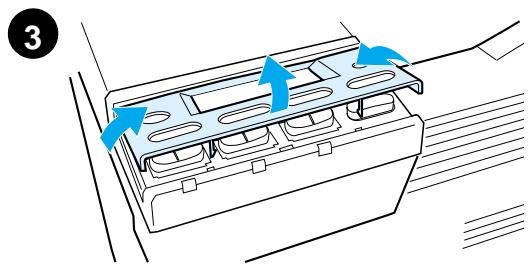
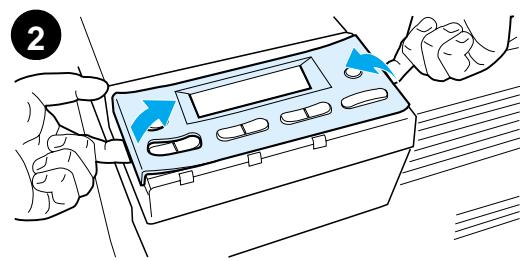
2 Gently lift up on each side of the installed overlay.
3 Insert your thumbnail or a thin, rigid object in front of the overlay and press toward the back of the printer. Lift to remove.
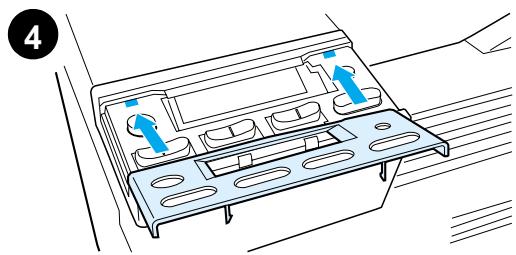
4 To install the new overlay, position it over the control panel, rear-side first.
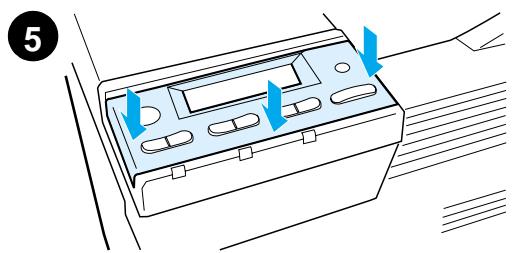
5 Snap the overlay firmly onto the control panel. Ensure that the overlay is flat.
Step 11 Configure the Control Panel Display Language (Optional)
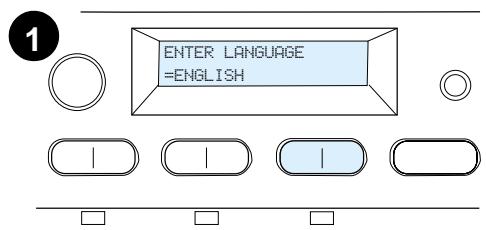
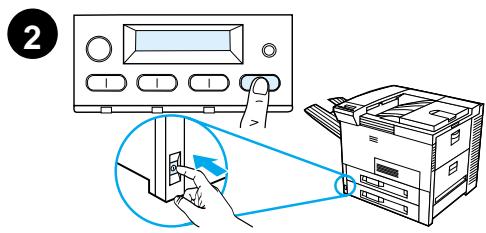
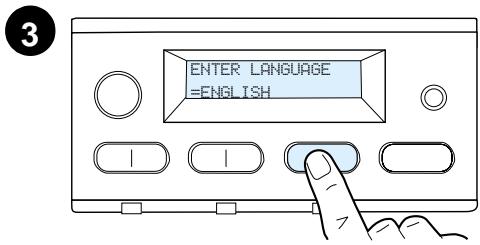
Use the printer control panel to set the printer to display printer messages and print configuration pages in the language of your choice.
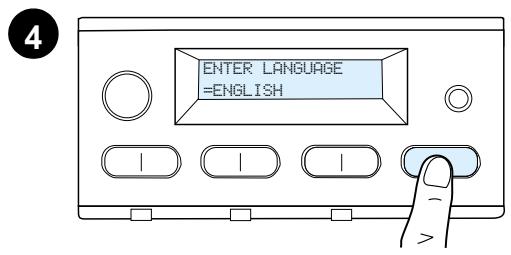
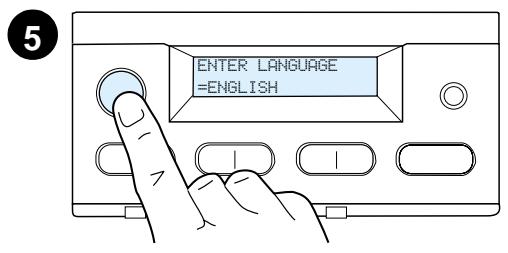
1 When you turn the printer on for the first time, wait until ENTER LANGUAGE = ENGLISH appears. To change the display language go to step 2, or to choose English go to step 4.
2 If ENTER LANGUAGE = ENGLISH did not appear, press and hold SELECT while simultaneously pushing the power switch ON. Hold SELECT until SELECT LANGUAGE appears, then release SELECT. Go to step 3.
Note
Only -VALUE +, SELECT, and GO are active while the display language is being configured. All other keys are ignored.
If you press Go without selecting a language, the printer will bring itself online and all subsequent messages will be displayed in English. However, since no display language was selected, the ENTER LANGUAGE = ENGLISH message will reappear (after the power-on self test) every time the printer is turned on until you select a language.
3 When ENTER LANGUAGE=ENGLISH displays, press - VALUE + repeatedly until the desired setting appears.
Continued on next page.
Note
For Japanese, Turkish, Czech, Hungarian, and Polish, language selection will change the default symbol set for the specific language. For all other languages, the default symbol set is set to PC-8.
4 Press SELECT to save the selection. An asterisk (*) appears next to the selection in the display, indicating that it is now the default.
5 Press Go. The control panel display will indicate the printer is ready to use.
Note
If the new language does not appear in the display, you may not have pressed SELECT to save your new selection.
Step 12 Test the Printer
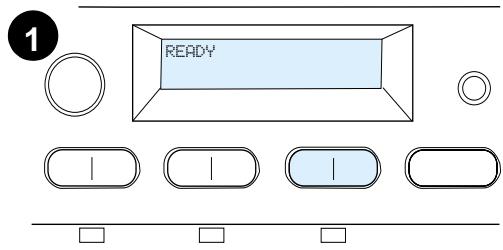
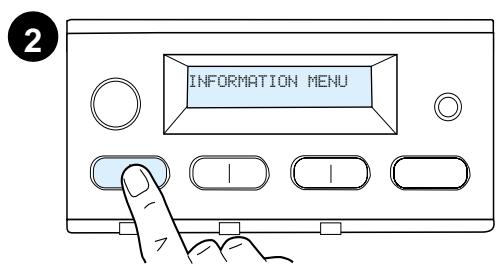
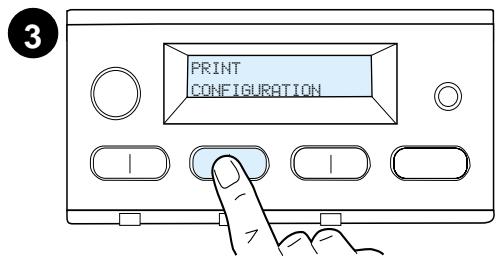
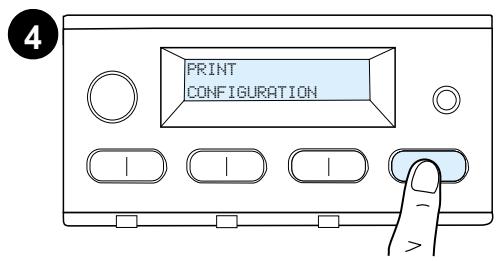
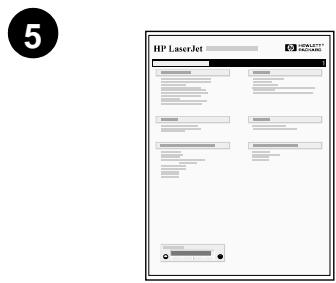
Print a configuration page to make sure the printer is operating correctly.
1 Make sure the printer is on and the READY message is displayed.
2 Press MENU until the display reads INFORMATION MENU.
3 Press ITEM until the display reads PRINT CONFIGURATION.
4 Press SELECT to print the configuration page.
5 The configuration page shows the printer's current configuration.
Note
An HP JetDirect network configuration page will also print for printers with network cards installed.
Step 13 Connect Printer Cables
For printers equipped with an optional HP JetDirect EIO Print Server, a twisted-pair network cable connection is provided through a 10/100Base-TX (RJ-45) connector. Connection to an Apple LocalTalk network is available through an optional LocalTalk card. The printer also has a port for HP Fast InfraRed Connect.
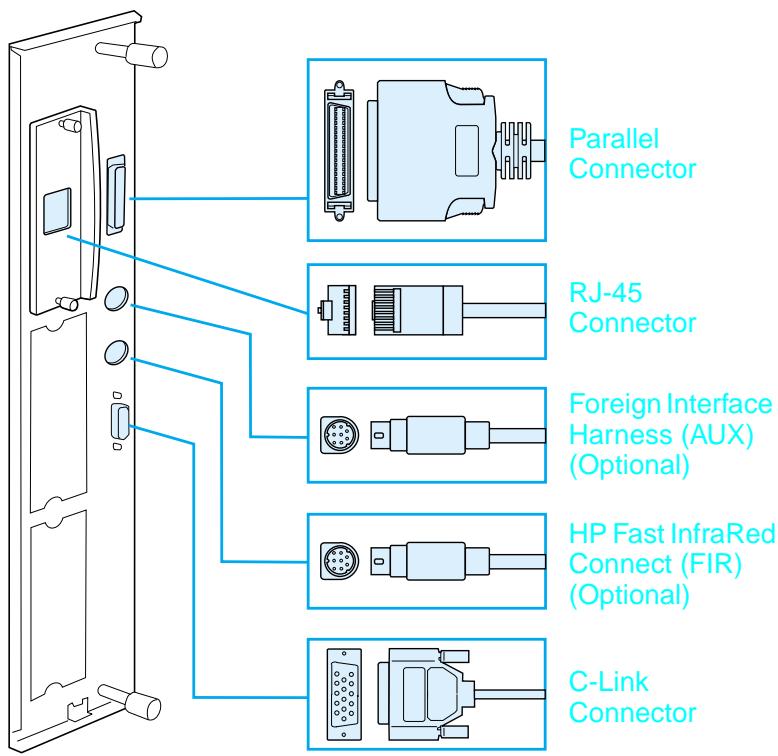
Location of Interface Ports
Connecting Parallel Cable
To ensure reliability, use an IEEE-1284 bi-directional C-type parallel cable. (These cables are clearly marked with "IEEE-1284.") Only IEEE-1284 cables support all of the printer's advanced features.
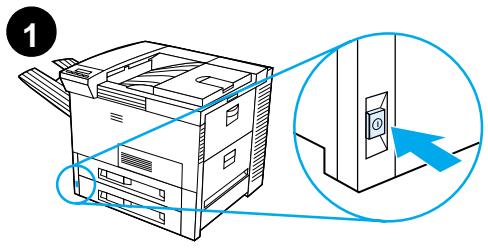
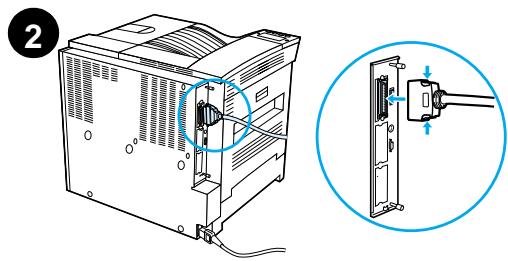
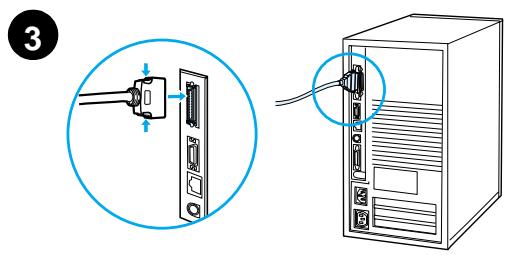
1 Make sure the printer and your computer are turned off.
Note
The cable should install easily. If installation is difficult, check the cable orientation.
2 Connect the parallel cable to the printer parallel port. Press the locking release levers in while connecting the cable.
3 Connect the other end of the cable to the proper connector on the computer.
Note
See your online user guide for information on ordering IEEE-1284 parallel cables.
Connecting to Ethernet 10/100Base-TX Network
Use the RJ-45 port to connect the printer to an Ethernet 10/100Base-TX network.
CAUTION
Make sure the printer power is turned off before connecting to the RJ-45 port.
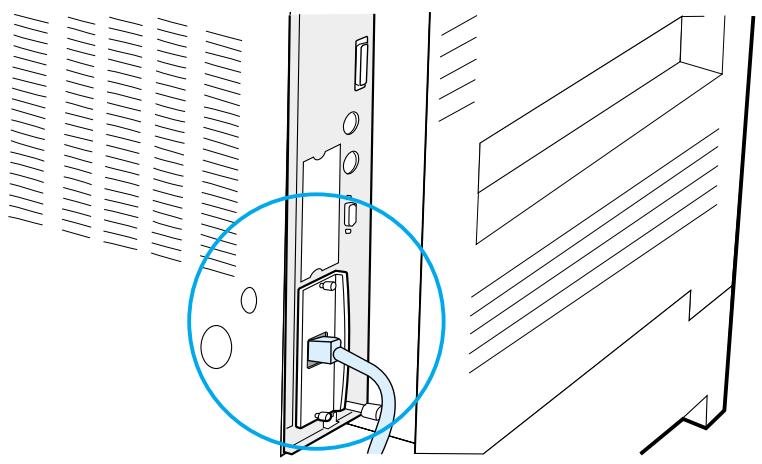
Ethernet 10/100Base-TX Network Interface Cable Connection
- Connect a twisted-pair network cable to the RJ-45 port on the HP JetDirect EIO Print Server.
- Connect the other end of the cable to the network.
Step 14 Install Printing Software
The printer comes with printing software on a CD-ROM. The printer drivers on this CD-ROM must be installed to take full advantage of the printer features. If your computer does not have a CD-ROM drive, but you have access to one, you can copy the printing software from the CD-ROM onto diskettes for installation on your computer.
If you do not have access to a CD-ROM drive, go to www.hp.com and download the drivers, or call HP to order diskettes. The most recent drivers are available on the Internet. Depending on the configuration of Windows-driven computers, the installation program for the printer software automatically checks the computer for Internet access to obtain the latest software.
Note
Printer installation software for UNIX (HP-UX, Sun Solaris) networks is available for download at http://www.hp.com/support/net Printing.
For configuration and management using your web browser, use HP Web JetAdmin. For information on HP Web JetAdmin, go to http://www.hp.com/go/webjetadmin.
See the HP Customer Care pages at the front of the printer user guide for more information.
Installing Windows Printing Software (CD)
For Windows 9x, Windows NT 4.0, and Windows 2000
1 Close all running applications.
2 Insert the CD-ROM into the CD-ROM drive. (Depending on the computer configuration, the installation program may automatically start.)
3 Click Start.
4 Click Run.
5 Type D:\SETUP (or the appropriate drive directory letter) in the command line box and click OK.
6 Follow the instructions on the computer screen.
For Windows 3.1x and Windows 3.11
1 Close all running applications.
2 Insert the CD-ROM into the CD-ROM drive.
3 In the Windows Program Manager screen, click the File menu.
4 Click Run.
5 Type D:\SETUP (or the appropriate drive directory letter) in the command line box and click OK.
6 Follow the instructions on the computer screen.
Installing Network Software
Note
If the printer is to be used on a network, install and configure the network operating system software on the network administrator's system before individual users install the printing software.
Use HP Web JetAdmin to configure your printer with your web browser. For information on using HP Web JetAdmin, see HP's web site at http://www.hp.com/go/webjetadmin.
Installing Macintosh Printing Software
1 Close all running applications.
2 Insert the CD-ROM into the CD-ROM drive.
3 Double-click the Installer icon and follow the instructions on the screen.
4 Open the Chooser from the Apple menu.
5 Click the LaserWriter 8 icon. If the icon is not there, contact HP Customer Care (see the front pages of your user guide) or contact Apple Computer, Inc.
6 If you are on a network with multiple zones, select the zone in the AppleTalk Zones box where the printer is located. If this is unknown, ask your network administrator.
7 Double-click the desired printer. An icon should appear.
8 Close the Chooser by clicking the Go-Away (Close) box in the upper left corner.
Step 15 Verify Printer Setup
The easiest way to verify that the installation has been completed successfully is to print a document from a software application.
1 Open a software application of your choice and open or create a simple document.
2 Make sure the correct printer name appears.
3 Print the document.
If the document prints, installation is complete. If nothing prints or if the document does not print correctly, see the problem solving chapter in the printer's online user guide.
Congratulations, the printer setup is complete!
FCC Regulations
This equipment has been tested and found to comply with the limits for a Class B digital device, pursuant to Part 15 of the FCC rules. These limits are designed to provide reasonable protection against harmful interference in a residential installation. This equipment generates, uses, and can radiate radio frequency energy. If this equipment is not installed and used in accordance with the instructions, it may cause harmful interference to radio communications. However, there is no guarantee that interference will not occur in a particular installation. If this equipment does cause harmful interference to radio or television reception, which can be determined by turning the equipment off and on, the user is encouraged to try to correct the interference by one or more of the following measures:
Reorient or relocate the receiving antenna.
- Increase separation between equipment and receiver.
- Connect equipment to an outlet on a circuit different from that to which the receiver is located.
Consult your dealer or an experienced radio/TV technician.
Note
Any changes or modifications to the printer that are not expressly approved by HP could void the user's authority to operate this equipment.
Use of a shielded interface cable is required to comply with the Class B limits of Part 15 of FCC rules.
Note
The HP LaserJet 8150 MFP, or any model of HP LaserJet 8150 printer with an HP Digital Copy attached, complies with Class A limits.
For more regulatory information, see the online user guide for this printer.
Druckermodelle HP LaserJet 8150, 8150 N, 8150 DN, 8150 HN und 8150 MFP
Copyright Hewlett-Packard
Company 2000
Multibin-Mailbox (8 Fächer)

HP Fast InfraRed Connect
Supporto HP Digital Copy
HP LaserJet 8150 en 8150 N printer: 51 kg (112 lbs)
HP LaserJet 8150 DN printer: 54kg (120 lbs)
HP LaserJet 8150 HN printer: 113kg (249 lbs)
HP LaserJet 8150 MFP printer: 136 kg (300 lbs)
Escaninho de multiplos compartments (8)

Escaninho de mesa com 7 compartmentos
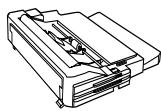
Duplexador

HP Fast InfraRed Connect
Bandeja de entrada de 2000 folhas
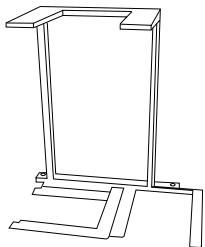
Suporte da HP Digital Copy
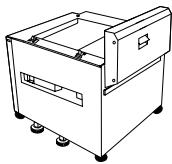
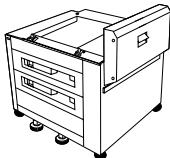
2 bandejas de entrada para 500 folhas