
RDPXA90OIP - Docking Station SONY - Free user manual and instructions
Find the device manual for free RDPXA90OIP SONY in PDF.
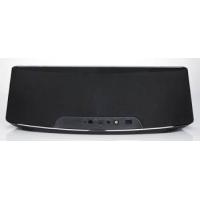


| Product Type | Docking Station |
| Brand | SONY |
| Model | RDPXA90OIP |
| Dimensions (W x H x D) | 436 x 152 x 115 mm |
| Net Weight | 2.3 kg |
| Power Supply | AC Adapter 18 V DC 2.67 A, 100-240 V, 50/60 Hz |
| Power Consumption | 48 W |
| Main Features | Compatibility iPod/iPhone/iPad, Bluetooth, FM Radio, Alarm Clock, USB Charging (5 V 500 mA), Portable In Input (3.5 mm), Time Synchronization |
| Output Power | 15 W x 2 channels (8 Ω, 1 kHz) |
| FM Frequency Range | 87.5 to 108.0 MHz |
| Care and Cleaning | Use a soft, dry cloth. For stubborn dirt, lightly dampen cloth with mild detergent. Do not use alcohol, benzene, or thinners. |
| Safety | Use only the supplied adapter. Do not expose to moisture. Handle the remote control battery CR2025 with care. |
| Spare Parts / Included Accessories | Remote control, CR2025 battery, AC adapter, power cord, FM antenna, iPad stand, ferrite core |
| Operating Temperature | 5 °C to 35 °C |
| Tolerated Humidity | 5 to 90 % |
| Repairability | In case of failure, contact an authorized service center. Do not open the device yourself. |
Frequently Asked Questions - RDPXA90OIP SONY
User questions about RDPXA90OIP SONY
0 question about this device. Answer the ones you know or ask your own.
Ask a new question about this device
Download the instructions for your Docking Station in PDF format for free! Find your manual RDPXA90OIP - SONY and take your electronic device back in hand. On this page are published all the documents necessary for the use of your device. RDPXA90OIP by SONY.
USER MANUAL RDPXA90OIP SONY
USER MANUAL
1 iPod/iPhone/iPad Dock
To connect an iPod/iPhone/iPad.
2 Android phone Dock (Micro USB)
A2DP (Advanced Audio Distribution Profile)
Personal Audio Docking System
AirPlay via Wi-Fi Network Setup
AirPlay via Wi-Fi GB Network Setup
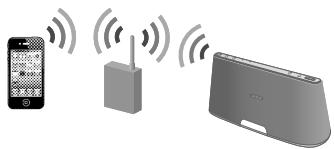
AirPlay allows you to play audio from iPhone, iPod touch, iPad or iTunes, and control it from anywhere in your home.
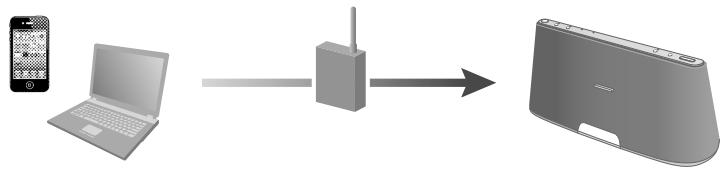
You will need to set your iPhone/iPod touch/iPad to a Wi-Fi Network, and connect this unit to that network.
Check How to Connect Your Network
Set up the network after checking your network environment. Use the chart below to determine the correct connections.

Are you using a wireless LAN router/access point compatible with Wi-Fi Protected Setup (WPS)?
WPS

Refer to the operating instructions supplied with the router/access point for details.
YES
NO / UNKNOWN
- A dedicated dock app for iPhone, iPod touch, iPad available at Apple App Store. Search for "D-Sappli" and download the free app to find out more about the functions. ** RDP-XA700iP is used for illustration purposes.
For Access Point Scan using your Mac or PC
Refer to "Connecting Your Network" of "Operating Instructions" supplied with this unit.

Set up using
WPS Push-Button Configuration Method (page 4).
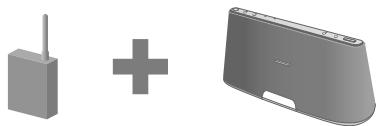

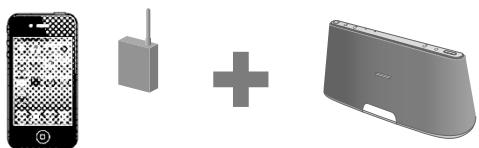
Set up using
D-Sappli* with iPhone/iPod touch/iPad (page 6).
Before Starting
1 Place this unit close to the wireless LAN router/access point. Turn this unit on.
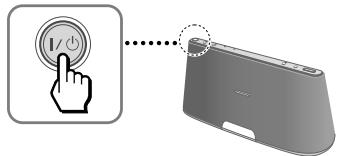
The LINK indicator (page 5) starts to flash green.
3 Wait for about 70 seconds until the LINK indicator turns off.
Note
While it is connected to a Wi-Fi Network, do not turn this unit off.
Starting Network Settings
Press and hold the WPS button on this unit until the beep sound is output from this unit.
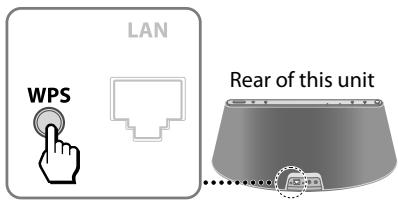
2 Press and hold the WPS button on the router/access point within 90 seconds after step 1.
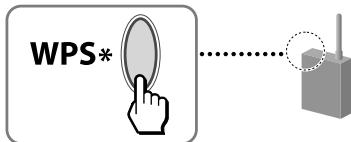
- The position and shape of the WPS button differ depending on the model of the router/access point.
Tip
For details on the WPS button, refer to the operating instructions of the router/access point.
3 Check the status of the LINK indicator (page 5).
When the LINK indicator lights up green, the connection is established.
Listening via AirPlay
1 Check that the iPhone/iPod touch/iPad you are using as the "AirPlay" device is connecting to the Wi-Fi network.
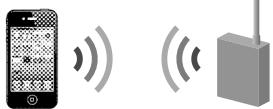
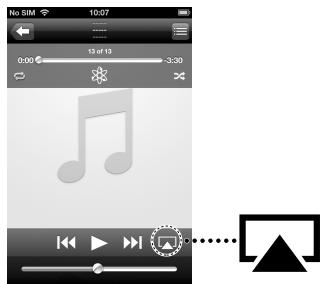
2 Tap the "AirPlay" icon on the music player screen of your iPhone/iPod touch/iPad.
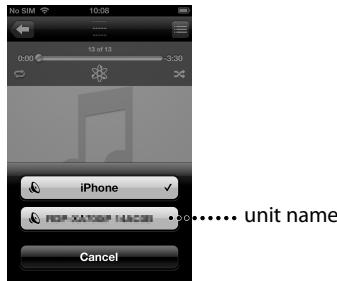
3 Tap this unit's name.
4 Tap to start playback.
For details on "AirPlay" operation of iTunes, refer to "Operating Instructions" supplied with this unit.
About the LINK indicator
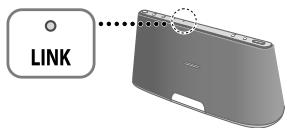
Lights up green.

(Green)
The Wi-Fi Network connection is established.
Flashes green.

(Green)
This unit is in the process of connecting to the Wi-Fi Network. Please wait.
Lights up red.

(Red)
An error has occurred.
Try again from the beginning, or adjust your network settings.
The indicator turns off.

(Nothing)
No connection is established.
Before Starting
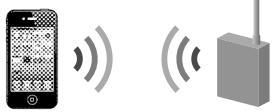
1 Check that the iPhone/iPod touch/iPad you are using as the "AirPlay" device is connecting to the Wi-Fi Network.
2 Write down the Security Key (WEP or WPA key) of your wireless LAN router/access point.
For details, refer to the operating instructions of the router/access point.
3 Press to open the Docking Tray, and connect your iPhone/iPod touch/iPad to the connector.
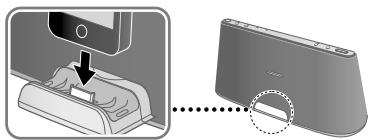
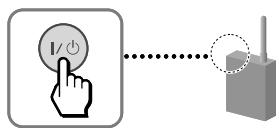
4 Turn this unit on (page 4). The LINK indicator (page 7) starts to flash green. 5 Wait for about 70 seconds until the LINK indicator turns off.

Tip
If the message to download D-Sappli appears, follow the on-screen instructions and download it.
Notes
- While it is connected to a Wi-Fi Network, do not turn this unit off, press the Home button, or disconnect your iPhone/iPod touch/iPad.
- When a problem occurs during Wi-Fi settings, disconnect your iPhone/iPod touch/iPad and connect it again.
Starting Network Settings
1 Tap the D-Sappli icon to access it while keeping your iPhone/iPod touch/iPad on this unit.
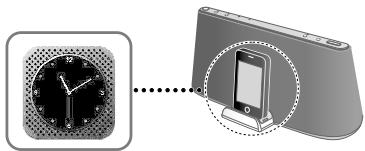
Perform the network settings, following the on-screen instructions.
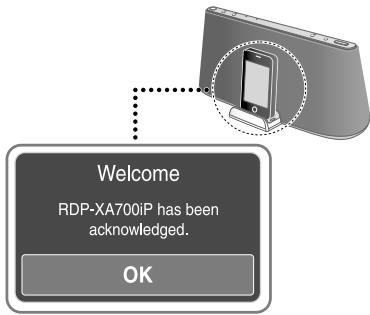
3 When the message [Connection complete.] appears, tap [OK] to finish the network settings. 4 Check the status of the LINK indicator (page 7).
When the LINK indicator lights up green, the connection is established.
Listening via AirPlay
1 Disconnect your iPhone/iPod touch/iPad from the connector. 2 Tap the "AirPlay" icon on the music player screen of your iPhone/iPod touch/iPad.
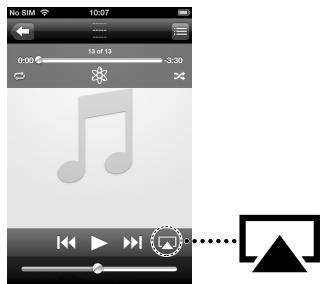
3 Tap this unit's name.
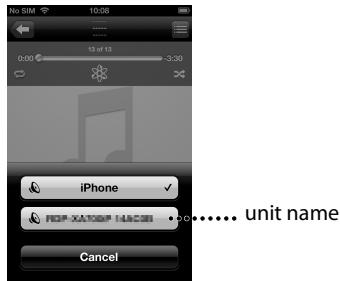
4 Tap to start playback.
For details on "AirPlay" operation of iTunes, refer to "Operating Instructions" supplied with this unit.
About the LINK indicator
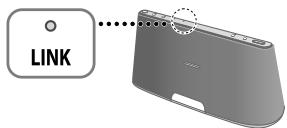
Lights up green.

(Green)
The Wi-Fi Network connection is established.
Flashes green.

(Green)
This unit is in the process of connecting to the Wi-Fi Network. Please wait.
Lights up red.

(Red)
An error has occurred.
Try again from the beginning, or adjust your network settings.
The indicator turns off.

No connection is established.
(Nothing)
To adjust the network settings at a later time
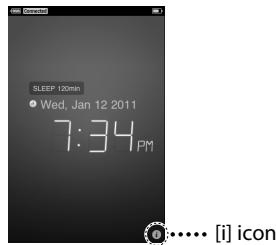
1 Perform the procedure of "Before Starting" to connect your iPhone/iPod touch/iPad to the connector. 2 Access D-Sappli. 3 Tap the [i] icon, then tap [Network] to perform the network settings.
If you encounter a problem, please check
This unit cannot connect to the Wi-Fi Network.
Check that your wireless LAN router/access point is turned on. Check that the router/access point is close to this unit. Devices that use a 2.4GHz frequency band such as microwave, Bluetooth or digital cordless device, may interrupt the communication. Move this unit away from such devices, or turn off the devices.
WPS configuration method failed.
Check that the router/access point Wi-Fi Network setting is WEP. If so, adjust the network settings using Access Point Scan. For details, refer to "Operating Instructions" supplied with this unit.
The "AirPlay" icon or unit name does not appear on your iPhone/iPod touch/iPad or iTunes.
Check that this unit, your iPhone/iPod touch/iPad, Mac or PC are connected to the same network. You can check the connected access point under [Network] setting using D-Sappli (page 7).
Check that your iPhone/iPod touch/iPad or iTunes has the latest software version. If the problem persists, reboot your iPhone/iPod touch/iPad or iTunes.
No sound is output, even when you select this unit's name.
Adjust this unit's volume by pressing VOL+/-. Check that no other iPhone/iPod touch/iPad is set on this unit. If so, remove it from the network. If the problem persists, reboot your iPhone/iPod touch/iPad or iTunes.
It takes time for the "AirPlay" function to start.
Use this unit in the network standby mode. This mode shortens the startup time when using the "AirPlay" function, but increases standby power consumption. For details, refer to the "Operating Instructions" supplied with this unit.
- USER MANUAL
- AIRPLAY VIA WI-FI NETWORK SETUP
- CHECK HOW TO CONNECT YOUR NETWORK
- SET UP USING
- BEFORE STARTING
- STARTING NETWORK SETTINGS
- LISTENING VIA AIRPLAY
- ABOUT THE LINK INDICATOR
- TIP
- NOTES
- TO ADJUST THE NETWORK SETTINGS AT A LATER TIME
- IF YOU ENCOUNTER A PROBLEM, PLEASE CHECK
- THE "AIRPLAY" ICON OR UNIT NAME DOES NOT APPEAR ON YOUR IPHONE/IPOD TOUCH/IPAD OR ITUNES
- NO SOUND IS OUTPUT, EVEN WHEN YOU SELECT THIS UNIT'S NAME
- IT TAKES TIME FOR THE "AIRPLAY" FUNCTION TO START
Brand : SONY
Model : RDPXA90OIP
Category : Docking Station