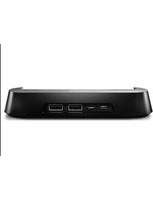
Mobile SmartDock DK20 - Docking Station SONY - Free user manual and instructions
Find the device manual for free Mobile SmartDock DK20 SONY in PDF.


| Product Type | Docking Station |
| Brand | Sony |
| Model | Mobile SmartDock DK20 |
| Compatible Devices | Sony Xperia smartphones with micro USB port |
| Dimensions (approx) | 80 x 80 x 80 mm (3.15 x 3.15 x 3.15 in) |
| Weight (approx) | 150 g (5.3 oz) |
| Material | Plastic |
| Color | Black |
| Input Connector | Micro USB (power & data) |
| Output Connector | Micro USB (charging & sync) |
| Power Input | 5V DC, 1.5A |
| Charging Function | Supports charging while docked |
| Data Sync | Supports USB data transfer |
| Audio Output | 3.5 mm audio jack for speaker/headphone |
| Standby Function | Dock can charge even when phone is off |
| Cleaning Instructions | Wipe with a soft, dry cloth; avoid liquids |
| Safety Warnings | Do not expose to moisture or extreme temperatures |
| Repairability | Not user-serviceable; contact Sony support |
| Accessories Included | Dock unit, micro USB cable, user manual |
Frequently Asked Questions - Mobile SmartDock DK20 SONY
User questions about Mobile SmartDock DK20 SONY
0 question about this device. Answer the ones you know or ask your own.
Ask a new question about this device
Download the instructions for your Docking Station in PDF format for free! Find your manual Mobile SmartDock DK20 - SONY and take your electronic device back in hand. On this page are published all the documents necessary for the use of your device. Mobile SmartDock DK20 by SONY.
USER MANUAL Mobile SmartDock DK20 SONY
SmartDock overview....3
Charging SmartDock....3
Getting started....5
LiveWare™ manager ....5
Upgrading LiveWare™ manager....5
Selecting a launch application....5
Using SmartDock....6
Connecting your phone to a TV set using SmartDock....6
Connecting your phone to USB devices using SmartDock......7
Using your phone as a mini PC with SmartDock....7
Legal information....9
FCC Statement....9
Industry Canada Statement....9
Introduction

To get the most up-to-date User guide for your accessory, go to www.sonymobile.com/support.
The SmartDock accessory is customised to fit your Xperia™ ion phone. You can use the SmartDock to charge your phone and to automatically launch your favorite application when you connect your phone to the accessory. For example, the SmartDock can launch the music player or the Gallery application.
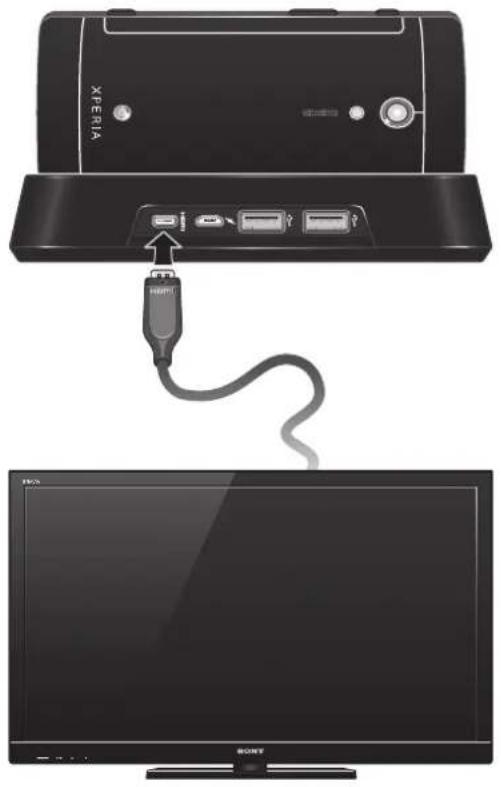
You can use the SmartDock together with a HDMI ^™ (High Definition Multimedia Interface) cable to connect your phone to a TV set so that you can view content saved in your phone on a larger screen.
You can also use the SmartDock to connect your phone to USB devices, such as a mouse, keyboard, gamepad or mass storage device. This way, you can type messages or play games more conveniently.
SmartDock overview

1
HDMI™ connector
2 Connector for charger
3 USB ports
Charging SmartDock
To charge your phone using SmartDock
1 Plug one end of the USB cable into your phone charger.
2 Plug the charger into a power outlet.
3 Plug the other end of the cable into the SmartDock charger port.
4 Connect your phone to the SmartDock.

Getting started
LiveWare™ manager
LiveWare ^™ manager is a setup application that is pre-installed on Sony and/or Sony Ericsson phones running Android ^™ version 2.3 and later. Always make sure that you have the latest version of LiveWare ^™ manager installed on your phone.
Upgrading LiveWare™ manager
Before you can upgrade the LiveWare™ manager application, make sure that you have a Google™ account and a working Internet connection. For more information about upgrading LiveWare™ manager, go to www.sonymobile.com/support.
To upgrade the LiveWare™ manager application
1 From your phone's main application screen, find and tap Market.
2 Tap to open the search field, then type LiveWare.
3 Tap to start searching.
4 Select LiveWare™ manager in the result list, then tap Update.
! Android Market™ may not be available in all countries or regions. When you download content to your phone, you may be charged for the amount of data transferred to your phone. Contact your operator for information about data transfer rates in your country or region.
Selecting a launch application
If you have two or more SmartDocks, you can set a different launch application for each SmartDock. For example, you can set your phone alarm as the launch application for the SmartDock in your bedroom, and set the music player as the launch application for the SmartDock in your kitchen. Before you can select an application to launch with SmartDock, you must enable the application launch function.
To enable or disable the application launch function
1 From your phone's main application screen, find and tap LiveWare™ manager.
2 Tap SmartDock.
3 Mark or unmark the Enable/disable app launch checkbox to enable or disable the application launch function.
To select an application to launch with SmartDock
1 From your phone's main application screen, find and tap LiveWare™ manager.
2 Tap SmartDock.
3 Tap Assign and search, then select an application from the list.
You can also tap Search for more applications to search for other applications on Android Market™, which you can download, install, and associate with SmartDock.
When you connect SmartDock to a TV set using a HDMI™ cable, the phone automatically launches the TV launcher application.
Using SmartDock
Connecting your phone to a TV set using SmartDock
To connect your phone to a TV set using SmartDock
1 Plug one end of the HDMI™ cable into the HDMI™ port on the TV set.
2 Plug the other end of the cable into the HDMI™ port of the SmartDock.
3 Connect your phone to the SmartDock. The TV launcher application starts automatically.
Keep the SmartDock connected to a charger to prevent the battery level from dropping.
You may need to purchase a TypeD HDMI™ cable separately. For best results, use a Sony and/or Sony Ericsson IM820 cable.

Connecting your phone to USB devices using SmartDock
You can use SmartDock to connect your phone to various USB devices, such as a gamepad, mass storage device, mouse or keyboard.
! Some USB devices may not be compatible with the SmartDock and/or your phone.

It is recommended that you keep the SmartDock connected to a charger to ensure that all connected USB devices work normally.
Using your phone as a mini PC with SmartDock
You can use your phone as a mini PC by connecting the SmartDock to a TV set, keyboard and mouse. Once you connect all the devices, you can view the phone display on the TV screen, use the mouse to navigate, and use the keyboard to enter text.

natural_image
Diagram of a device setup with monitor, power plug, keyboard, and mouse connected via cables (no text or symbols)
You can also use a wireless keyboard and mouse.
Legal information
Sony DK20
Prior to use, please read the Important information leaflet separately provided.
This User guide is published by Sony Mobile Communications AB or its local affiliated company, without any warranty, Improvements and changes to this User guide necessitated by typographical errors, inaccuracies of current information, or improvements to programs and/or equipment, may be made by Sony Mobile Communications AB at any time and without notice. Such changes will, however, be incorporated into new editions of this User guide.
All rights reserved.
©Sony Mobile Communications AB, 2012
Publication number: 1263-3726.1
All product and company names mentioned herein are the trademarks or registered trademarks of their respective owners. Any rights not expressly granted herein are reserved. All other trademarks are property of their respective owners.
Visit www.sonymobile.com for more information.
All illustrations are for illustration only and may not accurately depict the actual accessory.
FCC Statement
This device complies with Part 15 of the FCC rules. Operation is subject to the following two conditions: (1) This device may not cause harmful interference, and (2) This device must accept any interference received, including interference that may cause undesired operation.

Any change or modification not expressly approved by Sony may void the user's authority to operate the equipment.
This equipment has been tested and found to comply with the limits for a Class B digital device, pursuant to Part 15 of the FCC Rules. These limits are designed to provide reasonable protection against harmful interference in a residential installation. This equipment generates, uses and can radiate radio frequency energy and, if not installed and used in accordance with the instructions, may cause harmful interference to radio communications. However, there is no guarantee that interference will not occur in a particular installation.
If this equipment does cause harmful interference to radio or television reception, which can be determined by turning the equipment off and on, the user is encouraged to try to correct the interference by one or more of the following measures:
• Reorient or relocate the receiving antenna.
- Increase the separation between the equipment and receiver.
- Connect the equipment into an outlet on a circuit different from that to which the receiver is connected.
- Consult the dealer or an experienced radio/TV technician for help.
Industry Canada Statement
This device complies with RSS-210 of Industry Canada.
Operation is subject to the following two conditions: (1) this device may not cause interference, and (2) this device must accept any interference, including interference that may cause undesired operation of the device.
This Class B digital apparatus complies with Canadian ICES-003.
- Getting started....5
- Using SmartDock....6
- Legal information....9
- Introduction
- Charging SmartDock
- Getting started
- LiveWare™ manager
- Upgrading LiveWare™ manager
- Selecting a launch application
- Using SmartDock
- Connecting your phone to a TV set using SmartDock
- Connecting your phone to USB devices using SmartDock
- Using your phone as a mini PC with SmartDock
- Legal information
- Sony DK20
- ©Sony Mobile Communications AB, 2012
- FCC Statement
- Industry Canada Statement
Brand : SONY
Model : Mobile SmartDock DK20
Category : Docking Station