
LinkBuds Speaker - Docking Station SONY - Free user manual and instructions
Find the device manual for free LinkBuds Speaker SONY in PDF.
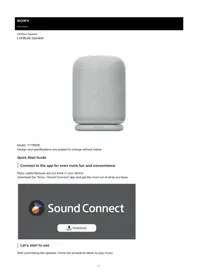


| Brand | Sony |
| Model | LinkBuds Speaker (SRS-LS1) |
| Product Type | Wireless Home Speaker with Docking Station |
| Connectivity | Bluetooth 5.0, Wi-Fi (2.4GHz/5GHz), NFC |
| Audio Output | 360-degree sound, up to 100W peak power |
| Speaker Configuration | Full-range driver + passive radiator |
| Built-in Microphone | Yes, for voice assistant and calls |
| Charging Dock | Dedicated cradle for Sony LinkBuds / LinkBuds S |
| Supported Voice Assistants | Google Assistant, Amazon Alexa |
| Audio Streaming | Chromecast built-in, Spotify Connect, AirPlay 2 |
| Power Supply | AC adapter, 100-240V, 50/60Hz |
| Power Consumption | Approx. 30W (max) |
| Dimensions | Approx. 20 cm (W) x 10 cm (H) x 10 cm (D) |
| Weight | Approx. 850 g |
| Compatible Devices | Sony LinkBuds, LinkBuds S, smartphones, tablets, computers |
| Cleaning and Maintenance | Wipe with a soft dry cloth; avoid water and solvents |
| Safety Warnings | Do not expose to rain or moisture; use only supplied adapter |
| Spare Parts and Repair | Contact Sony authorized service center; no user-serviceable parts |
| Box Contents | Speaker, AC adapter, documentation |
| Warranty | 1-year limited warranty |
Frequently Asked Questions - LinkBuds Speaker SONY
User questions about LinkBuds Speaker SONY
0 question about this device. Answer the ones you know or ask your own.
Ask a new question about this device
Download the instructions for your Docking Station in PDF format for free! Find your manual LinkBuds Speaker - SONY and take your electronic device back in hand. On this page are published all the documents necessary for the use of your device. LinkBuds Speaker by SONY.
USER MANUAL LinkBuds Speaker SONY
Model: YY7863E
Design and specifications are subject to change without notice.
Quick Start Guide
Connect to the app for even more fun and convenience
Many useful features are out there in your device.
Download the "Sony | Sound Connect" app and get the most out of what you have.

Let's start to use
After purchasing the speaker, follow the procedure below to play music.


Turning the power on
Press the (power) button. When you use the speaker for the first time after purchase, the speaker automatically enters pairing mode and the (BLUETOOTH) indicator starts double flashing.


Connecting with BLUETOOTH ® devices
Follow the instructions on the downloaded "Sony | Sound Connect" app to establish a BLUETOOTH connection between the speaker and your smartphone or iPhone. When a BLUETOOTH connection is established, you hear the notification sound from the speaker and the activity of the (BLUETOOTH) indicator changes from flashing to lit.


Listening to music
Start playback on a BLUETOOTH device.
Related information
Using the Quick Access
Enjoying seamless playback using the linked Sony brand headphones (Auto Switch)
SRS-LS1
Getting started
Parts and controls
Power source/charging
Charging the speaker
Turning the power on
Turning the power off
Using the BLUETOOTH standby (auto power on) function
Automatic Power Off (power saving) function
Making connections
BLUETOOTH device
How to make wireless connections to BLUETOOTH devices
Connecting to BLUETOOTH devices easily with the "Sony | Sound Connect" app via a BLUETOOTH connection
Pairing and connecting with BLUETOOTH devices
Connecting with a computer via a BLUETOOTH connection (Windows®)
Connecting with a computer via a BLUETOOTH connection (Mac)
Multipoint connection
Connecting the speaker concurrently with 2 BLUETOOTH devices (multipoint connection)
Listening to music
BLUETOOTH device
Listening to music of a device via a BLUETOOTH connection
Selecting the quality for music playback via a BLUETOOTH connection (Codec)
Supported codecs
Terminating the BLUETOOTH connection (After use)
Using the Quick Access
Enjoying seamless playback using the linked Sony brand headphones (Auto Switch)
Stereo Pair function
Listening to music wirelessly with 2 speakers (Stereo Pair function)
Terminating the Stereo Pair function
Phone calls
Making a video call on a computer
Receiving a call
Making a call
Using the apps
What you can do with the "Sony | Sound Connect" app
Installing the "Sony | Sound Connect" app
Accessing support information from the "Sony | Sound Connect" app
How to keep the software up-to-date (for comfortable use of the speaker)
What you can do with partner services
What you can do with partner services
Using the voice assist function
Using the voice assist function (Google™ app)
Using the voice assist function (Siri)
Information
About the indicators
Notes on use
Precautions
Notes on charging
About the ring strap of the speaker
Notes on water resistant feature
How to care for the speaker
About the BLUETOOTH wireless technology
Licenses
Trademarks
Troubleshooting
Troubleshooting
Reset
Restarting the speaker
Initializing the speaker
Specifications
Specifications
Wireless Speaker
LinkBuds Speaker
Parts and controls
Top and rear of the speaker

(POWER) button1.
Ring strap2.
Status indicator3.
Microphone4.
▶(Quick Access) button5.
-/+ (volume) buttons6.
▶II (play) button/ (call) button7.
Charge indicator8.
Cap9.
This port is not compatible with music playback.
- DC input port (USB Type-C®)*
Bottom of the speaker

(BLUETOOTH) button with indicator/ CT PAIR (Stereo Pair) button with indicator1.
(battery) button2.
Charging terminal3.
Top and bottom of the charging cradle

Charging terminal1.
DC input port (USB Type-C)2.
Related Topic
• About the indicators
SONY
Help Guide
Wireless Speaker
LinkBuds Speaker
Charging the speaker
The speaker is capable of running on power either from the AC outlet through the charging cradle, on which the speaker is placed, or from the rechargeable built-in battery of the speaker.
When using the speaker for the first time, be sure to charge the built-in battery for more than 1 hour before turning on the speaker.
With the built-in battery charged in advance, you can use the speaker solely with battery power.
Hint
- For charging the built-in battery of the speaker, the Battery Care mode option is available in addition to the normal charging method. Battery Care mode limits the maximum charge capacity to approximately 90% and makes the battery life last longer. The playback time available in Battery Care mode is shorter than the time available when the built-in battery is charged by the normal charging method. At the time of purchase, the speaker is not in Battery Care mode.
- You can place/bring the speaker into/out of Battery Care mode with the "Sony | Sound Connect" app as well.
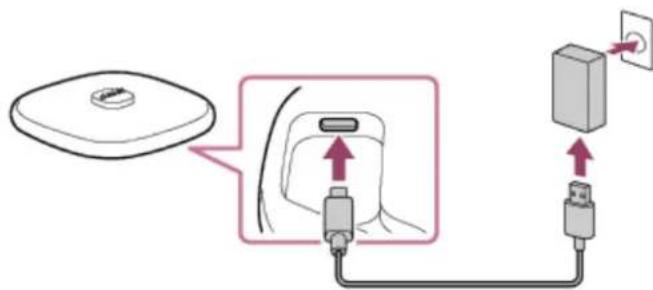
1 Connect the charging cradle to an AC outlet.
Connect one end of the supplied USB Type-C cable to the DC input port on the charging cradle and the other end to a USB AC adaptor (commercially available), and then connect the USB AC adaptor to an AC outlet.
The speaker supports USB AC adaptors that are capable of delivering an output current of 3.0 A or 1.5 A. When using a USB AC adaptor with an output current of 3.0 A for battery charging, be sure to use a USB Type-C cable (compliant with the USB standard) that supports an output current of 3.0 A. The supplied USB cable supports an output current of up to 1.5 A. Use of any other devices is not guaranteed for battery charging. The charging time may vary depending on the ambient temperature or the usage of the speaker as well.
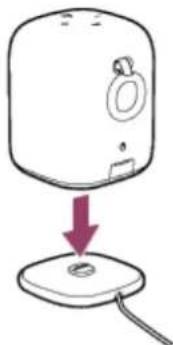
2 Place the speaker on the charging cradle.
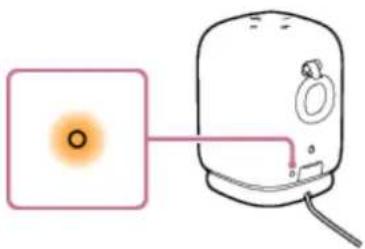
The speaker's built-in battery starts charging itself. While battery charging is in progress, the charge indicator on the speaker stays lit in orange.
The estimated charging time varies depending on the power output capacity of the connected USB AC adaptor (commercially available). In addition, it may take longer than the charging time stated below depending on the type and specification of the USB AC adaptor and USB cable. The charging time may differ from the time stated below depending on the ambient temperature or the usage of the speaker as well.
The following time is stated as a reference.
- When a commercially available USB AC adaptor capable of delivering an output current of 1.5 A is connected, charging completes in about 5 hours* and the charge indicator turns off.
- When using a commercially available USB AC adaptor, make sure that it is capable of delivering an output current of 1.5 A or more. You can use a USB AC adaptor with an output current of 500 mA or more and less than 1.5 A as well, but it may take a very long time before charging completes. When using such a USB AC adaptor, it is recommended that you turn off the speaker before battery charging. Use of a USB AC adaptor with an output current of less than 500 mA is not guaranteed for battery charging.
* Time required for the empty battery to be fully charged (100%) while the speaker is powered off.
Checking the charging completion
If the built-in battery is fully charged when you connect the speaker to an AC outlet with a USB AC adaptor (commercially available), the charge indicator lights up in orange then turns off after about 1 minute.
- When using the Android™ smartphone with Android 8.1 or later installed
When the speaker is connected with the Android smartphone via an HFP (Hands-free Profile) BLUETOOTH connection, tap [Settings] - [Device connection] - [Bluetooth] on the smartphone. The remaining battery power of the speaker is displayed along with the connected BLUETOOTH device name. For details, refer to the operating instructions supplied with the Android smartphone.
Note that the remaining battery power displayed on the smartphone may vary from the actual remaining battery power of the speaker. Consider this information as a reference.
- When using the iPhone
While the speaker is connected with the iPhone via an HFP (Hands-free Profile) BLUETOOTH connection, the remaining battery power of the speaker is displayed on the widget screen of the iPhone. For details, refer to the operating instructions supplied with the iPhone.
Note that the remaining battery power displayed on the iPhone may vary from the actual remaining battery power of the speaker. Consider this information as a reference.
Checking the built-in battery level of the rechargeable built-in battery
After pressing the battery) button on the bottom of the speaker, when the speaker is turned on, the voice guidance listed below is output from the speaker depending on the remaining built-in battery power.
81% - 100%: "Battery fully charged"
81% - 90% (Battery Care mode): "Battery Care Mode, Fully Charged, Battery About 90%"
61% - 80%: "Battery about 80%"
41% - 60%: "Battery about 60%"
21% - 40%: "Battery about 40%"
1% - 20%: "Battery about 20%"
Built-in battery life (while Battery Care mode is not activated)
While a BLUETOOTH connection is established:
- Approx. 25 hours
— Volume level: 23
- Approx. 6 hours
— Volume level: 50 (MAX.)
Time required for charging the built-in rechargeable battery (while Battery Care mode is not activated)
- Approx. 5 hours *1 *2
10 minutes of charging provide approximately 70 minutes of music playback.
(Volume level: 23)
*1 Time required for charging the battery through the USB AC adaptor that is connected to an AC outlet and capable of delivering an output current of 1.5 A.
*2 Time required for the empty battery to be fully charged (100%) while the speaker is turned off.
The built-in battery life above is measured using our specified music source.
Actual performance time may vary from the listed time due to the volume, songs played, surrounding temperature, and usage conditions.
When the built-in battery is running low
When the voice guidance says “Low Battery” and the charge indicator starts flashing slowly, the built-in battery is running low and needs to be charged. While in this state, the speaker may automatically turn off.
When the remaining battery decreases to such a level that the speaker cannot be turned on, you hear voice guidance (Battery is empty.) and the speaker automatically turns off. In such a case, charge the speaker.
If the charge indicator flashes 3 times in orange and the speaker turns off when you turn on the speaker, the built-in battery is empty and needs to be charged.
Hint
- You can charge the built-in battery of the speaker, which is not placed on the charging cradle, by connecting the DC input port on the speaker and an AC outlet with the USB cable as well.
After disconnecting the USB cable from the speaker upon completion of battery charging, be sure to fully close the cap. The cap plays a very important role in maintenance of the water resistant performance.
- You can charge the speaker's built-in battery by connecting the speaker to a computer that comes equipped with a USB charging port as well. However, not all the computers are tested and found compatible with this procedure and the procedure is not applicable to home-built computers.
As long as the speaker is connected to an AC outlet by a USB AC adaptor (commercially available) or to a computer that comes equipped with a USB charging port, the speaker's built-in battery is capable of charging itself even while music playback from the speaker is in progress. However, it may take a long time before charging completes depending on the usage of the speaker. It is recommended that you turn off the speaker before battery charging.
Note
- Depending on the type or specifications of the USB AC adaptor, if you use the speaker at a loud volume, the remaining power of the rechargeable built-in battery may decrease or the speaker may turn off even while the speaker is connected to an AC outlet by the USB AC adaptor. This, however, does not indicate a malfunction. If such a case occurs, turn off the speaker and let the battery fully charge itself before you use the speaker.
The maximum power output of the speaker may be lower when the built-in battery is running low.
In an extremely cold or hot environment, charging stops for safety. If charging takes a long time, it also makes charging of the speaker stop. To resolve these issues, disconnect the USB cable, and then connect it again within an operating temperature between 5 °C and 35 °C (41 °F and 95 °F). -
Do not charge the speaker's built-in battery in places where water may splash on it. The supplied accessories and the USB port are not designed for water resistant.
-
The charging cradle is not designed for water resistant. Before placing the speaker on the charging cradle, thoroughly wipe off water droplets from all the speaker surfaces.
Even if you do not intend to use the speaker for a long time, charge the built-in battery sufficiently once every 6 months to maintain its performance. - When the Android smartphone is configured to use only A2DP (Advanced Audio Distribution Profile) for establishing BLUETOOTH connections, the remaining battery power of the speaker is not displayed on the smartphone.
- At the time of purchase, the BLUETOOTH standby function is activated. While the speaker is running on power from the built-in rechargeable battery and the BLUETOOTH standby function is activated, the battery power is consumed faster than it should while the BLUETOOTH standby function is deactivated.
- When the built-in rechargeable battery wears out, some of the Auto Play settings are restored to the defaults. In such a case, specify the Auto Play settings all over again using the "Sony | Sound Connect" app.
Related Topic
• Turning the power on
• Using the BLUETOOTH standby (auto power on) function
- What you can do with the "Sony | Sound Connect" app
Notes on charging
5-060-905-11(1) Copyright 2024 Sony Corporation
Wireless Speaker
LinkBuds Speaker
Turning the power on
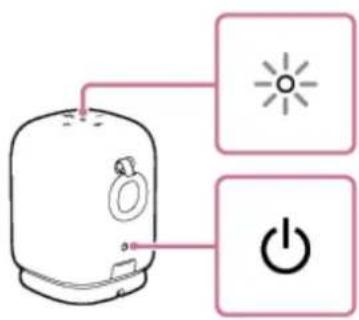
1 Press the (power) button.

You hear the notification sound from the speaker, the status indicator on the top of the speaker lights up in white, and the ✕LUETOOTH) indicator on the bottom of the speaker starts flashing slowly in blue.

When the speaker has no pairing information, for example when you use the BLUETOOTH function for the first time after purchase, the BLUETOOTH) indicator keeps double flashing in blue.
Note
- If the charge indicator flashes 3 times and the speaker turns off after you turn it on, the rechargeable built-in battery is empty. Charge the built-in battery.
- When the voice guidance says "Low Battery" and the charge indicator starts flashing slowly, the built-in battery is running low. In such a case, charge the speaker.
- When the remaining battery decreases to such a level that the speaker cannot be turned on, you hear voice guidance (Battery is empty.) and the speaker automatically turns off. In such a case, charge the speaker.
Related Topic
- Charging the speaker
- Turning the power off
SONY
Help Guide
Wireless Speaker
LinkBuds Speaker
Turning the power off
1 Press the (power) button.

You hear the notification sound from the speaker, and the status indicator on the top of the speaker and the (BLUETOOTH) indicator on the bottom of the speaker turn off.

Hint
- When the BLUETOOTH standby function is activated, turning off the speaker lights the status indicator in red 1 to indicate the BLUETOOTH standby function is active 2 .
*1 When either of the Auto Play is activated, the status indicator lights in pink.
2 At the time of purchase, the BLUETOOTH standby function is activated.
Related Topic
• Using the BLUETOOTH standby (auto power on) function
• Automatic Power Off (power saving) function
Wireless Speaker
LinkBuds Speaker
Using the BLUETOOTH standby (auto power on) function
When the BLUETOOTH standby function is activated, the speaker turns on automatically by operating a BLUETOOTH device, and starts the BLUETOOTH connection.
At the time of purchase, the BLUETOOTH standby function is activated.
Pair the speaker with a BLUETOOTH device in advance. If pairing information is not stored in the speaker, such as when the speaker is used for the first time after purchase, the speaker will not enter the BLUETOOTH standby mode.
1 Turn on the speaker.
The status indicator lights up in white.
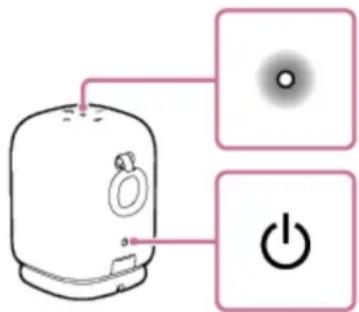
2 Start the "Sony | Sound Connect" app on your smartphone.
3 Make sure that the check box for [Bluetooth Standby] is selected.
The selected check box indicates that the BLUETOOTH standby function is activated.
To deactivate the BLUETOOTH standby function
In step 3 above, tap the check box for [Bluetooth Standby] to deselect the check box to deactivate the BLUETOOTH standby function.
Hint
- When the BLUETOOTH standby function is activated, the status indicator lights up in red while the speaker is turned off.
While the BLUETOOTH standby function is deactivated, the Auto Switch and the Auto Play are not available.
Note
- At the time of purchase, the BLUETOOTH standby function is activated.
While the speaker is running on power from the built-in rechargeable battery and the BLUETOOTH standby function is activated, the battery power is consumed faster than it should while the BLUETOOTH standby function is deactivated.
Related Topic
- Charging the speaker
- Turning the power on
• About the indicators
5-060-905-11(1) Copyright 2024 Sony Corporation
Wireless Speaker
LinkBuds Speaker
Automatic Power Off (power saving) function
In the event of the following, the speaker automatically turns off in 15 minutes to conserve the power of the rechargeable built-in battery.
At the time of purchase, the Automatic Power Off function is set to on.
- No operation on the speaker.
- The hands-free function of the connected smartphone or mobile phone is set to off and the smartphone or mobile phone is not playing music (audio), nor is it being operated. For details, refer to the operating instructions supplied with the smartphone or mobile phone.
- The connected BLUETOOTH device is not playing music (audio), nor is it being operated.
Hint
- You can turn on or off the Automatic Power Off function by using the "Sony | Sound Connect" app.
Note
While the Automatic Power Off function is deactivated, the speaker does not automatically turn off if the speaker is not used or music or audio is not playing for a certain period of time, thus more power is consumed.
- While the speaker is connected with an Android smartphone or an iPhone via an HFP (Hands-free Profile) BLUETOOTH connection, the Automatic Power Off function is turned off.
- After the audio output source for music playback is switched from the speaker to the headphones by the Auto Switch, disconnecting the BLUETOOTH connection between the speaker and the smartphone automatically turns off the speaker even while the Automatic Power Off function is deactivated.
Turning on/off the Automatic Power Off function
1 Turn on the speaker.
2 Press and hold the – (volume) button and + (volume) button simultaneously for about 5 seconds.
- When the Automatic Power Off function is turned off, the status indicator flashes 3 times in white.
- When the Automatic Power Off function is turned on, the status indicator flashes twice in white.
Related Topic
- What you can do with the "Sony | Sound Connect" app
Wireless Speaker
LinkBuds Speaker
How to make wireless connections to BLUETOOTH devices
You can enjoy music and hands-free calling with the speaker wirelessly by using your BLUETOOTH device's BLUETOOTH function.
Pairing
Pairing is the process required to mutually register the information on BLUETOOTH devices to be connected wirelessly. To pair with a second or subsequent BLUETOOTH device, perform the following pairing procedure for each device. Pair the speaker and the device manually.
Connecting to a paired device
Once a device is paired, it is not necessary to pair it again. Connect to devices already paired with the speaker using the methods necessary for each device.
For details about pairing and connection operations, see the related topics below.
Related Topic
- Connecting to BLUETOOTH devices easily with the "Sony | Sound Connect" app via a BLUETOOTH connection
- Pairing and connecting with BLUETOOTH devices
- Connecting with a computer via a BLUETOOTH connection (Windows®)
- Connecting with a computer via a BLUETOOTH connection (Mac)
5-060-905-11(1) Copyright 2024 Sony Corporation
Wireless Speaker
LinkBuds Speaker
Connecting to BLUETOOTH devices easily with the “Sony | Sound Connect” app via a BLUETOOTH connection
Launch the "Sony | Sound Connect" app on your Android smartphone/iPhone to connect the speaker to a smartphone or iPhone.

Sony Sound Connect
Hint
- When pairing a second or subsequent device, you can place the speaker into pairing mode with the "Sony | Sound Connect" app.
Note
- The connection with some smartphones and iPhone devices may become unstable when connecting using the "Sony | Sound Connect" app. In that case, follow the procedures in "Pairing and connecting with BLUETOOTH devices" to connect to the speaker.
Related Topic
• How to make wireless connections to BLUETOOTH devices
• Pairing and connecting with BLUETOOTH devices
- Connecting with a computer via a BLUETOOTH connection (Windows®)
- Connecting with a computer via a BLUETOOTH connection (Mac)
- What you can do with the "Sony | Sound Connect" app
• Installing the "Sony | Sound Connect" app
5-060-905-11(1) Copyright 2024 Sony Corporation
Wireless Speaker
LinkBuds Speaker
Pairing and connecting with BLUETOOTH devices
Pairing is the process required to mutually register the information on BLUETOOTH devices to be connected wirelessly. To use multiple BLUETOOTH devices in combination with the speaker, perform the following pairing procedure for each device.
The pairing information of the BLUETOOTH devices is stored on the speaker when the speaker is turned off.
Before operating the speaker, be sure to do the following:
- Place the BLUETOOTH device within 1 m (3.2 ft) of the speaker.
- Connect the speaker to an AC outlet via a USB AC adaptor (commercially available). Or charge the built-in battery sufficiently.
- To avoid any sudden loud sound output from the speaker, turn down the volume of both the BLUETOOTH device and the speaker or stop music playback.
Depending on the BLUETOOTH device, the volume of the device may be synchronized with the speaker volume when music playback starts after a BLUETOOTH connection is established between the BLUETOOTH devices and the speaker.
• Prepare the operating instructions supplied with the BLUETOOTH device for reference.
1 Turn on the speaker.
You hear the notification sound from the speaker, and the status indicator starts flashing slowly in white.
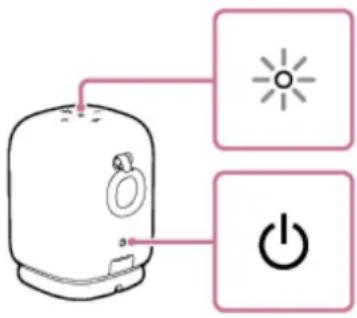
2 Check the status of the (BLUETOOTH) indicator.
When the indicator is double flashing

In the event that the speaker is paired with a BLUETOOTH device for the first time after purchase or in the event after the speaker is initialized (the speaker has no pairing information), the speaker automatically enters pairing mode when it is turned on. Proceed to step 4.
When the indicator is flashing slowly

The speaker is searching for a BLUETOOTH device.
- To pair the speaker with a second or subsequent BLUETOOTH device (when the speaker has pairing information of other BLUETOOTH devices), proceed to step 3.
- To reconnect the speaker with one of the BLUETOOTH devices that have been paired with the speaker before, proceed to step 4.
The speaker will automatically be connected just by turning on the BLUETOOTH function on the BLUETOOTH device.
Depending on the BLUETOOTH device, the speaker may be reconnected with the device right after it is turned on. For details, refer to the operating instructions supplied with your BLUETOOTH device.
When the indicator stays lit

The speaker has been connected to the BLUETOOTH device.
To connect to other BLUETOOTH devices, follow one of the procedures below.
- To pair the speaker with a second or subsequent BLUETOOTH device (when the speaker has pairing information of other BLUETOOTH devices), proceed to step 3.
- To reconnect the speaker with one of the BLUETOOTH devices that have been paired with the speaker before, proceed to step 4. The speaker will automatically be connected just by turning on the BLUETOOTH function on the BLUETOOTH device.
Press the BLUETOOTH) button.
You hear voice guidance (Pairing) from the speaker and the BLUETOOTH indicator starts double flashing (pairing mode).

4 Perform the pairing procedure on the BLUETOOTH device to detect the speaker.
When a list of detected devices appears on the display of the BLUETOOTH device, select "LinkBuds Speaker." If a passkey* is required on the display of the BLUETOOTH device, enter "0000."
* The passkey may be called a "passcode," "PIN code," "PIN number," or "password."
5 Make the BLUETOOTH connection from the BLUETOOTH device.
When the BLUETOOTH connection is established, you hear the notification sound from the speaker and the activity of the (BLUETOOTH) indicator changes from flashing to lit.
![graph LR A["Device"] --> B["Signal Path"] B --> C["Bluetooth Output"] style A fill:#f9f,stroke:#333 style C fill:#bbf,stroke:#333](/content/2026/08/1614262/images/a00d9b0c926f14ee7da0bc15173fed0eefff1281b9efb3f4f1fa5d439f475c31.jpg)
If the BLUETOOTH connection is not established, repeat from step 3.
Hint
As long as the BLUETOOTH function is activated on a BLUETOOTH device that has previously been connected with the speaker, the speaker is reconnected with the device right after the speaker is turned on.
- The above instructions on the BLUETOOTH device are provided as an example. For details, refer to the operating instructions supplied with the BLUETOOTH device.
- With the "Sony | Sound Connect" app, you can establish/disconnect BLUETOOTH connections, unpair BLUETOOTH devices, and more.
- You can connect the speaker concurrently with up to 2 BLUETOOTH devices. (Multipoint connection)
Note
- The pairing mode of the speaker is released after about 5 minutes and the BLUETOOTH indicator flashes slowly. However, when the speaker has no pairing information, such as at the factory settings, the pairing mode is not released. If the pairing mode is released before finishing the process, repeat from step 3.
- The passkey of the speaker is "0000." If a passkey besides "0000" is set on the BLUETOOTH device, pairing cannot be done with the speaker.
Once the BLUETOOTH devices are paired, there is no need to pair them again, except in the following cases:
— Pairing information has been deleted after repair, etc.
— The speaker is already paired with 8 devices and another device is to be paired.
The speaker can be paired with up to 8 devices. When a new device is paired in addition to 8 paired devices, the pairing information of the earliest device connected via a BLUETOOTH connection is replaced by the information of the new one.
— The pairing information with the speaker has been deleted from the BLUETOOTH device.
— The speaker is initialized.
All pairing information will be deleted. If you initialize the speaker, it may not be able to connect your BLUETOOTH device. In this case, erase the pairing information of the speaker on your BLUETOOTH device, and then perform the pairing procedure again.
The speaker can be paired with multiple devices, but can only play music from one paired device at a time.
- When using the Stereo Pair function, you cannot use the multipoint connection capability.
Related Topic
- Connecting the speaker concurrently with 2 BLUETOOTH devices (multipoint connection)
- Listening to music of a device via a BLUETOOTH connection
• Terminating the BLUETOOTH connection (After use)
5-060-905-11(1) Copyright 2024 Sony Corporation
Wireless Speaker
LinkBuds Speaker
Connecting with a computer via a BLUETOOTH connection (Windows®)
Pairing is the process required to mutually register the information on BLUETOOTH devices to be connected wirelessly. To use multiple BLUETOOTH devices in combination with the speaker, perform the following pairing procedure for each device.
The pairing information of the BLUETOOTH devices is stored on the speaker when the speaker is turned off.
Supported operation systems
Windows 11, Windows 10
Do the following before starting.
- Place your computer within 1 m (3.2 ft) of the speaker.
- Connect the speaker to an AC outlet via a USB AC adaptor (commercially available). Or charge the built-in battery sufficiently.
- Prepare the operating instructions supplied with the computer for reference.
- To avoid any sudden loud sound output from the speaker, turn down the volume of both the computer and the speaker or stop music playback.
- Set the speaker of your computer to on.
If the speaker of your computer is set to (mute), sound does not output on the BLUETOOTH speaker.
- When the speaker of your computer is set to on:

With the Swift Pair function, you can make pairing easier. To use the Swift Pair function, activate the Swift Pair function.
On Windows 11
Click the [Start] button - [Settings] - [Bluetooth & devices] - [Devices] - [Show notifications to connect using Swift Pair] switch to turn on the Swift Pair function.
On Windows 10 (version 1803 or later)
Click the [Start] button - [Settings] - [Devices] - [Bluetooth & other devices], and select the check box for [Show notifications to connect using Swift Pair].
1 Turn on the speaker.
You hear the notification sound from the speaker, and the status indicator starts flashing slowly in white.


Check the BLUETOOTH) indicator for activity.
When the indicator is double flashing

In the event that the speaker is paired with a BLUETOOTH device for the first time after purchase or in the event after the speaker is initialized (the speaker has no pairing information), the speaker automatically enters pairing mode when it is turned on. Proceed to step 4.
When the indicator is flashing slowly

The speaker is searching for BLUETOOTH connections.
- To pair the speaker with a second or subsequent BLUETOOTH device (when the speaker has pairing information of other BLUETOOTH devices), proceed to step 3.
- To reconnect the speaker with one of the BLUETOOTH devices that have been paired with the speaker before, proceed to step 7.
The speaker will automatically be connected with the computer just by turning on the BLUETOOTH function on the computer.
Depending on the BLUETOOTH device, the speaker may be reconnected with the device right after it is turned on. For details, refer to the operating instructions supplied with your BLUETOOTH device.
When the indicator stays lit
![graph LR A["Device"] --> B["Wireless Device"] B --> C["Bluetooth Symbol"] style A fill:#fff,stroke:#000 style B fill:#fff,stroke:#000 style C fill:#fff,stroke:#000](/content/2026/08/1614262/images/8a7a840a7e7a41726213779d8fb771244971d901c3fd0041a61e6e955871cf15.jpg)
The speaker is already connected with one of the BLUETOOTH devices.
To connect the speaker with another BLUETOOTH device, do either of the following:
- To pair the speaker with a second or subsequent BLUETOOTH device (when the speaker has pairing information of other BLUETOOTH devices), proceed to step 3.
- To reconnect the speaker with one of the BLUETOOTH devices that have been paired with the speaker before, proceed to step 7.
The speaker will automatically be connected with the computer just by turning on the BLUETOOTH function on the computer.
3 Press the (BLUETOOTH) button.
You hear voice guidance (Pairing) from the speaker and the BLUETOOTH indicator starts double flashing (pairing mode).

4 Wake the computer up if the computer is in standby (sleep) or hibernation mode.
5 To use the Swift Pair function, follow the instructions on the pop-up menu that appears on the computer.
Upon completion of pairing, a BLUETOOTH connection is automatically established. Proceed to step 8. To establish a BLUETOOTH connection without using the Swift Pair function, proceed to step 6.
6 Register the speaker to the computer.
On Windows 11
- Click the [Start] button, then [Settings].
- Click [Bluetooth & devices].

- Click the [Bluetooth] switch to turn on the BLUETOOTH function, and then click [Add device].

- Click [Bluetooth].

- Select [LinkBuds Speaker].

If a passkey* is required, enter "0000."
If [LinkBuds Speaker] does not appear, perform the operation again from step 3.
* The passkey may be called a "passcode," "PIN code," "PIN number," or "password."
- After pairing, the BLUETOOTH connection establishes automatically and [Connected music] or [Connected voice, music] will be displayed on the screen. Proceed to step 8.

On Windows 10
- Click the [Start] button, then [Settings].
- Click [Devices].

- Click the [Bluetooth & other devices] tab, click the [Bluetooth] switch to turn on the BLUETOOTH function, and then click [Add Bluetooth or other device].

- Click [Bluetooth].
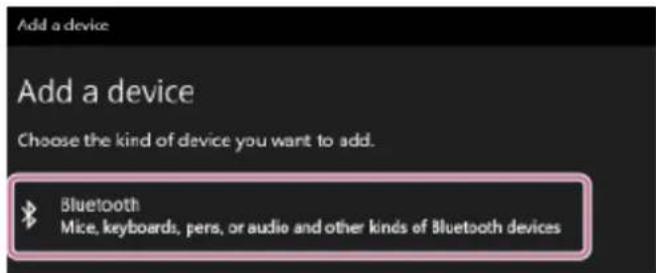
- Select [LinkBuds Speaker].

If a passkey * is required, enter "0000."
If [LinkBuds Speaker] does not appear, perform the operation again from step 3.
* The passkey may be called a "passcode," "PIN code," "PIN number," or "password."
- After pairing, the BLUETOOTH connection establishes automatically and [Connected music] or [Connected voice, music] will be displayed on the screen. Proceed to step 8.

7
Select the speaker on the computer.
On Windows 11
- Click the [Start] button, then [Settings].
- Click [Bluetooth & devices].
- Select [LinkBuds Speaker] and click [Connect].
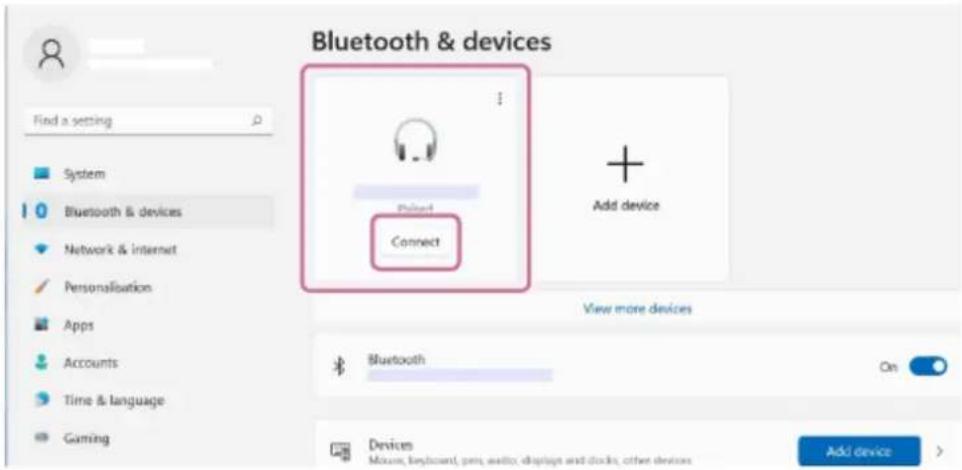
The icon on the screen may look different from what you actually see.
When a BLUETOOTH connection is established, [Connected music] or [Connected voice, music] will be displayed on the screen. Proceed to step 8.
On Windows 10
- Click the [Start] button, then [Settings].
- Click [Devices].
- Select [LinkBuds Speaker] under [Audio] on the [Bluetooth & other devices] tab, and then click [Connect].

The icon on the screen may look different from what you actually see.
When a BLUETOOTH connection is established, [Connected music] or [Connected voice, music] will be displayed on the screen. Proceed to step 8.
8 Follow the on-screen instructions to establish a BLUETOOTH connection.
When the BLUETOOTH connection is established, you hear the notification sound from the speaker and the activity of the (BLUETOOTH) indicator changes from flashing to lit.
![graph LR A["Device"] --> B["LED"] B --> C["Bluetooth"] C --> D["Signal"]](/content/2026/08/1614262/images/2ec8d1c06de98bdb9aebf234af5e765010cc3f384f2b7cfd94472ce6f1156278.jpg)
If the connection attempt fails, repeat the procedure from step 3.
Hint
The above instructions on the computer are provided as an example. For details, refer to the operating instructions supplied with your computer. In addition, not all the computers are tested and found compatible with the above procedure and the procedure is not applicable to home-built computers.
- With the "Sony | Sound Connect" app, you can establish/disconnect BLUETOOTH connections, unpair BLUETOOTH devices, and more.
- You can connect the speaker concurrently with up to 2 BLUETOOTH devices. (Multipoint connection)
Note
- The pairing mode of the speaker is released after about 5 minutes and the BLUETOOTH indicator flashes slowly. However, when the speaker has no pairing information, such as at the factory settings, the pairing mode is not released. If the pairing mode is released before finishing the process, repeat from step 3.
Once BLUETOOTH devices are paired, there is no need to pair them again, except in the following cases:
— Pairing information has been deleted after repair, etc.
— The speaker is already paired with 8 devices and another device is to be paired.
The speaker can be paired with up to 8 devices. When a new device is paired in addition to 8 paired devices, the pairing information of the earliest device connected via a BLUETOOTH connection is replaced by the information of the new one.
— The pairing information with the speaker has been deleted from the BLUETOOTH device.
— The speaker is initialized.
All pairing information will be deleted. If you initialize the speaker, it may not be able to connect your computer. In this case, erase the pairing information of the speaker on your computer, and then perform the pairing procedure again.
The speaker can be paired with multiple devices, but can only play music from one paired device at a time.
- The passkey of the speaker is "0000." If a passkey besides "0000" is set on the BLUETOOTH device, pairing cannot be done with the speaker.
- When using the Stereo Pair function, you cannot use the multipoint connection capability.
Related Topic
- Connecting the speaker concurrently with 2 BLUETOOTH devices (multipoint connection)
- Listening to music of a device via a BLUETOOTH connection
• Terminating the BLUETOOTH connection (After use)
5-060-905-11(1) Copyright 2024 Sony Corporation
Wireless Speaker
LinkBuds Speaker
Connecting with a computer via a BLUETOOTH connection (Mac)
Pairing is the process required to mutually register the information on BLUETOOTH devices to be connected wirelessly. To use multiple BLUETOOTH devices in combination with the speaker, perform the following pairing procedure for each device.
The pairing information of the BLUETOOTH devices is stored on the speaker when the speaker is turned off.
Supported operation systems
macOS Monterey (version 12.6)
Do the following before starting.
- Place your computer within 1 m (3.2 ft) of the speaker.
- Connect the speaker to an AC outlet via a USB AC adaptor (commercially available). Or charge the built-in battery sufficiently.
• Prepare the operating instructions supplied with the computer for reference. - To avoid any sudden loud sound output from the speaker, turn down the volume of both the computer and the speaker or stop music playback.
- Set the speaker of your computer to on.
If the speaker of your computer is set to minute), sound does not output on the BLUETOOTH speaker.
— When the speaker of your computer is set to on:

1 Turn on the speaker.
You hear the notification sound from the speaker, and the status indicator starts flashing slowly in white.
2 Check the (BLUETOOTH) indicator for activity.
When the indicator is double flashing

In the event that the speaker is paired with a BLUETOOTH device for the first time after purchase or in the event after the speaker is initialized (the speaker has no pairing information), the speaker automatically enters pairing mode when it is turned on. Proceed to step 4.
When the indicator is flashing slowly

The speaker is searching for BLUETOOTH connections.
- To pair the speaker with a second or subsequent BLUETOOTH device (when the speaker has pairing information of other BLUETOOTH devices), proceed to step 3.
- To reconnect the speaker with one of the BLUETOOTH devices that have been paired with the speaker before, proceed to step 4.
The speaker will automatically be connected with the computer just by turning on the BLUETOOTH function on the computer.
Depending on the BLUETOOTH device, the speaker may be reconnected with the device right after it is turned on. For details, refer to the operating instructions supplied with your BLUETOOTH device.
When the indicator stays lit

The speaker is already connected with one of the BLUETOOTH devices.
To connect the speaker with another BLUETOOTH device, do either of the following:
- To pair the speaker with a second or subsequent BLUETOOTH device (when the speaker has pairing information of other BLUETOOTH devices), proceed to step 3.
- To reconnect the speaker with one of the BLUETOOTH devices that have been paired with the speaker before, proceed to step 4.
The speaker will automatically be connected with the computer just by turning on the BLUETOOTH function on the computer.
3 Press the BLUETOOTH) button.
You hear voice guidance (Pairing) from the speaker and the BLUETOOTH indicator starts double flashing (pairing mode).

4 Search for the speaker on the computer.
- Click [ (System Preferences)] - [Bluetooth] in the taskbar on the right-bottom of the screen.

- Select [LinkBuds Speaker] from the Bluetooth screen, then click [Pair].

5 Follow the on-screen instructions to establish a BLUETOOTH connection.
When the BLUETOOTH connection is established, you hear the notification sound from the speaker and the activity of the BLUETOOTH) indicator changes from flashing to lit.
![graph LR A["Device"] --> B["LED Lamp"] B --> C["Bluetooth Symbol"] C --> D["Light Bulb Symbol"]](/content/2026/08/1614262/images/7e646558debeb236d05f396061cc1eeee67968feda1f00e6e2773f792c12a251.jpg)
If the connection attempt fails, repeat the procedure from step 3.
6
Click the speaker icon in the top-right of the screen and select [LinkBuds Speaker] from [Output Device].
You can enjoy playing back music, etc. from your computer.

Hint
- The above instructions on the computer are provided as an example. For details, refer to the operating instructions supplied with your computer. In addition, not all the computers are tested and found compatible with the above procedure and the procedure is not applicable to home-built computers.
- With the "Sony | Sound Connect" app, you can establish/disconnect BLUETOOTH connections, unpair BLUETOOTH devices, and more.
- You can connect the speaker concurrently with up to 2 BLUETOOTH devices. (Multipoint connection)
Note
- The pairing mode of the speaker is released after about 5 minutes and the (BLUETOOTH) indicator flashes slowly. However, when the speaker has no pairing information, such as at the factory settings, the pairing mode is not released. If the pairing mode is released before finishing the process, repeat from step 3.
Once BLUETOOTH devices are paired, there is no need to pair them again, except in the following cases:
- Pairing information has been deleted after repair, etc. - The speaker is already paired with 8 devices and another device is to be paired. The speaker can be paired with up to 8 devices. When a new device is paired in addition to 8 paired devices, the pairing information of the earliest device connected via a BLUETOOTH connection is replaced by the information of the new one.
— The pairing information with the speaker has been deleted from the BLUETOOTH device.
— The speaker is initialized. All pairing information will be deleted. If you initialize the speaker, it may not be able to connect your computer. In this case, erase the pairing information of the speaker on your computer, and then perform the pairing procedure again.
The speaker can be paired with multiple devices, but can only play music from one paired device at a time.
- The passkey of the speaker is "0000." If a passkey besides "0000" is set on the BLUETOOTH device, pairing cannot be done with the speaker.
- When using the Stereo Pair function, you cannot use the multipoint connection capability.
Related Topic
- Connecting the speaker concurrently with 2 BLUETOOTH devices (multipoint connection)
- Listening to music of a device via a BLUETOOTH connection
• Terminating the BLUETOOTH connection (After use)
5-060-905-11(1) Copyright 2024 Sony Corporation
Wireless Speaker
LinkBuds Speaker
Connecting the speaker concurrently with 2 BLUETOOTH devices (multipoint connection)
While the speaker is connected concurrently with 2 BLUETOOTH devices via BLUETOOTH connections, you can do the following:
- Switching the music playback source between 2 devices
You can switch the music playback source from one device to the other without reestablishing the BLUETOOTH connection.
![graph TD A["Music Player"] <--> B["Mobile Device"] B --> C["Smartphone"] C --> D["Signal Transmission"] style A fill:#f9f,stroke:#333 style B fill:#ccf,stroke:#333 style C fill:#cfc,stroke:#333 style D fill:#fcc,stroke:#333](/content/2026/08/1614262/images/456e88c680ec3a70c42f431f938f99d2fb9e92adf98c428879d5285206d007eb.jpg)
• Standing by for an incoming call to either of the 2 smartphones/iPhone devices
You can keep both of the 2 smartphones/iPhone devices on standby for an incoming call while listening to music playing on one of the smartphones/iPhone devices, and receive an incoming call to either of the smartphones/iPhone devices when it arrives.

Connecting the speaker concurrently with 2 devices via BLUETOOTH connections

Connect the speaker with the first BLUETOOTH device.
For details about the BLUETOOTH connection procedure, see one of the following that is applicable to your device.
-
Connecting to BLUETOOTH devices easily with the "Sony | Sound Connect" app via a BLUETOOTH connection
• Pairing and connecting with BLUETOOTH devices -
Connecting with a computer via a BLUETOOTH connection (Windows®)
- Connecting with a computer via a BLUETOOTH connection (Mac)
2 While keeping the speaker connected with the first BLUETOOTH device, press the (BLUETOOTH) button.
You hear voice guidance (Pairing) from the speaker and the BLUETOOTH indicator starts double flashing (pairing mode).

3 Operate the second BLUETOOTH device to search for the speaker.
4 Follow the on-screen instructions to establish a BLUETOOTH connection.
When the BLUETOOTH connection is established, you hear the notification sound from the speaker and the activity of the BLUETOOTH) indicator changes from flashing to lit.
![graph LR A["Device"] --> B["Signal Path"] B --> C["Bluetooth Output"] style A fill:#f9f,stroke:#333 style C fill:#bbf,stroke:#333](/content/2026/08/1614262/images/e2da3a0892a800047ffac393a1d5c3746f20bdca90d20b9da2d9e59cbd5574c7.jpg)
Changing the BLUETOOTH devices in multipoint connection
While keeping the speaker connected with 2 devices in multipoint connection, you can attempt to connect another device via a BLUETOOTH connection.
When you operate the speaker and the third device in an attempt to establish a BLUETOOTH connection, the BLUETOOTH connection with one of the 2 devices used for the previous music playback or phone talking is retained and the BLUETOOTH connection with the other device is disconnected. Then, a BLUETOOTH connection is established between the speaker and the third device.
Music playback while the speaker is connected with 2 devices in multipoint connection
- When you operate the speaker to play music, music starts playing on one of the devices in multipoint connection that was used for the previous playback.
- To play music on the other (second) device in multipoint connection, operate the second one to start music playback. Depending on the condition, you may still hear music playing on the same (first) device from the speaker after you operate the second device to start playback. In such a case, stop the playback on the first one. Then, you can listen to music playing on the second one.
Receiving a call while the speaker is connected with 2 smartphones/iPhone devices in multipoint connection
- Connecting the speaker with 2 smartphones/iPhone devices in multipoint connection places both of the devices on standby for an incoming call.
- When an incoming call arrives at the first device in multipoint connection, you hear a ring tone via the speaker.
- When another incoming call arrives at the other (second) device while you are talking on the first call via the speaker, a ring tone is heard from the second device.
By ending the call on the first device, you hear a ring tone on the second device via the speaker.
Hint
- As long as the BLUETOOTH function is activated on a BLUETOOTH device that has previously been connected with the speaker, the speaker is reconnected with the device right after the speaker is turned on.
- With the "Sony | Sound Connect" app, you can establish/disconnect BLUETOOTH connections, unpair BLUETOOTH devices, and more.
Note
- When using the Stereo Pair function, you cannot use the multipoint connection capability.
- Depending on the BLUETOOTH device, you may not be able to use the multipoint connection capability.
The multipoint connection cannot be disabled.
Related Topic
- Connecting to BLUETOOTH devices easily with the "Sony | Sound Connect" app via a BLUETOOTH connection
• Pairing and connecting with BLUETOOTH devices - Connecting with a computer via a BLUETOOTH connection (Windows®)
- Connecting with a computer via a BLUETOOTH connection (Mac)
5-060-905-11(1) Copyright 2024 Sony Corporation
Wireless Speaker
LinkBuds Speaker
Listening to music of a device via a BLUETOOTH connection
You can enjoy listening to music of a BLUETOOTH device and operate it by the speaker via a BLUETOOTH connection if it supports the following BLUETOOTH profiles.
A2DP (Advanced Audio Distribution Profile)
Enables you to enjoy high-quality audio contents wirelessly.
AVRCP (Audio Video Remote Control Profile)
Enables you to adjust the volume and operate to play, pause or skip to the beginning of the next/current track.
Operations may vary depending on the BLUETOOTH device. Refer also to the operating instructions supplied with the BLUETOOTH device.
Note
- Make sure beforehand that the volume on the BLUETOOTH device and speaker are set to a moderate level to avoid sudden loud sound output from the speaker.
Depending on the BLUETOOTH device, adjusting the volume of the speaker may not be possible on the BLUETOOTH device while playback on the device is stopped/paused.
1 Connect the speaker with the BLUETOOTH device.
When the BLUETOOTH connection is established, you hear the notification sound from the speaker and the activity of the ✉BLUETOOTH) indicator changes from flashing to lit.
![graph LR A["Device"] --> B["LED Lamp"] B --> C["Signal Light"] B --> D["Bluetooth Symbol"] C --> E["Light Blue Light"] D --> F["Light Black Bluetooth"]](/content/2026/08/1614262/images/7926b26ab5673a8c28bb483a572b345209f6958e4fd5b4e34fd3f1d67ed801d6.jpg)
2 Start playback on the BLUETOOTH device.
3 Adjust the volume by pressing the - / + (volume) buttons on the speaker or operating the BLUETOOTH device.
When you press the -/+ (volume) buttons on the speaker or adjust the volume on the BLUETOOTH device, the status indicator flashes once or 3 times.
Depending on the BLUETOOTH device you are using, the status indicator on the speaker may not flash even if you adjust the volume on the BLUETOOTH device.
Press and hold the -/+ (volume) buttons for rapid adjustments.
![graph TD A["Power Source"] --> B["Diode"] B --> C["+"] C --> D["Output"] E["Light Source"] --> F["+"] G["Ground"] --> H["Cap with Sensor"]](/content/2026/08/1614262/images/70aee988ffdb9f2c31e3ee809ddf8d88a6c5f45b116e3b2e91f3bc4538a524c2.jpg)
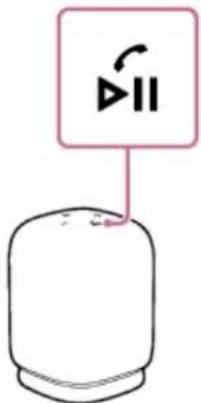
During playback, you can use the play/ (call) button to perform the following operations.
Pause
Press the play/ (call) button during playback to pause. Press it again to cancel pause.
Skip to the beginning of the next track
Press the play)/(call) button twice quickly during playback.
Skip to the beginning of the current or previous track*
Press the play)/(call) button 3 times quickly during playback.
The above operations vary depending on the BLUETOOTH device in use.
Hint
As long as the speaker is connected to an AC outlet by a USB AC adaptor (commercially available), the speaker's built-in battery is capable of charging itself even while music playback from the speaker is in progress. Depending on the type or specifications of the USB AC adaptor or the usage of the speaker, however, it may take a long time before charging completes. When you intend to use the speaker while charging the battery, turn down the speaker volume, or turn off the speaker and let the battery fully charge itself before using the speaker.
The speaker supports content protection by the SCMS-T method. You can listen to music (or audio) from the smartphone or mobile phone, which supports the SCMS-T method, through the speaker.
- When you set the volume to the maximum or minimum level on the speaker, you hear the notification sound from the speaker and the status indicator flashes 3 times.
Note
- If the communication condition is poor, the BLUETOOTH device may react incorrectly to the operations on the speaker.
-
When using in a place with a high temperature, the volume may decrease to protect the built-in battery.
-
When the built-in battery is running low, the maximum speaker volume decreases.
- Depending on the BLUETOOTH device, it may be necessary to adjust the volume or set the audio output setting on the connected device.
- Noise or sound interruption may occur depending on the BLUETOOTH device connected with the speaker, the communication environment or the usage environment.
Related Topic
- Charging the speaker
• Terminating the BLUETOOTH connection (After use)
5-060-905-11(1) Copyright 2024 Sony Corporation
Wireless Speaker
LinkBuds Speaker
Selecting the quality for music playback via a BLUETOOTH connection (Codec)
The “Prioritize Sound Quality” and “Prioritize Stable Connection” preferences are available on the speaker for the BLUETOOTH connection quality. The “Prioritize Sound Quality” preference provides compatibility not only with SBC but also with AAC for music playback of high sound quality, whereas the “Prioritize Stable Connection” preference enables music playback via more stable BLUETOOTH connections. At the time of purchase, the “Prioritize Sound Quality” preference is selected.
- Prioritize Sound Quality (default setting): Optimal codec is automatically selected from AAC and SBC.
- Prioritize Stable Connection: SBC is selected.
1 Turn on the speaker.
The status indicator lights up in white.
2 Start the "Sony | Sound Connect" app.
3 Select either of the codec preferences through [Bluetooth Connection Quality]: [Prioritize Sound Quality] or [Prioritize Stable Connection].
Hint
- When using the Stereo Pair function, the codec automatically switches to SBC.
Note
- While the "Prioritize Sound Quality" preference is selected, noise or sound interruption may occur depending on the setting of your BLUETOOTH device and ambient conditions. In such a case, change the BLUETOOTH connection quality to the "Prioritize Stable Connection" preference.
Related Topic
• Using the BLUETOOTH standby (auto power on) function
• Supported codecs
- What you can do with the "Sony | Sound Connect" app
Wireless Speaker
LinkBuds Speaker
Supported codecs
A codec is an audio coding algorithm used for wirelessly transmitting audio via BLUETOOTH connections.
The speaker supports the following 2 codecs for music playback via an A2DP connection: SBC and AAC.
SBC
This is an abbreviation for Subband Codec.
SBC is the standard audio coding technology used by BLUETOOTH devices.
AAC
This is an abbreviation for Advanced Audio Coding.
AAC is mainly used by Apple products such as iPhone that can provide a higher sound quality than that of SBC.
When music in one of the above codecs is transmitted from a connected device, the speaker switches to that codec automatically and plays back the music in the same codec.
If the connected device supports a codec of higher sound quality than SBC, you may need to set the device beforehand to enjoy music with the desired codec from the supported codecs.
Refer to the operating instructions supplied with the device regarding setting the codec.
Related Topic
- Selecting the quality for music playback via a BLUETOOTH connection (Codec)
5-060-905-11(1) Copyright 2024 Sony Corporation
Wireless Speaker
LinkBuds Speaker
Terminating the BLUETOOTH connection (After use)
When you finish playing music with the BLUETOOTH device, perform any of the following operations to terminate the BLUETOOTH connection.
When the BLUETOOTH connection is disconnected, you hear the notification sound from the speaker.
- Turn off the BLUETOOTH function on the BLUETOOTH device.
For details, refer to the operating instructions supplied with the device.
• Turn off the BLUETOOTH device.
• Turn off the speaker.
Hint
- When using the Stereo Pair function, if you turn off one speaker, the other speaker is automatically turned off. The BLUETOOTH connection between them is disconnected.
- When you finish playing music, the BLUETOOTH connection may terminate automatically depending on the BLUETOOTH device.
Related Topic
• Turning the power off
• Automatic Power Off (power saving) function
- What you can do with the "Sony | Sound Connect" app
5-060-905-11(1) Copyright 2024 Sony Corporation
Wireless Speaker
LinkBuds Speaker
Using the Quick Access
With the Quick Access, you can play a content on the app, which is assigned to the Quick Access) button, just by pressing the button on the speaker.
1 Turn on the speaker.
The status indicator lights up in white.
2 Start the "Sony | Sound Connect" app on your smartphone.
3 Assign the apps of services to link through (Settings) on the [Quick Access] screen.
You can assign the app of a different service to the action of single-pressing the Quick Access) button as well as to the action of double-pressing the button.
4 Start either of the apps assigned to the Quick Access) button.
5 Press the Quick Access) button on the speaker.
Now you can execute the services of the assigned apps.
Hint
- Using the Quick Access requires installation of the apps of the linked services on your smartphone and a connection to the Internet. Depending on the app, signing in to the app is required as well.
- If you operate the speaker without assigning any app to the Quick Access) button, you hear voice guidance (The Quick Access is not set. Please open the Sound Connect and check the Quick Access settings.) from the speaker.
- If you operate the speaker while the links between the Quick Access and the services are deactivated on the "Sony | Sound Connect" app, you hear voice guidance (Launch the Sound Connect to activate Service Link.) from the speaker.
- If you press the ▶ (Quick Access) button on the speaker while the apps assigned to the button are not up and running, you hear voice guidance (App assigned to the Quick Access is not launched on the mobile device.) from the speaker.
Note
In some countries and regions, different services are available for linking to the Quick Access.
Wireless Speaker
LinkBuds Speaker
Enjoying seamless playback using the linked Sony brand headphones (Auto Switch)
You can enjoy wireless playback while having the audio output source automatically switched between the Auto Switch compatible headphones and the speaker without operating the headphones or the speaker.
For details on the Auto Switch compatible devices, refer to the following URL.
https://www.sony.net/asw_comp_hp
Before using the Auto Switch, make sure that:
- The “Sony | Sound Connect” app is installed on your smartphone.
- The software versions of your speaker and headphones are up to date.
- The BLUETOOTH standby function is active on your speaker (default setting).
1 Turn on the speaker.
The status indicator lights up in white.
2 Start the "Sony | Sound Connect" app on your smartphone.
Start the "Sony | Sound Connect" app on the smartphone, and then follow the on-screen instructions to establish a connection with the speaker. When the connection is established, the speaker is registered on the "Sony | Sound Connect" app.
3 Turn off the speaker.
Press the (power) button on the speaker to turn off the power.
4 Establish a connection between the Auto Switch compatible headphones and the "Sony | Sound Connect" app, and then specify the Auto Switch settings.
You can specify the Auto Switch settings only through the settings screen for the headphones on the "Sony | Sound Connect" app.
Tap [System] - [Auto Switch] on the smartphone, and then follow the on-screen instructions to establish a link with [LinkBuds Speaker].
5 Start playing music on your smartphone.
Start playing music on the smartphone on which the "Sony | Sound Connect" app is installed and the Auto Switch settings are specified.
While music playback from the speaker is in progress, wearing the headphones automatically switches the audio output source for music playback to the headphones.
While music playback from the headphones is in progress, turning off the headphones * automatically switches the audio output source for music playback to the speaker.
If the audio output source is not switched as expected, try bringing the speaker and the headphones closer to each other.
* The operations on the headphones vary depending on the model of the headphones.
To adjust the audio volume
Adjust the audio volume on the headphones or speaker that is being used for playback.
This adjustment does not change the audio volume settings of the headphones or speaker that is not being used for playback.
To deactivate the Auto Switch
Cancel the link for the Auto Switch through the settings screen for the headphones on the "Sony | Sound Connect" app. Initializing the speaker or the linked headphones cancels the link as well.
Hint
- When you do not want the audio output source to be automatically switched, pause music playback on the smartphone in advance.
Note
While you are on the go, it may happen that your speaker unexpectedly turns on and plays music. Before going out, be sure to cancel the link for the Auto Switch through the settings screen for the headphones on the "Sony | Sound Connect" app.
The Auto Switch does not work for the hands-free function of the connected smartphone.
- After the audio output source for music playback is switched from the speaker to the headphones by the Auto Switch, disconnecting the BLUETOOTH connection between the speaker and the smartphone automatically turns off the speaker even while the Automatic Power Off function is deactivated.
5-060-905-11(1) Copyright 2024 Sony Corporation
Wireless Speaker
LinkBuds Speaker
Listening to music wirelessly with 2 speakers (Stereo Pair function)
To use the Stereo Pair function, 2 units of the LinkBuds Speaker are required. By connecting 2 speakers via a BLUETOOTH connection, you can enjoy more powerful sound.
2 speakers connected via a BLUETOOTH connection play sounds in stereo, where one speaker plays the sound on the right channel (right side) and the other plays the sound on the left channel (left side).
Before operating the speaker, make sure of the following:
- Update the pre-installed software to the latest version on each and every speaker to connect for the function. (For details about the update procedure, see "How to keep the software up-to-date (for comfortable use of the speaker).")
- When setting up the speakers for the Stereo Pair function, make sure that the 2 speakers to connect for the function are located within 1m (3.2 ft) from each other. Stop music playback if it is in progress.
- When playing music, make sure that all of the devices to connect for the function are located within 30 m (98.4 ft) in your line of sight.
Maximum communication range may shorten under the following conditions.
— There is an obstacle such as a person, metal, or wall between the speaker and BLUETOOTH device.
— A wireless LAN device is in use near the speaker.
— A microwave oven is in use near the speaker.
— A device that generates electromagnetic radiation is in use near the speaker.
1 Place 2 speakers within 1 m (3.2 ft) each other, and then turn on both speakers.
The status indicator lights up.
The BLUETOOTH) indicator flashes slowly.
If the BLUETOOTH device which has been connected before is nearby, the speaker may be connected to the device automatically, and then the BLUETOOTH) indicator may be lit. In this case, turn off the BLUETOOTH function on the BLUETOOTH device or turn off the BLUETOOTH device.

When the speaker has no pairing information, for example when you use the BLUETOOTH function for the first time after purchase, the BLUETOOTH) indicator keeps double flashing in blue.
2 On either one of the speakers*, press and hold the (BLUETOOTH)/ ST-PAIR (Stereo Pair) button for about 2 seconds.
When the Auto Switch or either of the Auto Play is activated on one of the 2 speakers, the one with the active function.
You hear the notification sound and the BLUETOOTH) indicator and the ST PAIR (Stereo Pair) indicator flash. In about 5 seconds, the ST PAIR (Stereo Pair) indicator will stop flashing and stay lit.
![graph TD A["Device"] --> B["Wireless Signal"] B --> C["St Pair"] C --> D["St PAIR"] D --> E["Output"]](/content/2026/08/1614262/images/04de4c8f0abc5673aabf9939a35f8b9ba0dd2262169e8cbbf1a65709fa80b6ec.jpg)
3 On the other speaker, press and hold the (BLUETOOTH)/ ST-PAIR (Stereo Pair) button for about 2 seconds.
The FLUETOOTH) indicator and the ST PAIR (Stereo Pair) indicator flash.

4 Check the state of the indicator on each of the 2 speakers.
When the speakers are connected by the Stereo Pair function, you hear voice guidance (Left/Right) from the speaker, then the ST PAIR (Stereo Pair) indicators on both speakers stay lit and the BLUETOOTH indicator on the second speaker turns off.
![graph TD A["Top Device"] --> B["Central Display"] B --> C["Light Signal Light"] B --> D["St Pair - ST PAIR"] E["Bottom Device"] --> F["Central Display"] F --> G["Light Signal Light"] F --> H["St Pair - ST PAIR"] style A fill:#f9f,stroke:#333 style E fill:#f9f,stroke:#333 style F fill:#f9f,stroke:#33…](/content/2026/08/1614262/images/5b167a54707b0db886282067cf3af59768607b683d19968a04fe5a9db81a9be2.jpg)
Hint
- When the 2 speakers are immediately connected by the Stereo Pair function, the VALUETOOTH) indicator and the ST PAIR (Stereo Pair) indicator may not flash and the ST PAIR (Stereo Pair) indicator may light instead.
- Set up the second speaker within 1 minute. If you do not set it up within 1 minute, the setting of the first speaker will be canceled.
5
Operate the speaker of which the BLUETOOTH) indicator is flashing to establish a BLUETOOTH connection with a BLUETOOTH device.
When the BLUETOOTH connection is established, you hear the notification sound from the speaker and the activity of the BLUETOOTH) indicator changes from flashing to lit.
![graph TD A["Device 1"] -->|Wireless Signal| B["Device 2"] B --> C["ST PAIR Sensor"] C --> D["Device 3"] D --> E["ST PAIR Sensor"] E --> F["Device 4"] style A fill:#f9f,stroke:#333 style F fill:#bbf,stroke:#333](/content/2026/08/1614262/images/6afa1b1b59d6d16b2a194243d06002970d5760b2ebcb2d1ffd8e7ca5810f549e.jpg)
6
Start playback on the BLUETOOTH device, and adjust the volume to an adequate level.
7
Press the -/+ (volume) buttons on one of the speakers to adjust the volume.
Volume adjustment of one speaker is reflected in the other.
For stereo playback, the speaker with the lit BLUETOOTH) indicator is set to the left channel (left side).
Hint
- When making or receiving a call, only operate the speaker with the lit (BLUETOOTH) indicator.
- If any other BLUETOOTH device(s), such as a BLUETOOTH mouse or BLUETOOTH keyboard, is connected to the BLUETOOTH device that is connected to the speaker, there may be distorted sound or noise in the speaker output. In this case, terminate the BLUETOOTH connection between the BLUETOOTH device and other BLUETOOTH device(s).
- When using the Stereo Pair function, the codec automatically switches to SBC.
- Turning off the speakers does not turn off the Stereo Pair function. When one of the speakers is turned back on, it attempts to establish a connection for the Stereo Pair function. To use the Stereo Pair function, turn on the other speaker within 1 minute. When the BLUETOOTH standby function remains active on both of the speakers, however, turning on either of the speakers automatically turns on the other and establish a connection for the Stereo Pair function between the speakers.
- If you hear voice guidance (The Stereo Pair is not available. Please open the Sound Connect and update the speaker software.), the version of the speaker software is old and the Stereo Pair function cannot be used. Update the software.
Note
- After you restart or initialize either of the speakers while the Stereo Pair function is activated, be sure to press the (BLUETOOTH)/ SET PAIR (Stereo Pair) button on the other speaker to terminate the Stereo Pair function. If you continue to use the speaker without terminating the Stereo Pair function, you will have a problem, such as a failure to establish a BLUETOOTH connection or a sound interruption.
- While the Stereo Pair function is activated, any attempt, which is made from the connected BLUETOOTH device, to start the second speaker fails.
- Setting up a speaker as the second speaker for the Stereo Pair function restores some of the Auto Play settings on the speaker to the defaults. In such a case, specify the Auto Play settings all over again using the "Sony | Sound Connect" app.
Related Topic
- What you can do with the "Sony | Sound Connect" app
- How to keep the software up-to-date (for comfortable use of the speaker)
5-060-905-11(1) Copyright 2024 Sony Corporation
Wireless Speaker
LinkBuds Speaker
Terminating the Stereo Pair function
To terminate the Stereo Pair function, follow the procedure below.

Press and hold the BLUETOOTH/ ST-PAIR (Stereo Pair) button on one of the speakers for about 2 seconds until you hear the notification sound.
The ST PAIR (Stereo Pair) indicator turns off.

Hint
- Turning off the speaker does not terminate the Stereo Pair function. When the speaker is turned back on, it attempts to establish a connection for the Stereo Pair function. To use the Stereo Pair function, turn on the other speaker within 1 minute.
Related Topic
- Listening to music wirelessly with 2 speakers (Stereo Pair function)
Making a video call on a computer
During a video call on a computer, you can use the speaker for wireless phone talking.
1 Connect the speaker with a computer via a BLUETOOTH connection.
2 Start up a video call application on the computer.
3 View the settings *1 of the video call application.
- For video calls on the computer, select the BLUETOOTH profile not for music playback (A2DP) but for phone talking (HFP/HSP connection). While the BLUETOOTH profile for music playback (A2DP connection) is selected, phone talking may not be available.
- For the speaker settings, select [Headset earphone (LinkBuds Speaker Hands-Free)] 2 , the BLUETOOTH profile for phone talking (HFP/HSP connection). ([Speakers (LinkBuds Speaker Stereo)] 2 is the BLUETOOTH profile for music playback.)
- For the microphone settings, select [Headset microphone (LinkBuds Speaker Hands-Free)] *2 , the BLUETOOTH profile for phone talking (HFP/HSP connection).
- Depending on your video call application, selection of [Headset earphone (LinkBuds Speaker Hands-Free)] 2 or [Headset microphone (LinkBuds Speaker Hands-Free)] 2 , the BLUETOOTH profile for phone talking (HFP/HSP connection), or [Speakers (LinkBuds Speaker Stereo)] *2 , the BLUETOOTH profile for music playback (A2DP connection), may not be available for the speaker or microphone settings, and only [LinkBuds Speaker] may be displayed. In such a case, select [LinkBuds Speaker].
- For frequently asked questions and the answers to them, visit the customer support website.
*1 Depending on your video call application, this function may not be available.
*2 Labels may vary depending on your computer or video call application.
Hint
- When you cannot view the settings of the video call application or select [Headset earphone (LinkBuds Speaker Hands-Free)] or [Headset microphone (LinkBuds Speaker Hands-Free)], the BLUETOOTH profile for phone talking (HFP/HSP connection), select [Headset earphone (LinkBuds Speaker Hands-Free)] or [Headset microphone (LinkBuds Speaker Hands-Free)] for the settings on the computer, and then establish a connection. For details, see the following topics.
- Connecting with a computer via a BLUETOOTH connection (Windows®)
- Connecting with a computer via a BLUETOOTH connection (Mac)
- On a Mac computer, the BLUETOOTH profiles both for music playback (A2DP) and for phone talking (HFP/HSP connection) are used for video calls and profile selection is not required.
Note
- When the speaker is connected with a Mac computer and a smartphone in multipoint connection, the video call application may fail to function properly. In such a case, terminate the BLUETOOTH connection between the speaker and the smartphone.
Related Topic
- Connecting the speaker concurrently with 2 BLUETOOTH devices (multipoint connection)
• Terminating the BLUETOOTH connection (After use) - Troubleshooting
5-060-905-11(1) Copyright 2024 Sony Corporation
SONY
Help Guide
Wireless Speaker
LinkBuds Speaker
Receiving a call
You can enjoy hands-free calls with a smartphone or mobile phone that supports the BLUETOOTH profile HFP (Hands-free Profile) or HSP (Headset Profile) via a BLUETOOTH connection.
- If your smartphone or mobile phone supports both HFP and HSP, set it to HFP.
- Operations may vary depending on the smartphone or mobile phone. Refer to the operating instructions supplied with the smartphone or mobile phone.
About ring tones
When an incoming call arrives, playback pauses and a ring tone will be heard via the speaker.
The ring tone varies in the following ways, depending on your smartphone or mobile phone.
- Ring tone set on the speaker
- Ring tone set on the smartphone or mobile phone
- Ring tone set on the smartphone or mobile phone only for a BLUETOOTH connection
1 Connect the speaker with a smartphone or mobile phone.
When the BLUETOOTH connection is established, you hear the notification sound from the speaker and the activity of the BLUETOOTH) indicator changes from flashing to lit.
![graph LR A["Device"] --> B["Sensor Placement"] B --> C["Wi-Fi Signal"] C --> D["Wireless Signal"]](/content/2026/08/1614262/images/8adbf5e8864203ba06ba4df5675c865ff5d0805a722d673a61935809f4a15b64.jpg)
When using the Stereo Pair function
Connect to the speaker of which the FLUETOOTH) indicator flashes in blue. In the following steps and operations during a hands-free call, operate the speaker that is connected to the smartphone or mobile phone.
2 Press the delay)/(call) button when a call is received.
Talk into the microphone (①) of the speaker.
When an incoming call arrives, playback pauses and a ring tone is heard via the speaker.

If no ring tone is heard via the speaker
The speaker may not be connected with a smartphone or mobile phone with HFP or HSP. Check the connection status on the smartphone or mobile phone.
3 While the phone is ringing or a phone conversation is in progress, adjust the volume by pressing the - / + (volume) buttons on the speaker or operating the smartphone or mobile phone.
When you press the - / + (volume) buttons on the speaker or adjust the volume on the smartphone or mobile phone, the status indicator flashes once or 3 times.
![graph TD A["Power Source"] --> B["Diode"] B --> C["+"] B --> D["-"] C --> E["Light Source"] D --> E E --> F["+"] style A fill:#f9f,stroke:#333 style F fill:#ccf,stroke:#333](/content/2026/08/1614262/images/b5c9568cd8c3a61b30e0dd56528ae979995f083554b0cd5eb30a1b5834f8c2eb.jpg)
4 To end a call, press the play)/(call) button.
If you were listening to music before the call, playback will resume when the call ends. If you end a call by operating the smartphone or mobile phone, playback will also resume when the call ends if you were listening to music before the call.
Hint
Some smartphones or mobile phones have handset use priority when receiving a call. In the case of the HFP/HSP connection, switch the call device to the speaker by operating your smartphone or mobile phone.
- When the caller is unable to hear or having trouble with hearing your voice, lean closer to the speaker and then talk into its microphone.
The volume of music playback and calling is set independently in the speaker.
Note
- When using the Stereo Pair function, the sound of the phone call is output from only the speaker with the blue lit (BLUETOOTH) indicator.
- Depending on the smartphone or mobile phone, playback may not pause when an incoming call arrives.
- Use a smartphone or mobile phone at least 50 cm (1.6 ft) away from the speaker. Noise may result if the speaker and the smartphone or mobile phone are too close.
- Depending on the model of your smartphone or mobile phone, the operation system or applications installed, some functions of hands-free calling may not be used correctly.
Related Topic
• Pairing and connecting with BLUETOOTH devices
• Terminating the BLUETOOTH connection (After use)
Making a call
5-060-905-11(1) Copyright 2024 Sony Corporation
SONY
Help Guide
Wireless Speaker
LinkBuds Speaker
Making a call
You can enjoy hands-free calls with a smartphone or mobile phone that supports the BLUETOOTH profile HFP (Hands-free Profile) or HSP (Headset Profile) via a BLUETOOTH connection.
- If your smartphone or mobile phone supports both HFP and HSP, set it to HFP.
- Operations may vary depending on the smartphone or mobile phone. Refer to the operating instructions supplied with the smartphone or mobile phone.
1 Connect the speaker with a smartphone or mobile phone.
When the BLUETOOTH connection is established, you hear the notification sound from the speaker and the activity of the (BLUETOOTH) indicator changes from flashing to lit.
![graph LR A["Device"] --> B["Antenna"] B --> C["Bluetooth"] C --> D["Output"]](/content/2026/08/1614262/images/8d313e528af077555c4c300825d8f28357aa02c50bd0f9ead34cc3b7e486dfb4.jpg)
When using the Stereo Pair function
Connect to the speaker of which the ✕LUETOOTH) indicator flashes in blue. In the following steps and operations during a hands-free call, operate the speaker that is connected to the smartphone or mobile phone.
2 Operate the smartphone or mobile phone to make a call.
When you make a call, playback pauses and the dial tone is heard via the speaker. When the receiver takes the call, talk into the microphone (10f of the speaker.

If no dial tone is heard via the speaker
The speaker may not be connected with a smartphone or mobile phone with HFP or HSP. Check the connection status on the smartphone or mobile phone.
3
While the phone is ringing or a phone conversation is in progress, adjust the volume by pressing the -/+ (volume) buttons on the speaker or operating the smartphone or mobile phone.
When you press the -/+ (volume) buttons on the speaker or adjust the volume on the smartphone or mobile phone, the status indicator flashes once or 3 times.
![graph TD A["Bar jar"] --> B["Display"] B --> C["+"] B --> D["-"] C --> E["+"] D --> F["-"] style A fill:#f9f,stroke:#333 style B fill:#ccf,stroke:#333 style C fill:#cfc,stroke:#333 style D fill:#fcc,stroke:#333 style E fill:#ffc,stroke:#333 style F fill:#cff,stroke:#333](/content/2026/08/1614262/images/66fed201897ecac8a88545c3347604a644a010a18eb72d0c65c3286736c34748.jpg)
4
To end a call, press the ▶/ (call) button.
If you were listening to music before the call, playback will resume when the call ends. If you end a call by operating the smartphone or mobile phone, playback will also resume when the call ends if you were listening to music before the call.
Hint
- When the receiver is unable to hear or having trouble with hearing your voice, lean closer to the speaker and then talk into its microphone.
The volume of music playback and calling is set independently in the speaker.
Note
- When using the Stereo Pair function, the sound of the phone call is output only from the speaker with the blue lit (BLUETOOTH) indicator.
- Depending on the smartphone or mobile phone, playback may not pause when making a call.
- Use a smartphone or mobile phone at least 50 cm (1.6 ft) away from the speaker. Noise may result if the speaker and the smartphone or mobile phone are too close.
Related Topic
• Pairing and connecting with BLUETOOTH devices
• Terminating the BLUETOOTH connection (After use)
- Receiving a call
Wireless Speaker
LinkBuds Speaker
What you can do with the “Sony | Sound Connect” app
While the smartphone, on which the "Sony | Sound Connect" app is installed, and the speaker are connected via a BLUETOOTH connection, the operations listed below are available.
Operations that can be performed on a speaker with the "Sony | Sound Connect" app
• Updating the speaker software
- Enabling/disabling the notification sound and voice guidance
- Specifying the Quick Access settings
- Activating/deactivating the links to services (Service Link)
- Selecting the Bluetooth Connection Quality (Prioritize Sound Quality/Prioritize Stable Connection)
• Turning off the speaker
- Placing/bringing the speaker into/out of Battery Care mode
- Activating/deactivating the Bluetooth Standby function
- Specifying the Automatic Power Off function settings
- Changing the devices in multipoint connection
• Viewing the version of the speaker software
• Viewing the state of the BLUETOOTH connection between the speaker and the smartphone
• Viewing the BLUETOOTH connection codec
• Viewing the state of the DSEE function
- Activating/deactivating the DSEE function
• Viewing the remaining power of the speaker's rechargeable battery
- Customizing the Equalizer settings
- Starting/pausing music playback or skipping to the beginning of the previous/current/next track
- Adjusting the volume for music playback/phone calling
- Seamless playback with the linked headphones (Auto Switch)
- Specifying the Auto Play settings
- Easy pairing
Hint
- What you can control with "Sony | Sound Connect" app varies depending on the connected device. The specifications and design of the app may change without notice.
Related Topic
• Installing the "Sony | Sound Connect" app
• How to keep the software up-to-date (for comfortable use of the speaker)
- Selecting the quality for music playback via a BLUETOOTH connection (Codec)
• Using the Quick Access
- Enjoying seamless playback using the linked Sony brand headphones (Auto Switch)
- Connecting the speaker concurrently with 2 BLUETOOTH devices (multipoint connection)
5-060-905-11(1) Copyright 2024 Sony Corporation
SONY
Help Guide
Wireless Speaker
LinkBuds Speaker
Installing the "Sony | Sound Connect" app
Download the "Sony | Sound Connect" app from the Google Play store or the App Store, and install the app on your smartphone.

Sony Sound Connect

2 When the installation is complete, start the "Sony | Sound Connect" app.
Related Topic
• What you can do with the "Sony | Sound Connect" app
5-060-905-11(1) Copyright 2024 Sony Corporation
Wireless Speaker
LinkBuds Speaker
Accessing support information from the "Sony | Sound Connect" app
You can access the latest support information from the "Sony | Sound Connect" app.
1 Select [Help] on the "Sony | Sound Connect" app screen to open the support page.
2 Select the desired item.
5-060-905-11(1) Copyright 2024 Sony Corporation
Wireless Speaker
LinkBuds Speaker
How to keep the software up-to-date (for comfortable use of the speaker)
By having the latest update applied to the speaker software using the "Sony | Sound Connect" app, you can enjoy new features, as well as troubleshoot some issues.
Be sure to keep the speaker software up-to-date to use the speaker.
For detailed information about the latest updates to the speaker software and how to apply an update, visit the support website and see notifications and the relevant information.
While [Download software automatically] is activated on the "Sony | Sound Connect" app, updates are automatically downloaded and transferred to the speaker.
You can apply updates to the speaker software by following the procedure below as well.
Download an update from the server to your smartphone on which the "Sony | Sound Connect" app is installed.
2 Transfer the update from your smartphone to the speaker.
3 Update the speaker software following the on-screen instructions.
Note
- When the smartphone, which is used for downloading and transferring updates to the speaker, has other BLUETOOTH devices connected, keep all the BLUETOOTH devices turned off until the updating process is finished on the speaker. If the devices connected to the smartphone are devices compatible with the Bluetooth Low Energy standard (including a wearable device and a smartwatch), the updating process on the speaker software may fail.
- If the updating process on the speaker fails to finish, do the following and try again.
— On your smartphone, close all the apps except the "Sony | Sound Connect" app.
- Charge the batteries of the speaker and your smartphone sufficient enough for the updating process.
— Bring the speaker and your smartphone, which is used for downloading and transferring updates to the speaker, as close as possible with each other.
— Move your smartphone away from the vicinity of other wireless LAN and/or BLUETOOTH devices when updating.
Bring your smartphone out of power-saving mode*. While in power-saving mode, some smartphones do not let the updating process finish depending on the version of the operating system.
- Updating the speaker software restores some of the Auto Play settings to the defaults.
In such a case, specify the Auto Play settings all over again using the "Sony | Sound Connect" app.
The mode name varies depending on the smartphone in use.
Related Topic
- What you can do with the "Sony | Sound Connect" app
Wireless Speaker
LinkBuds Speaker
What you can do with partner services
By making settings on the "Sony | Sound Connect" app, you can link and use the following services * with the speaker.


Listed above are the services that are available for linking as of October, 2024.
For detailed information about the latest services available for linking and user experiences with the linked services, refer to the "Sony | Sound Connect" app.
1 Start the "Sony | Sound Connect" app.
2 On the "Sony | Sound Connect" app, make settings for each of the services.
Hint
- Unlinking the services restores some of the Auto Play settings to the defaults.
In such a case, specify the Auto Play settings all over again using the "Sony | Sound Connect" app.
Note
The services that can be linked differ in some countries and regions.
The specifications of the service that can be linked are subject to change without notice.
The corresponding app needs to be installed.
- For details on Endel, refer to the following URL. https://endel.io/
- For details on Service Link, refer to the following URL. sony.net/servicelink
Related Topic
• Installing the "Sony | Sound Connect" app
Wireless Speaker
LinkBuds Speaker
Using the voice assist function (Google™ app)
By using the Google app feature that comes with the Android smartphone, you can speak to the speaker's microphone to operate the Android smartphone.
The following shows how to use the Google app.
1 Select the Google app for [Assist App] in [Assist & Voice input].
On the Android smartphone, select [Settings] - [Apps & notifications] - [Advanced] - [Default apps] - [Assist & Voice input] and select the Google app for [Assist App].
The operation above is an example. For details, refer to the operating instructions supplied with the Android smartphone.
For details on the Google app, refer to the operating instructions or the support website of the Android smartphone or the Google Play store website.
Note
The latest version of the app may be required.
The Google app may not be activated from the speaker depending on specifications of the Android smartphone.
2 Connect the speaker to the Android smartphone via a BLUETOOTH connection.
3 While the speaker is connected with the Android smartphone via a BLUETOOTH connection and the Android smartphone is in standby or playing music, press and hold the play/ (call) button for about 2 seconds.
The Google app is activated and you will hear the start-up sound.
4 Make a request to the Google app through the speaker's microphone.
For details on the Google app, such as apps which work with the Google app, refer to the operating instructions supplied with the Android smartphone.
Note
The Google app cannot be activated when you say “OK Google” through the speaker’s microphone even when the Android smartphone’s [OK Google] setting is on.
Wireless Speaker
LinkBuds Speaker
Using the voice assist function (Siri)
By using the Siri function that comes with the iPhone, you can speak to the speaker's microphone to operate the iPhone. The following shows how to use Siri.
1 Turn on Siri.
On the iPhone, select [Settings] - [Siri & Search] and enable [Listen for "Hey Siri"].
The operation above is an example. For details, refer to the operating instructions supplied with the iPhone.
For details on Siri, refer to the operating instructions or support website of the iPhone.
2 Connect the speaker to the iPhone via a BLUETOOTH connection.
3 While the speaker is connected with the iPhone via a BLUETOOTH connection and the iPhone is in standby or playing music, press and hold the play/ (call) button for about 2 seconds.
The Siri is activated and you will hear the start-up sound.
4 Make a request to Siri through the speaker's microphone.
For details on Siri, such as apps which work with Siri, refer to the operating instructions supplied with the iPhone.
Note
- Siri cannot be activated when you say “Hey Siri” through the speaker’s microphone even when the iPhone’s [Listen for “Hey Siri”] setting is on.
Wireless Speaker
LinkBuds Speaker
About the indicators
Status indicator
| Turns off The speaker is turned off. | |
| Lights up (white) The speaker is turned on. | |
| Lights up (red) The speaker is turned off. The BLUETOOTH standby function is activated. | |
| Lights up (pink) | The speaker is turned off. Either of the Auto Play is scheduled to be activated and the speaker is in BLUETOOTH standby mode. |
| Flashes (white) | Each time you press -/+ (volume) buttons, the indicator flashes once.When you operate the -/+ (volume) buttons and the volume is set at the lowest (0) or highest (50 for music playback/15 for phone calling) level, the indicator flashes 3 times.When the – (volume) button and the + (volume) button are pressed and held simultaneously for about 5 seconds and the Automatic Power Off function is turned off, the indicator flashes 3 times.When the – (volume) button and the + (volume) button are pressed and held simultaneously for about 5 seconds and the Automatic Power Off function is turned on, the indicator flashes twice.When the speaker is placed on the charging cradle and battery charging starts, the indicator flashes twice.When the Quick Access fails to be activated or the Quick Access) button is disabled, the indicator flashes 3 times.When the Stereo Pair function cannot be used due to the old version of the speaker software, you hear voice guidance (The Stereo Pair is not available. Please open the Sound Connect and update the speaker software.) and the indicator flashes 3 times. Update the speaker software. |
| Flashes slowly (white) | The speaker is waiting for a BLUETOOTH connection to be established.The indicator starts flashing when one of the functions relating to music playback (the Quick Access, the Auto Switch, the Auto Play, etc.) is activated and stays flashing until music playback starts.An update is being applied to the built-in software. |
| Flashes slowly (orange) | The built-in battery is running at less than 20% and needs to be charged. |
| Double flashes (orange) | An abnormality in the interior temperature or in the built-in rechargeable battery is detected. Turn off the speaker, disconnect the USB cable, wait for a while, and then restart the speaker. For details, see “Notes on charging.” |
| Flashes 3 times (orange) and turns off | When the indicator flashes 3 times and the speaker turns off after you turn on the speaker, the built-in battery is empty and needs to be charged. |
Charge indicator (orange)
| Turns off The speaker is finished with charging. | |
| Lights up The speaker is being charged. | |
| Flashes slowly The built-in battery is running at less than 20% and needs to be charged. | |
| Flashes twice The speaker is on the charging cradle and battery charging has started. | |
| Flashes 3 times and turns off | When the charge indicator flashes 3 times and the speaker turns off after you turn on the speaker, the built-in battery is empty and needs to be charged. |
Note
- As long as the speaker is connected to an AC outlet by a USB AC adaptor (commercially available), the speaker's built-in battery is capable of charging itself even while the speaker is turned on.
Depending on the usage of the speaker, however, it may take a long time before charging completes. It is recommended that you turn off the speaker before battery charging. - Depending on the type or specifications of the USB AC adaptor, if you use the speaker at a loud volume, the remaining power of the rechargeable built-in battery may decrease or the speaker may turn off even while the speaker is connected to an AC outlet by the USB AC adaptor. This, however, does not indicate a malfunction. If such a case occurs, turn off the speaker and let the battery fully charge itself before you use the speaker.
- If the ambient temperature is extremely low or high, the built-in battery will stop charging itself for safety reasons. It may also stop charging if charging continues for a long period of time. If such a case occurs, bring the temperature up or down to an operating temperature between 5 °C and 35 °C (41 °F and 95 °F), disconnect and reconnect the USB cable, and then let the battery charge itself once again.

(BLUETOOTH) indicator (blue)
| Lights up The speaker is connected to a BLUETOOTH device. | |
| Double flashes | The speaker enters the pairing mode. |
| Flashes slowly | The speaker is waiting for a BLUETOOTH connection to be established. |
| 0:00 / 0:07 | |
ST PAIR (Stereo Pair) indicator (white)
| Flashes slowly | The speaker is waiting for a connection for the Stereo Pair function to be established. The ST PAIR (Stereo Pair) indicator flashes when the connection for the Stereo Pair function fails. |
| Lights up The | Stereo Pair function is used on the speaker. |
Related Topic
- Parts and controls
- What you can do with the "Sony | Sound Connect" app
5-060-905-11(1) Copyright 2024 Sony Corporation
Precautions
On safety
• Refer to the Reference Guide supplied with the speaker.
- The nameplate and important information concerning safety are attached in the following locations:
— the bottom of the speaker
On placement
- To eliminate the risk of malfunctions, avoid the following locations when placing or leaving this speaker.
- A place subject to high temperatures, such as under direct sunlight or lighting equipment, near a heat source, or in a sauna
- Inside a vehicle with the windows closed (especially in summertime)
— A place exposed to hot air, such as from a hair dryer
— A place subject to excessive dust
— A place subject to strong vibration
- Place this speaker on a flat, level surface. When placed on a sloped surface, the speaker may fall over or fall off the surface due to its own vibration, resulting in injuries, malfunctions, or performance degradation.
- Depending on the conditions where this speaker is placed, it may fall over or fall off the surface. Do not leave any valuables near the speaker.
- This speaker is not anti-magnetic. Keep objects susceptible to magnetism (recorded tapes, watches, cash cards and credit cards with magnetic coding, etc.) away from the speaker. When you carry around the speaker, keep this in mind as well.
Other notes
- When placed in an extremely hot or cold environment, the speaker stops battery charging for safety reasons. When the battery is kept charging itself for an extended period of time, the speaker may stop battery charging as well. In such a case, make sure that the ambient temperature is within the operating temperature range (5 °C - 35 °C (41 °F - 95 °F)), unplug and plug the USB cable, and then charge the battery all over again.
- If you use this speaker for a long time, the temperature of this speaker may rise, but it is not a malfunction.
- At high temperature, the charging may stop or the volume may reduce to protect the battery.
- Noise or sound interruption may occur depending on the BLUETOOTH device connected with the speaker, the communication environment or the usage environment.
- Even if you do not intend to use the speaker for a long time, charge the battery to its full capacity once every 6 months to maintain its performance.
- If you have any questions or problems concerning this speaker that are not covered in this manual, please consult your nearest Sony dealer.
5-060-905-11(1) Copyright 2024 Sony Corporation
Wireless Speaker
LinkBuds Speaker
Notes on charging
Life span of the built-in lithium ion battery
- Even if you do not intend to use the speaker for a long time, charge the built-in battery sufficiently once every 6 months to maintain its performance.
- If the speaker is not used for a long time, it may take longer to charge the built-in battery.
- The rechargeable built-in battery has a life span. As time passes and the number of times that the built-in battery is used increases, the capacity of the rechargeable built-in battery slowly decreases. When the amount of time that the built-in battery can be used seems significantly shorter, despite having been fully charged, contact your nearest Sony dealer.
- When the amount of time that the built-in battery can be used seems significantly shorter, it could mean that the rechargeable built-in battery has expired.
The life span of the rechargeable built-in battery differs depending on the usage, environment, and storage method.
Caution
When the speaker detects an abnormality in the interior temperature or in the built-in rechargeable battery, the status indicator (orange) starts double flashing.

If an abnormality is detected, disconnect the USB cable, wait for a while, and then restart the speaker (by pressing and holding the (power) button for about 10 seconds). If the problem persists, contact your nearest Sony dealer.
Note
- Charging time varies depending on built-in battery usage conditions.
- Charge the speaker in an ambient temperature between 5 °C and 35 °C (41 °F and 95 °F). Be aware that the room temperature may fall to 5 °C (41 °F) or lower depending on the season, for example, especially in wintertime.
The speaker becomes warm during charging. This is not a malfunction. -
Avoid exposure to rapid temperature change, direct sunlight, mist, sand, dust, or mechanical shock. Also, never leave the speaker in a car parked in the sun.
As long as the speaker is connected to an AC outlet by a USB AC adaptor (commercially available), the speaker's built-in battery is capable of charging itself even while the speaker is turned on. However, it may take a long time before charging completes depending on the usage of the speaker. It is recommended that you turn off the speaker before battery charging. -
You can charge the speaker's built-in battery by connecting the speaker to a computer that comes equipped with a USB charging port as well. However, not all the computers are tested and found compatible with this procedure and the procedure is not applicable to home-built computers.
- In an extremely cold or hot environment, charging stops for safety. If charging takes a long time, it also makes charging of the speaker stop. To resolve these issues, disconnect the USB cable from the speaker and connect it again within an operating temperature between 5 °C and 35 °C (41 °F and 95 °F).
- At high temperature, the charging may stop or the volume may reduce to protect the battery.
- Charging from a USB hub is only guaranteed when you use a self-powered USB hub that carries an authorized logo.
While the speaker is connected with a computer that is not connected to an AC outlet, the speaker consumes the battery power of the computer. Do not leave the computer with the speaker connected for a long period of time to prevent the computer's battery from running out of power.
Related Topic
- Charging the speaker
- Restarting the speaker
5-060-905-11(1) Copyright 2024 Sony Corporation
SONY
Help Guide
Wireless Speaker
LinkBuds Speaker
About the ring strap of the speaker
The ring strap attached to the speaker comes in handy when you carry around the speaker.
Removing the ring strap
Pinch the ring strap with your index finger and thumb.1.

- Twist the ring strap counterclockwise so that its attachment loop (slips over the strap peg and shifts to the lower left of the peg.
![graph TD A["Step 1: Ring Closure"] --> B["Step 2: Rotation"] B --> C["Step 3: Rolling Ring"] C --> D["Final Product"]](/content/2026/08/1614262/images/662963b93c3bffd8d43799a2958659aed2259ea1acd2e9375d096b377fc50091.jpg)
- Pull the ring strap rightward with force to make its attachment loop shift underneath the strap peg and come off.

Attaching the ring strap
- Put the attachment loop of the ring strap into the gap to the left of the strap peg and hook the loop over the peg.

- Pull the ring strap rightward to make sure that its attachment loop is securely engaged with the strap peg.

Note
The ring strap is designed for the purpose of carrying around the speaker indoors. Do not pull the ring strap with force nor do swing around the speaker violently. Otherwise, the ring strap may come off from the speaker, causing the speaker to fall down.
- Do not use any strap other than the supplied ring strap.
- Do not use the supplied ring strap with anything other than the speaker.
5-060-905-11(1) Copyright 2024 Sony Corporation
Wireless Speaker
LinkBuds Speaker
Notes on water resistant feature
On water resistant performance of the speaker
With the cap securely closed, this speaker has a water resistant performance equivalent to IPX4 1 , which is a “protection against ingress of water” rating defined by IEC 60529 “Degrees of protection provided by enclosures (IP Code) 2 ” for electrical equipment.
Liquids that the water resistant performance specifications apply to
| Applicable fresh water, tap water | |
| Not applicable | liquids other than the above (soapy water, water with detergent or bath agents, shampoo, pool water, hot spring water, salt water, etc.) |
*1 IPX4 equivalency: The speaker maintains its performance while subjected to water sprinkled from every direction. This means that no trace of water is found inside the speaker after a 10-minute test with water of 10L / min sprinkled from a distance of 300 mm to 500 mm (11 7/8 in to 19 3/4 in) in every direction.
*2 The supplied accessories and the connector of this speaker (USB) are not water resistant. To reduce the risk of fires or electric shocks, do not expose the speaker to water or droplets while using the connector (USB).
The water resistant performance of the speaker is based on our measurements under the conditions herein described. Note that malfunctions as a result of water immersion or dust intrusion caused by misuse by the customer are not covered by the warranty.
To maintain water resistant performance
Carefully note the precautions below to ensure proper use of the speaker.
- This speaker does not have a design that is resistant to water pressure. Do not put the speaker in the water or directly under the water gushing out of the faucet to avoid a malfunction.
- Do not pour high-temperature water or blow hot air from a hair dryer or any other appliance on the speaker directly. Also never use the speaker in a place subject to high temperatures, such as in a sauna or near a heat source.
- Handle the cap (with care. The cap plays a very important role in maintenance of the water resistant performance. When using the speaker, make sure that the cap is closed completely. When closing the cap, be careful not to allow foreign objects inside. If the cap is not closed completely the water resistant performance may deteriorate and may cause a malfunction of the speaker as a result of water or dust particles entering the speaker.

Wireless Speaker
LinkBuds Speaker
How to care for the speaker
Although the fabric part of the speaker has water repellent treatment applied, you can use the speaker more comfortably and for a longer period of time by following the maintenance procedure below.
- If the surface becomes dirty, wipe the surface using a soft, dry cloth or a cloth soaked in water or lukewarm water and wrung well. Depending on the type of dirt, it may not be possible to remove it.
- Leaving the speaker wet causes limescale or mold to develop, resulting in soiling of the speaker. After using the speaker in wet conditions, it is recommended that you wipe off water droplets all the speaker surfaces and let the speaker dry in a well-ventilated location.
- The sound quality may change when water enters the speaker or passive radiator section ( ) of the speaker. It is not malfunction. Wipe off the moisture on its surface, and put the speaker on a dry soft cloth to drain the collected water inside the speaker. Then, dry the speaker in an airy place until no moisture remains.

Note
- If the surface of the speaker gets dirty, do not use detergent, thinner, benzine, alcohol, etc. to clean the speaker because it will affect the water repellent function of the fabric part of the speaker.
- Especially in cold regions, be sure to wipe off the moisture after using the speaker. Leaving moisture on its surface may cause the speaker to freeze and malfunction.
- If sand grains, etc. enter the fabric or other part of the speaker, remove them carefully. Never use a vacuum cleaner, etc. on the speaker. It may cause damage of the speaker section or other part of the speaker.
Wireless Speaker
LinkBuds Speaker
About the BLUETOOTH wireless technology
The BLUETOOTH wireless technology is a short-range wireless technology that enables communication between digital devices, such as smartphones and computers.
BLUETOOTH communication systems and profiles
A BLUETOOTH profile is a set of functions standardized for every characteristic of BLUETOOTH devices. The speaker supports the following communication system and profiles of the BLUETOOTH standard.
Communication system: BLUETOOTH Specification version 5.2
Compatible BLUETOOTH profile:
A2DP (Advanced Audio Distribution Profile): Enables transmission and reception of high-quality music contents.
- AVRCP (Audio Video Remote Control Profile): Enables volume adjustment and operations to play/pause music and skip to the beginning of the next/current track.
HSP (Headset Profile): Enables phone call making and smartphone or mobile phone operations.
- HFP (Hands-free Profile) * : Enables hands-free phone call making and smartphone or mobile phone operations.
* If the smartphone or mobile phone with the BLUETOOTH function supports both HFP and HSP, use HFP (Hands-free Profile).
Maximum communication range
Use the BLUETOOTH wireless technology between the speaker and a device that are located within about 30 m (98.4 ft) from each other.
Maximum communication range may shorten under the following conditions.
- There is an obstacle such as a person, metal, or wall between the speaker and BLUETOOTH device.
- A wireless LAN device is in use near the speaker.
- A microwave oven is in use near the speaker.
- A device that generates electromagnetic radiation is in use near the speaker.
Frequency band
2.4 GHz band (2.400 0 GHz - 2.483 5 GHz)
Corresponding content protection
SCMS-T
Transmission range (A2DP)
20 Hz - 20 000 Hz (Sampling frequency 44.1 kHz)
Interference from other devices
Because BLUETOOTH devices and wireless LAN (IEEE802.11ax/b/g/n) use the same frequency (2.4 GHz), microwave interference may occur and result in communication speed deterioration, noise, or invalid connection if the speaker is used near a wireless LAN device.
Interference to other devices
Microwaves emitting from a BLUETOOTH device may affect the operation of electronic medical devices. Turn off this speaker and other BLUETOOTH devices in the following locations, as it may cause an accident:
- in hospitals, near priority seating in trains, locations where inflammable gas is present, near automatic doors, or near fire alarms.
Note
- Depending on the network environment, there may be an interruption at the high bitrate transmission.
To be able to use the BLUETOOTH function, the BLUETOOTH device to be connected requires the same profile as the speaker's. Note also that even if the same profile exists, devices may vary in function depending on their specifications.
Due to the characteristic of BLUETOOTH wireless technology, the sound played on the speaker is slightly delayed from the sound played on the BLUETOOTH device while talking on the telephone or listening to music. - The speaker supports security capabilities that comply with the BLUETOOTH standard to provide a secure connection when the BLUETOOTH wireless technology is used, but security may not be enough depending on the setting. Be careful when communicating using BLUETOOTH wireless technology.
We do not take any responsibility for the leakage of information during BLUETOOTH communication. - A device featuring the BLUETOOTH function is required to conform to the BLUETOOTH standard specified by the Bluetooth SIG, Inc. and be authenticated. Even if the connected device conforms to the above mentioned BLUETOOTH standard, some devices may not be connected or work correctly, depending on the features or specifications of the device.
- Noise or sound interruption may occur depending on the BLUETOOTH device connected with the speaker, the communication environment or the usage environment.
- A device with a built-in radio or tuner cannot be connected to the speaker via a BLUETOOTH connection since noise may occur in broadcasts.
- Locate the speaker farther away from a TV, radio or tuner, etc. since noise may occur in broadcasts.
5-060-905-11(1) Copyright 2024 Sony Corporation
Wireless Speaker
LinkBuds Speaker
Licenses
- This product contains software that Sony uses under a licensing agreement with the owner of its copyright. We are obligated to announce the contents of the agreement to customers under requirement by the owner of copyright for the software. Please access the following URL and read the contents of the license.
https://rd1.sony.net/help/speaker/sl/24/
- Use of the Made for Apple badge means that an accessory has been designed to connect specifically to the Apple product(s) identified in the badge, and has been certified by the developer to meet Apple performance standards. Apple is not responsible for the operation of this device or its compliance with safety and regulatory standards.
- Network services, content and the (operating system and) software of this product may be subject to individual terms and conditions and changed, interrupted or discontinued at any time and may require fees, registration and credit card information.
5-060-905-11(1) Copyright 2024 Sony Corporation
Wireless Speaker
LinkBuds Speaker
Trademarks
- Google, Android and Google Play are trademarks of Google LLC.
- Apple, the Apple logo, iPhone, iPod, iPod touch, Mac, macOS and Siri are trademarks of Apple Inc., registered in the U.S. and other countries and regions.
- App Store is a service mark of Apple Inc., registered in the U.S. and other countries and regions.
- IOS is a trademark or registered trademark of Cisco in the U.S. and other countries and is used under license.
- Microsoft and Windows are registered trademarks or trademarks of Microsoft Corporation in the United States and/or other countries.
- The BLUETOOTH® word mark and logos are registered trademarks owned by Bluetooth SIG, Inc. and any use of such marks by Sony Group Corporation and its subsidiaries is under license.
- USB Type-C® and USB-C® are registered trademarks of USB Implementers Forum.
All other trademarks and registered trademarks are trademarks or registered trademarks of their respective holders. In this manual, TM and ® marks are not specified.
5-060-905-11(1) Copyright 2024 Sony Corporation
SONY
Help Guide
Wireless Speaker
LinkBuds Speaker
Troubleshooting
If the speaker does not function as expected, try the following steps in order to resolve the issue.
- Charge the speaker.

- Restart the device being connected such as your smartphone or computer.

- Access the Sony support site from the menu of the "Sony | Sound Connect" app to search for the cause and solution of the issue, or check the support site below. https://www.sony.net/support/SRS-LS1/

- Restart the speaker.

- Initialize the speaker.

- Should any problems persist, consult your nearest Sony dealer.
Related Topic
- Charging the speaker
- Restarting the speaker
• Initializing the speaker
Wireless Speaker
LinkBuds Speaker
Restarting the speaker
In the event such as the following, among others, press and hold the (power) button for about 10 seconds to restart the speaker.
- You cannot operate the speaker after you turn it on.
- You cannot operate the speaker after you troubleshoot pairing issues.
The speaker is turned off during the restart process, and then turned back on upon completion of the process.

Note
- Restarting the speaker does not delete its pairing information. The pairing information, however, is stored on the speaker when the speaker is turned off. After pairing the speaker with a new device, turn off the speaker and turn it back on, and then restart the speaker.
- Restarting the speaker may change the volume, function, or sound settings of the speaker or restore some of the Auto Play settings to the defaults.
To specify the Auto Play settings all over again, use the "Sony | Sound Connect" app.
5-060-905-11(1) Copyright 2024 Sony Corporation
SONY
Help Guide
Wireless Speaker
LinkBuds Speaker
Initializing the speaker
If the speaker fails to operate successfully after you restart it, initialize the speaker to restore its default settings. While the speaker is turned on, press and hold the – (volume) button and the Quick Access) button until the speaker turns off (5 seconds or more).
![graph TD A["一"] --> C["圆柱体"] B["▶"] --> C["圆柱体"]](/content/2026/08/1614262/images/c3121335c52143da9e879cf95806a761e1ecb27ee216099e0e709e3573860fc6.jpg)
The speaker is initialized. Settings such as volume, etc., are restored to the default settings, and all pairing information is deleted.
Note
- The speaker cannot be initialized while the power is off.
Related Topic
• Pairing and connecting with BLUETOOTH devices
• What you can do with the "Sony | Sound Connect" app
- Restarting the speaker
5-060-905-11(1) Copyright 2024 Sony Corporation
Wireless Speaker
LinkBuds Speaker
Specifications
Wireless Speaker (YY7863E)
Speaker section
Speaker
Woofer unit:
Approx. 48 mm × 56 mm (1.9 in × 2.3 in) (1)
Tweeter unit:
Approx. 16 mm (0.7 in) dia. (1)
Enclosure type
Passive radiator model
BLUETOOTH section
Frequency band
2.4 GHz band (2.400 0 GHz - 2.483 5 GHz)
Microphone section
Type
Electret condenser
Directional characteristic
Omni directional
Effective frequency range
100 Hz - 7 000 Hz
General
Power consumption*
Approx. 7.5 W (while charging the built-in lithium-ion battery)
When BLUETOOTH standby mode is set to on: 0.3 W or less
When BLUETOOTH standby mode is set to off: 0.3 W or less
Operating temperature
5° C - 35 ° C (41 ° F - 95 ° F)
Dimensions (approx.) (w/h/d)
Including projecting parts and controls
- Wireless Speaker:
84 mm × 110 mm × 90 mm (3.4 in × 4.3 in × 3.6 in) - Wireless Speaker with the Charging cradle:
84 mm × 120 mm × 90 mm (3.4 in × 4.7 in × 3.6 in)
Mass (approx.)
Including battery
- Wireless Speaker:
520 g (1 lb 3 oz)
- Wireless Speaker with the Charging cradle:
590 g (1 lb 5 oz)
* When using a USB AC adaptor capable of delivering an output current of 1.5 A.
Hint
For the time required for charging the built-in rechargeable battery and the built-in battery life while audio playback from a BLUETOOTH device is in progress, see "Charging the speaker."
Compatible iPhone/iPod models
iPhone 15 Pro Max, iPhone 15 Pro, iPhone 15 Plus, iPhone 15, iPhone 14 Pro Max, iPhone 14 Pro, iPhone 14 Plus, iPhone 14, iPhone SE (3rd generation), iPhone 13 Pro Max, iPhone 13 Pro, iPhone 13 mini, iPhone 12 Pro Max, iPhone 12 Pro, iPhone 12 mini, iPhone SE (2nd generation), iPhone 11 Pro Max, iPhone 11 Pro, iPhone 11, iPhone XS Max, iPhone XS, iPhone XR, iPhone X, iPhone 8 Plus, iPhone 8, iPhone 7 Plus, iPhone 7, iPod touch (7th generation)
(As of November 2023)
Note
- Design and specifications are subject to change without notice.
- Refer to the Reference Guide included with your product, which may contain specification information not listed above.
5-060-905-11(1) Copyright 2024 Sony Corporation
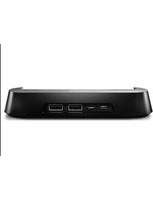
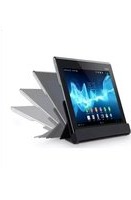
- QUICK START GUIDE
- CONNECT TO THE APP FOR EVEN MORE FUN AND CONVENIENCE
- LET'S START TO USE
- TURNING THE POWER ON
- CONNECTING WITH BLUETOOTH ® DEVICES
- LISTENING TO MUSIC
- RELATED INFORMATION
- MULTIPOINT CONNECTION
- BLUETOOTH DEVICE
- USING THE QUICK ACCESS
- STEREO PAIR FUNCTION
- PHONE CALLS
- USING THE APPS
- PARTS AND CONTROLS
- BOTTOM OF THE SPEAKER
- TOP AND BOTTOM OF THE CHARGING CRADLE
- RELATED TOPIC
- SONY
- CHARGING THE SPEAKER
- HINT
- CONNECT THE CHARGING CRADLE TO AN AC OUTLET
- PLACE THE SPEAKER ON THE CHARGING CRADLE
- CHECKING THE CHARGING COMPLETION
- WHEN USING THE ANDROID™ SMARTPHONE WITH ANDROID 8.1 OR LATER INSTALLED
- WHEN USING THE IPHONE
- CHECKING THE BUILT-IN BATTERY LEVEL OF THE RECHARGEABLE BUILT-IN BATTERY
- BUILT-IN BATTERY LIFE (WHILE BATTERY CARE MODE IS NOT ACTIVATED)
- TIME REQUIRED FOR CHARGING THE BUILT-IN RECHARGEABLE BATTERY (WHILE BATTERY CARE MODE IS NOT ACTIVATED)
- WHEN THE BUILT-IN BATTERY IS RUNNING LOW
- NOTE
- PRESS THE (POWER) BUTTON
- TURNING THE POWER OFF
- USING THE BLUETOOTH STANDBY (AUTO POWER ON) FUNCTION
- TURN ON THE SPEAKER
- START THE "SONY | SOUND CONNECT" APP ON YOUR SMARTPHONE
- MAKE SURE THAT THE CHECK BOX FOR [BLUETOOTH STANDBY] IS SELECTED
- TO DEACTIVATE THE BLUETOOTH STANDBY FUNCTION
- AUTOMATIC POWER OFF (POWER SAVING) FUNCTION
- TURNING ON/OFF THE AUTOMATIC POWER OFF FUNCTION
- PRESS AND HOLD THE – (VOLUME) BUTTON AND + (VOLUME) BUTTON SIMULTANEOUSLY FOR ABOUT 5 SECONDS
- HOW TO MAKE WIRELESS CONNECTIONS TO BLUETOOTH DEVICES
- PAIRING
- CONNECTING TO A PAIRED DEVICE
- CONNECTING TO BLUETOOTH DEVICES EASILY WITH THE “SONY | SOUND CONNECT” APP VIA A BLUETOOTH CONNECTION
- PAIRING AND CONNECTING WITH BLUETOOTH DEVICES
- CHECK THE STATUS OF THE (BLUETOOTH) INDICATOR
- WHEN THE INDICATOR IS FLASHING SLOWLY
- WHEN THE INDICATOR STAYS LIT
- PRESS THE BLUETOOTH) BUTTON
- PERFORM THE PAIRING PROCEDURE ON THE BLUETOOTH DEVICE TO DETECT THE SPEAKER
- MAKE THE BLUETOOTH CONNECTION FROM THE BLUETOOTH DEVICE
- CONNECTING WITH A COMPUTER VIA A BLUETOOTH CONNECTION (WINDOWS®)
- SUPPORTED OPERATION SYSTEMS
- ON WINDOWS
- ON WINDOWS 10 (VERSION 1803 OR LATER)
- PRESS THE (BLUETOOTH) BUTTON
- SELECT THE SPEAKER ON THE COMPUTER
- FOLLOW THE ON-SCREEN INSTRUCTIONS TO ESTABLISH A BLUETOOTH CONNECTION
- CONNECTING WITH A COMPUTER VIA A BLUETOOTH CONNECTION (MAC)
- CHECK THE (BLUETOOTH) INDICATOR FOR ACTIVITY
- SEARCH FOR THE SPEAKER ON THE COMPUTER
- CLICK THE SPEAKER ICON IN THE TOP-RIGHT OF THE SCREEN AND SELECT [LINKBUDS SPEAKER] FROM [OUTPUT DEVICE]
- CONNECTING THE SPEAKER CONCURRENTLY WITH 2 BLUETOOTH DEVICES (MULTIPOINT CONNECTION)
- CONNECTING THE SPEAKER CONCURRENTLY WITH 2 DEVICES VIA BLUETOOTH CONNECTIONS
- CONNECT THE SPEAKER WITH THE FIRST BLUETOOTH DEVICE
- WHILE KEEPING THE SPEAKER CONNECTED WITH THE FIRST BLUETOOTH DEVICE, PRESS THE (BLUETOOTH) BUTTON
- OPERATE THE SECOND BLUETOOTH DEVICE TO SEARCH FOR THE SPEAKER
- CHANGING THE BLUETOOTH DEVICES IN MULTIPOINT CONNECTION
- MUSIC PLAYBACK WHILE THE SPEAKER IS CONNECTED WITH 2 DEVICES IN MULTIPOINT CONNECTION
- RECEIVING A CALL WHILE THE SPEAKER IS CONNECTED WITH 2 SMARTPHONES/IPHONE DEVICES IN MULTIPOINT CONNECTION
- LISTENING TO MUSIC OF A DEVICE VIA A BLUETOOTH CONNECTION
- A2DP (ADVANCED AUDIO DISTRIBUTION PROFILE)
- AVRCP (AUDIO VIDEO REMOTE CONTROL PROFILE)
- CONNECT THE SPEAKER WITH THE BLUETOOTH DEVICE
- START PLAYBACK ON THE BLUETOOTH DEVICE
- ADJUST THE VOLUME BY PRESSING THE - / + (VOLUME) BUTTONS ON THE SPEAKER OR OPERATING THE BLUETOOTH DEVICE
- PAUSE
- SKIP TO THE BEGINNING OF THE NEXT TRACK
- SKIP TO THE BEGINNING OF THE CURRENT OR PREVIOUS TRACK
- SELECTING THE QUALITY FOR MUSIC PLAYBACK VIA A BLUETOOTH CONNECTION (CODEC)
- START THE "SONY | SOUND CONNECT" APP
- SELECT EITHER OF THE CODEC PREFERENCES THROUGH [BLUETOOTH CONNECTION QUALITY]: [PRIORITIZE SOUND QUALITY] OR [PRIORITIZE STABLE CONNECTION]
- SUPPORTED CODECS
- TERMINATING THE BLUETOOTH CONNECTION (AFTER USE)
- ASSIGN THE APPS OF SERVICES TO LINK THROUGH (SETTINGS) ON THE [QUICK ACCESS] SCREEN
- START EITHER OF THE APPS ASSIGNED TO THE QUICK ACCESS) BUTTON
- PRESS THE QUICK ACCESS) BUTTON ON THE SPEAKER
- ENJOYING SEAMLESS PLAYBACK USING THE LINKED SONY BRAND HEADPHONES (AUTO SWITCH)
- TURN OFF THE SPEAKER
- ESTABLISH A CONNECTION BETWEEN THE AUTO SWITCH COMPATIBLE HEADPHONES AND THE "SONY | SOUND CONNECT" APP, AND THEN SPECIFY THE AUTO SWITCH SETTINGS
- START PLAYING MUSIC ON YOUR SMARTPHONE
- TO ADJUST THE AUDIO VOLUME
- TO DEACTIVATE THE AUTO SWITCH
- LISTENING TO MUSIC WIRELESSLY WITH 2 SPEAKERS (STEREO PAIR FUNCTION)
- PLACE 2 SPEAKERS WITHIN 1 M (3.2 FT) EACH OTHER, AND THEN TURN ON BOTH SPEAKERS
- ON EITHER ONE OF THE SPEAKERS*, PRESS AND HOLD THE (BLUETOOTH)/ ST-PAIR (STEREO PAIR) BUTTON FOR ABOUT 2 SECONDS
- TERMINATING THE STEREO PAIR FUNCTION
- MAKING A VIDEO CALL ON A COMPUTER
- RECEIVING A CALL
- ABOUT RING TONES
- CONNECT THE SPEAKER WITH A SMARTPHONE OR MOBILE PHONE
- WHEN USING THE STEREO PAIR FUNCTION
- PRESS THE DELAY)/(CALL) BUTTON WHEN A CALL IS RECEIVED
- IF NO RING TONE IS HEARD VIA THE SPEAKER
- WHILE THE PHONE IS RINGING OR A PHONE CONVERSATION IS IN PROGRESS, ADJUST THE VOLUME BY PRESSING THE - / + (VOLUME) BUTTONS ON THE SPEAKER OR OPERATING THE SMARTPHONE OR MOBILE PHONE
- TO END A CALL, PRESS THE PLAY)/(CALL) BUTTON
- MAKING A CALL
- OPERATE THE SMARTPHONE OR MOBILE PHONE TO MAKE A CALL
- IF NO DIAL TONE IS HEARD VIA THE SPEAKER
- WHAT YOU CAN DO WITH THE “SONY | SOUND CONNECT” APP
- OPERATIONS THAT CAN BE PERFORMED ON A SPEAKER WITH THE "SONY | SOUND CONNECT" APP
- INSTALLING THE "SONY | SOUND CONNECT" APP
- ACCESSING SUPPORT INFORMATION FROM THE "SONY | SOUND CONNECT" APP
- HOW TO KEEP THE SOFTWARE UP-TO-DATE (FOR COMFORTABLE USE OF THE SPEAKER)
- WHAT YOU CAN DO WITH PARTNER SERVICES
- USING THE VOICE ASSIST FUNCTION (GOOGLE™ APP)
- SELECT THE GOOGLE APP FOR [ASSIST APP] IN [ASSIST & VOICE INPUT]
- CONNECT THE SPEAKER TO THE ANDROID SMARTPHONE VIA A BLUETOOTH CONNECTION
- WHILE THE SPEAKER IS CONNECTED WITH THE ANDROID SMARTPHONE VIA A BLUETOOTH CONNECTION AND THE ANDROID SMARTPHONE IS IN STANDBY OR PLAYING MUSIC, PRESS AND HOLD THE PLAY/ (CALL) BUTTON FOR ABOUT 2 SECONDS
- MAKE A REQUEST TO THE GOOGLE APP THROUGH THE SPEAKER'S MICROPHONE
- USING THE VOICE ASSIST FUNCTION (SIRI)
- TURN ON SIRI
- CONNECT THE SPEAKER TO THE IPHONE VIA A BLUETOOTH CONNECTION
- WHILE THE SPEAKER IS CONNECTED WITH THE IPHONE VIA A BLUETOOTH CONNECTION AND THE IPHONE IS IN STANDBY OR PLAYING MUSIC, PRESS AND HOLD THE PLAY/ (CALL) BUTTON FOR ABOUT 2 SECONDS
- MAKE A REQUEST TO SIRI THROUGH THE SPEAKER'S MICROPHONE
- ABOUT THE INDICATORS
- (BLUETOOTH) INDICATOR (BLUE)
- ST PAIR (STEREO PAIR) INDICATOR (WHITE)
- PRECAUTIONS
- ON SAFETY
- ON PLACEMENT
- OTHER NOTES
- NOTES ON CHARGING
- LIFE SPAN OF THE BUILT-IN LITHIUM ION BATTERY
- CAUTION
- ABOUT THE RING STRAP OF THE SPEAKER
- REMOVING THE RING STRAP
- NOTES ON WATER RESISTANT FEATURE
- ON WATER RESISTANT PERFORMANCE OF THE SPEAKER
- LIQUIDS THAT THE WATER RESISTANT PERFORMANCE SPECIFICATIONS APPLY TO
- TO MAINTAIN WATER RESISTANT PERFORMANCE
- HOW TO CARE FOR THE SPEAKER
- ABOUT THE BLUETOOTH WIRELESS TECHNOLOGY
- BLUETOOTH COMMUNICATION SYSTEMS AND PROFILES
- MAXIMUM COMMUNICATION RANGE
- FREQUENCY BAND
- CORRESPONDING CONTENT PROTECTION
- TRANSMISSION RANGE (A2DP)
- INTERFERENCE FROM OTHER DEVICES
- INTERFERENCE TO OTHER DEVICES
- LICENSES
- TRADEMARKS
- TROUBLESHOOTING
- RESTARTING THE SPEAKER
- INITIALIZING THE SPEAKER
- SPECIFICATIONS
- WIRELESS SPEAKER (YY7863E)
- SPEAKER SECTION
- SPEAKER
- ENCLOSURE TYPE
- BLUETOOTH SECTION
- MICROPHONE SECTION
- TYPE
- DIRECTIONAL CHARACTERISTIC
- EFFECTIVE FREQUENCY RANGE
- GENERAL
- POWER CONSUMPTION
- OPERATING TEMPERATURE
- DIMENSIONS (APPROX.) (W/H/D)
- MASS (APPROX.)
- COMPATIBLE IPHONE/IPOD MODELS
Brand : SONY
Model : LinkBuds Speaker
Category : Docking Station