USER MANUAL AC3829 PHILIPS
Installing the NanoProtect filter 7
Preparing for humidification 7
Wi-Fi connection 8
4 Use the appliance 9
Understanding the air quality light 9
Switching on and off 9
Setting the humidity level 9
Switching the operation mode 10
Using the light on/off function 10
Switching the display mode 10
Changing the Auto mode setting 11
Changing the fan speed 11
Setting the timer 11
Setting the child lock 12
Water level 12
5 Cleaning 12
Cleaning schedule 12
Cleaning the body of the appliance 13
Cleaning the air quality sensor 13
Cleaning the water tank, water tray and NanoCloud rotary humidification wick 13
Cleaning the pre-filter 14
Descaling the NanoCloud rotary humidification wick 14
6 Replace the filter and wick 15
Understanding the healthy air protect lock 15
Replacing the NanoProtect filter 15
Replacing the NanoCloud rotary humidification wick 16
7 Troubleshooting 18
8 Guarantee and service 21
Order parts or accessories 21
9 Notices 21
Electromagnetic fields (EMF) 21
Recycling 22
Notice 22
Simplified EU declaration of conformity 22
1 Important
Safety
Read this user manual carefully before you use the appliance, and save it for future reference.
Danger
- Do not let water or any other liquid or flammable detergent enter the appliance to avoid electric shock and/or a fire hazard.
- Do not clean the appliance with water, any other liquid, or a (flammable) detergent to avoid electric shock and/ or a fire hazard.
- Do not spray any flammable materials such as insecticides or fragrance around the appliance.
- The water in the water tank is not suitable for drinking. Do not drink this water and do not use it to feed animals or to water plants. When you empty the water tank, pour the water down the drain.
Warning
- Check if the voltage indicated on the side of the appliance corresponds to the local power voltage before you connect the appliance.
- If the power cord is damaged, you must have it replaced by Philips, a service center authorized by Philips, or similarly qualified persons in order to avoid a hazard.
- Do not use the appliance if the plug, the power cord, or the appliance itself is damaged.
-
This appliance can be used by children aged from 8 years and above and persons with reduced physical, sensory or mental capabilities or lack of experience and knowledge if they have been given supervision or instruction concerning use of the appliance in a safe way and understand the hazards involved.
-
Cleaning and user maintenance shall not be made by children without supervision.
- Children should be supervised to ensure that they do not play with the appliance.
- Do not block the air inlet and outlet, e.g. by placing items on the air outlet or in front of the air inlet.
- Standard WiFi interface based on 802.11b/g/n at 2.4 GHz with a maximum output power of 31.62 mW EIRP.
Caution
- This appliance is not a substitute for proper ventilation, regular vacuum cleaning, or use of an extractor hood or fan while cooking.
- If the power socket used to power the appliance has poor connections, the plug of the appliance becomes hot. Make sure that you plug the appliance into a properly connected power socket.
Always place and use the appliance on a dry, stable, level, and horizontal surface.
- Leave at least 20cm free space behind and on both sides of the appliance and leave at least 30cm free space above the appliance.
- Do not place anything on top of the appliance.
- Do not place the appliance directly below an air conditioner to prevent condensation from dripping onto the appliance.
- Make sure all filters are properly installed before you switch on the appliance.
- Only use the original Philips filters specially intended for this appliance. Do not use any other filters.
- Avoid knocking against the appliance (the air inlet and outlet in particular) with hard objects.
- Do not insert your fingers or objects into the air outlet or the air inlet to prevent physical injury or malfunctioning of the appliance.
- Do not use this appliance when you have used indoor smoke-type insect repellents or in places with oily residues, burning incense, or chemical fumes.
- Do not use the appliance near gas appliances, heating devices or fireplaces.
Always unplug the appliance after use and before filling water, cleaning, or carrying out other maintenance.
- Do not use the appliance in a room with major temperature changes.
- To prevent interference, place the appliance at least 2m away from electrical appliances that use airborne radio waves such as TVs, radios, and radio-controlled clocks.
- When the appliance is not used for a long time,
bacteria may grow on the filters. Check the filters after a long period of disuse. If the filters are very dirty, replace them (see the chapter "Replace the filter and wick").
- The appliance is only intended for household use under normal operating conditions.
- Do not use the appliance in wet surroundings or in surroundings with high ambient temperatures, such as the bathroom, toilet, or kitchen.
- The appliance does not remove carbon monoxide (CO) or radon (Rn). It cannot be used a safety device in case of accidents with combustion processes and hazardous chemicals.
- Only fill the water tank with cold tap water. Do not use ground water or hot water.
-
Do not put any substance other than water in the water tank. Do not put fragrance in the water tank.
-
If you do not use the humidification function for a long time, clean the water tank and NanoCloud rotary humidification wick tray, and air dry the NanoCloud rotary humidification wick.
- If you need to move the appliance, disconnect the appliance from the power supply first. Then empty or remove the water tank and water tray. Carry the appliance horizontally by the handles on both sides of the appliance.
- Unplug the appliance during filling and cleaning.
2 You air purifier
Congratulations on your purchase, and welcome to Philips!
To fully benefit from the support that Philips offers, register your product at www.Philips.com/welcome.
The Philips air purifier brings fresh, humidified air to your house for the health of your family. It offers you advanced evaporation system with NanoCloud technology, using a special humidification filter which adds H2O molecules to the dry air, and produces healthy humid air without formation of water mist. Its humidification filter retains bacteria, calcium and other particles from the water. It delivers only pure humidified air in your home. No more dry air in the winter season or from the air conditioning.
Read this user manual carefully before you use the appliance, and save it for future reference.
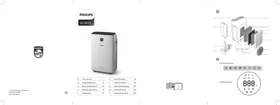
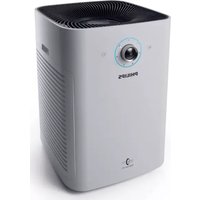
Product overview (fig ①)
A Control panel
B Water tank
C Wick support
D Water tray
E Omni wheels
F Wick wheel
G NanoCloud rotary humidification wick (FY3435)
H Back side cover
Pre-filter
J NanoProtect filter Active Carbon (FY2420)
K NanoProtect filter Series 3 (FY2422)
L Air outlet
Controls Overview (fig ②)
Control buttons
Power on/off button
Child lock button
A Auto mode button
Fan speed button
Humidity setting button
Light dimming button
命 2-in-1 mode on/off button
① Timer/Reset button
Display panel:
Sleep mode
A Auto mode
Allergen mode
Purification ONLY mode
2-in-1mode
Filter replacement alert
Water refill alert
Pre-filter and wick cleaning alert
PM2.5 PM2.5 display
IAI Indoor Allergen Index display
WiFi indicator
3 Get started
Installing the NanoProtect filter
The appliance comes with the NanoProtect filter fitted inside. Remove the packaging of the filter before using the appliance place it back into the appliance described as follows:

Note
- Make sure that the side with the tag is pointing towards you.
1 Pull the top part of the back panel towards you to release it from the appliance (fig ③).
2 Press the two clips down and pull the pre-filter towards you (fig ④).
3 Remove the NanoProtect filter from the appliance (fig ⑤).
4 Remove all packaging materials of the NanoProtect filter (fig 6).
5 Place the NanoProtect filter back into the appliance (fig ⑦).
6 Put the pre-filter back into the appliance, mount the pre-filter onto the bottom of the appliance first, and then push the clips on the top of pre-filter against the appliance (fig ⑧).
7 To reattach the back cover, mount the panel onto the bottom of the appliance first, and then push the top of the panel against the appliance (fig ⑨).
Preparing for humidification
1 Pull out the water tank (fig 10).
2 Lift the water tray upwards and pull it out horizontally (fig ⑪).
3 Remove all packaging material of the NanoCloud rotary humidification wick (fig ⑫).

Note
- The humidification wick has been assembled on the wick wheel upon purchase.
4 Place the wick wheel on the wick support (fig ⑬).

Note
- When placing the wick wheel on the wick support, make sure that the projections on the wick wheel falls into the corresponding grooves.
5 Place the water tray back into the appliance (fig 14).
6 Turn the top cap of the water tank anti-clockwise to unscrew it (fig 15).
7 Fill the water tank with cold tap water (fig 16).
8 Turn the top cap clockwise to tightly lock it onto the water tank (fig ⑰).
9 Place the water tank back into the appliance (fig 18).
Wi-Fi connection
Setting up the Wi-Fi connection for the first time
1 Download and install the Philips "Clean Home+" app from the App Store or Google Play.

2 Put the plug of the air purifier in the power socket and touch to turn on the air purifier.
The Wi-Fi indicator blinks orange for the first time.
3 Make sure that your smartphone or tablet is successfully connected to your Wi-Fi network.
4 Launch the "Clean Home+" app and click on "Connect a New Device" or press the "+" button on the top of the screen. Follow the onscreen instructions to connect the air purifier to your network.
5 After the successful pairing and connection, the Wi-Fi indicator will light up white. If pairing is not successful, consult the troubleshooting section, or the help section in the "Clean Home+" App for extensive and up-to-date troubleshooting tips.

Note
- This instruction is only valid when the air purifier is being set up for the first time. If the network has changed or the setup needs to be performed again, consult section "Reset the Wi-Fi connection" on page 8.
- If you want to connect more than one air purifier to your smartphone or tablet, you have to do this one by one. Complete the set up of one air purifier before you turn on the other air purifier.
- Make sure that the distance between your smartphone or tablet and the air purifier is less than 10m without any obstructions.
- This App supports the latest versions of Android and iOS. Please check www.philips.com/cleanhome for the latest update of supported operating systems and devices.
Reset the Wi-Fi connection

Note
- This applies when the default network to which your purifier is connected has changed.
- Reset the Wi-Fi connection when your default network has changed.
1 Put the plug of the air purifier in the power socket and touch to turn on the air purifier.
2 Touch and simultaneously for 3 seconds until you hear a beep.
The air purifier goes to pairing mode.
The Wi-Fi indicator blinks orange.
3 Follow the steps 4-5 in "Setting up the Wi-Fi connection for the first time" section.
4 Use the appliance
Understanding the air quality light
| IAI level | Air quality light color | Air quality level |
| 1-3 | Blue | Good |
| 4-6 | Blue-Purple | Fair |
| 7-9 | Purple-Red | Poor |
| 10-12 | Red | Very poor |
The air quality light automatically goes on when the appliance is switched on, and lights up all colors in sequence. In a short time the air quality sensors select the color that corresponds to the ambient air quality.
Switching on and off
1 Put the plug in the power socket.
The appliance beeps.
2 Touch to switch on the appliance.
The appliance operates under the 2-in-1 mode by default with displayed on the screen.
When the appliance is warming up, "---" displays on the screen. After measuring the particulate matter only in the air, the appliance shows the IAI level and operates in the auto mode by default.
After measuring the air quality for approximately 30 seconds, the air quality sensor automatically selects the appropriate air quality light color.
3 Touch and hold for 3 seconds to switch off the appliance.

Note
- After the appliance is switched off by the on/off button , if the plug is still in the power socket, the appliance will operate under the previous settings when it is switched on again.
Setting the humidity level
1 Touch the humidity button ④ repeatedly to set the desired air humidity to 40 % , 50 % , 60 % or " - " (fig ⑨ ).

Note
- When the humidity level "● ●" is chosen, the appliance will keep humidifying the room until the ambient humidity level reaches 70%RH.
- When the target humidity level is reached, the wick wheel will stop rotating. It will start rotating again when the humidity drops below the target level.
- If you want to increase the humidity level quickly, you can select a higher fan speed.
Switching the operation mode
The appliance has two operation modes, the purification ONLY mode and the 2-in-1 mode.
- Touch the mode selection button repeatedly to switch between the purification ONLY mode and the 2-in-1 mode (fig ②
→ displays on the screen when the appliance operates in the purification ONLY mode.
→ displays on the screen when the appliance operates in the 2-in-1 mode.
Using the light on/off function
With the light dimming button, you can switch on or off the air quality light, the display screen and the function indicator if desired.
1 Touch the light dimming button once, the air quality light will be dimmed.
2 Touch the light dimming button again, the air quality light and the display panel will be turned off.
3 Touch the light dimming button for the third time, all lights will be on again.
Switching the display mode
The appliance has three display modes, PM2.5 display, IAI display and humidity level display.
PM2.5
AeraSense sensing technology accurately detects and quickly respond to even the slightest particle change in the air. It provides you with reassurance with real-time PM2.5 feedback.
IAI
The professional-grade AeraSense sensor detects the level of indoor air allergen and with numerical feedback from 1 to 12 the potential risk level of indoor air allergens can be displayed. 1 indicates best air quality.

Note
- The appliance operates in IAI display mode by default.
1 Touch and hold for 3 seconds to switch to PM2.5 display (fig ②).
PM2.5 indicator and the actual PM2.5 level display on the screen.
2 Touch and hold for 3 seconds twice to switch to humidity level display (fig ②).
3 Touch and hold for 3 seconds to switch to IAI display (fig 23).
→ IAI indicator and the actual IAI level display on the screen.
Changing the Auto mode setting
You can choose the auto mode (A), the Allergen mode (C) and the sleep mode (S L).
Auto mode
In Auto mode, the appliance selects the fan speed in accordance with the ambient air humidity and air quality.
- Touch the fan speed button to select Auto mode (fig 24).
Auto (A) and A display on the screen.
The appliance operates in Auto mode by default.
Allergen mode
The extra-sensitive Allergen mode is designed to react to even a small change in allergen levels in the surrounding air.
- Touch the Auto mode button A to select the Allergen mode (fig 25).
Auto (H) and display on the screen.
Sleep (SL)
In Sleep mode, the air purifier operates quietly on a very low speed.
- Touch the Auto mode button select the Sleep mode (5L).
→ Sleep (山) and display on the screen (Fig 26).

Note
- If no buttons are touched after one minute, all lights will go off except
- You can turn on the lights by touching any buttons.
Changing the fan speed
There are several fan speeds available.
Manual
- Touch the fan speed button ⑧ repeatedly to select the desired fan speed (1, 2 or 3) (fig ⑦ ).
Turbo (t)
In Turbo mode, the air purifier operates on the highest speed.
- Touch the fan speed button to select the Turbo mode (↑) (fig 28).
Setting the timer
With the timer, you can let the appliance operate for a set number of hours. When the set time has elapsed, the appliance will automatically switch off.
- Touch the Timer/Reset button ① repeatedly to choose the number of hours you want the appliance to operate (fig 29).
The timer is available from 1 to 12 hours.
- To deactivate the timer function, touch the Timer/Reset button ① repeatedly until "--" displays on the screen.
Setting the child lock
1 Touch and hold the child lock button for 3 seconds to activate child lock (fig 30).
→ displays on the screen for 3 seconds.
When the child lock is on, all the other buttons are not responsive.
2 Touch and hold the child lock button for 3 seconds again to deactivate child lock (fig 31).
→ U displays on the screen for 3 seconds.
Water level
The water level in the water tank is visible through the water level window on the water tank.
When there is not enough water in the water tank, the water refill light flashes to indicate that you have to refill the water tank (fig 32).

Note
- When there is no water in the water tank, the wick wheel will stop rotating. When the water tank is refilled with water, the wick wheel will start rotating again.
5 Cleaning

Note
Always unplug the appliance before cleaning.
- Never immerse the appliance in water or any other liquid.
- Never use abrasive, aggressive, or flammable cleaning agents such as bleach or alcohol to clean any part of the appliance.
- Only the pre-filter and NanoCloud rotary humidification wick are washable. The NanoProtect filter is not washable nor vacuum cleanable.
Cleaning schedule
| Frequency | Cleaning method |
| When necessary | Wipe the surface of the appliance with a soft dry cloth. |
| Every week | Rinse the water tank, the water tray and the NanoCloud rotary humidification wick. |
| When the cleaning icon lights up and F0 displays on the screen. | Clean the pre-filter. |
| Descale the NanoCloud rotary humidification wick with the water and white vinegar (5% acetic acid) or water and citric acid. |
Cleaning the body of the appliance
Regularly clean the inside and outside of the appliance to prevent dust from collecting.
1 Wipe away dust with a soft dry cloth from the body of the appliance.
2 Clean the air outlet with a soft dry cloth.
Cleaning the air quality sensor
Clean the air quality sensor every 2 months for optimal functioning of the purifier. Clean them more frequently if you use the purifier in a dusty environment.

Note
- When the humidity level in the room is very high, it is possible that condensation develops on the air quality sensor. As a result, the air quality light may indicate that the air quality is bad even though it is good. In this case you have to clean the air quality sensor or use one of the manual speed settings.
1 Clean the air quality sensor inlet and outlet with a soft brush (fig 33).
2 Open the air quality sensor cover (fig 34).
3 Clean the air quality sensor, the dust inlet and the dust outlet with a lightly moistened cotton swab (fig ③5).
4 Dry them with a dry cotton swab.
5 Reattach the air quality sensor cover (fig 36).
Cleaning the water tank, water tray and NanoCloud rotary humidification wick

Note
- Cleaning the water tank, water tray and NanoCloud rotary humidification wick every week to keep them hygienic.
1 Pull out the water tank (fig 10).
2 Lift the water tray upwards and pull it out horizontally (fig 37).
3 Take the wick wheel off the wick support (fig 38).
4 Rinse the water tank, water tray and NanoCloud rotary humidification wick under a running tap.

Note
- Do not take the NanoCloud rotary humidification wick off the wheel during cleaning.
- Do not scrub the NanoCloud rotary humidification wick or place it under direct sunlight.
- If necessary, use a mild detergent to clean the water tank and water tray. In this case, rinse the water tank and water tray thoroughly.
5 Wipe the outside of the water tank and water tray dry.
6 Place the wick wheel on the wick support (fig ⑬).

Note
- When placing the wick wheel on the wick support, make sure that the projections on the wick wheel falls into the corresponding grooves.
7 Place the water tray back into the appliance (fig ⑭).
8 Place the water tank back into the appliance (fig 18).
Cleaning the pre-filter

Note
- If the pre-filter is damaged, worn or broken, do not use. Visit www.philips.com/support or contact the Consumer Care Center in your country.
| Filter alert light status | Follow this |
| F0 displays on the screen and wick& pre-filter cleaning alert goes on | Clean the pre-filter |
1 Pull the top part of the back panel towards you to release it from the appliance (fig ③).
2 To remove the pre-filter, press the two clips down and pull the filter towards you (fig ④).
3 Wash the pre-filter under a running tap. If the pre-filter is very dirty, use a soft brush to brush away the dust (fig 39).
4 Air dry the pre-filter.

Note
- Make sure that the pre-filter is completely dry. If it is still wet, bacteria may multiply in it and shorten the lifetime of the pre-filter.
5 After the pre-filter is completely dry, place it back into the back panel (fig ⑧).
6 Touch and hold ① for 3 seconds to reset the pre- filter cleaning time.
Descaling the NanoCloud rotary humidification wick
| Filter alert light status | Follow this |
| F0 displays on the screen and wick& pre-filter cleaning alert goes on | Descale the NanoCloud rotary humidification wick |
1 Pull out the water tank (fig 10).
2 Lift the water tray upwards and pull it out horizontally (fig 11).
3 Take the wick wheel off the wick support (fig 38).
4 Soak the NanoCloud rotary humidification wick in cleansing agent (e.g. diluted white vinegar, Citric acid solution) for two hours (fig 40).

Note
- Please use mid or acid cleanser
- White vinegar (5% acetic acid) mix with equal amount of water
- 4g citric acid with 4L water
- If there are white deposits (limescale) on the filter, make sure that the side with the white deposits is immersed in the water.
- Do not take the NanoCloud rotary humidification wick off the wheel during descaling.
5 Rinse the NanoCloud rotary humidificationwick under the tap to rinse away vinegar or citric acid residues. During rinsing, turn the wick so that both front and back are rinsed (fig.41).
6 Air dry the NanoCloud rotary humidification wick (fig 42).

Note
- Do not put the NanoCloud rotary humidification wick under direct sunlight.
7 Touch and hold ① for 3 seconds to reset the NanoCloud rotary humidification wick cleaning time.
6 Replace the filter and wick
Understanding the healthy air protect lock
This appliance is equipped with the healthy air protect lock to make sure that the Nano protect filter and the humidification wick are in optimal condition when the appliance is operating. When the Nano protect filter and the humidification wick are almost expired, the replacement light flashes and the filter code displays on the screen (see Filter alert chart). If you do not replace the filter and wick in time, the appliance will stop operating and get locked.
Replacing the NanoProtect filter

Note
- The air purification filters are not washable nor vacuum cleanable.
Always turn off the air purifier and unplug from the electrical outlet before replacing the filters.
Filter alert chart
| Filter alert light status | Follow this |
| A3 displays on the screen | Replace NanoProtect filter HEPA Series 3 (FY2422) |
| C7 displays on the screen | Replace the NanoProtect filter Active Carbon (FY2420) |
| A3 and C7 display on the screen alternately | Replace both filters |
Replace the NanoProtect filter when 7 flashes on the screen (fig 43).
1 Remove the used NanoProtect filter from the appliance (fig 44).

Note
- Do not touch the pleated filter surface, or smell the filter as it has collected pollutants from the air.
- Wash your hands after disposing of the used filters.
2 Remove all packaging material of the new NanoProtect filter (fig ⑥).
3 Place the new NanoProtect filter into the appliance (fig ⑦).
4 Touch and hold ① for 3 seconds to reset the NanoProtect filter lifetime counter.
Replacing the NanoCloud rotary humidification wick
| Filter alert light status | Follow this |
| F1 is displayed and the filter replacement light flashes on the screen. (fig 45) | Replace the NanoCloud rotary humidification wick |
1 Take the wick wheel off the wick support (fig 38).
2 Grip the shaft screw on the other side of the wheel, rotate it anticlockwise to release the wick from the wheel (fig 46).
3 Unfasten the locks on the edge of the wheel successively to disassemble the wick wheel (fig 47).
4 Take the used NanoCloud rotary humidification wick out (fig 48).
5 Remove all packaging material of the new NanoCloud rotary humidification wick (fig 49).
6 Place the new NanoCloud rotary humidification wick in the wick wheel, and then fasten the locks on the wick wheel (fig 50).
7 Place the wick wheel on the wick support (fig ⑬).

Note
- When placing the wick wheel on the wick support, make sure that the projections on the wick wheel falls into the corresponding grooves.
8 Place the water tray and water tank back into the appliance (fig ⑭).
9 Touch and hold ① for 3 seconds to reset the NanoCloud rotary humidification wick lifetime counter.
7 Troubleshooting
This chapter summarizes the most common problems you could encounter with the appliance. If you are unable to solve the problem with the information below, contact the Consumer Care Center in your country.
| Problem | Possible solution |
| The appliance does not work even though it is plugged in. | ·The filter replacement light has been flashing but you have not replaced the NanoProtect filter, and the appliance is now locked. In this case, replace the filter and reset the filter lifetime counter.
·The water refill light flashes. Make sure the water tank is properly installed and there is enough water in the water tank. |
| The appliance does not work even though it is switched on. | ·The appliance is working but the buttons are not responsive. Check if the child lock is on. |
| There are some white deposits on the NanoCloud rotary humidification wick. | ·The white deposits are called scale and they consist of minerals from the water. Scale on the NanoCloud rotary humidification wick affects the humidifying performance, however it does not harm your health. Follow the cleaning instructions in the user manual. |
| No air comes out of the air outlet. | ·Plug the appliance into the power supply and switch on. |
| The airflow that comes out of the air outlet is significantly weaker than before. | ·The pre-filter is dirty. Clean the pre-filter (see the chapter "Cleaning").
·Make sure that you have removed all packaging material of the NanoProtect filter. |
| It takes a long time to reach the target humidity level. | ·NanoCloud technology evenly distributes invisible water vapour into your room. In dry conditions moisture from the humidifier will be absorbed by walls, furniture, and other items in your room. Ventilation of dry outside air will also increase the time it takes to reach the target humidity.
To optimize humidification and purification performance, it's recommended to close doors and windows during use. |
| I do not see water vapor coming out of the appliance. Is it working? | ·When mist is very fine, it is invisible. The appliance has a NanoCloud humidification technology, which produces healthy humid air from the outlet area without formation of water mist. Therefore, you cannot see the mist. |
| The appliance produces a strange smell. | ·The first few times you use the appliance, it may produce a plastic smell. This is normal. However, if the appliance produces a burnt smell, contact your Philips dealer or an authorized Philips service centre.
·The filter may produce smell after being used for a while because of the absorption of indoor air. Remove the filter and place it where it has direct sunlight and ventilation for several hours. Re-install and try using it again. If the odor remains, please replace the filter. |
| The appliance is extra loud. | ·You have not removed all packaging material of the filters. Make sure that you have removed all packaging material.
·Change the fan speed to lower fan speed level. |
| The appliance still indicates that I need to replace a filter, but I already did. | ·Perhaps you did not touch and hold the Timer/Reset button ① correctly. Plug in the appliance, touch ① to switch on the appliance, and touch and hold the Timer/Reset button ① for 3 seconds. |
| Error codes “E1”, “E2”, “E3” or “E4” displays on the screen. | ·The appliance has malfunctions. Contact the Consumer Care Center in your country. |
| The Wi-Fi setup is not successful. | ·If the router your purifier is connected to is dual – band and currently it is not connecting to a 2.4GHz network, please switch to another band of the same router (2.4GHz) and try to pair your purifier again. 5GHz networks are not supported.
·Web authentication networks are not supported.
·Check if the purifier is within range of the Wi-Fi router. You can try to locate the air purifier closer to the Wi-Fi router.
·Check if the network name is correct. The network name is case-sensitive.
·Check if the Wi-Fi password is correct. The password is case-sensitive.
·Retry the setup with the instructions in section ‘Set up the Wi-Fi connection when the network has changed’.
·The Wi-Fi connectivity can be interrupted by electromagnetic or other interferences. Keep the appliance away from other electronic devices that may cause interferences.
·Check if the mobile device is in airplane mode. Make sure to have the airplane mode deactivated when connecting to the Wi-Fi network.
·Consult the help section in the App for extensive and up-to-date troubleshooting tips. |
8 Guarantee and service
If you need information or if you have a problem, please visit the Philips website at www.philips.com or contact the Philips Consumer Care Center in your country (you find its phone number in the worldwide guarantee leaflet). If there is no Consumer Care Centre in your country, go to your local Philips dealer.
Order parts or accessories
If you have to replace a part or want to purchase an additional part, go to your Philips dealer or visit www.philips.com/support.
If you have problems obtaining the parts, please contact the Philips Consumer Care Center in your country (you can find its phone number in the worldwide guarantee leaflet).
9 Notices
Electromagnetic fields (EMF)
This Philips appliance complies with all applicable standards and regulations regarding exposure to electromagnetic fields.
Compliance with EMF
Koninklijke Philips N.V. manufactures and sells many products targeted at consumers, which, like any electronic apparatus, in general have the ability to emit and receive electromagnetic signals.
One of Philips' leading Business Principles is to take all necessary health and safety measures for our products, to comply with all applicable legal requirements and to stay well within the EMF standards applicable at the time of producing the products.
Philips is committed to develop, produce and market products that cause no adverse health effects. Philips confirms that if its products are handled properly for their intended use, they are safe to use according to scientific evidence available today.
Philips plays an active role in the development of international EMF and safety standards, enabling Philips to anticipate further developments in standardization for early integration in its products.
Recycling

This symbol means that this product shall not be disposed of with normal household waste (2012/19/EU). Follow your country's rules for the separate collection of electrical and electronic products. Correct disposal helps prevent negative consequences for the environment and human health.
Notice
App Store is a service mark of Apple Inc. Google Play is a trademark of Google Inc.
This Philips appliance and Clean Home+ app applied multiple open source softwares, Copies of open source software license text used in this product can be derived from www.philips.com/cleanhome.
Hereby, Philips Consumer Lifestyle B.V. declares that the radio equipment type AC3829 is in compliance with Directive 2014/53/EU. The full text of the EU declaration of conformity is available at the following internet address: www.philips.com.
Indhold
1 Vigtigt 24
Sikkerhed 24
2 Din luftrenser 27
Mode purification UNIQUEMENT

Mode 2-en-1

Tabell for filtriversel
www.philips.com/cleanhome.
Innehåll
1Viktigt! 209
Sakerhet 209
2 Din luftrenare 212