
EOTE14 - Headphones PLANTRONICS - Free user manual and instructions
Find the device manual for free EOTE14 PLANTRONICS in PDF.


| Product Type | Bluetooth wireless headset |
| Brand | Plantronics |
| Model | Voyager Legend (EOTE14) |
| Weight | 18 grams |
| Talk time | Up to 7 hours |
| Standby time | Up to 11 days |
| Operating range | Up to 10 meters (Class II) |
| Charging connector | Micro USB with magnetic attachment |
| Charging time | 90 minutes |
| Bluetooth technology | Bluetooth v3.0 |
| Bluetooth profiles | A2DP, AVRCP, HFP v1.6, HSP v1.2, PBAP, SSP |
| Noise and wind reduction | Triple microphone with DSP, triple barrier filters |
| Operating temperature | 0°C to 40°C |
| Box contents | Headset, USB cable, power adapter, silicone and foam ear tips (S/M/L) |
| Main functions | Hands-free calls, voice commands, smart sensors, multipoint, caller name announcement |
| Care and cleaning | Clean with a soft, dry cloth; do not use liquids |
| Safety | Use at moderate volume to protect hearing |
| Spare parts and repairability | Ear tips available in S/M/L, USB cable, power adapter; non-replaceable battery |
Frequently Asked Questions - EOTE14 PLANTRONICS
User questions about EOTE14 PLANTRONICS
0 question about this device. Answer the ones you know or ask your own.
Ask a new question about this device
Download the instructions for your Headphones in PDF format for free! Find your manual EOTE14 - PLANTRONICS and take your electronic device back in hand. On this page are published all the documents necessary for the use of your device. EOTE14 by PLANTRONICS.
USER MANUAL EOTE14 PLANTRONICS
User Manuals Simplified.

Plantronics Voyager Legend Wireless Bluetooth Headset User Manual
Home » Plantronics » Plantronics Voyager Legend Wireless Bluetooth Headset User Manual
Contents [hide
1 User Manual
1.1 Plantronics Voyager Legend Wireless Bluetooth Headset
2 What's in the Box
3 Accessories
4 Headset Overview
5 Pairing
6 Charge
7 Fit
8 The Basics
9 Make/Take/End Calls
10 Mute
11 Adjust the volume
12 Use sensors
13 Play or pause streaming audio
14 More Features
14.1 Voice commands
15 Customize your headset
16 Multipoint
17 Specifications
18 Related Manuals:
User Manual
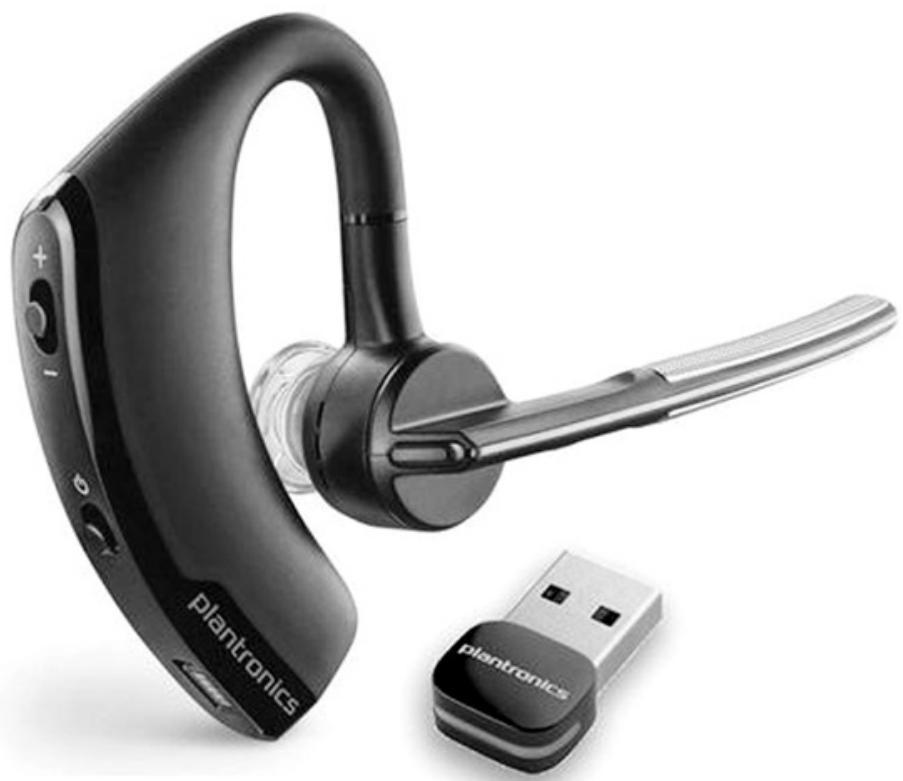
Plantronics Voyager Legend

http://martialsbys/wp-content/videos/Plantronics-VoyagerLegend-Wireless-Bluetooth-Headset-Compatible-with-iPhoneAndroid-and-Othe.mp4
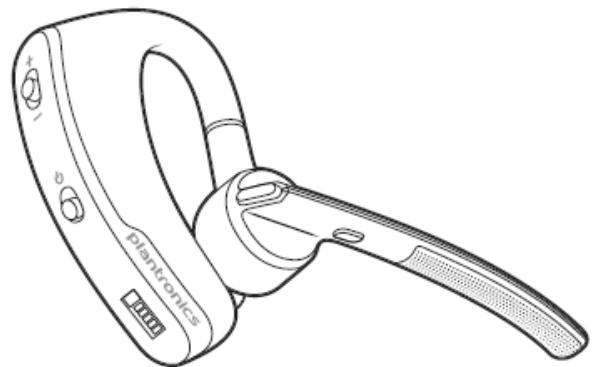
Headset
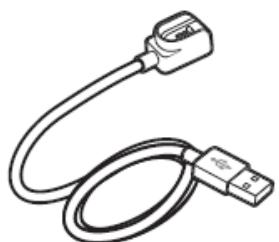
USB charge cable*
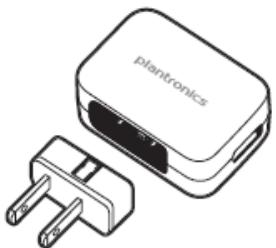
AC charger


Foam eartip covers and silicone eartips
NOTE *Cable style may vary by product.
Accessories
Sold separately.
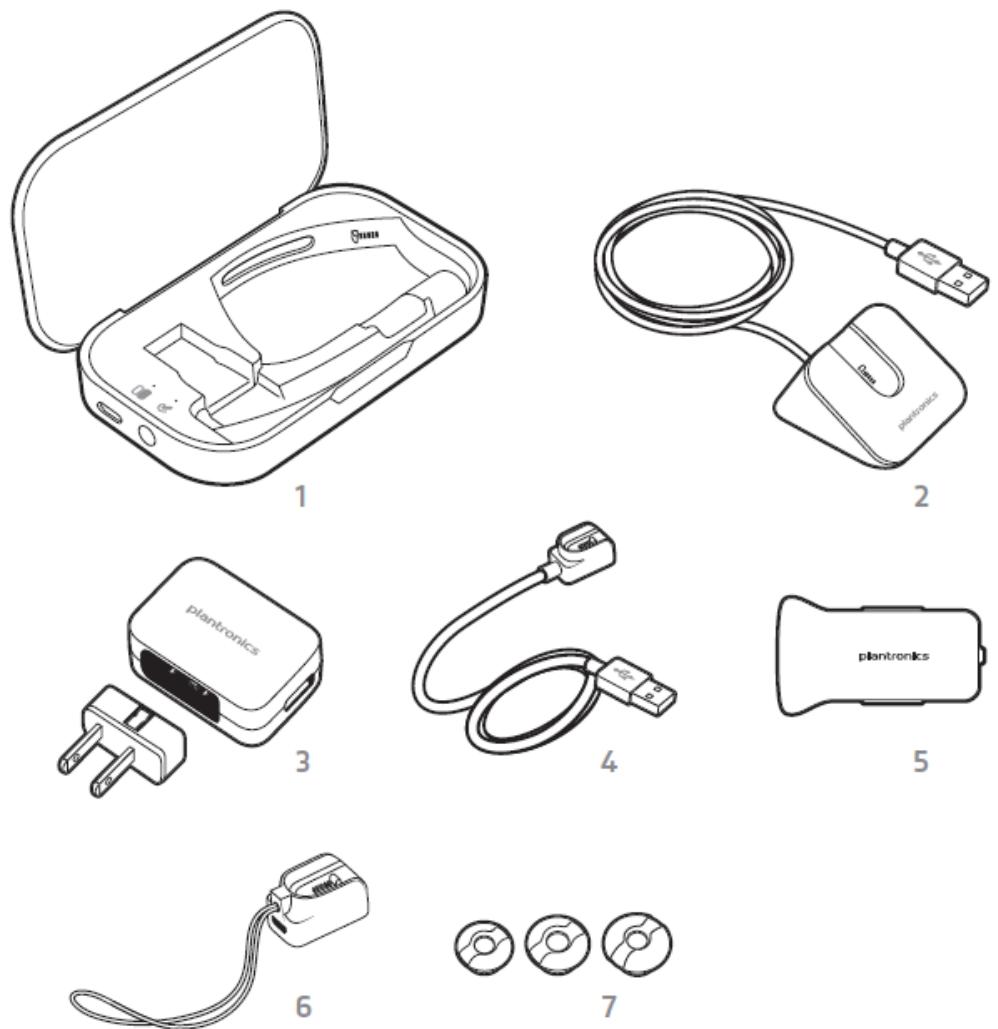
- Portable charge case
- Desktop charge stand
- AC charger
- USB charge cable
- Car charge adapter
- Micro USB charge adapter
- Eartip kit (available in S, M, L)
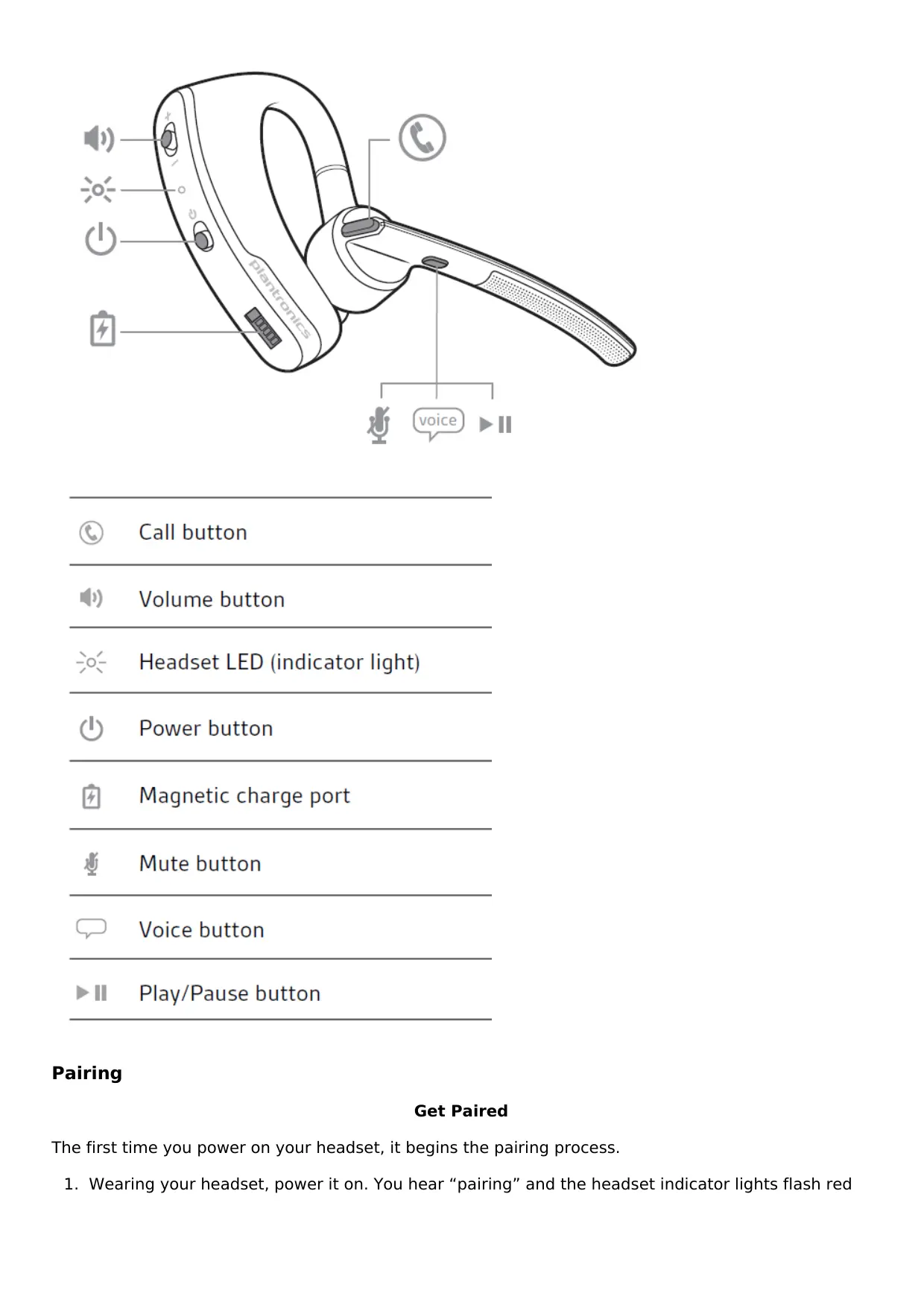
Headset Overview
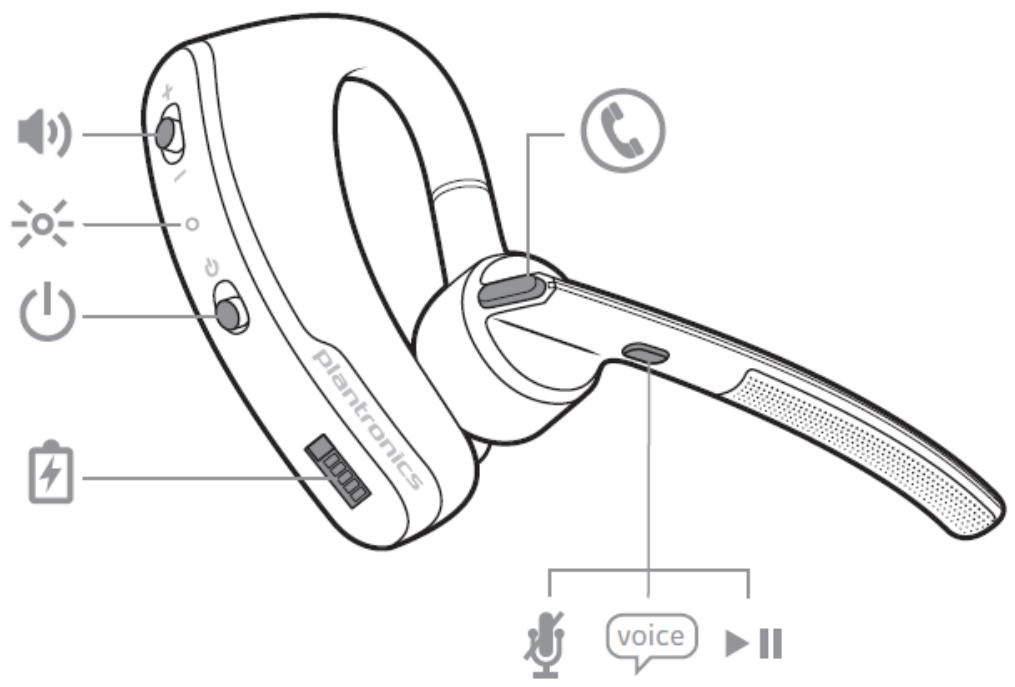

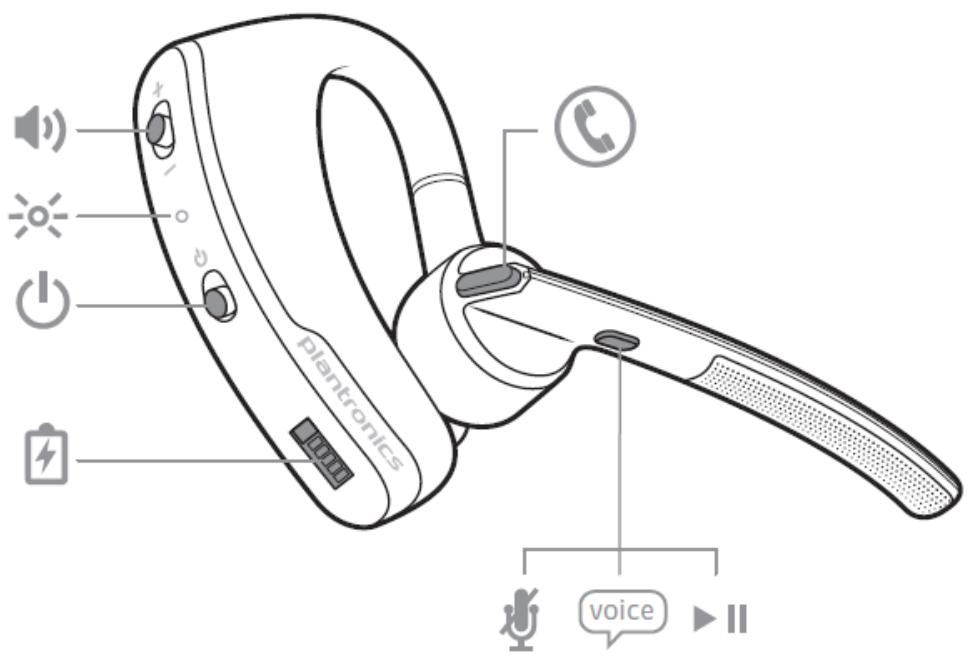
Call button

Volume button

Headset LED (indicator light)

Power button

Magnetic charge port

Mute button

Voice button

Play/Pause button
Pairing
Get Paired
The first time you power on your headset, it begins the pairing process.
- Wearing your headset, power it on. You hear "pairing" and the headset indicator lights flash red
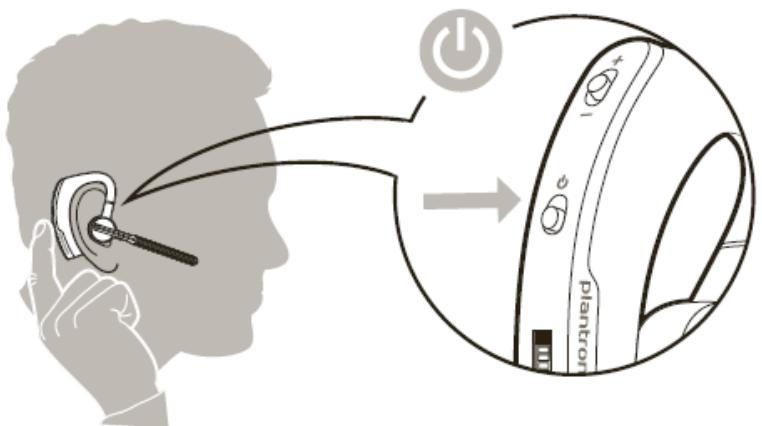
and blue.
-
Activate Bluetooth® on your phone and set it to search for new devices.
-
iPhone® Settings > Bluetooth > On*
- Android™ > Bluetooth: On > Scan for devices*
NOTE *Menu may vary by device.
- Select "PLT_Legend."
If necessary, enter four zeros (0000) for the passcode or accept the connection.
Once successfully paired, you hear "pairing successful" and the headset indicator lights stop flashing.
NOTE To enable caller name announcement, allow access to your contacts if your phone prompts you.
Pair another phone
After pairing your headset to your phone you may want to pair another or new phone.
-
Switch on your headset then choose:
-
Tap the Voice button and say "Pair mode," or
-
Press and hold the Call button until you hear "Pairing"
-
While the headset LEDs are flashing red and blue, activate Bluetooth® on your phone and set it to search for new devices.
- Select "PLT_Legend." If your phone asks, enter four zeros (0000) for the passcode or accept the connection.
- Once successfully paired, LEDs stop flashing red and blue and you hear "pairing successful."
NOTE : To enable caller name announcement, allow access to your contacts if your phone prompts you.
Charge
Your new headset has enough power to pair and make a few calls before charging is needed, though you may charge at any time.
- Align snap-fit magnetic areas of headset and USB cable.
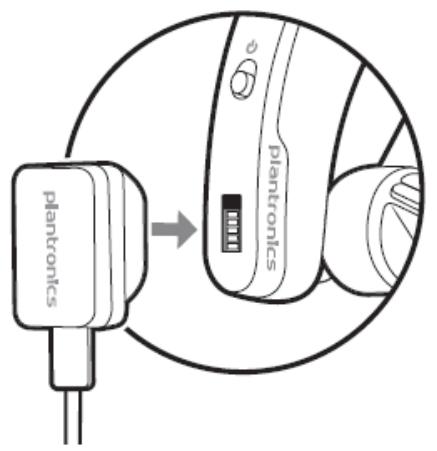
- Attach cable to USB wall charger or laptop for 90 minutes. LEDs turn off once fully charged.
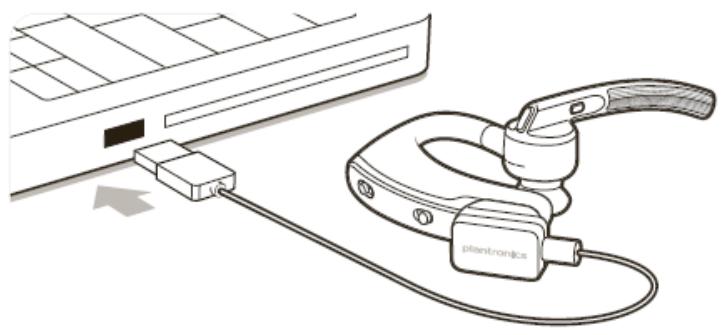
Table 1: Headset LED behavior while charging
| Off | Charging complete |
| ●●● | Battery high |
| ●● | Battery medium |
| ●● | Battery low |
| ●●● | Battery critical |
Fit
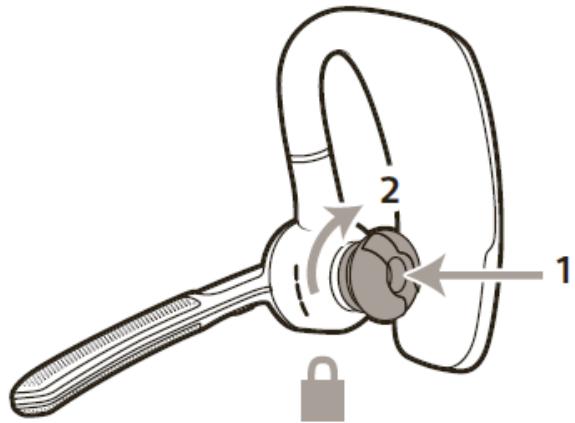
Change the Eartip : Change the eartip for a better fit.
- Push in eartip and rotate to the left to unlock it.
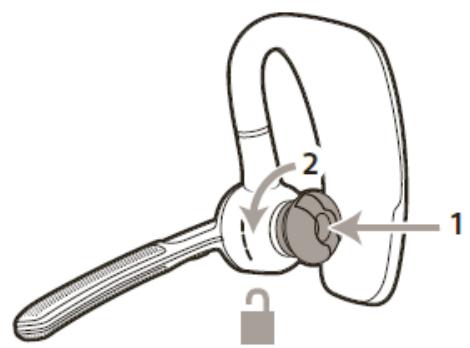
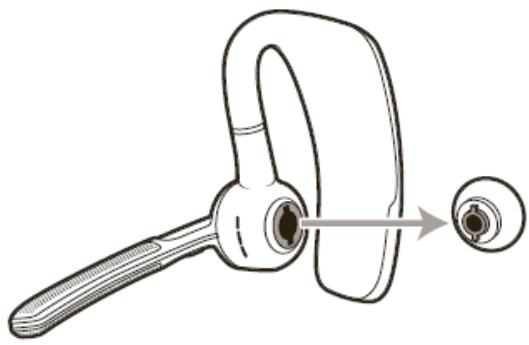
- Align new eartip into slot.
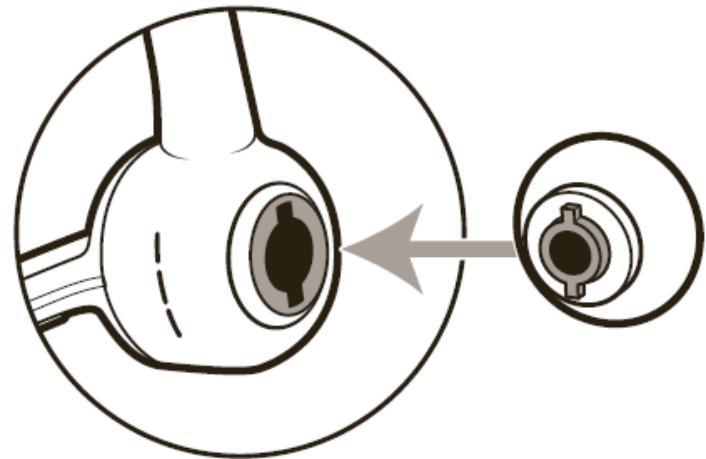
- Rotate it to the right to lock it into place.
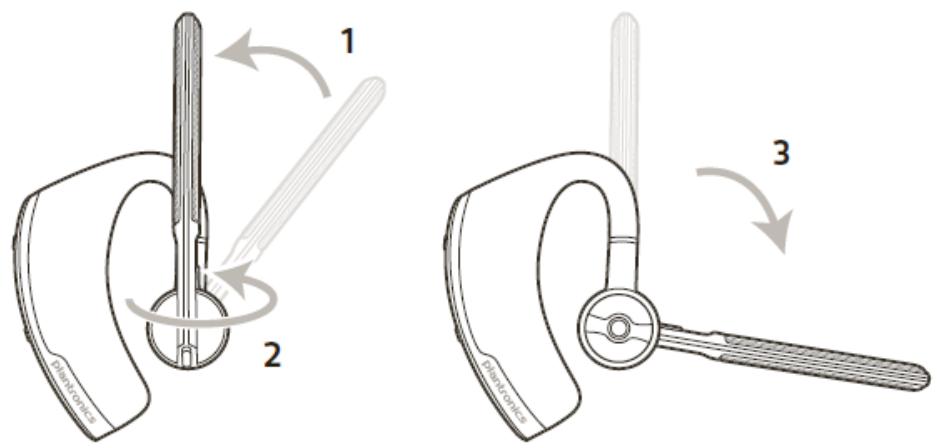
Wear on the left or right :
To wear the headset on your other ear, rotate the boom upwards then twist it around so the eartip is on the other side before lowering the boom.
The Basics
Make/Take/End Calls
Answer a call
Choose:
- Put on the headset to answer call, or
- Say "answer" after call is announced, or
- Tap the "Call button"
Answer a second call
First, tap the Call button to end current call, then tap the Call button again to answer new call.
End a call
Tap the Call button to end current call.
Reject a call
Choose:
Take off the headset, or
- Say "ignore" after call is announced, or
- Press Call button for 2 seconds
Call back last call
Double-tap the Call button .
Voice dial (phone feature)
If your smartphone has a voice-enabled assistant, press the call button for 2 seconds and wait for phone prompt.
Caller Announcement
When wearing your headset, you will hear the name of a contact calling you so you can decide whether to answer or ignore the call.
An incoming caller name is announced:
- if your phone has the Phone Book Access Profile (PBAP)
- if you granted access to your contacts during pairing process
- if they are a stored contact
However, in the following situations, an incoming caller name is not announced:
- if you use the sensors to automatically answer a call while putting on your headset
- if the caller is unknown, unlisted, or blocked
- if your phone doesn't support PBAP
NOTE: Cantonese, Danish, Japanese, Korean, Russian and Swedish do not have native language caller announcement support.
Mute
During a call, you can mute the microphone.
Tap the Mute button. You will hear "mute on" confirmation. An alert repeats every 15 minutes to remind you of microphone mute. Tap the Mute button again to open the microphone and hear "mute off" confirmation.
Adjust the volume
Toggle the Volume button up (+) or down (-) during a call or while streaming audio.
Use sensors
Smart Sensors™ technology in this headset recognizes if the headset is being worn and can automatically perform time-saving functions.
Putting on your headset will:
- Answer an incoming call
- Transfer an active call from your phone
- Resume streaming audio
Taking off your headset will:
Reject an incoming call
- Transfer an active call to your phone handset
- Pause streaming audio
- Lock the Call button to avoid accidental calls
Reset Sensors
You may need to reset the sensors if they are not working as expected.
- Test Wearing the headset, tap the Call button to test sensors.
A talk time voice alert means sensors are working. A tone means sensors need to be reset . - Reset To reset the sensors, charge your headset and place on a flat non-metallic surface for more than 10 seconds.
Play or pause streaming audio
A 2-second press of the Play/Pause button will either pause or resume playback of streaming audio.
NOTE : You must pause your streaming audio before you:
- use your headset's voice commands
- initiate an outbound call with your headset (call back or voice dial)
NOTE : If you power off the headset or go out of phone range while streaming audio, your headset will not play/pause the stream upon reconnecting until you manually resume streaming with your phone.
More Features
Voice alerts :
Your headset understands and speaks in English. You can change the language online by visiting www.plantronics.com/myheadset and downloading the MyHeadset™ Updater tool. The available languages for voice alerts are Cantonese, English (UK and US), Danish, French, German, Italian, Japanese, Korean, Mandarin, Norwegian, Russian, Spanish and Swedish.
Voice alerts list
- "Power on/off"
- "Answering call"
- "Talk-time (x) hours"
- "Battery low"
- "Recharge headset"
- "Lost connection"
- "PC connected"/"PC disconnected"
- "Phone 1 connected/Phone 2 connected"
- "Pairing"
- "Pairing successful"
- "Pairing incomplete, restart headset"
- "Mute on/off"
- "Volume maximum/minimum"
- "Voice recognition on/off"
- "Calling back last number"
"You can say"
Adjust voice alert volume
Toggle the volume button when the headset is powered on and idle (not on a call or streaming music) to adjust the volume of the headset's voice alerts.
Voice commands
Tap the Voice button, wait for command request, then say a command. For example, "What can I say?" tells you the full list of available commands. You can change the voice command language by visiting www.plantronics.com/myheadset and downloading the MyHeadset™ Updater tool. The available languages are English (US and UK), French, German, Italian, Japanese, Korean, Mandarin, Russian, Spanish and Swedish. Voice commands for Cantonese, Danish and Norwegian must be spoken in English.
Voice commands list
"Am I connected?"
- "Answer"
"Cancel"
- "Check battery"
- "Ignore"
- "Pair mode"
"Call back"
What can I say
NOTE : The voice-dial feature on your phone is initiated by pressing the Call button for 2 seconds. The voice-dial feature is not a headset voice command.
Disable the answer/ignore voice commands
To disable the "answer/ignore" voice commands:
- Switch on the headset.
- Press and hold the Voice button until you hear a double tone.
- Repeat to reactivate the voice answer commands.
Customize your headset
Your headset understands and speaks in English. You can change the language and other settings using a USB cable, PC and Plantronics tool.
The MyHeadset™ Updater (www.plantronics.com/myheadset) tool enables you to:
Receive firmware updates
- Change language for voice alerts and commands
- Turn voice commands on/off
- Turn Smart Sensors™ on/off
- Turn high quality audio (A2DP) streaming on/off
- Turn "mute off" voice alert on/off
- Turn Wideband Audio for HD Voice on/off
- Connect your headset and USB cable to your computer.
- Download the MyHeadset™ Updater tool by visiting www.plantronics.com/myheadset.
- Edit language, regional settings, configure other features, and download updates when available.
Multipoint
Voyager Legend supports multipoint technology, which allows you to use one headset with two different Bluetooth mobile phones. To pair your headset to a second phone, see "Pair another phone".
To answer a second call on the other phone, the current call must be terminated or transferred back to the first phone. If you choose not to answer, the second call will go to voice mail.
- Tap the Call button to end the first call.
- Tap the Call button again to answer the second call
NOTE : To avoid issues with multipoint, use theCall button on the headset rather than your phone controls.
Specifications
| Talk Time | Up to 7 hours |
| Standby Time | Up to 11 days |
| Operating Distance (Range) | Up to 33 feet (10 meters), Class II |
| Headset Weight | 18 grams |
| Charge Connector | Micro USB cable with magnetic snap-fit connection to headset, modular AC wall charger 100-240v |
| Battery Type | Rechargeable non-replaceable lithium ion polymer |
| Charge Time (Maximum) | 90 minutes for full |
| Power Requirements | 5V DC - 180mA |
| Bluetooth Version | Bluetooth v3.0 |
| Bluetooth Profiles | Supports Advanced Audio Distribution (A2DP), Audio/Video Remote Control (AVRCP), Wideband Hands-free v1.6 (HFP), Headset v1.2 (HSP), Phone Book Access Profile (PBAP), Secure Simple Pairing (SSP2) |
| Noise and Wind Canceling | Triple-mic active Digital Signal Processing (DSP) plus: • Internal, adaptive 20-band equalizer • Acoustic echo cancellation • Sidetone detection for noise conditions Triple-barrier wind noise protection includes: • Stainless steel windscreens • Acoustic fabric mesh • Electronic filter in microphone circuitry |
| Operating Temperature | 32°F - 104°F (0 - 40°C) |
| Storage Temperature | 32°F - 104°F (0 - 40°C) |
| Charging Temperature | 32°F - 104°F (0 - 40°C) |
Read More About This Manual & Download PDF:
Plantronics Voyager Legend Wireless Bluetooth Headset User Manual - Optimized PDF Plantronics Voyager Legend Wireless Bluetooth Headset User Manual - Original PDF
Questions about your Manual? Post in the comments!
Related Manuals:
- Plantronics Voyager 5200 Wireless Bluetooth Headset User Manual User Manual Plantronics Voyager 5200 Wireless Bluetooth Headset What's...
- Plantronics Savi User Manual [W740, W02] USER MANUAL Plantronics Savi Model: W740, W02 Savi® W740 Wireless...
- Plantronics Savi W02 / WH500 User Manual USER MANUAL Plantronics Savi W02 / WH500 Savi® W740 Wireless...
- Plantronics Backbeat FIT Headphones User Manual Plantronics Backbeat FIT Headphones User Manual - Optimized PDF Plantronics...
- Plantronics Backbeat FIT Headphones User Manual Backbeat® FIT User Guide Contents Welcome What's in the box*...
- Redmi AirDots Wireless Bluetooth Headset User's Manual Redmi AirDots Wireless Bluetooth Headset User's Manual Wearing headphones Gently...