
Savi Office WO300 - Headphones PLANTRONICS - Free user manual and instructions
Find the device manual for free Savi Office WO300 PLANTRONICS in PDF.


| Product Type | Wireless DECT Headset |
| Brand | Plantronics |
| Model | Savi Office WO300 |
| Connectivity | DECT (up to 120 m range) |
| Base Station | Included with charging cradle and handset lifter (optional) |
| Microphone | Noise-canceling |
| Talk Time | Up to 7 hours |
| Standby Time | Up to 36 hours |
| Battery | Rechargeable lithium-ion |
| Charging Time | Approximately 3 hours |
| Dimensions (Headset) | 6.5 x 5.9 x 2.4 in (165 x 150 x 60 mm) |
| Weight (Headset) | 4.8 oz (136 g) |
| Frequency Response | 150 Hz – 7 kHz (narrowband) |
| Features | Wideband audio, call control buttons, mute, volume, power switch |
| Included Accessories | Base station, AC power adapter, USB cable, telephone interface cable, quick start guide |
| Compatibility | Desk phones, softphones via included HL10 handset lifter |
| Repair | Refer to authorized service center; battery replaceable |
| Cleaning | Wipe with dry cloth; do not immerse |
Frequently Asked Questions - Savi Office WO300 PLANTRONICS
User questions about Savi Office WO300 PLANTRONICS
0 question about this device. Answer the ones you know or ask your own.
Ask a new question about this device
Download the instructions for your Headphones in PDF format for free! Find your manual Savi Office WO300 - PLANTRONICS and take your electronic device back in hand. On this page are published all the documents necessary for the use of your device. Savi Office WO300 by PLANTRONICS.
USER MANUAL Savi Office WO300 PLANTRONICS
Savi™ Office WO300/WO350 Wireless Headset System
with Optional HL10 TM Lifter
User Guide
Welcome
Congratulations on purchasing your new Plantronics product. This guide contains instructions for setting up and using your Savi Office WO300/WO350 (WO1 Base and WH300/WH350 Headset) Wireless Headset System. Please refer to the separate safety instructions for important product safety information prior to installation or use of the product.
Refer to the CD for Animated Set Up instructions.
Contents
1 Package Contents and Features ....4
1.1 Savi Base 4
1.2 Savi Headset....5
1.3 HL10 Lifter (Optional)....6
2 Base Set Up 7
2.1 Attaching Charge Cradle to Base 7
2.2 Connecting Base to Desk Phone 7
2.3 Connecting Power Supply to Base 7
2.4 Positioning Base 7
3 Headset Set Up 8
3.1 Adjust the Headband 8
3.2 Adjust the Mouthpiece....8
3.2 Docking and Charging the Headset 8
4 Configure and Test Call 9
4.1 Checking Configuration 9
4.2 Making a Test Call with Desk Phone 9
5 Lifter Set Up (Optional) 10
5.1 Installing Lifter 10
5.2 If You Do Not Hear a Dial Tone 10
5.3 Additional Parts (if required).... 11
6 PC Set Up 12
6.1 Installing USB Cable 12
6.2 Installing PerSono Suite Software 12
6.3 Making a Test Call with PC 12
7 Using Your Savi Office Professional Wireless
Headset System 13
Powering up Headset 13
Placing, Answering and Ending Calls with Desk Phone 13
Placing, Answering and Ending Calls with PC 14
Switching Between Desk Phone and PC Audio 14
Mixing Desk Phone and PC Audio 14
Muting the Headset 15
Subscribing a Master Headset 15
Conferencing In Up to Three Additional Headsets ..... 15
Setting Default Line to Desk Phone or PC 16
Toggling On/Off Over-the-Air Subscription 16
Setting the Range 16
Ending Subscription 16
Placing the Headset in Sleep Mode 16
Subscription Button Indicator Light 16
Desk Phone and PC Talk Buttons
Indicator Lights 16
Talk Time.... 17
Desk Phone and PC Talk Buttons "Rules to Live By" 17
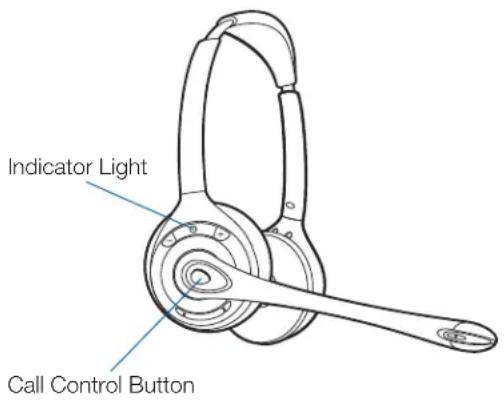
Headset Call Control Button Functions 17
Headset Indicator Light 17
Headset Tones.... 17
8 PerSono Suite Software ....18
Audio Control.... 18
Softphone Support 20
Settings Screen – Headset and Base 21
Help for Base Settings.... 22
PC Panel Screen 24
Advanced Settings 24
Security Screen 24
Support Screen 25
Updates 25
9 Troubleshooting and Common Questions .....26
1 Package Contents and Features
1.1 Savi WO1 Base
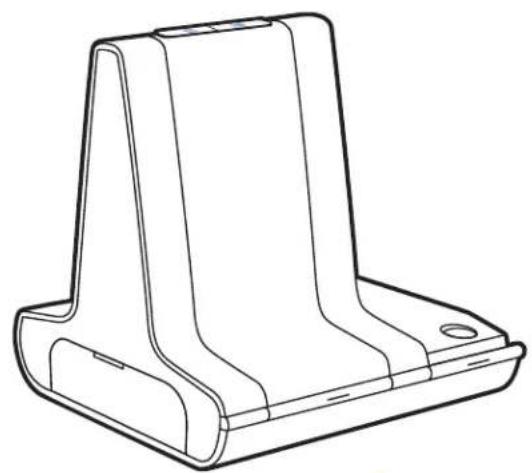
Base

CD includes:
• PerSono® Suite™ Software
- Animated Setup Guide
- Complete User Guide
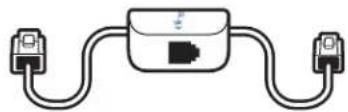
Telephone Interface Cable
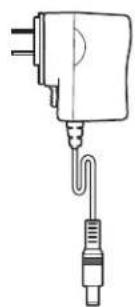
Base Power Supply
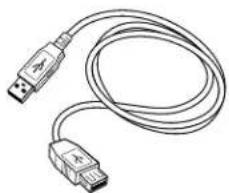
USB Cable
Savi WO1 Base Features
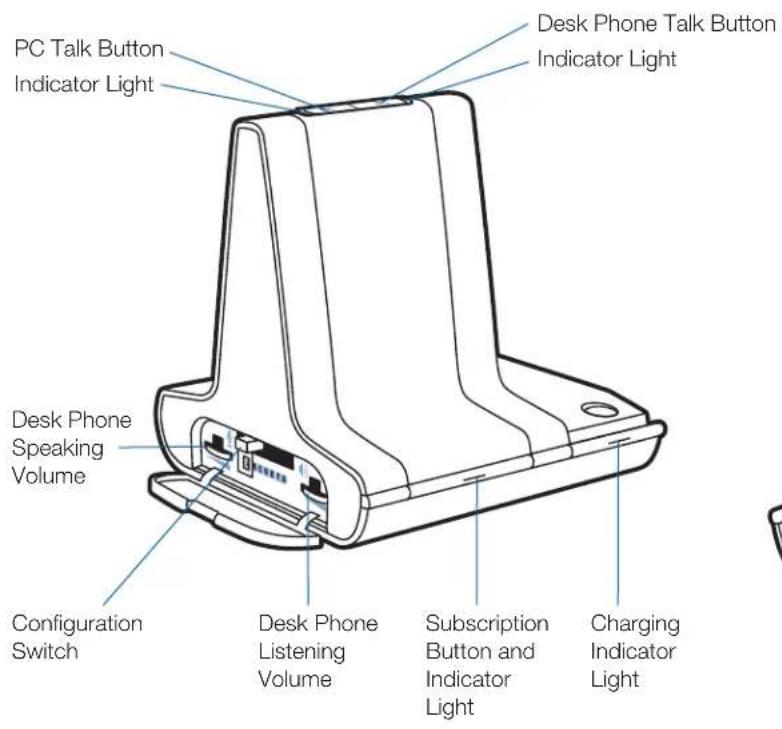
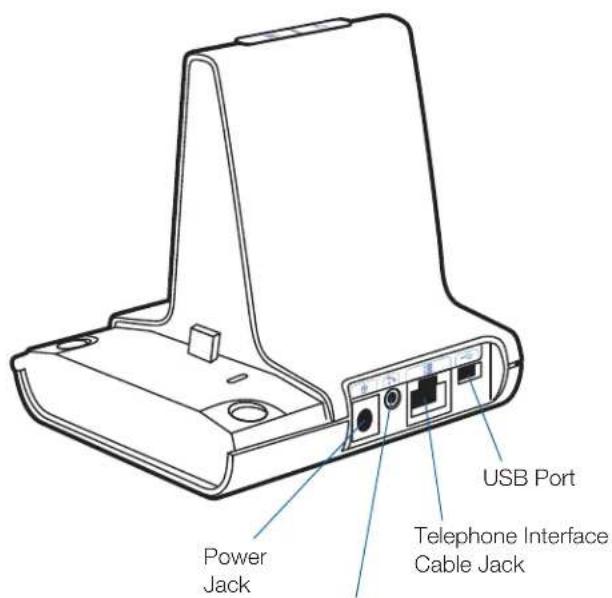
Handset Lifter Jack
1.2 Savi Headset
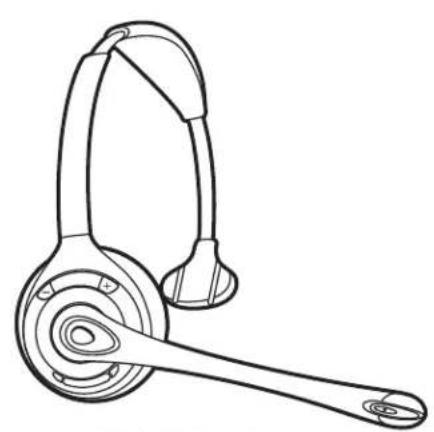
WH300 Headset
(Monaural)
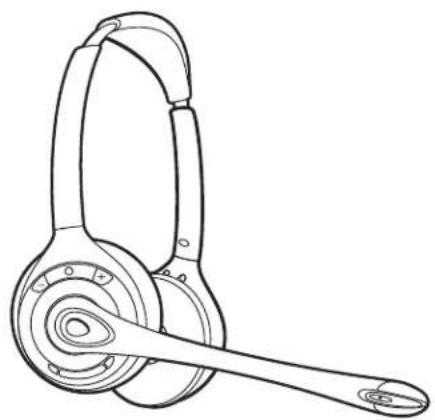
WH350 Headset
(Binaural)
(One model included in each package - both models shown.)


Ear Cushions
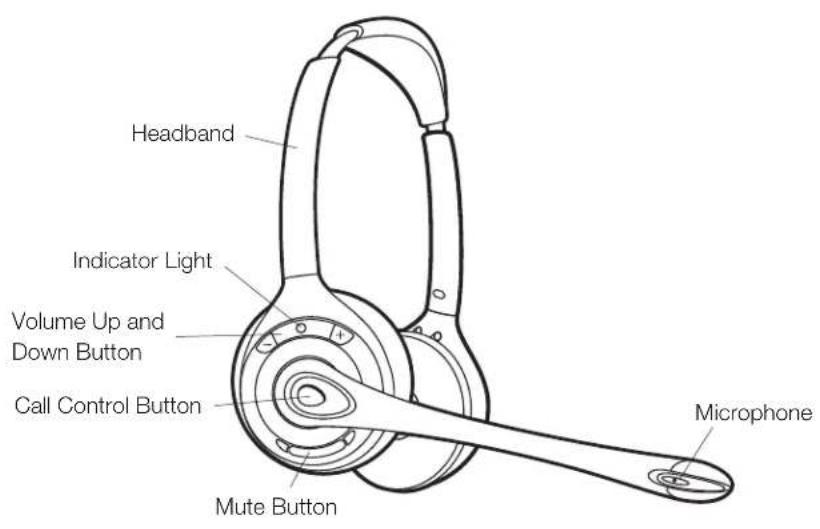
Savi WH350 Headset Features
1.3 HL10 Lifter (Optional)
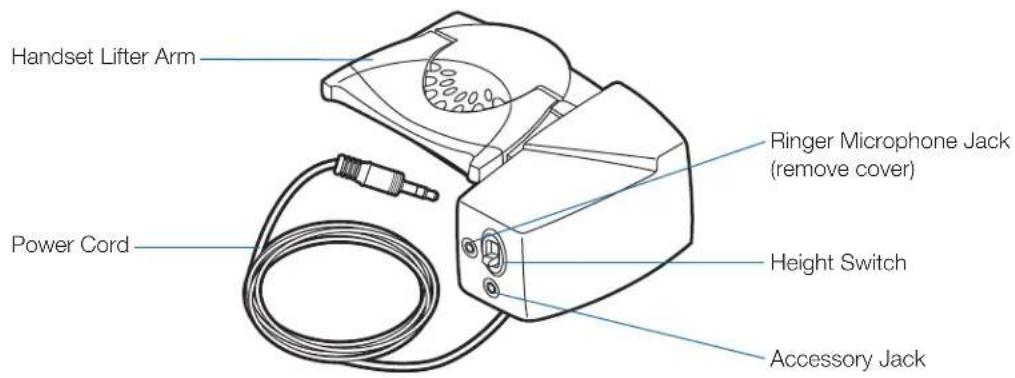
HL10 Lifter
Additional HL10 Lifter Parts (If Required)
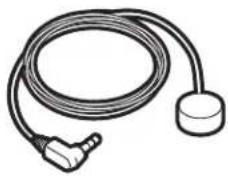
Ringer Microphone
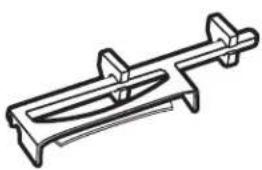
Extender Arm

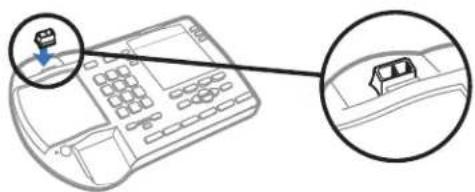
For Nortel i2004 phones only
2 Base Set Up
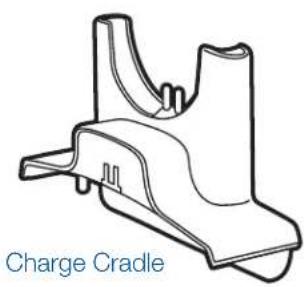
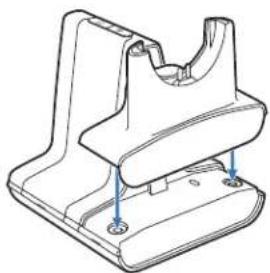
2.1 Attaching Charge Cradle to Base
1 Connect the headset charge cradle to the base. Push firmly on the cradle until the cradle snaps in to place.
2.2 Connecting Base to Desk Phone
1 Connect the telephone interface cable to the telephone interface cable jack on the base.
2 Disconnect the handset coil cord from the desk phone.
3 Connect the telephone interface cable to the now open handset port on the desk phone.
4 Connect the handset coil cord to the telephone interface cable junction box.
5 Place the handset back on the telephone cradle.
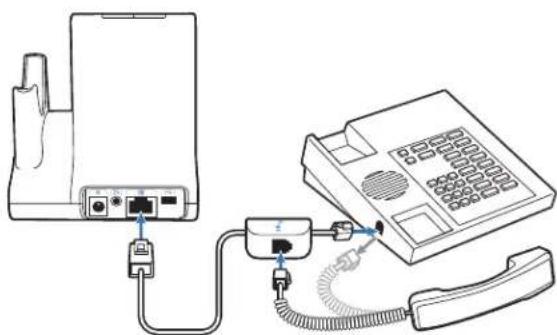
NOTE If your phone has a built-in headset port, you should only use the headset port if you will not be using the HL10 lifter. In this configuration, you must press both the headset button on your phone and the call control button on the headset to answer or end calls.
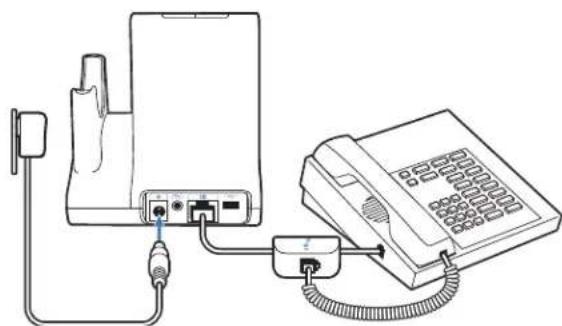
2.3 Connecting Power Supply to Base
1 Connect the base power supply into the power jack on the base.
2 Connect the power supply to outlet.
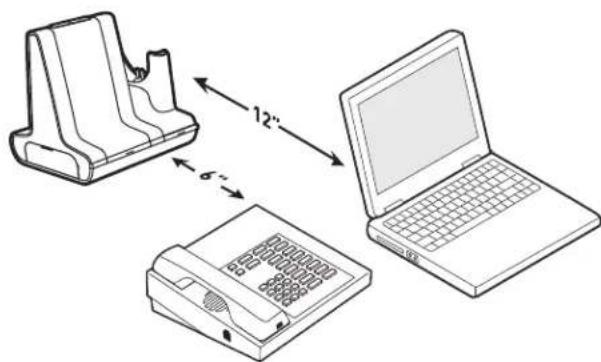
2.4 Positioning Base
The minimum recommended separation between your desk phone and the base is 6 inches.
The minimum recommended separation between the base and computer is 12 inches. Incorrect position can cause noise and interference problems.
3 Headset Set Up
3.1 Adjust the Headband
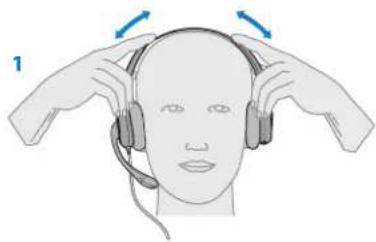
1 To adjust the headband, lengthen or shorten the band until it fits comfortably. Position the headset receivers so that the foam cushions sit comfortably over the center of your ears.
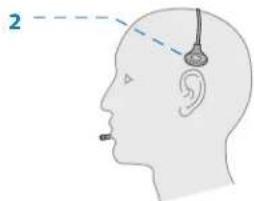
2 On the WH300, position the stabilizer T-bar above your ear.
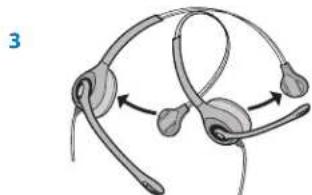
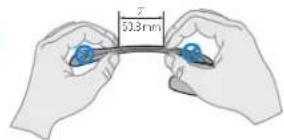
3 For a tighter fit, gently pull the opposite ends of the headset inward as shown.
3.2 Adjust the Mouthpiece
1 Carefully bend and shape the boom with both hands as shown. Avoid bending or twisting the boom near the microphone or earpiece.
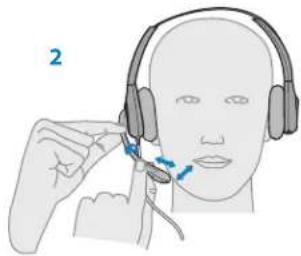
2 Position the click-stop turret and boom so that the microphone is two finger-widths from the corner of your mouth.
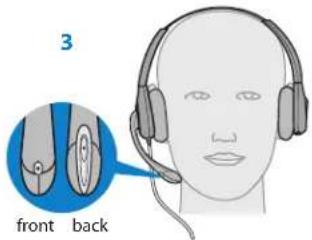
3 Make sure the front of the microphone faces your mouth. If necessary, twist the microphone slightly so it's in the proper position. Do not use forceful twisting motions or try to turn the microphone completely around.
1
3.3 Docking and Charging the Headset
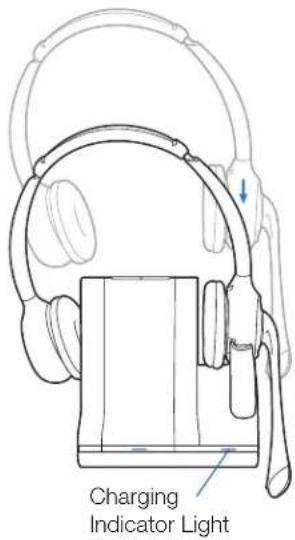
1 Gently push the headset into the charge cradle. The charging indicator light on the base will flash green to indicate that the headset battery is charging.
2 Charge for at least 20 minutes prior to the first use.
A full charge takes 3 hours. The power indicator light will turn solid green.
CHARGING TIME
20 min
Minimum charge
before first use
3 hours
Full charge


4 Configure and Test Call
4.1 Checking Configuration
1 If your desk phone has a volume control set it to mid-range.
2 On the base, ensure the Configuration Switch is set to "A" and the Desk Phone Speaking Volume and Desk Phone Listening Volume are both set to 3.
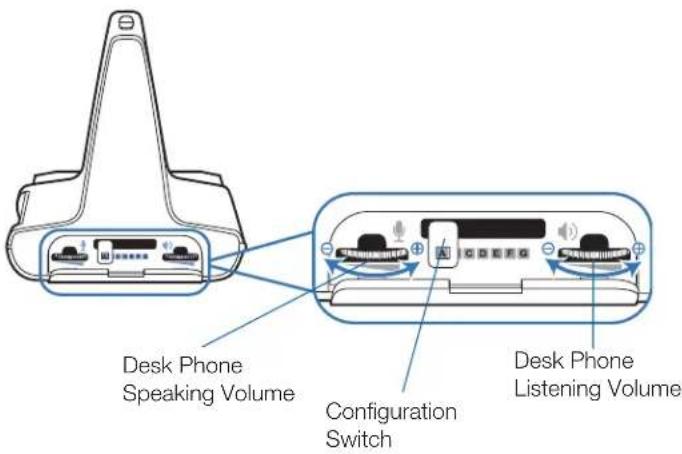
NOTE For most phones, these factory default settings will sound the best.
3 With your headset on, press the call control button on the headset.
4 Remove the handset from desk phone cradle.
5 Listen for a dial tone. If the dial tone sounds clear, press the call control button on headset and continue with Step 4.2 Making a Test Call with Desk Phone.
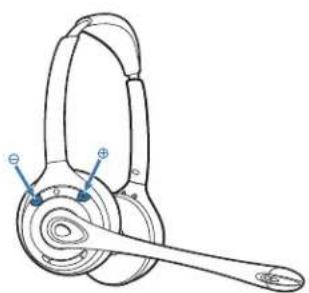
6 You can also fine tune the listening volume on the headset by pressing the volume up button [+] to increase the volume and the volume down button [-] to decrease the volume.
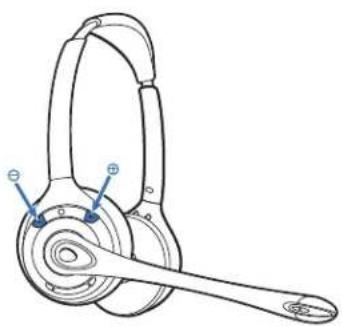
7 If the dial tone still does not sound clear, adjust the Configuration Switch until the dial tone sounds the best.
NOTE Multiple settings might work with your phone; however, only one is the optimal position.
8 Press the call control button on the headset to complete configuration.
9 Replace the handset into the desk phone cradle.
4.2 Making a Test Call with Desk Phone
1 If your desk phone has a volume control, ensure it is set it to mid-range.
2. With your headset on, press the call control button on the headset.
3 Remove the handset from desk phone cradle.
4 Dial the number using your desk phone.
5 If the listening volume is too loud or too soft, adjust the listening volume on the headset by pushing the call control button up to increase the volume and pushing down to decrease the volume.
6 If the listening volume is still too loud or too soft adjust the Desk Phone Listening Volume on the base. A setting that is too high can produce an uncomfortable echo for you.
7 If the speaking volume is too loud or too soft for your listener, adjust the Desk Phone Speaking Volume on the base to the best setting for your listener. A setting that is too high can produce an uncomfortable echo for you and a distorted sound for you listener.
8 Press the call control button on the headset to end the test call.
9 Replace the handset into the desk phone cradle.

For your safety, do not use headset at high volumes for extended periods of time. Doing so can cause hearing loss. Always listen at moderate levels. For more information on headsets and hearing visit: www.plantronics.com/healthandsafety.
5 Lifter Set Up (Optional)
5.1 Installing Lifter
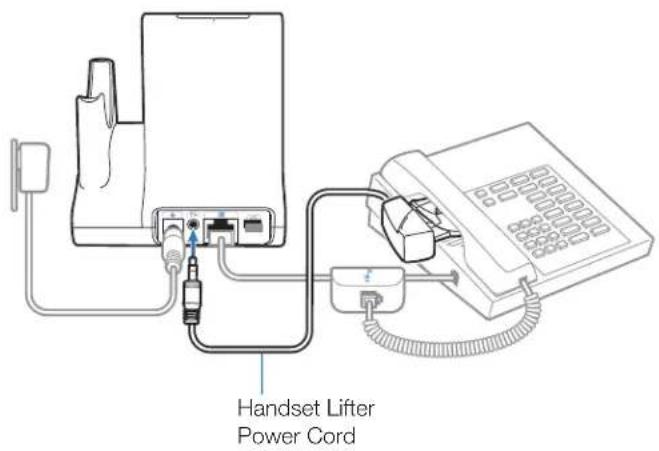
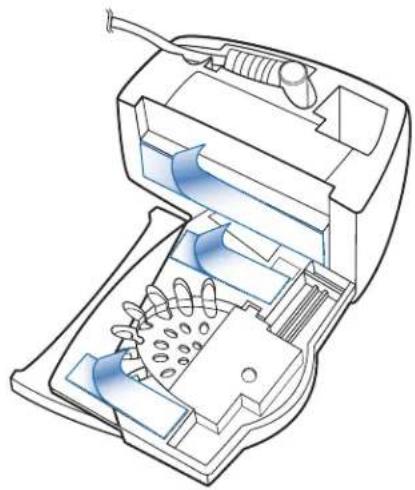
1 Firmly press the handset lifter power cord into the handset lifter jack.
2 While wearing your headset, slide the handset lifter arm under the handset until the lifter base touches the side of the phone.
3 Slide the lifter up to where it nearly touches the handset earpiece.
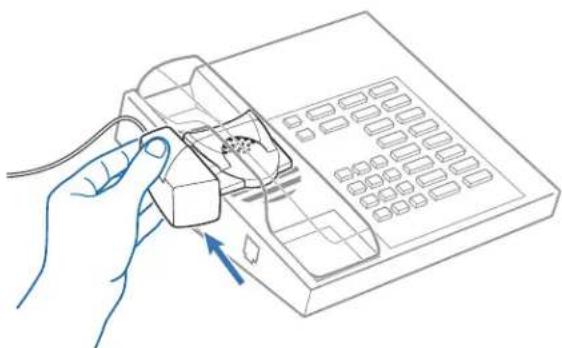
4 Press the call control button on your headset to activate the lifter.
5 If you hear a dial tone the lifter is set correctly and needs no adjustment.
6 Remove the protective strips from the 3 mounting tapes on the underside of the lifter.
7 Gently place the lifter on the desk phone in the predetermined position.
8 Press firmly to adhere.
5.2 If You Do Not Hear a Dial Tone
1 If you do not hear a dial tone, raise the lifter height switch to the next highest position.
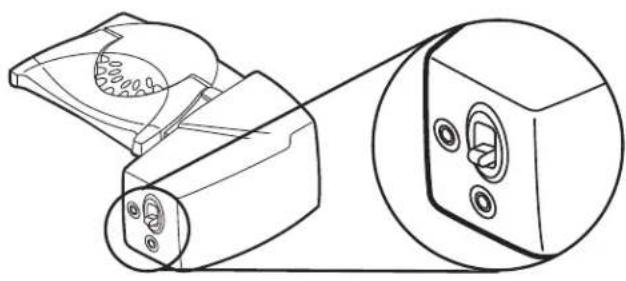
2 Repeat steps 2 through 5 in Section 5.1 as necessary until you hear a dial tone.
3 When you hear a dial tone, secure the lifter as described in steps 6 though 8.
5.3 Additional Parts (If Required)
Extender Arm
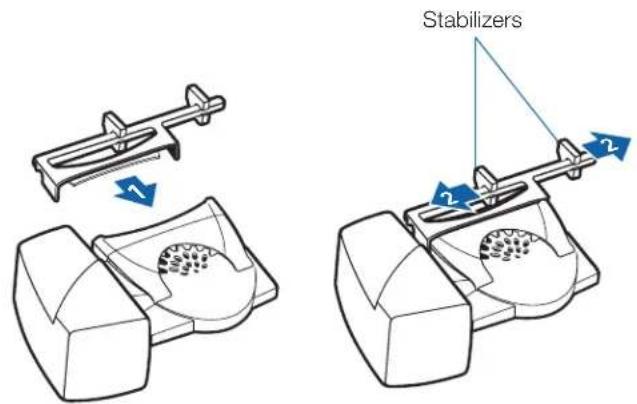
Use extender arm when the handset lifter needs additional stability lifting and returning handset to cradle.
1 Slide extender arm onto lifter.
2 Stabilizers can be shifted left and right. Position stabilizers on outsides of handset to gently grip the phone.
Ringer Microphone
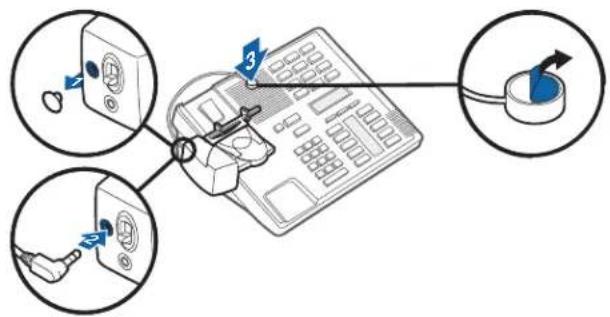
Use ringer microphone only when the telephone speaker is not located directly under the handset.
1 Remove cover from ringer microphone jack on back of lifter.
2 Connect ringer microphone plug.
3 Place ringer microphone over phone speaker. Remove adhesive tape and attach.
For Nortel i2004 Phones Only
6 PC Set Up
6.1 Installing USB Cable
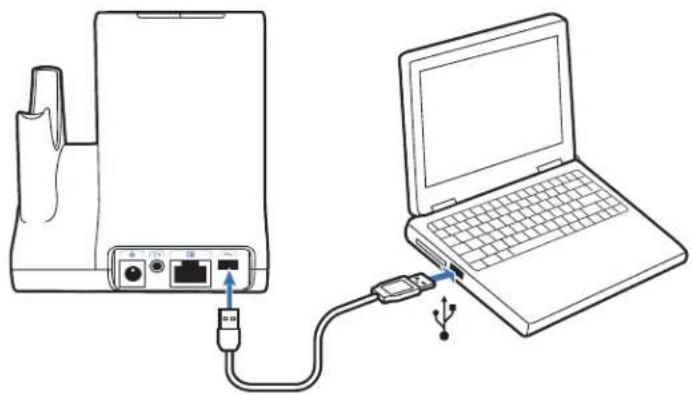
1 Connect the USB cable to the USB port on the back of the base.
2 Connect the other end of the USB cable to the USB port of the PC.
6.2 Installing PerSono Suite Software
1 In the animated setup guide located on the CD, select Step 6.2 Installing PerSono Suite Software.
2 Click on the graphic of the CD labeled "PerSono Suite Software".
3 Follow installation instructions shown on screen.
6.3 Making a Test Call with PC
1 Ensure the PerSono Suite software is running on your PC. You will see a headset icon in the lower right portion of the PC tray bar when PerSono Suite software is running.

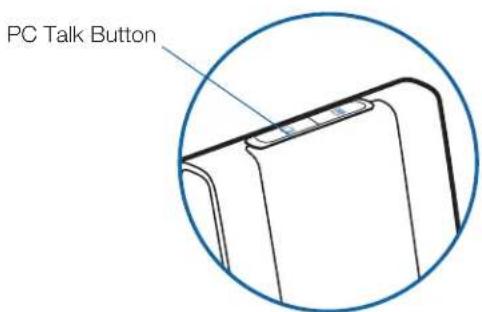
2 With your headset on, press the PC talk button on the base.
3 Dial the number using your softphone application.
4 Adjust listening and speaking volume over the PC as follows:
For Windows ® XP Systems-
Go to the "Voice" tab of the "Sounds and Audio Devices" option in your PC control Panel.
- "Voice playback" volume is your receive volume
• "Voice recording" volume is your transmit volume
For Windows Vista® Systems-
Go to the "Playback" tab for listening volume or "Recording" tab for speaking volume of the "Sound" option in your PC control panel.
- "Speakers Level" volume is your receive volume
- "Microphone Level" volume is your transmit volume
5 You can also fine tune the listening volume on the headset by pressing the [+] to increase the volume and the [-] to decrease the volume.
6 To end the test call, press the call control button on the headset.
7 Using Your Savi Office Professional Wireless Headset System
IMPORTANT It is highly recommended that you install the PerSono Suite software. Though your Savi Office system will operate without the software it will limit the system's full capabilities.
Powering Up Headset
If the headset battery is charged the headset is automatically on. The headset does not have an on/off button.
Placing, Answering, and Ending Calls with Desk Phone
| Phones with Handset Lifter or Electronic Hookswitch | Phones without Handset Lifter or Electronic Hookswitch |
| To place a call 1. Short press call control button on headset*or short press base desk phone talk button2. Dial number | 1. Short press call control button on headset*or short press base desk phone talk button2. Remove handset from cradle**3. Dial number |
| To answer a call 1. Short press call control button on headsetor short press base desk phone talk button | 1. Short press call control button on headset orshort press base desk phone talk button2. Remove handset from cradle** |
| To end a call 1. Short press call control button on headsetor short press base desk phone talk button | 1. Short press call control button on headset orshort press base desk phone talk button2. Return handset to cradle** |
* Assumes your default line is set to desk phone.
** To place, answer, and end calls with desk phones that have a headset button and without a handset lifter, you will need to press the headset button on the desk phone instead of removing the handset from the cradle.
Placing, Answering, and Ending Calls with PC
| With PerSono Suite Software* Without PerSono Suite Software | ||
| To place a call | 1. Dial number from the supported softphone application*** | 1. Short press call control button on headset** or short press base PC talk button2. Dial number from softphone application |
| To answer a call | 1. Short press call control button on headset or short press base PC talk button | 1. Short press call control button on headset** or short press base PC talk button2. Answer call using softphone application |
| To end a call | 1. Short press call control button on headset or short press base PC talk button | 1. Short press call control button on headset** or short press base PC talk button2. Hang up call using softphone application |
*Assumes use of supported softphone
**Assumes your default line is set to PC
*** Automatically bringing up the PC radio link is not supported when placing an outbound call in Microsoft Office Communicator.
Switching Between Desk Phone and PC Audio
You can switch back and forth between desk phone and PC audio the following ways:
Headset Base PerSono Suite
Software*
| Press the volume up button (at least 1 1/2 seconds) until the base talk button indicator light of the desired device becomes solid green. | Short press (less than one second) the base talk button of the device that you want to switch to. | Click the active (green) PC or desk phone icon to put it on-hold. Click the other red icon (on-hold) to make it active. |
* Desk phone and PC audio links have to be brought up by the headset or base. You cannot initiate an audio link via the Audio Control Screen in the PerSono Suite software.
Mixing Desk Phone and PC Audio
You can mix desk phone and PC audio the following ways:
Base PerSono Suite
Software*
| Simultaneously hold the desk phone and PC talk buttons down (at least 1 1/2 seconds) until both indicator lights become solid green. |
Click any red (on-hold) icon to make it active. When all three icons (headset/desk phone/PC) are green and all arrows are green, the audio of the devices are mixed.
* Desk phone and PC audio links have to be brought up by the headset or base. You cannot initiate an audio link via the Audio Control Screen in the PerSono Suite software.
Muting the Headset
You can mute/unmute the headset the following ways:
Headset Base PerSono Suite
Software*
| Short press the dedicated mute button to toggle mute on/off. | Short press (less than one second) of a red desk phone or PC talk button on the base will unmute the headset. You cannot mute the headset using the desk phone or PC talk buttons. | Click the green headset icon. The headset icon will turn red indicating the headset transmit is muted. Clicking the headset icon again will unmute the headset. |
* Desk phone and PC audio links have to be brought up by the headset or base. You cannot initiate an audio link via the Audio Control Screen in the PerSono Suite software.
Subscribing a Master Headset
The headset and base are subscribed to each other at the factory. In the event that you need to subscribe a new master headset to the base you can do so one of two ways. You can subscribe a master headset to the base with the headset docked (secure subscription) or undocked (over-the-air subscription). In either case, the system must be idle (not on a call).
Headset Docked Headset Undocked
| Double press the subscription button on the base. The subscription light will flash red and green.When the subscription light becomes solid green, the headset and based are subscribed to one another. | Double press the subscription button on the base. The subscription light will flash red and green. Press the volume up button on the headset for three seconds until the headset indicator light turns solid green.When the subscription light on the base becomes solid green, the headset and base are subscribed to one another. |
NOTE If the subscription process times out after two minutes or if the subscription process fails, the subscription light will become solid red for four seconds and then return to its previous state. If this occurs, try to re-subscribe the headset again.
Conferencing In Up to Three Additional Headsets
While on a call you can subscribe up to three additional headsets to your base for conferencing. As you add headsets to the base an additional headset icon will appear in the PerSono Suite software screen with a number from 1 to 3 indicating the number of additional headset subscribed to the base.
Guests may conference in as described below:
1 While you are on a call:
a) Place the guest's headset into primary user's charge cradle.
OR
b) Place the guest's headset into over-the-air subscription mode by pushing the headset volume up button for three seconds until the indicator light becomes solid green.
2 Short press (less than one second) the subscription button on the base.
The subscription light will flash yellow and green.
3 The subscription light will then turn solid yellow and you will hear a tone in the master headset indicating a guest wishes to join the call.
4 If you press the call control button on the master headset within five seconds, the guest is joined to the call.
If you do not press the call control button within five seconds, the request to join the call is rejected and the guest will hear an error tone in their headset.
5 Guests may leave the conference call by pressing their call control button.
When they do you will hear a single tone in the master headset as each guest leaves the call.
To see how many headsets are subscribed to the base, refer to the lower left corner of the PerSono Suite software screen. The first headset is the master headset and the number inside the next headset is the number of guest headsets subscribed to the base. The examples below show 1, then 2, then 3, guest headsets subscribed to the base in addition to the master headset.

Setting Default Line to Desk Phone or PC
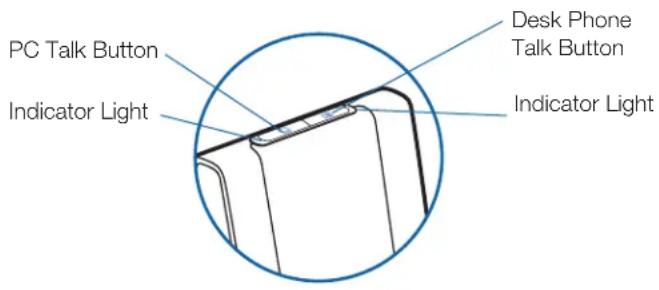
The Savi Office system ships with the desk phone as the default outbound line. This means any call initiated from the headset with the call control button will open desk phone audio. You can change your default outbound line from the base talk buttons.
While the system is in idle mode, press and hold the PC talk button or the desk phone talk button for three seconds to select that device as your default outbound line. The talk button indicator light will flash green for four seconds confirming the new setting.
Toggling On/Off Over-the-Air Subscription
The Savi Office system ships with the over-the-air subscription enabled. You can toggle on or off over-the-air subscription using the subscription button on the base. With the master headset
and the system idle, press the subscription button for three seconds. The subscription button will flash green for four seconds if over-the-air subscription is on and red for four seconds if off.
Setting the Range
With the master headset and the system idle, press the subscription button for three seconds. Both the desk phone and the PC talk buttons will flash green for high range. If you press the subscription button again for three seconds, the talk buttons will flash yellow for medium range. If you press the subscription button again for three seconds, the talk buttons will flash red for low range.
Ending Subscription
If the base is in subscription mode (secure or over-the-air), and you want to end the base from searching for a headset, press the subscription button again. The subscription light will turn solid red for four seconds and then go to it's previous state.
Placing the Headset in Sleep Mode
If you won't be using the headset for a long duration and the headset will not be in the charge cradle, you can put the headset in sleep mode by pressing the call control button for three seconds while in an idle state. To exit sleep mode, press the headset call control button again for three seconds.
Subscription Button Indicator Light
| Master headset subscribed to base | Solid green |
| Base in master subscribing mode | Flashes red and green |
| Base conferencing in additional guest headset(s) | Flashes yellow and green |
| Active conference call with guestheadsets subscribed to base | Solid yellow |
Desk Phone and PC Talk Buttons Indicator Lights
| No active audio link Off |
| Incoming call Flashes green |
| Active audio link Solid green |
| Master headset muted Solid red |
| Call on-hold Flashes red |
| Seeking Audio Link* Solid yellow |
*When bringing up a link from the base, the talk button will be solid yellow until a link is established. This could take up to several seconds especially for wideband audio and/or when in moderate to high density environments. If you press the talk button when the indicator light is yellow, it will terminate the search for an audio link.
Talk Time
The Savi WO300/350 Office system will provide up to 8 hours of talk time. Talk time will be reduced when operating in wideband mode and/or if the headset is used consistently at a far distance from the base.
Desk Phone and PC Talk Buttons "Rules to Live By"
Button (Indicator Light) State If Button Is Pressed
| Off Solid green |
| Flashing green Solid green |
| Solid green Off |
| Solid red Solid green |
| Flashing red Solid green |
NOTE If in any state, you hold down both the PC and desk phone talk buttons for 1½ seconds both indicator lights will turn solid green and the audio from both devices will be mixed.
Headset Call Control Button Functions
| Type of Press Function | |
| Short press Places, answers, or ends calls | |
| Short press volume up | Increases volume |
| Short press volume down | Decreases volume |
| While in a link, long press volume up (at least 1 1/2 seconds) | Switches between desk phone and PC audio |
| Short press mute button | Mutes or unmutes headset |
| While not in a link, long press volume up (at least 1 1/2 seconds) | Places headset in subscription mode |
| While not in a link, long press volume down (at least 1 1/2 seconds) | Enables and disables headset in-use indicator light |
Headset Indicator Light
Headset Status Headset Indicator Light
| Headset charging Off | |
| Headset fully charged Off | |
| Headset in-use | Flashes green |
| Subscribing Solid green | |
Toggling On/Off Headset In-Use Indicator Light
If you are not on a call, you can toggle the headset in-use indicator light on and off by pressing the headset volume down button for three seconds.
Headset Tones
Out of Range Warning
If you are on a call and go out of the operating range, you will hear three low tones. You will hear a single mid tone when you are back in range.
If you stay out of range, active calls will be suspended. Calls will be re-established upon walking back into range. If you remain out of range for more than 5 minutes the system will drop the call.
If you are not on a call and go out of the operating range and press the call control button, you will hear a single tone for the button press and three low tones for the failure to make a link.
Low Battery Warning
If you are on a call, you will hear a repeating single low tone every 15 seconds indicating the battery is low. You should recharge the headset immediately.
If you are not on a call and press the call control button, you will hear three lows tones indicating the battery is low. You should recharge the headset immediately.
Mute Warning
When mute is activated, you will hear three high tones. These tones will repeat every 15 seconds while mute is active.
When unmuted you will hear three low tones.
8 PerSono Suite Software
It is highly recommended that you install the PerSono Suite software. Though your Savi Office system will operate without the software running it will limit the system's capabilities.
PerSono Suite software allows you to do the following with your Savi Office system:
- Answer/end calls from the PC remotely with the headset (requires use of supported softphone)
- Mute/mix audio paths between the headset/desk phone/PC via a clickable interactive Audio Control Screen.
- Customize your headset and base settings to your personal preferences
• Automatically manage your PC multimedia so you never miss a call - Quickly access links to product support and software/firmware upgrade information
Audio Control
When the PerSono Suite software is launched and running the headset icon will appear in the PC tray bar. To bring up the PerSono Suite Software, double-click the headset icon. On the left of the screen you will see a menu selection with Audio Control highlighted. In the center is the clickable interactive screen where you can mute/mix the audio paths between the headset/desk phone/PC.
Audio links cannot be initiated or ended via the clickable interactive Call Audio Control Screen. This can only be done by using the headset call control button or the base talk buttons.
Icons and Arrows
Icons
- Gray = device idle
- Green = device active
- Solid red headset = headset transmit muted
- Blinking red PC = PC on hold (all audio paths to and from PC are muted)
- Blinking red desk phone = desk phone on hold (all audio paths to and from Desk phone are muted)
Arrows
- Gray = audio path idle
- Green = audio path active
• Red = audio path muted
Interactive Rules
The headset, PC and desk phone icons are all clickable.
- When you click a green headset icon it will turn red and the headset transmit will be muted. Clicking the red headset icon will turn it back to green and unmute the headset.
- When you click a green PC or desk phone icon it will turn red and start to blink, indicating the device has been put on-hold. Clicking a blinking red PC or desk phone icon will turn it back to green, indicating the device is active again.
Examples
All devices idle
![graph TD A["User"] --> B["Client"] B --> C["Phone"] C <--> D["Mobile"]](/content/2026/06/1184769/images/6c7607a1b8858744a057318ad3c91de38d91fa62935ad239bef8c7a40bcde649.jpg)
Active desk phone call, PC idle
![graph TD A["Desktop"] <--> B["Mobile"] B <--> C["Phone"]](/content/2026/06/1184769/images/4de1c83ac4192acb82d969cefdbd4395c4cfc2e04be5d9a6c18c76077dbd43a9.jpg)
Active PC call, desk phone on hold
![graph TD A["Green with earphone"] --> B["Green with laptop"] B <--> C["Red with phone"]](/content/2026/06/1184769/images/56f4f6655ef7a599d6549aa72e165de6049dd3c189dec5978e7c8ecf5c5e6f83.jpg)
All devices mixed
![graph TD A["User"] --> B["Computer"] B <--> C["Phone"] C --> A](/content/2026/06/1184769/images/9c1fc8ac44db2847c7f59a904736245583ed0607e854b2552b9c1a2e163213f0.jpg)
All devices mixed, headset muted
![graph TD A["Router"] --> B["Laptop"] A --> C["Phone"] B <--> C](/content/2026/06/1184769/images/f3d27e1249b57c4bcc26993fa5b243330b2155de43748ddfc96e5b1fc7a94394.jpg)
When you are listening to multimedia through a supported media player on your PC, and there are no calls that are active or on-hold, a music note will replace the PC icon.
Active multimedia, desk phone idle
![graph TD A["Music Icon"] --> B["Telephone Icon"] B --> C["Air Icon"] C --> A](/content/2026/06/1184769/images/7f8bc9aed8be4545a8c29194fe9b6f02c294e66eb2bcbde7420b63a45b0d8e18.jpg)
If PerSono Suite software is configured to manage your multimedia automatically when a call comes in, the music note will disappear and then be brought back up once all your calls have ended.
In order to mix multimedia from your PC with an active desk phone call you must follow these steps:
![graph TD A["Computer"] <--> B["Coffee Shop"] B --> C["Telephone"]](/content/2026/06/1184769/images/2f004d49a776c1ff2fd7a92adb406b7ec0cd51d5690a3c0f85edad5356243d6d.jpg)
1 Start with your active desk phone call.
2 Bring up the PC audio link and put your active desk phone call on hold by pressing the PC talk button on the base.
3 Launch your media player on your PC and start playing multimedia.
![graph TD A["Green vinyl Record"] --> B["Red Telephone Hand"] B --> C["Blue Music Note"] C --> A](/content/2026/06/1184769/images/467b3bcb3003839b3275379fde42da93b1d2a5623e6b577dab8d3eb51f739cfb.jpg)
4 Click on the red desk phone icon to bring the desk phone off hold and your multimedia will now be mixed with your desk phone audio.
![graph TD A["Music Icon"] --> B["Telephone Icon"] B --> C["App Icon"] C --> A](/content/2026/06/1184769/images/4f96f07ca0f57155172797f6a15ae2dc3c2da9f4b6bff624ce82904f36457df5.jpg)
Battery Life
At the lower left corner of the screen (and for all software screens), you will see one of the following icons indicating the approximate charge left in the headset battery.

100% 75% 50% 25% Less than 5 Mins
Subscribed Master Headset
The single headset icon next to the battery icon shows the primary headset currently subscribed to the base. Additional headsets can be added for call conferencing. Please refer to Conferencing In Up to Three Additional Headsets on page 15 for more information.

Softphone Support
For a list softphones supported by PerSono Suite refer to www.plantronics.com/SoftphoneCompatibility PerSono Suite software supports all the softphones on the list with no additional steps by the user except Skype™.
To allow Skype to be a supported softphone in PerSono Suite please follow these steps:
1 Ensure PerSono Suite software is running on your PC. You will see a headset icon in the lower right portion of the PC tray bar when PerSono Suite software is running.

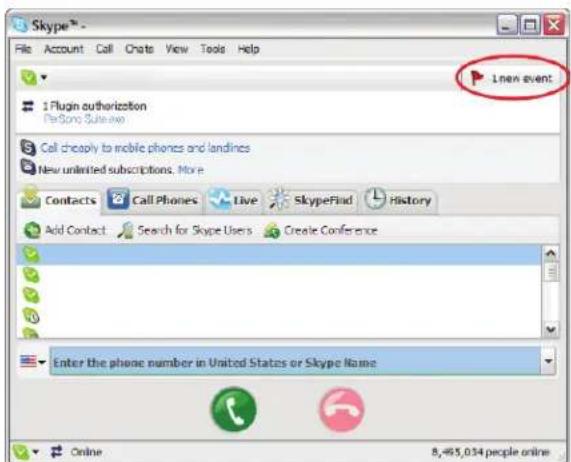
2 If Skype is running on your PC, Skype will notify you of the event that "PerSonoSuite.exe wants to use Skype". Go to the "new event" tab located in the upper right of the Skype window and click on the red flag. You then will need to click on the "PerSonoSuite.exe" link to be taken to the "Manage API Access Control" screen.
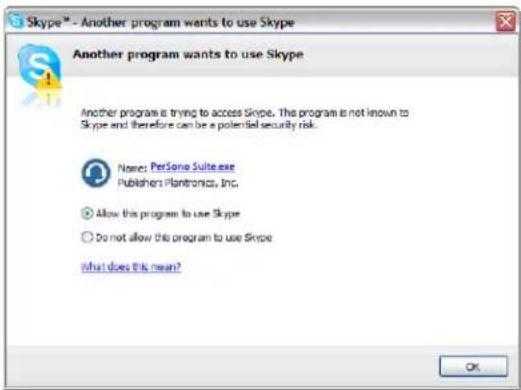
3 The "Manage API Access Control" screen will pop up stating that "Another program is trying to access Skype". The name of the program will appear as "PerSonoSuite.exe" with the publisher "Plantronics, Inc." You must select "Allow this program to use Skype" and click OK.
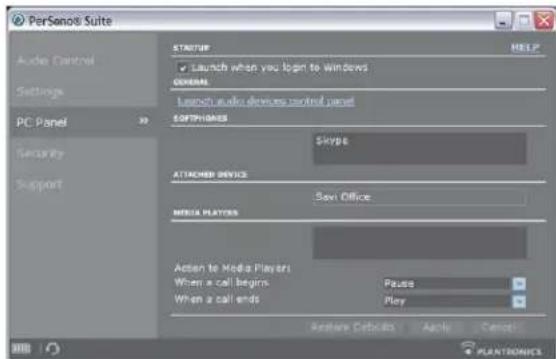
4 To confirm that PerSono Suite is now supporting Skype, go to the "PC Panel" tab in PerSono Suite and ensure that Skype is listed under "Softphones".
Settings Screen – Headset and Base
The Settings Screen allows you to customize the base and headset to your preference. The Savi Office System is shipped with the default settings and can be changed as described in the Settings column below.
NOTE Some parameters may appear as grayed out. PerSono Suite automatically grays out parameters that do not apply to a particular Plantronics device.
Settings – Headset
| Feature Settings Default | |
| Mute Tone Standard/low/off Standard | |
| Ring tone – desk phone | Sound 1/sound 2/sound 3 Sound 1 |
| Ring tone volume – desk phone | Standard/low/off Standard |
| Ring tone – PC Sound 1/sound 2/sound 3 Sound 2 | |
| Ring tone volume – PC Standard/low/off Standard | |
| System tones Standard/low/off Standard | |
| Second inbound call Ring continuously/ring once/ignore Ring continuously | |
Settings - Base
| Feature Settings Default | |||
| General | Auto answer On/off Off | ||
| Default Line Desk phone/PC | Desk phone | ||
| Over-the-Air subscription | On/off On | ||
| Range | High/med/low | High | |
| Ring Both Headset and PC | On/off | On | |
| Audio | Anti-startle | On/off | Off |
| Audio limiting | 80 dB/85 dB/off | Off | |
| G616 | On/off Off | ||
| Audio bandwidth – desk phone | Wideband/narrowband | Narrowband | |
| Audio bandwidth – PC | Wideband/narrowband | Narrowband | |
| Tone Control – desk phone | 7 settings of bass/treble mix | Middle setting | |
| Tone Control – PC | 7 settings of bass/treble mix | Middle setting | |
| Help for Base Settings | Default Settings | |
| Auto Answer | Auto answer saves the user a button press to establish the radio link between headset and base unit.When auto answer is set to OFF you must press the headset call control button or base PC/desk phone talk button to answer an incoming call.*When Auto Answer is set to ON an incoming call will be answered when the headset is removed from the charge cradle.* | Off |
| Default Line | Default line sets user preference for outbound desk phone or PC, when headset call control button is pressed.When default line is set to desk phone and you press the headset call control button to initiate a call, the desk phone will be taken off-hook. You then need to dial the phone number from the desk phone.*When default line is set to PC and you press the headset call control button an audio link will be brought up between your PC and headset. You then can place an outbound call via your soft phone application or listen to streaming audio via a media player. | Desk Phone |
| Over-the-Air Subscription | Over-the-air subscription allows a headset to be subscribed to the base without physically docking the headset. Required when conferencing various models of Plantronics Savi headsets.When over-the-air subscription is set to ON you can subscribe a headset to your base without physically docking the headset into the charge cradle.When over-the-air subscription is set to OFF you can only subscribe a headset to the base by physically docking the headset into the charge cradle.For information on how to subscribe a master headset to the base see Subscribing a Master Headset on page 15.For information on how to temporarily subscribe guest headsets to the base for a conference call, see Conferencing in Up to Three Additional Headsets on page 15. | On |
| Range** | Range can be minimized to help with desk phone/PC buzzing, improve user density, or restrict range of users.When Range is set to HIGH a user will have up to 350 feet of range.When Range is set to MEDIUM a user will have up to 150 feet of range.When Range is set to LOW a user will have up to 50 feet of range. | High |
| Audio Bandwidth** | The system will support both narrowband and wideband audio from the desk phone and PC.Wideband audio delivers heightened speech clarity and life-like fidelity. However, wideband audio consumes more battery power and has more stringent access criteria which reduces the number of systems that can be deployed in a small area.Your desk phone must support wideband audio to experience the benefit of selecting “wideband” for that device. All PCs support wideband audio.When switching between narrowband and wideband audio, you must re-establish the audio link for the changes to take effect | Narrowband Desk Phone and PC |
*Assumes use of lifter or EHS cable with desk phone and/or use of a softphone that is supported by PerSono Suite software.
** When bringing up a link from the base, the talk button will be solid yellow until a link is established. This could take up to several seconds especially for wideband audio and/or when in moderate to high density environments. If you press the talk button when the indicator light is yellow, it will terminate the search for an audio link.
Help for Base Settings
Default Settings
| Anti-Startle | Anti-startle provides advanced hearing protection against sudden loud sounds. When Anti-startle is set to ON, the system identifies and eliminates sudden loud sounds and rapidly reduces them to a comfortable level. When Anti-startle is set to OFF, the headset caps sound levels at 118 dBA to protect your hearing. | Off |
| Audio limiting | Audio Limiting provides advanced hearing protection for daily noise exposure. When Audio-Limiting is turned ON, the system monitors and controls sound to ensure action levels do not exceed 80 dBA or 85 dBA (whichever is selected) specified by current and imminent EU legislation*. When Audio-Limiting is set to OFF, the headset caps sound levels at 118 dBA to protect your hearing.*The noise monitoring feature is based on an average acoustic coupling between the headset and ear. Please follow the instructions for recommended wearing position on page 8. | Off |
| G616 | G616 Acoustic Limiting provides additional hearing protection against acoustic shock. When G616 Acoustic Limiting is set to ON, the system provides additional acoustic shock protection. Sound levels are limited to 102 dBA as recommended in the G616:2006 guideline issued by the Australian Communications Industry Forum (ACIF). When G616 Audio-Limiting is set to OFF, the headset caps sound levels at 118 dBA to protect your hearing. | Off |
| Tone Control | The system allows you to customize the desk phone and PC tones independently to optimize your listening experience with just the right amount of treble and bass from each device. | Middle Setting Desk Phone and PC |
| Ring Both Headset and PC | This parameter gives you the option to have the PC ringtone played on both the headset as well as the PC speaker.When this parameter is set to OFF, the PC ringtone will only be heard on either the headset or the PC speaker based on how the PC audio has been set up.When this parameter is set to ON, the PC ringtone will be heard on both the PC speaker as well as the headset. | On |
PC Panel Screen
- Choose whether you want PerSono Suite software to launch when you login to Windows.
• See a list of supported softphones running on your PC. - See which Plantronics device is attached to your PC and working with PerSono Suite software.
- Customize how you want the PerSono Suite software to manage your multimedia when a call begins/ends.
Advanced Settings
Microsoft Office Communicator Dial-tone Enabled
If this feature is set to ON, when a PC radio link is established, Microsoft Office Communicator will assume the user is trying to place a VOIP call and provide a dial tone.
If this feature is set to OFF, when a PC radio link is established, Microsoft Office Communicator will sit idle.
"Microsoft Office Communicator Dial-tone Enabled" can be set to ON or OFF.
Microsoft Office Communicator Certified product:
Default Setting = ON
Standard product: Default Setting = OFF
Audio Sensing Enabled
Audio Sensing is a special feature supported by Plantronics wireless devices that can detect audio signal at the USB port and automatically establish a PC radio link between the base and wireless headset without the user having to press the PC call control button. If the parameter "Microsoft Office Communicator Dial-tone Enabled" is set to ON, every time the user presses the PC call control button the Microsoft Office Communicator dial tone will be heard. However, the user may have pressed the PC call control button to listen to music, etc., and does not want to hear the dial-tone. In this case, if the user sets the "Audio Sensing Enabled" parameter to "ON", the radio link will be established automatically when any PC audio is detected at the USB port, thus eliminating the need for the user to press the PC call control button.
"Audio Sensing Enabled" can be set to ON or OFF.
Microsoft Office Communicator Certified product:
Default Setting = ON
Standard product: Default Setting = OFF
Security Screen
PerSono Suite software allows the base settings to be locked so another user cannot change the settings. This requires the creation of a password for the system. To create a password so you can lock/unlock base settings complete the following:
1 From the security screen, create and confirm your new password. Press OK.
A new security screen will appear.
2 Reenter your password.
3 Press OK.
This will bring up the base settings page.
4 Select your settings from the menu and lock/unlock each feature as desired.
5 Press Confirm to save the settings.
Once you have created your password, you can change your password as follows:
1 From the security screen, click the arrow to the right of "Reset Password".
The security screen will expand.
2 Enter your current password, enter your new password, and reenter your new password.
3 Press Confirm to reset your password.
IMPORTANT If you forget your password you need to call your local Plantronics Technical Support for a skeleton password.
1 From the security screen, enter the skeleton password. Press OK.
The security screen will expand.
2 Reenter the skeleton password, enter your new password, and reenter your new password.
3 Press Confirm to reset your password.
NOTE You will not be able to access the base settings page using the skeleton password. You must first reset your password and then enter your new password to access the base settings page.
Support Screen
The support screen provides on-line access to this printable user guide, frequently asked questions, how to contact Plantronics, and software upgrade information. The current version of software and firmware currently running on your system is also shown here.
Updates
All the required software and firmware for your Plantronics device can be remotely updated if and when updates are available. You can control how frequently the system will check for available updates. When updates are available, you can view all pending updates and decide when to download and install any one of them.
The particular version of PerSono Suite software and headset/base firmware running on your system is always reflected in the VERSIONS fields.
Notify me when updates are available: By enabling this check box, you will activate a periodic automatic check for available software and firmware updates.
When this parameter is enabled, automatic check for updates will be activated and the frequency field will be highlighted allowing you to choose the frequency of checking for updates, e.g., once every 3 months, once every month or once every week.
When this parameter is disabled, automatic check for software/firmware updates is disabled.
Check For Updates: You can choose to check for available software/firmware updates at any time by clicking on the Check For Updates button.
Available Updates: Following an automatic or manual check for updates, this field will be populated with any applicable software and firmware updates.
Install: It is important to note that automatic checks for updates does not include automatic download and install. The actual download and install will only occur when you select at least one item for the Available Updates list and click on this Install button.
9 Troubleshooting and Common Questions
| I can't hear a dial tone at the headset. | Make sure your headset is charged.Make sure your headset is subscribed to base. SeeSubscribing a Master Headseton page 15.Press the call control button on your headset.Make sure the lifter is lifting the handset high enough to operate the hookswitch; set to a higher setting if necessary.Adjust the configuration switch on the base until a dial tone is heard.Fine tune the listening volume with the call control button.If the volume is still too low, adjust the desk phone listening volume on the base. |
| I hear static. | Make sure there is at least 12 inches between your base and your computer, and 6 inches between your base and your telephone. If adjusting the distance doesn't help, your headset is going out of range, move closer to the base. |
| The sound is distorted when using my Savi Office system with my desk phone. | Lower the desk phone speaking volume and/or Desk Phone Listening Volume on the base. For most telephones, the correct setting is position 3.If your desk phone has a volume control, lower until the distortion disappears.If the distortion is still present, adjust the headset volume control to lower the headset speaker volume. If the distortion persists, lower the Desk Phone Listening Volume on the base.Make sure there is 12 inches between your base and your computer, and 6 inches between your base and your telephone. |
| I hear echo in the headset when using my desk phone. | Adjust the Configuration Switch. The most commonly used position is “A”, which is the default position.Lower the Desk Phone Listening Volume on the base. For most telephones, the correct setting is position 3.If the audio level is too low in this position, adjust the headset volume control to increase the headset speaker volume.Lower the Desk Phone Speaking Volume on the base. For most telephones, the correct setting is position 3.If your speaking volume is too low for your listener in this position, adjust the position of the headset to make sure the microphone is as close as possible to your mouth. |
| People I talk to can hear a buzz in the background. | Move the base further away from your phone.Base power supply is plugged into a power strip. Plug the power supply into the wall directly. |
| Talk time performance is significantly degraded even after a full recharge. | Battery is wearing out. Call Plantronics at (800) 544-4660 for factory service information or contact us at www.plantronics.com/support. |
| The handset lifter is installed but does not lift the handset. | Be sure the handset lifter power cord is firmly pushed into the handset lifter jack on the base. |
| I can no longer hear any audio through my PC Speakers. | For Windows XP Systems:Refer to the “Audio” tab of the “Sounds and Audio Devices” option in your PC Control Panel.Under “Sound playback” change the default setting from Savi Office to your PC speakers. Click “OK” to confirm your change.For Windows Vista Systems:Refer to the “Sound” option in your PC Control Panel.Under the “Playback” tab change the default setting from “Speakers Savi Office” to your PC speakers. Click “OK” to confirm your change. |
| No audio connection to PC. | Unplug USB and power cables from base. Reconnect power cable first. Wait for power LED to illuminate, then re-connect USB cable. Quit and then re-start your PC audio or softphone application. |
Plantronics, Inc.
345 Encinal Street
Santa Cruz, CA 95060
United States
Tel: 800-544-4660
www.plantronics.com
For product support contact us at www.plantronics.com/support.
© 2010 Plantronics, Inc. All rights reserved. Plantronics, the logo design. HL10, Persono Suite, Savi, and Sound Innovation are trademarks or registered trademarks of Plantronics, Inc. Windows is a registered trademark of Microsoft Corporation. Nortel is a trademark of Nortel Networks. Skype is a registered trademark of Skype Limited. All other trademarks are property of their respective owners.
Patents US 5,210,791; D469,756; Australia 147229; France 651,857-651,865; Germany 40108524.4; GB Regd. Des.No. 2104923; Patents Pending.
82214-16 (01.10)


- SAVI™ OFFICE WO300/WO350 WIRELESS HEADSET SYSTEM
- WELCOME
- CONTENTS
- 1 PACKAGE CONTENTS AND FEATURES ....4
- 2 BASE SET UP 7
- 3 HEADSET SET UP 8
- 4 CONFIGURE AND TEST CALL 9
- 5 LIFTER SET UP (OPTIONAL) 10
- 6 PC SET UP 12
- 7 USING YOUR SAVI OFFICE PROFESSIONAL WIRELESS
- HEADSET SYSTEM 13
- 8 PERSONO SUITE SOFTWARE ....18
- 9 TROUBLESHOOTING AND COMMON QUESTIONS .....26
- 1 PACKAGE CONTENTS AND FEATURES
- 1.3 HL10 LIFTER (OPTIONAL)
- ADDITIONAL HL10 LIFTER PARTS (IF REQUIRED)
- 2 BASE SET UP
- 2.1 ATTACHING CHARGE CRADLE TO BASE
- 2.2 CONNECTING BASE TO DESK PHONE
- 2.3 CONNECTING POWER SUPPLY TO BASE
- 2.4 POSITIONING BASE
- 3 HEADSET SET UP
- 3.1 ADJUST THE HEADBAND
- 3.2 ADJUST THE MOUTHPIECE
- 3.3 DOCKING AND CHARGING THE HEADSET
- 4 CONFIGURE AND TEST CALL
- 4.1 CHECKING CONFIGURATION
- 4.2 MAKING A TEST CALL WITH DESK PHONE
- 5 LIFTER SET UP (OPTIONAL)
- 5.1 INSTALLING LIFTER
- 5.2 IF YOU DO NOT HEAR A DIAL TONE
- 5.3 ADDITIONAL PARTS (IF REQUIRED)
- 6 PC SET UP
- 6.1 INSTALLING USB CABLE
- 6.2 INSTALLING PERSONO SUITE SOFTWARE
- 6.3 MAKING A TEST CALL WITH PC
- 7 USING YOUR SAVI OFFICE PROFESSIONAL WIRELESS HEADSET SYSTEM
- POWERING UP HEADSET
- SWITCHING BETWEEN DESK PHONE AND PC AUDIO
- MIXING DESK PHONE AND PC AUDIO
- MUTING THE HEADSET
- SUBSCRIBING A MASTER HEADSET
- CONFERENCING IN UP TO THREE ADDITIONAL HEADSETS
- OR
- SETTING DEFAULT LINE TO DESK PHONE OR PC
- TOGGLING ON/OFF OVER-THE-AIR SUBSCRIPTION
- SETTING THE RANGE
- ENDING SUBSCRIPTION
- PLACING THE HEADSET IN SLEEP MODE
- TALK TIME
- DESK PHONE AND PC TALK BUTTONS "RULES TO LIVE BY
- HEADSET INDICATOR LIGHT
- TOGGLING ON/OFF HEADSET IN-USE INDICATOR LIGHT
- HEADSET TONES
- OUT OF RANGE WARNING
- LOW BATTERY WARNING
- MUTE WARNING
- 8 PERSONO SUITE SOFTWARE
- IT IS HIGHLY RECOMMENDED THAT YOU INSTALL THE PERSONO SUITE SOFTWARE. THOUGH YOUR SAVI OFFICE SYSTEM WILL OPERATE WITHOUT THE SOFTWARE RUNNING IT WILL LIMIT THE SYSTEM'S CAPABILITIES
- AUDIO CONTROL
- AUDIO LINKS CANNOT BE INITIATED OR ENDED VIA THE CLICKABLE INTERACTIVE CALL AUDIO CONTROL SCREEN. THIS CAN ONLY BE DONE BY USING THE HEADSET CALL CONTROL BUTTON OR THE BASE TALK BUTTONS
- ICONS AND ARROWS
- ICONS
- ARROWS
- INTERACTIVE RULES
- EXAMPLES
- BATTERY LIFE
- SUBSCRIBED MASTER HEADSET
- SOFTPHONE SUPPORT
- SETTINGS SCREEN – HEADSET AND BASE
- PC PANEL SCREEN
- ADVANCED SETTINGS
- MICROSOFT OFFICE COMMUNICATOR DIAL-TONE ENABLED
- AUDIO SENSING ENABLED
- SECURITY SCREEN
- SUPPORT SCREEN
- UPDATES
- 9 TROUBLESHOOTING AND COMMON QUESTIONS
Brand : PLANTRONICS
Model : Savi Office WO300
Category : Headphones