
80299-03 - Headphones PLANTRONICS - Free user manual and instructions
Find the device manual for free 80299-03 PLANTRONICS in PDF.


| Product Type | USB Headset |
| Model | 80299-03 (Blackwire C210 / C220) |
| Connectivity | USB 2.0 |
| Weight | Approx. 100 g |
| Cable Length | 1.5 m |
| Power Supply | USB bus-powered |
| Driver Requirements | Plantronics Unified Runtime Engine (optional for call control) |
| Operating Systems | Windows (with Plantronics software) |
| Microphone | Adjustable boom microphone |
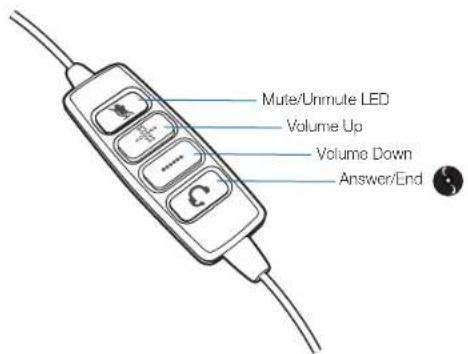
| Audio Controls | Volume up/down, mute, call answer/end button |
| Mute Indicator | LED on mute button |
| Wearing Style | Over-the-head, adjustable headband |
| Ear Cushions | Foam cushions |
| Compatibility | Softphones with Plantronics support |
| Safety Precautions | Avoid extended high-volume use to prevent hearing loss |
| Cleaning | Wipe with dry cloth; do not use liquids |
| Warranty | Refer to Plantronics support |
Frequently Asked Questions - 80299-03 PLANTRONICS
User questions about 80299-03 PLANTRONICS
0 question about this device. Answer the ones you know or ask your own.
Ask a new question about this device
Download the instructions for your Headphones in PDF format for free! Find your manual 80299-03 - PLANTRONICS and take your electronic device back in hand. On this page are published all the documents necessary for the use of your device. 80299-03 by PLANTRONICS.
USER MANUAL 80299-03 PLANTRONICS
natural_image
Black hard-bear headset with attached USB port and connector (no visible text or symbols)
Blackwire™ C210
Blackwire C220
USER GUIDE
Welcome
Welcome to the Plantronics family of headset products. Plantronics provides a wide range of products from mission-critical and business-critical applications to personal communications and entertainment. For additional information visit our web site at plantronics.com, where you can visit our 24/7 support, browse through our knowledge base, chat live or ask a question. We also feature a variety of installation tutorials to make set up quick and easy.
Please refer to the safety information found in the Quick Start Guide for important product safety information prior to installation or use of the product.
Table of Contents
| Registering your product online 2 |
| Technical assistance 2 |
| Package contents 3 |
| Features 3 |
| Powering on 4 |
| Installing Plantronics software 4 |
| Headset features 5 |
| Using the headset 6 |
| Media Manager 7 |
| Troubleshooting 8 |
Registering Your Product Online
Visit plantronics.com/productregistration to register your product online so that we can provide you with the best possible service and technical support.
Technical Assistance
Visit our web site at plantronics.com/support for technical support including frequently asked questions, compatibility and accessibility information. The Plantronics Technical Assistance Center (TAC) is also ready to assist you.
Package Contents
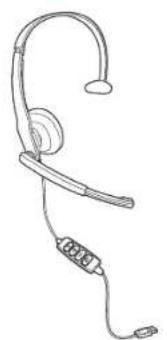
natural_image
Line drawing of a pair of earpieces with attached audio equipment (no text or symbols)Blackwire C210
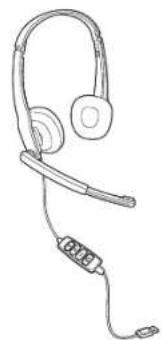
natural_image
Line drawing of a pair of headsets and earpieces with attached cables (no text or symbols)Blackwire C220
Features

I recommend that you install the Plantronics software. Though your headset will operate without it, the software is required in order to use the call answer/end function with your Unified Communications application from the inline control. Go to plantronics.com/support and click the Software Downloads tab. Follow the instructions to download and install the software.

WARNING Do not use headphones/headsets at high volumes for an extended period of time. Doing so can cause hearing loss. Always listen at moderate levels. See plantronics.com/healthandsafety for more information on headsets and hearing.
Powering On
Powering on the Blackwire C210 and C220
The USB headset is automatically powered on when inserted into the USB port of the computer.
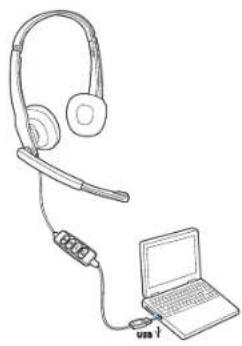
natural_image
Line drawing of a pair of headphones connected to a laptop (no text or symbols)Installing Plantronics software
For the ability to remotely detect and answer/end a call from your softphone application via the headset call control button install Plantronics Unified Runtime Engine provided with the Plantronics product or download from a convenient web site.
- If a Plantronics CD is provided, insert the CD and follow the installation instructions.
- Or, you may download the latest version of this software from the plantronics.com/software page.
- Your softphone may require you to choose which audio device you wish to use. Please refer to softphone documentation for details.
Configuration and status
The Plantronics Control Panel is included in a Typical Install option. Start the Plantronics Control Panel from the Windows Start Programs menu. The Plantronics Control Panel screen will let you view status, change device parameters, set preferences, etc.
Software Update Manager
All software for your Plantronics device can be remotely updated if and when updates are available. Start Plantronics Update Manager from Windows Start Programs menu to change settings such as automatic or manual check for updates.
Headset Features
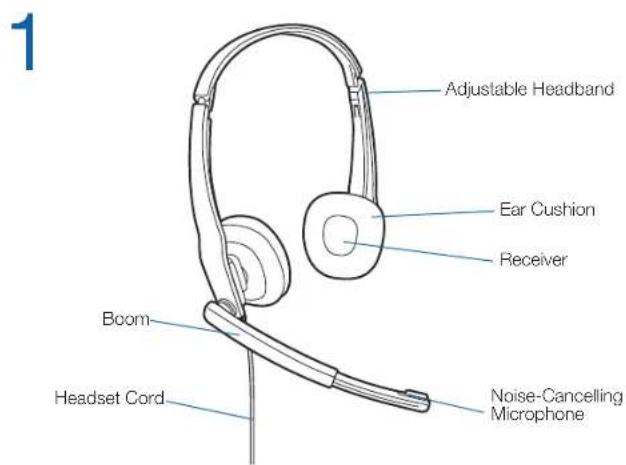
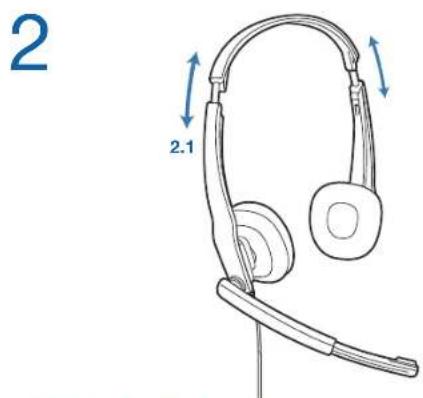
2. Adjust the Headband
2.1 Lengthen or shorten the band until it fits comfortably. The foam cushions should sit comfortably over the centre of your ears.
3
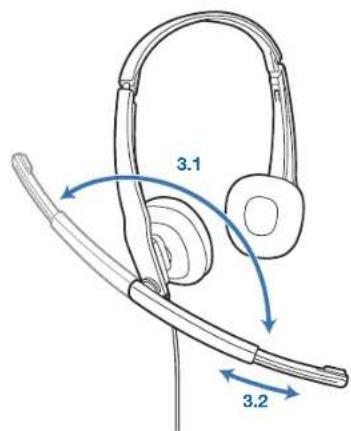
3. Adjust the Boom and Microphone
3.1 Rotate the boom so it is aligned with your mouth.
3.2 Shorten or lengthen the microphone so it is approximately two finger widths from the corner of your mouth.
Using Your Headset
Answering/Ending/Making Calls with Plantronics Software on Softphone
To make a call, simply dial the number via your softphone application.
To answer or end a call, press the answer/end button.
For softphones not compatible with Plantronics software Check the Plantronics softphone compatibility list at plantronics.com/software for the most current information. If your softphone is not currently supported by Plantronics software, remote detection and answer/end via the headset does not function. Pressing the call control button on the headset will not function; you must answer the call from the softphone.
Adjusting Volume
natural_image
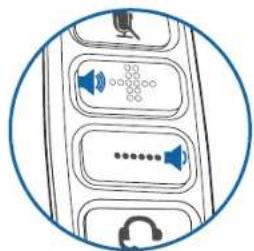
Diagram of a multi-level electronic device with speaker, audio, and ear components (no text or symbols)To increase listening volume, press the volume up (+) button. To decrease listening volume, press the volume down (-) button.
To adjust the listen or speak volume of the softphone, please refer to the softphone user documentation.
To adjust the speak volume of the audio device on the computer, use the Sound and Audio Device section on the Control Panel.
Muting a Call
natural_image
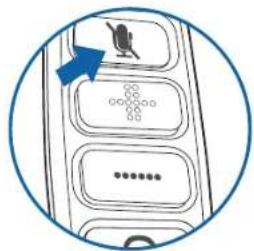
Diagram of a mobile phone keyboard layout with icons and a blue arrow pointing to the top panel (no text or symbols present)During a call, briefly press the mute button to mute the microphone. When muted, the Mute LED will be lit.
To unmute press the button again.
Media Manager
Plantronics software provides user selectable options to manage the output to your headset from supported media players when a call comes in and when it ends. The Media Player feature is in the Preferences tab of the Plantronics Control Panel. Select
Start Menu>Programs>Plantronics>Plantronics Control Panel.
Troubleshooting
| Problem Solution | |
| I cannot hear caller. | The USB headset is not set as the default audio device. Use the Audio settings in Windows under Sounds and Audio Devices to select "Blackwire C210/C220" as the audio device.Listening volume is too low. Press the volume up button on the headset. |
| Callers cannot hear me. | Headset is muted. Press the mute button on headset to unmute the microphone.Headset microphone boom aligned incorrectly. Align the headset boom with your mouth.The USB headset is not set as the default Voice device. Use the Voice settings in Windows under Sounds and Audio Devices to select "Blackwire C210/C220" as the voice device. |
| Sound in headset is distorted.I can hear echo in headset. | Lower the listen volume on your softphone until the distortion disappears.Adjust volume on headset. |
| The other headset I was using to listen to music does not work any more. | The USB headset will set itself as the default audio device in Windows. Use the Audio settings in Windows under Sounds and Audio Devices to change the device used for audio. |
| My headset stops responding to button presses. | When a PC goes into standby or hibernation, the USB headset no longer is powered on. Be sure your PC is in an active state. |
| My headset does not work with the headset I am using on my PC. (I cannot answer or disconnect from the headset call button). | Check compatibility list onplantronics.com/softwareto ensure your softphone is compatible for remote answer and disconnect.When a PC goes into standby or hibernation, the USB headset is no longer powered on. Be sure your PC is in an active state.Be sure Plantronics software is installed and running. |

Plantronics, Inc.
345 Encanal Street
Santa Cruz, CA 95060
United States
Tel: 800-769-4971
plantronics.com
For product support contact us at piantronics.com/support.
©2010 Plantronics, Inc. All rights reserved. Plantronics, the logo design, Blackwire, and Sound Innovation are trademarks or registered trademarks of Plantronics, Inc. Windows is a registered trademark of Microsoft Corporation in the United States and other countries. All other trademarks are the property of their respective owners.
Patents US D540777; D540778
82874-16(03.10)


- Welcome
- Registering Your Product Online
- Technical Assistance
- Powering On
- Powering on the Blackwire C210 and C220
- Installing Plantronics software
- Configuration and status
- Software Update Manager
- Headset Features
- Adjust the Headband
- Adjust the Boom and Microphone
- Using Your Headset
- Answering/Ending/Making Calls with Plantronics Software on Softphone
- Media Manager
Brand : PLANTRONICS
Model : 80299-03
Category : Headphones