
38659-01 - Headphones PLANTRONICS - Free user manual and instructions
Find the device manual for free 38659-01 PLANTRONICS in PDF.


| Product Type | Wireless Headset System |
| Brand | Plantronics |
| Model | 38659-01 (Voyager PRO UC WG200/B) |
| Components | Headset (WH200/B) + USB Adapter (BUA-200) + AC Charger |
| Connectivity | Bluetooth (headset to USB adapter or mobile phone); USB (adapter to PC) |
| Supported OS | Windows XP SP3, Windows Vista SP1 or later |
| Bluetooth Profiles | Headset, Hands-Free |
| Battery Type | Rechargeable (Lithium-ion) |
| Charging Time | Approximately 1.5 hours for full charge; 30 minutes for initial charge |
| Talk Time | Up to 6 hours (typical) |
| Standby Time | Up to 7 days (typical) |
| Wireless Range | Up to 30 ft (10 m) typical Bluetooth range |
| Audio Bandwidth | Wideband (default) or Narrowband (selectable via PerSono Suite) |
| Microphone | Boom microphone with noise cancellation |
| Eartip Options | Pre-installed medium soft gel; includes small and large soft gel eartips and foam eartip covers |
| Fit Adjustment | Convertible for left or right ear; adjustable earloop |
| Software | PerSono Suite (customize settings, manage calls, update firmware) |
| Controls | Call control button, volume +/-, power button |
| Indicator Lights | Headset: blue (power on, connected), red (charging, battery status); USB adapter: blue (connected), red (power on, not paired), flashing (pairing/call) |
| Voice Prompts | English: Battery Low, Recharge Battery, Mute On/Off |
| Weight (Headset) | Approximately 20 g (estimated) |
| Dimensions (Headset) | Approximately 1.5 x 0.8 x 0.6 in (estimated) |
| Certifications | Microsoft Office Communicator Certified, Bluetooth SIG |
| Warranty | Standard limited warranty (contact Plantronics support) |
Frequently Asked Questions - 38659-01 PLANTRONICS
User questions about 38659-01 PLANTRONICS
0 question about this device. Answer the ones you know or ask your own.
Ask a new question about this device
Download the instructions for your Headphones in PDF format for free! Find your manual 38659-01 - PLANTRONICS and take your electronic device back in hand. On this page are published all the documents necessary for the use of your device. 38659-01 by PLANTRONICS.
USER MANUAL 38659-01 PLANTRONICS
Voyager® PRO UC Wireless Headset System WG200/B
User Guide
Welcome
Congratulations on purchasing your new Plantronics product. This user guide contains instructions for setting up and using your Voyager PRO UC WG200/B (BUA-200 USB Adapter + WH200/B (Voyager® PRO) Headset) Wireless Headset System.
Please refer to the separate safety instructions for important product safety information prior to installation or use of the product.
Contents
1 Package Contents and Features ....4
1.1 USB Adapter....4
1.2 Headset 4
2 Set Up 6
2.1 Connecting USB Adapter to PC 6
2.2 Charging Headset 6
2.3 Fitting Headset 6
3 Test Call 8
3.1 Making a Test Call....8
4 System Information 9
Muting Headset During a Call 9
USB Adapter Indicator Light 9
Headset Controls and Indicators 9
Checking Battery Status.... 10
Automatic Battery Status Alerts 10
Out of Range Warning 10
Pairing Headset to USB Adapter 10
5 Using Your Headset with Your Bluetooth Mobile Phone ....11
Pairing Your Headset to Your Bluetooth Mobile Phone.... 11
Placing, Answering and Ending Calls with Your Headset and Bluetooth Mobile Phone ..... 11
6 PerSono ^® Suite Software .....12
Softphone Support 12
Battery Life 12
Settings Screen – Headset and USB Adapter ...... 13
Help for USB Adapter Settings 13
PC Panel Screen 14
Advanced Settings 14
Support Screen.... 14
Updates 14
7 Troubleshooting and Common Questions ....15
1 Package Contents and Features
1.1 Voyager PRO UC USB Adapter and Charger
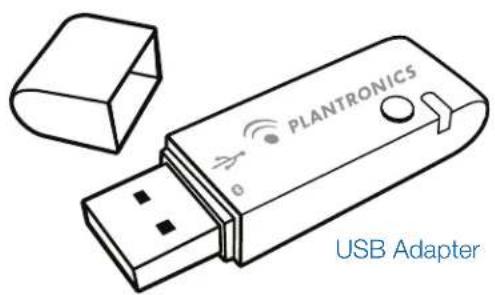
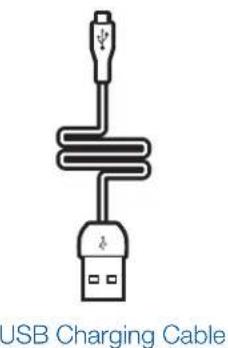
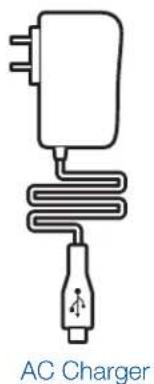

natural_image
Circular object with internal curved lines and a central dot, resembling a CD or DVD (no text or symbols)CD includes:
- PerSono® Suite Software
- Complete User Guide
1.2 Voyager PRO UC WH200/B Headset
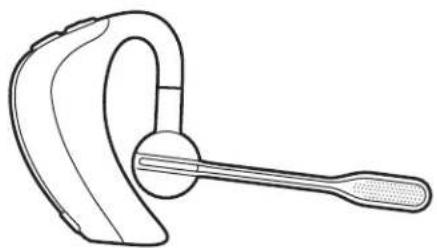
natural_image
Line drawing of a hand holding a stylus (no text or symbols)Headset with Pre-Installed Medium Eartip

Soft Gel Eartips (Small & Large) and Foam Eartip Covers
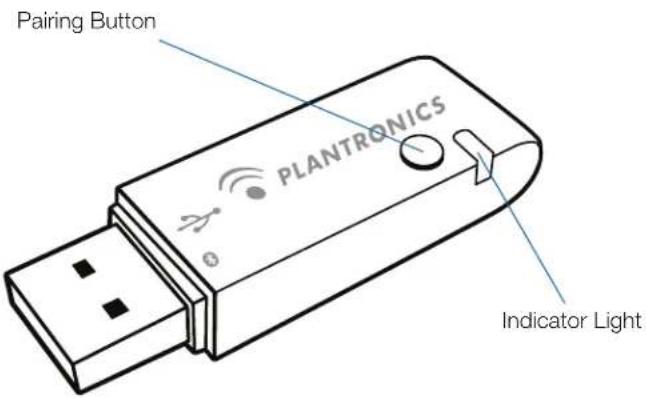
Voyager PRO UC USB Adapter Features
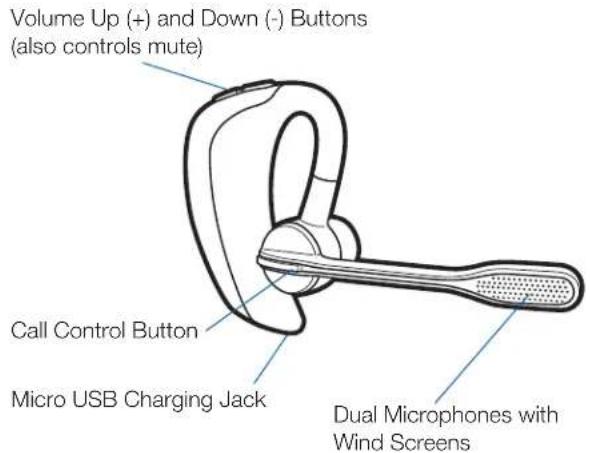
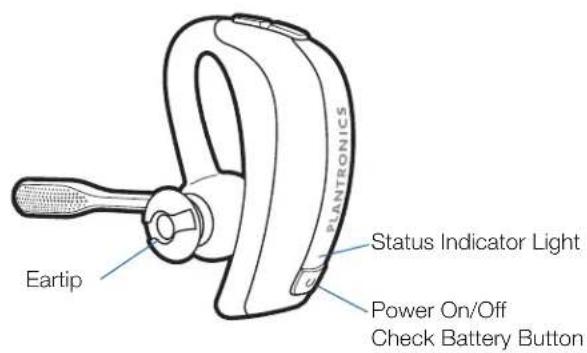
Voyager PRO UC WH200/B Headset Features
2 Set Up
2.1 Connecting USB Adapter to PC
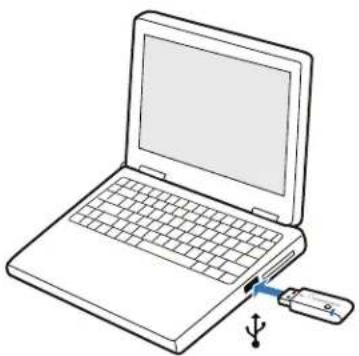
1 Insert the USB adapter into USB Port on PC. The indicator light on the USB adapter will be solid red to indicate the USB adapter is powered on.
natural_image
Line drawing of a laptop with a USB flash drive inserted at the bottom (no text or symbols)IMPORTANT NOTE For best performance it is recommended that Windows is updated with Service Pack levels listed below:
Microsoft Windows® XP-Service Pack 3 (SP3) or later Microsoft Windows Vista®-Service Pack 1 (SP1) or later
2.2 Charging Headset
1 Connect the AC charger to outlet and headset.
The indicator light on the headset will be solid red to indicate that the headset battery is charging.
2 Charge for at least 30 minutes prior to the first use.
A full charge takes 1.5 hours.
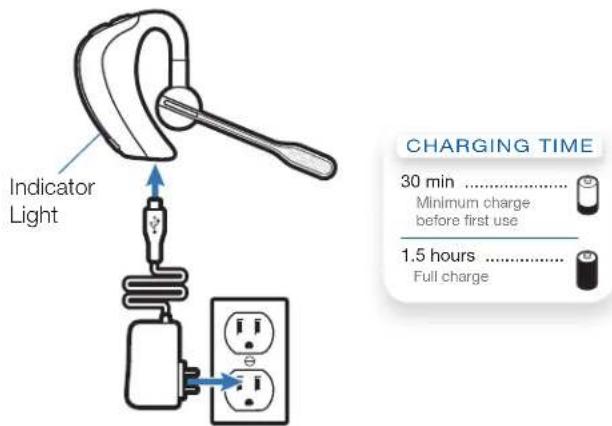
NOTE Always charge at near room temperatures; never charge battery at temperatures below 0°C (32°F) or above 40°C (104°F).
NOTE The USB charging cable can also be used to charge the headset. To successfully charge your headset with the USB cable the PC must be on and in active state (not standby). The charging time will vary according to the number of other devices drawing power from the PC's USB port(s).
2.3 Fitting Headset
The headset comes configured for the right ear. Ensure a proper fit for optimal sound clarity and comfort.
1 Guide the earloop behind your ear and place the headset so that the speaker and eartip rest comfortably in your ear.
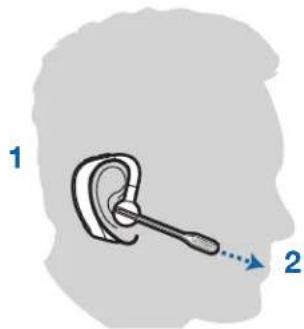
2 For optimal voice clarity, pivot the boom up or down to point the microphones toward the corner of your mouth.
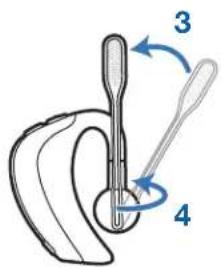
The headset can be worn on either ear by adjusting the microphone boom. To convert for wearing on the left ear:
3 Pivot the boom into an upright position.
4 Rotate the boom and speaker to the other side of the headset.
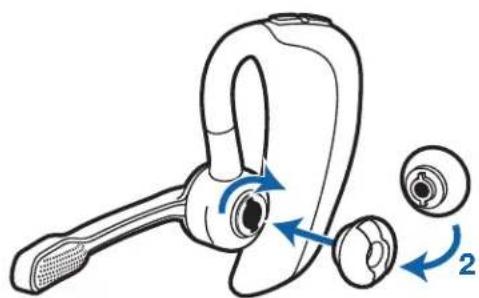
Changing Eartips
The headset comes with the medium eartip installed. You can replace it with the optional small or large eartip provided.
1 To remove the eartip, grip the eartip with your thumb and forefinger. Gently push it into the speaker housing and rotate it a quarter turn to the left. Gently lift the eartip away from the headpiece.
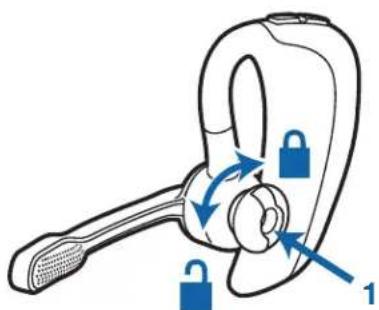
2 To attach a new eartip, align the tabs on the eartip with the slots on the speaker housing. Gently push the eartip into housing while turning it a quarter turn to the right. The eartip will stop rotating when it is attached.
natural_image
Diagram of a smart ear with labeled parts and directional arrows indicating motion (no text or symbols)NOTE The optional foam eartip cover can be used for a more comfortable and stable fit.
3 Test Call
3.1 Making a Test Call
1 Power the headset on by pressing the Power On/Off button for two seconds. The headset indicator light will be remain solid blue for two seconds to confirm that the headset is powered on.
NOTE The USB adapter indicator light will remain solid blue when the headset is powered on and paired to the headset. The indicator light will remain solid red when the headset is powered on but not paired to the headset.
2 With your headset on, press the call control button on the headset.
3 Set the headset and microphone volume to a comfortable level using your softphone or unified communication (UC) application set up.
4 Place a test call using your softphone or UC application.
5 Adjust the receive and listen volume to comfortable levels using the volume control in your softphone or UC application audio set up.
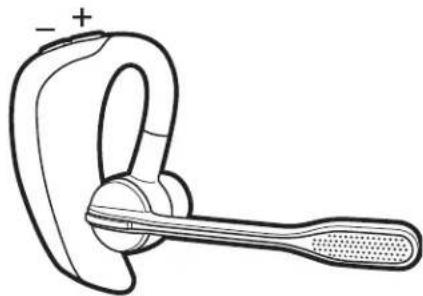
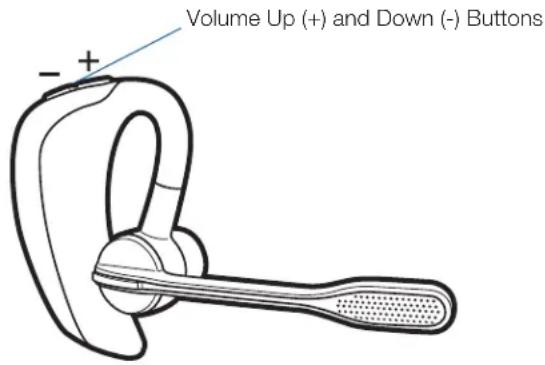
6 You can also fine tune the listening volume on the headset by pressing the volume up button [+] to increase the volume and the volume down button [-] to decrease the volume.
natural_image
Line drawing of a hand holding a headset with a textured handle (no text or symbols)7 To end the test call, press the call control button on the headset.
NOTE Listening and speaking volume levels can also be adjusted using the PC "Sounds and Audio Devices" (Windows XP) or the "Sound Option" (Windows Vista) from your PC Control Panel.

For your safety, do not use headset at high volumes for extended periods of time. Doing so can cause hearing loss. Always listen at moderate levels. For more information on headsets and hearing visit: www.plantronics.com/healthandsafety.
4 System Information
Muting Headset During a Call
To mute a call, press and hold the volume + and - buttons simultaneously until you hear a status prompt. The sequence will start with low-high tones plus a voice prompt "Mute On" (in English). The low-high tones repeat after 15 minutes to advise mute is activated. The full sequence repeats every 30 minutes until mute is de-activated.
To unmute a call, press and hold the volume + and - buttons simultaneously until you hear high-low tones followed by a voice prompt "Mute Off" (in English).
USB Adapter Indicator Light
| USB Adapter Status Indicator Light | |
| Headset in talk mode | Flashes blue |
| Adapter and headset pairing Flashes red and blue | |
| Connected, no activity Solid blue | |
| Powered on - headset not paired Solid red | |
Headset Controls and Indicators
| Action Indicator Light Tone | |||
| Power on/off Press power/off button 2 seconds | On: solid blue for 2 secondsOff: solid red for 2 seconds | On: ascending toneOff: descending tone | |
| Check if headset is powered on Short press call control button or volume + or - button | Short blue flash None | ||
| Incoming call None Flashes blue Three single low tones | |||
| Call answer/end Short press call control button Short blue flash Single low tone followed by low- | low-high tones | ||
| Adjust the volume (during a call) | Short press volume + or - button | Single blue flash Tone at each change in volume.Double tone when min/max volume level reached | |
| Call indicator light (enable/disable) | With headset powered on, press power, volume + and - buttons simultaneously for 1 second | Turn indicator on: blue glow increases for 2 secondsTurn indicator off: blue glow fades for 2 seconds | Single low tone |
| Reconnect after leaving range for more than 30 seconds | Short press call control button Single blue flash Single low tone | ||
Checking Battery Status
To check the battery status, the headset must be powered on. Short press the power button. The indicator light flashes red to show the battery charge level as shown below.
Charge Indicator Lights
| Red Flashes | Battery Level | |
| * More than 2/3 full | ||
| ** | 1/3 to 2/3 full | |
| *** | Less than 1/3 full | |
Automatic Battery Status Alerts
When the battery charge is very low, a tone and voice prompt in English will automatically occur. See below.
Low Battery Warnings
| Battery Level Tone Voice Prompt | ||
| 30 minutes of talk time remaining (this alert only occurs during an active call) | Double high tone every 15 minutes | “Battery Low” repeats every 30 minutes |
| 10 minutes of talk time remaining | Triple high tone every 30 seconds | “Recharge Battery” repeats every 3 minutes |
Out of Range Warning
If you are on a call you will hear the audio degrade as you move out of range.
If you stay out of range, active calls will be suspended. Calls will be re-established upon walking back into range.
Pairing Headset to USB Adapter
The headset and USB adapter are supplied paired to each other. However, if you wish to use a replacement headset with your existing USB adapter, the units can be paired to each other by the following method:
1 Ensure your replacement headset is fully charged.
2 Press and hold the power button until the indicator light flashes red and blue. The headset is now in pairing mode.
NOTE If you don't see the red and blue flash, press and hold the power button to turn your headset off. Then press and hold the power button again until you see the red and blue flash.
3 Place the USB adapter in pairing mode by pressing and holding the pairing button on the adapter for two seconds. The pairing light will flash red and blue.
4 When the pairing light on the USB adapter goes solid blue, the headset and the USB adapter are paired.
NOTE Take caution pairing the USB adapter. Do not press hard. Please "press" with both fingers rather than push on the USB adapter to avoid damage to the USB adapter or USB port.
5 Using Your Headset with your Bluetooth® Mobile Phone
Pairing your Headset to your Bluetooth Mobile Phone
1 Turn on your mobile phone and enable Bluetooth. For most phones select Settings>Tools>Connections>Bluetooth>On. See your phones user guide for more information.
2 Press and hold the power button on the headset until the indicator light flashes red and blue. The headset is now in pairing mode.
NOTE If you don't see the red and blue flash, press and hold the power button to turn your headset off. Then press and hold the power button again until you see the red and blue flash.
The headset will stay in pairing mode for three minutes.
3 Use the commands on your phone to locate the headset. For most phones select Settings>Tools>Connections>BluetoothSaturday>PROPlantronics. See your phones user guide for more information.
4 When prompted for a passkey, enter 0000 (4 zeros). The headset indicator light will flash blue when paired successfully.
NOTE To pair your headset with an additional phone, turn on the phone then repeat steps 2 through 4.
NOTE For detailed pairing instructions for popular mobile phones visit: www.plantronics.com/easytopair.
Placing, Answering, and Ending Calls with your Headset and Bluetooth Mobile Phone
| To place a call Dial number on your mobile phone keypad. | |
| To answer a call Short press call control button. | |
| To answer a call when already on an active UC application call | Short press the call control button to end the UC application call, then press again to answer your mobile phone call. |
| To end a call Short press call control button. | |
| Redial last number* | Double press call control button. There will be a double low tone on each press. A final tone indicates the last number has been redialed. |
| Activate voice dialing* | Press and hold call control button for two seconds. First tone on key press start followed by a second tone which indicates voice dial is activated. |
| Reject a call Press call control button for one second until you a single low tone. | |
| Missed call | Tap any button to clear the indicator light. The indicator light will triple flash purple every 10 seconds for 5 minutes or until cleared. |
| Transfer a call from your mobile phone to your headset | While on a call, press the call control button for one second until you hear a single tone followed by double low tones. |
| Transfer a call from your headset to your mobile phone | While on a call, press the call control button for one second until you hear a single tone followed by double low tones. |
* Only available on mobile phones and carriers that support these features.
6 PerSono Suite Software
It is highly recommended that you install the PerSono Suite software. Though your Voyager PRO UC system will operate without the software running it will limit the system's capabilities.
PerSono Suite software allows you to do the following with your Voyager PRO UC system:
- Answer/end calls from the PC remotely with the headset (requires use of supported softphone)
- Customize your headset and adapter settings to your personal preferences
• Automatically manage your PC multimedia so you never miss a call - Quickly access links to product support and software/firmware upgrade information
Softphone Support
For a list softphones supported by PerSono Suite refer to www.plantronics.com/SoftphoneCompatibility PerSono Suite software supports all the softphones on the list with no additional steps by the user except Skype™.
To allow Skype to be a supported softphone in PerSono Suite please follow these steps:
1 Ensure PerSono Suite software is running on your PC. You will see a headset icon in the lower right portion of the PC tray bar when PerSono Suite software is running.

2 If Skype is running on your PC, Skype will notify you of the event that "PerSonoSuite.exe wants to use Skype". Go to the "new event" tab located in the upper right of the Skype window and click on the red flag. You then will need to click on the "PerSonoSuite.exe" link to be taken to the "Manage API Access Control" screen.
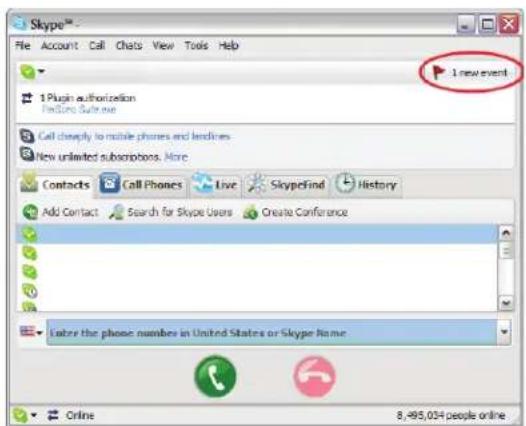
3 The "Manage API Access Control" screen will pop up stating that "Another program is trying to access Skype". The name of the program will appear as "PerSonoSuite.exe" with the publisher "Plantronics, Inc." You must select "Allow this program to use Skype" and click OK.
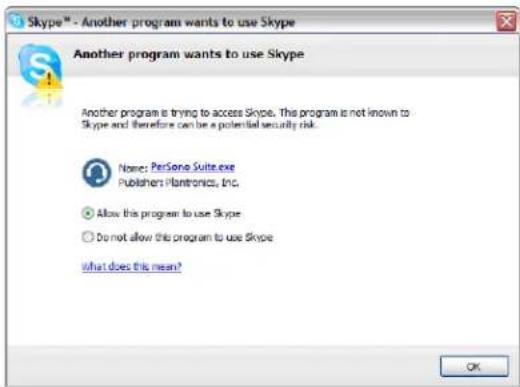
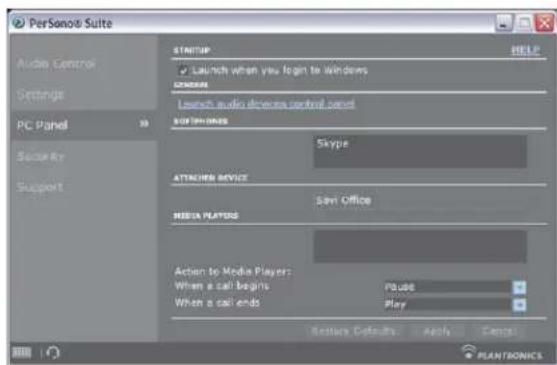
4 To confirm that PerSono Suite is now supporting Skype, go to the "PC Panel" tab in PerSono Suite and ensure that Skype is listed under "Softphones".
Battery Life
At the lower left corner of the screen (and for all software screens), you will see one of the following icons indicating the approximate charge left in the headset battery.





100% 75% 50% 25% Less than 5 Mins
Settings Screen – Headset and USB Adapter
The Settings Screen allows you to customize the adapter and headset to your preference. The Voyager PRO UC System is shipped with the default settings and can be changed as described in the Settings column below.
NOTE Some parameters may appear as grayed out. PerSono Suite automatically grays out parameters that do not apply to a particular Plantronics device.
Settings – Headset
| Feature Settings Default |
| Mute tone On/off On |
| Ring tone – PC Sound 1/sound 2/sound 3 Sound 2 |
| Ring tone volume – PC On/off On |
| Ring Tone - Mobile Sound 1/sound 2/sound 3 Sound 1 |
| Ring Tone Volume - Mobile On/off On |
| Second Inbound Call Ring continuously/ring once/ignore Ring continuously |
Settings – USB Adapter
| Feature Settings Default | ||
| Audio bandwidth – PC Wideband/narrowband | Wideband | |
| Ring both headset/PC | On/Off | On |
Help for USB Adapter Settings
| Audio Bandwidth | The system will support both narrowband and wideband audio from the PC. Wideband audio delivers heightened speech clarity and life-like fidelity. However, wideband audio consumes more battery power and has more stringent access criteria which reduces the number of systems that can be deployed in a small area. All PCs support wideband audio. When switching between narrowband and wideband audio, you must re-establish the audio link for the changes to take effect. | Wideband PC |
PC Panel Screen
- Choose whether you want PerSono Suite software to launch when you login to Windows.
• See a list of supported softphones running on your PC. - See which Plantronics device is attached to your PC and working with PerSono Suite software.
- Customize how you want the PerSono Suite software to manage your multimedia when a call begins/ends.
Advanced Settings
Microsoft Office Communicator Dial-tone Enabled
If this feature is set to ON, when a PC radio link is established, Microsoft Office Communicator will assume the user is trying to place a VOIP call and provide a dial tone.
If this feature is set to OFF, when a PC radio link is established, Microsoft Office Communicator will sit idle.
"Microsoft Office Communicator Dial-tone Enabled" can be set to ON or OFF.
Microsoft Office Communicator Certified product:
Default Setting = ON
Standard product: Default Setting = OFF
Audio Sensing Enabled
Audio Sensing is a special feature supported by Plantronics wireless devices that can detect audio signal at the USB port and automatically establish a PC radio link between the base and wireless headset without the user having to press the PC call control button. If the parameter "Microsoft Office Communicator Dial-tone Enabled" is set to ON, every time the user presses the PC call control button the Microsoft Office Communicator dial tone will be heard. However, the user may have pressed the PC call control button to listen to music, etc., and does not want to hear the dial-tone. In this case, if the user sets the "Audio Sensing Enabled" parameter to "ON", the radio link will be established automatically when any PC audio is detected at the USB port, thus eliminating the need for the user to press the PC call control button.
"Audio Sensing Enabled" can be set to ON or OFF.
Microsoft Office Communicator Certified product: Default Setting = ON
Standard product: Default Setting = OFF
Support Screen
The support screen provides on-line access to this printable user guide, frequently asked questions, how to contact Plantronics, and software upgrade information. The current version of software and firmware currently running on your system is also shown here.
Updates
All the required software and firmware for your Plantronics device can be remotely updated if and when updates are available. You can control how frequently the system will check for available updates. When updates are available, you can view all pending updates and decide when to download and install any one of them.
The particular version of PerSono Suite software and headset/base firmware running on your system is always reflected in the VERSIONS fields.
Notify me when updates are available: By enabling this check box, you will activate a periodic automatic check for available software and firmware updates.
When this parameter is enabled, automatic check for updates will be activated and the frequency field will be highlighted allowing you to choose the frequency of checking for updates, e.g., once every 3 months, once every month or once every week.
When this parameter is disabled, automatic check for software/firmware updates is disabled.
Check For Updates: You can choose to check for available software/firmware updates at any time by clicking on the Check For Updates button.
Available Updates: Following an automatic or manual check for updates, this field will be populated with any applicable software and firmware updates.
7 Troubleshooting and Common Questions
Troubleshooting — UC Application Usage
| My headset doesn’t work with my UC application. | Make sure your headset is charged.Make sure your headset is on and connected.Press the call control button on your headset.Fine tune the listening volume with the call control button.If the volume is still too low, adjust the listening volume on the PC using your UC application. |
| The sound is distorted or I hear an echo in the headset. | Reduce speaking volume on the PC using your UC application.Point microphone towards your chin.If the distortion is still present, lower the volume using the call control button. |
| While on my UC application call I want to accept a call from my mobile phone. | Press the call control button for less than 1 second (this will disconnect the UC application call.)Press the call control button again to connect with your mobile phone. |
| Reconnecting the Bluetooth link between your headset and USB adapter. | If you turn on the headset beyond Bluetooth range, and then return within it, you may need to reestablish the Bluetooth link by pressing the USB adapter button. |
| Talk time performance is significantly degraded even after a full recharge. | Battery is wearing out. Contact www.plantronics.com/support for factory service information. |
Troubleshooting — Mobile Phone Usage
| My headset does not work with my phone. | Make sure the headset is fully charged.Make sure headset is paired with the Bluetooth phone you are trying to use.See “Pairing Your Headset to your Bluetooth Mobile Phone” on page 11. |
| My phone did not locate the headset. | Turn both your phone and headset off and on, and then repeat the pairing process on page 11. |
| I could not enter my PIN code. | Turn both your phone and headset off and on, and then repeat the pairing process on page 11.Your PIN code, or Passkey, is 0000 (4 zeros). |
| I cannot hear caller/dial tone. | The headset is not turned on. Press the call control button for approximately 2 seconds until you hear a tone or see the indicator glow blue.Your headset is out of range. Move the headset closer to the Bluetooth phone.Your headset battery is drained. Charge your battery. See “Charging Headset” on page 6.The listening volume is too low. Incremental tapping of the call control button will adjust volume.Make sure that the headset fits properly. See “Fitting Headset” on page 6. |
| Audio quality is poor. | Your headset is out of range. Move the headset closer to the Bluetooth phone. |
| Callers cannot hear me. | Make sure that headset is sitting correctly in ear with boom pointing towards corner of mouth.See “Fitting Headset” on page 6. |
| My headset falls off my ear. | Make sure that headset is sitting correctly on your ear with boom pointing towards corner of mouth.See “Fitting Headset” on page 6. |
Plantronics, Inc.
345 Encinal Street
Santa Cruz, CA 95060
United States
www.plantronics.com
For product support contact us at www.plantronics.com/support or call 1-800-544-4660.
© 2009 Plantronics, Inc. All rights reserved. Plantronics, the logo design, PerSono, Plantronics Voyager, and Sound Innovation are trademarks or registered trademarks of Plantronics, Inc. Microsoft, Windows and Vista are trademarks or registered trademarks of Microsoft Corporation. Skype is a trademark of Skype Limited or other related Skype companies. The Bluetooth word mark is owned by Bluetooth SIG, Inc. and any use of the mark by Plantronics is under license.
Patents US 5,210,791; Patents Pending.
81979-41 (10.09)


- Voyager® PRO UC Wireless Headset System WG200/B
- Welcome
- Contents
- Package Contents and Features ....4
- Set Up 6
- Test Call 8
- System Information 9
- Using Your Headset with Your Bluetooth Mobile Phone ....11
- PerSono ® Suite Software .....12
- Troubleshooting and Common Questions ....15
- Package Contents and Features
- Voyager PRO UC USB Adapter and Charger
- Voyager PRO UC WH200/B Headset
- Voyager PRO UC USB Adapter Features
- Voyager PRO UC WH200/B Headset Features
- Set Up
- Connecting USB Adapter to PC
- Charging Headset
- Fitting Headset
- Changing Eartips
- Test Call
- Making a Test Call
- System Information
- Muting Headset During a Call
- Checking Battery Status
- Automatic Battery Status Alerts
- Out of Range Warning
- Pairing Headset to USB Adapter
- Using Your Headset with your Bluetooth® Mobile Phone
- Pairing your Headset to your Bluetooth Mobile Phone
- PerSono Suite Software
- Softphone Support
- Battery Life
- Settings Screen – Headset and USB Adapter
- PC Panel Screen
- Advanced Settings
- Microsoft Office Communicator Dial-tone Enabled
- Audio Sensing Enabled
- Support Screen
- Updates
- Troubleshooting and Common Questions
- Troubleshooting — UC Application Usage
Brand : PLANTRONICS
Model : 38659-01
Category : Headphones