
D261N - Headphones PLANTRONICS - Free user manual and instructions
Find the device manual for free D261N PLANTRONICS in PDF.


| Product Type | Wired over-the-head headset |
| Model | D261N |
| Brand | Plantronics |
| Connectivity | QHD (Quick Disconnect) or 3.5 mm jack |
| Microphone | Noise-canceling microphone |
| Speaker Type | Monaural (single earpiece) |
| Frequency Response | 100 Hz – 6.5 kHz |
| Impedance | 150 ohms |
| Weight | Approx. 112 g |
| Cable Length | 2.2 m |
| Wearing Style | Over-the-head with adjustable headband |
| Compatibility | Analog desk phones, PCs, and mobile devices |
| Controls | Inline volume control and mute switch |
| Warranty | 2 years limited warranty |
| Cleaning | Wipe with damp cloth; do not use solvents |
| Storage Temperature | -10°C to 55°C |
| Operating Temperature | 0°C to 40°C |
| Regulatory Compliance | FCC, CE, RoHS |
Frequently Asked Questions - D261N PLANTRONICS
User questions about D261N PLANTRONICS
0 question about this device. Answer the ones you know or ask your own.
Ask a new question about this device
Download the instructions for your Headphones in PDF format for free! Find your manual D261N - PLANTRONICS and take your electronic device back in hand. On this page are published all the documents necessary for the use of your device. D261N by PLANTRONICS.
USER MANUAL D261N PLANTRONICS
natural_image
Black headset with attached audio jack and USB cable, no visible text or symbolsPLANTRONICS
DA45 ^TM
D261N ^TM STEREO/DA45 BUNDLE
D261N-USB STEREO
WELCOME
Welcome to the Plantronics family of headset products. Plantronics provides a wide range of products from mission-critical and business-critical applications to personal communications and entertainment. For additional information visit our web site at www.plantronics.com where you can visit our 24/7 support, browse through our knowledge base, chat live or ask a question. We also feature a variety of installation tutorials to make set up quick and easy.
TABLE OF CONTENTS
Register your Product Online 2
Technical Assistance 2
Package Contents 3
Features 4
Powering USB Adapter 4
Installing PerSonoCall® Software 5
Wearing the Headset 6
Using the Headset 8
Troubleshooting 9
Warranty 10
REGISTER YOUR PRODUCT ONLINE
Visit www.plantronics.com/productregistration to register your product online so we can provide you with the best possible service and technical support.
TECHNICAL ASSISTANCE
Visit our Web site at www.plantronics.com/support for technical support including frequently asked questions, compatibility and accessibility information. The Plantronics Technical Assistance Center (TAC) is also ready to assist you. Dial [800] 544-4660 ext. 5538
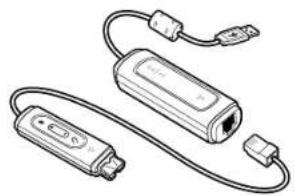
PACKAGE CONTENTS DA45
DA45 and inline control
PerSonoCall software CD*
natural_image
Illustration of two connected devices with cables and connectors (no text or symbols)
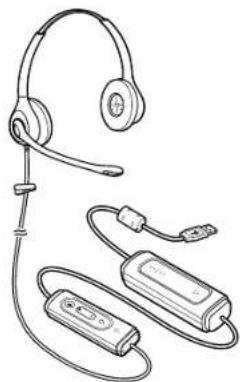
PACKAGE CONTENTS D26IN STEREO/DA45 BUNDLE D26IN -USB STEREO
D261N-USB Stereo and inline control
PerSonoCall software CD*
natural_image
Line drawing of a headset with attached audio equipment (no text or symbols)
FEATURES
WARNING: Do not use headphones/headsets at high volumes for an extended period of time. Doing so can cause hearing loss. Always listen at moderate levels. See www.plantronics.com/healthandsafety for more information on headsets and hearing.
POWERING
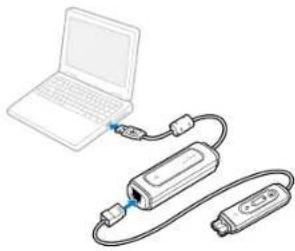
Powering USB Adapter
natural_image
Illustration of a laptop connected to two electronic devices (no text or symbols visible)The USB adapter is automatically powered on upon inserting into the USB port of the computer.
INSTALLING PERSONOCALL® SOFTWARE
Plantronics PerSonoCall software provides the link between your headset and the softphone application on your computer. PerSonoCall software provides the ability to remotely detect and answer/end a call from your softphone application via the headset call control button.
- With the CD inserted, go to the PerSonoCall main screen and click on "Install the PerSonoCall Software."
- Your softphone may require you to choose which audio device you wish to use. Please refer to softphone documentation for details.
NOTE: When the USB adapter is installed, it becomes the default audio device in your computer. You can set preferences manually in the Windows® operating system through the Sounds and Audio Devices option in the Control Panel.
NOTE: Once installed we recommend that you set PerSonoCall to launch whenever the Windows operating system starts.
System Tray Icons
After installing the software, one of the two system tray icons will appear in the tray bar at the bottom of your screen showing status of headset communication with PerSonoCall.

: No headset detected
: Headset detected
Configuration and status

: Right click on the headset system tray icon and choose "Options". This will bring up the PerSonoCall Basic Options and Current Status Screens.
Refer to online application help for explanation details on the PerSonoCall software.
WEARING THE HEADSET
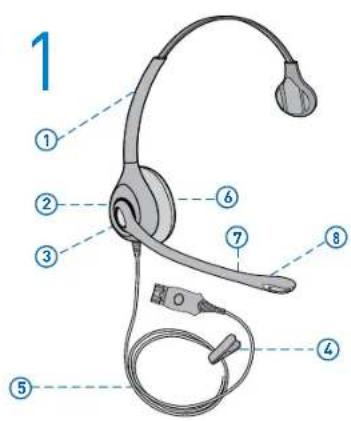
1. Identify the Components
① Adjustable Headband
② Receiver
③ Click Stop Turret
④ Clothing Clip
⑤ Headset Cord
⑥ Ear Cushion
⑦ Boom
⑧ Quick Disconnect™ Connector
⑨ Noise-Canceling Microphone
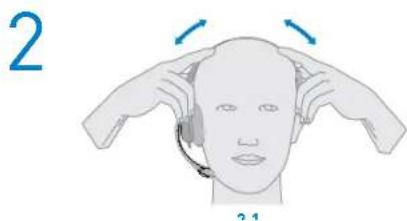
2. Adjust the Headband
To adjust the headband, lengthen or shorten the band until it fits comfortably. The clickstop feature keeps the headband securely adjusted.
Position the headset receivers so that the foamcushions sit comfortably over the center of your ears.
2.1 Adjust to fit.
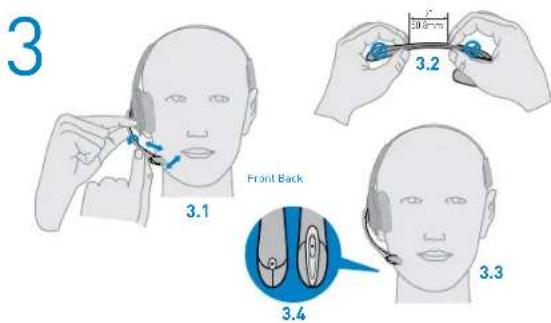
3. Adjust the Mouthpiece
3.1 Hold the receiver securely against your ear with one hand.
With your other hand, adjust the clickstop turret and the microphone so that the tip sits two finger-widths from the corner of your mouth. (To prevent breath noise, avoid putting the microphone in front of your mouth.)
3.2 Carefully bend and shape the boom with both hands as shown. Avoid bending or twisting the boom near the microphone or earpiece.
natural_image
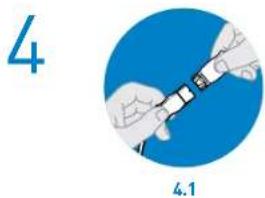
Illustration of hands installing a cable or connector on a blue circular background (no text or symbols)4. Connect Headset
Quick Disconnect™ Connector (not available on D261N USB)
This feature allows you to place a call on hold and move away from the phone without removing the headset. When you separate the Quick Disconnect, you place an ongoing conversation on hold.
4.1 Before using your headset, join the Quick Disconnect to the mating connector of the modular adapter cable.
To put your call on hold, grasp Quick Disconnect, as shown, and pull straight apart. To resume your conversation, reconnect the halves.
USING YOUR HEADSET
Answering/Ending/Making Calls with PerSonoCall on Softphone
To make a call, simply dial the number via your softphone application.
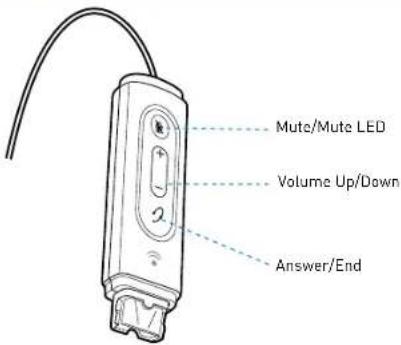
To answer or end a call, press the answer/end button.
For Softphones Not Compatible with PerSonoCall
Check the PerSonoCall compatibility list at www.plantronics.com/personocall for the most current information on softphone compatibility.
If your softphone is not currently supported by PerSonoCall, remote detection and answer/end via the headset does not function. Pressing the call control button on the headset will not function; you must answer the call from the softphone.
Putting a call on hold
If your softphone supports this feature, holding down the answer/end button for 2 seconds will place the call on hold. Refer to your phone's user guide for additional features available while on hold. Pressing the answer/end button again will take the call off hold.
Adjusting Volume
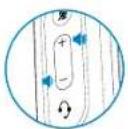
To increase listening volume, press the upper end [+] of the volume button. To decrease listening volume, press the lower end [-].
To adjust the listen or speak volume of the softphone, please refer to the softphone user documentation.
To adjust the listen or speak volume of the audio device on the computer, use the Sound and Audio Device section on the control panel.
Muting a Call
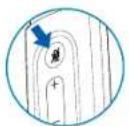
During a call, briefly press the mute button to mute the microphone. When muted, the Mute LED will be lit.
To unmute press the button again.
Smart Button
PerSonoCall allows you to choose an application to launch automatically using the Smart Button feature.
Go to options in PerSonoCall, check the Smart Button box on the Basic Option tab and browse to choose the application you want to launch. Pressing the Mute Button for 2 seconds will automatically launch that application.
NOTE: Mute is not activated if the button is held for more than 2 seconds.
TROUBLESHOOTING
Problem Solution
| My headset does not work with the DA45 I am using on my PC. (I cannot answer or disconnect from the headset call button). | · Check compatibility list on www.plantronics.com/personocall to ensure your softphone is compatible for remote answer and disconnect· When a PC goes into standby or hibernation, the USB adapter is no longer powered on. Be sure your PC is in an active state.· Be sure PerSonoCall software is installed and running. |
| I cannot hear caller. | · The USB adapter is not set as the default audio device. Use the Audio settings in Windows under Sounds and Audio Devices to select "DA45 Adapter" as the audio device.· Listening volume is too low. Press the volume up button on the headset. |
| Callers cannot hear me. | · Headset is muted. Press the mute button on headset to unmute the microphone.· Headset microphone boom aligned incorrectly. Align the headset boom with your mouth.· The USB adapter is not set as the default voice device. Use the Voice settings in Windows under Sounds and Voice Devices to select "DA45 Adapter" as the voice device. |
| Sound in headset is distorted. I can hear echo in headset. | · Lower the listen volume on your softphone until the distortion disappears.· Adjust volume on headset. |
| The other headset I was using to listen to music does not work any more. | · The USB adapter will set itself as the default audio device in Windows. Use the Audio settings in Windows under Sounds and Audio Devices to change the device used for audio. |
| My headset stops responding to button presses. | · When a PC goes into standby or hibernation, the USB adapter no longer is powered on. Be sure your PC is in an active state. |
WARRANTY
LIMITED WARRANTY
- This warranty covers defects in materials and workmanship of products manufactured, sold or certified by Plantronics which were purchased and used in the United States.
- The warranty lasts for two years from the date of purchase of the products.
- This warranty extends to you only if you are the end user with the original purchase receipt.
- We will at our option, repair or replace the products that do not conform to the warranty. We may use functionally equivalent reconditioned/refurbished/remanufactured/pre-owned or new products or parts.
• To obtain service in the U.S., contact Plantronics at (866) 363-BLUE (2583).
THIS IS PLANTRONICS' COMPLETE WARRANTY FOR THE PRODUCTS. - This warranty gives you specific legal rights, and you may also have other rights that vary from state to state. Please contact your dealer or our service center for the full details of our limited warranty, including items not covered by this limited warranty.
The Class B digital apparatus complied with Canadian ICES-002
Brazil
Tel: 001-800-544-4660 +1 831 458 7800
Canada
Tel: (800) 540-8363 (514) 956 8363
United Kingdom
Plantronics Ltd Wootton Bassett, UK Tel: 0800 410014 +44 (0)1793 842200
Plantronics Ireland
Citywest Business Campus Dublin 24 Office: +353 (0)1 4693725 Service ROI: 1800 551 896
Germany
© 2008 Plantronics, Inc. All rights reserved. Plantronics, the logo design, DAAS, D261N, and PerSonoCall are trademarks or registered trademarks of Plantronics, Inc. Windows is either a registered trademark or a trademark of Microsoft Corporation in the United States and/or other countries. All other trademarks are the property of their respective owners. Patents U.S. 5,210,791; 5,259,780; D494,154; and D305,413 and Patents Pending.
76521-01 [03/08]


- PLANTRONICS
- WELCOME
- TABLE OF CONTENTS
- REGISTER YOUR PRODUCT ONLINE
- TECHNICAL ASSISTANCE
- PACKAGE CONTENTS DA45
- PACKAGE CONTENTS D26IN STEREO/DA45 BUNDLE D26IN -USB STEREO
- POWERING
- INSTALLING PERSONOCALL® SOFTWARE
- System Tray Icons
- Configuration and status
- WEARING THE HEADSET
- Identify the Components
- Adjust the Headband
- Adjust the Mouthpiece
- Connect Headset
- Quick Disconnect™ Connector (not available on D261N USB)
- USING YOUR HEADSET
- Answering/Ending/Making Calls with PerSonoCall on Softphone
- For Softphones Not Compatible with PerSonoCall
- Putting a call on hold
- Adjusting Volume
- Muting a Call
- Smart Button
- TROUBLESHOOTING
- WARRANTY
- LIMITED WARRANTY
- Brazil
- Canada
- United Kingdom
- Plantronics Ireland
- Germany
Brand : PLANTRONICS
Model : D261N
Category : Headphones