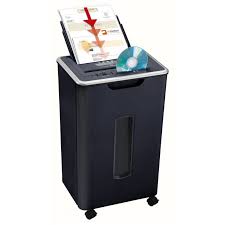
OFFICE X8 - Shredder GEHA - Free user manual and instructions
Find the device manual for free OFFICE X8 GEHA in PDF.



| Product type | Document shredder |
| Brand | GEHA |
| Model | OFFICE X8 |
| Power consumption | 250 W |
| Cut size | 4 × 40 mm (cross-cut) |
| Insertion width | 220 mm |
| Max. capacity | 8 sheets (70 g/m², A4) |
| Cutting speed | 4 m/min |
| Operating time | 3 min ON / 60 min OFF (thermal cycle) |
| Noise level | 73 dB |
| Net weight | 4.5 kg |
| Bin capacity | 15 L |
| Dimensions (W × D × H) | 315 × 200 × 380 mm |
| Warranty | 24 months |
| Forward/reverse function | Yes, with AUTO, FWD, REV selector |
| Operating indicator | Green (running) / Red (overheating) |
| Thermal protection | Automatic shutdown in case of overheating |
| Child safety | Not recommended for children (risk of injury) |
| Maintenance and cleaning | Clean the exterior with a damp cloth; do not use solvents |
| Power supply type | Mains, standard electrical outlet |
Frequently Asked Questions - OFFICE X8 GEHA
User questions about OFFICE X8 GEHA
0 question about this device. Answer the ones you know or ask your own.
Ask a new question about this device
Download the instructions for your Shredder in PDF format for free! Find your manual OFFICE X8 - GEHA and take your electronic device back in hand. On this page are published all the documents necessary for the use of your device. OFFICE X8 by GEHA.
USER MANUAL OFFICE X8 GEHA
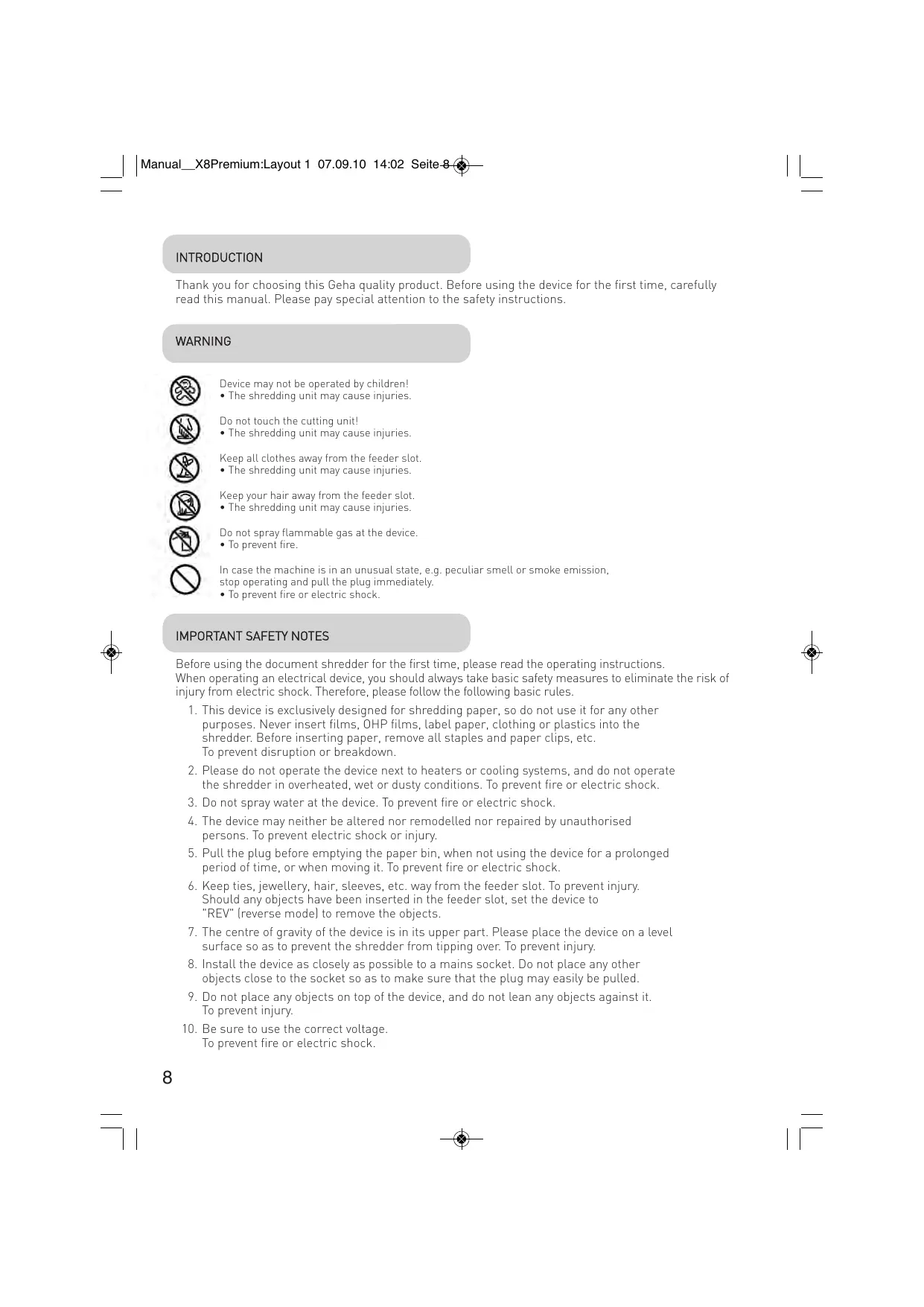
Thank you for choosing this Geha quality product. Before using the device for the first time, carefully read this manual. Please pay special attention to the safety instructions.
WARNING

Device may not be operated by children!
- The shredding unit may cause injuries.

Do not touch the cutting unit!
- The shredding unit may cause injuries.

Keep all clothes away from the feeder slot.
- The shredding unit may cause injuries.

Keep your hair away from the feeder slot.
- The shredding unit may cause injuries.

Do not spray flammable gas at the device.
- To prevent fire.

In case the machine is in an unusual state, e.g. peculiar smell or smoke emission, stop operating and pull the plug immediately.
- To prevent fire or electric shock.
IMPORTANT SAFETY NOTES
Before using the document shredder for the first time, please read the operating instructions.
When operating an electrical device, you should always take basic safety measures to eliminate the risk of injury from electric shock. Therefore, please follow the following basic rules.
-
This device is exclusively designed for shredding paper, so do not use it for any other purposes. Never insert films, OHP films, label paper, clothing or plastics into the shredder. Before inserting paper, remove all staples and paper clips, etc. To prevent disruption or breakdown.
-
Please do not operate the device next to heaters or cooling systems, and do not operate the shredder in overheated, wet or dusty conditions. To prevent fire or electric shock.
-
Do not spray water at the device. To prevent fire or electric shock.
-
The device may neither be altered nor remodelled nor repaired by unauthorised persons. To prevent electric shock or injury.
-
Pull the plug before emptying the paper bin, when not using the device for a prolonged period of time, or when moving it. To prevent fire or electric shock.
-
Keep ties, jewellery, hair, sleeves, etc. way from the feeder slot. To prevent injury. Should any objects have been inserted in the feeder slot, set the device to "REV" (reverse model) to remove the objects.
-
The centre of gravity of the device is in its upper part. Please place the device on a level surface so as to prevent the shredder from tipping over. To prevent injury.
-
Install the device as closely as possible to a mains socket. Do not place any other objects close to the socket so as to make sure that the plug may easily be pulled.
-
Do not place any objects on top of the device, and do not lean any objects against it. To prevent injury.
-
Be sure to use the correct voltage. To prevent fire or electric shock.
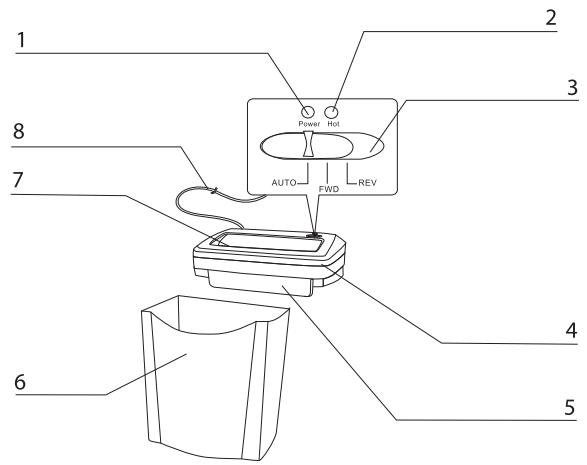
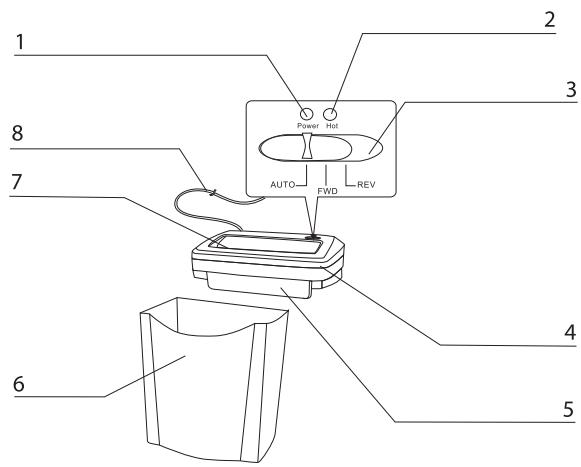
1 Power indicator
When the light is on, the device is in
AUTO mode.
2 Overheat control indicator
When the overheat control indicator is on, pull the plug and leave the device to cool down.
3 Mode switch
"AUTO"
The shredding process is started automatically as soon as the paper to be shredded is inserted into the feeder slot. After shredding is completed, the device is automatically switched off.
"FWD" (forward mode)
The shredding process is operated without interruption.
REV" (reverse mode)
When set to this position, the device eliminates jammed paper in reverse direction.
4 Shredding unit
5 Protective lid
6 Paper bin
The paper bin was specially developed for this device.
7 Feeder slot
Insert paper here.
8 Power cord
OPERATION
- Make sure the switch is turned to "AUTO", place the shredding unit onto the bin correctly. Plug in. The device is ready to operate when the green light is on.
- The X8 shredder cuts up to 8 folded sheets [DIN A4, 70g/m^2] at a time. The maximum permissible paper width is 22cm . To cut small pieces of paper such as envelopes and cash vouchers, insert them at the centre of the feeder slot in order to active the switch-on sensor. The device starts when the sensor is activated, and switches off two seconds after the paper was cut.
- "FWD" indicates forward mode without interruption. The device starts immediately. It stops as soon as the switch is set to "AUTO" or the motor is overheated (red light comes on).
- "REV" indicates reverse mode. When set to this position, the device eliminates jammed paper in reverse direction. To terminate the reverse mode, set the switch to "AUTO". Otherwise, the device will switch off when the motor is overheated (red light comes on).
- By opening the lid of the bin, you may check if the bin is full. Remove the shredding unit to empty the bin.
PAPER JAM
- Set the switch to "REV". Jammed paper will be eliminated in reverse direction.
- After removing any excess paper from the shredding unit, set the switch to "AUTO", and continue shredding.
Note:
Should it not be possible to solve your problem in the manner described, pull the plug and contact your dealer or the manufacturer.
EMPTYING THE PAPER BIN
- To empty the paper bin, set the switch to "AUTO" and pull the plug.
- After emptying the bin, be sure to place the shredding unit on the bin in the correct position.
Note:
When the bin is full, there is the risk of jamming. Empty the bin before it is full.
MAINTENANCE
Pull the plug before any maintenance work is carried out!
- Clean the outer surface using a damp cloth. Be sure not to insert the cloth in the feeder slot. (This step applies only to cleaning the outer parts of the device.)
- The out parts of the device are made of plastic materials.
Therefore, do not use solvents such as benzine or benzol, or any organic solvents such as thinner. Do not clean the device using stain remover so as to prevent fading, fissures, dissolution, or scratches.
Attention:
Be sure to prevent water from entering the device when the outer parts are being cleaned.
TECHNICAL DATA
Model
Shredder X8
Power consumption
250W
Cutting size
4 × 40 ~mm
Feed width
220 mm
Max. shredding capacity
8 sheets (70g A4)
Paper shredding speed
4 m/min
Operating period
3 min ON / 60 min OFF
Noise level
73 dB
Net weight
4.5 kg
Paper bin
15 litres
Dimensions
315 × 200 × 380 ~mm
DISPOSAL
The waste bin symbol indicates that electrical devices must not be disposed of with normal household waste. Please take your device to a collection centre for electrical appliances for recycling and proper disposal.
WARRANTY
The warranty period for your device is 24 months.
For warranty claims, you need your sales receipt. Please also keep the original packaging. If you encounter any problems with your document shredder, please contact your dealer.
Device does not start up after paper has been inserted into the feeder slot.
Possible causes:
- Plug has not been plugged in correctly.
- The paper is too thin.
- The overheat control has been activated as the motor is overheated.
- The green light is not on as the shredding unit has not been put on the paper bin in the correct position.
- There is a paper jam.
Troubleshooting:
- Plug in again.
- Fold the paper and feed into the shredder again, or tear up other types of paper.
- Switch on the shredder again after 30 minutes.
- Fit the shredding unit correctly.
- Remove the jammed paper.
Device does not stop after shredding the paper.
Possible causes:
The switch-on sensor is covered by dust or excess paper.
Troubleshooting:
Remove dust or excess paper using pliers.
Device produces loud noise.
Possible causes:
Device is not placed on a firm and level surface.
Troubleshooting:
Move the machine to a firm and level surface.
Device does not operate.
Possible causes:
- Quantity of paper exceeds maximum shredding capacity.
- Size of paper exceeds maximum feed width.
- Paper has not been fed in vertically.
Troubleshooting:
- Make sure the quantity does not exceed the maximum shredding capacity.
- Shift to "REV" position and remove the paper. Insert paper again after folding it.
- Feed in the paper vertically.
Should the device not operate after carrying out the troubleshooting measures outlined above, unplug and contact your dealer.
NTRODUZIONE
2 Voyant de protection anti-surchauffe
aal 1 aal 1 aal 1 aal 1 aal 1 aal 1 aal 1 aal 1 aal 1 aal 1 aal 1 aal 1 aal 1 aal 1 aal 1 aal 1 aal 1 aal 1 aal 1 aal 1 aal 1 aal 1 aal 1 aal 1 aal 1 aal 1
Auta "AUTO" aal alal
P 8
J 1
y 1
yagaaag aagaaagaaagaaagaaagaaagaaagaaagaaagaaagaaagaaagaaagaaagaaagaaagaaagaaagaaagaaagaaagaaagaaagaaagaaagaaagaaagaaagaaagaaagaaagaaagaaagaaagaaagaaagaaagaaagaaagaaagaaagaaagaaagaaagaa
(A)ALL 1
a a a a a a a a a a a a a a a a a a a a a a a a a a a
a. S all y all
Jaae aae ae aee aee aee aee aee aee aee aee
( x1,y1) ,( x2,y2)
j 1
3
"REV" 1
Auta"
m = 311
y j 1
"Auto"
2b = a
J 1
#
a a a a a a a a a a a a a a a a a a a a a a a a a a a a a a a a a a a a a a a a a a a a a a a a a a a a a aaa
m = 311
a
jglpal
x^2 + 5x - 1 = 12
m = 311
1
all i.e.
1
1
a
#
a a a a a a a a a a a a a a a a a a a a a a a a a a
BVEDEHNE
Blaroapum Bac 3a NOKyKny 3TOrO KaueCTBeHHoro I3DeJnna MapKn Geha. Nepei BBOOM B DeIcTBne CHaJNa BHMaTeJbHO pOuHTaJIte HAcTOJUe pyKOBoDCTBO. OcO6oe BHImaHHe o6paTIte Ha yKa3AHnNo IO TexHnke 6e3OnaCHOCTn.
IPEdUYPEDINTEBHBIE3HAKI

HeIb3a DOnyckaTb DeTei K pa6oTe Ha yCtpoiCTbe!
BHytpn Hero cyuectByeT ONaCHoCTb TpaBMIpOBaHnpeXyUm MexaHn3MOM.
He xbaTaIteCb pykam3a pejxuyn MexaHn3M!
Bnytpn HrO CyueCTBye TOnaChOCTb TpaBMnpOBAHnpeXyUm MExaH3MOM.
CneiTe 3a TEM, yTo6bI B OKHO mexaHn3Ma nOdaun 6yMaHn He nonaJaHa oJexJa.
BHytpn HrO cyueCTbyeT onaCHOct TbpaBMnpOBAHnpeKyumMexaHn3MOM.
He donyckaite nonadaHnB OLOC B OKHO MexaHn3Ma nOdaun 6ymar.
BHytpn Hero cyuaceCTByeT onaChocTb TpaBMnpOBAHnpeXyum MExaHn3MOM.
He pacnbIyIe B yCtpoIcTBO IerKo BOcPnJaMeHReMbIX JxNkOKeTe.
CyuectByeT onaCHOctb noxapa.
Ipn Heo6bHOM COCTOHN yCTPOINCTBa (HaNPIMep, BbJeLHeHN CTpaHHORO 3aNaxa IIN dBIma) Heo6xOAnIO Cpazy npeKpaTnB NCNoJb3OBaHne yCTPOINCTBa N BbTaunlt CeTeBOI WTeNCelN n3 wTeNCbelHO pO3eTK.
CuyecTByeT onaCHOCTb noXapa nn ydaapa 3JneKtpnueckm TOKOM.
BAXHbIE YKA3AHnI NO TEXHnke Be3ONACHOCTN
Ipejde yem BBOINb MaunHy dny HnHTOKeHn EJeIOBbIX 6yMaR B DeIeCTBne IpOuHTaTe daHHoe pyKOBoCTBO NOb3OBaTeJI. Ppi NOb3OBaHN 3JEKTPnueCKMn UCTPOIcTBAM HeoXoIMo BcErga nPiHmMaTb OCHOBHe Mepbl PpeOCTOPOXHOCTN, YTObI NCKLIouHTb ONaCHOCT bpAImPoBaHN ydApom 3JEKTPnueCKM TOKOM.
TOMy 6aTeIbHO CO6IIOaIte CLeDyIOUne OCHOHbIe npaBnla.
1.Данная Машина Дду УнчToхеня DeLoBbIX 6ymarпpeDyCMOTpeHa Cneциально Дду
ИзмельЧеня 6marrn. He ИсрлбЗуЛte EE Дду DpyrNx Zeelen. He BBOДNTe B Maшину Дду
УнчToхеня DeLOBbIX 6marrПлЕнky, ЗТКЕTOCHHy 6marrу, OДжДу Или ПлСТМССY.
Перед ВБДOM 6marru YdaJInte BCE KaHczIЯрСКпсКпи T.n.
В Ротунов Слуаe могут BOЗнКнHyт HeNoJaKn.
2. He nCNoB3yTe yCTPOCTBO B6nI3N OT NCTOCHNKOB TeNla IIN XOLOda, a TAKKe B nepeperpTeBIX, BnaXbIX nIN nIIbNbHbIX cpeDax. CyueCTByET onaCHOCT bNOJapa nn yUdapa 3JIeKTPnueCKIM TOKOM.
3.He onyckaiTe nonaHa Ha yctpoiCTBO 6pbizr BObl. CyueCTByeT onaHocTb Ioxapa nnI ydaP a 3neKtpnueCKM TOKOM.
4. BbI He DoJIxHbI N3MeHЯrTb yCTpOINCTBO, nepeCTpaNBArN peMOHTnpOBaTb erO. CyueCTByeT ONaCHOCTb yDapa 3NeKtpnuecknM TOKOM IIN HeCuaCTHO r Cnyuay.
5. Npeod onopoxHeHnem npneMHOKO KOnTeHepa IyIbMaRn, pN dIInTeJbHOM HeICNoJIb3OBAHH yCTpoiCTBa IIN ero epeTaHOBKe bblTaUeTteCBOI WTeTceNBbIO pOzETKn. CyueCTBye OAnCHOCb IOKapa INu yDapa 3NeKTPnecKm TOKOM.
6. CneiTe 3a Tem, yTo6bI B MexAHn3M IOnaun 6yMaRn He IonoJaAIn rAnctykN, OxKepeBla, BOJocBly, pykaba n T.I. CyueCTBye tOnaCHoCTb TpaBMPOBaHn. Ipn IonoJaAHH B MexAHm3 NOpaun 6yMaRn PnpMeTob YcTAHOBNTe PekeKJIouaTeIb Ha ,REV" (O6paTHbI XOD), yTo6bI ydaJIHTb BTaHyTbI ppeMeTbl.
7. LcHTP TAKECTN yCTPOICTBA HaxoJNTCB E rO BepXHe Nactn. UctaHbINBaIte yCTPOICTBO HaOBHyIO NOBpHXOCTb, YTObI OHO He MORIo ONpOKHyTbCBy.CyUeCTByET OnaCHOCTb TpaBMPOBAHnA.
8. Iomeuayte yctpoietBO B6n3n OT wTeNCelHO p03eTKn n He CTaBBTe PdOM C He HnKaKxN ppeMToB, TaT06bl CeTeBOI wTeNCelMOxH0 6bIIO 6e3 npo6lem BblTaunTb N3 wTeNCelHO p03eTKn.
9. He klaaTe ppeMeTOB Ha yCTpoIcTBo I He npncIOHnTe ux K hemy. CyueCTbyeT ONaCHOCTb TpaBMIpOBAHn.
10. 6eIntecb B npabunbHoctn nCnoJb3yeMoro HnpanjEHH. 2 B npoTnBHom cnyae cyueCTbYET onaChOcTb noXapa nn yda pa 3neKtpnueCKIM TOKOM.
YIPABJIENHE
1 INdkaTop pa6oeryo c0ctOHHa EcnHnDkaTop pa6oeryo c0ctOHHa CBe- TITc,TOYCTPOINCTBO BKNIOUHO.
2ИнданкаторперeredaKor'da cBeTnTcR 3OT ONHДNKATOP, BbITaIHTeceTbeOuIteNcBnI3IteNcCbeHOBpo3eTKnI daTe yCTPOINCTBy OXlaanTbCra.
3 Mhoron03nHnhn nepekHouateIb
"AUTO"
KOrDa nepeKIOuAteIb yCTAHOBnB H 3TO NOLOJHKeHe, TO pRn BBODe OByMaN YCTPONTBO ABOTMaTmUeCKN 3aNyCkaTeCn B pEcxMe nepeHrdo xOJa. Iocne N3MJIbYeHnE OByMaN YCTPONTCBo ABOTMaTmUeCKN BbKlIOuAeTCN.
BVeDInTe cHOna bymary.
8 Ka6eJIb cTeBOro nHTaHnA
- IpocneIte, uTo6bI nepeKlIOuATEnb 6bln yCTaHOBHeH ha "AUTO". IpaBunIbHo yCTaHOBInepeXyUIOYROJONKY HApnpEmHbKOHTEHep dJa 6yMaHr.ICTaBBTe cTeBOI uTencBbVHTENCeNBHyOPO3eTKy.UCTPoIcTB0 HxOAnDcB COCTOBHNIOTOBHOCTN,KOrDaHHINKaTOP pabOoerycoCtO8HNN CBeTNTc3JeHbIM ZBEToM.
- Maunha X8 n3MeIbuaeT do 8 IuctOB CLOXeHHOM COCTOHN (DIN A4, 70 r/M2) n o6pa6aIbIbAeT INCtbl IupnHOn do 220 MM. EcnB Bam Heo6xOIMMo yHHTOKNtB MaTePnAbJI he6OJIbIWO foOpMaTa, TAKne KAK KOHBePTbl NII KACCObBIE DOKymEnTb, To BBOJNTe IN NO CEHTpy OKHa MExaHN3Ma IOaUH 6yMaRn, YTO6bl HNUHIOPABaT CeHCOP NcCKOBO R BbIKNoaTeJI. UcTPOIcTB OaYcKaeTc, KOrDa cpa6OTan YCbCTBntEJIbH bIeMeENT N BbIKNouaeTcB TeueHne 2 CeKHyd, NocNe TORO, KaK 6yJeT n3MeJIbueHa 6yMaRa.
- "FWD" O3haaet HenpepbBnBn peepdHn XoD. UcTpoiCTBO 3aynckaeTc npa3y, Do TOrO kakpeekJIouTeB byed t yctaHOBlen Ha "AUTO" nIn dBuratel neperpeeTc (ropnt KpaCHbN uHnKaTOp).
- "REV" 03hauaet obpaTHbXoJ. KOrda nepeKIOuateJIb CTOnT B 3OM NIOLOKeHn, yCTPOIcTB MoJcET nepeMeUaTb 3AcTpRbUyO 6MyrB O6paTHOM HAnpabJeHn. KOrda HJxHO 3aOKOHNTb ObPAthb XoJ, YcTaHOBtne pekeKIOuateJIb B peKIM "Auto". B I pOITbHM CnYae yCTPOIcTB BO bIKIOuHTcR, KOrda nepePeeTcR DBNrAteJIb (CBeNTcR KpacHb INDInKaTOP).
- Yepe3 OTBepCTne npHemHOro KOHTeHepa IJIy 6yMaRn BbI MoKTe yBnIDetb, KOrda OH HAnONHITcA. IJIy ONOpOxHeHn A KOHTeHepa C 6yMaRoI cHmMITE pexJuI rOJOBky.
3ATOPIPIIPODAUBEYMAFNI
- YctaHOBInTe nepeKJIoucATEb Ha ,REV".LIIuHra 6ymara BBIODITcN3 yCTpoiCTBa o6paTHO.
- Посл致电укп ржшeroMexaHn3Ma 6ydeT ydaIeHa Bc8 ymara, yctahOBHTe pekeKlIuOaTeIb Ha "AUTO"и nI3MeIbUITE OCTaIbHyO 6ymary.
Yka3aHHe:
Ecn npo6nemy taKIM o6pa3OM peuHTb He ydaetcB, BbTAaNTe cTeBOH 8TENCeB n3 8TENCeBHO pO3ETKN O6paTntecB K BaWemy TOpROBMy aEnty nI IN K Ham.
ONOPOXHEHNE IPNEMHOFO KOHTEHPEA C BYMAOJ
1.Дяо npOPOxHHeNnI npiEMHOro KOHTeHepa c 6yMaRoYcTaHOBInTe nepeKJIIOuAteInbHa "AUTO"и BbITaUNTe CeTeBOI WTeNCeIb I3 WTeNCeIbHOH po3ETKn.
2.Прocлдnte 3a павиьнocтбу установкpeжшей rolobkn Ha npneMHbI KOHTeHep dЯ 6ymar n noCne erO onopokhenia.
Yka3aHne:
Pn3aOpHHeHn npEmHoro KOHTeHepa 6yMaRo cyuEcTByet ONaCHocb nepeKpyuBaHna. OnopOxHnTe npEmhBn KOHTeHepdIa 6yMaRn Do TORO, KaK OH HAnOpHnTcN.
TEXHNUECKOE O6CJIYXKUBAHNE
Ipejde yem npo3BODntb texHnueckoe o6cnykBaHne Maunhbl IyHnTuKeHnJe DeIOBbIX 6ymar, Heo6xOIMOBbTaUNTb CeTeBOw uTencel n3 uTencelbHOJ p0eTK!
OuHCTnTe HApxKHyU CTOpOny BnaXHoT KtaHbU. CneJeTe 3a TeM, YTO6bl TkaHb He nonaJa B MexAHm3 NpaChn 6ymarN. (3OT Toar OTHocntc TOnbKO K BHeuHm YaCTram YcTpoCTBa.)
BheHnra Yactb yctpoiCTBa BblIOJIHeHa n3 PnactMaccbl. IOnTOMy B kaueCTBe pa36abnte HEnb3a HcNpOlb3OBaTb Takne pactbopnte, KaK 6eH3nH n 6eH3oI, nnOpraHnueckne pactbopnte.
He ouuuaTe yCTPOINCTBO PANTHOBbIOINTEeMe BO u36exaHne BblcBeTaHn, pa3pyuHn, pactBOpeHn NOBepxHOCTn NnI NpOBLeHn Ha Heu capaHn.
BHMaHne:
CneiTe 3a TeM, TTo6bI npn uNCTke yCTpoNCTBa ChapyKn B Hero He nonana BOda.
TEXHNUECKNE DAHHbIE
06o3haueHne moeJIn
Iotppe6JIeHHe 3JIeKtpO3Heprnn
Pa3Mep pe3a
UmpuHa OKHa MexaHn3Ma nOdaun 6yMaRn MaKc. npOn3BODnteJbHOCTb yHNTOXKeHHN
deJIOBbIX 6yMaI
Ckopooctb pe3aHnA
PpOdoJXnteIbHocTb zukla pa60tbl
YpOBeHb Wyma
Bec HeTTO
EMKOCtB npHemHO KOHTeHepa JIy 6ymarn Ta6apuTbI
Shredder X8
250BT
4x40MM
220 MM
8 lacTob (70 r A4)
4 M/MNH.
4 MNH. ON / 60 MNH. OFF
73 AB
4,5K
15
315 × 200 × 380 MM
YTNIN3AUN
CmBBoI c nepeuepKHyTbIM Mycopooc6OpHnKOM yKa3bIBaet Ha To, qTo 3JeKtpnueckne UCTPOINCTBa He NOJLeXaT yCTpaHeHIO BMeCTe C HOPMaJIbHbIM DOMaUSHIM MYCOPOM. JAnI kOJOruNeCKN YCHSTOny UYNIIaZaUN POCIM cDaBaTb 3TO yCTPOINCTBO B DOnyUeHHbI NyHK T C6oPA ueHHbIX MaTePnaNoB.
TAPAHNTY
TapaHTnHbI cpoK Ha BaWe yCTpoiCTBO COCTaBlaeT 24 Meca.
O63aTeIbHo COxpaHnTe KBrTaHcNHO O NOKynke uynaKOBky 3aOda-n3rOToBnTeJI.
Pn npo6Iemax c yctpoinCTBOM o6paauTecb K CBOeMy TOPROBOMy areHTy.
Iocne BbOda 6ymaru yctpoiCTBO He 3anyckaetca.
PnunHbI:
- CeteB0I wTeNcIeB HenpaBInbHO BCTaBNeH B wTeNceIbHyIO pO3eTKy.
- CnIshKOM ToHka 6ymara.
- YcTpoiCTBO 3aunIbO tnepepeBa cpa6oTaIOn I3-3a nepepeBa DnurataTeJ.
- 3eHeHb INDkaTOp He CBeTnTc, TaK KaK peXyua RoIobKa HEnpaBnIbHO yCTaHOBJIeHa Ha PnPemHom KOHTeINHepe dJa 6ymaRn.
- 3atop npn noaue 6ymaru
UcTaPaHeHne HeuCnpaBHOCTn:
- Eue pa3 BCTaBbTe ceTeBOB WTeNCeB B WTeNCeBHyO pO3eTKy.
- Cnojnte 6ymary n CHOBA BBeDnTe ee B MaunHy dIy HnTuToxKeHnJeNoBbIX 6ymar nn nn3mEnbUHTe dpyrne copTa 6ymarn.
- Yepez 30 MInHyT ChOba BkIIOUHTe MaunHy dIy yHnTOKeHnJeIeNoBbIX 6ymar.
- Правильно установтоpeжую rolobky.
- BbTaunTe 3aCtpraBswuO 6ymary.
Iocne n3MeIbueHn 6ymaRyCTpoIcTBO He BBkJIIOuaeTcA.
PnunHbI:
YbCTBnteHbIyIeMeHT MexaHn3Ma npOaun 6ymarN nokpbilcra nbIbIIO nn 3akpbl 6ymarOi.
UcTaPaeHHe HeNcnpaBHOctn:
Cotpnte nbIb nn ydaIte 6ymary uinuamn.
YcTpoIcTBo CnIbHO uymnt.
PnunHbI:
UcTpoiCTBO yCTaHOBLeHo He Ha TBepDoI POBHOI NOBepXHOCTn.
UcTaPaHeHne HeuCnpaBHOCTn:
UcTaHOBInTe UcTpoINCTBO Ha OCHOBaHNn C TBepDoN POBHOI NOBepXHOCTbIO.
YcTpoIcTBo He yHKnOHNpyET.
PnunHbI:
- ПразибODиTeЛьНOCtБ MaшинБд Лу yHnTuToxKeHЯ DeJIOBbIX 6yMaR MaJa ДлЯ BBeDEHHORO KOnuYeCTBa 6ymaRi.
- Pa3mep 6ymarn npebocxodnt wnpiny okha mexaHn3Ma noaun 6ymarn.
3.Бумага ВвODилась He BepTикально.
YcTpaHene HEnCnPaBHOCTN:
- 06ecneuebTe, yTo6bI npOn3BODnTeJIbHOCTn MaunHb IJIy yHnTuOKeHnJeNoBbIX 6ymar XbataJIO dJIa BBOIDMOrO KOINuCeTBA 6ymarN.
- UctaHOBnTe nepeKIOUoYaTeIb Ha ,REV" u BbITaUNTe 6ymary. CNoXnTe 6ymary u CHOBA BBeDnTe ee.
- BbOdnte 6yMaIy BePtnKaJIbHO.
Ecn nocIe npimHeHn BbIweyka3aHHoro peWeHn yCTpoNcTBo He yHKUHOHPyeT,TO bIta- uTeCeTbeo WTeNCelb n3 WTeNCelbHo pO3ETkn O6paNTteCk CBOemy TOpROBOMy areHTy.