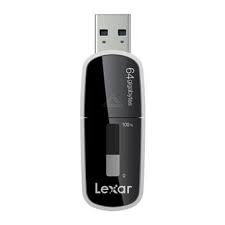
ECHO BACKUP - External hard drive LEXAR - Free user manual and instructions
Find the device manual for free ECHO BACKUP LEXAR in PDF.



| Product Type | External Hard Drive |
| Brand | LEXAR |
| Model | ECHO BACKUP |
| Connectivity | USB 2.0 |
| Power | Via USB port |
| Compatible operating systems | Windows XP (SP2), Windows Vista, Windows 7, Mac OS X 10.5.x, Mac OS X 10.6.x |
| Data security | AES 128-bit encryption for encrypted profiles |
| Included software | Echo backup software (Lexar Echo Backup Manager) |
| Incremental backup | Stores only new and modified files |
| Version control | Configurable number of versions for each file |
| Live backup | Automatic detection and backup of changes |
| Custom configuration | Filtering by extension, date or file size |
| Cross-platform support | Identical features on Mac and PC |
| Available languages | 18 languages including French, English, German, etc. |
| Online service | Free 2 GB online account provided by Dmail |
| Support | support@lexar.com, www.lexar.com/support |
Frequently Asked Questions - ECHO BACKUP LEXAR
User questions about ECHO BACKUP LEXAR
0 question about this device. Answer the ones you know or ask your own.
Ask a new question about this device
Download the instructions for your External hard drive in PDF format for free! Find your manual ECHO BACKUP - LEXAR and take your electronic device back in hand. On this page are published all the documents necessary for the use of your device. ECHO BACKUP by LEXAR.
USER MANUAL ECHO BACKUP LEXAR
Whether you're a business professional on the road, a student doing homework at a friend's house, or someone simply using a laptop in a café, it's important to ensure the files on your netbook or notebook are protected. Lexar® Echo portable backup drives provide a convenient way to automatically back up your files on the go.
Thanks to Lexar Echo backup software functionality and its extremely easy-to-use interface, saving and protecting valuable data (documents, presentations, photos, audio, video files, etc.) is no longer a tedious task. Restoring data is just a click away.
Lexar Echo Backup Software Key Features
Incremental Backup
Unlike traditional backup software, Lexar Echo backup software provides you with an option to store only new and modified files, thus reducing system overhead.
Versioning
Define the number of versions you want to keep, preserving multiple iterations of a file for later use. At any moment, you can travel back in time to access a file's previous version, and you'll be prevented from losing any data, even if a file was inadvertently modified or erased.
Live Backup
Leverage continuous data protection (CDP) technology to automatically detect changes to files and back them up onto the storage device without user intervention. You won't need to worry about manually backing up data or scheduling it; Echo backup software will take care of it for you 24/7.
Custom Configuration
Filter by file extension, date, or size. With numerous configuration options, Echo backup software provides a flexible tool that allows you to easily choose the data you wish to backup.
Cross-Platform Support
Your data is seamlessly available whether you are using a Mac® or a PC system. Echo backup software delivers the same powerful backup features and ease of use on both platforms for a consistent experience.
System Requirements
Operating Systems:
- Windows® XP (Service Pack 2 is recommended)
- Windows Vista®
- Windows 7
Mac OSX 10.5.x
Mac OSX 10.6.x
Internet Browser Software:
- Internet Explorer® (version 5.0 and higher) or Mozilla Firefox version 1.0 and higher
Hardware:
Available USB port
- Echo backup drive
CREATE A BACKUP PLAN
Select your language and accept the license agreement
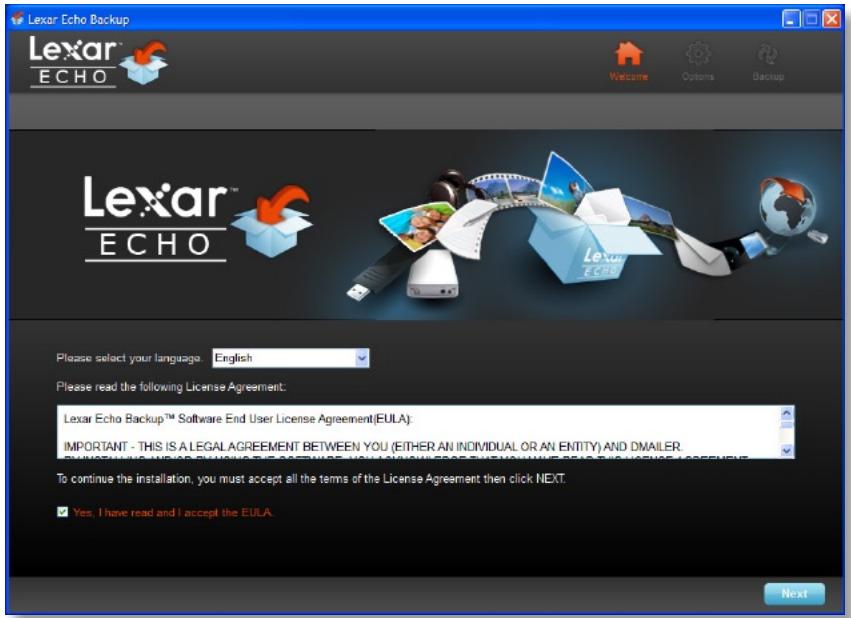
Figure 1
- Select your language. Lexar Echo backup software is available in 18 languages (English, French, German, Italian, Spanish, Portuguese, Swedish, Danish, Norwegian, Dutch, Russian, Czech, Polish, Turkish, Korean, Japanese, Traditional, and Simplified Chinese).
- Read the End User License Agreement (EULA) and accept by clicking on the "Yes, I have read and I accept the EULA" checkbox (see Figure 1). Click the "Next" button to continue.
Create a new backup plan
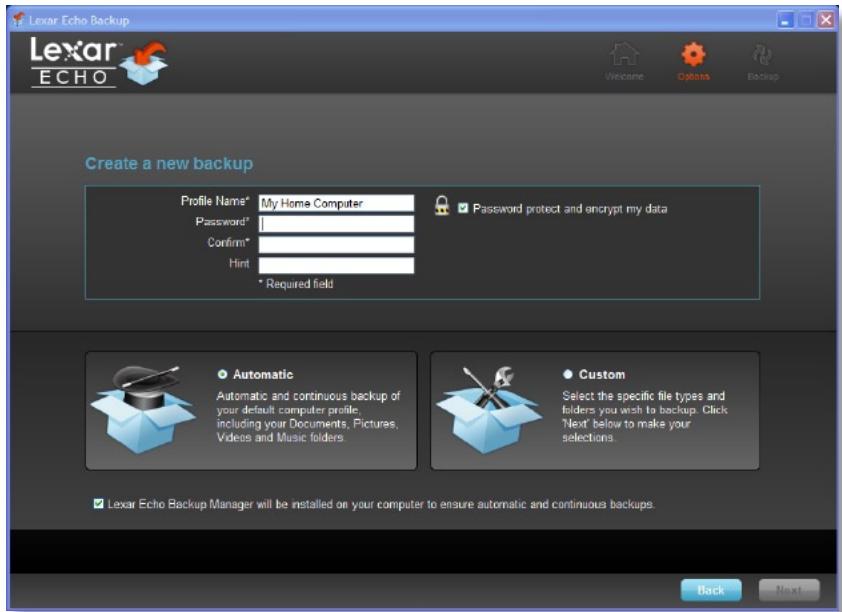
Figure 2
- Select encrypted or non-encrypted for your backup plan. An encrypted plan provides automatic 128-bit AES encryption of data as it is being backed up.
- Enter a profile name. For an encrypted plan, enter and confirm the password. Enter a hint to help with remembering the password.
- Click the checkbox to install Backup Manager to enable automatic and continuous backups whenever the Echo drive is connected to the computer.
- Click the "Next" button to continue.
NOTE: The first backup plan created is the default profile. This can be changed by going to Backup Manager under Drive Backup Settings (see Figure 5) and selecting another profile using the drop-down menu. You can select one default profile for every computer you back up, allowing simple automated backup of multiple computers with the same Echo drive.
Backup Manager can be uninstalled at any time through the Windows Start Menu (Programs>Lexar Echo Backup Manager>Uninstall). On Mac computers, use Spotlight to locate "Lexar Echo Backup Manager", then click on "Reveal in Finder" and delete the files you see.

Select files to backup
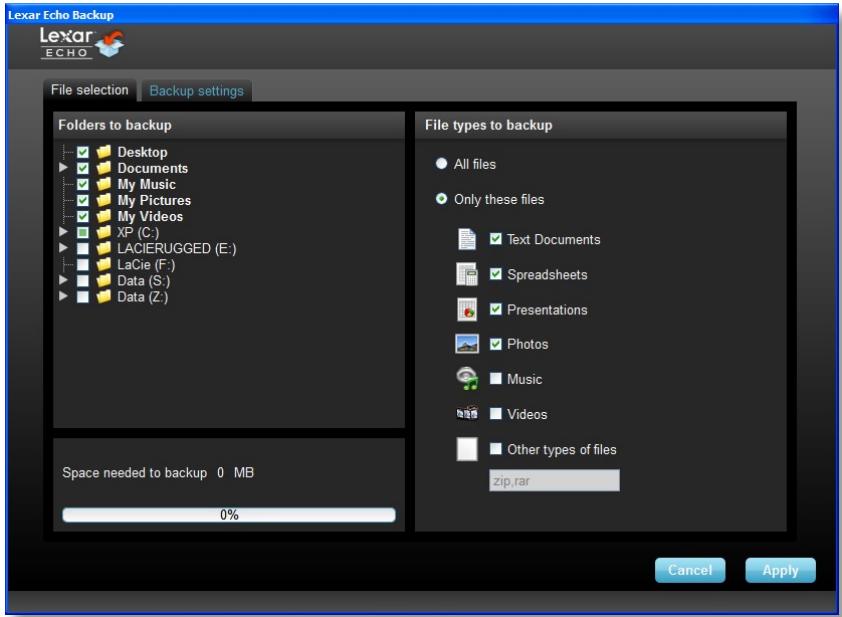
Figure 3
By default, all text documents, spreadsheets, presentations, and photos from the "My Documents" or "Documents" folder are selected for backup. If no changes are needed, click "Apply" to start the first backup.
To change the file selections, use the following options:
File Selection:
Select the folders and file types to backup (see Figure 3).
Backup Settings:
Provides granular control on the backup plan (see Figure 4).
Main Options
- Start backup automatically—Backup starts when the software runs
- Live backup—Detect and automatically back up file changes without any user intervention
- Number of versions to keep—Select the number of versions of the same file to back up
Backup Manager
- Default profile—Assign a default profile. This is the backup that will be launched automatically each time the Echo drive is connected to the computer.
Filter By Date
Echo backup software offers two different types of date filters.
- Back up files from the last—Back up files created or modified in the selected period of time
- Back up files starting from—Back up files created or modified starting from the selected date
Filter By Size
- Back up files smaller than—Set the size limit of the files to backup
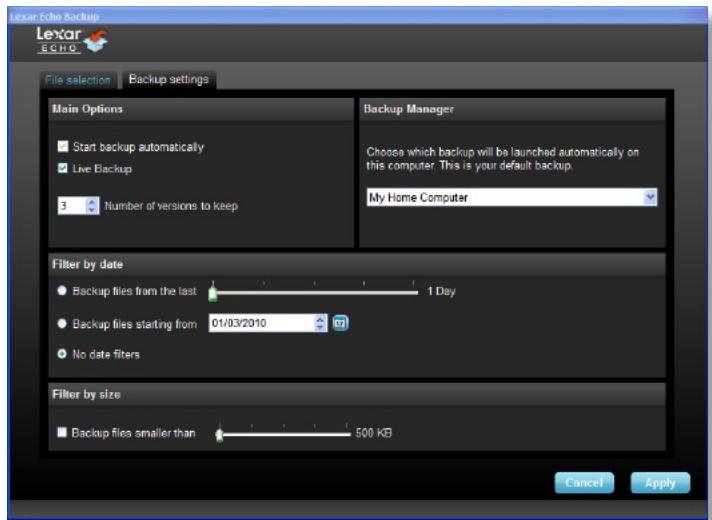
Figure 4
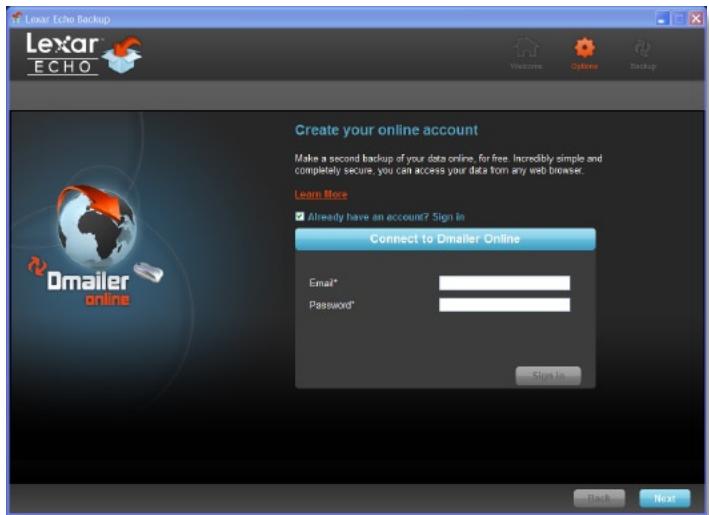
Figure 5
NOTE: Lexar Echo backup software includes an option to back up data online. The Echo backup drive comes with a free, 2GB account offered by Dmailer online.
To learn more about the online backup, click "Learn More" (see Figure 5).
Start first backup
Click "Next" to start the first backup. The following screen appears showing the backup progress (see Figure 6):
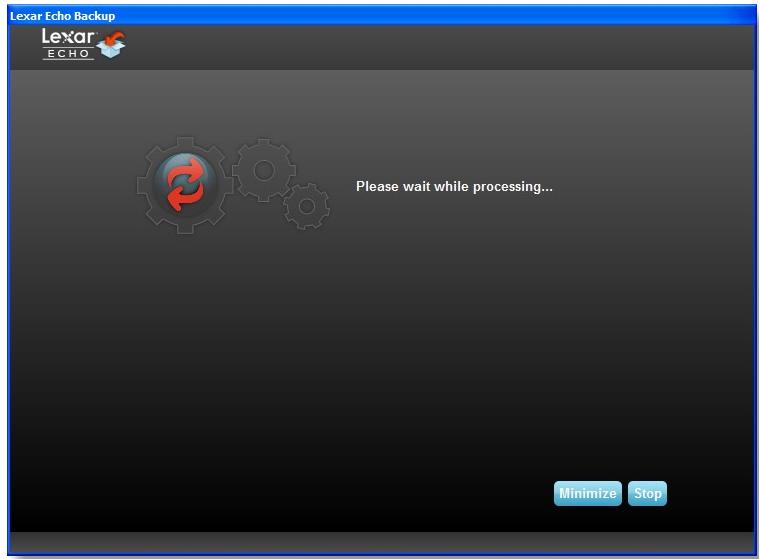
Figure 6
MANAGE THE BACKUP
The Lexar Echo backup software main interface (see Figure 7) provides options to view, open, edit, and restore files that are backed up.
NOTE: The files can also be accessed manually from the root of the Echo drive in the "My Backup folder" if your profile is not encrypted.
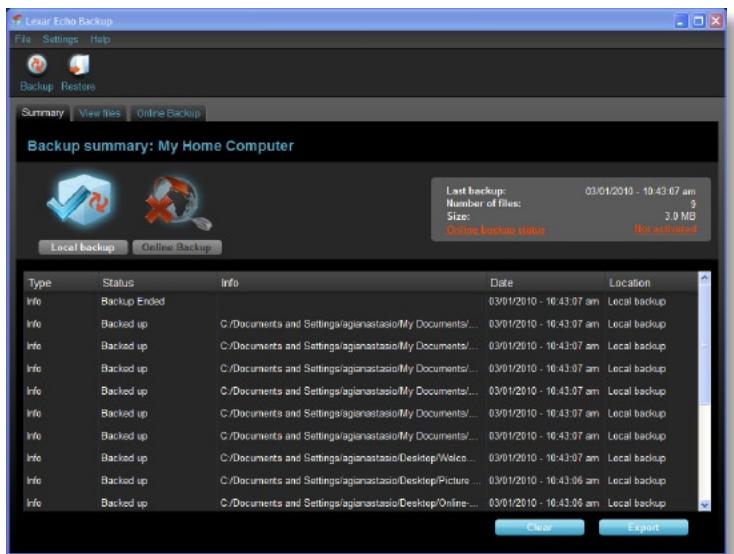
Figure 7

Main toolbar
These commands are available through the main toolbar.
File
Settings
Help

Open another backup

Exit
- Files
Switch to another backup profile
° Exit the application
-
Settings
-
Access local backup settings
Access online backup settings
Help
○ Access online support, FAQ and demos
Search for software update
- Backup button - Manually start the backup
- Restore button - Restore the backed up files to the designated location

Event log
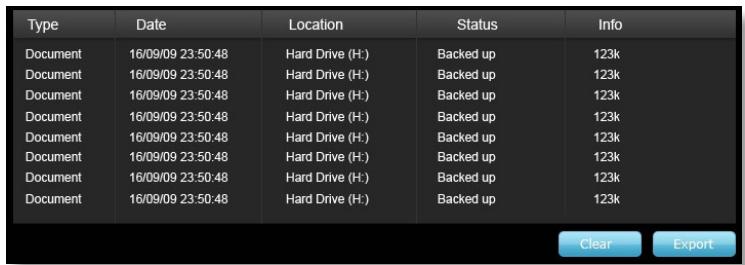
Figure 8
The Event Log is found in the Summary tab (see Figure 8). It logs every event that occurred during the backup process.
Clear button—Clear the event log
Export button—Export and save the event log to a *.txt file

File versioning
To view the files that are backed up, click the View Files tab. A "+" sign appears before the file name if more than one version of the same file has been backed up (see Figure 9). Click the "+" sign to view the different versions of the file (see Figure 10).
Name
Date
Size

Analysis Report...
03/05/2010-09:
743.4 KB

Figure 9
new.jpg
03/05/2010-09:
65.1 KB
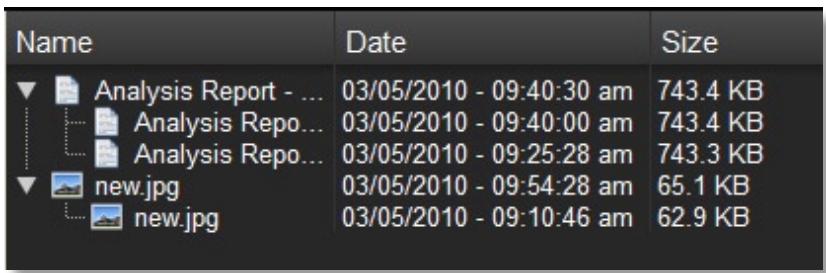
Figure 10
NOTE: To access a previous version of a file it must first be restored from the application.

Restore files
To restore a file or folder, follow these steps:
- Click the "View Files" tab.
- Select the file or folder you want to restore. The selected file or folder will be highlighted.
- Click the Restore button.
- Select the location to where the file or folder is to be restored (see Figure 11).
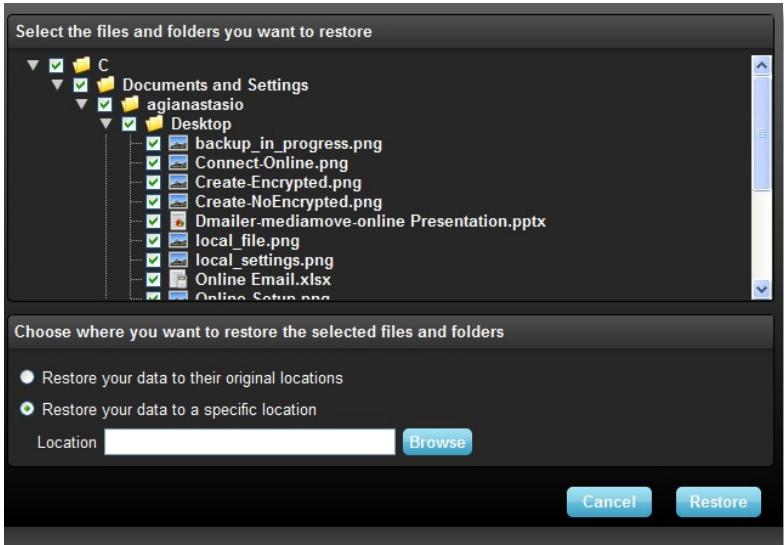
Figure 11
- Click OK.
NOTE: If the file or folder is restored to its original location, it will replace the copy on the computer.
CONTACT INFORMATION
If you have questions, we are here to help
Please send us your questions at support@lexar.com
Getting more information
Product information: www.lexar.com/echo
Customer support and warranty information: www.lexar.com/support
Lexar Media, Inc.
47300 Bayside Parkway
Fremont, CA 94538
Tel: (510) 413-1275
Email: support@lexar.com
URL: www.lexar.com
7 a.m. to 5 p.m. PST, Monday through Friday
Lexar™
Echo Backup-Software
Dmaler Sync your life
Kurzanleitung
EINLEITUNG
47300 Bayside Parkway
Fremont, CA 94538, USA
Tel.: +1 (510) 413-1275
E-Mail: support@lexar.com
URL: www.lexar.com
powered by Dmaler Sync your life
47300 Bayside Parkway
Fremont, CA 94538 - USA
Tél : (510) 413-1275
E-mail: support@lexar.com
URL: www.lexar.com
47300 Bayside Parkway
Fremont, CA 94538
Tel: (510) 413-1275
Posta elettronica: support@lexar.com
URL: www.lexar.com
powered by Dmaler Sync your life
Guía de inizio=rápido
INTRODUCCION
47300 Bayside Parkway
powered by Dmaler Sync your life
Manual de iniciação
INTRODUÇÃO
Envie-nos as susas questioned para support@lexar.com
47300 Bayside Parkway
Fremont, CA 94538
Tel: (510) 413-1275
E-mail: support@lexar.com
URL: www.lexar.com
KpaTKoe pyKOBoDcTBO NOJIb3OBaTeJIa
BVEDEHNE
EcIn BbI 6n3HeCmEn B DOpore, CTyJeHT, KOtOpBb BblONHReT DomaWHee 3aJaHne B roCTx y dpyra nPi npocTo IcNoB3yeTe HOY6yK KaFe, BaJHo oBeCneuNTb 3aunTy caJIOB Ha BaWeM HOY6yKe n Camoro HOY6yKa. IpOtaTINBhie dpaiBepb pe3epBNHO KOnIpOBaHn LaXar Echo npedocTabnIOT yDobHb nCnOCo ABTomTuYeCKn KOnIpOBaTb Baun PaJIbHa XoNy.
Бларуфншоньности и Неворгто В Incnoьзови Ипэрочу рогамного обсесеня дра ретерв Horo konipobahnia Lexar Echo, coхраенhoeи n 3aunta BaЖныд Даньх (ДOKум ento, пeэенташи, Фотогрфи, aydno n Bndeо Файов nTд.) boIbwe HeЯВяETcR yTomntelhblm TpydOm. BocctaHOBJIeHne daHHbIX tpebyet BCero Ondoro haxatna KhoNk Mbls.
OchOBhIe yHKun nporpaMMHoro oecneueHn Iy pe3epBHO ro konipobAHn Echo Lexar
ИнкpeMeHTHoe pe3epBHOe KOnnpoBaHne
B otTnunOnOT TpaDnUHOHOro nporpamMHorO obecneueHme Iype3epBHorO KOnpuOBaHnI nporpamMHoe oecneueHne Iype3epBHorO KOnpuOBaHnI Lexar Echo npedocTabJET BO3MOXHOCTb XpaHNTb TOJIbKO HObIe N I3MeHeHHble paJIbI, TEM cMbIM yMeHbJaN3dEeKKn 3a CHT CNTeMhBX ONEpaUIN.
KoHTpOJIb BepCNI
OnpeJeIte KOnuYeCTBO Bepn, KOtOpBie BbXOTne CoxpaHntb, OCTabJIa MHOrOKpaTHbIe ITepaunn PaJna dJaJIbHeIwero nCNoJIb3OBAHnR. B JIOboI MOMeHT Bbl MoKeTe COBepnTb NyeTeUecTBNe BO BpEmHn IOnyUHTb DoCTynK npdeIduuei Bepnn Paima, YTO npedotBpaAaet Notepu daHHbIX, DaJae ecNl Bbl cnyaHno 13MeHnI ININ CTepnI paim.
Pe3epBHOe KOINPOBaHne B pexnme peaJIbHoro BpeMeHN
TexHONORI NOBIIeHnI 6ecnepe6oHOn 3aunTbI daHHbIX (CDP) aBTOMaTHueeCKn 0bHapyKINBaET n3MeHEnn B qaiJax I KOnIPuyET IN HA yCTPOiCTBa namrN 6e3 BMEaTeJIbCTBa nOJIb3OBAteJIa. Bam He hUxHO 6ecnOKoNTbcra O pyuHOM KOnIPOBAHn DaHHbIX INI pAnHInPOBaHm 3TOr. PporpAMMHe oBeCneHHe dIpa pe3epBHorO KOINPOBaHn Echo 6ydet 3a6OTNTbc 6 OTom 3a Bac 24 Yaca B cyTKI 7 dHeB H HeJeIIO.
3aka3na KOHgypaun
Финьтрацяп no pacширению phaиla,鉴定и пазмepy. Пи римоши Mногочileньх Bo3MOxHOCTeй KOнфуразипnpограмнhoe obecneченie ДЯ рezерв Horo konipobanry Echo npedoctabre T6Km INHCTpyMeHT, KOTopbI nO3BOJNTBam c leKocstbO bblbapTa DAHHbe, KOtOpBe BblXOTITE ckonipobaTb.
MexnlaTΦopMeHHa nOdεpKka
Baun daHhIe doctynbl dIy Bac npn nCnoJIb3ObaHm IIK nIIN KOMNbIepa Mac. IporpamMHOe oecneueHme Ipye3epBHorO KOIpOBaHmEcho npedocTaNrEt OndHaKOBbIe cyHKcN 3ΦΦeKTNBHOro KOIpOBaHmI npocToTy BncNoJIb3ObaHm Ha oBeHX PnATΦopMax.
CnCTeMHbIe Tpe6OBaHn
Onepaunohhbcnctembl:
- Windows® XP (pekomehnyetca naJIuNue Service Pack 2)
- Windows Vista®
- Windows 7
Mac OSX 10.5.x
Mac OSX 10.5.x
PporpamMHoe oecneueHne npocmOTpa cETn mHTepHET:
47300 Bayside Parkway
Fremont, CA 94538
Tei: (510) 413-1275
Email: support@lexar.com
URL: www.lexar.com
c 7:00 do 17:00 no tvxookeaHCKOMy BpeMeHn c noHeJeBnKa n oIyTHNu
Lexar™
Echo ロックアフツトウエ

ケイク スターツ イド
はしだに
47300 Bayside Parkway
Fremont, CA 94538
電話:(510)413-1275
電子×一ル: support@lexar.com
URL: www.lexar.com
月曜~金曜、午前7時~午後5時PST
Lexar™
Echo 備份軟體

快速使用指南
簡介
o Switch to another backup profile (改用其他備份方案)
o Exit the application (退出本程式)
- Settings(設定)
Select the files and folders you want to restore

圖十一
Documents and Settings
agianastasio
Desktop
- backup in progress.png
Connect-Online.png
Create-Encrypted.png
Create-NoEncrypted.png
Dmailer-mediamove-online Presentation.pptx
-
- local_file.png
local_settings.png
Online Email.xlsx
Online Setup pgs
Choose where you want to restore the selected files and folders.
- Restore your data to their original locations
Restore your data to a specific location
Location
Browse
Cancel
Restore
- 請按一下「確定」。
47300 Bayside Parkway
Fremont, CA 94538
電話號碼:(510)413-1275
47300 Bayside Parkway
Fremont, CA 94538
电话:(510) 413-1275
电子邮件:support@lexar.com
网址:www.lexar.com
InlTeNbBraLauJrSsFtRweH:
47300 Bayside Parkway
Fremont, CA 94538
朝:(510)413-1275
前 a 一 e1l: support@lexar.com
URL: www.lexar.com
癸丑-一月二日 田宫
P/N: 561-51561 Rev B


- LEXAR ECHO BACKUP SOFTWARE KEY FEATURES
- INCREMENTAL BACKUP
- VERSIONING
- LIVE BACKUP
- CUSTOM CONFIGURATION
- CROSS-PLATFORM SUPPORT
- SYSTEM REQUIREMENTS
- OPERATING SYSTEMS
- INTERNET BROWSER SOFTWARE
- HARDWARE
- CREATE A BACKUP PLAN
- SELECT YOUR LANGUAGE AND ACCEPT THE LICENSE AGREEMENT
- CREATE A NEW BACKUP PLAN
- SELECT FILES TO BACKUP
- FILE SELECTION
- BACKUP SETTINGS
- MAIN OPTIONS
- BACKUP MANAGER
- FILTER BY DATE
- FILTER BY SIZE
- START FIRST BACKUP
- MANAGE THE BACKUP
- MAIN TOOLBAR
- EVENT LOG
- FILE VERSIONING
- RESTORE FILES
- CONTACT INFORMATION
- LEXAR™
- ECHO BACKUP-SOFTWARE
- EINLEITUNG
- INTRODUCCION
- INTRODUÇÃO
- BVEDEHNE
- ИНКPEMEHTHOE PE3EPBHOE KONNPOBAHNE
- KOHTPOJIB BEPCNI
- PE3EPBHOE KOINPOBAHNE B PEXNME PEAJIBHORO BPEMEHN
- 3AKA3NA KOHGYPAUN
- MEXNLATΦOPMEHHA NODΕPKKA
- CNCTEMHBIE TPE6OBAHN
- ONEPAUNOHHBCNCTEMBL
- PPORPAMMHOE OECNEUEHNE NPOCMOTPA CETN MHTEPHET
- ECHO ロックアフツトウエ
- はしだに
- ECHO 備份軟體
- 簡介
- SELECT THE FILES AND FOLDERS YOU WANT TO RESTORE
- CHOOSE WHERE YOU WANT TO RESTORE THE SELECTED FILES AND FOLDERS
- INLTENBBRALAUJRSSFTRWEH
Brand : LEXAR
Model : ECHO BACKUP
Category : External hard drive