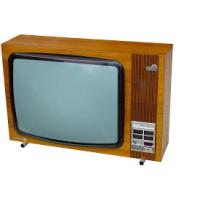
CRT 14-15 - Television NORDMENDE - Free user manual and instructions
Find the device manual for free CRT 14-15 NORDMENDE in PDF.



| Product Type | CRT Television |
| Brand | NORDMENDE |
| Model | CRT 14-15 |
| Screen Size | 14 inches (36 cm) / 15 inches (38 cm) depending on version |
| Power Supply | 220-240 V ~ 50/60 Hz |
| Power Consumption | Approximately 55 W (estimated) |
| Video Inputs | 1x SCART (Peritel) with AV, RGB, S-VHS input |
| Teletext Functions | Yes, with pages, subcode, mix, reveal, freeze frame |
| Sleep Timer | Yes, adjustable from 0 to 120 minutes |
| Child Lock | Yes, with password (default 0000) |
| Number of Channels | Up to 256 (3-digit mode) |
| Channel Search | Automatic (ASM) and manual, with fine tuning |
| Color Systems | PAL, SECAM, NTSC (auto or manual) |
| Sound Systems | Automatic identification, manual adjustment possible |
| Dimensions (W x H x D) | Approximately 36 x 33 x 36 cm (estimated for 14") |
| Weight | Approximately 10 kg |
| Included Accessories | Remote control with batteries |
| Maintenance | Unplug before cleaning; use a soft, dry cloth |
| Safety Instructions | Do not expose to moisture; do not remove the back cover; ensure at least 15 cm of ventilation around |
| Repairability | Contact a qualified technician; spare parts via after-sales service |
Frequently Asked Questions - CRT 14-15 NORDMENDE
User questions about CRT 14-15 NORDMENDE
0 question about this device. Answer the ones you know or ask your own.
Ask a new question about this device
Download the instructions for your Television in PDF format for free! Find your manual CRT 14-15 - NORDMENDE and take your electronic device back in hand. On this page are published all the documents necessary for the use of your device. CRT 14-15 by NORDMENDE.
USER MANUAL CRT 14-15 NORDMENDE
NAMES AND FUNCTIONS OF CONTROLS- Front / Back
The remote control uses two 1.5V batteries. For battery installation and replacement follow the procedure:
- Turn the remote control unit upside down. Press down the grip of battery compartment and slide the cover in the direction of the arrow.
- Install two new batteries. Make sure that battery polarity matches with the "+" , - " marks inside the battery compartment or else it could damage the unit.
Close the battery compartment cover.
TELEVISION INSTALLATION - Connect antenna or video facility.
Thank you for purchasing this colour television.
To ensure your complete understanding, please read this manual thoroughly before operation.
CONTENTS
- 5
- CONTROL YOUR TV. 6
- MENU OPERATION 8
- TELETEXT OPERATION 11
- TROUBLE SHOOTING 12
- CORRECT DISPOSAL OF THIS PRODUCT 53
- WARRANTY CERTIFICATE 54
1. IMPORTANT SAFEGUARDS
Warning: to prevent fire or shock hazard, do not expose this TV set to rain or moisture.
LOCATION
Place the TV set on a flat level surface and in a dry area, free from dust and moisture. Do not place the unit direct sunlight, or were it would be affected by smoke, stream, vibrations or heat radiating appliances. To prevent excessive internal temperature rise, place the unit so that there is at least 15cm of space between it and the surrounding walls.
FIRE AND SHOCK PRECAUTIONS
Adequate ventilation must be provided to prevent heat build up inside unit. Keep the inside of unit free from foreign objects, such as hairpins, nails, paper, etc. Do not the build the set into the bookcase or other enclosures in which it would be poorly ventilated. Do not place it on carpet or a bad as low ventilation holes could become obstructed.
Do not set liquids, including flower vases filled with chemicals or water etc., on top of the unit as liquid could get inside the unit. If a hazardous object falls inside the TV set, unplug it immediately and call a qualified technician for removal.
When placing or moving the TV set, take care to insure that the power cord is fitted into the allocated slot. To avoid damage to the power cord, never allow heavy objects such as the TV set itself to be placed on the power cord. Keep cord away from heat radiating appliances. Do not allow cord to become knotted or tangled. Do not lengthen the cord. When removing the power plug from the socket, always hold onto the plug, never pull by the cord.
WARNING
Do not remove the back cover of the TV set. Accidental contact with high voltage components could result in electric shock. When internal adjustment is necessary, please contact your distributor.
If your set produces sound but not picture, or it emits smoke or produces a strange sound or smell, continued operation is dangerous. Immediately turn off power and remove the power plug from the socket and contact your distributor.
During vacation or other occasions when you will not be using the set for an extended period, remove the power plug from the socket.
This appliance should not be operated by children or infirm persons, without adequate supervision.
CUSTOMER NOTICE
If a continual DISCOLOURATION or a COLOURED PATCH appears on your picture image, it may be caused by one of the following:
External speakers placed near to the TV.
Vacuum cleaners switched ON or OFF near the TV.
Moving or rotating the position of the TV while it is turned on.
The TV has been left in the STANDBY mode for some period of time, without being turned OFF using the front panel power button. If this happens, then:
Switch OFF the TV by using the FRONT PANEL POWER button.
Leave the TV switch OFF for at least 20 minutes.
Switch ON the TV using the FRONT PANEL POWER button.
Note: You may need to repeat steps 1, 2 and 3 for the best result.
2. CONTROL YOUR TV
To use the TV, follow the instructions below.
- Fit the batteries into the remote control.
- Plug the TV into a power socket.
a. The plug for connection to the grid power socket will power your TV.
b. The TV can only be connected to 220-240V~ 50-60Hz alternate current. It must not be connected to a direct current grid.
c. If the plug comes loose from the power cord, do not connect it to a power socket: you might be electrocuted.
- Connect the external aerial or the cable aerial to the socket on the back of the TV.
- Press ON/OFF on the TV.
- The light on the TV will turn on: the TV is in "Stand-By" mode.
2-1 MAIN POWER ON/OFF

When in "Stand-By" mode, press this button to switch on the TV. Press again to go back to "Stand-By" mode. To switch off the TV, press ON/OFF on the TV.
Notes:
- When in "Stand-By" mode, the TV can also be switched ON by pressing the "channels Up/Down" buttons on the remote control or on the TV.
- The TV is provided with an automatic switch-off feature (Automatic Power OFF). When in "No Signal" mode, the TV automatically goes to "Stand-By" mode after a few minutes.
- Every time the TV is switched on, TV mode is automatically selected; if an input signal is received by the SCART plug, SCART AV mode is automatically selected.
2-2 MUTE

By pressing this button, sound output will be muted.
Press [MUTE] again, or Volume Up [V + ] , and sound Volume will return.
2-3 DIRECT ACCESS TUNING
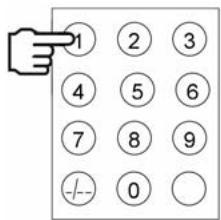

Using the numeric buttons on Remote Control Unit, channels can be selected directly. Repeatedly press the [-/--] button, to select the desired mode, then press numeric buttons.
“-1 digit mode
“ 2 digit mode
3 digit mode (Max Ch. 256)
2-4 PROGRAM UP/DOWN
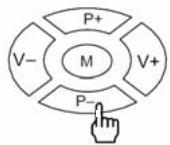
Press [P + ] button, to change Program Up.
Press [P-] button, to change Program Down.
2-5 VOLUME CONTROL
Press [V + ] button, for Volume Up.
Press [V-] button, for Volume Down.
2-6 MENU
By repeatedly pressing MENU button will change as follows:
TV mode:
(14" / 15" models) PICTURE TUNING TIMER SETUP LANGUAGE
AV mode:
PICTURE TIMER SETUP
2-7 TV/AV SELECTION

By repeatedly pressing the [TV/AV] button, you can select the desire input source as follows:
(14" / 15" models) TV SCART AV SCART RGB SCART SVHS
Note: When SCART signal input, the TV automatically enters the SCART AV mode to receive SCART signal, even if TV/AV button isn't pressed.
2-8 STATUS (RED KEY)

The first time you press this button, a window appears on screen showing the details of: Channel number, the name of the channel ( if previously assigned), Colour system, Sound system.
The second time you press this button, the time appears on screen.
2-9 SLEEP (GREEN KEY)

By repeatedly pressing this button sleep timer can be set to 0 to 120min . Selecting "0" switches the activated sleep timer off.
2-10 REVIEW (BLUE KEY)

TV Mode: program will quick back to the previous program being watched.
AV Mode: Back to TV program.
2-11 V-PP (YELLOW KEY)

By repeatedly pressing this button, picture effects will change as follows:
STANDARD MILD DYNAMIC FAVOURITE
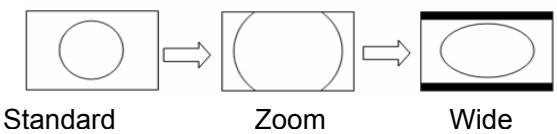
2-12 ZOOM

Pressing this button, it will follow the following cycle:
2-13 A.PP

(14" / 15" models) Key not available.
By repeatedly pressing A.PP button, the symbol will appear on the screen.
3. MENU OPERATION
Press [MENU] button continuously, to scroll through the MENU selection, as follows:
(14" / 15" models) PICTURE TUNING TIMER SETUP LANGUAGE
MENU display disappears about 2 min. after last selection.
3-1 PICTURE MENU
Function: Brightness, Contrast, Colour, Sharpness setting
A. Press [MENU] button repeatedly to select "Picture"
B. Select each function using the [P + ] / [P - ] button.
C. Each value can be controlled by the [V + ] / [V - ] button.
D. Repeat any functions if required.
TINT option is available only in NTSC system
3-2 TUNING PROCEDURE
Auto Tune
Function: Automatic Search and Memory (ASM) is available for program installation from antenna input. Using [MENU] button on the front or on the Remote for ASM.
A. Press [MENU] button repeatedly to select "Tuning"
B. Press [P + ] or [P - ] button, to select "AUTO TUNE".
C. Press [V + ] button, to visualize a new menu
D. Press [P + ] or [P - ] button to select "Worldwide", "France" or "Both"
E. Press [V + ] button, to start "ASM" and memorize into program list.
F. Wait until function has finished.
Note:
- Select "Worldwide" if in an area in which the L L' system is not available
- Select "France" if in an area in which the L L' system is available.
- Select "Both" if in an area in which information about the availability of the L L' system is not available
Manual Tune
Function: Manual Tune for Antenna input.
Each channel can be given a number (0÷ 255) , before starting manual tuning.
A. Select the program number which to make the search
B. Press [MENU] button repeatedly to select "TUNING"
C. Press [P + ] or [P-] button, to select "MANUAL TUNE".
D. Press [V + ] button, to visualize a new menu
E. Press [P+] or [P-] button to select "Worldwide" or "France"
F. Press [V + ] or [V-] button to start search.
G. Wait until function has finished.
H. If it is not the desired channel, press [V + ] or [V - ] again for a new search.
Fine Tune
Function: fine Tuning for current setting.
A. Select the channel to be fine tuned.
B. Press [MENU] repeatedly to select "TUNING".
C. Press [P + ] or [P - ] to select "FINE TUNING"
D. Press [V + ] or [V - ] for fine tuning.
E. Press [MENU] to end.
Organizer
Function: exchange of the channels
A. Press [MENU] button repeatedly to select "TUNING".
B. Using [P + ] or [P-] button, select "ORGANIZER"
C. Press [V + ] to enter in the new menu
D. Using [P + ] or [P-] button, select "Channel 1".
E. Press numeric buttons or [V + ] / [V - ] button to select the channel to be change
F. Press [P-] button to select "Channel 2"
G. Press numeric buttons or [V + ] / [V - ] button to select the second channel
H. Using [P + ] or [P-] button select "Exchange".
I. Confirm operation pressing [V + ] button.
J. Repeatedly pressing [MENU] button to exit.
Delete
Function: to cancel the channels not desired
A. Press [MENU] button repeatedly to select "TUNING".
B. Using [P + ] or [P-] button, select "ORGANIZER"
C. Press [V + ] to enter in the new menu
D. Using [P + ] or [P-] button, select "Channel 1".
E. Press numeric buttons or [V + ] / [V - ] button to select the channel to be delete
F. Using [P+] or [P-] button, select "Delete"
G. Confirm operation pressing [V + ] button.
H. Waiting for some second until the operation is not finished
I. Repeatedly pressing [MENU] button to quit.
3-3 TIMER MENU
Function: Time and Timer setting
A. Press [MENU] button repeatedly to select "Timer"
B. By pressing the [P + ] / [P - ] buttons, the highlight will move up or down.
C. By pressing the [V + ] / [V - ] buttons, selected item can be set
Clock: to setup the current time press [V-] button to hours, which will change as follows:
00 01 02 23 00
Press [V + ] button to tune minutes, which will change as follows:
00 01 02 59 00
On Timer: Setup auto start time of TV.
When it is shown as "----", auto start is effectiveness; press [V-] button, setup the hour of start time, which will change as follows:
$$ - - \rightarrow 0 0 \rightarrow 0 1 \rightarrow 0 2 \rightarrow \dots \rightarrow 2 3 \rightarrow - - $$
Press [V + ] button, setup the minute of start time, which will change as follows:
$$ 0 0 \rightarrow 0 1 \rightarrow 0 2 \rightarrow \dots \rightarrow 5 9 \rightarrow 0 0 $$
Off Timer: setup auto off time of TV.
When it is shown as "- - - - ", auto off is effectiveness; press [V-] button, setup the hour of off time, which will change as follows:
$$ - - \rightarrow 0 0 \rightarrow 0 1 \rightarrow 0 2 \rightarrow \dots \rightarrow 2 3 \rightarrow - - $$
Press [V + ] , setup the minute of off time, which will change as follows:
$$ 0 0 \rightarrow 0 1 \rightarrow 0 2 \rightarrow \dots \rightarrow 5 9 \rightarrow 0 0 $$
Channel: This indicates the program number which will be selected when the TV is switched on after the set period of On Timer.
The programs could be selected in the range 0 ÷ 200 pressing [V+] / [V-] button.
3-4 SETUP
Function: other functions setup
Channel
Function: Channel selection
A. Press [MENU] button repeatedly to select "Setup"
B. Using the [P + ] / [P - ] button, select the "Channel"
C. Using the [V + ] / [V - ] button, channel will change.
D. Press [MENU] to confirm.
Label
Function: give a label to a channel.
A. Press [MENU] button repeatedly to select "Setup".
B. Press P + 1/ P - to select "Label".
C. Press V+]/[V-] to move within the string.
D. Press [P + ] / [P - ] to write a label.
E. Press [MENU] to confirm.
Skip
Function: Use to "SKIP" channels.
After setting to "YES", the channel will not be selected by Channel Up/Down buttons.
A. Press [MENU] button repeatedly to select "Setup".
B. Using [P + ] or [P-] button, select "CHANNEL"
C. Using [V + ] or [V-] button, select channel number.
D. Using [P + ] or [P-] button, select "SKIP".
E. Using [V + ] or [V-] button, select "ON" or "OFF".
F. Press [MENU] to confirm.
Sound:
Function: select correct sound system.
A. Press [MENU] button repeatedly to select "Setup".
B. Using [P + ] or [P-] button, select "Sound".
C. By repeatedly pressing [V + ] or [V-] button to change as follows: BG DK I LL^
D. Press [MENU] to confirm.
Note:
The TV set has auto sound system identify function, this means after automatic search the sound system of programs will be automatic identified and memorized. If the sound may be noisy, in such cases, you can use SOUND select correct sound system.
Colour
Function: Select correct colour system.
A. Press [MENU] button repeatedly to select "Setup".
B. Using [P + ] or [P-] button, select "COLOUR".
C. By repeatedly pressing [V^+] or [V-] button to change as follows: AUTO PAL SECAM NTSC 4 NTSC 3
D. Press [MENU] to confirm.
AUTO means the colour system will automatically be set according to the software.
Normally, it should be set to "AUTO".
If the colour system is not appropriate selected, some colours may become missing.
Blue Back
Function: Setting Blue screen
When no signal is present one can select blue screen or plane raster using this option.
A. Press [MENU] button repeatedly to select "Setup".
B. Using the [P + ] / [P - ] button, select the "Blue Back"
C. Using the [V + ] / [V - ] button, select the "Yes" or "No".
D. Press [MENU] to confirm.
Language
Function: choose OSD language
A. Press [MENU] button repeatedly to select "Setup".
B. Using the [P + ] / [P - ] button select "Language"
C. Using the [V + ] / [V - ] button language will change to:
English, Polski, Čeština, Türkce, Espanol, Nederlands, Français, Deutsch, Português, Italiano, Magyar, Eλληντχά, Pyccnιίŋ.
D. Press the [MENU] button to confirm your choice.
TXT Lang
Function: choose teletextlanguage
A. Press [MENU] button repeatedly to select "Setup".
B. Using the [P + ] / [P - ] button select "TXT Lang"
C. Using the [V + ] / [V - ] button language will change to:
English, Polish, Czech, Turkish, Spanish, Dutch, French, German, Portuguese, Italian, Hungarian/Swedish, Swidish, Serbian,
Russian.,Estonian, Greek.
D. Press the [MENU] button to confirm your choice.
Lock
Function: Lock or unlock television set
A. Press the [MENU] key repeatedly to select "Setup" menu
B. By pressing [P + ] / [P - ] button you can select "Lock".
C. Input the correct password.
The password is " 0000" by default.
D. The menu "Lock" will be visualized
E. Using the [P + ] / [P - ] button select the desired item.
F. By pressing the [V + ] / [V - ] keys, selected item that can be locked (ON) or unlocked (OFF)
Child Lock: When Child Lock is set to "On" then the Tuning Menu cannot be selected.
AV Lock: Euro AV can be locked or unlocked.
Vol limit sw: When this item is set to ON, the next item "Vol limit" will be active.
Vol limit: By pressing [V + ] / [V - ] keys, you can set the value of maximum volume limit.
Change Password: When this item is selected, pressing [V + ] / [V - ] keys, the Change Password menu will be appeared.
New Password: Input any new password you want.
Confirm: Input same number as in above item again. Press the [MENU] button to confirm your choice.
G. Press [MENU] to confirm.
Note:
OSD will disappear after 5 sec. without operation.
The LOCK menu does not appear in the AV Mode
Select the channel which is broadcasting the TELETEXT program you want to watch.
4-1 SELECT TELETEXT MODE

Press [TV / TEXT] button on the remote control unit and enter to TELETEXT mode.
By this button, mode will be changed as:
TV Picture Teletext
The overview station page or the last page viewed (in case you already watched TELEXT at this channel previously) appears.
If you need to return to TV mode, press again the [TV / TEXT] button on the remote control.
4-2 PAGE SELECTION
You can enter directly desired page number with the remote control 0 - 9 numeric buttons.
You can sequentially select page by pressing [P + ] or [P-] button.
4-3 REVEAL

Some TELETEXT pages contain quiz or game questions with hidden answers.
Press the [REVEAL] button to see the answers.
Press the [REVEAL] button again to hide the answers.
4-4 SIZE (T/B/F Top/Bottom/Full)

To enable easier reading (larger display).
Press the [SIZE] button to display the TOP HALF of the page.
Press again to display the BOTTOM HALF of the page.
Press again to return to a FULL PAGE display.
Note: changing pages reverts to a FULL PAGE display.
4-5 MIX

Press the [MIX] button to turn on/off TELETEXT background.
4-6 CANCEL

When a page is selected in TELETEXT mode it may take some time before it becomes available, pressing the [CANCEL] button will switch to the TV mode.
When the required page is found the page number will appear at the top of the TV picture, press the [CANCEL] button to return to the selected TELEXT page.
Note: You cannot change TV program while in this mode.
4-7 SUB CODE

Periodically revised NEWS FLASHES can be obtained from TELETEXT broadcasts.
Select the NEWS FLASH page in TELETEXT mode then press the [SUBCODE] button. You can now watch the TV program and every time the News Flash page is updated it will be automatically displayed in the TV picture.
Press the [SUBCODE] button to cause the news flash to disappear.
4-8 INDEX

Press the [INDEX] button to return to index page.
4-9 STOP

Some TELETEXT information is contained on more than one page, the pages automatically changing after a given reading time.
Press [STOP] button to stop the page changing.
Press [STOP] button again to allow the page to change.
4-10 FAST TEXT (For possible future reference)
The RED, GREEN, YELLOW & BLUE buttons are used for quick access to colour coded pages transmitted by FAST TEXT broadcast.
5. TROUBLE SHOOTING
Before arranging for service, firstly know the status and then check simply as follows:
| Problems | Check |
| No picture or sound. | Check if the power supply is plugged in. Check if the power switch is in “ON” position. |
| Picture is OK, no sound. | Check if the volume control is set to the minimum or mute position. |
| Remote control doesn’t work. | Check if the power switch is in “ON” position. Check if the batteries are out of use or not connected well. Make sure that there is no strong light striking the sensor window of remote control unit. Check there are no obstacles between the sensor window and remote control uni |
| No TV signal. | Check if the TV/AV button is not set to TV status. Check if the antenna is well connected. Check if you installed the TV correctly. |
| No external video signal. | Check if you installed the TV correctly. Check if the TV/AV button is set to AV position. |
| Picture lacks colour or picture too dark. | Check colour, brightness and contrast controls are correctly adjusted. |
| All channels lose colour intermittently. | Check if the antenna is broken. Check if the antenna is disconnected. Check if the antenna is damaged. |
| Poor reception, loss of colour with certain channels. | Check if channels are correctly tuned (see “Fine tuning”). |
| Diagonal stripes appear on picture. | The receiver may be affected by interference (e.g. from nearby radio broadcasting transmitter or from another TV receiver). |
| Picture has “snow”. | Check if the antenna is broken. Check if the antenna is disconnected. Check if the antenna is damaged. |
| Ghost images appear. | Check if the antenna direction has been changed by a storm or strong wind, etc. (because ghost images are caused by the arrival at the antenna of both the signal which has travelled directly from the transmitter and the signal which has been reflected from a hill or a large building. The direction of the antenna should be chosen for minimum ghosting). |
2-9 SLEEP (TASTO VERDE)

2-10 REVIEW (TASTO BLU)

3-4 INSTALLARE (Setup)
English, Polish, Czech, Turkish, Spanish, Dutch, French, German, Portuguese, Italian, Hungarian/Swedish, Serbian, Rumanian, Russian., Estonian, Greek.
D. Premere il tasto [MENU] per confermare la scelta effettuata.
Blocco (Lock)
3-2 RECHERCHE (Tuning)
English, Polish, Czech, Turkish, Spanish, Dutch, French, German, Portuguese, Italian, Hungarian/Swedish, Serbian, Rumanian, Russian, Estonian, Greek.
D. Appuyer sur la touche [MENU] pour confirmer.
Vérrouiller (Lock)
4-6 ANNULER (Cancel)

4-8 SOMMAIRE (INDEX)

2-8 STATUS (ROTE TASTE)

2-9 SLEEP (GRÜNE TASTE)

2-10 REVIEW (BLAUE TASTE)

3-4 INSTALLATION (Setup)
English, Polish, Czech, Turkish, Spanish, Dutch, French, German, Portuguese, Italian, Hungarian/Swedian, Serbian, Rumanian, Russian., Estonian, Greek.
2-8 STATUS (TECLA ROJA)

2-9 SLEEP (TECLA VERDE)

2-10 REVIEW (TECLA AZUL)

3-2 SINTONIA (Tuning)
Sintonia auto (Auto Tune)
3-4 INSTALLAR (Setup)
English, Polish, Czech, Turkish, Spanish, Dutch, French, German, Portuguese, Italian, Hungarian/Swedish, Serbian, Rumanian, Russian., Estonian, Greek.
D. Presionar la tecla [MENU] para confirmar el idiomaUGCido.
Bloqueo (Lock)
2-9 TECLA VERDE (SLEEP)

2-10 TECLA AZUL (REVIEW)

Pressionando esta tecla, se se estiver no "modo TV":
2-11 TECLA AMARELA (V-PP)

4-7 SUBCÔDIGO (SUB CODE)

This marking shown on the product or its literature, indicates that it should not be disposed with other household wastes at the end of its working life. To prevent possible harm to the environment or human health from uncontrolled waste disposal, please separate this from other types of wastes and recycle it responsibly to promote the sustainable reuse of material resources. Household users should contact either the retailer where they purchased this product, or their local government office, for details of where and how they can take this item for environmentally safe recycling. This product should not be mixed with other commercial wastes for disposal.
THE COMPANY RESERVES THE RIGHT TO BRING TECHNOLOGICAL, AESTHETICAL AND DIMENSIONAL CHANGES, FOR PRODUCT IMPROVEMENT OR FOR MANUFACTURING NEEDS, WITHOUT NOTICE.
AL FINE DI MIGLIORARE I PROPRI PRODOTI E PER ESIGENZE DI PRODUZIONE, L'AZIENDA SI RISERVA IL DIRITTO DI APPORTARE MODIFICHE TECNOLOGICHE, ESTETICHE E DI DIMENSIONI SENZA PREAVVISO.
AFIN D'AMELIORER SES PRODUITS ET POUR LES EXIGENCES DE LA PRODUCTION, L'ENTREPRISE SE RESERVE LE DROIT D'APPORTER DES MODIFICATIONS TECHNOLOGIQUES, ESTHETIQUES ET DE DIMENSIONS SANS PREAVIS.
This symbol certifies that the product has been manufactured in compliance with the European Standards.
NORDMENDE is a trademark of THOMSON used under license to VDC Technologies SpA ITALY.


- NAMES AND FUNCTIONS OF CONTROLS- Front / Back
- CONTENTS
- IMPORTANT SAFEGUARDS
- LOCATION
- FIRE AND SHOCK PRECAUTIONS
- WARNING
- CUSTOMER NOTICE
- CONTROL YOUR TV
- 2-1 MAIN POWER ON/OFF
- Notes:
- 2-2 MUTE
- 2-3 DIRECT ACCESS TUNING
- 2-4 PROGRAM UP/DOWN
- 2-5 VOLUME CONTROL
- 2-6 MENU
- 2-7 TV/AV SELECTION
- 2-8 STATUS (RED KEY)
- 2-9 SLEEP (GREEN KEY)
- 2-10 REVIEW (BLUE KEY)
- 2-11 V-PP (YELLOW KEY)
- 2-12 ZOOM
- 2-13 A.PP
- MENU OPERATION
- 3-1 PICTURE MENU
- 3-2 TUNING PROCEDURE
- Auto Tune
- Note:
- Manual Tune
- Fine Tune
- Organizer
- Delete
- 3-3 TIMER MENU
- 3-4 SETUP
- Channel
- Label
- Skip
- Sound:
- Colour
- Blue Back
- Language
- TXT Lang
- Lock
- 4-1 SELECT TELETEXT MODE
- 4-2 PAGE SELECTION
- 4-3 REVEAL
- 4-4 SIZE (T/B/F Top/Bottom/Full)
- 4-5 MIX
- 4-6 CANCEL
- 4-7 SUB CODE
- 4-8 INDEX
- 4-9 STOP
- 4-10 FAST TEXT (For possible future reference)
- TROUBLE SHOOTING
- 2-9 SLEEP (TASTO VERDE)
- 2-10 REVIEW (TASTO BLU)
- 3-4 INSTALLARE (Setup)
- Blocco (Lock)
- 3-2 RECHERCHE (Tuning)
- Vérrouiller (Lock)
- 4-6 ANNULER (Cancel)
- 4-8 SOMMAIRE (INDEX)
- 2-8 STATUS (ROTE TASTE)
- 2-9 SLEEP (GRÜNE TASTE)
- 2-10 REVIEW (BLAUE TASTE)
- 3-4 INSTALLATION (Setup)
- 2-8 STATUS (TECLA ROJA)
- 2-9 SLEEP (TECLA VERDE)
- 2-10 REVIEW (TECLA AZUL)
- 3-2 SINTONIA (Tuning)
- Sintonia auto (Auto Tune)
- 3-4 INSTALLAR (Setup)
- Bloqueo (Lock)
- 2-9 TECLA VERDE (SLEEP)
- 2-10 TECLA AZUL (REVIEW)
- 2-11 TECLA AMARELA (V-PP)
- 4-7 SUBCÔDIGO (SUB CODE)
Brand : NORDMENDE
Model : CRT 14-15
Category : Television