
133 OXYGEN - Tablet ARCHOS - Free user manual and instructions
Find the device manual for free 133 OXYGEN ARCHOS in PDF.



| Product type | Touchscreen tablet |
| Brand | ARCHOS |
| Model | 133 OXYGEN |
| Operating system | Android 6.0 (Marshmallow) |
| Screen size | 10.1 inches (estimated) |
| Screen resolution | 1280 x 800 pixels (estimated) |
| Processor | Quad-core (estimated) |
| RAM memory | 1 GB (estimated) |
| Internal storage | 16 GB (estimated) |
| Dimensions | Approximately 240 x 170 x 9 mm (estimated) |
| Weight | Approximately 500 g (estimated) |
| Power supply | Rechargeable lithium-ion battery, charges via micro-USB port |
| Connectivity | Wi-Fi 802.11 b/g/n, Bluetooth (estimated) |
| Sensors | Accelerometer (estimated) |
| Camera | Front and rear sensor (estimated) |
| Main functions | Web browsing, multimedia playback, Android apps, messaging, gaming |
| Maintenance and cleaning | Turn off the device, clean with a soft, dry cloth. Do not use abrasive products. |
| Security | Lock with PIN code, pattern or password. Use Android Device Manager in case of loss. |
| Software update | Settings > About tablet > Update |
| General information | Manual available in multiple languages. Visit faq.archos.com for assistance. |
Frequently Asked Questions - 133 OXYGEN ARCHOS
User questions about 133 OXYGEN ARCHOS
0 question about this device. Answer the ones you know or ask your own.
Ask a new question about this device
Download the instructions for your Tablet in PDF format for free! Find your manual 133 OXYGEN - ARCHOS and take your electronic device back in hand. On this page are published all the documents necessary for the use of your device. 133 OXYGEN by ARCHOS.
USER MANUAL 133 OXYGEN ARCHOS
Congratulations on the purchase of an ARCHOS device! This quick start guide helps you start using your device properly. If you have more questions concerning the use of your device, visit us at:

twitter.com/archos

www.facebook.com/archos
Blog
https://blog.archos.com/

http://faq.archos.com/

www.archos.com, click Support > After-sales support

www.archos.com, click Support > Downloads > Declaration of conformity
As we are often updating and improving our products, your device's software may have a slightly different appearance or modified functionality than presented in this quick start guide.
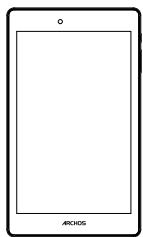
ARCHOS 70 Oxygen Charger adapter
Quick start guide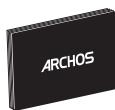
Charging cable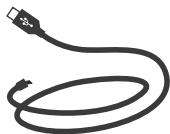
Warranty, legal and safety notice
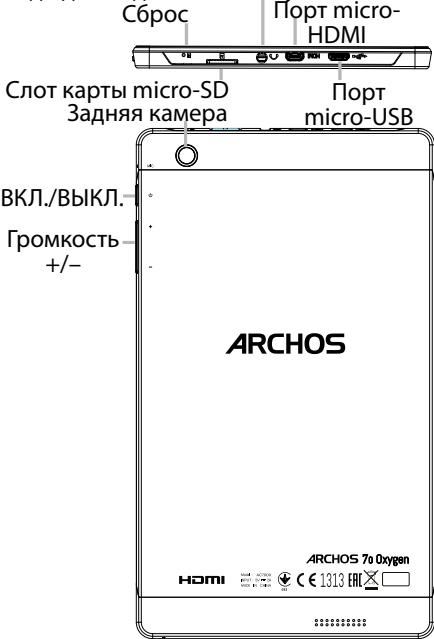
Describing your device

Your device is running Android 6.0 operating system. Updates could be offered to improve the device's performance. To check if any update is available, go to: Settings > About tablet > Check for update.
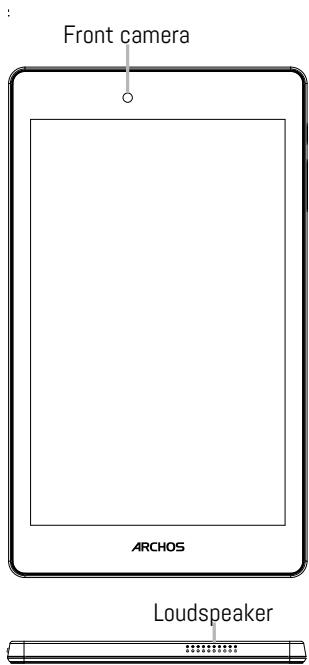
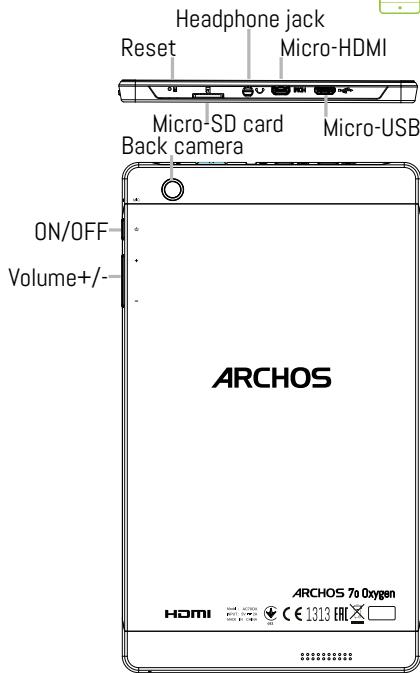
Charging your battery completely
Plug the charging cable into the Micro-USB port and the adapter into a power outlet.
Leave the device until the battery is fully charged.
Turning ON
- Press and hold the ON/OFF button to turn on the device.
- Follow the instructions to set up your device: language, WiFi, copy your data, enter your name, set up email, protect your phone, notifications to be shown, Google services, third-party apps.
NOTE: You can skip some steps and define them later from the Settings app.
Activating WiFi connection
- Touch and pull down the status bar to display it.
- Touch again the bar to reveal the quick settings.
- Select the WiFi icon to activate the WiFi connection.
- Select "WiFi" below the WiFi icon.
- Touch the name of the network you want to connect to.
Private networks are shown with a lock icon and will require you to enter your password.
Hints & tips
Moving a home screen item: Touch and hold your finger onto it until the positioning gridlines appear, then slide it to the desired location, and release your finger.
Removing a home screen item: Touch and hold it, slide your finger towards the top of the screen and drop it over the Remove icon.
Uninstalling an item: From the All apps screens, touch and hold it, slide your finger towards the top of the screen and drop it over Uninstall bin.
Creating application folders: Drop one app icon over another on a home screen and the two icons will be combined.
Changing your wallpaper: Hold your finger on a home screen at an empty location, then choose from the list: Wallpaper.
Widgets: Hold your finger on a home screen at an empty location, then choose from the list: Widgets.
Securing your device: Define a lock screen to protect your privacy. Select the Settings app, then Security. Choose a screen lock.
Android device manager: When your device is lost, you can use the android device manager page (https://www.google.com/android/devicemanager) to erase all your contents, to lock the device, to locate the device or to make it ring.
Scheduled power on&off: Schedule power on & off to set when the device turns off and turns on. For example, you can set it for sleep time.

Troubleshooting
- If your device is frozen:
Press the ON/OFF button for 10 seconds.
- If your device doesn't turn on:
- Charge your device.
- Press the ON/OFF button for 10 seconds.
- If your device functioning is too slow:
Close all apps which are not currently used.
- If your WiFi reception is too low:
Make sure you are not far from the WiFi hotspot.
Update the firmware of the device: http://www.archos.com/support.
Reset and redefine your connection parameters.
Contact your WiFi connection provider.
- If your device has dysfunctions:
Reinitialize your device. Go to Settings > Backup & reset > Factory data reset. If you can't have access to the settings for any reason, consult our FAQs about the reinitialization process.
For more answers about your technical difficulties, do not hesitate to visit: faq.archos.com
Contact us
www.archos.com, click Support > After-sales support

www.archos.com, click Support > Downloads > Declaration of Conformity
Congratulations on purchasing your ARCHOS device! This quick start guide will help you use your device correctly from the first minutes. If you have any other questions regarding the use of this device, visit the websites:

twitter.com/archos

www.facebook.com/archos
Blog
https://blog.archos.com/

http://faq.archos.com/

On the page www.archos.com, select the menu Support > After-sales support

On the page www.archos.com, select the menu Support > Downloads > Declaration of Conformity
Since we constantly improve and perfect our products, the software on your device may differ slightly in appearance or functionality from that presented in this quick start guide.
ARCHOS 70 Oxygen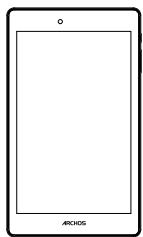

Charger adapter
Quick start guide
Charging device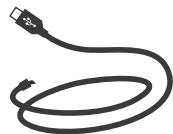
Safety instructions
This device runs on the Android 6.0 operating system. Updates may be offered to improve the device's performance characteristics. To check for updates, go to: Settings > About tablet
Check for update (Settings > About tablet > Check for update).
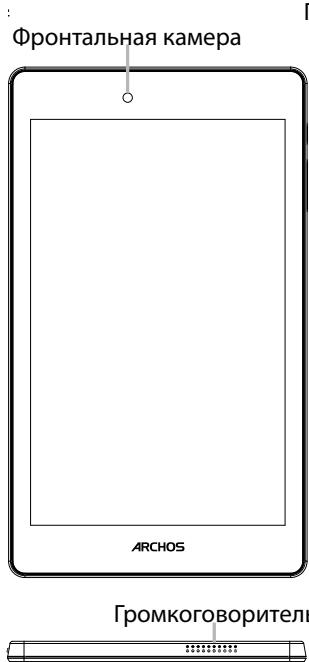
Headphone jack
Usage tips
Touch and hold the home screen to open the list, then select from the list: Widgets.
Device protection: activate screen lock to protect your personal data. Open the Settings app, then select Security.
Select screen lock.
Android Device Manager: if your device is lost, you can use the Android Device Manager page (https://www.google.com/android/devicemanager) to erase all its content, lock the device, find its location, or make the device ring.
Scheduled power on/off: set a schedule for power on and off so that the device turns off and on at designated times. For example, you can schedule the device to turn off at night.

Troubleshooting
- If the device freezes:
Press and hold the power button for 10 seconds.
- If the device does not turn on:
1.3 Turn on the device. 2. Press the ON/OFF button for 10 seconds. - If the device is working too slowly:
Close applications that are not being used at the moment.
- If the Wi-Fi connection quality is too low:
Make sure you are not too far from the Wi-Fi access point.
Update the device firmware: http://www.archos.com/support.
Reset and reconfigure the connection parameters.
Contact your Wi-Fi connection provider.
- If the device is not functioning properly:
Perform a factory reset of the device. Go to Settings > Backup & reset > Factory data reset.
If for any reason you do not have access to the settings, see the description of the factory reset process in the FAQ section.
National restrictions
This device is intended for home and office use in all EU countries (and other countries following the EU directive 1999/5/EC) without any limitation except for the countries mentioned below:
| Country | Restriction | Reason/remark |
| Bulgaria | None | General authorization required for outdoor use and public service |
| France | Outdoor use limited to 10 mW e.i.r.p. within the band 2454-2483.5 MHz | Military Radiolocation use. Refarming of the 24 GHz band has been ongoing in recent years to allow current relaxed regulation. Full implementation planned 2012 |
| Italy | None | If used outside of own premises, general authorization is required. |
| Luxembourg | None | General authorization required for network and service supply (not for spectrum) |
| Norway | Implemented | This subsection does not apply for the geographical aera within a radius of 20 km from the centre of Ny-Alesund |
| Russian | None | Only for indoor applications |
Federation
Note: Frequency 2454-2483.5 MHz is restricted to indoor use in France.
Consult the declaration of conformity on http://www.archos.com/products/declaration_conformity.html Archos company (Contact address: ARCHOS SA 12 Rue Ampère 91430 Igny France) declares that this device is in compliance with the essential requirements and other relevant provisions of Directive 1999/5/EC: http://www.archos.com/support/download/conformity/CE_DOC_AC700X.pdf Hereby, ARCHOS (contact address: ARCHOS SA 12 Rue Ampère 91430 Igny France) declares that this device complies with the essential requirements and other relevant provisions of Directive 1999/5/EC. The declaration of conformity can be consulted on the website: http://www.archos.com/support/download/conformity/CE_DOC_AC700X.pdf

Brand : ARCHOS
Model : 133 OXYGEN
Category : Tablet