
TVGO A11 - TV tuner card GENUIS - Free user manual and instructions
Find the device manual for free TVGO A11 GENUIS in PDF.


User questions about TVGO A11 GENUIS
0 question about this device. Answer the ones you know or ask your own.
Ask a new question about this device
Download the instructions for your TV tuner card in PDF format for free! Find your manual TVGO A11 - GENUIS and take your electronic device back in hand. On this page are published all the documents necessary for the use of your device. TVGO A11 by GENUIS.
USER MANUAL TVGO A11 GENUIS
Chapter 1: Introduction
Introduction:
TVGo A11 turns your PC into a TV set. No need to buy an additional TV in your home as this will save both space and electric consumption. It lets you watch TV or listen to the radio on your PC, so it is really a great device for yourself and your family. Another outstanding advantage is that " TVGo A11 is compatible with Windows XP Media Center Edition 2005.
TVGo A11 combines a TV tuner, video capture and video conferencing functions all in one card. It features unparalleled control like the 16-channel preview, FM radio listening, real-time and schedule recording in MPEG-1/2/4 format. You can also capture a video image you like and turn it into wallpaper on your PC.
Hook up your TVGo A11 to a VCR / Video Camera and enjoy home videos and convert them to digital format or save a snapshot for decorating your desktop. With the TVGo A11, you can have more fun and enjoyment while you work on your PC.
Features:
- Compatible with MCE (Media Center Edition)
- Watch analog TV and listen to FM radio on your PC
Real-time recording in MPEG-1/2/4 format
PC auto boot function
Supports still image capture and channel preview
Supports Time Shifting and schedule recording
1.1 Package Contents
TVGo A11
Remote Control
Audio Cable
AV Input cable
- IR receiving cable
FM cable
- Software CD
Quick Guide
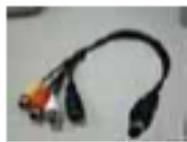
1 to 4 AV cable
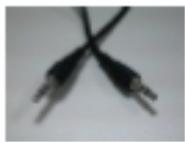
Audio cable
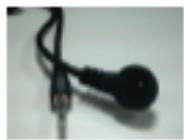
IR cable
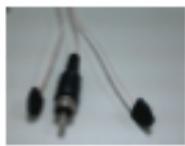
FM cable
Remote control

CD
User's manual
A4 battery
1.2 System Requirements
P3 800 (for preview); P4 1.6 or above (MPEG 4 needs 2.4) (for record)
Minimum 64 MB memory
Minimum 100 MB hard disk space available
VGA and with DirectX driver supporting 16 bit color or higher
One free PCI slot
- CD-ROM drive
Supports Microsoft Windows 98SE/Me/2000/XP, Windows XP Media Center Edition 2005
Chapter 2: Getting Started
2.1 Connect TVGo A11
TVGo A11 supports cold boot and remote boot functions for PCI bus 2.1 and above.
In order to have the PC Bios setting take effect (ref to 2.2 PC bios setting), for first time installation, please make sure
the PC system’s power cord is not connected to thepower jack even when the PC’s power is in shutdown
state. Turn on the power only after the TVGo A11 has been firmly and securely plugged into the PCI slot.
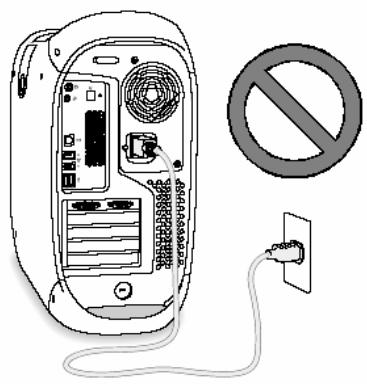
Refer to below wire connection diagram for correct connection:
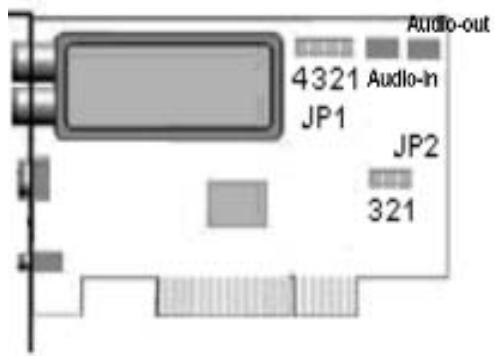
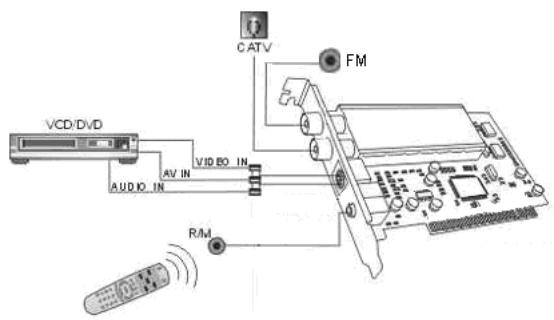
- Make sure the JP2 pin 2-3 is closed. (Factory default). (It is auto boot enable configuration, if you want to disable the auto boot function, please change to pin 1-2 close to disable the auto boot function). Internal audio connect pin (TV card to sound card).
- Connect the SVHS output device to "S-VIDEO IN".
- Connect the DVD Player or Video Recorder's video output to "VIDEO IN".
- Connect the FM cable to "FM".
- Connect the video tape recorder's audio output to the "AUDIO IN".
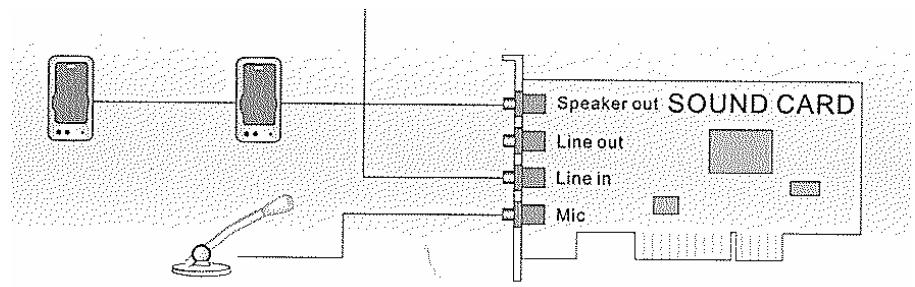
Caution: Please take special care on the Remote sensor cable, don't plug in or remove the sensor cable while the PC system is in Power on state. Otherwise, it may cause TVGo A11 hardware failure.
2.2 PC BIOS Setting
Power on the computer and system will start POST (Power On Self Test) process. When the
message below appears on the screen, press Key to enter Setup.
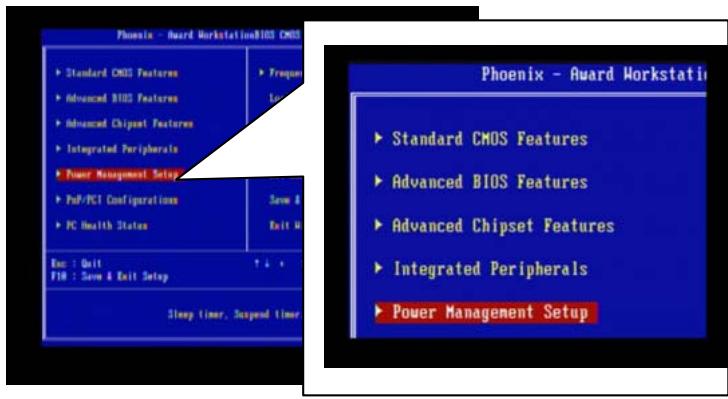
The Main Menu displays twelve configurable functions and two exit choices. Use arrow keys to move among to "Power Management Setup" and press "Enter" to enter the sub-menu.
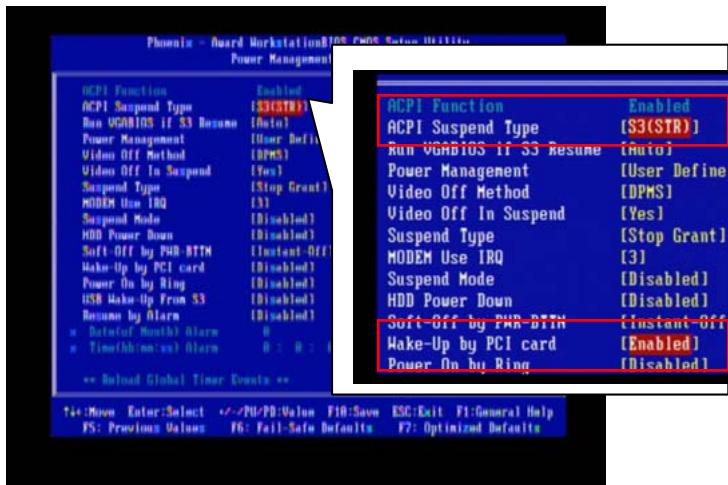
- Set the "ACPI Suspend Type" to "S3 (STR)" or "S5 (STD)".
- Set the "Wake-Up by PCI card" to "Enabled".
Remark: Auto boot recording function is base on ACPI Suspend Type "S3 (STR)" or "S5 (STD)" mode. If your computer not supports it, then this function does not work.
Caution: It is highly recommended, when the TVGo A11 card has been removed from the PC system, we recommend you to restore the ACPI setting to original setting. Only after the TVGo A11 PCI adapter been correctly plugged into the slot, will the BIOS setting be enabled.
2.3 Device Driver Installation
- Place the CD software in the CD-ROM drive, and then prepare the driver installation.
- Once you connect the TVGo A11 to the PCI slot, can just follow the system's prompted message to finish the driver installation.
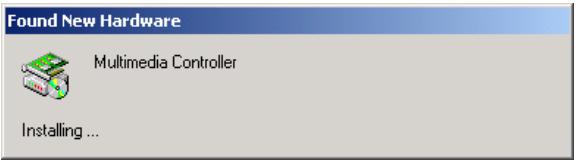
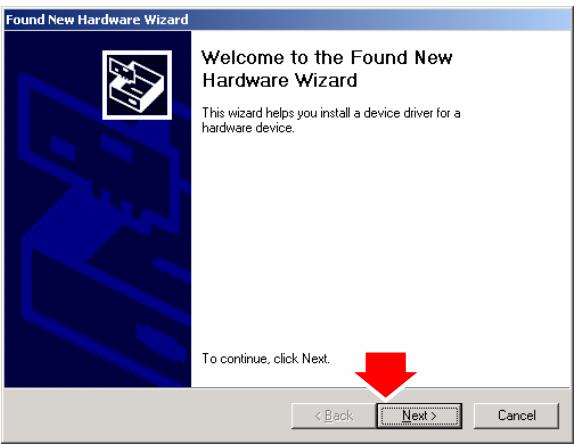
- When you insert the TVGo A11, system will show "Found New Hardware" dialogue box.
- Click "Next" to start the installation.
Found New Hardware Wizard
Install Hardware Device Drivers
A device driver is a software program that enables a hardware device to work with an operating system.

This wizard will complete the installation for this device:

Multimedia Controller
A device driver is a software program that makes a hardware device work. Windows needs driver files for your new device. To locate driver files and complete the action click Next.
at do you want the wizard to do?
Search for a suitable driver for my device (recommended)
Display a list of the known drivers for this device so that I can choose a specific driver

<Back
Next
Cancel
Found New Hardware Wizard
Locate Driver Files
Where do you want Windows to search for driver files?

Search for driver files for the following hardware device:

Multimedia Controller
The wizard searches for suitable drivers in its driver database on your computer and in any of the following optional search locations that you specify.
To start the search, click Next. If you are searching on a floppy disk or CD-ROM drive, instead the floppy disk or CD before clicking Next.
at search locations:

CD-ROM drives
Specify a location
Microsoft Windows Update

<Back
Next
Cancel
Digital Signature Not Found

The Microsoft digital signature affirms that software has been tested with Windows and that the software has not been altered since it was tested.
The software you are about to install does not contain a Microsoft digital signature. Therefore, there is no guarantee that this software works correctly with Windows.
TVGO A11 WDM Video Captures
If you want to search for Microsoft digitally signed software, visit the Windows Update Web site at http://windowsupdate.microsoft.com to see if one is available
Do you continue the installation?
No
More Info
Found New Hardware Wizard
Completing the Found New Hardware Wizard

TVGO A11 WDM Video Captures
Windows has finished installing the software for this device.
To close this wizard, click Finish.

<Back
Finish
Cancel
-
Select "Search for a suitable driver for my device [recommended]" and click "Next".
-
Select "CD-ROM driver" and click "Next" button to search driver.
-
Click "Yes" to continue the installation.
-
Click "Finish" button to finish the installation.
Found New Hardware

Unknown
Installing...
Found New Hardware Wizard
Welcome to the Found New Hardware Wizard
This wizard helps you install a device driver for a hardware device.
To continue, click Next.

<Back
Next>
Cancel
Found New Hardware Wizard
Install Hardware Device Drivers
A device driver is a software program that enables a hardware device to work with an operating system.

This wizard will complete the installation for this device:

Unknown
A device driver is a software program that makes a hardware device work. Windows
needs driver files for your new device. To locate driver files and complete the
ir click Next.

you want the wizard to do?
Search for a suitable driver for my device (recommended)
Display a list of the known drivers for this device so that I can choose a specific
driver

<Back
Next>
Cancel
Found New Hardware Wizard
Locate Driver Files
Where do you want Windows to search for driver files?


Unknown
The wizard searches for suitable drivers in its driver database on your computer and in
any of the following optional search locations that you specify.
To start the search, click Next. If you are searching on a floppy disk or CD-ROM drive,

arch locations
1 floppy disk drives
√CD-ROM drives
F
□■
Microsoft Windows Update

<Back
Next>
Cancel
- The system will detect one "Unknown" device.
- Please click "Next" to continue.
- Select the first option "Search for the best driver for your device (Recommended)", and click "Next" to continue.
- Select the option "CD-ROM device" and click "Next" to continue.
Found New Hardware Wizard
Driver Files Search Results
The wizard has finished searching for driver files for your hardware device.

The wizard found a driver for the following device:

Unknown
Windows found a driver for this device. To install the driver Windows found, click Next.

h'sphy7134.inf
<Back
Next>
Cancel
Digital Signature Not Found
The Microsoft digital signature affirms that software has been tested with Windows and that the software has not been altered since it was tested.
The software you are about to install does not contain a Microsoft digital signature. Therefore, there is no guarantee that this software works correctly with Windows.
TVGO A11 WDM TVTuner (TNF9835BDFF)
If you want to search for Microsoft digitally signed software, visit the Windows Update Web site at http://windowsupdate.microsoft.com to see if one is available.
Do you want to continue the installation?
No
More Info
Found New Hardware Wizard

Completing the Found New Hardware Wizard

TVGO A11 WDM TVTuner (TNF9835BDFF)
Windows has finished installing the software for this device.
To close this wizard, click Finish.

Finnish
Cancel
-
Click "Next" button to copy the driver.
-
Click “Yes” to continue install the "TVGo A11 WDM TV Tuner ” driver.
-
Click "Finish" to complete the installation.
-
Check your driver from Device Manager after installation.
2.4 Install DirectX
Microsoft DirectX allows 3D hardware acceleration support in Windows 98, ME, 2000, and Windows XP. For software MPEG support in Windows 98, you must first install Microsoft DirectX, and then an MPEG compliant video player.
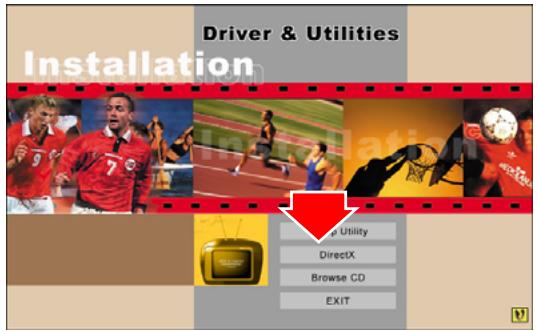
- Insert the installation CD into the CD-ROM drive. The setup will automatically appear.
- Click "Setup Utility".
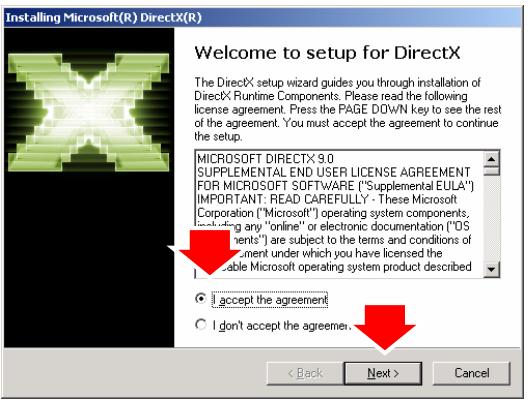
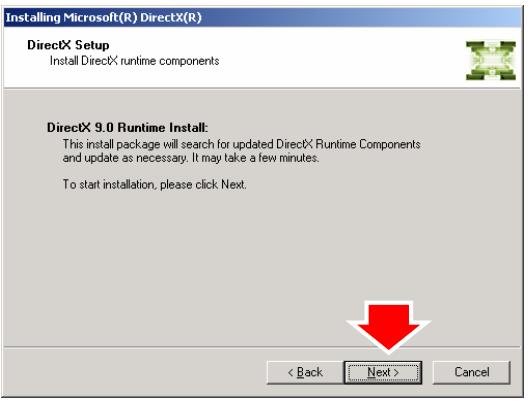
- Click " DirectX" button. The DirectX(R) setup box appears. Click "Install" button to install the driver.
- The installation program will automatically install DirectX into your system.
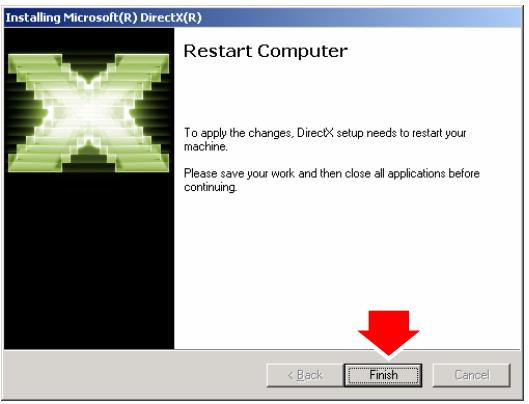
- Setup will prompt when it has finished copying all the files to your computer. Click "OK" to finish the installation.
2.5 Install TVGo A11 utility software.
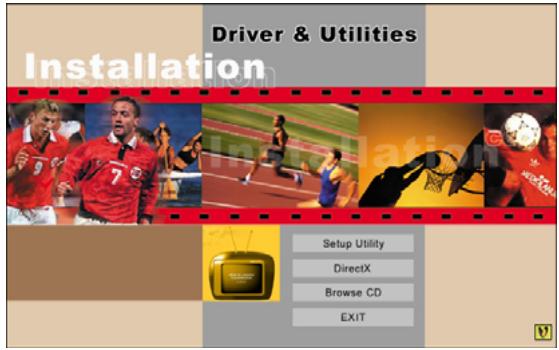


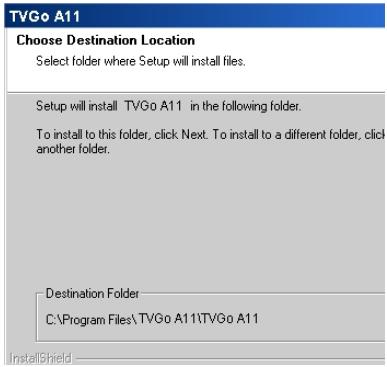
- Insert the installation CD into the CD-ROM drive. The setup will automatically appear.
- Click "Setup Utility".
- Click "Next" button to start installing.
- Please read the License Agreement and click "Next" button to begin copying files.
- Click "Next" button or choose different folder for installation.
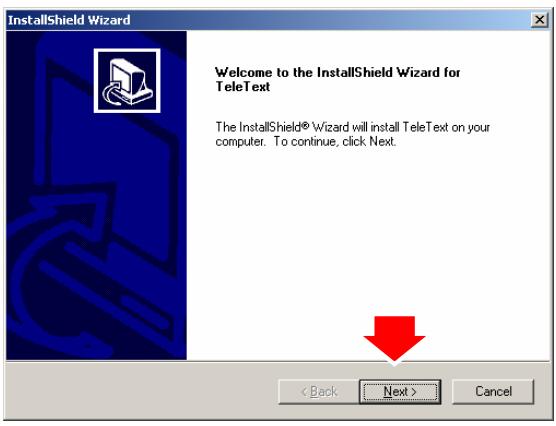
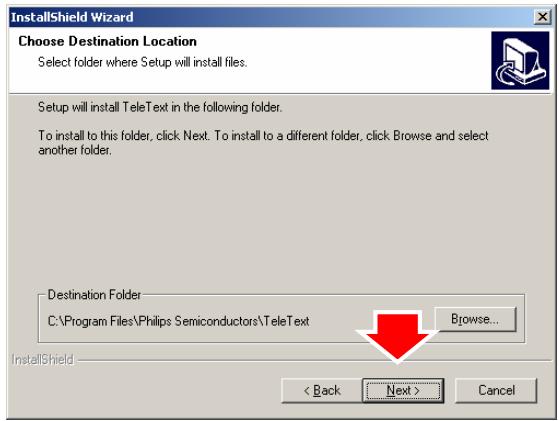
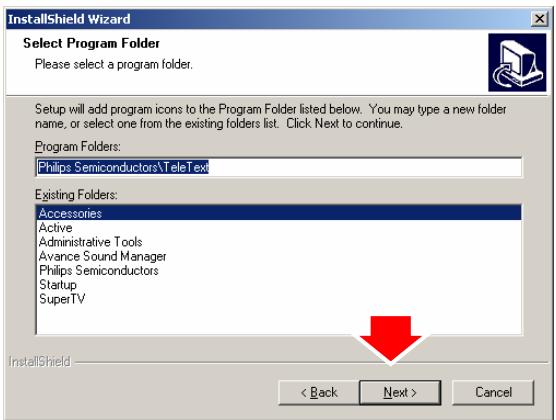
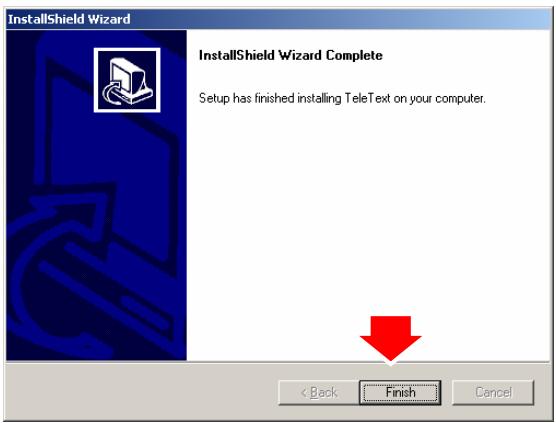
- Click "Next" button to start "Teletext" installation.
- Click "Next" button or choose different folder for installation.
- Click "Next" button or choose different folder for installation.
- Click "Finish" to complete "Teletext" installation.
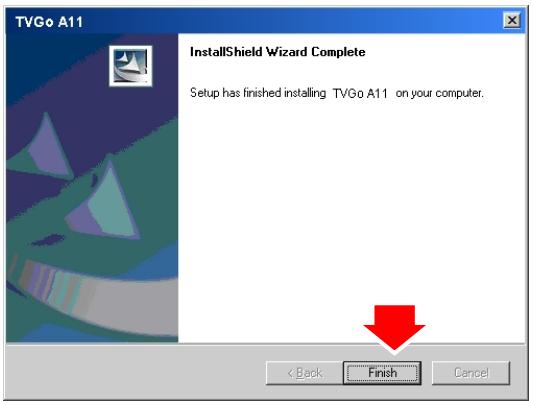
- Click "Finish" to completed "TVGo A11" installation.
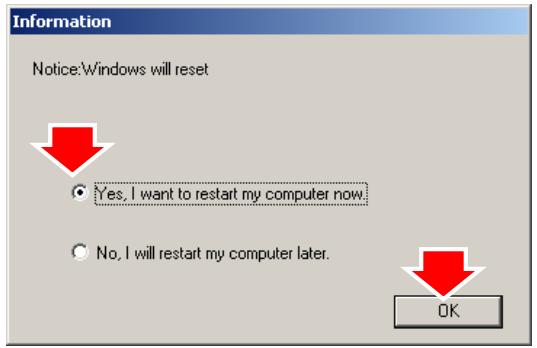
- Click "OK" to restart your system
Chapter 3: Launch the Software
3.1 Running the TVGo A11 for first time.
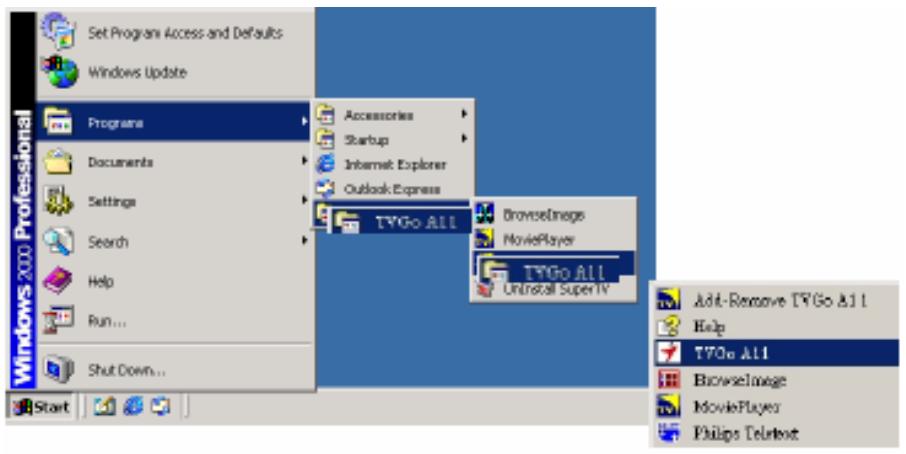
Click Start on Windows Taskbar, and then select Programs\TVGo A11\ TVGo A11
At the first time running, please choose your country and language as below
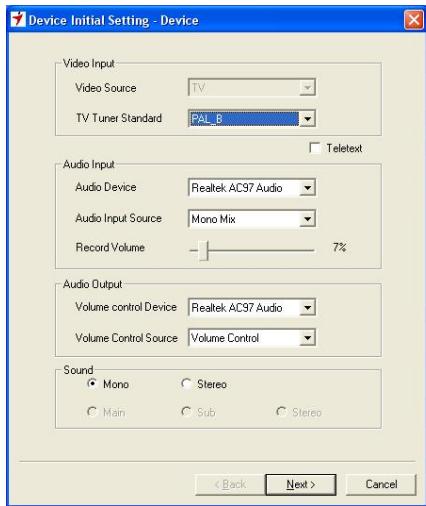
- Although the TV tuner on your TVGo A11 is fixed, you have to set up the TV system right after the first time you launch TVGo A11.
- Set the video and snapshot format and save as.
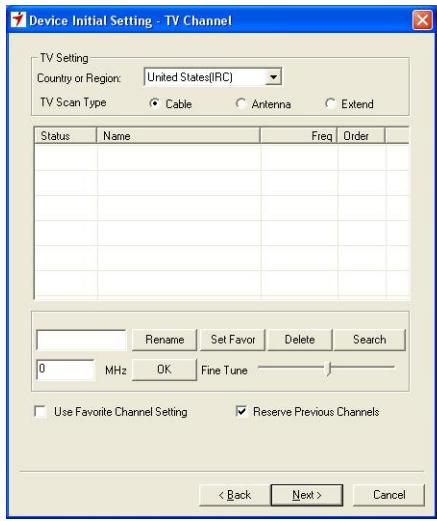
- Please choose your country and Tuner Input type then click "Search". There are two types for scan type.
i. One is scan by TV channel table, it includes "Cable" and "Antenna" table.
ii. One is scan by frequency from scan low frequency to high frequency. The "Auto" scan mode is not by TV table order.
3.2 Watch TV or VCR
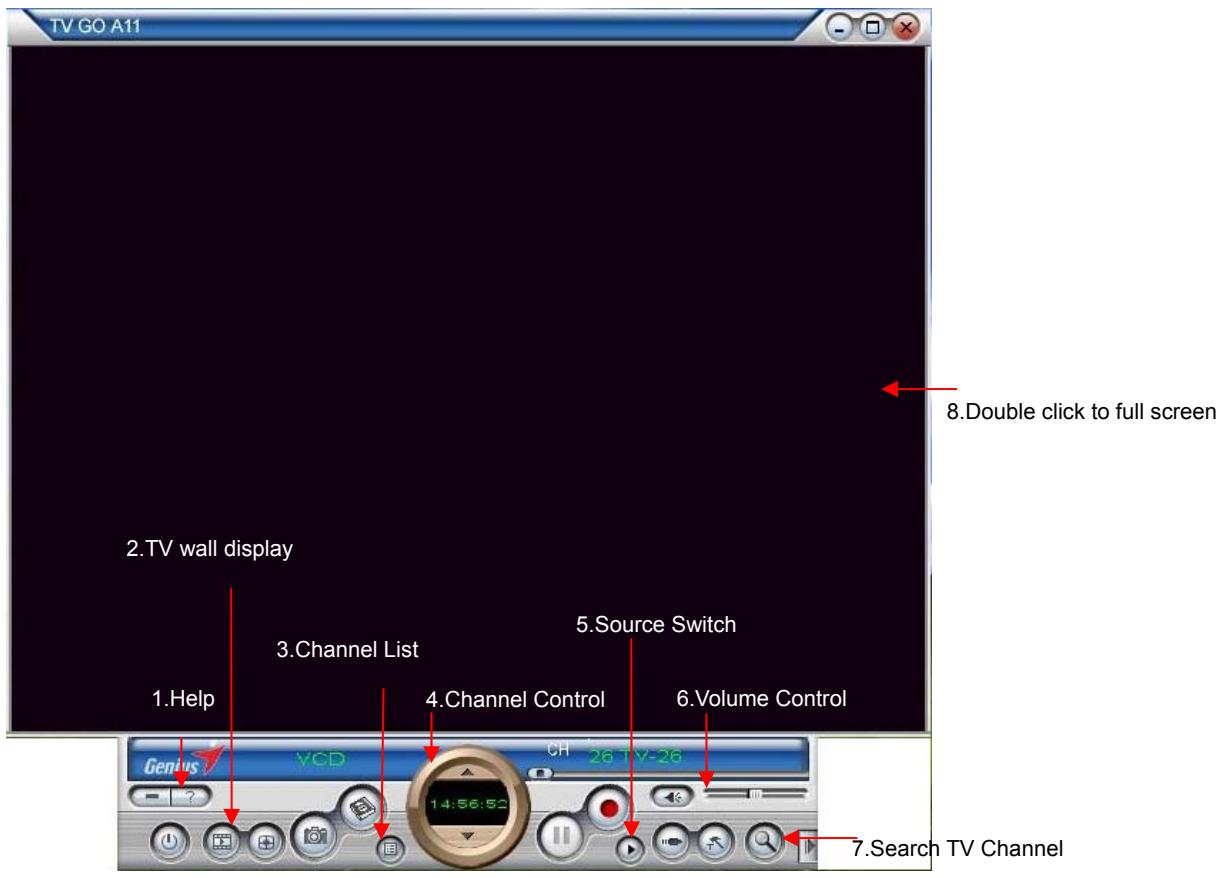
- Help: view help
- TV wall display: show 4x4 TV programs on screen.
- Channel List: This is listing all available TV channel.
- Channel control: Set channel up or down
- Source Switch: click it to select TV, Video In or S-Video In
- Volume control: Adjust the Volume or mute.
- Search TV channel: click to search available TV channel.
- Double click to full screen display.
3.3 Record Video

Click the "Setting" button to setup the record format.
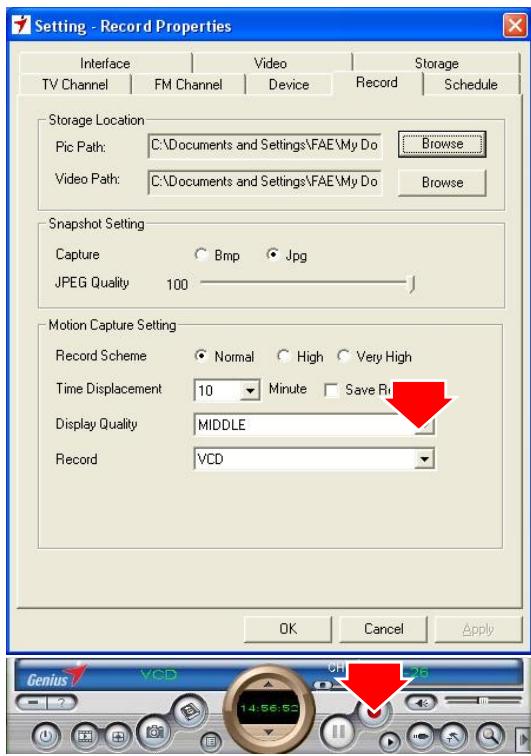
Setup the video format.
Click "Record" button to start to capture video.
3.4 Snapshot Image

Click the "Setting" button to setup the image format.
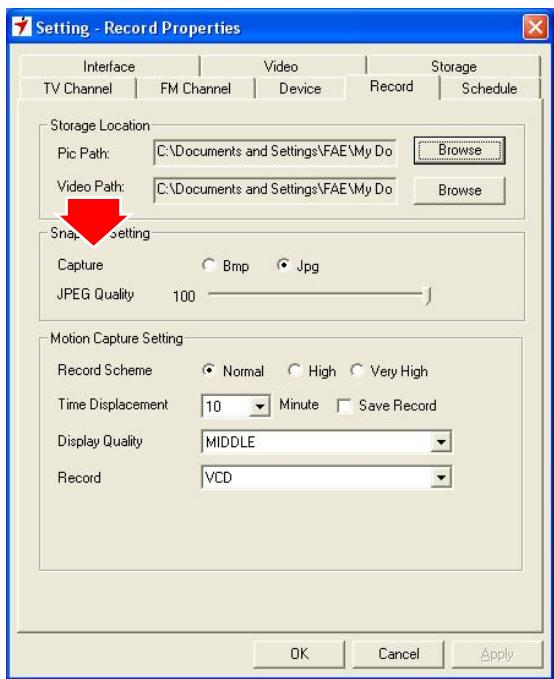
TVGo A11 supports BMP and JPEG image format. Please choose your desired format.

Click 'Snapshot' button to capture image
3.5Playback Video

Click "Play List" button to select video file.
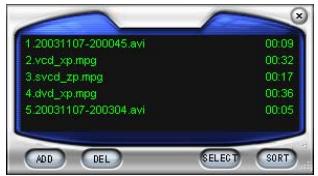
Choose the video then click "open" button.
Movie Player function List:

1 About: Shows the current version info,

2 Exit: To exit the video playback window, [Esc] or [ALT]+[F4] on keyboard.

3 Minimize: To minimize the video playback window, click "MoviePlayer" in desktop
taskbar to restore display

4 Hide Control Panel: To hide video control panel, right click video window and select
"Control Panel" to restore display

5 Setting: Click to pop-up setting dialog, you can test the video playback, for detailed
operation, please refer to "Playback Setting" page.

6 Browse Image: To launch image browse window and browse the snapshot or saved
image in your computer, for detailed operation, refer to "Image Browse" page
7 Step Backward: To reverse play video
8 Step Forward: To forward play video
9 Slow Backward: To slow reverse play video.
more to continue play

12 Fast Backward: To fast reverse play video file

13 Fast Forward: To fast forward play video file
e: To close sound, click again to restore.
15 Volume Adjust: Drag the slider to adjust volume, or Left and Right arrow on

16 Stop Play: Stop playing current video file

17 Snapshot: Save current video as BMP or JPG image
File is default named as snapshot time and saved into C:\My Pictures folder. You also can open "Snap Setting" option in "Options" dialog, set snapshot save directory, image format, and select rename after snapshot or not, for detailed operation, refer to "Playback Setting" page

18 Play List: Click to pop-up sub panel below main panel, the default list for the record
file is under the record directory, from which you can select the needed item to play.
3.6 Browse Image

Click "Browse Image" to retrieve the saved pictures.
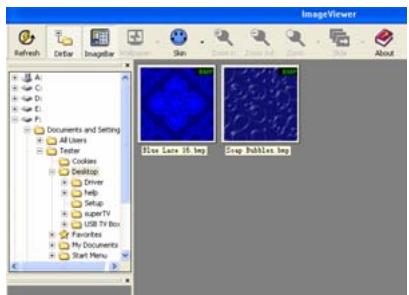
You can use the "Browse Image" software to control picture zoom in/out, or rename.
The top toolbar contains many function buttons for you to easily operate:

Refresh: To renew display snapshot image in current folder.
Path Panel: Show/Hide path panel on left of window, which is for you to easily browse and select folder.
Image Panel: Show/Hide image panel on left of window, through which you can easily preview snapshot image.
Set Wallpaper: Set the current image as wallpaper for Windows desktop, click the right drop arrow you can select wallpaper display mode.
Skin: To set appearance of image browse window, you can select your favorite panel from the right dropdown box.
Zoom out: To shrink display current image
Zoom in: To magnify current image
Match Zoom: You can select the matched display mode in the right dropdown box.
Full Size: Shows image at 100% magnification
Fit Image: Magnifies image to fit screen or window
Fit Width: Magnifies image to fit width of screen or window
Fit Height: Magnifies image to fit height of screen or window
Lock: Locks the viewer at the current magnifying level.
3.7 Listen to FM Radio


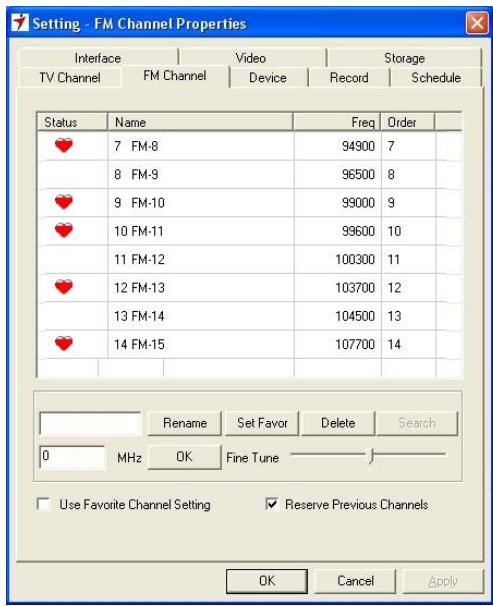
- Click the "Switch Video Source" button then switch to "FM Radio Mode".
- Click the "Setup" button to configure your setting.
- First time, please click "Search" button to scan available radio programs on the radio.
- Also you can select some radio programs then click "Use Favorite Channel list" button to set the favorite channel.
Chapter 4: Using the Remote Control
The Remote control allows you to operate TVGo A-11, such as turning your TV on/off, viewing the TV, and changing the channels and volume. Aim the front of the Remote Control at the Remote Control Receiver and press the control buttons as you would on the infrared ray receiver.
4.1 Installing Batteries
Open the back cover of the remote controller and put in two AAA batteries (alkaline battery recommended).
4.2 Remote controller functions
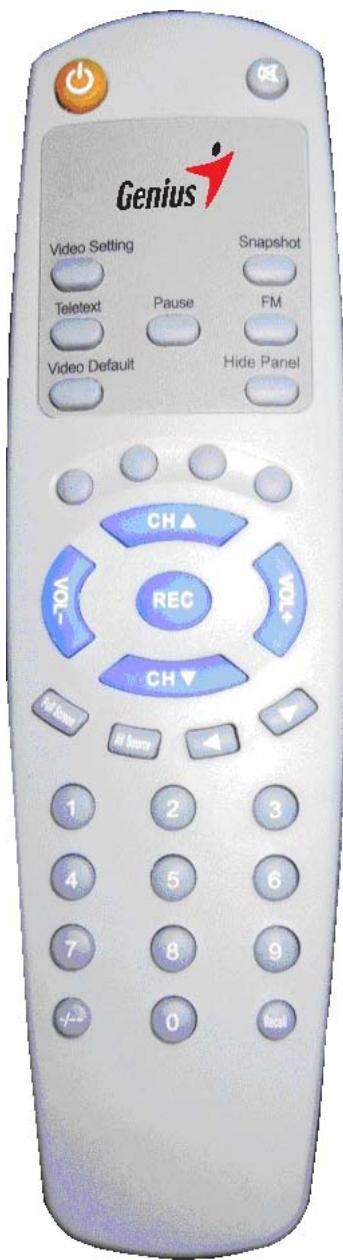
- Power: Open/Close TVGo A11 program.
- Mute: click to mute, click again to restore.
- Video Settings: click to respectively adjust video brightness, contrast, hue and saturation (use together with the right two direction keys).
- Snapshot: snapshot
- Teletext: Show Teletext Image
- Pause: Pause record.
- FM: Change source to FM Radio
- Hide Panel: hide/show control panel.
- Video Default: click to set video brightness, contrast, hue and saturation to default value.
- Volume Up/Down: click to enlarge/reduce volume.
- Channel Up/Down: click to switch previous/next channel.
- REC: record movie.
- Left and Right Arrow: to adjust video properties, e.g. brightness, contrast, hue and saturation.
- Recall: return to the channel selected last time.
- AV Source: switch among TV signal, S-VHS and AV signal.
- Full Screen: click to full-screen display video; click it again to restore the original size.